
See what people are saying
README
clgrade
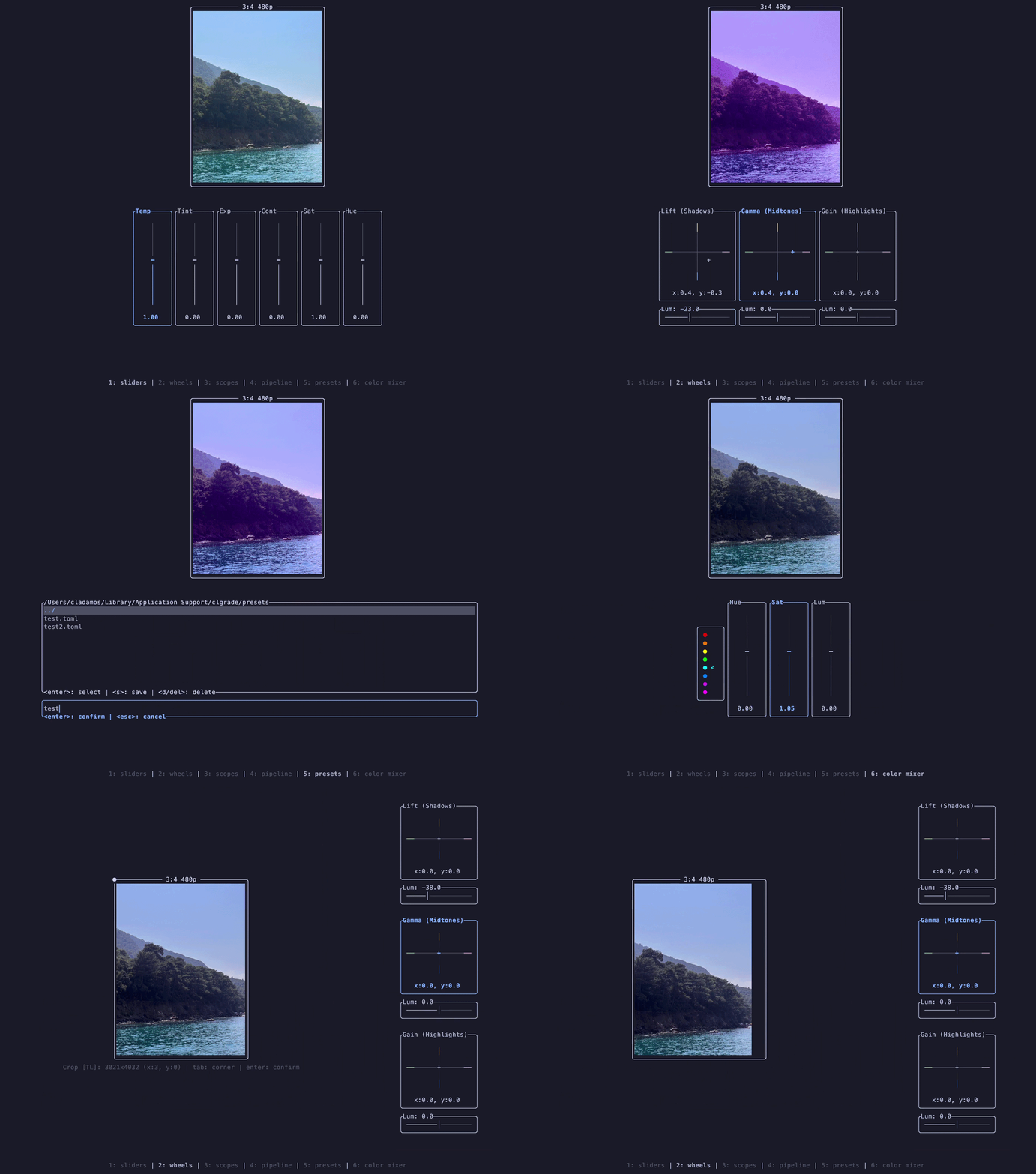
A terminal based image color grading application written in Rust using Ratatui.
Installation
1. System Dependencies
clgrade requires chafa (for terminal image rendering) and pkg-config:
Ubuntu / Debian:
sudo apt update && sudo apt install -y pkg-config libchafa-dev libglib2.0-dev
Fedora / RHEL:
sudo dnf install -y pkgconf-pkg-config chafa-devel glib2-devel
Arch Linux:
sudo pacman -S --needed pkgconf chafa glib2
macOS (Homebrew):
brew install pkg-config chafa glib
2. Install clgrade
Make sure you have Rust and Cargo installed:
cargo install --git https://github.com/cladamos/clgrade.git
Usage
You can open an image directly from the command line:
clgrade path/to/image.png
Or start without arguments and use the built-in file explorer:
clgrade
Supported Formats:
png,jpg,jpeg,webp
Key Bindings
Press ? inside the application anytime to view the help modal.
| Section | Key | Action |
|---|---|---|
| Navigation | 1 - 5 | Switch pages (Sliders, Wheels, Scopes, Pipeline, Presets) |
Tab | Switch active tool / control | |
? | Toggle help overlay | |
o | Toggle layout (Horizontal / Vertical) | |
q / Ctrl+c | Quit application | |
| Adjustments | ↑ / k, ↓ / j | Increase / Decrease value |
← / h, → / l | Adjust left / right (e.g. wheels, balance) | |
r | Reset selected tool | |
R | Reset all adjustments | |
Ctrl+z / u | Undo | |
Ctrl+r | Redo | |
| Preview | Space (hold) | View original image |
p | Toggle proxy mode | |
a / A | Change aspect ratio / resolution | |
H / Shift + ← | Rotate Counter Clockwise | |
L / Shift + → | Rotate Clockwise | |
c | Toggle crop mode | |
Enter | Confirm crop | |
Esc | Cancel crop | |
| File & Presets | f | Toggle file explorer |
Enter | Select file / load preset | |
Ctrl+s | Open export directory picker | |
s | Confirm export / save preset | |
Del / d | Delete preset |
Similar repos


Languages
Rust
100.0%
See what people are saying
README
clgrade
A terminal based image color grading application written in Rust using Ratatui.
Installation
1. System Dependencies
clgrade requires chafa (for terminal image rendering) and pkg-config:
Ubuntu / Debian:
sudo apt update && sudo apt install -y pkg-config libchafa-dev libglib2.0-dev
Fedora / RHEL:
sudo dnf install -y pkgconf-pkg-config chafa-devel glib2-devel
Arch Linux:
sudo pacman -S --needed pkgconf chafa glib2
macOS (Homebrew):
brew install pkg-config chafa glib
2. Install clgrade
Make sure you have Rust and Cargo installed:
cargo install --git https://github.com/cladamos/clgrade.git
Usage
You can open an image directly from the command line:
clgrade path/to/image.png
Or start without arguments and use the built-in file explorer:
clgrade
Supported Formats:
png,jpg,jpeg,webp
Key Bindings
Press ? inside the application anytime to view the help modal.
| Section | Key | Action |
|---|---|---|
| Navigation | 1 - 5 | Switch pages (Sliders, Wheels, Scopes, Pipeline, Presets) |
Tab | Switch active tool / control | |
? | Toggle help overlay | |
o | Toggle layout (Horizontal / Vertical) | |
q / Ctrl+c | Quit application | |
| Adjustments | ↑ / k, ↓ / j | Increase / Decrease value |
← / h, → / l | Adjust left / right (e.g. wheels, balance) | |
r | Reset selected tool | |
R | Reset all adjustments | |
Ctrl+z / u | Undo | |
Ctrl+r | Redo | |
| Preview | Space (hold) | View original image |
p | Toggle proxy mode | |
a / A | Change aspect ratio / resolution | |
H / Shift + ← | Rotate Counter Clockwise | |
L / Shift + → | Rotate Clockwise | |
c | Toggle crop mode | |
Enter | Confirm crop | |
Esc | Cancel crop | |
| File & Presets | f | Toggle file explorer |
Enter | Select file / load preset | |
Ctrl+s | Open export directory picker | |
s | Confirm export / save preset | |
Del / d | Delete preset |
Similar repos
Languages
Rust
100.0%