
A Tiny Dashboard for Network UPS Tools



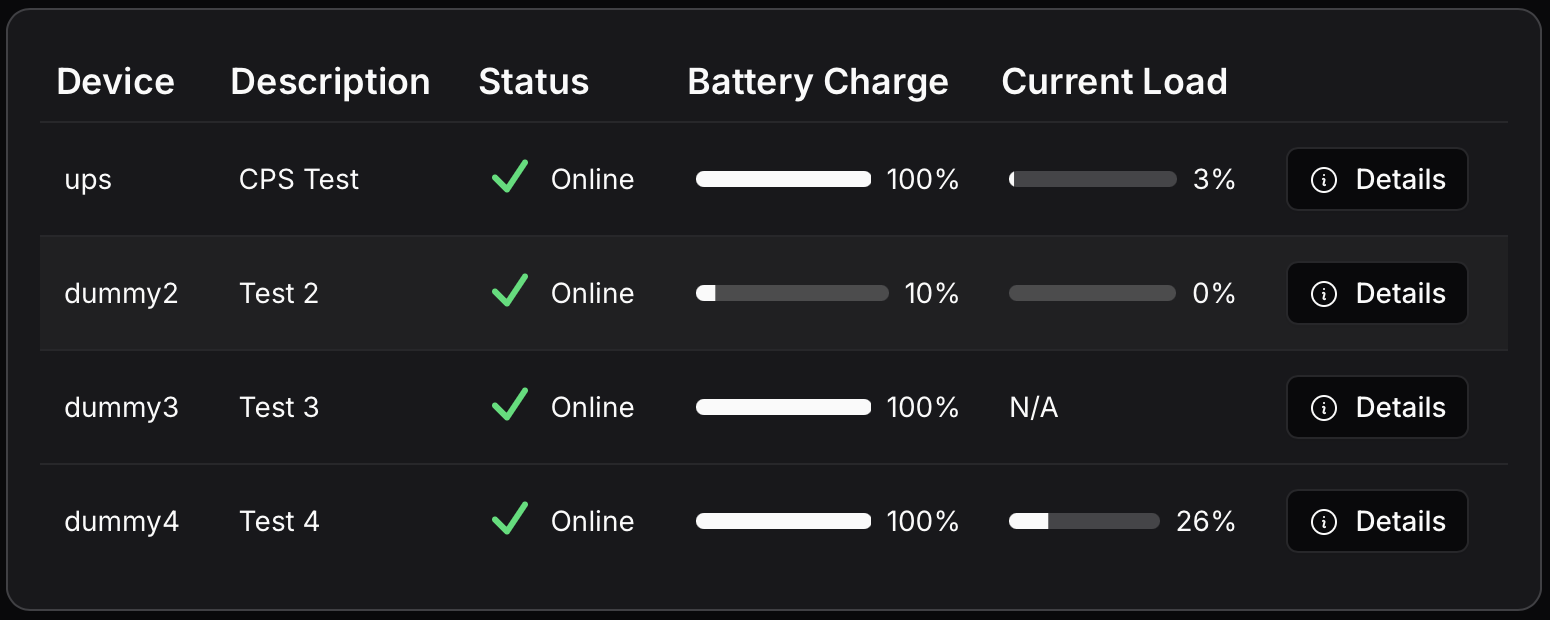
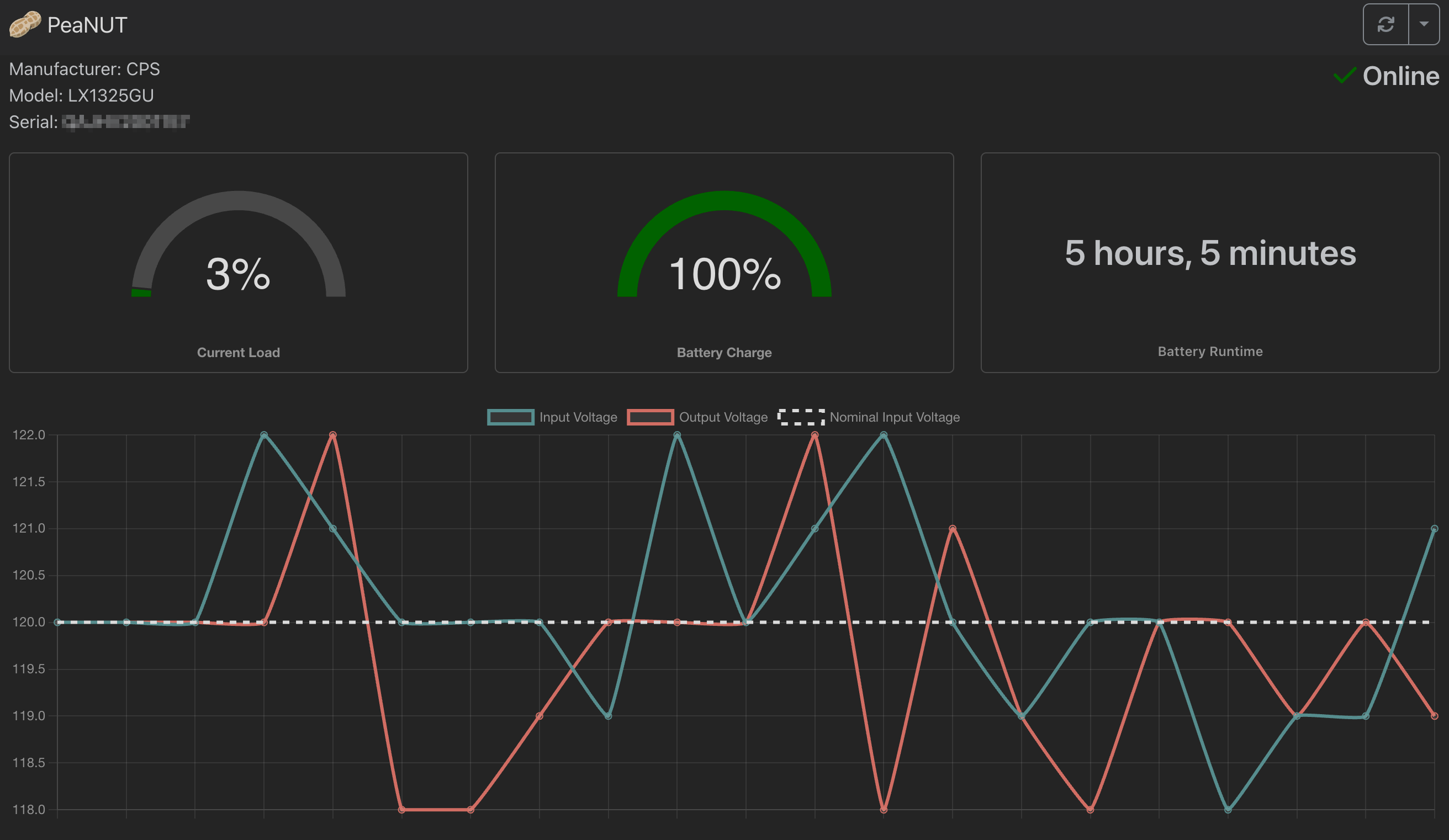
PeaNUT supports the following platforms:
linux/amd64 (x86-64)linux/arm64 (ARM 64-bit, including Raspberry Pi 4+)Note: Raspberry Pi 3 and older models (arm/v7) are no longer supported as of version 5.17.0. Please use arm64-capable hardware (Raspberry Pi 4 or newer).
Install using Docker
docker run -v ${PWD}/config:/config -p 8080:8080 --restart unless-stopped \
--env WEB_PORT=8080 brandawg93/peanut
services:
  peanut:
    image: brandawg93/peanut:latest
    container_name: PeaNUT
    restart: unless-stopped
    # The container runs as UID/GID 1000:1000. The host directory mounted at
    # /config must be writable by that user — otherwise settings made in the
    # web UI will not persist across restarts. If you see "EACCES: permission
    # denied, access '/config'" in the logs:
    #   - chown -R 1000:1000 /path/to/config        on the host, or
    #   - set `user: "<host-uid>:<host-gid>"` to match the host dir owner.
    # Note: PUID/PGID environment variables are not supported.
    volumes:
      - /path/to/config:/config
    ports:
      - 8080:8080
    environment:
      - WEB_PORT=8080
git clone https://github.com/Brandawg93/PeaNUT.git
cd PeaNUT
npm i -g pnpm # only if you don't have pnpm installed
pnpm i
pnpm run build:local
pnpm run start:local
More examples can be found in the examples folder.
| Variable | Default | Description |
|---|---|---|
| WEB_HOST | localhost | Hostname of web server |
| WEB_PORT | 8080 | Port of web server |
| WEB_USERNAME | undefined | Initial username (used for auto-creation) |
| WEB_PASSWORD | undefined | Initial password (used for auto-creation) |
| AUTH_DISABLED | false | Set to 'true' to disable authentication |
| BASE_PATH | undefined | Base path for reverse proxy |
| SSL_CERT_PATH | undefined | Path to SSL certificate file |
| SSL_KEY_PATH | undefined | Path to SSL private key file |
| DISABLE_CONFIG_FILE | undefined | If set to 'true', disables all config file saving |
| DEBUG | false | Enable debug logging for server components |
For detailed reverse proxy configuration instructions, see the Reverse Proxy Setup Wiki.
Note: If you encounter issues with missing favicon or font loading errors, please check the troubleshooting section in the wiki for additional sub_filter rules.
Configuration is primarily done via the UI, but manual configuration can be done via the /config/settings.yml file within the container. More information can be found on the wiki.
PeaNUT provides a single-user authentication system. Passwords are stored securely using bcrypt hashing.
On the first run, if no user is configured, you will be automatically redirected to a setup page to create your administrator account.
You can skip the manual setup by providing WEB_USERNAME and WEB_PASSWORD as environment variables. PeaNUT will automatically create the user account on startup if it doesn't already exist.
If you prefer to run PeaNUT without authentication, set the AUTH_DISABLED environment variable to true.
API calls require Basic Authentication (unless disabled). Include an Authorization header with the Base64 encoded credentials:
Authorization: Basic <encoded username:password>
| API Call | Description |
|---|---|
GET /api/ping | Health check endpoint that returns "pong" |
GET /api/v1/info | Retrieves information about the PeaNUT application |
GET /api/v1/version | Retrieves the version of the NUT server currently in use |
GET /api/v1/netversion | Retrieves the version of the network protocol currently in use |
GET /api/v1/devices | Retrieves information about all UPS devices |
GET /api/v1/devices/[ups] | Retrieves information about the specified UPS device |
GET /api/v1/devices/[ups]/vars | Retrieves all variables for the specified UPS device |
GET /api/v1/devices/[ups]/var/[param] | Retrieves value for a single parameter of the specified UPS device |
POST /api/v1/devices/[ups]/var/[param] | Saves value for a single parameter of the specified UPS device |
GET /api/v1/devices/[ups]/var/[param]/description | Retrieves description for a single parameter of the specified UPS device |
GET /api/v1/devices/[ups]/var/[param]/type | Retrieves type for a single parameter of the specified UPS device |
GET /api/v1/devices/[ups]/var/[param]/enum | Retrieves enum values for a single parameter of the specified UPS device |
GET /api/v1/devices/[ups]/var/[param]/range | Retrieves range values for a single parameter of the specified UPS device |
GET /api/v1/devices/[ups]/commands | Retrieves available commands for the specified UPS device |
POST /api/v1/devices/[ups]/command/[command] | Executes a given command for the specified UPS device |
GET /api/v1/devices/[ups]/command/[command]/description | Retrieves description for a single command of the specified UPS device |
GET /api/v1/devices/[ups]/description | Retrieves the description for the specified UPS device |
GET /api/v1/devices/[ups]/clients | Retrieves the connected clients for the specified UPS device |
GET /api/v1/devices/[ups]/rwvars | Retrieves writable variables for the specified UPS device |
GET /api/v1/metrics | Metrics endpoint for prometheus |
GET /api/ws | WebSocket endpoint for direct NUT server communication |
By default, API responses contain only values returned by the NUT server. You can opt-in to include PeaNUT-specific metadata by adding ?meta=true to requests.
When enabled for GET /api/v1/devices, each device object will include:
peanut.device_id: The NUT device identifier (UPS name)peanut.server: The NUT server host:port that provided the dataWhen enabled for GET /api/v1/devices/[ups], the response will include the same fields.
For information about how to set up Homepage, check the Homepage docs.
Ex:
widget:
  type: peanut
  url: http://peanut.host.or.ip:port
  key: nameofyourups
Or use the customapi widget for complete customization!
Ex:
widget:
  type: customapi
  url: http://{HOSTNAME}:{PORT}/api/v1/devices/{UPS_NAME}
  mappings:
    - field: battery.charge
      label: Battery Charge
      format: percent
    - field: battery.runtime
      label: Battery Runtime
      format: duration
    - field: ups.load
      label: UPS Load
      format: percent
    - field: ups.status
      label: UPS Status
      format: text
      remap:
        - value: OL
          to: Online
        - value: OB
          to: On Battery
        - value: LB
          to: Low Battery
        - any: true
          to: Unknown
For information about how to set up Glance, check the Glance docs.
Example:

- type: custom-api
  title: UPS
  cache: 5m
  url: http://{HOSTNAME}:{PORT}/api/v1/devices/{UPS_NAME}
  template: |
    {{ if .JSON.Exists "ups\\.status" }}
      {{ $jsonStatus := .JSON.String "ups\\.status" }}
      <div class="flex justify-between text-center">
        <div>
          <div class="color-highlight size-h3">{{ .JSON.Int "battery\\.charge" | formatNumber }}%</div>
          <div class="size-h6">BATTERY CHARGE</div>
        </div>
        <div>
          <div class="color-highlight size-h3">{{ concat (.JSON.String "battery\\.runtime") "s" | duration }} ({{ div (.JSON.Int "battery\\.runtime") 60 | formatNumber }} Wh)</div>
          <div class="size-h6">BATTERY RUNTIME</div>
        </div>
        <div>
          <div class="color-highlight size-h3">{{ .JSON.Int "ups\\.load" | formatNumber }}% ({{ .JSON.Int "ups\\.realpower" | formatNumber }} W / {{ .JSON.Int "ups\\.power" | formatNumber }} VA)</div>
          <div class="size-h6">UPS LOAD</div>
        </div>
        <div>
          <div class="color-highlight size-h3">
      {{ if eq $jsonStatus "OL" }}
          Online
      {{ else if eq $jsonStatus "OL CHRG" }}
            Online Charging
      {{ else if eq $jsonStatus "OB" }}
            On Battery
      {{ else if eq $jsonStatus "OB DISCHRG" }}
            On Battery Discharging
      {{ else if eq $jsonStatus "LB" }}
            Low Battery
      {{ else }}
            Unknown
      {{ end }}
          </div>
          <div class="size-h6">UPS STATUS</div>
        </div>
      </div>
    {{ else }}
      <div class="widget-error-header">
        <div class="color-negative size-h3">ERROR</div>
        <svg class="widget-error-icon" xmlns="http://www.w3.org/2000/svg" fill="none" viewBox="0 0 24 24" stroke-width="1.5">
            <path stroke-linecap="round" stroke-linejoin="round" d="M12 9v3.75m-9.303 3.376c-.866 1.5.217 3.374 1.948 3.374h14.71c1.73 0 2.813-1.874 1.948-3.374L13.949 3.378c-.866-1.5-3.032-1.5-3.898 0L2.697 16.126ZM12 15.75h.007v.008H12v-.008Z"></path>
        </svg>
      </div>
      <p class="break-all">UPS is unavailable</p>
    {{ end }}
Question: Chokidar is using lots of resources on my machine.
Answer: If you are using a Networked File Share, please see #142.
Question: Why can't I see multiple NUT devices on the display?
Answer: In order for PeaNUT to display multiple NUT devices, each UPS must have a unique identifier in the corresponding NUT configuration file. Make sure each UPS device has a distinct name/identifier in your NUT configuration to avoid conflicts and ensure proper display of all devices.
A wiki has been compiled of tested UPS devices. Feel free to look there for your device or add your device to the list by submitting an issue with the tested device label.
This project was made with you in mind. If you would like to show your appreciation for its continued development, please consider sponsoring me on Github.
1,115 followers · starred Jul 2025
133 followers · starred Aug 2026
78 followers · starred Mar 2025
215 followers · starred Apr 2025
A Tiny Dashboard for Network UPS Tools
PeaNUT supports the following platforms:
linux/amd64 (x86-64)linux/arm64 (ARM 64-bit, including Raspberry Pi 4+)Note: Raspberry Pi 3 and older models (arm/v7) are no longer supported as of version 5.17.0. Please use arm64-capable hardware (Raspberry Pi 4 or newer).
Install using Docker
docker run -v ${PWD}/config:/config -p 8080:8080 --restart unless-stopped \
--env WEB_PORT=8080 brandawg93/peanut
services:
  peanut:
    image: brandawg93/peanut:latest
    container_name: PeaNUT
    restart: unless-stopped
    # The container runs as UID/GID 1000:1000. The host directory mounted at
    # /config must be writable by that user — otherwise settings made in the
    # web UI will not persist across restarts. If you see "EACCES: permission
    # denied, access '/config'" in the logs:
    #   - chown -R 1000:1000 /path/to/config        on the host, or
    #   - set `user: "<host-uid>:<host-gid>"` to match the host dir owner.
    # Note: PUID/PGID environment variables are not supported.
    volumes:
      - /path/to/config:/config
    ports:
      - 8080:8080
    environment:
      - WEB_PORT=8080
git clone https://github.com/Brandawg93/PeaNUT.git
cd PeaNUT
npm i -g pnpm # only if you don't have pnpm installed
pnpm i
pnpm run build:local
pnpm run start:local
More examples can be found in the examples folder.
| Variable | Default | Description |
|---|---|---|
| WEB_HOST | localhost | Hostname of web server |
| WEB_PORT | 8080 | Port of web server |
| WEB_USERNAME | undefined | Initial username (used for auto-creation) |
| WEB_PASSWORD | undefined | Initial password (used for auto-creation) |
| AUTH_DISABLED | false | Set to 'true' to disable authentication |
| BASE_PATH | undefined | Base path for reverse proxy |
| SSL_CERT_PATH | undefined | Path to SSL certificate file |
| SSL_KEY_PATH | undefined | Path to SSL private key file |
| DISABLE_CONFIG_FILE | undefined | If set to 'true', disables all config file saving |
| DEBUG | false | Enable debug logging for server components |
For detailed reverse proxy configuration instructions, see the Reverse Proxy Setup Wiki.
Note: If you encounter issues with missing favicon or font loading errors, please check the troubleshooting section in the wiki for additional sub_filter rules.
Configuration is primarily done via the UI, but manual configuration can be done via the /config/settings.yml file within the container. More information can be found on the wiki.
PeaNUT provides a single-user authentication system. Passwords are stored securely using bcrypt hashing.
On the first run, if no user is configured, you will be automatically redirected to a setup page to create your administrator account.
You can skip the manual setup by providing WEB_USERNAME and WEB_PASSWORD as environment variables. PeaNUT will automatically create the user account on startup if it doesn't already exist.
If you prefer to run PeaNUT without authentication, set the AUTH_DISABLED environment variable to true.
API calls require Basic Authentication (unless disabled). Include an Authorization header with the Base64 encoded credentials:
Authorization: Basic <encoded username:password>
| API Call | Description |
|---|---|
GET /api/ping | Health check endpoint that returns "pong" |
GET /api/v1/info | Retrieves information about the PeaNUT application |
GET /api/v1/version | Retrieves the version of the NUT server currently in use |
GET /api/v1/netversion | Retrieves the version of the network protocol currently in use |
GET /api/v1/devices | Retrieves information about all UPS devices |
GET /api/v1/devices/[ups] | Retrieves information about the specified UPS device |
GET /api/v1/devices/[ups]/vars | Retrieves all variables for the specified UPS device |
GET /api/v1/devices/[ups]/var/[param] | Retrieves value for a single parameter of the specified UPS device |
POST /api/v1/devices/[ups]/var/[param] | Saves value for a single parameter of the specified UPS device |
GET /api/v1/devices/[ups]/var/[param]/description | Retrieves description for a single parameter of the specified UPS device |
GET /api/v1/devices/[ups]/var/[param]/type | Retrieves type for a single parameter of the specified UPS device |
GET /api/v1/devices/[ups]/var/[param]/enum | Retrieves enum values for a single parameter of the specified UPS device |
GET /api/v1/devices/[ups]/var/[param]/range | Retrieves range values for a single parameter of the specified UPS device |
GET /api/v1/devices/[ups]/commands | Retrieves available commands for the specified UPS device |
POST /api/v1/devices/[ups]/command/[command] | Executes a given command for the specified UPS device |
GET /api/v1/devices/[ups]/command/[command]/description | Retrieves description for a single command of the specified UPS device |
GET /api/v1/devices/[ups]/description | Retrieves the description for the specified UPS device |
GET /api/v1/devices/[ups]/clients | Retrieves the connected clients for the specified UPS device |
GET /api/v1/devices/[ups]/rwvars | Retrieves writable variables for the specified UPS device |
GET /api/v1/metrics | Metrics endpoint for prometheus |
GET /api/ws | WebSocket endpoint for direct NUT server communication |
By default, API responses contain only values returned by the NUT server. You can opt-in to include PeaNUT-specific metadata by adding ?meta=true to requests.
When enabled for GET /api/v1/devices, each device object will include:
peanut.device_id: The NUT device identifier (UPS name)peanut.server: The NUT server host:port that provided the dataWhen enabled for GET /api/v1/devices/[ups], the response will include the same fields.
For information about how to set up Homepage, check the Homepage docs.
Ex:
widget:
  type: peanut
  url: http://peanut.host.or.ip:port
  key: nameofyourups
Or use the customapi widget for complete customization!
Ex:
widget:
  type: customapi
  url: http://{HOSTNAME}:{PORT}/api/v1/devices/{UPS_NAME}
  mappings:
    - field: battery.charge
      label: Battery Charge
      format: percent
    - field: battery.runtime
      label: Battery Runtime
      format: duration
    - field: ups.load
      label: UPS Load
      format: percent
    - field: ups.status
      label: UPS Status
      format: text
      remap:
        - value: OL
          to: Online
        - value: OB
          to: On Battery
        - value: LB
          to: Low Battery
        - any: true
          to: Unknown
For information about how to set up Glance, check the Glance docs.
Example:
- type: custom-api
  title: UPS
  cache: 5m
  url: http://{HOSTNAME}:{PORT}/api/v1/devices/{UPS_NAME}
  template: |
    {{ if .JSON.Exists "ups\\.status" }}
      {{ $jsonStatus := .JSON.String "ups\\.status" }}
      <div class="flex justify-between text-center">
        <div>
          <div class="color-highlight size-h3">{{ .JSON.Int "battery\\.charge" | formatNumber }}%</div>
          <div class="size-h6">BATTERY CHARGE</div>
        </div>
        <div>
          <div class="color-highlight size-h3">{{ concat (.JSON.String "battery\\.runtime") "s" | duration }} ({{ div (.JSON.Int "battery\\.runtime") 60 | formatNumber }} Wh)</div>
          <div class="size-h6">BATTERY RUNTIME</div>
        </div>
        <div>
          <div class="color-highlight size-h3">{{ .JSON.Int "ups\\.load" | formatNumber }}% ({{ .JSON.Int "ups\\.realpower" | formatNumber }} W / {{ .JSON.Int "ups\\.power" | formatNumber }} VA)</div>
          <div class="size-h6">UPS LOAD</div>
        </div>
        <div>
          <div class="color-highlight size-h3">
      {{ if eq $jsonStatus "OL" }}
          Online
      {{ else if eq $jsonStatus "OL CHRG" }}
            Online Charging
      {{ else if eq $jsonStatus "OB" }}
            On Battery
      {{ else if eq $jsonStatus "OB DISCHRG" }}
            On Battery Discharging
      {{ else if eq $jsonStatus "LB" }}
            Low Battery
      {{ else }}
            Unknown
      {{ end }}
          </div>
          <div class="size-h6">UPS STATUS</div>
        </div>
      </div>
    {{ else }}
      <div class="widget-error-header">
        <div class="color-negative size-h3">ERROR</div>
        <svg class="widget-error-icon" xmlns="http://www.w3.org/2000/svg" fill="none" viewBox="0 0 24 24" stroke-width="1.5">
            <path stroke-linecap="round" stroke-linejoin="round" d="M12 9v3.75m-9.303 3.376c-.866 1.5.217 3.374 1.948 3.374h14.71c1.73 0 2.813-1.874 1.948-3.374L13.949 3.378c-.866-1.5-3.032-1.5-3.898 0L2.697 16.126ZM12 15.75h.007v.008H12v-.008Z"></path>
        </svg>
      </div>
      <p class="break-all">UPS is unavailable</p>
    {{ end }}
Question: Chokidar is using lots of resources on my machine.
Answer: If you are using a Networked File Share, please see #142.
Question: Why can't I see multiple NUT devices on the display?
Answer: In order for PeaNUT to display multiple NUT devices, each UPS must have a unique identifier in the corresponding NUT configuration file. Make sure each UPS device has a distinct name/identifier in your NUT configuration to avoid conflicts and ensure proper display of all devices.
A wiki has been compiled of tested UPS devices. Feel free to look there for your device or add your device to the list by submitting an issue with the tested device label.
This project was made with you in mind. If you would like to show your appreciation for its continued development, please consider sponsoring me on Github.
1,115 followers · starred Jul 2025
133 followers · starred Aug 2026
78 followers · starred Mar 2025
215 followers · starred Apr 2025



