Self-hosted file manager & sharing with a web UI, in one Go binary - open-source alternative to Nextcloud, Dropbox and Google Drive. Web-based file browser for local, S3, SFTP, WebDAV, FTP and SMB storage: private cloud served as S3, SFTP, NFS, WebDAV. SSO/LDAP, multi-tenant, encrypted folders, embeddable web component, desktop app, MCP server.
See the code
Self-hosted file manager & sharing with a web UI, in one Go binary - open-source alternative to Nextcloud, Dropbox and Google Drive.
Web-based file browser for local, S3, SFTP, WebDAV, FTP and SMB storage: private cloud served as S3, SFTP, NFS, WebDAV.
SSO/LDAP, multi-tenant, encrypted folders, embeddable web component, desktop app, MCP server.



English · Türkçe · Deutsch · Español · Français · 简体中文

|
🗂️ Every storage, one tree Mount what you already have side by side, and copy or cut in one storage and paste in another. Point |
🔗 Share and protect Links with a PIN, an expiry and a download limit. Trash, version history and end-to-end encrypted folders. |
|
🔑 Your accounts, your roles OIDC, LDAP / Active Directory or the Windows and Linux accounts of the server. Roles, groups, multi-tenant. |
💻 A desktop app with live folder sync Windows, Linux and macOS (Apple Silicon): an edit on either side arrives in about a second. |
|
🧩 Embeds in your product The same UI as a Vue 3 component, a React component and a |
🤖 Apps and AI agents Sandboxed apps - e-Signature, Convert, draw.io - and a built-in MCP server an agent can drive. |
Why filex · Coming from another tool · Self-host · Features
[!TIP] Look before you install: demo.filex.sh - sign in with
demo@demo.com/demo(admin role, sandbox resets nightly).
Run your own, from the folder you want to serve:
docker run -p 5212:5212 \
  -e FILEX_DEFAULT_STORAGE_DRIVER=local -e FILEX_DEFAULT_STORAGE_PATH=/srv/files \
  -v filex-data:/data -v "$PWD:/srv/files" \
  ghcr.io/brf-tech/filex:latest
Open http://localhost:5212/admin - the first run prints admin credentials and embed instructions to the console. That URL is the operator's; the people you give accounts to get http://localhost:5212/drive, the same file manager without the panel around it.
That serves the folder you ran it in - open the UI and your files are already
there. /data is filex's own directory (SQLite database, search index, thumbnail cache),
which is why it is a named volume and not the folder you drop files into; the two are
separate on purpose. Point $PWD somewhere else, or add more storages from the admin
panel later - a bucket with several top-level folders can be mounted as one storage
per folder in one go (Storages → Add storage → Mount several folders at once).
The container runs as root by default, so what it writes into /data is root-owned;
set PUID/PGID to run it as yourself
(docs/DOCKER.md).
Download the archive for your platform from the latest release, extract it and run the binary (docs/INSTALLATION.md):
# Download from https://github.com/BRF-Tech/filex/releases
./filex serve
═══════════════════════════════════════════════════════════════
  filex · self-hosted file manager
═══════════════════════════════════════════════════════════════
  Listening on:   http://0.0.0.0:5212
  Admin UI:       http://0.0.0.0:5212/admin
  Files UI:       http://0.0.0.0:5212/drive
  Embed JS:       http://0.0.0.0:5212/embed.js

  First run detected. Initial admin user created:
    Email:    admin@local
    Password: <printed once>
  Saved to:  ~/.filex/.first-run.txt (mode 0600, shown ONCE)
  Change at: /admin/dashboard?settings=1
═══════════════════════════════════════════════════════════════
For a real deployment there are Compose stacks and a Helm chart: Self-host with Compose or Helm. The image is on GitHub Packages.
Most self-hosted file managers are either too small (a directory listing with uploads) or too big (a groupware suite you deploy for the file tab). filex aims at the gap. The tour below has eight parts: each opens with the short version, and the long one is folded under it.
A file manager people already know how to use.
user or
viewer account and …/drive and they get the file manager itself: their storages,
uploads, sharing, search, the editor. No admin panel to walk through, no separate
frontend to deploy. …/admin is the operator's door to the same app.uiProfile: 'simple' presets the rest
of the chrome off - one pane, one folder, list or grid. One explorer in every case:
there is no second UI to keep in step.|
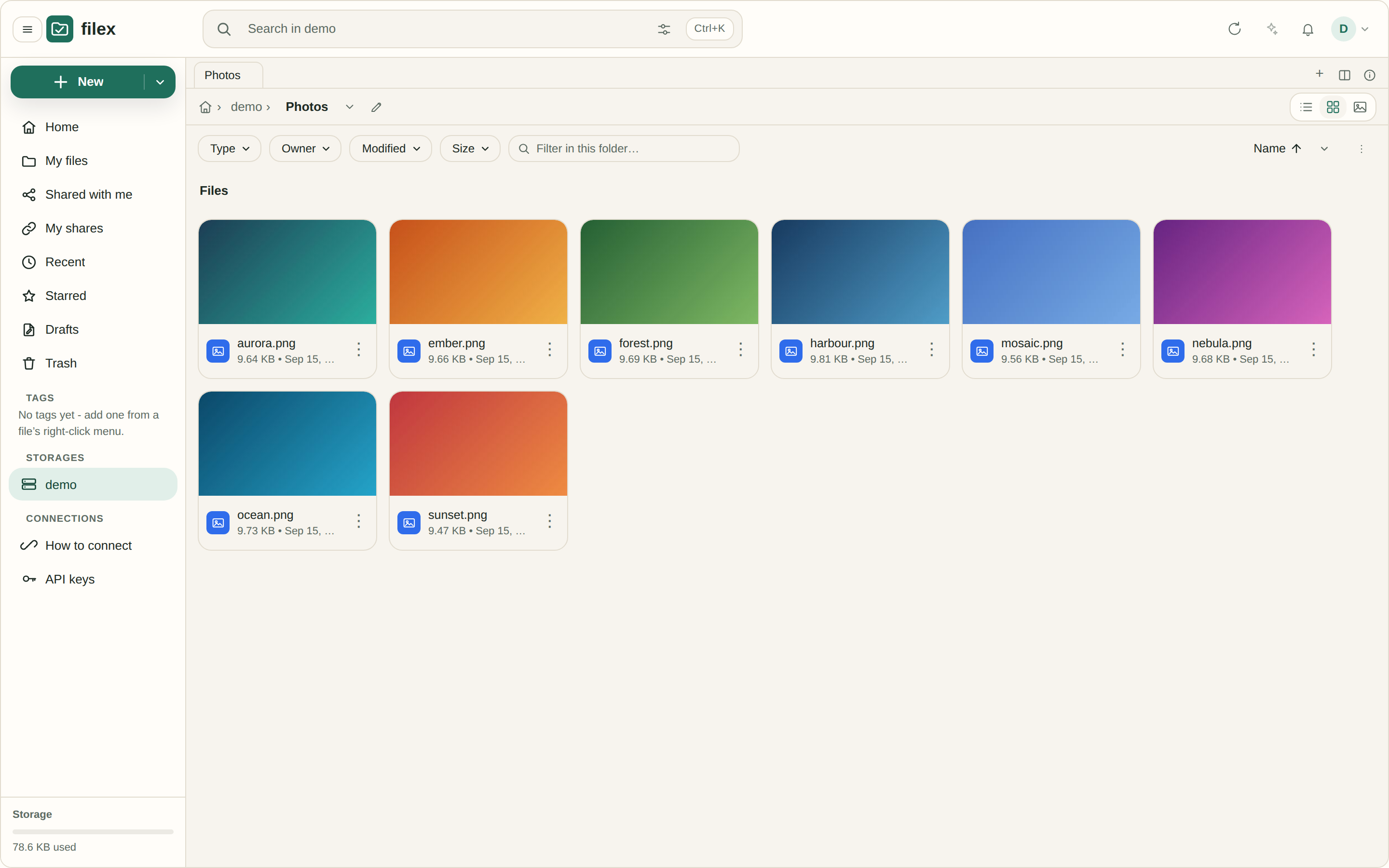
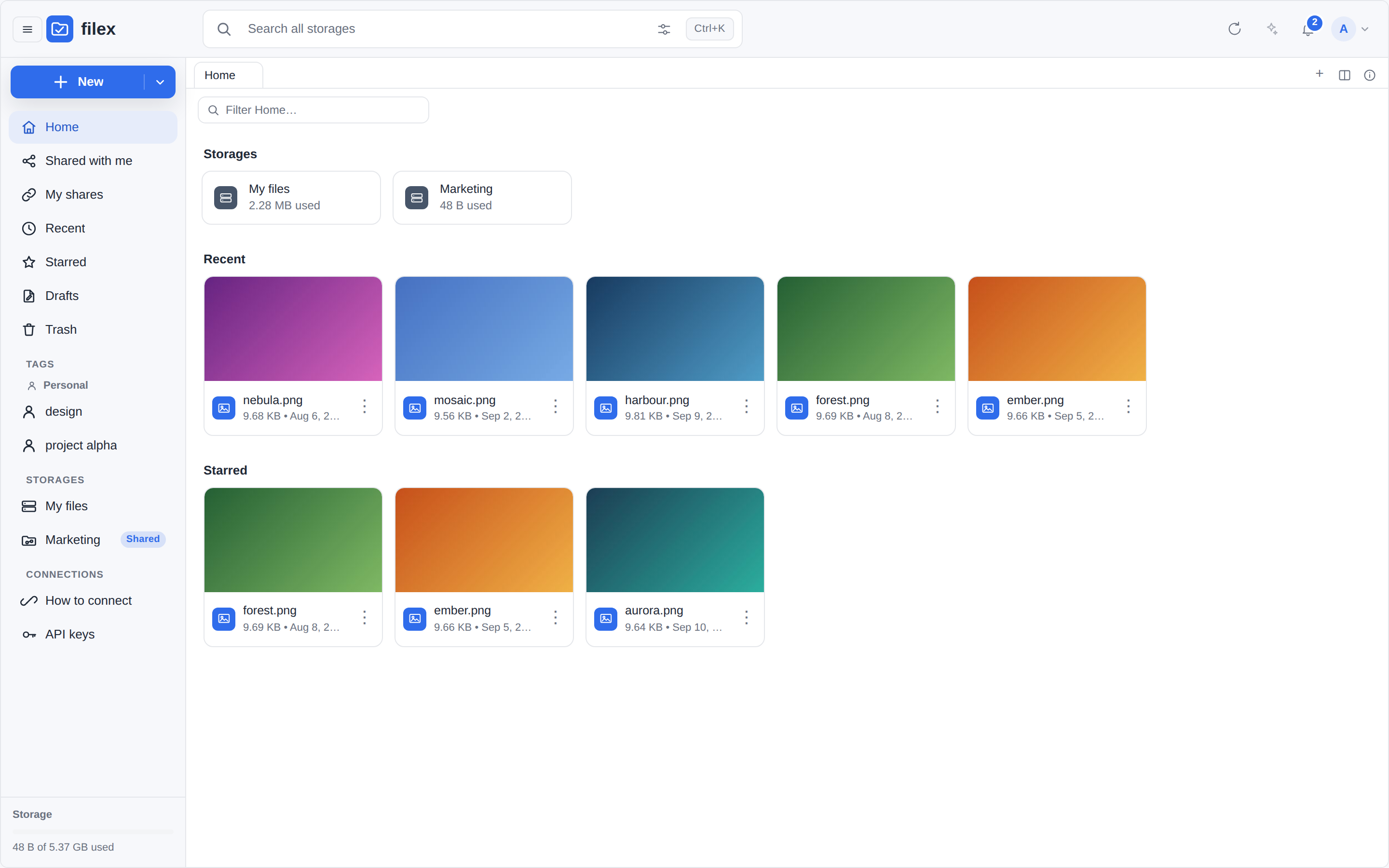
The shell - what everybody lands on |
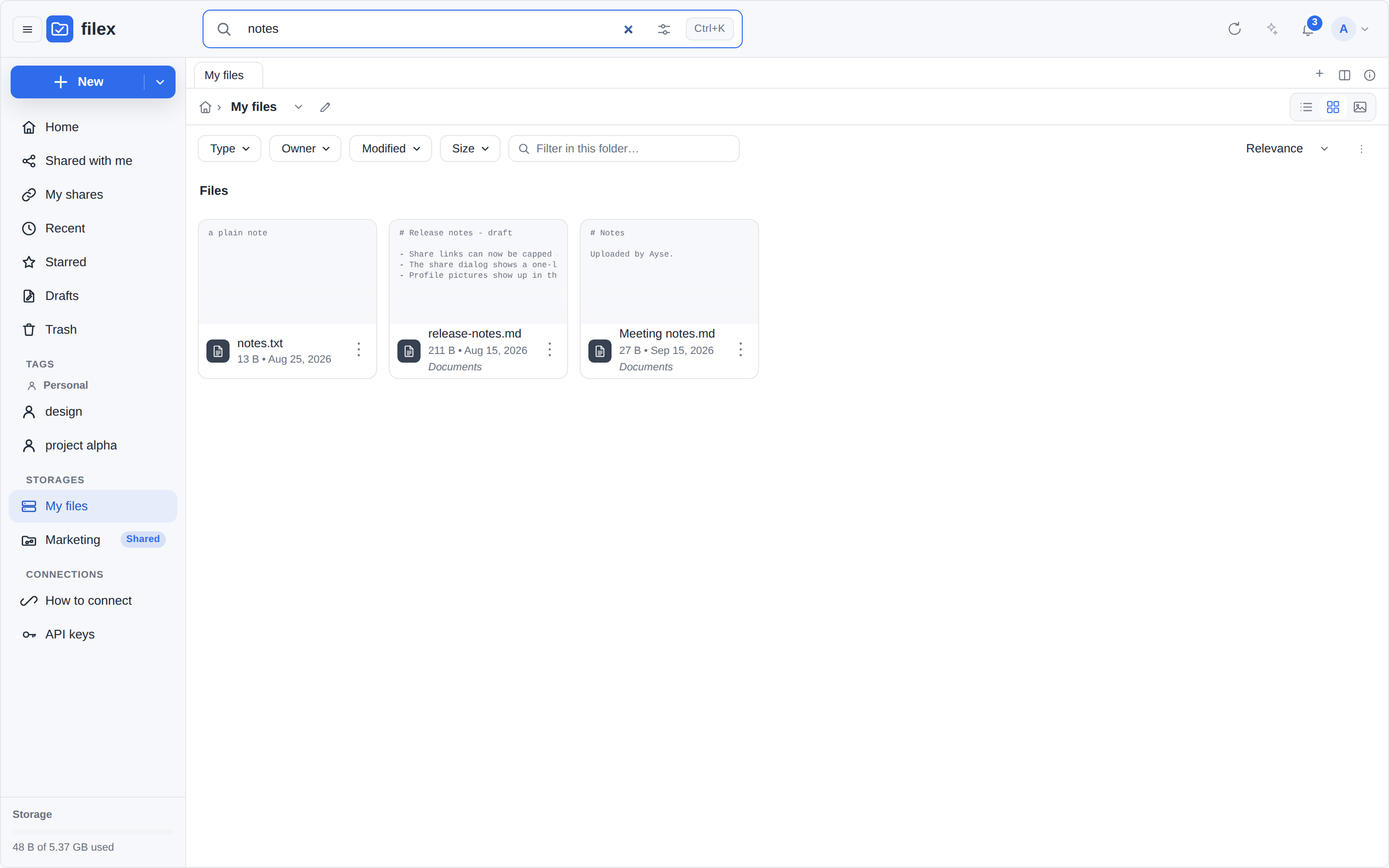
Searching this folder; |
|
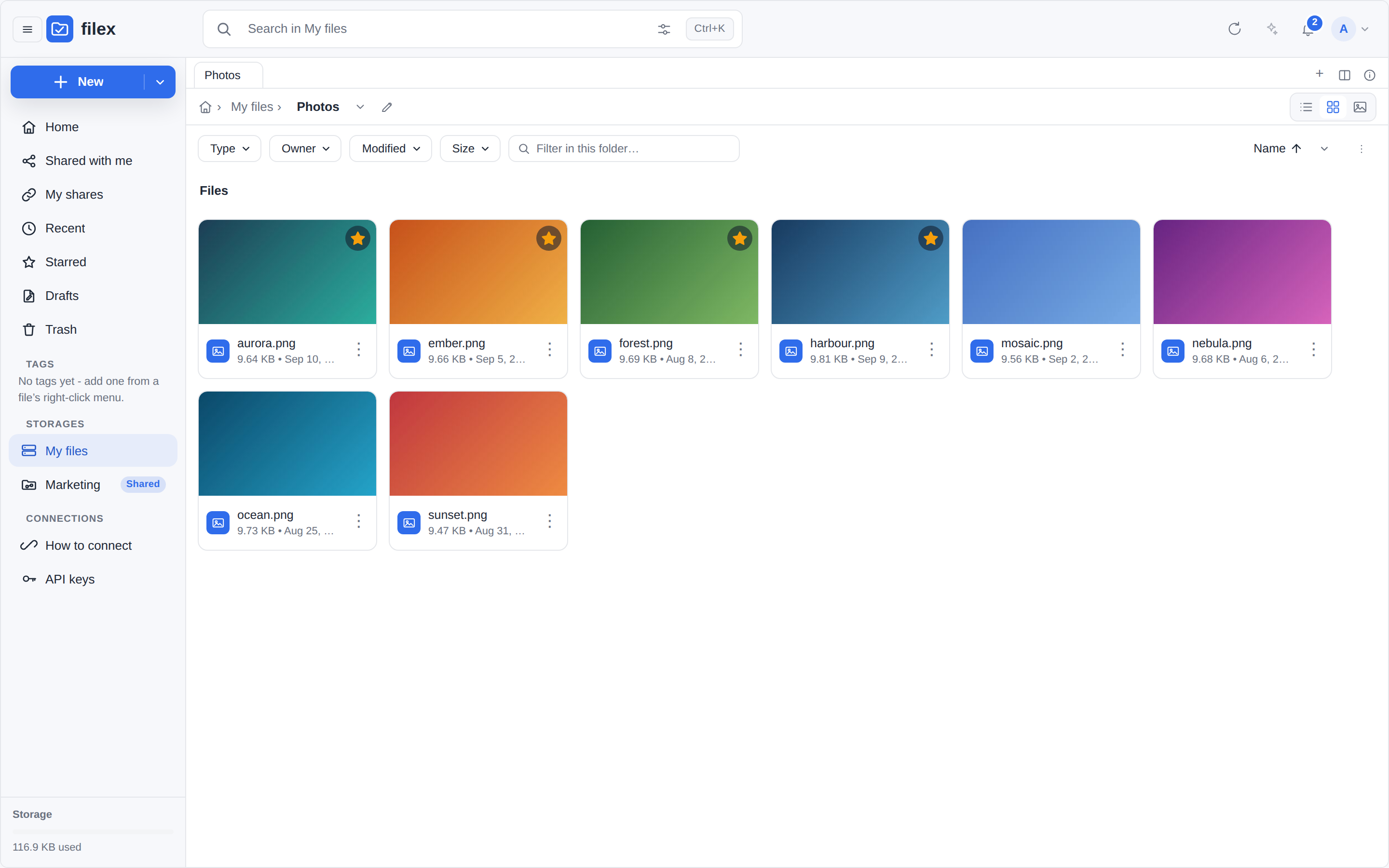
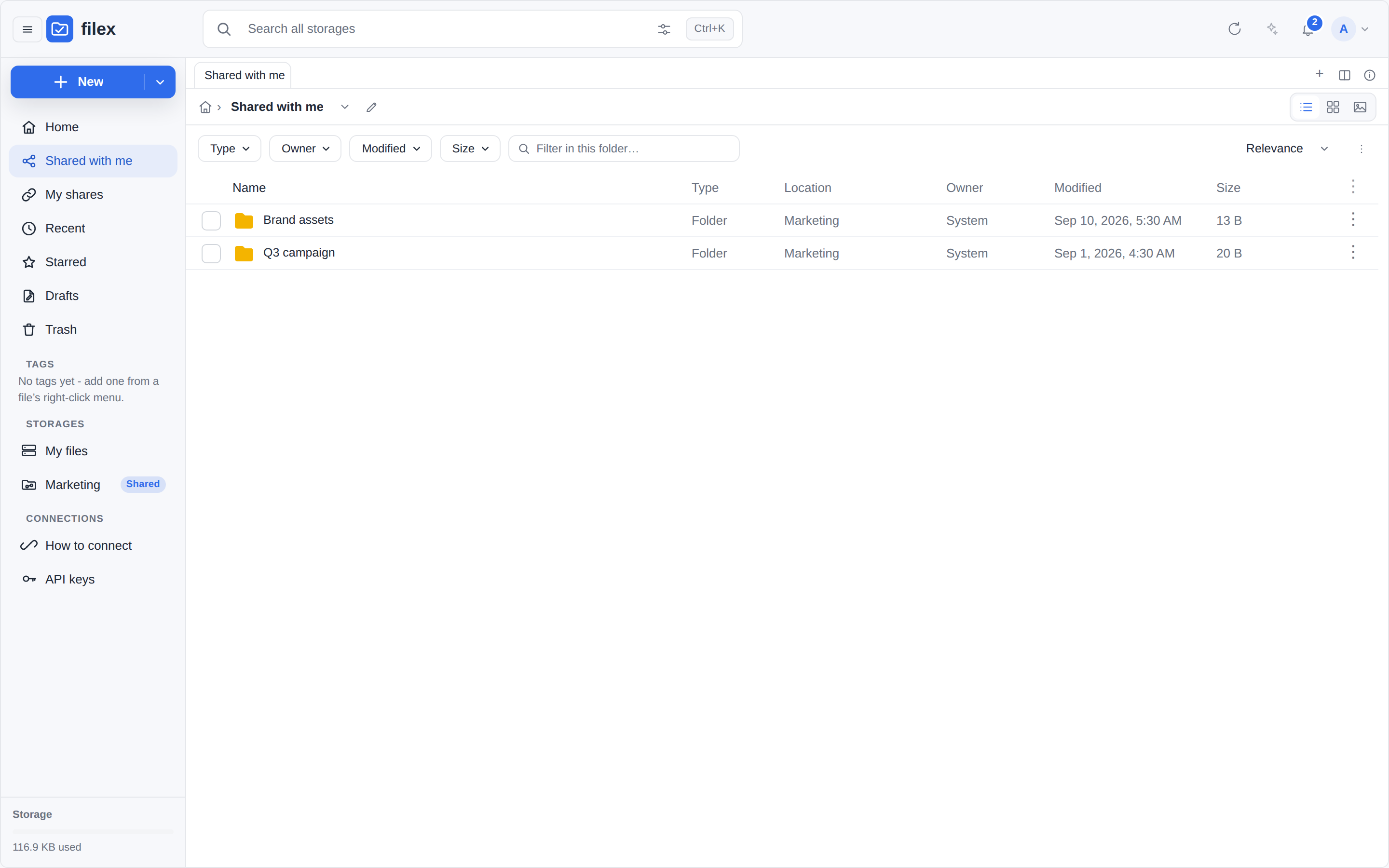
Navigation panel - Home, Shared with me, My shares, Recent, Starred, Trash, and the storages you can reach |
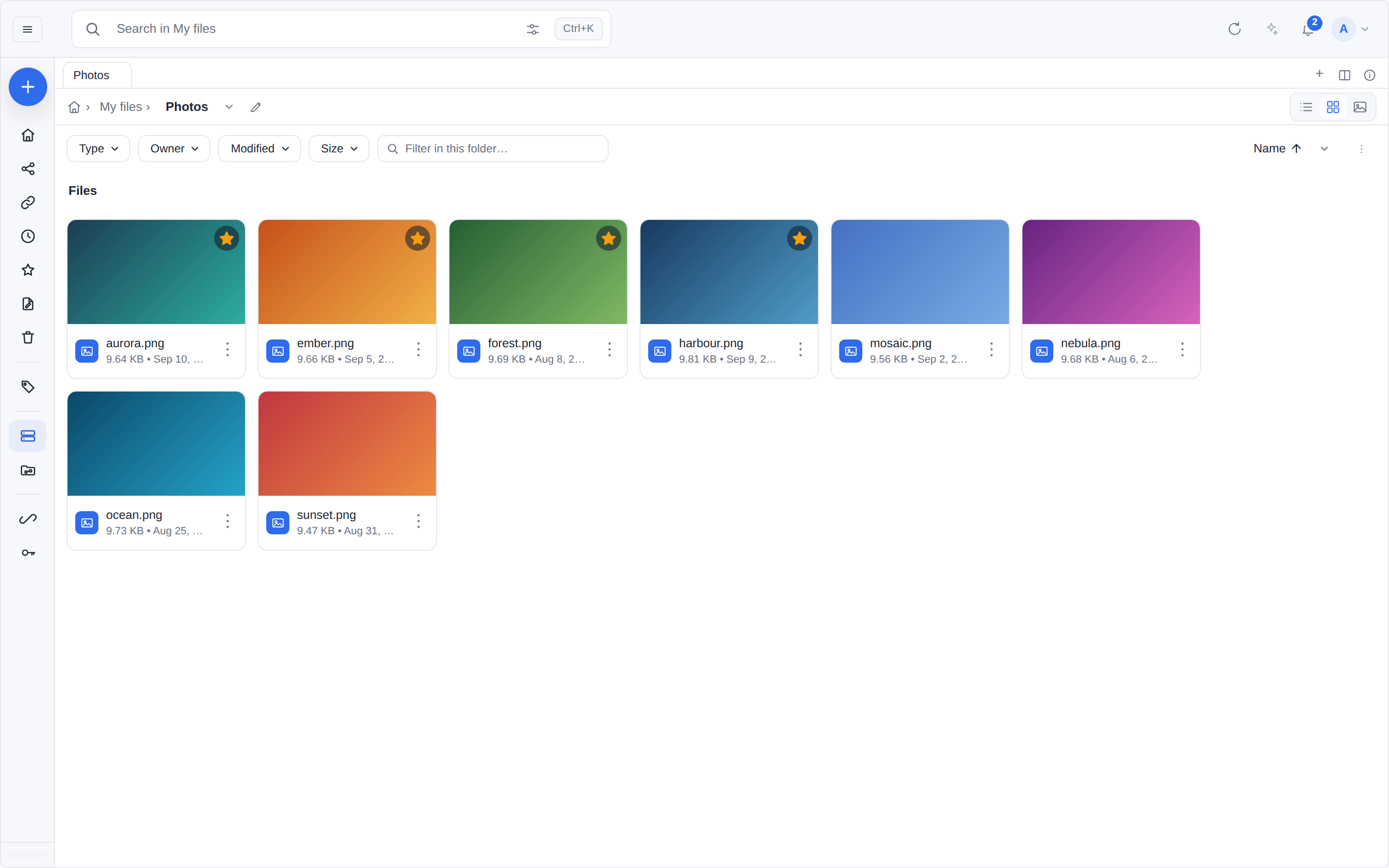
Collapsed to the icon rail |
|
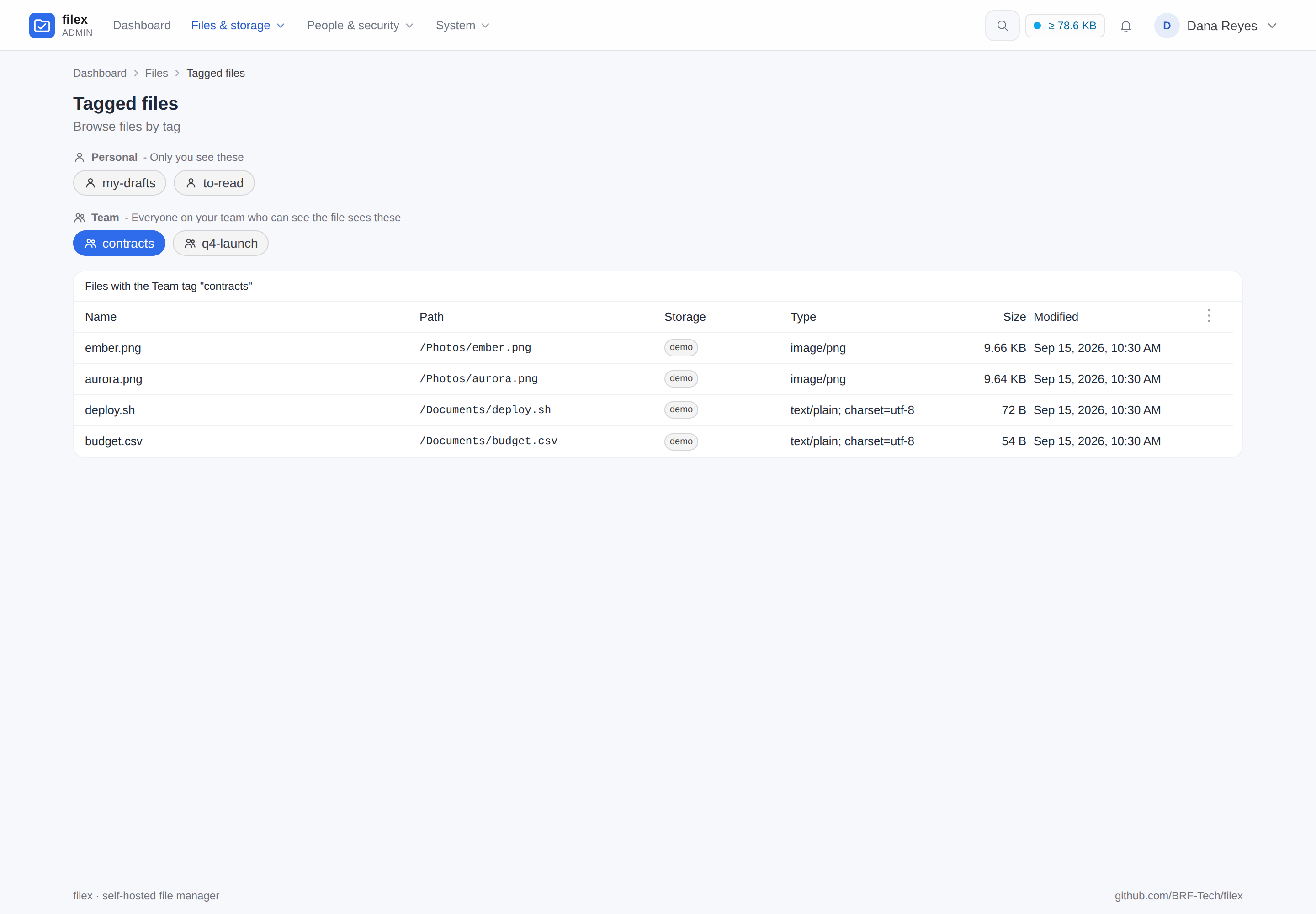
Tags - your own, or your team's; a tag opens every file carrying it, from every folder they live in |
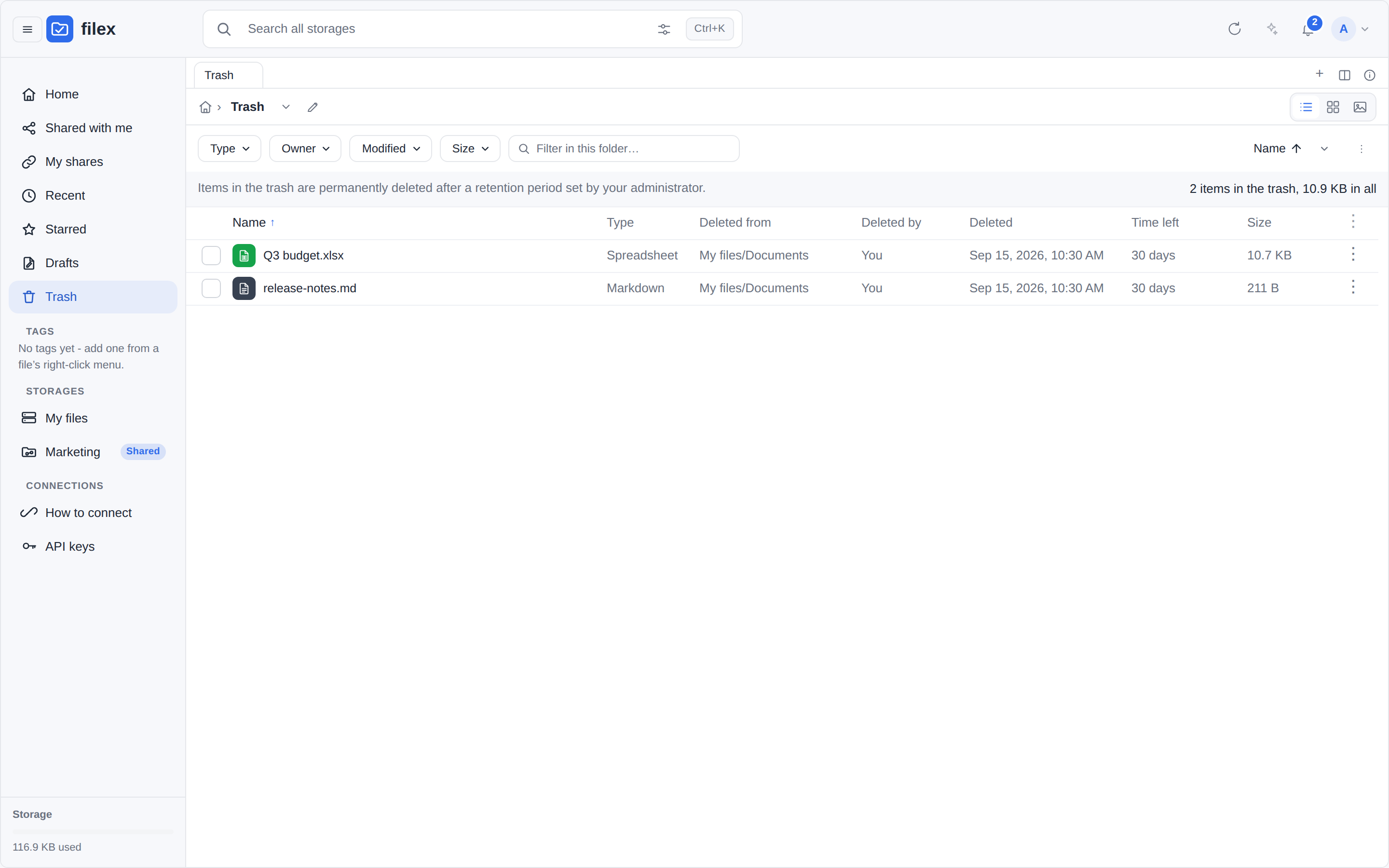
Trash - what was deleted, where it came from, and how long is left before it goes |
|
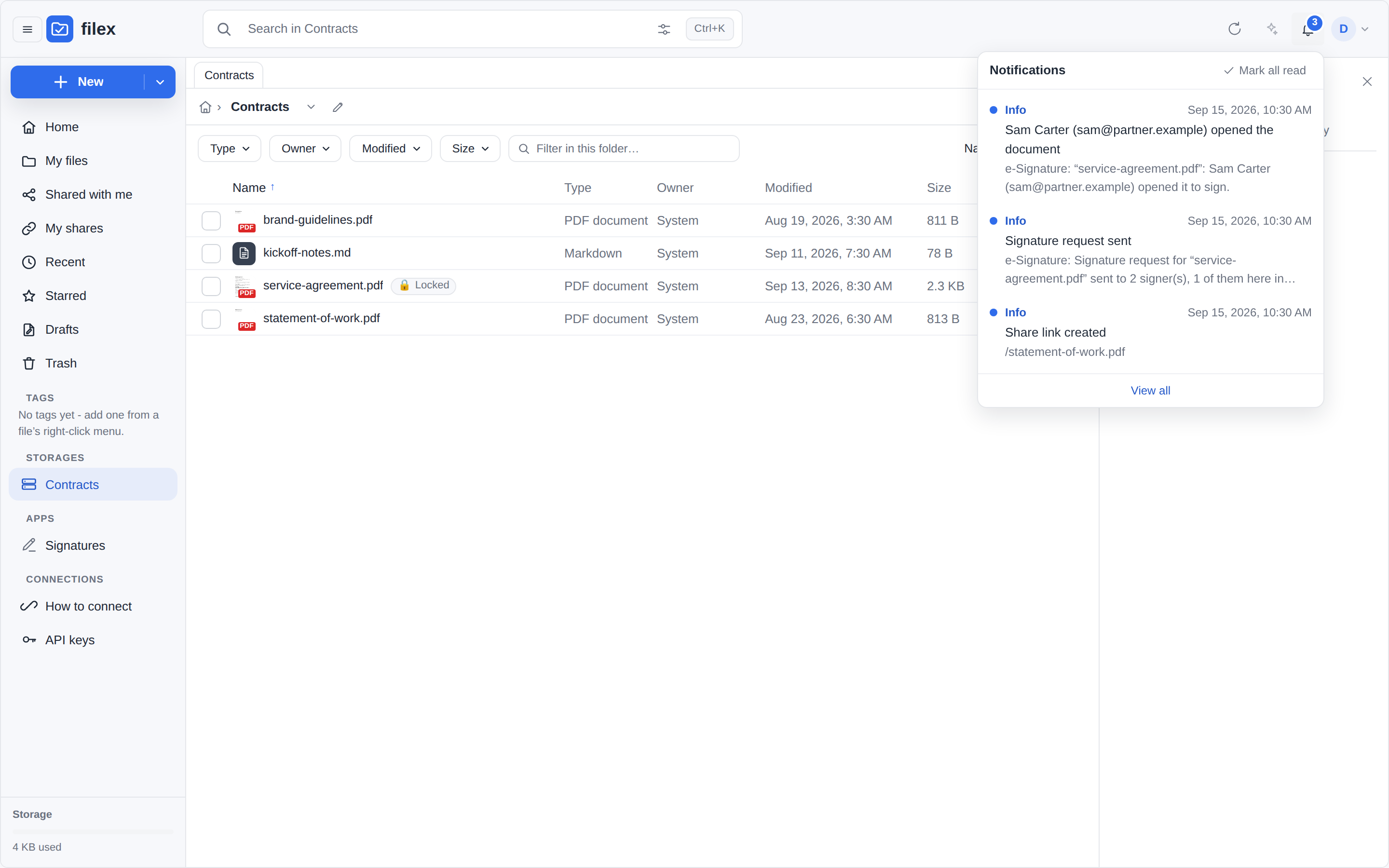
The bell - the unread count on it, every row going where it says |
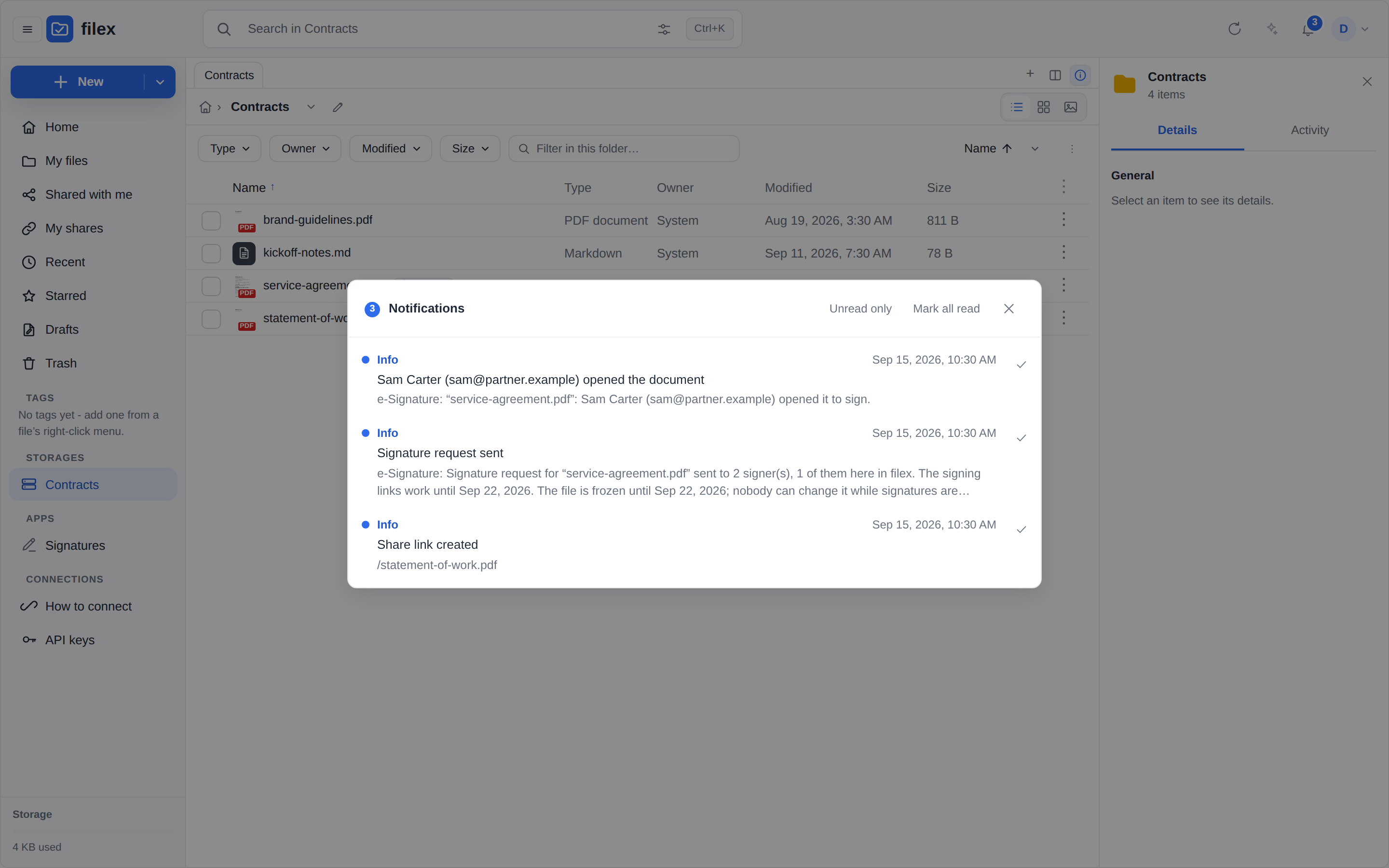
All of your notifications, inside the explorer - for everybody, not only administrators |
|
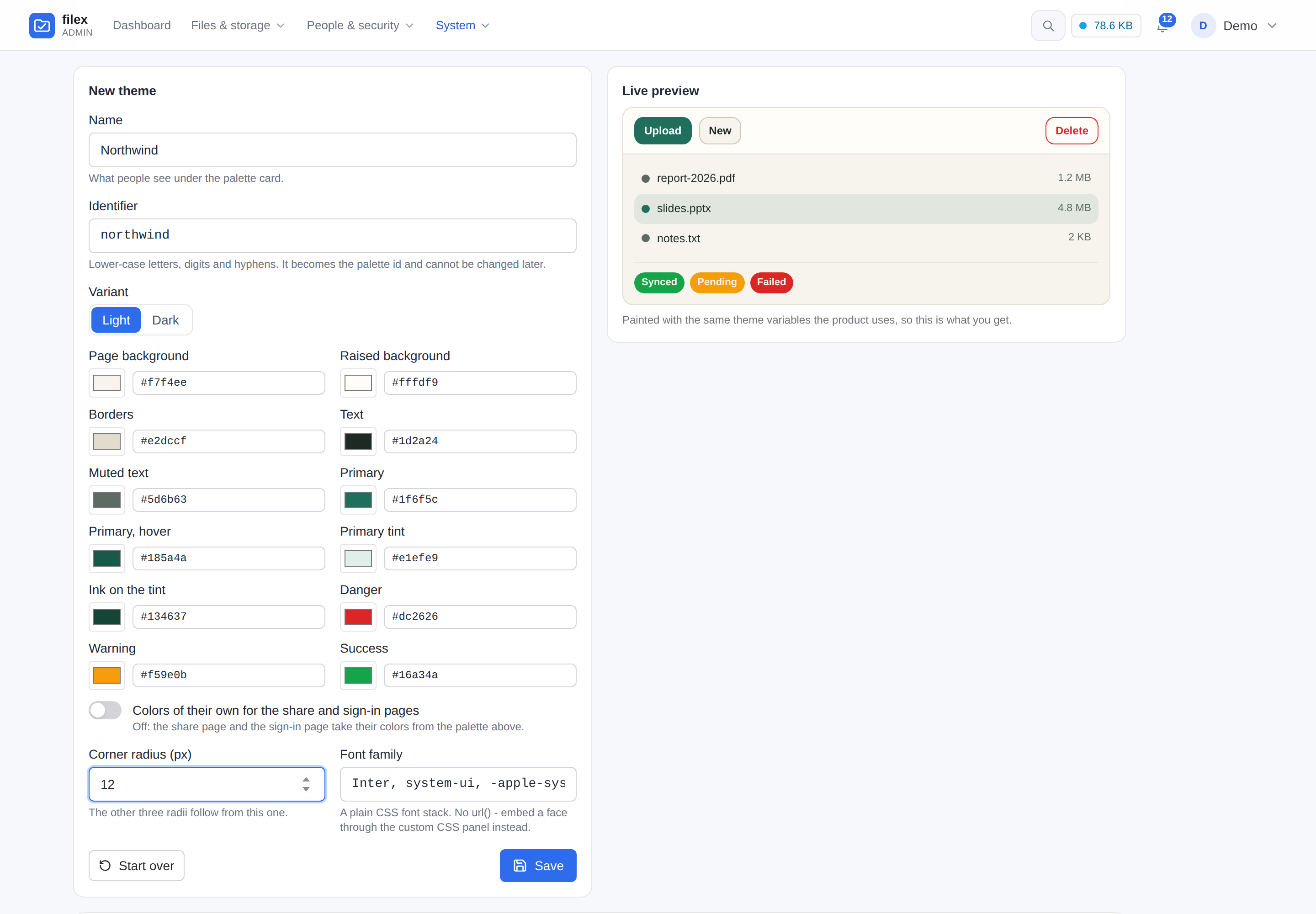
Appearance - compose a theme in your own colours, previewed as you type |
Made the default, it is what everybody's explorer wears… |
|
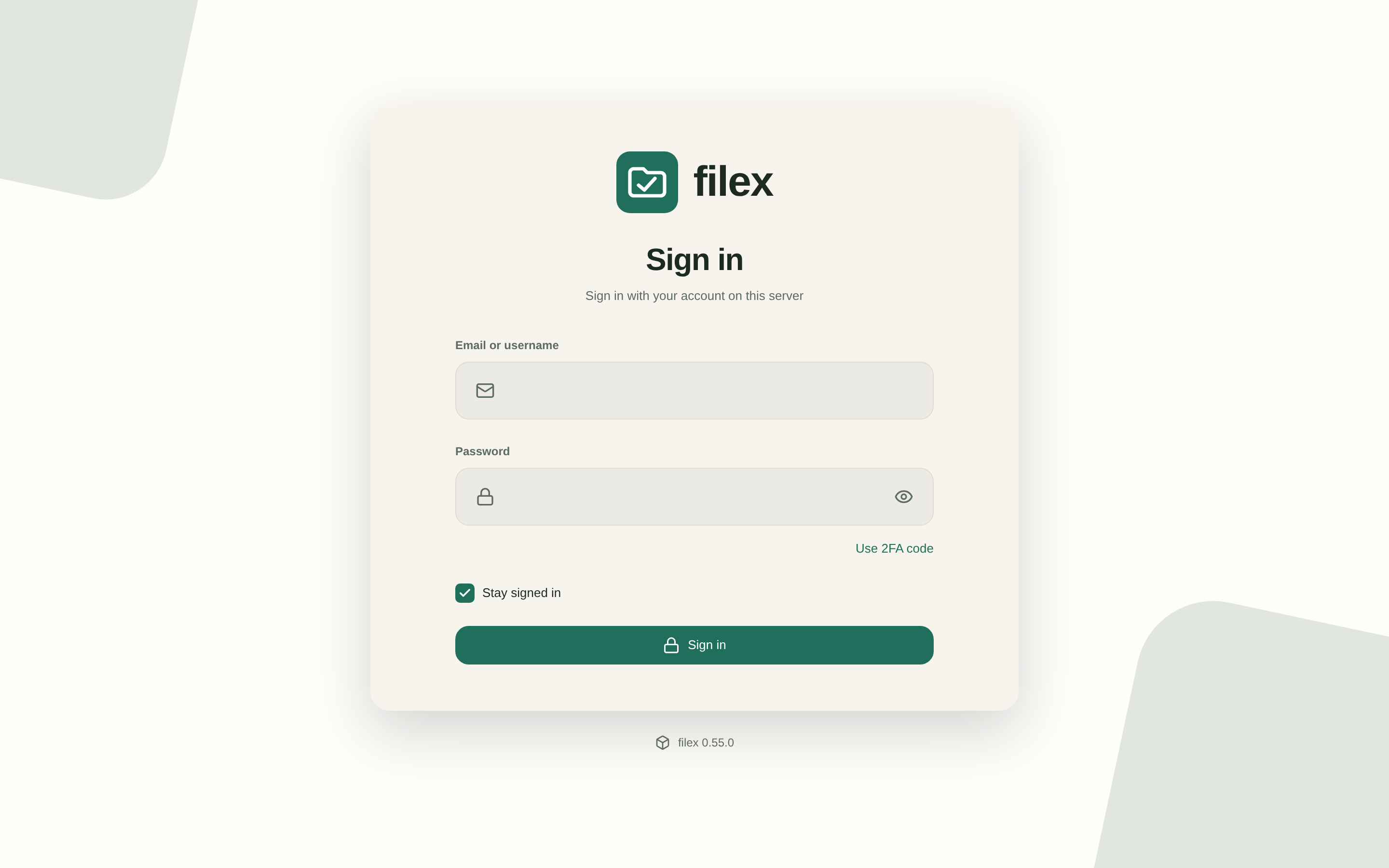
…and the sign-in page, before anybody has signed in |
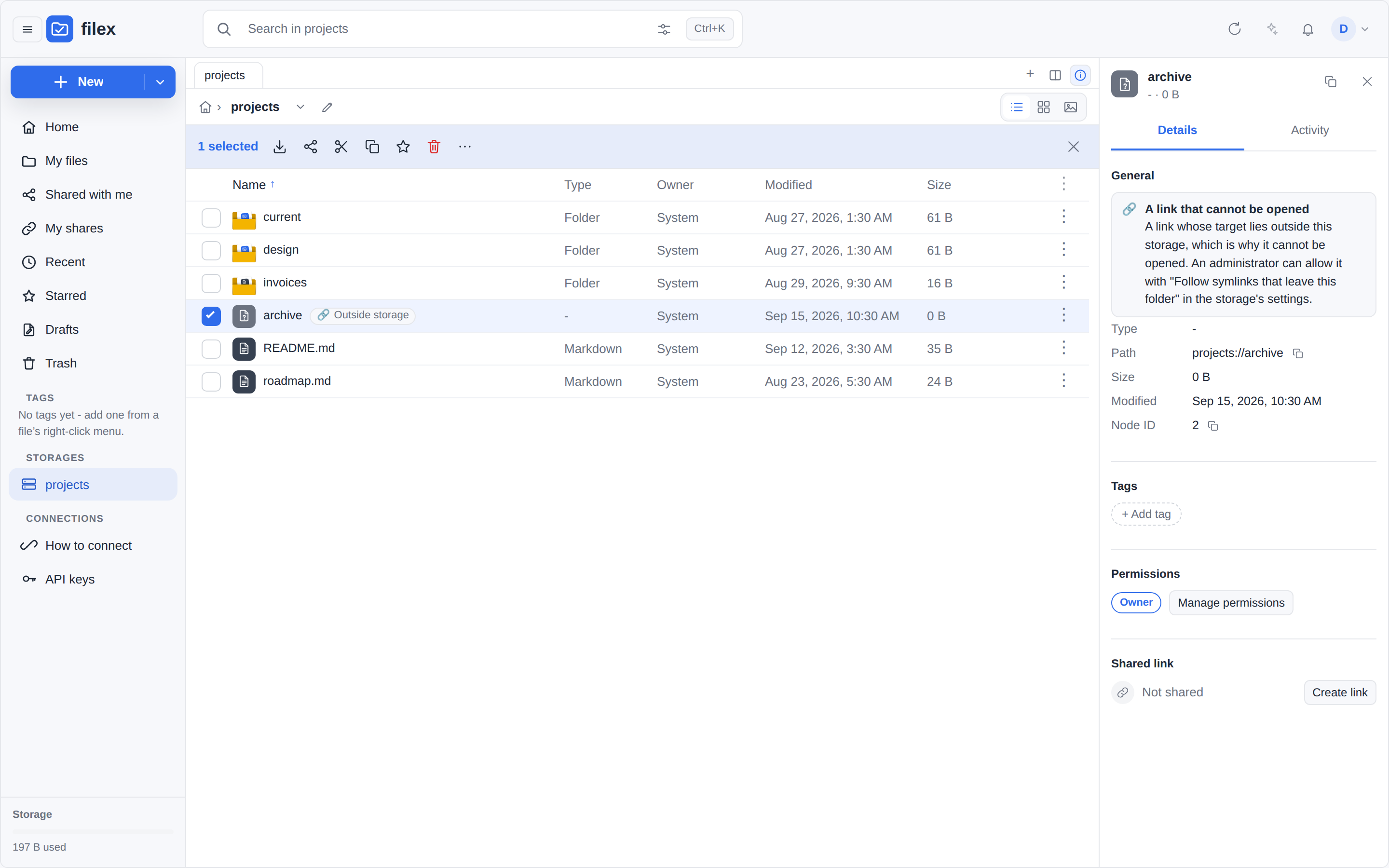
A symlink filex will not follow says so - in the listing, and in words in its details |
|
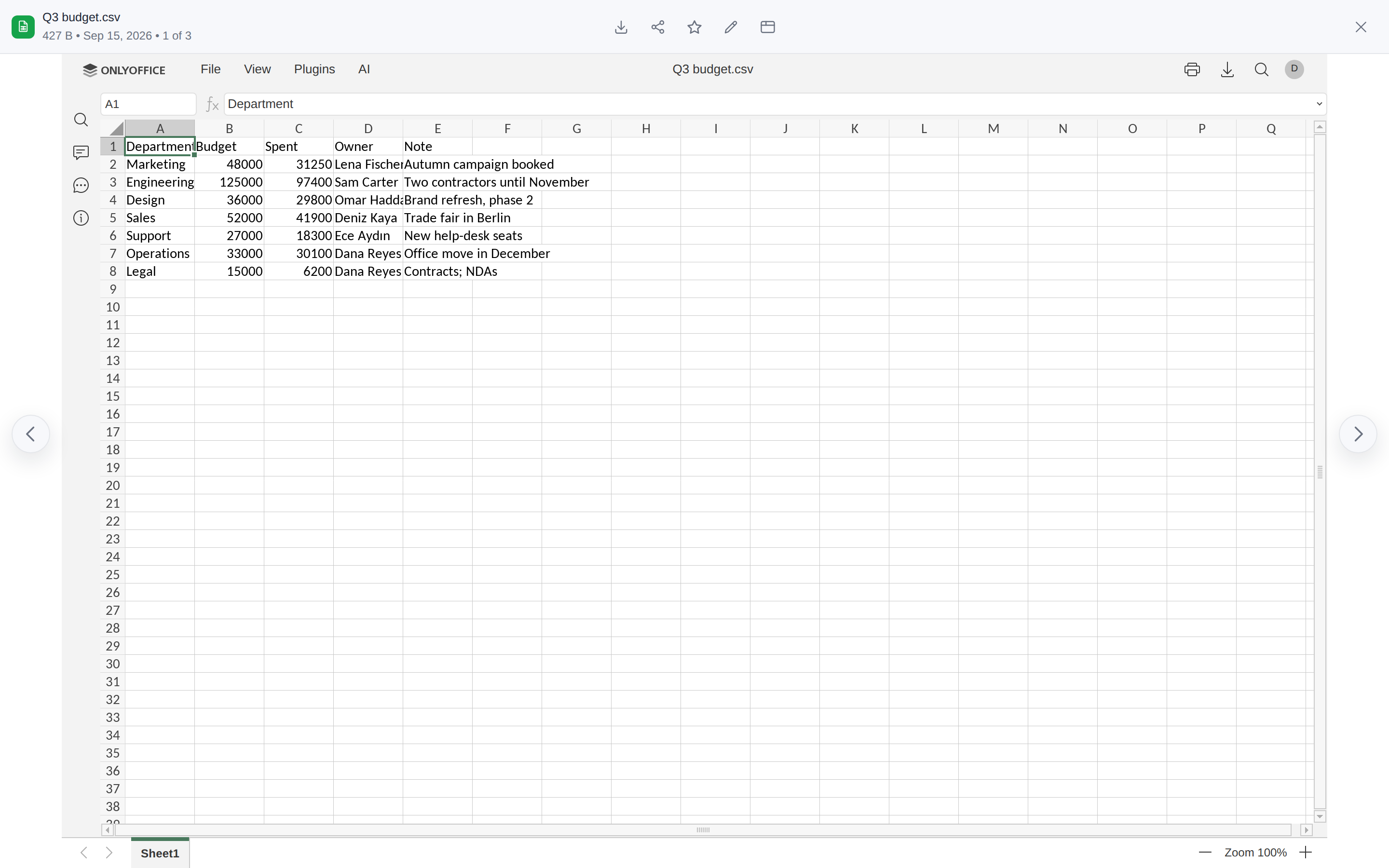
A |
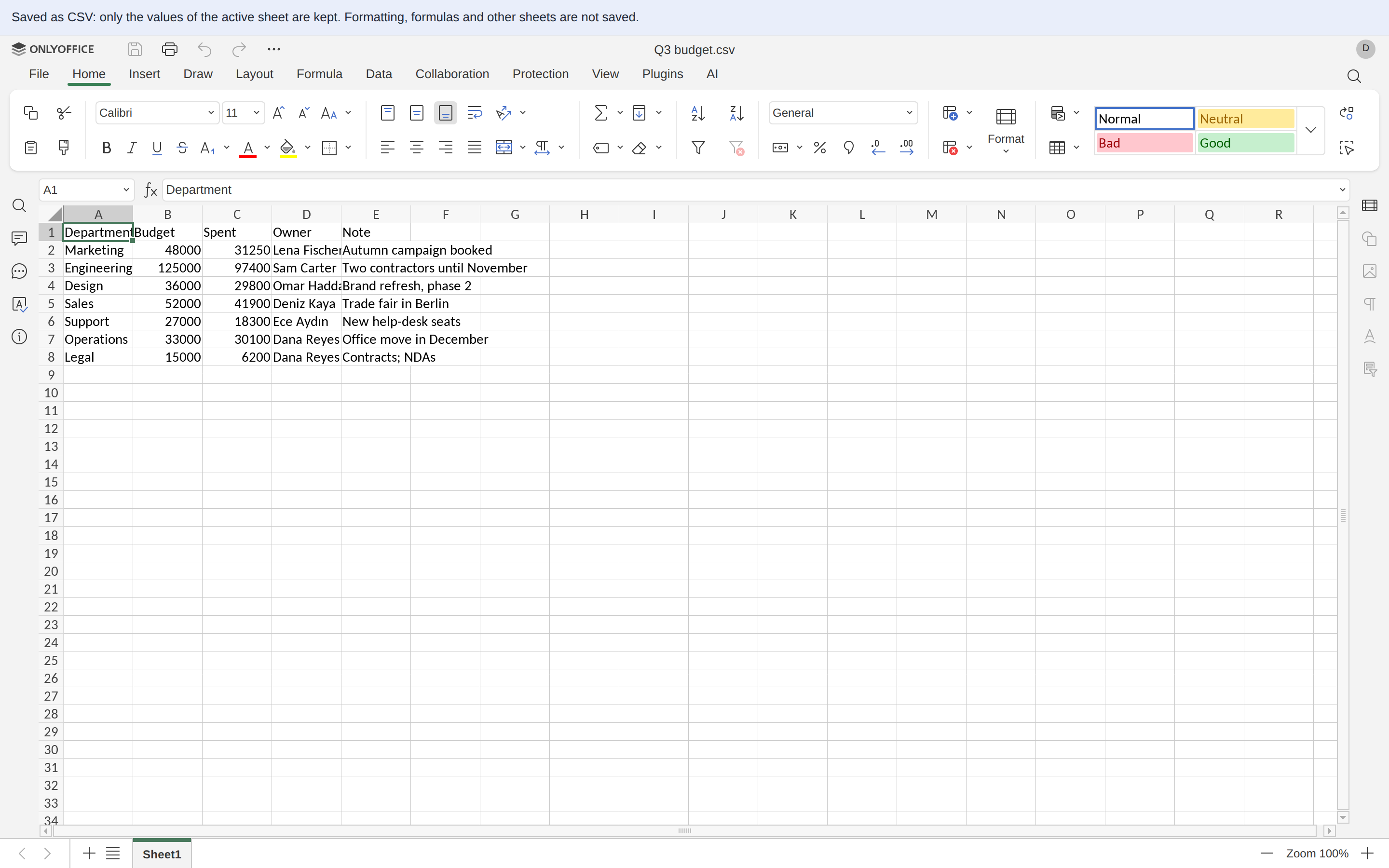
…and its editor, which says what a save as CSV keeps; the file goes back as the same kind of CSV, and the cells nobody changed keep their text - |
Every storage in one tree, and that tree reachable from anything.
rclone,
restic, aws s3, WinSCP or FileZilla at it. The permissions, the trash and the quota are
the web UI's.filex mount attaches a remote server over ordinary HTTPS: a folder on Linux, a drive
letter on Windows (macOS is not supported).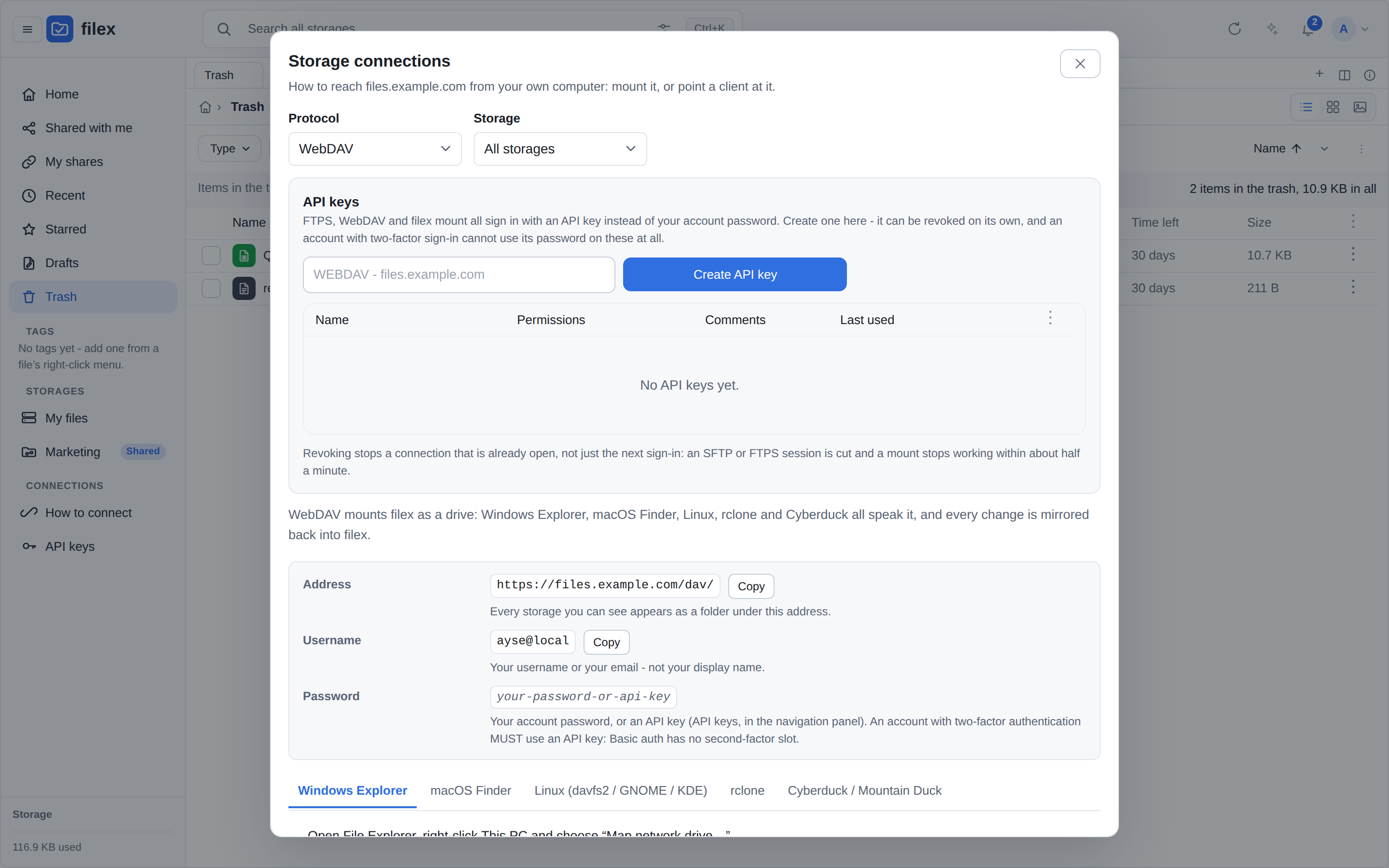
rclone, restic, aws s3, WinSCP, FileZilla, a
scanner that only learned FTP or a media player that only learned NFS at filex, and
they land in the same tree, with the same permissions, the same trash and the same
quota as the web UI. Off-LAN there is also filex mount, which attaches a remote
server over ordinary HTTPS - a folder on Linux, a drive letter on Windows
(docs/PROTOCOLS.md).|
How to connect - the guides, built from your deployment |
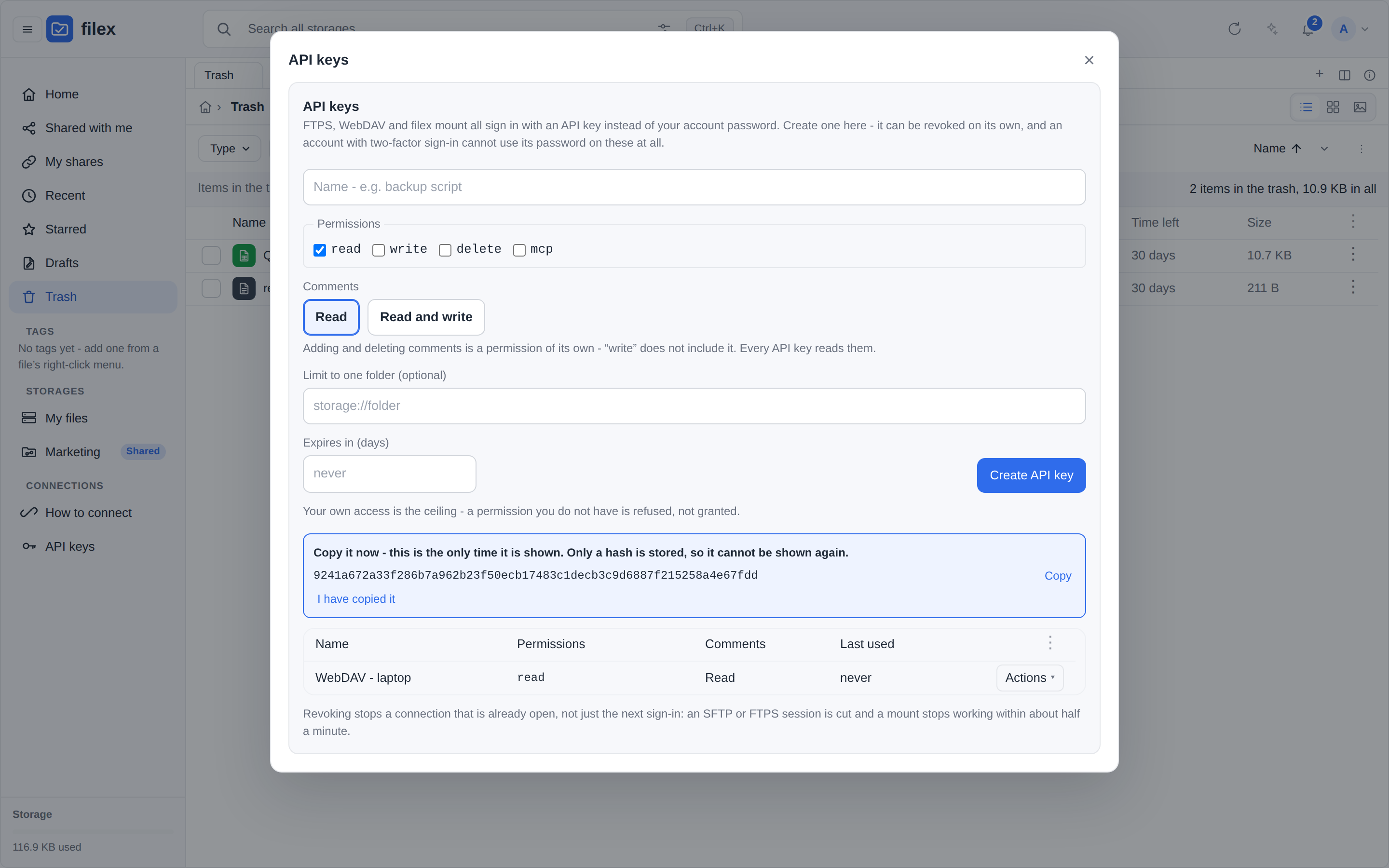
API keys - mint your own, in the explorer or in an embed (a person's session or token; an embed proxied with one shared app token does not get this entry) |
|
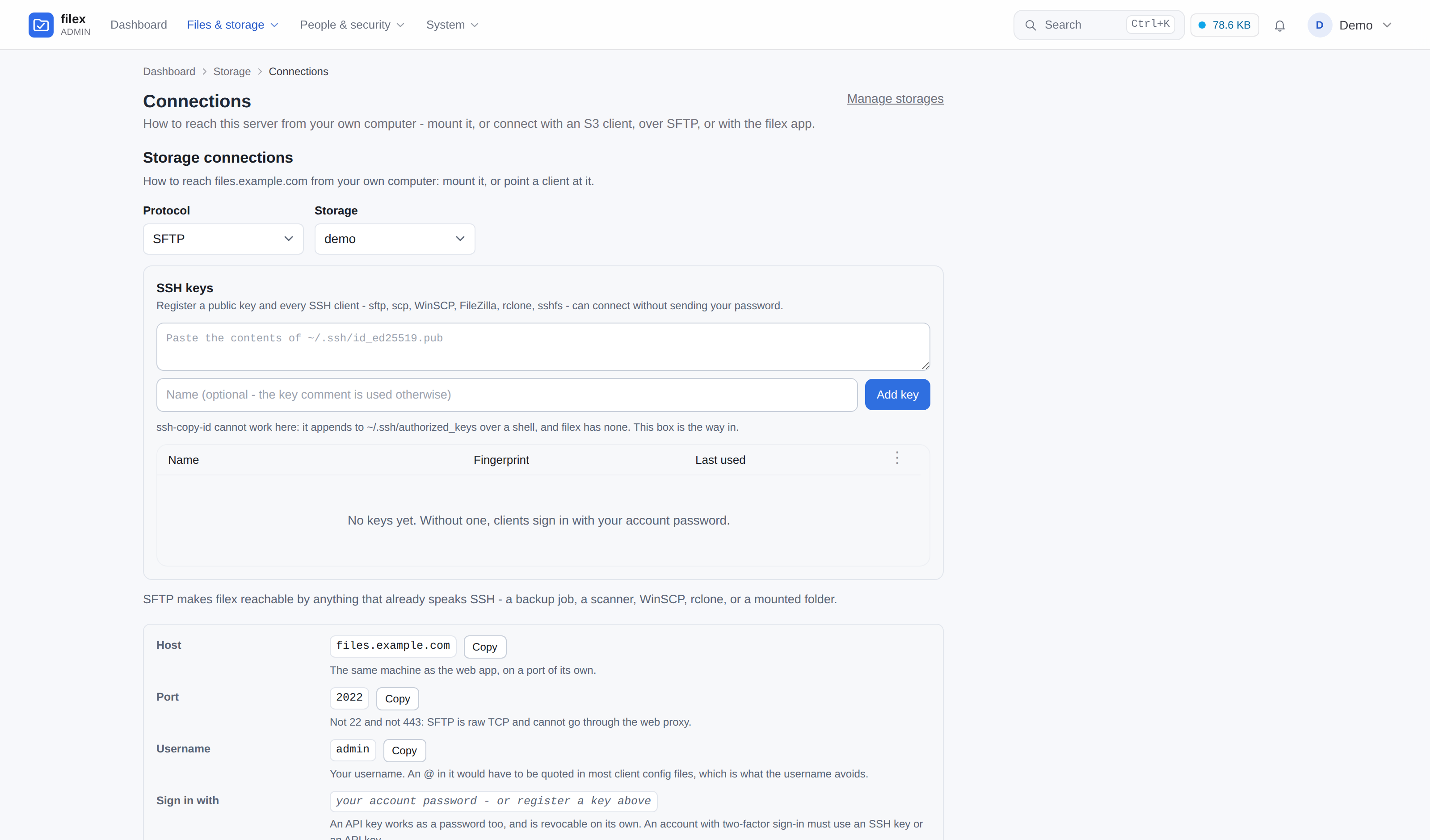
Reaching filex from anything - S3, SFTP, FTPS, NFS, WebDAV. Every command is built from your deployment |
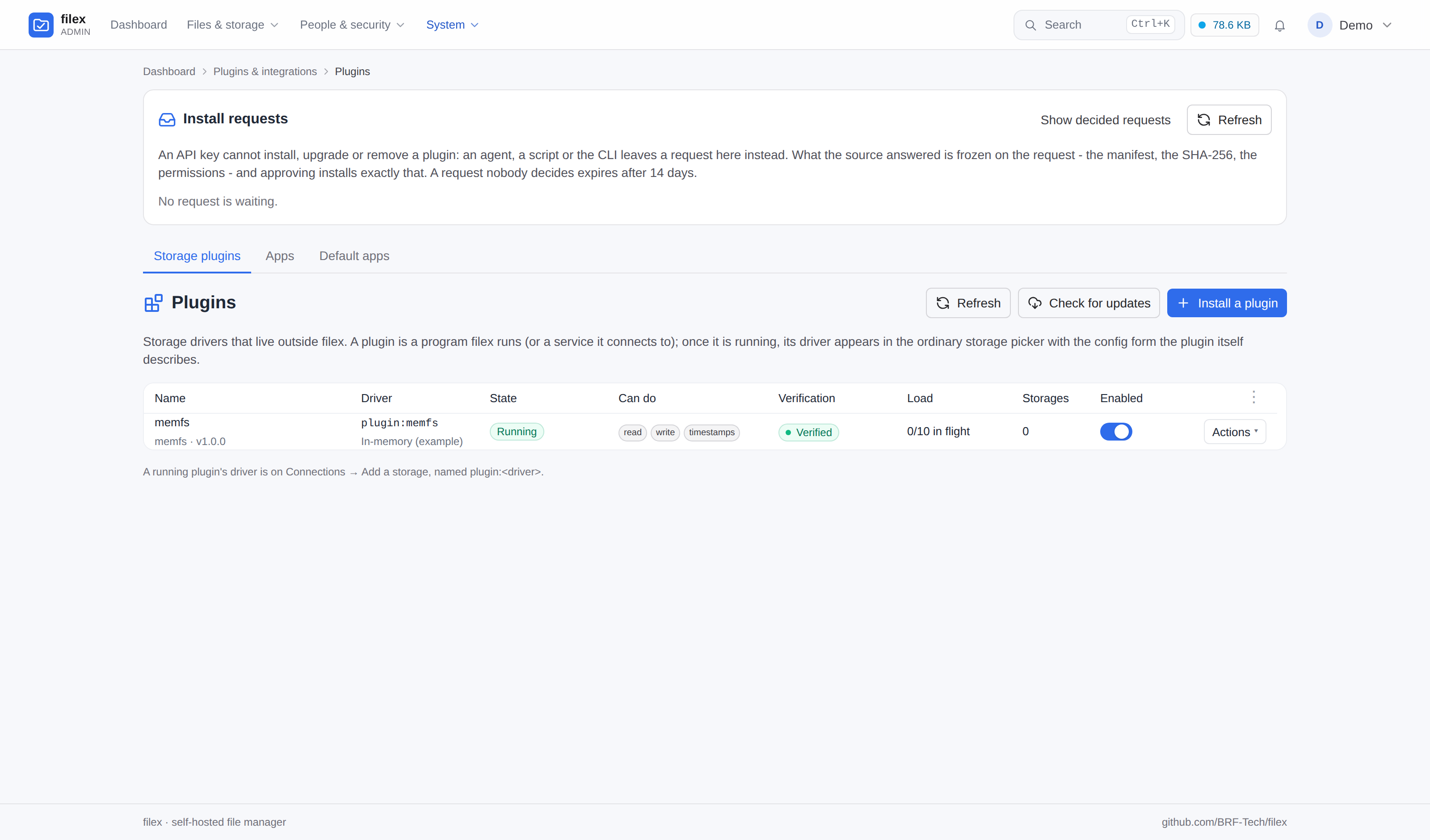
A storage filex does not ship - installed as a plugin on Plugins → Storage plugins, describing its own config form |
Share with a link you can limit and revoke. Take back a wrong delete or a wrong overwrite.
|
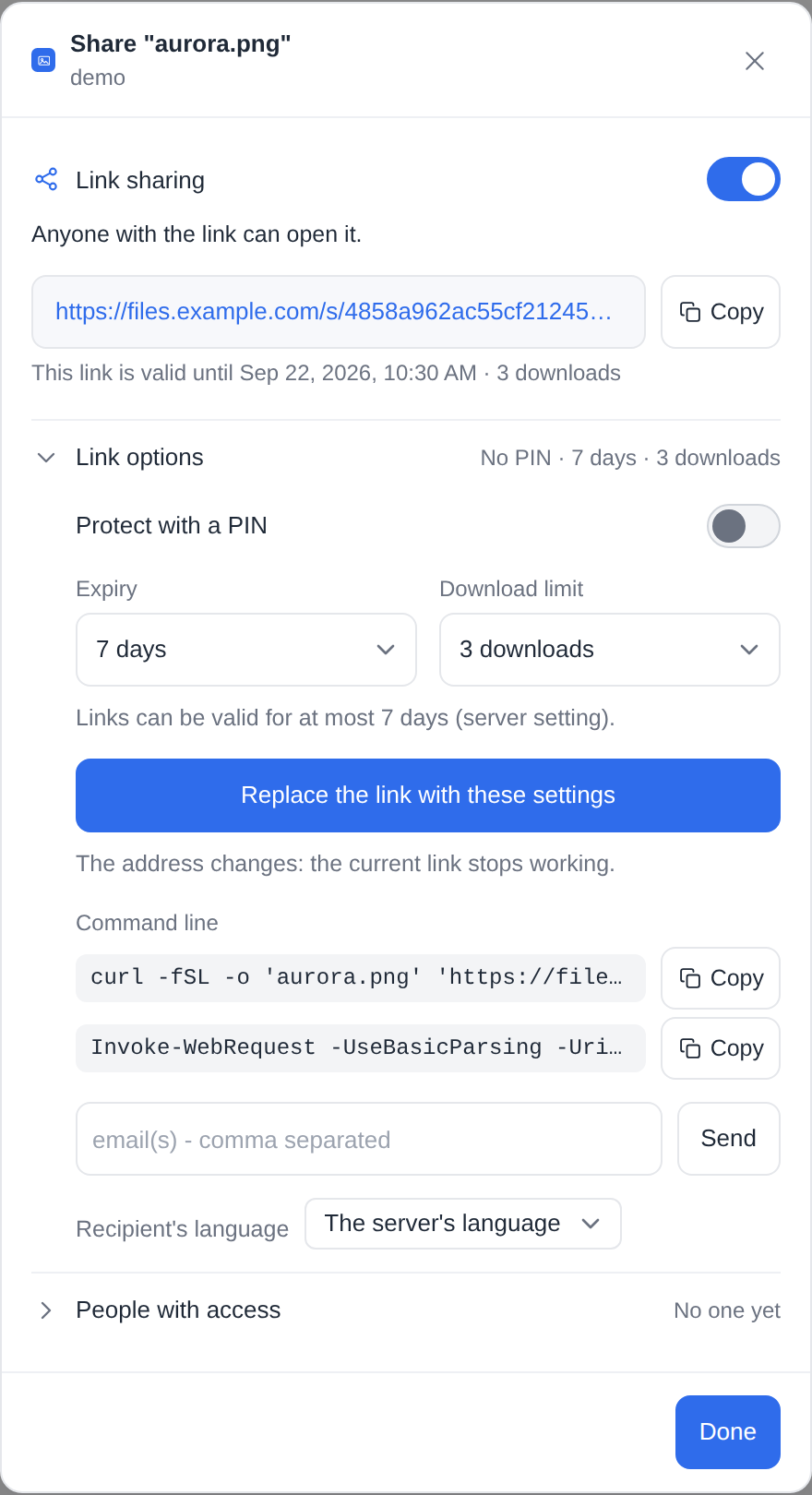
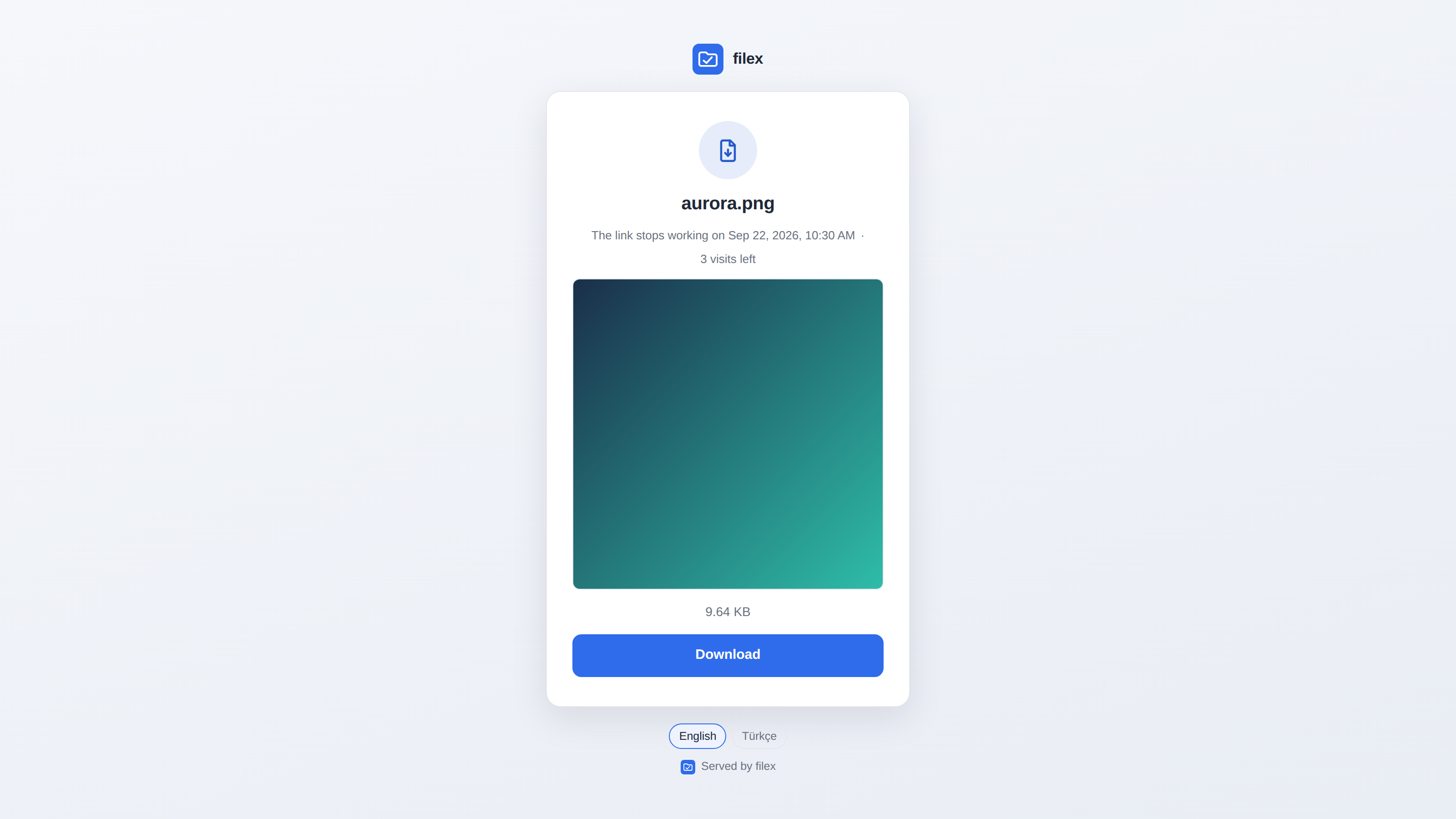
Sharing - PIN, expiry, download limit, one-line |
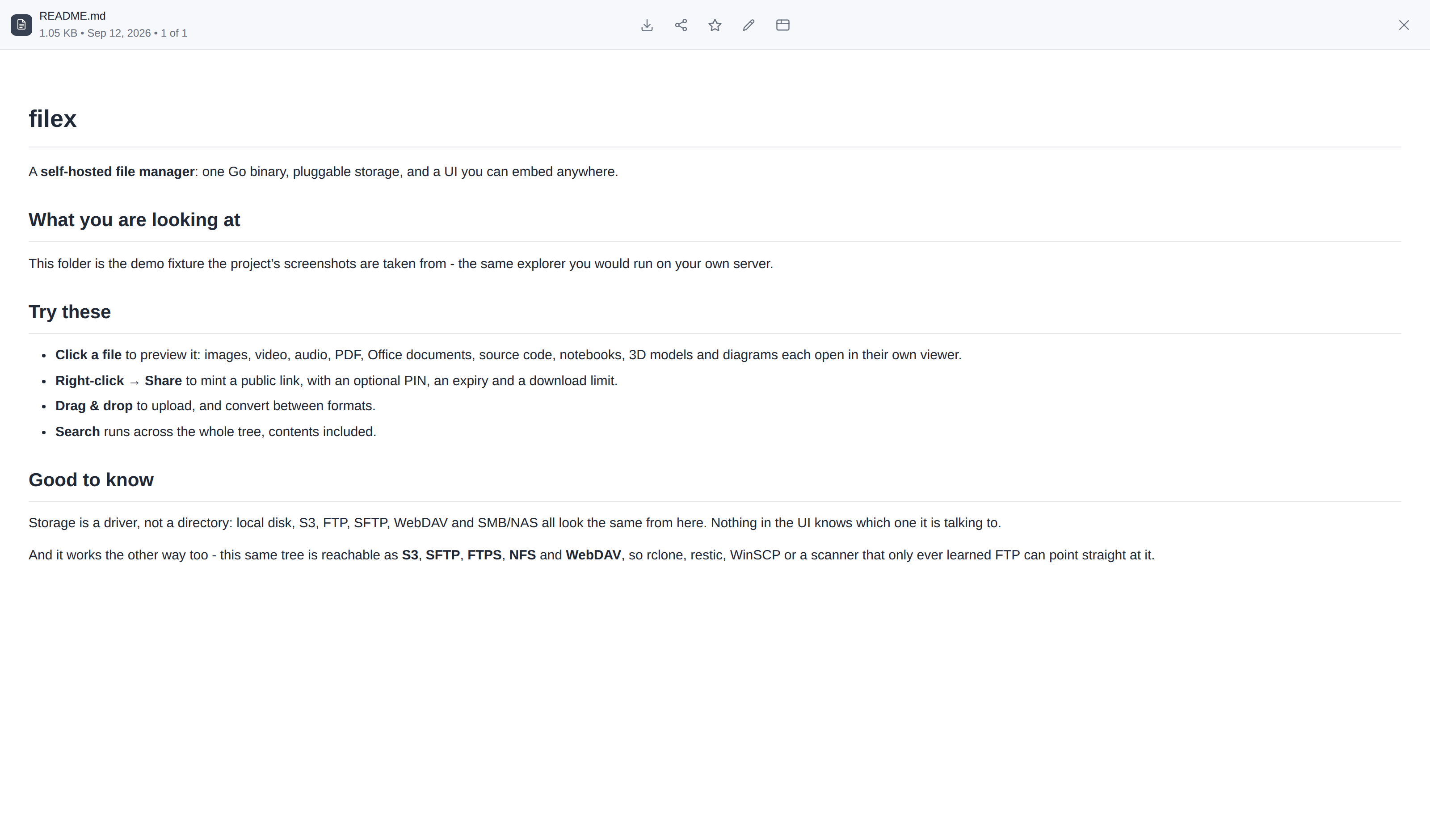
Markdown viewer |
|
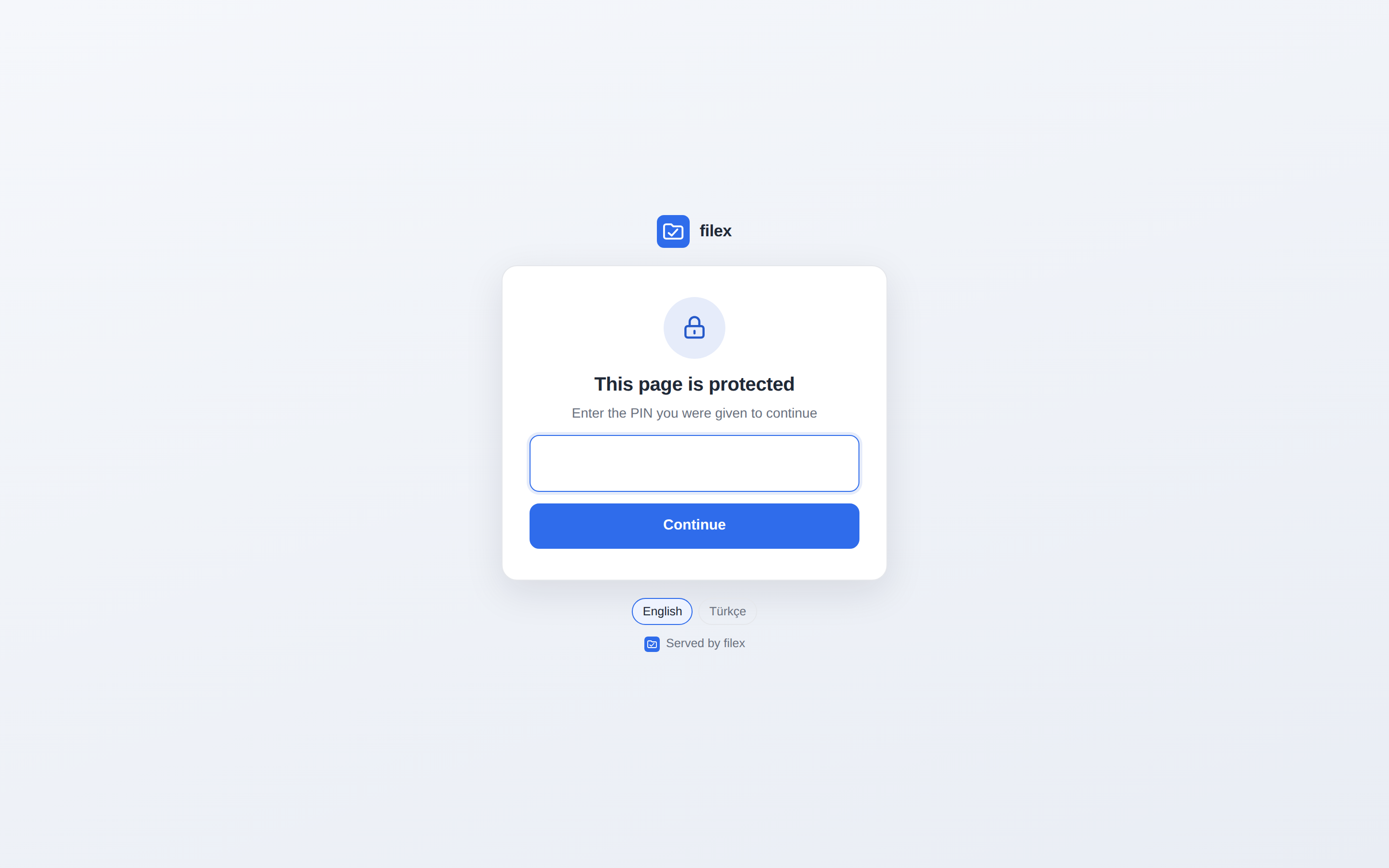
…and what the person at the other end opens. filex has ONE outward-facing screen - a shared file, a folder, a file request, an app's signing page and the PIN in front of any of them are all this page, in your instance's name |
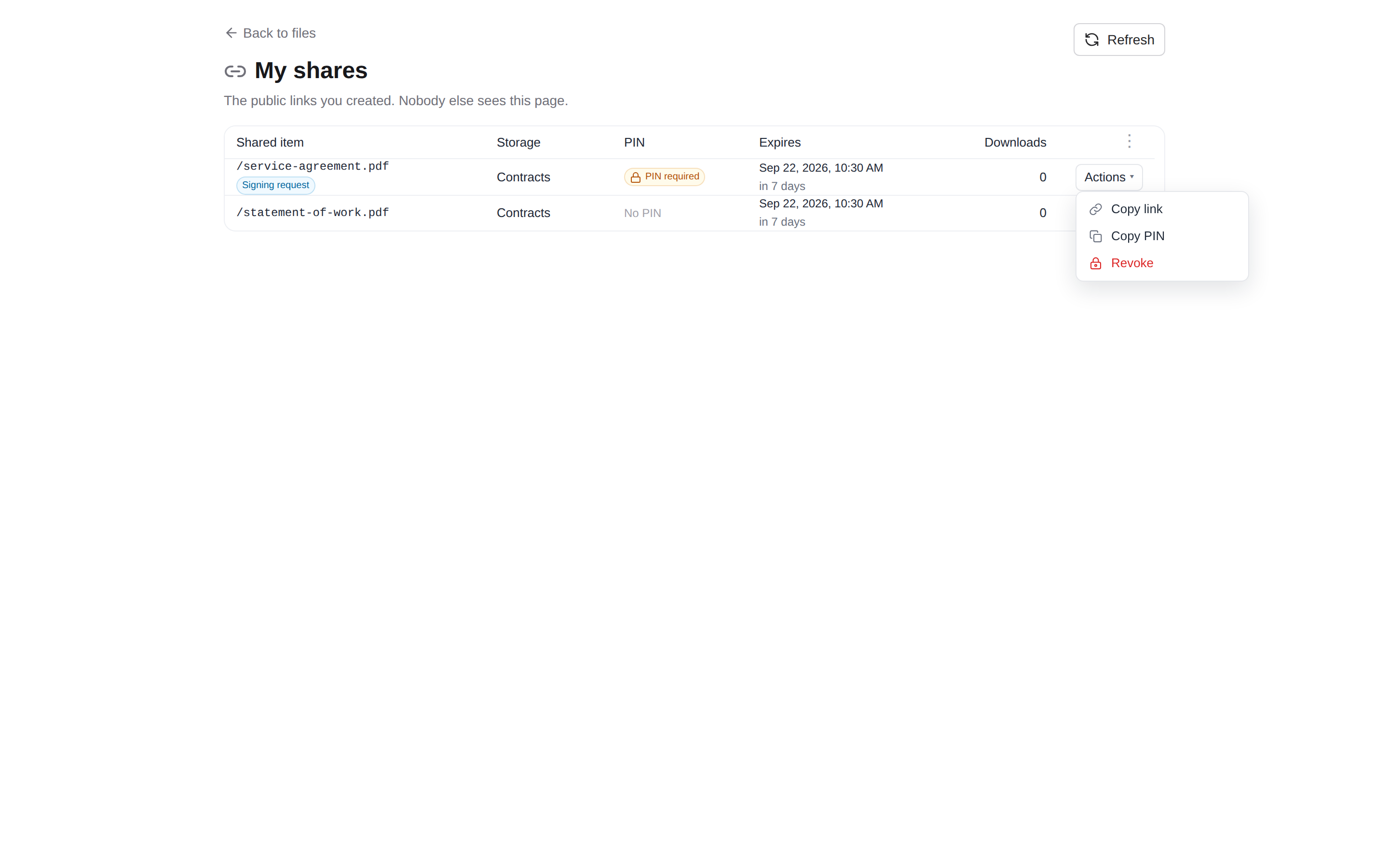
My shares - the links you created, and their PINs when you need to pass one on |
|
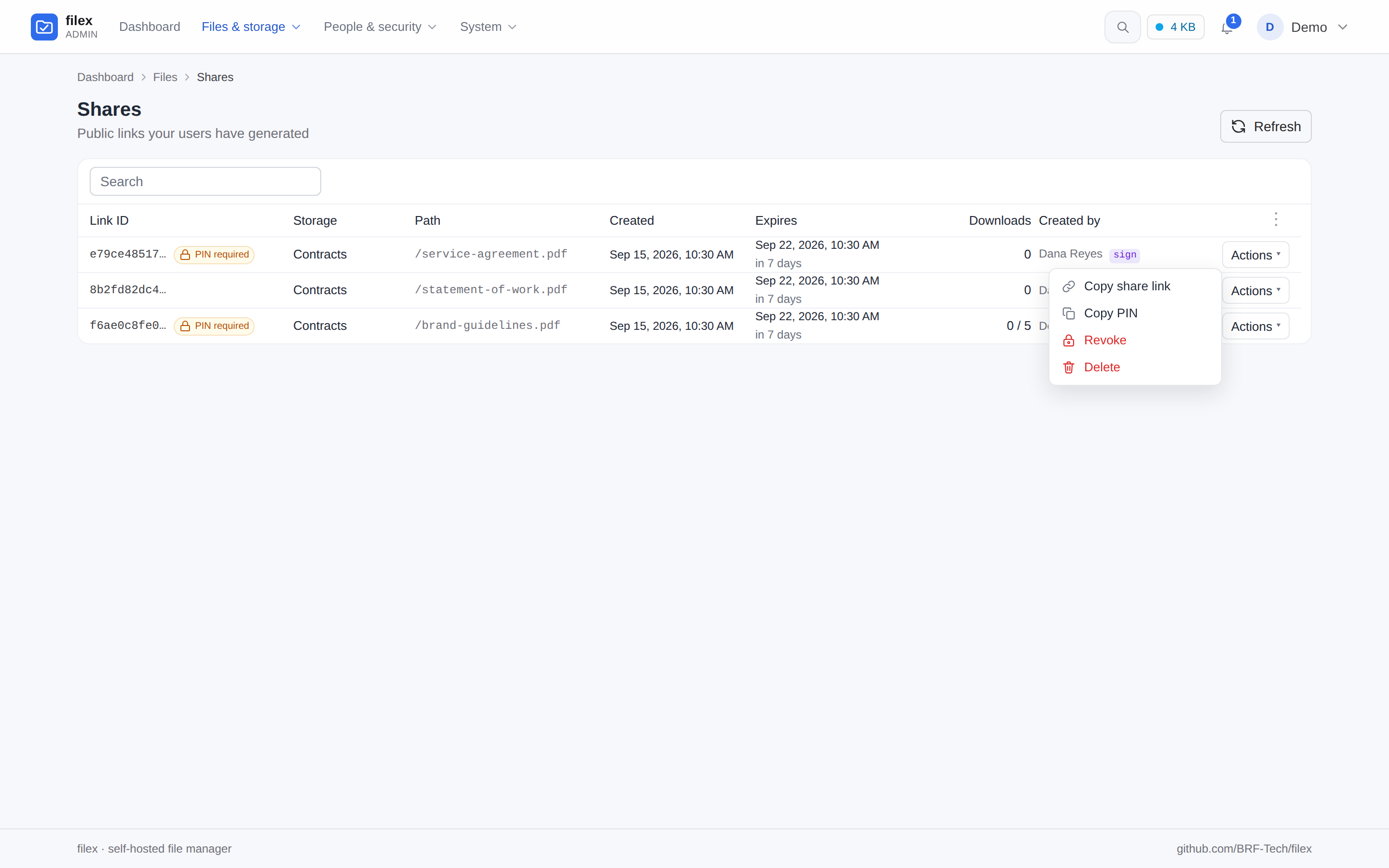
Every admin table - one pinned Actions menu per row, the same menu the explorer's ⋮ opens |
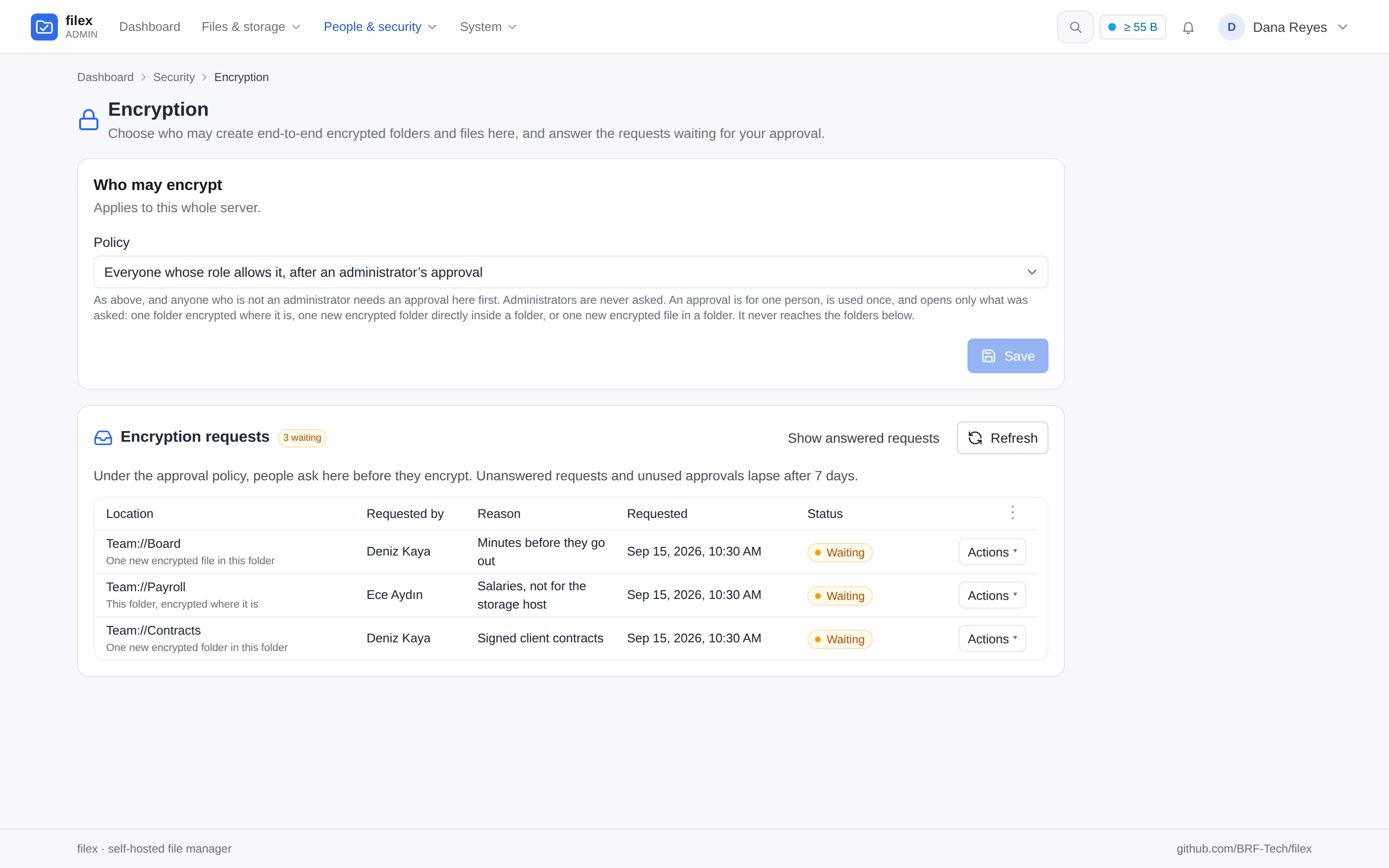
Who may encrypt - off, administrators only, everyone whose role allows it, or after an administrator's approval; the requests waiting, with who asked and why (who may encrypt) |
|
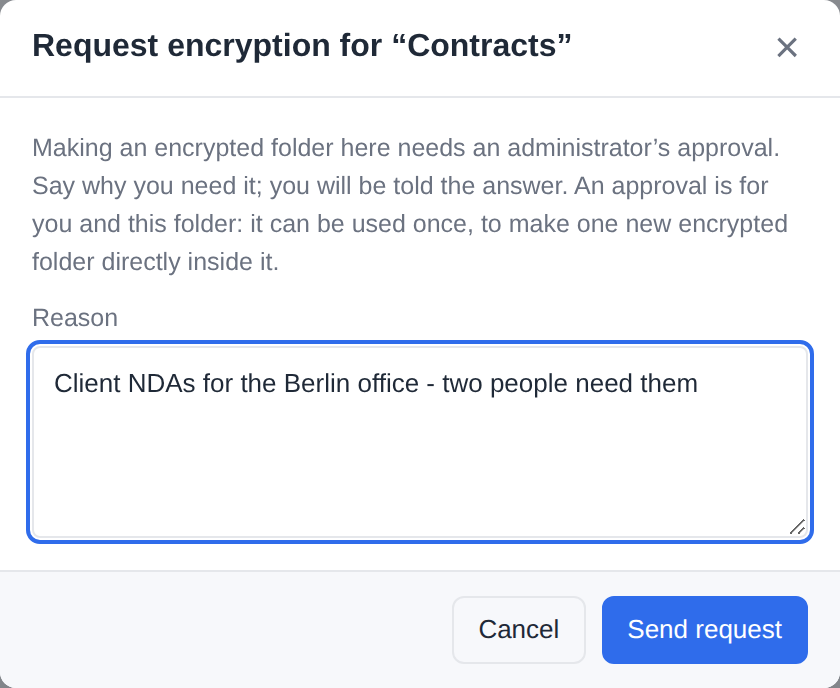
…and the person's side: the New folder dialog asks an administrator for one encrypted folder, with a reason |
The accounts people already have, and one role each.
memberOf, the operating system's groups or
a proxy header - and leave when the identity provider says so
(docs/GROUPS.md). A group linked to a directory group by its full DN can
make its members administrators - the directory then decides who runs filex, and the last
administrator is never removed (Administrators).FILEX_MULTI_TENANT pins it): off, no screen shows a tenant or
a realm, and turning it off puts the tenants in maintenance mode and deletes none of them
(mode gating).
On, storage-per-tenant with native tenancy mode, RBAC roles +
per-item grants, confined API tokens, per-token identities for audit trails, and
app-vs-user token kinds so a shared embed credential cannot manage anybody's keys.
A token names the permissions it holds - an empty list is refused rather than read
as "everything" - and no credential it issues is ever wider than itself: an API
key, an S3 key, an NFS export or an SSH key minted through a narrow token cannot
exceed its verbs, leave its folder or outlive its expiry (403 token_ceiling).
The tenant boundary is enforced on every route that names a row, not only on the
ones that list them, and instance-wide settings are reserved to the supertenant.
Each tenant has a realm, its sign-in name: two tenants' alex are two people,
whether they sign in on the tenant's own address, type the realm on the platform's
page or write realm/alex over SFTP
(realms). And a tenant
runs itself: its administrator adds the tenant's own OIDC or LDAP, the operator binds
shared sign-in providers to one tenant or several, and a tenant's own domain is
proven by a CNAME and served with a certificate from your proxy, from filex itself
(ACME) or its own (docs/TENANT-ADMIN.md).|
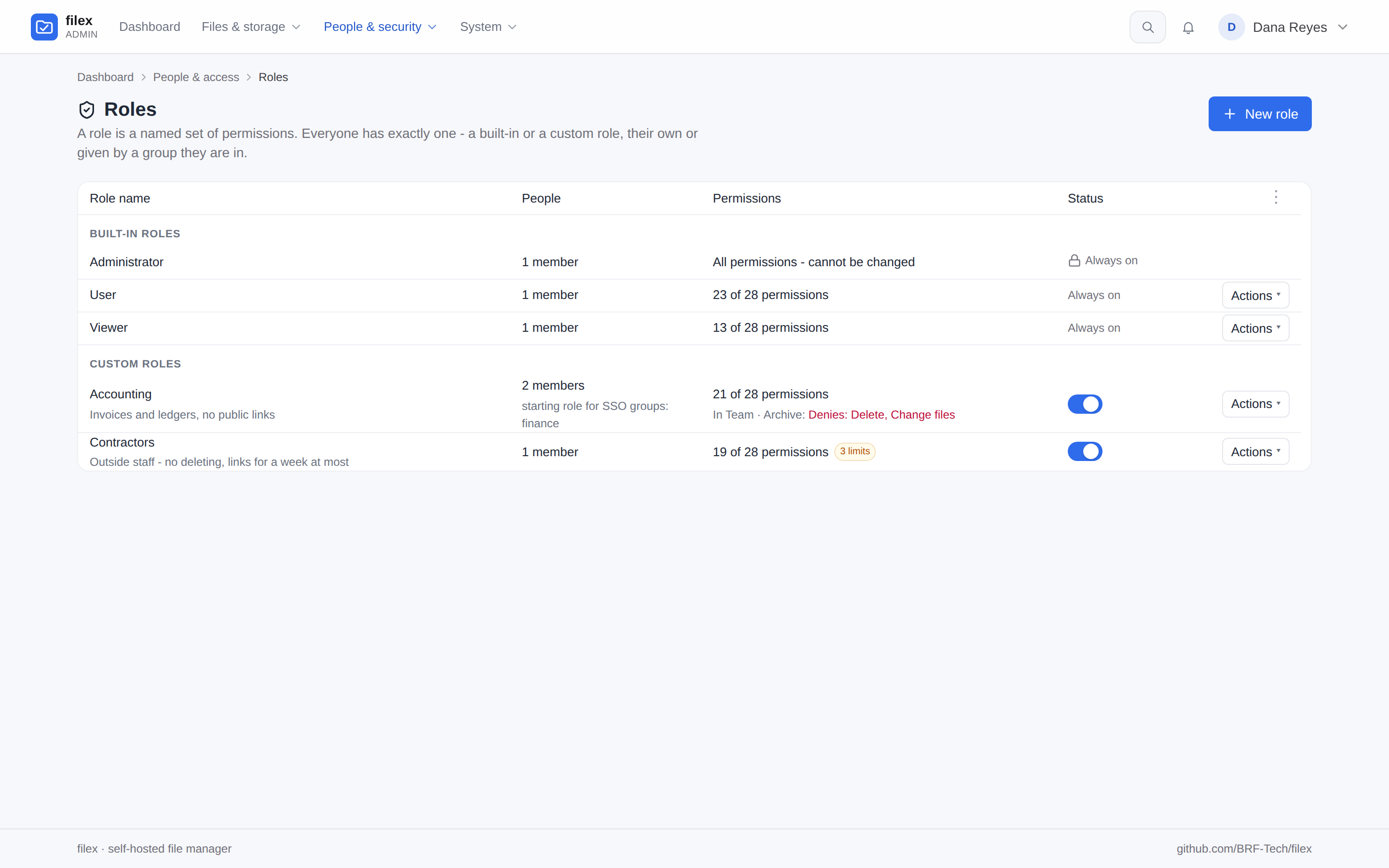
Roles - Administrator, User, Viewer and roles of your own: who holds each, what it allows, where it differs by folder, its limits (docs/PERMISSIONS.md) |
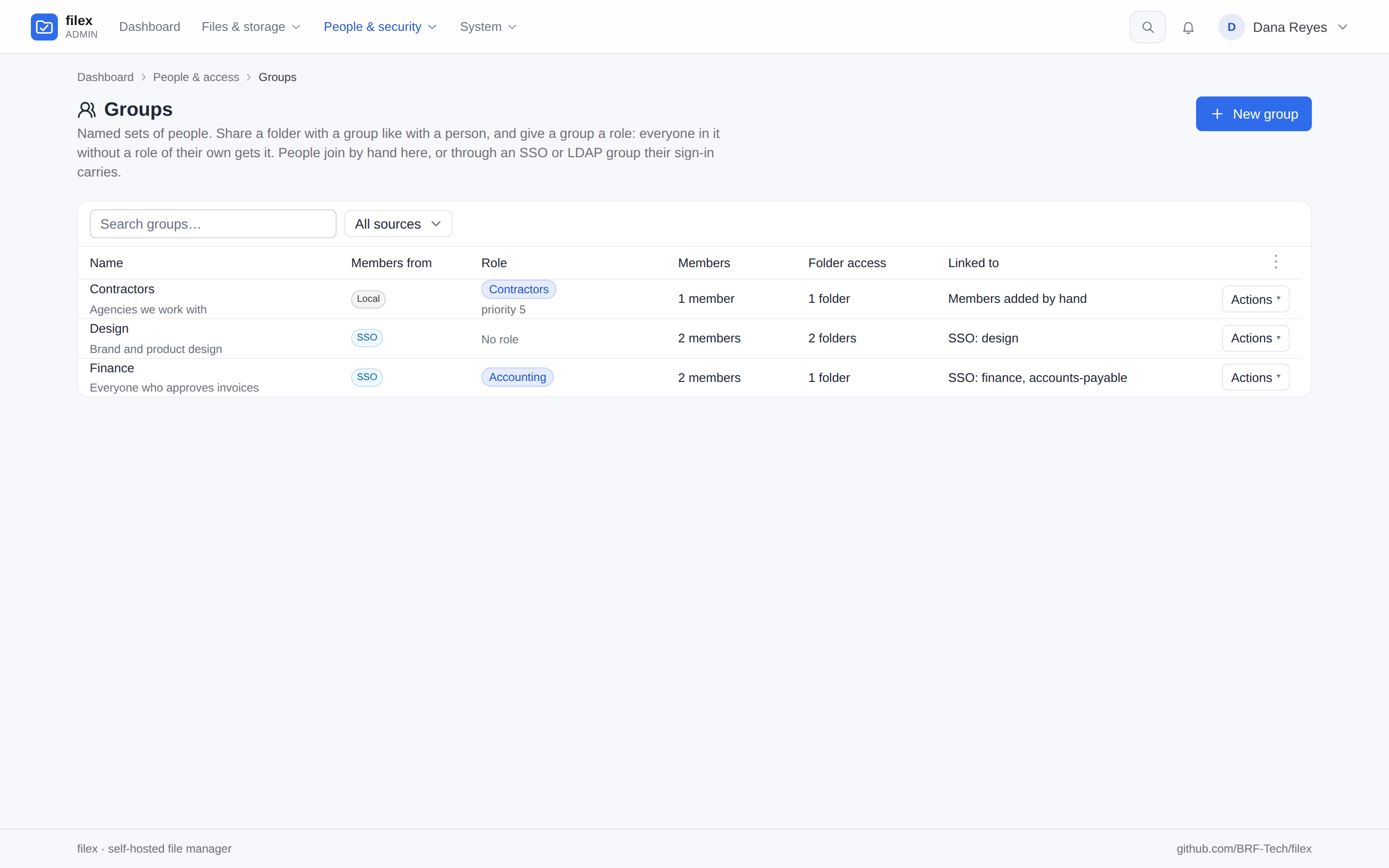
Groups - named sets of people with folder access and a role; members by hand or kept in step with the groups a sign-in carries (docs/GROUPS.md) |
|
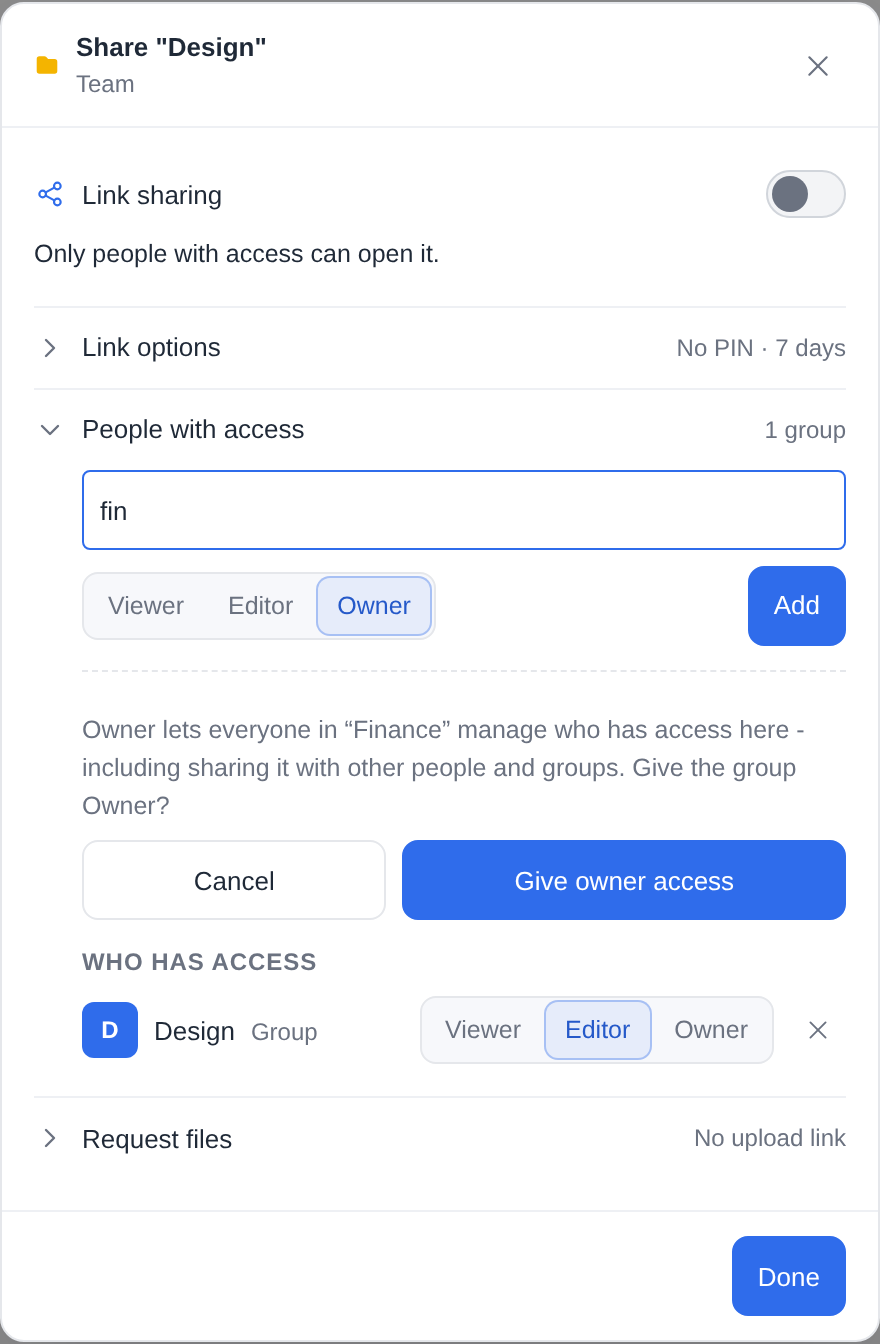
Sharing a folder with a group, beside people - Owner is asked for in the dialog, not granted by a click |
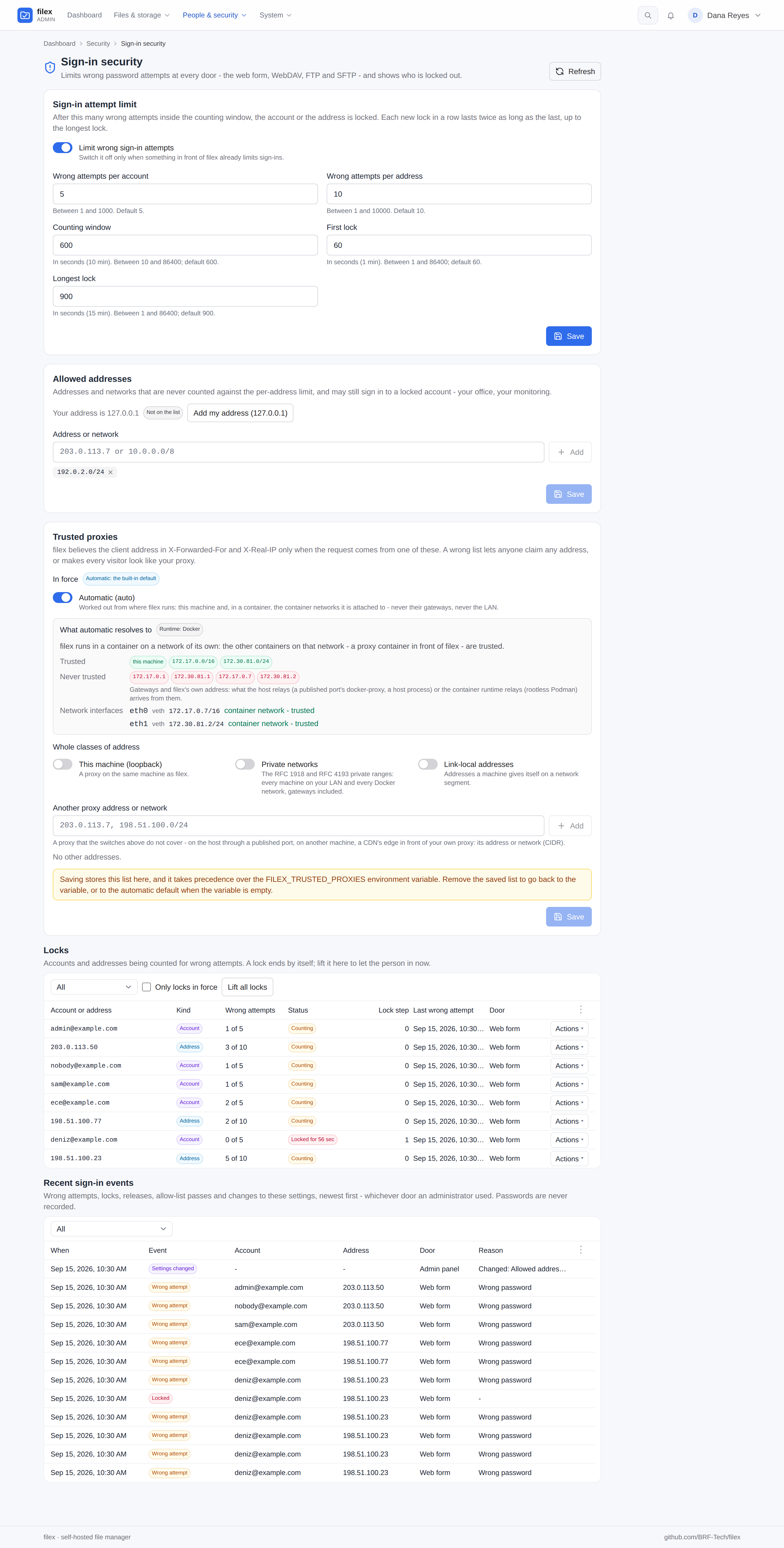
Sign-in security - the attempt limit, allowed addresses, trusted proxies, the locks and the sign-in trail (sign-in attempt limits) |
|
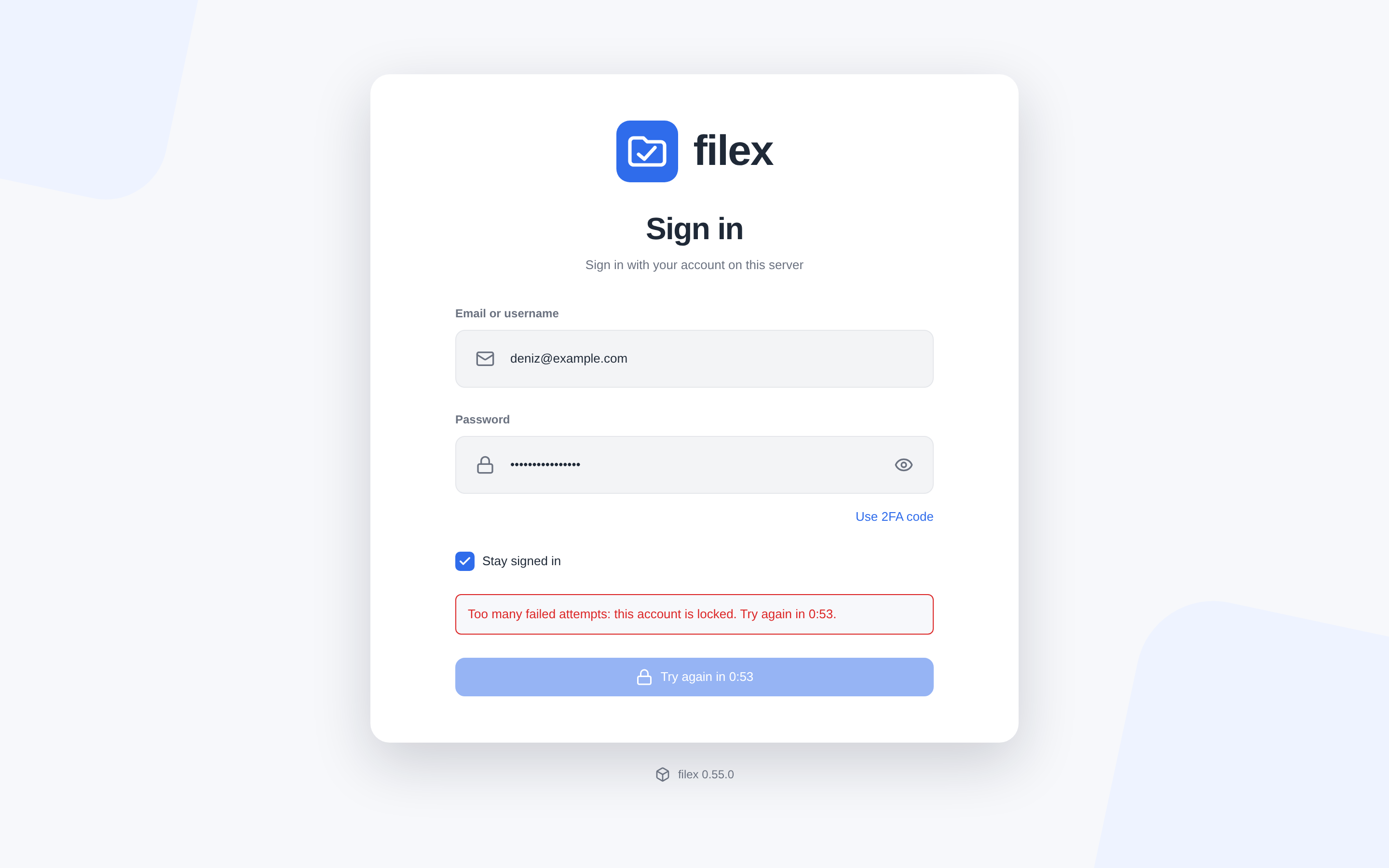
…and what a locked account's sign-in form says, counting the lock down on its button |
Admin panel |
|
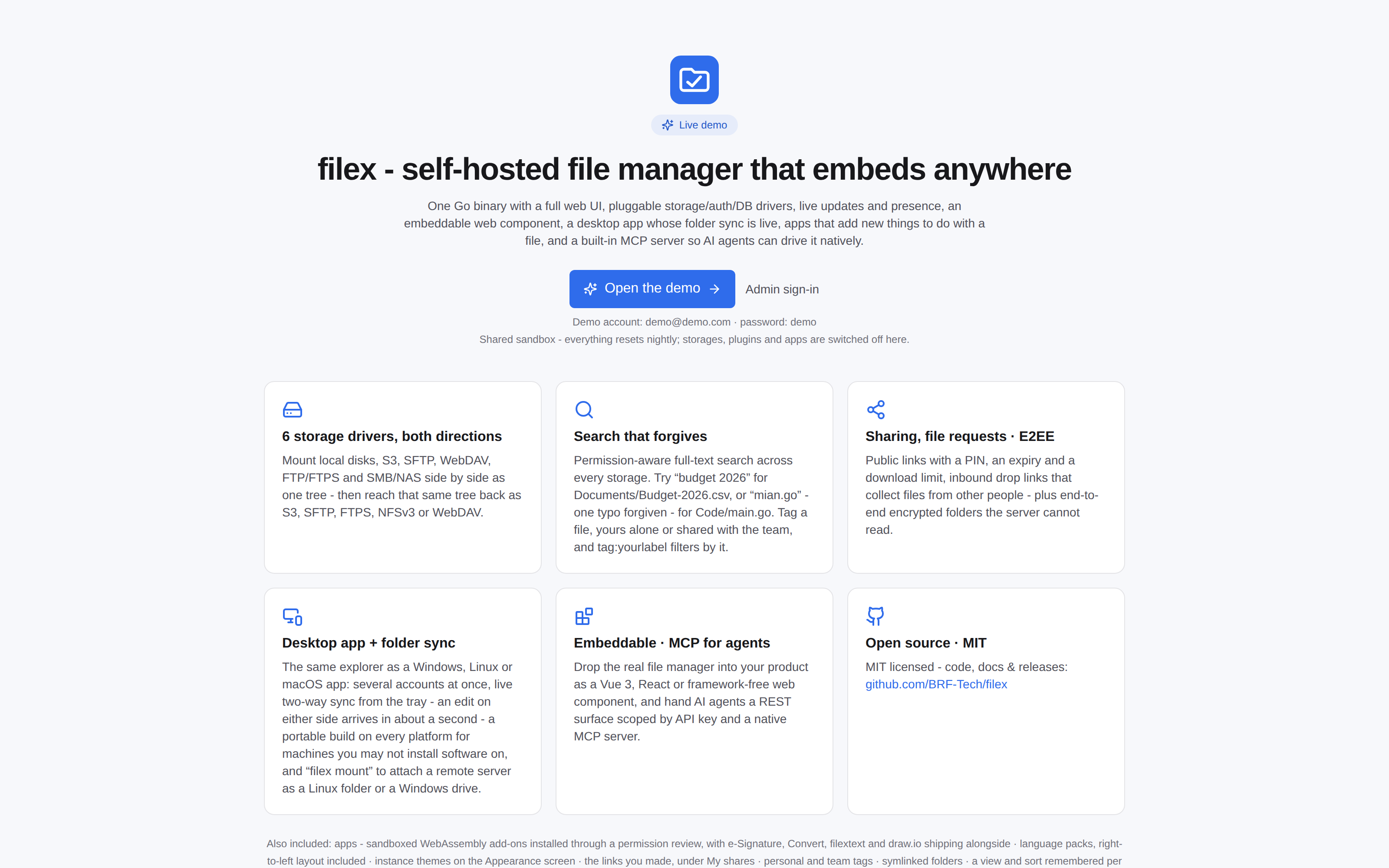
Demo landing |
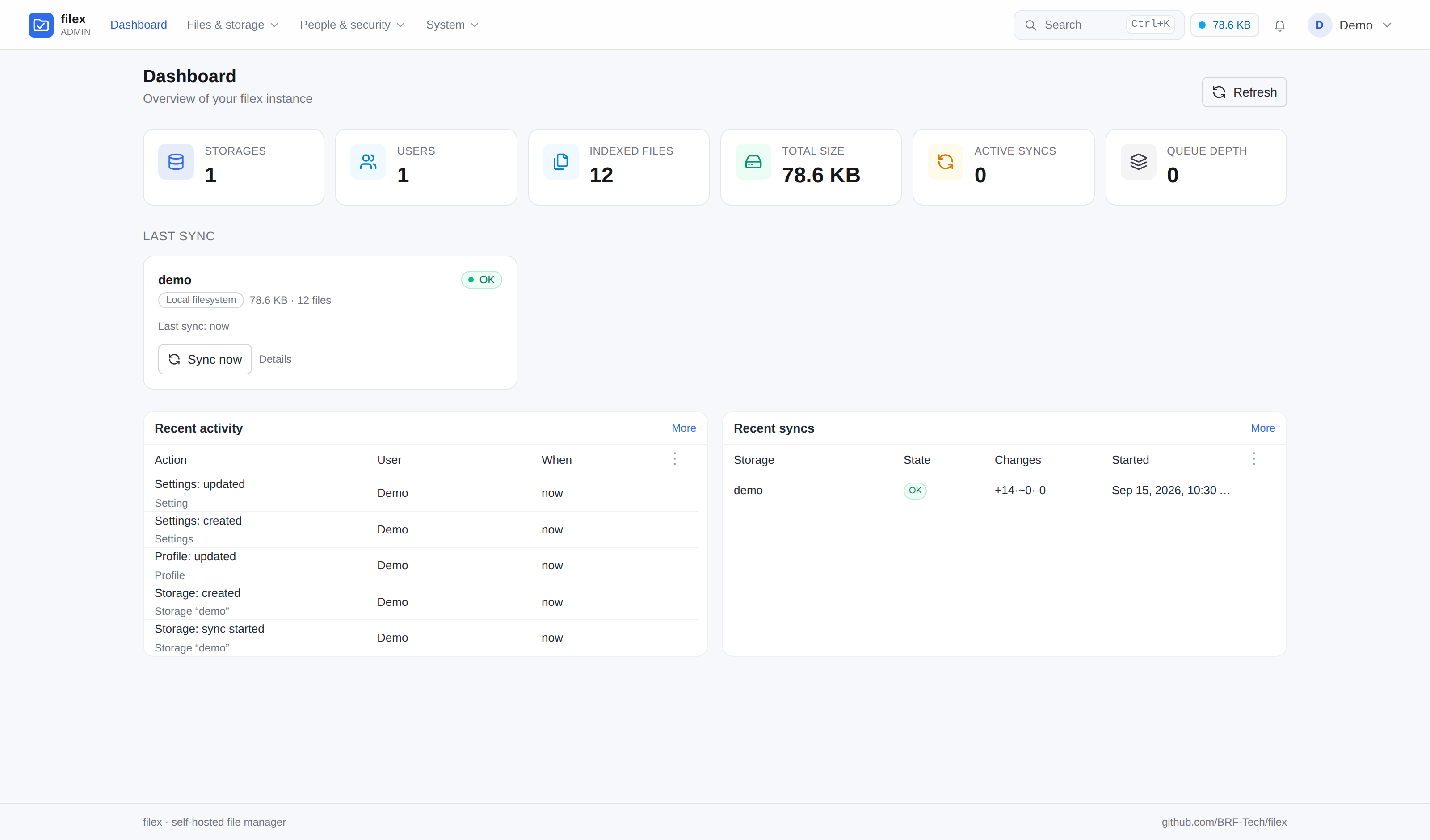
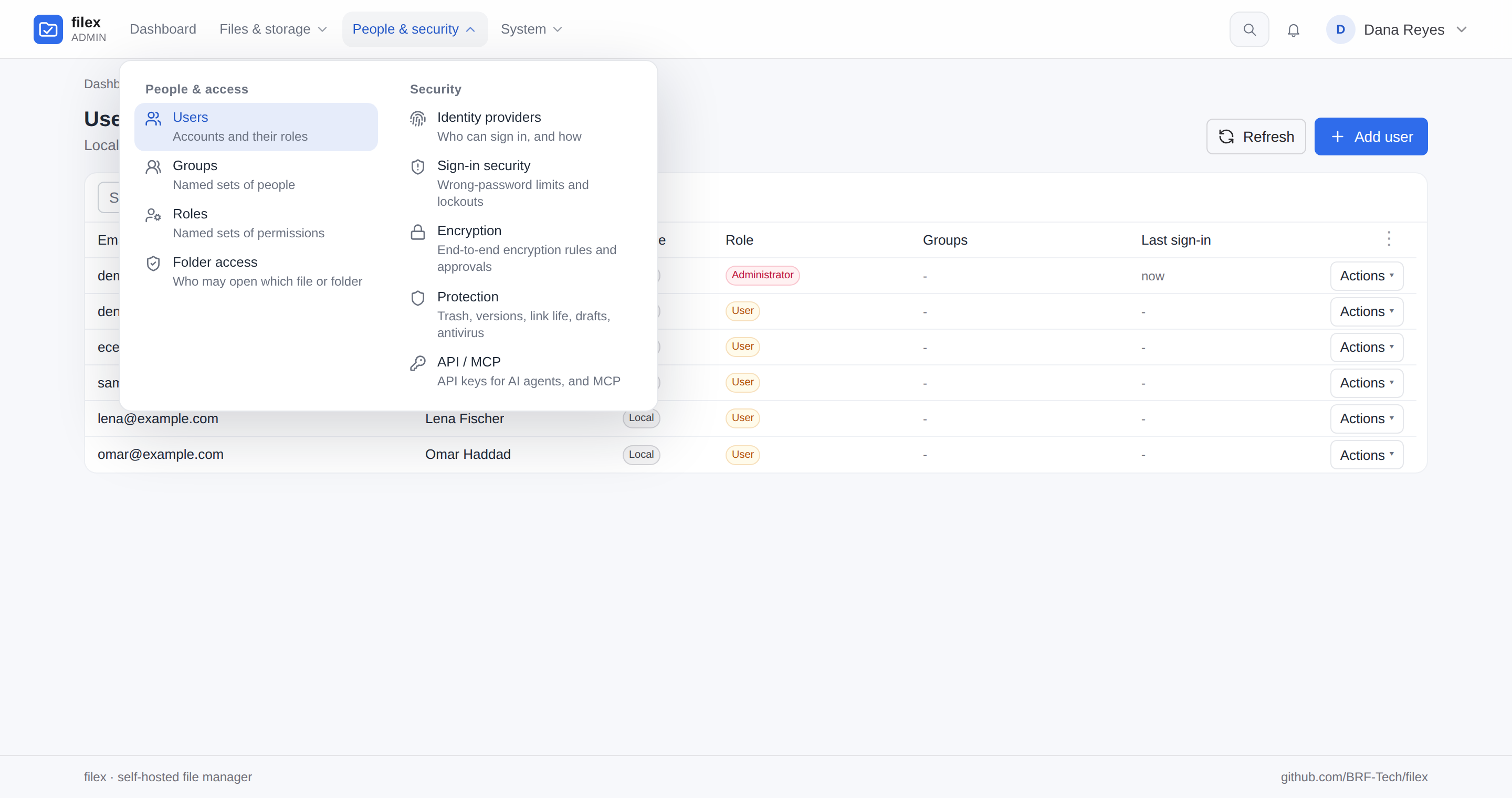
The admin menu - every page in three panels, Files & storage, People & security and System, with a short line under each; a phone gets the same pages in a drawer (docs/ADMIN-PANEL.md) |
Folders on your computer stay in step with the server, live.
filex sync and filex client.Install it from the Microsoft Store (Windows 10/11) or the Snap Store (Ubuntu and other Linux with snapd):


or with a package manager:
brew install brf-tech/filex/filex-app       # macOS 13+ (Apple Silicon), Homebrew tap BRF-Tech/homebrew-filex
sudo snap install filex-app                 # the same snap as the badge above
filex sync / filex client.Prefer a window over a browser tab? The desktop app (Windows / Linux / macOS) signs in
to any filex server and syncs folders in the background - and on every platform there is a
copy that runs without being installed (a portable .exe, an AppImage, a .zip).
Get it from the Microsoft Store, the
Snap Store or the
latest release -
docs/DESKTOP.md.
The explorer also ships as a Windows / Linux / macOS desktop app - the same component the web UI and the embeds render, not a separate half-copy:
.docx/.xlsx/.pptx
(or any of the ten Office types, or a .csv) and it opens in the editor your server runs, on a
machine with no Office installed. A document inside a folder you keep on this computer
opens as itself; anything else is copied up, edited, and written back over the original -
or beside it, when the editor saves it in another format (an old .doc comes back as .docx)
(docs/DESKTOP.md). A document that
changes on disk while it is open - an agent rewrote it - is never saved over: the editor
shows the new version, or asks first when you have unsaved edits
(When the file changes while it is open).FILEX_NO_UPDATE=1 opts out.
Every release is installed over the previous one on real Windows and Ubuntu machines,
x64 and arm64, before it ships, and must leave one copy of the new version where the
old one was, with your accounts and settings (Updates)..exe, the Linux AppImage and the macOS .zip all run from wherever you put them. The
portable Windows copy keeps everything it has in one filex-data folder beside itself,
so deleting that folder leaves nothing of yours on a machine that is not yours - the
trade is that it does not update itself.The Store build (filex File Manager) is the one Windows copy that is code-signed -
Microsoft signs it - and the Store keeps it up to date. The desktop app's winget package
(BRFTech.filex-app) is submitted with every release and is waiting for its first review
by the winget moderators, so winget install BRFTech.filex-app does not find it yet.
Installer, portable .exe, AppImage, .deb, .rpm and .dmg are attached to the
latest release - not code-signed yet,
so expect a SmartScreen prompt from the Windows installer. Details:
docs/DESKTOP.md. The CLI alone: brew install brf-tech/filex/filex,
or winget install BRFTech.filex on Windows (docs/CLI.md).
On Linux the .deb, .rpm and AppImage never run without Chromium's sandbox. The
.deb and .rpm need nothing; on Ubuntu 23.10 and later an AppImage needs a one-time
AppArmor profile, and the app says so and shows the step
(docs/DESKTOP.md). The Snap runs without
Chromium's sandbox, inside the snap's strict confinement, and needs nothing either
(docs/DESKTOP.md). Since 0.55 it is built on
core24 (Ubuntu 24.04) with Snapcraft's GNOME extension, on x64 and arm64: its first
install also brings the GNOME runtime, the graphics libraries and the GTK themes as
shared snaps.
ARM (arm64) - what ships for it (every release builds these and runs them on arm64 machines before publishing):
| arm64 | |
|---|---|
| Server + CLI binary | Linux, macOS and Windows: filex-<os>-arm64 and the .tar.gz / .zip archives |
Docker images (ghcr.io/brf-tech/filex, full and slim) | multi-arch - docker pull picks arm64 by itself |
| Desktop app - Linux | filex-desktop-arm64.AppImage, filex-desktop-arm64.deb, filex-desktop-aarch64.rpm, and the Snap Store (sudo snap install filex-app picks arm64) - since 0.48.1 |
| Desktop app - Windows on Arm | filex-desktop-arm64.exe (installer) and filex-desktop-portable-arm64.exe - since 0.48.1; the app updates itself to the arm64 build |
| Desktop app - macOS | Apple Silicon only (no Intel build) |
| Homebrew | the CLI (filex) on Apple Silicon and on Linux on Arm; the desktop app (filex-app) on Apple Silicon |
| winget | the CLI (BRFTech.filex) on Windows on Arm - winget picks the arm64 build by itself |
On an Arm machine the app's Get the desktop app offer (and its copy in
Settings) leads with the arm64 file and the download list on
filex.sh highlights it, from what the browser
reports (Chromium's client hints, Firefox's aarch64). A browser that does not
say (Safari, Firefox on Windows) is offered the x64 file with the arm64 one
beside it.
The same binary is also a client for servers, scripts and headless machines:
filex client login --url https://files.example.com
filex client upload build/report.pdf docs://ci-artifacts/
filex client mv docs://ci-artifacts/report.pdf archive://2026/   # across storages, waits for the job
filex client run convert convert docs://data/table.csv --param target=xlsx

filex sync add ~/Documents/work docs://work   # the engine the desktop app uses
filex sync run --watch 30s
See docs/CLI.md and docs/SYNC.md. A program that drives the
engine reads filex sync run --json: one JSON event per line, each with a stable code and
the engine's sentence in the account's language - the desktop app shows exactly those
(the event stream).
A real file manager inside your own product.
The same UI ships as a Vue 3 component, a React component and a framework-agnostic
<filex-explorer> web component, backed by your own filex server. A confined token locks it
to a per-tenant folder, and the backend enforces that, not the widget. The web component
takes two lines:
<script type="module" src="https://cdn.jsdelivr.net/npm/@brftech/filex/dist/filex.js"></script>
<filex-explorer api-base="http://localhost:5212" sidenav connections ui-profile="simple"></filex-explorer>
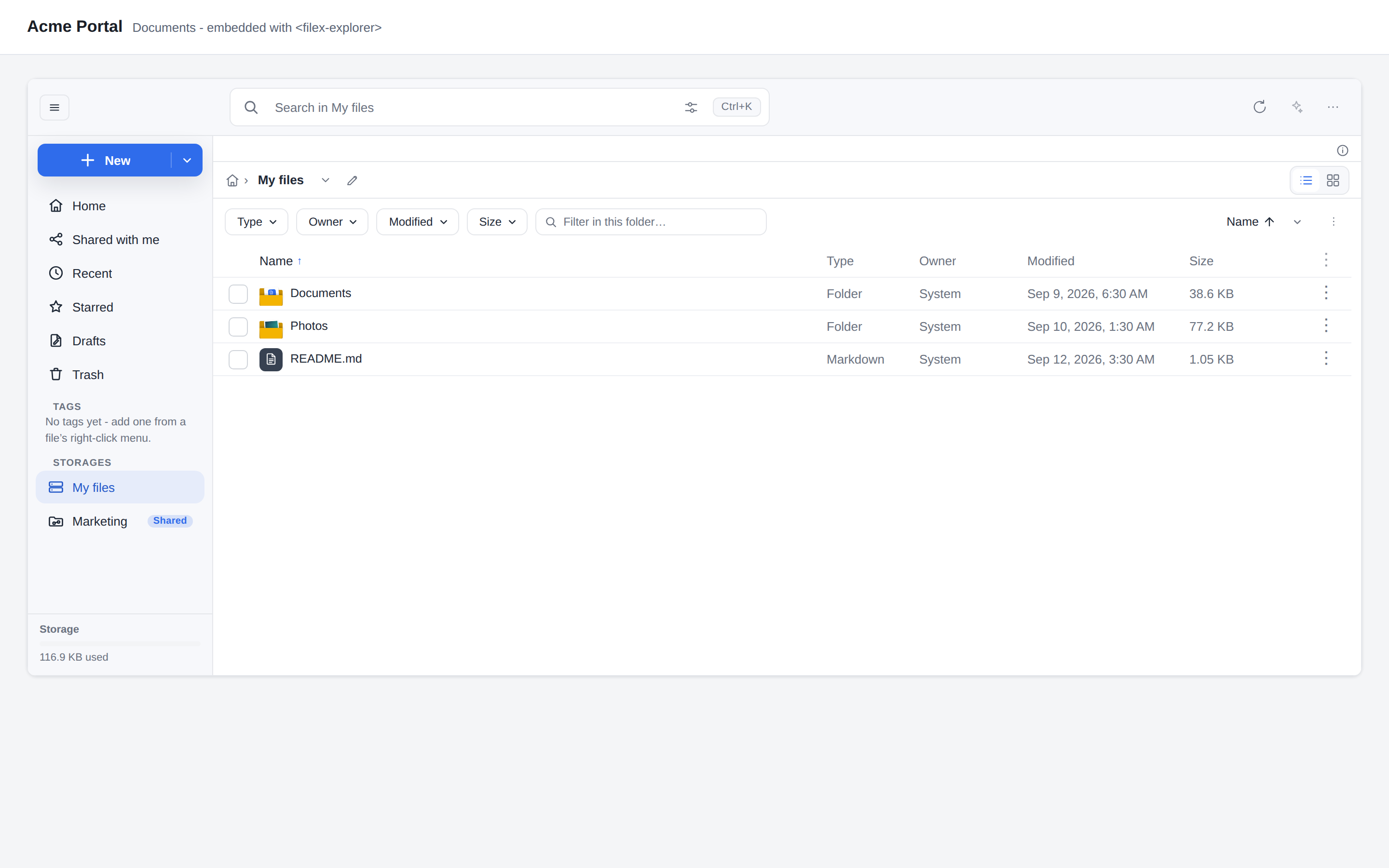
<filex-explorer> web component. Put a real file manager inside
your product, backed by your own filex server and locked to a per-tenant folder.
The navigation panel comes with it - <filex-explorer sidenav ui-profile="simple">
is the whole opt-in for a host page that never touches JavaScript.pnpm add @brftech/filex-core
<script setup>
import { FileExplorer } from '@brftech/filex-core';
import '@brftech/filex-core/style.css';
</script>
<template>
  <FileExplorer :config="{ apiBase: 'http://localhost:5212', auth: { kind: 'bearer', token: '…' } }" />
</template>
pnpm add @brftech/filex-react
import { FileManager } from '@brftech/filex-react';
<FileManager config={{ apiBase: 'http://localhost:5212' }} onError={(e) => console.error(e)} />
There is no stylesheet to import - the look travels inside the bundle and is
injected on mount, so nothing is missing from that snippet. ⚠ A bundler will need the
optional viewer packages externalized (monaco-editor and friends), which
docs/INTEGRATION.md shows in one rollupOptions.external
line; every one of those imports is guarded, so the viewers degrade rather than break.
<script type="module" src="https://cdn.jsdelivr.net/npm/@brftech/filex/dist/filex.js"></script>
<filex-explorer api-base="http://localhost:5212" sidenav connections ui-profile="simple"></filex-explorer>
sidenav turns the navigation panel on (it is on by default; the attribute is
there so a host page can state it either way), connections adds its "How to
connect" and "API keys" entries, and ui-profile="simple" presets the
power-user chrome off. All three are ordinary config keys, so the Vue and
React wrappers set them the same way - see
docs/INTEGRATION.md.
Multi-tenant hosts typically proxy the API server-side, inject a confined token
(root: tenant-folder) per request, and strip client headers - the sandbox is enforced by
the backend, not the widget. Such a token is kind: "app", so the panel hides the
surfaces that belong to one person - API keys, Recent, Starred, Shared with me -
while Upload, the storages, Trash and "How to connect" stay. See
docs/INTEGRATION.md and
docs/MCP.md.
⚠ An embed that rides on the visitor's own filex session cookie (no token) from a
page on another origin - a sibling subdomain included - reads as before, but every
change it sends is refused (403 cross_origin_refused) until that origin is in
FILEX_CORS_ALLOWED_ORIGINS; the default * does not grant it. A bearer token, a host
that proxies with a key, the desktop app and the installed web app need nothing
(docs/CONFIGURATION.md).
⚠ Keep the packages and the server on one version: @brftech/filex 0.55 needs a filex
0.55 server. Which files open for editing, the input limits and the version line come
from the server's capabilities, whether a file is end-to-end encrypted comes from its
row, and the packages keep no copy to fall back on (docs/API.md).
⚠ An app that prints (ui.print, 0.55) prints from a page of filex's own, in a frame.
Where the web component runs on another site, list that site in FILEX_FRAME_ANCESTORS,
or the app is told printing is unavailable
(Security headers and framing).
|
Shared with me - folders other people granted you, no mount instructions |
Embedded in another product's page |
New things to do with files, with exactly the permissions you approved.
An app is a WebAssembly module that runs inside filex in a sandbox, an interface of its own in a sandboxed frame, or both. You install it from a store link or its GitHub address, read every permission it asks for, and nothing updates itself. The people of your filex can browse a trusted store on its App store screen and ask you for an app or a storage plugin. Four ship as public repositories:
| App | What it adds |
|---|---|
| e-Signature | Sign a PDF, or ask others to: people on this filex sign inside it, anybody else by a private link, behind a PIN by default |
| Convert | Convert… on any file or selection: images, video, audio, documents, e-books, archives, data, subtitles and fonts |
| filextext | An end-to-end encrypted text workspace in a single .fxtxt file |
| draw.io | The draw.io diagram editor, on .drawio and .dio files |
A language pack is an app too: Spanish, German and French ship as examples.
A storage plugin teaches filex a backend it has never heard of. An app teaches it a thing to do with files - sign them, convert them, send them to somebody outside - and it is a different kind of plugin on purpose: a WebAssembly module that runs inside filex, in a sandbox that hands it nothing it was not granted. No filesystem, no network, no environment, no program on your server: only the host functions its manifest asks for, each shown to the administrator in plain words before anything is installed, and only the files the person who ran it actually selected. The heavy engines an app may want (ffmpeg, ImageMagick, Ghostscript, poppler, rsvg) are the server's own, offered one permission per engine; office documents go through the ONLYOFFICE Document Server you connect, as the office engine - filex runs no LibreOffice.
An app may also bring - or be nothing but - an interface of its own: HTML, CSS and JavaScript its author wrote, an editor or a viewer for a format. filex serves it from the package you approved (pinned by its SHA-256) in a sandboxed frame: an opaque origin that cannot read filex's session, cookies or pages, a content policy filex writes from the app's grant (no connection, no storage, no forms, no pop-ups), and one checked message channel through which filex hands it only the files it was opened with and saves over them - a new version, or a draft. It can add its own kind of file to New document, open in the editor tab, and hand you a file to keep - each time you allow it. ⚠ Browsers cannot entirely stop a page from sending data out (WebRTC ignores a content policy; Chrome lets filex close it, in Firefox filex can only take it out of the page - a seat belt, not a wall), so the install review says so plainly: trust an app with an interface as far as you trust its author with the files you open in it.
An editor that runs in the browser may ask for two narrow exceptions, each a
line of the review: frames of its own package's pages (ui:frame-package)
and reading the blob: addresses it made (ui:connect-blob) - never another
site, another app or a page of filex. A sandboxed frame cannot open the print
dialog either, so an interface with ui:print hands filex a PDF and filex
prints it from a page of its own: it asks every time, and the print dialog
opens only on the person's click on Allow
(Printing a PDF). An
end-to-end encrypted file is offered to no app - no Open with, no action,
no ONLYOFFICE - and every app door refuses it: filex decrypts nothing for an
app, and tells an interface that a file is encrypted rather than pretending
otherwise (Which rows say encrypted).
The office editor app, filex-office-editor
(ONLYOFFICE's editor in the browser, with no Document Server; no release yet),
is built on exactly these: it prints through filex, and on a phone it opens a
document to read, with Edit opening the folded desktop editor
(On a phone).
What an app adds lives where everything else does: rows in the file menu, screens filex draws for it or its own interface, jobs in the same queue as a copy - with progress, Cancel and a result that is versioned, scanned and indexed like any other write - a section in a file's details, a home screen under Apps in the navigation, and, when it needs somebody without an account, a link that is an ordinary share: in the same list, under the same PIN lock-out and expiry policy, revocable by you like every other link. An app that asks for it is also woken once an hour to do its own scheduled work - a signature request that closes itself at its deadline and sends the reminders you asked for.
Not every app runs code. A language pack is a manifest of strings and nothing
else: it installs from the manifest alone - no module, no Go, no release - never
starts a runtime, and adds its language to the explorer, the admin panel, the
public pages and the text the server writes. Plugins → Apps lists it as a
Language pack with its coverage of the running version, and anything it lacks
shows in English. Spanish, German and French ship as examples, and
BRF-Tech/filex-lang-template walks a translator from export to install.
Four apps ship alongside filex, as public repositories you can install, read and fork. The first two are modules; the last two are only an interface, with nothing that runs on the server:
| App | What it adds |
|---|---|
e-Signature - BRF-Tech/filex-sign | Sign…, Request signatures…, Sign / Fill and Verify on a PDF, and only on a PDF (an office document is turned into one with Convert first). A request is a short wizard: who signs - people on this filex, who sign inside it, and anybody else by name or email, who gets a private link, behind a PIN unless you say otherwise - in what order, the boxes named and given to each signer, then placed on the page; how long it stays open, whether the file is frozen meanwhile, and whether an audit trail PDF is written at the end. The result is a PAdES-signed PDF that is certified and sealed: the first signature certifies the document so later ones may only fill in and sign, and when the last one lands filex itself seals the whole file with the installation's own seal, locked so that any change after it is reported as not permitted. The SHA-256 of exactly those sealed bytes, the seal's fingerprint and how to check them go to the requester and to every signer, inside and outside, and into the audit trail. Optionally the signed file stays locked in filex until an administrator lifts it. Signing keys never leave the server: the instance's own certificate authority (or one you import) issues a certificate per signer, and the key that made a signature is destroyed seconds later - the seal's key is the one exception, held by the host and never handed out. |
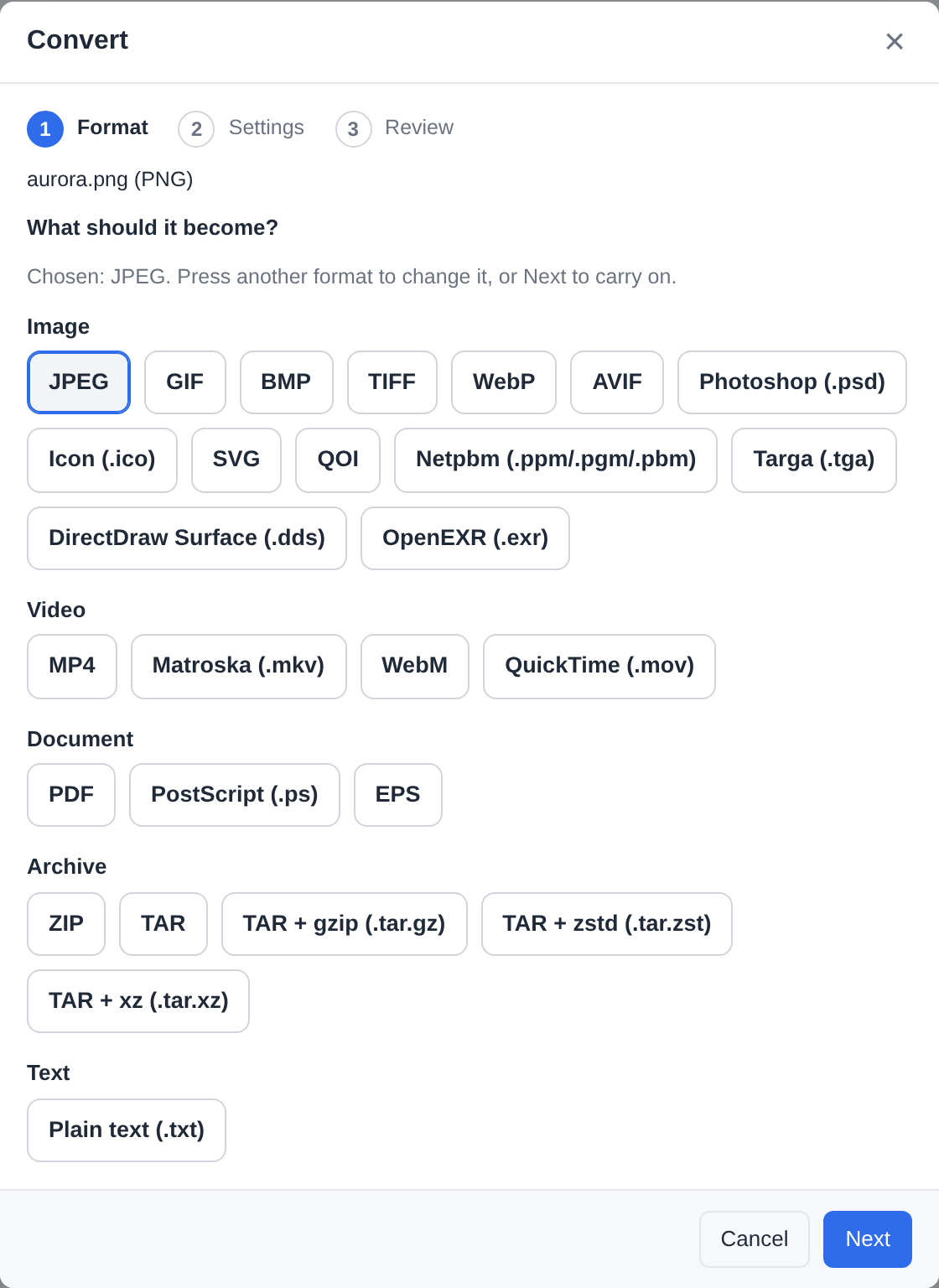
Convert - BRF-Tech/filex-convert | Convert… on any file: images, video, audio, documents, e-books, archives, data, subtitles and fonts. The target is picked from buttons grouped under their category, then only the settings that matter for it, then a review. Most conversions run in pure Go inside the sandbox; the rest use the server's engines when they are installed, and a target that needs a missing one says so instead of being silently absent. |
filextext - BRF-Tech/filextext-app | An end-to-end encrypted text workspace in a single .fxtxt file: pages and folders on the left, tabs on top, AFFiNE's BlockSuite editor in the middle (headings, lists, to-dos, code, tables, images, links between pages, Markdown in and out). It is encrypted in your browser with the same keys and recovery key as filex's encrypted folders; filex stores ciphertext and never sees the password or a word of the text. A .fxtxt opens in it in place of the preview, and New document gets Encrypted workspace (.fxtxt). |
draw.io - BRF-Tech/filex-drawio | The draw.io diagram editor, inside filex: .drawio and .dio files open in it in place of the preview, Save writes a new version, and New document gets draw.io diagram. draw.io's own files are served from the app's package (pinned by its SHA-256); it reaches nothing outside it. |
Install one from GitHub - Admin → Plugins → Apps → Install an app →
GitHub repository: type BRF-Tech/filex-sign and the release tag. filex reads the
repository's filex-app.json, downloads the module (or the interface's
package) it names and refuses it unless its SHA-256 matches, then stops at the
permission review. Nothing is
installed until you have read every permission and ticked I understand; the
grant is exactly that list, and an upgrade that asks for more stops at the review
again. FILEX_PLUGIN_TRUSTED_KEYS makes signed modules mandatory (a GitHub
install carries no signature, so on such an instance upload the module with its
signature instead). Every download - an app, its update check, a storage plugin - goes
to public addresses only, judged after DNS and on every redirect: to install from a
server on your own network, upload the files. Apps are off in demo mode. An API key - an agent, a script,
the CLI - cannot install one: it leaves a request, filex freezes the bytes
and permissions it would install, and an administrator approves it under
Plugins → Install requests.
Install one from a store - an app store such as filex Apps
sends you to this filex with an install link
(/admin/store-install#store=…&intent=…). The link only opens the same review: filex
reads the app from its GitHub repository at the commit the store approved, holds it to
the store's pins - the manifest's, the module's and the interface's SHA-256, the name,
the version, the permissions - and installs nothing until you press Install. The
first link from a store asks you to trust it and shows the fingerprints of the keys
it signs with; compare them with what the store publishes. A link is made for one filex
and works once, and the store is told how it ended. FILEX_APP_STORE_URLS /
FILEX_APP_STORE_KEYS trust stores by configuration instead, and then no other
(Installing from a store). From 0.55 a
store lists storage plugins too, through the same link and the same review: the
build is held to the store's pin, its signature names the plugin, the version and the
platform (What is signed), and the store's plugin
validator ran its Linux build in a container with no network before it was listed
(Installing a storage plugin from a store).
Let people ask for one - the navigation panel's Apps → App store opens filex's own screen over a trusted store's catalog, in the web app and the desktop app alike: read and verified on the server from the store's signed index, never a frame of the store. A person asks for an app - or, on the Storage plugins tab, a storage plugin - with a reason and follows it under My requests; the request waits on Plugins → Install requests, and approving it asks the store for a fresh install link and opens the same review. Admin → Plugins → Apps → Store screen turns the screen on, picks the stores and who sees it, and Trusted stores → Connect binds this filex to a store with a one-time code (The store screen).
filex Apps signs with these keys (also at https://apps.filex.sh/v1/keys.json; the trust
question shows the first 32 characters of each fingerprint, in groups of four):
| Key | Signs | Fingerprint (SHA-256 of the key) |
|---|---|---|
index-2026-10 | install links | 205cd1302b9a5025776636b189b6ef80c5a72f4128acb802b917434380bc4c88 |
license-2026-10 | license answers | 2807b0749a94944285c293ee82ae46600877925a0815cbc0484a93789e0371b4 |
artifact-2026-10 | app modules and storage plugin builds (not asked about on the trust question; FILEX_PLUGIN_TRUSTED_KEYS checks a module's or a build's signature) | 94974dbae4cc3106406cbf812a4f33b530030ac244b57b73a8989bb23d4df62e |
Paid apps. A store may sell an app, and its license is the store's: filex keeps the
key encrypted and shows only its first characters, asks the store at install and every
day after, and when the store says a license is revoked, expired or out of seats the app
is held - installed, with its settings and records, running nothing - until the
license holds again, with a band on every admin page that names it. Nothing is removed by
a license. An app reads its own status with fx.license.get(), never the key
(Paid apps).
Who may use it. An app can declare permissions of its own - a signing app puts Request signatures behind one, while signing what you were sent needs none - and you hand them out per role and per person like filex's own; an action somebody does not hold is not in their menu and is refused if asked for (App permissions).
Nothing updates itself. Once a day (and on Check for updates) filex
asks where each app came from - its GitHub releases, a language pack's branch,
or the manifest address it was installed from - for a newer version this filex
can run, and tells you: it waits under Update available (or Needs approval,
when it asks for more) until an administrator has reviewed what it changes -
permissions, module, interface files, notes - and approved it, and everybody
then uses that version. Back to version puts the one it replaced back.
Storage plugins can follow a source the same way. An app says which filex
versions it works with ("filex": ">=0.47.0" in its manifest), and filex will
not install it outside that range.
Operator's guide: docs/APP-PLUGINS.md - installing and
controlling apps, the signing round end to end, the converter, scheduled
wake-ups, and what guards an app's public links. Writing one (stock Go,
GOOS=wasip1, with a test kit): start from the template repository
BRF-Tech/filex-app-template and
docs/PLUGIN-KIT.md; the
wire contract: docs/APP-PLUGINS-API.md. The other kind
of plugin, a storage backend: docs/PLUGINS.md.
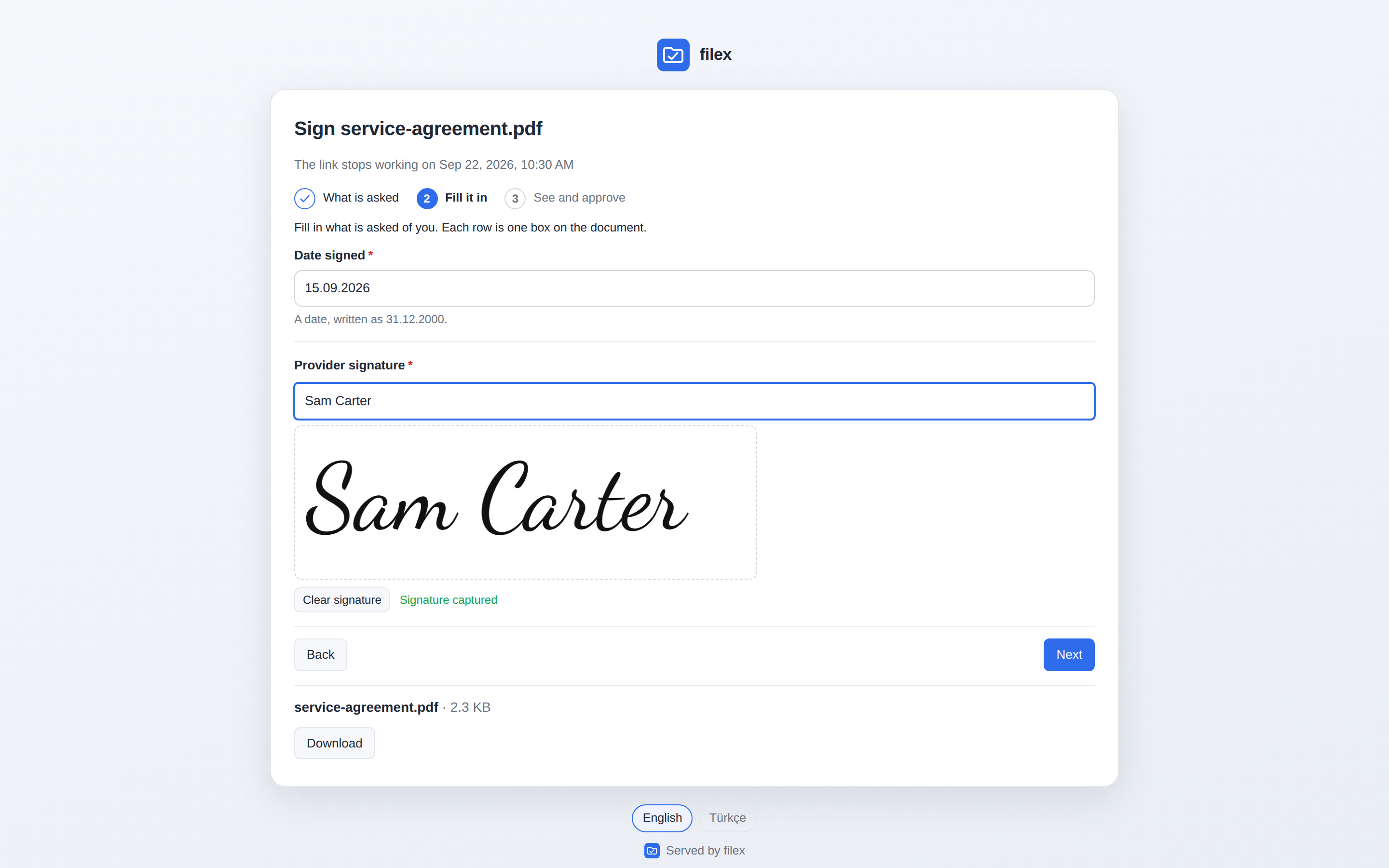
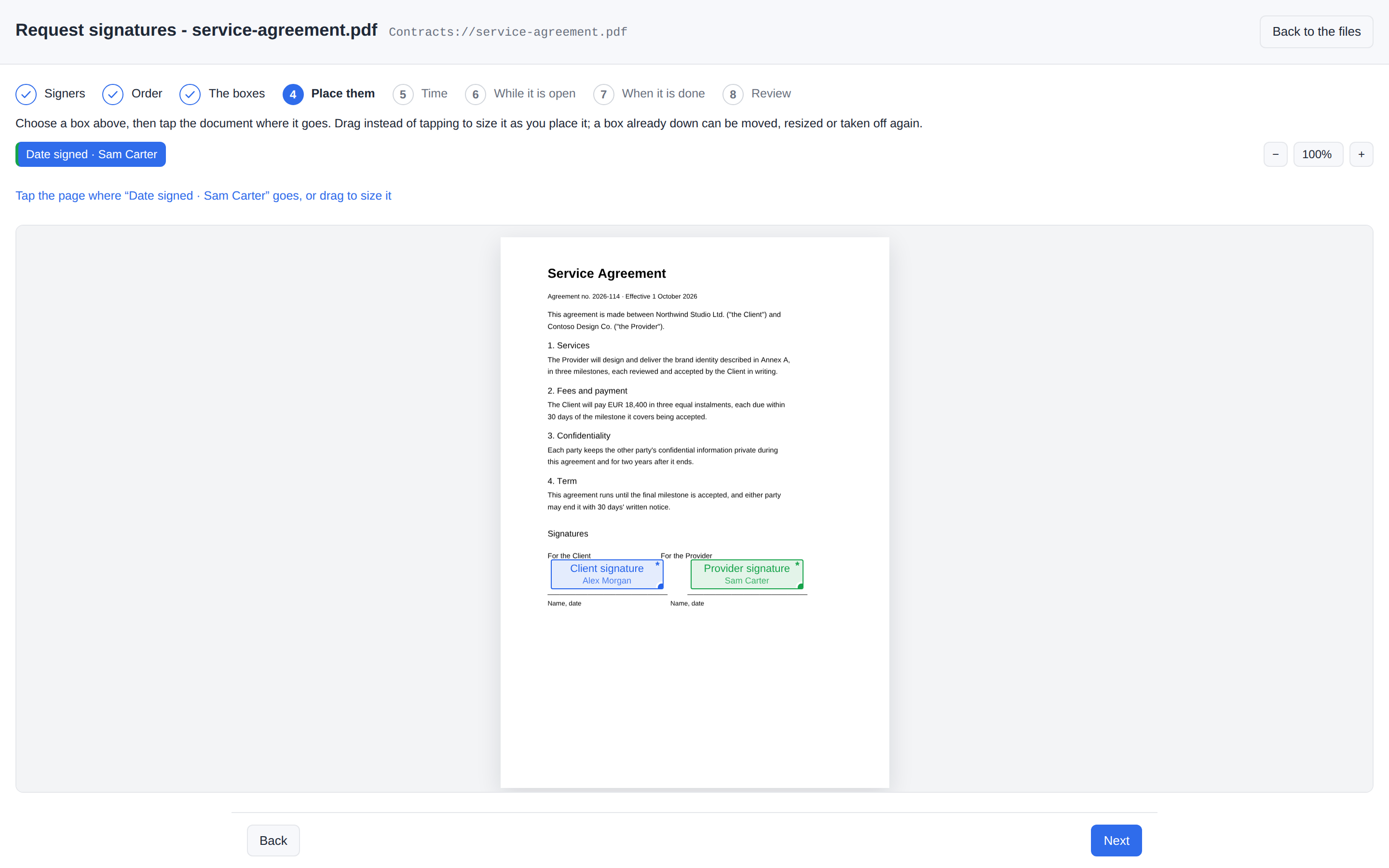
Dana asks a colleague on the same filex and a partner outside it to sign an agreement. The app is e-Signature; every screen is drawn by filex, and the link the partner gets is an ordinary share.
|
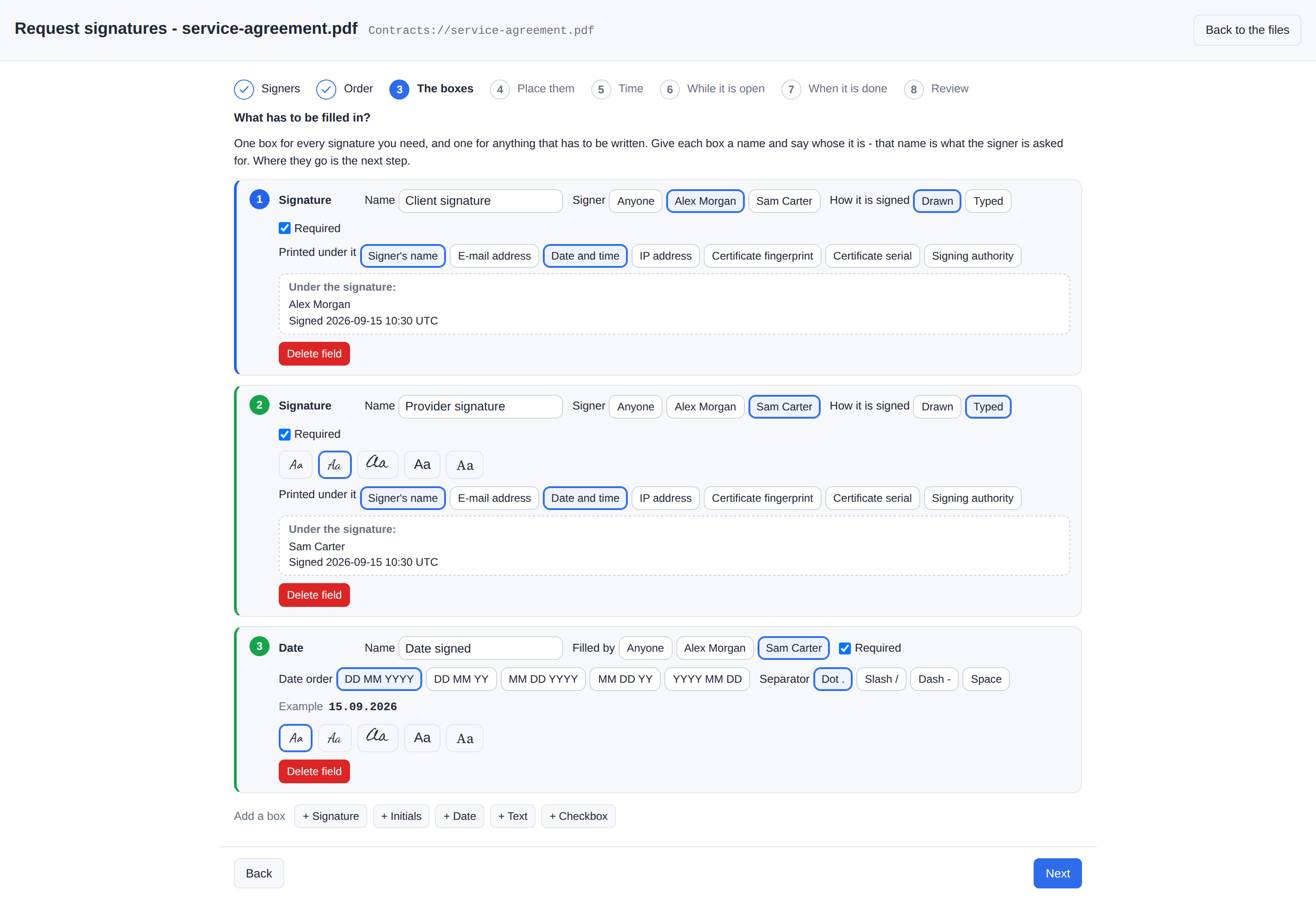
Define the boxes - name each one and say whose it is; the document comes next |
Place them - choose a box, tap the page where it goes |
|
The partner's link - filex's one public screen, in your instance's name, behind a PIN |
…and what it opens: only their own boxes - here a name typed in the face the requester chose (drawn and uploaded are the other two) |
|
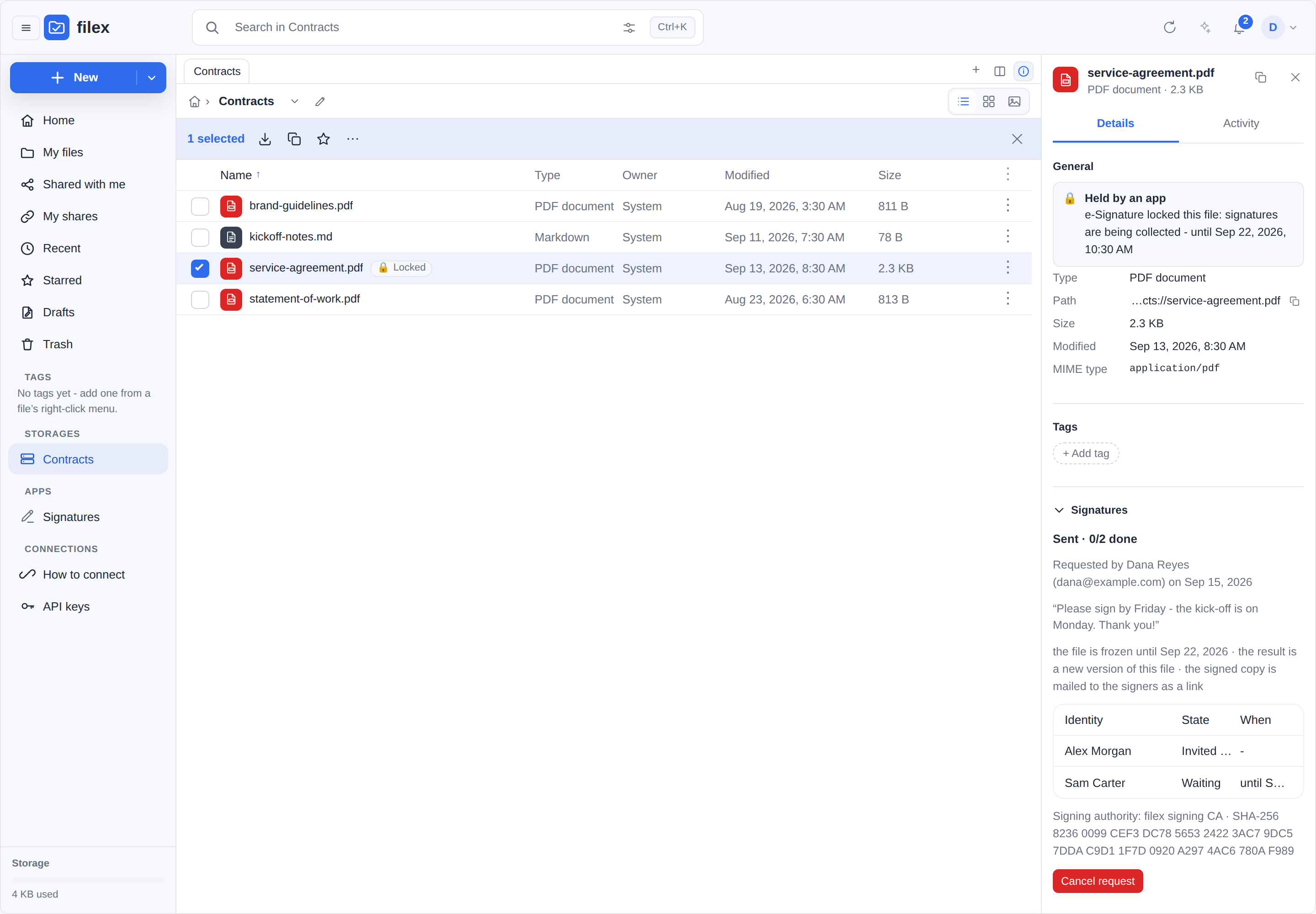
While it is out - the document frozen for everybody, who has signed in its details |
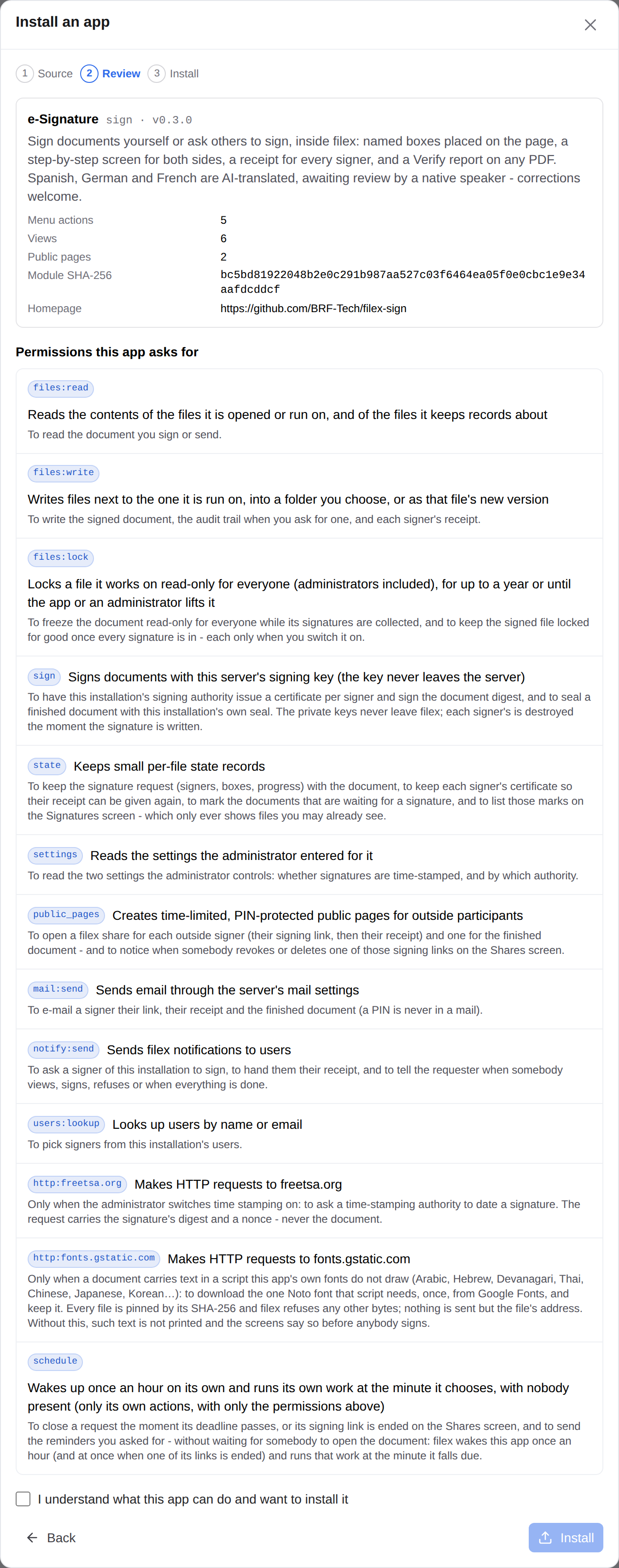
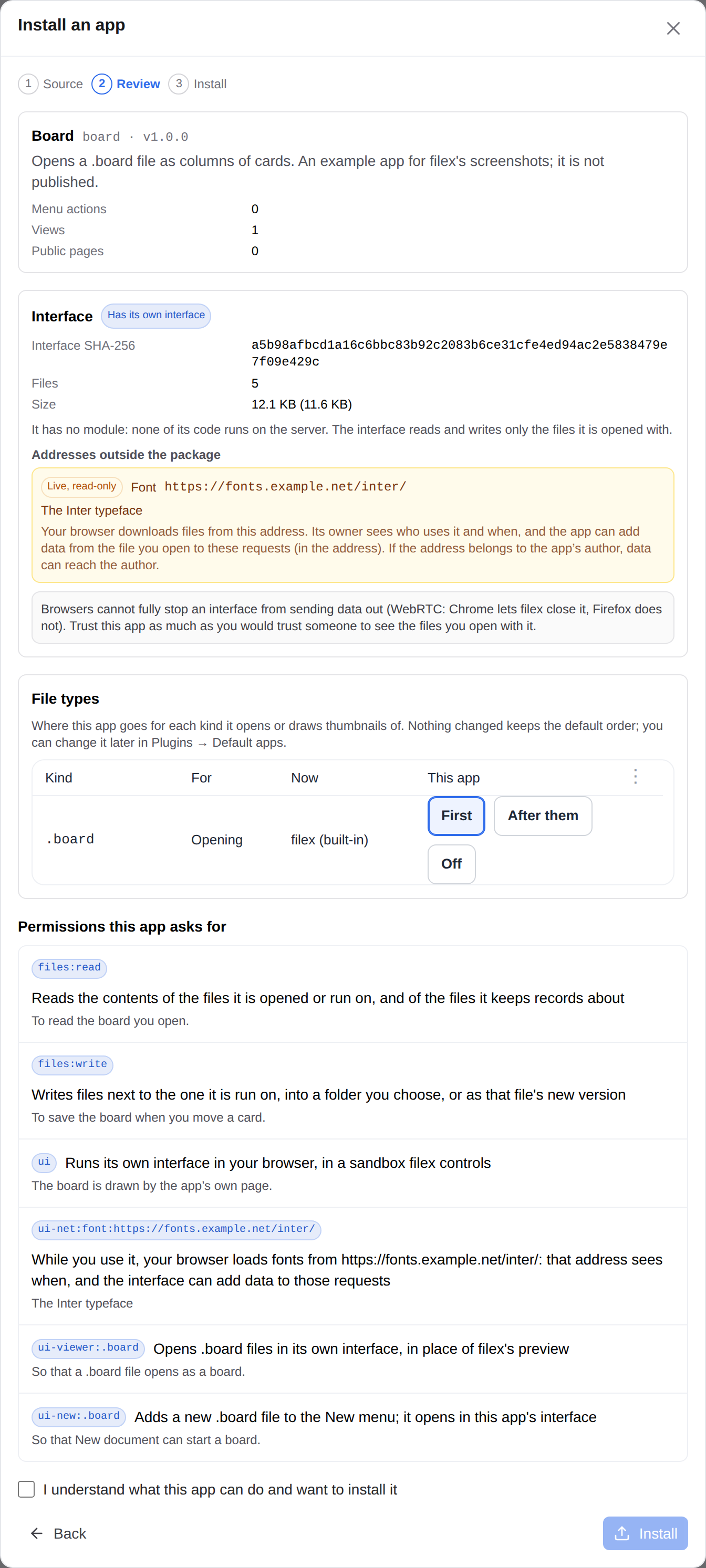
Installing an app - every permission it asks for, in plain words, before anything runs |
|
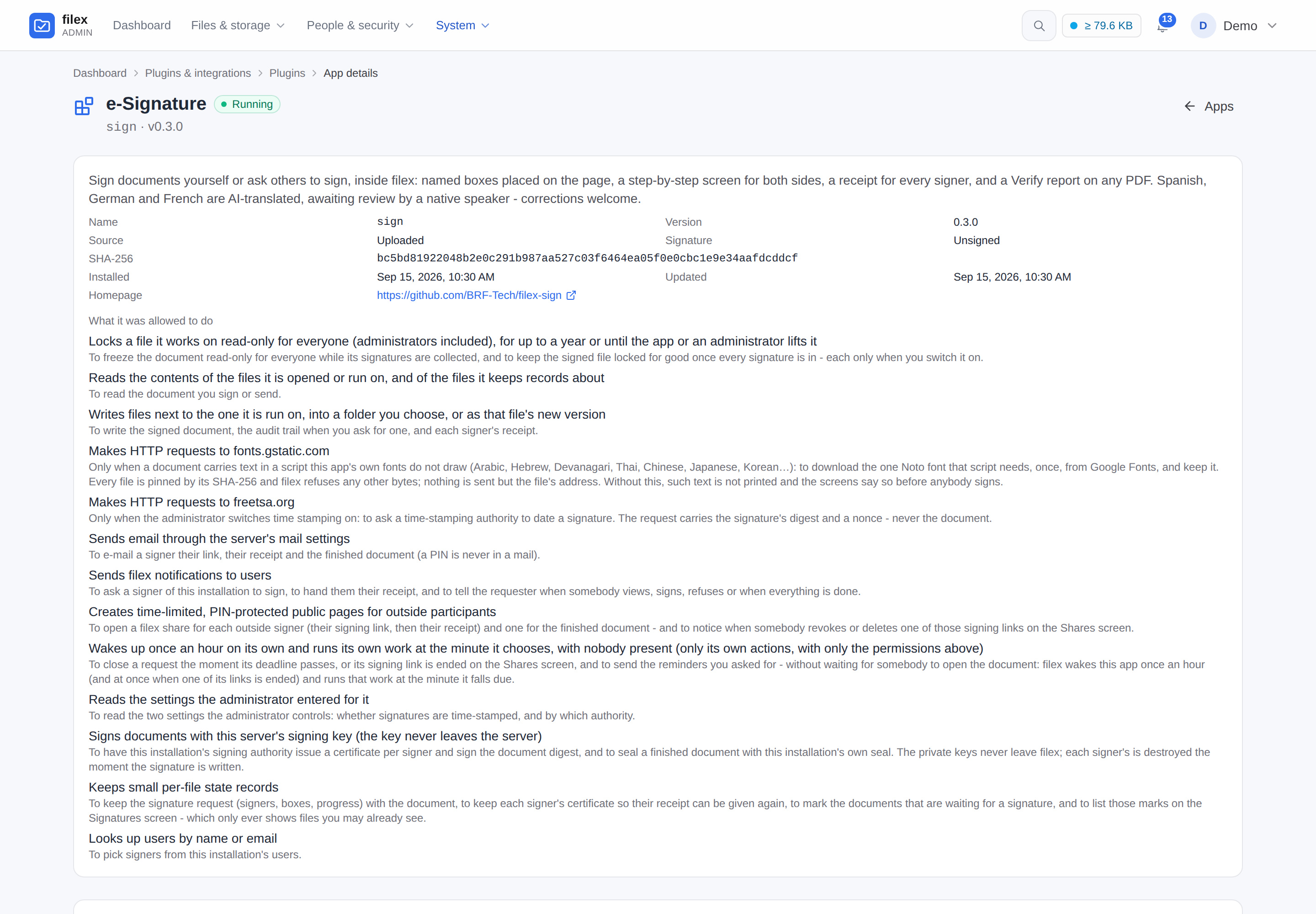
An installed app - where it came from, its fingerprint, and every permission it holds in plain words (its settings and its actions follow, further down the page) |
The converter, another app - every target under its category, three steps |
|
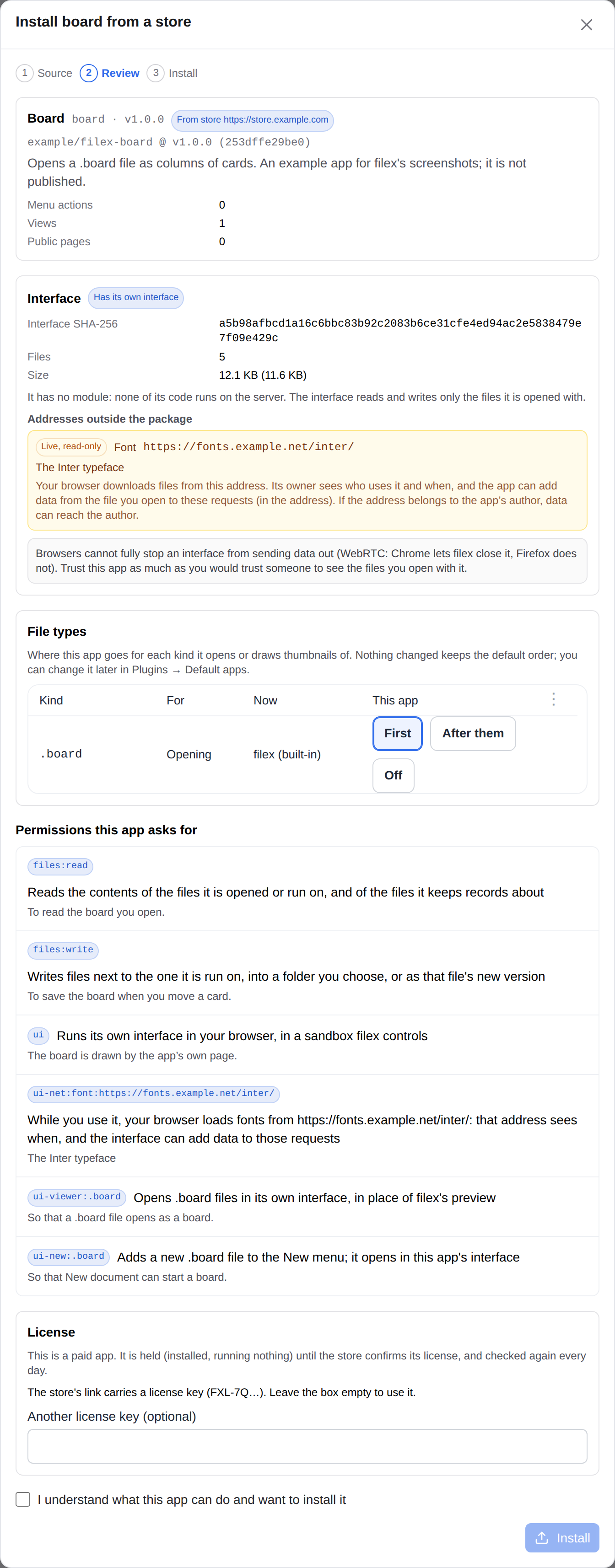
An app that brings its own interface - the review shows the package's fingerprint, every address outside it (a live one is a permission, in yellow) and what a browser cannot promise |
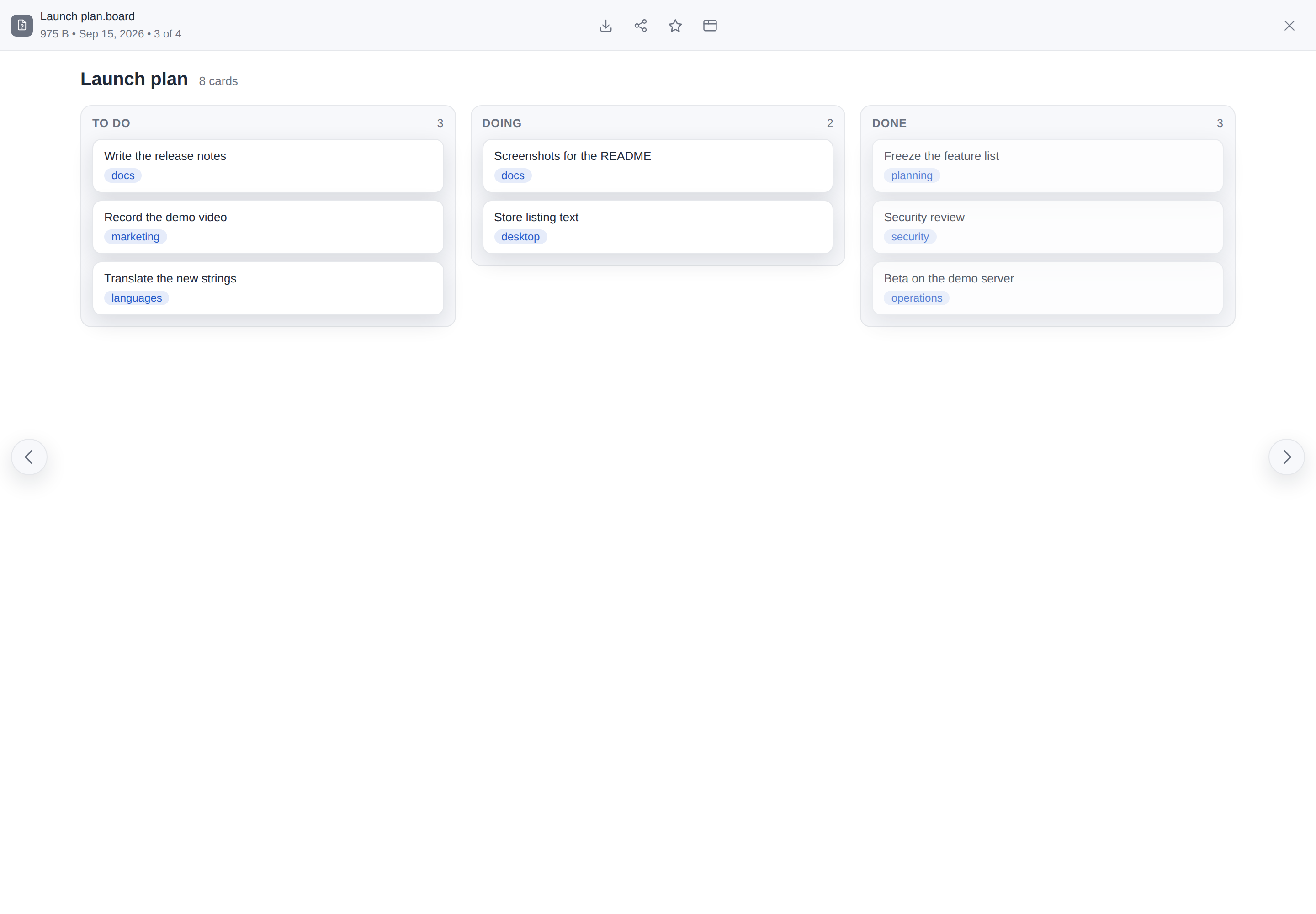
…and that interface open on its own file type, where filex's preview would be. It reads and saves the file through filex, in a sandboxed frame (a small example app, written for these pictures) |
|
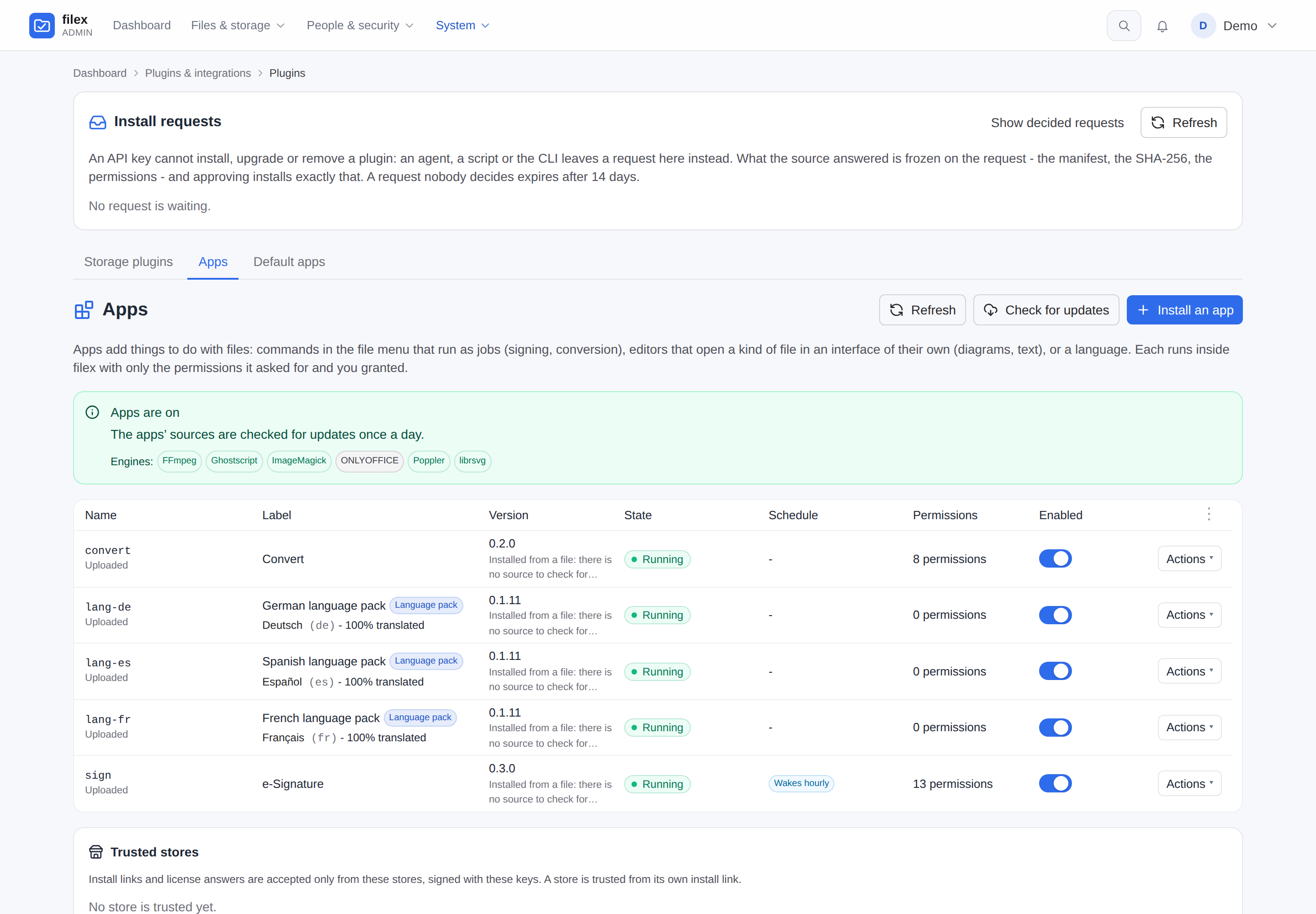
Every app on the instance, and a language pack among them - a manifest with nothing that runs, which says how much of this filex it translates and leaves with it |
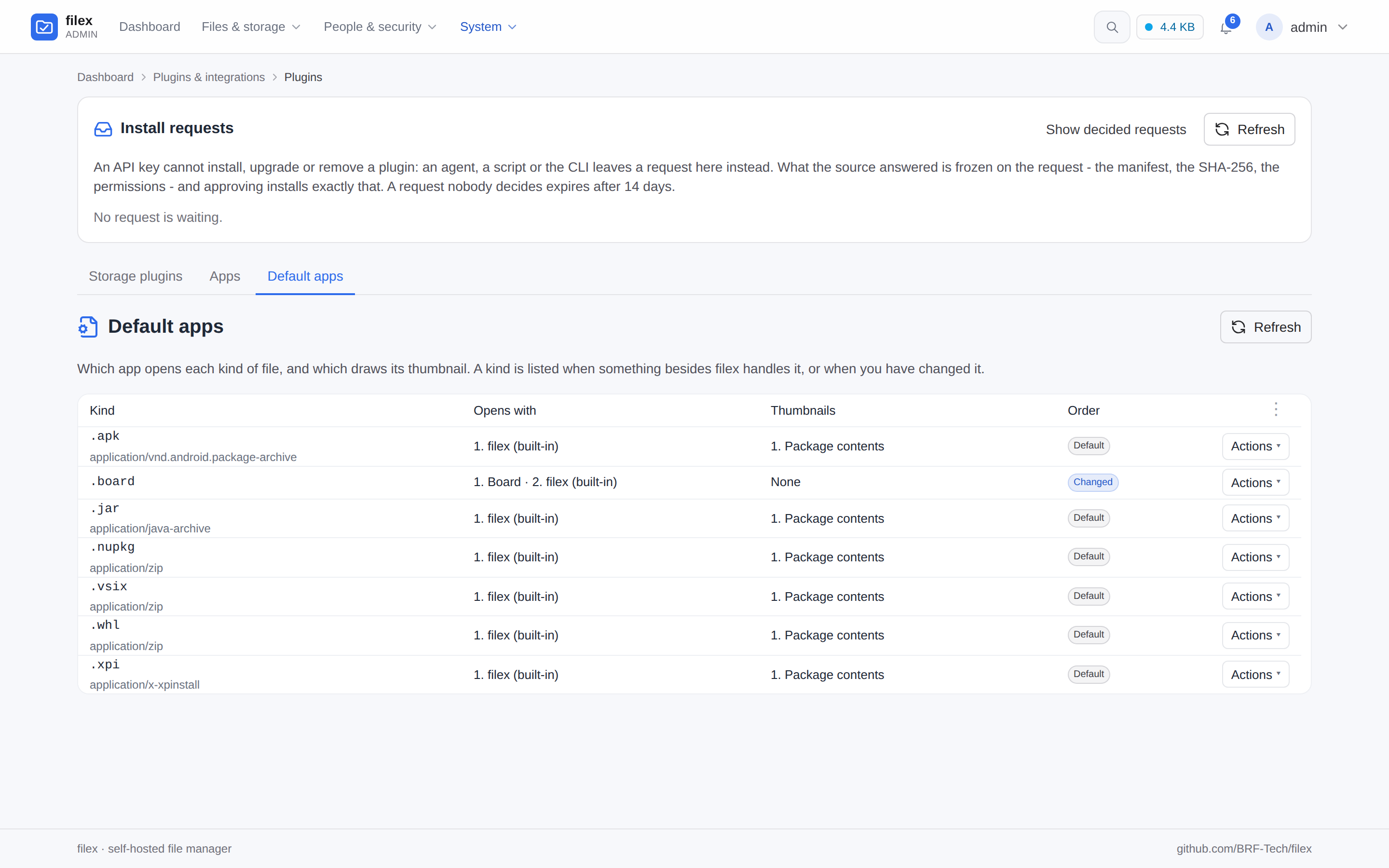
Default apps - every kind of file something besides filex handles: who opens it and who draws its thumbnail, in the order you set (Default apps) |
|
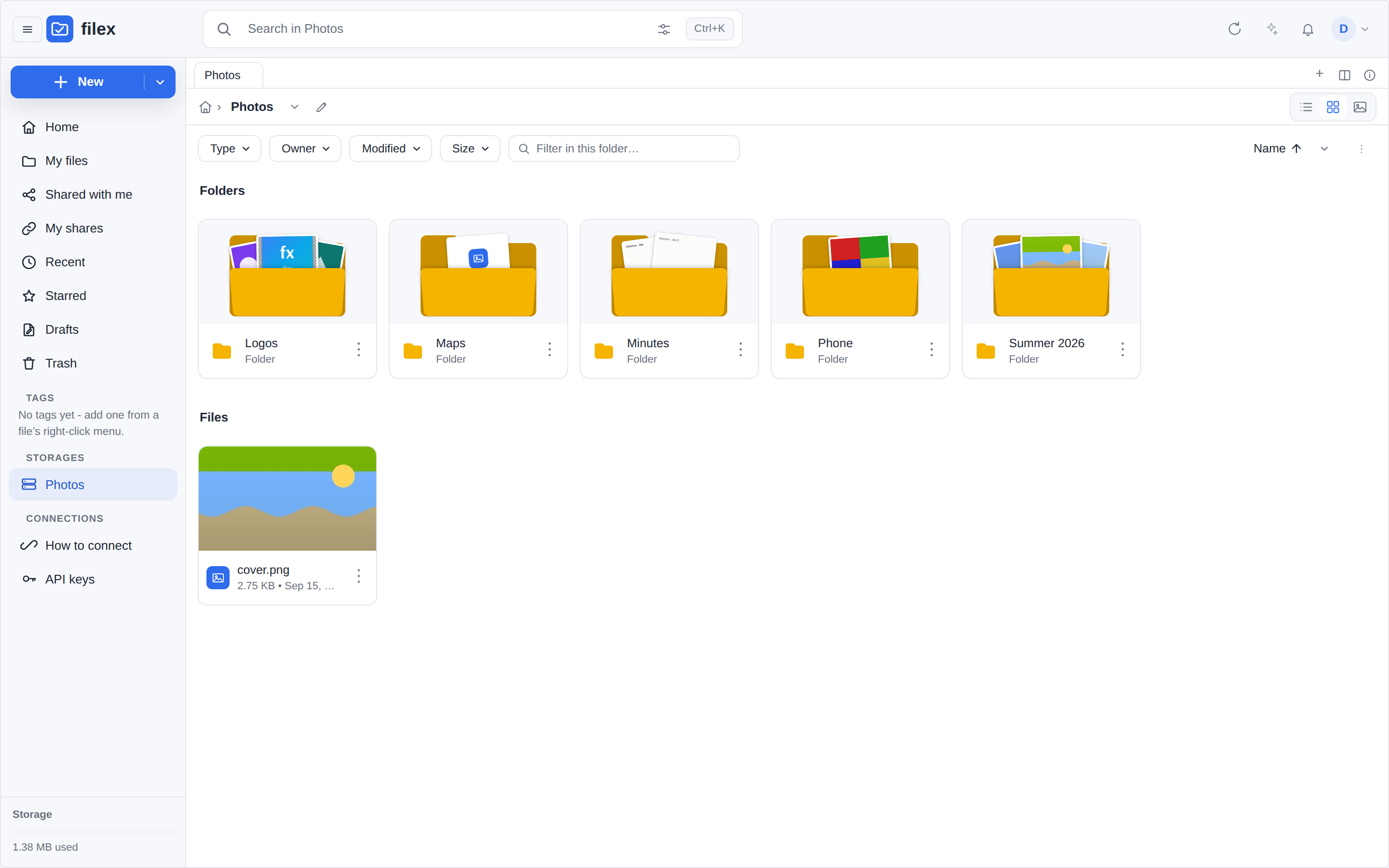
Folder previews - each folder drawn with the three files that came into it last; the SVGs are drawn by filex's built-in engine (docs/thumbnails.md) |
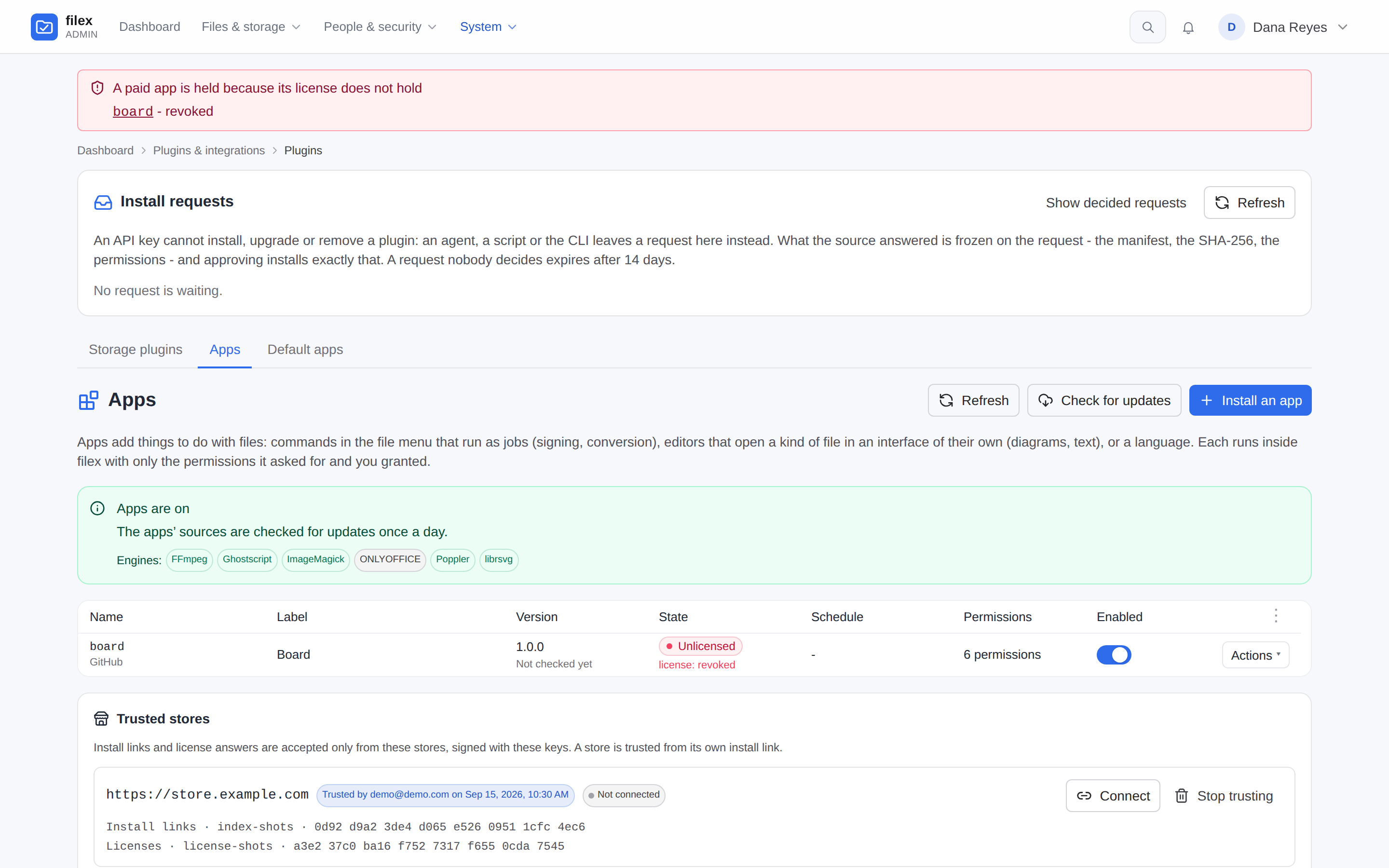
Installing from a store - the same review, marked From store, the paid app's license key shown by its first characters (Installing from a store) |
|
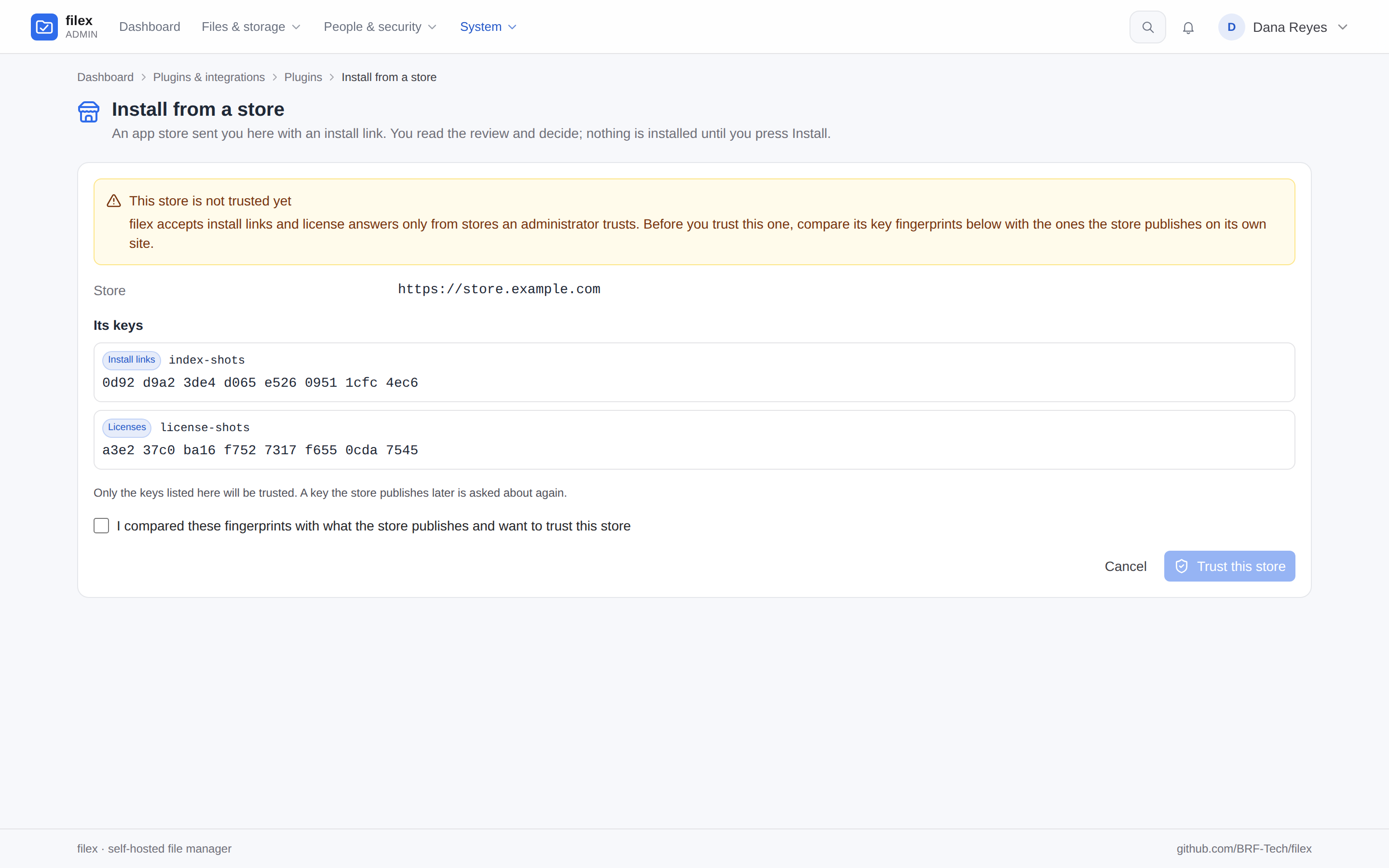
The first link from a store - its address and the fingerprints of its keys, to compare before you trust it (Trusted stores) |
A license the store revoked - the app held, Unlicensed, nothing removed, and a band on every admin page (Paid apps) |
An agent works in the folder you gave it, and nowhere else.
/api/ai/mcp, and a REST surface at /api/ai described in an
OpenAPI 3.1 file.claude mcp add filex --transport http https://files.example.com/api/ai/mcp \
--header "Authorization: Bearer <api-token>"
/api/ai) bounded by an API key's permissions, plus a native
MCP server (/api/ai/mcp); /api/ai and /api/files are described in an
OpenAPI 3.1 file a test holds to the router. Hand an
agent a token confined to one folder and it works there with the explorer's own
operations - list, read, write, copy, convert, share, the trash, versions, archives -
and nothing outside it.filex ships a token-authenticated automation surface at /api/ai (list, read, write,
move, copy, delete, search, share, zip) and speaks Model Context Protocol at /api/ai/mcp.
An agent also runs the explorer's own operations - copy across storages, app actions such
as convert, the operations queue, trash and version history, 7z/TAR archives, its
links and file requests, the bell, stars, comments and the permissions on an item it
owns - through the explorer's own handlers, so the rules are the explorer's. An admin
key reaches what the panel does (tenants, identity providers, sign-in security, Default
apps, webhooks, storages) through the panel's own handlers. /api/ai and /api/files
are described in an OpenAPI 3.1 file:
claude mcp add filex --transport http https://files.example.com/api/ai/mcp \
  --header "Authorization: Bearer <api-token>"
An API key carries permissions by verb (read, write, delete, plus mcp and admin)
and comments at a level of their own - read, or comments:rw to add and delete one,
which write does not give
(permissions with a level) -
optionally confined to a single folder, gated by the same RBAC grants and roles as the UI,
and stamped with per-key identities so audit logs, shares and presence show who (which
integration) did what. The verbs hold on every surface the key reaches - /api/ai, the
MCP tools, the explorer's own routes (and so filex client and an embed), WebDAV, SFTP, FTPS,
and the S3 keys and NFS exports minted from it. Some acts are never a key's: installing a
plugin - an agent leaves an install request an administrator approves in the panel - and
making someone an administrator. A key must name
at least one permission - an empty list is refused, never read as "all of them" - and
what it hands out can never be wider than the key itself: asking through a read-only or
folder-confined key for an API token, an S3 access key, an NFS export or an SSH key with more
verbs, a root outside its own, or a longer life is refused with 403 token_ceiling naming what
was too wide. An
agent's move never overwrites: an item headed for a name that is taken lands
beside it under a free one (report-copy.txt), exactly as a move in the UI does,
and the answer names the path it really landed on. And it knows
encrypted folders: every row says whether it is encrypted, ciphertext is never
handed out as if it were the file (409 E2E_ENCRYPTED), and plaintext written into an
encrypted folder is refused unless the caller says it means it (allow_plaintext)
(docs/MCP.md).
A large file already on the agent's disk never fits through a tool call - its bytes would
have to travel through the model's context. Upload tickets fix that: one authorized
call pins the destination and returns a short-lived, single-use URL that needs no
credentials, so even an agent with no filex token can finish the transfer with
curl -T bigfile <url>. Details: docs/MCP.md.
When filex says no, it says it the same way on every door: a stable error code to branch
on and the server's sentence in message, in the reader's language, to pass on as it is -
an app's run, an app store link, a plugin request and an install refusal included
(docs/API-ERRORS.md). And a link an agent makes comes back with its
own download command, the curl and PowerShell lines written by the server
(docs/SHARING.md).
filex is a file manager, not a groupware suite. What that means next to four things you may be coming from (File Browser among them):
| Coming from | With filex |
|---|---|
| Nextcloud A collaboration platform you host yourself or get from a provider: files, and around them calendar, contacts, mail, chat, video calls and an online office. A PHP application behind a web server, with a database. | The files part on its own. One Go binary with SQLite inside (PostgreSQL or MySQL when you want them). A desktop app with live folder sync, share links, SSO and LDAP. Office documents in the ONLYOFFICE you connect. No calendar, contacts, mail, chat or video calls. |
| Dropbox, Google Drive Hosted services: your files live on the provider's servers, under its quota and its terms. | Your own server and the storage you already have: a disk, a NAS share, an S3 bucket. The everyday things in place: a web UI, share links with a PIN and an expiry, file requests, trash and version history. A desktop app that keeps the folders you choose in step. |
| File Browser One binary that puts a web UI over one directory you point it at, with user accounts (each with its own scope and permission switches), allow and deny rules per path, and share links with a password and an expiry. Its repository is archived, and its README says there will be no further releases, bug fixes or security fixes. | The same one-command start. Several storages side by side. Roles and groups on top of per-folder access; OIDC single sign-on and LDAP built in. Trash and versions, full-text search. The same tree reachable as S3, SFTP, FTPS, NFSv3 and WebDAV. |
What filex does not have, whichever of these you come from:
The docker run above is enough to try filex out. For a real deployment,
ready-made stacks live in deploy/:
deploy/compose/ - Docker Compose:
.env. Conversion is the Convert app, not a
side-car.deploy/helm/filex/ - a Helm chart for Kubernetes
(Deployment + PVC + optional Ingress). Every add-on above is an enabled
toggle in values.yaml - bundle PostgreSQL / Redis / an S3 server, or wire external
OnlyOffice / Drawio.Step-by-step instructions for each tier are in docs/INSTALLATION.md.
filex runs at the root of a host of its own or under a path of one it shares
(https://example.com/filex/): one setting, FILEX_BASE_PATH, and a proxy
that passes the full path - Caddy, nginx and Helm examples in
docs/DEPLOYMENT.md → Serving filex under a sub-path.
The guides are published as a site at docs.filex.sh, and the full documentation index lists every page.
Getting started - Installation · Configuration · Admin panel · Admin panel search · Databases · Releases · Updates · Demo mode
Clients - Desktop app · Folder sync · The snap (core24) · Desktop updates · On a phone (the web app) · CLI · Sync's event stream · Integration / embedding · AI & MCP
Without a browser - Protocols (S3 · SFTP · FTPS · NFS · WebDAV ·
filex mount) · WebDAV
Apps - Apps: install, control, sign, convert · Installing from a store · The store screen · Paid apps · Install requests · App permissions · Default apps · An app's own interface · Printing from an app · Encrypted files and apps · Write an app · App wire contract
Language & layout - Write a language pack · Right-to-left languages
Storage & access - Storage · Storage plugins · Storage plugins from a store · The store's plugin validator · What a plugin signature covers · Usage & cost · Uploads & resume · Quotas · SSO (OIDC) · LDAP & proxy auth · Directory sync · Windows & Linux accounts · Sign-in attempt limits & trusted proxies · RBAC, folder access & API tokens · Roles & per-user permissions · Groups · Multi-tenancy & realms · Tenant self-service
Data & features - Sharing & file requests · ShareX · Trash & versioning · Protection · Archives · E2E encryption · Who may encrypt · The vault (level 3) · Editing encrypted office documents (design) · The office editor on a phone · Search · Realtime & presence · Notifications · Notification digest · Web Push · Thumbnails · Replication · Themes & appearance
Operate & extend - Deployment · Docker ·
Metrics · Architecture ·
The row gate ·
Backend API spec · API errors ·
App store refusals ·
OpenAPI 3.1 (/api/files, /api/ai) ·
Component API · OnlyOffice ·
The editor's language ·
CSV in ONLYOFFICE ·
Requests from other origins ·
Security headers and framing
| Area | What you get |
|---|---|
| The explorer | One layout in the admin app, the desktop app and every embed: a navigation panel, list, grid and gallery views, tabs, personal and team tags, a ⌘K command palette, remappable keyboard shortcuts, new documents from the + New menu and themes an operator composes (Integration, Themes) |
| Storage | Local disks, S3, FTP, SFTP, WebDAV and SMB/NAS mounted side by side, copy and move across them, and a plugin for anything else, from the admin panel or an app store (Storage, Storage plugins) |
| Without a browser | The same tree served as S3, SFTP, FTPS, NFSv3 and WebDAV - a move or delete there is as safe beside a storage scan as one in the web UI - plus filex mount over HTTPS (Protocols) |
| Sign-in | OIDC, LDAP / Active Directory, Windows and Linux accounts, and sign-in attempt limits (SSO, LDAP, OS accounts) |
| People and access | Roles and per-person permissions, groups, per-folder access and native multi-tenancy (Permissions, Groups, Multi-tenancy) |
| Sharing | Public links with a PIN, an expiry and a download limit, file requests and share invites by email (Sharing) |
| Protection | Trash and version history, optional ClamAV scanning, end-to-end encrypted folders, replication to a second storage (with an initial copy of what is already there) and an audit log (Trash & versioning, Protection, E2E encryption, Replication, Audit log) |
| Viewers and editors | Images, video, audio, PDF, Markdown, code (Monaco), Office documents through ONLYOFFICE, draw.io and Mermaid diagrams, 3D models, and archives in ZIP, 7z and TAR (ONLYOFFICE, Archives) |
| Search and thumbnails | Embedded full-text search that respects permissions, and thumbnails for images, video, PDF, folders and, with ONLYOFFICE connected, Office documents (Search, Thumbnails) |
| Real-time | Presence and live file updates over WebSocket (Realtime) |
| Clients | A desktop app with folder sync, a web app a phone installs, a CLI, Vue / React / web component embeds, a REST API and an MCP server (Desktop, Sync, CLI, Integration, MCP) |
| Apps and languages | Sandboxed apps (e-Signature, Convert, filextext, draw.io) that print through filex and are never handed an encrypted file, language packs and a right-to-left layout (Apps, RTL) |
| Running it | One binary or one container; SQLite, PostgreSQL or MySQL; an admin panel with one search for every page, setting and record; webhooks, an in-app bell and Web Push to phones and browsers, with an optional digest; a usage and cost view (Backblaze B2 today); update checks, with patch releases that install themselves once you allow it (Databases, Admin panel, Notifications, Usage, Updates) |
***, and a save that sends the mask keeps the saved one only while the address stays the same.@brftech/filex-app-ui). An editor that runs in the browser may ask for frames of its own package and for blob: reads, and an interface with ui:print hands filex a PDF that filex prints from a page of its own, asking every time (Printing a PDF). An end-to-end encrypted file is offered to no app and refused at every app door; an interface is told it is encrypted, never handed its plaintext (Which rows say encrypted). An app you grant schedule is woken once an hour to do its own work at the minute it chose, as an ordinary job in the queue. Nothing updates itself: filex checks each app's source daily and says when a newer version is there, an administrator reviews what it changes and approves it, everybody uses the version approved - and Back to version undoes an approval. Apps say which filex versions they work with. An API key never installs one - it leaves an install request an administrator approves - and an app can declare permissions of its own that you hand out per role and per person (App permissions). An app can draw thumbnails of kinds filex does not (handed one file's bytes and nothing else), and Default apps decides, per kind of file, which app opens it and which draws its thumbnail, in which order; each person picks among the openers left on, with Always use this app kept on their account - one choice for the browser, the desktop app and an embed (Default apps). Four ship as public repositories: e-Signature, Convert, filextext and draw.io (Apps, docs/APP-PLUGINS.md, write one).BRF-Tech/filex-sign, an app) - sign a PDF yourself, or ask others to: people on this filex sign inside it, from a notification that opens the right screen; anybody else gets a private link, behind a PIN by default - one filex keeps for you (see Sharing). The boxes are defined first - a name, whose it is, required or not, a date's layout - and placed on the page after, two questions on two screens. The document can be frozen for everybody, administrators included, while it is out; reminders and the deadline run on their own; the requester follows every signer in the file's details and on the app's home screen; and the result is a PAdES-signed PDF that is certified by its first signature and sealed by filex after its last, so a reader reports any change made afterwards as not permitted - with the SHA-256 of the sealed bytes and the seal's fingerprint sent to the requester and every signer, an audit trail PDF when you ask for one, a receipt for every signer, and an option to keep the finished file locked until an administrator lifts it. Verify reports any signed PDF: every signature, the certification, the seal, and whether this is the file whose hash was sent. Signing keys never leave the server: the instance's own certificate authority, or one you import, issues each signer a certificate, and the key that made a signature is destroyed seconds later (docs/APP-PLUGINS.md).BRF-Tech/filex-convert) - Convert… on any file or selection: images, video, audio, documents, e-books, archives, data, subtitles and fonts. The target is a button under its category, then only the settings that matter for it, then a review; most routes run in pure Go inside the sandbox, the rest through the server's engines, and a target that needs a missing engine is listed as such rather than silently absent (docs/APP-PLUGINS.md). (The older iframe converter side-car was removed in 0.48.)filex mount - attach a remote filex server to a folder over ordinary HTTPS: a folder on Linux, a drive letter on Windows (filex mount Z:, needs the free WinFsp). Not a sync: nothing is copied but a bounded read cache, so it opens one file out of a hundred thousand without downloading the rest.LICENSE, Makefile or test.conf included - choose where it goes, and it opens in the editor that handles it. The templates are real, minimal, valid documents compiled into the binary, so this works on an install with no office suite at all; a type this deployment could not then open is not offered in the first place, and the dialog says why. A new document is a draft until its first save: nothing appears in the folder until you press Save (a name taken in the meantime is asked about - report (2).txt? - never replaced), closing it asks Save to disk / Keep in Drafts / Discard, and Drafts in the navigation panel keeps the ones you are not done with, visible to nobody else - 50 per person by default, set on the admin Protection page (docs/ONLYOFFICE.md).filex mount ask for instead of asking an administrator. Collapsible to an icon rail (remembered per browser) from the top bar, a drawer instead of a column under 560px. On by default in the web app, the desktop app and every embed; uiProfile: 'simple' additionally turns off the tab strip, the split pane, the gallery view mode and the "How to connect" surface without removing any of them from the build (docs/INTEGRATION.md).curl and PowerShell download command. A link mailed from the Share dialog is written by the server from the link itself, in each recipient's language, and never carries its PIN (Emailing a link).core24 since 0.55 (The snap and the sandbox). Each document opens in its own window (titled with the file's name), the windows are frameless with the app's own controls (native traffic lights on macOS), and Settings → Open files with chooses single- or double-click to open (docs/DESKTOP.md, docs/SYNC.md).FILEX_CLAMAV* variables seed them on a first boot and then step aside (the scanner's binary path stays environment-only, deliberately - it is a command this server executes) (docs/PROTECTION.md).FILEX_E2E_VAULT), and the web and desktop apps, filex decrypt and filex vault mount open it (the vault's format). A folder you already have is encrypted in place, files over 200 MB included; any single file can be encrypted on its own (a self-contained .fxe with its own password and recovery key); files of any size are encrypted as a stream; an unlocked folder downloads as a decrypted zip made in the browser; filex decrypt opens a downloaded folder or .fxe on your own machine, and filex encrypt makes an encrypted folder from one on disk, or encrypts a folder on the server where it is - for folders too large for a tab, resumable, the keys made on your machine (docs/CLI.md). Each folder gets a recovery key, shown once, so a forgotten password is not automatically lost data; an operator can optionally enable key escrow - at install, or adopted later on a running installation; it never reaches existing folders on its own, but their owners are offered the choice at unlock - and its use notifies the folder's owner (docs/E2E-ENCRYPTION.md). Every file row the server answers with says whether the file is encrypted - in a folder, in a vault or as a single .fxe - in every view, so the explorer offers such a file no app and no ONLYOFFICE, and every app door refuses it (Which rows say encrypted). Who may encrypt is the organisation's call: a platform operator's switch per tenant, a tenant policy (off, administrators only, everyone whose role allows it, or after an administrator's approval - a request with a reason, approved for one person, one folder and one kind of encryption, once), and the files.encrypt permission, asked at every door that could make something new encrypted, copies included (docs/E2E-ENCRYPTION.md).Host, the FTPS certificate name) or by the realm: a Realm field on the sign-in form, realm/name over SFTP. The account lookup never leaves the tenant, and a realm typed on the platform's page for a tenant with an address of its own is handed over there with a one-use, 60-second ticket (docs/MULTI-TENANCY.md, realms). Tenants run themselves on Admin → Tenants and My tenant: sign-in providers bound to one tenant or several, a tenant's own OIDC and LDAP, a platform subdomain for every tenant and own domains proven by a CNAME, certified by the proxy, by filex itself (ACME) or with the tenant's own certificate (docs/TENANT-ADMIN.md).FILEX_AUTH_DRIVERS=local,oidc, FILEX_QUEUE_DRIVER=postgres, …); the operating-system sign-in (windows, pam) is the exception, switched on from the admin panel once its test has passed.?local=1), and the admin role follows an IdP group at every sign-in.local stays first so admin@local works while the directory is down. An account's e-mail is always an address: the entry's mail attribute, else a name typed as name@domain, else name@local (name@<realm>.local in a tenant's realm; the one rule the operating-system providers use too); an account an older filex opened under the bare name is adopted at its next sign-in, files, shares and role unchanged (docs/LDAP.md)..*, downloads/incomplete/**, *.tmp) keeps the parts of an existing tree filex has no use for out of the walk, the catalogue, the search index and the virus scanner - a cost control, not an access control (docs/STORAGE.md).sync_mode: lazy skips the walk up front: the folder you open is listed straight from disk at once and catalogued first, and the rest is catalogued by a slow background pass that yields to people (or only as folders are opened). Opened folders are watched within a budget, a folder nobody visited is never treated as deleted, and search, folder sizes and usage say plainly when they do not cover everything yet (docs/STORAGE.md, design). Idea by Alex (#45)..doc edited, saved as DOCX) is kept beside the original under the right extension, never written over it, and the people who edited it are told (docs/ONLYOFFICE.md). A document that changes while it is open in the editor - on the server or, in the desktop app, on disk - is never saved over: with nothing unsaved the editor loads the new version, with edits it asks Keep the outside version / Write mine / Keep both (When the document changes while it is open). The editor's script can run on the Document Server's own origin instead of filex's pages (FILEX_ONLYOFFICE_FRAME_ORIGIN), out of reach of the signed-in session (The editor in a frame of its own). OnlyOffice's Test now fetches through the same door a document uses and warns when the document server does not enforce JWT, and after Download failed the editor says which of the two failures behind that message it was (docs/ONLYOFFICE.md). The editor opens in each person's own language, or in one the administrator picks for everybody on External services → ONLYOFFICE (FILEX_ONLYOFFICE_LANG) (The editor's language). With more than one app or viewer for a kind of file, Open with and Choose an app… pick one, and Always use this app is kept on your account.99+ above, and on the desktop app's dock icon where the system has one - a row is clickable exactly when it has somewhere to go (a signature request opens the signing screen, not a notifications page), and View all opens every one of your notifications over the explorer, for everybody rather than only administrators. A write that creates a file and a write that replaces one are different events (file.uploaded / file.updated), and the ones an operator most wants on their own - an infected upload quarantined, a failed upload, an encrypted folder opened with its recovery key - are subscribable individually (docs/NOTIFICATIONS.md). An optional digest - off out of the box - holds the kinds an administrator or a person turns off for a window of 1-15 minutes and tells them in one notification that says folder by folder what changed (Reports: 30 files added), so a busy folder is one badge step instead of thirty; every event still keeps its own row and reaches every webhook at once (The digest). The server says every notification: the bell, the desktop app's toast, a push and an email show the same sentence, in the reader's account language; a webhook is told in the language set for it and also gets the message untranslated for a receiver that translates for itself (What a notification says). Web Push (Push notifications on this device, in user settings) brings them to a phone or a browser with filex closed (on an iPhone or iPad, the web app added to the Home Screen, iOS 16.4 or later): the same kinds, mutes and digest as the bell (Web Push).main code finds Code/main.go), separators and typos forgiven (invoice 2026 finds invoice_2026.pdf, mian.go finds main.go) while numbers are matched literally (2026 never means 2025), tag: filters, exact matches ranked first. A search is narrowed on the server - by type, MIME type, date, size, folder and owner - before its limit counts, and the answer says how many hits there were (Narrowing a search). A ⌘K result can be downloaded (a folder as one zip) or dragged out where it stands (docs/SEARCH.md).--fe-* tokens rather than a second stylesheet, so a host page or an embed can pick one - or set its own values - without forking any CSS; an operator can add their own (see Appearance).file:), and only what you may open (Admin panel, Search).local storage that points inside it is followed and opens as what it points at; one that leaves the storage is listed with a badge and the reason, and refused for reading, writing and deleting - unless you switch on Follow symlinks that leave this folder for that storage (docs/STORAGE.md).ExplorerConfig.openTrigger, default 'double'; the desktop app exposes it as Settings → Open files with, and 'single' restores one-click open). On a touchscreen a tap always opens - there is no hover-to-select. On every device the checkbox is the one click or tap that selects (Shift extends the range) and a right click or long press opens the menu; list rows, grid cards and gallery tiles all carry it.Ctrl+W, are refused with a reason instead of stored as a key that would never fire.filex client, filex sync) with no server-side plugin: copy and move across storages, the trash, versions, tags, app actions, archives and your links, each server job followed to its end; filex client login --realm signs in to a tenant, filex encrypt makes encrypted folders, filex vault mounts and tidies a vault, filex sync run --json hands a program the engine's events, a refusal prints the server's own sentence, and a saved session is only ever sent to the address it was saved with (docs/CLI.md).AUTO_UPGRADE=true; out of the box filex only checks and tells you); an install a package manager owns (Homebrew, winget, Snap, a distribution package) or a container is told about new releases and the command to take them, and the admin page says it will only announce (docs/UPDATES.md).?lang=, then Accept-Language, then the server default. The text the
server writes comes from the same catalogue - mail, the notification
phrases, the no-JavaScript pages and an install's permission review - each
addressed to the reader it has always had, falling back to English per key,
and a translation whose placeholders do not match the English is not used at
run time, so a mail never loses its link or PIN. A signed-in person has one
language, the account's: the screen and the notifications on every channel
follow it, and so does the ONLYOFFICE editor unless an administrator pins one.zero,
one, two, few, many and other where its language has them. Spanish,
German and French ship as examples, and a template repository plus
scripts/i18n-export.mjs / i18n-validate.mjs walk a translator from export
to install - the validator holds a pack to the rules the built-in languages
keep, a plain hyphen where a text would reach for a long dash among them
(write one).tag: narrows a
search. Capitals are kept as typed.LogonUserW, nothing to
install) and Linux PAM - each with a Test now that really probes it and
says which leg it verified. An operating-system provider is switched on only
by a test that signed a real account in, and that account becomes a super
administrator; it cannot be switched on from the environment. Every provider
follows one first-sign-in rule - whether it may open an account
(auto_create, off by default for Windows and PAM) and for which groups
(allowed_groups). What is set in the environment or in config.yaml wins,
visibly; a client secret or bind password is write-only and sealed at rest
with FILEX_SECRET_KEY, never sent back; and the last way in cannot be
switched off from the page (docs/SSO.md,
docs/LDAP.md, docs/OS-LOGIN.md).FILEX_TRUSTED_PROXIES,
by default auto: this machine and, in a container, the other containers on
its network - never the gateway, never the LAN; the page names a peer that
sends forwarded addresses without being trusted and offers to add it), so a
client cannot pick its own address by writing X-Forwarded-For
(docs/CONFIGURATION.md).FILEX_CORS_ALLOWED_ORIGINS; anything else is answered 403 cross_origin_refused
before a route runs. Keys, share and drop links, upload tickets, S3 and scripts are
unaffected (docs/CONFIGURATION.md).error code and the server's sentence in the reader's language (message), and the
explorer, the admin panel, the desktop app, the CLI and an agent show the same words
(docs/API-ERRORS.md) - an app's refusals, every app store and
plugin request refusal, an install's refusal and the install review's filex range
among them. The status lines are the server's too: what an update of an app or a
storage plugin needs, an update undone, the version kept to go back to, and the Apps
tab's own header. The rules a client used to keep copies of -
which files open for editing, the input limits, the notification events that cannot
happen on this install - are published by the server, so no screen judges them
differently (Rules the server publishes).See docs/ARCHITECTURE.md.
┌─────────────────────────────────────────────────────────────┐
│ filex (Go binary; image ~62 MB slim / ~241 MB full) │
├─────────────────────────────────────────────────────────────┤
│ HTTP API (chi) │ Admin UI (Vue 3, embedded) │
│ Auth Drivers: │ local · oidc · ldap · proxy-header │
│ │ pam · windows (OS accounts) │
│ Sign-in guard: │ attempt limits · IP allow-list · realms │
│ Storage Drivers:│ local · s3 · ftp · sftp · webdav · smb │
│ Served as: │ s3 · sftp · ftps · nfs · webdav │
│ DB Drivers: │ sqlite (default) · mysql · postgres │
│ Queue Drivers: │ follows the DB · redis │
│ Realtime: │ WebSocket presence + live updates │
│ RBAC: │ roles + groups + grants + share invites │
│ AI / MCP: │ /api/ai REST + native MCP server │
│ Sync Worker: │ etag / size+mtime diff + tombstone │
│ Replica Layer: │ primary→replica + rules + reconcile │
│ Protection: │ trash + versions + ClamAV (bin/clamd) │
│ E2E folders: │ client-side WebCrypto (server blind) │
│ Notifications: │ webhook + in-app bell + read/unread │
│ Search: │ Bleve (full-text, embedded) │
│ Thumbnails: │ image · svg · video · pdf · office │
│ │ heic · text · zip · folders · apps │
│ Plug & Play: │ OnlyOffice · Drawio · Mermaid │
│ Apps (wasm): │ sandboxed · e-Signature · Convert │
│ Languages: │ en · tr + language packs · RTL layout │
│ Appearance: │ operator themes · instance default │
└─────────────────────────────────────────────────────────────┘
▲
│ HTTP API
┌──────────────────┼──────────────────┐
│ │ │
@brftech/ @brftech/ @brftech/
filex-core filex filex-react
(Vue 3 SFC) (Web Component) (React adapter)
│ │ │
▼ ▼ ▼
Vue 3 apps Any framework React apps
(vanilla, Angular,
Svelte, Solid, …)
Same API, no server plugins: desktop app (Electron, Windows/Linux/macOS)
CLI client (filex client · filex sync)
filex has one maintainer, who builds it with AI coding agents (Claude Code). The maintainer
decides what filex is and how it works: the architecture, the data and security models, and
how each feature behaves. The agents write most of the code inside that direction, in
languages the maintainer works in. About 82% of the commits in the development repository
carry a Co-Authored-By: Claude line, so this is not hidden.
It is AI-assisted, not unreviewed generated code:
Issues and pull requests are welcome; before a sizeable pull request, open an issue that
says what you are about to do. docs/CONTRIBUTING.md has the
workflow, the tests a change has to pass and the documentation rules, and the project follows
the Contributor Covenant. A security problem is reported privately, as
SECURITY.md describes. What changed in each release is in
CHANGELOG.md. A release is cut every day at 10:00 Istanbul time from what
main holds then, when it holds something new; a pull request merged after the cut ships
with the next day's (Release process).
git clone https://github.com/BRF-Tech/filex.git
cd filex
pnpm install
pnpm run build:all # builds packages, web, then Go binary
./bin/filex serve
Subdirectories:
backend/ - Go HTTP service (cmd/filex, internal/*, db/queries, db/migrations)packages/core - @brftech/filex-core (Vue 3 SFC, source of truth)packages/webcomponent - @brftech/filex (Web Component wrapper)packages/react - @brftech/filex-react (React adapter via @lit/react)web/ - Vue 3 admin UI (embedded into Go binary via go:embed)desktop/ - Electron app (bundled main process, tray sync, auto-update)demo/ - Standalone HTML demos for each frameworke2e/ - Playwright suites (web, embeds, packaged desktop app) + shots/, the
scripts pnpm shots runs to take the screenshots above (published on filex.sh,
not kept in the repository)docker/ - Dockerfiles + composedeploy/ - ready-made Compose stacks + Helm chart (see deploy/)docs/ - Markdown documentationdocs-site/ - VitePress site published at docs.filex.shMIT - see LICENSE.
The store badges in docs/badges/ are the stores' own artwork, used
unmodified and not covered by that licence: Microsoft and the Microsoft Store badge are
trademarks of the Microsoft group of companies; the Snap Store badge is © Canonical Ltd.,
licensed CC BY-ND 2.0 UK.
Nextcloud, Dropbox, Google Drive, File Browser and ONLYOFFICE are the names of other parties' products, used here only to describe them. filex is not affiliated with, sponsored by or endorsed by any of them.
Self-hosted file manager & sharing with a web UI, in one Go binary - open-source alternative to Nextcloud, Dropbox and Google Drive. Web-based file browser for local, S3, SFTP, WebDAV, FTP and SMB storage: private cloud served as S3, SFTP, NFS, WebDAV. SSO/LDAP, multi-tenant, encrypted folders, embeddable web component, desktop app, MCP server.
See the code
Self-hosted file manager & sharing with a web UI, in one Go binary - open-source alternative to Nextcloud, Dropbox and Google Drive.
Web-based file browser for local, S3, SFTP, WebDAV, FTP and SMB storage: private cloud served as S3, SFTP, NFS, WebDAV.
SSO/LDAP, multi-tenant, encrypted folders, embeddable web component, desktop app, MCP server.
English · Türkçe · Deutsch · Español · Français · 简体中文
|
🗂️ Every storage, one tree Mount what you already have side by side, and copy or cut in one storage and paste in another. Point |
🔗 Share and protect Links with a PIN, an expiry and a download limit. Trash, version history and end-to-end encrypted folders. |
|
🔑 Your accounts, your roles OIDC, LDAP / Active Directory or the Windows and Linux accounts of the server. Roles, groups, multi-tenant. |
💻 A desktop app with live folder sync Windows, Linux and macOS (Apple Silicon): an edit on either side arrives in about a second. |
|
🧩 Embeds in your product The same UI as a Vue 3 component, a React component and a |
🤖 Apps and AI agents Sandboxed apps - e-Signature, Convert, draw.io - and a built-in MCP server an agent can drive. |
Why filex · Coming from another tool · Self-host · Features
[!TIP] Look before you install: demo.filex.sh - sign in with
demo@demo.com/demo(admin role, sandbox resets nightly).
Run your own, from the folder you want to serve:
docker run -p 5212:5212 \
-e FILEX_DEFAULT_STORAGE_DRIVER=local -e FILEX_DEFAULT_STORAGE_PATH=/srv/files \
-v filex-data:/data -v "$PWD:/srv/files" \
ghcr.io/brf-tech/filex:latest
Open http://localhost:5212/admin - the first run prints admin credentials and embed instructions to the console. That URL is the operator's; the people you give accounts to get http://localhost:5212/drive, the same file manager without the panel around it.
That serves the folder you ran it in - open the UI and your files are already
there. /data is filex's own directory (SQLite database, search index, thumbnail cache),
which is why it is a named volume and not the folder you drop files into; the two are
separate on purpose. Point $PWD somewhere else, or add more storages from the admin
panel later - a bucket with several top-level folders can be mounted as one storage
per folder in one go (Storages → Add storage → Mount several folders at once).
The container runs as root by default, so what it writes into /data is root-owned;
set PUID/PGID to run it as yourself
(docs/DOCKER.md).
Download the archive for your platform from the latest release, extract it and run the binary (docs/INSTALLATION.md):
# Download from https://github.com/BRF-Tech/filex/releases
./filex serve
═══════════════════════════════════════════════════════════════
filex · self-hosted file manager
═══════════════════════════════════════════════════════════════
Listening on: http://0.0.0.0:5212
Admin UI: http://0.0.0.0:5212/admin
Files UI: http://0.0.0.0:5212/drive
Embed JS: http://0.0.0.0:5212/embed.js
First run detected. Initial admin user created:
Email: admin@local
Password: <printed once>
Saved to: ~/.filex/.first-run.txt (mode 0600, shown ONCE)
Change at: /admin/dashboard?settings=1
═══════════════════════════════════════════════════════════════
For a real deployment there are Compose stacks and a Helm chart: Self-host with Compose or Helm. The image is on GitHub Packages.
Most self-hosted file managers are either too small (a directory listing with uploads) or too big (a groupware suite you deploy for the file tab). filex aims at the gap. The tour below has eight parts: each opens with the short version, and the long one is folded under it.
A file manager people already know how to use.
user or
viewer account and …/drive and they get the file manager itself: their storages,
uploads, sharing, search, the editor. No admin panel to walk through, no separate
frontend to deploy. …/admin is the operator's door to the same app.uiProfile: 'simple' presets the rest
of the chrome off - one pane, one folder, list or grid. One explorer in every case:
there is no second UI to keep in step.|
The shell - what everybody lands on |
Searching this folder; |
|
Navigation panel - Home, Shared with me, My shares, Recent, Starred, Trash, and the storages you can reach |
Collapsed to the icon rail |
|
Tags - your own, or your team's; a tag opens every file carrying it, from every folder they live in |
Trash - what was deleted, where it came from, and how long is left before it goes |
|
The bell - the unread count on it, every row going where it says |
All of your notifications, inside the explorer - for everybody, not only administrators |
|
Appearance - compose a theme in your own colours, previewed as you type |
Made the default, it is what everybody's explorer wears… |
|
…and the sign-in page, before anybody has signed in |
A symlink filex will not follow says so - in the listing, and in words in its details |
|
A |
…and its editor, which says what a save as CSV keeps; the file goes back as the same kind of CSV, and the cells nobody changed keep their text - |
Every storage in one tree, and that tree reachable from anything.
rclone,
restic, aws s3, WinSCP or FileZilla at it. The permissions, the trash and the quota are
the web UI's.filex mount attaches a remote server over ordinary HTTPS: a folder on Linux, a drive
letter on Windows (macOS is not supported).
rclone, restic, aws s3, WinSCP, FileZilla, a
scanner that only learned FTP or a media player that only learned NFS at filex, and
they land in the same tree, with the same permissions, the same trash and the same
quota as the web UI. Off-LAN there is also filex mount, which attaches a remote
server over ordinary HTTPS - a folder on Linux, a drive letter on Windows
(docs/PROTOCOLS.md).|
How to connect - the guides, built from your deployment |
API keys - mint your own, in the explorer or in an embed (a person's session or token; an embed proxied with one shared app token does not get this entry) |
|
Reaching filex from anything - S3, SFTP, FTPS, NFS, WebDAV. Every command is built from your deployment |
A storage filex does not ship - installed as a plugin on Plugins → Storage plugins, describing its own config form |
Share with a link you can limit and revoke. Take back a wrong delete or a wrong overwrite.
|
Sharing - PIN, expiry, download limit, one-line |
Markdown viewer |
|
…and what the person at the other end opens. filex has ONE outward-facing screen - a shared file, a folder, a file request, an app's signing page and the PIN in front of any of them are all this page, in your instance's name |
My shares - the links you created, and their PINs when you need to pass one on |
|
Every admin table - one pinned Actions menu per row, the same menu the explorer's ⋮ opens |
Who may encrypt - off, administrators only, everyone whose role allows it, or after an administrator's approval; the requests waiting, with who asked and why (who may encrypt) |
|
…and the person's side: the New folder dialog asks an administrator for one encrypted folder, with a reason |
The accounts people already have, and one role each.
memberOf, the operating system's groups or
a proxy header - and leave when the identity provider says so
(docs/GROUPS.md). A group linked to a directory group by its full DN can
make its members administrators - the directory then decides who runs filex, and the last
administrator is never removed (Administrators).FILEX_MULTI_TENANT pins it): off, no screen shows a tenant or
a realm, and turning it off puts the tenants in maintenance mode and deletes none of them
(mode gating).
On, storage-per-tenant with native tenancy mode, RBAC roles +
per-item grants, confined API tokens, per-token identities for audit trails, and
app-vs-user token kinds so a shared embed credential cannot manage anybody's keys.
A token names the permissions it holds - an empty list is refused rather than read
as "everything" - and no credential it issues is ever wider than itself: an API
key, an S3 key, an NFS export or an SSH key minted through a narrow token cannot
exceed its verbs, leave its folder or outlive its expiry (403 token_ceiling).
The tenant boundary is enforced on every route that names a row, not only on the
ones that list them, and instance-wide settings are reserved to the supertenant.
Each tenant has a realm, its sign-in name: two tenants' alex are two people,
whether they sign in on the tenant's own address, type the realm on the platform's
page or write realm/alex over SFTP
(realms). And a tenant
runs itself: its administrator adds the tenant's own OIDC or LDAP, the operator binds
shared sign-in providers to one tenant or several, and a tenant's own domain is
proven by a CNAME and served with a certificate from your proxy, from filex itself
(ACME) or its own (docs/TENANT-ADMIN.md).|
Roles - Administrator, User, Viewer and roles of your own: who holds each, what it allows, where it differs by folder, its limits (docs/PERMISSIONS.md) |
Groups - named sets of people with folder access and a role; members by hand or kept in step with the groups a sign-in carries (docs/GROUPS.md) |
|
Sharing a folder with a group, beside people - Owner is asked for in the dialog, not granted by a click |
Sign-in security - the attempt limit, allowed addresses, trusted proxies, the locks and the sign-in trail (sign-in attempt limits) |
|
…and what a locked account's sign-in form says, counting the lock down on its button |
Admin panel |
|
Demo landing |
The admin menu - every page in three panels, Files & storage, People & security and System, with a short line under each; a phone gets the same pages in a drawer (docs/ADMIN-PANEL.md) |
Folders on your computer stay in step with the server, live.
filex sync and filex client.Install it from the Microsoft Store (Windows 10/11) or the Snap Store (Ubuntu and other Linux with snapd):
or with a package manager:
brew install brf-tech/filex/filex-app # macOS 13+ (Apple Silicon), Homebrew tap BRF-Tech/homebrew-filex
sudo snap install filex-app # the same snap as the badge above
filex sync / filex client.Prefer a window over a browser tab? The desktop app (Windows / Linux / macOS) signs in
to any filex server and syncs folders in the background - and on every platform there is a
copy that runs without being installed (a portable .exe, an AppImage, a .zip).
Get it from the Microsoft Store, the
Snap Store or the
latest release -
docs/DESKTOP.md.
The explorer also ships as a Windows / Linux / macOS desktop app - the same component the web UI and the embeds render, not a separate half-copy:
.docx/.xlsx/.pptx
(or any of the ten Office types, or a .csv) and it opens in the editor your server runs, on a
machine with no Office installed. A document inside a folder you keep on this computer
opens as itself; anything else is copied up, edited, and written back over the original -
or beside it, when the editor saves it in another format (an old .doc comes back as .docx)
(docs/DESKTOP.md). A document that
changes on disk while it is open - an agent rewrote it - is never saved over: the editor
shows the new version, or asks first when you have unsaved edits
(When the file changes while it is open).FILEX_NO_UPDATE=1 opts out.
Every release is installed over the previous one on real Windows and Ubuntu machines,
x64 and arm64, before it ships, and must leave one copy of the new version where the
old one was, with your accounts and settings (Updates)..exe, the Linux AppImage and the macOS .zip all run from wherever you put them. The
portable Windows copy keeps everything it has in one filex-data folder beside itself,
so deleting that folder leaves nothing of yours on a machine that is not yours - the
trade is that it does not update itself.The Store build (filex File Manager) is the one Windows copy that is code-signed -
Microsoft signs it - and the Store keeps it up to date. The desktop app's winget package
(BRFTech.filex-app) is submitted with every release and is waiting for its first review
by the winget moderators, so winget install BRFTech.filex-app does not find it yet.
Installer, portable .exe, AppImage, .deb, .rpm and .dmg are attached to the
latest release - not code-signed yet,
so expect a SmartScreen prompt from the Windows installer. Details:
docs/DESKTOP.md. The CLI alone: brew install brf-tech/filex/filex,
or winget install BRFTech.filex on Windows (docs/CLI.md).
On Linux the .deb, .rpm and AppImage never run without Chromium's sandbox. The
.deb and .rpm need nothing; on Ubuntu 23.10 and later an AppImage needs a one-time
AppArmor profile, and the app says so and shows the step
(docs/DESKTOP.md). The Snap runs without
Chromium's sandbox, inside the snap's strict confinement, and needs nothing either
(docs/DESKTOP.md). Since 0.55 it is built on
core24 (Ubuntu 24.04) with Snapcraft's GNOME extension, on x64 and arm64: its first
install also brings the GNOME runtime, the graphics libraries and the GTK themes as
shared snaps.
ARM (arm64) - what ships for it (every release builds these and runs them on arm64 machines before publishing):
| arm64 | |
|---|---|
| Server + CLI binary | Linux, macOS and Windows: filex-<os>-arm64 and the .tar.gz / .zip archives |
Docker images (ghcr.io/brf-tech/filex, full and slim) | multi-arch - docker pull picks arm64 by itself |
| Desktop app - Linux | filex-desktop-arm64.AppImage, filex-desktop-arm64.deb, filex-desktop-aarch64.rpm, and the Snap Store (sudo snap install filex-app picks arm64) - since 0.48.1 |
| Desktop app - Windows on Arm | filex-desktop-arm64.exe (installer) and filex-desktop-portable-arm64.exe - since 0.48.1; the app updates itself to the arm64 build |
| Desktop app - macOS | Apple Silicon only (no Intel build) |
| Homebrew | the CLI (filex) on Apple Silicon and on Linux on Arm; the desktop app (filex-app) on Apple Silicon |
| winget | the CLI (BRFTech.filex) on Windows on Arm - winget picks the arm64 build by itself |
On an Arm machine the app's Get the desktop app offer (and its copy in
Settings) leads with the arm64 file and the download list on
filex.sh highlights it, from what the browser
reports (Chromium's client hints, Firefox's aarch64). A browser that does not
say (Safari, Firefox on Windows) is offered the x64 file with the arm64 one
beside it.
The same binary is also a client for servers, scripts and headless machines:
filex client login --url https://files.example.com
filex client upload build/report.pdf docs://ci-artifacts/
filex client mv docs://ci-artifacts/report.pdf archive://2026/ # across storages, waits for the job
filex client run convert convert docs://data/table.csv --param target=xlsx
filex sync add ~/Documents/work docs://work # the engine the desktop app uses
filex sync run --watch 30s
See docs/CLI.md and docs/SYNC.md. A program that drives the
engine reads filex sync run --json: one JSON event per line, each with a stable code and
the engine's sentence in the account's language - the desktop app shows exactly those
(the event stream).
A real file manager inside your own product.
The same UI ships as a Vue 3 component, a React component and a framework-agnostic
<filex-explorer> web component, backed by your own filex server. A confined token locks it
to a per-tenant folder, and the backend enforces that, not the widget. The web component
takes two lines:
<script type="module" src="https://cdn.jsdelivr.net/npm/@brftech/filex/dist/filex.js"></script>
<filex-explorer api-base="http://localhost:5212" sidenav connections ui-profile="simple"></filex-explorer>
<filex-explorer> web component. Put a real file manager inside
your product, backed by your own filex server and locked to a per-tenant folder.
The navigation panel comes with it - <filex-explorer sidenav ui-profile="simple">
is the whole opt-in for a host page that never touches JavaScript.pnpm add @brftech/filex-core
<script setup>
import { FileExplorer } from '@brftech/filex-core';
import '@brftech/filex-core/style.css';
</script>
<template>
<FileExplorer :config="{ apiBase: 'http://localhost:5212', auth: { kind: 'bearer', token: '…' } }" />
</template>
pnpm add @brftech/filex-react
import { FileManager } from '@brftech/filex-react';
<FileManager config={{ apiBase: 'http://localhost:5212' }} onError={(e) => console.error(e)} />
There is no stylesheet to import - the look travels inside the bundle and is
injected on mount, so nothing is missing from that snippet. ⚠ A bundler will need the
optional viewer packages externalized (monaco-editor and friends), which
docs/INTEGRATION.md shows in one rollupOptions.external
line; every one of those imports is guarded, so the viewers degrade rather than break.
<script type="module" src="https://cdn.jsdelivr.net/npm/@brftech/filex/dist/filex.js"></script>
<filex-explorer api-base="http://localhost:5212" sidenav connections ui-profile="simple"></filex-explorer>
sidenav turns the navigation panel on (it is on by default; the attribute is
there so a host page can state it either way), connections adds its "How to
connect" and "API keys" entries, and ui-profile="simple" presets the
power-user chrome off. All three are ordinary config keys, so the Vue and
React wrappers set them the same way - see
docs/INTEGRATION.md.
Multi-tenant hosts typically proxy the API server-side, inject a confined token
(root: tenant-folder) per request, and strip client headers - the sandbox is enforced by
the backend, not the widget. Such a token is kind: "app", so the panel hides the
surfaces that belong to one person - API keys, Recent, Starred, Shared with me -
while Upload, the storages, Trash and "How to connect" stay. See
docs/INTEGRATION.md and
docs/MCP.md.
⚠ An embed that rides on the visitor's own filex session cookie (no token) from a
page on another origin - a sibling subdomain included - reads as before, but every
change it sends is refused (403 cross_origin_refused) until that origin is in
FILEX_CORS_ALLOWED_ORIGINS; the default * does not grant it. A bearer token, a host
that proxies with a key, the desktop app and the installed web app need nothing
(docs/CONFIGURATION.md).
⚠ Keep the packages and the server on one version: @brftech/filex 0.55 needs a filex
0.55 server. Which files open for editing, the input limits and the version line come
from the server's capabilities, whether a file is end-to-end encrypted comes from its
row, and the packages keep no copy to fall back on (docs/API.md).
⚠ An app that prints (ui.print, 0.55) prints from a page of filex's own, in a frame.
Where the web component runs on another site, list that site in FILEX_FRAME_ANCESTORS,
or the app is told printing is unavailable
(Security headers and framing).
|
Shared with me - folders other people granted you, no mount instructions |
Embedded in another product's page |
New things to do with files, with exactly the permissions you approved.
An app is a WebAssembly module that runs inside filex in a sandbox, an interface of its own in a sandboxed frame, or both. You install it from a store link or its GitHub address, read every permission it asks for, and nothing updates itself. The people of your filex can browse a trusted store on its App store screen and ask you for an app or a storage plugin. Four ship as public repositories:
| App | What it adds |
|---|---|
| e-Signature | Sign a PDF, or ask others to: people on this filex sign inside it, anybody else by a private link, behind a PIN by default |
| Convert | Convert… on any file or selection: images, video, audio, documents, e-books, archives, data, subtitles and fonts |
| filextext | An end-to-end encrypted text workspace in a single .fxtxt file |
| draw.io | The draw.io diagram editor, on .drawio and .dio files |
A language pack is an app too: Spanish, German and French ship as examples.
A storage plugin teaches filex a backend it has never heard of. An app teaches it a thing to do with files - sign them, convert them, send them to somebody outside - and it is a different kind of plugin on purpose: a WebAssembly module that runs inside filex, in a sandbox that hands it nothing it was not granted. No filesystem, no network, no environment, no program on your server: only the host functions its manifest asks for, each shown to the administrator in plain words before anything is installed, and only the files the person who ran it actually selected. The heavy engines an app may want (ffmpeg, ImageMagick, Ghostscript, poppler, rsvg) are the server's own, offered one permission per engine; office documents go through the ONLYOFFICE Document Server you connect, as the office engine - filex runs no LibreOffice.
An app may also bring - or be nothing but - an interface of its own: HTML, CSS and JavaScript its author wrote, an editor or a viewer for a format. filex serves it from the package you approved (pinned by its SHA-256) in a sandboxed frame: an opaque origin that cannot read filex's session, cookies or pages, a content policy filex writes from the app's grant (no connection, no storage, no forms, no pop-ups), and one checked message channel through which filex hands it only the files it was opened with and saves over them - a new version, or a draft. It can add its own kind of file to New document, open in the editor tab, and hand you a file to keep - each time you allow it. ⚠ Browsers cannot entirely stop a page from sending data out (WebRTC ignores a content policy; Chrome lets filex close it, in Firefox filex can only take it out of the page - a seat belt, not a wall), so the install review says so plainly: trust an app with an interface as far as you trust its author with the files you open in it.
An editor that runs in the browser may ask for two narrow exceptions, each a
line of the review: frames of its own package's pages (ui:frame-package)
and reading the blob: addresses it made (ui:connect-blob) - never another
site, another app or a page of filex. A sandboxed frame cannot open the print
dialog either, so an interface with ui:print hands filex a PDF and filex
prints it from a page of its own: it asks every time, and the print dialog
opens only on the person's click on Allow
(Printing a PDF). An
end-to-end encrypted file is offered to no app - no Open with, no action,
no ONLYOFFICE - and every app door refuses it: filex decrypts nothing for an
app, and tells an interface that a file is encrypted rather than pretending
otherwise (Which rows say encrypted).
The office editor app, filex-office-editor
(ONLYOFFICE's editor in the browser, with no Document Server; no release yet),
is built on exactly these: it prints through filex, and on a phone it opens a
document to read, with Edit opening the folded desktop editor
(On a phone).
What an app adds lives where everything else does: rows in the file menu, screens filex draws for it or its own interface, jobs in the same queue as a copy - with progress, Cancel and a result that is versioned, scanned and indexed like any other write - a section in a file's details, a home screen under Apps in the navigation, and, when it needs somebody without an account, a link that is an ordinary share: in the same list, under the same PIN lock-out and expiry policy, revocable by you like every other link. An app that asks for it is also woken once an hour to do its own scheduled work - a signature request that closes itself at its deadline and sends the reminders you asked for.
Not every app runs code. A language pack is a manifest of strings and nothing
else: it installs from the manifest alone - no module, no Go, no release - never
starts a runtime, and adds its language to the explorer, the admin panel, the
public pages and the text the server writes. Plugins → Apps lists it as a
Language pack with its coverage of the running version, and anything it lacks
shows in English. Spanish, German and French ship as examples, and
BRF-Tech/filex-lang-template walks a translator from export to install.
Four apps ship alongside filex, as public repositories you can install, read and fork. The first two are modules; the last two are only an interface, with nothing that runs on the server:
| App | What it adds |
|---|---|
e-Signature - BRF-Tech/filex-sign | Sign…, Request signatures…, Sign / Fill and Verify on a PDF, and only on a PDF (an office document is turned into one with Convert first). A request is a short wizard: who signs - people on this filex, who sign inside it, and anybody else by name or email, who gets a private link, behind a PIN unless you say otherwise - in what order, the boxes named and given to each signer, then placed on the page; how long it stays open, whether the file is frozen meanwhile, and whether an audit trail PDF is written at the end. The result is a PAdES-signed PDF that is certified and sealed: the first signature certifies the document so later ones may only fill in and sign, and when the last one lands filex itself seals the whole file with the installation's own seal, locked so that any change after it is reported as not permitted. The SHA-256 of exactly those sealed bytes, the seal's fingerprint and how to check them go to the requester and to every signer, inside and outside, and into the audit trail. Optionally the signed file stays locked in filex until an administrator lifts it. Signing keys never leave the server: the instance's own certificate authority (or one you import) issues a certificate per signer, and the key that made a signature is destroyed seconds later - the seal's key is the one exception, held by the host and never handed out. |
Convert - BRF-Tech/filex-convert | Convert… on any file: images, video, audio, documents, e-books, archives, data, subtitles and fonts. The target is picked from buttons grouped under their category, then only the settings that matter for it, then a review. Most conversions run in pure Go inside the sandbox; the rest use the server's engines when they are installed, and a target that needs a missing one says so instead of being silently absent. |
filextext - BRF-Tech/filextext-app | An end-to-end encrypted text workspace in a single .fxtxt file: pages and folders on the left, tabs on top, AFFiNE's BlockSuite editor in the middle (headings, lists, to-dos, code, tables, images, links between pages, Markdown in and out). It is encrypted in your browser with the same keys and recovery key as filex's encrypted folders; filex stores ciphertext and never sees the password or a word of the text. A .fxtxt opens in it in place of the preview, and New document gets Encrypted workspace (.fxtxt). |
draw.io - BRF-Tech/filex-drawio | The draw.io diagram editor, inside filex: .drawio and .dio files open in it in place of the preview, Save writes a new version, and New document gets draw.io diagram. draw.io's own files are served from the app's package (pinned by its SHA-256); it reaches nothing outside it. |
Install one from GitHub - Admin → Plugins → Apps → Install an app →
GitHub repository: type BRF-Tech/filex-sign and the release tag. filex reads the
repository's filex-app.json, downloads the module (or the interface's
package) it names and refuses it unless its SHA-256 matches, then stops at the
permission review. Nothing is
installed until you have read every permission and ticked I understand; the
grant is exactly that list, and an upgrade that asks for more stops at the review
again. FILEX_PLUGIN_TRUSTED_KEYS makes signed modules mandatory (a GitHub
install carries no signature, so on such an instance upload the module with its
signature instead). Every download - an app, its update check, a storage plugin - goes
to public addresses only, judged after DNS and on every redirect: to install from a
server on your own network, upload the files. Apps are off in demo mode. An API key - an agent, a script,
the CLI - cannot install one: it leaves a request, filex freezes the bytes
and permissions it would install, and an administrator approves it under
Plugins → Install requests.
Install one from a store - an app store such as filex Apps
sends you to this filex with an install link
(/admin/store-install#store=…&intent=…). The link only opens the same review: filex
reads the app from its GitHub repository at the commit the store approved, holds it to
the store's pins - the manifest's, the module's and the interface's SHA-256, the name,
the version, the permissions - and installs nothing until you press Install. The
first link from a store asks you to trust it and shows the fingerprints of the keys
it signs with; compare them with what the store publishes. A link is made for one filex
and works once, and the store is told how it ended. FILEX_APP_STORE_URLS /
FILEX_APP_STORE_KEYS trust stores by configuration instead, and then no other
(Installing from a store). From 0.55 a
store lists storage plugins too, through the same link and the same review: the
build is held to the store's pin, its signature names the plugin, the version and the
platform (What is signed), and the store's plugin
validator ran its Linux build in a container with no network before it was listed
(Installing a storage plugin from a store).
Let people ask for one - the navigation panel's Apps → App store opens filex's own screen over a trusted store's catalog, in the web app and the desktop app alike: read and verified on the server from the store's signed index, never a frame of the store. A person asks for an app - or, on the Storage plugins tab, a storage plugin - with a reason and follows it under My requests; the request waits on Plugins → Install requests, and approving it asks the store for a fresh install link and opens the same review. Admin → Plugins → Apps → Store screen turns the screen on, picks the stores and who sees it, and Trusted stores → Connect binds this filex to a store with a one-time code (The store screen).
filex Apps signs with these keys (also at https://apps.filex.sh/v1/keys.json; the trust
question shows the first 32 characters of each fingerprint, in groups of four):
| Key | Signs | Fingerprint (SHA-256 of the key) |
|---|---|---|
index-2026-10 | install links | 205cd1302b9a5025776636b189b6ef80c5a72f4128acb802b917434380bc4c88 |
license-2026-10 | license answers | 2807b0749a94944285c293ee82ae46600877925a0815cbc0484a93789e0371b4 |
artifact-2026-10 | app modules and storage plugin builds (not asked about on the trust question; FILEX_PLUGIN_TRUSTED_KEYS checks a module's or a build's signature) | 94974dbae4cc3106406cbf812a4f33b530030ac244b57b73a8989bb23d4df62e |
Paid apps. A store may sell an app, and its license is the store's: filex keeps the
key encrypted and shows only its first characters, asks the store at install and every
day after, and when the store says a license is revoked, expired or out of seats the app
is held - installed, with its settings and records, running nothing - until the
license holds again, with a band on every admin page that names it. Nothing is removed by
a license. An app reads its own status with fx.license.get(), never the key
(Paid apps).
Who may use it. An app can declare permissions of its own - a signing app puts Request signatures behind one, while signing what you were sent needs none - and you hand them out per role and per person like filex's own; an action somebody does not hold is not in their menu and is refused if asked for (App permissions).
Nothing updates itself. Once a day (and on Check for updates) filex
asks where each app came from - its GitHub releases, a language pack's branch,
or the manifest address it was installed from - for a newer version this filex
can run, and tells you: it waits under Update available (or Needs approval,
when it asks for more) until an administrator has reviewed what it changes -
permissions, module, interface files, notes - and approved it, and everybody
then uses that version. Back to version puts the one it replaced back.
Storage plugins can follow a source the same way. An app says which filex
versions it works with ("filex": ">=0.47.0" in its manifest), and filex will
not install it outside that range.
Operator's guide: docs/APP-PLUGINS.md - installing and
controlling apps, the signing round end to end, the converter, scheduled
wake-ups, and what guards an app's public links. Writing one (stock Go,
GOOS=wasip1, with a test kit): start from the template repository
BRF-Tech/filex-app-template and
docs/PLUGIN-KIT.md; the
wire contract: docs/APP-PLUGINS-API.md. The other kind
of plugin, a storage backend: docs/PLUGINS.md.
Dana asks a colleague on the same filex and a partner outside it to sign an agreement. The app is e-Signature; every screen is drawn by filex, and the link the partner gets is an ordinary share.
|
Define the boxes - name each one and say whose it is; the document comes next |
Place them - choose a box, tap the page where it goes |
|
The partner's link - filex's one public screen, in your instance's name, behind a PIN |
…and what it opens: only their own boxes - here a name typed in the face the requester chose (drawn and uploaded are the other two) |
|
While it is out - the document frozen for everybody, who has signed in its details |
Installing an app - every permission it asks for, in plain words, before anything runs |
|
An installed app - where it came from, its fingerprint, and every permission it holds in plain words (its settings and its actions follow, further down the page) |
The converter, another app - every target under its category, three steps |
|
An app that brings its own interface - the review shows the package's fingerprint, every address outside it (a live one is a permission, in yellow) and what a browser cannot promise |
…and that interface open on its own file type, where filex's preview would be. It reads and saves the file through filex, in a sandboxed frame (a small example app, written for these pictures) |
|
Every app on the instance, and a language pack among them - a manifest with nothing that runs, which says how much of this filex it translates and leaves with it |
Default apps - every kind of file something besides filex handles: who opens it and who draws its thumbnail, in the order you set (Default apps) |
|
Folder previews - each folder drawn with the three files that came into it last; the SVGs are drawn by filex's built-in engine (docs/thumbnails.md) |
Installing from a store - the same review, marked From store, the paid app's license key shown by its first characters (Installing from a store) |
|
The first link from a store - its address and the fingerprints of its keys, to compare before you trust it (Trusted stores) |
A license the store revoked - the app held, Unlicensed, nothing removed, and a band on every admin page (Paid apps) |
An agent works in the folder you gave it, and nowhere else.
/api/ai/mcp, and a REST surface at /api/ai described in an
OpenAPI 3.1 file.claude mcp add filex --transport http https://files.example.com/api/ai/mcp \
--header "Authorization: Bearer <api-token>"
/api/ai) bounded by an API key's permissions, plus a native
MCP server (/api/ai/mcp); /api/ai and /api/files are described in an
OpenAPI 3.1 file a test holds to the router. Hand an
agent a token confined to one folder and it works there with the explorer's own
operations - list, read, write, copy, convert, share, the trash, versions, archives -
and nothing outside it.filex ships a token-authenticated automation surface at /api/ai (list, read, write,
move, copy, delete, search, share, zip) and speaks Model Context Protocol at /api/ai/mcp.
An agent also runs the explorer's own operations - copy across storages, app actions such
as convert, the operations queue, trash and version history, 7z/TAR archives, its
links and file requests, the bell, stars, comments and the permissions on an item it
owns - through the explorer's own handlers, so the rules are the explorer's. An admin
key reaches what the panel does (tenants, identity providers, sign-in security, Default
apps, webhooks, storages) through the panel's own handlers. /api/ai and /api/files
are described in an OpenAPI 3.1 file:
claude mcp add filex --transport http https://files.example.com/api/ai/mcp \
  --header "Authorization: Bearer <api-token>"
An API key carries permissions by verb (read, write, delete, plus mcp and admin)
and comments at a level of their own - read, or comments:rw to add and delete one,
which write does not give
(permissions with a level) -
optionally confined to a single folder, gated by the same RBAC grants and roles as the UI,
and stamped with per-key identities so audit logs, shares and presence show who (which
integration) did what. The verbs hold on every surface the key reaches - /api/ai, the
MCP tools, the explorer's own routes (and so filex client and an embed), WebDAV, SFTP, FTPS,
and the S3 keys and NFS exports minted from it. Some acts are never a key's: installing a
plugin - an agent leaves an install request an administrator approves in the panel - and
making someone an administrator. A key must name
at least one permission - an empty list is refused, never read as "all of them" - and
what it hands out can never be wider than the key itself: asking through a read-only or
folder-confined key for an API token, an S3 access key, an NFS export or an SSH key with more
verbs, a root outside its own, or a longer life is refused with 403 token_ceiling naming what
was too wide. An
agent's move never overwrites: an item headed for a name that is taken lands
beside it under a free one (report-copy.txt), exactly as a move in the UI does,
and the answer names the path it really landed on. And it knows
encrypted folders: every row says whether it is encrypted, ciphertext is never
handed out as if it were the file (409 E2E_ENCRYPTED), and plaintext written into an
encrypted folder is refused unless the caller says it means it (allow_plaintext)
(docs/MCP.md).
A large file already on the agent's disk never fits through a tool call - its bytes would
have to travel through the model's context. Upload tickets fix that: one authorized
call pins the destination and returns a short-lived, single-use URL that needs no
credentials, so even an agent with no filex token can finish the transfer with
curl -T bigfile <url>. Details: docs/MCP.md.
When filex says no, it says it the same way on every door: a stable error code to branch
on and the server's sentence in message, in the reader's language, to pass on as it is -
an app's run, an app store link, a plugin request and an install refusal included
(docs/API-ERRORS.md). And a link an agent makes comes back with its
own download command, the curl and PowerShell lines written by the server
(docs/SHARING.md).
filex is a file manager, not a groupware suite. What that means next to four things you may be coming from (File Browser among them):
| Coming from | With filex |
|---|---|
| Nextcloud A collaboration platform you host yourself or get from a provider: files, and around them calendar, contacts, mail, chat, video calls and an online office. A PHP application behind a web server, with a database. | The files part on its own. One Go binary with SQLite inside (PostgreSQL or MySQL when you want them). A desktop app with live folder sync, share links, SSO and LDAP. Office documents in the ONLYOFFICE you connect. No calendar, contacts, mail, chat or video calls. |
| Dropbox, Google Drive Hosted services: your files live on the provider's servers, under its quota and its terms. | Your own server and the storage you already have: a disk, a NAS share, an S3 bucket. The everyday things in place: a web UI, share links with a PIN and an expiry, file requests, trash and version history. A desktop app that keeps the folders you choose in step. |
| File Browser One binary that puts a web UI over one directory you point it at, with user accounts (each with its own scope and permission switches), allow and deny rules per path, and share links with a password and an expiry. Its repository is archived, and its README says there will be no further releases, bug fixes or security fixes. | The same one-command start. Several storages side by side. Roles and groups on top of per-folder access; OIDC single sign-on and LDAP built in. Trash and versions, full-text search. The same tree reachable as S3, SFTP, FTPS, NFSv3 and WebDAV. |
What filex does not have, whichever of these you come from:
The docker run above is enough to try filex out. For a real deployment,
ready-made stacks live in deploy/:
deploy/compose/ - Docker Compose:
.env. Conversion is the Convert app, not a
side-car.deploy/helm/filex/ - a Helm chart for Kubernetes
(Deployment + PVC + optional Ingress). Every add-on above is an enabled
toggle in values.yaml - bundle PostgreSQL / Redis / an S3 server, or wire external
OnlyOffice / Drawio.Step-by-step instructions for each tier are in docs/INSTALLATION.md.
filex runs at the root of a host of its own or under a path of one it shares
(https://example.com/filex/): one setting, FILEX_BASE_PATH, and a proxy
that passes the full path - Caddy, nginx and Helm examples in
docs/DEPLOYMENT.md → Serving filex under a sub-path.
The guides are published as a site at docs.filex.sh, and the full documentation index lists every page.
Getting started - Installation · Configuration · Admin panel · Admin panel search · Databases · Releases · Updates · Demo mode
Clients - Desktop app · Folder sync · The snap (core24) · Desktop updates · On a phone (the web app) · CLI · Sync's event stream · Integration / embedding · AI & MCP
Without a browser - Protocols (S3 · SFTP · FTPS · NFS · WebDAV ·
filex mount) · WebDAV
Apps - Apps: install, control, sign, convert · Installing from a store · The store screen · Paid apps · Install requests · App permissions · Default apps · An app's own interface · Printing from an app · Encrypted files and apps · Write an app · App wire contract
Language & layout - Write a language pack · Right-to-left languages
Storage & access - Storage · Storage plugins · Storage plugins from a store · The store's plugin validator · What a plugin signature covers · Usage & cost · Uploads & resume · Quotas · SSO (OIDC) · LDAP & proxy auth · Directory sync · Windows & Linux accounts · Sign-in attempt limits & trusted proxies · RBAC, folder access & API tokens · Roles & per-user permissions · Groups · Multi-tenancy & realms · Tenant self-service
Data & features - Sharing & file requests · ShareX · Trash & versioning · Protection · Archives · E2E encryption · Who may encrypt · The vault (level 3) · Editing encrypted office documents (design) · The office editor on a phone · Search · Realtime & presence · Notifications · Notification digest · Web Push · Thumbnails · Replication · Themes & appearance
Operate & extend - Deployment · Docker ·
Metrics · Architecture ·
The row gate ·
Backend API spec · API errors ·
App store refusals ·
OpenAPI 3.1 (/api/files, /api/ai) ·
Component API · OnlyOffice ·
The editor's language ·
CSV in ONLYOFFICE ·
Requests from other origins ·
Security headers and framing
| Area | What you get |
|---|---|
| The explorer | One layout in the admin app, the desktop app and every embed: a navigation panel, list, grid and gallery views, tabs, personal and team tags, a ⌘K command palette, remappable keyboard shortcuts, new documents from the + New menu and themes an operator composes (Integration, Themes) |
| Storage | Local disks, S3, FTP, SFTP, WebDAV and SMB/NAS mounted side by side, copy and move across them, and a plugin for anything else, from the admin panel or an app store (Storage, Storage plugins) |
| Without a browser | The same tree served as S3, SFTP, FTPS, NFSv3 and WebDAV - a move or delete there is as safe beside a storage scan as one in the web UI - plus filex mount over HTTPS (Protocols) |
| Sign-in | OIDC, LDAP / Active Directory, Windows and Linux accounts, and sign-in attempt limits (SSO, LDAP, OS accounts) |
| People and access | Roles and per-person permissions, groups, per-folder access and native multi-tenancy (Permissions, Groups, Multi-tenancy) |
| Sharing | Public links with a PIN, an expiry and a download limit, file requests and share invites by email (Sharing) |
| Protection | Trash and version history, optional ClamAV scanning, end-to-end encrypted folders, replication to a second storage (with an initial copy of what is already there) and an audit log (Trash & versioning, Protection, E2E encryption, Replication, Audit log) |
| Viewers and editors | Images, video, audio, PDF, Markdown, code (Monaco), Office documents through ONLYOFFICE, draw.io and Mermaid diagrams, 3D models, and archives in ZIP, 7z and TAR (ONLYOFFICE, Archives) |
| Search and thumbnails | Embedded full-text search that respects permissions, and thumbnails for images, video, PDF, folders and, with ONLYOFFICE connected, Office documents (Search, Thumbnails) |
| Real-time | Presence and live file updates over WebSocket (Realtime) |
| Clients | A desktop app with folder sync, a web app a phone installs, a CLI, Vue / React / web component embeds, a REST API and an MCP server (Desktop, Sync, CLI, Integration, MCP) |
| Apps and languages | Sandboxed apps (e-Signature, Convert, filextext, draw.io) that print through filex and are never handed an encrypted file, language packs and a right-to-left layout (Apps, RTL) |
| Running it | One binary or one container; SQLite, PostgreSQL or MySQL; an admin panel with one search for every page, setting and record; webhooks, an in-app bell and Web Push to phones and browsers, with an optional digest; a usage and cost view (Backblaze B2 today); update checks, with patch releases that install themselves once you allow it (Databases, Admin panel, Notifications, Usage, Updates) |
***, and a save that sends the mask keeps the saved one only while the address stays the same.@brftech/filex-app-ui). An editor that runs in the browser may ask for frames of its own package and for blob: reads, and an interface with ui:print hands filex a PDF that filex prints from a page of its own, asking every time (Printing a PDF). An end-to-end encrypted file is offered to no app and refused at every app door; an interface is told it is encrypted, never handed its plaintext (Which rows say encrypted). An app you grant schedule is woken once an hour to do its own work at the minute it chose, as an ordinary job in the queue. Nothing updates itself: filex checks each app's source daily and says when a newer version is there, an administrator reviews what it changes and approves it, everybody uses the version approved - and Back to version undoes an approval. Apps say which filex versions they work with. An API key never installs one - it leaves an install request an administrator approves - and an app can declare permissions of its own that you hand out per role and per person (App permissions). An app can draw thumbnails of kinds filex does not (handed one file's bytes and nothing else), and Default apps decides, per kind of file, which app opens it and which draws its thumbnail, in which order; each person picks among the openers left on, with Always use this app kept on their account - one choice for the browser, the desktop app and an embed (Default apps). Four ship as public repositories: e-Signature, Convert, filextext and draw.io (Apps, docs/APP-PLUGINS.md, write one).BRF-Tech/filex-sign, an app) - sign a PDF yourself, or ask others to: people on this filex sign inside it, from a notification that opens the right screen; anybody else gets a private link, behind a PIN by default - one filex keeps for you (see Sharing). The boxes are defined first - a name, whose it is, required or not, a date's layout - and placed on the page after, two questions on two screens. The document can be frozen for everybody, administrators included, while it is out; reminders and the deadline run on their own; the requester follows every signer in the file's details and on the app's home screen; and the result is a PAdES-signed PDF that is certified by its first signature and sealed by filex after its last, so a reader reports any change made afterwards as not permitted - with the SHA-256 of the sealed bytes and the seal's fingerprint sent to the requester and every signer, an audit trail PDF when you ask for one, a receipt for every signer, and an option to keep the finished file locked until an administrator lifts it. Verify reports any signed PDF: every signature, the certification, the seal, and whether this is the file whose hash was sent. Signing keys never leave the server: the instance's own certificate authority, or one you import, issues each signer a certificate, and the key that made a signature is destroyed seconds later (docs/APP-PLUGINS.md).BRF-Tech/filex-convert) - Convert… on any file or selection: images, video, audio, documents, e-books, archives, data, subtitles and fonts. The target is a button under its category, then only the settings that matter for it, then a review; most routes run in pure Go inside the sandbox, the rest through the server's engines, and a target that needs a missing engine is listed as such rather than silently absent (docs/APP-PLUGINS.md). (The older iframe converter side-car was removed in 0.48.)filex mount - attach a remote filex server to a folder over ordinary HTTPS: a folder on Linux, a drive letter on Windows (filex mount Z:, needs the free WinFsp). Not a sync: nothing is copied but a bounded read cache, so it opens one file out of a hundred thousand without downloading the rest.LICENSE, Makefile or test.conf included - choose where it goes, and it opens in the editor that handles it. The templates are real, minimal, valid documents compiled into the binary, so this works on an install with no office suite at all; a type this deployment could not then open is not offered in the first place, and the dialog says why. A new document is a draft until its first save: nothing appears in the folder until you press Save (a name taken in the meantime is asked about - report (2).txt? - never replaced), closing it asks Save to disk / Keep in Drafts / Discard, and Drafts in the navigation panel keeps the ones you are not done with, visible to nobody else - 50 per person by default, set on the admin Protection page (docs/ONLYOFFICE.md).filex mount ask for instead of asking an administrator. Collapsible to an icon rail (remembered per browser) from the top bar, a drawer instead of a column under 560px. On by default in the web app, the desktop app and every embed; uiProfile: 'simple' additionally turns off the tab strip, the split pane, the gallery view mode and the "How to connect" surface without removing any of them from the build (docs/INTEGRATION.md).curl and PowerShell download command. A link mailed from the Share dialog is written by the server from the link itself, in each recipient's language, and never carries its PIN (Emailing a link).core24 since 0.55 (The snap and the sandbox). Each document opens in its own window (titled with the file's name), the windows are frameless with the app's own controls (native traffic lights on macOS), and Settings → Open files with chooses single- or double-click to open (docs/DESKTOP.md, docs/SYNC.md).FILEX_CLAMAV* variables seed them on a first boot and then step aside (the scanner's binary path stays environment-only, deliberately - it is a command this server executes) (docs/PROTECTION.md).FILEX_E2E_VAULT), and the web and desktop apps, filex decrypt and filex vault mount open it (the vault's format). A folder you already have is encrypted in place, files over 200 MB included; any single file can be encrypted on its own (a self-contained .fxe with its own password and recovery key); files of any size are encrypted as a stream; an unlocked folder downloads as a decrypted zip made in the browser; filex decrypt opens a downloaded folder or .fxe on your own machine, and filex encrypt makes an encrypted folder from one on disk, or encrypts a folder on the server where it is - for folders too large for a tab, resumable, the keys made on your machine (docs/CLI.md). Each folder gets a recovery key, shown once, so a forgotten password is not automatically lost data; an operator can optionally enable key escrow - at install, or adopted later on a running installation; it never reaches existing folders on its own, but their owners are offered the choice at unlock - and its use notifies the folder's owner (docs/E2E-ENCRYPTION.md). Every file row the server answers with says whether the file is encrypted - in a folder, in a vault or as a single .fxe - in every view, so the explorer offers such a file no app and no ONLYOFFICE, and every app door refuses it (Which rows say encrypted). Who may encrypt is the organisation's call: a platform operator's switch per tenant, a tenant policy (off, administrators only, everyone whose role allows it, or after an administrator's approval - a request with a reason, approved for one person, one folder and one kind of encryption, once), and the files.encrypt permission, asked at every door that could make something new encrypted, copies included (docs/E2E-ENCRYPTION.md).Host, the FTPS certificate name) or by the realm: a Realm field on the sign-in form, realm/name over SFTP. The account lookup never leaves the tenant, and a realm typed on the platform's page for a tenant with an address of its own is handed over there with a one-use, 60-second ticket (docs/MULTI-TENANCY.md, realms). Tenants run themselves on Admin → Tenants and My tenant: sign-in providers bound to one tenant or several, a tenant's own OIDC and LDAP, a platform subdomain for every tenant and own domains proven by a CNAME, certified by the proxy, by filex itself (ACME) or with the tenant's own certificate (docs/TENANT-ADMIN.md).FILEX_AUTH_DRIVERS=local,oidc, FILEX_QUEUE_DRIVER=postgres, …); the operating-system sign-in (windows, pam) is the exception, switched on from the admin panel once its test has passed.?local=1), and the admin role follows an IdP group at every sign-in.local stays first so admin@local works while the directory is down. An account's e-mail is always an address: the entry's mail attribute, else a name typed as name@domain, else name@local (name@<realm>.local in a tenant's realm; the one rule the operating-system providers use too); an account an older filex opened under the bare name is adopted at its next sign-in, files, shares and role unchanged (docs/LDAP.md)..*, downloads/incomplete/**, *.tmp) keeps the parts of an existing tree filex has no use for out of the walk, the catalogue, the search index and the virus scanner - a cost control, not an access control (docs/STORAGE.md).sync_mode: lazy skips the walk up front: the folder you open is listed straight from disk at once and catalogued first, and the rest is catalogued by a slow background pass that yields to people (or only as folders are opened). Opened folders are watched within a budget, a folder nobody visited is never treated as deleted, and search, folder sizes and usage say plainly when they do not cover everything yet (docs/STORAGE.md, design). Idea by Alex (#45)..doc edited, saved as DOCX) is kept beside the original under the right extension, never written over it, and the people who edited it are told (docs/ONLYOFFICE.md). A document that changes while it is open in the editor - on the server or, in the desktop app, on disk - is never saved over: with nothing unsaved the editor loads the new version, with edits it asks Keep the outside version / Write mine / Keep both (When the document changes while it is open). The editor's script can run on the Document Server's own origin instead of filex's pages (FILEX_ONLYOFFICE_FRAME_ORIGIN), out of reach of the signed-in session (The editor in a frame of its own). OnlyOffice's Test now fetches through the same door a document uses and warns when the document server does not enforce JWT, and after Download failed the editor says which of the two failures behind that message it was (docs/ONLYOFFICE.md). The editor opens in each person's own language, or in one the administrator picks for everybody on External services → ONLYOFFICE (FILEX_ONLYOFFICE_LANG) (The editor's language). With more than one app or viewer for a kind of file, Open with and Choose an app… pick one, and Always use this app is kept on your account.99+ above, and on the desktop app's dock icon where the system has one - a row is clickable exactly when it has somewhere to go (a signature request opens the signing screen, not a notifications page), and View all opens every one of your notifications over the explorer, for everybody rather than only administrators. A write that creates a file and a write that replaces one are different events (file.uploaded / file.updated), and the ones an operator most wants on their own - an infected upload quarantined, a failed upload, an encrypted folder opened with its recovery key - are subscribable individually (docs/NOTIFICATIONS.md). An optional digest - off out of the box - holds the kinds an administrator or a person turns off for a window of 1-15 minutes and tells them in one notification that says folder by folder what changed (Reports: 30 files added), so a busy folder is one badge step instead of thirty; every event still keeps its own row and reaches every webhook at once (The digest). The server says every notification: the bell, the desktop app's toast, a push and an email show the same sentence, in the reader's account language; a webhook is told in the language set for it and also gets the message untranslated for a receiver that translates for itself (What a notification says). Web Push (Push notifications on this device, in user settings) brings them to a phone or a browser with filex closed (on an iPhone or iPad, the web app added to the Home Screen, iOS 16.4 or later): the same kinds, mutes and digest as the bell (Web Push).main code finds Code/main.go), separators and typos forgiven (invoice 2026 finds invoice_2026.pdf, mian.go finds main.go) while numbers are matched literally (2026 never means 2025), tag: filters, exact matches ranked first. A search is narrowed on the server - by type, MIME type, date, size, folder and owner - before its limit counts, and the answer says how many hits there were (Narrowing a search). A ⌘K result can be downloaded (a folder as one zip) or dragged out where it stands (docs/SEARCH.md).--fe-* tokens rather than a second stylesheet, so a host page or an embed can pick one - or set its own values - without forking any CSS; an operator can add their own (see Appearance).file:), and only what you may open (Admin panel, Search).local storage that points inside it is followed and opens as what it points at; one that leaves the storage is listed with a badge and the reason, and refused for reading, writing and deleting - unless you switch on Follow symlinks that leave this folder for that storage (docs/STORAGE.md).ExplorerConfig.openTrigger, default 'double'; the desktop app exposes it as Settings → Open files with, and 'single' restores one-click open). On a touchscreen a tap always opens - there is no hover-to-select. On every device the checkbox is the one click or tap that selects (Shift extends the range) and a right click or long press opens the menu; list rows, grid cards and gallery tiles all carry it.Ctrl+W, are refused with a reason instead of stored as a key that would never fire.filex client, filex sync) with no server-side plugin: copy and move across storages, the trash, versions, tags, app actions, archives and your links, each server job followed to its end; filex client login --realm signs in to a tenant, filex encrypt makes encrypted folders, filex vault mounts and tidies a vault, filex sync run --json hands a program the engine's events, a refusal prints the server's own sentence, and a saved session is only ever sent to the address it was saved with (docs/CLI.md).AUTO_UPGRADE=true; out of the box filex only checks and tells you); an install a package manager owns (Homebrew, winget, Snap, a distribution package) or a container is told about new releases and the command to take them, and the admin page says it will only announce (docs/UPDATES.md).?lang=, then Accept-Language, then the server default. The text the
server writes comes from the same catalogue - mail, the notification
phrases, the no-JavaScript pages and an install's permission review - each
addressed to the reader it has always had, falling back to English per key,
and a translation whose placeholders do not match the English is not used at
run time, so a mail never loses its link or PIN. A signed-in person has one
language, the account's: the screen and the notifications on every channel
follow it, and so does the ONLYOFFICE editor unless an administrator pins one.zero,
one, two, few, many and other where its language has them. Spanish,
German and French ship as examples, and a template repository plus
scripts/i18n-export.mjs / i18n-validate.mjs walk a translator from export
to install - the validator holds a pack to the rules the built-in languages
keep, a plain hyphen where a text would reach for a long dash among them
(write one).tag: narrows a
search. Capitals are kept as typed.LogonUserW, nothing to
install) and Linux PAM - each with a Test now that really probes it and
says which leg it verified. An operating-system provider is switched on only
by a test that signed a real account in, and that account becomes a super
administrator; it cannot be switched on from the environment. Every provider
follows one first-sign-in rule - whether it may open an account
(auto_create, off by default for Windows and PAM) and for which groups
(allowed_groups). What is set in the environment or in config.yaml wins,
visibly; a client secret or bind password is write-only and sealed at rest
with FILEX_SECRET_KEY, never sent back; and the last way in cannot be
switched off from the page (docs/SSO.md,
docs/LDAP.md, docs/OS-LOGIN.md).FILEX_TRUSTED_PROXIES,
by default auto: this machine and, in a container, the other containers on
its network - never the gateway, never the LAN; the page names a peer that
sends forwarded addresses without being trusted and offers to add it), so a
client cannot pick its own address by writing X-Forwarded-For
(docs/CONFIGURATION.md).FILEX_CORS_ALLOWED_ORIGINS; anything else is answered 403 cross_origin_refused
before a route runs. Keys, share and drop links, upload tickets, S3 and scripts are
unaffected (docs/CONFIGURATION.md).error code and the server's sentence in the reader's language (message), and the
explorer, the admin panel, the desktop app, the CLI and an agent show the same words
(docs/API-ERRORS.md) - an app's refusals, every app store and
plugin request refusal, an install's refusal and the install review's filex range
among them. The status lines are the server's too: what an update of an app or a
storage plugin needs, an update undone, the version kept to go back to, and the Apps
tab's own header. The rules a client used to keep copies of -
which files open for editing, the input limits, the notification events that cannot
happen on this install - are published by the server, so no screen judges them
differently (Rules the server publishes).See docs/ARCHITECTURE.md.
┌─────────────────────────────────────────────────────────────┐
│  filex (Go binary; image ~62 MB slim / ~241 MB full)        │
├─────────────────────────────────────────────────────────────┤
│  HTTP API (chi)  │  Admin UI (Vue 3, embedded)              │
│  Auth Drivers:   │  local · oidc · ldap · proxy-header      │
│                  │  pam · windows (OS accounts)             │
│  Sign-in guard:  │  attempt limits · IP allow-list · realms │
│  Storage Drivers:│  local · s3 · ftp · sftp · webdav · smb  │
│  Served as:      │  s3 · sftp · ftps · nfs · webdav         │
│  DB Drivers:     │  sqlite (default) · mysql · postgres     │
│  Queue Drivers:  │  follows the DB · redis                  │
│  Realtime:       │  WebSocket presence + live updates       │
│  RBAC:           │  roles + groups + grants + share invites │
│  AI / MCP:       │  /api/ai REST + native MCP server        │
│  Sync Worker:    │  etag / size+mtime diff + tombstone      │
│  Replica Layer:  │  primary→replica + rules + reconcile     │
│  Protection:     │  trash + versions + ClamAV (bin/clamd)   │
│  E2E folders:    │  client-side WebCrypto (server blind)    │
│  Notifications:  │  webhook + in-app bell + read/unread     │
│  Search:         │  Bleve (full-text, embedded)             │
│  Thumbnails:     │  image · svg · video · pdf · office      │
│                  │  heic · text · zip · folders · apps      │
│  Plug & Play:    │  OnlyOffice · Drawio · Mermaid           │
│  Apps (wasm):    │  sandboxed · e-Signature · Convert       │
│  Languages:      │  en · tr + language packs · RTL layout   │
│  Appearance:     │  operator themes · instance default      │
└─────────────────────────────────────────────────────────────┘
                          ▲
                          │ HTTP API
       ┌──────────────────┼──────────────────┐
       │                  │                  │
   @brftech/         @brftech/          @brftech/
   filex-core        filex             filex-react
   (Vue 3 SFC)       (Web Component)   (React adapter)
       │                  │                  │
       ▼                  ▼                  ▼
   Vue 3 apps       Any framework      React apps
                    (vanilla, Angular,
                    Svelte, Solid, …)

   Same API, no server plugins:  desktop app (Electron, Windows/Linux/macOS)
                                 CLI client (filex client · filex sync)
filex has one maintainer, who builds it with AI coding agents (Claude Code). The maintainer
decides what filex is and how it works: the architecture, the data and security models, and
how each feature behaves. The agents write most of the code inside that direction, in
languages the maintainer works in. About 82% of the commits in the development repository
carry a Co-Authored-By: Claude line, so this is not hidden.
It is AI-assisted, not unreviewed generated code:
Issues and pull requests are welcome; before a sizeable pull request, open an issue that
says what you are about to do. docs/CONTRIBUTING.md has the
workflow, the tests a change has to pass and the documentation rules, and the project follows
the Contributor Covenant. A security problem is reported privately, as
SECURITY.md describes. What changed in each release is in
CHANGELOG.md. A release is cut every day at 10:00 Istanbul time from what
main holds then, when it holds something new; a pull request merged after the cut ships
with the next day's (Release process).
git clone https://github.com/BRF-Tech/filex.git
cd filex
pnpm install
pnpm run build:all    # builds packages, web, then Go binary
./bin/filex serve
Subdirectories:
backend/ - Go HTTP service (cmd/filex, internal/*, db/queries, db/migrations)packages/core - @brftech/filex-core (Vue 3 SFC, source of truth)packages/webcomponent - @brftech/filex (Web Component wrapper)packages/react - @brftech/filex-react (React adapter via @lit/react)web/ - Vue 3 admin UI (embedded into Go binary via go:embed)desktop/ - Electron app (bundled main process, tray sync, auto-update)demo/ - Standalone HTML demos for each frameworke2e/ - Playwright suites (web, embeds, packaged desktop app) + shots/, the
scripts pnpm shots runs to take the screenshots above (published on filex.sh,
not kept in the repository)docker/ - Dockerfiles + composedeploy/ - ready-made Compose stacks + Helm chart (see deploy/)docs/ - Markdown documentationdocs-site/ - VitePress site published at docs.filex.shMIT - see LICENSE.
The store badges in docs/badges/ are the stores' own artwork, used
unmodified and not covered by that licence: Microsoft and the Microsoft Store badge are
trademarks of the Microsoft group of companies; the Snap Store badge is © Canonical Ltd.,
licensed CC BY-ND 2.0 UK.
Nextcloud, Dropbox, Google Drive, File Browser and ONLYOFFICE are the names of other parties' products, used here only to describe them. filex is not affiliated with, sponsored by or endorsed by any of them.