Tool to browse data exposed by Ubiquiti's UniFi Controller API
PHP
1,264
328 commits
updated Feb 24, 2026
This tool allows you to browse data exposed through the UniFi Controller API, developed using PHP, JavaScript, and the Bootstrap CSS framework. It comes bundled with two API clients:
Please keep the following in mind when using the UniFi API browser:
Version 3.0.0 introduces the following major changes:
config.php only apply to classic controllers and are hidden when an official
API controller is selectedWhen upgrading, update your config/config.php based on the new config/config-template.php file. Your existing
classic controller entries will continue to work without changes. To add official API controllers, see the
Configuration section below.
The UniFi API browser tool offers the following features:
$debug to true in the config file to enable debug mode)Please note that the bundled API client supports many more API endpoints, not all make sense to add to the API browser though.
Installation of this tool is quite straightforward. The easiest way to do this is by using git clone which also allows
for easy updates:
cd to the root folder of your web server (on Ubuntu this is
/var/www/html) and execute the following command from your command prompt:git clone https://github.com/Art-of-WiFi/UniFi-API-browser.git
Alternatively, you may choose to download the zip file and unzip it in your directory of choice, then follow the configuration steps below.
@scyto maintains Docker containers for quick and easy deployment of the UniFi API browser tool. Please refer to this Wiki page within the repository for more details. Please note we don't provide support related to Docker-based installs.
config/config-template.php to config/config.php and edit it with your controller details$controllers arrayclassic (default): uses username/password authentication with the classic UniFi API clientofficial: uses API key authentication with the official UniFi Network Application API client[
'user' => 'admin',
'password' => 'your-password',
'url' => 'https://192.168.1.1:8443',
'name' => 'Home Controller',
'type' => 'classic',
],
To use the official API, you need to generate an API key in the UniFi Network Application (Settings > ) API section.
Then add a controller entry in the config.php like this:
[
    'api_key'    => 'your-api-key-here',
    'url'        => 'https://192.168.1.1',
    'name'       => 'Office (Official API)',
    'type'       => 'official',
    'verify_ssl' => false, // optional, set to false to disable SSL verification (default: true)
],
Note: official API controllers do not require a username or password, only an API key.
The type field must be set to 'official' for API key authentication to work.
type field is omitted from a controller entry, it defaults to classic for backward compatibilityconfig/users-template.php file for further detailshttp(s)://<server IP address>/UniFi-API-browser/Support for UniFi OS-based controllers (for example, the UniFi Dream Machine Pro or UniFi OS Server) has been added with
version 2.0.7. When adding the details for a UniFi OS console to the config/config.php file, please make sure not to
add trailing slashes to the URL. For UniFi OS Consoles (e.g., UDM PRO) use port 443 for the connection.
When using the UniFi API browser to connect to a Network Application on a UniFi OS-based gateway via the WAN interface, it is necessary to create a specific firewall rule to allow external access to port 443 on the gateway's local interface. For more information, please refer to the following blog post for further details: https://artofwifi.net/2022/04/07/how-to-access-the-unifi-controller-by-wan-ip-or-hostname-on-a-udm-pro/
When connecting to a UniFi OS Server, make sure to use port 11443 for the connection.
Since version 2.0.0 you can extend the Collections dropdown menu with your own options by adding them to the
config.php file.
Here's an example:
/**
 * adding a custom sub-menu example
 */
$collections = array_merge($collections, [
    [
        'label' => 'Custom Menu', // length of this string is limited due to dropdown menu width
        'options' => [
            [
                'type' => 'collection', // either 'collection' or 'divider'
                'label' => 'hourly site stats past 24 hours', // string that is displayed in the dropdown menu
                'method' => 'stat_hourly_site', // name of the method/function in the API client class that is called
                'params' => [(time() - (24 * 60 *60)) * 1000, time() * 1000], // an array containing the parameters as they are passed to the method/function
            ],
            [
                'type' => 'collection',
                'label' => 'daily site stats past 31 days',
                'method' => 'stat_daily_site',
                'params' => [(time() - (31 * 24 * 60 *60)) * 1000, time() * 1000],
            ],
            [
                'type' => 'divider', // dividers have no other properties
            ],
            [
                'type' => 'collection',
                'label' => 'enable the site LEDs',
                'method' => 'site_leds', // don't go too wild when adding such calls, this example is simply to show the flexibility
                'params' => [true]
            ],
            [
                'type' => 'collection',
                'label' => 'disable the site LEDs',
                'method' => 'site_leds', // don't go too wild when adding such calls, this example is simply to show the flexibility
                'params' => [false]
            ],
        ],
    ],
]);
Note: for a collection type menu option the type, label, method, and params "properties" are required.
Note: custom menu entries only apply to classic controllers. They are automatically hidden when an official API controller is selected.
This is what the result looks like for the above example:

If you installed the tool using the git clone command, you can apply updates by going into the directory where the
tool is installed, and running the git pull command from there.
Otherwise, you can simply copy the contents from the latest zip file to the directory where the tool has been installed.
The PHP API client that comes bundled with this tool is based on the work by the following developers:
and the API as published by Ubiquiti:
Other included libraries:
[!CAUTION] It is important to note that the UniFi API browser tool is a powerful tool that allows access to sensitive data and configuration options on your UniFi controller. It is therefore important you take appropriate security measures, such as limiting access to the tool to trusted individuals. Additionally, you should be aware of the security risks associated with running PHP code on your server.
We highly recommend enabling the username/password authentication feature by creating a
config/users.phpbased on the includedconfig/users-template.phpfile. When creating passwords and their SHA512 hashes for entry in theconfig/users.phpfile, make sure to use strong random passwords. Please refer to the instructions in theconfig/users-template.phpfile for further details
This project is actively maintained, and feedback and suggestions are always welcome. If you encounter any issues or have any suggestions for improvements, please use the GitHub issue list or the Ubiquiti Community forums (https://community.ubnt.com/t5/UniFi-Wireless/UniFi-API-browser-tool-released/m-p/1392651) to share your ideas and questions.
Here are a couple of screenshots of the tool in action.
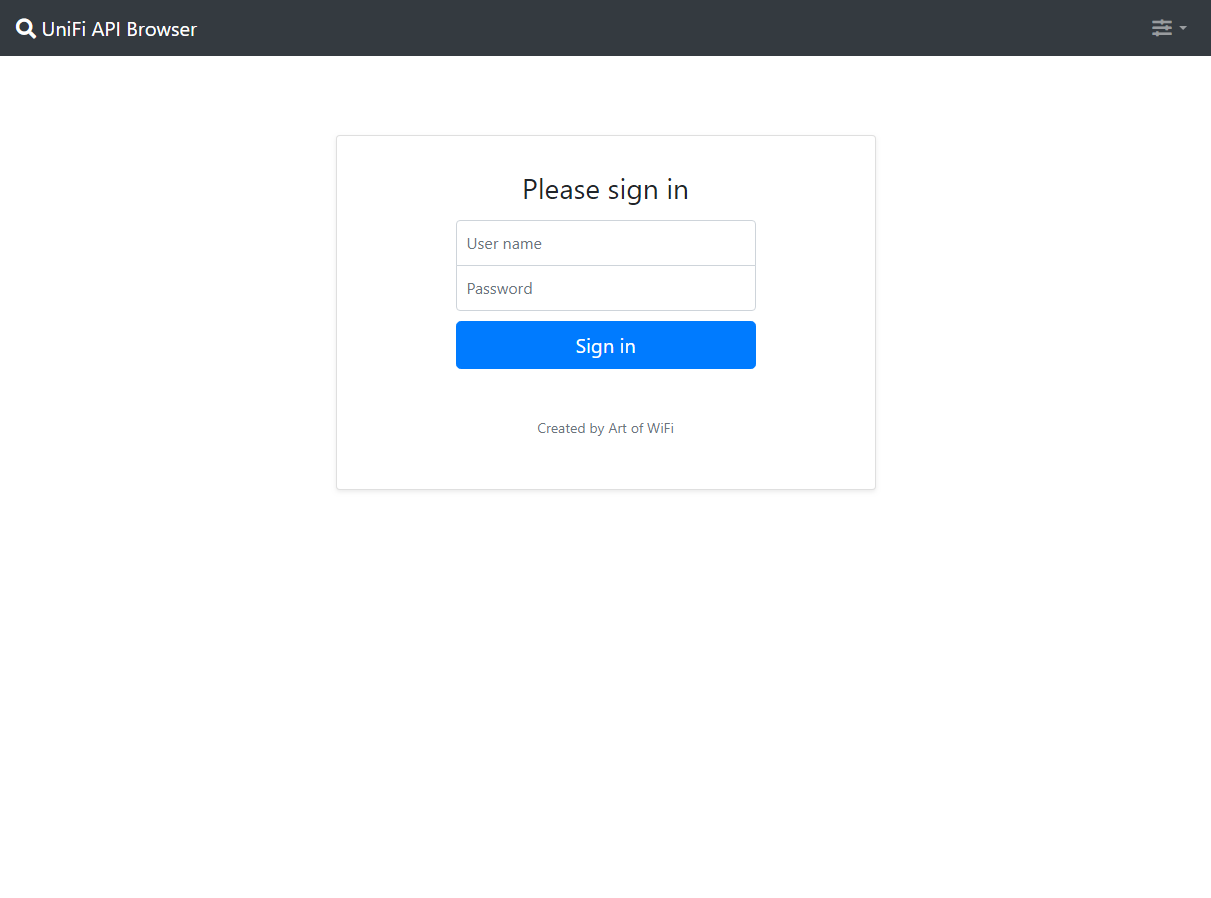
The Login form when user authentication is enabled:
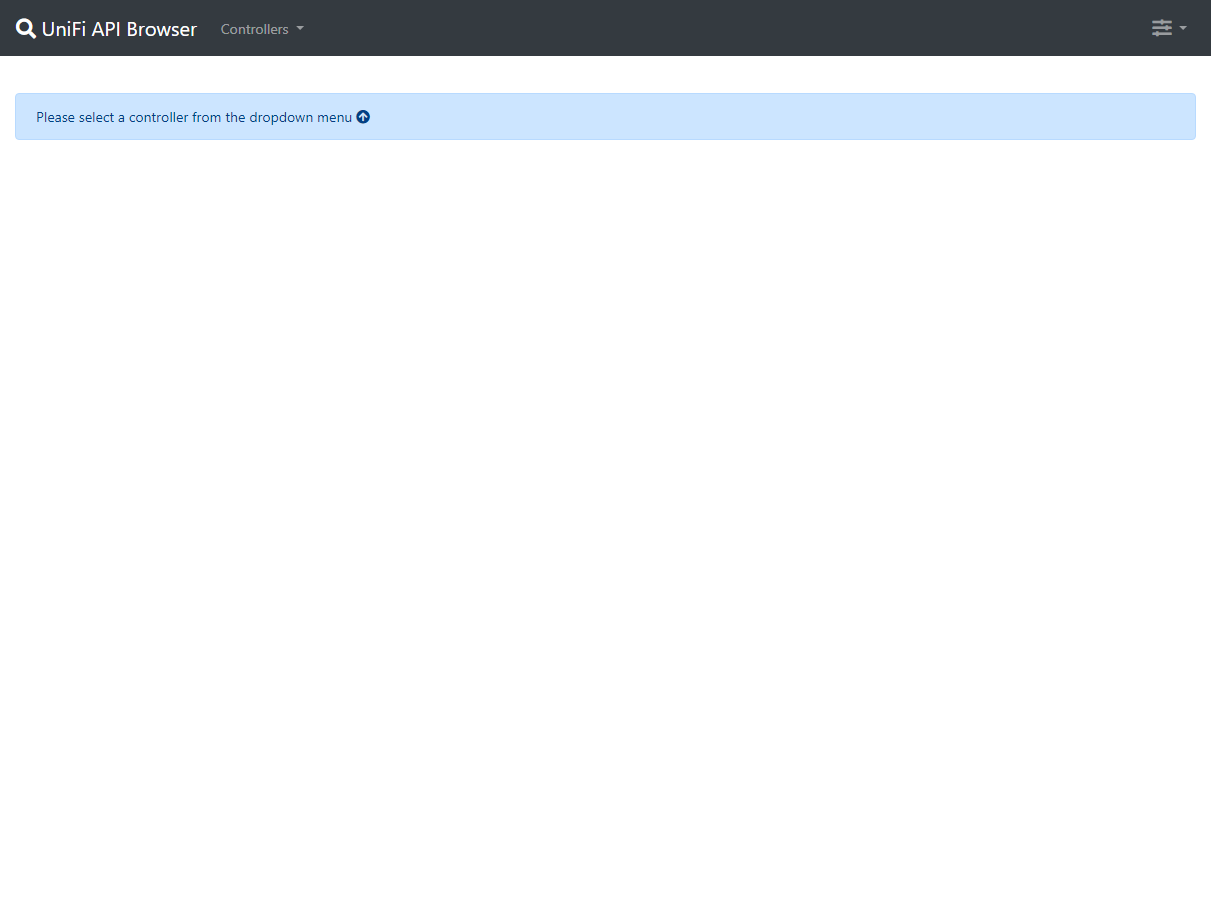
The controller selection dropdown menu:
Now with different controller types:
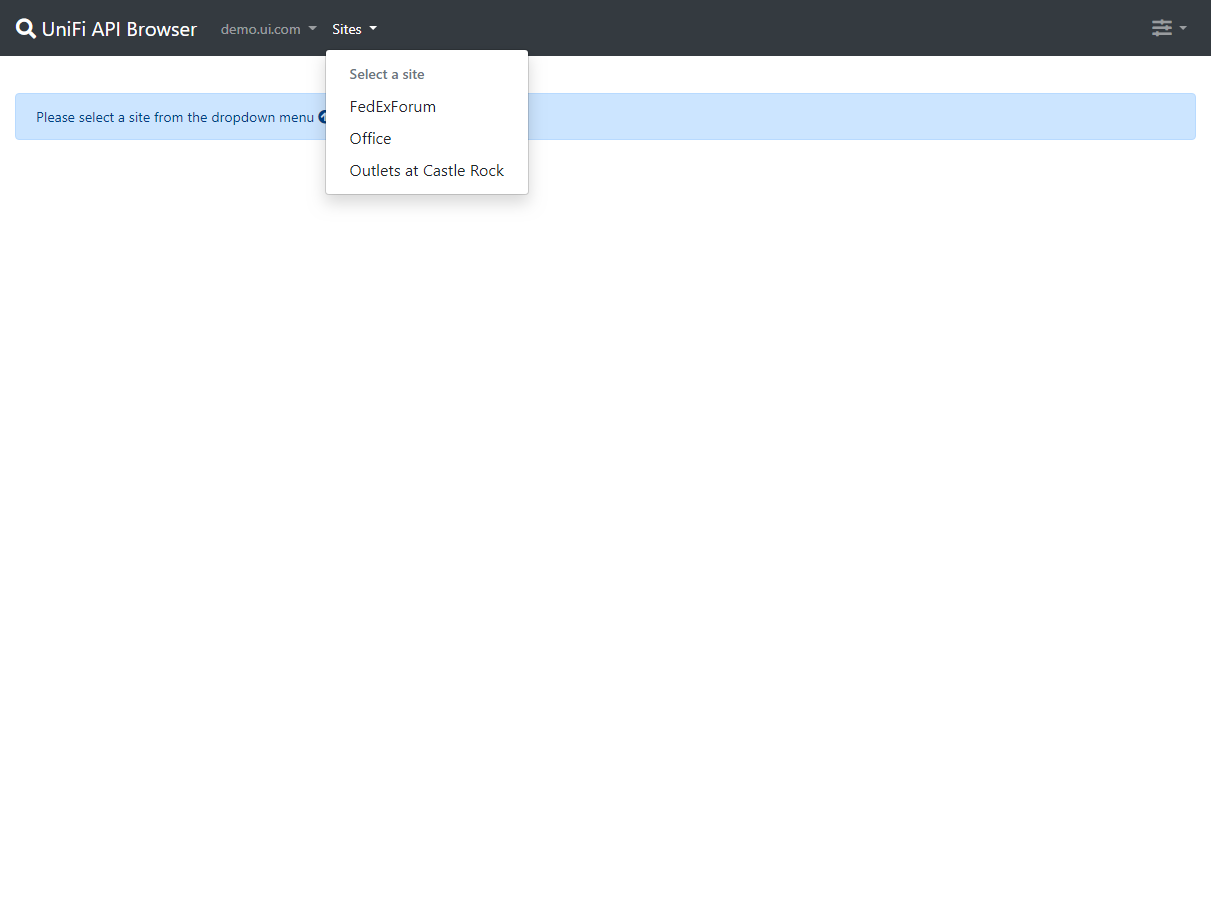
The site selection dropdown menu:
The collection dropdown menu:

Showing the site settings collection in JSON format:

Showing the site settings collection in interactive PHP format:

Showing a collection from the Official API (initial page):
Showing a collection from the Official API (all pages):
The "About" modal:

36 followers · starred Apr 2026
21 followers · starred Jun 2025
39 followers · starred Feb 2020
8 followers · starred Jan 2025
Tool to browse data exposed by Ubiquiti's UniFi Controller API
PHP
1,264
328 commits
updated Feb 24, 2026
This tool allows you to browse data exposed through the UniFi Controller API, developed using PHP, JavaScript, and the Bootstrap CSS framework. It comes bundled with two API clients:
Please keep the following in mind when using the UniFi API browser:
Version 3.0.0 introduces the following major changes:
config.php only apply to classic controllers and are hidden when an official
API controller is selectedWhen upgrading, update your config/config.php based on the new config/config-template.php file. Your existing
classic controller entries will continue to work without changes. To add official API controllers, see the
Configuration section below.
The UniFi API browser tool offers the following features:
$debug to true in the config file to enable debug mode)Please note that the bundled API client supports many more API endpoints, not all make sense to add to the API browser though.
Installation of this tool is quite straightforward. The easiest way to do this is by using git clone which also allows
for easy updates:
cd to the root folder of your web server (on Ubuntu this is
/var/www/html) and execute the following command from your command prompt:git clone https://github.com/Art-of-WiFi/UniFi-API-browser.git
Alternatively, you may choose to download the zip file and unzip it in your directory of choice, then follow the configuration steps below.
@scyto maintains Docker containers for quick and easy deployment of the UniFi API browser tool. Please refer to this Wiki page within the repository for more details. Please note we don't provide support related to Docker-based installs.
config/config-template.php to config/config.php and edit it with your controller details$controllers arrayclassic (default): uses username/password authentication with the classic UniFi API clientofficial: uses API key authentication with the official UniFi Network Application API client[
'user' => 'admin',
'password' => 'your-password',
'url' => 'https://192.168.1.1:8443',
'name' => 'Home Controller',
'type' => 'classic',
],
To use the official API, you need to generate an API key in the UniFi Network Application (Settings > ) API section.
Then add a controller entry in the config.php like this:
[
    'api_key'    => 'your-api-key-here',
    'url'        => 'https://192.168.1.1',
    'name'       => 'Office (Official API)',
    'type'       => 'official',
    'verify_ssl' => false, // optional, set to false to disable SSL verification (default: true)
],
Note: official API controllers do not require a username or password, only an API key.
The type field must be set to 'official' for API key authentication to work.
type field is omitted from a controller entry, it defaults to classic for backward compatibilityconfig/users-template.php file for further detailshttp(s)://<server IP address>/UniFi-API-browser/Support for UniFi OS-based controllers (for example, the UniFi Dream Machine Pro or UniFi OS Server) has been added with
version 2.0.7. When adding the details for a UniFi OS console to the config/config.php file, please make sure not to
add trailing slashes to the URL. For UniFi OS Consoles (e.g., UDM PRO) use port 443 for the connection.
When using the UniFi API browser to connect to a Network Application on a UniFi OS-based gateway via the WAN interface, it is necessary to create a specific firewall rule to allow external access to port 443 on the gateway's local interface. For more information, please refer to the following blog post for further details: https://artofwifi.net/2022/04/07/how-to-access-the-unifi-controller-by-wan-ip-or-hostname-on-a-udm-pro/
When connecting to a UniFi OS Server, make sure to use port 11443 for the connection.
Since version 2.0.0 you can extend the Collections dropdown menu with your own options by adding them to the
config.php file.
Here's an example:
/**
 * adding a custom sub-menu example
 */
$collections = array_merge($collections, [
    [
        'label' => 'Custom Menu', // length of this string is limited due to dropdown menu width
        'options' => [
            [
                'type' => 'collection', // either 'collection' or 'divider'
                'label' => 'hourly site stats past 24 hours', // string that is displayed in the dropdown menu
                'method' => 'stat_hourly_site', // name of the method/function in the API client class that is called
                'params' => [(time() - (24 * 60 *60)) * 1000, time() * 1000], // an array containing the parameters as they are passed to the method/function
            ],
            [
                'type' => 'collection',
                'label' => 'daily site stats past 31 days',
                'method' => 'stat_daily_site',
                'params' => [(time() - (31 * 24 * 60 *60)) * 1000, time() * 1000],
            ],
            [
                'type' => 'divider', // dividers have no other properties
            ],
            [
                'type' => 'collection',
                'label' => 'enable the site LEDs',
                'method' => 'site_leds', // don't go too wild when adding such calls, this example is simply to show the flexibility
                'params' => [true]
            ],
            [
                'type' => 'collection',
                'label' => 'disable the site LEDs',
                'method' => 'site_leds', // don't go too wild when adding such calls, this example is simply to show the flexibility
                'params' => [false]
            ],
        ],
    ],
]);
Note: for a collection type menu option the type, label, method, and params "properties" are required.
Note: custom menu entries only apply to classic controllers. They are automatically hidden when an official API controller is selected.
This is what the result looks like for the above example:
If you installed the tool using the git clone command, you can apply updates by going into the directory where the
tool is installed, and running the git pull command from there.
Otherwise, you can simply copy the contents from the latest zip file to the directory where the tool has been installed.
The PHP API client that comes bundled with this tool is based on the work by the following developers:
and the API as published by Ubiquiti:
Other included libraries:
[!CAUTION] It is important to note that the UniFi API browser tool is a powerful tool that allows access to sensitive data and configuration options on your UniFi controller. It is therefore important you take appropriate security measures, such as limiting access to the tool to trusted individuals. Additionally, you should be aware of the security risks associated with running PHP code on your server.
We highly recommend enabling the username/password authentication feature by creating a
config/users.phpbased on the includedconfig/users-template.phpfile. When creating passwords and their SHA512 hashes for entry in theconfig/users.phpfile, make sure to use strong random passwords. Please refer to the instructions in theconfig/users-template.phpfile for further details
This project is actively maintained, and feedback and suggestions are always welcome. If you encounter any issues or have any suggestions for improvements, please use the GitHub issue list or the Ubiquiti Community forums (https://community.ubnt.com/t5/UniFi-Wireless/UniFi-API-browser-tool-released/m-p/1392651) to share your ideas and questions.
Here are a couple of screenshots of the tool in action.
The Login form when user authentication is enabled:
The controller selection dropdown menu:
Now with different controller types:
The site selection dropdown menu:
The collection dropdown menu:
Showing the site settings collection in JSON format:
Showing the site settings collection in interactive PHP format:
Showing a collection from the Official API (initial page):
Showing a collection from the Official API (all pages):
The "About" modal:
36 followers · starred Apr 2026
21 followers · starred Jun 2025
39 followers · starred Feb 2020
8 followers · starred Jan 2025



