
Voice assistant for Android that controls your phone and PC. Say "Hey Jarvis" to chat, run tasks, operate other apps hands-free, or drive your Windows PC remotely. Built with Tauri 2, React, TypeScript and Kotlin. Experimental fan project.
TypeScript
10
16 commits
updated Oct 4, 2026
See what people are saying
README
JARVIS for Android
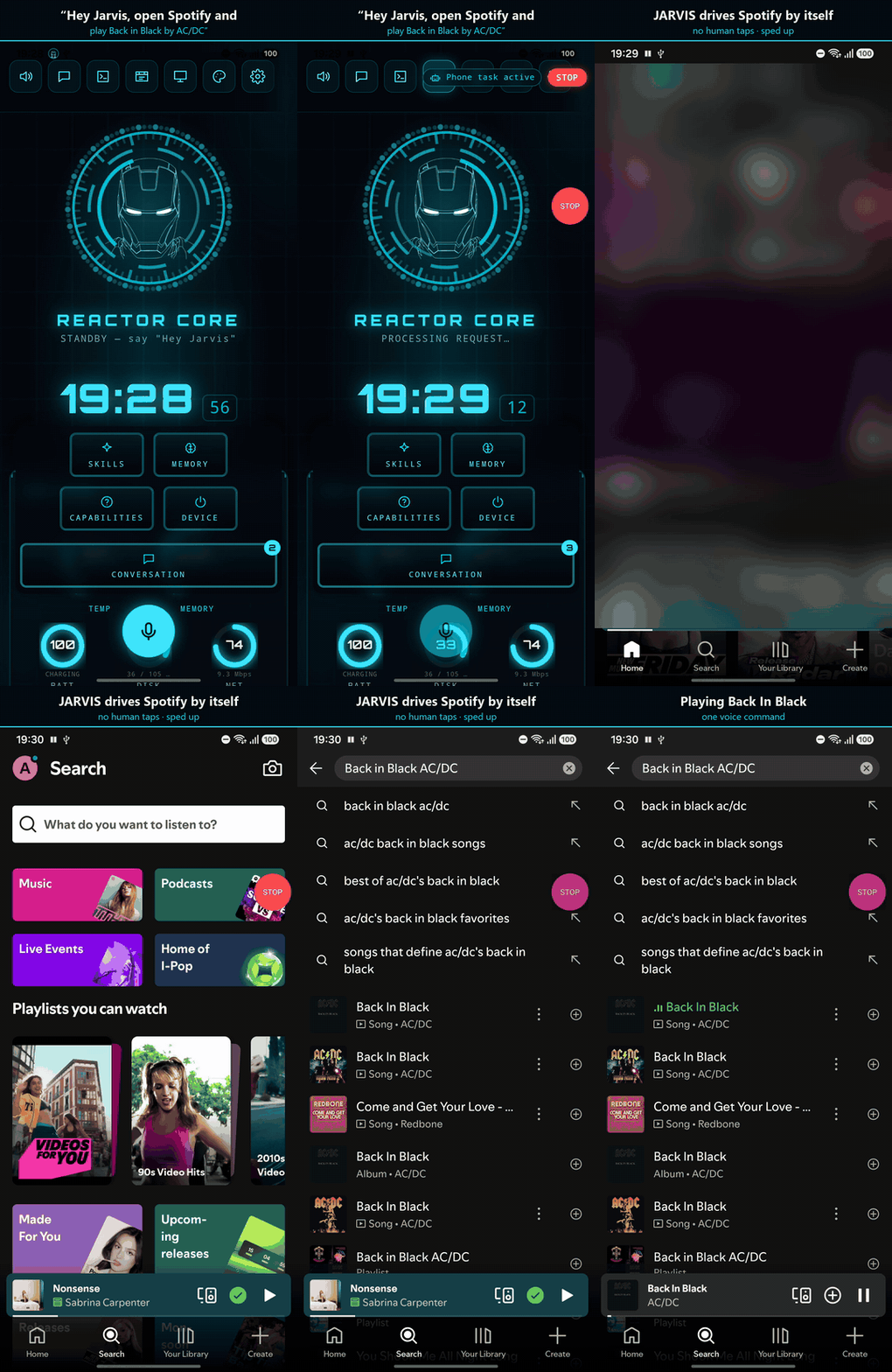
One voice command, no taps: JARVIS opens Spotify, searches and plays the song. Slow parts sped up; the Spotify home screen is blurred.
A voice assistant that runs on your phone. It chats, does real tasks over the internet (weather, news, search, places, reminders), drives other apps on the phone by itself, and can remote-control your Windows PC.
It started as the Android port of a Windows desktop assistant. On Windows the "brain" is a Python program the app talks to; here it is rewritten in TypeScript and runs inside the app, so the phone needs no server and no Python.
Status: experimental. This is a personal project under active development. It works on the phone it's developed on, but expect rough edges, and read docs/SECURITY.md before giving it control of yours.
| What it is | Tauri 2 (Rust shell) + React HUD + a TypeScript brain + a Kotlin Android plugin |
| App id / version | com.jarvis.app / 0.1.0 |
| State | Experimental. Debug APK runs on a real phone (Samsung, Android 16); unit tests green in CI. What is live-verified vs only built is tracked in docs/STATUS.md |
| Docs | Architecture · Status · Security |
What it can do today
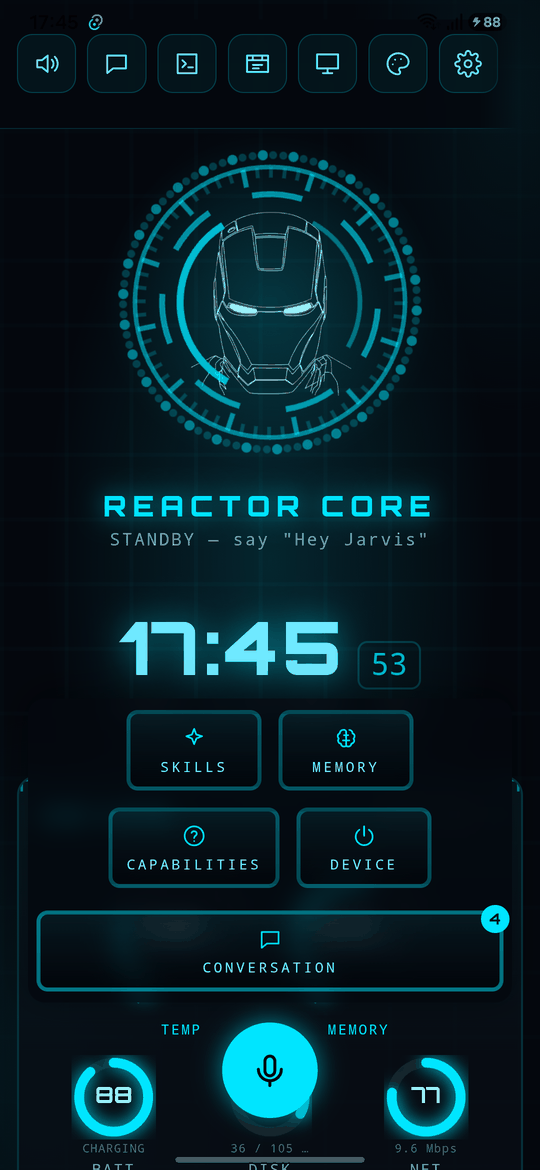
- Chat + tools — LLM chat with weather, news, web search, places/directions, reminders, alarms/timers, calendar, QR codes, image generation, clipboard and file reading.
- Providers — Vertex AI (paste a Service Account JSON, runs on GCP credits), Google Gemini, or Groq, plus optional free OpenRouter / NVIDIA / Mistral keys. Pick provider and model in Settings, or let Auto mode choose: smart routing ranks every model your keys reach by benchmark score and sends each request to the weakest one that can handle it. When a free tier runs out the app walks that route ladder to the next key/model instead of giving up — per-minute limits are waited out, not treated as a day's ban.
- Memory — facts about you, playbooks and saved chats in one view (dock ▸ MEMORY or "open memory"), with a timeline and exact forget.
- Voice — push-to-talk mic, spoken replies, and on-device "Hey Jarvis" wake word (openWakeWord) running as an Android foreground service, so it keeps listening with the app in the background. Speech is transcribed by Groq Whisper (or Vertex Chirp); recording stops when you stop talking. Each wake is double-checked: Whisper must also hear "Hey Jarvis" in the few seconds that triggered it, so conversation that merely mentions Jarvis doesn't start a command (say "Hey Jarvis", not just "Jarvis").
- Phone control — an AccessibilityService operator drives other apps step by step (read the screen → decide one action → do it → repeat), with a planner and a verifier. The loop runs natively in Kotlin, so a task keeps going after JARVIS leaves the screen. A floating STOP button works from any app.
- Remote PC — pair to the Windows desktop app by scanning a QR code, then forward whole tasks to it, watch its screen live over WebRTC, and drive it by touch. Works on the same Wi-Fi or across networks via Tailscale. (The desktop app is a separate project and is not part of this repository.)
- TV — control an Android TV on the same Wi-Fi by voice: open apps, play a show on Netflix (a named season and episode too) or a YouTube search, pause/resume, volume, power, remote buttons. It uses the TV's own USB debugging over the network, so nothing is installed on the TV. Set up under the Remote PC & TV screen: turn on USB debugging on the TV, type its IP, tap Connect and accept the prompt on the TV.
Known gaps and the things that still need a live on-device test are tracked in docs/STATUS.md.
Install
The quickest way to try it: download jarvis-release.apk from the
latest release, open it on your
phone and allow installing from that source. It's for 64-bit ARM phones (every modern
Android phone), Android 7.0 or newer. Then follow First run below.
The release also has a debug APK. It's much bigger and only useful if you want to inspect the app with developer tools.
Early builds are signed with a development key. A later build signed with the final key may need you to uninstall this one first, which clears the app's data.
Build the APK yourself
The steps below are for Windows (what the app is developed on); macOS/Linux work the same way with their own paths.
1. Install the tools (once)
| Tool | Version this repo is built with | Notes |
|---|---|---|
| Node.js | 24 LTS | CI uses 24 |
| Rust | stable (1.95) | plus the Android targets below |
| JDK | 17 | Android Studio's bundled JBR works |
| Android Studio | any recent | only used for its SDK Manager |
| Android SDK Platform | 36 (and 34) | SDK Manager ▸ SDK Platforms |
| Android NDK | 27.x | SDK Manager ▸ SDK Tools ▸ NDK (Side by side) |
| SDK Build-Tools, Platform-Tools, Command-line Tools | latest | SDK Manager ▸ SDK Tools |
Add the Rust targets:
rustup target add aarch64-linux-android armv7-linux-androideabi i686-linux-android x86_64-linux-android
Set three environment variables (PowerShell, then open a new terminal — adjust the NDK folder to the version you installed):
[Environment]::SetEnvironmentVariable("JAVA_HOME", "C:\Program Files\Android\Android Studio\jbr", "User")
[Environment]::SetEnvironmentVariable("ANDROID_HOME", "$env:LOCALAPPDATA\Android\Sdk", "User")
[Environment]::SetEnvironmentVariable("NDK_HOME", "$env:LOCALAPPDATA\Android\Sdk\ndk\27.2.12479018", "User")
Put %ANDROID_HOME%\platform-tools on your PATH so adb works. The
Tauri prerequisites page has the same steps
with screenshots.
2. Get the code and install dependencies
git clone https://github.com/AnaaySampat/jarvis.git
cd jarvis/jarvis-studio-gui
npm install
All later commands run from jarvis-studio-gui/. Optional sanity check (no Android tools
needed): npm run typecheck && npm run lint && npm test.
Do not run tauri android init — the Android project in src-tauri/gen/android is
committed on purpose (it carries allowBackup="false", the release cleartext rule and the signing config) and init would overwrite it.
3. Build
Debug APK — quickest, fine for trying it out:
npx tauri android build --debug --apk --target aarch64
Output: src-tauri/gen/android/app/build/outputs/apk/universal/debug/app-universal-debug.apk
Release APK — smaller and faster. Without a keystore it is signed with the debug key, which is fine for sideloading onto your own phone:
npx tauri android build --apk --target aarch64
Output: src-tauri/gen/android/app/build/outputs/apk/universal/release/app-universal-release.apk
--target aarch64 builds for 64-bit ARM, which is every modern phone. Leave it off to
build all four ABIs (a much bigger APK); use --target x86_64 for the emulator. The first
build downloads Gradle and compiles all the Rust, so expect it to take a while.
Signing a release with your own key (needed if you publish APKs, so updates install over each other):
keytool -genkey -v -keystore src-tauri/gen/android/app/jarvis-release.jks -keyalg RSA -keysize 2048 -validity 10000 -alias jarvis
Then copy src-tauri/gen/android/keystore.properties.example to keystore.properties
in the same folder and fill in the password. The .jks path is relative to
gen/android/app/. Both files are gitignored — never commit them, and back the keystore
up: losing it means users can't update to your future builds.
4. Install on your phone
On the phone: Settings ▸ About phone ▸ tap Build number 7 times, then turn on Developer options ▸ USB debugging and plug it in. Then:
adb install -r src-tauri/gen/android/app/build/outputs/apk/universal/debug/app-universal-debug.apk
adb shell am start -n com.jarvis.app/.MainActivity
(Use the release/app-universal-release.apk path for a release build.) You can also copy
the APK to the phone and open it there, after allowing installs from that source.
5. First run
- Enter at least one key in the first-run screen — see Keys and security.
- Allow the microphone when asked (voice and "Hey Jarvis").
- For phone control, turn on JARVIS under Settings ▸ Accessibility. On Android 13+ a sideloaded app's accessibility switch is greyed out at first: open Settings ▸ Apps ▸ JARVIS ▸ ⋮ ▸ Allow restricted settings, then turn it on.
Good to know
tauri android devhangs after building — don't use it. Usetauri android build(it exits cleanly), thenadb install+adb shell am start.- The emulator is boot-only. It has no real microphone and its software GPU makes SystemUI freeze under load (not an app bug). Audio, wake word, app control and PC pairing all need a real phone.
- Don't
adb shell am force-stop com.jarvis.app. Android then turns JARVIS's accessibility service off and every phone task fails until you re-enable it in Settings ▸ Accessibility. Restart withadb install -roram startinstead. - Browser preview:
npm run devruns the HUD in a browser for layout and chat work. Native features (phone control, wake word, TTS) aren't there. scripts/build-android.ps1wraps the build commands above (-Debug,-Target arm64).
Keys and security
JARVIS needs at least one free key — Google AI Studio (Gemini) or Groq — entered in the app's Settings. OpenRouter, NVIDIA and Mistral keys are optional extra fallbacks; a Vertex AI service-account JSON works too. Keys are stored on the phone encrypted with an Android Keystore key, are only sent to the provider they belong to, and there are none in this repository.
Giving an assistant control of your phone is a real trust decision. What the app does to limit that, and what is still open, is in docs/SECURITY.md. If you find a vulnerability, please report it privately through GitHub's Report a vulnerability (Security tab) rather than in a public issue.
Layout
jarvis/
├── README.md                    ← you are here
├── CLAUDE.md                    ← instructions for AI coding assistants
├── docs/
│   ├── ARCHITECTURE.md          ← how the app is put together
│   ├── STATUS.md                ← what works, what's open, how it was verified
│   ├── SECURITY.md              ← the security model, then the audit history
│   ├── images/                  ← README screenshots
│   └── archive/                 ← the original 2026-06 plan + build log (history)
├── jarvis-studio-gui/           ← the app
│   ├── src/                     ← React HUD
│   │   ├── brain/               ← the TypeScript brain (see src/brain/README.md)
│   │   ├── components/, hud/, hooks/
│   └── src-tauri/               ← Rust shell
│       └── tauri-plugin-phone/  ← the Kotlin↔Rust↔JS Android plugin
The TypeScript brain was ported from the Windows app's Python backend, which is not part of this repository.
License and credits
The code is MIT.
- The "Hey Jarvis" wake-word model (
tauri-plugin-phone/android/src/main/assets/hey_jarvis.onnx) comes from openWakeWord, whose pre-trained models are licensed CC BY-NC-SA 4.0 — non-commercial use only. The MIT license above does not cover it; replace it with your own model if you need something else. - "J.A.R.V.I.S." and the Iron Man helmet are Marvel's. This is an unofficial fan project, not affiliated with or endorsed by Marvel or Disney.
Similar repos


Languages
TypeScript
37.3%
Kotlin
25.2%
JavaScript
23.7%
CSS
10.2%
Rust
3.4%
Voice assistant for Android that controls your phone and PC. Say "Hey Jarvis" to chat, run tasks, operate other apps hands-free, or drive your Windows PC remotely. Built with Tauri 2, React, TypeScript and Kotlin. Experimental fan project.
TypeScript
10
16 commits
updated Oct 4, 2026
See what people are saying
README
JARVIS for Android
One voice command, no taps: JARVIS opens Spotify, searches and plays the song. Slow parts sped up; the Spotify home screen is blurred.
A voice assistant that runs on your phone. It chats, does real tasks over the internet (weather, news, search, places, reminders), drives other apps on the phone by itself, and can remote-control your Windows PC.
It started as the Android port of a Windows desktop assistant. On Windows the "brain" is a Python program the app talks to; here it is rewritten in TypeScript and runs inside the app, so the phone needs no server and no Python.
Status: experimental. This is a personal project under active development. It works on the phone it's developed on, but expect rough edges, and read docs/SECURITY.md before giving it control of yours.
| What it is | Tauri 2 (Rust shell) + React HUD + a TypeScript brain + a Kotlin Android plugin |
| App id / version | com.jarvis.app / 0.1.0 |
| State | Experimental. Debug APK runs on a real phone (Samsung, Android 16); unit tests green in CI. What is live-verified vs only built is tracked in docs/STATUS.md |
| Docs | Architecture · Status · Security |
What it can do today
- Chat + tools — LLM chat with weather, news, web search, places/directions, reminders, alarms/timers, calendar, QR codes, image generation, clipboard and file reading.
- Providers — Vertex AI (paste a Service Account JSON, runs on GCP credits), Google Gemini, or Groq, plus optional free OpenRouter / NVIDIA / Mistral keys. Pick provider and model in Settings, or let Auto mode choose: smart routing ranks every model your keys reach by benchmark score and sends each request to the weakest one that can handle it. When a free tier runs out the app walks that route ladder to the next key/model instead of giving up — per-minute limits are waited out, not treated as a day's ban.
- Memory — facts about you, playbooks and saved chats in one view (dock ▸ MEMORY or "open memory"), with a timeline and exact forget.
- Voice — push-to-talk mic, spoken replies, and on-device "Hey Jarvis" wake word (openWakeWord) running as an Android foreground service, so it keeps listening with the app in the background. Speech is transcribed by Groq Whisper (or Vertex Chirp); recording stops when you stop talking. Each wake is double-checked: Whisper must also hear "Hey Jarvis" in the few seconds that triggered it, so conversation that merely mentions Jarvis doesn't start a command (say "Hey Jarvis", not just "Jarvis").
- Phone control — an AccessibilityService operator drives other apps step by step (read the screen → decide one action → do it → repeat), with a planner and a verifier. The loop runs natively in Kotlin, so a task keeps going after JARVIS leaves the screen. A floating STOP button works from any app.
- Remote PC — pair to the Windows desktop app by scanning a QR code, then forward whole tasks to it, watch its screen live over WebRTC, and drive it by touch. Works on the same Wi-Fi or across networks via Tailscale. (The desktop app is a separate project and is not part of this repository.)
- TV — control an Android TV on the same Wi-Fi by voice: open apps, play a show on Netflix (a named season and episode too) or a YouTube search, pause/resume, volume, power, remote buttons. It uses the TV's own USB debugging over the network, so nothing is installed on the TV. Set up under the Remote PC & TV screen: turn on USB debugging on the TV, type its IP, tap Connect and accept the prompt on the TV.
Known gaps and the things that still need a live on-device test are tracked in docs/STATUS.md.
Install
The quickest way to try it: download jarvis-release.apk from the
latest release, open it on your
phone and allow installing from that source. It's for 64-bit ARM phones (every modern
Android phone), Android 7.0 or newer. Then follow First run below.
The release also has a debug APK. It's much bigger and only useful if you want to inspect the app with developer tools.
Early builds are signed with a development key. A later build signed with the final key may need you to uninstall this one first, which clears the app's data.
Build the APK yourself
The steps below are for Windows (what the app is developed on); macOS/Linux work the same way with their own paths.
1. Install the tools (once)
| Tool | Version this repo is built with | Notes |
|---|---|---|
| Node.js | 24 LTS | CI uses 24 |
| Rust | stable (1.95) | plus the Android targets below |
| JDK | 17 | Android Studio's bundled JBR works |
| Android Studio | any recent | only used for its SDK Manager |
| Android SDK Platform | 36 (and 34) | SDK Manager ▸ SDK Platforms |
| Android NDK | 27.x | SDK Manager ▸ SDK Tools ▸ NDK (Side by side) |
| SDK Build-Tools, Platform-Tools, Command-line Tools | latest | SDK Manager ▸ SDK Tools |
Add the Rust targets:
rustup target add aarch64-linux-android armv7-linux-androideabi i686-linux-android x86_64-linux-android
Set three environment variables (PowerShell, then open a new terminal — adjust the NDK folder to the version you installed):
[Environment]::SetEnvironmentVariable("JAVA_HOME", "C:\Program Files\Android\Android Studio\jbr", "User")
[Environment]::SetEnvironmentVariable("ANDROID_HOME", "$env:LOCALAPPDATA\Android\Sdk", "User")
[Environment]::SetEnvironmentVariable("NDK_HOME", "$env:LOCALAPPDATA\Android\Sdk\ndk\27.2.12479018", "User")
Put %ANDROID_HOME%\platform-tools on your PATH so adb works. The
Tauri prerequisites page has the same steps
with screenshots.
2. Get the code and install dependencies
git clone https://github.com/AnaaySampat/jarvis.git
cd jarvis/jarvis-studio-gui
npm install
All later commands run from jarvis-studio-gui/. Optional sanity check (no Android tools
needed): npm run typecheck && npm run lint && npm test.
Do not run tauri android init — the Android project in src-tauri/gen/android is
committed on purpose (it carries allowBackup="false", the release cleartext rule and the signing config) and init would overwrite it.
3. Build
Debug APK — quickest, fine for trying it out:
npx tauri android build --debug --apk --target aarch64
Output: src-tauri/gen/android/app/build/outputs/apk/universal/debug/app-universal-debug.apk
Release APK — smaller and faster. Without a keystore it is signed with the debug key, which is fine for sideloading onto your own phone:
npx tauri android build --apk --target aarch64
Output: src-tauri/gen/android/app/build/outputs/apk/universal/release/app-universal-release.apk
--target aarch64 builds for 64-bit ARM, which is every modern phone. Leave it off to
build all four ABIs (a much bigger APK); use --target x86_64 for the emulator. The first
build downloads Gradle and compiles all the Rust, so expect it to take a while.
Signing a release with your own key (needed if you publish APKs, so updates install over each other):
keytool -genkey -v -keystore src-tauri/gen/android/app/jarvis-release.jks -keyalg RSA -keysize 2048 -validity 10000 -alias jarvis
Then copy src-tauri/gen/android/keystore.properties.example to keystore.properties
in the same folder and fill in the password. The .jks path is relative to
gen/android/app/. Both files are gitignored — never commit them, and back the keystore
up: losing it means users can't update to your future builds.
4. Install on your phone
On the phone: Settings ▸ About phone ▸ tap Build number 7 times, then turn on Developer options ▸ USB debugging and plug it in. Then:
adb install -r src-tauri/gen/android/app/build/outputs/apk/universal/debug/app-universal-debug.apk
adb shell am start -n com.jarvis.app/.MainActivity
(Use the release/app-universal-release.apk path for a release build.) You can also copy
the APK to the phone and open it there, after allowing installs from that source.
5. First run
- Enter at least one key in the first-run screen — see Keys and security.
- Allow the microphone when asked (voice and "Hey Jarvis").
- For phone control, turn on JARVIS under Settings ▸ Accessibility. On Android 13+ a sideloaded app's accessibility switch is greyed out at first: open Settings ▸ Apps ▸ JARVIS ▸ ⋮ ▸ Allow restricted settings, then turn it on.
Good to know
tauri android devhangs after building — don't use it. Usetauri android build(it exits cleanly), thenadb install+adb shell am start.- The emulator is boot-only. It has no real microphone and its software GPU makes SystemUI freeze under load (not an app bug). Audio, wake word, app control and PC pairing all need a real phone.
- Don't
adb shell am force-stop com.jarvis.app. Android then turns JARVIS's accessibility service off and every phone task fails until you re-enable it in Settings ▸ Accessibility. Restart withadb install -roram startinstead. - Browser preview:
npm run devruns the HUD in a browser for layout and chat work. Native features (phone control, wake word, TTS) aren't there. scripts/build-android.ps1wraps the build commands above (-Debug,-Target arm64).
Keys and security
JARVIS needs at least one free key — Google AI Studio (Gemini) or Groq — entered in the app's Settings. OpenRouter, NVIDIA and Mistral keys are optional extra fallbacks; a Vertex AI service-account JSON works too. Keys are stored on the phone encrypted with an Android Keystore key, are only sent to the provider they belong to, and there are none in this repository.
Giving an assistant control of your phone is a real trust decision. What the app does to limit that, and what is still open, is in docs/SECURITY.md. If you find a vulnerability, please report it privately through GitHub's Report a vulnerability (Security tab) rather than in a public issue.
Layout
jarvis/
├── README.md                    ← you are here
├── CLAUDE.md                    ← instructions for AI coding assistants
├── docs/
│   ├── ARCHITECTURE.md          ← how the app is put together
│   ├── STATUS.md                ← what works, what's open, how it was verified
│   ├── SECURITY.md              ← the security model, then the audit history
│   ├── images/                  ← README screenshots
│   └── archive/                 ← the original 2026-06 plan + build log (history)
├── jarvis-studio-gui/           ← the app
│   ├── src/                     ← React HUD
│   │   ├── brain/               ← the TypeScript brain (see src/brain/README.md)
│   │   ├── components/, hud/, hooks/
│   └── src-tauri/               ← Rust shell
│       └── tauri-plugin-phone/  ← the Kotlin↔Rust↔JS Android plugin
The TypeScript brain was ported from the Windows app's Python backend, which is not part of this repository.
License and credits
The code is MIT.
- The "Hey Jarvis" wake-word model (
tauri-plugin-phone/android/src/main/assets/hey_jarvis.onnx) comes from openWakeWord, whose pre-trained models are licensed CC BY-NC-SA 4.0 — non-commercial use only. The MIT license above does not cover it; replace it with your own model if you need something else. - "J.A.R.V.I.S." and the Iron Man helmet are Marvel's. This is an unofficial fan project, not affiliated with or endorsed by Marvel or Disney.
Similar repos
Languages
TypeScript
37.3%
Kotlin
25.2%
JavaScript
23.7%
CSS
10.2%
Rust
3.4%