Interactive JavaScript and TypeScript programming with Jupyter
TypeScript
842
243 commits
updated Jun 22, 2024



tslab is an interactive programming environment and REPL with Jupyter for JavaScript and TypeScript users. You can write and execute JavaScript and TypeScript interactively on browsers and save results as Jupyter notebooks.
await support.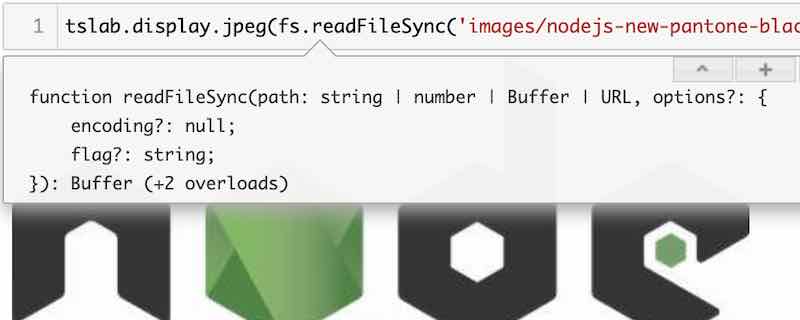
Thanks to binder (mybinder.org), you can try tslab on your browsers without installing it into your system. Open a temporary Jupyter Notebook from the button above and enjoy interactive JavaScript and TypeScript programming.
To learn what what we can do with JavaScript on Jupyter, view example notebooks in nbviewer.
If nbviewer is down, please view the notebooks on GitHub instead.
First, install tslab with npm.
npm install -g tslab
Please make sure tslab command is available in your terminal.
tslab install --version
Then, register tslab to your Jupyter environment.
tslab install [--python=python3]
By default, tslab is registered with python3 in unix-like system and python in Windows.
If Jupyter is installed with a different Python in your system, please specify the python command with --python flag.
After you run tslab install, please check two kernels (jslab and tslab) are installed properly to jupyter.
$ jupyter kernelspec list
Available kernels:
  jslab      /usr/local/google/home/yunabe/.local/share/jupyter/kernels/jslab
  tslab      /usr/local/google/home/yunabe/.local/share/jupyter/kernels/tslab
After you register tslab to Jupyter, start JupyterLab and Jupyter Notebook as usual. You can now create JavaScript and TypeScript notebooks.
# JupyterLab
# `--port=` to change the port to accept connections.
# `--ip=0.0.0.0` to accept external connections.
jupyter lab [--port=8888] [--ip=0.0.0.0]

# Jupyter Notebook
jupyter notebook
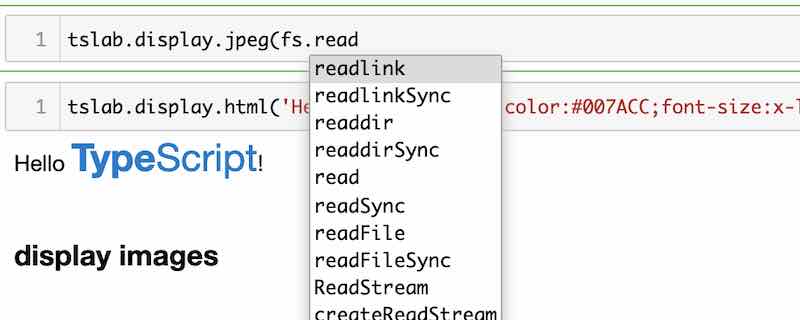
In Jupyter, you can complete code by pressing Tab and show tooltips by pressing Shift + Tab.
You can also use tslab and Jupyter as an interactive console (REPL).
To use tslab as REPL, please run jupyter console with --kernel=jslab (JavaScript) or --kernel=tslab (TypeScript).
jupyter console --kernel=tslab
tslab is an interactive JavaScript and TypeScript programming environment on Node.js (aka Server-side JavaScript). tslab does not support code execution on browsers (aka Client-side JavaScript) at this moment.
Overall
Maintained
Code review
npm
Latest release
Releases this year
1,702 followers · starred May 2024
599 followers · starred Jun 2020
501 followers · starred Feb 2024
125 followers · starred Jun 2023
Interactive JavaScript and TypeScript programming with Jupyter
TypeScript
842
243 commits
updated Jun 22, 2024
tslab is an interactive programming environment and REPL with Jupyter for JavaScript and TypeScript users. You can write and execute JavaScript and TypeScript interactively on browsers and save results as Jupyter notebooks.
await support.
Thanks to binder (mybinder.org), you can try tslab on your browsers without installing it into your system. Open a temporary Jupyter Notebook from the button above and enjoy interactive JavaScript and TypeScript programming.
To learn what what we can do with JavaScript on Jupyter, view example notebooks in nbviewer.
If nbviewer is down, please view the notebooks on GitHub instead.
First, install tslab with npm.
npm install -g tslab
Please make sure tslab command is available in your terminal.
tslab install --version
Then, register tslab to your Jupyter environment.
tslab install [--python=python3]
By default, tslab is registered with python3 in unix-like system and python in Windows.
If Jupyter is installed with a different Python in your system, please specify the python command with --python flag.
After you run tslab install, please check two kernels (jslab and tslab) are installed properly to jupyter.
$ jupyter kernelspec list
Available kernels:
  jslab      /usr/local/google/home/yunabe/.local/share/jupyter/kernels/jslab
  tslab      /usr/local/google/home/yunabe/.local/share/jupyter/kernels/tslab
After you register tslab to Jupyter, start JupyterLab and Jupyter Notebook as usual. You can now create JavaScript and TypeScript notebooks.
# JupyterLab
# `--port=` to change the port to accept connections.
# `--ip=0.0.0.0` to accept external connections.
jupyter lab [--port=8888] [--ip=0.0.0.0]

# Jupyter Notebook
jupyter notebook
In Jupyter, you can complete code by pressing Tab and show tooltips by pressing Shift + Tab.
You can also use tslab and Jupyter as an interactive console (REPL).
To use tslab as REPL, please run jupyter console with --kernel=jslab (JavaScript) or --kernel=tslab (TypeScript).
jupyter console --kernel=tslab
tslab is an interactive JavaScript and TypeScript programming environment on Node.js (aka Server-side JavaScript). tslab does not support code execution on browsers (aka Client-side JavaScript) at this moment.
Overall
Maintained
Code review
npm
Latest release
Releases this year
1,702 followers · starred May 2024
599 followers · starred Jun 2020
501 followers · starred Feb 2024
125 followers · starred Jun 2023



