A lightweight, macOS-native activity memory for you and your agents
See the codeScreencap is a lightweight, macOS-native activity memory for you and your agents, built on smart capture and System-1 models. It runs in the background on under 1% of one CPU core and about 30 MB of memory.
Download the latest release · macOS 26 on Apple Silicon
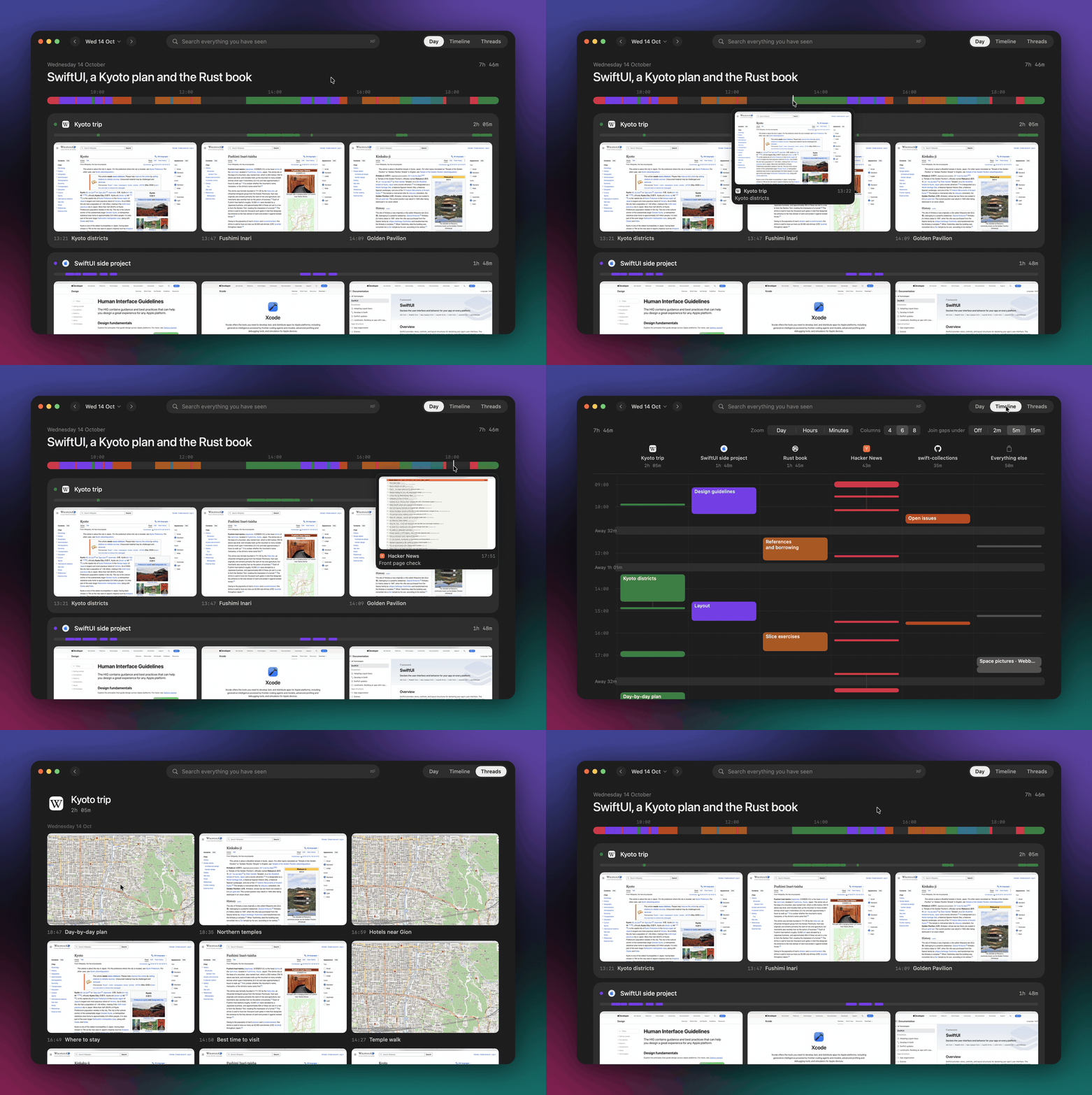
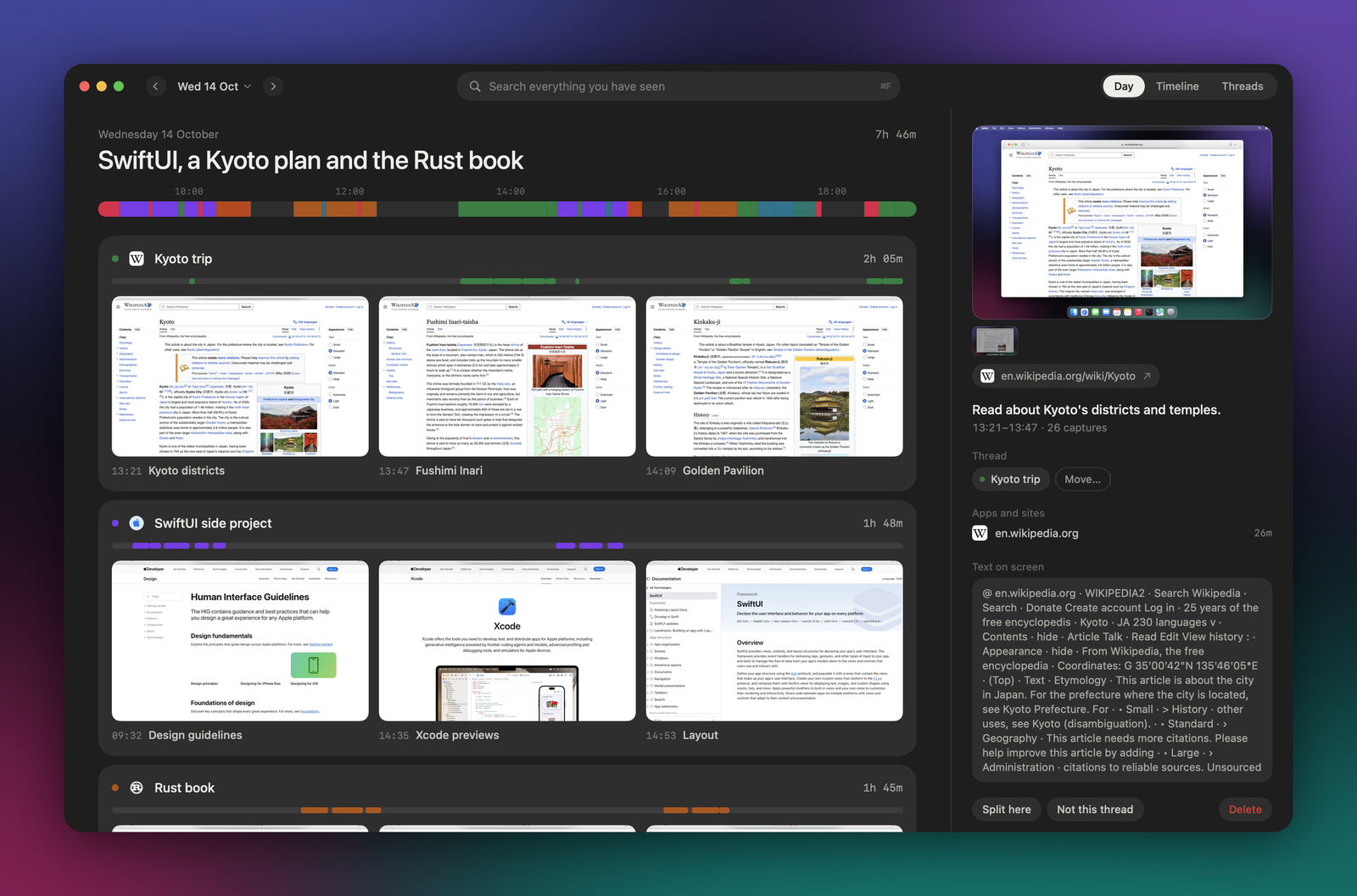
Day sums up the day in a few words and lays it out as one strip, coloured by thread. Move the pointer along the strip to see what was on screen at any point. Below the strip, each of the day's threads shows its key moments. A moment is one stretch of work on one thing, shown by its best screenshot and a short title.
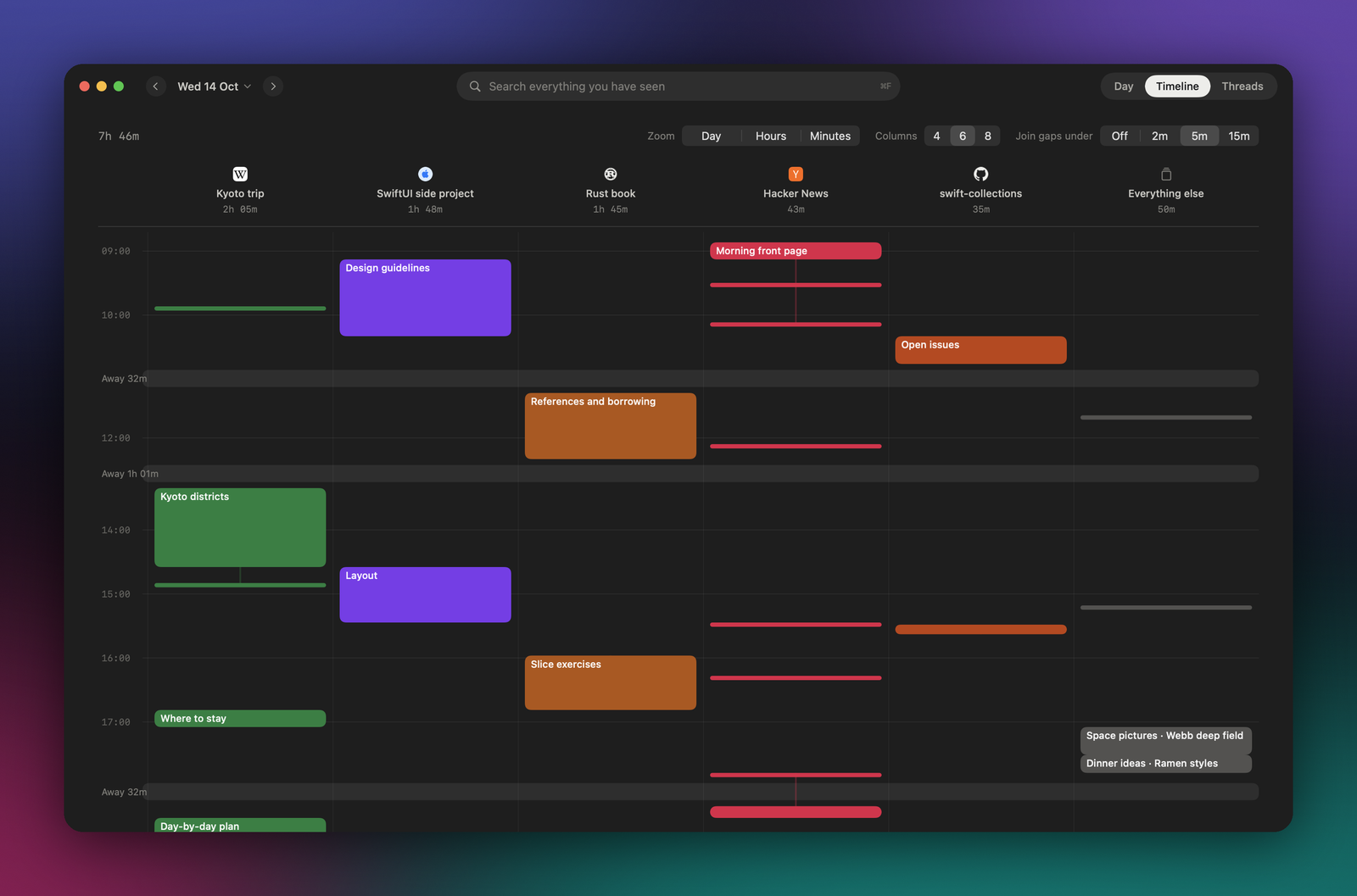
Timeline gives each thread its own column, with time running down the page, so work you kept going in parallel sits side by side.
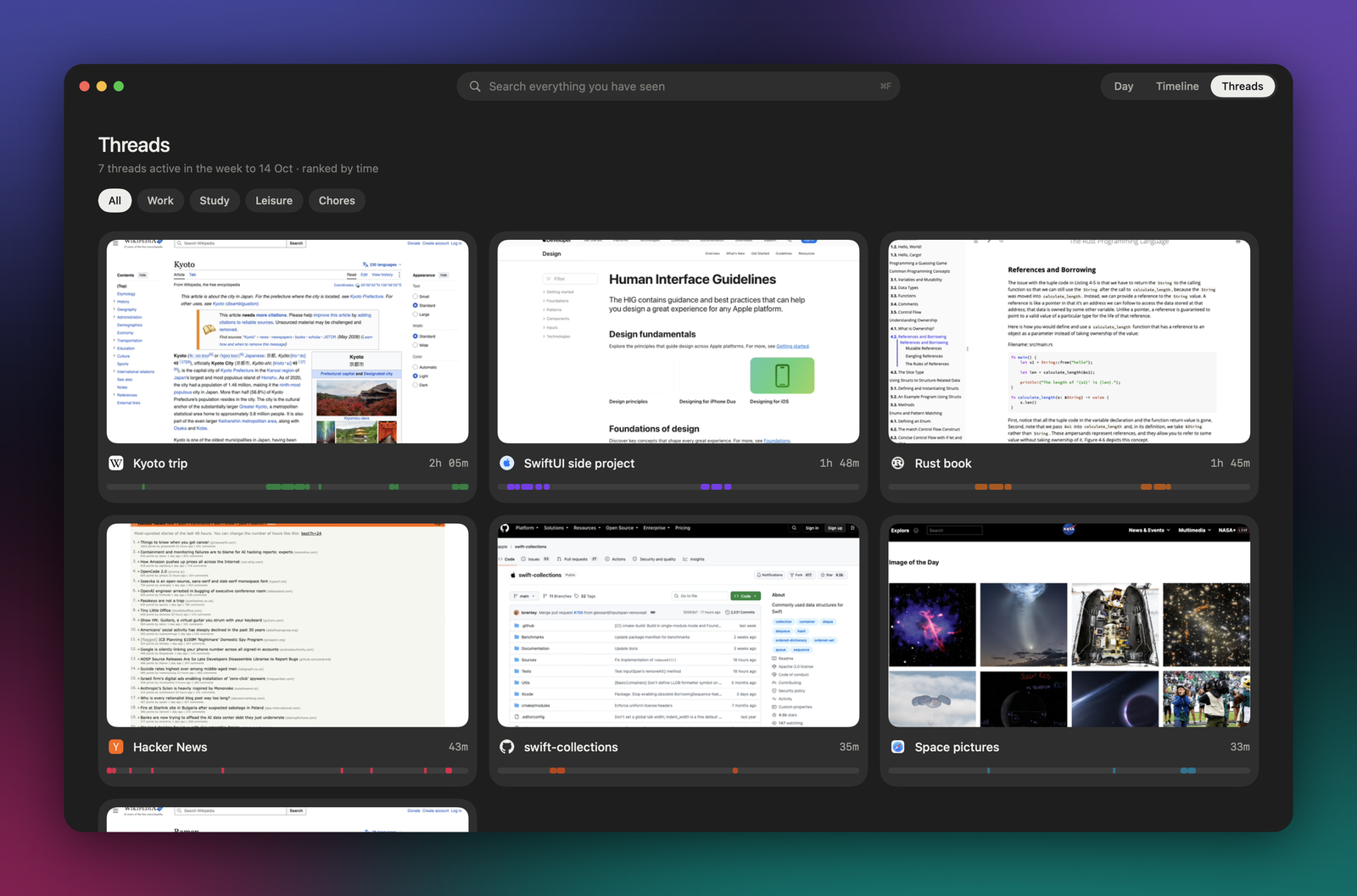
Threads shows every thread of the past week with a cover picture, the time it took and when in the day it happened. If Screencap grouped something wrong, rename or merge a thread from its right-click menu.
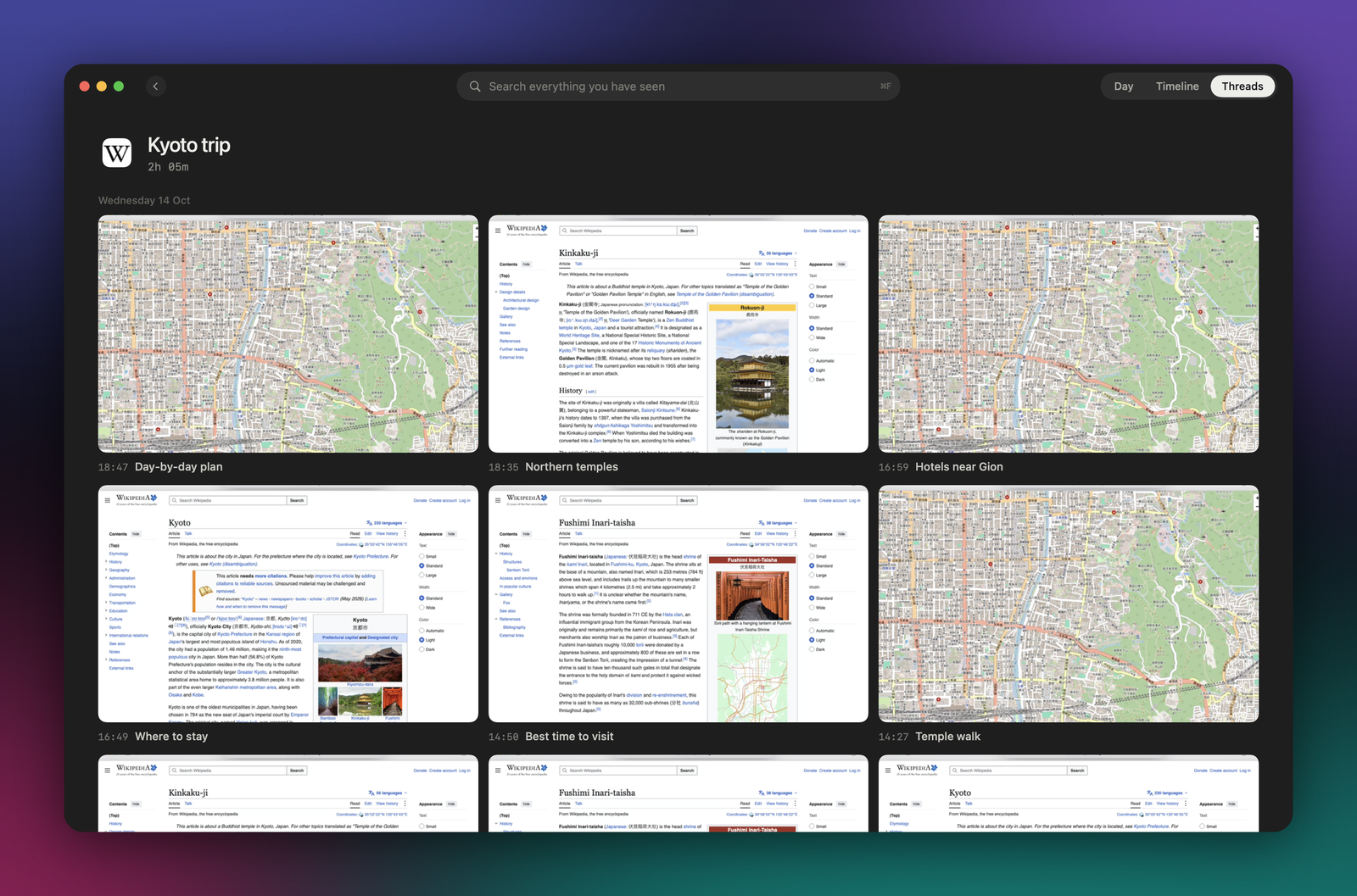
Click a thread to see all its moments, day by day, newest first.
The search box at the top of the window finds moments by any word that was on screen. Click a moment to see its screenshots, the text on screen and the page or app it was in; one more click opens that page or app again. From there you can move the moment to another thread or delete it.
Click Screencap's icon in the menu bar, or press ⌥⌘S in any app, to see today at a glance: the day's strip and its threads, most time first.
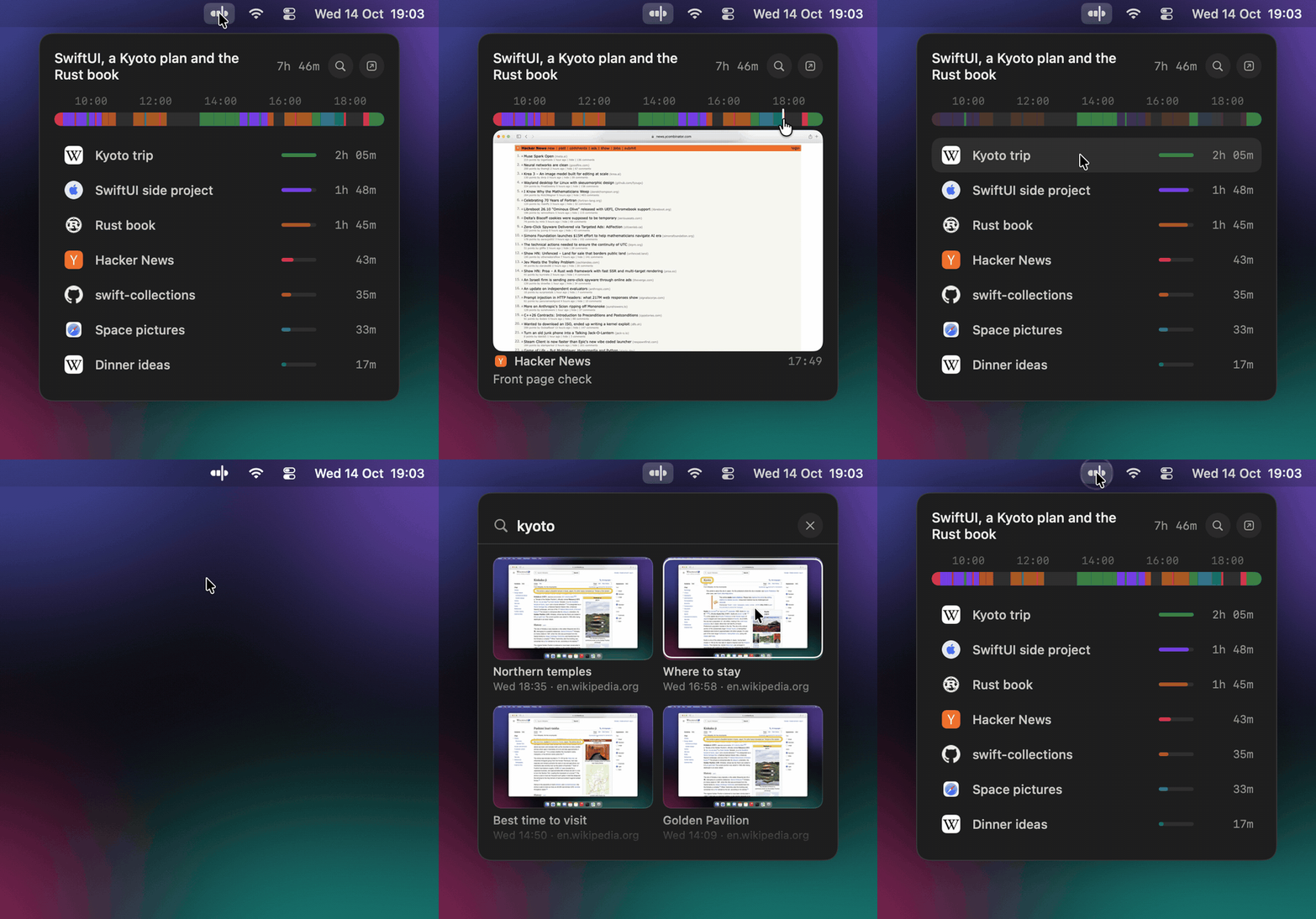
Right-click the icon to pause capture for 30 minutes, an hour or until tomorrow, to take a screenshot now, or to open Settings: the apps to leave out, text-only mode, site icons, appearance, agent access and backup.
Your AI agents, such as Claude Code, Claude Desktop, Cursor and Codex, can look things up in Screencap when you ask them something that depends on what you saw or did: "what was the article about borrowing I read on Tuesday?", "write my standup from yesterday", "where did I leave off on the Kyoto plan?". They read your history through a server built into the app that speaks MCP, the protocol agents use to reach outside tools, and they can only read.
Agent access is off until you turn it on in Settings, under Agents. There you choose whether agents may see screenshots, connect an agent with one click, and see which agent read what. To connect Claude Code from Terminal:
/Applications/Screencap.app/Contents/MacOS/Screencap mcp install claude-code
An agent sends what it reads to its own AI provider. docs/agents.md lists the tools and how to connect any other MCP client.
pplx-decider-v1.1-27b, a System-1 model, answers short questions about your screenshots and screen text, such as "does a new activity start here?" and "which thread is this?". OpenAI's gpt-6-luna writes the titles of moments and the names of threads. Both run through OpenRouter with zero data retention.Screencap keeps a record of what was on your screen, which can include your messages, documents and accounts. It keeps that record on your Mac and sends out only what sorting the day needs; each claim below can be checked in the code.
On your Mac. Screenshots, screen text and history live in ~/Library/Application Support/com.screencaping.app, readable by your user account alone. Screencap does not encrypt them itself; FileVault encrypts the disk, which protects them while the Mac is off. While you are logged in, any app running as you can read this folder, as it can read your documents, so run only software you trust. Time Machine copies the folder unless you exclude it, and a moment you delete stays in older Time Machine backups.
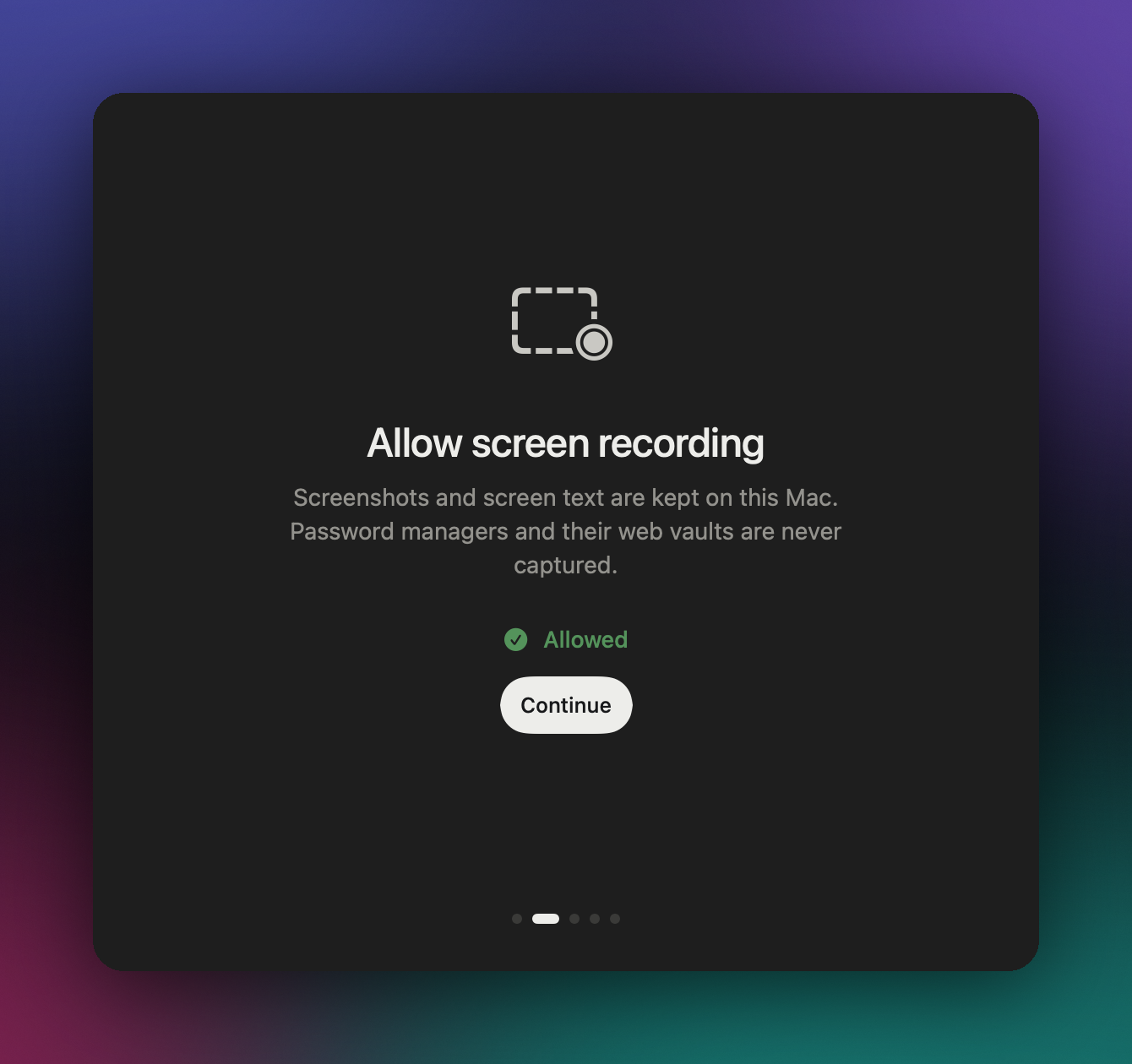
Never captured. Screencap never captures password managers (1Password, Bitwarden, Apple Passwords, KeePassXC, LastPass, Dashlane, Proton Pass and others) or their web vaults, the browsers' own password pages, apps you exclude in Settings, the screen while a password field has focus (macOS secure input) or while the Mac is locked, and its own windows. For these moments it stores only the time and the reason. If your password manager is missing from the list, add it in Settings.
Private windows. Before each capture, Screencap reads every browser window's accessibility attributes, leaves private windows out of the screenshot, and skips the capture when one is in front. It recognises the marker Chrome, Brave, Safari and Firefox write into a private window's title, in English and the other languages their source code lists, and the accessibility identifier Arc and Dia give a private window. These markers come from the browsers' source code and other developers' reports. Edge, Vivaldi and Opera, Safari in languages other than English and Swedish, and Firefox's "Never remember history" mode are not recognised yet; if you browse privately in one of them, add that browser to the excluded apps.
Secrets on screen. Before screen text, window titles and page paths are stored, Screencap replaces API keys and tokens (OpenRouter, OpenAI, Anthropic, AWS, GitHub, GitLab, Slack, Stripe, Google, npm), private keys, JSON web tokens, long random strings, its own recovery key, and card numbers and IBANs that pass their check digits with [hidden]. A screenshot whose text held one is never sent to a model. Masking goes by shape, so it misses a password typed as an ordinary word and a short code such as a six-digit sign-in code; the screenshot itself is kept on your Mac.
What goes to the AI models. Requests go to openrouter.ai over HTTPS with your key, and OpenRouter forwards them only to providers that keep no copy of a request and never train on one (its zero data retention routing). OpenRouter itself keeps no prompts or answers unless you turn on logging in your OpenRouter account; it keeps counts such as tokens and cost. Under that routing gpt-6-luna, which writes captions, runs on Azure, whose content filter refuses about 2 in 100 caption requests; those moments show no caption. Each kind of request carries the following:
| Request | What it sends | When |
|---|---|---|
| Is this a new activity? | Up to 12 lines of time, app, window title (100 characters), site and new screen text (220 characters); the screenshots on either side of the change. When the answer is yes, a second look with up to 8 captures on each side and one screenshot from each | About once a minute while you work |
| Caption and title | Up to 6 captures' app, title, site and screen text (300 characters); one screenshot | When a moment ends |
| Which thread? | The moment's screen text and caption; the name, description and three recent captions of each thread from the last 30 days, and your corrections; one or two screenshots | When a moment ends |
| Thread names, merges, the day's headline | Captions, thread names and descriptions; no screenshots | When a thread grows, nightly, and when you open a day |
| Thread cover | The thread's name and up to five screenshots cut to the window, 640 px | When the Threads page shows a thread whose cover is not chosen yet |
Screenshots are 1024 px JPEGs of the screen you are working on. Of a page's address only the site leaves your Mac, though window titles, which often name the page, do. Text-only mode in Settings sends no screenshots at all; the rest of the table still applies. Captions and thread names that models write from your screen are stored as one line of at most 280 characters, so a page cannot plant a long instruction that is sent again for weeks.
Site icons. A thread on a website shows that site's icon, fetched once from the site itself, which shows the site one request from your Mac. The request carries no cookies, and only small images in an icon format are read. Turn Show site icons off in Settings to send nothing.
Keys. Your OpenRouter key, your bucket's secret and the backup encryption key are kept in the macOS Keychain on this Mac, never synced to iCloud; another app can read them only if macOS asks you and you allow it. Copying the recovery key marks it concealed, so clipboard managers that honour the mark keep no copy.
Deleting. Deleting a moment removes its screenshots, screen text, search entries and model answers from your Mac, and its screenshots from the backup; the database overwrites deleted rows with zeros, and a new backup snapshot, taken right away, replaces the one that held them. Thread names and the day's headline written before the delete keep their wording until they are written again.
Agents. Screen text can hold instructions written for whoever reads it, so allow only agents you trust to read your history (Agents). The Agents switch in Settings is a consent setting for agent apps.
The app. Releases are signed with a Developer ID, run under the hardened runtime with no entitlement exceptions, and are notarized by Apple. Screencap has no analytics, crash reporting or update check; it connects only to OpenRouter, your bucket and the sites whose icons it shows.
Reporting a problem. If you find a security issue, report it privately through the repository's Security tab (Report a vulnerability), so it can be fixed before it is public.
The AI models cost under $2 a month on your OpenRouter key if you use your Mac eight hours a day, five days a week; a measured 6.5-hour day cost 6 cents.
Screencap can keep a copy of your screenshots and history in a storage bucket you own: Amazon S3, Cloudflare R2, Backblaze B2 or any other S3-compatible service. Turn it on in Settings, pick the provider, and enter the bucket, its region (the account ID for R2) and an access key. Check connection lists the bucket to test them and writes nothing.
To restore onto another Mac, set up the same bucket in Settings and paste the recovery key there. Then quit Screencap, move its data folder aside, rebuild it from the bucket, and open Screencap again:
mv ~/Library/Application\ Support/com.screencaping.app ~/Library/Application\ Support/com.screencaping.app-before-restore
/Applications/Screencap.app/Contents/MacOS/Screencap restore --to ~/Library/Application\ Support/com.screencaping.app
Once the restored history looks right, delete the com.screencaping.app-before-restore folder.
With Xcode 26 installed:
scripts/verify.sh       # builds and runs the tests
scripts/build-app.sh    # builds and signs build/Screencap.app
docs/development.md covers the command-line modes, where data lives and how the code is organised. How to release it is in RELEASING.md.
Screencap is open source under the MIT License.
The screenshots show pages from Wikipedia (text and photos under CC BY-SA), OpenStreetMap (© OpenStreetMap contributors), NASA, Apple Developer, GitHub, The Rust Programming Language and Hacker News, each under its owner's terms.
53,303 followers · starred Jan 2026
93 followers · starred Jan 2026
16 followers · starred Apr 2026
A lightweight, macOS-native activity memory for you and your agents
See the codeScreencap is a lightweight, macOS-native activity memory for you and your agents, built on smart capture and System-1 models. It runs in the background on under 1% of one CPU core and about 30 MB of memory.
Download the latest release · macOS 26 on Apple Silicon
Day sums up the day in a few words and lays it out as one strip, coloured by thread. Move the pointer along the strip to see what was on screen at any point. Below the strip, each of the day's threads shows its key moments. A moment is one stretch of work on one thing, shown by its best screenshot and a short title.
Timeline gives each thread its own column, with time running down the page, so work you kept going in parallel sits side by side.
Threads shows every thread of the past week with a cover picture, the time it took and when in the day it happened. If Screencap grouped something wrong, rename or merge a thread from its right-click menu.
Click a thread to see all its moments, day by day, newest first.
The search box at the top of the window finds moments by any word that was on screen. Click a moment to see its screenshots, the text on screen and the page or app it was in; one more click opens that page or app again. From there you can move the moment to another thread or delete it.
Click Screencap's icon in the menu bar, or press ⌥⌘S in any app, to see today at a glance: the day's strip and its threads, most time first.
Right-click the icon to pause capture for 30 minutes, an hour or until tomorrow, to take a screenshot now, or to open Settings: the apps to leave out, text-only mode, site icons, appearance, agent access and backup.
Your AI agents, such as Claude Code, Claude Desktop, Cursor and Codex, can look things up in Screencap when you ask them something that depends on what you saw or did: "what was the article about borrowing I read on Tuesday?", "write my standup from yesterday", "where did I leave off on the Kyoto plan?". They read your history through a server built into the app that speaks MCP, the protocol agents use to reach outside tools, and they can only read.
Agent access is off until you turn it on in Settings, under Agents. There you choose whether agents may see screenshots, connect an agent with one click, and see which agent read what. To connect Claude Code from Terminal:
/Applications/Screencap.app/Contents/MacOS/Screencap mcp install claude-code
An agent sends what it reads to its own AI provider. docs/agents.md lists the tools and how to connect any other MCP client.
pplx-decider-v1.1-27b, a System-1 model, answers short questions about your screenshots and screen text, such as "does a new activity start here?" and "which thread is this?". OpenAI's gpt-6-luna writes the titles of moments and the names of threads. Both run through OpenRouter with zero data retention.Screencap keeps a record of what was on your screen, which can include your messages, documents and accounts. It keeps that record on your Mac and sends out only what sorting the day needs; each claim below can be checked in the code.
On your Mac. Screenshots, screen text and history live in ~/Library/Application Support/com.screencaping.app, readable by your user account alone. Screencap does not encrypt them itself; FileVault encrypts the disk, which protects them while the Mac is off. While you are logged in, any app running as you can read this folder, as it can read your documents, so run only software you trust. Time Machine copies the folder unless you exclude it, and a moment you delete stays in older Time Machine backups.
Never captured. Screencap never captures password managers (1Password, Bitwarden, Apple Passwords, KeePassXC, LastPass, Dashlane, Proton Pass and others) or their web vaults, the browsers' own password pages, apps you exclude in Settings, the screen while a password field has focus (macOS secure input) or while the Mac is locked, and its own windows. For these moments it stores only the time and the reason. If your password manager is missing from the list, add it in Settings.
Private windows. Before each capture, Screencap reads every browser window's accessibility attributes, leaves private windows out of the screenshot, and skips the capture when one is in front. It recognises the marker Chrome, Brave, Safari and Firefox write into a private window's title, in English and the other languages their source code lists, and the accessibility identifier Arc and Dia give a private window. These markers come from the browsers' source code and other developers' reports. Edge, Vivaldi and Opera, Safari in languages other than English and Swedish, and Firefox's "Never remember history" mode are not recognised yet; if you browse privately in one of them, add that browser to the excluded apps.
Secrets on screen. Before screen text, window titles and page paths are stored, Screencap replaces API keys and tokens (OpenRouter, OpenAI, Anthropic, AWS, GitHub, GitLab, Slack, Stripe, Google, npm), private keys, JSON web tokens, long random strings, its own recovery key, and card numbers and IBANs that pass their check digits with [hidden]. A screenshot whose text held one is never sent to a model. Masking goes by shape, so it misses a password typed as an ordinary word and a short code such as a six-digit sign-in code; the screenshot itself is kept on your Mac.
What goes to the AI models. Requests go to openrouter.ai over HTTPS with your key, and OpenRouter forwards them only to providers that keep no copy of a request and never train on one (its zero data retention routing). OpenRouter itself keeps no prompts or answers unless you turn on logging in your OpenRouter account; it keeps counts such as tokens and cost. Under that routing gpt-6-luna, which writes captions, runs on Azure, whose content filter refuses about 2 in 100 caption requests; those moments show no caption. Each kind of request carries the following:
| Request | What it sends | When |
|---|---|---|
| Is this a new activity? | Up to 12 lines of time, app, window title (100 characters), site and new screen text (220 characters); the screenshots on either side of the change. When the answer is yes, a second look with up to 8 captures on each side and one screenshot from each | About once a minute while you work |
| Caption and title | Up to 6 captures' app, title, site and screen text (300 characters); one screenshot | When a moment ends |
| Which thread? | The moment's screen text and caption; the name, description and three recent captions of each thread from the last 30 days, and your corrections; one or two screenshots | When a moment ends |
| Thread names, merges, the day's headline | Captions, thread names and descriptions; no screenshots | When a thread grows, nightly, and when you open a day |
| Thread cover | The thread's name and up to five screenshots cut to the window, 640 px | When the Threads page shows a thread whose cover is not chosen yet |
Screenshots are 1024 px JPEGs of the screen you are working on. Of a page's address only the site leaves your Mac, though window titles, which often name the page, do. Text-only mode in Settings sends no screenshots at all; the rest of the table still applies. Captions and thread names that models write from your screen are stored as one line of at most 280 characters, so a page cannot plant a long instruction that is sent again for weeks.
Site icons. A thread on a website shows that site's icon, fetched once from the site itself, which shows the site one request from your Mac. The request carries no cookies, and only small images in an icon format are read. Turn Show site icons off in Settings to send nothing.
Keys. Your OpenRouter key, your bucket's secret and the backup encryption key are kept in the macOS Keychain on this Mac, never synced to iCloud; another app can read them only if macOS asks you and you allow it. Copying the recovery key marks it concealed, so clipboard managers that honour the mark keep no copy.
Deleting. Deleting a moment removes its screenshots, screen text, search entries and model answers from your Mac, and its screenshots from the backup; the database overwrites deleted rows with zeros, and a new backup snapshot, taken right away, replaces the one that held them. Thread names and the day's headline written before the delete keep their wording until they are written again.
Agents. Screen text can hold instructions written for whoever reads it, so allow only agents you trust to read your history (Agents). The Agents switch in Settings is a consent setting for agent apps.
The app. Releases are signed with a Developer ID, run under the hardened runtime with no entitlement exceptions, and are notarized by Apple. Screencap has no analytics, crash reporting or update check; it connects only to OpenRouter, your bucket and the sites whose icons it shows.
Reporting a problem. If you find a security issue, report it privately through the repository's Security tab (Report a vulnerability), so it can be fixed before it is public.
The AI models cost under $2 a month on your OpenRouter key if you use your Mac eight hours a day, five days a week; a measured 6.5-hour day cost 6 cents.
Screencap can keep a copy of your screenshots and history in a storage bucket you own: Amazon S3, Cloudflare R2, Backblaze B2 or any other S3-compatible service. Turn it on in Settings, pick the provider, and enter the bucket, its region (the account ID for R2) and an access key. Check connection lists the bucket to test them and writes nothing.
To restore onto another Mac, set up the same bucket in Settings and paste the recovery key there. Then quit Screencap, move its data folder aside, rebuild it from the bucket, and open Screencap again:
mv ~/Library/Application\ Support/com.screencaping.app ~/Library/Application\ Support/com.screencaping.app-before-restore
/Applications/Screencap.app/Contents/MacOS/Screencap restore --to ~/Library/Application\ Support/com.screencaping.app
Once the restored history looks right, delete the com.screencaping.app-before-restore folder.
With Xcode 26 installed:
scripts/verify.sh       # builds and runs the tests
scripts/build-app.sh    # builds and signs build/Screencap.app
docs/development.md covers the command-line modes, where data lives and how the code is organised. How to release it is in RELEASING.md.
Screencap is open source under the MIT License.
The screenshots show pages from Wikipedia (text and photos under CC BY-SA), OpenStreetMap (© OpenStreetMap contributors), NASA, Apple Developer, GitHub, The Rust Programming Language and Hacker News, each under its owner's terms.
53,303 followers · starred Jan 2026
93 followers · starred Jan 2026
16 followers · starred Apr 2026



