Self-hosted knowledge base with E2E encryption, multi-node sync, and native MCP for AI agents
C#
5
10 commits
updated Oct 12, 2026
 BeeMemoryBank
Your AI agents' shared memory. Self-hosted, your notes encrypted end-to-end, syncs across every device you own — and your AI agent works with it natively from day one.








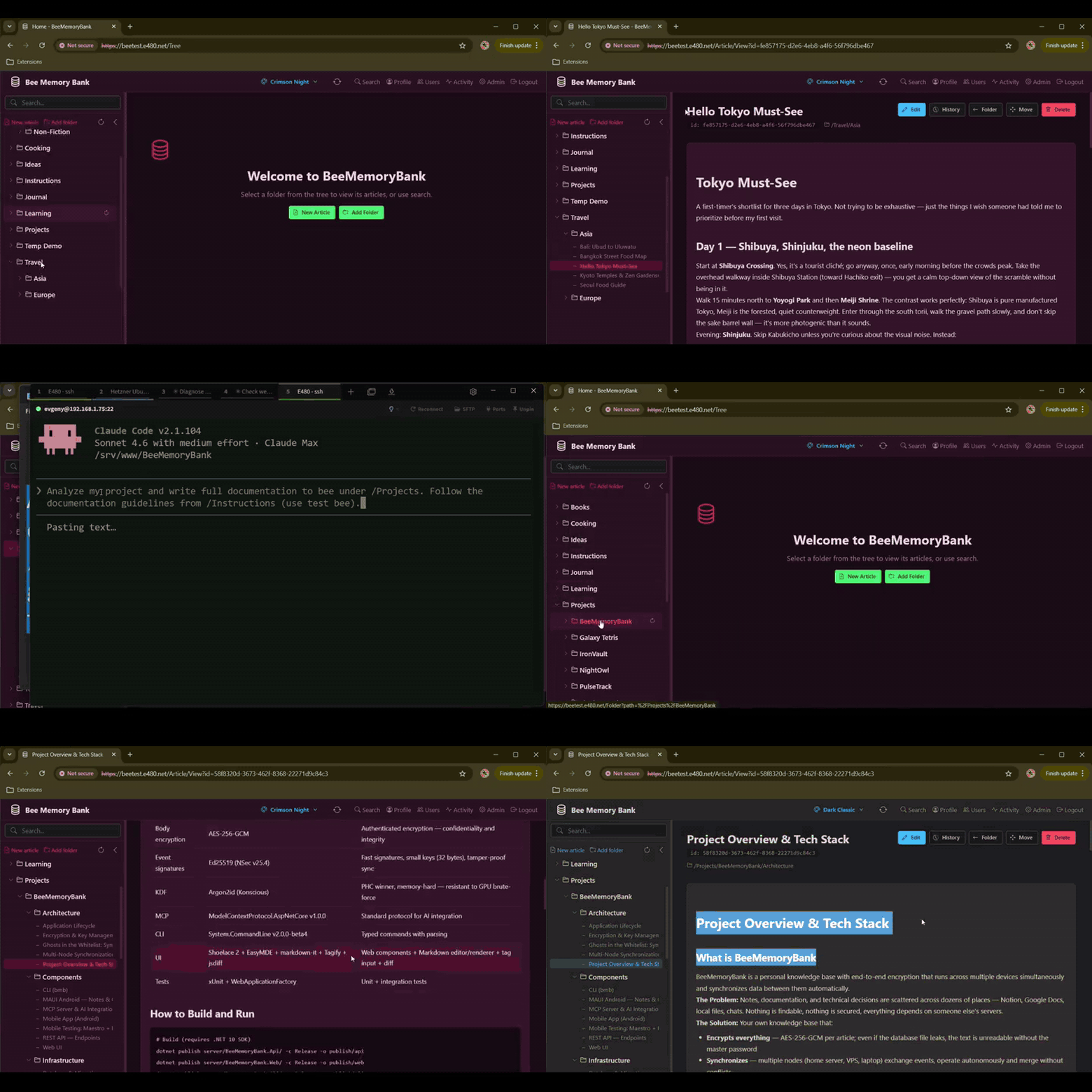
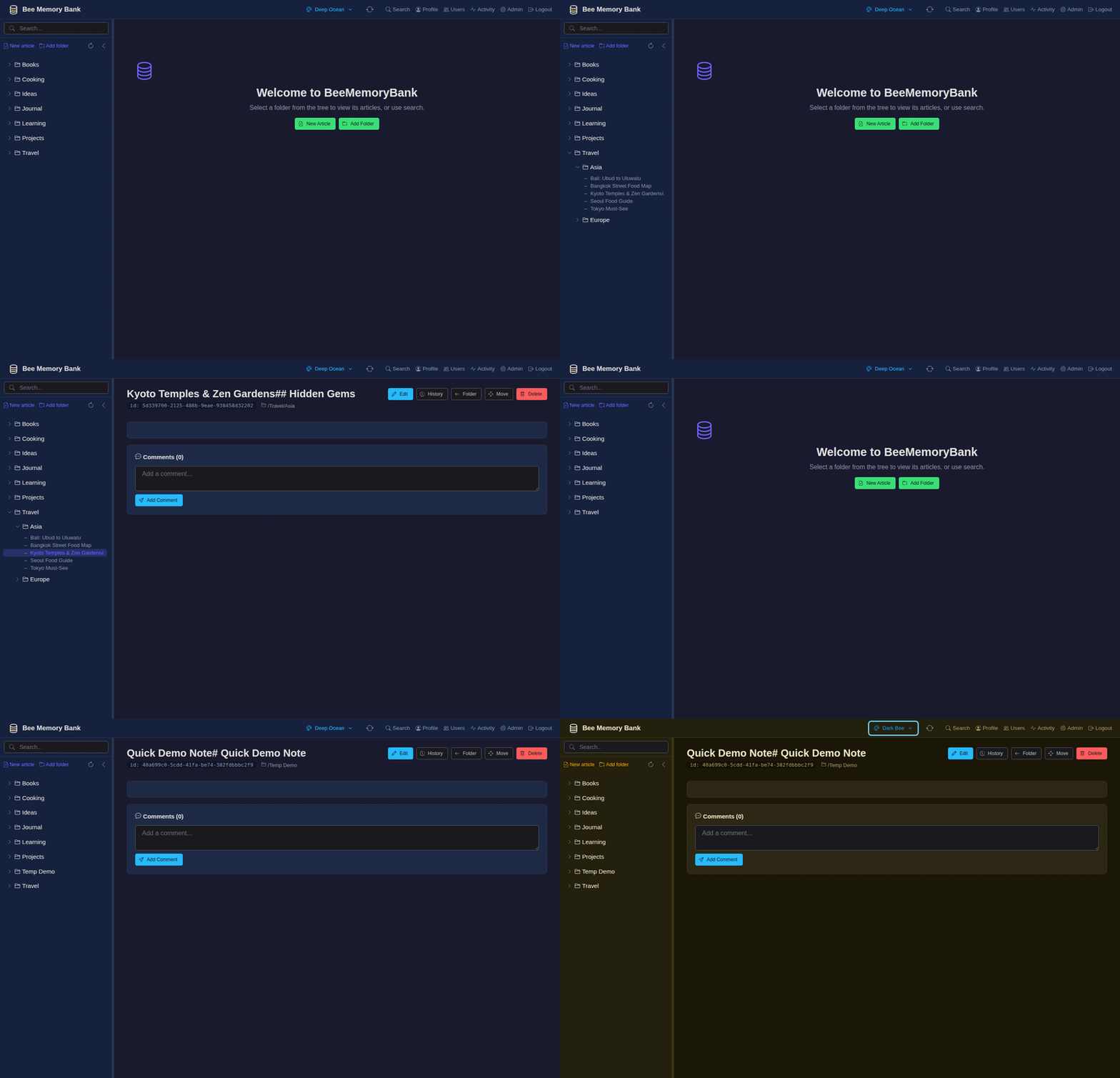 Create & Organize — browse tree, edit article, create folder | 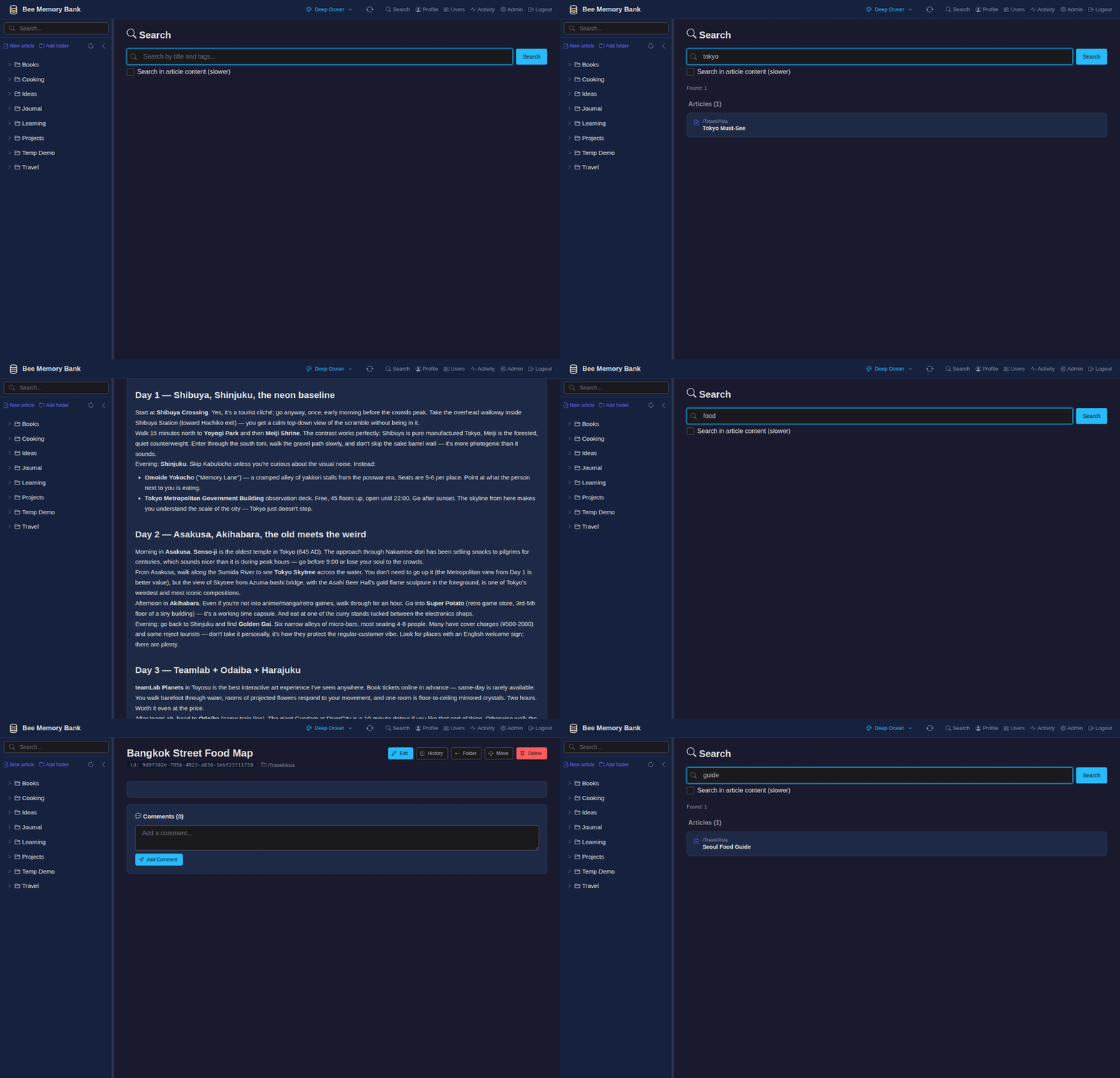 Search — full-text search across encrypted content |
| Dark Classic | Dark Bee | Ocean |
|---|---|---|
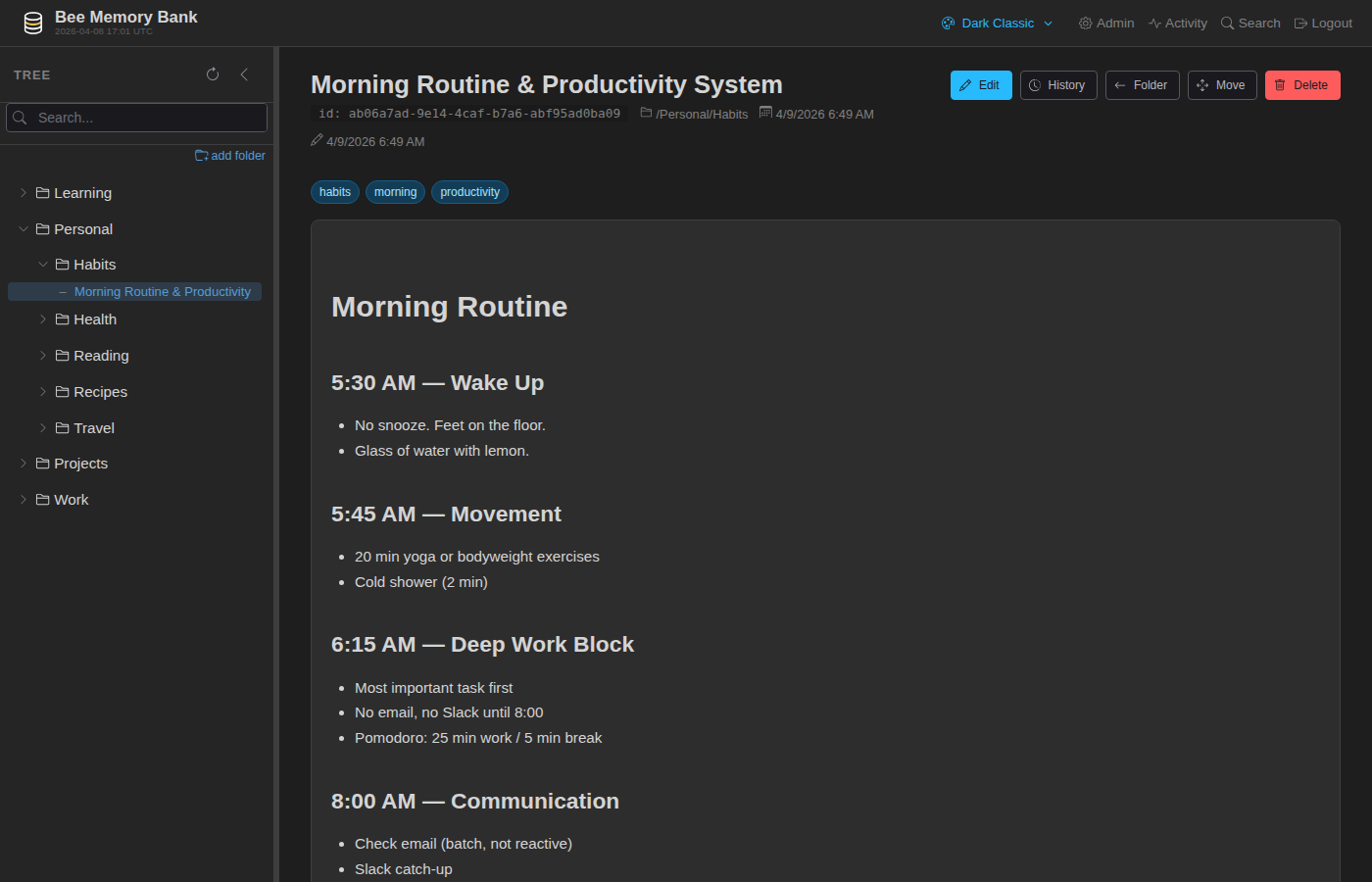 |  | 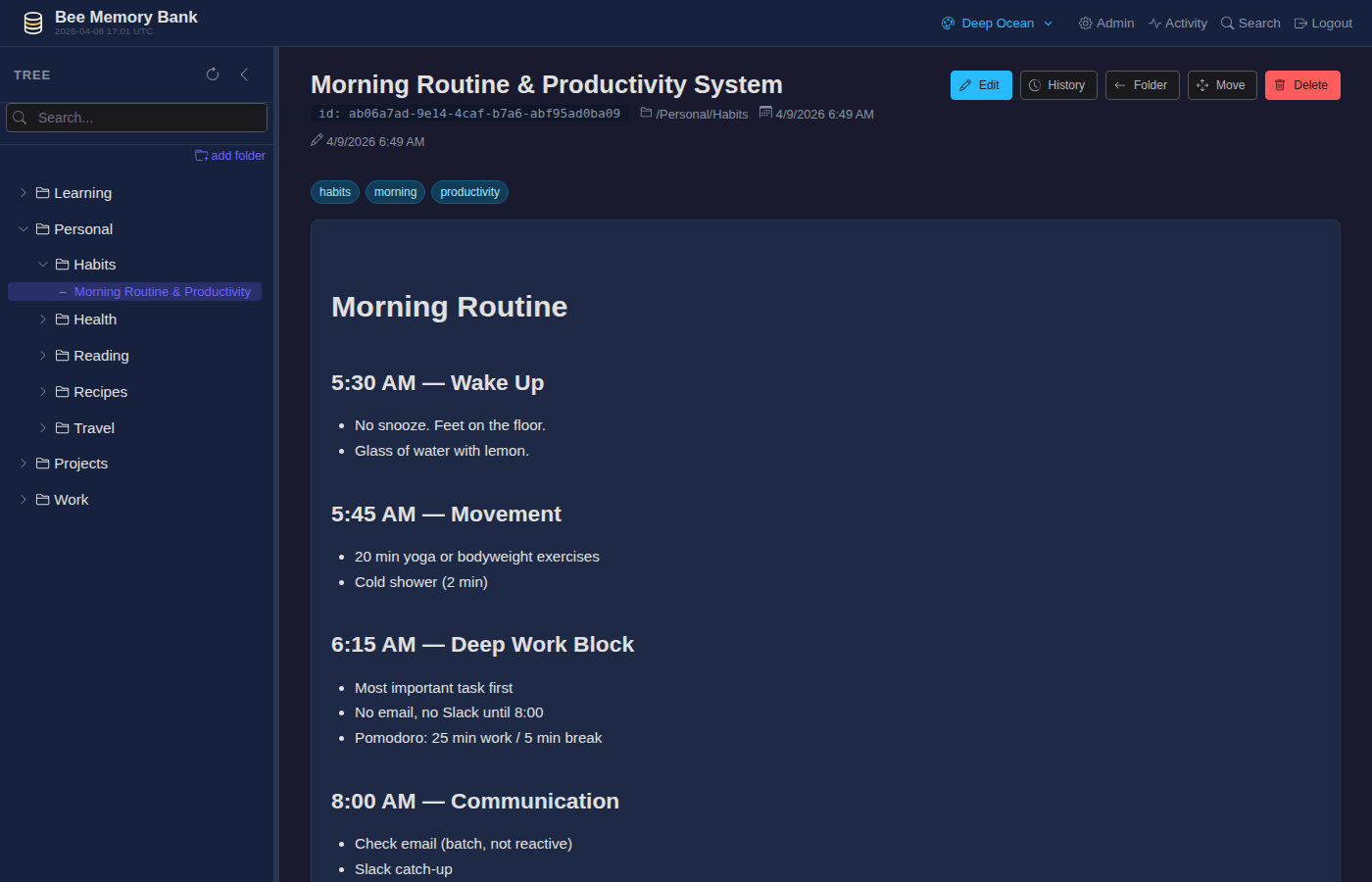 |
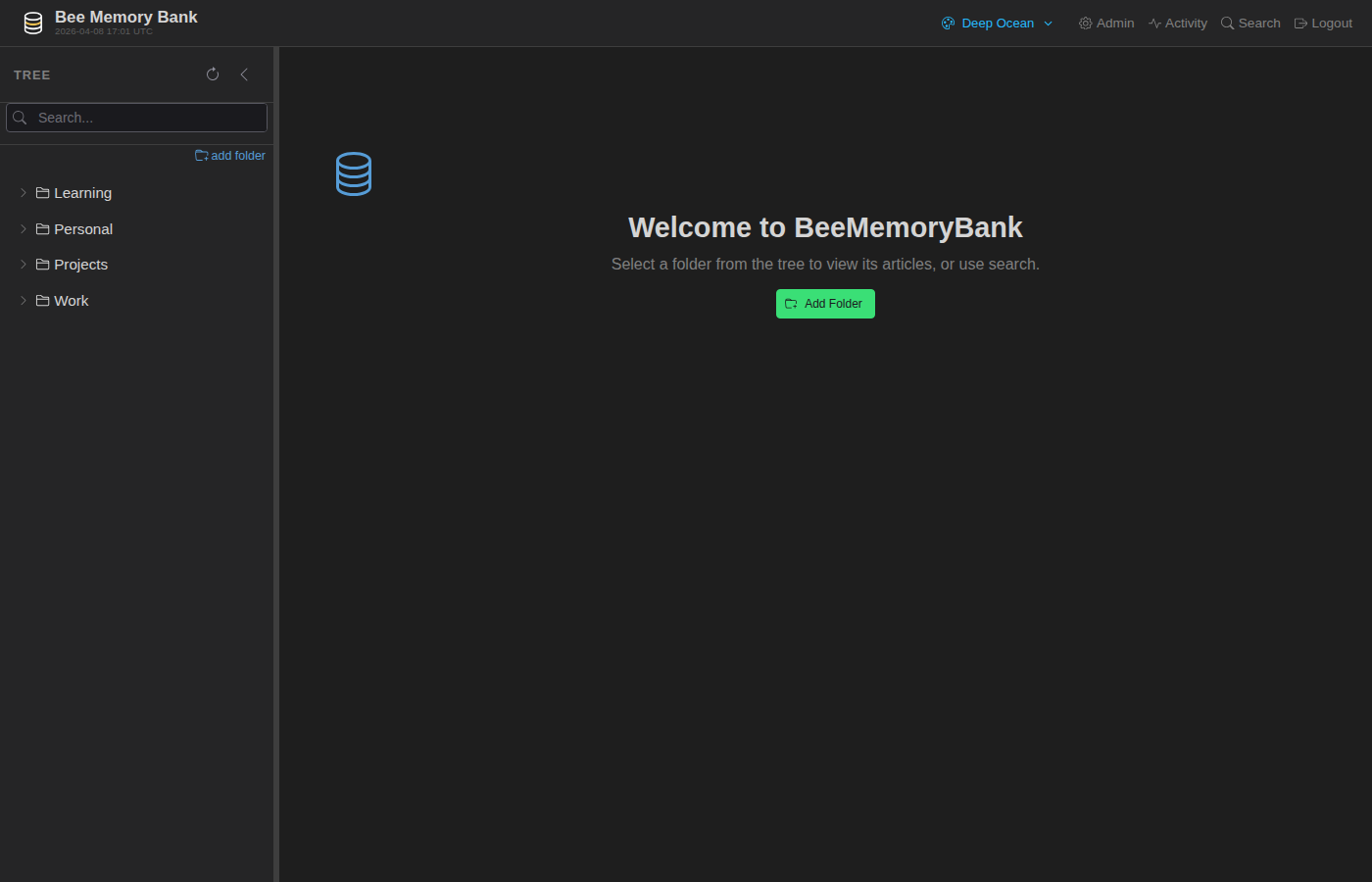 | 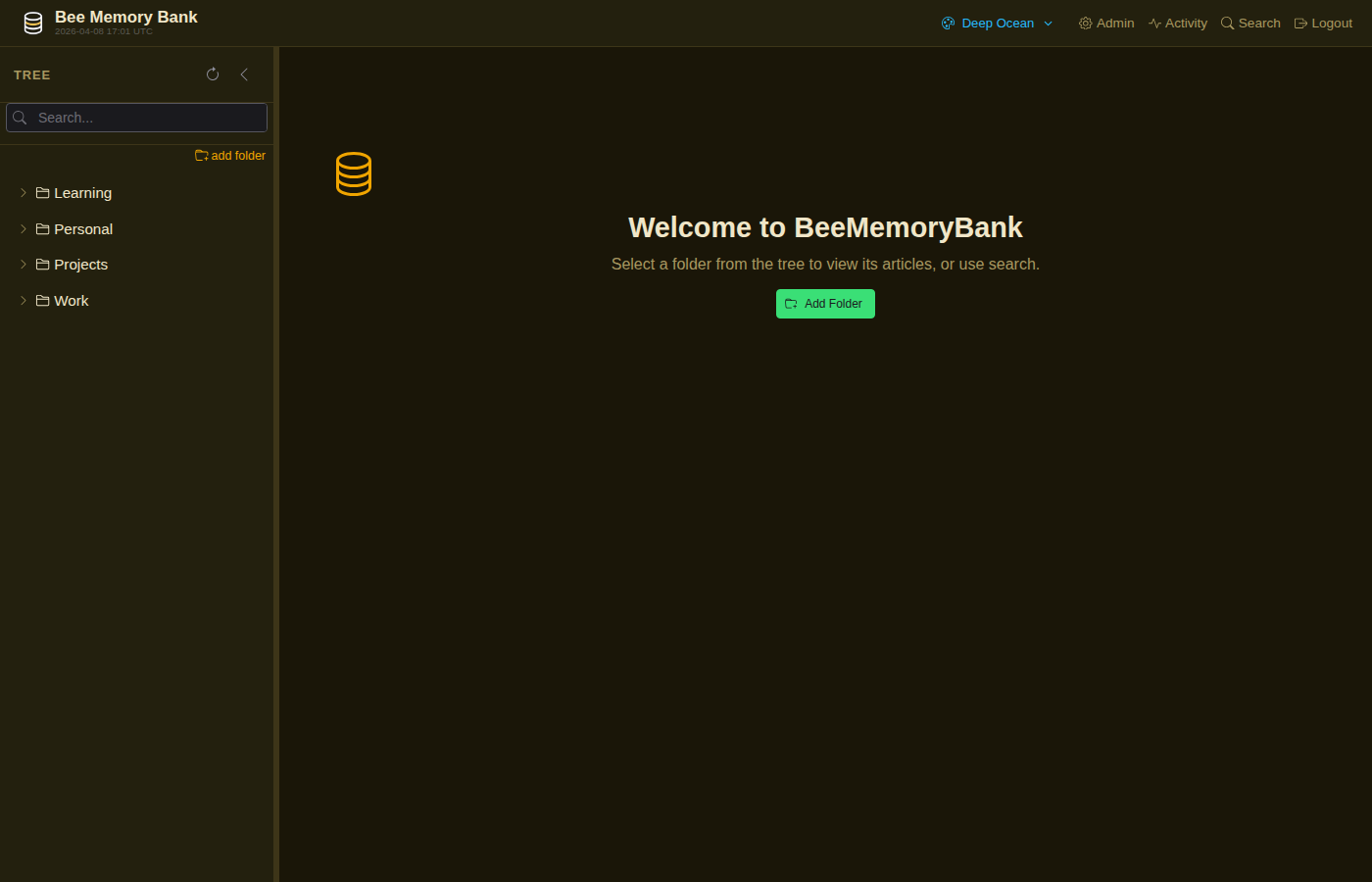 | 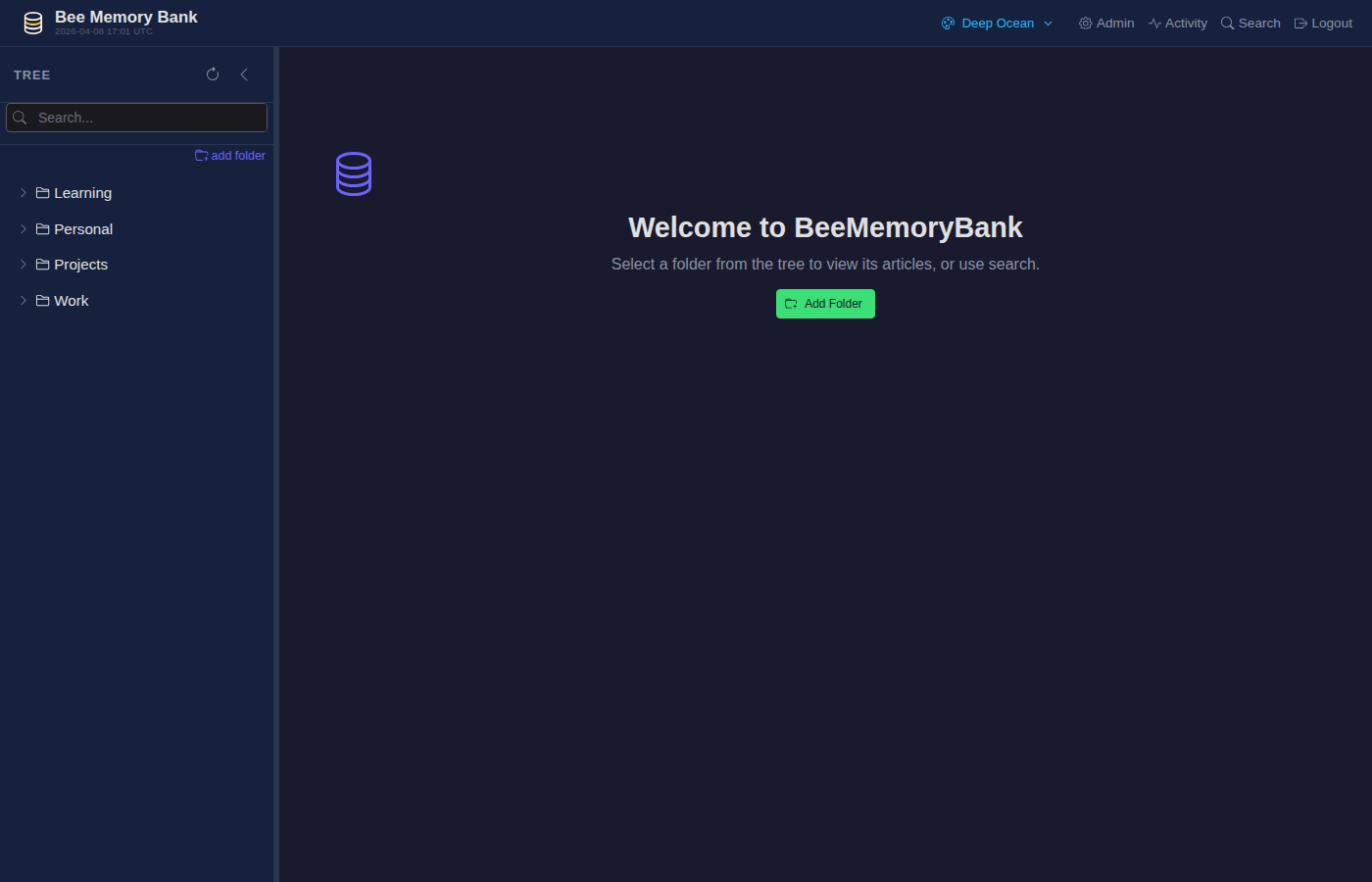 |
| Tree View | Article | Search | Admin |
|---|---|---|---|
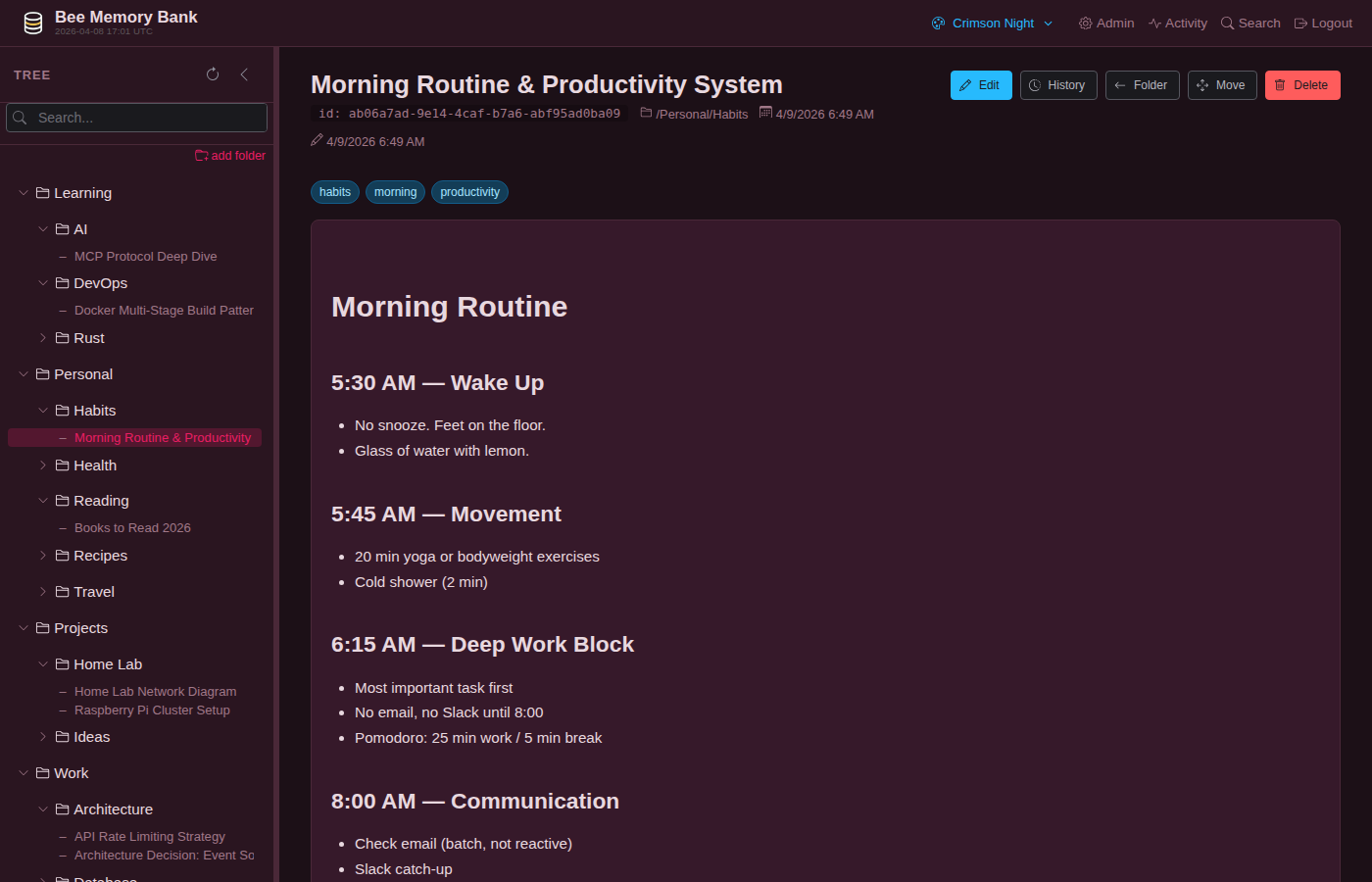 | 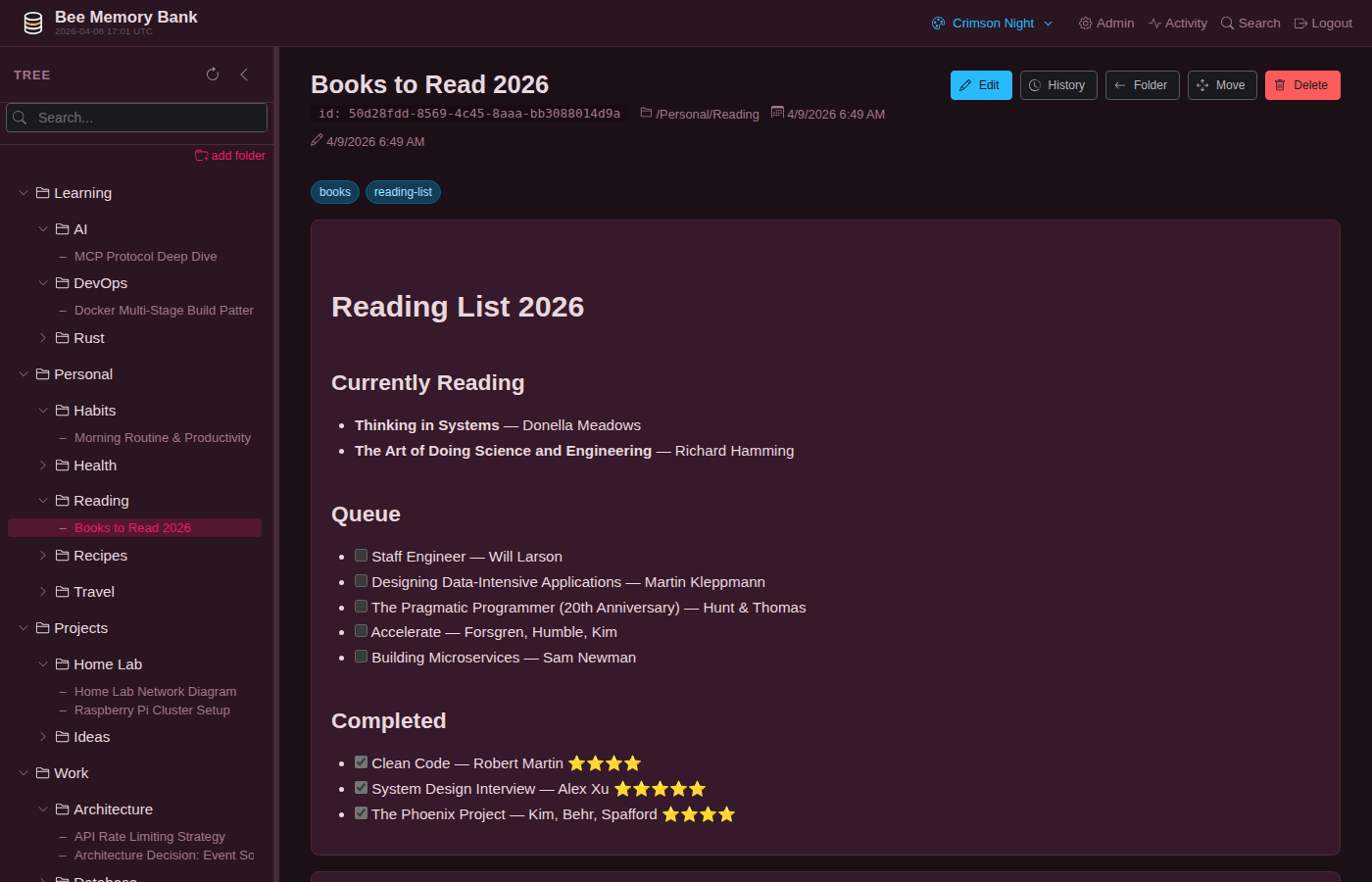 | 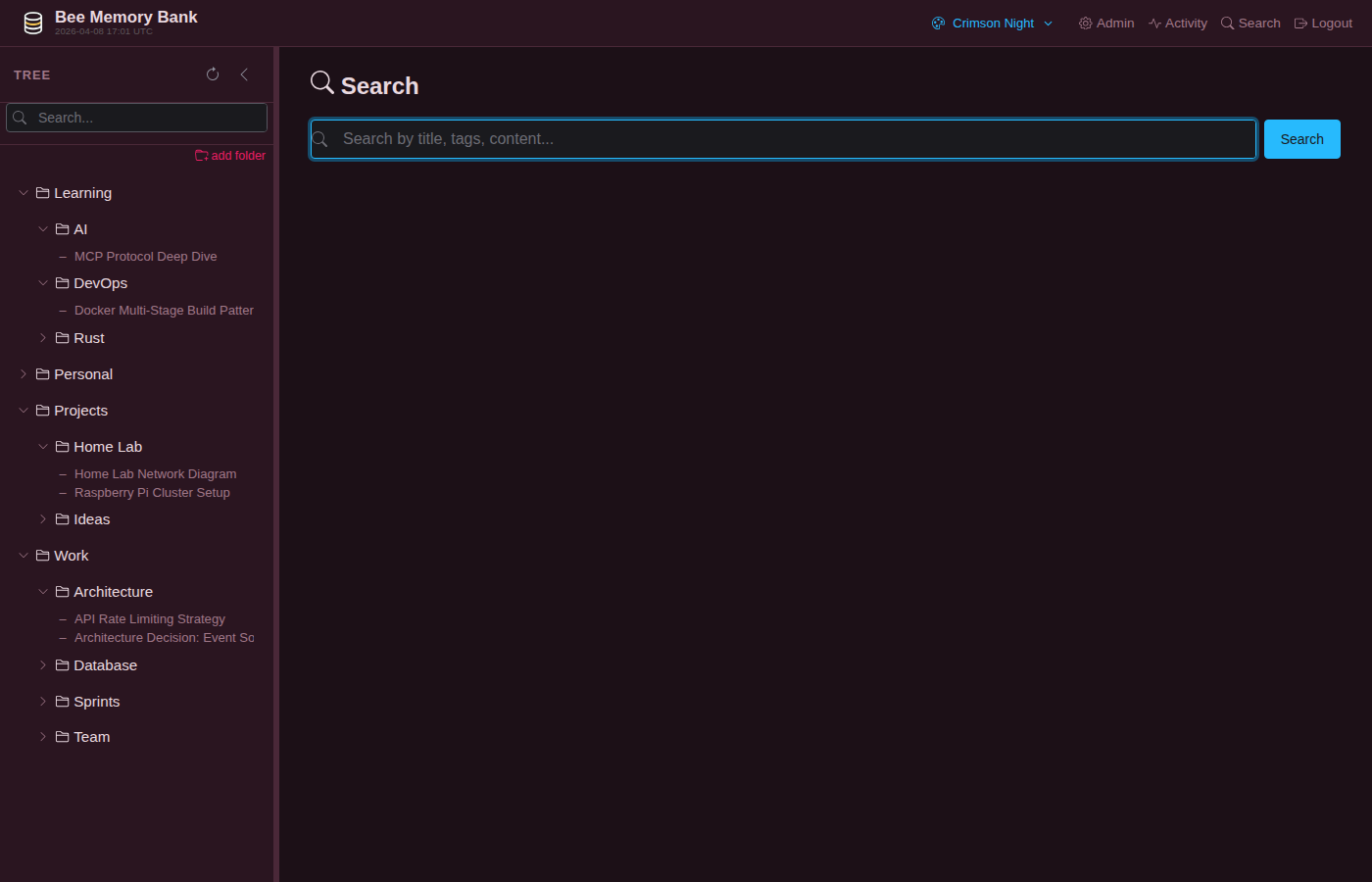 | 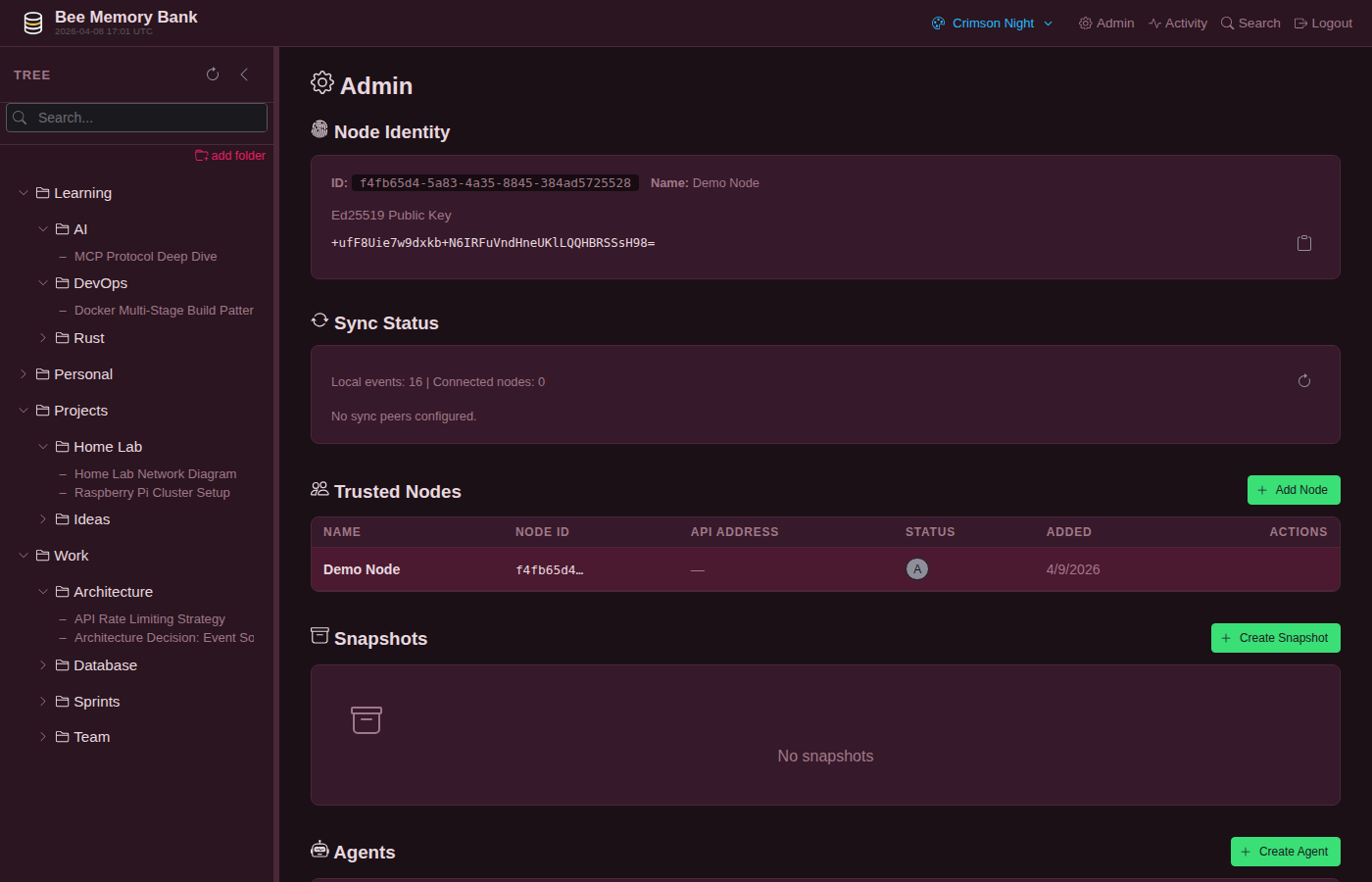 |
One tag connects an article to every other article that shares it — by topic, project, technology, status, year, any dimension you pick. No manual [[wiki-links]] to maintain, no dead-end pairs. Add a tag — the graph rewires itself.
| Explore view | Full graph | Fullscreen focus |
|---|---|---|
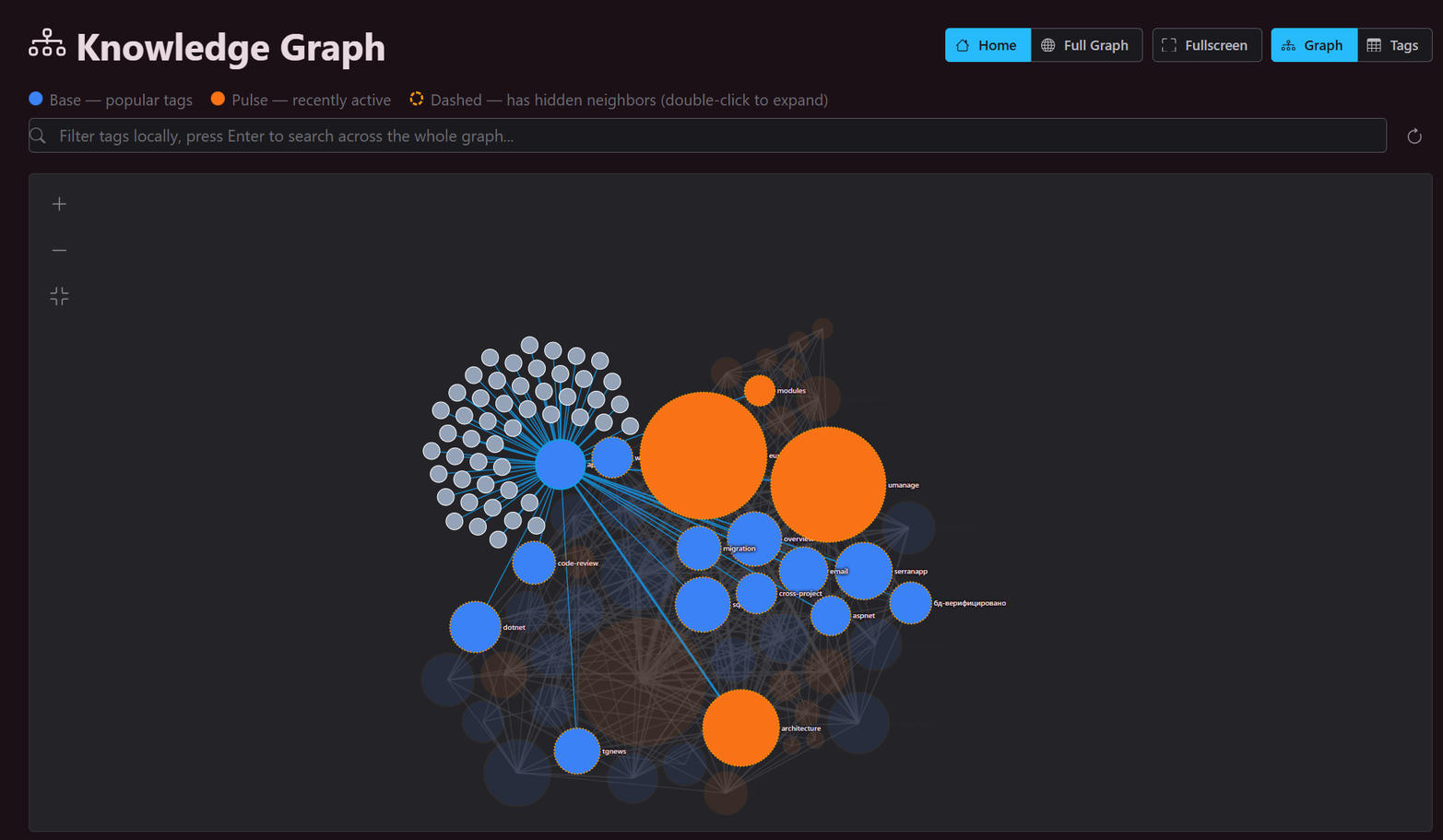 | 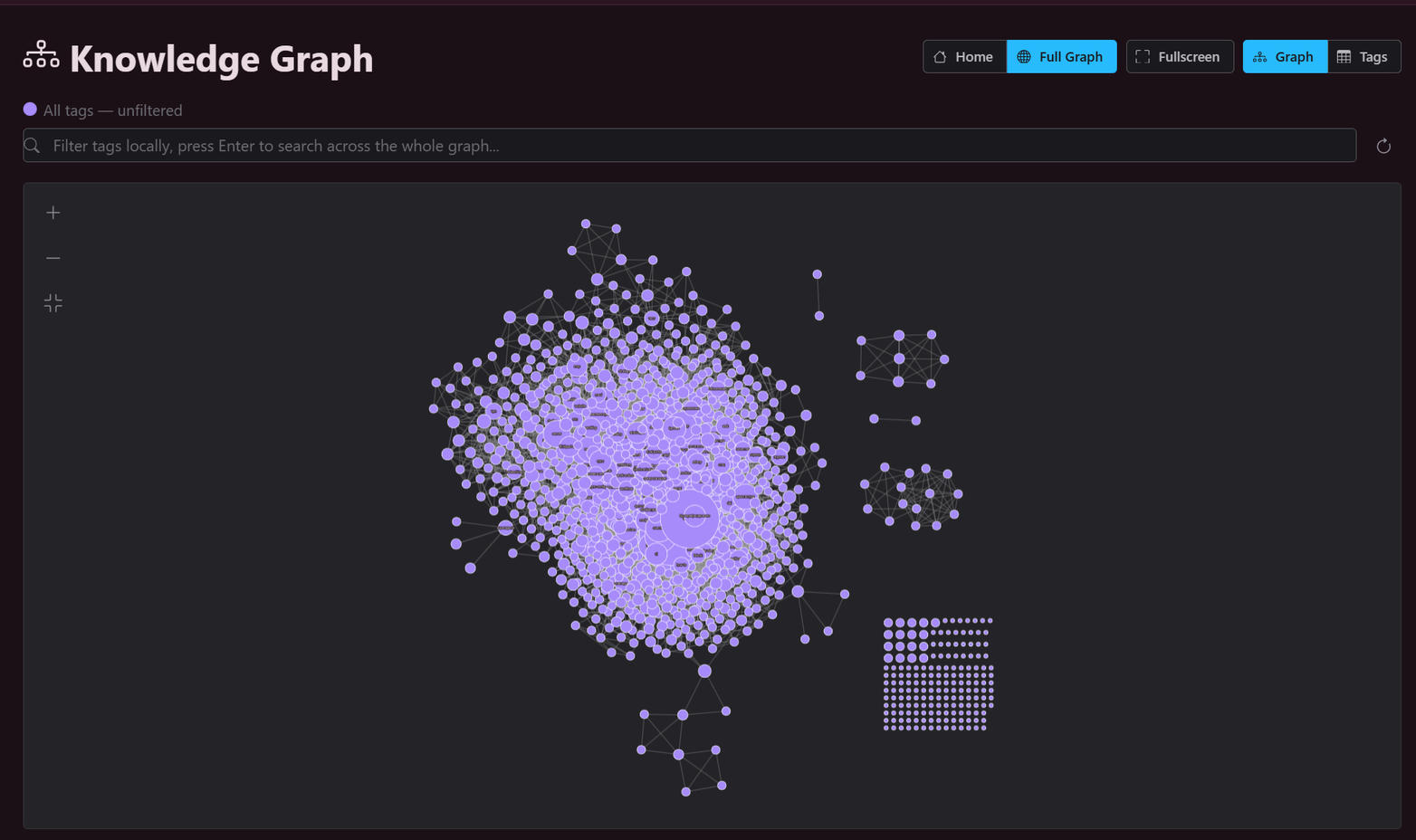 | 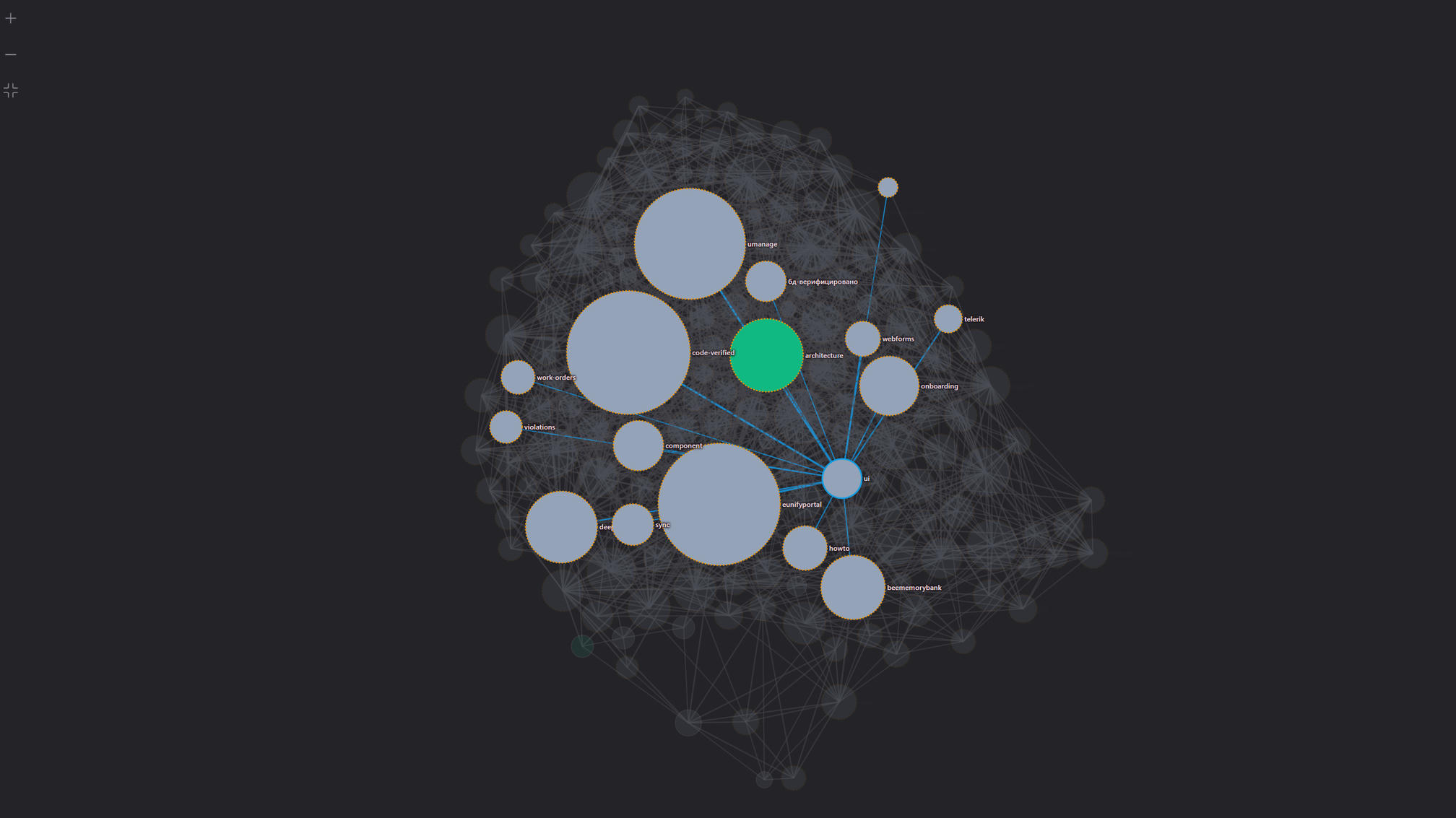 |
| Popular tags (blue) and recently active ones (orange); dashed nodes hide neighbors — double-click to expand. | All tags at once: clusters, orphans, and the long tail. | Click any tag to see its direct neighbors across the whole graph. |
| Articles | Article View | Tags | Sync Status |
|---|---|---|---|
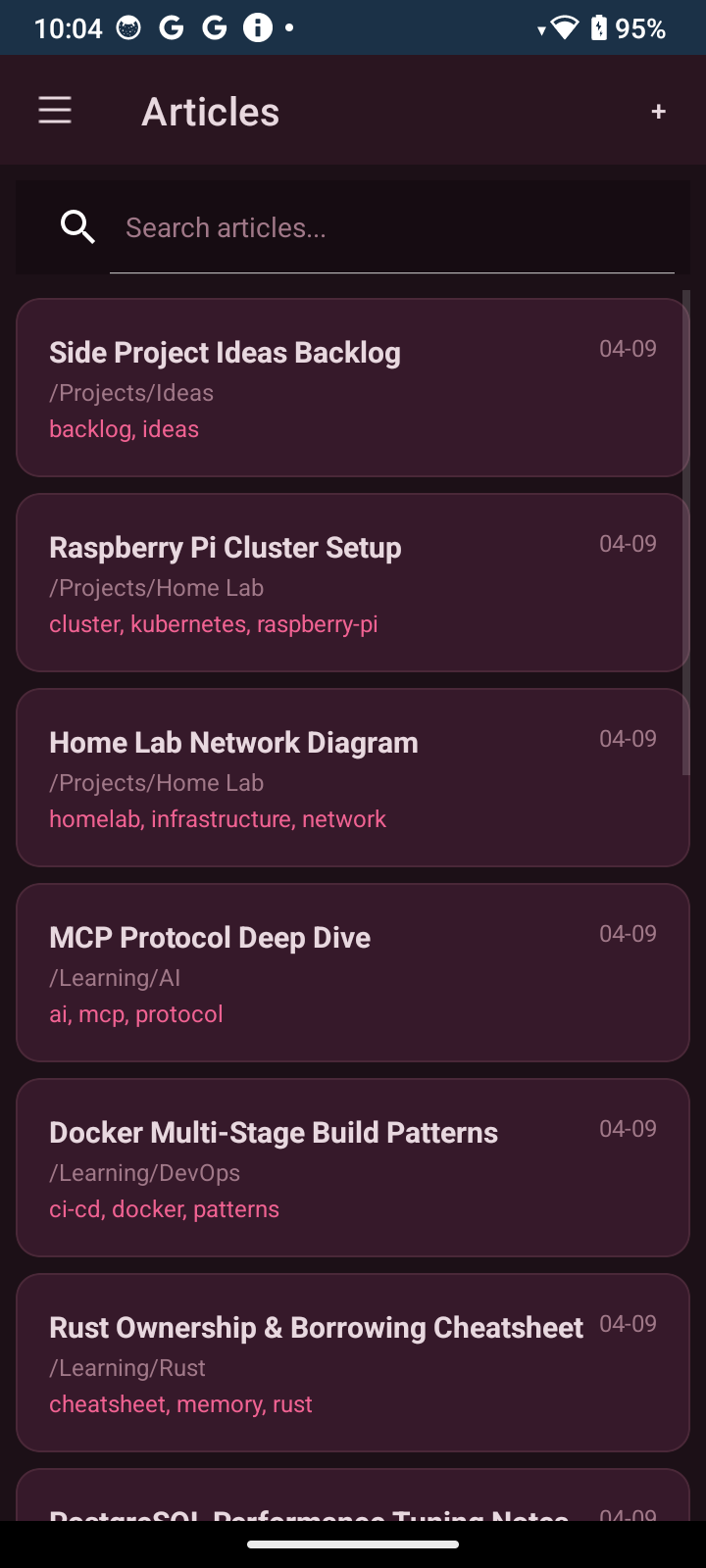 | 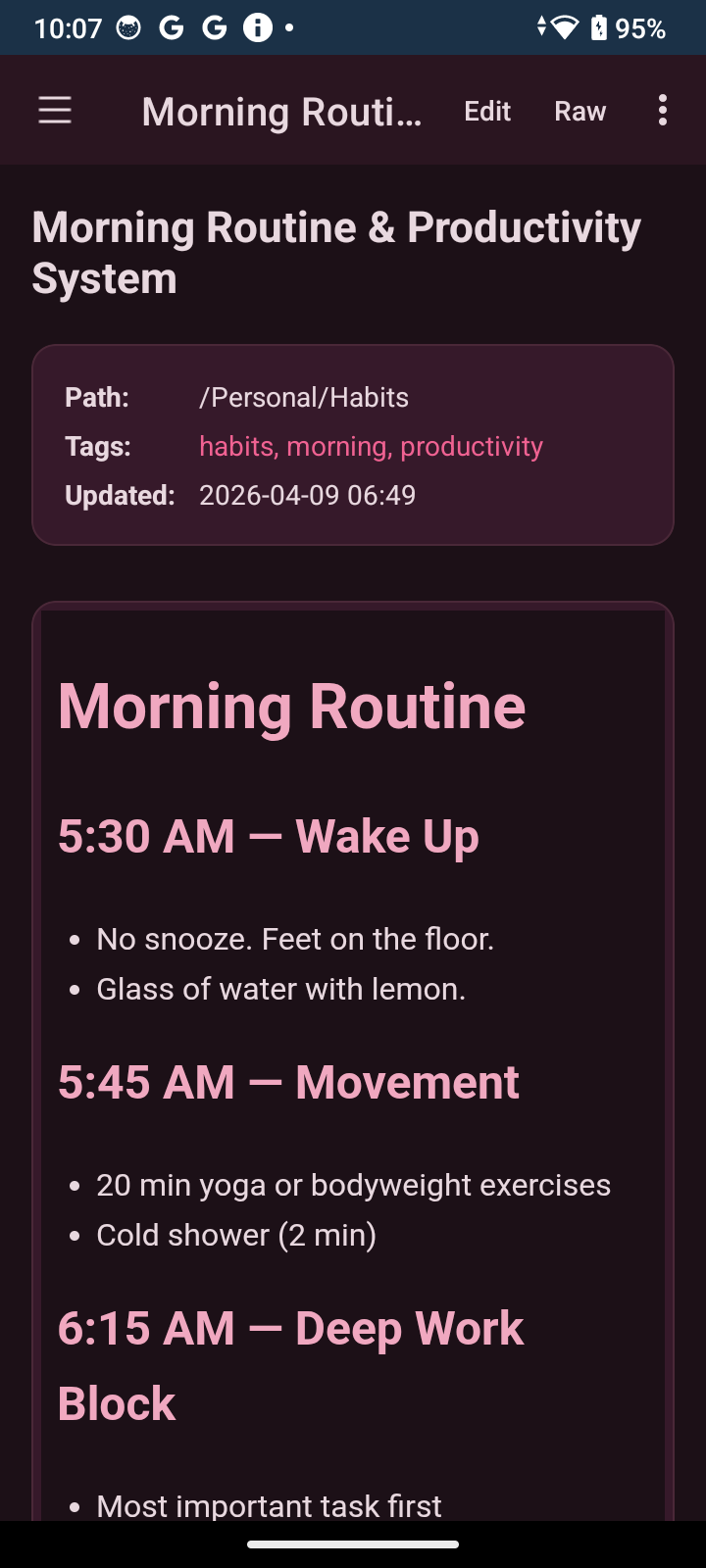 | 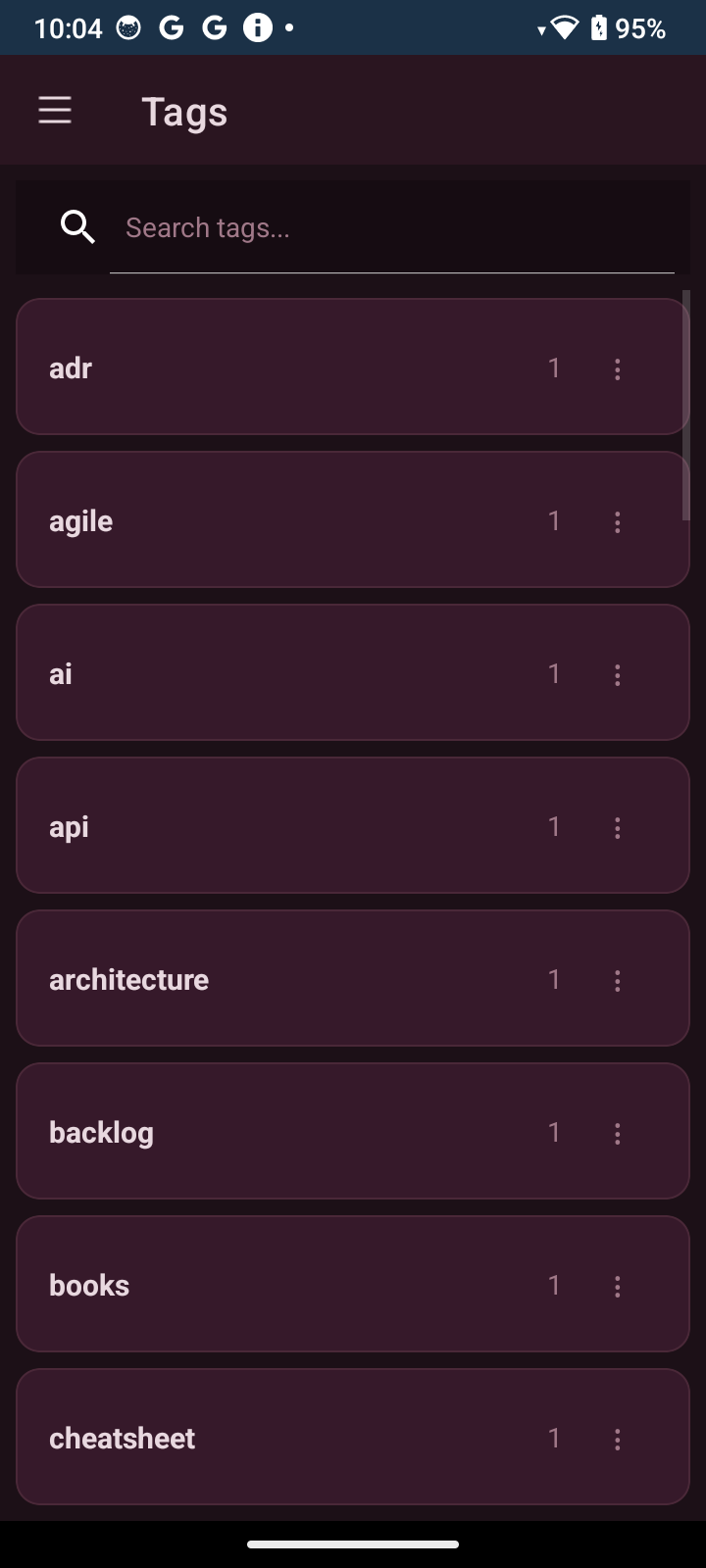 | 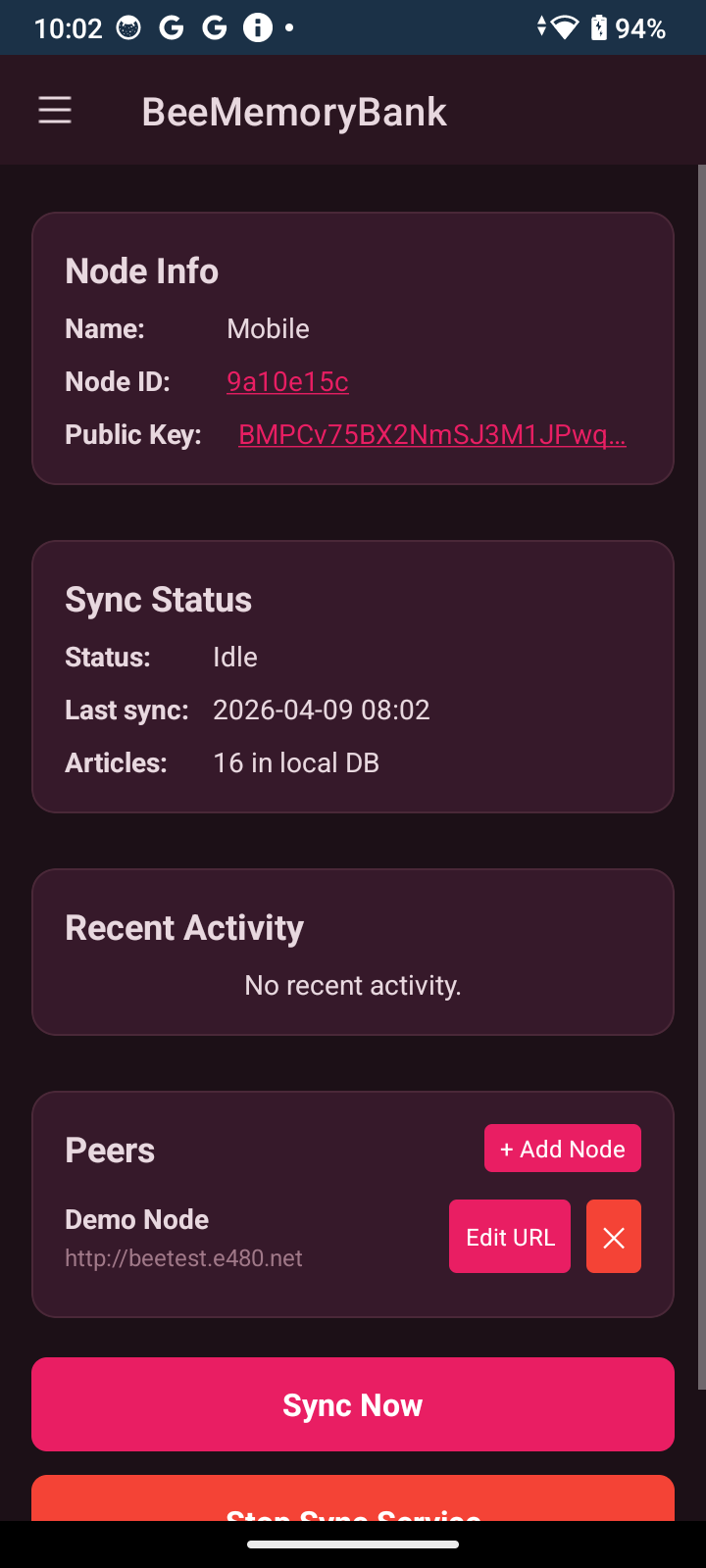 |
You've been talking to AI agents for months. Every conversation produces useful artifacts — research notes, decisions, code reviews, project plans, meeting summaries. And every conversation forgets it the moment the window closes.
The fix isn't another notes app. It's a memory the agent can read and write to itself, that you actually control:
If you've ever wished your AI assistant could remember the work it did with you yesterday — this is the answer.
| Feature | Details | |
|---|---|---|
| 🤖 | Native MCP for AI Agents | 34 tools across 7 categories, per-agent DEK isolation, token-aware truncation with bee_continue pagination, zero-context file uploads (bypass the LLM context window), append/prepend operations for incremental edits without re-reading articles |
| 📥 | Obsidian Vault Import | One-click migration: upload an Obsidian vault as a ZIP — Markdown files become articles, folders map directly, Obsidian ![[image.png]] embeds are rewritten to encrypted media |
| 🧬 | Emergent Semantic Graph | Concept tags create automatic bidirectional links through shared characteristics, not article-to-article pairs — one tag connects a note to every article that shares it (topic, project, tech, status, year — any dimension you pick). No manual [[wiki-links]] to maintain, no dead-end pairs; add a tag and the graph rewires itself. D3.js force-directed graph with depth-controlled exploration; related articles ranked by shared-tag strength; semantic tag search via ONNX multilingual-e5-small (384-dim real ML embeddings, self-hosted, multilingual) |
| 🔒 | E2E Encryption | AES-256-GCM with per-article and per-image keys, Argon2id KDF (64 MB, 3 iterations), envelope encryption with 3-level key hierarchy |
| 🚨 | Online DEK Rotation | Rotate the master encryption key without exporting/re-importing your vault. Single-transaction re-wrap of all article keys, automatic pre-rotation snapshot, peer-acceptance protocol so multi-node networks roll over together (auto-accept toggle per peer). Lazy slot rewrap migrates each user's password slot transparently on next login |
| 💾 | Snapshot & Restore | One-click encrypted snapshots (full DB + media), upload to restore on any node of the same vault (a node that shares the master key; a different vault cannot open it). Two kinds of restore, chosen in the dialog: this node only (the default — the node leaves the network and becomes a new node: new identity, it forgets its trusted nodes, blind copies and sync history, and your other devices must be joined to it again) or the whole network (propagates via a signed sync event with a per-peer auto-accept toggle; every node keeps its identity). See docs/snapshot-restore.md. Pre-rotation backups created automatically before destructive operations |
| 🔄 | Multi-Node Sync | Event sourcing, Lamport clocks, Ed25519-signed events, near-realtime push-on-save sync between public nodes, works behind NAT |
| 🖼️ | Encrypted Images | Drag & drop, paste, or upload images in the editor — encrypted with per-image keys, decrypted on the fly |
| 🌐 | Web UI | Dark theme, Markdown editor (EasyMDE), folder tree, tag management, activity feed |
| 📱 | Mobile Apps | .NET MAUI, biometric unlock, offline-first — Android is available now; the iPhone blind and regular apps are source-only previews |
| ⌨️ | CLI | bmb command-line tool for init, join, unlock, article management, snapshots, user reset-password |
| 🧩 | REST API | 33 endpoint groups, OpenAPI support, agent bearer auth with auto-unlock |
| :file_zip: | Data Export | Download folders or articles as ZIP archives with all attached images |
| 🗑️ | Hard Delete | Superadmin-only permanent purge of articles/folders and their media, propagated to every synced node (no recovery) |
| 👥 | Multi-User Auth | Role-based access (superadmin, user), per-user key slots, team-ready |
| 🔐 | Folder Access Control | Per-folder ACL for users and AI agents independently, prevents horizontal privilege escalation |
| 🕘 | Version History | Encrypted article version history, inline diff viewer, who-changed tracking, fullscreen dialog |
| 🛡️ | Audit Log | Every operation tracked with actor type (web/agent/cli), node identity, timestamps |
| 👻 | Invisible Mode | Node can hide itself from sync partners while still pulling events |
| 📡 | Event Relay (Gossip) | Nodes push all events, not just their own — faster convergence across the network |
| 📎 | Orphan Media Linking | Automatic image linking on save — fixes images uploaded before article creation |
BeeMemoryBank implements the Model Context Protocol natively, exposing your knowledge base as a set of tools that any MCP-compatible AI agent can use.
Add to your Claude Code settings (~/.claude/settings.json) or Cursor MCP config:
{
  "mcpServers": {
    "bee-memory-bank": {
      "type": "http",
      "url": "https://your-server.example.com/mcp",
      "headers": {
        "Authorization": "Bearer bee_xxxxxxxxxxxxxxxxxxxxxxxxxxxxxxxx"
      }
    }
  }
}
The bearer token is created in the Web UI under Admin > Agents and is shown once at creation time.
| Category | Tools | Description |
|---|---|---|
| Search | bee_search, bee_search_content | Fast metadata search (title/tags) + ranked body search with a mode parameter (hybrid/keyword/semantic) |
| Read | bee_list_articles, bee_get_article, bee_get_tree, bee_get_image, bee_get_file, bee_get_article_version, bee_get_article_versions, bee_get_article_diff | Browse folders, read article content, view embedded images and fetch attached files (auto-decrypted), and diff versions |
| Write | bee_save_article, bee_update_article, bee_delete_article, bee_append_to_article, bee_prepend_to_article, bee_move_folder, bee_delete_folder, bee_copy_to, bee_rename_folder, bee_replace_in_article | Full CRUD with soft-delete and folder management |
| Tags | bee_get_related, bee_search_by_tag, bee_list_tags, bee_add_tags, bee_remove_tag, bee_rename_tag, bee_merge_tags, bee_delete_tag | Categorization via tags, semantic search, and global tag management |
| Session | bee_set_max_tokens, bee_continue | Control response size, paginate large responses |
| Upload | bee_get_upload_script, bee_save_media, bee_delete_file | Get a Python script for zero-context file uploads from disk (bypasses LLM context window), save a media file directly from a base64 payload, or delete a file of an article (two-step, like bee_delete_article) |
| Audit | bee_get_log | Query activity log with filters by article, event type, pagination |
Save a meeting in seconds:
You: "Save our meeting notes to bee"

Agent calls: bee_save_article(title: "Team Sync 2026-04-08", treePath: "/Work/Meetings", ...)
→ Saved, encrypted, synced to all your nodes.
Generate project documentation autonomously:
You: "Analyze my Galaxy Tetris project and write full documentation to bee
      under /Projects. Follow the documentation guidelines from /Instructions."

Agent reads:  bee_get_article("Documentation Guidelines")
Agent scans:  your codebase
Agent writes: bee_save_article(title: "Galaxy Tetris — Architecture", treePath: "/Projects/Galaxy Tetris")
              bee_save_article(title: "Galaxy Tetris — API Reference", ...)
              bee_save_article(title: "Galaxy Tetris — Setup Guide", ...)
→ 15 minutes later: complete, structured documentation — written once, never lost.
Once saved, your articles don't sit on one server. Spin up a node on your laptop, phone, or a VPS on another continent — everything syncs automatically: article, version, and media bodies travel end-to-end encrypted; titles and folder paths travel in plaintext, since every node needs them to keep its own search and folder ACLs working locally.
No cloud service holds your master key, and no provider can read your article content without it. Titles, folder structure, and tags are visible to anyone with access to the raw database — see ADR-0005 for exactly what a compromised server file would and wouldn't expose.
Normally, asking an AI agent to upload a large file means the file gets read into the LLM context window — wasting thousands of tokens just to pass it through.
BeeMemoryBank solves this with bee_get_upload_script: the agent calls the tool, receives a self-contained Python script, saves it to disk, and runs it. The file goes directly from disk to the server — the LLM never sees the content.
You: "Upload ./architecture.pdf to /Work/Docs"

Agent calls: bee_get_upload_script()
→ Returns a ready-to-run Python script

Agent runs: python bmb-upload.py --url https://your-server.example.com --bearer bee_xxx create ./architecture.pdf "Architecture" /Work/Docs
→ File uploaded. 0 tokens spent on file content.
The Desktop app can keep several completely separate memory banks side by side, called profiles.
desktop-settings.json and profiles.json — live at the shared data root rather than inside any one vault; see docs/deployment.md.)BMB_DATA_PATH).You need Docker with Compose v2 (Docker Desktop, or Docker Engine on Linux). The image runs on amd64 and arm64 (a PC, a Mac with Apple silicon, a Raspberry Pi 4/5, an ARM server); Docker picks the right one.
mkdir bee-memory-bank && cd bee-memory-bank
curl -fsSL -o docker-compose.yml https://raw.githubusercontent.com/ultrathinker/BeeMemoryBank/main/docker-compose.image.yml
docker compose up -d
docker compose ps        # wait until the state says "healthy" (about half a minute)
Open http://localhost:5301. The first visit lands on Setup: choose your master password and create your bank. Nothing else to download: the search model is inside the image.
docker volume ls lists it as bee-memory-bank_bmb-data, after the
folder name). To keep it in a folder you choose, put BMB_DATA_PATH=./data into a .env file next to the compose file
before the first start. docker compose down keeps the volume; docker compose down -v deletes it, with your data.
Coming from the source docker-compose.yml? That file keeps the data in ./data. Put BMB_DATA_PATH=./data into
.env before you start the ready-made image in the same folder, or it opens an empty node on Setup (your bank stays
untouched in ./data). A volume belongs to the folder name: keep the folder, or start with docker compose -p <old name>.127.0.0.1:5301; the API port 5300 is not
published at all. To open the login page to your LAN, or to put a domain and TLS in front, read
docs/internet-access.md and docker-compose.reverse-proxy.yml.docker compose pull && docker compose up -d. To stay on
one release line put BMB_VERSION=2.4 into .env. Data migrations only go forward: to go back to an older version,
restore the snapshot you made before updating.docker compose stop && docker compose cp bmb:/app/data ./bmb-data-copy && docker compose start.ghcr.io/ultrathinker/beememorybank-blind, see docker/blind/README.md.X.Y.Z (exact), X.Y (newest patch of that line), latest. A pre-release gets only its own tag. The images
are built by GitHub Actions from a published release; check where one came from with
gh attestation verify oci://ghcr.io/ultrathinker/beememorybank:X.Y.Z --owner ultrathinker.# 1. Clone the repository
git clone https://github.com/ultrathinker/BeeMemoryBank.git
cd BeeMemoryBank
# 2. Build and start (Web UI on :5301, this computer only). The build downloads the search model (113 MB) and checks it.
docker compose up -d --build
# 3. Check health (from inside the container: the API port is not published on the host)
docker compose exec bmb curl -f http://localhost:5300/health
Open http://localhost:5301 in your browser and log in with your master password.
Data is stored in ./data on the host. To customize ports, copy .env.example to .env and edit as needed. (A
model.onnx from an older setup in ./data is still used; you can delete it, the image has its own.)
Docker publishes the Web port on 127.0.0.1 only, so the login page is reachable from this computer and nobody else. To expose it on purpose (a trusted LAN, behind TLS), set BMB_WEB_BIND=0.0.0.0 in .env. The API port (5300, which also serves /mcp for AI assistants) is not published at all. To let AI assistants on this computer reach the node, uncomment the two marked lines in docker-compose.yml; for assistants on other computers use docker-compose.reverse-proxy.yml behind your own proxy. Until then the Profile page tells you that assistants cannot reach the node yet, rather than printing an address that does not work. Details: docs/deployment.md.
Every release page also carries these downloads:
| File | What it is |
|---|---|
BeeMemoryBank-<version>-macos-arm64.zip | The full app for Macs with Apple silicon: unzip, drag Bee Memory Bank.app to Applications, open it. Signed with a Developer ID and notarized by Apple, so macOS opens it without a warning. |
BeeMemoryBank-Blind-<version>-macos-arm64.zip | The blind copy for macOS: a menu-bar app that keeps an encrypted copy of a memory bank (it never has the master password). Same signing. |
BeeMemoryBank-Blind-<version>-win-x64.zip | The blind copy for Windows: unzip anywhere and run BeeMemoryBank.BlindDesktop.exe; it lives in the tray. Not code-signed yet, so SmartScreen may warn: choose More info → Run anyway. |
BeeMemoryBank-Blind-<version>-android.apk | The blind copy for Android, signed with the project's release key. Allow installing from this source once when Android asks. |
| iPhone blind app | Source-only for now; there is no download yet. See the build and distribution notes below. |
| iPhone regular app | Source-only for now; there is no download yet. See the build and distribution notes below. |
A blind copy is paired with a node in two steps shown in its window: it shows a code, the node (the full app or the web page "Blind nodes") answers with a call code, and you paste that back. The first load starts right after pairing and does not wait for the charger or a particular network. Where each app keeps its data and what it sends over the network: PRIVACY.md.
The iPhone app is a blind copy: it keeps an encrypted replica, pairs and syncs with a node, and never holds or asks for the master password. It is not a full-node client. In particular, iOS does not guarantee periodic background sync, cannot run a large first load or backup to completion while the app is closed, and does not restart the app after a reboot. The exact comparison with Android is in the iPhone blind-copy guide.
Build it from source on a Mac with Xcode 26.5 and the matching .NET iOS workload (a newer workload wants Xcode 27):
dotnet workload install ios maui-ios --version 10.0.300.3
scripts/build-ios-blind.sh simulator Release
There is no download for the iPhone app yet. Apple apps reach people through TestFlight, the App Store, or ad hoc distribution; see the distribution guide for the owner-only signing and release steps.
The regular iPhone app is a full node with the vault on the phone. It opens with the master password or Face ID / Touch ID, reads and edits Markdown locally, and syncs as a client with the computers and servers in its network. iOS makes it a node that calls and cannot be called: it has no listener, web server, or MCP server, and changes from other nodes arrive when the app next opens. Build it from source on a Mac with Xcode 26.5 and the matching .NET iOS workload:
dotnet workload install ios maui-ios --version 10.0.300.3
scripts/build-ios-full.sh simulator
There is no download for this app yet. Its keys, lock behavior, sync limits, build instructions, and simulator check are in the iPhone regular-app guide; the shared distribution guide covers the owner-only signing and release steps.
The node a blind copy calls can be a Docker blind node or an ordinary full node — for example your server behind a
reverse proxy with a Let's Encrypt certificate. Mark it under Admin → Trusted Nodes → "Let blind copies call this node"
(a normal or a pinned certificate) and forward /api/blind/replica as well; see
docs/internet-access.md.
When a blind node goes quiet. "Last contact" on the Blind nodes page is the last time this PC and the blind node actually talked (a sync, or the blind node calling), not the last time something changed in the vault, so a quiet vault never makes a healthy blind node look silent. The page shows a banner after three days without contact, and when a blind node runs an older or a newer sync protocol than this PC. The desktop app (Windows: a notification balloon, macOS: a banner) also tells you, once per problem and at most once a day after that: when this PC has not reached a server blind node for six hours while it was awake, when a blind copy that calls this PC has not called for three days, and when the protocols differ. The tray's tooltip says how many blind nodes need attention. Nothing is judged while the node is in invisible mode or before its first sync after starting or waking; the app also waits a few minutes after it starts or the computer wakes, and it does not notify about a blind copy that calls another node (this PC hears nothing from it either way). While the vault is locked the notice names no blind node.
Windows has two native install modes, built on a small orchestrator (bmbd) that manages the
API and Web processes for you — no manual BMB_INTERNAL_KEY juggling between two services.
Desktop mode (recommended for a personal machine/laptop): download
BeeMemoryBank-win-Setup.exe from the latest release
and run it. It is a per-user install: no admin rights, nothing else to install (the .NET runtime
ships inside the app folder), and it starts with Windows (turn that off in Settings). Releases
are not code-signed yet, so SmartScreen may warn about an unrecognized app: choose More info →
Run anyway. See the code signing policy and
what the app sends over the network.
The app lives in the tray. Right-click it for Profiles (separate memory banks, each with its
own data folder, password and sync network: create, add an existing folder, move, rename) and
Settings (start with Windows, profile to open at startup, keep the computer awake, updates).
It checks for updates on its own and offers "Restart to update" when a new release is out;
Check for updates... in the tray checks right away and shows the progress. Data
is kept in %LOCALAPPDATA%\BeeMemoryBankData and survives updates and uninstall.
The app answers this computer only. To let other devices on your own network in, open Admin → Nodes: Devices on my network (off by default) serves the node over HTTPS on port 5311 and announces it on the network, so another computer can find it and a phone can open it; Connect a device opens a 15-minute door and shows a join code that a phone, or another computer's first-run page, pastes to join without trusting any certificate first. The Mac app has the same two. Details and what they expose: docs/internet-access.md.
To build the installer yourself (requires the .NET 10 SDK
and dotnet tool install -g vpk):
git clone https://github.com/ultrathinker/BeeMemoryBank.git C:\bee
cd C:\bee
.\scripts\pack-windows.ps1
# Produces installers\windows\velopack\releases\BeeMemoryBank-win-Setup.exe
Server mode (recommended for an always-on / headless machine) — a machine-wide install that
registers bmbd as a real Windows Service (NT SERVICE\bmbd, Automatic/Delayed Start), no tray
UI, no logged-in user required. Build it from a clone as above:
dotnet tool install --global wix --version 5.0.2
.\scripts\pack-windows-msi.ps1
# Produces installers\windows\msi\bin\x64\Release\BeeMemoryBank.ServerService.msi
msiexec /i installers\windows\msi\bin\x64\Release\BeeMemoryBank.ServerService.msi
Data lives in C:\ProgramData\BeeMemoryBank; the service survives logoff/reboot. Check it with
Get-Service bmbd; restart it with Restart-Service bmbd (an elevated PowerShell). To also open the Windows Firewall for LAN access, select the "Configure
Windows Firewall Exception" feature during install (e.g. msiexec /i ... ADDLOCAL=ALL).
Uninstall via Settings → Apps or msiexec /x installers\windows\msi\bin\x64\Release\BeeMemoryBank.ServerService.msi
(data in ProgramData is left in place).
Either way, once it's running, open http://localhost:5310 and follow the Setup wizard (or log
in if you already initialized via the CLI, see below).
Requires .NET 10 SDK. Pick your OS below — each block has the full sequence (build, init, generate the shared BMB_INTERNAL_KEY, register a service, restart on boot, logs).
HTTPS is required everywhere except
localhost/127.0.0.1. The session cookie isSecure, so over plain HTTP the browser drops it and the login form silently redirects back to itself. If you serve on a domain or LAN IP, put a reverse proxy with TLS in front (see HTTPS Reverse Proxy below).
dotnet-sdk-10.0 is not always in default repos — you need the Microsoft feed. See the official guide. Or, no-root alternative:
curl -sSL https://dot.net/v1/dotnet-install.sh | bash -s -- --channel 10.0
export PATH="$PATH:$HOME/.dotnet"
dotnet --version    # should be 10.x
sudo useradd -r -m -d /opt/beememorybank -s /bin/bash bmb
sudo -u bmb git clone https://github.com/ultrathinker/BeeMemoryBank.git /opt/beememorybank/src
cd /opt/beememorybank/src
sudo -u bmb dotnet publish server/BeeMemoryBank.Api/ -c Release -o /opt/beememorybank/api
sudo -u bmb dotnet publish server/BeeMemoryBank.Web/ -c Release -o /opt/beememorybank/web
sudo -u bmb dotnet publish server/BeeMemoryBank.Cli/ -c Release -o /opt/beememorybank/cli
sudo -u bmb mkdir -p /opt/beememorybank/data
sudo -u bmb curl -L -o /opt/beememorybank/data/model.onnx \
  https://huggingface.co/Xenova/multilingual-e5-small/resolve/main/onnx/model_quantized.onnx

# Master password — read from stdin so it never enters bash history or `ps aux`
read -s -p "Master password: " BMB_PASSWORD; echo
sudo -u bmb /opt/beememorybank/cli/bmb init \
  --data /opt/beememorybank/data --name "MyServerNode" --password "$BMB_PASSWORD"
unset BMB_PASSWORD
bmb init --name Xcreates a node namedXAND a first user whose login is alsoX. If you want a separate username and node name, skip this step and use the Web Setup form after the services are running — it has separate fields.
Avoids the typo risk of pasting the same key into two unit files. install creates the file atomically with the right mode and owner:
printf 'BMB_INTERNAL_KEY=%s\n' "$(openssl rand -base64 32)" \
  | sudo install -m 600 -o bmb -g bmb /dev/stdin /etc/beememorybank.env
/etc/systemd/system/beememorybank-api.service:
[Unit]
Description=BeeMemoryBank API
After=network.target

[Service]
Type=simple
User=bmb
WorkingDirectory=/opt/beememorybank/api
EnvironmentFile=/etc/beememorybank.env
Environment="BMB_DATA_PATH=/opt/beememorybank/data"
Environment="BMB_ONNX_MODEL_PATH=/opt/beememorybank/data/model.onnx"
Environment="ASPNETCORE_URLS=http://localhost:5300"
ExecStart=/opt/beememorybank/api/BeeMemoryBank.Api
Restart=on-failure
RestartSec=5

[Install]
WantedBy=multi-user.target
/etc/systemd/system/beememorybank-web.service:
[Unit]
Description=BeeMemoryBank Web UI
After=network.target beememorybank-api.service
Requires=beememorybank-api.service

[Service]
Type=simple
User=bmb
WorkingDirectory=/opt/beememorybank/web
EnvironmentFile=/etc/beememorybank.env
Environment="BMB_API_URL=http://localhost:5300"
Environment="ASPNETCORE_URLS=http://localhost:5301"
ExecStart=/opt/beememorybank/web/BeeMemoryBank.Web
Restart=on-failure
RestartSec=5

[Install]
WantedBy=multi-user.target
sudo systemctl daemon-reload
sudo systemctl enable --now beememorybank-api beememorybank-web
sudo journalctl -u beememorybank-api -f       # logs
brew install --cask dotnet-sdk
dotnet --version    # should be 10.x

git clone https://github.com/ultrathinker/BeeMemoryBank.git ~/bmb
cd ~/bmb
dotnet publish server/BeeMemoryBank.Api/ -c Release -o ~/bmb/api
dotnet publish server/BeeMemoryBank.Web/ -c Release -o ~/bmb/web
dotnet publish server/BeeMemoryBank.Cli/ -c Release -o ~/bmb/cli
mkdir -p ~/bmb/data
curl -L -o ~/bmb/data/model.onnx \
  https://huggingface.co/Xenova/multilingual-e5-small/resolve/main/onnx/model_quantized.onnx

read -s -p "Master password: " PWD; echo
~/bmb/cli/bmb init --data ~/bmb/data --name "MyMac" --password "$PWD"; unset PWD

INTERNAL_KEY=$(openssl rand -base64 32); echo "$INTERNAL_KEY"   # paste into both plists below
~/Library/LaunchAgents/com.beememorybank.api.plist (replace YOUR_USER and the key value):
<?xml version="1.0" encoding="UTF-8"?>
<!DOCTYPE plist PUBLIC "-//Apple//DTD PLIST 1.0//EN" "http://www.apple.com/DTDs/PropertyList-1.0.dtd">
<plist version="1.0">
<dict>
    <key>Label</key>          <string>com.beememorybank.api</string>
    <key>WorkingDirectory</key><string>/Users/YOUR_USER/bmb/api</string>
    <key>ProgramArguments</key>
    <array><string>/Users/YOUR_USER/bmb/api/BeeMemoryBank.Api</string></array>
    <key>EnvironmentVariables</key>
    <dict>
        <key>BMB_INTERNAL_KEY</key>     <string>PASTE_INTERNAL_KEY_HERE</string>
        <key>BMB_DATA_PATH</key>        <string>/Users/YOUR_USER/bmb/data</string>
        <key>BMB_ONNX_MODEL_PATH</key>  <string>/Users/YOUR_USER/bmb/data/model.onnx</string>
        <key>ASPNETCORE_URLS</key>      <string>http://localhost:5300</string>
    </dict>
    <key>RunAtLoad</key>      <true/>
    <key>KeepAlive</key>      <true/>
    <key>StandardOutPath</key><string>/Users/YOUR_USER/bmb/api.log</string>
    <key>StandardErrorPath</key><string>/Users/YOUR_USER/bmb/api.err</string>
</dict>
</plist>
~/Library/LaunchAgents/com.beememorybank.web.plist:
<?xml version="1.0" encoding="UTF-8"?>
<!DOCTYPE plist PUBLIC "-//Apple//DTD PLIST 1.0//EN" "http://www.apple.com/DTDs/PropertyList-1.0.dtd">
<plist version="1.0">
<dict>
    <key>Label</key>          <string>com.beememorybank.web</string>
    <key>WorkingDirectory</key><string>/Users/YOUR_USER/bmb/web</string>
    <key>ProgramArguments</key>
    <array><string>/Users/YOUR_USER/bmb/web/BeeMemoryBank.Web</string></array>
    <key>EnvironmentVariables</key>
    <dict>
        <key>BMB_INTERNAL_KEY</key>  <string>SAME_INTERNAL_KEY</string>
        <key>BMB_API_URL</key>       <string>http://localhost:5300</string>
        <key>ASPNETCORE_URLS</key>   <string>http://localhost:5301</string>
    </dict>
    <key>RunAtLoad</key>      <true/>
    <key>KeepAlive</key>      <true/>
    <key>StandardOutPath</key><string>/Users/YOUR_USER/bmb/web.log</string>
    <key>StandardErrorPath</key><string>/Users/YOUR_USER/bmb/web.err</string>
</dict>
</plist>
launchctl load ~/Library/LaunchAgents/com.beememorybank.api.plist
launchctl load ~/Library/LaunchAgents/com.beememorybank.web.plist
launchctl list | grep beememorybank
tail -f ~/bmb/api.log
Prefer the native Windows Desktop App and Service above — it manages both processes as one unit via
bmbdand needs no third-party tool. This NSSM path (running Api/Web as two independent standalone services) still works and is documented here for anyone who prefers it or was already using it.
Install:
.exe into a Windows Service with auto-restart and logsPowerShell:
git clone https://github.com/ultrathinker/BeeMemoryBank.git C:\bee
cd C:\bee
dotnet publish server\BeeMemoryBank.Api\ -c Release -o C:\bee\api
dotnet publish server\BeeMemoryBank.Web\ -c Release -o C:\bee\web
dotnet publish server\BeeMemoryBank.Cli\ -c Release -o C:\bee\cli

New-Item -ItemType Directory -Force C:\bee\data
curl.exe -L -o C:\bee\data\model.onnx `
  "https://huggingface.co/Xenova/multilingual-e5-small/resolve/main/onnx/model_quantized.onnx"

# Master password without persisting it to history.
# (We use $securePwd to avoid clashing with PowerShell's automatic $PWD = current directory.)
$securePwd = Read-Host -AsSecureString "Master password"
$plainPwd = [Runtime.InteropServices.Marshal]::PtrToStringAuto(
  [Runtime.InteropServices.Marshal]::SecureStringToBSTR($securePwd))
C:\bee\cli\bmb.exe init --data C:\bee\data --name "MyWinNode" --password "$plainPwd"
Remove-Variable plainPwd, securePwd

# Generate the shared key with a real CSPRNG (NOT Get-Random — it is not crypto-strong)
$bytes = New-Object byte[] 32
[System.Security.Cryptography.RandomNumberGenerator]::Create().GetBytes($bytes)
$key = [Convert]::ToBase64String($bytes)
$key   # paste into both NSSM env blocks below
PowerShell as Administrator:
nssm install BeeMemoryBankApi C:\bee\api\BeeMemoryBank.Api.exe
nssm set BeeMemoryBankApi AppDirectory C:\bee\api
nssm set BeeMemoryBankApi AppEnvironmentExtra `
  "BMB_INTERNAL_KEY=PASTE_KEY_HERE" `
  "BMB_DATA_PATH=C:\bee\data" `
  "BMB_ONNX_MODEL_PATH=C:\bee\data\model.onnx" `
  "ASPNETCORE_URLS=http://localhost:5300"
nssm set BeeMemoryBankApi Start SERVICE_AUTO_START
nssm start BeeMemoryBankApi

nssm install BeeMemoryBankWeb C:\bee\web\BeeMemoryBank.Web.exe
nssm set BeeMemoryBankWeb AppDirectory C:\bee\web
nssm set BeeMemoryBankWeb AppEnvironmentExtra `
  "BMB_INTERNAL_KEY=SAME_KEY" `
  "BMB_API_URL=http://localhost:5300" `
  "ASPNETCORE_URLS=http://localhost:5301"
nssm set BeeMemoryBankWeb DependOnService BeeMemoryBankApi
nssm set BeeMemoryBankWeb Start SERVICE_AUTO_START
nssm start BeeMemoryBankWeb
Both services appear in services.msc and auto-start on boot.
After cloning, dotnet publish for Api/Web/Cli, downloading model.onnx, and bmb init (see the OS block above for the build steps), open two terminals:
# Terminal 1 (API)
ASPNETCORE_ENVIRONMENT=Development BMB_DATA_PATH=./data \
BMB_ONNX_MODEL_PATH=./data/model.onnx \
ASPNETCORE_URLS=http://localhost:5300 ./publish/api/BeeMemoryBank.Api

# Terminal 2 (Web)
ASPNETCORE_ENVIRONMENT=Development BMB_API_URL=http://localhost:5300 \
ASPNETCORE_URLS=http://localhost:5301 ./publish/web/BeeMemoryBank.Web
In Development mode BMB_INTERNAL_KEY is not required — both processes auto-generate it into data/.internal-key and read the same file. Close the terminal and the process dies — that is the point of this mode.
http://localhost:5301 (or your HTTPS domain).bmb init --name "X"), the login is X and the password is the master password. If via the Web Setup form, the login is whatever you typed there.bee-memory-bank with Authorization: Bearer bee_xxxxx.dotnet publish, run bmb join --remote https://first-node --password "MasterP" --name "OtherNode" --data ./data. The new node downloads a signed encrypted snapshot, verifies it, and joins the sync mesh. If anything fails, bmb join says why, exits non-zero and rolls the new node back, so it can be run again (with a new join code if you used --code: a code is spent by the first attempt). If the process itself is killed half-way, delete the new node's data folder and start over.bmb user reset-password --user NAME --recovery-key-stdin). See docs/account-recovery.md.The session cookie is Secure. On any host other than localhost / 127.0.0.1 (including LAN IPs), you need TLS in front. Two options:
Caddy — auto Let's Encrypt, no separate certbot:
bee.example.com {
    reverse_proxy 127.0.0.1:5301
}
Then sudo systemctl enable --now caddy.
nginx + certbot:
server {
    listen 443 ssl http2;
    server_name bee.example.com;
    ssl_certificate /etc/letsencrypt/live/bee.example.com/fullchain.pem;
    ssl_certificate_key /etc/letsencrypt/live/bee.example.com/privkey.pem;

    location / {
        proxy_pass http://127.0.0.1:5301;
        proxy_set_header Host $host;
        proxy_set_header X-Forwarded-For $proxy_add_x_forwarded_for;
        proxy_set_header X-Forwarded-Proto https;
    }
}
Then sudo certbot --nginx -d bee.example.com.
Both examples forward the web UI only. For AI assistants (/mcp), node-to-node sync and the optional guest
accounts for other people (off unless you add them), use the path split in
docs/internet-access.md.
Tell the node whose X-Forwarded-For to believe. Without this the node sees the proxy as the
client for every request, so all your users share a single rate-limit bucket: one person fumbling
their password can lock everyone out of login, and one stranger hitting the sync endpoint can stall
synchronization for every node in your mesh. Which variable you need depends on how the proxy
reaches the node:
| Setup | Set on API and Web |
|---|---|
Proxy on the same host, forwarding to 127.0.0.1 (the nginx/Caddy examples above, systemd/launchd/NSSM installs) | BMB_TRUST_LOOPBACK_FORWARDED_HEADERS=true |
| Docker (any published port — the proxy's traffic arrives from the bridge, never from loopback) | BMB_TRUSTED_PROXIES=172.16.0.0/12 |
| Proxy on another machine | BMB_TRUSTED_PROXIES=<that machine's IP> |
BMB_TRUSTED_PROXIES takes IP addresses and CIDR networks, comma-separated. Keep it as narrow as
your setup allows: anything that can reach the port from a listed address is trusted to name the
client, and can therefore claim any IP it likes. Only one hop is believed, so a client cannot forge
a chain through your real proxy. Both variables can be set together; an unparsable entry is logged
and ignored rather than taking the node down.
Make sure the proxy actually sends the header — nginx needs the proxy_set_header X-Forwarded-For
line shown above (Caddy and Apache mod_proxy send it by default).
Want to reach your node from outside your home network (router port forwarding, Caddy or nginx with automatic certificates, Cloudflare Tunnel or Tailscale instead of an open port)? See Opening your node to the internet yourself.
| Method | Commands |
|---|---|
| Docker, ready-made image | docker compose pull && docker compose up -d |
| Docker, built from source | git pull && docker compose up -d --build |
| Linux/systemd | git pull → dotnet publish ... → sudo systemctl restart beememorybank-api beememorybank-web |
| macOS/launchd | git pull → dotnet publish ... → launchctl kickstart -k gui/$(id -u)/com.beememorybank.api (and .web) |
| Windows/NSSM | git pull → dotnet publish ... → nssm stop BeeMemoryBankWeb → nssm restart BeeMemoryBankApi → nssm start BeeMemoryBankWeb (nssm restart takes one service name; Web depends on Api, so it goes down first and comes up last) |
| Windows Desktop | Automatic: the tray offers "Restart to update" when a release is out (or Tray icon → Check for updates...) |
| Windows Server (MSI) | git pull → .\scripts\pack-windows-msi.ps1 → msiexec /i ... (the stable UpgradeCode lets it upgrade in place; data in ProgramData is preserved) |
Tip: take a snapshot via Admin → Snapshots → Create before updating, in case a DB migration goes sideways.
| Symptom | Cause | Fix |
|---|---|---|
BMB_INTERNAL_KEY is not set on API startup | Production mode without the key | Generate with openssl rand -base64 32, export to both processes (or use EnvironmentFile= for systemd) |
ONNX model not found | Native install: model.onnx not downloaded (the Docker images carry it) | curl -L -o data/model.onnx ..., or set BMB_ONNX_MODEL_PATH to where it is. In Docker, remove an old BMB_ONNX_MODEL_PATH=/app/data/model.onnx line from your compose file. |
| Static files 404 (CSS/JS) | Web launched outside its publish/web/ dir | cd publish/web && ./BeeMemoryBank.Web (or set WorkingDirectory= in the systemd unit) |
| Login accepted, then redirect back to /Login | HTTP instead of HTTPS — Secure cookie dropped by browser | Put TLS in front (Caddy or nginx + certbot). Same problem when accessing via LAN IP without TLS. |
bmb init wrote data where API doesn't look | --data and BMB_DATA_PATH disagree | Use the same absolute path for both |
| 401/403 between Web and API | Different BMB_INTERNAL_KEY in the two processes | Use EnvironmentFile= (systemd) or a shared env file |
docker compose down -v did not delete ./data | data/ is a bind mount, not a named volume — -v doesn't touch it | Remove manually: rm -rf data/ |
docker compose down -v deleted the bank | The ready-made image keeps the data in a Docker volume, and -v deletes volumes | Restore a snapshot. Use docker compose down (no -v), or keep the data in a folder with BMB_DATA_PATH=./data |
docker compose pull says denied or unauthorized | An old login to ghcr.io, or a mistyped image name | docker logout ghcr.io, then pull again; the images are public |
Too many attempts for everyone at once, or peers stop syncing after one busy client | Behind a proxy, every client looks like the proxy, so they share one rate-limit bucket | Set BMB_TRUST_LOOPBACK_FORWARDED_HEADERS=true (proxy on the same host) or BMB_TRUSTED_PROXIES (Docker or remote proxy) — see HTTPS Reverse Proxy. The startup log prints which hops are trusted. |
/api/join or /api/auth/remote-token accepts unlimited wrong-password guesses from a same-host reverse proxy | The API's RateLimitMiddleware used to skip every loopback caller, so the Web process and any proxy on the host did too — including untrusted internet traffic forwarded to 127.0.0.1 | Set BMB_TRUST_LOOPBACK_FORWARDED_HEADERS=true so the Web layer's real-client limiter sees the actual peer IP and throttles. The API's limiter now keys on the internal key, not loopback, and counts loopback-without-key traffic against its bucket. |
To add a second node (e.g., a VPS) to sync with your first:
./publish/cli/bmb join --remote https://first-node.example.com --password "your-master-password" --name "VPS-Node" --data /var/lib/beememorybank
For a computer on your own network, use the join code that the other computer shows under Admin → Nodes → Connect a device
instead of an address: bmb join --code "bmb-join:?a=..." --password "your-master-password" --name "Laptop" --data .... The code
carries the address, a one-time token and the pin of that computer's certificate, so nothing has to be trusted first.
┌─────────────────────────────────────────────────────────┐
│                        Clients                          │
│   Web UI (Razor Pages)  │  CLI (bmb)  │  Mobile (MAUI)  │
└────────────┬─────────────────┬──────────────┬───────────┘
             │ HTTP            │ HTTP         │ HTTP
             ▼                 ▼              ▼
┌─────────────────────────────────────────────────────────┐
│              BeeMemoryBank.Api                          │
│   REST Endpoints (33 groups)  │  MCP Server (/mcp)      │
│   Agent Auth Middleware       │  Rate Limiting           │
└────────────┬────────────────────────────────────────────┘
             │
     ┌───────┼───────┬──────────┐
     ▼       ▼       ▼          ▼
  ┌──────┐ ┌──────┐ ┌────────┐ ┌──────┐
  │ Core │ │Crypto│ │Storage │ │ Sync │
  │      │ │      │ │(SQLite)│ │      │
  └──────┘ └──────┘ └────────┘ └──────┘
Dependency flow: Core <-- Storage, Crypto <-- Sync <-- Api. No circular dependencies. Web is a stateless HTTP proxy to Api.
Master Password (in your head)
    │
    ▼  Argon2id (64 MB, 3 iter, 4 threads)
    │
KEK (Key Encryption Key)
    │
    ▼  AES-256-GCM unwrap
    │
Master DEK (one per network, lives only in RAM)
    │
    ▼  AES-256-GCM unwrap
    │
Per-Article/Media DEK (unique random key per article and per image)
    │
    ▼  AES-256-GCM
    │
Plaintext
Why three levels?
| Feature | BeeMemoryBank | Obsidian | SiYuan | Trilium | Standard Notes | Joplin |
|---|---|---|---|---|---|---|
| E2E Encryption | ✅ AES-256-GCM | ❌ (plugin) | ❌ | ❌ | ✅ | ✅ |
| Per-Article Keys | ✅ | ❌ | ❌ | ❌ | ❌ | ❌ |
| Self-Hosted Sync | ✅ Built-in | ❌ (paid) | ✅ | ✅ | ✅ | ✅ |
| Native MCP | ✅ 34 tools | ❌ | ❌ | ❌ | ❌ | ❌ |
| AI Agent Ready | ✅ | ❌ (plugin) | ❌ | ❌ | ❌ | ❌ |
| Auto-Backlinks | ✅ via tag graph | ✅ manual [[links]] | ✅ manual | ✅ manual | ❌ | ❌ |
| Mobile App | ✅ Android | ✅ | ✅ | ❌ (PWA) | ✅ | ✅ |
| Offline-First | ✅ | ✅ | ✅ | ✅ | ❌ | ✅ |
| Self-Hosted | ✅ | N/A (local) | ✅ | ✅ | ✅ | ✅ |
| Version History | ✅ Encrypted | ❌ | ❌ | ❌ | ❌ | ❌ |
| License | AGPL-3.0 | Proprietary | AGPL-3.0 | AGPL-3.0 | AGPL-3.0 | AGPL-3.0 |
| Stack | .NET 10, SQLite | Electron | Go, SQLite | Node.js | Node.js | Node.js |
To set expectations and help you decide if BeeMemoryBank fits your workflow:
[[wiki links]]. Article connections emerge from shared concept tags instead, which is better for AI agents but a different mental model if you're coming from Obsidian.If these are dealbreakers, Obsidian / Logseq / AnyType / Notion may suit you better. If they aren't — read on.
bmb)Contributions are welcome! Please see CONTRIBUTING.md for guidelines on how to get started.
BeeMemoryBank uses a defense-in-depth approach:
TreePathCanonicalizer rejects ../ / control-char paths at every write entry point and at sync apply (poison-event defence)FLAG_SECURE on the Android activity (no screenshots / recent-apps previews of decrypted content), auto-lock on background, debug-only intent extras stripped from Release buildsX-Frame-Options: DENY, Secure auth cookie, DOMPurify-sanitised Markdown renderingThe codebase has passed 7 sequential security audit waves (crypto / sync / auth & multi-tenancy / input surfaces / admin features / pre-publish hygiene / mobile) with all findings either fixed or explicitly documented as accepted-risk. Full audit + fix history is in the project's CHANGELOG.
For responsible disclosure, please see SECURITY.md.
BeeMemoryBank is a team vault, not a zero-trust multi-tenant platform. Understanding this distinction is critical before deploying it for a group.
One BeeMemoryBank vault uses a single Master Data Encryption Key (Master DEK), derived from the superadmin's master password via Argon2id. This key lives in the API process's memory while the vault is unlocked.
| Role | Cryptographic Access | What They Can Do |
|---|---|---|
| Superadmin | Owns the Master DEK (derived from their password) | Unlock/lock the vault, create users and agents, access everything |
| Regular User | No independent key slot — rides on the superadmin's unlocked session | Read/write within folder ACL boundaries set by the superadmin |
| Agent | Master DEK wrapped with its own API key | Inherits the folder ACL of its owning user |
Regular users are ACL-restricted guests on top of the superadmin's unlocked session. Their access is enforced by application-layer folder ACLs, not by cryptography. They do not have their own key slot.
All inter-node sync is encrypted end-to-end with Ed25519-signed events. Replica nodes cannot join without superadmin access during setup.
| Intended Use | Not Designed For |
|---|---|
| Individuals keeping a personal knowledge base across several devices | Corporate multi-tenant isolation between departments |
| Families and small teams (up to ~20 users) where the superadmin is trusted | Hostile multi-tenant scenarios where a regular user has SQLite access or RAM access on the server |
Windows release files (BeeMemoryBank-win-Setup.exe, BeeMemoryBank-win-Portable.zip and the
update package) are built from this repository by the
release workflow on GitHub Actions, never on a developer
machine, and a maintainer approves each release by hand before it is signed and published.
Free code signing provided by SignPath.io, certificate by SignPath Foundation.
The Docker images (ghcr.io/ultrathinker/beememorybank, ghcr.io/ultrathinker/beememorybank-blind) are built by the
image workflow on GitHub Actions when a maintainer publishes a release, and only
after each image passed a start-up test. They are not Authenticode-signed (no SignPath certificate applies to an image);
each carries a GitHub-signed build provenance attestation instead.
Privacy: this program will not transfer any information to other networked systems unless specifically requested by the user or the person installing or operating it, with one exception: the desktop app checks GitHub for a newer release. See PRIVACY.md for exactly what connects where.
This project is licensed under the GNU Affero General Public License v3.0.
Built with these excellent open-source projects:
Self-hosted knowledge base with E2E encryption, multi-node sync, and native MCP for AI agents
C#
5
10 commits
updated Oct 12, 2026
BeeMemoryBank
Your AI agents' shared memory. Self-hosted, your notes encrypted end-to-end, syncs across every device you own — and your AI agent works with it natively from day one.
Create & Organize — browse tree, edit article, create folder | Search — full-text search across encrypted content |
| Dark Classic | Dark Bee | Ocean |
|---|---|---|
| | |
| | |
| Tree View | Article | Search | Admin |
|---|---|---|---|
| | | |
One tag connects an article to every other article that shares it — by topic, project, technology, status, year, any dimension you pick. No manual [[wiki-links]] to maintain, no dead-end pairs. Add a tag — the graph rewires itself.
| Explore view | Full graph | Fullscreen focus |
|---|---|---|
| | |
| Popular tags (blue) and recently active ones (orange); dashed nodes hide neighbors — double-click to expand. | All tags at once: clusters, orphans, and the long tail. | Click any tag to see its direct neighbors across the whole graph. |
| Articles | Article View | Tags | Sync Status |
|---|---|---|---|
| | | |
You've been talking to AI agents for months. Every conversation produces useful artifacts — research notes, decisions, code reviews, project plans, meeting summaries. And every conversation forgets it the moment the window closes.
The fix isn't another notes app. It's a memory the agent can read and write to itself, that you actually control:
If you've ever wished your AI assistant could remember the work it did with you yesterday — this is the answer.
| Feature | Details | |
|---|---|---|
| 🤖 | Native MCP for AI Agents | 34 tools across 7 categories, per-agent DEK isolation, token-aware truncation with bee_continue pagination, zero-context file uploads (bypass the LLM context window), append/prepend operations for incremental edits without re-reading articles |
| 📥 | Obsidian Vault Import | One-click migration: upload an Obsidian vault as a ZIP — Markdown files become articles, folders map directly, Obsidian ![[image.png]] embeds are rewritten to encrypted media |
| 🧬 | Emergent Semantic Graph | Concept tags create automatic bidirectional links through shared characteristics, not article-to-article pairs — one tag connects a note to every article that shares it (topic, project, tech, status, year — any dimension you pick). No manual [[wiki-links]] to maintain, no dead-end pairs; add a tag and the graph rewires itself. D3.js force-directed graph with depth-controlled exploration; related articles ranked by shared-tag strength; semantic tag search via ONNX multilingual-e5-small (384-dim real ML embeddings, self-hosted, multilingual) |
| 🔒 | E2E Encryption | AES-256-GCM with per-article and per-image keys, Argon2id KDF (64 MB, 3 iterations), envelope encryption with 3-level key hierarchy |
| 🚨 | Online DEK Rotation | Rotate the master encryption key without exporting/re-importing your vault. Single-transaction re-wrap of all article keys, automatic pre-rotation snapshot, peer-acceptance protocol so multi-node networks roll over together (auto-accept toggle per peer). Lazy slot rewrap migrates each user's password slot transparently on next login |
| 💾 | Snapshot & Restore | One-click encrypted snapshots (full DB + media), upload to restore on any node of the same vault (a node that shares the master key; a different vault cannot open it). Two kinds of restore, chosen in the dialog: this node only (the default — the node leaves the network and becomes a new node: new identity, it forgets its trusted nodes, blind copies and sync history, and your other devices must be joined to it again) or the whole network (propagates via a signed sync event with a per-peer auto-accept toggle; every node keeps its identity). See docs/snapshot-restore.md. Pre-rotation backups created automatically before destructive operations |
| 🔄 | Multi-Node Sync | Event sourcing, Lamport clocks, Ed25519-signed events, near-realtime push-on-save sync between public nodes, works behind NAT |
| 🖼️ | Encrypted Images | Drag & drop, paste, or upload images in the editor — encrypted with per-image keys, decrypted on the fly |
| 🌐 | Web UI | Dark theme, Markdown editor (EasyMDE), folder tree, tag management, activity feed |
| 📱 | Mobile Apps | .NET MAUI, biometric unlock, offline-first — Android is available now; the iPhone blind and regular apps are source-only previews |
| ⌨️ | CLI | bmb command-line tool for init, join, unlock, article management, snapshots, user reset-password |
| 🧩 | REST API | 33 endpoint groups, OpenAPI support, agent bearer auth with auto-unlock |
| :file_zip: | Data Export | Download folders or articles as ZIP archives with all attached images |
| 🗑️ | Hard Delete | Superadmin-only permanent purge of articles/folders and their media, propagated to every synced node (no recovery) |
| 👥 | Multi-User Auth | Role-based access (superadmin, user), per-user key slots, team-ready |
| 🔐 | Folder Access Control | Per-folder ACL for users and AI agents independently, prevents horizontal privilege escalation |
| 🕘 | Version History | Encrypted article version history, inline diff viewer, who-changed tracking, fullscreen dialog |
| 🛡️ | Audit Log | Every operation tracked with actor type (web/agent/cli), node identity, timestamps |
| 👻 | Invisible Mode | Node can hide itself from sync partners while still pulling events |
| 📡 | Event Relay (Gossip) | Nodes push all events, not just their own — faster convergence across the network |
| 📎 | Orphan Media Linking | Automatic image linking on save — fixes images uploaded before article creation |
BeeMemoryBank implements the Model Context Protocol natively, exposing your knowledge base as a set of tools that any MCP-compatible AI agent can use.
Add to your Claude Code settings (~/.claude/settings.json) or Cursor MCP config:
{
  "mcpServers": {
    "bee-memory-bank": {
      "type": "http",
      "url": "https://your-server.example.com/mcp",
      "headers": {
        "Authorization": "Bearer bee_xxxxxxxxxxxxxxxxxxxxxxxxxxxxxxxx"
      }
    }
  }
}
The bearer token is created in the Web UI under Admin > Agents and is shown once at creation time.
| Category | Tools | Description |
|---|---|---|
| Search | bee_search, bee_search_content | Fast metadata search (title/tags) + ranked body search with a mode parameter (hybrid/keyword/semantic) |
| Read | bee_list_articles, bee_get_article, bee_get_tree, bee_get_image, bee_get_file, bee_get_article_version, bee_get_article_versions, bee_get_article_diff | Browse folders, read article content, view embedded images and fetch attached files (auto-decrypted), and diff versions |
| Write | bee_save_article, bee_update_article, bee_delete_article, bee_append_to_article, bee_prepend_to_article, bee_move_folder, bee_delete_folder, bee_copy_to, bee_rename_folder, bee_replace_in_article | Full CRUD with soft-delete and folder management |
| Tags | bee_get_related, bee_search_by_tag, bee_list_tags, bee_add_tags, bee_remove_tag, bee_rename_tag, bee_merge_tags, bee_delete_tag | Categorization via tags, semantic search, and global tag management |
| Session | bee_set_max_tokens, bee_continue | Control response size, paginate large responses |
| Upload | bee_get_upload_script, bee_save_media, bee_delete_file | Get a Python script for zero-context file uploads from disk (bypasses LLM context window), save a media file directly from a base64 payload, or delete a file of an article (two-step, like bee_delete_article) |
| Audit | bee_get_log | Query activity log with filters by article, event type, pagination |
Save a meeting in seconds:
You: "Save our meeting notes to bee"

Agent calls: bee_save_article(title: "Team Sync 2026-04-08", treePath: "/Work/Meetings", ...)
→ Saved, encrypted, synced to all your nodes.
Generate project documentation autonomously:
You: "Analyze my Galaxy Tetris project and write full documentation to bee
      under /Projects. Follow the documentation guidelines from /Instructions."

Agent reads:  bee_get_article("Documentation Guidelines")
Agent scans:  your codebase
Agent writes: bee_save_article(title: "Galaxy Tetris — Architecture", treePath: "/Projects/Galaxy Tetris")
              bee_save_article(title: "Galaxy Tetris — API Reference", ...)
              bee_save_article(title: "Galaxy Tetris — Setup Guide", ...)
→ 15 minutes later: complete, structured documentation — written once, never lost.
Once saved, your articles don't sit on one server. Spin up a node on your laptop, phone, or a VPS on another continent — everything syncs automatically: article, version, and media bodies travel end-to-end encrypted; titles and folder paths travel in plaintext, since every node needs them to keep its own search and folder ACLs working locally.
No cloud service holds your master key, and no provider can read your article content without it. Titles, folder structure, and tags are visible to anyone with access to the raw database — see ADR-0005 for exactly what a compromised server file would and wouldn't expose.
Normally, asking an AI agent to upload a large file means the file gets read into the LLM context window — wasting thousands of tokens just to pass it through.
BeeMemoryBank solves this with bee_get_upload_script: the agent calls the tool, receives a self-contained Python script, saves it to disk, and runs it. The file goes directly from disk to the server — the LLM never sees the content.
You: "Upload ./architecture.pdf to /Work/Docs"

Agent calls: bee_get_upload_script()
→ Returns a ready-to-run Python script

Agent runs: python bmb-upload.py --url https://your-server.example.com --bearer bee_xxx create ./architecture.pdf "Architecture" /Work/Docs
→ File uploaded. 0 tokens spent on file content.
The Desktop app can keep several completely separate memory banks side by side, called profiles.
desktop-settings.json and profiles.json — live at the shared data root rather than inside any one vault; see docs/deployment.md.)BMB_DATA_PATH).You need Docker with Compose v2 (Docker Desktop, or Docker Engine on Linux). The image runs on amd64 and arm64 (a PC, a Mac with Apple silicon, a Raspberry Pi 4/5, an ARM server); Docker picks the right one.
mkdir bee-memory-bank && cd bee-memory-bank
curl -fsSL -o docker-compose.yml https://raw.githubusercontent.com/ultrathinker/BeeMemoryBank/main/docker-compose.image.yml
docker compose up -d
docker compose ps        # wait until the state says "healthy" (about half a minute)
Open http://localhost:5301. The first visit lands on Setup: choose your master password and create your bank. Nothing else to download: the search model is inside the image.
docker volume ls lists it as bee-memory-bank_bmb-data, after the
folder name). To keep it in a folder you choose, put BMB_DATA_PATH=./data into a .env file next to the compose file
before the first start. docker compose down keeps the volume; docker compose down -v deletes it, with your data.
Coming from the source docker-compose.yml? That file keeps the data in ./data. Put BMB_DATA_PATH=./data into
.env before you start the ready-made image in the same folder, or it opens an empty node on Setup (your bank stays
untouched in ./data). A volume belongs to the folder name: keep the folder, or start with docker compose -p <old name>.127.0.0.1:5301; the API port 5300 is not
published at all. To open the login page to your LAN, or to put a domain and TLS in front, read
docs/internet-access.md and docker-compose.reverse-proxy.yml.docker compose pull && docker compose up -d. To stay on
one release line put BMB_VERSION=2.4 into .env. Data migrations only go forward: to go back to an older version,
restore the snapshot you made before updating.docker compose stop && docker compose cp bmb:/app/data ./bmb-data-copy && docker compose start.ghcr.io/ultrathinker/beememorybank-blind, see docker/blind/README.md.X.Y.Z (exact), X.Y (newest patch of that line), latest. A pre-release gets only its own tag. The images
are built by GitHub Actions from a published release; check where one came from with
gh attestation verify oci://ghcr.io/ultrathinker/beememorybank:X.Y.Z --owner ultrathinker.# 1. Clone the repository
git clone https://github.com/ultrathinker/BeeMemoryBank.git
cd BeeMemoryBank
# 2. Build and start (Web UI on :5301, this computer only). The build downloads the search model (113 MB) and checks it.
docker compose up -d --build
# 3. Check health (from inside the container: the API port is not published on the host)
docker compose exec bmb curl -f http://localhost:5300/health
Open http://localhost:5301 in your browser and log in with your master password.
Data is stored in ./data on the host. To customize ports, copy .env.example to .env and edit as needed. (A
model.onnx from an older setup in ./data is still used; you can delete it, the image has its own.)
Docker publishes the Web port on 127.0.0.1 only, so the login page is reachable from this computer and nobody else. To expose it on purpose (a trusted LAN, behind TLS), set BMB_WEB_BIND=0.0.0.0 in .env. The API port (5300, which also serves /mcp for AI assistants) is not published at all. To let AI assistants on this computer reach the node, uncomment the two marked lines in docker-compose.yml; for assistants on other computers use docker-compose.reverse-proxy.yml behind your own proxy. Until then the Profile page tells you that assistants cannot reach the node yet, rather than printing an address that does not work. Details: docs/deployment.md.
Every release page also carries these downloads:
| File | What it is |
|---|---|
BeeMemoryBank-<version>-macos-arm64.zip | The full app for Macs with Apple silicon: unzip, drag Bee Memory Bank.app to Applications, open it. Signed with a Developer ID and notarized by Apple, so macOS opens it without a warning. |
BeeMemoryBank-Blind-<version>-macos-arm64.zip | The blind copy for macOS: a menu-bar app that keeps an encrypted copy of a memory bank (it never has the master password). Same signing. |
BeeMemoryBank-Blind-<version>-win-x64.zip | The blind copy for Windows: unzip anywhere and run BeeMemoryBank.BlindDesktop.exe; it lives in the tray. Not code-signed yet, so SmartScreen may warn: choose More info → Run anyway. |
BeeMemoryBank-Blind-<version>-android.apk | The blind copy for Android, signed with the project's release key. Allow installing from this source once when Android asks. |
| iPhone blind app | Source-only for now; there is no download yet. See the build and distribution notes below. |
| iPhone regular app | Source-only for now; there is no download yet. See the build and distribution notes below. |
A blind copy is paired with a node in two steps shown in its window: it shows a code, the node (the full app or the web page "Blind nodes") answers with a call code, and you paste that back. The first load starts right after pairing and does not wait for the charger or a particular network. Where each app keeps its data and what it sends over the network: PRIVACY.md.
The iPhone app is a blind copy: it keeps an encrypted replica, pairs and syncs with a node, and never holds or asks for the master password. It is not a full-node client. In particular, iOS does not guarantee periodic background sync, cannot run a large first load or backup to completion while the app is closed, and does not restart the app after a reboot. The exact comparison with Android is in the iPhone blind-copy guide.
Build it from source on a Mac with Xcode 26.5 and the matching .NET iOS workload (a newer workload wants Xcode 27):
dotnet workload install ios maui-ios --version 10.0.300.3
scripts/build-ios-blind.sh simulator Release
There is no download for the iPhone app yet. Apple apps reach people through TestFlight, the App Store, or ad hoc distribution; see the distribution guide for the owner-only signing and release steps.
The regular iPhone app is a full node with the vault on the phone. It opens with the master password or Face ID / Touch ID, reads and edits Markdown locally, and syncs as a client with the computers and servers in its network. iOS makes it a node that calls and cannot be called: it has no listener, web server, or MCP server, and changes from other nodes arrive when the app next opens. Build it from source on a Mac with Xcode 26.5 and the matching .NET iOS workload:
dotnet workload install ios maui-ios --version 10.0.300.3
scripts/build-ios-full.sh simulator
There is no download for this app yet. Its keys, lock behavior, sync limits, build instructions, and simulator check are in the iPhone regular-app guide; the shared distribution guide covers the owner-only signing and release steps.
The node a blind copy calls can be a Docker blind node or an ordinary full node — for example your server behind a
reverse proxy with a Let's Encrypt certificate. Mark it under Admin → Trusted Nodes → "Let blind copies call this node"
(a normal or a pinned certificate) and forward /api/blind/replica as well; see
docs/internet-access.md.
When a blind node goes quiet. "Last contact" on the Blind nodes page is the last time this PC and the blind node actually talked (a sync, or the blind node calling), not the last time something changed in the vault, so a quiet vault never makes a healthy blind node look silent. The page shows a banner after three days without contact, and when a blind node runs an older or a newer sync protocol than this PC. The desktop app (Windows: a notification balloon, macOS: a banner) also tells you, once per problem and at most once a day after that: when this PC has not reached a server blind node for six hours while it was awake, when a blind copy that calls this PC has not called for three days, and when the protocols differ. The tray's tooltip says how many blind nodes need attention. Nothing is judged while the node is in invisible mode or before its first sync after starting or waking; the app also waits a few minutes after it starts or the computer wakes, and it does not notify about a blind copy that calls another node (this PC hears nothing from it either way). While the vault is locked the notice names no blind node.
Windows has two native install modes, built on a small orchestrator (bmbd) that manages the
API and Web processes for you — no manual BMB_INTERNAL_KEY juggling between two services.
Desktop mode (recommended for a personal machine/laptop): download
BeeMemoryBank-win-Setup.exe from the latest release
and run it. It is a per-user install: no admin rights, nothing else to install (the .NET runtime
ships inside the app folder), and it starts with Windows (turn that off in Settings). Releases
are not code-signed yet, so SmartScreen may warn about an unrecognized app: choose More info →
Run anyway. See the code signing policy and
what the app sends over the network.
The app lives in the tray. Right-click it for Profiles (separate memory banks, each with its
own data folder, password and sync network: create, add an existing folder, move, rename) and
Settings (start with Windows, profile to open at startup, keep the computer awake, updates).
It checks for updates on its own and offers "Restart to update" when a new release is out;
Check for updates... in the tray checks right away and shows the progress. Data
is kept in %LOCALAPPDATA%\BeeMemoryBankData and survives updates and uninstall.
The app answers this computer only. To let other devices on your own network in, open Admin → Nodes: Devices on my network (off by default) serves the node over HTTPS on port 5311 and announces it on the network, so another computer can find it and a phone can open it; Connect a device opens a 15-minute door and shows a join code that a phone, or another computer's first-run page, pastes to join without trusting any certificate first. The Mac app has the same two. Details and what they expose: docs/internet-access.md.
To build the installer yourself (requires the .NET 10 SDK
and dotnet tool install -g vpk):
git clone https://github.com/ultrathinker/BeeMemoryBank.git C:\bee
cd C:\bee
.\scripts\pack-windows.ps1
# Produces installers\windows\velopack\releases\BeeMemoryBank-win-Setup.exe
Server mode (recommended for an always-on / headless machine) — a machine-wide install that
registers bmbd as a real Windows Service (NT SERVICE\bmbd, Automatic/Delayed Start), no tray
UI, no logged-in user required. Build it from a clone as above:
dotnet tool install --global wix --version 5.0.2
.\scripts\pack-windows-msi.ps1
# Produces installers\windows\msi\bin\x64\Release\BeeMemoryBank.ServerService.msi
msiexec /i installers\windows\msi\bin\x64\Release\BeeMemoryBank.ServerService.msi
Data lives in C:\ProgramData\BeeMemoryBank; the service survives logoff/reboot. Check it with
Get-Service bmbd; restart it with Restart-Service bmbd (an elevated PowerShell). To also open the Windows Firewall for LAN access, select the "Configure
Windows Firewall Exception" feature during install (e.g. msiexec /i ... ADDLOCAL=ALL).
Uninstall via Settings → Apps or msiexec /x installers\windows\msi\bin\x64\Release\BeeMemoryBank.ServerService.msi
(data in ProgramData is left in place).
Either way, once it's running, open http://localhost:5310 and follow the Setup wizard (or log
in if you already initialized via the CLI, see below).
Requires .NET 10 SDK. Pick your OS below — each block has the full sequence (build, init, generate the shared BMB_INTERNAL_KEY, register a service, restart on boot, logs).
HTTPS is required everywhere except
localhost/127.0.0.1. The session cookie isSecure, so over plain HTTP the browser drops it and the login form silently redirects back to itself. If you serve on a domain or LAN IP, put a reverse proxy with TLS in front (see HTTPS Reverse Proxy below).
dotnet-sdk-10.0 is not always in default repos — you need the Microsoft feed. See the official guide. Or, no-root alternative:
curl -sSL https://dot.net/v1/dotnet-install.sh | bash -s -- --channel 10.0
export PATH="$PATH:$HOME/.dotnet"
dotnet --version    # should be 10.x
sudo useradd -r -m -d /opt/beememorybank -s /bin/bash bmb
sudo -u bmb git clone https://github.com/ultrathinker/BeeMemoryBank.git /opt/beememorybank/src
cd /opt/beememorybank/src
sudo -u bmb dotnet publish server/BeeMemoryBank.Api/ -c Release -o /opt/beememorybank/api
sudo -u bmb dotnet publish server/BeeMemoryBank.Web/ -c Release -o /opt/beememorybank/web
sudo -u bmb dotnet publish server/BeeMemoryBank.Cli/ -c Release -o /opt/beememorybank/cli
sudo -u bmb mkdir -p /opt/beememorybank/data
sudo -u bmb curl -L -o /opt/beememorybank/data/model.onnx \
  https://huggingface.co/Xenova/multilingual-e5-small/resolve/main/onnx/model_quantized.onnx

# Master password — read from stdin so it never enters bash history or `ps aux`
read -s -p "Master password: " BMB_PASSWORD; echo
sudo -u bmb /opt/beememorybank/cli/bmb init \
  --data /opt/beememorybank/data --name "MyServerNode" --password "$BMB_PASSWORD"
unset BMB_PASSWORD
bmb init --name Xcreates a node namedXAND a first user whose login is alsoX. If you want a separate username and node name, skip this step and use the Web Setup form after the services are running — it has separate fields.
Avoids the typo risk of pasting the same key into two unit files. install creates the file atomically with the right mode and owner:
printf 'BMB_INTERNAL_KEY=%s\n' "$(openssl rand -base64 32)" \
  | sudo install -m 600 -o bmb -g bmb /dev/stdin /etc/beememorybank.env
/etc/systemd/system/beememorybank-api.service:
[Unit]
Description=BeeMemoryBank API
After=network.target

[Service]
Type=simple
User=bmb
WorkingDirectory=/opt/beememorybank/api
EnvironmentFile=/etc/beememorybank.env
Environment="BMB_DATA_PATH=/opt/beememorybank/data"
Environment="BMB_ONNX_MODEL_PATH=/opt/beememorybank/data/model.onnx"
Environment="ASPNETCORE_URLS=http://localhost:5300"
ExecStart=/opt/beememorybank/api/BeeMemoryBank.Api
Restart=on-failure
RestartSec=5

[Install]
WantedBy=multi-user.target
/etc/systemd/system/beememorybank-web.service:
[Unit]
Description=BeeMemoryBank Web UI
After=network.target beememorybank-api.service
Requires=beememorybank-api.service

[Service]
Type=simple
User=bmb
WorkingDirectory=/opt/beememorybank/web
EnvironmentFile=/etc/beememorybank.env
Environment="BMB_API_URL=http://localhost:5300"
Environment="ASPNETCORE_URLS=http://localhost:5301"
ExecStart=/opt/beememorybank/web/BeeMemoryBank.Web
Restart=on-failure
RestartSec=5

[Install]
WantedBy=multi-user.target
sudo systemctl daemon-reload
sudo systemctl enable --now beememorybank-api beememorybank-web
sudo journalctl -u beememorybank-api -f       # logs
brew install --cask dotnet-sdk
dotnet --version    # should be 10.x

git clone https://github.com/ultrathinker/BeeMemoryBank.git ~/bmb
cd ~/bmb
dotnet publish server/BeeMemoryBank.Api/ -c Release -o ~/bmb/api
dotnet publish server/BeeMemoryBank.Web/ -c Release -o ~/bmb/web
dotnet publish server/BeeMemoryBank.Cli/ -c Release -o ~/bmb/cli
mkdir -p ~/bmb/data
curl -L -o ~/bmb/data/model.onnx \
  https://huggingface.co/Xenova/multilingual-e5-small/resolve/main/onnx/model_quantized.onnx

read -s -p "Master password: " PWD; echo
~/bmb/cli/bmb init --data ~/bmb/data --name "MyMac" --password "$PWD"; unset PWD

INTERNAL_KEY=$(openssl rand -base64 32); echo "$INTERNAL_KEY"   # paste into both plists below
~/Library/LaunchAgents/com.beememorybank.api.plist (replace YOUR_USER and the key value):
<?xml version="1.0" encoding="UTF-8"?>
<!DOCTYPE plist PUBLIC "-//Apple//DTD PLIST 1.0//EN" "http://www.apple.com/DTDs/PropertyList-1.0.dtd">
<plist version="1.0">
<dict>
    <key>Label</key>          <string>com.beememorybank.api</string>
    <key>WorkingDirectory</key><string>/Users/YOUR_USER/bmb/api</string>
    <key>ProgramArguments</key>
    <array><string>/Users/YOUR_USER/bmb/api/BeeMemoryBank.Api</string></array>
    <key>EnvironmentVariables</key>
    <dict>
        <key>BMB_INTERNAL_KEY</key>     <string>PASTE_INTERNAL_KEY_HERE</string>
        <key>BMB_DATA_PATH</key>        <string>/Users/YOUR_USER/bmb/data</string>
        <key>BMB_ONNX_MODEL_PATH</key>  <string>/Users/YOUR_USER/bmb/data/model.onnx</string>
        <key>ASPNETCORE_URLS</key>      <string>http://localhost:5300</string>
    </dict>
    <key>RunAtLoad</key>      <true/>
    <key>KeepAlive</key>      <true/>
    <key>StandardOutPath</key><string>/Users/YOUR_USER/bmb/api.log</string>
    <key>StandardErrorPath</key><string>/Users/YOUR_USER/bmb/api.err</string>
</dict>
</plist>
~/Library/LaunchAgents/com.beememorybank.web.plist:
<?xml version="1.0" encoding="UTF-8"?>
<!DOCTYPE plist PUBLIC "-//Apple//DTD PLIST 1.0//EN" "http://www.apple.com/DTDs/PropertyList-1.0.dtd">
<plist version="1.0">
<dict>
    <key>Label</key>          <string>com.beememorybank.web</string>
    <key>WorkingDirectory</key><string>/Users/YOUR_USER/bmb/web</string>
    <key>ProgramArguments</key>
    <array><string>/Users/YOUR_USER/bmb/web/BeeMemoryBank.Web</string></array>
    <key>EnvironmentVariables</key>
    <dict>
        <key>BMB_INTERNAL_KEY</key>  <string>SAME_INTERNAL_KEY</string>
        <key>BMB_API_URL</key>       <string>http://localhost:5300</string>
        <key>ASPNETCORE_URLS</key>   <string>http://localhost:5301</string>
    </dict>
    <key>RunAtLoad</key>      <true/>
    <key>KeepAlive</key>      <true/>
    <key>StandardOutPath</key><string>/Users/YOUR_USER/bmb/web.log</string>
    <key>StandardErrorPath</key><string>/Users/YOUR_USER/bmb/web.err</string>
</dict>
</plist>
launchctl load ~/Library/LaunchAgents/com.beememorybank.api.plist
launchctl load ~/Library/LaunchAgents/com.beememorybank.web.plist
launchctl list | grep beememorybank
tail -f ~/bmb/api.log
Prefer the native Windows Desktop App and Service above — it manages both processes as one unit via
bmbdand needs no third-party tool. This NSSM path (running Api/Web as two independent standalone services) still works and is documented here for anyone who prefers it or was already using it.
Install:
.exe into a Windows Service with auto-restart and logsPowerShell:
git clone https://github.com/ultrathinker/BeeMemoryBank.git C:\bee
cd C:\bee
dotnet publish server\BeeMemoryBank.Api\ -c Release -o C:\bee\api
dotnet publish server\BeeMemoryBank.Web\ -c Release -o C:\bee\web
dotnet publish server\BeeMemoryBank.Cli\ -c Release -o C:\bee\cli

New-Item -ItemType Directory -Force C:\bee\data
curl.exe -L -o C:\bee\data\model.onnx `
  "https://huggingface.co/Xenova/multilingual-e5-small/resolve/main/onnx/model_quantized.onnx"

# Master password without persisting it to history.
# (We use $securePwd to avoid clashing with PowerShell's automatic $PWD = current directory.)
$securePwd = Read-Host -AsSecureString "Master password"
$plainPwd = [Runtime.InteropServices.Marshal]::PtrToStringAuto(
  [Runtime.InteropServices.Marshal]::SecureStringToBSTR($securePwd))
C:\bee\cli\bmb.exe init --data C:\bee\data --name "MyWinNode" --password "$plainPwd"
Remove-Variable plainPwd, securePwd

# Generate the shared key with a real CSPRNG (NOT Get-Random — it is not crypto-strong)
$bytes = New-Object byte[] 32
[System.Security.Cryptography.RandomNumberGenerator]::Create().GetBytes($bytes)
$key = [Convert]::ToBase64String($bytes)
$key   # paste into both NSSM env blocks below
PowerShell as Administrator:
nssm install BeeMemoryBankApi C:\bee\api\BeeMemoryBank.Api.exe
nssm set BeeMemoryBankApi AppDirectory C:\bee\api
nssm set BeeMemoryBankApi AppEnvironmentExtra `
  "BMB_INTERNAL_KEY=PASTE_KEY_HERE" `
  "BMB_DATA_PATH=C:\bee\data" `
  "BMB_ONNX_MODEL_PATH=C:\bee\data\model.onnx" `
  "ASPNETCORE_URLS=http://localhost:5300"
nssm set BeeMemoryBankApi Start SERVICE_AUTO_START
nssm start BeeMemoryBankApi

nssm install BeeMemoryBankWeb C:\bee\web\BeeMemoryBank.Web.exe
nssm set BeeMemoryBankWeb AppDirectory C:\bee\web
nssm set BeeMemoryBankWeb AppEnvironmentExtra `
  "BMB_INTERNAL_KEY=SAME_KEY" `
  "BMB_API_URL=http://localhost:5300" `
  "ASPNETCORE_URLS=http://localhost:5301"
nssm set BeeMemoryBankWeb DependOnService BeeMemoryBankApi
nssm set BeeMemoryBankWeb Start SERVICE_AUTO_START
nssm start BeeMemoryBankWeb
Both services appear in services.msc and auto-start on boot.
After cloning, dotnet publish for Api/Web/Cli, downloading model.onnx, and bmb init (see the OS block above for the build steps), open two terminals:
# Terminal 1 (API)
ASPNETCORE_ENVIRONMENT=Development BMB_DATA_PATH=./data \
BMB_ONNX_MODEL_PATH=./data/model.onnx \
ASPNETCORE_URLS=http://localhost:5300 ./publish/api/BeeMemoryBank.Api

# Terminal 2 (Web)
ASPNETCORE_ENVIRONMENT=Development BMB_API_URL=http://localhost:5300 \
ASPNETCORE_URLS=http://localhost:5301 ./publish/web/BeeMemoryBank.Web
In Development mode BMB_INTERNAL_KEY is not required — both processes auto-generate it into data/.internal-key and read the same file. Close the terminal and the process dies — that is the point of this mode.
http://localhost:5301 (or your HTTPS domain).bmb init --name "X"), the login is X and the password is the master password. If via the Web Setup form, the login is whatever you typed there.bee-memory-bank with Authorization: Bearer bee_xxxxx.dotnet publish, run bmb join --remote https://first-node --password "MasterP" --name "OtherNode" --data ./data. The new node downloads a signed encrypted snapshot, verifies it, and joins the sync mesh. If anything fails, bmb join says why, exits non-zero and rolls the new node back, so it can be run again (with a new join code if you used --code: a code is spent by the first attempt). If the process itself is killed half-way, delete the new node's data folder and start over.bmb user reset-password --user NAME --recovery-key-stdin). See docs/account-recovery.md.The session cookie is Secure. On any host other than localhost / 127.0.0.1 (including LAN IPs), you need TLS in front. Two options:
Caddy — auto Let's Encrypt, no separate certbot:
bee.example.com {
    reverse_proxy 127.0.0.1:5301
}
Then sudo systemctl enable --now caddy.
nginx + certbot:
server {
    listen 443 ssl http2;
    server_name bee.example.com;
    ssl_certificate /etc/letsencrypt/live/bee.example.com/fullchain.pem;
    ssl_certificate_key /etc/letsencrypt/live/bee.example.com/privkey.pem;

    location / {
        proxy_pass http://127.0.0.1:5301;
        proxy_set_header Host $host;
        proxy_set_header X-Forwarded-For $proxy_add_x_forwarded_for;
        proxy_set_header X-Forwarded-Proto https;
    }
}
Then sudo certbot --nginx -d bee.example.com.
Both examples forward the web UI only. For AI assistants (/mcp), node-to-node sync and the optional guest
accounts for other people (off unless you add them), use the path split in
docs/internet-access.md.
Tell the node whose X-Forwarded-For to believe. Without this the node sees the proxy as the
client for every request, so all your users share a single rate-limit bucket: one person fumbling
their password can lock everyone out of login, and one stranger hitting the sync endpoint can stall
synchronization for every node in your mesh. Which variable you need depends on how the proxy
reaches the node:
| Setup | Set on API and Web |
|---|---|
Proxy on the same host, forwarding to 127.0.0.1 (the nginx/Caddy examples above, systemd/launchd/NSSM installs) | BMB_TRUST_LOOPBACK_FORWARDED_HEADERS=true |
| Docker (any published port — the proxy's traffic arrives from the bridge, never from loopback) | BMB_TRUSTED_PROXIES=172.16.0.0/12 |
| Proxy on another machine | BMB_TRUSTED_PROXIES=<that machine's IP> |
BMB_TRUSTED_PROXIES takes IP addresses and CIDR networks, comma-separated. Keep it as narrow as
your setup allows: anything that can reach the port from a listed address is trusted to name the
client, and can therefore claim any IP it likes. Only one hop is believed, so a client cannot forge
a chain through your real proxy. Both variables can be set together; an unparsable entry is logged
and ignored rather than taking the node down.
Make sure the proxy actually sends the header — nginx needs the proxy_set_header X-Forwarded-For
line shown above (Caddy and Apache mod_proxy send it by default).
Want to reach your node from outside your home network (router port forwarding, Caddy or nginx with automatic certificates, Cloudflare Tunnel or Tailscale instead of an open port)? See Opening your node to the internet yourself.
| Method | Commands |
|---|---|
| Docker, ready-made image | docker compose pull && docker compose up -d |
| Docker, built from source | git pull && docker compose up -d --build |
| Linux/systemd | git pull → dotnet publish ... → sudo systemctl restart beememorybank-api beememorybank-web |
| macOS/launchd | git pull → dotnet publish ... → launchctl kickstart -k gui/$(id -u)/com.beememorybank.api (and .web) |
| Windows/NSSM | git pull → dotnet publish ... → nssm stop BeeMemoryBankWeb → nssm restart BeeMemoryBankApi → nssm start BeeMemoryBankWeb (nssm restart takes one service name; Web depends on Api, so it goes down first and comes up last) |
| Windows Desktop | Automatic: the tray offers "Restart to update" when a release is out (or Tray icon → Check for updates...) |
| Windows Server (MSI) | git pull → .\scripts\pack-windows-msi.ps1 → msiexec /i ... (the stable UpgradeCode lets it upgrade in place; data in ProgramData is preserved) |
Tip: take a snapshot via Admin → Snapshots → Create before updating, in case a DB migration goes sideways.
| Symptom | Cause | Fix |
|---|---|---|
BMB_INTERNAL_KEY is not set on API startup | Production mode without the key | Generate with openssl rand -base64 32, export to both processes (or use EnvironmentFile= for systemd) |
ONNX model not found | Native install: model.onnx not downloaded (the Docker images carry it) | curl -L -o data/model.onnx ..., or set BMB_ONNX_MODEL_PATH to where it is. In Docker, remove an old BMB_ONNX_MODEL_PATH=/app/data/model.onnx line from your compose file. |
| Static files 404 (CSS/JS) | Web launched outside its publish/web/ dir | cd publish/web && ./BeeMemoryBank.Web (or set WorkingDirectory= in the systemd unit) |
| Login accepted, then redirect back to /Login | HTTP instead of HTTPS — Secure cookie dropped by browser | Put TLS in front (Caddy or nginx + certbot). Same problem when accessing via LAN IP without TLS. |
bmb init wrote data where API doesn't look | --data and BMB_DATA_PATH disagree | Use the same absolute path for both |
| 401/403 between Web and API | Different BMB_INTERNAL_KEY in the two processes | Use EnvironmentFile= (systemd) or a shared env file |
docker compose down -v did not delete ./data | data/ is a bind mount, not a named volume — -v doesn't touch it | Remove manually: rm -rf data/ |
docker compose down -v deleted the bank | The ready-made image keeps the data in a Docker volume, and -v deletes volumes | Restore a snapshot. Use docker compose down (no -v), or keep the data in a folder with BMB_DATA_PATH=./data |
docker compose pull says denied or unauthorized | An old login to ghcr.io, or a mistyped image name | docker logout ghcr.io, then pull again; the images are public |
Too many attempts for everyone at once, or peers stop syncing after one busy client | Behind a proxy, every client looks like the proxy, so they share one rate-limit bucket | Set BMB_TRUST_LOOPBACK_FORWARDED_HEADERS=true (proxy on the same host) or BMB_TRUSTED_PROXIES (Docker or remote proxy) — see HTTPS Reverse Proxy. The startup log prints which hops are trusted. |
/api/join or /api/auth/remote-token accepts unlimited wrong-password guesses from a same-host reverse proxy | The API's RateLimitMiddleware used to skip every loopback caller, so the Web process and any proxy on the host did too — including untrusted internet traffic forwarded to 127.0.0.1 | Set BMB_TRUST_LOOPBACK_FORWARDED_HEADERS=true so the Web layer's real-client limiter sees the actual peer IP and throttles. The API's limiter now keys on the internal key, not loopback, and counts loopback-without-key traffic against its bucket. |
To add a second node (e.g., a VPS) to sync with your first:
./publish/cli/bmb join --remote https://first-node.example.com --password "your-master-password" --name "VPS-Node" --data /var/lib/beememorybank
For a computer on your own network, use the join code that the other computer shows under Admin → Nodes → Connect a device
instead of an address: bmb join --code "bmb-join:?a=..." --password "your-master-password" --name "Laptop" --data .... The code
carries the address, a one-time token and the pin of that computer's certificate, so nothing has to be trusted first.
┌─────────────────────────────────────────────────────────┐
│                        Clients                          │
│   Web UI (Razor Pages)  │  CLI (bmb)  │  Mobile (MAUI)  │
└────────────┬─────────────────┬──────────────┬───────────┘
             │ HTTP            │ HTTP         │ HTTP
             ▼                 ▼              ▼
┌─────────────────────────────────────────────────────────┐
│              BeeMemoryBank.Api                          │
│   REST Endpoints (33 groups)  │  MCP Server (/mcp)      │
│   Agent Auth Middleware       │  Rate Limiting           │
└────────────┬────────────────────────────────────────────┘
             │
     ┌───────┼───────┬──────────┐
     ▼       ▼       ▼          ▼
  ┌──────┐ ┌──────┐ ┌────────┐ ┌──────┐
  │ Core │ │Crypto│ │Storage │ │ Sync │
  │      │ │      │ │(SQLite)│ │      │
  └──────┘ └──────┘ └────────┘ └──────┘
Dependency flow: Core <-- Storage, Crypto <-- Sync <-- Api. No circular dependencies. Web is a stateless HTTP proxy to Api.
Master Password (in your head)
    │
    ▼  Argon2id (64 MB, 3 iter, 4 threads)
    │
KEK (Key Encryption Key)
    │
    ▼  AES-256-GCM unwrap
    │
Master DEK (one per network, lives only in RAM)
    │
    ▼  AES-256-GCM unwrap
    │
Per-Article/Media DEK (unique random key per article and per image)
    │
    ▼  AES-256-GCM
    │
Plaintext
Why three levels?
| Feature | BeeMemoryBank | Obsidian | SiYuan | Trilium | Standard Notes | Joplin |
|---|---|---|---|---|---|---|
| E2E Encryption | ✅ AES-256-GCM | ❌ (plugin) | ❌ | ❌ | ✅ | ✅ |
| Per-Article Keys | ✅ | ❌ | ❌ | ❌ | ❌ | ❌ |
| Self-Hosted Sync | ✅ Built-in | ❌ (paid) | ✅ | ✅ | ✅ | ✅ |
| Native MCP | ✅ 34 tools | ❌ | ❌ | ❌ | ❌ | ❌ |
| AI Agent Ready | ✅ | ❌ (plugin) | ❌ | ❌ | ❌ | ❌ |
| Auto-Backlinks | ✅ via tag graph | ✅ manual [[links]] | ✅ manual | ✅ manual | ❌ | ❌ |
| Mobile App | ✅ Android | ✅ | ✅ | ❌ (PWA) | ✅ | ✅ |
| Offline-First | ✅ | ✅ | ✅ | ✅ | ❌ | ✅ |
| Self-Hosted | ✅ | N/A (local) | ✅ | ✅ | ✅ | ✅ |
| Version History | ✅ Encrypted | ❌ | ❌ | ❌ | ❌ | ❌ |
| License | AGPL-3.0 | Proprietary | AGPL-3.0 | AGPL-3.0 | AGPL-3.0 | AGPL-3.0 |
| Stack | .NET 10, SQLite | Electron | Go, SQLite | Node.js | Node.js | Node.js |
To set expectations and help you decide if BeeMemoryBank fits your workflow:
[[wiki links]]. Article connections emerge from shared concept tags instead, which is better for AI agents but a different mental model if you're coming from Obsidian.If these are dealbreakers, Obsidian / Logseq / AnyType / Notion may suit you better. If they aren't — read on.
bmb)Contributions are welcome! Please see CONTRIBUTING.md for guidelines on how to get started.
BeeMemoryBank uses a defense-in-depth approach:
TreePathCanonicalizer rejects ../ / control-char paths at every write entry point and at sync apply (poison-event defence)FLAG_SECURE on the Android activity (no screenshots / recent-apps previews of decrypted content), auto-lock on background, debug-only intent extras stripped from Release buildsX-Frame-Options: DENY, Secure auth cookie, DOMPurify-sanitised Markdown renderingThe codebase has passed 7 sequential security audit waves (crypto / sync / auth & multi-tenancy / input surfaces / admin features / pre-publish hygiene / mobile) with all findings either fixed or explicitly documented as accepted-risk. Full audit + fix history is in the project's CHANGELOG.
For responsible disclosure, please see SECURITY.md.
BeeMemoryBank is a team vault, not a zero-trust multi-tenant platform. Understanding this distinction is critical before deploying it for a group.
One BeeMemoryBank vault uses a single Master Data Encryption Key (Master DEK), derived from the superadmin's master password via Argon2id. This key lives in the API process's memory while the vault is unlocked.
| Role | Cryptographic Access | What They Can Do |
|---|---|---|
| Superadmin | Owns the Master DEK (derived from their password) | Unlock/lock the vault, create users and agents, access everything |
| Regular User | No independent key slot — rides on the superadmin's unlocked session | Read/write within folder ACL boundaries set by the superadmin |
| Agent | Master DEK wrapped with its own API key | Inherits the folder ACL of its owning user |
Regular users are ACL-restricted guests on top of the superadmin's unlocked session. Their access is enforced by application-layer folder ACLs, not by cryptography. They do not have their own key slot.
All inter-node sync is encrypted end-to-end with Ed25519-signed events. Replica nodes cannot join without superadmin access during setup.
| Intended Use | Not Designed For |
|---|---|
| Individuals keeping a personal knowledge base across several devices | Corporate multi-tenant isolation between departments |
| Families and small teams (up to ~20 users) where the superadmin is trusted | Hostile multi-tenant scenarios where a regular user has SQLite access or RAM access on the server |
Windows release files (BeeMemoryBank-win-Setup.exe, BeeMemoryBank-win-Portable.zip and the
update package) are built from this repository by the
release workflow on GitHub Actions, never on a developer
machine, and a maintainer approves each release by hand before it is signed and published.
Free code signing provided by SignPath.io, certificate by SignPath Foundation.
The Docker images (ghcr.io/ultrathinker/beememorybank, ghcr.io/ultrathinker/beememorybank-blind) are built by the
image workflow on GitHub Actions when a maintainer publishes a release, and only
after each image passed a start-up test. They are not Authenticode-signed (no SignPath certificate applies to an image);
each carries a GitHub-signed build provenance attestation instead.
Privacy: this program will not transfer any information to other networked systems unless specifically requested by the user or the person installing or operating it, with one exception: the desktop app checks GitHub for a newer release. See PRIVACY.md for exactly what connects where.
This project is licensed under the GNU Affero General Public License v3.0.
Built with these excellent open-source projects:





