
README
MiSTerFin CRT
MiSTerFin CRT is a Jellyfin client for MiSTer FPGA, designed for CRT televisions. It supports movies, TV, live TV, music, and photos.
I’m continuing MiSTerFin’s focus on a great Jellyfin experience on CRTs. I test and use it on a MiSTer connected to a consumer 4:3 CRT television, not a PVM or an HD set. I tested the client with Jellyfin 12.
Run on MiSTer
For a new installation, download misterfin-crt-vX.Y.Z-mister.zip from the latest release. Extract the ZIP and copy these files to the SD card. Make the launcher and both binaries executable if your filesystem requires it. If upgrading an existing installation manually, exit the application first and keep your configuration and state files.
| File | Destination |
|---|---|
misterfin-crt/misterfin-crt | /media/fat/misterfin-crt/misterfin-crt |
misterfin-crt/mplayer-arm | /media/fat/misterfin-crt/mplayer-arm |
Scripts/MiSTerFin-CRT.sh | /media/fat/Scripts/MiSTerFin-CRT.sh |
Copy the remaining files from the ZIP’s misterfin-crt directory into /media/fat/misterfin-crt/. The archive includes examples, notices, and version information but no active configuration or saved state. Its INSTALL.txt has detailed instructions. To build from source, follow the build guide.
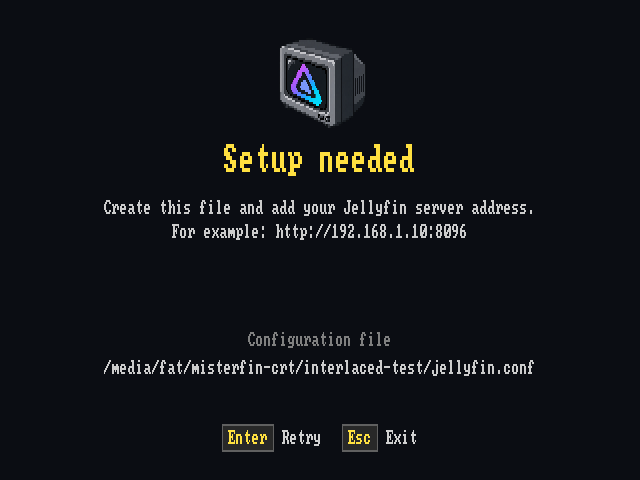
For a new installation, create /media/fat/misterfin-crt/jellyfin.conf containing your server URL:
http://your-jellyfin-server:8096
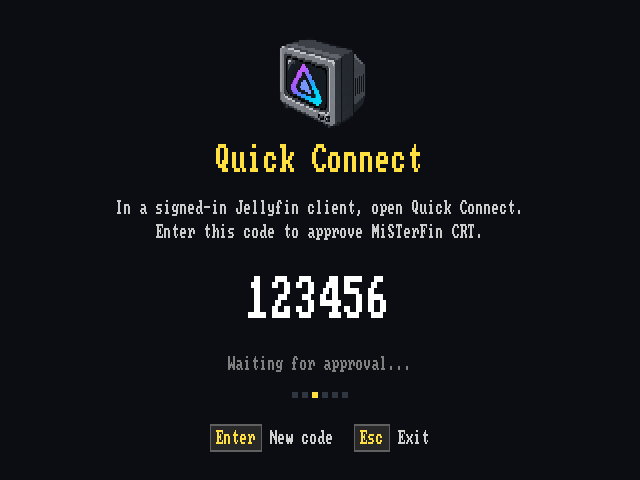
Launch MiSTerFin-CRT from the Scripts menu. Approve the displayed Quick Connect code in Jellyfin. The launcher filename must contain no spaces. Login, playback choices, and artwork caches persist on the SD card.
Updates
The client checks for the latest public release at startup. An available update appears beneath the carousel title. Use Check updates in About to check again.
- While browsing, press START/Menu on a controller or F1 on a keyboard to open About.
- Select View release and review the changes.
- Select Install and wait for completion. The app restarts automatically after a successful update.
Updates replace the application, matching MPlayer, and standard launcher together. Your settings, sign-in, playback preferences, cached artwork, and optional interlaced core are preserved. Back cancels during download or validation. During installation, wait for completion. Failed replacements restore the previous files. Interrupted replacements recover at the next startup.
Automatic updates require the standard installation paths above. Older clients or launchers may require reopening the app once after an update. Desktop and custom installations use manual installation. See manual installation and recovery for details.
Progressive and interlaced output
The default uses MiSTer’s current display mode, normally 240p for NTSC or 288p for PAL. Interlaced output is optional: 480i for NTSC or 576i for PAL. I have tested 240p and 480i. PAL validation remains deferred.
To enable interlaced output:
- Exit MiSTerFin CRT. Install the matching client and MPlayer builds described above.
- Download the supported InterlacedMenu.rbf v0.0.1 from the display guide. Place it at
/media/fat/misterfin-crt/InterlacedMenu.rbf. - Set the
displaysection in/media/fat/misterfin-crt/settings.json:
{
  "display": {
    "interlaced": true
  }
}
Launch MiSTerFin-CRT from the normal Scripts menu. The application switches to the interlaced core and restores the normal menu when you exit. Synchronization is automatic. The same launcher works for both modes.
To return to the progressive default, exit the application and set display.interlaced to false:
{
  "display": {
    "interlaced": false
  }
}
Omitting the display section also restores the default on the next launch. Preserve other sections when changing this setting. The display guide explains core verification, the scoped MiSTer.ini changes and backup, and hardware requirements.
Controls
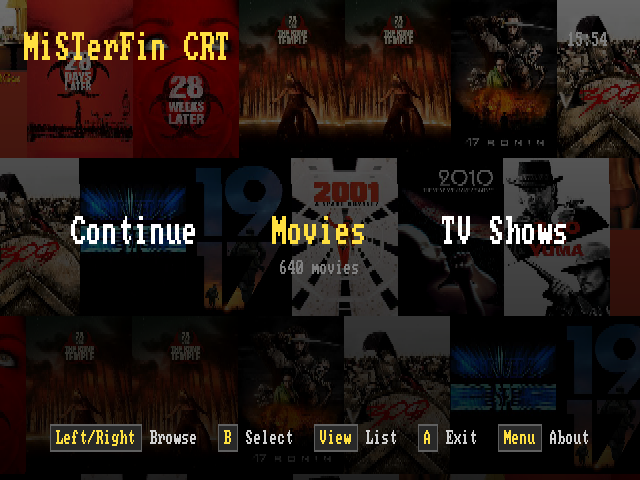
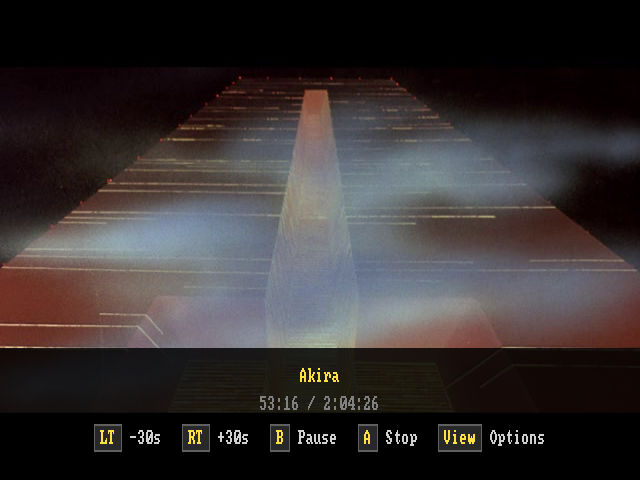
Use the D-pad to navigate and follow the on-screen button hints to select or go back. During video or music playback, any direction shows or hides controls. Triggers seek, and shoulder buttons change music tracks.
The playback guide lists controller and keyboard controls. About shows the installed version and provides updates.
To control playback from another Jellyfin client, select MiSTerFin CRT as the playback device. Remote play, queues, pause/resume, seeking, shuffle, and repeat are supported. See remote control.
Screenshots
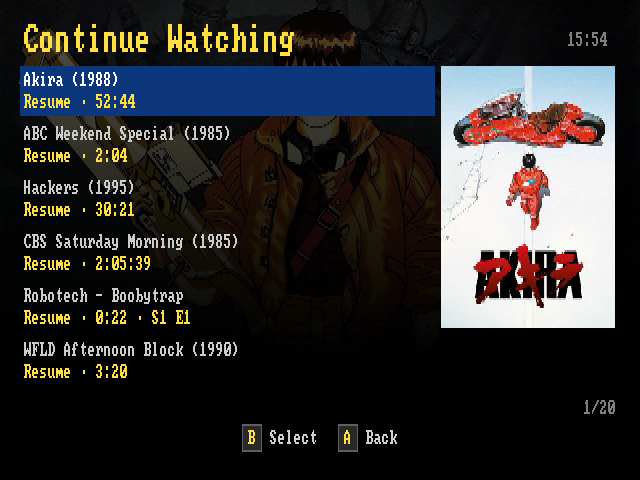
Browsing and playback captures are from MiSTer. Setup previews use the same renderer with example connection details.
| Continue Watching | Video controls |
|---|---|
 |  |
| Setup help | Quick Connect |
|---|---|
 |  |
Also see the movie library and movie details.
Configuration
To change video conversion limits, add a line such as 640x480@8000000 to jellyfin.conf and restart. The values are maximum width, maximum height, and bitrate in bits per second. The default is 720x576@12000000. The profile applies to recorded video and Live TV. See transcode configuration.
Application settings live in settings.json beside jellyfin.conf. On MiSTer, that is /media/fat/misterfin-crt/settings.json. For a new installation, copy settings.example.json and edit the sections you need. For an existing installation, use the migration command below before creating this file. Omitted sections and fields use defaults. Restart after changing settings. Jellyfin connection details remain in jellyfin.conf.
{
  "ui": {
    "title": "MiSTerFin CRT",
    "navigation_sounds": {
      "enabled": false
    }
  },
  "background": {
    "image": "background.png"
  },
  "display": {
    "interlaced": false
  }
}
| Setting | Defaults and options | Guide |
|---|---|---|
ui.title | Heading: MiSTerFin CRT. An explicit empty title hides it. Long titles are truncated. | Title |
ui.navigation_sounds | enabled: true, volume: 10 out of 100. False or volume zero silences navigation sounds. | Sounds |
background | Generated carousel mosaics and item artwork on lists. image selects one custom background. | Background |
display | interlaced: false. Keep the current display, normally progressive. | Display |
input | Built-in controller mappings and button labels. Profiles override matching devices. | Input |
music_visuals | Music playback appearance only. default_background: "Starfield", show_audio_meters: true. Missing optional Toasty sprites are omitted. | Music visuals |
diagnostics | Off unless DEBUGLOG is set. Path: debug.log. Limit: 1 MiB per file. | Diagnostics |
Existing installations still read the separate JSON files when settings.json is absent. To combine those files on MiSTer:
/media/fat/misterfin-crt/misterfin-crt -migrate-settings -config /media/fat/misterfin-crt/jellyfin.conf
Migration preserves the originals and refuses to overwrite settings.json. Once the new file exists, omitted sections use defaults instead of reading old files. See configuration paths, migration, and recovery.
Browsing background
To use one custom image on the carousel and browsing lists, set background.image in settings.json:
{
  "background": {
    "image": "background.png"
  }
}
Place the image in the same directory, or use an absolute path. PNG and JPEG are supported, up to 4 MiB and 2048 pixels in either dimension. A 4:3 image fits best. The client crops and dims it to keep the interface readable. Restart to apply changes. An omitted or empty image keeps the normal artwork.
The client checks the file contents, not its extension. A video, text file, unsupported image format, or corrupt image is rejected. Missing or invalid image files fall back to the normal artwork with a brief on-screen notice. With diagnostics enabled, the fallback also records a configuration.fallback event. Startup continues.
Sounds and caches
To turn off navigation sounds, set ui.navigation_sounds:
{
  "ui": {
    "navigation_sounds": {
      "enabled": false
    }
  }
}
Sound settings affect browsing feedback only. They do not change music or video volume.
MISTERFIN_CACHE_ROOT changes where artwork and carousel collages are cached. The default root is /media/fat on MiSTer and the user’s cache directory, usually ~/.cache, for local testing. The client stores caches under misterfin-crt within that directory. See artwork caching for details.
Local development and testing
I use the Ghostty harness on Linux to develop and test the interface without MiSTer hardware. It also helps verify that the architecture supports different display pipelines while reusing the same UI and application logic. From the repository directory, run the browsing demo:
python3 tools/ghostty/ghostty_harness.py --demo --ntsc
The harness builds the client automatically. See the development harness guide for dependencies, connecting to Jellyfin, and testing playback.
Deferred work
- PAL/576i and direct MiSTer YPbPr validation: I do not have suitable hardware to test these output paths. My tested setup uses MiSTer configured for RGB through its 9-pin output and a Retrovision YPbPr cable to a consumer 4:3 CRT.
- Zaparoo DDR integration: Deferred until I have a way to test it. Zaparoo is not required for the supported interlaced output.
- MiSTer background-music hardware validation: Suspension and restoration are implemented and covered by automated tests. Testing with the actual add-on is deferred because I do not use it. This is separate from Jellyfin music playback.
More information
See the documentation index for all guides and current limits.
- Browsing, Continue Watching, and artwork caches
- Playback and controls
- Subtitles, audio tracks, and picture modes
- Builds and tests
- Rendering architecture
Origins and license
I started MiSTerFin CRT as a Go port of MiSTerFin by Pudding Studio, including my C changes. I maintain it independently. It remains heavily based on MiSTerFin, an excellent project.
Original MiSTerFin material is copyright © 2026 Pudding Studio. My additions and modifications are copyright © 2026 trentnix. I distribute the application under CC BY-NC 4.0, except for components covered by separate licenses, including the GPL-licensed MPlayer.


See what people are saying
Similar repos


Languages
Go
77.5%
Python
15.2%
C
6.7%
README
MiSTerFin CRT
MiSTerFin CRT is a Jellyfin client for MiSTer FPGA, designed for CRT televisions. It supports movies, TV, live TV, music, and photos.
I’m continuing MiSTerFin’s focus on a great Jellyfin experience on CRTs. I test and use it on a MiSTer connected to a consumer 4:3 CRT television, not a PVM or an HD set. I tested the client with Jellyfin 12.
Run on MiSTer
For a new installation, download misterfin-crt-vX.Y.Z-mister.zip from the latest release. Extract the ZIP and copy these files to the SD card. Make the launcher and both binaries executable if your filesystem requires it. If upgrading an existing installation manually, exit the application first and keep your configuration and state files.
| File | Destination |
|---|---|
misterfin-crt/misterfin-crt | /media/fat/misterfin-crt/misterfin-crt |
misterfin-crt/mplayer-arm | /media/fat/misterfin-crt/mplayer-arm |
Scripts/MiSTerFin-CRT.sh | /media/fat/Scripts/MiSTerFin-CRT.sh |
Copy the remaining files from the ZIP’s misterfin-crt directory into /media/fat/misterfin-crt/. The archive includes examples, notices, and version information but no active configuration or saved state. Its INSTALL.txt has detailed instructions. To build from source, follow the build guide.
For a new installation, create /media/fat/misterfin-crt/jellyfin.conf containing your server URL:
http://your-jellyfin-server:8096
Launch MiSTerFin-CRT from the Scripts menu. Approve the displayed Quick Connect code in Jellyfin. The launcher filename must contain no spaces. Login, playback choices, and artwork caches persist on the SD card.
Updates
The client checks for the latest public release at startup. An available update appears beneath the carousel title. Use Check updates in About to check again.
- While browsing, press START/Menu on a controller or F1 on a keyboard to open About.
- Select View release and review the changes.
- Select Install and wait for completion. The app restarts automatically after a successful update.
Updates replace the application, matching MPlayer, and standard launcher together. Your settings, sign-in, playback preferences, cached artwork, and optional interlaced core are preserved. Back cancels during download or validation. During installation, wait for completion. Failed replacements restore the previous files. Interrupted replacements recover at the next startup.
Automatic updates require the standard installation paths above. Older clients or launchers may require reopening the app once after an update. Desktop and custom installations use manual installation. See manual installation and recovery for details.
Progressive and interlaced output
The default uses MiSTer’s current display mode, normally 240p for NTSC or 288p for PAL. Interlaced output is optional: 480i for NTSC or 576i for PAL. I have tested 240p and 480i. PAL validation remains deferred.
To enable interlaced output:
- Exit MiSTerFin CRT. Install the matching client and MPlayer builds described above.
- Download the supported InterlacedMenu.rbf v0.0.1 from the display guide. Place it at
/media/fat/misterfin-crt/InterlacedMenu.rbf. - Set the
displaysection in/media/fat/misterfin-crt/settings.json:
{
  "display": {
    "interlaced": true
  }
}
Launch MiSTerFin-CRT from the normal Scripts menu. The application switches to the interlaced core and restores the normal menu when you exit. Synchronization is automatic. The same launcher works for both modes.
To return to the progressive default, exit the application and set display.interlaced to false:
{
  "display": {
    "interlaced": false
  }
}
Omitting the display section also restores the default on the next launch. Preserve other sections when changing this setting. The display guide explains core verification, the scoped MiSTer.ini changes and backup, and hardware requirements.
Controls
Use the D-pad to navigate and follow the on-screen button hints to select or go back. During video or music playback, any direction shows or hides controls. Triggers seek, and shoulder buttons change music tracks.
The playback guide lists controller and keyboard controls. About shows the installed version and provides updates.
To control playback from another Jellyfin client, select MiSTerFin CRT as the playback device. Remote play, queues, pause/resume, seeking, shuffle, and repeat are supported. See remote control.
Screenshots
Browsing and playback captures are from MiSTer. Setup previews use the same renderer with example connection details.
| Continue Watching | Video controls |
|---|---|
| |
| Setup help | Quick Connect |
|---|---|
| |
Also see the movie library and movie details.
Configuration
To change video conversion limits, add a line such as 640x480@8000000 to jellyfin.conf and restart. The values are maximum width, maximum height, and bitrate in bits per second. The default is 720x576@12000000. The profile applies to recorded video and Live TV. See transcode configuration.
Application settings live in settings.json beside jellyfin.conf. On MiSTer, that is /media/fat/misterfin-crt/settings.json. For a new installation, copy settings.example.json and edit the sections you need. For an existing installation, use the migration command below before creating this file. Omitted sections and fields use defaults. Restart after changing settings. Jellyfin connection details remain in jellyfin.conf.
{
  "ui": {
    "title": "MiSTerFin CRT",
    "navigation_sounds": {
      "enabled": false
    }
  },
  "background": {
    "image": "background.png"
  },
  "display": {
    "interlaced": false
  }
}
| Setting | Defaults and options | Guide |
|---|---|---|
ui.title | Heading: MiSTerFin CRT. An explicit empty title hides it. Long titles are truncated. | Title |
ui.navigation_sounds | enabled: true, volume: 10 out of 100. False or volume zero silences navigation sounds. | Sounds |
background | Generated carousel mosaics and item artwork on lists. image selects one custom background. | Background |
display | interlaced: false. Keep the current display, normally progressive. | Display |
input | Built-in controller mappings and button labels. Profiles override matching devices. | Input |
music_visuals | Music playback appearance only. default_background: "Starfield", show_audio_meters: true. Missing optional Toasty sprites are omitted. | Music visuals |
diagnostics | Off unless DEBUGLOG is set. Path: debug.log. Limit: 1 MiB per file. | Diagnostics |
Existing installations still read the separate JSON files when settings.json is absent. To combine those files on MiSTer:
/media/fat/misterfin-crt/misterfin-crt -migrate-settings -config /media/fat/misterfin-crt/jellyfin.conf
Migration preserves the originals and refuses to overwrite settings.json. Once the new file exists, omitted sections use defaults instead of reading old files. See configuration paths, migration, and recovery.
Browsing background
To use one custom image on the carousel and browsing lists, set background.image in settings.json:
{
  "background": {
    "image": "background.png"
  }
}
Place the image in the same directory, or use an absolute path. PNG and JPEG are supported, up to 4 MiB and 2048 pixels in either dimension. A 4:3 image fits best. The client crops and dims it to keep the interface readable. Restart to apply changes. An omitted or empty image keeps the normal artwork.
The client checks the file contents, not its extension. A video, text file, unsupported image format, or corrupt image is rejected. Missing or invalid image files fall back to the normal artwork with a brief on-screen notice. With diagnostics enabled, the fallback also records a configuration.fallback event. Startup continues.
Sounds and caches
To turn off navigation sounds, set ui.navigation_sounds:
{
  "ui": {
    "navigation_sounds": {
      "enabled": false
    }
  }
}
Sound settings affect browsing feedback only. They do not change music or video volume.
MISTERFIN_CACHE_ROOT changes where artwork and carousel collages are cached. The default root is /media/fat on MiSTer and the user’s cache directory, usually ~/.cache, for local testing. The client stores caches under misterfin-crt within that directory. See artwork caching for details.
Local development and testing
I use the Ghostty harness on Linux to develop and test the interface without MiSTer hardware. It also helps verify that the architecture supports different display pipelines while reusing the same UI and application logic. From the repository directory, run the browsing demo:
python3 tools/ghostty/ghostty_harness.py --demo --ntsc
The harness builds the client automatically. See the development harness guide for dependencies, connecting to Jellyfin, and testing playback.
Deferred work
- PAL/576i and direct MiSTer YPbPr validation: I do not have suitable hardware to test these output paths. My tested setup uses MiSTer configured for RGB through its 9-pin output and a Retrovision YPbPr cable to a consumer 4:3 CRT.
- Zaparoo DDR integration: Deferred until I have a way to test it. Zaparoo is not required for the supported interlaced output.
- MiSTer background-music hardware validation: Suspension and restoration are implemented and covered by automated tests. Testing with the actual add-on is deferred because I do not use it. This is separate from Jellyfin music playback.
More information
See the documentation index for all guides and current limits.
- Browsing, Continue Watching, and artwork caches
- Playback and controls
- Subtitles, audio tracks, and picture modes
- Builds and tests
- Rendering architecture
Origins and license
I started MiSTerFin CRT as a Go port of MiSTerFin by Pudding Studio, including my C changes. I maintain it independently. It remains heavily based on MiSTerFin, an excellent project.
Original MiSTerFin material is copyright © 2026 Pudding Studio. My additions and modifications are copyright © 2026 trentnix. I distribute the application under CC BY-NC 4.0, except for components covered by separate licenses, including the GPL-licensed MPlayer.
See what people are saying
Similar repos
Languages
Go
77.5%
Python
15.2%
C
6.7%