
README

This package provides Clojure support for Sublime Text and includes:
- Clojure syntax
- Color scheme
- Code formatter/indenter
- Clients for nREPL, Socket REPL, ShadowCLJS REPL
Installation
Package Control: Install Package → Clojure Sublimed
Clojure syntax

Clojure Sublimed ships with its own syntax definition for Clojure and EDN. Unlike default Clojure syntax, our syntax can:
- mark reader comments
#_with the following form, including stacked comments, - mark
commentforms, - mark quoted/unquoted forms,
- mark metadata,
- mark parentheses nesting,
- mark and validate punctuation inside regexps,
- do semantically correct tokenization, perfect for fonts with ligatures,
How to enable? Assign syntax to Clojure files:
For each file type (.clj, .cljs, .cljc, .edn) do:
- Open any file with that extension
- Go to menu ->
View→Syntax→Open all with current extension as... - Select
Clojure (Sublimed)
Want to put your parser to test? Check out syntax_test_clojure.cljc.
Color scheme
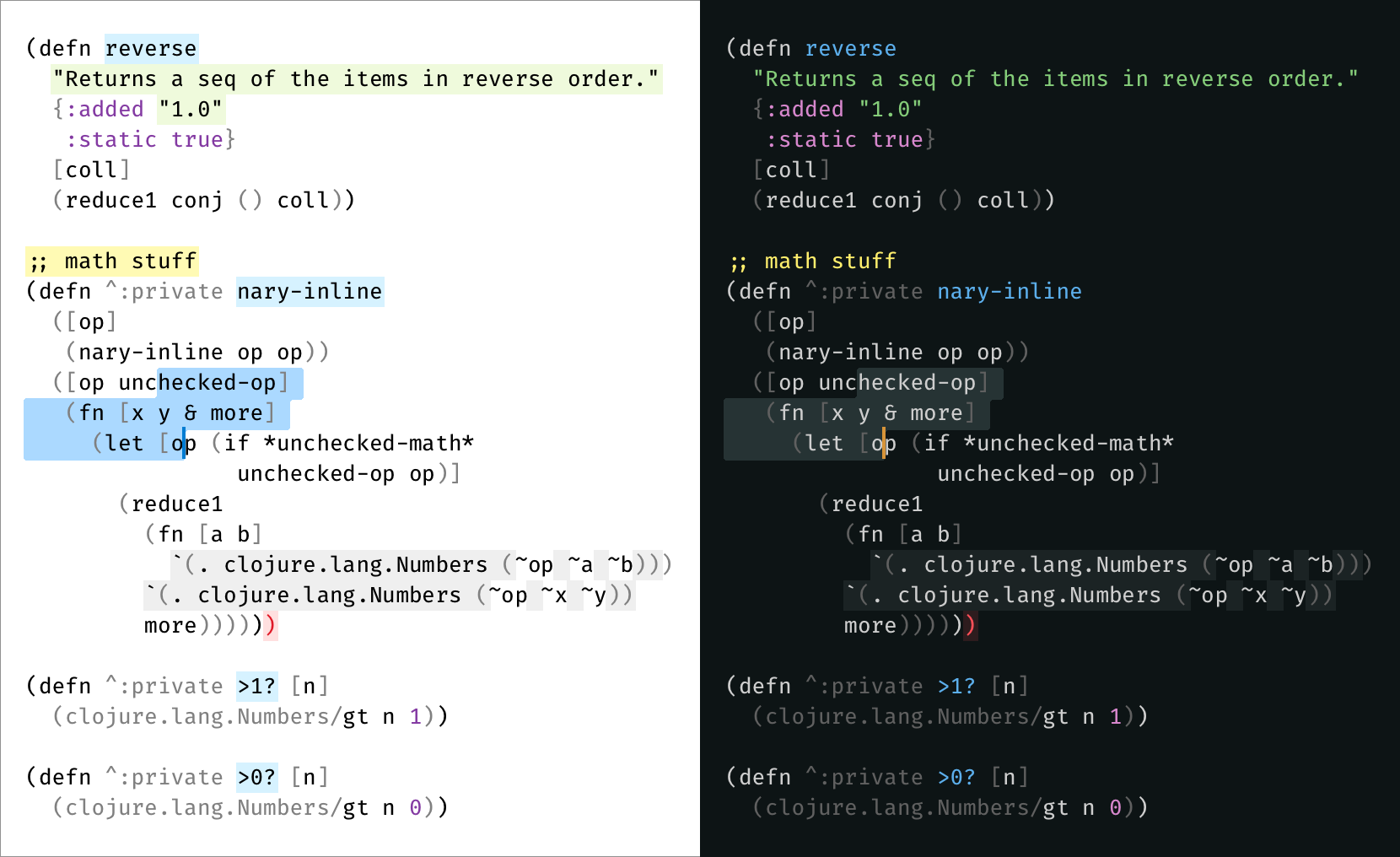
To make best use of improved syntax definitions, Clojure Sublimed offers its own color scheme:
- Cmd/Ctrl + Shift + P (Command Palette)
UI: Select Color Scheme- Select
Auto->Clojure Sublimed Light->Clojure Sublimed Dark
These color schemes will work for other languages, too.
Formatter/indenter
Clojure Sublimed includes support for both Better Clojure Formatting and cljfmt.
Better Clojure Formatting doesn’t require REPL connection, Clojure runtime or external tools. It is enabled by default.
To enable cljfmt:
- Download
cljfmtbinary fromhttps://github.com/weavejester/cljfmt/releases/latest - Add
cljfmtto$PATH - Add
"clojure_sublimed_formatter": "cljfmt"toPreferences: Settings
To reformat whole file, run Clojure Sublimed: Reindent. If you have non-empty selection, it will only reformat selected lines.
To enable reindenting/formatting on save, add "clojure_sublimed_format_on_save": true to Preferences: Settings.
To enable correct indentations as you type code, rebind Enter to Clojure Sublimed: Insert Newline:
{"keys":    ["enter"],
 "command": "clojure_sublimed_insert_newline",
 "context": [{"key": "selector", "operator": "equal", "operand": "source.edn | source.clojure"},
             {"key": "auto_complete_visible", "operator": "equal", "operand": false},
             {"key": "panel_has_focus", "operator": "equal", "operand": false}]}
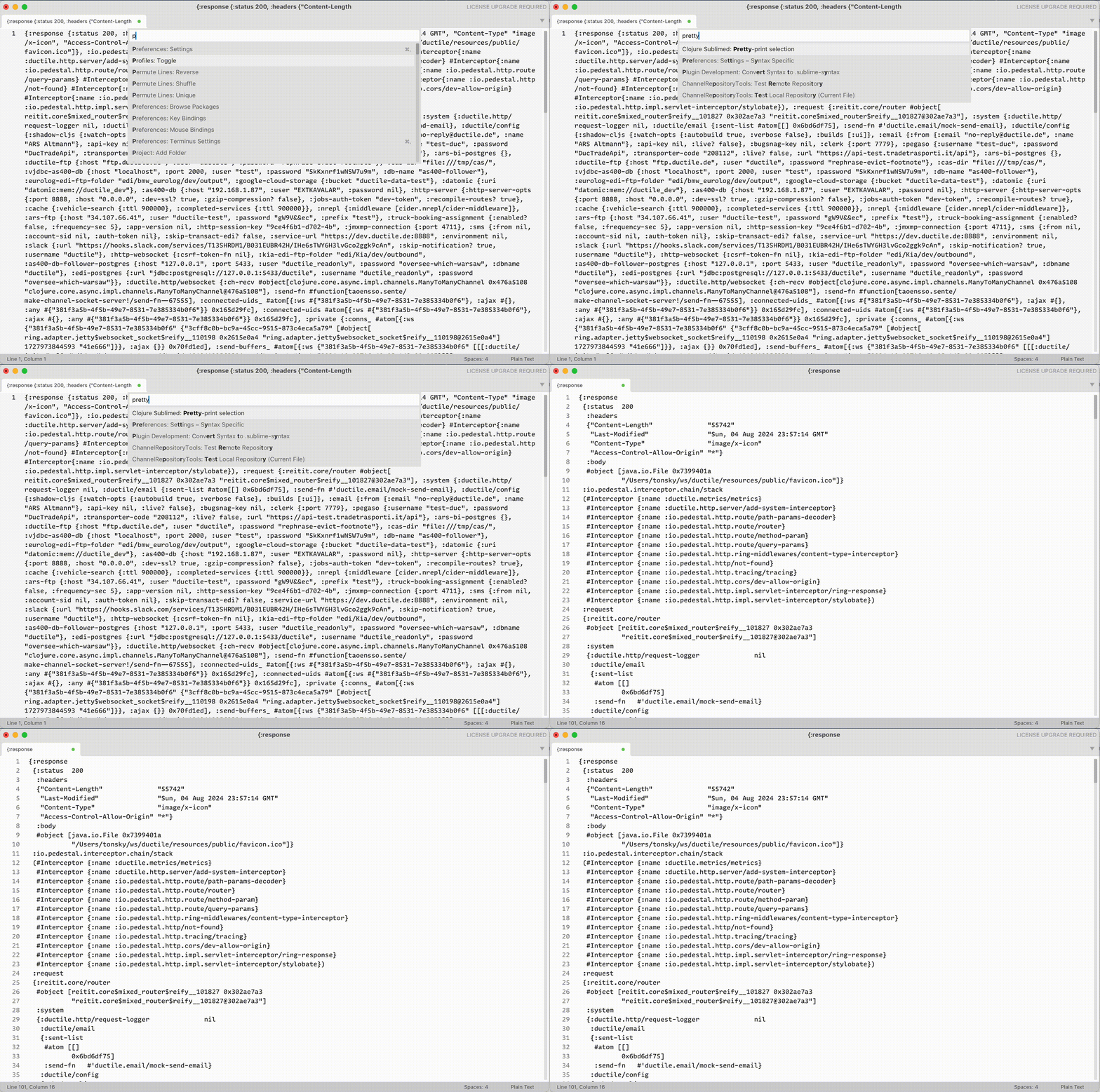
Indent will fix indentation, but will not create new lines. To format a completely unformatted source, use Pretty-print selection command:
Toggle comment command
There are three types of comment in Clojure:
- Line comments
;;are intended for textual / unstructured comments about code - Reader discard form
#_is intended for temporarily disabling parts of code commentform for coding snippets for future use
By default, Sublime will try to use ;; because it’s most similar to other languages and is simple to implement. One can argue, however, that we disable/enable parts of the code way more often than write textual comments about them. Therefore, #_ might work better.
Clojure Sublimed offer Toggle Comment command that can be used instead of Sublime provided one in Clojure sources. See Keymap on how to enable.
Align cursors command
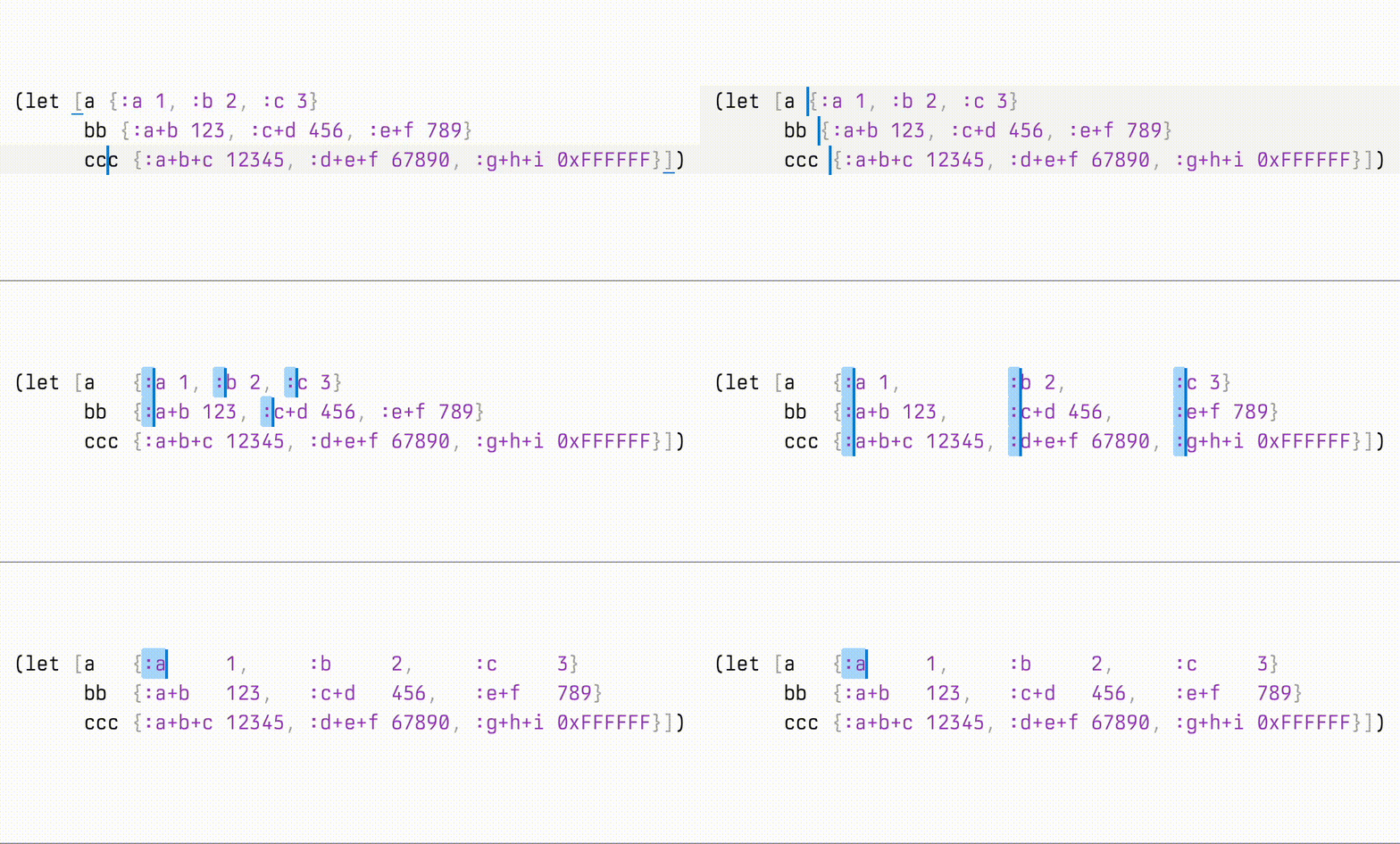
If you select multiple cursors on different lines and run Align cursors command, Clojure Sublimed will align them in a column. Works with multiple columns, too:
REPL clients
Clojure Sublimed REPL clients enable interactive development from the comfort of your editor.
Principles:
- Minimal distraction. Display evaluation results inline.
- Decomplected. Eval code and nothing more.
Features:
- evaluate code,
- display evaluation results inline.
- display stack traces inline,
- interrupt evaluation,
- eval multiple forms at once (parallel evaluation),
- lookup symbol info,
- show evaluation time,
- bind keys to eval arbitrary code.
Clojure Sublimed has four REPL clients:
- Raw nREPL: no extra middlewares, could work with any nREPL server.
- JVM nREPL: only works with JVM server.
- ShadowCLJS nREPL: works with ShadowCLJS
- JVM Socket REPL: works with raw Socket REPL on JVM
All four support same basic features (eval, lookup, interrupt on JVM), maybe with slightly different quality of implementation.
How to choose which REPL to use?
- Are you on JVM? Use Socket REPL.
- On JVM and only have nREPL? Use JVM nREPL.
- CLJS? Use ShadowCLJS REPL.
- Otherwise (e.g. babashka, sci, ...) use Raw nREPL.
We intentionally excluded following features:
- Autocomplete. Static analysis is much simpler and much more reliable than requiring an always-live connection to the working app.
Look at Sublime LSP with Clojure LSP or SublimeLinter with clj-kondo if you need autocompletion.
How to use
Clojure Sublimed will not run your app for you. Use any other way, e.g.:
- Separate terminal app
- Terminus plugin
- Sublime Executor plugin
For Clojure apps:
- Run Socket Server, e.g. with either
clj -X clojure.core.server/start-server :name repl :port 5555 :accept clojure.core.server/repl :server-daemon false
or
clj "-J-Dclojure.server.repl={:port 5555 :accept clojure.core.server/repl :server-daemon false}"
- Run
Clojure Sublimed: Connect to Socket REPLcommand.
For Shadow-cljs apps:
- Run
shadow-cljs watch app. (This starts a HTTP server and an nREPL) - If you are building a web-app, open the http-server url (from step 1) in the browser. This connects the shadow server to JS runtime.
- Run
Clojure Sublimed: Connect shadow-cljscommand.
For other nREPL apps:
- Run nREPL server.
- Run
Clojure Sublimed: Connect to raw nREPLcommand.
Evaluating code from buffer
From here you have three options:
Clojure Sublimed: Evaluate without selection evaluates topmost form around your cursor:

Clojure Sublimed: Evaluate with selection evaluates selected text:
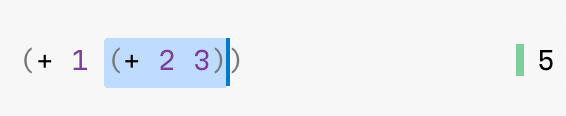
Clojure Sublimed: Evaluate Buffer will evaluate the entire file:

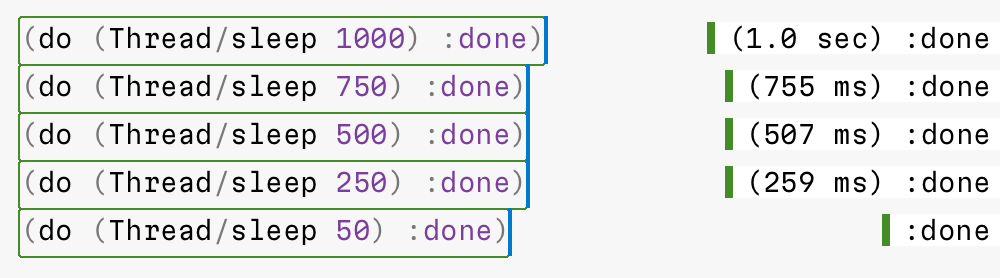
You don’t have to wait for one form to finish evaluating to evaluate something else. Multiple things can be executed in parallel:

By default, Clojure Sublimed will also print evaluation time if it takes more than 100 ms:
Copying evaluation results
Sometimes you want to copy evaluation result. It is recommended to rebind Cmd+C/Ctrl+C from copy to sublime_clojure_copy. This will copy evaluation result if inside evaluated region and fallback to default copy otherwise.
Interrupting
If your evaluation runs too long and you want to interrupt it, run Clojure Sublimed: Interrupt Pending Evaluations:

Opening stacktrace
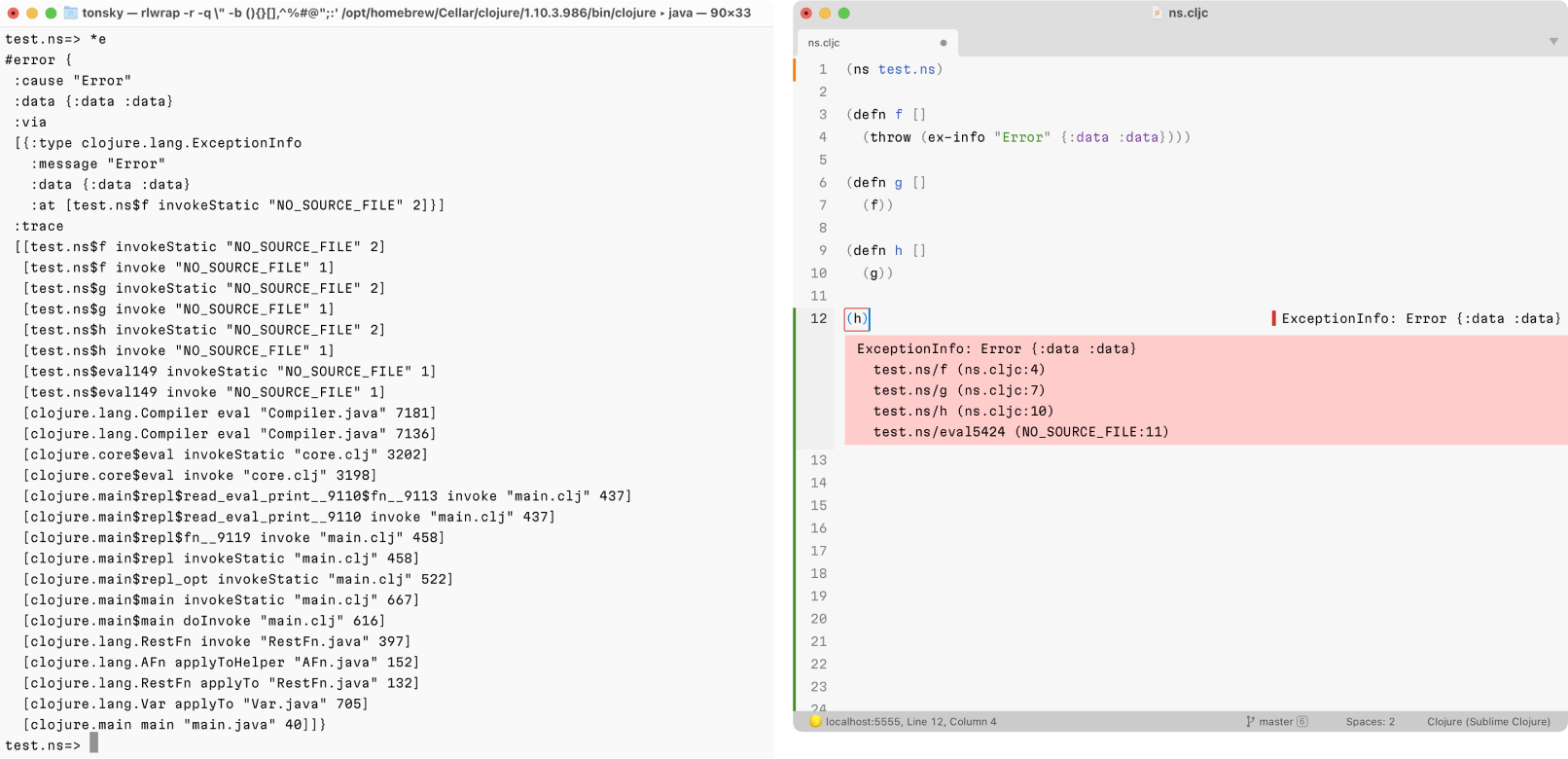
If your evaluation failed, put your cursor inside failed region and run Clojure Sublimed: Toggle Stacktrace:

Clojure Sublimed will display stacktraces in a Clojure-friendly way. Compare with the default REPL:
Watches
Watches are great alternative to debug prints: they allow you to monitor intermediate values during function execution right in the editor.
This is how they work:
- Select a right-hand expression
- Run
Clojure Sublimed: Add Watchcommand - Now every time function is executed, for any reason, watched expressions will display values they evaluate to, in real time.
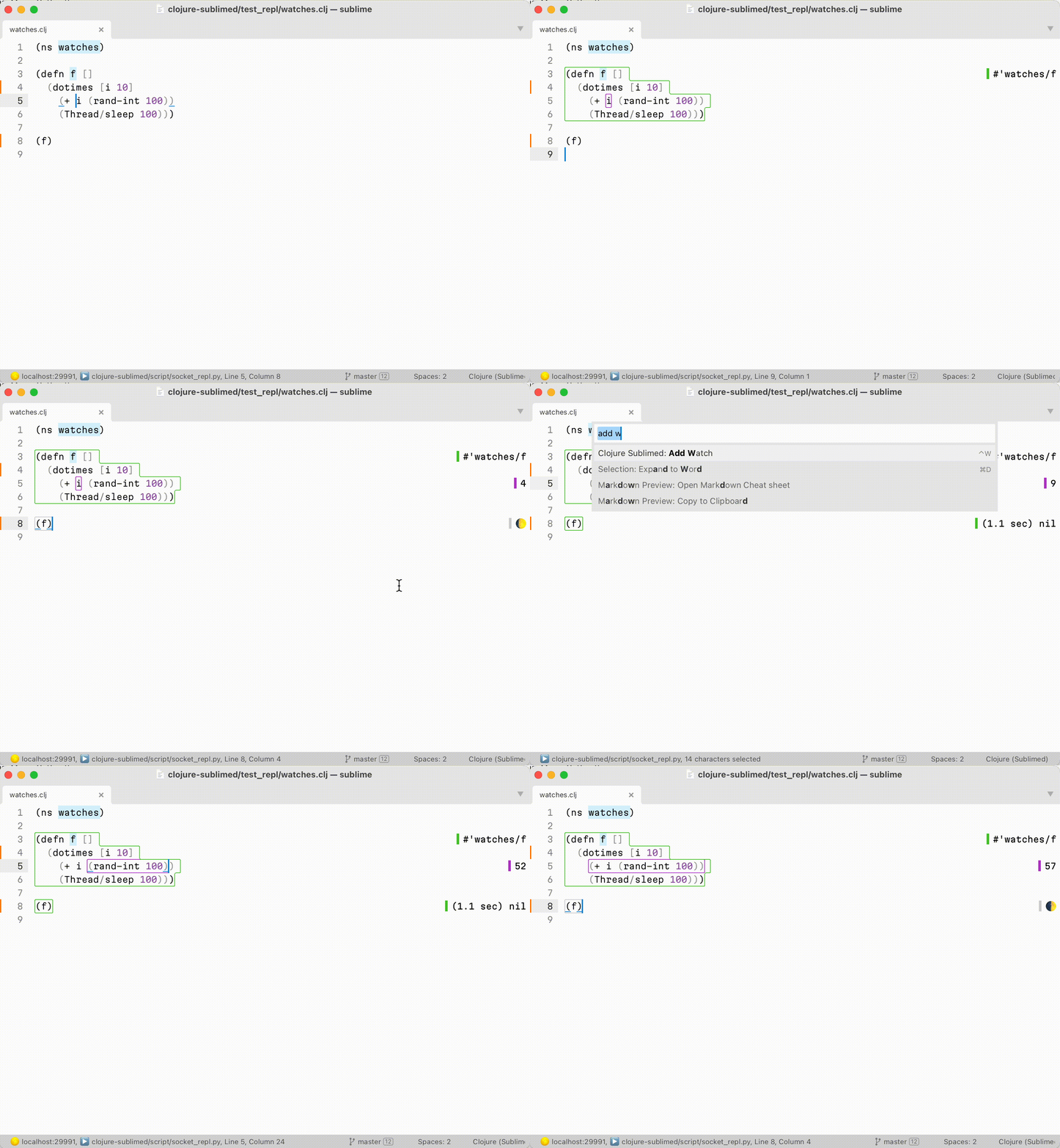
Watches are only supported in Socket REPL.
Looking up symbol
To show symbol info, run Clojure Sublimed: Toggle Symbol Info:

Universal Clojure Sublimed: Toggle Info command acts as either Toggle Stacktrace or Toggle Symbol Info, depending on context.
Binding keys to eval custom code
Every project is different, and sometimes it’s convenient to run a piece of code so often you’d want it on a shortcut. It might be a namespace reload, test execution, database reconnect, linter, formatter — possibilities are endless.
To support such use cases, Clojure Sublimed allows you to bind arbitrary piece of code to a keyboard shortcut. Run Preferences: Clojure Sublimed Key Bindings and add something like this:
{"keys":    ["ctrl+t"],
 "command": "clojure_sublimed_eval_code",
 "args":    {"code": "(clojure.test/run-all-tests)"}}
Then, whenever you press Ctrl + T, you’ll see the result in the status bar, like this:

Other possible use-cases (select key combinations to your linking):
Only run tests from current namespace:
{"keys":    ["ctrl+shift+t"],
 "command": "clojure_sublimed_eval_code",
 "args":    {"code": "(clojure.test/run-all-tests (re-pattern (str *ns*)))"}}
Reload code with clj-reload:
{"keys":    ["ctrl+r"],
 "command": "clojure_sublimed_eval_code",
 "args":    {"code": "(clj-reload.core/reload)"}}
Transforming code before eval
You can also modify eval to run a transformed version of code under cursor/inside selection.
For example, this will pretty-print result of your evaluation to stdout:
{"keys":    ["ctrl+p"],
 "command": "clojure_sublimed_eval",
 "args":    {"transform": "(doto %code clojure.pprint/pprint)"}}
transform is a format string that takes selected form, formats it according to described rules and then sends resulting code to evaluation.
If you now press ctrl+p on a form like (+ 1 2), the actual eval sent to REPL will be:
(doto (+ 1 2) clojure.pprint/pprint)
Which will pretty-print evaluation result to stdout. This pattern might be useful for large results that don’t fit inline.
We can implement macroexpand this way:
{"keys":    ["ctrl+e"],
 "command": "clojure_sublimed_eval",
 "args":    {"transform": "(macroexpand-1 '%code)",
             "expand": true}}
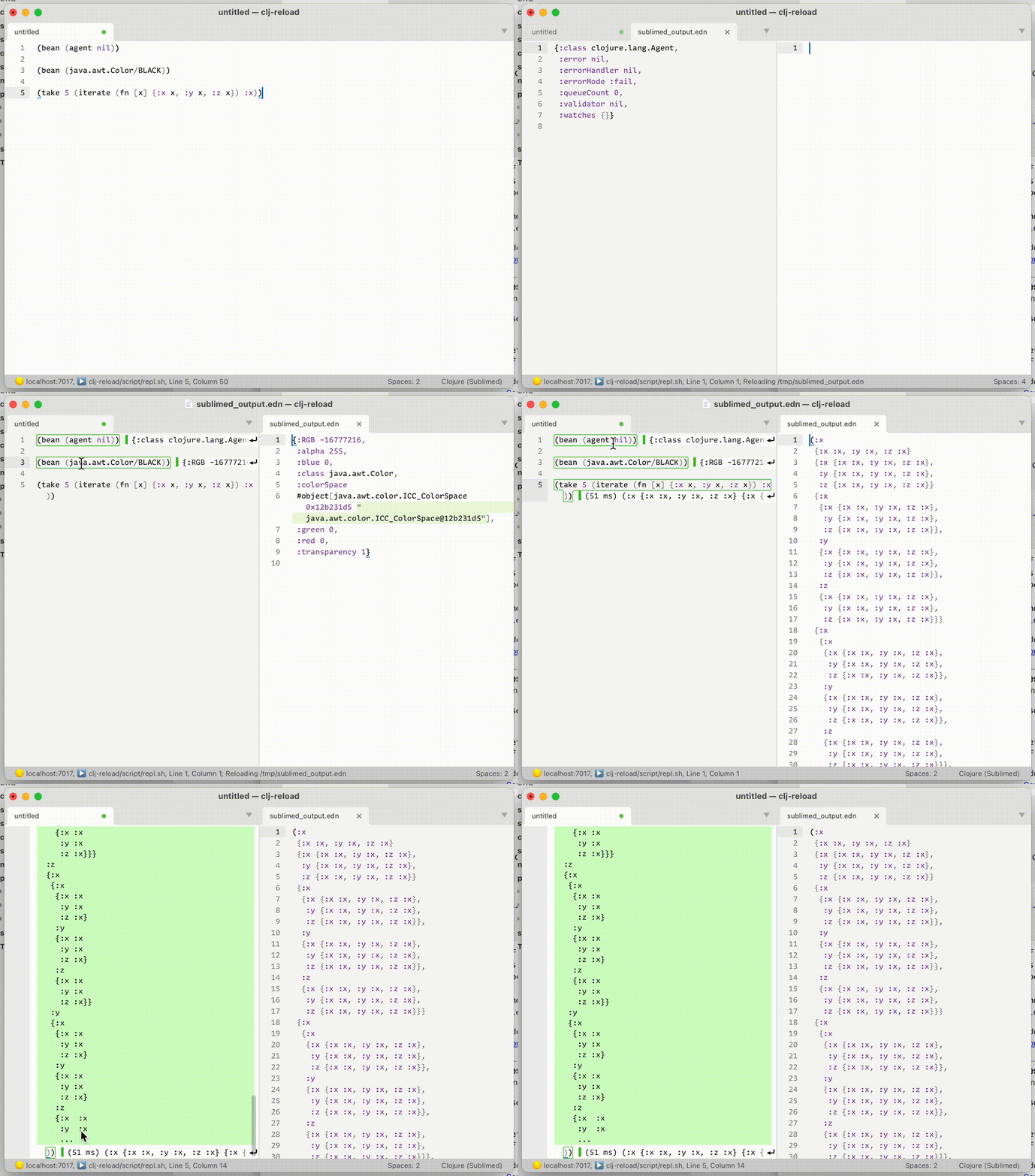
Another use-case might be “eval to buffer”:
{"keys":    ["ctrl+b"],
 "command": "chain",
 "args":    {
    "commands": [
      ["clojure_sublimed_eval", {"transform": "(with-open [w (clojure.java.io/writer \"/tmp/sublimed_output.edn\")] (doto %code (clojure.pprint/pprint w)))"}],
      ["open_file", {"file": "/tmp/sublimed_output.edn"}]
    ]
 }
}
Eval to buffer at work:
Inside transform you can also use %ns (current ns) and %symbol (if selected form is def-something, it will be replaced with defined name, otherwise nil).
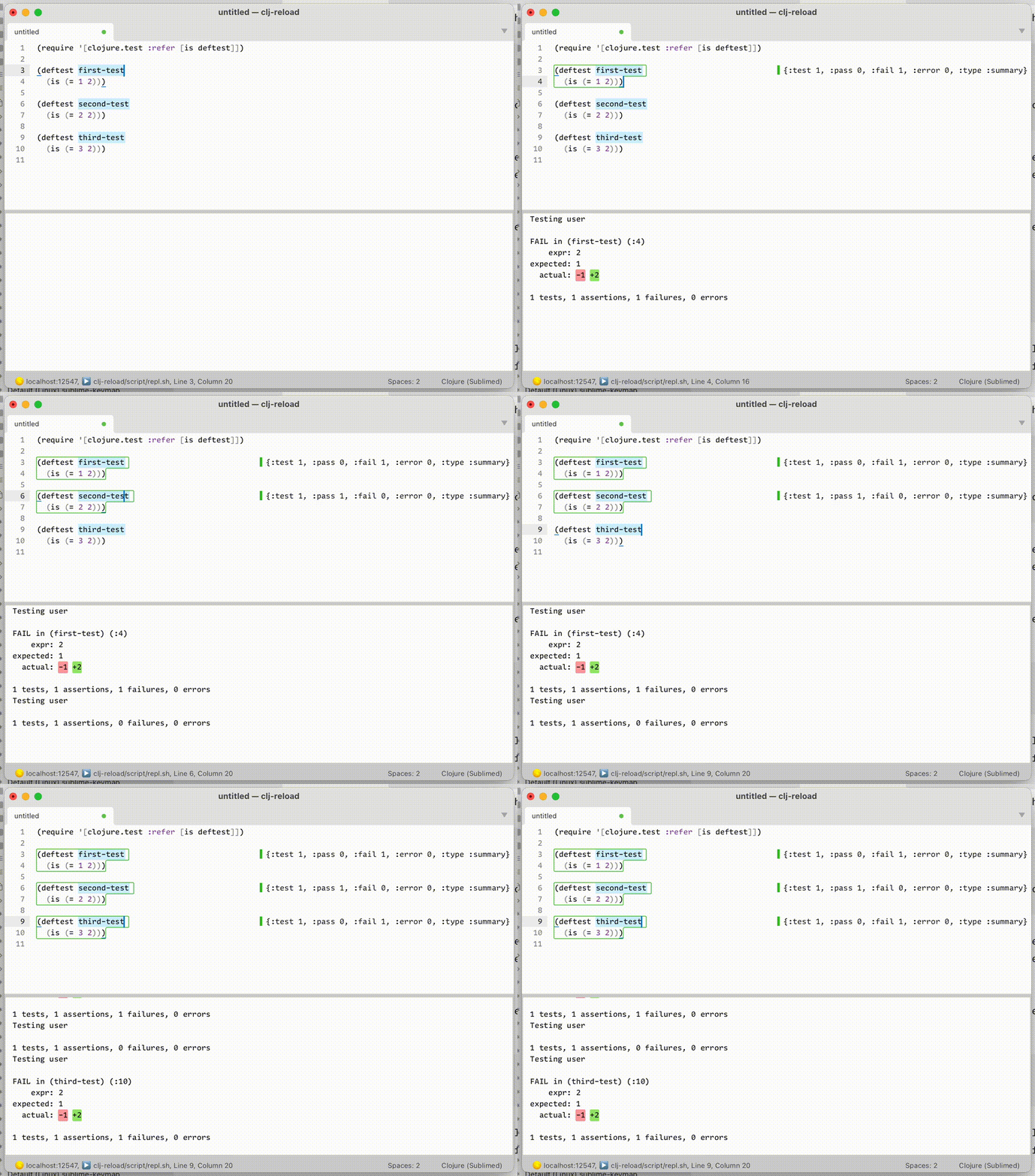
This allows us to implement “run test under cursor”:
{"keys":    ["super+shift+t"],
 "command": "clojure_sublimed_eval",
 "args":    {"transform": "(clojure.test/run-test-var #'%symbol)"}}
Run test under cursor at work:
Clearing results
Finally, to clear evaluation results run Clojure Sublimed: Clear Evaluation Results.
Editing settings
To edit settings, run Preferences: Clojure Sublimed Settings command.
If you prefer setting settings in main file, you can do so by prepending "clojure_sublimed_" to each setting name. E.g.
"debug": True,
in Clojure Sublimed.sublime-settings becomes
"clojure_sublimed_debug": True,
in Preferences.sublime-settings. Settings from Preferences.sublime-settings take priority.
Session-wide settings
It is sometimes desirable to set dynamic Clojure vars for the whole session. To do that, edit "eval_shared" setting. For example:
"eval_shared": "(do (set! *warn-on-reflection* true) (set! *print-namespace-maps* false))"
This will be applied to every evaluation.
Default Key Bindings
Clojure Sublimed comes with no keybindings enabled by default to guarantee they won’t conflict with any other extension (Sublime Text’s limitation).
This is the recommended keymap:
| Command | macOS | Windows/Linux | Mnemonic |
|---|---|---|---|
| Evaluate | Ctrl Enter | Ctrl Alt Enter | |
| Evaluate Buffer | Ctrl B | Ctrl Alt B | [B]uffer |
| Interrupt Pending Evaluations | Ctrl C | Ctrl Alt C | [C]ancel |
| Toggle Info | Ctrl I | Ctrl Alt I | [I]nfo |
| Clear Evaluation Results | Ctrl L | Ctrl Alt L | c[L]ear |
| Copy Evaluation Results | Command C | Ctrl C | [C]opy |
| Reindent Lines | Ctrl F | Ctrl Alt F | [F]ormat |
| Reindent Buffer | Ctrl Shift F | Ctrl Alt Shift F | Capital [F]ormat |
| Toggle Comment | Command / | Ctrl / | Comment [/] |
To set it up, run Preferences: Clojure Sublimed Key Bindings command and copy example keybindings to your local Key Bindings file.
stdout/stderr
Clojure Sublimed does things a little different when it comes to stdout. Normally REPL would show you all stdout/stderr that originated from your session. I find it confusing, because it doesn’t always work and you have to check two places for output. Moreover, there’s no output panel, so there’s no place to show stdout anyway.
So instead, Clojure Sublimed does not redirect neither stdout nor stderr. Check original console to see what was printed there.

Frequently Asked Questions
Q: REPL/eval doesn’t work
A: Make sure you are using nREPL 0.9 or later. A: Also check console (Cmd `) for errors
Q: How to connect to a Babashka REPL?
A: Use Raw nREPL.
Credits
Made by Niki Tonsky.
With contributions by Jaihindh Reddy and KgOfHedgehogs.
See also
Writer Color Scheme: A color scheme optimized for long-form writing.
Alabaster Color Scheme: Minimal color scheme for coding.
Sublime Profiles: Profile switcher.
License
Contributors


Similar repos


Languages
Clojure
74.8%
Python
25.2%
README
This package provides Clojure support for Sublime Text and includes:
- Clojure syntax
- Color scheme
- Code formatter/indenter
- Clients for nREPL, Socket REPL, ShadowCLJS REPL
Installation
Package Control: Install Package → Clojure Sublimed
Clojure syntax
Clojure Sublimed ships with its own syntax definition for Clojure and EDN. Unlike default Clojure syntax, our syntax can:
- mark reader comments
#_with the following form, including stacked comments, - mark
commentforms, - mark quoted/unquoted forms,
- mark metadata,
- mark parentheses nesting,
- mark and validate punctuation inside regexps,
- do semantically correct tokenization, perfect for fonts with ligatures,
How to enable? Assign syntax to Clojure files:
For each file type (.clj, .cljs, .cljc, .edn) do:
- Open any file with that extension
- Go to menu ->
View→Syntax→Open all with current extension as... - Select
Clojure (Sublimed)
Want to put your parser to test? Check out syntax_test_clojure.cljc.
Color scheme
To make best use of improved syntax definitions, Clojure Sublimed offers its own color scheme:
- Cmd/Ctrl + Shift + P (Command Palette)
UI: Select Color Scheme- Select
Auto->Clojure Sublimed Light->Clojure Sublimed Dark
These color schemes will work for other languages, too.
Formatter/indenter
Clojure Sublimed includes support for both Better Clojure Formatting and cljfmt.
Better Clojure Formatting doesn’t require REPL connection, Clojure runtime or external tools. It is enabled by default.
To enable cljfmt:
- Download
cljfmtbinary fromhttps://github.com/weavejester/cljfmt/releases/latest - Add
cljfmtto$PATH - Add
"clojure_sublimed_formatter": "cljfmt"toPreferences: Settings
To reformat whole file, run Clojure Sublimed: Reindent. If you have non-empty selection, it will only reformat selected lines.
To enable reindenting/formatting on save, add "clojure_sublimed_format_on_save": true to Preferences: Settings.
To enable correct indentations as you type code, rebind Enter to Clojure Sublimed: Insert Newline:
{"keys":    ["enter"],
 "command": "clojure_sublimed_insert_newline",
 "context": [{"key": "selector", "operator": "equal", "operand": "source.edn | source.clojure"},
             {"key": "auto_complete_visible", "operator": "equal", "operand": false},
             {"key": "panel_has_focus", "operator": "equal", "operand": false}]}
Indent will fix indentation, but will not create new lines. To format a completely unformatted source, use Pretty-print selection command:
Toggle comment command
There are three types of comment in Clojure:
- Line comments
;;are intended for textual / unstructured comments about code - Reader discard form
#_is intended for temporarily disabling parts of code commentform for coding snippets for future use
By default, Sublime will try to use ;; because it’s most similar to other languages and is simple to implement. One can argue, however, that we disable/enable parts of the code way more often than write textual comments about them. Therefore, #_ might work better.
Clojure Sublimed offer Toggle Comment command that can be used instead of Sublime provided one in Clojure sources. See Keymap on how to enable.
Align cursors command
If you select multiple cursors on different lines and run Align cursors command, Clojure Sublimed will align them in a column. Works with multiple columns, too:
REPL clients
Clojure Sublimed REPL clients enable interactive development from the comfort of your editor.
Principles:
- Minimal distraction. Display evaluation results inline.
- Decomplected. Eval code and nothing more.
Features:
- evaluate code,
- display evaluation results inline.
- display stack traces inline,
- interrupt evaluation,
- eval multiple forms at once (parallel evaluation),
- lookup symbol info,
- show evaluation time,
- bind keys to eval arbitrary code.
Clojure Sublimed has four REPL clients:
- Raw nREPL: no extra middlewares, could work with any nREPL server.
- JVM nREPL: only works with JVM server.
- ShadowCLJS nREPL: works with ShadowCLJS
- JVM Socket REPL: works with raw Socket REPL on JVM
All four support same basic features (eval, lookup, interrupt on JVM), maybe with slightly different quality of implementation.
How to choose which REPL to use?
- Are you on JVM? Use Socket REPL.
- On JVM and only have nREPL? Use JVM nREPL.
- CLJS? Use ShadowCLJS REPL.
- Otherwise (e.g. babashka, sci, ...) use Raw nREPL.
We intentionally excluded following features:
- Autocomplete. Static analysis is much simpler and much more reliable than requiring an always-live connection to the working app.
Look at Sublime LSP with Clojure LSP or SublimeLinter with clj-kondo if you need autocompletion.
How to use
Clojure Sublimed will not run your app for you. Use any other way, e.g.:
- Separate terminal app
- Terminus plugin
- Sublime Executor plugin
For Clojure apps:
- Run Socket Server, e.g. with either
clj -X clojure.core.server/start-server :name repl :port 5555 :accept clojure.core.server/repl :server-daemon false
or
clj "-J-Dclojure.server.repl={:port 5555 :accept clojure.core.server/repl :server-daemon false}"
- Run
Clojure Sublimed: Connect to Socket REPLcommand.
For Shadow-cljs apps:
- Run
shadow-cljs watch app. (This starts a HTTP server and an nREPL) - If you are building a web-app, open the http-server url (from step 1) in the browser. This connects the shadow server to JS runtime.
- Run
Clojure Sublimed: Connect shadow-cljscommand.
For other nREPL apps:
- Run nREPL server.
- Run
Clojure Sublimed: Connect to raw nREPLcommand.
Evaluating code from buffer
From here you have three options:
Clojure Sublimed: Evaluate without selection evaluates topmost form around your cursor:
Clojure Sublimed: Evaluate with selection evaluates selected text:
Clojure Sublimed: Evaluate Buffer will evaluate the entire file:
You don’t have to wait for one form to finish evaluating to evaluate something else. Multiple things can be executed in parallel:
By default, Clojure Sublimed will also print evaluation time if it takes more than 100 ms:
Copying evaluation results
Sometimes you want to copy evaluation result. It is recommended to rebind Cmd+C/Ctrl+C from copy to sublime_clojure_copy. This will copy evaluation result if inside evaluated region and fallback to default copy otherwise.
Interrupting
If your evaluation runs too long and you want to interrupt it, run Clojure Sublimed: Interrupt Pending Evaluations:
Opening stacktrace
If your evaluation failed, put your cursor inside failed region and run Clojure Sublimed: Toggle Stacktrace:
Clojure Sublimed will display stacktraces in a Clojure-friendly way. Compare with the default REPL:
Watches
Watches are great alternative to debug prints: they allow you to monitor intermediate values during function execution right in the editor.
This is how they work:
- Select a right-hand expression
- Run
Clojure Sublimed: Add Watchcommand - Now every time function is executed, for any reason, watched expressions will display values they evaluate to, in real time.
Watches are only supported in Socket REPL.
Looking up symbol
To show symbol info, run Clojure Sublimed: Toggle Symbol Info:
Universal Clojure Sublimed: Toggle Info command acts as either Toggle Stacktrace or Toggle Symbol Info, depending on context.
Binding keys to eval custom code
Every project is different, and sometimes it’s convenient to run a piece of code so often you’d want it on a shortcut. It might be a namespace reload, test execution, database reconnect, linter, formatter — possibilities are endless.
To support such use cases, Clojure Sublimed allows you to bind arbitrary piece of code to a keyboard shortcut. Run Preferences: Clojure Sublimed Key Bindings and add something like this:
{"keys":    ["ctrl+t"],
 "command": "clojure_sublimed_eval_code",
 "args":    {"code": "(clojure.test/run-all-tests)"}}
Then, whenever you press Ctrl + T, you’ll see the result in the status bar, like this:
Other possible use-cases (select key combinations to your linking):
Only run tests from current namespace:
{"keys":    ["ctrl+shift+t"],
 "command": "clojure_sublimed_eval_code",
 "args":    {"code": "(clojure.test/run-all-tests (re-pattern (str *ns*)))"}}
Reload code with clj-reload:
{"keys":    ["ctrl+r"],
 "command": "clojure_sublimed_eval_code",
 "args":    {"code": "(clj-reload.core/reload)"}}
Transforming code before eval
You can also modify eval to run a transformed version of code under cursor/inside selection.
For example, this will pretty-print result of your evaluation to stdout:
{"keys":    ["ctrl+p"],
 "command": "clojure_sublimed_eval",
 "args":    {"transform": "(doto %code clojure.pprint/pprint)"}}
transform is a format string that takes selected form, formats it according to described rules and then sends resulting code to evaluation.
If you now press ctrl+p on a form like (+ 1 2), the actual eval sent to REPL will be:
(doto (+ 1 2) clojure.pprint/pprint)
Which will pretty-print evaluation result to stdout. This pattern might be useful for large results that don’t fit inline.
We can implement macroexpand this way:
{"keys":    ["ctrl+e"],
 "command": "clojure_sublimed_eval",
 "args":    {"transform": "(macroexpand-1 '%code)",
             "expand": true}}
Another use-case might be “eval to buffer”:
{"keys":    ["ctrl+b"],
 "command": "chain",
 "args":    {
    "commands": [
      ["clojure_sublimed_eval", {"transform": "(with-open [w (clojure.java.io/writer \"/tmp/sublimed_output.edn\")] (doto %code (clojure.pprint/pprint w)))"}],
      ["open_file", {"file": "/tmp/sublimed_output.edn"}]
    ]
 }
}
Eval to buffer at work:
Inside transform you can also use %ns (current ns) and %symbol (if selected form is def-something, it will be replaced with defined name, otherwise nil).
This allows us to implement “run test under cursor”:
{"keys":    ["super+shift+t"],
 "command": "clojure_sublimed_eval",
 "args":    {"transform": "(clojure.test/run-test-var #'%symbol)"}}
Run test under cursor at work:
Clearing results
Finally, to clear evaluation results run Clojure Sublimed: Clear Evaluation Results.
Editing settings
To edit settings, run Preferences: Clojure Sublimed Settings command.
If you prefer setting settings in main file, you can do so by prepending "clojure_sublimed_" to each setting name. E.g.
"debug": True,
in Clojure Sublimed.sublime-settings becomes
"clojure_sublimed_debug": True,
in Preferences.sublime-settings. Settings from Preferences.sublime-settings take priority.
Session-wide settings
It is sometimes desirable to set dynamic Clojure vars for the whole session. To do that, edit "eval_shared" setting. For example:
"eval_shared": "(do (set! *warn-on-reflection* true) (set! *print-namespace-maps* false))"
This will be applied to every evaluation.
Default Key Bindings
Clojure Sublimed comes with no keybindings enabled by default to guarantee they won’t conflict with any other extension (Sublime Text’s limitation).
This is the recommended keymap:
| Command | macOS | Windows/Linux | Mnemonic |
|---|---|---|---|
| Evaluate | Ctrl Enter | Ctrl Alt Enter | |
| Evaluate Buffer | Ctrl B | Ctrl Alt B | [B]uffer |
| Interrupt Pending Evaluations | Ctrl C | Ctrl Alt C | [C]ancel |
| Toggle Info | Ctrl I | Ctrl Alt I | [I]nfo |
| Clear Evaluation Results | Ctrl L | Ctrl Alt L | c[L]ear |
| Copy Evaluation Results | Command C | Ctrl C | [C]opy |
| Reindent Lines | Ctrl F | Ctrl Alt F | [F]ormat |
| Reindent Buffer | Ctrl Shift F | Ctrl Alt Shift F | Capital [F]ormat |
| Toggle Comment | Command / | Ctrl / | Comment [/] |
To set it up, run Preferences: Clojure Sublimed Key Bindings command and copy example keybindings to your local Key Bindings file.
stdout/stderr
Clojure Sublimed does things a little different when it comes to stdout. Normally REPL would show you all stdout/stderr that originated from your session. I find it confusing, because it doesn’t always work and you have to check two places for output. Moreover, there’s no output panel, so there’s no place to show stdout anyway.
So instead, Clojure Sublimed does not redirect neither stdout nor stderr. Check original console to see what was printed there.
Frequently Asked Questions
Q: REPL/eval doesn’t work
A: Make sure you are using nREPL 0.9 or later. A: Also check console (Cmd `) for errors
Q: How to connect to a Babashka REPL?
A: Use Raw nREPL.
Credits
Made by Niki Tonsky.
With contributions by Jaihindh Reddy and KgOfHedgehogs.
See also
Writer Color Scheme: A color scheme optimized for long-form writing.
Alabaster Color Scheme: Minimal color scheme for coding.
Sublime Profiles: Profile switcher.
License
Similar repos
Contributors
Languages
Clojure
74.8%
Python
25.2%