
See what people are saying
README

Napkin
A persistent scratch surface for your computer.
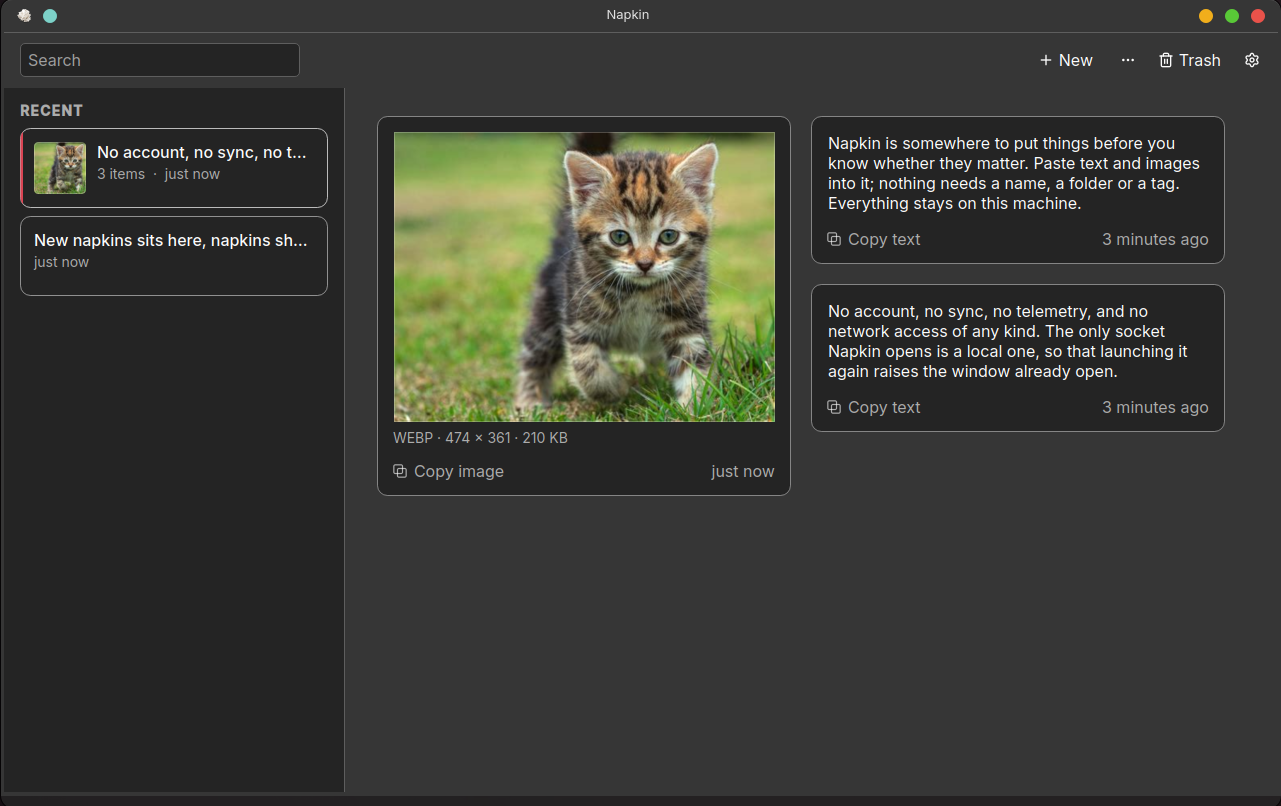
Napkin is somewhere to put things before you know whether they matter. Paste text and images into it; nothing needs a name, a folder or a tag. Everything stays on this machine.
The icon is a crumpled napkin, which is the whole idea: you write on one without deciding first whether it is worth writing on.
Status: early development (0.1.6), Linux and Windows. Expect rough edges. Windows is newer and less used than Linux; macOS is planned, not started.
What it's for
The gap this fills is between the clipboard, which forgets, and a notes app, which asks you to file things.
- The paste you will want in ten minutes. A token, a container id, an
sshcommand, the error you are about to search for. It does not deserve a file and it should not have to fight for the clipboard. - A debugging session's screenshots. Grab, paste, keep grabbing. They sit
next to the log lines and the stack trace instead of piling up in
~/Picturesunder names likeScreenshot_20260923_070305.png. - Links to deal with later. A URL on its own becomes a chip you can open, and it stays searchable by its address.
- A scratchpad per task. One napkin for the ticket you are on, another for the one you were interrupted by. Neither needs a title, and neither has to be filed when you are done.
- The things you are not ready to name. A draft paragraph, a half-formed idea, a quote. Napkin exists to postpone the decision to organise, which is the decision that usually stops people capturing anything at all.
It is deliberately not Evernote, Notion, Obsidian or OneNote, not a task manager, and not a clipboard-history tool — your OS already has one of those. There is no AI in it: it never summarises, categorises, names or tags anything. See SPEC.md §1.
What it does
- Napkins, not documents.
Ctrl+Ngives you a fresh napkin. Paste onto it, type on it, and move on. Nothing asks for a title. - A board, not a page. Items are cards, laid out in columns that widen with
the window rather than multiplying, so a three-word note stays a three-word
note. Click to select,
Ctrl/Shift+click orCtrl+Afor more than one, arrow keys to walk the board,Ctrl+C/Ctrl+X/Deleteto act on what is selected. - Text and images, and nothing else. Text, where a link on its own shows as
a chip you can open and a link inside prose opens with
Ctrl+click; and images: PNG, JPEG, WebP, SVG and animated GIF. Double-click an image to open it full size. - Search everything with
Ctrl+F: text, links and image filenames. Matches are highlighted where they sit, and All napkins puts the rest back. - Nothing is deleted on your behalf. Napkins you have not touched in 30 days move to an Older section. Clean up moves them to the trash only when you ask, and it can be undone. Pin keeps a napkin at the top; Keep means Clean up never touches it.
- Deleting is always recoverable. A deleted napkin, or items deleted from one, wait in the trash for 30 days. Both thresholds are yours to change in File → Settings….
- It looks like your desktop. Theme follows the system — and keeps following it while running, not only at startup — or you can pin Light or Dark. Accent colour, typeface and text size are settings too.
- Out of the way, not gone. Optionally keep Napkin in the system tray, so closing the window hides it instead of quitting. Its menu makes a new napkin, or pastes the clipboard onto a new one, in a click.
- Export one napkin or everything to a folder of ordinary files at any time (File → Export this napkin… / Export everything…).
Screens
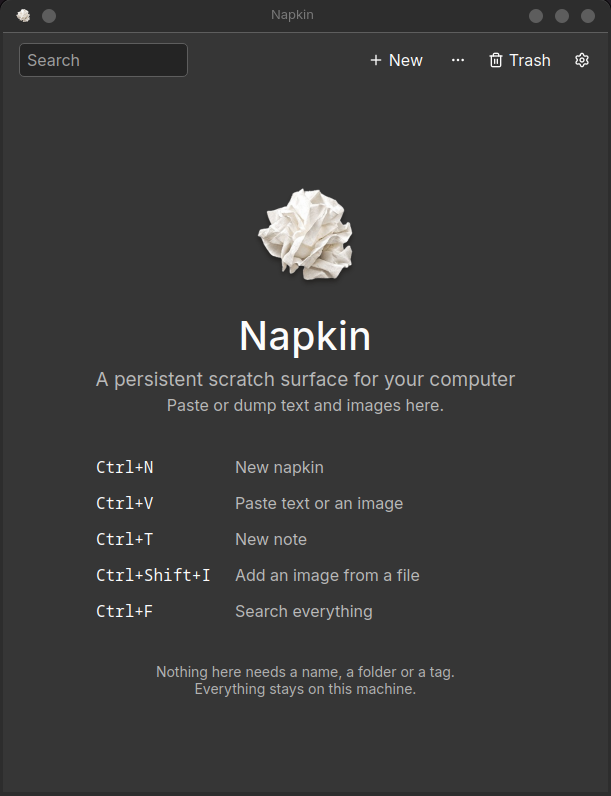
First run. No account, no setup, no import step — just the five keys that matter. |
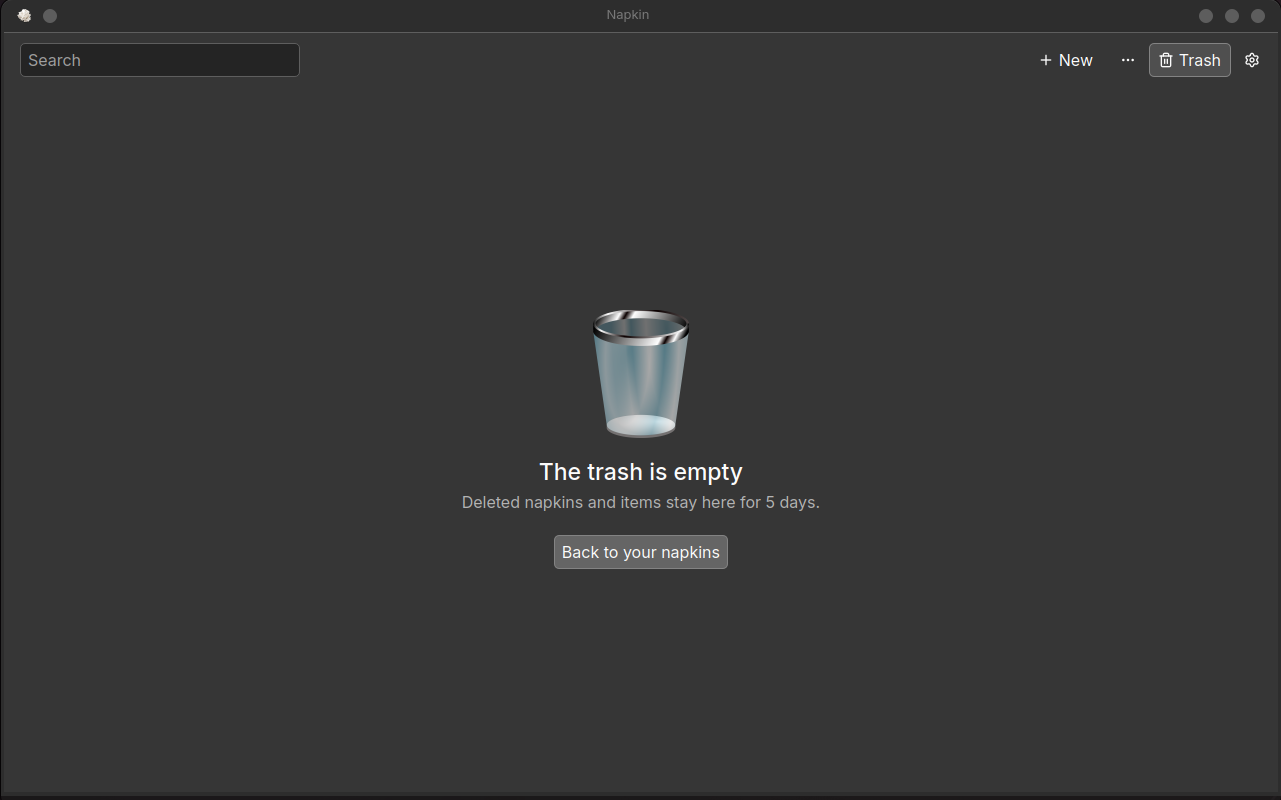
The trash. Deleted napkins and items wait here rather than going. The retention shown is this install's setting, not the 30-day default. |
Privacy
- No account, no sync, no telemetry, and no network access of any kind. The only socket Napkin opens is a local one, so that launching it again raises the window already open.
- Your data lives in
~/.local/share/napkin/napkin/: a SQLite database plus image files. The directory is readable only by you (0700, database0600), and it is marked so that desktop search (Baloo, Tracker) does not index it. - Keep is retention, not encryption. There is no at-rest encryption. Anyone who can read your home directory can read what you pasted. A scratch surface will end up holding tokens and passwords, so treat it like one.
Install
Releases publish an AppImage and a Windows zip on the releases page.
Linux:
chmod +x napkin-v*-x86_64.AppImage
./napkin-v*-x86_64.AppImage
Windows 10 and 11 (64-bit): unzip napkin-v*-windows-x64.zip anywhere and
run napkin.exe; nothing needs installing. The build is not code-signed, so
SmartScreen will warn the first time — More info → Run anyway. Your napkins
are kept in %LOCALAPPDATA%\napkin\napkin, readable only by you, so deleting
the unzipped folder does not delete them.
On Arch Linux, build a pacman package from the latest master:
git clone https://github.com/sudomonas/napkin.git
cd napkin/packaging/arch
makepkg -si                      # builds, runs the tests, installs under /usr
Remove it with sudo pacman -R napkin-git.
A Flatpak manifest is in packaging/; it has not been submitted to Flathub yet.
Build from source
Requirements:
- A C++20 compiler. CI builds with GCC 11 (Ubuntu 22.04) and GCC 13 (Ubuntu 24.04).
- CMake 3.24 or newer, and Ninja (recommended)
- Qt 6.5 or newer: Core, Gui, Widgets, Network and Test, plus the
qtimageformatsandqtsvgplugins at runtime for WebP and SVG - SQLite 3 with FTS5, 3.31 or newer. CI tests 3.31.1 and 3.37.2 as well as the runner's own.
On Arch Linux:
sudo pacman -S --needed base-devel cmake ninja qt6-base qt6-imageformats qt6-svg sqlite
On Debian and Ubuntu, check that your release's Qt is 6.5 or newer; Ubuntu 24.04 ships 6.4, which is too old.
Then:
cmake -S . -B build -G Ninja -DCMAKE_BUILD_TYPE=Release
cmake --build build
ctest --test-dir build --output-on-failure
sudo cmake --install build        # or --prefix ~/.local
The test suites need no display: the GUI tests run on Qt's offscreen platform.
Keyboard
| Key | Action |
|---|---|
Ctrl+N | New napkin |
Ctrl+V | Paste onto this napkin |
Ctrl+T | New note on this napkin |
Ctrl+Shift+I | Add an image from a file |
Ctrl+F / Ctrl+K | Search |
Ctrl+Shift+V | Paste into the search box (plain Ctrl+V there pastes onto the napkin) |
Ctrl+Home | Clear the search and show all napkins |
Ctrl+P / Ctrl+D | Pin or keep the selected napkin |
Ctrl+Z | Undo the last delete, pin or keep |
Delete | Move the selected napkin to the trash (list focused) |
On the napkin itself: arrow keys move between cards, Ctrl+A selects every
item, Ctrl+C / Ctrl+X / Delete act on the selection, and Ctrl+Enter or
Esc finishes editing. The full list is under Help → Keyboard shortcuts….
Typing on an empty napkin, or double-clicking empty space on one, also starts a
note, and right-clicking an item offers Edit, Copy, Cut and Delete.
Known limitations
- There is no global "capture" hotkey yet. It needs the XDG GlobalShortcuts portal and is planned.
- A single napkin holding around a thousand items is slow to open. Typical use (hundreds of napkins, each with up to about a hundred items) meets every performance target in SPEC.md §12.
- macOS is not started. Windows works and passes the full suite in CI, but has had far less real use than Linux.
Design
SPEC.md is the design document and the project's record of decisions, measurements and corrected mistakes. Read it before proposing a feature; §21 is the test every feature has to pass.
License
MIT. The toolbar icons are from Lucide, under
the ISC and MIT licences in
resources/icons/lucide/LICENSE.
Contributors

96 commits
Similar repos


Languages
C++
97.8%
CMake
1.4%
See what people are saying
README
Napkin
A persistent scratch surface for your computer.
Napkin is somewhere to put things before you know whether they matter. Paste text and images into it; nothing needs a name, a folder or a tag. Everything stays on this machine.
The icon is a crumpled napkin, which is the whole idea: you write on one without deciding first whether it is worth writing on.
Status: early development (0.1.6), Linux and Windows. Expect rough edges. Windows is newer and less used than Linux; macOS is planned, not started.
What it's for
The gap this fills is between the clipboard, which forgets, and a notes app, which asks you to file things.
- The paste you will want in ten minutes. A token, a container id, an
sshcommand, the error you are about to search for. It does not deserve a file and it should not have to fight for the clipboard. - A debugging session's screenshots. Grab, paste, keep grabbing. They sit
next to the log lines and the stack trace instead of piling up in
~/Picturesunder names likeScreenshot_20260923_070305.png. - Links to deal with later. A URL on its own becomes a chip you can open, and it stays searchable by its address.
- A scratchpad per task. One napkin for the ticket you are on, another for the one you were interrupted by. Neither needs a title, and neither has to be filed when you are done.
- The things you are not ready to name. A draft paragraph, a half-formed idea, a quote. Napkin exists to postpone the decision to organise, which is the decision that usually stops people capturing anything at all.
It is deliberately not Evernote, Notion, Obsidian or OneNote, not a task manager, and not a clipboard-history tool — your OS already has one of those. There is no AI in it: it never summarises, categorises, names or tags anything. See SPEC.md §1.
What it does
- Napkins, not documents.
Ctrl+Ngives you a fresh napkin. Paste onto it, type on it, and move on. Nothing asks for a title. - A board, not a page. Items are cards, laid out in columns that widen with
the window rather than multiplying, so a three-word note stays a three-word
note. Click to select,
Ctrl/Shift+click orCtrl+Afor more than one, arrow keys to walk the board,Ctrl+C/Ctrl+X/Deleteto act on what is selected. - Text and images, and nothing else. Text, where a link on its own shows as
a chip you can open and a link inside prose opens with
Ctrl+click; and images: PNG, JPEG, WebP, SVG and animated GIF. Double-click an image to open it full size. - Search everything with
Ctrl+F: text, links and image filenames. Matches are highlighted where they sit, and All napkins puts the rest back. - Nothing is deleted on your behalf. Napkins you have not touched in 30 days move to an Older section. Clean up moves them to the trash only when you ask, and it can be undone. Pin keeps a napkin at the top; Keep means Clean up never touches it.
- Deleting is always recoverable. A deleted napkin, or items deleted from one, wait in the trash for 30 days. Both thresholds are yours to change in File → Settings….
- It looks like your desktop. Theme follows the system — and keeps following it while running, not only at startup — or you can pin Light or Dark. Accent colour, typeface and text size are settings too.
- Out of the way, not gone. Optionally keep Napkin in the system tray, so closing the window hides it instead of quitting. Its menu makes a new napkin, or pastes the clipboard onto a new one, in a click.
- Export one napkin or everything to a folder of ordinary files at any time (File → Export this napkin… / Export everything…).
Screens
|
First run. No account, no setup, no import step — just the five keys that matter. |
The trash. Deleted napkins and items wait here rather than going. The retention shown is this install's setting, not the 30-day default. |
Privacy
- No account, no sync, no telemetry, and no network access of any kind. The only socket Napkin opens is a local one, so that launching it again raises the window already open.
- Your data lives in
~/.local/share/napkin/napkin/: a SQLite database plus image files. The directory is readable only by you (0700, database0600), and it is marked so that desktop search (Baloo, Tracker) does not index it. - Keep is retention, not encryption. There is no at-rest encryption. Anyone who can read your home directory can read what you pasted. A scratch surface will end up holding tokens and passwords, so treat it like one.
Install
Releases publish an AppImage and a Windows zip on the releases page.
Linux:
chmod +x napkin-v*-x86_64.AppImage
./napkin-v*-x86_64.AppImage
Windows 10 and 11 (64-bit): unzip napkin-v*-windows-x64.zip anywhere and
run napkin.exe; nothing needs installing. The build is not code-signed, so
SmartScreen will warn the first time — More info → Run anyway. Your napkins
are kept in %LOCALAPPDATA%\napkin\napkin, readable only by you, so deleting
the unzipped folder does not delete them.
On Arch Linux, build a pacman package from the latest master:
git clone https://github.com/sudomonas/napkin.git
cd napkin/packaging/arch
makepkg -si                      # builds, runs the tests, installs under /usr
Remove it with sudo pacman -R napkin-git.
A Flatpak manifest is in packaging/; it has not been submitted to Flathub yet.
Build from source
Requirements:
- A C++20 compiler. CI builds with GCC 11 (Ubuntu 22.04) and GCC 13 (Ubuntu 24.04).
- CMake 3.24 or newer, and Ninja (recommended)
- Qt 6.5 or newer: Core, Gui, Widgets, Network and Test, plus the
qtimageformatsandqtsvgplugins at runtime for WebP and SVG - SQLite 3 with FTS5, 3.31 or newer. CI tests 3.31.1 and 3.37.2 as well as the runner's own.
On Arch Linux:
sudo pacman -S --needed base-devel cmake ninja qt6-base qt6-imageformats qt6-svg sqlite
On Debian and Ubuntu, check that your release's Qt is 6.5 or newer; Ubuntu 24.04 ships 6.4, which is too old.
Then:
cmake -S . -B build -G Ninja -DCMAKE_BUILD_TYPE=Release
cmake --build build
ctest --test-dir build --output-on-failure
sudo cmake --install build        # or --prefix ~/.local
The test suites need no display: the GUI tests run on Qt's offscreen platform.
Keyboard
| Key | Action |
|---|---|
Ctrl+N | New napkin |
Ctrl+V | Paste onto this napkin |
Ctrl+T | New note on this napkin |
Ctrl+Shift+I | Add an image from a file |
Ctrl+F / Ctrl+K | Search |
Ctrl+Shift+V | Paste into the search box (plain Ctrl+V there pastes onto the napkin) |
Ctrl+Home | Clear the search and show all napkins |
Ctrl+P / Ctrl+D | Pin or keep the selected napkin |
Ctrl+Z | Undo the last delete, pin or keep |
Delete | Move the selected napkin to the trash (list focused) |
On the napkin itself: arrow keys move between cards, Ctrl+A selects every
item, Ctrl+C / Ctrl+X / Delete act on the selection, and Ctrl+Enter or
Esc finishes editing. The full list is under Help → Keyboard shortcuts….
Typing on an empty napkin, or double-clicking empty space on one, also starts a
note, and right-clicking an item offers Edit, Copy, Cut and Delete.
Known limitations
- There is no global "capture" hotkey yet. It needs the XDG GlobalShortcuts portal and is planned.
- A single napkin holding around a thousand items is slow to open. Typical use (hundreds of napkins, each with up to about a hundred items) meets every performance target in SPEC.md §12.
- macOS is not started. Windows works and passes the full suite in CI, but has had far less real use than Linux.
Design
SPEC.md is the design document and the project's record of decisions, measurements and corrected mistakes. Read it before proposing a feature; §21 is the test every feature has to pass.
License
MIT. The toolbar icons are from Lucide, under
the ISC and MIT licences in
resources/icons/lucide/LICENSE.
Similar repos
Contributors
96 commits
Languages
C++
97.8%
CMake
1.4%