Modern, native macOS companion for Android built on the KDE Connect protocol
Swift
16
61 commits
updated Oct 14, 2026

Your Android phone, at home on your Mac.
Notifications you can reply to, your texts, files and clipboard, in a native Mac app that weighs 2.3 MB.




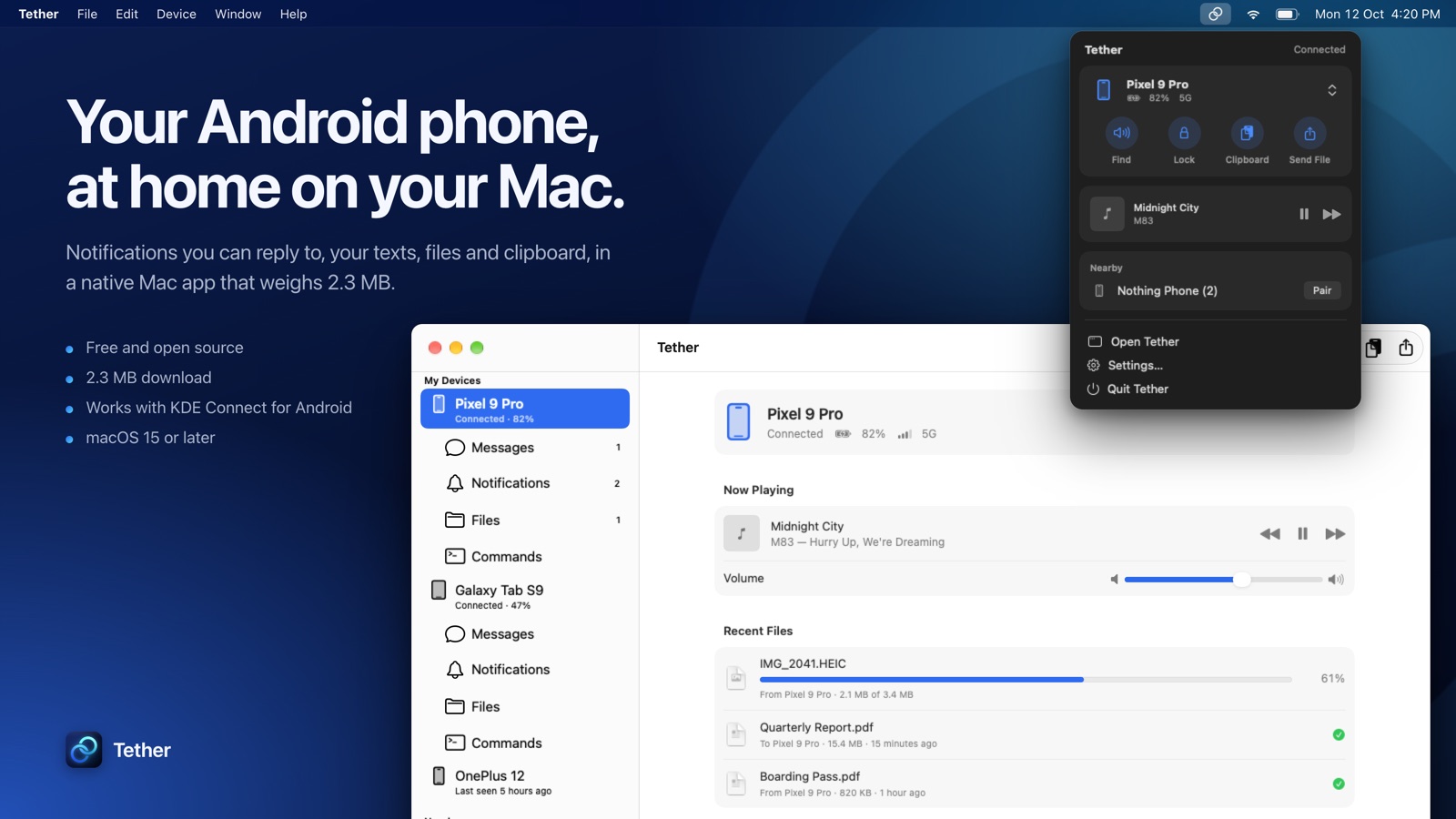
Tether is a native macOS app for the free KDE Connect app on Android. Pair your phone once, and from then on it shows up in your menu bar whenever it's nearby: phone notifications appear on your Mac and can be answered there, your text conversations sync, files and the clipboard move both ways, and you can ring, lock or control your phone without picking it up.
It is written entirely in Swift and SwiftUI, with no Qt, no Electron and no third-party libraries.
The easiest way is Homebrew, which also skips the "can't be opened" warning described below:
brew install --cask subhashhhhhh/tether/tether
Or get the latest release from the Releases page. There are two downloads; pick the one for your Mac:
| Your Mac | Download |
|---|---|
| Apple Silicon (M1 and later) | Tether-<version>-AppleSilicon.dmg |
| Intel | Tether-<version>-Intel.dmg |
Not sure? Apple menu → About This Mac: it says Chip on Apple Silicon and Processor on Intel. Tether needs macOS 15 Sequoia or later.
On the phone, KDE Connect may ask for permission to access files the first time Tether mounts it.
Once installed, Tether keeps itself up to date: it checks for a new version once a day, or whenever you choose Tether › Check for Updates…, and installs it in place.
On your phone, install KDE Connect from Google Play or F-Droid.
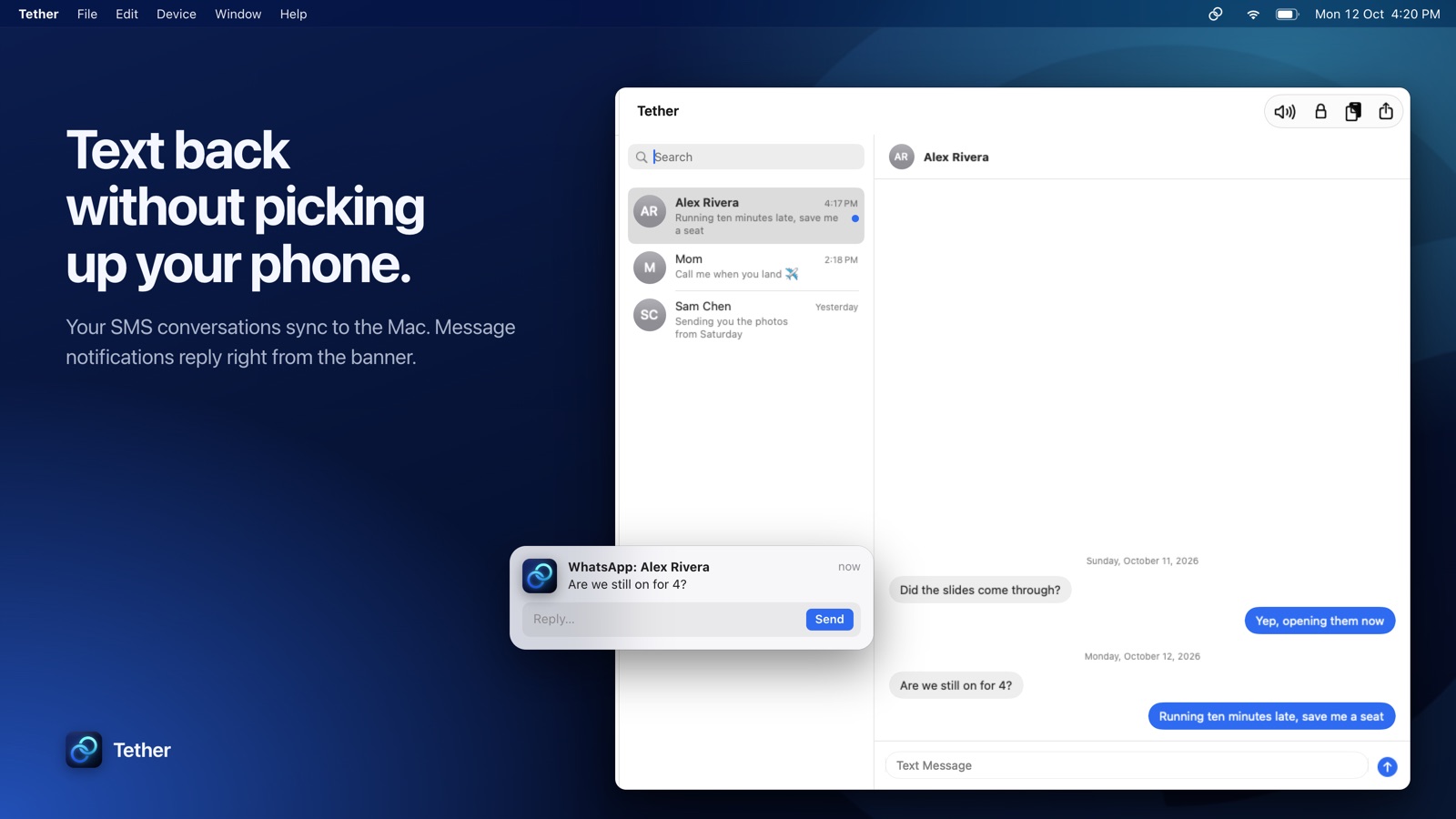
Notifications, answered from the Mac. Phone notifications appear in Notification Center. Messaging apps that support it (SMS, WhatsApp, Telegram, Signal and others) can be replied to right from the banner, and anything you dismiss on the Mac is dismissed on the phone. Sign-in codes get a Copy Code button, or can be copied automatically.
Your texts. SMS conversations sync to the Messages section, where you can read threads and send replies.
Files, both ways. Drop files anywhere in the Tether window or on the menu bar popover, or choose Share › Tether in Finder, Photos and other apps, to send them to your phone. With more than one phone connected, the Share menu asks which one. Files shared from your phone land in Downloads with live progress.
Your phone as a drive. While your phone is connected, it appears in Finder as a drive named after it, with an eject button. Browse its storage, open photos and documents straight from it, and drag files in and out. Files are read from the phone as you open them, so a video starts playing right away. It uses KDE Connect's file sharing, so it works over Wi-Fi and Tailscale with no setup and no administrator password. If you use ADB, you can switch to wireless debugging in Settings › Files.
Clipboard, media and remote control. Copy on one device, paste on the other. See what's playing on your phone and control playback and volume. Find Phone rings it at full volume, and Ring in KDE Connect on the phone rings your Mac.
Your phone as a trackpad and presenter. KDE Connect's Remote Input and Presentation tools move the pointer, click, scroll, type and show an on-screen laser pointer. This needs Accessibility access, which you can grant from Tether's Overview or Settings.
Commands. Set up shell commands on your Mac and run them from your phone.
Lives in the menu bar. The menu bar popover shows your phone's battery and connection, quick actions, what's playing and new pairing requests. The main window lists your devices in the sidebar, with each phone's Overview, Messages, Notifications, Files and Commands as tabs. It uses Liquid Glass on macOS 26 and translucent materials on macOS 15.
See the Roadmap for what's coming next and what isn't possible with KDE Connect.
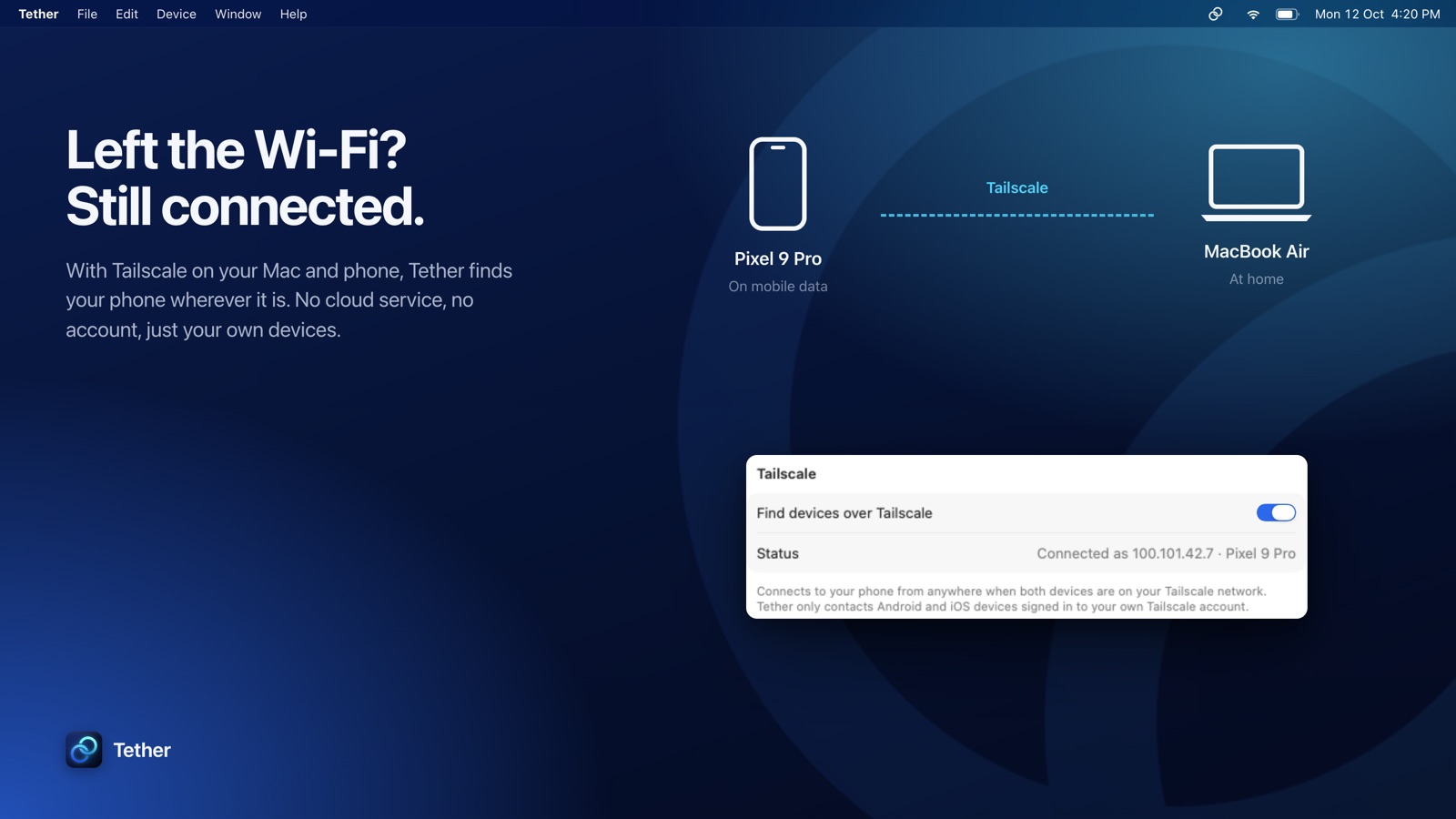
KDE Connect normally needs your phone and Mac on the same Wi-Fi. If you use Tailscale on both, Tether finds your phone on your tailnet automatically, so everything keeps working when you're on mobile data or a different network.
tailscale app on your Mac and never talks to Tailscale's servers.phone.tailnet.ts.net.
| Tether 1.4 | KDE Connect 26.08 for macOS | |
|---|---|---|
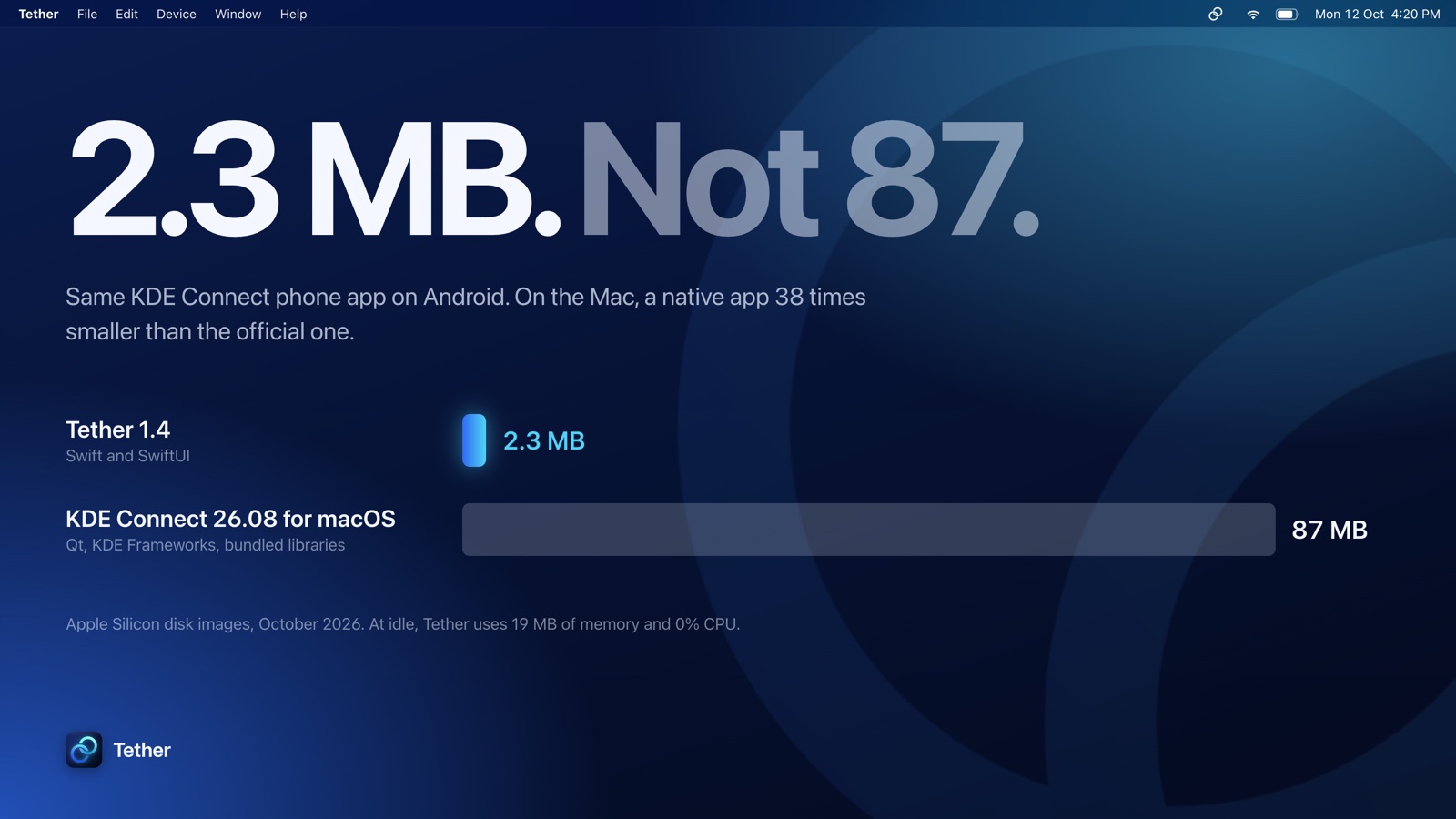
| Download (Apple Silicon disk image) | 2.3 MB | 87 MB |
| Installed app | 5.8 MB | |
| Memory while idle | 19 MB | |
| CPU while idle | 0% |
Measured in October 2026 on an Apple Silicon Mac: Tether's numbers come from the 1.4 release while connected to a phone, and the official app's download size from KDE's release builds. The empty cells weren't measured.
~/Library/Application Support/Tether, readable only by your user account, and are loaded into memory rather than the keychain.Your phone shows up under Nearby in Tether's sidebar too, if you'd rather start pairing from the Mac. If it doesn't appear, use Connect by Address… with the phone's IP address or Tailscale name.
Tether isn't notarized by Apple (that needs a paid developer account), so macOS blocks a downloaded copy the first time. Homebrew installs aren't affected. Otherwise:
Or, in Terminal:
xattr -cr /Applications/Tether.app
You need Xcode 26 or later (the project uses Swift 6.2's default main-actor isolation). There are no package dependencies.
git clone https://github.com/subhashhhhhh/Tether.git
cd Tether

# Run the tests
xcodebuild test -project Tether.xcodeproj -scheme Tether -destination "platform=macOS"

# Build the app (ends up in build/Build/Products/Release/Tether.app)
xcodebuild -project Tether.xcodeproj -scheme Tether -configuration Release -derivedDataPath build build

# Build the two release disk images (Apple Silicon and Intel) into dist/
scripts/release.sh
release.sh signs with the maintainer's "Tether Self-Signed" certificate; see docs/signing.md for why, and for testing the updater with scripts/test-updater.sh.
@Observable view models and stock controls, with Liquid Glass on macOS 26 and materials on macOS 15, so it follows Light and Dark mode, your accent colour and accessibility settings.mount_nfs and named through a local-only Bonjour host, backed by SFTP (a native SSH client on CryptoKit) or ADB.poll()-driven I/O and Security framework TLS. KDE Connect upgrades an open connection to TLS after a plaintext handshake, which Network.framework can't do.openssl tool that ships with macOS, then loaded in memory by the Security framework.GPL-2.0, like the KDE Connect ecosystem. See LICENSE.
Tether is an independent project and isn't affiliated with KDE.
Modern, native macOS companion for Android built on the KDE Connect protocol
Swift
16
61 commits
updated Oct 14, 2026
Your Android phone, at home on your Mac.
Notifications you can reply to, your texts, files and clipboard, in a native Mac app that weighs 2.3 MB.
Tether is a native macOS app for the free KDE Connect app on Android. Pair your phone once, and from then on it shows up in your menu bar whenever it's nearby: phone notifications appear on your Mac and can be answered there, your text conversations sync, files and the clipboard move both ways, and you can ring, lock or control your phone without picking it up.
It is written entirely in Swift and SwiftUI, with no Qt, no Electron and no third-party libraries.
The easiest way is Homebrew, which also skips the "can't be opened" warning described below:
brew install --cask subhashhhhhh/tether/tether
Or get the latest release from the Releases page. There are two downloads; pick the one for your Mac:
| Your Mac | Download |
|---|---|
| Apple Silicon (M1 and later) | Tether-<version>-AppleSilicon.dmg |
| Intel | Tether-<version>-Intel.dmg |
Not sure? Apple menu → About This Mac: it says Chip on Apple Silicon and Processor on Intel. Tether needs macOS 15 Sequoia or later.
On the phone, KDE Connect may ask for permission to access files the first time Tether mounts it.
Once installed, Tether keeps itself up to date: it checks for a new version once a day, or whenever you choose Tether › Check for Updates…, and installs it in place.
On your phone, install KDE Connect from Google Play or F-Droid.
Notifications, answered from the Mac. Phone notifications appear in Notification Center. Messaging apps that support it (SMS, WhatsApp, Telegram, Signal and others) can be replied to right from the banner, and anything you dismiss on the Mac is dismissed on the phone. Sign-in codes get a Copy Code button, or can be copied automatically.
Your texts. SMS conversations sync to the Messages section, where you can read threads and send replies.
Files, both ways. Drop files anywhere in the Tether window or on the menu bar popover, or choose Share › Tether in Finder, Photos and other apps, to send them to your phone. With more than one phone connected, the Share menu asks which one. Files shared from your phone land in Downloads with live progress.
Your phone as a drive. While your phone is connected, it appears in Finder as a drive named after it, with an eject button. Browse its storage, open photos and documents straight from it, and drag files in and out. Files are read from the phone as you open them, so a video starts playing right away. It uses KDE Connect's file sharing, so it works over Wi-Fi and Tailscale with no setup and no administrator password. If you use ADB, you can switch to wireless debugging in Settings › Files.
Clipboard, media and remote control. Copy on one device, paste on the other. See what's playing on your phone and control playback and volume. Find Phone rings it at full volume, and Ring in KDE Connect on the phone rings your Mac.
Your phone as a trackpad and presenter. KDE Connect's Remote Input and Presentation tools move the pointer, click, scroll, type and show an on-screen laser pointer. This needs Accessibility access, which you can grant from Tether's Overview or Settings.
Commands. Set up shell commands on your Mac and run them from your phone.
Lives in the menu bar. The menu bar popover shows your phone's battery and connection, quick actions, what's playing and new pairing requests. The main window lists your devices in the sidebar, with each phone's Overview, Messages, Notifications, Files and Commands as tabs. It uses Liquid Glass on macOS 26 and translucent materials on macOS 15.
See the Roadmap for what's coming next and what isn't possible with KDE Connect.
KDE Connect normally needs your phone and Mac on the same Wi-Fi. If you use Tailscale on both, Tether finds your phone on your tailnet automatically, so everything keeps working when you're on mobile data or a different network.
tailscale app on your Mac and never talks to Tailscale's servers.phone.tailnet.ts.net.
| Tether 1.4 | KDE Connect 26.08 for macOS | |
|---|---|---|
| Download (Apple Silicon disk image) | 2.3 MB | 87 MB |
| Installed app | 5.8 MB | |
| Memory while idle | 19 MB | |
| CPU while idle | 0% |
Measured in October 2026 on an Apple Silicon Mac: Tether's numbers come from the 1.4 release while connected to a phone, and the official app's download size from KDE's release builds. The empty cells weren't measured.
~/Library/Application Support/Tether, readable only by your user account, and are loaded into memory rather than the keychain.Your phone shows up under Nearby in Tether's sidebar too, if you'd rather start pairing from the Mac. If it doesn't appear, use Connect by Address… with the phone's IP address or Tailscale name.
Tether isn't notarized by Apple (that needs a paid developer account), so macOS blocks a downloaded copy the first time. Homebrew installs aren't affected. Otherwise:
Or, in Terminal:
xattr -cr /Applications/Tether.app
You need Xcode 26 or later (the project uses Swift 6.2's default main-actor isolation). There are no package dependencies.
git clone https://github.com/subhashhhhhh/Tether.git
cd Tether

# Run the tests
xcodebuild test -project Tether.xcodeproj -scheme Tether -destination "platform=macOS"

# Build the app (ends up in build/Build/Products/Release/Tether.app)
xcodebuild -project Tether.xcodeproj -scheme Tether -configuration Release -derivedDataPath build build

# Build the two release disk images (Apple Silicon and Intel) into dist/
scripts/release.sh
release.sh signs with the maintainer's "Tether Self-Signed" certificate; see docs/signing.md for why, and for testing the updater with scripts/test-updater.sh.
@Observable view models and stock controls, with Liquid Glass on macOS 26 and materials on macOS 15, so it follows Light and Dark mode, your accent colour and accessibility settings.mount_nfs and named through a local-only Bonjour host, backed by SFTP (a native SSH client on CryptoKit) or ADB.poll()-driven I/O and Security framework TLS. KDE Connect upgrades an open connection to TLS after a plaintext handshake, which Network.framework can't do.openssl tool that ships with macOS, then loaded in memory by the Security framework.GPL-2.0, like the KDE Connect ecosystem. See LICENSE.
Tether is an independent project and isn't affiliated with KDE.



