Switch between default audio input or output + change volume
C#
1,116
74 commits
updated Oct 12, 2026
Switch your Windows playback and recording devices, adjust volume, and keep your favorite audio controls close at hand from the system tray or a keyboard shortcut.
Get the latest version and release notes from the releases page. The documentation applies to the latest available release.
Downloads | Report an issue | Contribute
It has been a while. A busy personal life kept me away from AudioSwitch much longer than I expected, and I appreciate everyone who stuck around. Hopefully, the refreshed AudioSwitch makes the wait worthwhile.
This version has been converted to .NET 10 and WPF and improved with the help of Codex and the Astra 6 model. AI-assisted coding has made returning to this project much more manageable, and I expect it to help me work through future issues and requests faster, too.
I use the same AI help every day at work, and I stay involved here: I review the code and changes, check how things behave, and keep an eye on unnecessary bulk or odd design choices. The aim is a useful, maintainable AudioSwitch that I can keep looking after. Thank you for giving it another look.
audioswitch-cli.exe with text or JSON output for scripts and automation.See Device Hotkeys for setup examples and the technical reference for settings, OSD behavior, and diagnostics.
Get the latest release from the releases page. AudioSwitch targets Windows 10 and 11. Windows 7, 8, and 8.1 are not supported by its .NET 10 runtime; older Windows versions are outside this release's scope. Microsoft's official .NET 10 support on Windows 10 is limited to specific LTSC and Enterprise releases; see the supported OS list for details.
The installer uses x64 executables and requires the .NET 10 Desktop Runtime (x64). It checks for the runtime but does not install it automatically. See the Windows runtime installation guide for downloads and supported Windows versions.
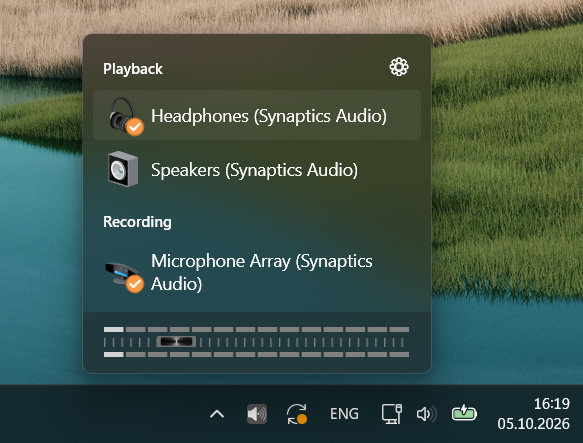
Click the tray icon to open your devices, then choose the one you want to use. Right-click the icon for the menu and Settings. With quick switching enabled, right-click cycles devices instead; Shift+right-click still opens the menu. Scroll over the flyout to adjust volume, or right-click the volume slider to mute.
Upgrading from an older version? Start the tray app once to import your old
Settings.xml. Your original file is kept, and any existing JSON settings are
left in place. Settings now live in %LOCALAPPDATA%/AudioSwitch/settings.json.
I'd appreciate feedback on everyday use, especially device switching, hotkeys, settings upgrades, USB or Bluetooth devices reconnecting, and sleep and resume.
Please open an issue if something
doesn't work as expected. Include your Windows and AudioSwitch versions, the
audio devices involved, and the steps to reproduce it. A short description of
what you expected and what happened helps a lot. Relevant errors may also be in
%LOCALAPPDATA%/AudioSwitch/errors.log.
Suggestions and pull requests are welcome, too. Thanks for helping make this release better.
Install the .NET 10 SDK on Windows, then run these commands from the solution folder:
dotnet build AudioSwitch.sln
dotnet run --project AudioSwitch -- --settings
dotnet test AudioSwitch.sln
See the contribution guide for development and testing notes, or the technical reference for command-line options, settings, installer publishing, and OSD skins.
If AudioSwitch makes your day a little easier, you're welcome to buy me a coffee. Donations are optional and always appreciated. Testing, reporting issues, and sharing the app are a big help as well.

AudioSwitch is free and open source under the Apache License 2.0.
722 followers · starred Oct 2017
793 followers · starred Jul 2016
625 followers · starred Mar 2017
84 followers · starred Jun 2015
Switch between default audio input or output + change volume
C#
1,116
74 commits
updated Oct 12, 2026
Switch your Windows playback and recording devices, adjust volume, and keep your favorite audio controls close at hand from the system tray or a keyboard shortcut.
Get the latest version and release notes from the releases page. The documentation applies to the latest available release.
Downloads | Report an issue | Contribute
It has been a while. A busy personal life kept me away from AudioSwitch much longer than I expected, and I appreciate everyone who stuck around. Hopefully, the refreshed AudioSwitch makes the wait worthwhile.
This version has been converted to .NET 10 and WPF and improved with the help of Codex and the Astra 6 model. AI-assisted coding has made returning to this project much more manageable, and I expect it to help me work through future issues and requests faster, too.
I use the same AI help every day at work, and I stay involved here: I review the code and changes, check how things behave, and keep an eye on unnecessary bulk or odd design choices. The aim is a useful, maintainable AudioSwitch that I can keep looking after. Thank you for giving it another look.
audioswitch-cli.exe with text or JSON output for scripts and automation.See Device Hotkeys for setup examples and the technical reference for settings, OSD behavior, and diagnostics.
Get the latest release from the releases page. AudioSwitch targets Windows 10 and 11. Windows 7, 8, and 8.1 are not supported by its .NET 10 runtime; older Windows versions are outside this release's scope. Microsoft's official .NET 10 support on Windows 10 is limited to specific LTSC and Enterprise releases; see the supported OS list for details.
The installer uses x64 executables and requires the .NET 10 Desktop Runtime (x64). It checks for the runtime but does not install it automatically. See the Windows runtime installation guide for downloads and supported Windows versions.
Click the tray icon to open your devices, then choose the one you want to use. Right-click the icon for the menu and Settings. With quick switching enabled, right-click cycles devices instead; Shift+right-click still opens the menu. Scroll over the flyout to adjust volume, or right-click the volume slider to mute.
Upgrading from an older version? Start the tray app once to import your old
Settings.xml. Your original file is kept, and any existing JSON settings are
left in place. Settings now live in %LOCALAPPDATA%/AudioSwitch/settings.json.
I'd appreciate feedback on everyday use, especially device switching, hotkeys, settings upgrades, USB or Bluetooth devices reconnecting, and sleep and resume.
Please open an issue if something
doesn't work as expected. Include your Windows and AudioSwitch versions, the
audio devices involved, and the steps to reproduce it. A short description of
what you expected and what happened helps a lot. Relevant errors may also be in
%LOCALAPPDATA%/AudioSwitch/errors.log.
Suggestions and pull requests are welcome, too. Thanks for helping make this release better.
Install the .NET 10 SDK on Windows, then run these commands from the solution folder:
dotnet build AudioSwitch.sln
dotnet run --project AudioSwitch -- --settings
dotnet test AudioSwitch.sln
See the contribution guide for development and testing notes, or the technical reference for command-line options, settings, installer publishing, and OSD skins.
If AudioSwitch makes your day a little easier, you're welcome to buy me a coffee. Donations are optional and always appreciated. Testing, reporting issues, and sharing the app are a big help as well.
AudioSwitch is free and open source under the Apache License 2.0.
722 followers · starred Oct 2017
793 followers · starred Jul 2016
625 followers · starred Mar 2017
84 followers · starred Jun 2015