
See what people are saying
README

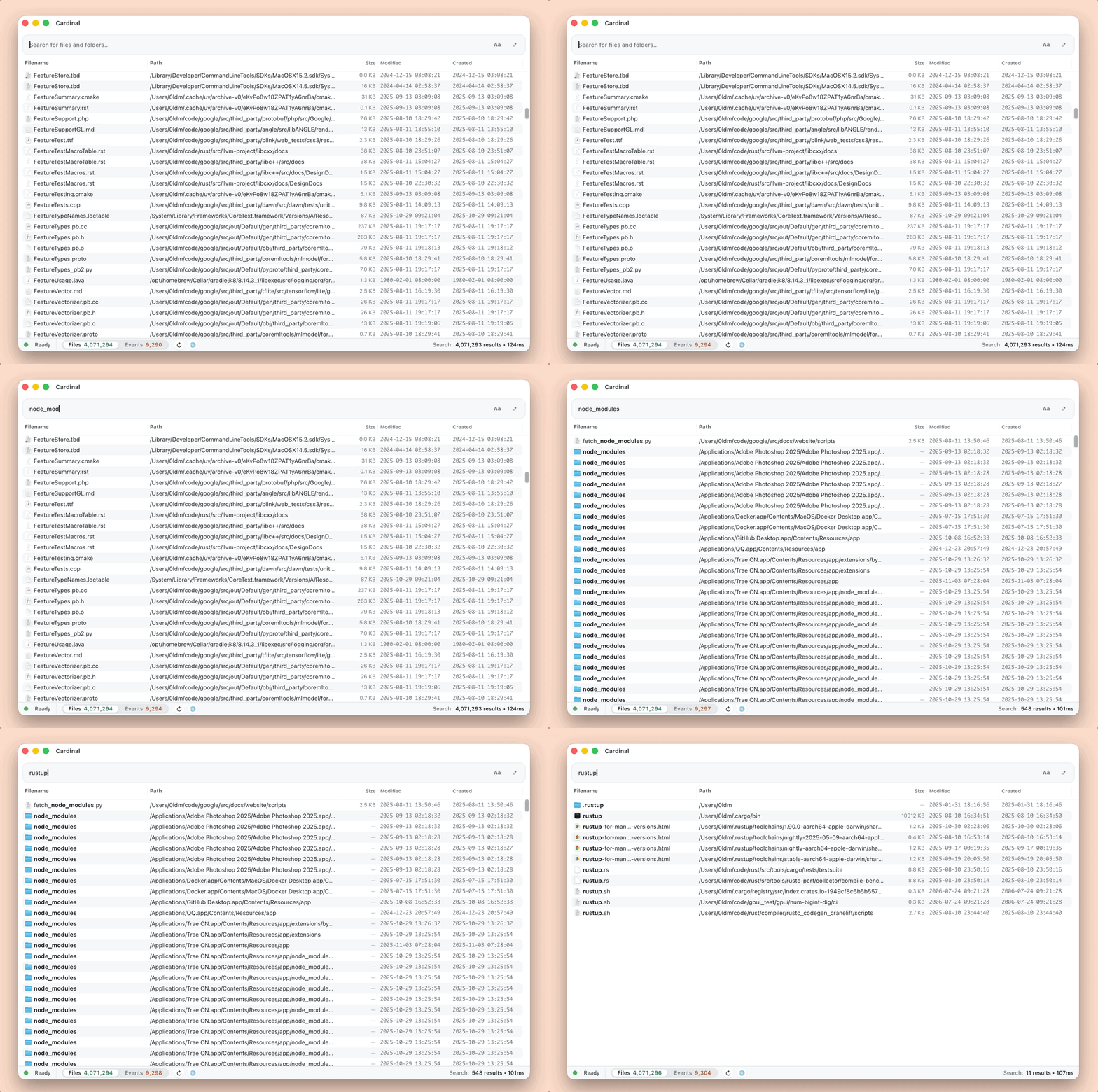
English · Español · 한국어 · Русский · 简体中文 · 繁體中文 · Português · Italiano · 日本語 · Français · Deutsch · Українська · العربية · हिन्दी · Türkçe
Using Cardinal
Download
Install this fork with Homebrew:
brew install --cask seedds/tap/cardinal
Fork builds are available from seedds/cardinal Releases. The current fork release is 0.1.27. See the changelog for search responsiveness, Trash, selection, and icon stability fixes.
For the upstream Cardinal distribution:
brew install --cask cardinal-search
You can also grab the latest packaged builds from GitHub Releases.
i18n support
Need a different language? Click the ⚙️ button in the status bar to switch instantly.
Search basics
Cardinal now speaks an Everything-compatible syntax layer on top of the classic substring/prefix tricks:
report draft– space acts asAND, so you only see files whose names contain both tokens.*.pdf briefing– filter to PDF results whose names include “briefing”.*.zip size:>100MB– search for ZIP files larger than 100MB.in:/Users demo !.psd– restrict the search root to/Users, then search for files whose names containdemobut exclude.psd.tag:ProjectA;ProjectB– match Finder tags (macOS);;acts asOR.*.md content:"Bearer "– filter to Markdown files containing the stringBearer."Application Support"– quote exact phrases.brary/Applicat– use/as a path separator for sub-path searching, matching directories likeLibrary/Application Support./report·draft/·/report/– wrap tokens with leading and/or trailing slashes to force prefix, suffix, or exact name matches when you need whole-word control beyond Everything syntax.~/**/.DS_Store– globstar (**) dives through every subfolder under your home directory to find stray.DS_Storefiles anywhere in the tree.
For the supported operator catalog—including boolean grouping, folder scoping, extension filters, regex usage, and more examples—see doc/pub/search-syntax.md.
Keyboard shortcuts & previews
Cmd+Shift+Space– toggle the Cardinal window globally via the quick-launch hotkey.Cmd+,– open Preferences.Esc– hide the Cardinal window.ArrowUp/ArrowDown– move the selection.Shift+ArrowUp/Shift+ArrowDown– extend the selection.Space– Quick Look the currently selected row without leaving Cardinal.Cmd+O– open the highlighted result.Cmd+R– reveal the highlighted result in Finder.Cmd+C– copy the selected files to the clipboard.Cmd+Shift+C– copy the selected paths to the clipboard.Cmd+F– jump focus back to the search bar.F2– rename one selected file without overwriting an existing destination.F8– move selected files to Trash.F9– open a terminal in the focused selected file’s directory, or inside the selected folder. With multiple selections, only the focused selected row is used.ArrowUp/ArrowDown(in search bar) – cycle search history.
Set Preferences → Terminal application to an absolute application path such as /Applications/iTerm.app to change the terminal used by F9. The default is macOS Terminal; clearing the field or resetting preferences restores it. Custom terminals must support opening directories through macOS. F9 applies while Cardinal is active and no dialog or text field is focused; window/tab placement follows the terminal’s preferences.
The context menu also supports revealing the first selected file in Double Commander.
Happy searching!
Building Cardinal
Requirements
- macOS 12+
- Rust toolchain
- Node.js 18+ with npm
- Xcode command-line tools & Tauri prerequisites (https://tauri.app/start/prerequisites/)
Development mode
From the repository root, run the optimized local app:
./run-cardinal-release.sh
The script installs frontend dependencies if needed and starts Tauri with Rust release
optimizations. It launches without a confirmation prompt. Quit an existing Cardinal
instance first; press Ctrl+C in the terminal to stop the development run.
For a debug run preceded by search and selection regression tests:
./test-cardinal.sh
See TESTING.md for checks and desktop scenarios, and CONTEXT.md for the current implementation and release status.
The equivalent direct development command, with optional developer features, is:
cd cardinal
npm run tauri dev -- --release --features dev
Production build
cd cardinal
npm run tauri build
Similar repos


Languages
Rust
74.4%
TypeScript
23.2%
CSS
2.3%
See what people are saying
README
English · Español · 한국어 · Русский · 简体中文 · 繁體中文 · Português · Italiano · 日本語 · Français · Deutsch · Українська · العربية · हिन्दी · Türkçe
Using Cardinal
Download
Install this fork with Homebrew:
brew install --cask seedds/tap/cardinal
Fork builds are available from seedds/cardinal Releases. The current fork release is 0.1.27. See the changelog for search responsiveness, Trash, selection, and icon stability fixes.
For the upstream Cardinal distribution:
brew install --cask cardinal-search
You can also grab the latest packaged builds from GitHub Releases.
i18n support
Need a different language? Click the ⚙️ button in the status bar to switch instantly.
Search basics
Cardinal now speaks an Everything-compatible syntax layer on top of the classic substring/prefix tricks:
report draft– space acts asAND, so you only see files whose names contain both tokens.*.pdf briefing– filter to PDF results whose names include “briefing”.*.zip size:>100MB– search for ZIP files larger than 100MB.in:/Users demo !.psd– restrict the search root to/Users, then search for files whose names containdemobut exclude.psd.tag:ProjectA;ProjectB– match Finder tags (macOS);;acts asOR.*.md content:"Bearer "– filter to Markdown files containing the stringBearer."Application Support"– quote exact phrases.brary/Applicat– use/as a path separator for sub-path searching, matching directories likeLibrary/Application Support./report·draft/·/report/– wrap tokens with leading and/or trailing slashes to force prefix, suffix, or exact name matches when you need whole-word control beyond Everything syntax.~/**/.DS_Store– globstar (**) dives through every subfolder under your home directory to find stray.DS_Storefiles anywhere in the tree.
For the supported operator catalog—including boolean grouping, folder scoping, extension filters, regex usage, and more examples—see doc/pub/search-syntax.md.
Keyboard shortcuts & previews
Cmd+Shift+Space– toggle the Cardinal window globally via the quick-launch hotkey.Cmd+,– open Preferences.Esc– hide the Cardinal window.ArrowUp/ArrowDown– move the selection.Shift+ArrowUp/Shift+ArrowDown– extend the selection.Space– Quick Look the currently selected row without leaving Cardinal.Cmd+O– open the highlighted result.Cmd+R– reveal the highlighted result in Finder.Cmd+C– copy the selected files to the clipboard.Cmd+Shift+C– copy the selected paths to the clipboard.Cmd+F– jump focus back to the search bar.F2– rename one selected file without overwriting an existing destination.F8– move selected files to Trash.F9– open a terminal in the focused selected file’s directory, or inside the selected folder. With multiple selections, only the focused selected row is used.ArrowUp/ArrowDown(in search bar) – cycle search history.
Set Preferences → Terminal application to an absolute application path such as /Applications/iTerm.app to change the terminal used by F9. The default is macOS Terminal; clearing the field or resetting preferences restores it. Custom terminals must support opening directories through macOS. F9 applies while Cardinal is active and no dialog or text field is focused; window/tab placement follows the terminal’s preferences.
The context menu also supports revealing the first selected file in Double Commander.
Happy searching!
Building Cardinal
Requirements
- macOS 12+
- Rust toolchain
- Node.js 18+ with npm
- Xcode command-line tools & Tauri prerequisites (https://tauri.app/start/prerequisites/)
Development mode
From the repository root, run the optimized local app:
./run-cardinal-release.sh
The script installs frontend dependencies if needed and starts Tauri with Rust release
optimizations. It launches without a confirmation prompt. Quit an existing Cardinal
instance first; press Ctrl+C in the terminal to stop the development run.
For a debug run preceded by search and selection regression tests:
./test-cardinal.sh
See TESTING.md for checks and desktop scenarios, and CONTEXT.md for the current implementation and release status.
The equivalent direct development command, with optional developer features, is:
cd cardinal
npm run tauri dev -- --release --features dev
Production build
cd cardinal
npm run tauri build
Similar repos
Languages
Rust
74.4%
TypeScript
23.2%
CSS
2.3%