
For inserting region and section dividers in your development files. Works great in the command line.
TypeScript
1
20 commits
updated Sep 18, 2026
See what people are saying (1)
README
code-divider




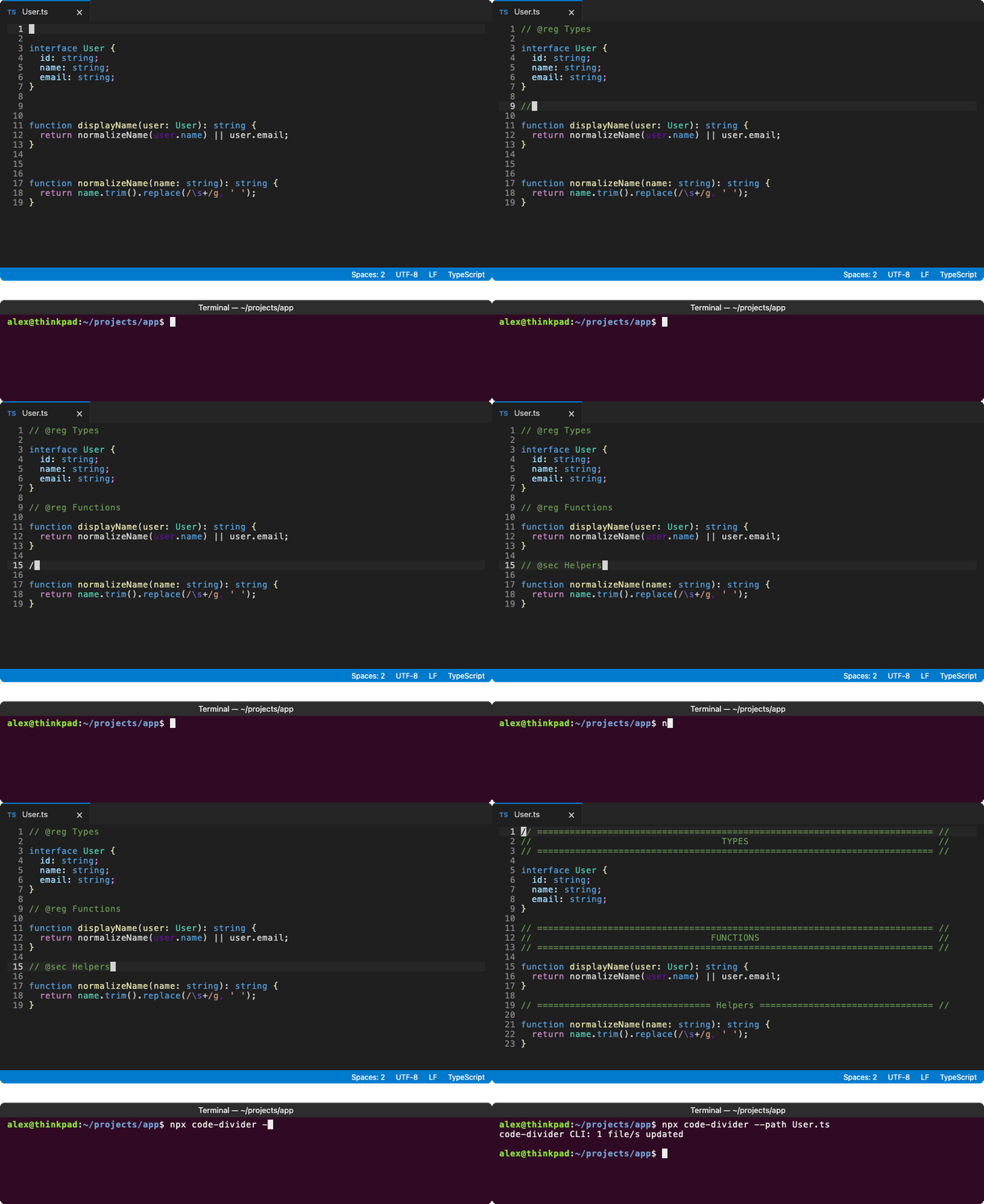
code-divider turns simple comment markers into tidy, centered region/section dividers. No counting = signs. No lining things up by hand.
Use it from the command line, run it automatically when you save, or call it from your own code.
👀 Preview
🧭 Table of contents
- 👀 Preview
- 🚀 Quick start
- 📌 Markers
- 💻 Command-line options
- 💾 Run on save
- 🧩 Divider anatomy
- 🔧 Configuration
- 💻 Programmatic use
- 📄 License
🚀 Quick start
Add a marker on its own line in a source file:
// @reg utilities

// @sec helper functions
Then run (inside of your project folder):
npx code-divider
Your markers are replaced in place with formatted headers. That’s it!
You can target a file or a folder. Folders are searched recursively.
npx code-divider --path ./src --dry-run
📌 Markers
There are two kinds of dividers:
| Marker | Creates |
|---|---|
// @reg Label | A three-line boxed region header. |
// @sec Label | A single-line section header. |
Use your language’s comment syntax:
// @sec helper functions
# @sec helper functions
/* @sec helper functions */
By default, region labels become UPPERCASE and section labels become Capitalized Words. You can customize both in Configuration.
Built-in support includes JavaScript, TypeScript, Java, CSS, SCSS, C, C++, Go, Rust, PHP, Ruby, Python, Bash, and SQL. You can add more languages through the configuration file.
💻 Command-line options
npx code-divider [options]
With no options, code-divider processes the current directory.
| Option | What it does |
|---|---|
-p, --path <path> | Process a file or directory. Defaults to the current directory. |
-c, --config <file> | Use a specific config file. Its settings override the built-in defaults. |
-d, --dry-run | List the files that would change without writing anything. |
--check | Like --dry-run, but exit with code 1 if any file would change. Useful for CI and pre-commit hooks. |
-i, --init [dir] | Create a default code-divider.config.json in the given directory, or the current directory if omitted. Runs on its own without processing source files. |
-h, --help | Show help. |
-v, --version | Show the version. |
A few examples:
# Process the current directory
npx code-divider

# Process one file
npx code-divider --path ./src/index.ts

# Check for changes in CI without modifying files
npx code-divider --check

# Use a specific config file
npx code-divider --config ./custom.config.json
💾 Run on save
This is my favorite way to use code-divider: write a marker, hit save, and let your editor handle the rest.
If your editor supports running commands on save, configure it to run npx code-divider.
For VS Code, install the Run on Save extension and add this setting to your settings.json:
{
  "emeraldwalk.runonsave": {
    "commands": [
      {
        "match": "\\.(css|js|jsx|ts|tsx)$",
        "cmd": "npx code-divider"
      }
    ]
  }
}
🧩 Divider anatomy
Here’s a section divider, shortened for readability:
// ============== My Section ============== //
These are the names used throughout the configuration:
| Term | Meaning |
|---|---|
| Marker | The token that requests a divider: @reg or @sec. |
| Comment | The comment syntax used to write the marker, such as //, #, or /* ... */. |
| Label | The title after the marker, such as My Section. |
| Filler character | The repeated character that fills the available space: = in this example. |
| Bookends | The strings at the start and end of each generated line: "// " and " //" here. |
🔧 Configuration
The defaults work out of the box. Add a config file only when you want to make the dividers your own.
Create a config file
Start with a file containing all the default settings:
npx code-divider --init
This creates code-divider.config.json in the current directory. It won’t overwrite an existing file.
To create it somewhere else:
npx code-divider --init ./packages/app
How config files are found
Unless you pass --config <file>, code-divider checks locations in this order:
- The target directory, or the containing directory if the target is a file.
- The directory the command is run from.
The first config file found wins. These config files are not merged together.
Settings in the selected config file override the built-in defaults. Anything you leave out keeps its default value. If no config is found, the built-in defaults are used.
Shared settings
The All key contains settings shared by every language:
| Setting | What it controls | Default |
|---|---|---|
CharacterLimit | The column that generated header lines extend to. | 79 |
FillerCharacter | The character used to fill the header lines. | "=" |
RegionLabelFormat | How region labels are capitalized. | "uppercase" |
SectionLabelFormat | How section labels are capitalized. | "capitalize" |
Both label-format settings accept:
| Value | Example |
|---|---|
"uppercase" | my cool section → MY COOL SECTION |
"lowercase" | My Cool Section → my cool section |
"capitalize" | my COOL section → My Cool Section |
"none" | Leave the label exactly as written. |
Words that start or end with a non-alphanumeric character are left unchanged under every format. That keeps labels containing things like @decorator or .foo intact.
Language-specific settings
Other than All and filter, top-level config keys can be any string value, they're just there for organization. You can use a built-in key to customize that language's current settings, or a new key to add your own.
| Setting | What it controls |
|---|---|
Extensions | File extensions to match, without the leading dot. For example, ["py"]. |
Comment | A [start, end] pair describing the comment syntax used for markers. Use "" as the end for line comments. |
Bookends | Optional [start, end] strings for generated header lines. Defaults to Comment; for line comments, the opener is mirrored on the right. For example, "# " becomes ["# ", " #"]. |
CharacterLimit | Override All.CharacterLimit for this language. Note that this DOES account for indentation. So the divider will stop at the value regardless of where the marker starts. |
FillerCharacter | Override All.FillerCharacter for this language. |
RegionLabelFormat | Override All.RegionLabelFormat for this language. |
SectionLabelFormat | Override All.SectionLabelFormat for this language. |
For example:
{
  "All": {
    "CharacterLimit": 100,
    "FillerCharacter": "-"
  },
  "Java": {
    "Bookends": ["// ", " //"]
  },
  "Python": {
    "Extensions": ["py"],
    "Comment": ["# ", ""]
  }
}
// Main.java
class Main {

    // ===================================================================== //
    //                               FUNCTIONS                               //
    // ===================================================================== //

    public static void main(String[] args) {
        System.out.println("Hello code-dividers");
    }
}
# Main.python

# =========================================================================== #
#                                  CONSTANTS                                  #
# =========================================================================== #

print('Hello code-divider')
Default Settings
These are the language keys, file extensions, and comment styles available by default.
| Config key | File extensions | Marker example | Generated bookends |
|---|---|---|---|
JavaScript | .js .jsx .ts .tsx .mjs .cjs | // @reg Label | "// " … " //" |
Java | .java | // @reg Label | "// " … " //" |
Css | .css .scss | /* @reg Label */ | "/* " … " */" |
C | .c .h | // @reg Label | "// " … " //" |
Cpp | .cpp .cc .cxx .hpp .hh .hxx | // @reg Label | "// " … " //" |
Go | .go | // @reg Label | "// " … " //" |
Rust | .rs | // @reg Label | "// " … " //" |
Php | .php | // @reg Label | "// " … " //" |
Ruby | .rb | # @reg Label | "# " … " #" |
Python | .py .pyi .pyw | # @reg Label | "# " … " #" |
Bash | .sh | # @reg Label | "# " … " #" |
Sql | .sql | -- @reg Label | "-- " … " --" |
Filtering files
Use the top-level filter key to choose which files get processed.
Patterns work like include and exclude in a tsconfig.json. They are relative to the folder being processed.
| Setting | What it does |
|---|---|
include | Process only matching files. Defaults to [], which uses the default recursive search. |
exclude | Skip matching files and folders. Your list replaces the built-in exclusions. Use [] to exclude nothing. |
Filters select the files to consider, but to be updated those files still need to match a configured language extension.
In case you're wondering why I didn't use Node's built-in
fs.globfunction, it's only available in Node 22+ and marked experimental until Node 24.
Default exclusions
Out of the box, code-divider skips:
- At any depth:
node_modules,.vscode,.idea,.claude, and files ending in.logor.json. - At the top level:
bin,lib, anddist.
💻 Programmatic use
import { insertCodeDividers } from 'code-divider';

const updatedFiles = await insertCodeDividers('targetPath', options?)
targetPath can be a file or directory. Relative paths are resolved against options.cwd.
All options are optional:
| Option | What it does | Default |
|---|---|---|
cwd | Base directory for resolving relative paths. | process.cwd() |
configFilePath | Use a specific config file. If empty, check the target directory, then cwd, then use the built-in defaults. | '' |
isDryRun | Return the files that would change without writing them. | false |
logger | Handle messages with an object exposing info and warn methods, such as console. | Console output |
silent | Suppress all messages. Takes priority over logger. | false |
The logger receives:
infomessages, such as which config file is being used.warnmessages, such as a marker with no label.
📄 License
MIT © seanpmaxwell
Contributors

20 commits
Similar repos


Languages
TypeScript
99.4%
For inserting region and section dividers in your development files. Works great in the command line.
TypeScript
1
20 commits
updated Sep 18, 2026
See what people are saying (1)
README
code-divider
code-divider turns simple comment markers into tidy, centered region/section dividers. No counting = signs. No lining things up by hand.
Use it from the command line, run it automatically when you save, or call it from your own code.
👀 Preview
🧭 Table of contents
- 👀 Preview
- 🚀 Quick start
- 📌 Markers
- 💻 Command-line options
- 💾 Run on save
- 🧩 Divider anatomy
- 🔧 Configuration
- 💻 Programmatic use
- 📄 License
🚀 Quick start
Add a marker on its own line in a source file:
// @reg utilities

// @sec helper functions
Then run (inside of your project folder):
npx code-divider
Your markers are replaced in place with formatted headers. That’s it!
You can target a file or a folder. Folders are searched recursively.
npx code-divider --path ./src --dry-run
📌 Markers
There are two kinds of dividers:
| Marker | Creates |
|---|---|
// @reg Label | A three-line boxed region header. |
// @sec Label | A single-line section header. |
Use your language’s comment syntax:
// @sec helper functions
# @sec helper functions
/* @sec helper functions */
By default, region labels become UPPERCASE and section labels become Capitalized Words. You can customize both in Configuration.
Built-in support includes JavaScript, TypeScript, Java, CSS, SCSS, C, C++, Go, Rust, PHP, Ruby, Python, Bash, and SQL. You can add more languages through the configuration file.
💻 Command-line options
npx code-divider [options]
With no options, code-divider processes the current directory.
| Option | What it does |
|---|---|
-p, --path <path> | Process a file or directory. Defaults to the current directory. |
-c, --config <file> | Use a specific config file. Its settings override the built-in defaults. |
-d, --dry-run | List the files that would change without writing anything. |
--check | Like --dry-run, but exit with code 1 if any file would change. Useful for CI and pre-commit hooks. |
-i, --init [dir] | Create a default code-divider.config.json in the given directory, or the current directory if omitted. Runs on its own without processing source files. |
-h, --help | Show help. |
-v, --version | Show the version. |
A few examples:
# Process the current directory
npx code-divider

# Process one file
npx code-divider --path ./src/index.ts

# Check for changes in CI without modifying files
npx code-divider --check

# Use a specific config file
npx code-divider --config ./custom.config.json
💾 Run on save
This is my favorite way to use code-divider: write a marker, hit save, and let your editor handle the rest.
If your editor supports running commands on save, configure it to run npx code-divider.
For VS Code, install the Run on Save extension and add this setting to your settings.json:
{
  "emeraldwalk.runonsave": {
    "commands": [
      {
        "match": "\\.(css|js|jsx|ts|tsx)$",
        "cmd": "npx code-divider"
      }
    ]
  }
}
🧩 Divider anatomy
Here’s a section divider, shortened for readability:
// ============== My Section ============== //
These are the names used throughout the configuration:
| Term | Meaning |
|---|---|
| Marker | The token that requests a divider: @reg or @sec. |
| Comment | The comment syntax used to write the marker, such as //, #, or /* ... */. |
| Label | The title after the marker, such as My Section. |
| Filler character | The repeated character that fills the available space: = in this example. |
| Bookends | The strings at the start and end of each generated line: "// " and " //" here. |
🔧 Configuration
The defaults work out of the box. Add a config file only when you want to make the dividers your own.
Create a config file
Start with a file containing all the default settings:
npx code-divider --init
This creates code-divider.config.json in the current directory. It won’t overwrite an existing file.
To create it somewhere else:
npx code-divider --init ./packages/app
How config files are found
Unless you pass --config <file>, code-divider checks locations in this order:
- The target directory, or the containing directory if the target is a file.
- The directory the command is run from.
The first config file found wins. These config files are not merged together.
Settings in the selected config file override the built-in defaults. Anything you leave out keeps its default value. If no config is found, the built-in defaults are used.
Shared settings
The All key contains settings shared by every language:
| Setting | What it controls | Default |
|---|---|---|
CharacterLimit | The column that generated header lines extend to. | 79 |
FillerCharacter | The character used to fill the header lines. | "=" |
RegionLabelFormat | How region labels are capitalized. | "uppercase" |
SectionLabelFormat | How section labels are capitalized. | "capitalize" |
Both label-format settings accept:
| Value | Example |
|---|---|
"uppercase" | my cool section → MY COOL SECTION |
"lowercase" | My Cool Section → my cool section |
"capitalize" | my COOL section → My Cool Section |
"none" | Leave the label exactly as written. |
Words that start or end with a non-alphanumeric character are left unchanged under every format. That keeps labels containing things like @decorator or .foo intact.
Language-specific settings
Other than All and filter, top-level config keys can be any string value, they're just there for organization. You can use a built-in key to customize that language's current settings, or a new key to add your own.
| Setting | What it controls |
|---|---|
Extensions | File extensions to match, without the leading dot. For example, ["py"]. |
Comment | A [start, end] pair describing the comment syntax used for markers. Use "" as the end for line comments. |
Bookends | Optional [start, end] strings for generated header lines. Defaults to Comment; for line comments, the opener is mirrored on the right. For example, "# " becomes ["# ", " #"]. |
CharacterLimit | Override All.CharacterLimit for this language. Note that this DOES account for indentation. So the divider will stop at the value regardless of where the marker starts. |
FillerCharacter | Override All.FillerCharacter for this language. |
RegionLabelFormat | Override All.RegionLabelFormat for this language. |
SectionLabelFormat | Override All.SectionLabelFormat for this language. |
For example:
{
  "All": {
    "CharacterLimit": 100,
    "FillerCharacter": "-"
  },
  "Java": {
    "Bookends": ["// ", " //"]
  },
  "Python": {
    "Extensions": ["py"],
    "Comment": ["# ", ""]
  }
}
// Main.java
class Main {

    // ===================================================================== //
    //                               FUNCTIONS                               //
    // ===================================================================== //

    public static void main(String[] args) {
        System.out.println("Hello code-dividers");
    }
}
# Main.python

# =========================================================================== #
#                                  CONSTANTS                                  #
# =========================================================================== #

print('Hello code-divider')
Default Settings
These are the language keys, file extensions, and comment styles available by default.
| Config key | File extensions | Marker example | Generated bookends |
|---|---|---|---|
JavaScript | .js .jsx .ts .tsx .mjs .cjs | // @reg Label | "// " … " //" |
Java | .java | // @reg Label | "// " … " //" |
Css | .css .scss | /* @reg Label */ | "/* " … " */" |
C | .c .h | // @reg Label | "// " … " //" |
Cpp | .cpp .cc .cxx .hpp .hh .hxx | // @reg Label | "// " … " //" |
Go | .go | // @reg Label | "// " … " //" |
Rust | .rs | // @reg Label | "// " … " //" |
Php | .php | // @reg Label | "// " … " //" |
Ruby | .rb | # @reg Label | "# " … " #" |
Python | .py .pyi .pyw | # @reg Label | "# " … " #" |
Bash | .sh | # @reg Label | "# " … " #" |
Sql | .sql | -- @reg Label | "-- " … " --" |
Filtering files
Use the top-level filter key to choose which files get processed.
Patterns work like include and exclude in a tsconfig.json. They are relative to the folder being processed.
| Setting | What it does |
|---|---|
include | Process only matching files. Defaults to [], which uses the default recursive search. |
exclude | Skip matching files and folders. Your list replaces the built-in exclusions. Use [] to exclude nothing. |
Filters select the files to consider, but to be updated those files still need to match a configured language extension.
In case you're wondering why I didn't use Node's built-in
fs.globfunction, it's only available in Node 22+ and marked experimental until Node 24.
Default exclusions
Out of the box, code-divider skips:
- At any depth:
node_modules,.vscode,.idea,.claude, and files ending in.logor.json. - At the top level:
bin,lib, anddist.
💻 Programmatic use
import { insertCodeDividers } from 'code-divider';

const updatedFiles = await insertCodeDividers('targetPath', options?)
targetPath can be a file or directory. Relative paths are resolved against options.cwd.
All options are optional:
| Option | What it does | Default |
|---|---|---|
cwd | Base directory for resolving relative paths. | process.cwd() |
configFilePath | Use a specific config file. If empty, check the target directory, then cwd, then use the built-in defaults. | '' |
isDryRun | Return the files that would change without writing them. | false |
logger | Handle messages with an object exposing info and warn methods, such as console. | Console output |
silent | Suppress all messages. Takes priority over logger. | false |
The logger receives:
infomessages, such as which config file is being used.warnmessages, such as a marker with no label.
📄 License
MIT © seanpmaxwell
Similar repos
Contributors
20 commits
Languages
TypeScript
99.4%