Find your files by what's in them. Local AI search for docs, PDFs and photos on Windows
Rust
37
6 commits
updated Oct 11, 2026

Find your files by what they contain, not what they are called.
Local semantic search for documents and pictures on Windows. Nothing leaves your computer.
Download · Features · Getting started · Build from source
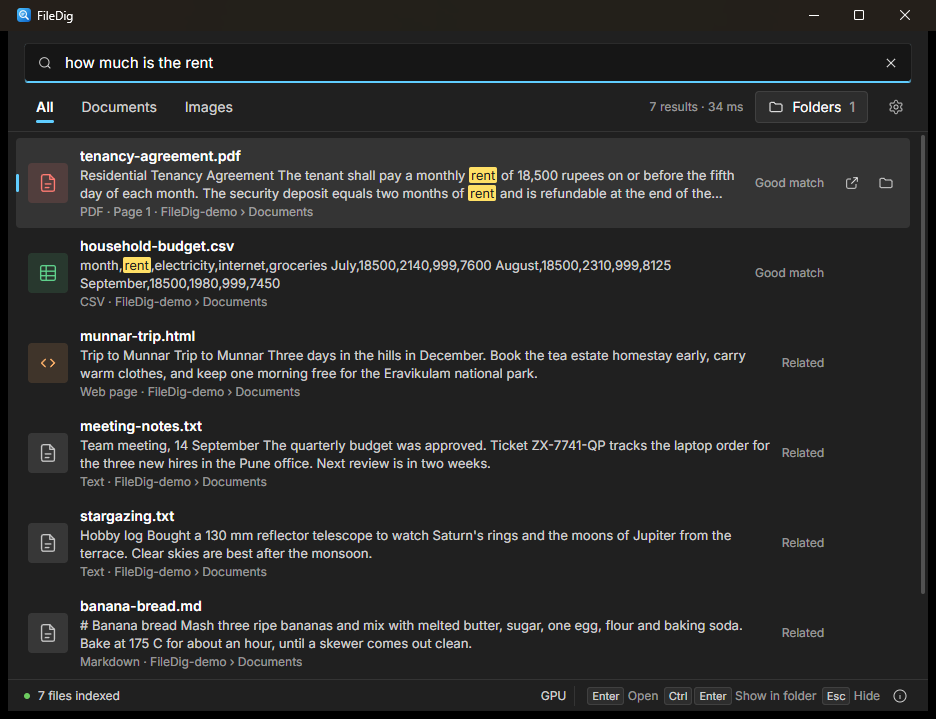
Type what you are looking for in plain language, such as "how much is the rent" or "photo of a sunset", and FileDig finds the matching text files, PDFs and images by meaning.
It runs EmbeddingGemma 2 on your own machine through llama.cpp, using an NVIDIA GPU when one is available and the CPU otherwise. Inspired by DigUp for macOS.
Ctrl+Shift+Space) and a tray icon| Kind | Extensions |
|---|---|
| Text | txt md markdown rst log csv html htm docx |
pdf (text layer, indexed per page) | |
| Images | jpg jpeg png webp bmp gif |
FileDig-lite.zip from the latest release.FileDig.exe.Indexing starts straight away, and you can search while it runs.
On a PC with an NVIDIA card, open Settings (the gear next to Folders) and choose Download GPU support (about 626 MB). Indexing becomes several times faster, and the existing index keeps working.
Only an up-to-date NVIDIA driver is needed. The CUDA toolkit is not.
| Key | Action |
|---|---|
Ctrl+Shift+Space | Show or hide the window from anywhere |
↑ ↓ | Move the selection |
Enter | Open the selected file |
Ctrl+Enter | Show the file in Explorer |
Esc | Hide the window |
Searching and indexing never leave your computer. The only network requests FileDig makes are the two optional downloads you start yourself: the model from Hugging Face and GPU support from the llama.cpp releases on GitHub. Both are pinned to exact versions and verified by SHA-256 before use.
There is no account, no telemetry and no update check.
Measured on an RTX 3060 12 GB with a Core i7-12700:
| GPU (CUDA) | CPU | |
|---|---|---|
| Search | 50–80 ms | not measured |
| Indexing photos (about 3.5 MB each) | about 7 per second | about 1 per second |
The model unloads after 5 minutes without use to free VRAM, and reloads in a few seconds on the next search.
The in-app downloads are a convenience, not a requirement. If the files are already in place,
FileDig uses them and never offers the download. This suits offline PCs and slow connections:
download once on another machine and copy the runtime folder across.
FileDig looks in two runtime folders, in this order:
%APPDATA%\com.rupesh.filedig\runtime for an installed copy, or
data\runtime in a portable copy. The in-app downloads go here.runtime folder next to FileDig.exe, or the folder named by
FILEDIG_RUNTIME.Either location works, and the parts can be split between them.
runtime\
  llama-cuda\   llama-server.exe + all DLLs from the CUDA zip and the cudart zip
  llama-cpu\    llama-server.exe + all DLLs from the CPU zip
  models\
    embeddinggemma-2-Q8_0.gguf
    mmproj-embeddinggemma-2-Q8_0.gguf
Where to get the files:
.gguf files from
ggml-org/embeddinggemma-2-GGUF.llama-<build>-bin-win-cuda-12.4-x64.zip and
cudart-llama-bin-win-cuda-12.4-x64.zip from the
llama.cpp releases, both extracted into
llama-cuda.llama-<build>-bin-win-cpu-x64.zip from the same page, extracted into
llama-cpu. The release packages already include it.Things to get right:
b11552 or later; earlier builds do not support this model. Pair the
CUDA 12.4 zip with the 12.4 cudart zip.llama-cuda.log or llama-cpu.log in the data folder.You need Rust, Node.js and pnpm.
git clone <this repository>
cd filedig
pnpm install
pnpm tauri dev
The app offers to download the model on first run. To use files you already have, place a
runtime folder in the project root, laid out as described in
Installing the model and GPU support by hand above.
pwsh scripts\package-portable.ps1 -Lite -Zip   # about 25 MB; model downloaded on first run
pwsh scripts\package-portable.ps1 -CpuOnly     # model included, CPU backend
pwsh scripts\package-portable.ps1              # model, CPU and GPU backends (about 2 GB)
Packages are written to dist-portable\. A copy is portable whenever a data folder sits beside
the executable: the index, logs and downloads then go there instead of %APPDATA%.
| Environment variable | Purpose |
|---|---|
FILEDIG_RUNTIME | Folder holding the model and llama.cpp builds |
FILEDIG_DATA | Folder for the index, instead of the per-user data folder |
FILEDIG_INDEX_THREADS | Files read at once while indexing (default: half the logical cores, at most 8) |
FILEDIG_MULTI_INSTANCE | Set to any value to allow more than one copy to run at once, for testing |
flowchart LR
    Files[("Your folders<br/>documents and pictures")]

    subgraph App["FileDig"]
        direction TB
        UI["UI<br/>TypeScript in a WebView"]
        subgraph Core["Rust backend"]
            direction TB
            Search["Search<br/>ranks and merges results"]
            Indexer["Indexer<br/>reads files on several CPU cores"]
            Engine["Engine<br/>starts and talks to the model"]
            Setup["Downloads<br/>model and GPU support"]
        end
        Llama["llama-server<br/>EmbeddingGemma 2 on GPU or CPU"]
        DB[("SQLite<br/>vectors, text, keyword index, thumbnails")]
    end

    Net(["Hugging Face and GitHub<br/>optional one-time downloads"])

    UI -- "query" --> Search
    Search -- "results" --> UI
    Files -- "read only" --> Indexer
    Indexer -- "passages and images" --> Engine
    Search -- "query text" --> Engine
    Engine <-- "embeddings over local HTTP" --> Llama
    Indexer -- "store" --> DB
    Search -- "look up" --> DB
    Net -.-> Setup
    Setup -. "installs" .-> Llama
src-tauri/src/indexer.rs): walks the folders, splits text into overlapping
passages of about 1,200 characters, extracts PDF text page by page, and downsizes images before
embedding. Files are read on several CPU cores while the model works on the GPU.src-tauri/src/engine.rs): runs llama-server as a hidden helper on a free local
port. Text and images are embedded into the same 768-dimensional space, so a text query can
match either.src-tauri/src/db.rs): one SQLite file holds the files, passages, vectors,
thumbnails and an FTS5 keyword index. Vectors are compared by brute force in memory.src-tauri/src/lib.rs): the semantic and keyword rankings are merged with
reciprocal rank fusion, and the best passage per file is shown.src-tauri/src/setup.rs): fetches the model and GPU backend with resume and
checksum verification.src/): plain TypeScript and CSS, built with Vite.The index is stored at %APPDATA%\com.rupesh.filedig\index.db. Deleting that file resets it.
MIT © 2026 Rupesh Sreeraman
Find your files by what's in them. Local AI search for docs, PDFs and photos on Windows
Rust
37
6 commits
updated Oct 11, 2026
Find your files by what they contain, not what they are called.
Local semantic search for documents and pictures on Windows. Nothing leaves your computer.
Download · Features · Getting started · Build from source
Type what you are looking for in plain language, such as "how much is the rent" or "photo of a sunset", and FileDig finds the matching text files, PDFs and images by meaning.
It runs EmbeddingGemma 2 on your own machine through llama.cpp, using an NVIDIA GPU when one is available and the CPU otherwise. Inspired by DigUp for macOS.
Ctrl+Shift+Space) and a tray icon| Kind | Extensions |
|---|---|
| Text | txt md markdown rst log csv html htm docx |
pdf (text layer, indexed per page) | |
| Images | jpg jpeg png webp bmp gif |
FileDig-lite.zip from the latest release.FileDig.exe.Indexing starts straight away, and you can search while it runs.
On a PC with an NVIDIA card, open Settings (the gear next to Folders) and choose Download GPU support (about 626 MB). Indexing becomes several times faster, and the existing index keeps working.
Only an up-to-date NVIDIA driver is needed. The CUDA toolkit is not.
| Key | Action |
|---|---|
Ctrl+Shift+Space | Show or hide the window from anywhere |
↑ ↓ | Move the selection |
Enter | Open the selected file |
Ctrl+Enter | Show the file in Explorer |
Esc | Hide the window |
Searching and indexing never leave your computer. The only network requests FileDig makes are the two optional downloads you start yourself: the model from Hugging Face and GPU support from the llama.cpp releases on GitHub. Both are pinned to exact versions and verified by SHA-256 before use.
There is no account, no telemetry and no update check.
Measured on an RTX 3060 12 GB with a Core i7-12700:
| GPU (CUDA) | CPU | |
|---|---|---|
| Search | 50–80 ms | not measured |
| Indexing photos (about 3.5 MB each) | about 7 per second | about 1 per second |
The model unloads after 5 minutes without use to free VRAM, and reloads in a few seconds on the next search.
The in-app downloads are a convenience, not a requirement. If the files are already in place,
FileDig uses them and never offers the download. This suits offline PCs and slow connections:
download once on another machine and copy the runtime folder across.
FileDig looks in two runtime folders, in this order:
%APPDATA%\com.rupesh.filedig\runtime for an installed copy, or
data\runtime in a portable copy. The in-app downloads go here.runtime folder next to FileDig.exe, or the folder named by
FILEDIG_RUNTIME.Either location works, and the parts can be split between them.
runtime\
  llama-cuda\   llama-server.exe + all DLLs from the CUDA zip and the cudart zip
  llama-cpu\    llama-server.exe + all DLLs from the CPU zip
  models\
    embeddinggemma-2-Q8_0.gguf
    mmproj-embeddinggemma-2-Q8_0.gguf
Where to get the files:
.gguf files from
ggml-org/embeddinggemma-2-GGUF.llama-<build>-bin-win-cuda-12.4-x64.zip and
cudart-llama-bin-win-cuda-12.4-x64.zip from the
llama.cpp releases, both extracted into
llama-cuda.llama-<build>-bin-win-cpu-x64.zip from the same page, extracted into
llama-cpu. The release packages already include it.Things to get right:
b11552 or later; earlier builds do not support this model. Pair the
CUDA 12.4 zip with the 12.4 cudart zip.llama-cuda.log or llama-cpu.log in the data folder.You need Rust, Node.js and pnpm.
git clone <this repository>
cd filedig
pnpm install
pnpm tauri dev
The app offers to download the model on first run. To use files you already have, place a
runtime folder in the project root, laid out as described in
Installing the model and GPU support by hand above.
pwsh scripts\package-portable.ps1 -Lite -Zip   # about 25 MB; model downloaded on first run
pwsh scripts\package-portable.ps1 -CpuOnly     # model included, CPU backend
pwsh scripts\package-portable.ps1              # model, CPU and GPU backends (about 2 GB)
Packages are written to dist-portable\. A copy is portable whenever a data folder sits beside
the executable: the index, logs and downloads then go there instead of %APPDATA%.
| Environment variable | Purpose |
|---|---|
FILEDIG_RUNTIME | Folder holding the model and llama.cpp builds |
FILEDIG_DATA | Folder for the index, instead of the per-user data folder |
FILEDIG_INDEX_THREADS | Files read at once while indexing (default: half the logical cores, at most 8) |
FILEDIG_MULTI_INSTANCE | Set to any value to allow more than one copy to run at once, for testing |
flowchart LR
    Files[("Your folders<br/>documents and pictures")]

    subgraph App["FileDig"]
        direction TB
        UI["UI<br/>TypeScript in a WebView"]
        subgraph Core["Rust backend"]
            direction TB
            Search["Search<br/>ranks and merges results"]
            Indexer["Indexer<br/>reads files on several CPU cores"]
            Engine["Engine<br/>starts and talks to the model"]
            Setup["Downloads<br/>model and GPU support"]
        end
        Llama["llama-server<br/>EmbeddingGemma 2 on GPU or CPU"]
        DB[("SQLite<br/>vectors, text, keyword index, thumbnails")]
    end

    Net(["Hugging Face and GitHub<br/>optional one-time downloads"])

    UI -- "query" --> Search
    Search -- "results" --> UI
    Files -- "read only" --> Indexer
    Indexer -- "passages and images" --> Engine
    Search -- "query text" --> Engine
    Engine <-- "embeddings over local HTTP" --> Llama
    Indexer -- "store" --> DB
    Search -- "look up" --> DB
    Net -.-> Setup
    Setup -. "installs" .-> Llama
src-tauri/src/indexer.rs): walks the folders, splits text into overlapping
passages of about 1,200 characters, extracts PDF text page by page, and downsizes images before
embedding. Files are read on several CPU cores while the model works on the GPU.src-tauri/src/engine.rs): runs llama-server as a hidden helper on a free local
port. Text and images are embedded into the same 768-dimensional space, so a text query can
match either.src-tauri/src/db.rs): one SQLite file holds the files, passages, vectors,
thumbnails and an FTS5 keyword index. Vectors are compared by brute force in memory.src-tauri/src/lib.rs): the semantic and keyword rankings are merged with
reciprocal rank fusion, and the best passage per file is shown.src-tauri/src/setup.rs): fetches the model and GPU backend with resume and
checksum verification.src/): plain TypeScript and CSS, built with Vite.The index is stored at %APPDATA%\com.rupesh.filedig\index.db. Deleting that file resets it.
MIT © 2026 Rupesh Sreeraman



