
🎤 A voice assistant that let's you control any Linux desktop and transcribe any audio.
Go
122
134 commits
updated Sep 21, 2026
README
VoxInput
Transcribe input from your microphone and turn it into key presses on a virtual keyboard. This allows you to use speech-to-text on any application or window system in Linux and macOS. On Linux you can even use it on the system console.
With assistant mode you can take this a step further and control your desktop entirely with voice!
VoxInput is meant to be used with LocalAI, but it will function with any OpenAI compatible API that provides the transcription endpoint or realtime API.
Features
- Speech-to-Text Daemon: Runs as a background process to listen for signals to start or stop recording audio.
- Audio Capture: Records audio from the microphone or any other device, including audio you are listening to.
- Transcription: Converts recorded audio into text using a local or remote transcription service.
- Text Automation: Simulates typing the transcribed text into an application using
dotoolon Linux or CoreGraphics on macOS. - Voice Activity Detection: In realtime mode VoxInput uses VAD to detect speech segments and automatically transcribe them.
- Noise Suppression: Reduces background noise from the microphone input to improve transcription accuracy.
- Acoustic Echo Cancellation: In assistant mode, cancels the assistant's own voice output from the microphone input to prevent feedback loops.
- Visual Notification: In realtime mode, a GUI notification informs you when recording (VAD) has started or stopped.
- Assistant Mode: Voice conversations with an LLM using the OpenAI Realtime API with bidirectional audio streaming, automatic speech detection, and voice responses. Supports barge-in: speak over the assistant to interrupt it mid-response.
- Desktop Control: In assistant mode, the LLM can execute keyboard and mouse commands through function calls to control your desktop environment.
- Screenshot Capture: In assistant mode, the LLM can request a screenshot of your desktop to provide visual context for its responses.
- Terminal UI: Interactive TUI mode (
voxinput tui) with chat and log tabs, recording controls, and the ability to attach to a running listen process.
Requirements
macOS
- Grant Accessibility permission to the terminal or application running VoxInput (System Settings > Privacy & Security > Accessibility). This is required for simulating keyboard and mouse input.
Linux
dotool(for simulating keyboard input)- The user that runs VoxInput daemon is in the
inputuser group - You have the following udev rule
KERNEL=="uinput", GROUP="input", MODE="0620", OPTIONS+="static_node=uinput"
This can be set in your NixOS config as follows
services.udev.extraRules = ''
KERNEL=="uinput", GROUP="input", MODE="0620", OPTIONS+="static_node=uinput"
'';
Installation
-
Clone the repository:
git clone https://github.com/richiejp/VoxInput.git cd VoxInput -
Build the project:
go build -o voxinput -
Linux only: Ensure
dotoolis installed on your system and it can make key presses. On macOS, input simulation uses CoreGraphics and requires no extra tools. -
It makes sense to bind the
recordandwritecommands to keys using your window manager. For instance in my Sway config I have the following
bindsym $mod+Shift+t exec voxinput record
bindsym $mod+t exec voxinput write
Alternatively you can use the Nix flake.
Usage
Note: VOXINPUT_ vars take precedence vars with other prefixes.
Unless you don't mind running VoxInput as root, then you also need to ensure the following is setup for dotool
OPENAI_API_KEYorVOXINPUT_API_KEY: Your OpenAI API key for Whisper transcription. If you have a local instance with no key, then just leave it unset.OPENAI_BASE_URLorVOXINPUT_BASE_URL: The base URL of the OpenAI compatible API server: defaults tohttp://localhost:8080/v1VOXINPUT_LANG: Language code for transcription. The full string is used as-is (defaults to empty).LANG: Language code for transcription. Only the first 2 characters are used (defaults to empty).VOXINPUT_LANGtakes precedence if set.VOXINPUT_TRANSCRIPTION_MODEL: Transcription model (default:whisper-1).VOXINPUT_ASSISTANT_MODEL: Assistant model (default:none).VOXINPUT_ASSISTANT_VOICE: Assistant voice (default:alloy).VOXINPUT_ASSISTANT_INSTRUCTIONSorASSISTANT_INSTRUCTIONS: System prompt for the assistant model. Used to configure assistant behavior and available actions.VOXINPUT_ASSISTANT_ENABLE_DOTOOL: Enable the dotool function in assistant mode (yes/no, default: yes).VOXINPUT_ASSISTANT_SCREENSHOT_COMMAND: Command to capture a screenshot, e.g.grim /tmp/screenshot.png(default: none).VOXINPUT_ASSISTANT_SCREENSHOT_FILE: Path where the screenshot command saves its file (default: none). When both screenshot options are set, atake_screenshottool becomes available to the assistant.VOXINPUT_TRANSCRIPTION_TIMEOUT: Timeout duration (default:30s).VOXINPUT_SHOW_STATUS: Show GUI notifications (yes/no, default:yes).VOXINPUT_CAPTURE_DEVICE: Specific audio capture device name (runvoxinput devicesto list).VOXINPUT_OUTPUT_FILE: Path to save the transcribed text to a file instead of typing it with dotool.VOXINPUT_MODE: Realtime mode (transcription|assistant, default: transcription).VOXINPUT_INPUT_SAMPLE_RATE: Sample rate for audio input in Hz (default: 24000). Used for capturing audio and for realtime API input.VOXINPUT_OUTPUT_SAMPLE_RATE: Sample rate for audio output in Hz (default: 24000). Used for realtime API output and audio playback.VOXINPUT_AEC_FILTER_MS: AEC filter length in milliseconds (default: 200).VOXINPUT_AEC_DELAY_MS: AEC reference delay in milliseconds to compensate for acoustic path delay between speaker and mic (default: 50). Use the dump+shift analysis test to find the optimal value for your setup.VOXINPUT_LOCALVQE_MODEL: Path to a LocalVQE GGUF model file, overriding the bundled models (default: the bundled model selected byVOXINPUT_LOCALVQE_MODEL_VERSION).VOXINPUT_LOCALVQE_MODEL_VERSION: Which bundled LocalVQE model to use:v1.2(default),v1.3, or the compact low-power linepi-v1(AEC + noise suppression + dereverb) andpi-aec-v1(echo cancellation only, keeps noise). The Pi models are ~49K-parameter GTCRN-AEC networks that run ~21x realtime on a single Raspberry Pi 5 core, for hardware where evenv1.2is too heavy. The fullversion-sizeform (v1.2-1.3M,v1.3-4.8M,pi-v1-49k,pi-aec-v1-49k) is also accepted. The CMake build bundles all models undershare/voxinput; with a plaingo buildthe chosen model is downloaded from HuggingFace on first use, verified against a known checksum, and cached under the user cache directory (e.g.~/.cache/voxinput). Ignored whenVOXINPUT_LOCALVQE_MODELis set.VOXINPUT_LOCALVQE_LIB: Path toliblocalvqe.so/liblocalvqe.dylib(default: next to the binary or the system library path).VOXINPUT_AEC_REF_SOURCE: AEC reference signal source —playback(far-end TTS buffer we send to the speaker, default) ormonitor(samples captured from a loopback device so AEC can also cancel system audio from other apps). Also settable via--aec-ref-source.VOXINPUT_AEC_MONITOR_DEVICE: Name of the capture device that feeds the AEC reference whenAEC_REF_SOURCE=monitor. On PipeWire/PulseAudio this is usually"Monitor of <sink>"; on macOS this requires a virtual loopback such as BlackHole or Loopback routing system output to a capture device. Use thedevicessubcommand to list capture devices. Also settable via--aec-monitor-device.VOXINPUT_AEC_NOISE_GATE: Enable the LocalVQE residual-echo noise gate (yes/no, default:no). When on, any output hop whose RMS sits at or belowVOXINPUT_AEC_NOISE_GATE_DBFSis replaced with silence. Useful when the model leaves a faint residual on far-end-only / silent-near-end stretches that becomes audible after downstream peak-normalisation. Also settable via--aec-noise-gate/--no-aec-noise-gate.VOXINPUT_AEC_NOISE_GATE_DBFS: Noise gate threshold in dBFS (default:-45.0). More negative gates fewer frames (preserves quiet near-end speech, leaves more residual); less negative gates more aggressively. Also settable via--aec-noise-gate-dbfs.VOXINPUT_DUMP_AUDIO_DIR: Directory to dump raw mic/speaker PCM for AEC analysis (default: none). In monitor mode, an extratts.rawis dumped alongsidespk.rawso the far-end TTS can be compared against what the monitor actually captured.VOXINPUT_SOCKET: Socket path for IPC server (default:$XDG_RUNTIME_DIR/VoxInput.sockwhen usingtuisubcommand)XDG_RUNTIME_DIRorVOXINPUT_RUNTIME_DIR: Used for the PID and state files, defaults to/run/voxinputif niether are present
Warning: Assistant mode is WIP and you may need a particular version of LocalAI's realtime API to run it because I am developing both in lockstep. Eventually though it should be compatible with at least OpenAI or LocalAI.
Commands
-
listen: Start speech to text daemon.--replay: Play the audio just recorded for transcription (non-realtime mode only).--no-realtime: Use the HTTP API instead of the realtime API; disables VAD.--no-show-status: Don't show when recording has started or stopped.--output-file <path>: Save transcript to file instead of typing.--prompt <text>: Text used to condition model output. Could be previously transcribed text or uncommon words you expect to use--mode <transcription|assistant>: Realtime mode (default: transcription)--instructions <text>: System prompt for the assistant model--no-dotool: (assistant mode only) Disable the dotool function call--screenshot-command <cmd>: (assistant mode only) Command to capture a screenshot (e.g.grim /tmp/screenshot.png)--screenshot-file <path>: (assistant mode only) Path where the screenshot command saves its output--dump-audio <dir>: (assistant mode only) Dump raw mic and speaker PCM to files for AEC analysis--aec-noise-gate/--no-aec-noise-gate: (assistant mode only) Toggle the LocalVQE residual-echo noise gate--aec-noise-gate-dbfs <float>: (assistant mode only) Noise gate threshold in dBFS (default: -45.0)--socket <path>: Enable IPC socket server for TUI connections
./voxinput listen -
record: Tell existing listener to start recording audio. In realtime mode it also begins transcription../voxinput record -
writeorstop: Tell existing listener to stop recording audio and begin transcription if not in realtime mode.stopalias makes more sense in realtime mode../voxinput write -
toggle: Toggle recording on/off (start recording if idle, stop if recording)../voxinput toggle -
status: Show whether the server is listening and if it's currently recording../voxinput status -
devices: List capture devices../voxinput devices -
tui: Launch interactive terminal UI with chat and log tabs.--connect <path>: Connect to an existing listen process socket instead of starting a subprocess.- Additional flags are passed through to the listen subprocess.
# Launch TUI (starts listen subprocess automatically) ./voxinput tui # Connect to an existing listen process ./voxinput tui --connect /tmp/VoxInput.sock -
help: Show help message../voxinput help -
ver: Print version../voxinput ver
Example Realtime Workflow
-
Start the daemon in a terminal window:
OPENAI_BASE_URL=http://ai.local:8081/v1 OPENAI_WS_BASE_URL=ws://ai.local:8081/v1/realtime ./voxinput listen -
Select a text box you want to speak into and use a global shortcut to run the following
./voxinput record -
Begin speaking, when you pause for a second or two your speach will be transcribed and typed into the active application.
-
Send a signal to stop recording
./voxinput stop
Example Workflow
-
Start the daemon in a terminal window:
OPENAI_BASE_URL=http://ai.local:8081/v1 ./voxinput listen --no-realtime -
Select a text box you want to speak into and use a global shortcut to run the following
./voxinput record -
After speaking, send a signal to stop recording and transcribe:
./voxinput write -
The transcribed text will be typed into the active application.
Example Workflow: Transcribing an Online Meeting or Video Stream
To create a transcript of an online meeting or video stream by capturing system audio:
-
List available capture devices:
./voxinput devicesIdentify the monitor device, e.g., "Monitor of Built-in Audio Analog Stereo".
-
Start the daemon specifying the device and output file:
VOXINPUT_CAPTURE_DEVICE="Monitor of Built-in Audio Analog Stereo" ./voxinput listen --output-file meeting_transcript.txtNote: Add
--no-realtimeif you prefer the HTTP API. -
Start recording:
./voxinput record -
Play your online meeting or video stream; the system audio will be captured.
-
Stop recording:
./voxinput stop -
The transcript is now in
meeting_transcript.txt.
Assistant Mode
Assistant mode enables real-time voice conversations with an LLM using the OpenAI Realtime API. The assistant can respond with voice and optionally perform desktop actions through the dotool function.
Demo Videos
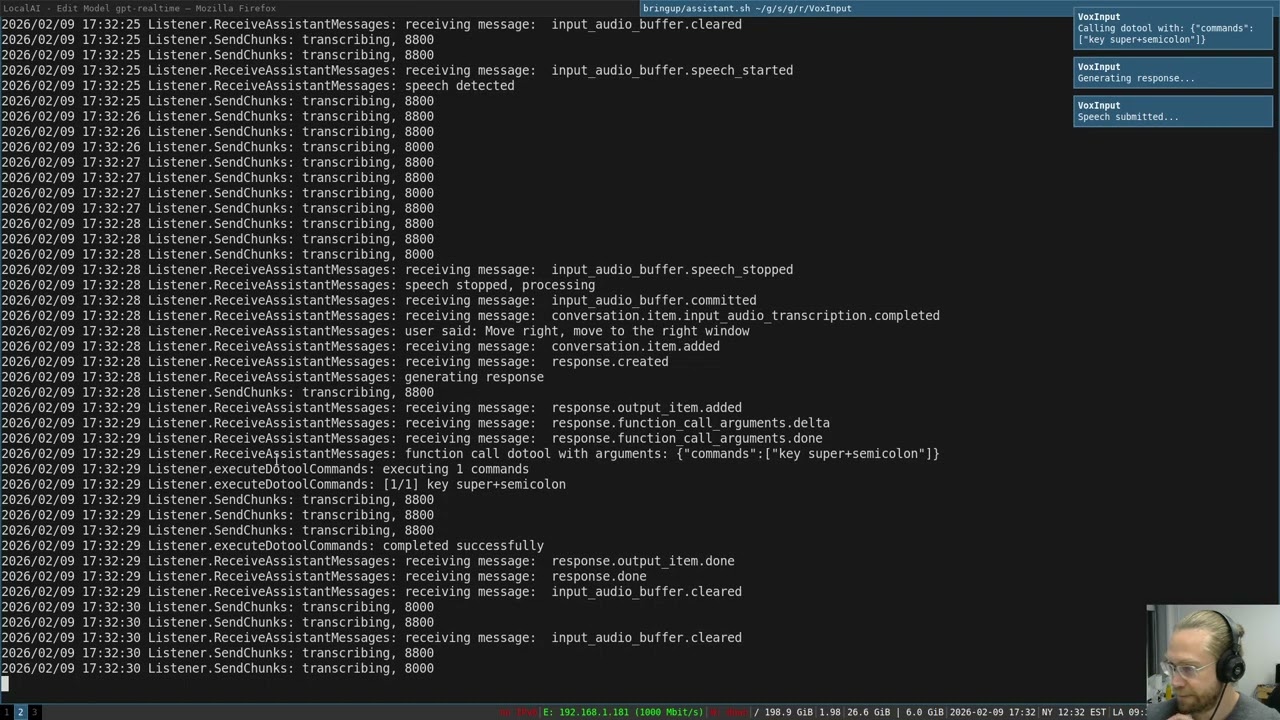
Voice assistant opening applications and controlling desktop
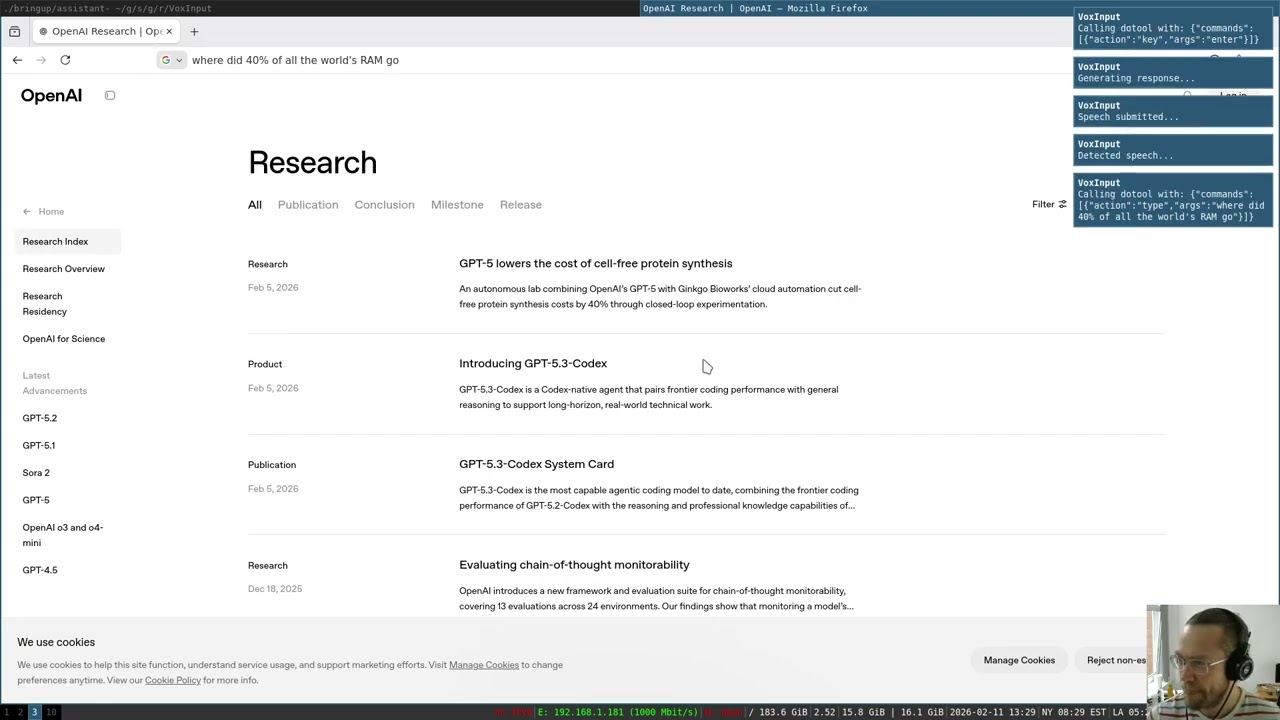
Real-time transcription with voice activity detection
How It Works
When you start VoxInput in assistant mode:
- Start recording: Use
./voxinput recordto begin a conversation - Speak naturally: The assistant uses server-side Voice Activity Detection (VAD) to detect when you're speaking
- Get responses: The assistant responds with voice audio streamed back to you
- Interrupt anytime: Start talking while the assistant is speaking and it stops immediately (barge-in), discarding the rest of its current response and listening to you instead
- Desktop actions: When configured with the
dotoolfunction, the assistant can execute keyboard and mouse commands - Continue or stop: Keep talking for a back-and-forth conversation, or use
./voxinput stopto end
The assistant receives your speech in real-time, transcribes it automatically, generates a response using the configured LLM, and speaks the response back to you - all while optionally executing desktop commands when appropriate.
Configuring Assistant Instructions
The VOXINPUT_ASSISTANT_INSTRUCTIONS or ASSISTANT_INSTRUCTIONS environment variable configures the assistant's behavior. This system prompt should:
- Define the assistant's role and personality
- Describe available desktop actions (when dotool is enabled)
- Provide guidance on when and how to use actions
Example instructions:
export VOXINPUT_ASSISTANT_INSTRUCTIONS="You are a desktop voice assistant. Be concise and conversational - avoid markdown or complex punctuation in speech. When asked to type or transcribe, use the dotool function with type commands. To open applications, use: key super+d, sleep 1000, type <appname>, sleep 1000, key enter. Always use lowercase for application names."
The dotool Function
When enabled (default: yes), the assistant can call a dotool function that executes an array of commands sequentially. Each command is a JSON object with:
action: The dotool command to performargs: Arguments for that command
Supported Actions:
- Keyboard:
key,keydown,keyup,type - Mouse:
click,buttondown,buttonup,wheel,hwheel,mouseto,mousemove - Timing:
keydelay,keyhold,typedelay,typehold - Sleep:
sleep <milliseconds>- pauses between commands (handled by VoxInput, not sent to dotool)
See the dotool documentation for complete command details.
Example function call from the assistant:
{
  "commands": [
    {"action": "key", "args": "super+d"},
    {"action": "sleep", "args": "1000"},
    {"action": "type", "args": "firefox"},
    {"action": "sleep", "args": "1000"},
    {"action": "key", "args": "enter"}
  ]
}
Running Assistant Mode
Basic setup:
export OPENAI_BASE_URL=http://ai.local:8081/v1
export OPENAI_WS_BASE_URL=ws://ai.local:8081/v1/realtime
export VOXINPUT_TRANSCRIPTION_MODEL=whisper-large-turbo
export VOXINPUT_MODE=assistant
export VOXINPUT_ASSISTANT_MODEL=qwen3-4b
export VOXINPUT_ASSISTANT_VOICE=alloy
export VOXINPUT_ASSISTANT_INSTRUCTIONS="You are a helpful desktop assistant..."

./voxinput listen
Then interact:
# Start conversation
./voxinput record

# Speak: "Open Firefox and search for VoxInput"
# Assistant responds with voice and executes commands

# Stop when done
./voxinput stop
Disabling dotool Function
To run the assistant in voice-only mode without desktop control:
# Option 1: Command line flag
./voxinput listen --mode assistant --no-dotool

# Option 2: Environment variable
export VOXINPUT_ASSISTANT_ENABLE_DOTOOL=no
./voxinput listen --mode assistant
Configuration Options
VOXINPUT_MODE=assistant- Enable assistant modeVOXINPUT_ASSISTANT_MODEL- LLM model to use (default:none- uses server default)VOXINPUT_ASSISTANT_VOICE- TTS voice (default:alloy)VOXINPUT_ASSISTANT_INSTRUCTIONS- System prompt for the assistantVOXINPUT_ASSISTANT_ENABLE_DOTOOL- Enable/disable desktop control (default:yes)VOXINPUT_ASSISTANT_SCREENSHOT_COMMAND- Command to capture a screenshot (default: none)VOXINPUT_ASSISTANT_SCREENSHOT_FILE- Path to the screenshot file (default: none)VOXINPUT_INPUT_SAMPLE_RATE- Audio input sample rate (default:24000)VOXINPUT_OUTPUT_SAMPLE_RATE- Audio output sample rate (default:24000)
Quick start with LocalAI
- Follow https://localai.io/installation/ to install LocalAI, the simplest way is using Docker:
docker run -p 8080:8080 --name local-ai -ti localai/localai:latest
-
See https://localai.io/features/openai-realtime for configuring the needed pipeline model
-
Test out VoxInput:
VOXINPUT_TRANSCRIPTION_MODEL=gpt-realtime VOXINPUT_TRANSCRIPTION_TIMEOUT=30s voxinput listen
voxinput record && sleep 30s && voxinput write
Displaying recording status
The realtime mode has a UI to display various actions being taken by VoxInput. However you can also read the status from the status file or using the status command, then display it via your desktop manager (e.g. waybar). For an example see the PR which added it.
TODO
- Put playback behind a debug switch
- Create a release
- Realtime Transcription
- GUI and system tray
- Voice detection and activation (partial, see below)
- Code words to start and stop transcription
- Assistant mode
- Voice conversations with an LLM
- Submit desktop images to a VLM to allow it to click on items
- Use tool calls or MCP to allow the VLM/LLM to perform actions
- Dotool tool that allows the agent to make key presses
- MCP
- Support agent skills
Signals
SIGUSR1: Start recording audio.SIGUSR2: Stop recording and transcribe audio.SIGTERM: Stop the daemon.
License
This project is licensed under the MIT License. See the LICENSE file for details.
Acknowledgments
Significant stargazers

2,485 followers · starred May 2025

122 followers · starred May 2025

65 followers · starred Feb 2026
Similar repos


Languages
Go
93.6%
Shell
2.3%
CMake
2.1%
Nix
2.0%
🎤 A voice assistant that let's you control any Linux desktop and transcribe any audio.
Go
122
134 commits
updated Sep 21, 2026
README
VoxInput
Transcribe input from your microphone and turn it into key presses on a virtual keyboard. This allows you to use speech-to-text on any application or window system in Linux and macOS. On Linux you can even use it on the system console.
With assistant mode you can take this a step further and control your desktop entirely with voice!
VoxInput is meant to be used with LocalAI, but it will function with any OpenAI compatible API that provides the transcription endpoint or realtime API.
Features
- Speech-to-Text Daemon: Runs as a background process to listen for signals to start or stop recording audio.
- Audio Capture: Records audio from the microphone or any other device, including audio you are listening to.
- Transcription: Converts recorded audio into text using a local or remote transcription service.
- Text Automation: Simulates typing the transcribed text into an application using
dotoolon Linux or CoreGraphics on macOS. - Voice Activity Detection: In realtime mode VoxInput uses VAD to detect speech segments and automatically transcribe them.
- Noise Suppression: Reduces background noise from the microphone input to improve transcription accuracy.
- Acoustic Echo Cancellation: In assistant mode, cancels the assistant's own voice output from the microphone input to prevent feedback loops.
- Visual Notification: In realtime mode, a GUI notification informs you when recording (VAD) has started or stopped.
- Assistant Mode: Voice conversations with an LLM using the OpenAI Realtime API with bidirectional audio streaming, automatic speech detection, and voice responses. Supports barge-in: speak over the assistant to interrupt it mid-response.
- Desktop Control: In assistant mode, the LLM can execute keyboard and mouse commands through function calls to control your desktop environment.
- Screenshot Capture: In assistant mode, the LLM can request a screenshot of your desktop to provide visual context for its responses.
- Terminal UI: Interactive TUI mode (
voxinput tui) with chat and log tabs, recording controls, and the ability to attach to a running listen process.
Requirements
macOS
- Grant Accessibility permission to the terminal or application running VoxInput (System Settings > Privacy & Security > Accessibility). This is required for simulating keyboard and mouse input.
Linux
dotool(for simulating keyboard input)- The user that runs VoxInput daemon is in the
inputuser group - You have the following udev rule
KERNEL=="uinput", GROUP="input", MODE="0620", OPTIONS+="static_node=uinput"
This can be set in your NixOS config as follows
services.udev.extraRules = ''
KERNEL=="uinput", GROUP="input", MODE="0620", OPTIONS+="static_node=uinput"
'';
Installation
-
Clone the repository:
git clone https://github.com/richiejp/VoxInput.git cd VoxInput -
Build the project:
go build -o voxinput -
Linux only: Ensure
dotoolis installed on your system and it can make key presses. On macOS, input simulation uses CoreGraphics and requires no extra tools. -
It makes sense to bind the
recordandwritecommands to keys using your window manager. For instance in my Sway config I have the following
bindsym $mod+Shift+t exec voxinput record
bindsym $mod+t exec voxinput write
Alternatively you can use the Nix flake.
Usage
Note: VOXINPUT_ vars take precedence vars with other prefixes.
Unless you don't mind running VoxInput as root, then you also need to ensure the following is setup for dotool
OPENAI_API_KEYorVOXINPUT_API_KEY: Your OpenAI API key for Whisper transcription. If you have a local instance with no key, then just leave it unset.OPENAI_BASE_URLorVOXINPUT_BASE_URL: The base URL of the OpenAI compatible API server: defaults tohttp://localhost:8080/v1VOXINPUT_LANG: Language code for transcription. The full string is used as-is (defaults to empty).LANG: Language code for transcription. Only the first 2 characters are used (defaults to empty).VOXINPUT_LANGtakes precedence if set.VOXINPUT_TRANSCRIPTION_MODEL: Transcription model (default:whisper-1).VOXINPUT_ASSISTANT_MODEL: Assistant model (default:none).VOXINPUT_ASSISTANT_VOICE: Assistant voice (default:alloy).VOXINPUT_ASSISTANT_INSTRUCTIONSorASSISTANT_INSTRUCTIONS: System prompt for the assistant model. Used to configure assistant behavior and available actions.VOXINPUT_ASSISTANT_ENABLE_DOTOOL: Enable the dotool function in assistant mode (yes/no, default: yes).VOXINPUT_ASSISTANT_SCREENSHOT_COMMAND: Command to capture a screenshot, e.g.grim /tmp/screenshot.png(default: none).VOXINPUT_ASSISTANT_SCREENSHOT_FILE: Path where the screenshot command saves its file (default: none). When both screenshot options are set, atake_screenshottool becomes available to the assistant.VOXINPUT_TRANSCRIPTION_TIMEOUT: Timeout duration (default:30s).VOXINPUT_SHOW_STATUS: Show GUI notifications (yes/no, default:yes).VOXINPUT_CAPTURE_DEVICE: Specific audio capture device name (runvoxinput devicesto list).VOXINPUT_OUTPUT_FILE: Path to save the transcribed text to a file instead of typing it with dotool.VOXINPUT_MODE: Realtime mode (transcription|assistant, default: transcription).VOXINPUT_INPUT_SAMPLE_RATE: Sample rate for audio input in Hz (default: 24000). Used for capturing audio and for realtime API input.VOXINPUT_OUTPUT_SAMPLE_RATE: Sample rate for audio output in Hz (default: 24000). Used for realtime API output and audio playback.VOXINPUT_AEC_FILTER_MS: AEC filter length in milliseconds (default: 200).VOXINPUT_AEC_DELAY_MS: AEC reference delay in milliseconds to compensate for acoustic path delay between speaker and mic (default: 50). Use the dump+shift analysis test to find the optimal value for your setup.VOXINPUT_LOCALVQE_MODEL: Path to a LocalVQE GGUF model file, overriding the bundled models (default: the bundled model selected byVOXINPUT_LOCALVQE_MODEL_VERSION).VOXINPUT_LOCALVQE_MODEL_VERSION: Which bundled LocalVQE model to use:v1.2(default),v1.3, or the compact low-power linepi-v1(AEC + noise suppression + dereverb) andpi-aec-v1(echo cancellation only, keeps noise). The Pi models are ~49K-parameter GTCRN-AEC networks that run ~21x realtime on a single Raspberry Pi 5 core, for hardware where evenv1.2is too heavy. The fullversion-sizeform (v1.2-1.3M,v1.3-4.8M,pi-v1-49k,pi-aec-v1-49k) is also accepted. The CMake build bundles all models undershare/voxinput; with a plaingo buildthe chosen model is downloaded from HuggingFace on first use, verified against a known checksum, and cached under the user cache directory (e.g.~/.cache/voxinput). Ignored whenVOXINPUT_LOCALVQE_MODELis set.VOXINPUT_LOCALVQE_LIB: Path toliblocalvqe.so/liblocalvqe.dylib(default: next to the binary or the system library path).VOXINPUT_AEC_REF_SOURCE: AEC reference signal source —playback(far-end TTS buffer we send to the speaker, default) ormonitor(samples captured from a loopback device so AEC can also cancel system audio from other apps). Also settable via--aec-ref-source.VOXINPUT_AEC_MONITOR_DEVICE: Name of the capture device that feeds the AEC reference whenAEC_REF_SOURCE=monitor. On PipeWire/PulseAudio this is usually"Monitor of <sink>"; on macOS this requires a virtual loopback such as BlackHole or Loopback routing system output to a capture device. Use thedevicessubcommand to list capture devices. Also settable via--aec-monitor-device.VOXINPUT_AEC_NOISE_GATE: Enable the LocalVQE residual-echo noise gate (yes/no, default:no). When on, any output hop whose RMS sits at or belowVOXINPUT_AEC_NOISE_GATE_DBFSis replaced with silence. Useful when the model leaves a faint residual on far-end-only / silent-near-end stretches that becomes audible after downstream peak-normalisation. Also settable via--aec-noise-gate/--no-aec-noise-gate.VOXINPUT_AEC_NOISE_GATE_DBFS: Noise gate threshold in dBFS (default:-45.0). More negative gates fewer frames (preserves quiet near-end speech, leaves more residual); less negative gates more aggressively. Also settable via--aec-noise-gate-dbfs.VOXINPUT_DUMP_AUDIO_DIR: Directory to dump raw mic/speaker PCM for AEC analysis (default: none). In monitor mode, an extratts.rawis dumped alongsidespk.rawso the far-end TTS can be compared against what the monitor actually captured.VOXINPUT_SOCKET: Socket path for IPC server (default:$XDG_RUNTIME_DIR/VoxInput.sockwhen usingtuisubcommand)XDG_RUNTIME_DIRorVOXINPUT_RUNTIME_DIR: Used for the PID and state files, defaults to/run/voxinputif niether are present
Warning: Assistant mode is WIP and you may need a particular version of LocalAI's realtime API to run it because I am developing both in lockstep. Eventually though it should be compatible with at least OpenAI or LocalAI.
Commands
-
listen: Start speech to text daemon.--replay: Play the audio just recorded for transcription (non-realtime mode only).--no-realtime: Use the HTTP API instead of the realtime API; disables VAD.--no-show-status: Don't show when recording has started or stopped.--output-file <path>: Save transcript to file instead of typing.--prompt <text>: Text used to condition model output. Could be previously transcribed text or uncommon words you expect to use--mode <transcription|assistant>: Realtime mode (default: transcription)--instructions <text>: System prompt for the assistant model--no-dotool: (assistant mode only) Disable the dotool function call--screenshot-command <cmd>: (assistant mode only) Command to capture a screenshot (e.g.grim /tmp/screenshot.png)--screenshot-file <path>: (assistant mode only) Path where the screenshot command saves its output--dump-audio <dir>: (assistant mode only) Dump raw mic and speaker PCM to files for AEC analysis--aec-noise-gate/--no-aec-noise-gate: (assistant mode only) Toggle the LocalVQE residual-echo noise gate--aec-noise-gate-dbfs <float>: (assistant mode only) Noise gate threshold in dBFS (default: -45.0)--socket <path>: Enable IPC socket server for TUI connections
./voxinput listen -
record: Tell existing listener to start recording audio. In realtime mode it also begins transcription../voxinput record -
writeorstop: Tell existing listener to stop recording audio and begin transcription if not in realtime mode.stopalias makes more sense in realtime mode../voxinput write -
toggle: Toggle recording on/off (start recording if idle, stop if recording)../voxinput toggle -
status: Show whether the server is listening and if it's currently recording../voxinput status -
devices: List capture devices../voxinput devices -
tui: Launch interactive terminal UI with chat and log tabs.--connect <path>: Connect to an existing listen process socket instead of starting a subprocess.- Additional flags are passed through to the listen subprocess.
# Launch TUI (starts listen subprocess automatically) ./voxinput tui # Connect to an existing listen process ./voxinput tui --connect /tmp/VoxInput.sock -
help: Show help message../voxinput help -
ver: Print version../voxinput ver
Example Realtime Workflow
-
Start the daemon in a terminal window:
OPENAI_BASE_URL=http://ai.local:8081/v1 OPENAI_WS_BASE_URL=ws://ai.local:8081/v1/realtime ./voxinput listen -
Select a text box you want to speak into and use a global shortcut to run the following
./voxinput record -
Begin speaking, when you pause for a second or two your speach will be transcribed and typed into the active application.
-
Send a signal to stop recording
./voxinput stop
Example Workflow
-
Start the daemon in a terminal window:
OPENAI_BASE_URL=http://ai.local:8081/v1 ./voxinput listen --no-realtime -
Select a text box you want to speak into and use a global shortcut to run the following
./voxinput record -
After speaking, send a signal to stop recording and transcribe:
./voxinput write -
The transcribed text will be typed into the active application.
Example Workflow: Transcribing an Online Meeting or Video Stream
To create a transcript of an online meeting or video stream by capturing system audio:
-
List available capture devices:
./voxinput devicesIdentify the monitor device, e.g., "Monitor of Built-in Audio Analog Stereo".
-
Start the daemon specifying the device and output file:
VOXINPUT_CAPTURE_DEVICE="Monitor of Built-in Audio Analog Stereo" ./voxinput listen --output-file meeting_transcript.txtNote: Add
--no-realtimeif you prefer the HTTP API. -
Start recording:
./voxinput record -
Play your online meeting or video stream; the system audio will be captured.
-
Stop recording:
./voxinput stop -
The transcript is now in
meeting_transcript.txt.
Assistant Mode
Assistant mode enables real-time voice conversations with an LLM using the OpenAI Realtime API. The assistant can respond with voice and optionally perform desktop actions through the dotool function.
Demo Videos
Voice assistant opening applications and controlling desktop
Real-time transcription with voice activity detection
How It Works
When you start VoxInput in assistant mode:
- Start recording: Use
./voxinput recordto begin a conversation - Speak naturally: The assistant uses server-side Voice Activity Detection (VAD) to detect when you're speaking
- Get responses: The assistant responds with voice audio streamed back to you
- Interrupt anytime: Start talking while the assistant is speaking and it stops immediately (barge-in), discarding the rest of its current response and listening to you instead
- Desktop actions: When configured with the
dotoolfunction, the assistant can execute keyboard and mouse commands - Continue or stop: Keep talking for a back-and-forth conversation, or use
./voxinput stopto end
The assistant receives your speech in real-time, transcribes it automatically, generates a response using the configured LLM, and speaks the response back to you - all while optionally executing desktop commands when appropriate.
Configuring Assistant Instructions
The VOXINPUT_ASSISTANT_INSTRUCTIONS or ASSISTANT_INSTRUCTIONS environment variable configures the assistant's behavior. This system prompt should:
- Define the assistant's role and personality
- Describe available desktop actions (when dotool is enabled)
- Provide guidance on when and how to use actions
Example instructions:
export VOXINPUT_ASSISTANT_INSTRUCTIONS="You are a desktop voice assistant. Be concise and conversational - avoid markdown or complex punctuation in speech. When asked to type or transcribe, use the dotool function with type commands. To open applications, use: key super+d, sleep 1000, type <appname>, sleep 1000, key enter. Always use lowercase for application names."
The dotool Function
When enabled (default: yes), the assistant can call a dotool function that executes an array of commands sequentially. Each command is a JSON object with:
action: The dotool command to performargs: Arguments for that command
Supported Actions:
- Keyboard:
key,keydown,keyup,type - Mouse:
click,buttondown,buttonup,wheel,hwheel,mouseto,mousemove - Timing:
keydelay,keyhold,typedelay,typehold - Sleep:
sleep <milliseconds>- pauses between commands (handled by VoxInput, not sent to dotool)
See the dotool documentation for complete command details.
Example function call from the assistant:
{
  "commands": [
    {"action": "key", "args": "super+d"},
    {"action": "sleep", "args": "1000"},
    {"action": "type", "args": "firefox"},
    {"action": "sleep", "args": "1000"},
    {"action": "key", "args": "enter"}
  ]
}
Running Assistant Mode
Basic setup:
export OPENAI_BASE_URL=http://ai.local:8081/v1
export OPENAI_WS_BASE_URL=ws://ai.local:8081/v1/realtime
export VOXINPUT_TRANSCRIPTION_MODEL=whisper-large-turbo
export VOXINPUT_MODE=assistant
export VOXINPUT_ASSISTANT_MODEL=qwen3-4b
export VOXINPUT_ASSISTANT_VOICE=alloy
export VOXINPUT_ASSISTANT_INSTRUCTIONS="You are a helpful desktop assistant..."

./voxinput listen
Then interact:
# Start conversation
./voxinput record

# Speak: "Open Firefox and search for VoxInput"
# Assistant responds with voice and executes commands

# Stop when done
./voxinput stop
Disabling dotool Function
To run the assistant in voice-only mode without desktop control:
# Option 1: Command line flag
./voxinput listen --mode assistant --no-dotool

# Option 2: Environment variable
export VOXINPUT_ASSISTANT_ENABLE_DOTOOL=no
./voxinput listen --mode assistant
Configuration Options
VOXINPUT_MODE=assistant- Enable assistant modeVOXINPUT_ASSISTANT_MODEL- LLM model to use (default:none- uses server default)VOXINPUT_ASSISTANT_VOICE- TTS voice (default:alloy)VOXINPUT_ASSISTANT_INSTRUCTIONS- System prompt for the assistantVOXINPUT_ASSISTANT_ENABLE_DOTOOL- Enable/disable desktop control (default:yes)VOXINPUT_ASSISTANT_SCREENSHOT_COMMAND- Command to capture a screenshot (default: none)VOXINPUT_ASSISTANT_SCREENSHOT_FILE- Path to the screenshot file (default: none)VOXINPUT_INPUT_SAMPLE_RATE- Audio input sample rate (default:24000)VOXINPUT_OUTPUT_SAMPLE_RATE- Audio output sample rate (default:24000)
Quick start with LocalAI
- Follow https://localai.io/installation/ to install LocalAI, the simplest way is using Docker:
docker run -p 8080:8080 --name local-ai -ti localai/localai:latest
-
See https://localai.io/features/openai-realtime for configuring the needed pipeline model
-
Test out VoxInput:
VOXINPUT_TRANSCRIPTION_MODEL=gpt-realtime VOXINPUT_TRANSCRIPTION_TIMEOUT=30s voxinput listen
voxinput record && sleep 30s && voxinput write
Displaying recording status
The realtime mode has a UI to display various actions being taken by VoxInput. However you can also read the status from the status file or using the status command, then display it via your desktop manager (e.g. waybar). For an example see the PR which added it.
TODO
- Put playback behind a debug switch
- Create a release
- Realtime Transcription
- GUI and system tray
- Voice detection and activation (partial, see below)
- Code words to start and stop transcription
- Assistant mode
- Voice conversations with an LLM
- Submit desktop images to a VLM to allow it to click on items
- Use tool calls or MCP to allow the VLM/LLM to perform actions
- Dotool tool that allows the agent to make key presses
- MCP
- Support agent skills
Signals
SIGUSR1: Start recording audio.SIGUSR2: Stop recording and transcribe audio.SIGTERM: Stop the daemon.
License
This project is licensed under the MIT License. See the LICENSE file for details.
Acknowledgments
Similar repos
Significant stargazers
2,485 followers · starred May 2025
122 followers · starred May 2025
65 followers · starred Feb 2026
Languages
Go
93.6%
Shell
2.3%
CMake
2.1%
Nix
2.0%