ROS Wrapper for RealSense™ Cameras
See the code


ROS Wrapper for RealSense(TM) Cameras
Latest release notes






We are happy to announce that the RealSense GitHub repositories have been successfully migrated to the RealSenseAI organization. Please make sure to update your links to the new RealSenseAI organization for both cloning the repositories and accessing specific files within them.
https://github.com/IntelRealSense/realsense-ros --> https://github.com/realsenseai/realsense-ros
Note: A redirection from the previous name IntelRealSense is currently in place, but we cannot guarantee how long it will remain active. We recommend that all users update their references to point to the new GitHub location.
Please choose only one option from the 3 options below (in order to prevent multiple versions installation and workspace conflicts)
sudo apt install ros-<ROS_DISTRO>-librealsense2*
sudo apt install ros-humble-librealsense2*sudo apt install ros-<ROS_DISTRO>-realsense2-*sudo apt install ros-humble-realsense2-*Create a ROS2 workspace
mkdir -p ~/ros2_ws/src
cd ~/ros2_ws/src/
Clone the latest ROS Wrapper for RealSense™ cameras from here into '~/ros2_ws/src/'
git clone https://github.com/realsenseai/realsense-ros.git -b ros2-master
cd ~/ros2_ws
Install dependencies
sudo apt-get install python3-rosdep -y
sudo rosdep init # "sudo rosdep init --include-eol-distros" for Foxy and earlier
rosdep update # "sudo rosdep update --include-eol-distros" for Foxy and earlier
rosdep install -i --from-path src --rosdistro $ROS_DISTRO --skip-keys=librealsense2 -y
colcon build
ROS_DISTRO=<YOUR_SYSTEM_ROS_DISTRO>  # set your ROS_DISTRO: kilted, jazzy, iron, humble, foxy
source /opt/ros/$ROS_DISTRO/setup.bash
cd ~/ros2_ws
. install/local_setup.bash
PLEASE PAY ATTENTION: ROS Wrapper for RealSense™ cameras is not meant to be supported on Windows by our team, since ROS2 and its packages are still not fully supported over Windows. We added these installation steps below in order to try and make it easier for users who already started working with ROS2 on Windows and want to take advantage of the capabilities of our RealSense cameras
Please choose only one option from the two options below (in order to prevent multiple versions installation and workspace conflicts)
Before starting building of our packages, make sure you have OpenCV for Windows installed on your machine. If you choose the Microsoft IOT way to install it, it will be installed automatically. Later, when colcon build, you might need to expose this installation folder by setting CMAKE_PREFIX_PATH, PATH, or OpenCV_DIR environment variables
Run "x64 Native Tools Command Prompt for VS 2019" as administrator
Setup ROS2 Environment (Do this for every new terminal/cmd you open):
If you choose the Microsoft IOT Binary option for installation
> C:\opt\ros\humble\x64\setup.bat
If you choose the ROS2 formal documentation:
> call C:\dev\ros2_iron\local_setup.bat
Change directory to realsense-ros folder
> cd C:\ros2_ws\realsense-ros
Build librealsense2 package only
> colcon build --packages-select librealsense2 --cmake-args -DBUILD_EXAMPLES=OFF -DBUILD_WITH_STATIC_CRT=OFF -DBUILD_GRAPHICAL_EXAMPLES=OFF
--event-handlers console_direct+ parameter to see more debug outputs of the colcon buildBuild the other packages
> colcon build --packages-select realsense2_camera_msgs realsense2_description realsense2_camera
--event-handlers console_direct+ parameter to see more debug outputs of the colcon buildSetup environment with new installed packages (Do this for every new terminal/cmd you open):
> call install\setup.bat
The USE_LIFECYCLE_NODE cmake flag enables ROS2 Lifecycle Node (rclcpp_lifecycle::LifecycleNode) in the Realsense SDK, providing better node management and explicit state transitions.
However, enabling this flag introduces a limitation where Image Transport functionality (image_transport) is disabled when USE_LIFECYCLE_NODE=ON.
This means that compressed image topics (e.g., JPEG, PNG, Theora) will not be available and
Subscribers must use raw image topics, which may increase bandwidth usage.
Note: Users who do not depend on image_transport will not be affected by this change and can safely enable Lifecycle Node without any impact on their workflow.
At the time Lifecycle Node support was added, image_transport did not support rclcpp_lifecycle::LifecycleNode.
🔗 ROS2 image_transport does not support Lifecycle Node.
To build the SDK with Lifecycle Node enabled:
colcon build --cmake-args -DUSE_LIFECYCLE_NODE=ON
To use standard ROS2 node (default behavior) and retain image_transport functionality:
colcon build --cmake-args -DUSE_LIFECYCLE_NODE=OFF
The RealSense node follows the ROS2 managed lifecycle. Below is a breakdown of each state and the corresponding function calls:
| State | Transition Function | Description |
|---|---|---|
UNCONFIGURED | Node Created | The node is instantiated but not initialized. |
CONFIGURING | on_configure() → init() | Initializes parameters and attempts to discover the RealSense device. |
INACTIVE | - | The node is initialized but not yet publishing data. |
ACTIVATING | on_activate() → startDevice() | Starts the RealSense device and begins publishing topics. |
ACTIVE | - | The node is fully operational and publishing data. |
DEACTIVATING | on_deactivate() → stopDevice() | Stops publishing but retains device configuration. |
CLEANUP | on_cleanup() → closeDevice() | Resets all resources, allowing reconfiguration. |
SHUTDOWN | on_shutdown() → closeDevice() | Cleans up before process termination (doesnt actually terminate the process itself due to ROS2 composable nodes and component manager ) |
ros2 run realsense2_camera realsense2_camera_node
# or, with parameters, for example - temporal and spatial filters are enabled:
ros2 run realsense2_camera realsense2_camera_node --ros-args -p enable_color:=false -p spatial_filter.enable:=true -p temporal_filter.enable:=true
ros2 launch realsense2_camera rs_launch.py
ros2 launch realsense2_camera rs_launch.py depth_module.depth_profile:=1280x720x30 pointcloud.enable:=true
User can set the camera name and camera namespace, to distinguish between cameras and platforms, which helps identifying the right nodes and topics to work with.
If user have multiple cameras (might be of the same model) and multiple robots then user can choose to launch/run his nodes on this way.
For the first robot and first camera he will run/launch it with these parameters:
camera_namespace:
camera_name
With ros2 launch (via command line or by editing these two parameters in the launch file):
ros2 launch realsense2_camera rs_launch.py camera_namespace:=robot1 camera_name:=D455_1
ros2 run realsense2_camera realsense2_camera_node --ros-args -r __node:=D455_1 -r __ns:=/robot1
⚠️ Note: Using
ros2 runmay produce slightly different topics and services due to parameters not being initialized with the values assigned inrs_launch.py. This may result in additional topics such as IMU data.
> ros2 node list
/robot1/D455_1

> ros2 topic list
/parameter_events
/robot1/D455_1/color/camera_info
/robot1/D455_1/color/image_raw
/robot1/D455_1/color/metadata
/robot1/D455_1/depth/camera_info
/robot1/D455_1/depth/image_rect_raw
/robot1/D455_1/depth/metadata
/robot1/D455_1/extrinsics/depth_to_color
/robot1/D455_1/extrinsics/depth_to_depth
/rosout
/tf_static

> ros2 service list
/robot1/D455_1/calib_config_read
/robot1/D455_1/calib_config_write
/robot1/D455_1/describe_parameters
/robot1/D455_1/device_info
/robot1/D455_1/get_parameter_types
/robot1/D455_1/get_parameters
/robot1/D455_1/hw_reset
/robot1/D455_1/list_parameters
/robot1/D455_1/set_parameters
/robot1/D455_1/set_parameters_atomically
> ros2 node list
/camera/camera

> ros2 topic list
/camera/camera/color/camera_info
/camera/camera/color/image_raw
/camera/camera/color/metadata
/camera/camera/depth/camera_info
/camera/camera/depth/image_rect_raw
/camera/camera/depth/metadata
/camera/camera/extrinsics/depth_to_color
/camera/camera/extrinsics/depth_to_depth
/parameter_events
/rosout
/tf_static

> ros2 service list
/camera/camera/calib_config_read
/camera/camera/calib_config_write
/camera/camera/describe_parameters
/camera/camera/device_info
/camera/camera/get_parameter_types
/camera/camera/get_parameters
/camera/camera/hw_reset
/camera/camera/list_parameters
/camera/camera/set_parameters
/camera/camera/set_parameters_atomically
ros2 param list.ros2 param get <node> <parameter_name>
ros2 param get /camera/camera depth_module.emitter_enabledros2 param set <node> <parameter_name> <value>
ros2 param set /camera/camera depth_module.emitter_enabled 1depth_module and rgb_camera)
depth_module.depth_profile:=640x480x30 depth_module.infra_profile:=640x480x30 rgb_camera.color_profile:=1280x720x30ros2 param describe <your_node_name> <param_name> to get the list of supported profiles.depth_module.depth_format:=Z16 depth_module.infra1_format:=y8 rgb_camera.color_format:=RGB8ros2 param describe <your_node_name> <param_name> to get the list of supported formats.rs-enumerate-devices command to know the list of profiles supported by the connected sensors.enable_infra1:=true enable_color:=falseSYSTEM_DEFAULT, DEFAULT, PARAMETER_EVENTS, SERVICES_DEFAULT, PARAMETERS, SENSOR_DATA.depth_qos:=SENSOR_DATApointcloud.pointcloud_qos parameter in the pointcloud filter, refer to the Post-Processing Filters section for details.unite_imu_method param supports below values:
BUILD_ACCELERATE_GPU_WITH_GLSL during build:colcon build --cmake-args '-DBUILD_ACCELERATE_GPU_WITH_GLSL=ON'
serial_no:=_831612073525.usb_port_id:=4-1 or usb_port_id:=4-2device_type:=d435 will match d435 and d435i.device_type=d435(?!i) will match d435 but not d435i.reconnect_timeout:=10wait_for_device_timeout:=60ros2 run realsense2_camera realsense2_camera_node -p rosbag_filename:="/full/path/to/rosbag.bag"rosbag_filename parameter with rosbag full path (see realsense2_camera/launch/rs_launch.py as reference)initial_reset:=truetf_prefix:=robot1/ will result in frames like robot1/camera_link, robot1/camera_color_optical_frame, etc.clip_distance:=1.5~/occupancy at this value: cells at or above it publish as 100, graded cells below it as -1 (unknown). The raw graded grid is always available on ~/occupancy_certainty.ros2 param set does not take effect.~/occupancy_certainty is published for the byte-per-cell and MAP1 formats; the legacy 1-bit format publishes ~/occupancy only./diagnostics topic./diagnostics topic includes information regarding the device temperatures and actual frequency of the enabled streams.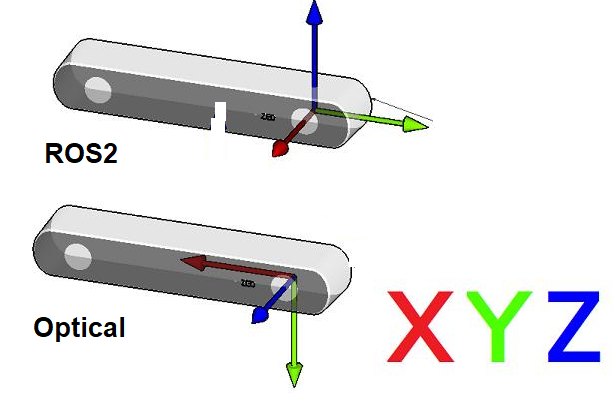
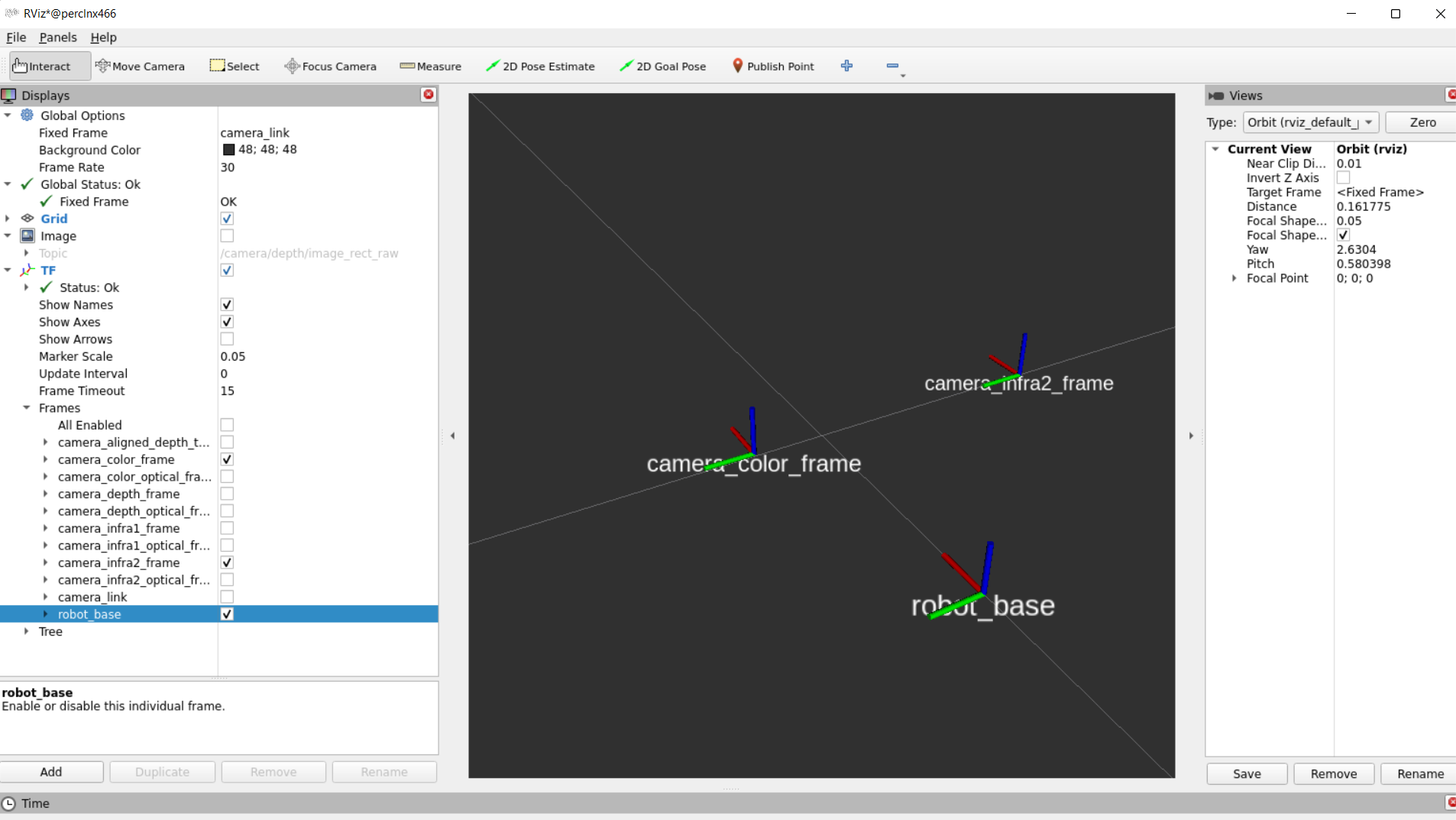
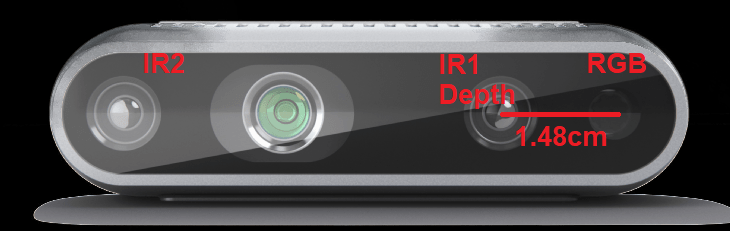
administrator@perclnx466 ~/ros2_humble $ ros2 topic echo /camera/camera/extrinsics/depth_to_color
rotation:
- 0.9999583959579468
- 0.008895332925021648
- -0.0020127370953559875
- -0.008895229548215866
- 0.9999604225158691
- 6.045500049367547e-05
- 0.0020131953060626984
- -4.254872692399658e-05
- 0.9999979734420776
translation:
- 0.01485931035131216
- 0.0010161789832636714
- 0.0005317096947692335
---
The published topics differ according to the device and parameters.
After running the above command with D435i attached, the following list of topics will be available (This is a partial list. For full one type ros2 topic list):
This will stream relevant camera sensors and publish on the appropriate ROS topics.
Enabling accel and gyro is achieved either by adding the following parameters to the command line:
ros2 launch realsense2_camera rs_launch.py pointcloud.enable:=true enable_gyro:=true enable_accel:=true
or in runtime using the following commands:
ros2 param set /camera/camera enable_accel true
ros2 param set /camera/camera enable_gyro true
Enabling stream adds matching topics. For instance, enabling the gyro and accel streams adds the following topics:
RGBD new topic, publishing [RGB + Depth] in the same message (see RGBD.msg for reference). For now, works only with depth aligned to color images, as color and depth images are synchronized by frame time tag.
These boolean parameters should be true to enable rgbd messages:
enable_rgbd: enable/disable rgbd topic, changeable during runtimealign_depth.enable: align depth images to rgb imagesenable_sync: let librealsense sync between frames, and get the frameset with color and depth images combinedenable_color + enable_depth: enable both color and depth sensorsThe current QoS of the topic itself, is the same as Depth and Color streams (SYSTEM_DEFAULT)
Example:
ros2 launch realsense2_camera rs_launch.py enable_rgbd:=true enable_sync:=true align_depth.enable:=true enable_color:=true enable_depth:=true
The /diagnostics topic provides real-time health monitoring of the camera, including hardware temperatures and stream frequency status. It uses the standard ROS 2 diagnostic_msgs/msg/DiagnosticArray message type.
Diagnostics are disabled by default. To enable them, set the diagnostics_period parameter to a positive value (in seconds), which controls how often the diagnostics message is published.
The diagnostics_period parameter is applied only at node startup and is not dynamically reconfigurable at runtime.
Via launch file:
ros2 launch realsense2_camera rs_launch.py diagnostics_period:=1.0
You can also set diagnostics_period in a parameters YAML file that is loaded when starting the node. Changing this parameter while the node is running (e.g. using ros2 param set) will have no effect; you must restart the node for a new value to take effect.
Setting diagnostics_period to 0 (default) or a negative value disables diagnostics publishing.
The /diagnostics topic publishes two categories of information:
1. Temperatures
Reports the camera's hardware temperatures, queried from the device sensors:
These are published under a diagnostic entry named "Temperatures" with the device serial number as the hardware ID.
Note: The temperature diagnostic status level is always reported as OK. There are currently no threshold checks — the status will not change to WARN or ERROR based on temperature values.
2. Stream Frequency
For each enabled stream (e.g. depth, color, infra, gyro, accel), a frequency diagnostic entry is registered that monitors whether the stream is publishing at its expected frame rate. Each entry reports:
This is useful for detecting dropped frames or degraded camera performance.
ros2 topic echo /diagnostics
header:
  stamp:
    sec: 1234567890
    nanosec: 123456789
status:
- name: "camera: Temperatures"
  hardware_id: "1234567890"
  level: 0          # OK
  message: "OK"
  values:
  - key: "Asic Temperature"
    value: "56.0"
  - key: "Projector Temperature"
    value: "52.5"
- name: "camera: depth"
  hardware_id: "1234567890"
  level: 0          # OK
  message: "Frequency within tolerance"
  values:
  - key: "Frequency (Hz)"
    value: "30.0"
Custom Visualizations for RealSense Camera RGBD Messages in RViz2
This RViz2 plugin provides advanced and intuitive visualization of RealSense camera RGBD data streams. It allows developers, researchers, and robotics engineers to easily inspect, debug, and present both RGB and depth information directly within RViz2.
To use this plugin, you must enable it at build time using the -DRVIZ_RGBD_PLUGIN=ON flag with colcon build.
You can do this in two ways:
1. Build only the plugin package:
colcon build --packages-select realsense2_rviz_plugin --cmake-args -DRVIZ_RGBD_PLUGIN=ON
2. Enable the plugin for the entire workspace at build:
colcon build --cmake-args -DRVIZ_RGBD_PLUGIN=ON
The metadata messages store the camera's available metadata in a json format. To learn more, a dedicated script for echoing a metadata topic in runtime is attached. For instance, use the following command to echo the camera/depth/metadata topic:
python3 src/realsense-ros/realsense2_camera/scripts/echo_metadada.py /camera/camera/depth/metadata
The metadata messages store the camera's available metadata in a json format. To learn more, a dedicated script for echoing a metadata topic in runtime is attached. For instance, use the following command to echo the camera/depth/metadata topic:
python3 src/realsense-ros/realsense2_camera/scripts/echo_metadada.py /camera/camera/depth/metadata
The following post processing filters are available:
align_depth: If enabled, will publish the depth image aligned to the color image on the topic /camera/camera/aligned_depth_to_color/image_raw.
colorizer: will color the depth image. On the depth topic an RGB image will be published, instead of the 16bit depth values .
pointcloud: will add a pointcloud topic /camera/camera/depth/color/points.
pointcloud.stream_filter parameter.pointcloud.allow_no_texture_points to true.pointcloud.ordered_pc to true.pointcloud.pointcloud_qos parameter.
{'name': 'pointcloud.pointcloud_qos', 'default': 'SENSOR_DATA', 'description': 'pointcloud qos'}pointcloud.pointcloud_qos:=SENSOR_DATAros2 param set /camera/camera pointcloud.pointcloud_qos SENSOR_DATA
ros2 param set /camera/camera pointcloud.enable false
ros2 param set /camera/camera pointcloud.enable true
hdr_merge: Allows depth image to be created by merging the information from 2 consecutive frames, taken with different exposure and gain values.
depth_module.hdr_enabled: to enable/disable HDR. The way to set exposure and gain values for each sequence:
depth_module.sequence_id parameter and then modifying the depth_module.gain, and depth_module.exposure.depth_module.hdr_enabled parameter and then, update the required presets.depth_module.exposure.1depth_module.gain.1depth_module.exposure.2depth_module.gain.2depth_module.hdr_enabled to true, otherwise these parameters won't be considered.filter_by_sequence_id.sequence_id parameter.The following filters have detailed descriptions in : https://github.com/realsenseai/librealsense/blob/master/doc/post-processing-filters.md
disparity_filter - convert depth to disparity before applying other filters and back.spatial_filter - filter the depth image spatially.temporal_filter - filter the depth image temporally.hole_filling_filter - apply hole-filling filter.decimation_filter - reduces depth scene complexity.rotation_filter - rotates depth and ir frames.Each of the above filters have it's own parameters, following the naming convention of <filter_name>.<parameter_name> including a <filter_name>.enable parameter to enable/disable it.
ros2 service call /camera/camera/hw_reset std_srvs/srv/Emptyros2 interface show realsense2_camera_msgs/srv/DeviceInfo for the full list.ros2 service call /camera/camera/device_info realsense2_camera_msgs/srv/DeviceInfoRead calibration config.
Note that reading calibration config is applicable only in Safey Service Mode
Type ros2 interface show realsense2_camera_msgs/srv/CalibConfigRead for the full request/response fields.
Call example: ros2 service call /camera/camera/calib_config_read realsense2_camera_msgs/srv/CalibConfigRead
response: realsense2_camera_msgs.srv.CalibConfigRead_Response(success=True, error_message='', calib_config='{"calibration_config":{"camera_position":{"rotation":[[0.0,0.0,1.0],[-1.0,0.0,0.0],[0.0,-1.0,0.0]],"translation":[0.0,0.0,0.0]},"crypto_signature":[0,0,0,0,0,0,0,0,0,0,0,0,0,0,0,0,0,0,0,0,0,0,0,0,0,0,0,0,0,0,0,0],"roi_0":{"vertex_0":[0,0],"vertex_1":[0,0],"vertex_2":[0,0],"vertex_3":[0,0]},"roi_1":{"vertex_0":[0,0],"vertex_1":[0,0],"vertex_2":[0,0],"vertex_3":[0,0]},"roi_2":{"vertex_0":[0,0],"vertex_1":[0,0],"vertex_2":[0,0],"vertex_3":[0,0]},"roi_3":{"vertex_0":[0,0],"vertex_1":[0,0],"vertex_2":[0,0],"vertex_3":[0,0]},"roi_num_of_segments":0}}')
Write calibration config.
Note that writing calibration config is applicable only in Safey Service Mode
Type ros2 interface show realsense2_camera_msgs/srv/CalibConfigWrite for the full request/response fields.
ros2 service call /camera/camera/calib_config_write realsense2_camera_msgs/srv/CalibConfigWrite "{calib_config: '{\"calibration_config\":{\"camera_position\":{\"rotation\":[[0.0,0.0,1.0],[-1.0,0.0,0.0],[0.0,-1.0,0.0]],\"translation\":[0.0,0.0,0.0]},\"crypto_signature\":[0,0,0,0,0,0,0,0,0,0,0,0,0,0,0,0,0,0,0,0,0,0,0,0,0,0,0,0,0,0,0,0],\"roi_0\":{\"vertex_0\":[0,0],\"vertex_1\":[0,0],\"vertex_2\":[0,0],\"vertex_3\":[0,0]},\"roi_1\":{\"vertex_0\":[0,0],\"vertex_1\":[0,0],\"vertex_2\":[0,0],\"vertex_3\":[0,0]},\"roi_2\":{\"vertex_0\":[0,0],\"vertex_1\":[0,0],\"vertex_2\":[0,0],\"vertex_3\":[0,0]},\"roi_3\":{\"vertex_0\":[0,0],\"vertex_1\":[0,0],\"vertex_2\":[0,0],\"vertex_3\":[0,0]},\"roi_num_of_segments\":0}}' }"
Result example: realsense2_camera_msgs.srv.CalibConfigWrite_Response(success=True, error_message='')
Read safety preset at a given index.
Type ros2 interface show realsense2_camera_msgs/srv/SafetyPresetRead for the full request/response fields.
Call example: ros2 service call /camera/camera/safety_preset_read realsense2_camera_msgs/srv/SafetyPresetRead "{index: 63}"
realsense2_camera_msgs.srv.SafetyPresetRead_Response(success=True, error_message='', safety_preset=
'{
  "safety_preset":
  {
      "platform_config":
      {
          "transformation_link":
          {
              "rotation":
              [
                  [ 0.0,  0.0,  1.0],
                  [-1.0,  0.0,  0.0],
                  [ 0.0, -1.0,  0.0]
              ],
              "translation": [0.0, 0.0, 0.27]
          },
          "robot_height": 1.0,
          "reserved": [0, 0, 0, 0, 0, 0, 0, 0, 0, 0, 0, 0, 0, 0, 0, 0, 0, 0, 0, 0]
      },
      "safety_zones":
      {
          "danger_zone":
          {
              "zone_polygon":
              {
                  "p0": {"x": 0.5, "y":  0.1},
                  "p1": {"x": 0.8, "y":  0.1},
                  "p2": {"x": 0.8, "y": -0.1},
                  "p3": {"x": 0.5, "y": -0.1}
              },
              "safety_trigger_confidence": 3,
              "reserved": [0, 0, 0, 0, 0, 0, 0]
          },
          "warning_zone":
          {
              "zone_polygon":
              {
                  "p0": {"x": 0.8, "y":  0.1},
                  "p1": {"x": 1.2, "y":  0.1},
                  "p2": {"x": 1.2, "y": -0.1},
                  "p3": {"x": 0.8, "y": -0.1}
              },
              "safety_trigger_confidence": 3,
              "reserved": [0, 0, 0, 0, 0, 0, 0]
          }
      },
      "masking_zones":
      {
          "0":
          {
              "attributes": 0,
              "minimal_range": 0.5,
              "region_of_interests":
              {
                  "vertex_0": [0, 0],
                  "vertex_1": [0, 320],
                  "vertex_2": [200, 320],
                  "vertex_3": [200, 0]
              }
          },
          "1":
          {
              "attributes": 0,
              "minimal_range": 0.5,
              "region_of_interests":
              {
                  "vertex_0": [0, 0],
                  "vertex_1": [0, 320],
                  "vertex_2": [200, 320],
                  "vertex_3": [200, 0]
              }
          },
          "2":
          {
              "attributes": 0,
              "minimal_range": 0.5,
              "region_of_interests":
              {
                  "vertex_0": [0, 0],
                  "vertex_1": [0, 320],
                  "vertex_2": [200, 320],
                  "vertex_3": [200, 0]
              }
          },
          "3":
          {
              "attributes": 0,
              "minimal_range": 0.5,
              "region_of_interests":
              {
                  "vertex_0": [0, 0],
                  "vertex_1": [0, 320],
                  "vertex_2": [200, 320],
                  "vertex_3": [200, 0]
              }
          },
          "4":
          {
              "attributes": 0,
              "minimal_range": 0.5,
              "region_of_interests":
              {
                  "vertex_0": [0, 0],
                  "vertex_1": [0, 320],
                  "vertex_2": [200, 320],
                  "vertex_3": [200, 0]
              }
          },
          "5":
          {
              "attributes": 0,
              "minimal_range": 0.5,
              "region_of_interests":
              {
                  "vertex_0": [0, 0],
                  "vertex_1": [0, 320],
                  "vertex_2": [200, 320],
                  "vertex_3": [200, 0]
              }
          },
          "6":
          {
              "attributes": 0,
              "minimal_range": 0.5,
              "region_of_interests":
              {
                  "vertex_0": [0, 0],
                  "vertex_1": [0, 320],
                  "vertex_2": [200, 320],
                  "vertex_3": [200, 0]
              }
          },
          "7":
          {
              "attributes": 1,
              "minimal_range": 0,
              "region_of_interests":
              {
                  "vertex_0": [500, 3300],
                  "vertex_1": [800, 3300],
                  "vertex_2": [800, 3100],
                  "vertex_3": [500, 3100]
              }
          }
      },
      "reserved": [0, 0, 0, 0, 0, 0, 0, 0, 0, 0, 0, 0, 0, 0, 0, 0],
      "environment":
      {
          "safety_trigger_duration": 1.0,
          "zero_safety_monitoring": 0,
          "hara_history_continuation": 0,
          "reserved1": [0, 0],
          "angular_velocity": 0.0,
          "payload_weight": 0.0,
          "surface_inclination": 15.0,
          "surface_height": 0.05,
          "diagnostic_zone_fill_rate_threshold": 255,
          "floor_fill_threshold": 255,
          "depth_fill_threshold": 255,
          "diagnostic_zone_height_median_threshold": 255,
          "vision_hara_persistency": 1,
          "crypto_signature": [0, 0, 0, 0, 0, 0, 0, 0, 0, 0, 0, 0, 0, 0, 0, 0, 0, 0, 0, 0, 0, 0, 0, 0, 0, 0, 0, 0, 0, 0, 0, 0],
          "reserved2": [0, 0, 0]
      }
  }
}')
Write safety preset at given index.
Note that writing safety presets is applicable only in Safey Service Mode
Type ros2 interface show realsense2_camera_msgs/srv/SafetyPresetWrite for the full request/response fields.
Only for commnad line usage, user should escape all " with \". Using ros2 services API from rclcpp/rclpy doesn't need escaping.
ros2 service call /camera/camera/safety_preset_write realsense2_camera_msgs/srv/SafetyPresetWrite "{safety_preset: ' {\"safety_preset\":{\"platform_config\":{\"transformation_link\":{\"rotation\":[[0.0,0.0,1.0],[-1.0,0.0,0.0],[0.0,-1.0,0.0]],\"translation\":[0.0,0.0,0.27]},\"robot_height\":1.0,\"reserved\":[0,0,0,0,0,0,0,0,0,0,0,0,0,0,0,0,0,0,0,0]},\"safety_zones\":{\"danger_zone\":{\"zone_polygon\":{\"p0\":{\"x\":0.5,\"y\":0.1},\"p1\":{\"x\":0.8,\"y\":0.1},\"p2\":{\"x\":0.8,\"y\":-0.1},\"p3\":{\"x\":0.5,\"y\":-0.1}},\"safety_trigger_confidence\":3,\"reserved\":[0,0,0,0,0,0,0]},\"warning_zone\":{\"zone_polygon\":{\"p0\":{\"x\":0.8,\"y\":0.1},\"p1\":{\"x\":1.2,\"y\":0.1},\"p2\":{\"x\":1.2,\"y\":-0.1},\"p3\":{\"x\":0.8,\"y\":-0.1}},\"safety_trigger_confidence\":3,\"reserved\":[0,0,0,0,0,0,0]}},\"masking_zones\":{\"0\":{\"attributes\":0,\"minimal_range\":0.5,\"region_of_interests\":{\"vertex_0\":[0,0],\"vertex_1\":[0,320],\"vertex_2\":[200,320],\"vertex_3\":[200,0]}},\"1\":{\"attributes\":0,\"minimal_range\":0.5,\"region_of_interests\":{\"vertex_0\":[0,0],\"vertex_1\":[0,320],\"vertex_2\":[200,320],\"vertex_3\":[200,0]}},\"2\":{\"attributes\":0,\"minimal_range\":0.5,\"region_of_interests\":{\"vertex_0\":[0,0],\"vertex_1\":[0,320],\"vertex_2\":[200,320],\"vertex_3\":[200,0]}},\"3\":{\"attributes\":0,\"minimal_range\":0.5,\"region_of_interests\":{\"vertex_0\":[0,0],\"vertex_1\":[0,320],\"vertex_2\":[200,320],\"vertex_3\":[200,0]}},\"4\":{\"attributes\":0,\"minimal_range\":0.5,\"region_of_interests\":{\"vertex_0\":[0,0],\"vertex_1\":[0,320],\"vertex_2\":[200,320],\"vertex_3\":[200,0]}},\"5\":{\"attributes\":0,\"minimal_range\":0.5,\"region_of_interests\":{\"vertex_0\":[0,0],\"vertex_1\":[0,320],\"vertex_2\":[200,320],\"vertex_3\":[200,0]}},\"6\":{\"attributes\":0,\"minimal_range\":0.5,\"region_of_interests\":{\"vertex_0\":[0,0],\"vertex_1\":[0,320],\"vertex_2\":[200,320],\"vertex_3\":[200,0]}},\"7\":{\"attributes\":1,\"minimal_range\":0,\"region_of_interests\":{\"vertex_0\":[500,3300],\"vertex_1\":[800,3300],\"vertex_2\":[800,3100],\"vertex_3\":[500,3100]}}},\"reserved\":[0,0,0,0,0,0,0,0,0,0,0,0,0,0,0,0],\"environment\":{\"safety_trigger_duration\":1.0,\"zero_safety_monitoring\":0,\"hara_history_continuation\":0,\"reserved1\":[0,0],\"angular_velocity\":0.0,\"payload_weight\":0.0,\"surface_inclination\":15.0,\"surface_height\":0.05,\"diagnostic_zone_fill_rate_threshold\":255,\"floor_fill_threshold\":255,\"depth_fill_threshold\":255,\"diagnostic_zone_height_median_threshold\":255,\"vision_hara_persistency\":1,\"crypto_signature\":[0,0,0,0,0,0,0,0,0,0,0,0,0,0,0,0,0,0,0,0,0,0,0,0,0,0,0,0,0,0,0,0],\"reserved2\":[1,1,1]}}} ', index: 63}"
Result example: realsense2_camera_msgs.srv.SafetyPresetWrite_Response(success=True, error_message='')
Read safety interface config.
Type ros2 interface show realsense2_camera_msgs/srv/SafetyInterfaceConfigRead for the full request/response fields.
Call example: ros2 service call /camera/camera/safety_interface_config_read realsense2_camera_msgs/srv/SafetyInterfaceConfigRead
realsense2_camera_msgs.srv.SafetyInterfaceConfigRead_Response(success=True, error_message='', safety_interface_config='
{
  "safety_interface_config":
  {
      "m12_safety_pins_configuration":
      {
          "power":
          {
              "direction": "In",
              "functionality": "p24VDC"
          },
          "ossd1_b":
          {
              "direction": "Out",
              "functionality": "pOSSD1_B"
          },
          "ossd1_a":
          {
              "direction": "Out",
              "functionality": "pOSSD1_A"
          },
          "preset3_a":
          {
              "direction": "In",
              "functionality": "pPresetSelect3_A"
          },
          "preset3_b":
          {
              "direction": "In",
              "functionality": "pPresetSelect3_B"
          },
          "preset4_a":
          {
              "direction": "In",
              "functionality": "pPresetSelect4_A"
          },
          "preset1_b":
          {
              "direction": "In",
              "functionality": "pPresetSelect1_B"
          },
          "preset1_a":
          {
              "direction": "In",
              "functionality": "pPresetSelect1_A"
          },
          "gpio_0":
          {
              "direction": "In",
              "functionality": "pPresetSelect5_A"
          },
          "gpio_1":
          {
              "direction": "In",
              "functionality": "pPresetSelect5_B"
          },
          "gpio_3":
          {
              "direction": "In",
              "functionality": "pPresetSelect6_B"
          },
          "gpio_2":
          {
              "direction": "In",
              "functionality": "pPresetSelect6_A"
          },
          "preset2_b":
          {
              "direction": "In",
              "functionality": "pPresetSelect2_B"
          },
          "gpio_4":
          {
              "direction": "Out",
              "functionality": "pDeviceReady"
          },
          "preset2_a":
          {
              "direction": "In",
              "functionality": "pPresetSelect2_A"
          },
          "preset4_b":
          {
              "direction": "In",
              "functionality": "pPresetSelect4_B"
          },
          "ground":
          {
              "direction": "In",
              "functionality": "pGND"
          }
      },
      "gpio_stabilization_interval" : 150,
      "camera_position":
      {
          "rotation":
          [
              [ 0.0,  0.0,  1.0],
              [-1.0,  0.0,  0.0],
              [ 0.0, -1.0,  0.0]
          ],
          "translation": [0.0, 0.0, 0.27]
      },
      "occupancy_grid_params":
      {
          "grid_cell_seed" : 20,
          "close_range_quorum" : 12 ,
          "mid_range_quorum" : 6,
          "long_range_quorum" : 4
      },
      "smcu_arbitration_params":
      {
          "l_0_total_threshold": 100,
          "l_0_sustained_rate_threshold": 20,
          "l_1_total_threshold": 100,
          "l_1_sustained_rate_threshold": 20,
          "l_2_total_threshold": 10,
          "hkr_stl_timeout": 15,
          "mcu_stl_timeout": 10,
          "sustained_aicv_frame_drops": 95,
          "ossd_self_test_pulse_width": 23
      },
      "crypto_signature": [0, 0, 0, 0, 0, 0, 0, 0, 0, 0, 0, 0, 0, 0, 0, 0, 0, 0, 0, 0, 0, 0, 0, 0, 0, 0, 0, 0, 0, 0, 0, 0]
  }
}
')
Write safety interface config at given index.
Note that writing safety interface config is applicable only in Safey Service Mode
Type ros2 interface show realsense2_camera_msgs/srv/SafetyInterfaceConfigWrite for the full request/response fields.
ros2 service call /camera/camera/safety_interface_config_write realsense2_camera_msgs/srv/SafetyInterfaceConfigWrite "{safety_interface_config: '{\"safety_interface_config\":{\"m12_safety_pins_configuration\":{\"power\":{\"direction\":\"In\",\"functionality\":\"p24VDC\"},\"ossd1_b\":{\"direction\":\"Out\",\"functionality\":\"pOSSD1_B\"},\"ossd1_a\":{\"direction\":\"Out\",\"functionality\":\"pOSSD1_A\"},\"preset3_a\":{\"direction\":\"In\",\"functionality\":\"pPresetSelect3_A\"},\"preset3_b\":{\"direction\":\"In\",\"functionality\":\"pPresetSelect3_B\"},\"preset4_a\":{\"direction\":\"In\",\"functionality\":\"pPresetSelect4_A\"},\"preset1_b\":{\"direction\":\"In\",\"functionality\":\"pPresetSelect1_B\"},\"preset1_a\":{\"direction\":\"In\",\"functionality\":\"pPresetSelect1_A\"},\"gpio_0\":{\"direction\":\"In\",\"functionality\":\"pPresetSelect5_A\"},\"gpio_1\":{\"direction\":\"In\",\"functionality\":\"pPresetSelect5_B\"},\"gpio_3\":{\"direction\":\"In\",\"functionality\":\"pPresetSelect6_B\"},\"gpio_2\":{\"direction\":\"In\",\"functionality\":\"pPresetSelect6_A\"},\"preset2_b\":{\"direction\":\"In\",\"functionality\":\"pPresetSelect2_B\"},\"gpio_4\":{\"direction\":\"Out\",\"functionality\":\"pDeviceReady\"},\"preset2_a\":{\"direction\":\"In\",\"functionality\":\"pPresetSelect2_A\"},\"preset4_b\":{\"direction\":\"In\",\"functionality\":\"pPresetSelect4_B\"},\"ground\":{\"direction\":\"In\",\"functionality\":\"pGND\"}},\"gpio_stabilization_interval\":150,\"camera_position\":{\"rotation\":[[0.0,0.0,1.0],[-1.0,0.0,0.0],[0.0,-1.0,0.0]],\"translation\":[0.0,0.0,0.27]},\"occupancy_grid_params\":{\"grid_cell_seed\":20,\"close_range_quorum\":12,\"mid_range_quorum\":6,\"long_range_quorum\":4},\"smcu_arbitration_params\":{\"l_0_total_threshold\":100,\"l_0_sustained_rate_threshold\":20,\"l_1_total_threshold\":100,\"l_1_sustained_rate_threshold\":20,\"l_2_total_threshold\":10,\"hkr_stl_timeout\":15,\"mcu_stl_timeout\":10,\"sustained_aicv_frame_drops\":95,\"ossd_self_test_pulse_width\":23},\"crypto_signature\":[0,0,0,0,0,0,0,0,0,0,0,0,0,0,0,0,0,0,0,0,0,0,0,0,0,0,0,0,0,0,0,0]}}'}"
Result example: realsense2_camera_msgs.srv.SafetyInterfaceConfigWrite_Response(success=True, error_message='')
Read application config.
Note that reading application config is applicable only in Safey Service Mode
Type ros2 interface show realsense2_camera_msgs/srv/ApplicationConfigRead for the full request/response fields.
Call example: ros2 service call /camera/camera/application_config_read realsense2_camera_msgs/srv/ApplicationConfigRead
response: realsense2_camera_msgs.srv.ApplicationConfigRead_Response(success=True, error_message='', application_config='{"application_config":{"depth_pipe_safety_checks_override":0,"depth_pipeline_config":0,"depth_roi":0,"dev_rules_selection":0,"developer_mode":{"hkr":0,"hkr_simulated_lock_state":0,"sc":0,"smcu":0},"digital_signature":[0,0,0,0,0,0,0,0,0,0,0,0,0,0,0,0,0,0,0,0,0,0,0,0,0,0,0,0,0,0,0,0],"ir_for_sip":0,"peripherals_sensors_disable_mask":0,"sht4x_humidity_threshold":23,"sip":{"immediate_mode_safety_features_selection":0,"mechanisms_sampling_interval":[0,0,0,0,0,0,0,0],"tc_consecutives_failures_threshold":3,"mechanisms_thresholds":[0,0,0,0,0,0,0,0,0,0,0,0,0,0,0,0],"temporal_safety_features_selection":0},"smcu_bypass_directly_to_maintenance_mode":0,"smcu_skip_spi_error":0,"temp_thresholds":{"apm_left":[0,0,0,0],"apm_right":[0,0,0,0],"hkr_core":[0,0,0,0],"imu":[0,0,0,0],"ir_left":[0,0,0,0],"ir_right":[0,0,0,0],"sht4x":[0,0,0,0],"smcu_right":[0,0,0,0]},"triggered_calib_safety_checks_override":0,"voltage_thresholds":{"vdd0v6":0,"vdd0v8":0,"vdd0v8_ddr":0,"vdd1v1":0,"vdd1v2":0,"vdd1v8":0,"vdd3v3":0,"vdd5vo_l":0,"vdd5vo_u":0}}}')
Write application config.
Note that writing application config is applicable only in Safey Service Mode
Type ros2 interface show realsense2_camera_msgs/srv/ApplicationConfigWrite for the full request/response fields.
ros2 service call /camera/camera/application_config_write realsense2_camera_msgs/srv/ApplicationConfigWrite "{application_config: ''{"application_config":{"depth_pipe_safety_checks_override":0,"depth_pipeline_config":0,"depth_roi":0,"dev_rules_selection":0,"developer_mode":{"hkr":0,"hkr_simulated_lock_state":0,"sc":0,"smcu":0},"digital_signature":[0,0,0,0,0,0,0,0,0,0,0,0,0,0,0,0,0,0,0,0,0,0,0,0,0,0,0,0,0,0,0,0],"ir_for_sip":0,"peripherals_sensors_disable_mask":0,"sht4x_humidity_threshold":23,"sip":{"immediate_mode_safety_features_selection":0,"mechanisms_sampling_interval":[0,0,0,0,0,0,0,0],"tc_consecutives_failures_threshold":3,"mechanisms_thresholds":[0,0,0,0,0,0,0,0,0,0,0,0,0,0,0,0],"temporal_safety_features_selection":0},"smcu_bypass_directly_to_maintenance_mode":0,"smcu_skip_spi_error":0,"temp_thresholds":{"apm_left":[0,0,0,0],"apm_right":[0,0,0,0],"hkr_core":[0,0,0,0],"imu":[0,0,0,0],"ir_left":[0,0,0,0],"ir_right":[0,0,0,0],"sht4x":[0,0,0,0],"smcu_right":[0,0,0,0]},"triggered_calib_safety_checks_override":0,"voltage_thresholds":{"vdd0v6":0,"vdd0v8":0,"vdd0v8_ddr":0,"vdd1v1":0,"vdd1v2":0,"vdd1v8":0,"vdd3v3":0,"vdd5vo_l":0,"vdd5vo_u":0}}}' }"
Result example: realsense2_camera_msgs.srv.ApplicationonfigWrite_Response(success=True, error_message='')
ros2 interface show realsense2_camera/srv/HardwareMonitorCommandSend for the full request/response fieldsros2 service call /camera/camera/hardware_monitor_command_send realsense2_camera_msgs/srv/HardwareMonitorCommandSend "{cmd: {opcode: 0x10, param1: 0, param2: 0, param3: 0, param4: 0, data: [] } }"ros2 service call /camera/camera/hardware_monitor_command_send realsense2_camera_msgs/srv/HardwareMonitorCommandSend "{cmd: {opcode: 0x10} }"realsense2_camera_msgs.srv.HardwareMonitorCommandSend_Response(success=True, result=[16, 0, 0, 0, 2, 0, 82, 2, 68, 135, 67, 22, 0, 0, 0, 0, 134, 128, 107, 11, 255, 255, 255, 255, 255, 255, 255, 255, 255, 255, 255, 255, 255, 255, 255, 255, 255, 255, 255, 255, 0, 0, 0, 0, 0, 0, 0, 0, 0, 0, 0, 0, 0, 0, 0, 0, 0, 0, 0, 0, 0, 0, 0, 0, 0, 0, 0, 0, 0, 0, 0, 0, 0, 0, 1, 1, 1, 1, 1, 1, 0, 0, 0, 0, 0, 0, 0, 0, 51, 54, 34, 50, 1, 105, 0, 0, 0, 0, 0, 0, 0, 0, 255, 255, 255, 255, 255, 255, 255, 255, 255, 255, 0, 0, 0, 0, 0, 0, 0, 0, 0, 0, 0, 0, 0, 0, 255, 255, 255, 255, 255, 255, 0, 0, 0, 0, 0, 0, 0, 0, 255, 255, 255, 255, 255, 255, 255, 255, 255, 255, 0, 0, 0, 0, 0, 0, 0, 0, 0, 0, 0, 0, 0, 0, 0, 0, 1, 0, 0, 1, 1, 0, 0, 1, 1, 1, 0, 0, 0, 0, 0, 0, 0, 0, 0, 0, 0, 0, 0, 0, 8, 0, 56, 0, 122, 73, 27, 1, 0, 226, 153, 24, 238, 79, 152, 64, 1, 4, 0, 0, 4, 0, 0, 0, 11, 121, 197, 29, 0, 0, 0, 0, 0, 0, 0, 1, 0, 64, 0, 148, 11, 7, 0, 0, 0, 64, 128, 141, 5, 0, 0, 0, 0, 32, 32, 80, 88, 82, 79, 83, 45, 72, 82, 32, 75, 101, 114, 110, 0, 57, 53, 55, 56, 54, 101, 55, 0, 0, 0, 0, 0, 0, 0, 0, 0, 2, 0, 7, 16, 0, 0, 0, 0, 0, 0, 0, 0, 0, 0, 0, 0, 0, 0, 0, 0, 0, 0, 0, 0, 51, 53, 34, 24, 1, 135, 0, 0, 0, 0, 0, 0, 0, 0, 78, 50, 56, 50, 55, 53, 45, 49, 48, 48, 0, 0, 48, 51, 71, 6, 239, 190, 173, 222, 239, 190, 173, 222, 228, 55, 0, 64, 228, 55, 0, 64, 1, 0, 0, 0, 0, 0, 0, 0, 0, 51, 52, 50, 51, 50, 50, 0, 0, 0, 0, 0, 0, 0, 0, 48, 48, 48, 48, 48, 48, 48, 48, 48, 48, 0, 0, 1, 51, 52, 50, 51, 50, 50, 0, 0, 0, 0, 0, 0, 0, 0, 48, 48, 48, 48, 48, 48, 48, 48, 48, 48, 0, 0, 1, 0, 0, 0, 0, 0, 0, 0, 0, 0, 0, 0, 0, 0, 0, 0, 0, 0, 0, 17, 35, 1, 41, 8, 1, 4, 0, 0, 0, 0, 0, 0, 0, 0, 17, 35, 1, 1, 4, 41, 8, 0, 0, 0, 0, 0, 0, 0, 0, 17, 35, 1, 1, 4, 41, 8, 0, 0, 0, 0, 0, 0, 0, 0, 0, 4, 13, 100, 0, 196, 9, 0, 0, 0, 0, 0, 0, 0, 0, 66, 77, 73, 48, 56, 56, 0, 0, 30, 15, 0, 0, 240, 65, 0, 0, 0, 0, 0, 0, 0, 0, 0, 0, 0, 0, 0, 0, 0, 0, 0, 0, 0, 0, 0, 0, 0, 0, 80, 71, 198, 0, 255, 255, 255, 0, 0, 0, 0, 0, 0, 0, 0, 0, 0, 0, 0, 0, 2, 0, 2, 0, 2, 0, 3, 0, 3, 0, 3, 0, 3, 0, 4, 1, 4, 1, 4, 1, 4, 1, 4, 1, 255, 255, 4, 1, 2, 0, 3, 0, 3, 0, 239, 190, 239, 190, 239, 190, 0, 0, 0, 0, 0, 0, 0, 0, 0, 0, 0, 0, 0, 0, 0, 0, 0, 0, 0, 0, 0, 0], error_message='')
ros2 interface show realsense2_camera_msgs/action/TriggeredCalibration for the full request/result/feedback fields.
# request
string json "calib run"  # default value
---
# result
bool success
string error_msg
string calibration
float32 health
---
# feedback
float32 progress
safety_camera.safety_mode: 2 # switch to service modedepth_module.visual_preset: 1 # switch to visual preset #1 in depth moduledepth_module.emitter_enabled: true # enable emitter in depth moduledepth_module.enable_auto_exposure: true # enable AE in depth moudleenable_color: false # turn off color streamenable_depth: false # turn off depth streamenable_infra1: false # turn off infra1 streamenable_infra2: false # turn off infra2 streamenable_safety: false # turn off safety streamenable_labeled_point_cloud: false # turn off labeled pointcloud streamenable_occupancy: false # turn off occupancy streamros2 action send_goal /camera/camera/triggered_calibration realsense2_camera_msgs/action/TriggeredCalibration '{json: "{calib run}"}' or even with an empty request ros2 action send_goal /camera/camera/triggered_calibration realsense2_camera_msgs/action/TriggeredCalibration '' because the default behavior is already calib run.ros2 param set /camera/camera safety_camera.safety_mode 2
ros2 param set /camera/camera depth_module.visual_preset 1
ros2 param set /camera/camera depth_module.emitter_enabled true
ros2 param set /camera/camera depth_module.enable_auto_exposure true
ros2 param set /camera/camera enable_color false
ros2 param set /camera/camera enable_depth false
ros2 param set /camera/camera enable_infra1 false
ros2 param set /camera/camera enable_infra2 false
ros2 param set /camera/camera enable_safety false
ros2 param set /camera/camera enable_labeled_point_cloud false
ros2 param set /camera/camera enable_occupancy false
ros2 action send_goal /camera/camera/triggered_calibration realsense2_camera_msgs/action/TriggeredCalibration '{json: "{calib run}"}' --feedback
--feedback to the end of the command.Result:
success: false
error_msg: 'TriggeredCalibrationExecute: Aborted. Error: Calibration completed but algorithm failed'
calibration: '{}'
health: 0.0
Our ROS2 Wrapper node supports zero-copy communications if loaded in the same process as a subscriber node. This can reduce copy times on image/pointcloud topics, especially with big frame resolutions and high FPS.
You will need to launch a component container and launch our node as a component together with other component nodes. Further details on "Composing multiple nodes in a single process" can be found here.
Further details on efficient intra-process communication can be found here.
Start the component:
ros2 run rclcpp_components component_container
Add the wrapper:
ros2 component load /ComponentManager realsense2_camera realsense2_camera::RealSenseNodeFactory -e use_intra_process_comms:=true
Load other component nodes (consumers of the wrapper topics) in the same way.
image_transport will be disabled as this isn't supported with intra-process communicationFor getting a sense of the latency reduction, a frame latency reporter tool is available via a launch file.
The launch file loads the wrapper and a frame latency reporter tool component into a single container (so the same process).
The tool prints out the frame latency (now - frame.timestamp) per frame.
The tool is not built unless asked for. Turn on BUILD_TOOLS during build to have it available:
colcon build --cmake-args '-DBUILD_TOOLS=ON'
The launch file accepts a parameter, intra_process_comms, controlling whether zero-copy is turned on or not. Default is on:
ros2 launch realsense2_camera rs_intra_process_demo_launch.py intra_process_comms:=true
For debugging purposes, users can control the ROS wrapper log level and also the SDK log level.
log_level in the ros2 launch command or in the launch file itself
e.g. ros2 launch realsense2_camera rs_launch.py log_level:=warnLRS_LOG_LEVEL and set it to the desired log level.
e.g. export LRS_LOG_LEVEL=debugROS Wrapper for RealSense™ Cameras
See the code
ROS Wrapper for RealSense(TM) Cameras
Latest release notes
We are happy to announce that the RealSense GitHub repositories have been successfully migrated to the RealSenseAI organization. Please make sure to update your links to the new RealSenseAI organization for both cloning the repositories and accessing specific files within them.
https://github.com/IntelRealSense/realsense-ros --> https://github.com/realsenseai/realsense-ros
Note: A redirection from the previous name IntelRealSense is currently in place, but we cannot guarantee how long it will remain active. We recommend that all users update their references to point to the new GitHub location.
Please choose only one option from the 3 options below (in order to prevent multiple versions installation and workspace conflicts)
sudo apt install ros-<ROS_DISTRO>-librealsense2*
sudo apt install ros-humble-librealsense2*sudo apt install ros-<ROS_DISTRO>-realsense2-*sudo apt install ros-humble-realsense2-*Create a ROS2 workspace
mkdir -p ~/ros2_ws/src
cd ~/ros2_ws/src/
Clone the latest ROS Wrapper for RealSense™ cameras from here into '~/ros2_ws/src/'
git clone https://github.com/realsenseai/realsense-ros.git -b ros2-master
cd ~/ros2_ws
Install dependencies
sudo apt-get install python3-rosdep -y
sudo rosdep init # "sudo rosdep init --include-eol-distros" for Foxy and earlier
rosdep update # "sudo rosdep update --include-eol-distros" for Foxy and earlier
rosdep install -i --from-path src --rosdistro $ROS_DISTRO --skip-keys=librealsense2 -y
colcon build
ROS_DISTRO=<YOUR_SYSTEM_ROS_DISTRO>  # set your ROS_DISTRO: kilted, jazzy, iron, humble, foxy
source /opt/ros/$ROS_DISTRO/setup.bash
cd ~/ros2_ws
. install/local_setup.bash
PLEASE PAY ATTENTION: ROS Wrapper for RealSense™ cameras is not meant to be supported on Windows by our team, since ROS2 and its packages are still not fully supported over Windows. We added these installation steps below in order to try and make it easier for users who already started working with ROS2 on Windows and want to take advantage of the capabilities of our RealSense cameras
Please choose only one option from the two options below (in order to prevent multiple versions installation and workspace conflicts)
Before starting building of our packages, make sure you have OpenCV for Windows installed on your machine. If you choose the Microsoft IOT way to install it, it will be installed automatically. Later, when colcon build, you might need to expose this installation folder by setting CMAKE_PREFIX_PATH, PATH, or OpenCV_DIR environment variables
Run "x64 Native Tools Command Prompt for VS 2019" as administrator
Setup ROS2 Environment (Do this for every new terminal/cmd you open):
If you choose the Microsoft IOT Binary option for installation
> C:\opt\ros\humble\x64\setup.bat
If you choose the ROS2 formal documentation:
> call C:\dev\ros2_iron\local_setup.bat
Change directory to realsense-ros folder
> cd C:\ros2_ws\realsense-ros
Build librealsense2 package only
> colcon build --packages-select librealsense2 --cmake-args -DBUILD_EXAMPLES=OFF -DBUILD_WITH_STATIC_CRT=OFF -DBUILD_GRAPHICAL_EXAMPLES=OFF
--event-handlers console_direct+ parameter to see more debug outputs of the colcon buildBuild the other packages
> colcon build --packages-select realsense2_camera_msgs realsense2_description realsense2_camera
--event-handlers console_direct+ parameter to see more debug outputs of the colcon buildSetup environment with new installed packages (Do this for every new terminal/cmd you open):
> call install\setup.bat
The USE_LIFECYCLE_NODE cmake flag enables ROS2 Lifecycle Node (rclcpp_lifecycle::LifecycleNode) in the Realsense SDK, providing better node management and explicit state transitions.
However, enabling this flag introduces a limitation where Image Transport functionality (image_transport) is disabled when USE_LIFECYCLE_NODE=ON.
This means that compressed image topics (e.g., JPEG, PNG, Theora) will not be available and
Subscribers must use raw image topics, which may increase bandwidth usage.
Note: Users who do not depend on image_transport will not be affected by this change and can safely enable Lifecycle Node without any impact on their workflow.
At the time Lifecycle Node support was added, image_transport did not support rclcpp_lifecycle::LifecycleNode.
🔗 ROS2 image_transport does not support Lifecycle Node.
To build the SDK with Lifecycle Node enabled:
colcon build --cmake-args -DUSE_LIFECYCLE_NODE=ON
To use standard ROS2 node (default behavior) and retain image_transport functionality:
colcon build --cmake-args -DUSE_LIFECYCLE_NODE=OFF
The RealSense node follows the ROS2 managed lifecycle. Below is a breakdown of each state and the corresponding function calls:
| State | Transition Function | Description |
|---|---|---|
UNCONFIGURED | Node Created | The node is instantiated but not initialized. |
CONFIGURING | on_configure() → init() | Initializes parameters and attempts to discover the RealSense device. |
INACTIVE | - | The node is initialized but not yet publishing data. |
ACTIVATING | on_activate() → startDevice() | Starts the RealSense device and begins publishing topics. |
ACTIVE | - | The node is fully operational and publishing data. |
DEACTIVATING | on_deactivate() → stopDevice() | Stops publishing but retains device configuration. |
CLEANUP | on_cleanup() → closeDevice() | Resets all resources, allowing reconfiguration. |
SHUTDOWN | on_shutdown() → closeDevice() | Cleans up before process termination (doesnt actually terminate the process itself due to ROS2 composable nodes and component manager ) |
ros2 run realsense2_camera realsense2_camera_node
# or, with parameters, for example - temporal and spatial filters are enabled:
ros2 run realsense2_camera realsense2_camera_node --ros-args -p enable_color:=false -p spatial_filter.enable:=true -p temporal_filter.enable:=true
ros2 launch realsense2_camera rs_launch.py
ros2 launch realsense2_camera rs_launch.py depth_module.depth_profile:=1280x720x30 pointcloud.enable:=true
User can set the camera name and camera namespace, to distinguish between cameras and platforms, which helps identifying the right nodes and topics to work with.
If user have multiple cameras (might be of the same model) and multiple robots then user can choose to launch/run his nodes on this way.
For the first robot and first camera he will run/launch it with these parameters:
camera_namespace:
camera_name
With ros2 launch (via command line or by editing these two parameters in the launch file):
ros2 launch realsense2_camera rs_launch.py camera_namespace:=robot1 camera_name:=D455_1
ros2 run realsense2_camera realsense2_camera_node --ros-args -r __node:=D455_1 -r __ns:=/robot1
⚠️ Note: Using
ros2 runmay produce slightly different topics and services due to parameters not being initialized with the values assigned inrs_launch.py. This may result in additional topics such as IMU data.
> ros2 node list
/robot1/D455_1

> ros2 topic list
/parameter_events
/robot1/D455_1/color/camera_info
/robot1/D455_1/color/image_raw
/robot1/D455_1/color/metadata
/robot1/D455_1/depth/camera_info
/robot1/D455_1/depth/image_rect_raw
/robot1/D455_1/depth/metadata
/robot1/D455_1/extrinsics/depth_to_color
/robot1/D455_1/extrinsics/depth_to_depth
/rosout
/tf_static

> ros2 service list
/robot1/D455_1/calib_config_read
/robot1/D455_1/calib_config_write
/robot1/D455_1/describe_parameters
/robot1/D455_1/device_info
/robot1/D455_1/get_parameter_types
/robot1/D455_1/get_parameters
/robot1/D455_1/hw_reset
/robot1/D455_1/list_parameters
/robot1/D455_1/set_parameters
/robot1/D455_1/set_parameters_atomically
> ros2 node list
/camera/camera

> ros2 topic list
/camera/camera/color/camera_info
/camera/camera/color/image_raw
/camera/camera/color/metadata
/camera/camera/depth/camera_info
/camera/camera/depth/image_rect_raw
/camera/camera/depth/metadata
/camera/camera/extrinsics/depth_to_color
/camera/camera/extrinsics/depth_to_depth
/parameter_events
/rosout
/tf_static

> ros2 service list
/camera/camera/calib_config_read
/camera/camera/calib_config_write
/camera/camera/describe_parameters
/camera/camera/device_info
/camera/camera/get_parameter_types
/camera/camera/get_parameters
/camera/camera/hw_reset
/camera/camera/list_parameters
/camera/camera/set_parameters
/camera/camera/set_parameters_atomically
ros2 param list.ros2 param get <node> <parameter_name>
ros2 param get /camera/camera depth_module.emitter_enabledros2 param set <node> <parameter_name> <value>
ros2 param set /camera/camera depth_module.emitter_enabled 1depth_module and rgb_camera)
depth_module.depth_profile:=640x480x30 depth_module.infra_profile:=640x480x30 rgb_camera.color_profile:=1280x720x30ros2 param describe <your_node_name> <param_name> to get the list of supported profiles.depth_module.depth_format:=Z16 depth_module.infra1_format:=y8 rgb_camera.color_format:=RGB8ros2 param describe <your_node_name> <param_name> to get the list of supported formats.rs-enumerate-devices command to know the list of profiles supported by the connected sensors.enable_infra1:=true enable_color:=falseSYSTEM_DEFAULT, DEFAULT, PARAMETER_EVENTS, SERVICES_DEFAULT, PARAMETERS, SENSOR_DATA.depth_qos:=SENSOR_DATApointcloud.pointcloud_qos parameter in the pointcloud filter, refer to the Post-Processing Filters section for details.unite_imu_method param supports below values:
BUILD_ACCELERATE_GPU_WITH_GLSL during build:colcon build --cmake-args '-DBUILD_ACCELERATE_GPU_WITH_GLSL=ON'
serial_no:=_831612073525.usb_port_id:=4-1 or usb_port_id:=4-2device_type:=d435 will match d435 and d435i.device_type=d435(?!i) will match d435 but not d435i.reconnect_timeout:=10wait_for_device_timeout:=60ros2 run realsense2_camera realsense2_camera_node -p rosbag_filename:="/full/path/to/rosbag.bag"rosbag_filename parameter with rosbag full path (see realsense2_camera/launch/rs_launch.py as reference)initial_reset:=truetf_prefix:=robot1/ will result in frames like robot1/camera_link, robot1/camera_color_optical_frame, etc.clip_distance:=1.5~/occupancy at this value: cells at or above it publish as 100, graded cells below it as -1 (unknown). The raw graded grid is always available on ~/occupancy_certainty.ros2 param set does not take effect.~/occupancy_certainty is published for the byte-per-cell and MAP1 formats; the legacy 1-bit format publishes ~/occupancy only./diagnostics topic./diagnostics topic includes information regarding the device temperatures and actual frequency of the enabled streams.
administrator@perclnx466 ~/ros2_humble $ ros2 topic echo /camera/camera/extrinsics/depth_to_color
rotation:
- 0.9999583959579468
- 0.008895332925021648
- -0.0020127370953559875
- -0.008895229548215866
- 0.9999604225158691
- 6.045500049367547e-05
- 0.0020131953060626984
- -4.254872692399658e-05
- 0.9999979734420776
translation:
- 0.01485931035131216
- 0.0010161789832636714
- 0.0005317096947692335
---
The published topics differ according to the device and parameters.
After running the above command with D435i attached, the following list of topics will be available (This is a partial list. For full one type ros2 topic list):
This will stream relevant camera sensors and publish on the appropriate ROS topics.
Enabling accel and gyro is achieved either by adding the following parameters to the command line:
ros2 launch realsense2_camera rs_launch.py pointcloud.enable:=true enable_gyro:=true enable_accel:=true
or in runtime using the following commands:
ros2 param set /camera/camera enable_accel true
ros2 param set /camera/camera enable_gyro true
Enabling stream adds matching topics. For instance, enabling the gyro and accel streams adds the following topics:
RGBD new topic, publishing [RGB + Depth] in the same message (see RGBD.msg for reference). For now, works only with depth aligned to color images, as color and depth images are synchronized by frame time tag.
These boolean parameters should be true to enable rgbd messages:
enable_rgbd: enable/disable rgbd topic, changeable during runtimealign_depth.enable: align depth images to rgb imagesenable_sync: let librealsense sync between frames, and get the frameset with color and depth images combinedenable_color + enable_depth: enable both color and depth sensorsThe current QoS of the topic itself, is the same as Depth and Color streams (SYSTEM_DEFAULT)
Example:
ros2 launch realsense2_camera rs_launch.py enable_rgbd:=true enable_sync:=true align_depth.enable:=true enable_color:=true enable_depth:=true
The /diagnostics topic provides real-time health monitoring of the camera, including hardware temperatures and stream frequency status. It uses the standard ROS 2 diagnostic_msgs/msg/DiagnosticArray message type.
Diagnostics are disabled by default. To enable them, set the diagnostics_period parameter to a positive value (in seconds), which controls how often the diagnostics message is published.
The diagnostics_period parameter is applied only at node startup and is not dynamically reconfigurable at runtime.
Via launch file:
ros2 launch realsense2_camera rs_launch.py diagnostics_period:=1.0
You can also set diagnostics_period in a parameters YAML file that is loaded when starting the node. Changing this parameter while the node is running (e.g. using ros2 param set) will have no effect; you must restart the node for a new value to take effect.
Setting diagnostics_period to 0 (default) or a negative value disables diagnostics publishing.
The /diagnostics topic publishes two categories of information:
1. Temperatures
Reports the camera's hardware temperatures, queried from the device sensors:
These are published under a diagnostic entry named "Temperatures" with the device serial number as the hardware ID.
Note: The temperature diagnostic status level is always reported as OK. There are currently no threshold checks — the status will not change to WARN or ERROR based on temperature values.
2. Stream Frequency
For each enabled stream (e.g. depth, color, infra, gyro, accel), a frequency diagnostic entry is registered that monitors whether the stream is publishing at its expected frame rate. Each entry reports:
This is useful for detecting dropped frames or degraded camera performance.
ros2 topic echo /diagnostics
header:
  stamp:
    sec: 1234567890
    nanosec: 123456789
status:
- name: "camera: Temperatures"
  hardware_id: "1234567890"
  level: 0          # OK
  message: "OK"
  values:
  - key: "Asic Temperature"
    value: "56.0"
  - key: "Projector Temperature"
    value: "52.5"
- name: "camera: depth"
  hardware_id: "1234567890"
  level: 0          # OK
  message: "Frequency within tolerance"
  values:
  - key: "Frequency (Hz)"
    value: "30.0"
Custom Visualizations for RealSense Camera RGBD Messages in RViz2
This RViz2 plugin provides advanced and intuitive visualization of RealSense camera RGBD data streams. It allows developers, researchers, and robotics engineers to easily inspect, debug, and present both RGB and depth information directly within RViz2.
To use this plugin, you must enable it at build time using the -DRVIZ_RGBD_PLUGIN=ON flag with colcon build.
You can do this in two ways:
1. Build only the plugin package:
colcon build --packages-select realsense2_rviz_plugin --cmake-args -DRVIZ_RGBD_PLUGIN=ON
2. Enable the plugin for the entire workspace at build:
colcon build --cmake-args -DRVIZ_RGBD_PLUGIN=ON
The metadata messages store the camera's available metadata in a json format. To learn more, a dedicated script for echoing a metadata topic in runtime is attached. For instance, use the following command to echo the camera/depth/metadata topic:
python3 src/realsense-ros/realsense2_camera/scripts/echo_metadada.py /camera/camera/depth/metadata
The metadata messages store the camera's available metadata in a json format. To learn more, a dedicated script for echoing a metadata topic in runtime is attached. For instance, use the following command to echo the camera/depth/metadata topic:
python3 src/realsense-ros/realsense2_camera/scripts/echo_metadada.py /camera/camera/depth/metadata
The following post processing filters are available:
align_depth: If enabled, will publish the depth image aligned to the color image on the topic /camera/camera/aligned_depth_to_color/image_raw.
colorizer: will color the depth image. On the depth topic an RGB image will be published, instead of the 16bit depth values .
pointcloud: will add a pointcloud topic /camera/camera/depth/color/points.
pointcloud.stream_filter parameter.pointcloud.allow_no_texture_points to true.pointcloud.ordered_pc to true.pointcloud.pointcloud_qos parameter.
{'name': 'pointcloud.pointcloud_qos', 'default': 'SENSOR_DATA', 'description': 'pointcloud qos'}pointcloud.pointcloud_qos:=SENSOR_DATAros2 param set /camera/camera pointcloud.pointcloud_qos SENSOR_DATA
ros2 param set /camera/camera pointcloud.enable false
ros2 param set /camera/camera pointcloud.enable true
hdr_merge: Allows depth image to be created by merging the information from 2 consecutive frames, taken with different exposure and gain values.
depth_module.hdr_enabled: to enable/disable HDR. The way to set exposure and gain values for each sequence:
depth_module.sequence_id parameter and then modifying the depth_module.gain, and depth_module.exposure.depth_module.hdr_enabled parameter and then, update the required presets.depth_module.exposure.1depth_module.gain.1depth_module.exposure.2depth_module.gain.2depth_module.hdr_enabled to true, otherwise these parameters won't be considered.filter_by_sequence_id.sequence_id parameter.The following filters have detailed descriptions in : https://github.com/realsenseai/librealsense/blob/master/doc/post-processing-filters.md
disparity_filter - convert depth to disparity before applying other filters and back.spatial_filter - filter the depth image spatially.temporal_filter - filter the depth image temporally.hole_filling_filter - apply hole-filling filter.decimation_filter - reduces depth scene complexity.rotation_filter - rotates depth and ir frames.Each of the above filters have it's own parameters, following the naming convention of <filter_name>.<parameter_name> including a <filter_name>.enable parameter to enable/disable it.
ros2 service call /camera/camera/hw_reset std_srvs/srv/Emptyros2 interface show realsense2_camera_msgs/srv/DeviceInfo for the full list.ros2 service call /camera/camera/device_info realsense2_camera_msgs/srv/DeviceInfoRead calibration config.
Note that reading calibration config is applicable only in Safey Service Mode
Type ros2 interface show realsense2_camera_msgs/srv/CalibConfigRead for the full request/response fields.
Call example: ros2 service call /camera/camera/calib_config_read realsense2_camera_msgs/srv/CalibConfigRead
response: realsense2_camera_msgs.srv.CalibConfigRead_Response(success=True, error_message='', calib_config='{"calibration_config":{"camera_position":{"rotation":[[0.0,0.0,1.0],[-1.0,0.0,0.0],[0.0,-1.0,0.0]],"translation":[0.0,0.0,0.0]},"crypto_signature":[0,0,0,0,0,0,0,0,0,0,0,0,0,0,0,0,0,0,0,0,0,0,0,0,0,0,0,0,0,0,0,0],"roi_0":{"vertex_0":[0,0],"vertex_1":[0,0],"vertex_2":[0,0],"vertex_3":[0,0]},"roi_1":{"vertex_0":[0,0],"vertex_1":[0,0],"vertex_2":[0,0],"vertex_3":[0,0]},"roi_2":{"vertex_0":[0,0],"vertex_1":[0,0],"vertex_2":[0,0],"vertex_3":[0,0]},"roi_3":{"vertex_0":[0,0],"vertex_1":[0,0],"vertex_2":[0,0],"vertex_3":[0,0]},"roi_num_of_segments":0}}')
Write calibration config.
Note that writing calibration config is applicable only in Safey Service Mode
Type ros2 interface show realsense2_camera_msgs/srv/CalibConfigWrite for the full request/response fields.
ros2 service call /camera/camera/calib_config_write realsense2_camera_msgs/srv/CalibConfigWrite "{calib_config: '{\"calibration_config\":{\"camera_position\":{\"rotation\":[[0.0,0.0,1.0],[-1.0,0.0,0.0],[0.0,-1.0,0.0]],\"translation\":[0.0,0.0,0.0]},\"crypto_signature\":[0,0,0,0,0,0,0,0,0,0,0,0,0,0,0,0,0,0,0,0,0,0,0,0,0,0,0,0,0,0,0,0],\"roi_0\":{\"vertex_0\":[0,0],\"vertex_1\":[0,0],\"vertex_2\":[0,0],\"vertex_3\":[0,0]},\"roi_1\":{\"vertex_0\":[0,0],\"vertex_1\":[0,0],\"vertex_2\":[0,0],\"vertex_3\":[0,0]},\"roi_2\":{\"vertex_0\":[0,0],\"vertex_1\":[0,0],\"vertex_2\":[0,0],\"vertex_3\":[0,0]},\"roi_3\":{\"vertex_0\":[0,0],\"vertex_1\":[0,0],\"vertex_2\":[0,0],\"vertex_3\":[0,0]},\"roi_num_of_segments\":0}}' }"
Result example: realsense2_camera_msgs.srv.CalibConfigWrite_Response(success=True, error_message='')
Read safety preset at a given index.
Type ros2 interface show realsense2_camera_msgs/srv/SafetyPresetRead for the full request/response fields.
Call example: ros2 service call /camera/camera/safety_preset_read realsense2_camera_msgs/srv/SafetyPresetRead "{index: 63}"
realsense2_camera_msgs.srv.SafetyPresetRead_Response(success=True, error_message='', safety_preset=
'{
  "safety_preset":
  {
      "platform_config":
      {
          "transformation_link":
          {
              "rotation":
              [
                  [ 0.0,  0.0,  1.0],
                  [-1.0,  0.0,  0.0],
                  [ 0.0, -1.0,  0.0]
              ],
              "translation": [0.0, 0.0, 0.27]
          },
          "robot_height": 1.0,
          "reserved": [0, 0, 0, 0, 0, 0, 0, 0, 0, 0, 0, 0, 0, 0, 0, 0, 0, 0, 0, 0]
      },
      "safety_zones":
      {
          "danger_zone":
          {
              "zone_polygon":
              {
                  "p0": {"x": 0.5, "y":  0.1},
                  "p1": {"x": 0.8, "y":  0.1},
                  "p2": {"x": 0.8, "y": -0.1},
                  "p3": {"x": 0.5, "y": -0.1}
              },
              "safety_trigger_confidence": 3,
              "reserved": [0, 0, 0, 0, 0, 0, 0]
          },
          "warning_zone":
          {
              "zone_polygon":
              {
                  "p0": {"x": 0.8, "y":  0.1},
                  "p1": {"x": 1.2, "y":  0.1},
                  "p2": {"x": 1.2, "y": -0.1},
                  "p3": {"x": 0.8, "y": -0.1}
              },
              "safety_trigger_confidence": 3,
              "reserved": [0, 0, 0, 0, 0, 0, 0]
          }
      },
      "masking_zones":
      {
          "0":
          {
              "attributes": 0,
              "minimal_range": 0.5,
              "region_of_interests":
              {
                  "vertex_0": [0, 0],
                  "vertex_1": [0, 320],
                  "vertex_2": [200, 320],
                  "vertex_3": [200, 0]
              }
          },
          "1":
          {
              "attributes": 0,
              "minimal_range": 0.5,
              "region_of_interests":
              {
                  "vertex_0": [0, 0],
                  "vertex_1": [0, 320],
                  "vertex_2": [200, 320],
                  "vertex_3": [200, 0]
              }
          },
          "2":
          {
              "attributes": 0,
              "minimal_range": 0.5,
              "region_of_interests":
              {
                  "vertex_0": [0, 0],
                  "vertex_1": [0, 320],
                  "vertex_2": [200, 320],
                  "vertex_3": [200, 0]
              }
          },
          "3":
          {
              "attributes": 0,
              "minimal_range": 0.5,
              "region_of_interests":
              {
                  "vertex_0": [0, 0],
                  "vertex_1": [0, 320],
                  "vertex_2": [200, 320],
                  "vertex_3": [200, 0]
              }
          },
          "4":
          {
              "attributes": 0,
              "minimal_range": 0.5,
              "region_of_interests":
              {
                  "vertex_0": [0, 0],
                  "vertex_1": [0, 320],
                  "vertex_2": [200, 320],
                  "vertex_3": [200, 0]
              }
          },
          "5":
          {
              "attributes": 0,
              "minimal_range": 0.5,
              "region_of_interests":
              {
                  "vertex_0": [0, 0],
                  "vertex_1": [0, 320],
                  "vertex_2": [200, 320],
                  "vertex_3": [200, 0]
              }
          },
          "6":
          {
              "attributes": 0,
              "minimal_range": 0.5,
              "region_of_interests":
              {
                  "vertex_0": [0, 0],
                  "vertex_1": [0, 320],
                  "vertex_2": [200, 320],
                  "vertex_3": [200, 0]
              }
          },
          "7":
          {
              "attributes": 1,
              "minimal_range": 0,
              "region_of_interests":
              {
                  "vertex_0": [500, 3300],
                  "vertex_1": [800, 3300],
                  "vertex_2": [800, 3100],
                  "vertex_3": [500, 3100]
              }
          }
      },
      "reserved": [0, 0, 0, 0, 0, 0, 0, 0, 0, 0, 0, 0, 0, 0, 0, 0],
      "environment":
      {
          "safety_trigger_duration": 1.0,
          "zero_safety_monitoring": 0,
          "hara_history_continuation": 0,
          "reserved1": [0, 0],
          "angular_velocity": 0.0,
          "payload_weight": 0.0,
          "surface_inclination": 15.0,
          "surface_height": 0.05,
          "diagnostic_zone_fill_rate_threshold": 255,
          "floor_fill_threshold": 255,
          "depth_fill_threshold": 255,
          "diagnostic_zone_height_median_threshold": 255,
          "vision_hara_persistency": 1,
          "crypto_signature": [0, 0, 0, 0, 0, 0, 0, 0, 0, 0, 0, 0, 0, 0, 0, 0, 0, 0, 0, 0, 0, 0, 0, 0, 0, 0, 0, 0, 0, 0, 0, 0],
          "reserved2": [0, 0, 0]
      }
  }
}')
Write safety preset at given index.
Note that writing safety presets is applicable only in Safey Service Mode
Type ros2 interface show realsense2_camera_msgs/srv/SafetyPresetWrite for the full request/response fields.
Only for commnad line usage, user should escape all " with \". Using ros2 services API from rclcpp/rclpy doesn't need escaping.
ros2 service call /camera/camera/safety_preset_write realsense2_camera_msgs/srv/SafetyPresetWrite "{safety_preset: ' {\"safety_preset\":{\"platform_config\":{\"transformation_link\":{\"rotation\":[[0.0,0.0,1.0],[-1.0,0.0,0.0],[0.0,-1.0,0.0]],\"translation\":[0.0,0.0,0.27]},\"robot_height\":1.0,\"reserved\":[0,0,0,0,0,0,0,0,0,0,0,0,0,0,0,0,0,0,0,0]},\"safety_zones\":{\"danger_zone\":{\"zone_polygon\":{\"p0\":{\"x\":0.5,\"y\":0.1},\"p1\":{\"x\":0.8,\"y\":0.1},\"p2\":{\"x\":0.8,\"y\":-0.1},\"p3\":{\"x\":0.5,\"y\":-0.1}},\"safety_trigger_confidence\":3,\"reserved\":[0,0,0,0,0,0,0]},\"warning_zone\":{\"zone_polygon\":{\"p0\":{\"x\":0.8,\"y\":0.1},\"p1\":{\"x\":1.2,\"y\":0.1},\"p2\":{\"x\":1.2,\"y\":-0.1},\"p3\":{\"x\":0.8,\"y\":-0.1}},\"safety_trigger_confidence\":3,\"reserved\":[0,0,0,0,0,0,0]}},\"masking_zones\":{\"0\":{\"attributes\":0,\"minimal_range\":0.5,\"region_of_interests\":{\"vertex_0\":[0,0],\"vertex_1\":[0,320],\"vertex_2\":[200,320],\"vertex_3\":[200,0]}},\"1\":{\"attributes\":0,\"minimal_range\":0.5,\"region_of_interests\":{\"vertex_0\":[0,0],\"vertex_1\":[0,320],\"vertex_2\":[200,320],\"vertex_3\":[200,0]}},\"2\":{\"attributes\":0,\"minimal_range\":0.5,\"region_of_interests\":{\"vertex_0\":[0,0],\"vertex_1\":[0,320],\"vertex_2\":[200,320],\"vertex_3\":[200,0]}},\"3\":{\"attributes\":0,\"minimal_range\":0.5,\"region_of_interests\":{\"vertex_0\":[0,0],\"vertex_1\":[0,320],\"vertex_2\":[200,320],\"vertex_3\":[200,0]}},\"4\":{\"attributes\":0,\"minimal_range\":0.5,\"region_of_interests\":{\"vertex_0\":[0,0],\"vertex_1\":[0,320],\"vertex_2\":[200,320],\"vertex_3\":[200,0]}},\"5\":{\"attributes\":0,\"minimal_range\":0.5,\"region_of_interests\":{\"vertex_0\":[0,0],\"vertex_1\":[0,320],\"vertex_2\":[200,320],\"vertex_3\":[200,0]}},\"6\":{\"attributes\":0,\"minimal_range\":0.5,\"region_of_interests\":{\"vertex_0\":[0,0],\"vertex_1\":[0,320],\"vertex_2\":[200,320],\"vertex_3\":[200,0]}},\"7\":{\"attributes\":1,\"minimal_range\":0,\"region_of_interests\":{\"vertex_0\":[500,3300],\"vertex_1\":[800,3300],\"vertex_2\":[800,3100],\"vertex_3\":[500,3100]}}},\"reserved\":[0,0,0,0,0,0,0,0,0,0,0,0,0,0,0,0],\"environment\":{\"safety_trigger_duration\":1.0,\"zero_safety_monitoring\":0,\"hara_history_continuation\":0,\"reserved1\":[0,0],\"angular_velocity\":0.0,\"payload_weight\":0.0,\"surface_inclination\":15.0,\"surface_height\":0.05,\"diagnostic_zone_fill_rate_threshold\":255,\"floor_fill_threshold\":255,\"depth_fill_threshold\":255,\"diagnostic_zone_height_median_threshold\":255,\"vision_hara_persistency\":1,\"crypto_signature\":[0,0,0,0,0,0,0,0,0,0,0,0,0,0,0,0,0,0,0,0,0,0,0,0,0,0,0,0,0,0,0,0],\"reserved2\":[1,1,1]}}} ', index: 63}"
Result example: realsense2_camera_msgs.srv.SafetyPresetWrite_Response(success=True, error_message='')
Read safety interface config.
Type ros2 interface show realsense2_camera_msgs/srv/SafetyInterfaceConfigRead for the full request/response fields.
Call example: ros2 service call /camera/camera/safety_interface_config_read realsense2_camera_msgs/srv/SafetyInterfaceConfigRead
realsense2_camera_msgs.srv.SafetyInterfaceConfigRead_Response(success=True, error_message='', safety_interface_config='
{
  "safety_interface_config":
  {
      "m12_safety_pins_configuration":
      {
          "power":
          {
              "direction": "In",
              "functionality": "p24VDC"
          },
          "ossd1_b":
          {
              "direction": "Out",
              "functionality": "pOSSD1_B"
          },
          "ossd1_a":
          {
              "direction": "Out",
              "functionality": "pOSSD1_A"
          },
          "preset3_a":
          {
              "direction": "In",
              "functionality": "pPresetSelect3_A"
          },
          "preset3_b":
          {
              "direction": "In",
              "functionality": "pPresetSelect3_B"
          },
          "preset4_a":
          {
              "direction": "In",
              "functionality": "pPresetSelect4_A"
          },
          "preset1_b":
          {
              "direction": "In",
              "functionality": "pPresetSelect1_B"
          },
          "preset1_a":
          {
              "direction": "In",
              "functionality": "pPresetSelect1_A"
          },
          "gpio_0":
          {
              "direction": "In",
              "functionality": "pPresetSelect5_A"
          },
          "gpio_1":
          {
              "direction": "In",
              "functionality": "pPresetSelect5_B"
          },
          "gpio_3":
          {
              "direction": "In",
              "functionality": "pPresetSelect6_B"
          },
          "gpio_2":
          {
              "direction": "In",
              "functionality": "pPresetSelect6_A"
          },
          "preset2_b":
          {
              "direction": "In",
              "functionality": "pPresetSelect2_B"
          },
          "gpio_4":
          {
              "direction": "Out",
              "functionality": "pDeviceReady"
          },
          "preset2_a":
          {
              "direction": "In",
              "functionality": "pPresetSelect2_A"
          },
          "preset4_b":
          {
              "direction": "In",
              "functionality": "pPresetSelect4_B"
          },
          "ground":
          {
              "direction": "In",
              "functionality": "pGND"
          }
      },
      "gpio_stabilization_interval" : 150,
      "camera_position":
      {
          "rotation":
          [
              [ 0.0,  0.0,  1.0],
              [-1.0,  0.0,  0.0],
              [ 0.0, -1.0,  0.0]
          ],
          "translation": [0.0, 0.0, 0.27]
      },
      "occupancy_grid_params":
      {
          "grid_cell_seed" : 20,
          "close_range_quorum" : 12 ,
          "mid_range_quorum" : 6,
          "long_range_quorum" : 4
      },
      "smcu_arbitration_params":
      {
          "l_0_total_threshold": 100,
          "l_0_sustained_rate_threshold": 20,
          "l_1_total_threshold": 100,
          "l_1_sustained_rate_threshold": 20,
          "l_2_total_threshold": 10,
          "hkr_stl_timeout": 15,
          "mcu_stl_timeout": 10,
          "sustained_aicv_frame_drops": 95,
          "ossd_self_test_pulse_width": 23
      },
      "crypto_signature": [0, 0, 0, 0, 0, 0, 0, 0, 0, 0, 0, 0, 0, 0, 0, 0, 0, 0, 0, 0, 0, 0, 0, 0, 0, 0, 0, 0, 0, 0, 0, 0]
  }
}
')
Write safety interface config at given index.
Note that writing safety interface config is applicable only in Safey Service Mode
Type ros2 interface show realsense2_camera_msgs/srv/SafetyInterfaceConfigWrite for the full request/response fields.
ros2 service call /camera/camera/safety_interface_config_write realsense2_camera_msgs/srv/SafetyInterfaceConfigWrite "{safety_interface_config: '{\"safety_interface_config\":{\"m12_safety_pins_configuration\":{\"power\":{\"direction\":\"In\",\"functionality\":\"p24VDC\"},\"ossd1_b\":{\"direction\":\"Out\",\"functionality\":\"pOSSD1_B\"},\"ossd1_a\":{\"direction\":\"Out\",\"functionality\":\"pOSSD1_A\"},\"preset3_a\":{\"direction\":\"In\",\"functionality\":\"pPresetSelect3_A\"},\"preset3_b\":{\"direction\":\"In\",\"functionality\":\"pPresetSelect3_B\"},\"preset4_a\":{\"direction\":\"In\",\"functionality\":\"pPresetSelect4_A\"},\"preset1_b\":{\"direction\":\"In\",\"functionality\":\"pPresetSelect1_B\"},\"preset1_a\":{\"direction\":\"In\",\"functionality\":\"pPresetSelect1_A\"},\"gpio_0\":{\"direction\":\"In\",\"functionality\":\"pPresetSelect5_A\"},\"gpio_1\":{\"direction\":\"In\",\"functionality\":\"pPresetSelect5_B\"},\"gpio_3\":{\"direction\":\"In\",\"functionality\":\"pPresetSelect6_B\"},\"gpio_2\":{\"direction\":\"In\",\"functionality\":\"pPresetSelect6_A\"},\"preset2_b\":{\"direction\":\"In\",\"functionality\":\"pPresetSelect2_B\"},\"gpio_4\":{\"direction\":\"Out\",\"functionality\":\"pDeviceReady\"},\"preset2_a\":{\"direction\":\"In\",\"functionality\":\"pPresetSelect2_A\"},\"preset4_b\":{\"direction\":\"In\",\"functionality\":\"pPresetSelect4_B\"},\"ground\":{\"direction\":\"In\",\"functionality\":\"pGND\"}},\"gpio_stabilization_interval\":150,\"camera_position\":{\"rotation\":[[0.0,0.0,1.0],[-1.0,0.0,0.0],[0.0,-1.0,0.0]],\"translation\":[0.0,0.0,0.27]},\"occupancy_grid_params\":{\"grid_cell_seed\":20,\"close_range_quorum\":12,\"mid_range_quorum\":6,\"long_range_quorum\":4},\"smcu_arbitration_params\":{\"l_0_total_threshold\":100,\"l_0_sustained_rate_threshold\":20,\"l_1_total_threshold\":100,\"l_1_sustained_rate_threshold\":20,\"l_2_total_threshold\":10,\"hkr_stl_timeout\":15,\"mcu_stl_timeout\":10,\"sustained_aicv_frame_drops\":95,\"ossd_self_test_pulse_width\":23},\"crypto_signature\":[0,0,0,0,0,0,0,0,0,0,0,0,0,0,0,0,0,0,0,0,0,0,0,0,0,0,0,0,0,0,0,0]}}'}"
Result example: realsense2_camera_msgs.srv.SafetyInterfaceConfigWrite_Response(success=True, error_message='')
Read application config.
Note that reading application config is applicable only in Safey Service Mode
Type ros2 interface show realsense2_camera_msgs/srv/ApplicationConfigRead for the full request/response fields.
Call example: ros2 service call /camera/camera/application_config_read realsense2_camera_msgs/srv/ApplicationConfigRead
response: realsense2_camera_msgs.srv.ApplicationConfigRead_Response(success=True, error_message='', application_config='{"application_config":{"depth_pipe_safety_checks_override":0,"depth_pipeline_config":0,"depth_roi":0,"dev_rules_selection":0,"developer_mode":{"hkr":0,"hkr_simulated_lock_state":0,"sc":0,"smcu":0},"digital_signature":[0,0,0,0,0,0,0,0,0,0,0,0,0,0,0,0,0,0,0,0,0,0,0,0,0,0,0,0,0,0,0,0],"ir_for_sip":0,"peripherals_sensors_disable_mask":0,"sht4x_humidity_threshold":23,"sip":{"immediate_mode_safety_features_selection":0,"mechanisms_sampling_interval":[0,0,0,0,0,0,0,0],"tc_consecutives_failures_threshold":3,"mechanisms_thresholds":[0,0,0,0,0,0,0,0,0,0,0,0,0,0,0,0],"temporal_safety_features_selection":0},"smcu_bypass_directly_to_maintenance_mode":0,"smcu_skip_spi_error":0,"temp_thresholds":{"apm_left":[0,0,0,0],"apm_right":[0,0,0,0],"hkr_core":[0,0,0,0],"imu":[0,0,0,0],"ir_left":[0,0,0,0],"ir_right":[0,0,0,0],"sht4x":[0,0,0,0],"smcu_right":[0,0,0,0]},"triggered_calib_safety_checks_override":0,"voltage_thresholds":{"vdd0v6":0,"vdd0v8":0,"vdd0v8_ddr":0,"vdd1v1":0,"vdd1v2":0,"vdd1v8":0,"vdd3v3":0,"vdd5vo_l":0,"vdd5vo_u":0}}}')
Write application config.
Note that writing application config is applicable only in Safey Service Mode
Type ros2 interface show realsense2_camera_msgs/srv/ApplicationConfigWrite for the full request/response fields.
ros2 service call /camera/camera/application_config_write realsense2_camera_msgs/srv/ApplicationConfigWrite "{application_config: ''{"application_config":{"depth_pipe_safety_checks_override":0,"depth_pipeline_config":0,"depth_roi":0,"dev_rules_selection":0,"developer_mode":{"hkr":0,"hkr_simulated_lock_state":0,"sc":0,"smcu":0},"digital_signature":[0,0,0,0,0,0,0,0,0,0,0,0,0,0,0,0,0,0,0,0,0,0,0,0,0,0,0,0,0,0,0,0],"ir_for_sip":0,"peripherals_sensors_disable_mask":0,"sht4x_humidity_threshold":23,"sip":{"immediate_mode_safety_features_selection":0,"mechanisms_sampling_interval":[0,0,0,0,0,0,0,0],"tc_consecutives_failures_threshold":3,"mechanisms_thresholds":[0,0,0,0,0,0,0,0,0,0,0,0,0,0,0,0],"temporal_safety_features_selection":0},"smcu_bypass_directly_to_maintenance_mode":0,"smcu_skip_spi_error":0,"temp_thresholds":{"apm_left":[0,0,0,0],"apm_right":[0,0,0,0],"hkr_core":[0,0,0,0],"imu":[0,0,0,0],"ir_left":[0,0,0,0],"ir_right":[0,0,0,0],"sht4x":[0,0,0,0],"smcu_right":[0,0,0,0]},"triggered_calib_safety_checks_override":0,"voltage_thresholds":{"vdd0v6":0,"vdd0v8":0,"vdd0v8_ddr":0,"vdd1v1":0,"vdd1v2":0,"vdd1v8":0,"vdd3v3":0,"vdd5vo_l":0,"vdd5vo_u":0}}}' }"
Result example: realsense2_camera_msgs.srv.ApplicationonfigWrite_Response(success=True, error_message='')
ros2 interface show realsense2_camera/srv/HardwareMonitorCommandSend for the full request/response fieldsros2 service call /camera/camera/hardware_monitor_command_send realsense2_camera_msgs/srv/HardwareMonitorCommandSend "{cmd: {opcode: 0x10, param1: 0, param2: 0, param3: 0, param4: 0, data: [] } }"ros2 service call /camera/camera/hardware_monitor_command_send realsense2_camera_msgs/srv/HardwareMonitorCommandSend "{cmd: {opcode: 0x10} }"realsense2_camera_msgs.srv.HardwareMonitorCommandSend_Response(success=True, result=[16, 0, 0, 0, 2, 0, 82, 2, 68, 135, 67, 22, 0, 0, 0, 0, 134, 128, 107, 11, 255, 255, 255, 255, 255, 255, 255, 255, 255, 255, 255, 255, 255, 255, 255, 255, 255, 255, 255, 255, 0, 0, 0, 0, 0, 0, 0, 0, 0, 0, 0, 0, 0, 0, 0, 0, 0, 0, 0, 0, 0, 0, 0, 0, 0, 0, 0, 0, 0, 0, 0, 0, 0, 0, 1, 1, 1, 1, 1, 1, 0, 0, 0, 0, 0, 0, 0, 0, 51, 54, 34, 50, 1, 105, 0, 0, 0, 0, 0, 0, 0, 0, 255, 255, 255, 255, 255, 255, 255, 255, 255, 255, 0, 0, 0, 0, 0, 0, 0, 0, 0, 0, 0, 0, 0, 0, 255, 255, 255, 255, 255, 255, 0, 0, 0, 0, 0, 0, 0, 0, 255, 255, 255, 255, 255, 255, 255, 255, 255, 255, 0, 0, 0, 0, 0, 0, 0, 0, 0, 0, 0, 0, 0, 0, 0, 0, 1, 0, 0, 1, 1, 0, 0, 1, 1, 1, 0, 0, 0, 0, 0, 0, 0, 0, 0, 0, 0, 0, 0, 0, 8, 0, 56, 0, 122, 73, 27, 1, 0, 226, 153, 24, 238, 79, 152, 64, 1, 4, 0, 0, 4, 0, 0, 0, 11, 121, 197, 29, 0, 0, 0, 0, 0, 0, 0, 1, 0, 64, 0, 148, 11, 7, 0, 0, 0, 64, 128, 141, 5, 0, 0, 0, 0, 32, 32, 80, 88, 82, 79, 83, 45, 72, 82, 32, 75, 101, 114, 110, 0, 57, 53, 55, 56, 54, 101, 55, 0, 0, 0, 0, 0, 0, 0, 0, 0, 2, 0, 7, 16, 0, 0, 0, 0, 0, 0, 0, 0, 0, 0, 0, 0, 0, 0, 0, 0, 0, 0, 0, 0, 51, 53, 34, 24, 1, 135, 0, 0, 0, 0, 0, 0, 0, 0, 78, 50, 56, 50, 55, 53, 45, 49, 48, 48, 0, 0, 48, 51, 71, 6, 239, 190, 173, 222, 239, 190, 173, 222, 228, 55, 0, 64, 228, 55, 0, 64, 1, 0, 0, 0, 0, 0, 0, 0, 0, 51, 52, 50, 51, 50, 50, 0, 0, 0, 0, 0, 0, 0, 0, 48, 48, 48, 48, 48, 48, 48, 48, 48, 48, 0, 0, 1, 51, 52, 50, 51, 50, 50, 0, 0, 0, 0, 0, 0, 0, 0, 48, 48, 48, 48, 48, 48, 48, 48, 48, 48, 0, 0, 1, 0, 0, 0, 0, 0, 0, 0, 0, 0, 0, 0, 0, 0, 0, 0, 0, 0, 0, 17, 35, 1, 41, 8, 1, 4, 0, 0, 0, 0, 0, 0, 0, 0, 17, 35, 1, 1, 4, 41, 8, 0, 0, 0, 0, 0, 0, 0, 0, 17, 35, 1, 1, 4, 41, 8, 0, 0, 0, 0, 0, 0, 0, 0, 0, 4, 13, 100, 0, 196, 9, 0, 0, 0, 0, 0, 0, 0, 0, 66, 77, 73, 48, 56, 56, 0, 0, 30, 15, 0, 0, 240, 65, 0, 0, 0, 0, 0, 0, 0, 0, 0, 0, 0, 0, 0, 0, 0, 0, 0, 0, 0, 0, 0, 0, 0, 0, 80, 71, 198, 0, 255, 255, 255, 0, 0, 0, 0, 0, 0, 0, 0, 0, 0, 0, 0, 0, 2, 0, 2, 0, 2, 0, 3, 0, 3, 0, 3, 0, 3, 0, 4, 1, 4, 1, 4, 1, 4, 1, 4, 1, 255, 255, 4, 1, 2, 0, 3, 0, 3, 0, 239, 190, 239, 190, 239, 190, 0, 0, 0, 0, 0, 0, 0, 0, 0, 0, 0, 0, 0, 0, 0, 0, 0, 0, 0, 0, 0, 0], error_message='')
ros2 interface show realsense2_camera_msgs/action/TriggeredCalibration for the full request/result/feedback fields.
# request
string json "calib run"  # default value
---
# result
bool success
string error_msg
string calibration
float32 health
---
# feedback
float32 progress
safety_camera.safety_mode: 2 # switch to service modedepth_module.visual_preset: 1 # switch to visual preset #1 in depth moduledepth_module.emitter_enabled: true # enable emitter in depth moduledepth_module.enable_auto_exposure: true # enable AE in depth moudleenable_color: false # turn off color streamenable_depth: false # turn off depth streamenable_infra1: false # turn off infra1 streamenable_infra2: false # turn off infra2 streamenable_safety: false # turn off safety streamenable_labeled_point_cloud: false # turn off labeled pointcloud streamenable_occupancy: false # turn off occupancy streamros2 action send_goal /camera/camera/triggered_calibration realsense2_camera_msgs/action/TriggeredCalibration '{json: "{calib run}"}' or even with an empty request ros2 action send_goal /camera/camera/triggered_calibration realsense2_camera_msgs/action/TriggeredCalibration '' because the default behavior is already calib run.ros2 param set /camera/camera safety_camera.safety_mode 2
ros2 param set /camera/camera depth_module.visual_preset 1
ros2 param set /camera/camera depth_module.emitter_enabled true
ros2 param set /camera/camera depth_module.enable_auto_exposure true
ros2 param set /camera/camera enable_color false
ros2 param set /camera/camera enable_depth false
ros2 param set /camera/camera enable_infra1 false
ros2 param set /camera/camera enable_infra2 false
ros2 param set /camera/camera enable_safety false
ros2 param set /camera/camera enable_labeled_point_cloud false
ros2 param set /camera/camera enable_occupancy false
ros2 action send_goal /camera/camera/triggered_calibration realsense2_camera_msgs/action/TriggeredCalibration '{json: "{calib run}"}' --feedback
--feedback to the end of the command.Result:
success: false
error_msg: 'TriggeredCalibrationExecute: Aborted. Error: Calibration completed but algorithm failed'
calibration: '{}'
health: 0.0
Our ROS2 Wrapper node supports zero-copy communications if loaded in the same process as a subscriber node. This can reduce copy times on image/pointcloud topics, especially with big frame resolutions and high FPS.
You will need to launch a component container and launch our node as a component together with other component nodes. Further details on "Composing multiple nodes in a single process" can be found here.
Further details on efficient intra-process communication can be found here.
Start the component:
ros2 run rclcpp_components component_container
Add the wrapper:
ros2 component load /ComponentManager realsense2_camera realsense2_camera::RealSenseNodeFactory -e use_intra_process_comms:=true
Load other component nodes (consumers of the wrapper topics) in the same way.
image_transport will be disabled as this isn't supported with intra-process communicationFor getting a sense of the latency reduction, a frame latency reporter tool is available via a launch file.
The launch file loads the wrapper and a frame latency reporter tool component into a single container (so the same process).
The tool prints out the frame latency (now - frame.timestamp) per frame.
The tool is not built unless asked for. Turn on BUILD_TOOLS during build to have it available:
colcon build --cmake-args '-DBUILD_TOOLS=ON'
The launch file accepts a parameter, intra_process_comms, controlling whether zero-copy is turned on or not. Default is on:
ros2 launch realsense2_camera rs_intra_process_demo_launch.py intra_process_comms:=true
For debugging purposes, users can control the ROS wrapper log level and also the SDK log level.
log_level in the ros2 launch command or in the launch file itself
e.g. ros2 launch realsense2_camera rs_launch.py log_level:=warnLRS_LOG_LEVEL and set it to the desired log level.
e.g. export LRS_LOG_LEVEL=debug





