
Three Lua plugins for KOReader that fetch and merge metadata and covers by ISBN from free sources, show a random quote from your books on startup or resume from suspend, and draw a title and progress badge over each cover.
Lua
0
25 commits
updated Sep 30, 2026
See what people are saying
README
EN · PT

FineKo
A collection of KOReader plugins that improves how you organize, describe, and discover your books.
The repository bundles three independent plugins, all written in Lua and
installed as .koplugin folders:
| Plugin | Folder | What it does |
|---|---|---|
| Update metadata | atualizarmetadados.koplugin | Fetches metadata and cover by ISBN from several free sources and writes them to the book. |
| Random highlight | destaquealeatorio.koplugin | Shows a random quote from your books when KOReader starts or resumes from suspend. |
| Mosaic shelf | estantemosaico.koplugin | Draws the title and a reading-progress badge on each cover in the mosaic shelf. |
1. Update metadata (atualizarmetadados.koplugin)
Fetches a book's metadata by ISBN from several free sources, merges the results field by field, and lets you edit everything before saving — including picking the highest-quality cover.
How to use
- On the shelf (or in History, Collections, or File search), long-press the book and choose Buscar metadados (Fetch metadata).
- Type the book's ISBN-10 or ISBN-13 and tap Buscar (Search).
- If you leave the field empty, the plugin opens the same window with the document's current metadata, so you can just view/edit it without going online.
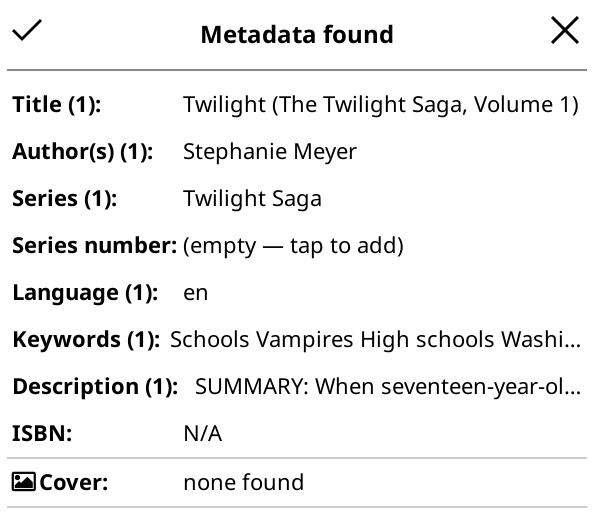
- Wait for the search. A window opens with one row per field:
- Title, Author(s), Series, Series number, Language, Keywords, Description.
- ISBN (reference only, not editable).
- Cover (number of covers found).
- Tap a field to:
- choose among the alternatives found (the label shows how many), or
- edit it manually when there is only one option.
- For Keywords, the picker always opens and mixes the sources' results with predefined categories.
- Tap Cover to open the cover picker:
- it lists every valid image with its source and dimensions;
- tap opens the image for review;
- long-press sets which cover will be applied.
- The automatically chosen cover (with no input) is the highest-scoring one, combining resolution, aspect ratio, and source priority.
- Tap the confirmation icon (✓) on the title bar to apply to the book. The plugin writes the metadata to the book's sidecar, applies the cover, and finally renames the file to the "Author - Title.ext" pattern.
Under the hood
- Queries free sources and merges the results by priority:
- Google Books (GData feed, API v1, and ViewAPI, in a cascade);
- Open Library (general and ISBN search);
- Inventaire / Wikidata;
- Amazon (14 domains, ordered to favor the book's language);
- extra image-search covers when needed.
- Collects cover candidates, removes duplicates (same dimensions and file size), and discards broken or too-small images (minimum 100×100).
- Writes the fields as
custom_propsand the cover viaflushCustomCover, making KOReader refresh the shelf immediately. - Renames using
FileManageritself, which moves the.sdrsidecar along, updates history and collections, and avoids name collisions.
Requirements
- An internet connection for the search step (editing without an ISBN works offline).
2. Random highlight (destaquealeatorio.koplugin)
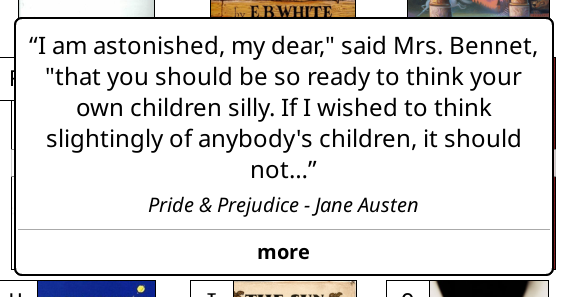
Shows a random highlight (quote) from your books in a popup — when KOReader starts and/or when it resumes from suspend. It can also be triggered at any time from the menu.
How to use
- The popup appears automatically according to the enabled options (see below).
- Go to Menu → Tools → Destaque aleatório (Random highlight) to:
- Show when KOReader starts (on by default);
- Show when resuming from suspend (on by default);
- Show one now — draws and shows a quote immediately.
- Short quotes appear in a popup that closes on tap.
- Long quotes (over ~180 characters) are shortened, with a more button to open the full text. The popup shows the quote and, in italics, the attribution "Title - Author".
Under the hood
- To avoid freezing or using too much memory, it keeps a small index of the
metadata.*.luasidecars: for each book it stores only the modification time and the number of highlights. - The scan runs in the background, in slices, and is saved to disk. On later sessions, only changed files are re-read.
- The draw is weighted by each book's highlight count — equivalent to drawing uniformly across all highlights — and only then opens that specific sidecar.
- Reads highlights in both the new format (
annotations) and the old one (bookmarkswithhighlighted, and the pre-2014highlighttable), with the same coverage as KOReader.
Known limitations
- KOReader's legacy
history/folder is not scanned (only the current sidecar locations: next to the book, central folder, and hash folder).
3. Mosaic shelf (estantemosaico.koplugin)
Adds a visual layer over the mosaic shelf: a translucent central band with the book's title and a subtle badge with the reading state (percentage read, or ✓ when finished) on each cover.

How to use
- Enable the native Cover browser plugin and set the shelf to mosaic mode. Mosaic shelf works as a layer on top of it.
- Go to Menu → Tools → Estante mosaico (Mosaic shelf) to toggle:
- Central band with the title (on by default);
- Progress/finished badge (on by default).
Under the hood
- Instead of replacing the native mosaic, it wraps how the items are built and swaps each cover's painting for its own version, which draws only the plugin's overlays.
- The title comes from
BookInfoManagermetadata; if metadata has not been extracted yet, it falls back to the file name without extension. - The band is drawn only over covers with real artwork (not generated text-only covers), to avoid repeating the title.
- The badge shows the percentage read; from ~99.9% it shows a finished icon.
Requirements
- The native Cover browser plugin must be enabled and in mosaic mode. Without it, the plugin draws nothing and logs a warning.
Installation
Plugins are folders ending in .koplugin. To install, just copy them into the
plugins folder of your KOReader installation — the same folder that already
contains native plugins such as coverbrowser.koplugin.
Option A — Download the release package (easiest)
- Go to the repository's Releases page: https://github.com/raelales/FineKo/releases
- Download the
.zipfile from the latest version (generated on everyv*tag). - Unzip the contents. You will see the three
.kopluginfolders. - Copy the folders you want into KOReader's
pluginsfolder. - Restart KOReader (close and open it again).
Option B — Copy from the repository
- Download or clone this repository:
git clone https://github.com/raelales/FineKo.git - Copy each desired
.kopluginfolder into KOReader'spluginsfolder. - Restart KOReader.
Where the plugins folder is
It lives inside the KOReader installation folder. The path varies by device;
locate the KOReader folder and look for the plugins subfolder (the one that
contains coverbrowser.koplugin). Some common examples:
- Kobo:
.adds/koreader/plugins/ - Kindle:
koreader/plugins/ - Android:
koreader/plugins/on internal storage or the SD card. - Desktop (Linux/Windows/macOS):
plugins/next to the KOReader executable.
Tip: to install only some plugins, copy only the matching folders. They work independently.
Update
Replace the old .koplugin folders with the new ones and restart KOReader. Your
settings are stored in KOReader's settings (G_reader_settings) and are not
lost.
Uninstall
Just delete the corresponding .koplugin folder and restart KOReader.
Languages and translations
The three plugins are translated into the 21 languages covered by the Atkinson Hyperlegible Next font: Portuguese, English, Spanish, German, French, Indonesian, Italian, Malay, Dutch, Norwegian, Swedish, Swahili, Afrikaans, Albanian, Catalan, Danish, Filipino, Finnish, Galician, Icelandic, and Luxembourgish. The interface follows the language selected in KOReader.
The message catalog lives in i18n/translations.py. The msgid is the
Portuguese text as it appears in the Lua code, so for pt the translation is
the msgid itself. To change or add a translation:
- Edit
i18n/translations.py. - Regenerate the catalogs:
This requires thepython3 i18n/build.pymsgfmtutility (gettext package) in the PATH. - The script writes
<plugin>/l10n/<lang>/fineko.poandfineko.mofor the three plugins and checks that the three copies offineko_i18n.luastay identical.
Repository structure
FineKo/
├── atualizarmetadados.koplugin/
│   ├── _meta.lua          # plugin name and description
│   ├── main.lua           # search, merge, and save logic
│   ├── fineko_i18n.lua    # loads the catalog for KOReader's active language
│   └── l10n/<lang>/       # gettext catalogs (fineko.po and fineko.mo)
├── destaquealeatorio.koplugin/
│   ├── _meta.lua
│   ├── main.lua           # index, draw, and quote popup
│   ├── fineko_i18n.lua    # same file as in the other plugins
│   └── l10n/<lang>/
├── estantemosaico.koplugin/
│   ├── _meta.lua
│   ├── main.lua           # menu and lifecycle
│   ├── em_overlay.lua     # drawing of the band and badge over the covers
│   ├── fineko_i18n.lua    # same file as in the other plugins
│   └── l10n/<lang>/
├── i18n/
│   ├── translations.py    # message catalog and the 21 translations
│   └── build.py           # generates the .po and .mo files
├── .github/assets/        # support button used in this README
├── .github/workflows/release.yml  # packages and publishes the release on each tag
├── README.md              # this file (English)
└── README.pt-BR.md        # Portuguese
Releases and packaging
The workflow in .github/workflows/release.yml runs when a tag starting with
v is pushed. It first checks that every .lua file loads under luajit, then
packages the entire repository (except .git, .github, and .zip files) into
a single FineKo-<tag>.zip file and publishes it to Releases with
automatically generated notes.
To create a new version:
git tag v1.0.0
git push origin v1.0.0
Similar repos


Languages
Lua
62.4%
Python
37.6%
Three Lua plugins for KOReader that fetch and merge metadata and covers by ISBN from free sources, show a random quote from your books on startup or resume from suspend, and draw a title and progress badge over each cover.
Lua
0
25 commits
updated Sep 30, 2026
See what people are saying
README
EN · PT
FineKo
A collection of KOReader plugins that improves how you organize, describe, and discover your books.
The repository bundles three independent plugins, all written in Lua and
installed as .koplugin folders:
| Plugin | Folder | What it does |
|---|---|---|
| Update metadata | atualizarmetadados.koplugin | Fetches metadata and cover by ISBN from several free sources and writes them to the book. |
| Random highlight | destaquealeatorio.koplugin | Shows a random quote from your books when KOReader starts or resumes from suspend. |
| Mosaic shelf | estantemosaico.koplugin | Draws the title and a reading-progress badge on each cover in the mosaic shelf. |
1. Update metadata (atualizarmetadados.koplugin)
Fetches a book's metadata by ISBN from several free sources, merges the results field by field, and lets you edit everything before saving — including picking the highest-quality cover.
How to use
- On the shelf (or in History, Collections, or File search), long-press the book and choose Buscar metadados (Fetch metadata).
- Type the book's ISBN-10 or ISBN-13 and tap Buscar (Search).
- If you leave the field empty, the plugin opens the same window with the document's current metadata, so you can just view/edit it without going online.
- Wait for the search. A window opens with one row per field:
- Title, Author(s), Series, Series number, Language, Keywords, Description.
- ISBN (reference only, not editable).
- Cover (number of covers found).
- Tap a field to:
- choose among the alternatives found (the label shows how many), or
- edit it manually when there is only one option.
- For Keywords, the picker always opens and mixes the sources' results with predefined categories.
- Tap Cover to open the cover picker:
- it lists every valid image with its source and dimensions;
- tap opens the image for review;
- long-press sets which cover will be applied.
- The automatically chosen cover (with no input) is the highest-scoring one, combining resolution, aspect ratio, and source priority.
- Tap the confirmation icon (✓) on the title bar to apply to the book. The plugin writes the metadata to the book's sidecar, applies the cover, and finally renames the file to the "Author - Title.ext" pattern.
Under the hood
- Queries free sources and merges the results by priority:
- Google Books (GData feed, API v1, and ViewAPI, in a cascade);
- Open Library (general and ISBN search);
- Inventaire / Wikidata;
- Amazon (14 domains, ordered to favor the book's language);
- extra image-search covers when needed.
- Collects cover candidates, removes duplicates (same dimensions and file size), and discards broken or too-small images (minimum 100×100).
- Writes the fields as
custom_propsand the cover viaflushCustomCover, making KOReader refresh the shelf immediately. - Renames using
FileManageritself, which moves the.sdrsidecar along, updates history and collections, and avoids name collisions.
Requirements
- An internet connection for the search step (editing without an ISBN works offline).
2. Random highlight (destaquealeatorio.koplugin)
Shows a random highlight (quote) from your books in a popup — when KOReader starts and/or when it resumes from suspend. It can also be triggered at any time from the menu.
How to use
- The popup appears automatically according to the enabled options (see below).
- Go to Menu → Tools → Destaque aleatório (Random highlight) to:
- Show when KOReader starts (on by default);
- Show when resuming from suspend (on by default);
- Show one now — draws and shows a quote immediately.
- Short quotes appear in a popup that closes on tap.
- Long quotes (over ~180 characters) are shortened, with a more button to open the full text. The popup shows the quote and, in italics, the attribution "Title - Author".
Under the hood
- To avoid freezing or using too much memory, it keeps a small index of the
metadata.*.luasidecars: for each book it stores only the modification time and the number of highlights. - The scan runs in the background, in slices, and is saved to disk. On later sessions, only changed files are re-read.
- The draw is weighted by each book's highlight count — equivalent to drawing uniformly across all highlights — and only then opens that specific sidecar.
- Reads highlights in both the new format (
annotations) and the old one (bookmarkswithhighlighted, and the pre-2014highlighttable), with the same coverage as KOReader.
Known limitations
- KOReader's legacy
history/folder is not scanned (only the current sidecar locations: next to the book, central folder, and hash folder).
3. Mosaic shelf (estantemosaico.koplugin)
Adds a visual layer over the mosaic shelf: a translucent central band with the book's title and a subtle badge with the reading state (percentage read, or ✓ when finished) on each cover.
How to use
- Enable the native Cover browser plugin and set the shelf to mosaic mode. Mosaic shelf works as a layer on top of it.
- Go to Menu → Tools → Estante mosaico (Mosaic shelf) to toggle:
- Central band with the title (on by default);
- Progress/finished badge (on by default).
Under the hood
- Instead of replacing the native mosaic, it wraps how the items are built and swaps each cover's painting for its own version, which draws only the plugin's overlays.
- The title comes from
BookInfoManagermetadata; if metadata has not been extracted yet, it falls back to the file name without extension. - The band is drawn only over covers with real artwork (not generated text-only covers), to avoid repeating the title.
- The badge shows the percentage read; from ~99.9% it shows a finished icon.
Requirements
- The native Cover browser plugin must be enabled and in mosaic mode. Without it, the plugin draws nothing and logs a warning.
Installation
Plugins are folders ending in .koplugin. To install, just copy them into the
plugins folder of your KOReader installation — the same folder that already
contains native plugins such as coverbrowser.koplugin.
Option A — Download the release package (easiest)
- Go to the repository's Releases page: https://github.com/raelales/FineKo/releases
- Download the
.zipfile from the latest version (generated on everyv*tag). - Unzip the contents. You will see the three
.kopluginfolders. - Copy the folders you want into KOReader's
pluginsfolder. - Restart KOReader (close and open it again).
Option B — Copy from the repository
- Download or clone this repository:
git clone https://github.com/raelales/FineKo.git - Copy each desired
.kopluginfolder into KOReader'spluginsfolder. - Restart KOReader.
Where the plugins folder is
It lives inside the KOReader installation folder. The path varies by device;
locate the KOReader folder and look for the plugins subfolder (the one that
contains coverbrowser.koplugin). Some common examples:
- Kobo:
.adds/koreader/plugins/ - Kindle:
koreader/plugins/ - Android:
koreader/plugins/on internal storage or the SD card. - Desktop (Linux/Windows/macOS):
plugins/next to the KOReader executable.
Tip: to install only some plugins, copy only the matching folders. They work independently.
Update
Replace the old .koplugin folders with the new ones and restart KOReader. Your
settings are stored in KOReader's settings (G_reader_settings) and are not
lost.
Uninstall
Just delete the corresponding .koplugin folder and restart KOReader.
Languages and translations
The three plugins are translated into the 21 languages covered by the Atkinson Hyperlegible Next font: Portuguese, English, Spanish, German, French, Indonesian, Italian, Malay, Dutch, Norwegian, Swedish, Swahili, Afrikaans, Albanian, Catalan, Danish, Filipino, Finnish, Galician, Icelandic, and Luxembourgish. The interface follows the language selected in KOReader.
The message catalog lives in i18n/translations.py. The msgid is the
Portuguese text as it appears in the Lua code, so for pt the translation is
the msgid itself. To change or add a translation:
- Edit
i18n/translations.py. - Regenerate the catalogs:
This requires thepython3 i18n/build.pymsgfmtutility (gettext package) in the PATH. - The script writes
<plugin>/l10n/<lang>/fineko.poandfineko.mofor the three plugins and checks that the three copies offineko_i18n.luastay identical.
Repository structure
FineKo/
├── atualizarmetadados.koplugin/
│   ├── _meta.lua          # plugin name and description
│   ├── main.lua           # search, merge, and save logic
│   ├── fineko_i18n.lua    # loads the catalog for KOReader's active language
│   └── l10n/<lang>/       # gettext catalogs (fineko.po and fineko.mo)
├── destaquealeatorio.koplugin/
│   ├── _meta.lua
│   ├── main.lua           # index, draw, and quote popup
│   ├── fineko_i18n.lua    # same file as in the other plugins
│   └── l10n/<lang>/
├── estantemosaico.koplugin/
│   ├── _meta.lua
│   ├── main.lua           # menu and lifecycle
│   ├── em_overlay.lua     # drawing of the band and badge over the covers
│   ├── fineko_i18n.lua    # same file as in the other plugins
│   └── l10n/<lang>/
├── i18n/
│   ├── translations.py    # message catalog and the 21 translations
│   └── build.py           # generates the .po and .mo files
├── .github/assets/        # support button used in this README
├── .github/workflows/release.yml  # packages and publishes the release on each tag
├── README.md              # this file (English)
└── README.pt-BR.md        # Portuguese
Releases and packaging
The workflow in .github/workflows/release.yml runs when a tag starting with
v is pushed. It first checks that every .lua file loads under luajit, then
packages the entire repository (except .git, .github, and .zip files) into
a single FineKo-<tag>.zip file and publishes it to Releases with
automatically generated notes.
To create a new version:
git tag v1.0.0
git push origin v1.0.0
Similar repos
Languages
Lua
62.4%
Python
37.6%