ESP32/Arduino hack for the ikea OBEGRÄNSAD led wall lamp
C++
881
458 commits
updated Oct 18, 2026
Turn your OBEGRÄNSAD LED Wall Lamp into a live drawing canvas
⚠ Disclaimer: Use this code and instructions at your own risk! Improper use may damage the device. Contribute: Have suggestions or improvements? Feel free to submit a PR or open an issue. 😊
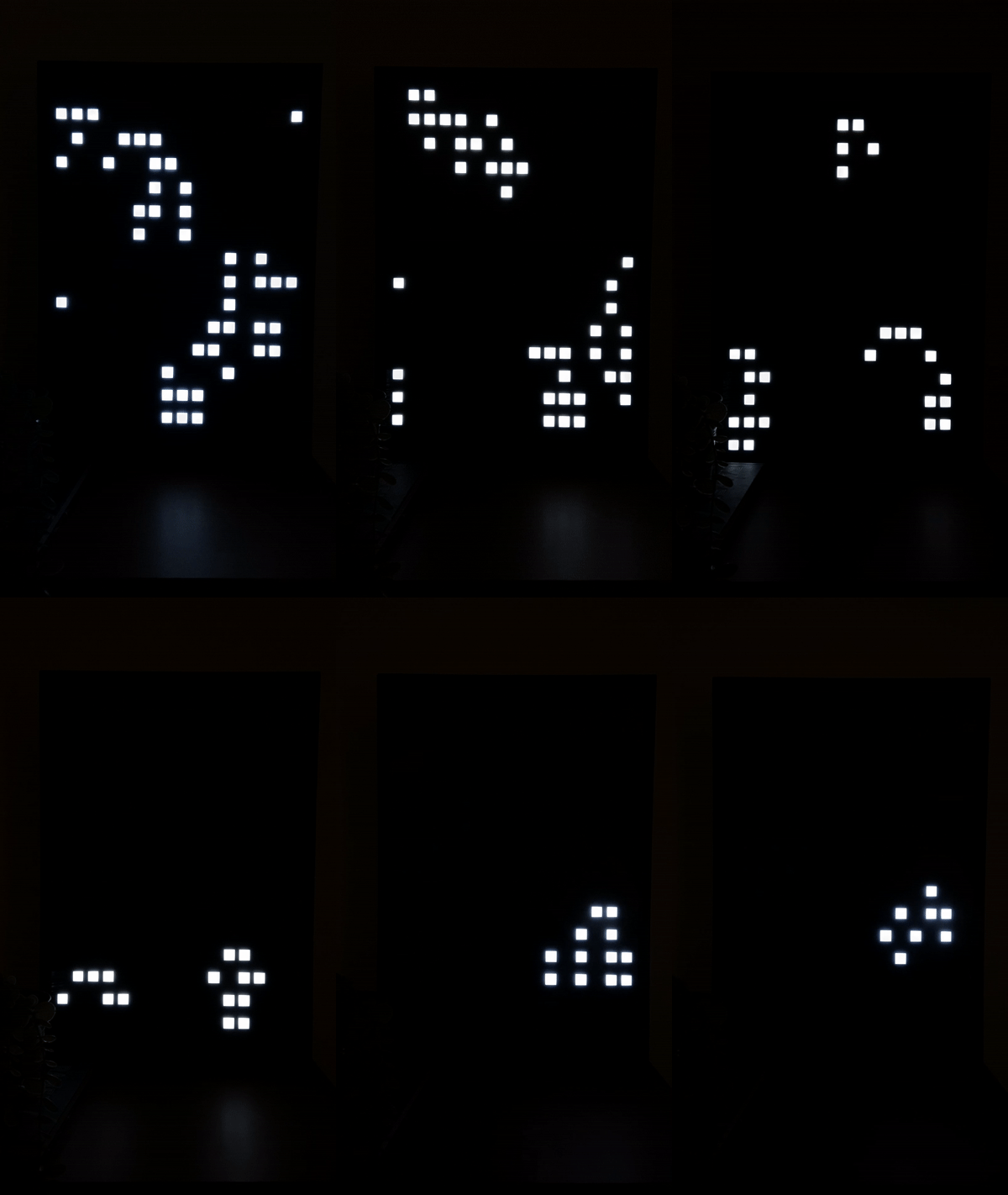
General Features:
Available Plugins:
https://github.com/user-attachments/assets/ddf91be1-2c95-4adc-b178-05b0781683cc
Control the lamp using the built-in web GUI. Find the device IP address via:
This software is designed for ESP32 Dev Boards but can work with other Arduino boards (WiFi, OTA, and web server features will need to be removed for non-ESP boards).
Supported Boards:

IKEA uses rivets instead of regular screws. To open:

Inside you'll find 4 identical plates with 64 LEDs each (in 4 fields). Focus on the lowest plate:

Connect the pins as shown below. Remember to configure them in include/constants.h according to your board.
| LCD | ESP32 | ESP32-C3 | TTGO LoRa32 | NodeMCUv2 | Wemos D1 mini | Lolin D32 (Pro) | Xiao ESP32S3 |
|---|---|---|---|---|---|---|---|
| GND | GND | GND | GND | GND | GND | GND | GND |
| VCC | 5V | 5V | 5V | VIN | 5V | USB | VUSB |
| EN (PIN_ENABLE) | GPIO26 | GPIO3 | IO22 | GPIO16 D0 | GPIO16 D0 | GPIO26 | D4 (GPIO5) |
| IN (PIN_DATA) | GPIO27 | GPIO4 | IO23 | GPIO13 D7 | GPIO13 D7 | GPIO27 | D10 (MOSI) |
| CLK (PIN_CLOCK) | GPIO14 | GPIO5 | IO02 | GPIO14 D5 | GPIO14 D5 | GPIO14 | D8 (SCK) |
| CLA (PIN_LATCH) | GPIO12 | GPIO6 | IO15 | GPIO0 D3 | GPIO0 D3 | GPIO12 | D5 (GPIO6) |
| BUTTON one end | GPIO16 | GPIO7 | IO21 | GPIO2 D4 | GPIO2 D4 | GPIO25 | D3 (GPIO4) |
| BUTTON other end | GND | GND | GND | GND | GND | GND | GND |

You can use the original button wiring without adding external connections. See this issue by RBEGamer for details.
Prerequisites
Clone the Project
git clone [email protected]:ph1p/ikea-led-obegraensad.git
cd ikea-led-obegraensad
code .
PlatformIO will automatically load dependencies.
Connect ESP32
Configure the Project
PlatformIO: Clean (Recycle bin icon in bottom toolbar)include/secrets.h with your WiFi credentials (ESP8266 only; ESP32 can use WiFi Manager)include/constants.hBuild the Project
PlatformIO Build icon (bottom toolbar)Clean and Build until successfulUpload to ESP32
PlatformIO Upload (bottom toolbar)ESP32 (WiFi Manager - Recommended):
This project uses tzapu's WiFiManager. After booting:
IKEA*Network name can be changed via WIFI_MANAGER_SSID in include/constants.h.
To switch to another network, clear the stored WiFi credentials:
IKEA setup network, continue with step 3 aboveReleasing the button earlier cancels the reset. Only the WiFi credentials are cleared, all other settings (plugins, schedule, weather location, ...) are kept. The hold time can be changed via WIFI_RESET_HOLD_MS in include/constants.h.
By default the device replaces the DNS servers handed out by your router with 8.8.8.8 and 8.8.4.4 (ESP32 only), the IP address itself still comes from DHCP. Change or comment out DNS_OVERRIDE_1 / DNS_OVERRIDE_2 in include/constants.h to use other servers or the ones from your router.
ESP8266 (Manual Configuration):
For ESP8266, WiFi Manager is not available. Set WIFI_SSID and WIFI_PASSWORD in include/secrets.h.
Over-The-Air (OTA) updates allow you to upload new firmware wirelessly without a USB connection. This is powered by ElegantOTA.
Before using OTA, configure the following:
Set OTA Credentials in include/secrets.h:
#define OTA_USERNAME "admin"
#define OTA_PASSWORD "your-password"
Configure Upload Settings in platformio.ini (for the esp32dev environment):
extra_scripts = upload.py
upload_protocol = custom
custom_upload_url = http://192.168.178.50  # Your device IP
custom_username = admin
custom_password = your-password
Note: Replace 192.168.178.50 with your device's actual IP address.
http://your-device-ip/update in your browseradmin / ikea-led-wall).pio/build/esp32dev/firmware.bin)Upload directly from PlatformIO via the command line:
pio run -e esp32dev -t upload
Or use the PlatformIO Upload button in VS Code (bottom toolbar).
Requirements:
requests_toolbelt and tqdmpip install requests_toolbelt tqdmDuring OTA updates, the LED matrix provides visual feedback:
Monitor the serial output for detailed progress:
OTA update started!
OTA Progress Current: 262144 bytes, Final: 1440655 bytes
OTA Progress Current: 524288 bytes, Final: 1440655 bytes
...
OTA update finished successfully!
Troubleshooting:
platformio.ini matches device IPsecrets.h and platformio.iniBase URL: http://your-server/api
Get device info, current state, and available plugins
GET /api/info
Example:
curl http://your-server/api/info
Response:
{
  "rows": 16,
  "cols": 16,
  "status": "active",
  "plugin": 3,
  "rotation": 90,
  "baseBrightness": 255,
  "brightness": 64,
  "brightnessSchedule": {
    "enabled": true,
    "startTime": "22:00",
    "endTime": "07:00",
    "brightness": 64,
    "active": true
  },
  "scheduleActive": true,
  "schedule": [
    { "pluginId": 2, "duration": 60 },
    { "pluginId": 4, "duration": 120 }
  ],
  "plugins": [
    { "id": 1, "name": "Plugin One" },
    { "id": 2, "name": "Plugin Two" }
  ]
}
Set active plugin by ID
PATCH /api/plugin?id={plugin_id}
Example:
curl -X PATCH "http://your-server/api/plugin?id=7"
Response:
{
  "status": "success",
  "message": "Plugin set successfully"
}
Error Response:
{
  "error": true,
  "errormessage": "Could not set plugin to id 7"
}
Sets the persistent base brightness. When Scheduled Brightness is currently active, the display remains at its scheduled level until the interval ends or the schedule is disabled.
PATCH /api/brightness?value={0-255}
Example:
curl -X PATCH "http://your-server/api/brightness?value=100"
Response:
{
  "status": "success",
  "message": "Brightness set successfully"
}
Scheduled Brightness applies a lower (or higher) global brightness during one repeating local-time interval each day. It is configured in the Web GUI and runs on the device, so it continues while the browser is closed. The device timezone and NTP configuration determine local time. If time is not synchronized yet, the base brightness is used until it is.
Intervals are start-inclusive and end-exclusive and may cross midnight, for example 22:00 through 07:00.
PUT /api/brightness-schedule
Content-Type: application/json
{
  "enabled": true,
  "startTime": "22:00",
  "endTime": "07:00",
  "brightness": 64
}
startTime and endTime must be zero-padded local HH:MM values and must differ. brightness is an integer
between 0 and 255. A successful response includes the base brightness, current display brightness, and the
complete brightnessSchedule object shown by GET /api/info.
Retrieve current display data as a byte-array. Each byte represents pixel brightness (0-255). Global brightness is applied after these values.
GET /api/data
Example:
curl http://your-server/api/data
Response:
[255, 255, 255, 0, 128, 255, 255, 0, ...]
Display scrolling text and/or graphs on the LED matrix.
GET /api/message
Parameters:
text (optional): Text message to displaygraph (optional): Comma-separated integers (0-15) representing a graphminy (optional): Graph lower bound (default: 0)maxy (optional): Graph upper bound (default: 15)repeat (optional): Repetition count (default: 1, use -1 for infinite)id (optional): Unique identifier for the messagedelay (optional): Scroll delay in ms (default: 50)Example:
curl "http://your-server/api/message?text=Hello&graph=8,5,2,1,0,0,1,4,7,10,13,14,15,15,14,11&repeat=3&id=1&delay=60"
Response:
{
  "status": "success",
  "message": "Message received"
}
GET /api/removemessage?id={message_id}
Example:
curl "http://your-server/api/removemessage?id=1"
Automatically switch between plugins on a schedule.
POST /api/schedule
Example:
curl -X POST http://your-server/api/schedule -d 'schedule=[{"pluginId":10,"duration":2},{"pluginId":8,"duration":5}]'
GET /api/schedule/start
GET /api/schedule/stop
GET /api/schedule/clear
GET /api/clearstorage
Example:
curl http://your-server/api/clearstorage
DDP enables real-time LED matrix control via UDP packets. External applications can send pixel data directly over the network.
Please install Poetry for an easy way to setup the Python environment.
To install all required dependencies and create a virtual environment run:
poetry install
VS Code should detect the venv automatically and prompt you to activate it. Once that's done you can use the python command as usual. Alternatively use the poetry run command to make sure the python from the virtual environment is executed, e.g.:
poetry run python ddp.py clear
Enable DDP Plugin
curl -X PATCH "http://your-server/api/plugin?id=17"
Send Pixels
python3 ddp.py --ip 192.168.178.50 --fill 128
The included Python script (ddp.py) simplifies DDP packet creation. It offers a rudimentary command line interface to control display content.
Clear all pixels:
python3 ddp.py clear --ip 192.168.178.50
Fill display with brightness value:
python3 ddp.py fill 128 --ip 192.168.178.50
Set individual pixels (X, Y, brightness):
python3 ddp.py pixels --ip 192.168.178.50 -p 0 0 255 -p 15 15 128
Subcommands:
clear: Clear all pixelsfill BRIGHTNESS: Fill with brightness (0-255)pixels -p X Y BRIGHTNESS: Set pixel (-p can be used multiple times)Options (for all subcommands):
--ip: Display IP address (default: 192.168.178.50)--port: UDP port (default: 4048)-v, --verbose: Write more information to output-d, --debug: Write even more information to outputLegacy options (still available for compatibility):
--clear: Clear all pixels--fill BRIGHTNESS: Fill with brightness (0-255)--pixel X Y BRIGHTNESS: Set pixel (can be used multiple times)Coordinates:
Packet Structure:
[Header: 10 bytes][RGB Data: 768 bytes for 16×16]
Header (10 bytes):
0x41 (Version 1)0x00 (Flags)0x00 (Reserved)RGB Data:
(R + G + B) / 3Single Pixel Mode: Send only 3 RGB bytes (total: 13 bytes) to apply the same color to all pixels.
Example (Python):
import socket

# Create DDP packet
header = bytearray([0x41, 0x00, 0x00, 0x00, 0x00, 0x00, 0x00, 0x00, 0x00, 0x00])
pixels = bytearray([128, 128, 128] * 256)  # Fill with mid-brightness
packet = header + pixels

# Send packet
sock = socket.socket(socket.AF_INET, socket.SOCK_DGRAM)
sock.sendto(packet, ("192.168.178.50", 4048))
sock.close()
Use this Home Assistant Integration for easy setup with seamless integration and instant updates via websockets.
Example automation to adjust brightness based on sun position:
configuration.yaml:
rest_command:
  obegraensad_brightness_high:
    url: 'http://your-server/api/brightness/'
    method: PATCH
    content_type: 'application/x-www-form-urlencoded'
    payload: 'value=100'
  obegraensad_brightness_low:
    url: 'http://your-server/api/brightness/'
    method: PATCH
    content_type: 'application/x-www-form-urlencoded'
    payload: 'value=1'
Automation (Settings → Automations → Edit in YAML):
alias: Obegraensad low brightness
description: ''
triggers:
  - trigger: sun
    event: sunset
    offset: 0
conditions: []
actions:
  - action: rest_command.obegraensad_brightness_low
    data: {}
mode: single
Create a second automation or condition to call rest_command.obegraensad_brightness_high at sunrise.
Structure:
src/ - Arduino codeplatformio.ini - Build configuration
Structure:
frontend/ - Web UI code built with solidjsfrontend/src/ - Source filesfrontend/dist/ - Built files (generated)Prerequisites:
This project uses pnpm as the package manager. pnpm is an alternative to npm.
Install pnpm:
# Using npm
npm install -g pnpm

# Using Homebrew (macOS)
brew install pnpm

# Using Corepack (Node.js 16.13+)
corepack enable
corepack prepare pnpm@latest --activate
Setup:
cd frontend
pnpm install
Configuration:
Create a .env file in the frontend/ directory and set your device IP:
VITE_DEVICE_IP=192.168.178.50
This allows the development server to proxy API requests to your device during development.
Commands:
pnpm dev - Start development server with hot reload (usually at http://localhost:5173)pnpm build - Build optimized production bundle and generate webgui.cpp for ESP32pnpm preview - Preview production build locallypnpm lint - Run linter to check code qualitypnpm format - Format code with PrettierDevelopment Workflow:
pnpm devfrontend/src/pnpm build to generate the embedded web UIsrc/webgui.cpp which is compiled into the firmwareDocker Build:
If you prefer using Docker instead of installing Node.js and pnpm locally:
docker compose run node
Pre-commit Hooks:
# Install pre-commit
pip install pre-commit

# Activate hooks
pre-commit install
plugins/MyPlugin.h:
#pragma once

#include "PluginManager.h"

class MyPlugin : public Plugin {
public:
    MyPlugin();
    ~MyPlugin() override;

    void setup() override;
    void loop() override;
    const char* getName() const override;

    void teardown() override; // optional
    void websocketHook(JsonDocument &request) override; // optional
};
plugins/MyPlugin.cpp:
#include "plugins/MyPlugin.h"

MyPlugin::MyPlugin() {
    // Constructor logic, if needed
}

void MyPlugin::setup() {
    // Setup logic for your plugin
}

void MyPlugin::loop() {
    // Loop logic for your plugin
}

const char* MyPlugin::getName() const {
    return "MyPlugin"; // name in GUI
}

void MyPlugin::teardown() {
    // code if plugin gets deactivated
}

void MyPlugin::websocketHook(JsonDocument &request) {
    // handle websocket requests
}
#include "plugins/MyPlugin.h"

pluginManager.addPlugin(new MyPlugin());
699 followers · starred Aug 2023
136 followers · starred Jun 2025
1,403 followers · starred Nov 2023
129 followers · starred Jan 2026
ESP32/Arduino hack for the ikea OBEGRÄNSAD led wall lamp
C++
881
458 commits
updated Oct 18, 2026
Turn your OBEGRÄNSAD LED Wall Lamp into a live drawing canvas
⚠ Disclaimer: Use this code and instructions at your own risk! Improper use may damage the device. Contribute: Have suggestions or improvements? Feel free to submit a PR or open an issue. 😊
General Features:
Available Plugins:
https://github.com/user-attachments/assets/ddf91be1-2c95-4adc-b178-05b0781683cc
Control the lamp using the built-in web GUI. Find the device IP address via:
This software is designed for ESP32 Dev Boards but can work with other Arduino boards (WiFi, OTA, and web server features will need to be removed for non-ESP boards).
Supported Boards:
IKEA uses rivets instead of regular screws. To open:
Inside you'll find 4 identical plates with 64 LEDs each (in 4 fields). Focus on the lowest plate:
Connect the pins as shown below. Remember to configure them in include/constants.h according to your board.
| LCD | ESP32 | ESP32-C3 | TTGO LoRa32 | NodeMCUv2 | Wemos D1 mini | Lolin D32 (Pro) | Xiao ESP32S3 |
|---|---|---|---|---|---|---|---|
| GND | GND | GND | GND | GND | GND | GND | GND |
| VCC | 5V | 5V | 5V | VIN | 5V | USB | VUSB |
| EN (PIN_ENABLE) | GPIO26 | GPIO3 | IO22 | GPIO16 D0 | GPIO16 D0 | GPIO26 | D4 (GPIO5) |
| IN (PIN_DATA) | GPIO27 | GPIO4 | IO23 | GPIO13 D7 | GPIO13 D7 | GPIO27 | D10 (MOSI) |
| CLK (PIN_CLOCK) | GPIO14 | GPIO5 | IO02 | GPIO14 D5 | GPIO14 D5 | GPIO14 | D8 (SCK) |
| CLA (PIN_LATCH) | GPIO12 | GPIO6 | IO15 | GPIO0 D3 | GPIO0 D3 | GPIO12 | D5 (GPIO6) |
| BUTTON one end | GPIO16 | GPIO7 | IO21 | GPIO2 D4 | GPIO2 D4 | GPIO25 | D3 (GPIO4) |
| BUTTON other end | GND | GND | GND | GND | GND | GND | GND |
You can use the original button wiring without adding external connections. See this issue by RBEGamer for details.
Prerequisites
Clone the Project
git clone [email protected]:ph1p/ikea-led-obegraensad.git
cd ikea-led-obegraensad
code .
PlatformIO will automatically load dependencies.
Connect ESP32
Configure the Project
PlatformIO: Clean (Recycle bin icon in bottom toolbar)include/secrets.h with your WiFi credentials (ESP8266 only; ESP32 can use WiFi Manager)include/constants.hBuild the Project
PlatformIO Build icon (bottom toolbar)Clean and Build until successfulUpload to ESP32
PlatformIO Upload (bottom toolbar)ESP32 (WiFi Manager - Recommended):
This project uses tzapu's WiFiManager. After booting:
IKEA*Network name can be changed via WIFI_MANAGER_SSID in include/constants.h.
To switch to another network, clear the stored WiFi credentials:
IKEA setup network, continue with step 3 aboveReleasing the button earlier cancels the reset. Only the WiFi credentials are cleared, all other settings (plugins, schedule, weather location, ...) are kept. The hold time can be changed via WIFI_RESET_HOLD_MS in include/constants.h.
By default the device replaces the DNS servers handed out by your router with 8.8.8.8 and 8.8.4.4 (ESP32 only), the IP address itself still comes from DHCP. Change or comment out DNS_OVERRIDE_1 / DNS_OVERRIDE_2 in include/constants.h to use other servers or the ones from your router.
ESP8266 (Manual Configuration):
For ESP8266, WiFi Manager is not available. Set WIFI_SSID and WIFI_PASSWORD in include/secrets.h.
Over-The-Air (OTA) updates allow you to upload new firmware wirelessly without a USB connection. This is powered by ElegantOTA.
Before using OTA, configure the following:
Set OTA Credentials in include/secrets.h:
#define OTA_USERNAME "admin"
#define OTA_PASSWORD "your-password"
Configure Upload Settings in platformio.ini (for the esp32dev environment):
extra_scripts = upload.py
upload_protocol = custom
custom_upload_url = http://192.168.178.50  # Your device IP
custom_username = admin
custom_password = your-password
Note: Replace 192.168.178.50 with your device's actual IP address.
http://your-device-ip/update in your browseradmin / ikea-led-wall).pio/build/esp32dev/firmware.bin)Upload directly from PlatformIO via the command line:
pio run -e esp32dev -t upload
Or use the PlatformIO Upload button in VS Code (bottom toolbar).
Requirements:
requests_toolbelt and tqdmpip install requests_toolbelt tqdmDuring OTA updates, the LED matrix provides visual feedback:
Monitor the serial output for detailed progress:
OTA update started!
OTA Progress Current: 262144 bytes, Final: 1440655 bytes
OTA Progress Current: 524288 bytes, Final: 1440655 bytes
...
OTA update finished successfully!
Troubleshooting:
platformio.ini matches device IPsecrets.h and platformio.iniBase URL: http://your-server/api
Get device info, current state, and available plugins
GET /api/info
Example:
curl http://your-server/api/info
Response:
{
  "rows": 16,
  "cols": 16,
  "status": "active",
  "plugin": 3,
  "rotation": 90,
  "baseBrightness": 255,
  "brightness": 64,
  "brightnessSchedule": {
    "enabled": true,
    "startTime": "22:00",
    "endTime": "07:00",
    "brightness": 64,
    "active": true
  },
  "scheduleActive": true,
  "schedule": [
    { "pluginId": 2, "duration": 60 },
    { "pluginId": 4, "duration": 120 }
  ],
  "plugins": [
    { "id": 1, "name": "Plugin One" },
    { "id": 2, "name": "Plugin Two" }
  ]
}
Set active plugin by ID
PATCH /api/plugin?id={plugin_id}
Example:
curl -X PATCH "http://your-server/api/plugin?id=7"
Response:
{
  "status": "success",
  "message": "Plugin set successfully"
}
Error Response:
{
  "error": true,
  "errormessage": "Could not set plugin to id 7"
}
Sets the persistent base brightness. When Scheduled Brightness is currently active, the display remains at its scheduled level until the interval ends or the schedule is disabled.
PATCH /api/brightness?value={0-255}
Example:
curl -X PATCH "http://your-server/api/brightness?value=100"
Response:
{
  "status": "success",
  "message": "Brightness set successfully"
}
Scheduled Brightness applies a lower (or higher) global brightness during one repeating local-time interval each day. It is configured in the Web GUI and runs on the device, so it continues while the browser is closed. The device timezone and NTP configuration determine local time. If time is not synchronized yet, the base brightness is used until it is.
Intervals are start-inclusive and end-exclusive and may cross midnight, for example 22:00 through 07:00.
PUT /api/brightness-schedule
Content-Type: application/json
{
  "enabled": true,
  "startTime": "22:00",
  "endTime": "07:00",
  "brightness": 64
}
startTime and endTime must be zero-padded local HH:MM values and must differ. brightness is an integer
between 0 and 255. A successful response includes the base brightness, current display brightness, and the
complete brightnessSchedule object shown by GET /api/info.
Retrieve current display data as a byte-array. Each byte represents pixel brightness (0-255). Global brightness is applied after these values.
GET /api/data
Example:
curl http://your-server/api/data
Response:
[255, 255, 255, 0, 128, 255, 255, 0, ...]
Display scrolling text and/or graphs on the LED matrix.
GET /api/message
Parameters:
text (optional): Text message to displaygraph (optional): Comma-separated integers (0-15) representing a graphminy (optional): Graph lower bound (default: 0)maxy (optional): Graph upper bound (default: 15)repeat (optional): Repetition count (default: 1, use -1 for infinite)id (optional): Unique identifier for the messagedelay (optional): Scroll delay in ms (default: 50)Example:
curl "http://your-server/api/message?text=Hello&graph=8,5,2,1,0,0,1,4,7,10,13,14,15,15,14,11&repeat=3&id=1&delay=60"
Response:
{
  "status": "success",
  "message": "Message received"
}
GET /api/removemessage?id={message_id}
Example:
curl "http://your-server/api/removemessage?id=1"
Automatically switch between plugins on a schedule.
POST /api/schedule
Example:
curl -X POST http://your-server/api/schedule -d 'schedule=[{"pluginId":10,"duration":2},{"pluginId":8,"duration":5}]'
GET /api/schedule/start
GET /api/schedule/stop
GET /api/schedule/clear
GET /api/clearstorage
Example:
curl http://your-server/api/clearstorage
DDP enables real-time LED matrix control via UDP packets. External applications can send pixel data directly over the network.
Please install Poetry for an easy way to setup the Python environment.
To install all required dependencies and create a virtual environment run:
poetry install
VS Code should detect the venv automatically and prompt you to activate it. Once that's done you can use the python command as usual. Alternatively use the poetry run command to make sure the python from the virtual environment is executed, e.g.:
poetry run python ddp.py clear
Enable DDP Plugin
curl -X PATCH "http://your-server/api/plugin?id=17"
Send Pixels
python3 ddp.py --ip 192.168.178.50 --fill 128
The included Python script (ddp.py) simplifies DDP packet creation. It offers a rudimentary command line interface to control display content.
Clear all pixels:
python3 ddp.py clear --ip 192.168.178.50
Fill display with brightness value:
python3 ddp.py fill 128 --ip 192.168.178.50
Set individual pixels (X, Y, brightness):
python3 ddp.py pixels --ip 192.168.178.50 -p 0 0 255 -p 15 15 128
Subcommands:
clear: Clear all pixelsfill BRIGHTNESS: Fill with brightness (0-255)pixels -p X Y BRIGHTNESS: Set pixel (-p can be used multiple times)Options (for all subcommands):
--ip: Display IP address (default: 192.168.178.50)--port: UDP port (default: 4048)-v, --verbose: Write more information to output-d, --debug: Write even more information to outputLegacy options (still available for compatibility):
--clear: Clear all pixels--fill BRIGHTNESS: Fill with brightness (0-255)--pixel X Y BRIGHTNESS: Set pixel (can be used multiple times)Coordinates:
Packet Structure:
[Header: 10 bytes][RGB Data: 768 bytes for 16×16]
Header (10 bytes):
0x41 (Version 1)0x00 (Flags)0x00 (Reserved)RGB Data:
(R + G + B) / 3Single Pixel Mode: Send only 3 RGB bytes (total: 13 bytes) to apply the same color to all pixels.
Example (Python):
import socket

# Create DDP packet
header = bytearray([0x41, 0x00, 0x00, 0x00, 0x00, 0x00, 0x00, 0x00, 0x00, 0x00])
pixels = bytearray([128, 128, 128] * 256)  # Fill with mid-brightness
packet = header + pixels

# Send packet
sock = socket.socket(socket.AF_INET, socket.SOCK_DGRAM)
sock.sendto(packet, ("192.168.178.50", 4048))
sock.close()
Use this Home Assistant Integration for easy setup with seamless integration and instant updates via websockets.
Example automation to adjust brightness based on sun position:
configuration.yaml:
rest_command:
  obegraensad_brightness_high:
    url: 'http://your-server/api/brightness/'
    method: PATCH
    content_type: 'application/x-www-form-urlencoded'
    payload: 'value=100'
  obegraensad_brightness_low:
    url: 'http://your-server/api/brightness/'
    method: PATCH
    content_type: 'application/x-www-form-urlencoded'
    payload: 'value=1'
Automation (Settings → Automations → Edit in YAML):
alias: Obegraensad low brightness
description: ''
triggers:
  - trigger: sun
    event: sunset
    offset: 0
conditions: []
actions:
  - action: rest_command.obegraensad_brightness_low
    data: {}
mode: single
Create a second automation or condition to call rest_command.obegraensad_brightness_high at sunrise.
Structure:
src/ - Arduino codeplatformio.ini - Build configuration
Structure:
frontend/ - Web UI code built with solidjsfrontend/src/ - Source filesfrontend/dist/ - Built files (generated)Prerequisites:
This project uses pnpm as the package manager. pnpm is an alternative to npm.
Install pnpm:
# Using npm
npm install -g pnpm

# Using Homebrew (macOS)
brew install pnpm

# Using Corepack (Node.js 16.13+)
corepack enable
corepack prepare pnpm@latest --activate
Setup:
cd frontend
pnpm install
Configuration:
Create a .env file in the frontend/ directory and set your device IP:
VITE_DEVICE_IP=192.168.178.50
This allows the development server to proxy API requests to your device during development.
Commands:
pnpm dev - Start development server with hot reload (usually at http://localhost:5173)pnpm build - Build optimized production bundle and generate webgui.cpp for ESP32pnpm preview - Preview production build locallypnpm lint - Run linter to check code qualitypnpm format - Format code with PrettierDevelopment Workflow:
pnpm devfrontend/src/pnpm build to generate the embedded web UIsrc/webgui.cpp which is compiled into the firmwareDocker Build:
If you prefer using Docker instead of installing Node.js and pnpm locally:
docker compose run node
Pre-commit Hooks:
# Install pre-commit
pip install pre-commit

# Activate hooks
pre-commit install
plugins/MyPlugin.h:
#pragma once

#include "PluginManager.h"

class MyPlugin : public Plugin {
public:
    MyPlugin();
    ~MyPlugin() override;

    void setup() override;
    void loop() override;
    const char* getName() const override;

    void teardown() override; // optional
    void websocketHook(JsonDocument &request) override; // optional
};
plugins/MyPlugin.cpp:
#include "plugins/MyPlugin.h"

MyPlugin::MyPlugin() {
    // Constructor logic, if needed
}

void MyPlugin::setup() {
    // Setup logic for your plugin
}

void MyPlugin::loop() {
    // Loop logic for your plugin
}

const char* MyPlugin::getName() const {
    return "MyPlugin"; // name in GUI
}

void MyPlugin::teardown() {
    // code if plugin gets deactivated
}

void MyPlugin::websocketHook(JsonDocument &request) {
    // handle websocket requests
}
#include "plugins/MyPlugin.h"

pluginManager.addPlugin(new MyPlugin());
699 followers · starred Aug 2023
136 followers · starred Jun 2025
1,403 followers · starred Nov 2023
129 followers · starred Jan 2026



