
A CLI to ensure Jellyfin Direct Play compatibility.
See the codeREADME
JellyCC CLI
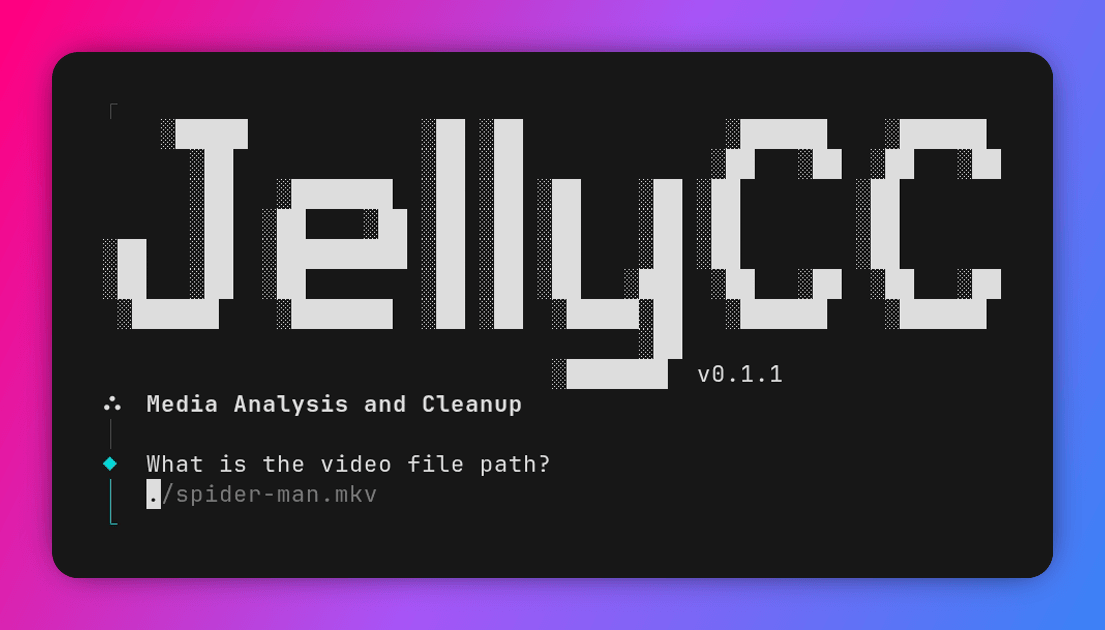
A smart CLI that diagnoses, audits, repairs, standardizes, and optimizes your media to ensure Direct Play on Jellyfin.


🇬🇧 English | 🇧🇷 Português (Brasil)
✨ Features
- 🔍 Compatibility Analysis — Compatibility matrix for Direct Play per Jellyfin client (Chrome, Firefox, Android TV, etc.).
- 🚀 Cleanup (Remux) — Re-wraps to MKV without re-encoding, preserving the original quality.
- 🔄 Conversion (Transcode) — Converts to Direct Play codecs (H.264 8-bit / AAC, EAC3, or FLAC) with configurable fallback rules.
- 🔧 Forced Repair — Fixes files with corrupted timestamps via an intermediate pipeline (
.w64/.mp4). - 🔬 Quick Scan + Deep Scan — Checks container integrity and analyzes frame by frame looking for artifacts and errors.
- 🔬 Myopic Scan — Deep Scan restricted to selected tracks.
- 🔊 Silence Scan — Analyze and identify extended periods of silence within audio tracks.
- 🎛️ Track Selection — Choose which video, audio, and subtitle streams to keep in the final file.
- 🎶 Smart Spectrum Sync — Automatically aligns audio tracks from different sources, using advanced waveform cross-correlation.
- ⏱️ Sync Adjustment / End Cut — Defines time offset and end cut to avoid lip-sync issues.
- 🔀 File Merging — Merges tracks from two files into a single MKV, with automatic/manual sync and Strict Mode.
- 🏷️ Tag Editing — Edits language (e.g.,
por,eng,jpn) and title for each track. - 🌐 Internationalization — Interface in English (en-US) and Brazilian Portuguese (pt-BR).
- ⚠️ Embedded Junk Detection — Detects and removes covers/thumbnails and PGS subtitles that force transcoding.
🛠️ Prerequisites
- FFmpeg & FFprobe (Installed globally on the system)
📦 Installation
[!IMPORTANT] The installation script currently downloads native binaries for Linux (x86_64 / ARM64). macOS native binaries are coming soon! For Windows, use Docker below.
Run the installation script:
curl -fsSL https://raw.githubusercontent.com/parkejunior/jellycc-cli/main/install.sh | bash
🐳 Docker
Run JellyCC in a container on any operating system (Linux, macOS, or Windows / WSL2) without needing FFmpeg installed on your host system.
Quick Start (Official Image)
Run directly against your media directory:
docker run --rm -it -v /path/to/media:/media ghcr.io/parkejunior/jellycc-cli:latest
Using Docker Compose
# Run in the current directory
docker compose run --rm jellycc

# Run against a specific media folder
MEDIA_DIR=/path/to/media docker compose run --rm jellycc

# Run a specific command
MEDIA_DIR=/path/to/media docker compose run --rm jellycc check "file.mkv"
[!NOTE]
MEDIA_DIRmounts to/mediainside the container (defaults to current directory if unset). Output files are saved back to the mounted folder. User settings in~/.config/jellyccare persisted when using Docker Compose.
🚀 Usage
Analysis and Cleanup
To analyze a video file, run the command:
jellycc
Or if you prefer, you can open the file directly in the terminal:
jellycc check [path/to/file]
# or
jellycc [path/to/file]
If you want to run the full analysis, include the --deep-scan parameter:
jellycc check [path/to/file] --deep-scan
Merging
To merge multiple files into a single MKV, run the command:
jellycc merge
[!NOTE] By default, JellyCC merges files using Optimized Full Repair (extracting and aligning streams individually to prevent sync issues and trailing silence). You can choose Legacy mode from the menu to do a direct remux without temp files if the source streams have fully healthy structures and timestamps.
For automatic audio alignment between different files, see Smart Spectrum Sync.
Configuration
If you want to change the interface language or create a rules.json config file, run the command:
jellycc config
[!TIP] Drag and drop the video file directly into the terminal to automatically fill in the path.
[!NOTE] The result is saved in the same folder as the original media with the suffixes
.jellycc.mkvor.jellycc_merged.mkv.
☰ Interactive Menu
After analyzing a file, an interactive menu is displayed with the following options:
- 🚀 Cleanup (Remux) — Re-wraps without re-encoding.
- 🔄 Conversion — Converts incompatible codecs for Direct Play.
- 🔧 Forced Repair — Re-encoding via an intermediate pipeline for files with corrupted timestamps.
- 🎛️ Modify tracks — Selects which video, audio, and subtitle streams to keep.
- ⏱️ Adjust Sync / End Cut — Defines time offset and end cut.
- 🔍 Deep Scan — Frame-by-frame analysis of all tracks.
- 🔬 Myopic Scan — Deep Scan only on selected tracks.
- 🔊 Silence Scan — Detects long periods of silence in audio tracks.
- 🏷️ Edit Tags — Edits language and title of each track.
⚙️ Configuration
You can see the full list of configuration options in the configuration documentation.
⚖️ License
JellyCC is licensed under the terms of the MIT + Commons Clause.
Similar repos


Languages
TypeScript
98.9%
A CLI to ensure Jellyfin Direct Play compatibility.
See the codeREADME
JellyCC CLI
A smart CLI that diagnoses, audits, repairs, standardizes, and optimizes your media to ensure Direct Play on Jellyfin.
🇬🇧 English | 🇧🇷 Português (Brasil)
✨ Features
- 🔍 Compatibility Analysis — Compatibility matrix for Direct Play per Jellyfin client (Chrome, Firefox, Android TV, etc.).
- 🚀 Cleanup (Remux) — Re-wraps to MKV without re-encoding, preserving the original quality.
- 🔄 Conversion (Transcode) — Converts to Direct Play codecs (H.264 8-bit / AAC, EAC3, or FLAC) with configurable fallback rules.
- 🔧 Forced Repair — Fixes files with corrupted timestamps via an intermediate pipeline (
.w64/.mp4). - 🔬 Quick Scan + Deep Scan — Checks container integrity and analyzes frame by frame looking for artifacts and errors.
- 🔬 Myopic Scan — Deep Scan restricted to selected tracks.
- 🔊 Silence Scan — Analyze and identify extended periods of silence within audio tracks.
- 🎛️ Track Selection — Choose which video, audio, and subtitle streams to keep in the final file.
- 🎶 Smart Spectrum Sync — Automatically aligns audio tracks from different sources, using advanced waveform cross-correlation.
- ⏱️ Sync Adjustment / End Cut — Defines time offset and end cut to avoid lip-sync issues.
- 🔀 File Merging — Merges tracks from two files into a single MKV, with automatic/manual sync and Strict Mode.
- 🏷️ Tag Editing — Edits language (e.g.,
por,eng,jpn) and title for each track. - 🌐 Internationalization — Interface in English (en-US) and Brazilian Portuguese (pt-BR).
- ⚠️ Embedded Junk Detection — Detects and removes covers/thumbnails and PGS subtitles that force transcoding.
🛠️ Prerequisites
- FFmpeg & FFprobe (Installed globally on the system)
📦 Installation
[!IMPORTANT] The installation script currently downloads native binaries for Linux (x86_64 / ARM64). macOS native binaries are coming soon! For Windows, use Docker below.
Run the installation script:
curl -fsSL https://raw.githubusercontent.com/parkejunior/jellycc-cli/main/install.sh | bash
🐳 Docker
Run JellyCC in a container on any operating system (Linux, macOS, or Windows / WSL2) without needing FFmpeg installed on your host system.
Quick Start (Official Image)
Run directly against your media directory:
docker run --rm -it -v /path/to/media:/media ghcr.io/parkejunior/jellycc-cli:latest
Using Docker Compose
# Run in the current directory
docker compose run --rm jellycc

# Run against a specific media folder
MEDIA_DIR=/path/to/media docker compose run --rm jellycc

# Run a specific command
MEDIA_DIR=/path/to/media docker compose run --rm jellycc check "file.mkv"
[!NOTE]
MEDIA_DIRmounts to/mediainside the container (defaults to current directory if unset). Output files are saved back to the mounted folder. User settings in~/.config/jellyccare persisted when using Docker Compose.
🚀 Usage
Analysis and Cleanup
To analyze a video file, run the command:
jellycc
Or if you prefer, you can open the file directly in the terminal:
jellycc check [path/to/file]
# or
jellycc [path/to/file]
If you want to run the full analysis, include the --deep-scan parameter:
jellycc check [path/to/file] --deep-scan
Merging
To merge multiple files into a single MKV, run the command:
jellycc merge
[!NOTE] By default, JellyCC merges files using Optimized Full Repair (extracting and aligning streams individually to prevent sync issues and trailing silence). You can choose Legacy mode from the menu to do a direct remux without temp files if the source streams have fully healthy structures and timestamps.
For automatic audio alignment between different files, see Smart Spectrum Sync.
Configuration
If you want to change the interface language or create a rules.json config file, run the command:
jellycc config
[!TIP] Drag and drop the video file directly into the terminal to automatically fill in the path.
[!NOTE] The result is saved in the same folder as the original media with the suffixes
.jellycc.mkvor.jellycc_merged.mkv.
☰ Interactive Menu
After analyzing a file, an interactive menu is displayed with the following options:
- 🚀 Cleanup (Remux) — Re-wraps without re-encoding.
- 🔄 Conversion — Converts incompatible codecs for Direct Play.
- 🔧 Forced Repair — Re-encoding via an intermediate pipeline for files with corrupted timestamps.
- 🎛️ Modify tracks — Selects which video, audio, and subtitle streams to keep.
- ⏱️ Adjust Sync / End Cut — Defines time offset and end cut.
- 🔍 Deep Scan — Frame-by-frame analysis of all tracks.
- 🔬 Myopic Scan — Deep Scan only on selected tracks.
- 🔊 Silence Scan — Detects long periods of silence in audio tracks.
- 🏷️ Edit Tags — Edits language and title of each track.
⚙️ Configuration
You can see the full list of configuration options in the configuration documentation.
⚖️ License
JellyCC is licensed under the terms of the MIT + Commons Clause.
Similar repos
Languages
TypeScript
98.9%