
Use Omarchy Linux on Windows without any hassle.
See the codeSee what people are saying (1)
README
Try Omarchy for Windows
Run the full Omarchy desktop in a window on Windows 10 or 11. No VMware, no VirtualBox, no dual boot: QEMU on the Windows Hypervisor Platform (WHPX), a prebuilt Arch image with Omarchy baked in, and the desktop rendered on your actual GPU (virgl + Venus Vulkan via WINQ-EMU) with CPU rendering as the automatic fallback. No repartitioning or replacement of Windows. Setup may enable Windows Hypervisor Platform and request a restart; the Linux installation lives in a folder chosen on first run, with %LOCALAPPDATA%\TryOmarchy as the default.
Download, boot, Hyprland.
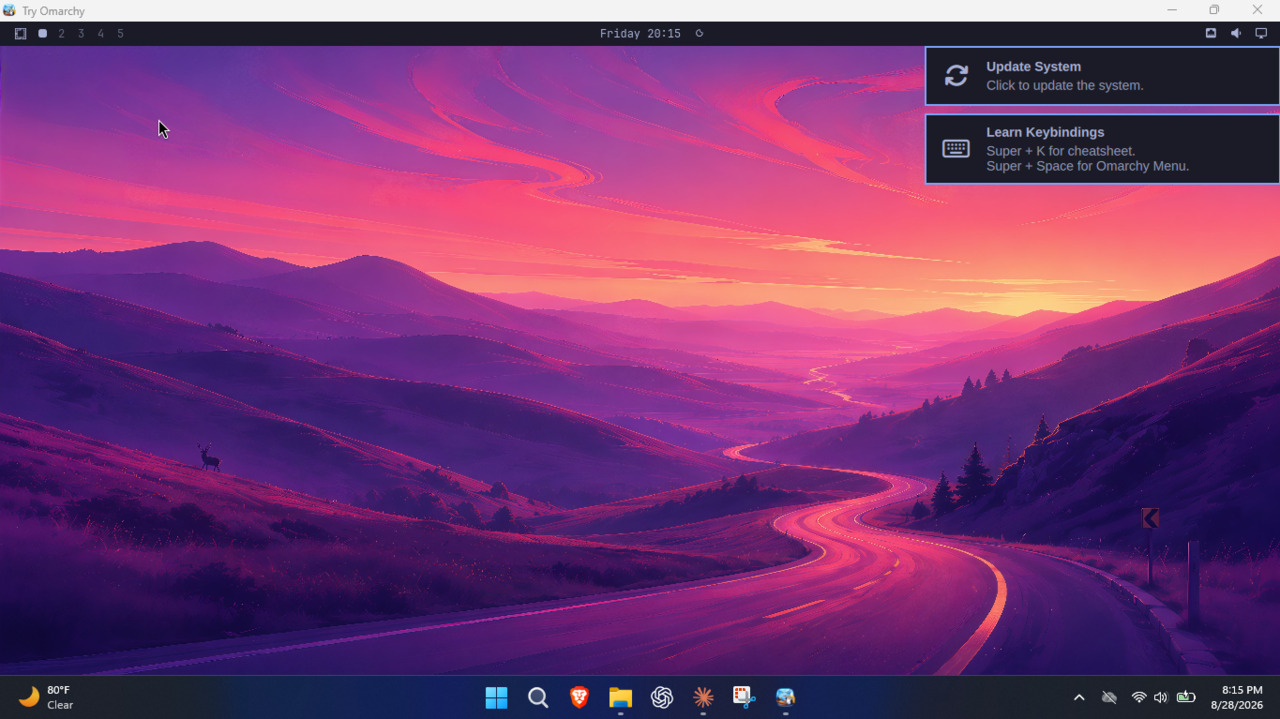
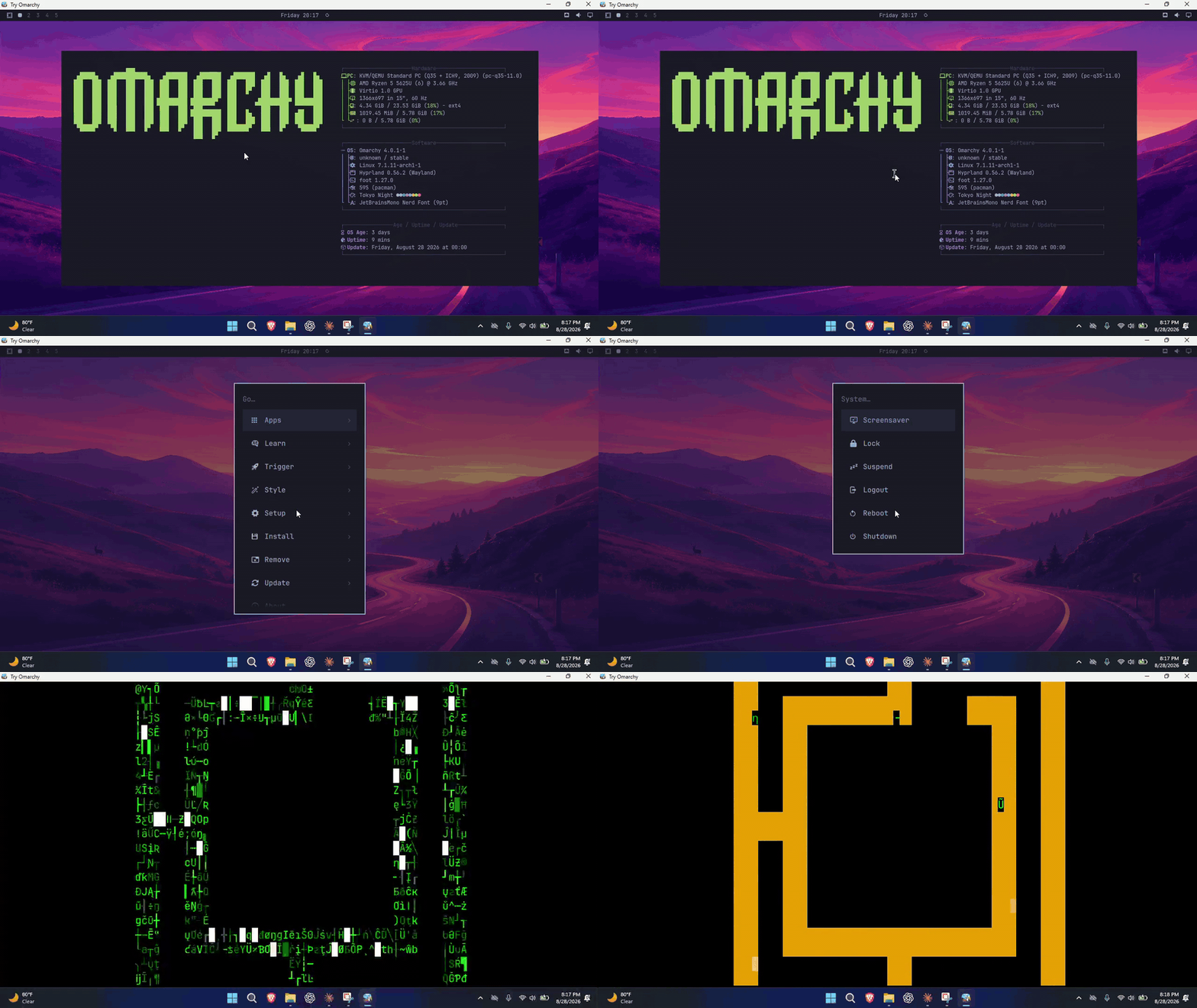
Status: working end to end on real hardware. One app switches on Windows' virtualization, downloads the GPU runtime and the image, boots, and supervises; the desktop renders on the GPU and falls back to CPU rendering automatically. Landing page: tryomarchy.com. See the changelog for release history.
Try Omarchy for Windows is maintained under Omacom, alongside Try Omarchy for macOS. The Omarchy mark in the app icon is sourced from the official Omarchy brand kit and remains subject to Omarchy's trademark rights.
The current release is v0.0.20-preview, including Omarchy 4.0.3, working camera and microphone capture, quiet file drops, snapshots and installation moves. The project remains a preview while broader host coverage is completed. See the Windows testing instructions. Physical acceptance currently centers on an AMD Windows 11 laptop; broader host coverage remains open.
What works today
- The full Omarchy 4.0.3 desktop on new or reset guests: Hyprland, the bar, notifications, all 22 themes, the screensavers. Launches after setup go straight to the desktop. Startup time depends on the host and the drive holding the guest. No Linux login screens, no console text, branded window.
- GPU acceleration: Hyprland renders on the host GPU via virgl,
vulkaninfoshows Venus, smooth video and audio (verified on a Radeon iGPU laptop);-cpu host(AVX2 and all) via WINQ-EMU's patched WHPX. - One app, zero prerequisites:
TryOmarchy.exe(~10 MB, no console window). First run lets you keep the default Local AppData location or choose another local drive or folder, switches on Windows' Hypervisor Platform (one permission prompt, one restart), then downloads the SHA256-verified GPU runtime and image and boots into Omarchy's setup form. Once setup is complete it keeps a stable launcher in the chosen data folder and can add optional Start-menu and Desktop shortcuts. After that it supervises everything: GPU/CPU auto-detect, the known WHPX launch wedge, in-guest reboot relaunch, poweroff cleanup. - Feels like an app, not a VM: the window is branded "Try Omarchy", the Windows key acts as Super only while the window is focused (Start menu and Win+Shift+S keep working everywhere else), Ctrl+Alt+F goes fullscreen.
- Two-way text and image clipboard sharing between Windows and Omarchy (own compositor-native bridge over wl-clipboard, no SPICE) and folder sharing over virtio-9p: standard installs offer to create
Omarchy Sharedin your Windows home, then pin it in Omarchy's Files sidebar and link it into the Linux home. The tray can open the Windows folder at any time. File and folder clipboard transfers stream in the background. Drop Windows files into the Omarchy window to copy them into the supported folder under the pointer, or Downloads when that folder cannot accept the drop. Larger copies show small, nonblocking progress with cancellation. Dropping directly into arbitrary guest applications remains unfinished. - First boot offers an instant trial account or Omarchy's normal personalized account setup, with SDDM autologin after either path. Instant mode keeps
omarchyas both the local username and lock-screen password, shows that on the setup splash, and repeats it once on the first desktop. Sudo remains passwordless in this disposable local trial. - Reproducible x86_64 guest image build (containerized, package-locked, pinned Omarchy revision) and a headless QMP control plane for automated testing.
See app compatibility for package support and current VM limitations.
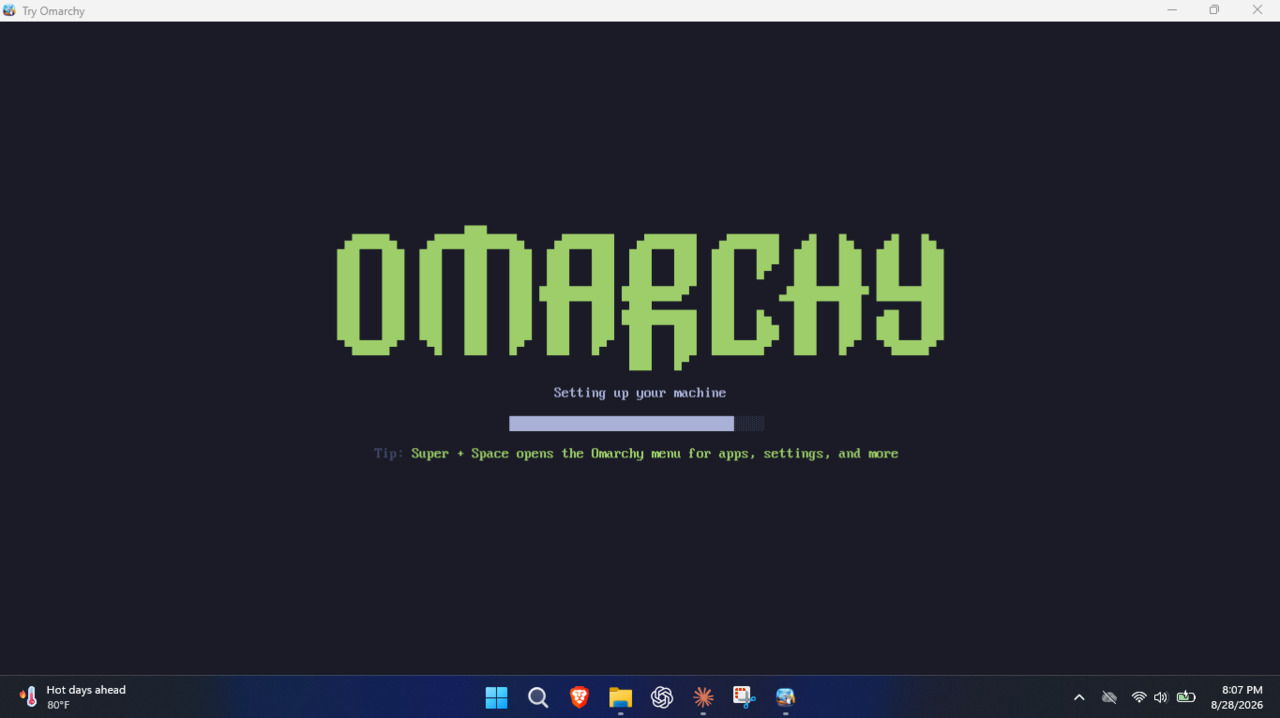
| First run | Screensaver |
|---|---|
 | 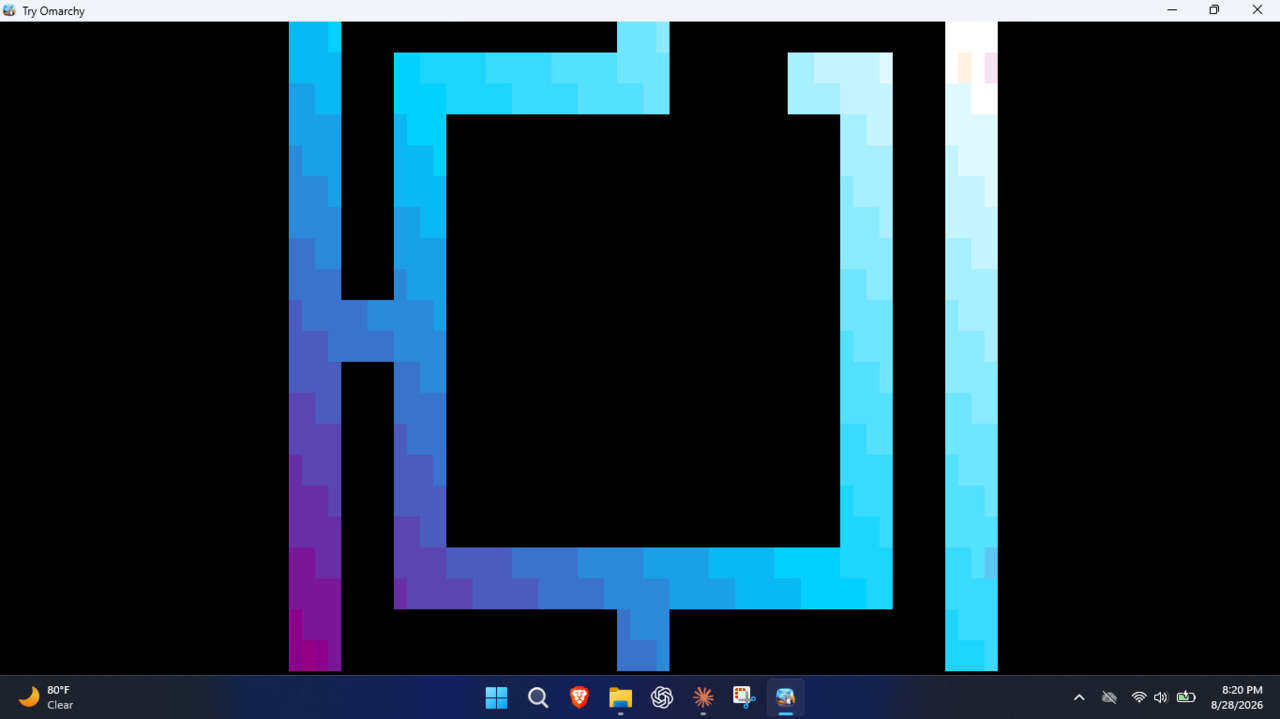 |
Essential keys
- Windows key acts as Super, but only while the Try Omarchy window is focused. Everywhere else it stays your normal Windows key, so the Start menu and Win+Shift+S keep working.
- Ctrl+Alt+F fullscreens the VM window itself on your Windows desktop (SUPER+F, below, is the in-Omarchy one).
- Ctrl+Alt+G grabs or releases raw keyboard input. If the host steals a shortcut you meant for Omarchy, grab first. Same trick if you're driving the VM over VNC or RDP and focus gets weird.
- Hyprland is keyboard-first by design and the first hour is the adjustment period. Learn two keys and the rest follows: SUPER+SPACE opens the Omarchy menu, SUPER+K opens the keybinding viewer with every binding and its description. The everyday starters: SUPER+RETURN opens a terminal, SUPER+W closes the focused window, SUPER+F fullscreens it.
Architecture
Same recipe as the excellent macOS try-omarchy (QEMU + Apple Hypervisor Framework + VirGL), translated to Windows:
| Piece | macOS (try-omarchy) | This project |
|---|---|---|
| Hypervisor | Hypervisor.framework | Windows Hypervisor Platform (WHPX) |
| Guest image | ARM64 Arch + Omarchy | x86_64 Arch + Omarchy |
| Graphics | VirGL | virtio-gpu virgl + Venus Vulkan (WINQ-EMU); llvmpipe fallback |
| App shell | Swift/AppKit | Go: one console-less TryOmarchy.exe (PowerShell scripts remain as a fallback path) |
WHPX works on Windows Home and Pro (it's the same platform WSL2 rides on), so no Hyper-V role is required. If WSL2 runs on your machine, you're set.
Proven boot recipe: -accel whpx -machine q35 -cpu qemu64, direct kernel boot (vmlinuz + initramfs + raw ext4 rootfs on virtio-blk), all-virtio devices, SDL audio with recording support. See docs/FINDINGS.md for the details and the traps.
Try it
Download TryOmarchy.exe (~10 MB, SHA256) and open it. First run asks where to store the virtual machine, graphics runtime, and downloads. Use the default Local AppData location or choose another local drive or folder. Windows then asks permission to switch on the Hypervisor Platform and restarts once, after which the app pulls the GPU runtime (a portable WINQ-EMU tree, ~84 MB) and the Omarchy image (~2 GB), everything SHA256-verified. Choose the instant trial account to go straight to the desktop, or use Omarchy's setup form to choose your own account. Every launch after goes straight to the desktop.
After the first successful setup, Try Omarchy offers optional Start-menu and Desktop shortcuts. Start-menu installs include a separate settings shortcut. They point to a stable copy of the signed launcher in the chosen data folder, so the original download can be moved or deleted. Opening a newer downloaded release refreshes that stable copy.
While Omarchy is running, the Try Omarchy tray icon can reopen its window, open the active shared folder, open Settings, create a diagnostics bundle, or request a clean shutdown.
Try Omarchy checks for updates when it starts. Release metadata is signed with a separate Ed25519 update key, and its authenticated hashes cover the signed launcher and the guest payload manifest. New files are fully downloaded and verified before they replace anything. The previous launcher, bundled runtime, and factory image remain available until the updated VM reaches a healthy boot, while vm\disk.raw is left untouched. If the first boot fails or is interrupted, the next launch restores the previous files automatically. Use -no-update when an offline or version-pinned launch is required.
For the full guest OS update, open Update > Omarchy inside the guest after updating the launcher. Existing files and the writable guest disk are preserved; launcher rollback does not roll back guest package transactions. See updating an existing guest.
Already have WINQ-EMU at C:\WINQ-EMU, or stock QEMU from the old bootstrap? The app prefers what's installed and downloads nothing extra.
Prefer to build the app yourself? Any machine with Go, then run the exe on Windows:
git clone https://github.com/omacom/try-omarchy-windows
cd try-omarchy-windows/app
GOOS=windows GOARCH=amd64 go build -trimpath -ldflags "-H windowsgui -s -w" -o TryOmarchy.exe .
The launcher embeds and pins the SHA256 digest of the default release's
SHA256SUMS file. It verifies an existing cache before trusting it, records a
manifest-bound install receipt for fast offline launches, and only promotes
fully written rootfs and writable-disk staging files into place. When publishing
a new image release, update defaultReleaseURL, defaultSumsSHA256, and the
matching fixture in app/testdata, plus currentVersion in app/update.go.
Interrupted payload transfers resume from their .part files when the server
supports byte ranges, then the complete file is SHA256-verified before use.
Custom release URLs must be paired with the
trusted manifest digest via -sums-sha256.
Reporting a problem
Run TryOmarchy.exe -diagnostics. It writes one zip under the chosen data
folder's diagnostics directory with the launcher and QEMU logs, the
guest's console output, redacted settings, install and update state, the guest
manifest, and machine facts (Windows build, CPU, memory). It includes no disk
images or home-folder files and redacts known account paths and SSH key data.
Logs can still contain local details, so review the zip before attaching it.
Install location
New standard installs ask for a data location before downloading anything. The
default is %LOCALAPPDATA%\TryOmarchy. Choosing another local drive or folder
creates a TryOmarchy folder there and keeps a small
%LOCALAPPDATA%\TryOmarchy\data-location.json pointer so direct launches can
find it. Standard installs require an NTFS or ReFS local drive because the
virtual disk uses sparse files. Network locations are not supported. Existing
installs stay where they are, and an explicit -dir PATH still wins for that
launch. Portable mode continues to support exFAT through the data and
payload folders beside the executable.
Settings
Moving an existing installation is available from Settings.
The next candidate adds General, Devices, Advanced and Recovery pages, camera selection and camera/microphone switches, and About and updates. These controls are in this source branch and are not yet part of the published v20 download. See desktop controls for behavior and validation.
settings.json in the chosen data folder keeps the choices that survive a
relaunch. Every row has a matching flag, and a flag given on the command line
wins for that launch:
{
  "schemaVersion": 1,
  "fullscreen": false,
  "memoryMiB": 0,
  "cpus": 0,
  "share": "",
  "shareDisabled": false,
  "sharedFolderPrompted": true,
  "forwards": ["tcp:2222:22"],
  "sshKey": "",
  "render": "auto"
}
fullscreen is the Immersive mode (-fullscreen), memoryMiB overrides the
automatic guest RAM sizing (-memory, 0 keeps it automatic), cpus overrides
the automatic vCPU count (-cpus, 0 keeps it automatic), share remembers
the Windows folder shared into Omarchy (-share), shareDisabled turns that
folder off without forgetting it, and forwards are loopback port
forwards (-forward), and sshKey is the public key file to authorize when a
forward targets sshd (-ssh-key), and render picks the rendering path
(-render). Open Settings from the tray, the Start menu, or
TryOmarchy.exe -settings. Changes apply on the next launch.
render is auto by default: the launcher tries GPU rendering and, when this
PC cannot run it, remembers that in render-probe.json so later launches go
straight to CPU rendering instead of repeating the failed attempts. It retries
the GPU path when the runtime or the display drivers change, and once a day.
gpu retries every launch; cpu never tries it (-nogpu means the same).
Automatic sizing gives the guest all logical processors but two, between two and eight, and a third of the machine's RAM between 4 and 8 GiB (6 GiB with GPU rendering, the same as before), reduced to what Windows can spare at launch.
CPU and RAM profiles
Open Settings > General > Resource profile before starting Omarchy:
- Balanced keeps the automatic sizing above.
- Maximum performance samples Windows CPU activity for 750 ms and reads available physical RAM immediately before starting the VM. It gives Omarchy the unused capacity after leaving additional Windows headroom: at least two logical processors (one eighth of the host on larger machines), and at least 4 GiB RAM (one eighth of physical RAM on larger machines). RAM is rounded down to 256 MiB steps. The supported limits remain 64 vCPUs and 64 GiB RAM.
- Manual enables the CPU count and RAM fields together. RAM is entered in GiB; either field can be 0 to use Balanced sizing for that resource. Requests exceeding the host CPU count or leaving less than 2 GiB physical RAM for Windows are rejected with an explanation.
Settings shows an estimate using the host state when the window opens. Maximum performance measures again on launch. These are boot-time capacities: Windows and Omarchy still share processor scheduling, and the launcher does not pin cores, guarantee an FPS increase, or continuously resize a running VM. Save, shut down, and relaunch to apply a change. Windows must retain headroom for new applications, QEMU, and graphics resources.
If CPU measurement fails, or the PC has more than 64 logical processors,
Maximum performance uses the Balanced CPU count. An unavailable memory query
uses Balanced RAM sizing. A successful query showing insufficient free RAM
stops Maximum performance with an explanation instead of allocating that RAM.
The existing QEMU low-memory retry can still reduce an allocation if conditions
change after measurement; the effective allocation is recorded in vm/shell.log.
The profile is saved separately in resources.json so older launchers can
still read settings.json after rollback. Old CPU/RAM choices are preserved
and select Manual until a profile is chosen. Presets retain those manual values
for later use. Backups and snapshots include the profile.
For one launch, use -resource-profile maximum-performance, balanced, or
manual. Explicit -cpus and -memory flags override their individual
resources within any profile; -memory still takes MiB. For example:
TryOmarchy.exe -resource-profile maximum-performance
TryOmarchy.exe -resource-profile manual -cpus 16 -memory 24576
Graphics: Settings > Advanced reports the last successful boot's rendering path. GPU mode shares Windows' GPU through VirGL OpenGL and Venus Vulkan; it does not assign the physical GPU to Linux. NVIDIA CUDA/OptiX and native PCI GPU passthrough are not provided by this runtime. See application and graphics limits before relying on a particular game or renderer.
Optional Blender, Godot and SuperTuxKart launch profiles document tested OpenGL paths, a separately built Blender compatibility patch, installation and rollback. These are experimental application profiles, not a change to the bundled graphics runtime or a claim of universal GPU support.
The guest follows the Windows time zone, default keyboard layout, and display
language. Each is applied inside Omarchy when it changes on the Windows side,
so a layout, zone, or language chosen inside the guest stays until Windows
changes. -timezone, -keyboard, and -locale override this for a launch:
keep leaves the guest alone, or give an IANA zone such as Europe/Berlin,
an XKB layout such as de or us:intl, or a locale such as de_DE. The
language takes effect at the next login inside Omarchy.
Disk capacity
Open Settings and set Disk capacity (GiB), or launch with -disk-size 64.
Standard installs accept 24 to 1024 GiB; 0 keeps the release default. The next
launch grows an existing disk in place and preserves its files. Lowering the
setting never shrinks the disk. A fresh guest uses at least the factory image's
required capacity.
Capacity is a limit, not space reserved on Windows. The sparse disk uses host storage as you add files. Settings shows the current capacity and free space on the Windows drive. Keep important files backed up outside the guest.
Deleting files inside Omarchy does not shrink the disk file by itself. While
Omarchy is running, TryOmarchy.exe -reclaim asks it to write zeros over its
free space, up to what the Windows drive can spare beyond a 4 GiB reserve and
at most 8 GiB per pass, and the disk file shrinks the next time Omarchy shuts
down. Run it again for another pass if a lot was deleted. The tray includes Reclaim disk space and Reclaim status.
This preference is saved separately in storage.json so older launchers can
still read their settings after rollback. An explicit -disk-size applies only
to that launch. Portable QCOW2 disks keep their existing capacity.
SSH and port forwarding
Nothing listens by default. To reach Omarchy from Windows tools, forward a loopback port:
TryOmarchy.exe -ssh 2222
That forwards 127.0.0.1:2222 to Omarchy's sshd for this session only and
asks the guest to start sshd for that boot. Nothing on your network can reach
it. Your ~/.ssh/id_ed25519.pub (or id_ecdsa.pub, id_rsa.pub) is authorized
for the Omarchy account automatically; pass -ssh-key PATH to pick another
public key, or use none and log in with the password you chose in Omarchy.
Then:
ssh -p 2222 <omarchy-user>@127.0.0.1
The same alias works for scp, Git, and VS Code Remote SSH. Other services
use -forward tcp:8080:80 or -forward udp:5000:5000 (repeatable); the guest
service must listen on its network interface, not only on its own localhost.
From Omarchy, windows.host:<port> (10.0.2.2) reaches a service on Windows without any
mapping. Key-only or permanent SSH is Omarchy's own choice: run
omarchy-setup-security-sshd inside the guest. A fresh disk (-fresh) gets a
new host key, so remove the old [127.0.0.1]:2222 entry from known_hosts
if ssh complains.
Taking your setup to a real Omarchy install
Inside Omarchy, run try-omarchy-export. It writes one archive with your
desktop configuration, theme, and the packages you added, to the shared Windows folder
when one is mounted (-share) or to your home folder otherwise. On the real
install, extract it and run the restore.sh inside. Keys, password stores,
browser profiles, and unlisted application configs are deliberately left out.
Review the archive before sharing it with anyone. See
docs/MIGRATION.md.
Offline portable mode
The launcher also accepts -portable for an experimental, persistent USB
layout. In this mode it reads an authenticated release payload beside the
executable, makes no setup-time network requests, stores all guest state on the
removable drive, and uses a compact QCOW2 overlay that survives Windows drive
letter changes and works on exFAT. The independently pinned SHA256SUMS digest,
install receipts, cancellation handling, and atomic file publication apply to
the portable path too.
See docs/PORTABLE_USB.md for the expected layout and
host requirements. Bundle preparation and additional host launchers are kept
out of this core Windows change so they can be reviewed separately.
Or skip the app and drive QEMU from PowerShell: scripts\bootstrap.ps1 then scripts\launch-omarchy.ps1 (elevated).
VM backups
Backup, restore, and reset controls are available in Settings for stopped standard installs. Restore creates a separate copy. Command-line options are also available. See the backup guide for usage, storage requirements, and current limitations.
FAQ
Isn't this just QEMU in disguise?
Yes, and that's the point. QEMU on WHPX is the best virtualization stack Windows has, but wiring it up yourself (machine type, virtio devices, GPU forwarding, input handling, the known launch wedges) is a weekend project on its own. The app does that wiring for you, supervises the VM, and keeps everything in one folder you can delete.
Why is the download only ~10 MB?
TryOmarchy.exe is just the launcher. On first run it fetches the GPU runtime (~84 MB) and the Omarchy image (~2 GB), SHA256-verifies both, and caches them in the data folder you chose. After that, launches work offline.
Why not just use a live USB?
A live USB means rebooting away from your machine and forgetting everything on shutdown. This runs in a window next to your actual work, keeps your state between sessions, and renders on your real GPU.
What are the instant trial credentials?
The local trial account is named omarchy and its lock-screen password is omarchy. Sudo does not ask for a password in instant trial mode. Try Omarchy does not enable SSH or expose inbound network ports unless you ask for a forward with -ssh or -forward, and those bind to 127.0.0.1 only.
How do I remove Try Omarchy?
Close Omarchy, then use Remove Try Omarchy in Settings, the Try Omarchy
entry in Windows Apps & features, or TryOmarchy.exe -uninstall. It offers a
full backup first, then removes the shortcuts, the Apps & features entry, the
saved data location, and the data folder with the launcher, runtime, image,
and writable virtual disk. Windows shared folders and the original downloaded
TryOmarchy.exe are kept; delete those by hand if you no longer want them.
Removing the data folder by hand still works; the Apps & features entry then stays until you remove it from there.
I have the full Hyper-V feature set installed. Will it conflict?
WHPX and Hyper-V share the same Windows hypervisor and are designed to coexist. Public v20 passed GPU boot, camera capture, file drop, guest reboot and shutdown with the full Hyper-V role enabled on an AMD/Radeon Windows 11 laptop. Intel/Core Ultra, NVIDIA and simultaneous workloads in another Hyper-V VM remain unverified.
Repository layout
app/: the app itself: one Go exe covering the launcher, supervisor, first-run download, focus-scoped Win-key forwarding, and the host side of the clipboard bridgeruntime-build/: the source-locked Windows QEMU runtime build, verification, licenses, and provenance toolingscripts/: PowerShell path plus QMP tooling (screendump, send-key, WHPX smoke test)guest-build/: patches on jorge's guest builder that produce our image, plus build instructionsdocs/FINDINGS.md: technical findings, gotchas, and their fixesdocs/RELEASING.md- the authenticated two-phase build, signing, and publishing process
The guest image (Omarchy 4.0.3, all upstream themes, screensavers, autologin, clipboard bridge) is built from jorge-huxley/try-omarchy-win's win branch guest builder (guest/build-container.sh, needs Docker on Linux), an x86_64 retarget of the upstream try-omarchy build system. The patches in guest-build/ add Windows integration. Images are not committed; setup downloads the latest release artifact, or build your own.
Credit where due
This project stands on a lot of shoulders:
- Omarchy by DHH / Basecamp: the desktop this is all about
- try-omarchy by Eduardo (themartiano): the original macOS app and the architecture this follows
- try-omarchy-win by Jorge Silva: the x86_64 guest builder retarget and the proven WHPX boot recipe this project reuses
- WINQ-EMU by cmspam: Venus Vulkan GPU forwarding for QEMU on Windows, the graphics path
- omarchy-windows-hyperv-gpu by Chainfire: prior art proving GPU-accelerated Omarchy on Windows, plus the QEMU 11 WHPX interrupt findings
- dockur/windows: the Windows-in-Docker environment this is developed and tested in
Open to collaboration : if you're working on any of this, get in touch.
License
Scripts and docs in this repo: MIT. Omarchy and the guest image contents carry their own licenses.


Similar repos



Languages
Go
75.3%
Python
15.5%
PowerShell
5.6%
Shell
3.0%
Use Omarchy Linux on Windows without any hassle.
See the codeSee what people are saying (1)
README
Try Omarchy for Windows
Run the full Omarchy desktop in a window on Windows 10 or 11. No VMware, no VirtualBox, no dual boot: QEMU on the Windows Hypervisor Platform (WHPX), a prebuilt Arch image with Omarchy baked in, and the desktop rendered on your actual GPU (virgl + Venus Vulkan via WINQ-EMU) with CPU rendering as the automatic fallback. No repartitioning or replacement of Windows. Setup may enable Windows Hypervisor Platform and request a restart; the Linux installation lives in a folder chosen on first run, with %LOCALAPPDATA%\TryOmarchy as the default.
Download, boot, Hyprland.
Status: working end to end on real hardware. One app switches on Windows' virtualization, downloads the GPU runtime and the image, boots, and supervises; the desktop renders on the GPU and falls back to CPU rendering automatically. Landing page: tryomarchy.com. See the changelog for release history.
Try Omarchy for Windows is maintained under Omacom, alongside Try Omarchy for macOS. The Omarchy mark in the app icon is sourced from the official Omarchy brand kit and remains subject to Omarchy's trademark rights.
The current release is v0.0.20-preview, including Omarchy 4.0.3, working camera and microphone capture, quiet file drops, snapshots and installation moves. The project remains a preview while broader host coverage is completed. See the Windows testing instructions. Physical acceptance currently centers on an AMD Windows 11 laptop; broader host coverage remains open.
What works today
- The full Omarchy 4.0.3 desktop on new or reset guests: Hyprland, the bar, notifications, all 22 themes, the screensavers. Launches after setup go straight to the desktop. Startup time depends on the host and the drive holding the guest. No Linux login screens, no console text, branded window.
- GPU acceleration: Hyprland renders on the host GPU via virgl,
vulkaninfoshows Venus, smooth video and audio (verified on a Radeon iGPU laptop);-cpu host(AVX2 and all) via WINQ-EMU's patched WHPX. - One app, zero prerequisites:
TryOmarchy.exe(~10 MB, no console window). First run lets you keep the default Local AppData location or choose another local drive or folder, switches on Windows' Hypervisor Platform (one permission prompt, one restart), then downloads the SHA256-verified GPU runtime and image and boots into Omarchy's setup form. Once setup is complete it keeps a stable launcher in the chosen data folder and can add optional Start-menu and Desktop shortcuts. After that it supervises everything: GPU/CPU auto-detect, the known WHPX launch wedge, in-guest reboot relaunch, poweroff cleanup. - Feels like an app, not a VM: the window is branded "Try Omarchy", the Windows key acts as Super only while the window is focused (Start menu and Win+Shift+S keep working everywhere else), Ctrl+Alt+F goes fullscreen.
- Two-way text and image clipboard sharing between Windows and Omarchy (own compositor-native bridge over wl-clipboard, no SPICE) and folder sharing over virtio-9p: standard installs offer to create
Omarchy Sharedin your Windows home, then pin it in Omarchy's Files sidebar and link it into the Linux home. The tray can open the Windows folder at any time. File and folder clipboard transfers stream in the background. Drop Windows files into the Omarchy window to copy them into the supported folder under the pointer, or Downloads when that folder cannot accept the drop. Larger copies show small, nonblocking progress with cancellation. Dropping directly into arbitrary guest applications remains unfinished. - First boot offers an instant trial account or Omarchy's normal personalized account setup, with SDDM autologin after either path. Instant mode keeps
omarchyas both the local username and lock-screen password, shows that on the setup splash, and repeats it once on the first desktop. Sudo remains passwordless in this disposable local trial. - Reproducible x86_64 guest image build (containerized, package-locked, pinned Omarchy revision) and a headless QMP control plane for automated testing.
See app compatibility for package support and current VM limitations.
| First run | Screensaver |
|---|---|
| |
Essential keys
- Windows key acts as Super, but only while the Try Omarchy window is focused. Everywhere else it stays your normal Windows key, so the Start menu and Win+Shift+S keep working.
- Ctrl+Alt+F fullscreens the VM window itself on your Windows desktop (SUPER+F, below, is the in-Omarchy one).
- Ctrl+Alt+G grabs or releases raw keyboard input. If the host steals a shortcut you meant for Omarchy, grab first. Same trick if you're driving the VM over VNC or RDP and focus gets weird.
- Hyprland is keyboard-first by design and the first hour is the adjustment period. Learn two keys and the rest follows: SUPER+SPACE opens the Omarchy menu, SUPER+K opens the keybinding viewer with every binding and its description. The everyday starters: SUPER+RETURN opens a terminal, SUPER+W closes the focused window, SUPER+F fullscreens it.
Architecture
Same recipe as the excellent macOS try-omarchy (QEMU + Apple Hypervisor Framework + VirGL), translated to Windows:
| Piece | macOS (try-omarchy) | This project |
|---|---|---|
| Hypervisor | Hypervisor.framework | Windows Hypervisor Platform (WHPX) |
| Guest image | ARM64 Arch + Omarchy | x86_64 Arch + Omarchy |
| Graphics | VirGL | virtio-gpu virgl + Venus Vulkan (WINQ-EMU); llvmpipe fallback |
| App shell | Swift/AppKit | Go: one console-less TryOmarchy.exe (PowerShell scripts remain as a fallback path) |
WHPX works on Windows Home and Pro (it's the same platform WSL2 rides on), so no Hyper-V role is required. If WSL2 runs on your machine, you're set.
Proven boot recipe: -accel whpx -machine q35 -cpu qemu64, direct kernel boot (vmlinuz + initramfs + raw ext4 rootfs on virtio-blk), all-virtio devices, SDL audio with recording support. See docs/FINDINGS.md for the details and the traps.
Try it
Download TryOmarchy.exe (~10 MB, SHA256) and open it. First run asks where to store the virtual machine, graphics runtime, and downloads. Use the default Local AppData location or choose another local drive or folder. Windows then asks permission to switch on the Hypervisor Platform and restarts once, after which the app pulls the GPU runtime (a portable WINQ-EMU tree, ~84 MB) and the Omarchy image (~2 GB), everything SHA256-verified. Choose the instant trial account to go straight to the desktop, or use Omarchy's setup form to choose your own account. Every launch after goes straight to the desktop.
After the first successful setup, Try Omarchy offers optional Start-menu and Desktop shortcuts. Start-menu installs include a separate settings shortcut. They point to a stable copy of the signed launcher in the chosen data folder, so the original download can be moved or deleted. Opening a newer downloaded release refreshes that stable copy.
While Omarchy is running, the Try Omarchy tray icon can reopen its window, open the active shared folder, open Settings, create a diagnostics bundle, or request a clean shutdown.
Try Omarchy checks for updates when it starts. Release metadata is signed with a separate Ed25519 update key, and its authenticated hashes cover the signed launcher and the guest payload manifest. New files are fully downloaded and verified before they replace anything. The previous launcher, bundled runtime, and factory image remain available until the updated VM reaches a healthy boot, while vm\disk.raw is left untouched. If the first boot fails or is interrupted, the next launch restores the previous files automatically. Use -no-update when an offline or version-pinned launch is required.
For the full guest OS update, open Update > Omarchy inside the guest after updating the launcher. Existing files and the writable guest disk are preserved; launcher rollback does not roll back guest package transactions. See updating an existing guest.
Already have WINQ-EMU at C:\WINQ-EMU, or stock QEMU from the old bootstrap? The app prefers what's installed and downloads nothing extra.
Prefer to build the app yourself? Any machine with Go, then run the exe on Windows:
git clone https://github.com/omacom/try-omarchy-windows
cd try-omarchy-windows/app
GOOS=windows GOARCH=amd64 go build -trimpath -ldflags "-H windowsgui -s -w" -o TryOmarchy.exe .
The launcher embeds and pins the SHA256 digest of the default release's
SHA256SUMS file. It verifies an existing cache before trusting it, records a
manifest-bound install receipt for fast offline launches, and only promotes
fully written rootfs and writable-disk staging files into place. When publishing
a new image release, update defaultReleaseURL, defaultSumsSHA256, and the
matching fixture in app/testdata, plus currentVersion in app/update.go.
Interrupted payload transfers resume from their .part files when the server
supports byte ranges, then the complete file is SHA256-verified before use.
Custom release URLs must be paired with the
trusted manifest digest via -sums-sha256.
Reporting a problem
Run TryOmarchy.exe -diagnostics. It writes one zip under the chosen data
folder's diagnostics directory with the launcher and QEMU logs, the
guest's console output, redacted settings, install and update state, the guest
manifest, and machine facts (Windows build, CPU, memory). It includes no disk
images or home-folder files and redacts known account paths and SSH key data.
Logs can still contain local details, so review the zip before attaching it.
Install location
New standard installs ask for a data location before downloading anything. The
default is %LOCALAPPDATA%\TryOmarchy. Choosing another local drive or folder
creates a TryOmarchy folder there and keeps a small
%LOCALAPPDATA%\TryOmarchy\data-location.json pointer so direct launches can
find it. Standard installs require an NTFS or ReFS local drive because the
virtual disk uses sparse files. Network locations are not supported. Existing
installs stay where they are, and an explicit -dir PATH still wins for that
launch. Portable mode continues to support exFAT through the data and
payload folders beside the executable.
Settings
Moving an existing installation is available from Settings.
The next candidate adds General, Devices, Advanced and Recovery pages, camera selection and camera/microphone switches, and About and updates. These controls are in this source branch and are not yet part of the published v20 download. See desktop controls for behavior and validation.
settings.json in the chosen data folder keeps the choices that survive a
relaunch. Every row has a matching flag, and a flag given on the command line
wins for that launch:
{
  "schemaVersion": 1,
  "fullscreen": false,
  "memoryMiB": 0,
  "cpus": 0,
  "share": "",
  "shareDisabled": false,
  "sharedFolderPrompted": true,
  "forwards": ["tcp:2222:22"],
  "sshKey": "",
  "render": "auto"
}
fullscreen is the Immersive mode (-fullscreen), memoryMiB overrides the
automatic guest RAM sizing (-memory, 0 keeps it automatic), cpus overrides
the automatic vCPU count (-cpus, 0 keeps it automatic), share remembers
the Windows folder shared into Omarchy (-share), shareDisabled turns that
folder off without forgetting it, and forwards are loopback port
forwards (-forward), and sshKey is the public key file to authorize when a
forward targets sshd (-ssh-key), and render picks the rendering path
(-render). Open Settings from the tray, the Start menu, or
TryOmarchy.exe -settings. Changes apply on the next launch.
render is auto by default: the launcher tries GPU rendering and, when this
PC cannot run it, remembers that in render-probe.json so later launches go
straight to CPU rendering instead of repeating the failed attempts. It retries
the GPU path when the runtime or the display drivers change, and once a day.
gpu retries every launch; cpu never tries it (-nogpu means the same).
Automatic sizing gives the guest all logical processors but two, between two and eight, and a third of the machine's RAM between 4 and 8 GiB (6 GiB with GPU rendering, the same as before), reduced to what Windows can spare at launch.
CPU and RAM profiles
Open Settings > General > Resource profile before starting Omarchy:
- Balanced keeps the automatic sizing above.
- Maximum performance samples Windows CPU activity for 750 ms and reads available physical RAM immediately before starting the VM. It gives Omarchy the unused capacity after leaving additional Windows headroom: at least two logical processors (one eighth of the host on larger machines), and at least 4 GiB RAM (one eighth of physical RAM on larger machines). RAM is rounded down to 256 MiB steps. The supported limits remain 64 vCPUs and 64 GiB RAM.
- Manual enables the CPU count and RAM fields together. RAM is entered in GiB; either field can be 0 to use Balanced sizing for that resource. Requests exceeding the host CPU count or leaving less than 2 GiB physical RAM for Windows are rejected with an explanation.
Settings shows an estimate using the host state when the window opens. Maximum performance measures again on launch. These are boot-time capacities: Windows and Omarchy still share processor scheduling, and the launcher does not pin cores, guarantee an FPS increase, or continuously resize a running VM. Save, shut down, and relaunch to apply a change. Windows must retain headroom for new applications, QEMU, and graphics resources.
If CPU measurement fails, or the PC has more than 64 logical processors,
Maximum performance uses the Balanced CPU count. An unavailable memory query
uses Balanced RAM sizing. A successful query showing insufficient free RAM
stops Maximum performance with an explanation instead of allocating that RAM.
The existing QEMU low-memory retry can still reduce an allocation if conditions
change after measurement; the effective allocation is recorded in vm/shell.log.
The profile is saved separately in resources.json so older launchers can
still read settings.json after rollback. Old CPU/RAM choices are preserved
and select Manual until a profile is chosen. Presets retain those manual values
for later use. Backups and snapshots include the profile.
For one launch, use -resource-profile maximum-performance, balanced, or
manual. Explicit -cpus and -memory flags override their individual
resources within any profile; -memory still takes MiB. For example:
TryOmarchy.exe -resource-profile maximum-performance
TryOmarchy.exe -resource-profile manual -cpus 16 -memory 24576
Graphics: Settings > Advanced reports the last successful boot's rendering path. GPU mode shares Windows' GPU through VirGL OpenGL and Venus Vulkan; it does not assign the physical GPU to Linux. NVIDIA CUDA/OptiX and native PCI GPU passthrough are not provided by this runtime. See application and graphics limits before relying on a particular game or renderer.
Optional Blender, Godot and SuperTuxKart launch profiles document tested OpenGL paths, a separately built Blender compatibility patch, installation and rollback. These are experimental application profiles, not a change to the bundled graphics runtime or a claim of universal GPU support.
The guest follows the Windows time zone, default keyboard layout, and display
language. Each is applied inside Omarchy when it changes on the Windows side,
so a layout, zone, or language chosen inside the guest stays until Windows
changes. -timezone, -keyboard, and -locale override this for a launch:
keep leaves the guest alone, or give an IANA zone such as Europe/Berlin,
an XKB layout such as de or us:intl, or a locale such as de_DE. The
language takes effect at the next login inside Omarchy.
Disk capacity
Open Settings and set Disk capacity (GiB), or launch with -disk-size 64.
Standard installs accept 24 to 1024 GiB; 0 keeps the release default. The next
launch grows an existing disk in place and preserves its files. Lowering the
setting never shrinks the disk. A fresh guest uses at least the factory image's
required capacity.
Capacity is a limit, not space reserved on Windows. The sparse disk uses host storage as you add files. Settings shows the current capacity and free space on the Windows drive. Keep important files backed up outside the guest.
Deleting files inside Omarchy does not shrink the disk file by itself. While
Omarchy is running, TryOmarchy.exe -reclaim asks it to write zeros over its
free space, up to what the Windows drive can spare beyond a 4 GiB reserve and
at most 8 GiB per pass, and the disk file shrinks the next time Omarchy shuts
down. Run it again for another pass if a lot was deleted. The tray includes Reclaim disk space and Reclaim status.
This preference is saved separately in storage.json so older launchers can
still read their settings after rollback. An explicit -disk-size applies only
to that launch. Portable QCOW2 disks keep their existing capacity.
SSH and port forwarding
Nothing listens by default. To reach Omarchy from Windows tools, forward a loopback port:
TryOmarchy.exe -ssh 2222
That forwards 127.0.0.1:2222 to Omarchy's sshd for this session only and
asks the guest to start sshd for that boot. Nothing on your network can reach
it. Your ~/.ssh/id_ed25519.pub (or id_ecdsa.pub, id_rsa.pub) is authorized
for the Omarchy account automatically; pass -ssh-key PATH to pick another
public key, or use none and log in with the password you chose in Omarchy.
Then:
ssh -p 2222 <omarchy-user>@127.0.0.1
The same alias works for scp, Git, and VS Code Remote SSH. Other services
use -forward tcp:8080:80 or -forward udp:5000:5000 (repeatable); the guest
service must listen on its network interface, not only on its own localhost.
From Omarchy, windows.host:<port> (10.0.2.2) reaches a service on Windows without any
mapping. Key-only or permanent SSH is Omarchy's own choice: run
omarchy-setup-security-sshd inside the guest. A fresh disk (-fresh) gets a
new host key, so remove the old [127.0.0.1]:2222 entry from known_hosts
if ssh complains.
Taking your setup to a real Omarchy install
Inside Omarchy, run try-omarchy-export. It writes one archive with your
desktop configuration, theme, and the packages you added, to the shared Windows folder
when one is mounted (-share) or to your home folder otherwise. On the real
install, extract it and run the restore.sh inside. Keys, password stores,
browser profiles, and unlisted application configs are deliberately left out.
Review the archive before sharing it with anyone. See
docs/MIGRATION.md.
Offline portable mode
The launcher also accepts -portable for an experimental, persistent USB
layout. In this mode it reads an authenticated release payload beside the
executable, makes no setup-time network requests, stores all guest state on the
removable drive, and uses a compact QCOW2 overlay that survives Windows drive
letter changes and works on exFAT. The independently pinned SHA256SUMS digest,
install receipts, cancellation handling, and atomic file publication apply to
the portable path too.
See docs/PORTABLE_USB.md for the expected layout and
host requirements. Bundle preparation and additional host launchers are kept
out of this core Windows change so they can be reviewed separately.
Or skip the app and drive QEMU from PowerShell: scripts\bootstrap.ps1 then scripts\launch-omarchy.ps1 (elevated).
VM backups
Backup, restore, and reset controls are available in Settings for stopped standard installs. Restore creates a separate copy. Command-line options are also available. See the backup guide for usage, storage requirements, and current limitations.
FAQ
Isn't this just QEMU in disguise?
Yes, and that's the point. QEMU on WHPX is the best virtualization stack Windows has, but wiring it up yourself (machine type, virtio devices, GPU forwarding, input handling, the known launch wedges) is a weekend project on its own. The app does that wiring for you, supervises the VM, and keeps everything in one folder you can delete.
Why is the download only ~10 MB?
TryOmarchy.exe is just the launcher. On first run it fetches the GPU runtime (~84 MB) and the Omarchy image (~2 GB), SHA256-verifies both, and caches them in the data folder you chose. After that, launches work offline.
Why not just use a live USB?
A live USB means rebooting away from your machine and forgetting everything on shutdown. This runs in a window next to your actual work, keeps your state between sessions, and renders on your real GPU.
What are the instant trial credentials?
The local trial account is named omarchy and its lock-screen password is omarchy. Sudo does not ask for a password in instant trial mode. Try Omarchy does not enable SSH or expose inbound network ports unless you ask for a forward with -ssh or -forward, and those bind to 127.0.0.1 only.
How do I remove Try Omarchy?
Close Omarchy, then use Remove Try Omarchy in Settings, the Try Omarchy
entry in Windows Apps & features, or TryOmarchy.exe -uninstall. It offers a
full backup first, then removes the shortcuts, the Apps & features entry, the
saved data location, and the data folder with the launcher, runtime, image,
and writable virtual disk. Windows shared folders and the original downloaded
TryOmarchy.exe are kept; delete those by hand if you no longer want them.
Removing the data folder by hand still works; the Apps & features entry then stays until you remove it from there.
I have the full Hyper-V feature set installed. Will it conflict?
WHPX and Hyper-V share the same Windows hypervisor and are designed to coexist. Public v20 passed GPU boot, camera capture, file drop, guest reboot and shutdown with the full Hyper-V role enabled on an AMD/Radeon Windows 11 laptop. Intel/Core Ultra, NVIDIA and simultaneous workloads in another Hyper-V VM remain unverified.
Repository layout
app/: the app itself: one Go exe covering the launcher, supervisor, first-run download, focus-scoped Win-key forwarding, and the host side of the clipboard bridgeruntime-build/: the source-locked Windows QEMU runtime build, verification, licenses, and provenance toolingscripts/: PowerShell path plus QMP tooling (screendump, send-key, WHPX smoke test)guest-build/: patches on jorge's guest builder that produce our image, plus build instructionsdocs/FINDINGS.md: technical findings, gotchas, and their fixesdocs/RELEASING.md- the authenticated two-phase build, signing, and publishing process
The guest image (Omarchy 4.0.3, all upstream themes, screensavers, autologin, clipboard bridge) is built from jorge-huxley/try-omarchy-win's win branch guest builder (guest/build-container.sh, needs Docker on Linux), an x86_64 retarget of the upstream try-omarchy build system. The patches in guest-build/ add Windows integration. Images are not committed; setup downloads the latest release artifact, or build your own.
Credit where due
This project stands on a lot of shoulders:
- Omarchy by DHH / Basecamp: the desktop this is all about
- try-omarchy by Eduardo (themartiano): the original macOS app and the architecture this follows
- try-omarchy-win by Jorge Silva: the x86_64 guest builder retarget and the proven WHPX boot recipe this project reuses
- WINQ-EMU by cmspam: Venus Vulkan GPU forwarding for QEMU on Windows, the graphics path
- omarchy-windows-hyperv-gpu by Chainfire: prior art proving GPU-accelerated Omarchy on Windows, plus the QEMU 11 WHPX interrupt findings
- dockur/windows: the Windows-in-Docker environment this is developed and tested in
Open to collaboration : if you're working on any of this, get in touch.
License
Scripts and docs in this repo: MIT. Omarchy and the guest image contents carry their own licenses.
Similar repos
Languages
Go
75.3%
Python
15.5%
PowerShell
5.6%
Shell
3.0%