
A language server for emmet.io
See the codeREADME

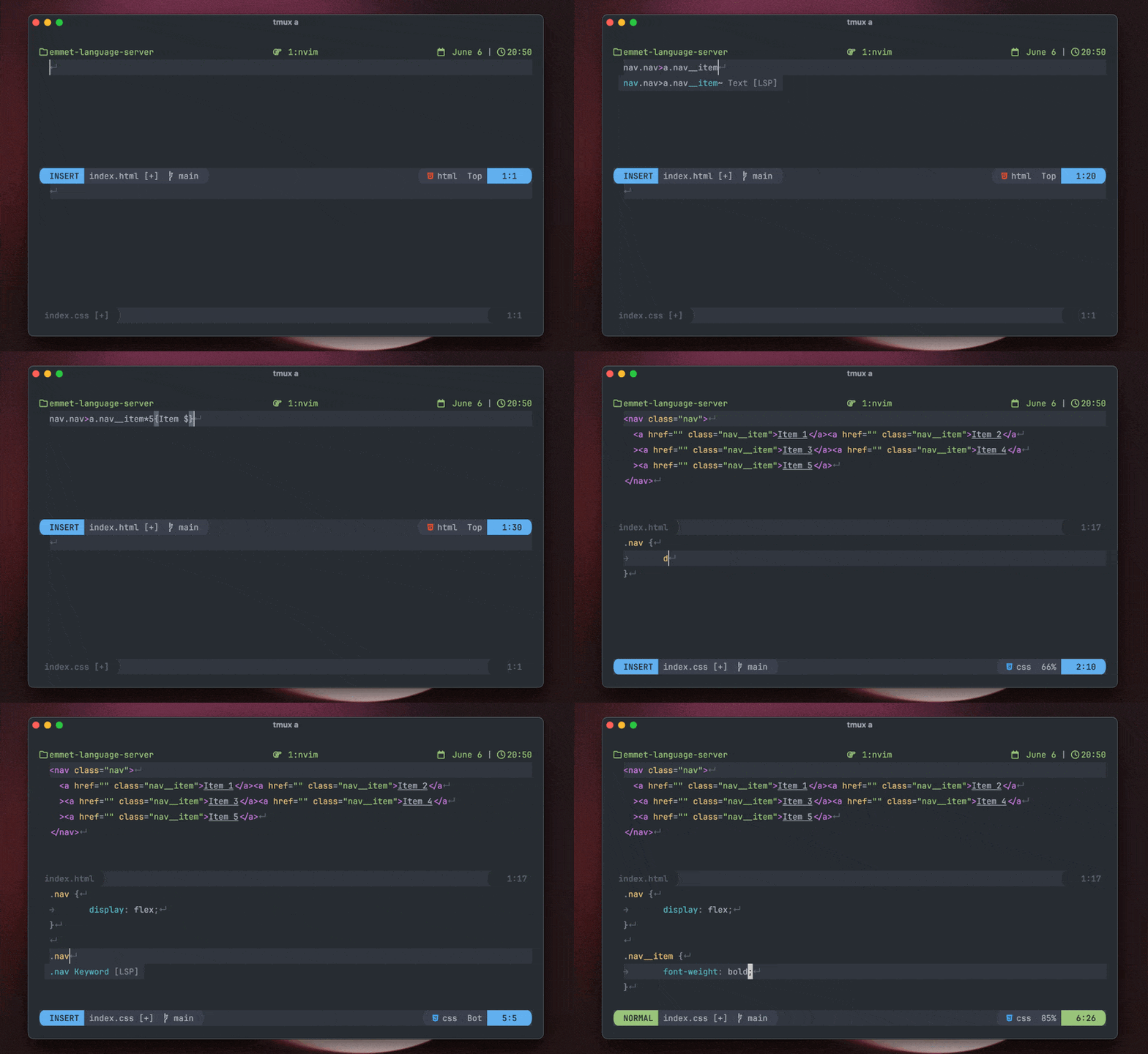
Why another language server?
While aca/emmet-ls works for what I need, there were a couple of things that annoyed me from time to time and while trying to fix one of those things (aca/emmet-ls#55) I've discovered that we can leverage microsoft/vscode-emmet-helper and make a simple language server that wraps that package to provide completions.
So I decided to do that and it worked!
The most important thing is that microsoft/vscode has an excellent integration with emmet and we can have that, in all editors that implement the Language Server Protocol.
Installation
npm
npm i -g @olrtg/emmet-language-server
mason.nvim
:MasonInstall emmet-language-server
Configuration
The server accepts the following Emmet configuration options through the LSP initializationOptions field. All options are optional; if an editor sends no initialization options, the effective defaults below are used.
These are server options. Editor-specific options such as the command, filetypes, and workspace root belong to the LSP client configuration instead.
| Option | Type | Default | Description |
|---|---|---|---|
includeLanguages | Record<string, string> | {} | Maps an editor language ID to another Emmet-supported syntax. This does not cause the language server to attach to that language. |
excludeLanguages | string[] | [] | Disables Emmet completions for the listed language IDs after the server starts. Neovim users should generally remove unwanted languages from filetypes instead, avoiding an unnecessary server attachment. |
extensionsPath | string[] | [] | Lists directories containing Emmet customizations such as snippets.json and syntaxProfiles.json. Relative paths are resolved from the server's working directory. |
preferences | Record<string, unknown> | {} | Customizes Emmet preferences that affect expansion and output. |
showAbbreviationSuggestions | boolean | false | Adds other matching Emmet abbreviations to the completion list alongside the current expansion. |
showExpandedAbbreviation | "always" | "never" | "always" | Controls whether expanded abbreviations are offered as completions. |
showSuggestionsAsSnippets | boolean | false | Marks Emmet completion items as snippets, which may affect how the editor sorts or filters them. |
syntaxProfiles | Record<string, unknown> | {} | Overrides output rules for individual syntaxes. |
variables | Record<string, string> | {} | Defines variables available while expanding abbreviations. |
Editor setup
Neovim
[!NOTE] Want deeper integration (eg. wrap with abbreviation)? Check out nvim-emmet.
These examples use the vim.lsp.config API available in Neovim 0.11 and later.
With nvim-lspconfig
nvim-lspconfig provides an emmet_language_server configuration with the command, filetypes, and root markers already defined. If you do not need to override anything, enable it directly:
vim.lsp.enable("emmet_language_server")
To customize it, extend the configuration before enabling it. Any omitted initialization options retain the defaults from the table above.
vim.lsp.config("emmet_language_server", {
  init_options = {
    showSuggestionsAsSnippets = true,
  },
})

vim.lsp.enable("emmet_language_server")
Without nvim-lspconfig
Without nvim-lspconfig, Neovim still needs a client configuration that tells it how and when to start the server. The following example mirrors the current nvim-lspconfig defaults:
vim.lsp.config("emmet_language_server", {
  cmd = { "emmet-language-server", "--stdio" },
  filetypes = {
    "astro",
    "css",
    "eruby",
    "html",
    "htmlangular",
    "htmldjango",
    "javascriptreact",
    "less",
    "sass",
    "scss",
    "svelte",
    "typescriptreact",
    "vue",
  },
  root_markers = { ".git" },
})

vim.lsp.enable("emmet_language_server")
Add init_options to this configuration if you want to override any of the server defaults.
Zed
Install the Emmet extension from the Zed Extension Gallery. The extension downloads and updates emmet-language-server automatically, so a separate npm or Mason installation is not required.
No additional configuration is necessary. To override the server defaults, add initialization options to your Zed settings.json:
{
  "lsp": {
    "emmet-language-server": {
      "initialization_options": {
        "showSuggestionsAsSnippets": true
      }
    }
  }
}
See Zed's Emmet documentation for more information.
Helix
Install normally with npm (or your favourite package manager), then add the following to languages.toml:
[language-server.emmet-lsp]
command = "emmet-language-server"
args = ["--stdio"]

[language-server.emmet-lsp.config]
showSuggestionsAsSnippets = true

[[language]]
name = "html"
roots = [".git"]
language-servers = ["emmet-lsp"]
Omit the [language-server.emmet-lsp.config] table to use the server defaults.
Credits
- @aca for the first language server (aca/emmet-ls)
- @wassimk for bringing the microsoft/vscode-emmet-helper repo to my attention in aca/emmet-ls#55
- microsoft/vscode for having such an amazing integration with emmet and the easy and open package to integrate with
- emmetio/emmet for the awesome tool
Contributors


Similar repos


Languages
TypeScript
100.0%
A language server for emmet.io
See the codeREADME
Why another language server?
While aca/emmet-ls works for what I need, there were a couple of things that annoyed me from time to time and while trying to fix one of those things (aca/emmet-ls#55) I've discovered that we can leverage microsoft/vscode-emmet-helper and make a simple language server that wraps that package to provide completions.
So I decided to do that and it worked!
The most important thing is that microsoft/vscode has an excellent integration with emmet and we can have that, in all editors that implement the Language Server Protocol.
Installation
npm
npm i -g @olrtg/emmet-language-server
mason.nvim
:MasonInstall emmet-language-server
Configuration
The server accepts the following Emmet configuration options through the LSP initializationOptions field. All options are optional; if an editor sends no initialization options, the effective defaults below are used.
These are server options. Editor-specific options such as the command, filetypes, and workspace root belong to the LSP client configuration instead.
| Option | Type | Default | Description |
|---|---|---|---|
includeLanguages | Record<string, string> | {} | Maps an editor language ID to another Emmet-supported syntax. This does not cause the language server to attach to that language. |
excludeLanguages | string[] | [] | Disables Emmet completions for the listed language IDs after the server starts. Neovim users should generally remove unwanted languages from filetypes instead, avoiding an unnecessary server attachment. |
extensionsPath | string[] | [] | Lists directories containing Emmet customizations such as snippets.json and syntaxProfiles.json. Relative paths are resolved from the server's working directory. |
preferences | Record<string, unknown> | {} | Customizes Emmet preferences that affect expansion and output. |
showAbbreviationSuggestions | boolean | false | Adds other matching Emmet abbreviations to the completion list alongside the current expansion. |
showExpandedAbbreviation | "always" | "never" | "always" | Controls whether expanded abbreviations are offered as completions. |
showSuggestionsAsSnippets | boolean | false | Marks Emmet completion items as snippets, which may affect how the editor sorts or filters them. |
syntaxProfiles | Record<string, unknown> | {} | Overrides output rules for individual syntaxes. |
variables | Record<string, string> | {} | Defines variables available while expanding abbreviations. |
Editor setup
Neovim
[!NOTE] Want deeper integration (eg. wrap with abbreviation)? Check out nvim-emmet.
These examples use the vim.lsp.config API available in Neovim 0.11 and later.
With nvim-lspconfig
nvim-lspconfig provides an emmet_language_server configuration with the command, filetypes, and root markers already defined. If you do not need to override anything, enable it directly:
vim.lsp.enable("emmet_language_server")
To customize it, extend the configuration before enabling it. Any omitted initialization options retain the defaults from the table above.
vim.lsp.config("emmet_language_server", {
  init_options = {
    showSuggestionsAsSnippets = true,
  },
})

vim.lsp.enable("emmet_language_server")
Without nvim-lspconfig
Without nvim-lspconfig, Neovim still needs a client configuration that tells it how and when to start the server. The following example mirrors the current nvim-lspconfig defaults:
vim.lsp.config("emmet_language_server", {
  cmd = { "emmet-language-server", "--stdio" },
  filetypes = {
    "astro",
    "css",
    "eruby",
    "html",
    "htmlangular",
    "htmldjango",
    "javascriptreact",
    "less",
    "sass",
    "scss",
    "svelte",
    "typescriptreact",
    "vue",
  },
  root_markers = { ".git" },
})

vim.lsp.enable("emmet_language_server")
Add init_options to this configuration if you want to override any of the server defaults.
Zed
Install the Emmet extension from the Zed Extension Gallery. The extension downloads and updates emmet-language-server automatically, so a separate npm or Mason installation is not required.
No additional configuration is necessary. To override the server defaults, add initialization options to your Zed settings.json:
{
  "lsp": {
    "emmet-language-server": {
      "initialization_options": {
        "showSuggestionsAsSnippets": true
      }
    }
  }
}
See Zed's Emmet documentation for more information.
Helix
Install normally with npm (or your favourite package manager), then add the following to languages.toml:
[language-server.emmet-lsp]
command = "emmet-language-server"
args = ["--stdio"]

[language-server.emmet-lsp.config]
showSuggestionsAsSnippets = true

[[language]]
name = "html"
roots = [".git"]
language-servers = ["emmet-lsp"]
Omit the [language-server.emmet-lsp.config] table to use the server defaults.
Credits
- @aca for the first language server (aca/emmet-ls)
- @wassimk for bringing the microsoft/vscode-emmet-helper repo to my attention in aca/emmet-ls#55
- microsoft/vscode for having such an amazing integration with emmet and the easy and open package to integrate with
- emmetio/emmet for the awesome tool
Similar repos
Contributors
Languages
TypeScript
100.0%