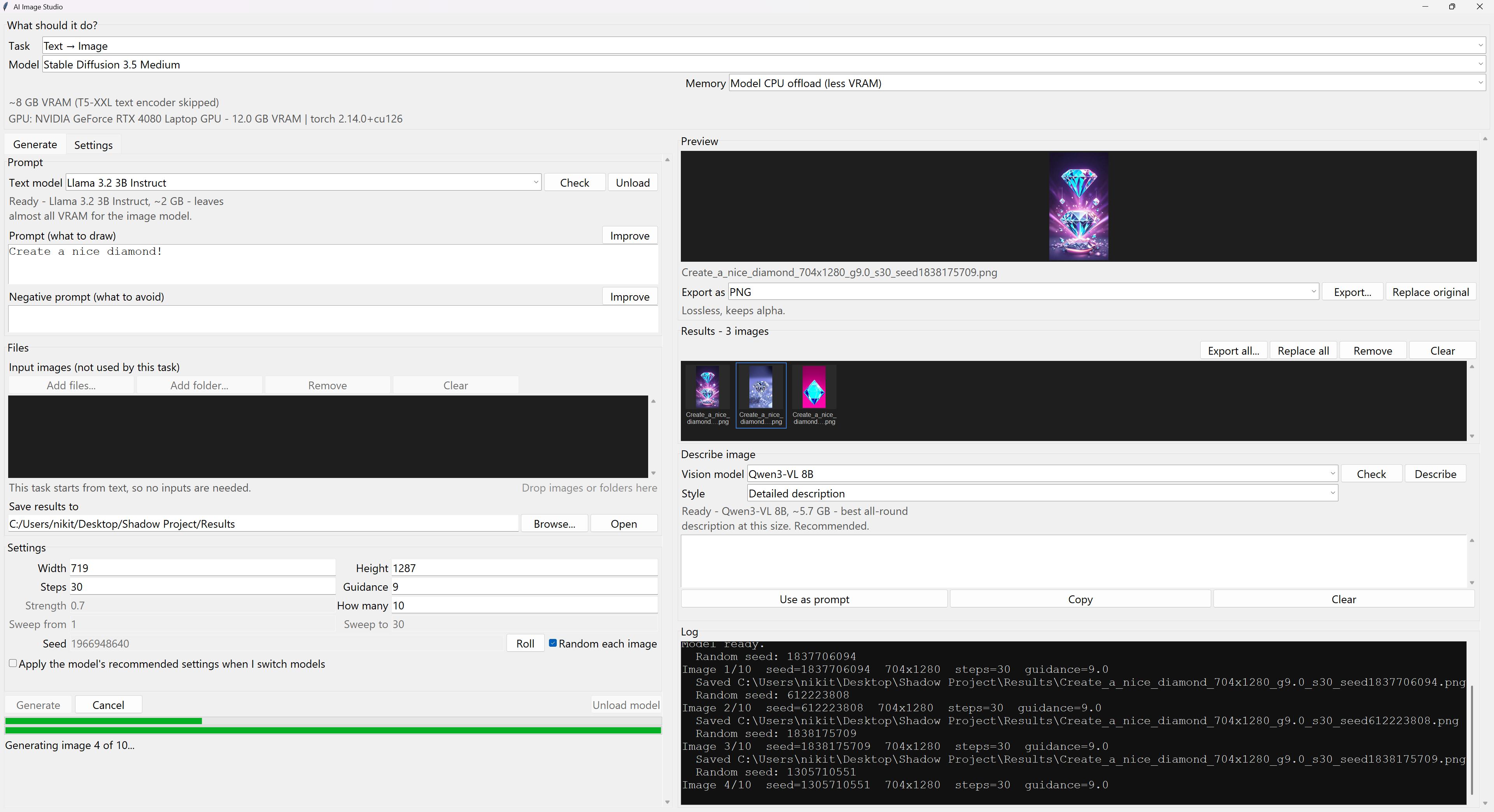
A desktop front-end for the Stable Diffusion / FLUX pipelines that used to live in
ttig.py and itig.py. Pick a task, pick a model, pick your files, press Generate.
main.py --selftest gives a real pass/fail check
of the environment.run.bat
Double-click it, or run it from a terminal. It uses the project's .venv and
opens with no console window. First launch of a session takes a few seconds
longer while it loads torch off the UI thread.
If nothing appears to happen, something failed before the window could even
open - check crash.log, written next to main.py.
Drag-and-drop onto the Files panel needs one extra package that isn't part of torch/diffusers - if it's missing, everything else still works, drag-and-drop just silently isn't available:
.venv\Scripts\pip install -r requirements.txt
| Task | What it does |
|---|---|
| Text → Image | Classic prompt-to-picture. How many renders several images, each with the next seed. |
| Image → Image (one file) | Runs the first file in the list through an editor model with your instruction. |
| Image → Image (batch of files) | Same, over every file and folder in the list. This is the one to use for texture sets. |
| Step sweep | One image per inference-step count between Sweep from and Sweep to, all at the same seed - so the step count is the only thing that changes. Useful for finding how few steps you can get away with. |
| Text → Image → Image | Generates a base image from the base prompt, then feeds it straight back through the editor with the edit instruction. Nothing touches the disk in between except the saved base image. |
| Model | Text→Image | Image→Image | Notes |
|---|---|---|---|
| Stable Diffusion 3.5 Medium | yes | yes | The default. Already downloaded. T5-XXL text encoder is skipped, which saves ~10 GB of VRAM and costs little on short prompts. |
| Stable Diffusion 3.5 Large | yes | yes | Better output, but needs ~16 GB, so on a 12 GB card it falls back to CPU offload and gets slow. |
| Stable Diffusion 3.5 Large Turbo | yes | yes | Distilled. Use ~4 steps and guidance 0. |
| FLUX.1 Kontext dev (GGUF) | — | yes | Instruction-based editor: say what to change ("remove the artifacts"), not what the picture is. Already downloaded, all five quants. |
| InstructPix2Pix | — | yes | Instruction-based editing with fine control. Say what to change, control strength 0-1. ~4 GB. Downloads on first use. |
| SDXL 1.0 Base | yes | yes | Downloads on first use. |
| Stable Diffusion 1.5 | yes | yes | Small and fast, 512×512 native. Downloads on first use. |
| FLUX.1 dev (GGUF) | yes | yes | city96's GGUF transformer + FLUX.1-dev's text encoders/VAE. Guidance ~3.5, no negative prompt. The FLUX.1-dev repo is gated: accept its licence on HuggingFace once. |
| Tencent SRPO (GGUF) | yes | yes | A FLUX.1-dev finetune for more realistic, less "AI-plastic" output. Uses befox's GGUF quants - the official repo is one 47 GB fp32 file. Shares FLUX.1-dev's encoders, so after FLUX.1 dev it's only one more ~7 GB download. |
| Z-Image Turbo (GGUF) | yes | yes | unsloth's GGUF transformer. Distilled: ~9 steps, guidance 0. Fast. |
| Qwen-Image 2.1 Uncensored (GGUF) | yes | yes | abenzerps's uncensored GGUF transformer. Very good at text in images. For image→image it's an instruction editor like Kontext (no strength). Its 17.5 GB text encoder is squeezed to 4-bit on load. Guidance here is true CFG: leave it at 1 (off), or raise to ~4 and give a negative prompt. |
| Krea 2 Turbo + raven LoRA | yes | — | The September6969/raven LoRA on Krea 2 Turbo. Put vzx woman in the prompt. Krea 2 is gated: accept the licence at huggingface.co/krea/Krea-2-Turbo first. The 26 GB transformer is quantised to 4-bit on load, since diffusers has no GGUF path for Krea 2. |
Models are marked (will download) in the dropdown when they are not in the
HuggingFace cache yet. Downloads go to %USERPROFILE%\.cache\huggingface, the
same place the scripts always used, so nothing gets re-fetched.
Quant (GGUF models only) picks which GGUF transformer to load. Smaller is faster and lower quality; the dropdown marks the recommended one per model. Each quant is a separate download.
Qwen-Image 2.1 needs diffusers from git main and transformers 5.17+:
.venv\Scripts\pip install -U "transformers>=5.17" "diffusers @ git+https://github.com/huggingface/diffusers"
Files can be added the usual way (Add files... / Add folder...), or by dragging them in from Explorer - drop onto the file list itself or anywhere else in the Files panel. A dropped folder is added as one entry, the same as Add folder...: files added to it later still get picked up when a job actually runs, since a folder is only expanded into its images at that point. A file with an extension the app doesn't read is skipped, with a line in the log saying so, rather than silently vanishing.
Files show as a grid of thumbnails - an actual picture per image (a folder
entry gets a folder icon and an image count instead, since it isn't one
picture); a file that fails to decode shows a ?. Click to select,
Ctrl-click to add to the selection, Shift-click to select a range - what's
selected is what Remove acts on. Double-click a tile to open that file in
your default viewer.
Input: .png, .jpg, .jpeg, .webp, .bmp, .tif, .tiff, .tga
and .dds. A DDS texture is decoded in memory and handed straight to the
model - nothing is converted to PNG on disk first, and the conversion to RGB
only happens when the source is not already RGB (the log says so when it does).
Compressed DDS is read back through Pillow, which covers DXT1/3/5 and BC1
through BC7, ATI1/ATI2, and uncompressed.
Export: the Export as row under the preview re-encodes whatever is
currently previewed. That is normally a generated result, but it also works on
an input you clicked in the file list - so it doubles as a plain converter in
either direction. Export... asks where to save; Replace original
doesn't - it writes back over the exact file the picture came from, same
folder, same name, no dialog. For an edited result that's the input it was
generated from (edit rock.dds, run img2img, click Replace original, rock.dds
now holds the result); for a plain input preview it's itself, so it also
works as an in-place recompress - open a DXT1 texture, pick DXT5, Replace
original. Either way it asks to confirm first, since it overwrites without
a way back. The export format is always whatever the dropdown says - if
that doesn't match the original's extension (say, replacing a .dds while
PNG is selected), it can't overwrite in place, so it saves a new file next to
the original instead of touching it, and says so before doing it.
| Format | Size at 1024² | Notes |
|---|---|---|
| PNG | ~0.6 MB | Lossless. The default. |
| DDS - DXT5 / BC3 | 1.0 MB | Smooth alpha. The usual game texture. |
| DDS - DXT1 / BC1 | 0.5 MB | Smallest, 4 bits/pixel; alpha is on/off only. |
| DDS - DXT3 / BC2 | 1.0 MB | Sharp-edged alpha rather than smooth. |
| DDS - BC5 | 1.0 MB | Normal maps: red and green only, blue is discarded. |
| DDS - uncompressed | 3.0 MB | No quality loss, largest file. |
| TGA / BMP / TIFF | 3.0 MB | Uncompressed. |
| WebP / JPEG | small | Lossy; JPEG also drops alpha. |
DXT1, DXT3 and DXT5 all use the same colour compression and differ only in how they carry alpha, so they look identical on an opaque texture - measured at about 0.6% mean error against the source, which is normal for block compression. Pick DXT5 unless you have a reason not to.
Note that generated images are RGB, so an exported DDS has no meaningful alpha channel of its own. If you need a texture's original alpha carried through an edit, that isn't wired up yet - say so and I'll add it.
Every picture the app saves lands in the Results grid under the preview, newest first. Click one to preview it - Ctrl-click adds to the selection, Shift-click selects a range, double-click opens it in your viewer. The list survives restarts (the last 300) and only ever shows files still on disk. Remove and Clear take results off the list; the files themselves are never deleted.
Export all and Replace all are the all-at-once versions of the two buttons under the preview, and use the format chosen in its Export as dropdown.
rock.dds, export all as DDS, and out comes rock.dds - so a batch of
edited textures can go straight back into a game folder. Results sharing a
name are numbered, the newest keeping the plain name. If names already
exist in the folder it asks once: overwrite those, or keep both.rock.dds and rock.png both edited and PNG
chosen, the first one saved alongside would land on top of the second, so
the in-place replace wins. It will not run while a generation is running,
since that job may still be reading the originals, and Generate waits for
it in turn.Replace all writes each result at the size it came out at. The diffusion models work at a minimum resolution - SD3.5 brings small inputs up to 1024x1024 - so a 256 px texture comes back larger.
Layout: the controls sit on the left and the preview side on the right, with a divider between them - drag it to give either side more room. The controls keep that width when the window is resized, and neither side can be dragged away entirely. On the right, four panels are stacked with dividers of their own: the preview, the results, Describe image, and the Log at the bottom. When they need more height than the window has, that side scrolls (wheel over the preview, or use its scrollbar) instead of squeezing the bottom panel. Divider positions and the controls width are remembered. When a job fails, that side scrolls down to the Log, since the details are there.
The Describe image tab on the right runs a local vision-language model over whatever is currently previewed and writes back a description you can feed straight into a prompt. Use as prompt drops it into the prompt box (Ctrl+Z there puts back what was in it), or Copy takes it to the clipboard.
It works on whatever is in the preview - a generated result, or an input you clicked in the file list. DDS and TGA are converted to PNG first, since Ollama cannot decode those itself, and anything larger than 1024 px is shrunk before sending: the vision encoder works from a small fixed grid, so 4K only costs time.
| Style | What you get |
|---|---|
| Prompt for regenerating | One line of comma-separated phrases - subject, detail, material, palette, lighting, style. Made to paste into a generator. |
| Texture / material | The same idea aimed at a surface: what material, colour names, roughness, wear and damage, how light behaves on it. |
| Detailed description | Two or three paragraphs of prose covering palette, materials, lighting direction, composition and style. |
| Short caption | One sentence. |
Same setup as the prompt improver - they run through Ollama, and the panel's Download button pulls the one you pick.
| Model | Download | Notes |
|---|---|---|
| Moondream 2 (1.8B) | 1.6 GB | Tiny and quick, but brief - not much beyond a caption. |
| Qwen3-VL 4B | 3.1 GB | Most of the 8B's quality at half the size. |
| LLaVA 7B | 4.4 GB | The old standard, noticeably vaguer than the Qwens. |
| MiniCPM-V 2.6 (8B) | 5.1 GB | Strongest on fine detail and any text in the picture. |
| Qwen2.5-VL 7B | 5.6 GB | What most prompt-reversal workflows are built on. |
| Qwen3-VL 8B | 5.7 GB | Best all-round description at this size. The default. |
Not available: InternVL3 and JoyCaption have no Ollama build, so they aren't offered here. JoyCaption in particular is a HuggingFace model with no official GGUF that Ollama can pull. The Qwen3-VL/Qwen2.5-VL entries with the Prompt for regenerating or Texture / material style cover the same ground
On VRAM: the vision model unloads the moment it has answered, exactly like the prompt improver, so it never sits on memory the image model wants. Only one of the two runs at a time for the same reason - a 6 GB VLM and a 7B text model resident together is what runs a 12 GB card out of room. Measured on this machine: describing a 1024x1024 texture with Qwen3-VL 8B takes about 45 s from cold and 6-20 s once the file is in the OS cache, and GPU memory returns to its idle figure straight afterwards.
Each prompt box has an Improve button next to it. It sends what you wrote to a small language model running locally, which fixes the spelling and grammar and restructures it into a proper image prompt - subject first, then details, then style and lighting. The negative prompt gets its own treatment: a clean comma-separated list of things to avoid.
The original is written to the log before the rewrite, and Ctrl+Z inside the box undoes it in one step if you prefer what you had.
The language model runs through Ollama. Install
it - it starts by itself - then press Check in the app. When the selected
model has not been downloaded yet the button says Download instead, and
pulls it with progress in the status line. (ollama pull llama3.2:3b from a
terminal does the same thing.)
| Text model | VRAM | Notes |
|---|---|---|
| Llama 3.2 3B Instruct | ~2 GB | The default. Leaves nearly all VRAM for the image model. |
| Phi-4 mini | ~2.5 GB | Same idea, slightly larger. |
| Mistral 7B Instruct v0.3 | ~4-5 GB | Fast and reliable. |
| Qwen2.5 7B Instruct | ~5 GB | Strong at structured rewriting, good if you write prompts in another language. |
| Llama 3.1 8B Instruct | ~5-6 GB | The most capable of these, and the least room to spare. |
All of these are Q4 GGUF quants, which is what Ollama pulls by default.
On VRAM: the image model already wants most of a 12 GB card, so the two are kept from overlapping. Every rewrite unloads the text model the instant it answers - there's a brief reload on the next Improve click, in exchange for never quietly holding VRAM the image model wants. Pressing Generate also clears out anything Ollama has loaded first, in case a model was already loaded from outside this app. An Unload button next to the text model picker does the same thing on demand, if you want to be sure.
If Ollama is listening somewhere other than the default, set OLLAMA_HOST
(the app understands both 127.0.0.1:11434 and http://host:port forms).
The left column has two tabs: Generate (every control a run needs) and Settings. Gated models - FLUX.1 dev, SRPO (it uses FLUX.1-dev's encoders) and Krea 2 - only download with a HuggingFace access token from an account that has accepted the model's licence.
hf_xxxx...xxxx.The token is stored in HuggingFace's own token file
(%USERPROFILE%\.cache\huggingface\token), not in this app's settings.json.
Every download uses it automatically, including the ones in the generation
worker process, and huggingface-cli and other HuggingFace tools on this
machine share the same login. If the HF_TOKEN environment variable is set,
HuggingFace uses that instead; the status line says so.
0 means keep each input at
its own size. Values are rounded down to a multiple of 16 for the VAE.0.0 leaves the
input untouched, 1.0 is nearly a fresh generation.How many > 1,
each image uses the next seed up.Output filenames record the settings that made them, and never overwrite an
existing file - a _1, _2 suffix is added instead.
Each Generate click runs in its own background process, not just a background thread. That process holds the loaded model and stays alive between clicks, so the second and later generations with the same model start immediately - only the very first one, or a switch to a different model, pays the load time (20-60 s).
Cancel stops it instantly and unconditionally, whether it's mid model-load or mid denoising step, by ending that process outright. There's no "please finish this step first" wait. The trade-off: a cancelled job's loaded model is gone with it, so the next Generate reloads from scratch. That's a deliberate trade against the alternative - a cooperative cancel flag that can leave the UI looking stuck for as long as a slow model load takes, with no way to interrupt it short of restarting the app.
Unload model does the same thing on demand - it ends the worker process, freeing all of its VRAM - useful before switching to a different heavy model or freeing the GPU for something else.
%LOCALAPPDATA%\AIImageStudio\settings.json).main.py --selftest runs a real, small end-to-end generation and reports
pass/fail - useful for checking the environment after changing packages.main.py entry point; catches startup crashes to crash.log
app/models.py the model registry - add a model by appending to MODELS
app/backend.py pipeline loading and the five job types (no GUI code)
app/gui.py the tkinter window
app/worker_process.py the child process that actually runs a job
app/formats.py DDS/TGA reading and the export encodings
app/thumbgrid.py the thumbnail grid shared by Files and Results
app/batch.py plans and runs Export all / Replace all (no GUI code)
app/textgen.py the prompt improver, and the shared Ollama client
app/vision.py image -> text; reuses textgen.py's Ollama client
app/hftoken.py the HuggingFace token: save, remove, verify, check repo access
app/iosink.py stdout/stderr fallback for pythonw (no console)
app/selftest.py `main.py --selftest` - a real end-to-end check
requirements.txt pure-Python extras (currently just tkinterdnd2)
ttig.py, itig.py the original scripts, untouched
A desktop front-end for the Stable Diffusion / FLUX pipelines that used to live in
ttig.py and itig.py. Pick a task, pick a model, pick your files, press Generate.
main.py --selftest gives a real pass/fail check
of the environment.run.bat
Double-click it, or run it from a terminal. It uses the project's .venv and
opens with no console window. First launch of a session takes a few seconds
longer while it loads torch off the UI thread.
If nothing appears to happen, something failed before the window could even
open - check crash.log, written next to main.py.
Drag-and-drop onto the Files panel needs one extra package that isn't part of torch/diffusers - if it's missing, everything else still works, drag-and-drop just silently isn't available:
.venv\Scripts\pip install -r requirements.txt
| Task | What it does |
|---|---|
| Text → Image | Classic prompt-to-picture. How many renders several images, each with the next seed. |
| Image → Image (one file) | Runs the first file in the list through an editor model with your instruction. |
| Image → Image (batch of files) | Same, over every file and folder in the list. This is the one to use for texture sets. |
| Step sweep | One image per inference-step count between Sweep from and Sweep to, all at the same seed - so the step count is the only thing that changes. Useful for finding how few steps you can get away with. |
| Text → Image → Image | Generates a base image from the base prompt, then feeds it straight back through the editor with the edit instruction. Nothing touches the disk in between except the saved base image. |
| Model | Text→Image | Image→Image | Notes |
|---|---|---|---|
| Stable Diffusion 3.5 Medium | yes | yes | The default. Already downloaded. T5-XXL text encoder is skipped, which saves ~10 GB of VRAM and costs little on short prompts. |
| Stable Diffusion 3.5 Large | yes | yes | Better output, but needs ~16 GB, so on a 12 GB card it falls back to CPU offload and gets slow. |
| Stable Diffusion 3.5 Large Turbo | yes | yes | Distilled. Use ~4 steps and guidance 0. |
| FLUX.1 Kontext dev (GGUF) | — | yes | Instruction-based editor: say what to change ("remove the artifacts"), not what the picture is. Already downloaded, all five quants. |
| InstructPix2Pix | — | yes | Instruction-based editing with fine control. Say what to change, control strength 0-1. ~4 GB. Downloads on first use. |
| SDXL 1.0 Base | yes | yes | Downloads on first use. |
| Stable Diffusion 1.5 | yes | yes | Small and fast, 512×512 native. Downloads on first use. |
| FLUX.1 dev (GGUF) | yes | yes | city96's GGUF transformer + FLUX.1-dev's text encoders/VAE. Guidance ~3.5, no negative prompt. The FLUX.1-dev repo is gated: accept its licence on HuggingFace once. |
| Tencent SRPO (GGUF) | yes | yes | A FLUX.1-dev finetune for more realistic, less "AI-plastic" output. Uses befox's GGUF quants - the official repo is one 47 GB fp32 file. Shares FLUX.1-dev's encoders, so after FLUX.1 dev it's only one more ~7 GB download. |
| Z-Image Turbo (GGUF) | yes | yes | unsloth's GGUF transformer. Distilled: ~9 steps, guidance 0. Fast. |
| Qwen-Image 2.1 Uncensored (GGUF) | yes | yes | abenzerps's uncensored GGUF transformer. Very good at text in images. For image→image it's an instruction editor like Kontext (no strength). Its 17.5 GB text encoder is squeezed to 4-bit on load. Guidance here is true CFG: leave it at 1 (off), or raise to ~4 and give a negative prompt. |
| Krea 2 Turbo + raven LoRA | yes | — | The September6969/raven LoRA on Krea 2 Turbo. Put vzx woman in the prompt. Krea 2 is gated: accept the licence at huggingface.co/krea/Krea-2-Turbo first. The 26 GB transformer is quantised to 4-bit on load, since diffusers has no GGUF path for Krea 2. |
Models are marked (will download) in the dropdown when they are not in the
HuggingFace cache yet. Downloads go to %USERPROFILE%\.cache\huggingface, the
same place the scripts always used, so nothing gets re-fetched.
Quant (GGUF models only) picks which GGUF transformer to load. Smaller is faster and lower quality; the dropdown marks the recommended one per model. Each quant is a separate download.
Qwen-Image 2.1 needs diffusers from git main and transformers 5.17+:
.venv\Scripts\pip install -U "transformers>=5.17" "diffusers @ git+https://github.com/huggingface/diffusers"
Files can be added the usual way (Add files... / Add folder...), or by dragging them in from Explorer - drop onto the file list itself or anywhere else in the Files panel. A dropped folder is added as one entry, the same as Add folder...: files added to it later still get picked up when a job actually runs, since a folder is only expanded into its images at that point. A file with an extension the app doesn't read is skipped, with a line in the log saying so, rather than silently vanishing.
Files show as a grid of thumbnails - an actual picture per image (a folder
entry gets a folder icon and an image count instead, since it isn't one
picture); a file that fails to decode shows a ?. Click to select,
Ctrl-click to add to the selection, Shift-click to select a range - what's
selected is what Remove acts on. Double-click a tile to open that file in
your default viewer.
Input: .png, .jpg, .jpeg, .webp, .bmp, .tif, .tiff, .tga
and .dds. A DDS texture is decoded in memory and handed straight to the
model - nothing is converted to PNG on disk first, and the conversion to RGB
only happens when the source is not already RGB (the log says so when it does).
Compressed DDS is read back through Pillow, which covers DXT1/3/5 and BC1
through BC7, ATI1/ATI2, and uncompressed.
Export: the Export as row under the preview re-encodes whatever is
currently previewed. That is normally a generated result, but it also works on
an input you clicked in the file list - so it doubles as a plain converter in
either direction. Export... asks where to save; Replace original
doesn't - it writes back over the exact file the picture came from, same
folder, same name, no dialog. For an edited result that's the input it was
generated from (edit rock.dds, run img2img, click Replace original, rock.dds
now holds the result); for a plain input preview it's itself, so it also
works as an in-place recompress - open a DXT1 texture, pick DXT5, Replace
original. Either way it asks to confirm first, since it overwrites without
a way back. The export format is always whatever the dropdown says - if
that doesn't match the original's extension (say, replacing a .dds while
PNG is selected), it can't overwrite in place, so it saves a new file next to
the original instead of touching it, and says so before doing it.
| Format | Size at 1024² | Notes |
|---|---|---|
| PNG | ~0.6 MB | Lossless. The default. |
| DDS - DXT5 / BC3 | 1.0 MB | Smooth alpha. The usual game texture. |
| DDS - DXT1 / BC1 | 0.5 MB | Smallest, 4 bits/pixel; alpha is on/off only. |
| DDS - DXT3 / BC2 | 1.0 MB | Sharp-edged alpha rather than smooth. |
| DDS - BC5 | 1.0 MB | Normal maps: red and green only, blue is discarded. |
| DDS - uncompressed | 3.0 MB | No quality loss, largest file. |
| TGA / BMP / TIFF | 3.0 MB | Uncompressed. |
| WebP / JPEG | small | Lossy; JPEG also drops alpha. |
DXT1, DXT3 and DXT5 all use the same colour compression and differ only in how they carry alpha, so they look identical on an opaque texture - measured at about 0.6% mean error against the source, which is normal for block compression. Pick DXT5 unless you have a reason not to.
Note that generated images are RGB, so an exported DDS has no meaningful alpha channel of its own. If you need a texture's original alpha carried through an edit, that isn't wired up yet - say so and I'll add it.
Every picture the app saves lands in the Results grid under the preview, newest first. Click one to preview it - Ctrl-click adds to the selection, Shift-click selects a range, double-click opens it in your viewer. The list survives restarts (the last 300) and only ever shows files still on disk. Remove and Clear take results off the list; the files themselves are never deleted.
Export all and Replace all are the all-at-once versions of the two buttons under the preview, and use the format chosen in its Export as dropdown.
rock.dds, export all as DDS, and out comes rock.dds - so a batch of
edited textures can go straight back into a game folder. Results sharing a
name are numbered, the newest keeping the plain name. If names already
exist in the folder it asks once: overwrite those, or keep both.rock.dds and rock.png both edited and PNG
chosen, the first one saved alongside would land on top of the second, so
the in-place replace wins. It will not run while a generation is running,
since that job may still be reading the originals, and Generate waits for
it in turn.Replace all writes each result at the size it came out at. The diffusion models work at a minimum resolution - SD3.5 brings small inputs up to 1024x1024 - so a 256 px texture comes back larger.
Layout: the controls sit on the left and the preview side on the right, with a divider between them - drag it to give either side more room. The controls keep that width when the window is resized, and neither side can be dragged away entirely. On the right, four panels are stacked with dividers of their own: the preview, the results, Describe image, and the Log at the bottom. When they need more height than the window has, that side scrolls (wheel over the preview, or use its scrollbar) instead of squeezing the bottom panel. Divider positions and the controls width are remembered. When a job fails, that side scrolls down to the Log, since the details are there.
The Describe image tab on the right runs a local vision-language model over whatever is currently previewed and writes back a description you can feed straight into a prompt. Use as prompt drops it into the prompt box (Ctrl+Z there puts back what was in it), or Copy takes it to the clipboard.
It works on whatever is in the preview - a generated result, or an input you clicked in the file list. DDS and TGA are converted to PNG first, since Ollama cannot decode those itself, and anything larger than 1024 px is shrunk before sending: the vision encoder works from a small fixed grid, so 4K only costs time.
| Style | What you get |
|---|---|
| Prompt for regenerating | One line of comma-separated phrases - subject, detail, material, palette, lighting, style. Made to paste into a generator. |
| Texture / material | The same idea aimed at a surface: what material, colour names, roughness, wear and damage, how light behaves on it. |
| Detailed description | Two or three paragraphs of prose covering palette, materials, lighting direction, composition and style. |
| Short caption | One sentence. |
Same setup as the prompt improver - they run through Ollama, and the panel's Download button pulls the one you pick.
| Model | Download | Notes |
|---|---|---|
| Moondream 2 (1.8B) | 1.6 GB | Tiny and quick, but brief - not much beyond a caption. |
| Qwen3-VL 4B | 3.1 GB | Most of the 8B's quality at half the size. |
| LLaVA 7B | 4.4 GB | The old standard, noticeably vaguer than the Qwens. |
| MiniCPM-V 2.6 (8B) | 5.1 GB | Strongest on fine detail and any text in the picture. |
| Qwen2.5-VL 7B | 5.6 GB | What most prompt-reversal workflows are built on. |
| Qwen3-VL 8B | 5.7 GB | Best all-round description at this size. The default. |
Not available: InternVL3 and JoyCaption have no Ollama build, so they aren't offered here. JoyCaption in particular is a HuggingFace model with no official GGUF that Ollama can pull. The Qwen3-VL/Qwen2.5-VL entries with the Prompt for regenerating or Texture / material style cover the same ground
On VRAM: the vision model unloads the moment it has answered, exactly like the prompt improver, so it never sits on memory the image model wants. Only one of the two runs at a time for the same reason - a 6 GB VLM and a 7B text model resident together is what runs a 12 GB card out of room. Measured on this machine: describing a 1024x1024 texture with Qwen3-VL 8B takes about 45 s from cold and 6-20 s once the file is in the OS cache, and GPU memory returns to its idle figure straight afterwards.
Each prompt box has an Improve button next to it. It sends what you wrote to a small language model running locally, which fixes the spelling and grammar and restructures it into a proper image prompt - subject first, then details, then style and lighting. The negative prompt gets its own treatment: a clean comma-separated list of things to avoid.
The original is written to the log before the rewrite, and Ctrl+Z inside the box undoes it in one step if you prefer what you had.
The language model runs through Ollama. Install
it - it starts by itself - then press Check in the app. When the selected
model has not been downloaded yet the button says Download instead, and
pulls it with progress in the status line. (ollama pull llama3.2:3b from a
terminal does the same thing.)
| Text model | VRAM | Notes |
|---|---|---|
| Llama 3.2 3B Instruct | ~2 GB | The default. Leaves nearly all VRAM for the image model. |
| Phi-4 mini | ~2.5 GB | Same idea, slightly larger. |
| Mistral 7B Instruct v0.3 | ~4-5 GB | Fast and reliable. |
| Qwen2.5 7B Instruct | ~5 GB | Strong at structured rewriting, good if you write prompts in another language. |
| Llama 3.1 8B Instruct | ~5-6 GB | The most capable of these, and the least room to spare. |
All of these are Q4 GGUF quants, which is what Ollama pulls by default.
On VRAM: the image model already wants most of a 12 GB card, so the two are kept from overlapping. Every rewrite unloads the text model the instant it answers - there's a brief reload on the next Improve click, in exchange for never quietly holding VRAM the image model wants. Pressing Generate also clears out anything Ollama has loaded first, in case a model was already loaded from outside this app. An Unload button next to the text model picker does the same thing on demand, if you want to be sure.
If Ollama is listening somewhere other than the default, set OLLAMA_HOST
(the app understands both 127.0.0.1:11434 and http://host:port forms).
The left column has two tabs: Generate (every control a run needs) and Settings. Gated models - FLUX.1 dev, SRPO (it uses FLUX.1-dev's encoders) and Krea 2 - only download with a HuggingFace access token from an account that has accepted the model's licence.
hf_xxxx...xxxx.The token is stored in HuggingFace's own token file
(%USERPROFILE%\.cache\huggingface\token), not in this app's settings.json.
Every download uses it automatically, including the ones in the generation
worker process, and huggingface-cli and other HuggingFace tools on this
machine share the same login. If the HF_TOKEN environment variable is set,
HuggingFace uses that instead; the status line says so.
0 means keep each input at
its own size. Values are rounded down to a multiple of 16 for the VAE.0.0 leaves the
input untouched, 1.0 is nearly a fresh generation.How many > 1,
each image uses the next seed up.Output filenames record the settings that made them, and never overwrite an
existing file - a _1, _2 suffix is added instead.
Each Generate click runs in its own background process, not just a background thread. That process holds the loaded model and stays alive between clicks, so the second and later generations with the same model start immediately - only the very first one, or a switch to a different model, pays the load time (20-60 s).
Cancel stops it instantly and unconditionally, whether it's mid model-load or mid denoising step, by ending that process outright. There's no "please finish this step first" wait. The trade-off: a cancelled job's loaded model is gone with it, so the next Generate reloads from scratch. That's a deliberate trade against the alternative - a cooperative cancel flag that can leave the UI looking stuck for as long as a slow model load takes, with no way to interrupt it short of restarting the app.
Unload model does the same thing on demand - it ends the worker process, freeing all of its VRAM - useful before switching to a different heavy model or freeing the GPU for something else.
%LOCALAPPDATA%\AIImageStudio\settings.json).main.py --selftest runs a real, small end-to-end generation and reports
pass/fail - useful for checking the environment after changing packages.main.py entry point; catches startup crashes to crash.log
app/models.py the model registry - add a model by appending to MODELS
app/backend.py pipeline loading and the five job types (no GUI code)
app/gui.py the tkinter window
app/worker_process.py the child process that actually runs a job
app/formats.py DDS/TGA reading and the export encodings
app/thumbgrid.py the thumbnail grid shared by Files and Results
app/batch.py plans and runs Export all / Replace all (no GUI code)
app/textgen.py the prompt improver, and the shared Ollama client
app/vision.py image -> text; reuses textgen.py's Ollama client
app/hftoken.py the HuggingFace token: save, remove, verify, check repo access
app/iosink.py stdout/stderr fallback for pythonw (no console)
app/selftest.py `main.py --selftest` - a real end-to-end check
requirements.txt pure-Python extras (currently just tkinterdnd2)
ttig.py, itig.py the original scripts, untouched