Access large archives as a filesystem efficiently, e.g., TAR, RAR, ZIP, GZ, BZ2, XZ, ZSTD archives
Python
1,317
1,190 commits
updated Oct 16, 2026











Ratarmount collects all file positions inside a TAR so that it can easily jump to and read from any file without extracting it. It, then, mounts the TAR using mfusepy, a fork of fusepy, for read access just like archivemount. In contrast to libarchive, on which archivemount is based, random access and true seeking is supported. And in contrast to tarindexer, which also collects file positions for random access, ratarmount offers easy access via FUSE and support for compressed TARs.
Capabilities:
-P <cores> option.A complete list of supported formats can be found here.
ratarmount archive.tar.gz to mount a compressed archive at a folder called archive and make its contents browsable.ratarmount --recursive archive.tar mountpoint to mount the archive and recursively all its contained archives under a folder called mountpoint.ratarmount folder mountpoint to bind-mount a folder.ratarmount folder1 folder2 mountpoint to bind-mount a merged view of two (or more) folders under mountpoint.ratarmount folder archive.zip folder to mount a merged view of a folder on top of archive contents.ratarmount -o modules=subdir,subdir=squashfs-root archive.squashfs mountpoint to mount an archive subfolder squashfs-root under mountpoint.ratarmount http://server.org:80/archive.rar folder folder Mount an archive that is accessible via HTTP range requests.ratarmount ssh://hostname:22/relativefolder/ mountpoint Mount a folder hierarchy via SSH.ratarmount ssh://hostname:22//tmp/tmp-abcdef/ mountpointratarmount github://mxmlnkn:[email protected]/tests/ mountpoint Mount a github repo as if it was checked out at the given tag or SHA or branch.AWS_ACCESS_KEY_ID=01234567890123456789 AWS_SECRET_ACCESS_KEY=0123456789012345678901234567890123456789 ratarmount s3://127.0.0.1/bucket/single-file.tar mounted Mount an archive inside an S3 bucket reachable via a custom endpoint with the given credentials. Bogus credentials may be necessary for unsecured endpoints.You can install ratarmount either by simply downloading the AppImage or via pip. The latter might require installing additional dependencies. The latest nightly build AppImage can be found here.
pip install ratarmount
If you want all features, some of which may possibly result in installation errors on some systems, install with:
pip install ratarmount[full]
The AppImage files are attached under "Assets" on the releases page.
They require no installation and can be simply executed like a portable executable.
If you want to install it, you can simply copy it into any of the folders listed in your PATH.
appImageName=ratarmount-0.15.0-x86_64.AppImage
wget 'https://github.com/mxmlnkn/ratarmount/releases/download/v0.15.0/$appImageName'
chmod u+x -- "$appImageName"
./"$appImageName" --help  # Simple test run
sudo cp -- "$appImageName" /usr/local/bin/ratarmount  # Example installation

Arch Linux's AUR offers ratarmount as stable and development package. Use an AUR helper, like yay or paru, to install one of them:
# stable version
paru -Syu ratarmount
# development version
paru -Syu ratarmount-git
conda install -c conda-forge ratarmount
Python 3.6+, preferably pip 19.0+, FUSE, and sqlite3 are required. These should be preinstalled on most systems.
On Debian-like systems like Ubuntu, you can install/update all dependencies using:
sudo apt install python3 python3-pip fuse sqlite3 unar libarchive13 lzop gcc liblzo2-dev
On macOS, you have to install macFUSE and other optional dependencies with:
brew install macfuse unar libarchive lrzip lzop lzo
If you are installing on a system for which there exists no manylinux wheel, then you'll have to install further dependencies that are required to build some of the Python packages that ratarmount depends on from source:
sudo apt install \
    python3 python3-pip fuse \
    build-essential software-properties-common \
    zlib1g-dev libzstd-dev liblzma-dev cffi libarchive-dev liblzo2-dev gcc
Then, you can simply install ratarmount from PyPI:
pip install ratarmount
Or, if you want to test the latest version:
python3 -m pip install --user --force-reinstall \
    'git+https://github.com/mxmlnkn/ratarmount.git#egginfo=ratarmountcore&subdirectory=core' \
    'git+https://github.com/mxmlnkn/ratarmount.git#egginfo=ratarmount'
If there are troubles with the compression backend dependencies, you can try the pip --no-deps argument.
Ratarmount will work without the compression backends.
The hard requirements are fusepy and for Python versions older than 3.7.0 dataclasses.
Ratarmount has support for argument completion in bash and zsh via argcomplete if it is installed.
On Debian-like systems, this sets everything up in /etc/bash_completion.d/global-python-argcomplete to work out-of-the-box with any Python tool that supports argcomplete:
sudo apt install python3-argcomplete
# Restart your shell.
ratarmount --<tab><tab>
Manual installation also works:
pip install argcomplete

# Either add this to your .bashrc
eval "$( register-python-argcomplete ratarmount )"
# Or run this script to install argcomplete globally (into `~/.bash_completion` and `~/.zshenv`):
activate-global-python-argcomplete  # Requires a restart of your shell to.

ratarmount --<tab><tab>
If a graphical user interface is wanted, give one of these a try:
pip install --user --force-reinstall \ 'git+https://github.com/mxmlnkn/ratarmount.git@gui#egginfo=ratarmount'{'core&subdirectory=core',} and run with ratarmount --gui <archive>. It is still very experimental, but basic functionality should work. Feedback would be welcome.data-src URLs in a similar manner to the Page Info -> Media functionality.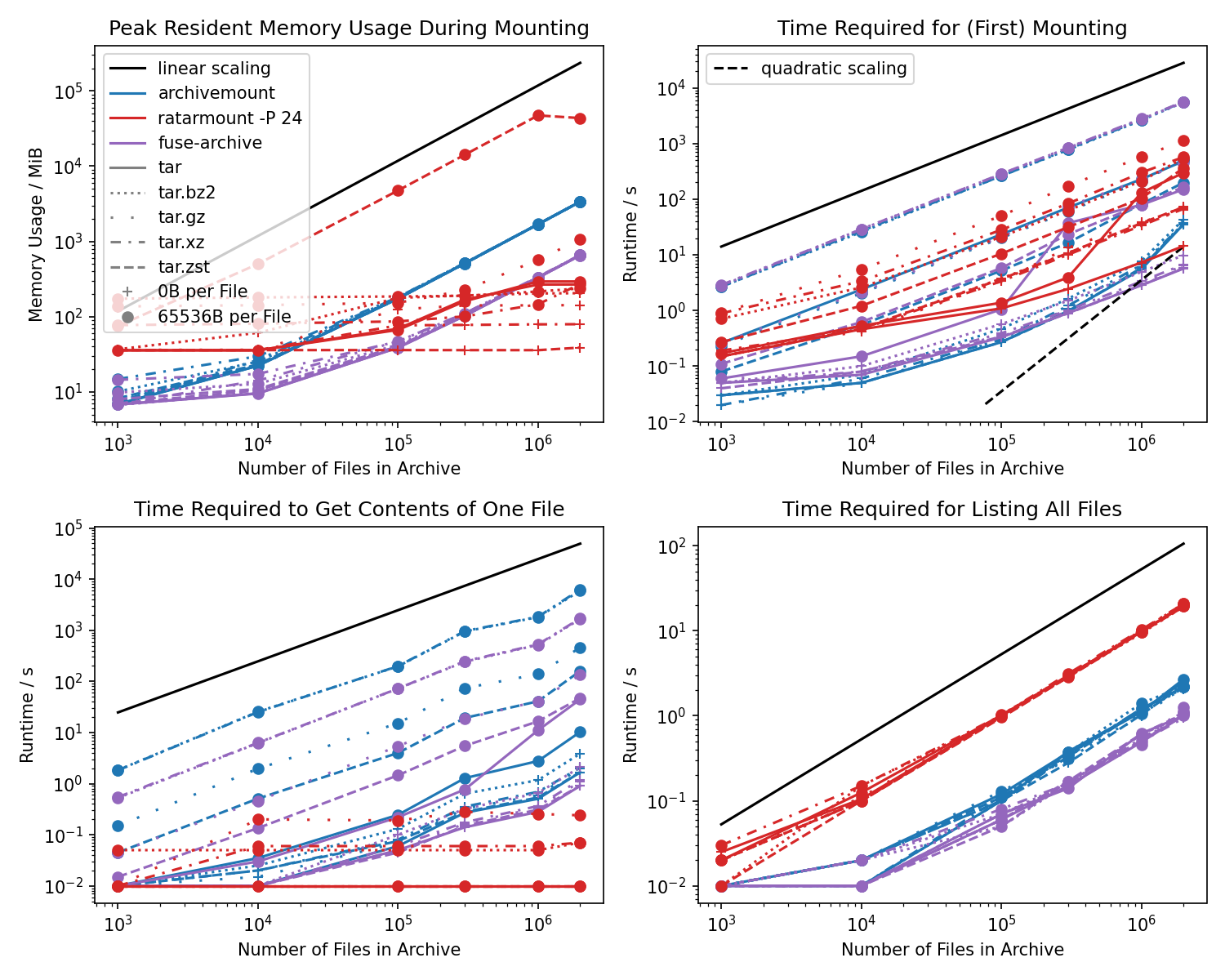
--asyncprogress option to give a progress indicator using the timestamp of a dummy file.
Note that fuse-archive daemonizes instantly but the mount point will not be usable for a long time and everything trying to use it will hang until then when not using --asyncprogress!-P 0, i.e., when not parallelizing.
The gzip backend grows linearly with the archive size because the data for seeking is thousands of times larger than the simple two 64-bit offsets required for bzip2.
The memory usage of the zstd backend only seems humongous because it uses mmap to open.
The memory used by mmap is not even counted as used memory when showing the memory usage with free or htop.ratarmount -P 0 on most modern processors because it actually uses more than one core for decoding those compressions. indexed_bzip2 supports block parallel decoding since version 1.2.0.find on the mount point is an order of magnitude slower compared to archivemount. Because the C-based fuse-archive is even slower than ratarmount, the difference is very likely that archivemount uses the low-level FUSE interface while ratarmount and fuse-archive use the high-level FUSE interface.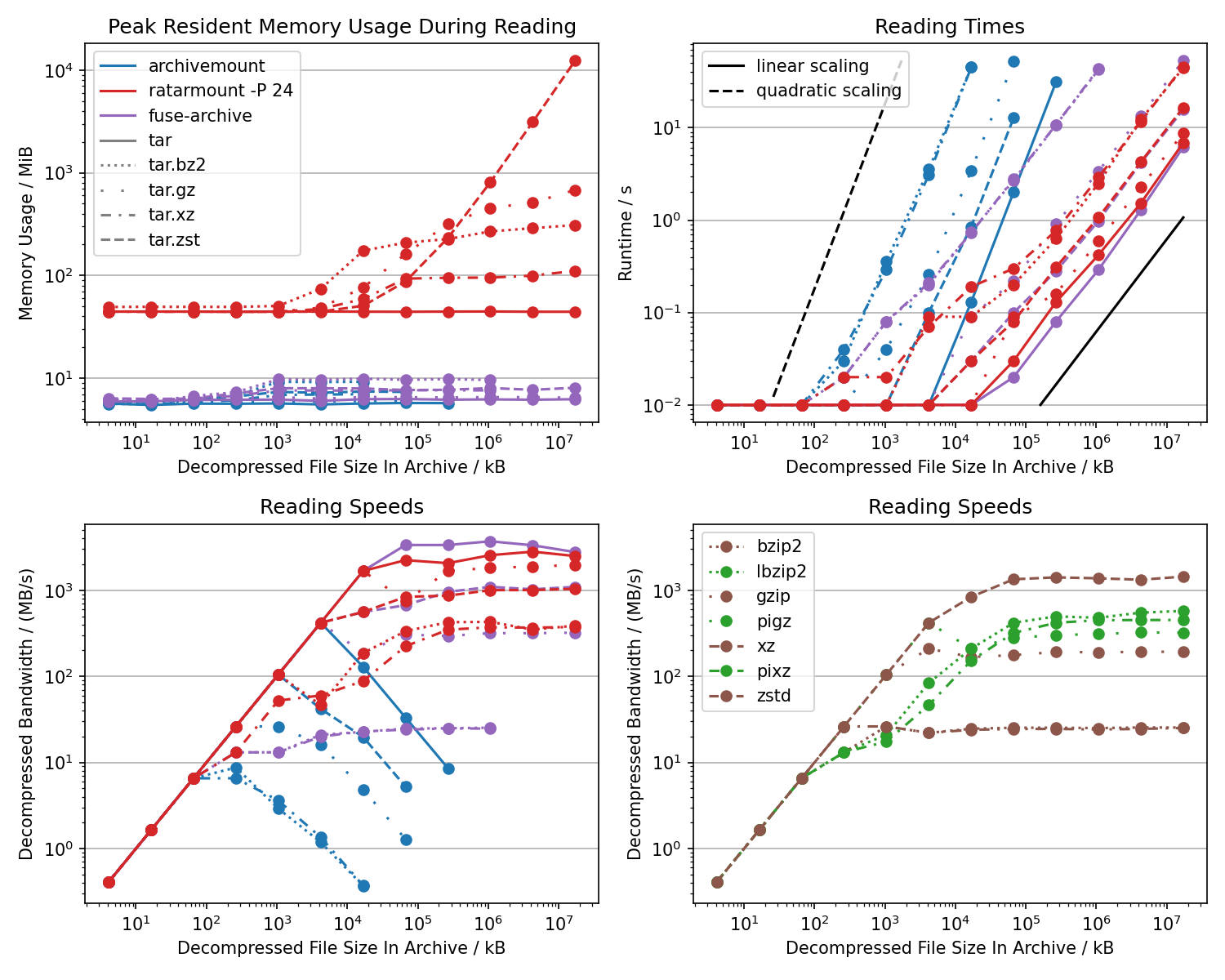
O( (sizeOfFileToBeCopiedFromArchive / readChunkSize)^2 ).
Both, ratarmount and fuse-archive avoid this behavior.
Because of this quadratic scaling, the average bandwidth with archivemount seems like it decreases with the file size.Further benchmarks can be viewed here.
You downloaded a large TAR file from the internet, for example the 1.31TB large ImageNet, and you now want to use it but lack the space, time, or a file system fast enough to extract all the 14.2 million image files.
Archivemount seems to have large performance issues for too many files and large archive for both mounting and file access in version 0.8.7. A more in-depth comparison benchmark can be found here.
time cat mounted/ILSVRC2012_val_00049975.JPEG | wc -c takes 250ms for archivemount and 2ms for ratarmount.Tarindex is a command line to tool written in Python which can create index files and then use the index file to extract single files from the tar fast. However, it also has some caveats which ratarmount tries to solve:
I didn't find out about TAR Browser before I finished the ratarmount script. That's also one of it's cons:
Pros:
Ratarmount creates an index file with file names, ownership, permission flags, and offset information.
This sidecar is stored at the TAR file's location or in ~/.ratarmount/.
Ratarmount can load that index file in under a second if it exists and then offers FUSE mount integration for easy access to the files inside the archive.
Here is a more recent test for version 0.2.0 with the new default SQLite backend:
The reading time for a small file simply verifies the random access by using file seek to be working. The difference between the first read and subsequent reads is not because of ratarmount but because of operating system and file system caches.
The test with the first version of ratarmount (50e8dbb), which used the, as of now removed, pickle backend for serializing the metadata index, for the ImageNet data set:
Index loading is relatively slow with 80s because of the pickle backend, which now has been replaced with SQLite and should take less than a second now.
See ratarmount --help or here.
In order to reduce the mounting time, the created index for random access to files inside the tar will be saved to one of these locations. These locations are checked in order and the first, which works sufficiently, will be used. This is the default location order:
This list of fallback folders can be overwritten using the --index-folders
option. Furthermore, an explicitly named index file may be specified using
the --index-file option. If --index-file is used, then the fallback
folders, including the default ones, will be ignored!
The mount sources can be TARs and/or folders. Because of that, ratarmount
can also be used to bind mount folders read-only to another path similar to
bindfs and mount --bind. So, for:
ratarmount folder mountpoint
all files in folder will now be visible in mountpoint.
If multiple mount sources are specified, the sources on the right side will be added to or update existing files from a mount source left of it. For example:
ratarmount folder1 folder2 mountpoint
will make both, the files from folder1 and folder2, visible in mountpoint.
If a file exists in both multiple source, then the file from the rightmost
mount source will be used, which in the above example would be folder2.
If you want to update / overwrite a folder with the contents of a given TAR, you can specify the folder both as a mount source and as the mount point:
ratarmount folder file.tar folder
The FUSE option -o nonempty will be automatically added if such a usage is detected. If you instead want to update a TAR with a folder, you only have to swap the two mount sources:
ratarmount file.tar folder folder
If a file exists multiple times in a TAR or in multiple mount sources, then the hidden versions can be accessed through special .versions folders. For example, consider:
ratarmount folder updated.tar mountpoint
and the file foo exists both in the folder and as two different versions
in updated.tar. Then, you can list all three versions using:
ls -la mountpoint/foo.versions/
    dr-xr-xr-x 2 user group     0 Apr 25 21:41 .
    dr-x------ 2 user group 10240 Apr 26 15:59 ..
    -r-x------ 2 user group   123 Apr 25 21:41 1
    -r-x------ 2 user group   256 Apr 25 21:53 2
    -r-x------ 2 user group  1024 Apr 25 22:13 3
In this example, the oldest version has only 123 bytes while the newest and by default shown version has 1024 bytes. So, in order to look at the oldest version, you can simply do:
cat mountpoint/foo.versions/1
Note that these version numbers are the same as when used with tar's
--occurrence=N option.
Use ratarmount -o modules=subdir,subdir=<prefix> to remove path prefixes
using the FUSE subdir module. Because it is a standard FUSE feature, the
-o ... argument should also work for other FUSE applications.
When mounting an archive created with absolute paths, e.g.,
tar -P cf /var/log/apt/history.log, you would see the whole var/log/apt
hierarchy under the mount point. To avoid that, specified prefixes can be
stripped from paths so that the mount target directory directly contains
history.log. Use ratarmount -o modules=subdir,subdir=/var/log/apt/ to do
so. The specified path to the folder inside the TAR will be mounted to root,
i.e., the mount point.
If you want a compressed file not containing a TAR, e.g., foo.bz2, then
you can also use ratarmount for that. The uncompressed view will then be
mounted to <mountpoint>/foo and you will be able to leverage ratarmount's
seeking capabilities when opening that file.
In contrast to bzip2 and gzip compressed files, true seeking on XZ and ZStandard files is only possible at block or frame boundaries. This wouldn't be noteworthy, if both standard compressors for xz and zstd were not by default creating unsuited files. Even though both file formats do support multiple frames and XZ even contains a frame table at the end for easy seeking, both compressors write only a single frame and/or block out, making this feature unusable. The standard zstd tool does not support setting smaller block sizes yet although an issue does exist.
In order to generate truly seekable compressed files, you'll have to use pixz for XZ files.
You can check with xz -l <file> for the number of streams and blocks in the generated XZ file.
For ZStandard, you can use zstd -l <file> to check that a file contains more than one frame and therefore is seekable.
These are some possibilities to create seekable ZStandard files:
pzstd: It comes installed with the zstd Ubuntu/Debian package.
Unfortunately, it it is in "maintenance-only mode" even though there is no replacement for the multi-stream functionality.
zstd -T0 does use parallelism but creates only a single frame and hence unseekable file.
zeekstd: Rust implementation of the ZStandard Seekable Format.
It includes a CLI Tool, which can be used standalone or as a tar compressor tar --use-compress-program 'zeekstd -' ....
t2sz: There is a deb package on the releases page.
If that cannot be used, it has to be compiled from the C sources using CMake.
zstd-seekable-format-go: Some of the releases, e.g., v0.7.1 contain static binaries that can be downloaded and used without installation. Unfortunately, not all releases seem to have static binaries. So, if some other version is required it might be necessary to install from source with a Go compiler.
You can manually split the original file into parts, compress those parts, and then concatenate those parts together to get a suitable multiframe ZStandard file. Here is a bash function, which can be used for that:
createMultiFrameZstd()
(
    # Detect being piped into
    if [ -t 0 ]; then
        file=$1
        frameSize=$2
        if [[ ! -f "$file" ]]; then echo "Could not find file '$file'." 1>&2; return 1; fi
        fileSize=$( stat -c %s -- "$file" )
    else
        if [ -t 1 ]; then echo 'You should pipe the output to somewhere!' 1>&2; return 1; fi
        echo 'Will compress from stdin...' 1>&2
        frameSize=$1
    fi
    if [[ ! $frameSize =~ ^[0-9]+$ ]]; then
        echo "Frame size '$frameSize' is not a valid number." 1>&2
        return 1
    fi

    # Create a temporary file. I avoid simply piping to zstd
    # because it wouldn't store the uncompressed size.
    if [[ -d /dev/shm ]]; then frameFile=$( mktemp --tmpdir=/dev/shm ); fi
    if [[ -z $frameFile ]]; then frameFile=$( mktemp ); fi
    if [[ -z $frameFile ]]; then
        echo "Could not create a temporary file for the frames." 1>&2
        return 1
    fi

    if [ -t 0 ]; then
        true > "$file.zst"
        for (( offset = 0; offset < fileSize; offset += frameSize )); do
            dd if="$file" of="$frameFile" bs=$(( 1024*1024 )) \
               iflag=skip_bytes,count_bytes skip="$offset" count="$frameSize" 2>/dev/null
            zstd -c -q -- "$frameFile" >> "$file.zst"
        done
    else
        while true; do
            dd of="$frameFile" bs=$(( 1024*1024 )) \
               iflag=count_bytes count="$frameSize" 2>/dev/null
            # pipe is finished when reading it yields no further data
            if [[ ! -s "$frameFile" ]]; then break; fi
            zstd -c -q -- "$frameFile"
        done
    fi

    'rm' -f -- "$frameFile"
)
In order to compress a file named foo into a multiframe zst file called foo.zst, which contains frames sized 4MiB of uncompressed ata, you would call it like this:
createMultiFrameZstd foo $(( 4*1024*1024 ))
It also works when being piped to. This can be useful for recompressing files to avoid having to decompress them first to disk.
lbzip2 -cd well-compressed-file.bz2 | createMultiFrameZstd $(( 4*1024*1024 )) > recompressed.zst
The fsspec API backend adds support for mounting many remote archive or folders. Please refer to the linked respective backend documentation to see the full configuration options, especially for specifying credentials. Some often-used configuration environment variables are copied here for easier viewing.
| Symbol | Description |
|---|---|
[something] | Optional "something" |
(one|two) | Either "one" or "two" |
git://[path-to-repo:][ref@]path/to/file
Uses the current path if no repository path is specified.
Backend: ratarmountcore
via pygit2
github://org:repo@[sha]/path-to/file-or-folder
Example: github://mxmlnkn:[email protected]/tests/single-file.tar
Backend: fsspec
http[s]://hostname[:port]/path-to/archive.rar
Backend: fsspec
via aiohttp
(ipfs|ipns)://content-identifier
Example: ipfs daemon & sleep 2 && ratarmount -f ipfs://QmYwAPJzv5CZsnA625s3Xf2nemtYgPpHdWEz79ojWnPbdG mounted
Backend: fsspec/ipfsspec
Tries to connect to running local ipfs daemon instance by default, which needs to be started beforehand.
Alternatively, a (public) gateway can be specified with the environment variable
Specifying a public gateway does not (yet) work because of this issue.IPFS_GATEWAY, e.g., https://127.0.0.1:8080.
s3://[endpoint-hostname[:port]]/bucket[/single-file.tar[?versionId=some_version_id]]
Backend: fsspec/s3fs via boto3
The URL will default to AWS according to the Boto3 library defaults when no endpoint is specified.
Boto3 will check, among others, these environment variables, for credentials:
AWS_ACCESS_KEY_ID, AWS_SECRET_ACCESS_KEY, AWS_SESSION_TOKEN, AWS_DEFAULT_REGIONfsspec/s3fs furthermore supports this environment variable:
FSSPEC_S3_ENDPOINT_URL, e.g., http://127.0.0.1:8053ftp://[user[:password]@]hostname[:port]/path-to/archive.rar
Backend: fsspec
via ftplib
(ssh|sftp)://[user[:password]@]hostname[:port]/path-to/archive.rar
Backend: fsspec/sshfs
via asyncssh
The usual configuration via ~/.ssh/config is supported.
smb://[workgroup;][user:password@]server[:port]/share/folder/file.tar
webdav://[user:password@]host[:port][/path]
Backend: webdav4 via httpx
Environment variables: WEBDAV_USER, WEBDAV_PASSWORD
dropbox://path
Backend: fsspec/dropboxdrivefs via dropbox-sdk-python
Follow these instructions to create an app. Check the files.metadata.read and files.content.read permissions and press "submit" and after that create the (long) OAuth 2 token and store it in the environment variable DROPBOX_TOKEN. Ignore the (short) app key and secret. This creates a corresponding app folder that can be filled with data.
Many other fsspec-based projects may also work when installed.
This functionality of ratarmount offers a hopefully more-tested and out-of-the-box experience over the experimental fsspec.fuse implementation. And, it also works in conjunction with the other features of ratarmount such as union mounting and recursive mounting.
Index files specified with --index-file can also be compressed and/or be an fsspec (chained) URL, e.g., https://host.org/file.tar.index.sqlite.gz.
In such a case, the index file will be downloaded and/or extracted into the default temporary folder.
If the default temporary folder has insufficient disk space, it can be changed by setting the RATARMOUNT_INDEX_TMPDIR environment variable.
The --write-overlay <folder> option can be used to create a writable mount point.
The original archive will not be modified.
This overlay folder can be stored alongside the archive or it can be deleted after unmounting the archive. This is useful when building the executable from a source tarball without extracting. After installation, the intermediary build files residing in the overlay folder can be safely removed.
If it is desired to apply the modifications to the original archive, then the --commit-overlay can be prepended to the original ratarmount call.
Here is an example for applying modifications to a writable mount and then committing those modifications back to the archive:
Mount it with a write overlay and add new files. The original archive is not modified.
ratarmount --write-overlay example-overlay example.tar example-mount-point
echo "Hello World" > example-mount-point/new-file.txt
Unmount. Changes persist solely in the overlay folder.
fusermount -u example-mount-point
Commit changes to the original archive.
ratarmount --commit-overlay --write-overlay example-overlay example.tar example-mount-point
Output:
To commit the overlay folder to the archive, these commands have to be executed:

    tar --delete --null --verbatim-files-from --files-from='/tmp/tmp_ajfo8wf/deletions.lst' \
        --file 'example.tar' 2>&1 |
       sed '/^tar: Exiting with failure/d; /^tar.*Not found in archive/d'
    tar --append -C 'zlib-wiki-overlay' --null --verbatim-files-from --files-from='/tmp/tmp_ajfo8wf/append.lst' --file 'example.tar'

Committing is an experimental feature!
Please confirm by entering "commit". Any other input will cancel.
>
Committed successfully. You can now remove the overlay folder at example-overlay.
Verify the modifications to the original archive.
tar -tvlf example.tar
Output:
-rw-rw-r-- user/user 652817 2022-08-08 10:44 example.txt
-rw-rw-r-- user/user     12 2023-02-16 09:49 new-file.txt
Remove the obsole write overlay folder.
rm -r example-overlay
Ratarmount can also be used as a library. Using ratarmountcore, files inside archives can be accessed directly from Python code without requiring FUSE. For a more detailed description, see the ratarmountcore readme here.
To use all fsspec features, either install via pip install ratarmount[fsspec] or pip install ratarmount[fsspec].
It should also suffice to simply pip install fsspec if ratarmountcore is already installed.
The optional fsspec integration is threefold:
ratarmountcore.MountSource wrapping fsspec AbstractFileSystem implementation has been added.
A specialized SQLiteIndexedTarFileSystem as a more performant and direct replacement for fsspec.implementations.TarFileSystem has also been added.
from ratarmountcore.SQLiteIndexedTarFsspec import SQLiteIndexedTarFileSystem as ratarfs
fs = ratarfs("tests/single-file.tar")
print("Files in root:", fs.ls("/", detail=False))
print("Contents of /bar:", fs.cat("/bar"))
ratar:// protocol with fsspec via an entrypoint group.
This enables usages with fsspec.open.
The fsspec URL chaining feature must be used in order for this to be useful.
Example for opening the file bar, which is contained inside the file tests/single-file.tar.gz with ratarmountcore:
import fsspec
with fsspec.open("ratar://bar::file://tests/single-file.tar.gz") as file:
    print("Contents of file bar:", file.read())
import fsspec
import pandas as pd
with fsspec.open("ratar://bar::file://tests/single-file.tar.gz", compression=None) as file:
    print("Contents of file bar:", file.read())
compression=None argument is currently necessary because of this Pandas bug.Files with sequentially numbered extensions can be mounted as a joined file. If it is an archive, then the joined archive file will be mounted. Only one of the files, preferably the first one, should be specified. For example:
base64 /dev/urandom | head -c $(( 1024 * 1024 )) > 1MiB.dat
tar -cjf- 1MiB.dat | split -d --bytes=320K - file.tar.gz.
ls -la
# 320K  file.tar.gz.00
# 320K  file.tar.gz.01
# 138K  file.tar.gz.02
ratarmount file.tar.gz.00 mounted
ls -la mounted
# 1.0M  1MiB.dat
The FUSE mount contains a special hidden .ratarmount-control folder with special files inside it.
.ratarmount-control/output: Contains the errors and log output of the ratarmount process.
Especially useful when it runs in the background. Alternatively, -f can be used to keep it in the foreground..ratarmount-control/command: Command line invocations can be written into this file to invoke another ratarmount subprocess. Command lines must start with ratarmount<delimiter>, where <delimiter> can be (space), \n (newline), or \0 (null byte).For example, try:
ratarmount --control-interface mounted
echo "ratarmount -d 3 $PWD/tests/single-file.tar $HOME/mounted" > mounted/.ratarmount-control/command
sleep 1
cat mounted/.ratarmount-control/command
HTML files with embedded data files, e.g., as saved with Firefox's Save Page WE extension can be mounted to expose these embedded files as actual files in a file hierarchy. This can be used to inspect resources similar to Firefox's Page Info Window.
This HTML file:
<img data-savepage-src="https://example.com/logo.png"
     src="data:image/png;base64,iVBORw0KGgoAAAANSUhEUgAAAAEAAAABCAYAAAAfFcSJAAAADUlEQVR42mNkYPhfDwAChwGA60e6kgAAAABJRU5ErkJggg==">
will be mounted as:
/mnt/html/
└── https:/example.com/logo.png
Overall
Maintained
Code review
PyPI
Latest release
Releases this year
(top 24 of 38)
536 followers · starred Sep 2025
2,464 followers · starred Nov 2024
556 followers · starred Nov 2022
1,007 followers · starred Apr 2025
Access large archives as a filesystem efficiently, e.g., TAR, RAR, ZIP, GZ, BZ2, XZ, ZSTD archives
Python
1,317
1,190 commits
updated Oct 16, 2026
Ratarmount collects all file positions inside a TAR so that it can easily jump to and read from any file without extracting it. It, then, mounts the TAR using mfusepy, a fork of fusepy, for read access just like archivemount. In contrast to libarchive, on which archivemount is based, random access and true seeking is supported. And in contrast to tarindexer, which also collects file positions for random access, ratarmount offers easy access via FUSE and support for compressed TARs.
Capabilities:
-P <cores> option.A complete list of supported formats can be found here.
ratarmount archive.tar.gz to mount a compressed archive at a folder called archive and make its contents browsable.ratarmount --recursive archive.tar mountpoint to mount the archive and recursively all its contained archives under a folder called mountpoint.ratarmount folder mountpoint to bind-mount a folder.ratarmount folder1 folder2 mountpoint to bind-mount a merged view of two (or more) folders under mountpoint.ratarmount folder archive.zip folder to mount a merged view of a folder on top of archive contents.ratarmount -o modules=subdir,subdir=squashfs-root archive.squashfs mountpoint to mount an archive subfolder squashfs-root under mountpoint.ratarmount http://server.org:80/archive.rar folder folder Mount an archive that is accessible via HTTP range requests.ratarmount ssh://hostname:22/relativefolder/ mountpoint Mount a folder hierarchy via SSH.ratarmount ssh://hostname:22//tmp/tmp-abcdef/ mountpointratarmount github://mxmlnkn:[email protected]/tests/ mountpoint Mount a github repo as if it was checked out at the given tag or SHA or branch.AWS_ACCESS_KEY_ID=01234567890123456789 AWS_SECRET_ACCESS_KEY=0123456789012345678901234567890123456789 ratarmount s3://127.0.0.1/bucket/single-file.tar mounted Mount an archive inside an S3 bucket reachable via a custom endpoint with the given credentials. Bogus credentials may be necessary for unsecured endpoints.You can install ratarmount either by simply downloading the AppImage or via pip. The latter might require installing additional dependencies. The latest nightly build AppImage can be found here.
pip install ratarmount
If you want all features, some of which may possibly result in installation errors on some systems, install with:
pip install ratarmount[full]
The AppImage files are attached under "Assets" on the releases page.
They require no installation and can be simply executed like a portable executable.
If you want to install it, you can simply copy it into any of the folders listed in your PATH.
appImageName=ratarmount-0.15.0-x86_64.AppImage
wget 'https://github.com/mxmlnkn/ratarmount/releases/download/v0.15.0/$appImageName'
chmod u+x -- "$appImageName"
./"$appImageName" --help  # Simple test run
sudo cp -- "$appImageName" /usr/local/bin/ratarmount  # Example installation
Arch Linux's AUR offers ratarmount as stable and development package. Use an AUR helper, like yay or paru, to install one of them:
# stable version
paru -Syu ratarmount
# development version
paru -Syu ratarmount-git
conda install -c conda-forge ratarmount
Python 3.6+, preferably pip 19.0+, FUSE, and sqlite3 are required. These should be preinstalled on most systems.
On Debian-like systems like Ubuntu, you can install/update all dependencies using:
sudo apt install python3 python3-pip fuse sqlite3 unar libarchive13 lzop gcc liblzo2-dev
On macOS, you have to install macFUSE and other optional dependencies with:
brew install macfuse unar libarchive lrzip lzop lzo
If you are installing on a system for which there exists no manylinux wheel, then you'll have to install further dependencies that are required to build some of the Python packages that ratarmount depends on from source:
sudo apt install \
    python3 python3-pip fuse \
    build-essential software-properties-common \
    zlib1g-dev libzstd-dev liblzma-dev cffi libarchive-dev liblzo2-dev gcc
Then, you can simply install ratarmount from PyPI:
pip install ratarmount
Or, if you want to test the latest version:
python3 -m pip install --user --force-reinstall \
    'git+https://github.com/mxmlnkn/ratarmount.git#egginfo=ratarmountcore&subdirectory=core' \
    'git+https://github.com/mxmlnkn/ratarmount.git#egginfo=ratarmount'
If there are troubles with the compression backend dependencies, you can try the pip --no-deps argument.
Ratarmount will work without the compression backends.
The hard requirements are fusepy and for Python versions older than 3.7.0 dataclasses.
Ratarmount has support for argument completion in bash and zsh via argcomplete if it is installed.
On Debian-like systems, this sets everything up in /etc/bash_completion.d/global-python-argcomplete to work out-of-the-box with any Python tool that supports argcomplete:
sudo apt install python3-argcomplete
# Restart your shell.
ratarmount --<tab><tab>
Manual installation also works:
pip install argcomplete

# Either add this to your .bashrc
eval "$( register-python-argcomplete ratarmount )"
# Or run this script to install argcomplete globally (into `~/.bash_completion` and `~/.zshenv`):
activate-global-python-argcomplete  # Requires a restart of your shell to.

ratarmount --<tab><tab>
If a graphical user interface is wanted, give one of these a try:
pip install --user --force-reinstall \ 'git+https://github.com/mxmlnkn/ratarmount.git@gui#egginfo=ratarmount'{'core&subdirectory=core',} and run with ratarmount --gui <archive>. It is still very experimental, but basic functionality should work. Feedback would be welcome.data-src URLs in a similar manner to the Page Info -> Media functionality.
--asyncprogress option to give a progress indicator using the timestamp of a dummy file.
Note that fuse-archive daemonizes instantly but the mount point will not be usable for a long time and everything trying to use it will hang until then when not using --asyncprogress!-P 0, i.e., when not parallelizing.
The gzip backend grows linearly with the archive size because the data for seeking is thousands of times larger than the simple two 64-bit offsets required for bzip2.
The memory usage of the zstd backend only seems humongous because it uses mmap to open.
The memory used by mmap is not even counted as used memory when showing the memory usage with free or htop.ratarmount -P 0 on most modern processors because it actually uses more than one core for decoding those compressions. indexed_bzip2 supports block parallel decoding since version 1.2.0.find on the mount point is an order of magnitude slower compared to archivemount. Because the C-based fuse-archive is even slower than ratarmount, the difference is very likely that archivemount uses the low-level FUSE interface while ratarmount and fuse-archive use the high-level FUSE interface.
O( (sizeOfFileToBeCopiedFromArchive / readChunkSize)^2 ).
Both, ratarmount and fuse-archive avoid this behavior.
Because of this quadratic scaling, the average bandwidth with archivemount seems like it decreases with the file size.Further benchmarks can be viewed here.
You downloaded a large TAR file from the internet, for example the 1.31TB large ImageNet, and you now want to use it but lack the space, time, or a file system fast enough to extract all the 14.2 million image files.
Archivemount seems to have large performance issues for too many files and large archive for both mounting and file access in version 0.8.7. A more in-depth comparison benchmark can be found here.
time cat mounted/ILSVRC2012_val_00049975.JPEG | wc -c takes 250ms for archivemount and 2ms for ratarmount.Tarindex is a command line to tool written in Python which can create index files and then use the index file to extract single files from the tar fast. However, it also has some caveats which ratarmount tries to solve:
I didn't find out about TAR Browser before I finished the ratarmount script. That's also one of it's cons:
Pros:
Ratarmount creates an index file with file names, ownership, permission flags, and offset information.
This sidecar is stored at the TAR file's location or in ~/.ratarmount/.
Ratarmount can load that index file in under a second if it exists and then offers FUSE mount integration for easy access to the files inside the archive.
Here is a more recent test for version 0.2.0 with the new default SQLite backend:
The reading time for a small file simply verifies the random access by using file seek to be working. The difference between the first read and subsequent reads is not because of ratarmount but because of operating system and file system caches.
The test with the first version of ratarmount (50e8dbb), which used the, as of now removed, pickle backend for serializing the metadata index, for the ImageNet data set:
Index loading is relatively slow with 80s because of the pickle backend, which now has been replaced with SQLite and should take less than a second now.
See ratarmount --help or here.
In order to reduce the mounting time, the created index for random access to files inside the tar will be saved to one of these locations. These locations are checked in order and the first, which works sufficiently, will be used. This is the default location order:
This list of fallback folders can be overwritten using the --index-folders
option. Furthermore, an explicitly named index file may be specified using
the --index-file option. If --index-file is used, then the fallback
folders, including the default ones, will be ignored!
The mount sources can be TARs and/or folders. Because of that, ratarmount
can also be used to bind mount folders read-only to another path similar to
bindfs and mount --bind. So, for:
ratarmount folder mountpoint
all files in folder will now be visible in mountpoint.
If multiple mount sources are specified, the sources on the right side will be added to or update existing files from a mount source left of it. For example:
ratarmount folder1 folder2 mountpoint
will make both, the files from folder1 and folder2, visible in mountpoint.
If a file exists in both multiple source, then the file from the rightmost
mount source will be used, which in the above example would be folder2.
If you want to update / overwrite a folder with the contents of a given TAR, you can specify the folder both as a mount source and as the mount point:
ratarmount folder file.tar folder
The FUSE option -o nonempty will be automatically added if such a usage is detected. If you instead want to update a TAR with a folder, you only have to swap the two mount sources:
ratarmount file.tar folder folder
If a file exists multiple times in a TAR or in multiple mount sources, then the hidden versions can be accessed through special .versions folders. For example, consider:
ratarmount folder updated.tar mountpoint
and the file foo exists both in the folder and as two different versions
in updated.tar. Then, you can list all three versions using:
ls -la mountpoint/foo.versions/
    dr-xr-xr-x 2 user group     0 Apr 25 21:41 .
    dr-x------ 2 user group 10240 Apr 26 15:59 ..
    -r-x------ 2 user group   123 Apr 25 21:41 1
    -r-x------ 2 user group   256 Apr 25 21:53 2
    -r-x------ 2 user group  1024 Apr 25 22:13 3
In this example, the oldest version has only 123 bytes while the newest and by default shown version has 1024 bytes. So, in order to look at the oldest version, you can simply do:
cat mountpoint/foo.versions/1
Note that these version numbers are the same as when used with tar's
--occurrence=N option.
Use ratarmount -o modules=subdir,subdir=<prefix> to remove path prefixes
using the FUSE subdir module. Because it is a standard FUSE feature, the
-o ... argument should also work for other FUSE applications.
When mounting an archive created with absolute paths, e.g.,
tar -P cf /var/log/apt/history.log, you would see the whole var/log/apt
hierarchy under the mount point. To avoid that, specified prefixes can be
stripped from paths so that the mount target directory directly contains
history.log. Use ratarmount -o modules=subdir,subdir=/var/log/apt/ to do
so. The specified path to the folder inside the TAR will be mounted to root,
i.e., the mount point.
If you want a compressed file not containing a TAR, e.g., foo.bz2, then
you can also use ratarmount for that. The uncompressed view will then be
mounted to <mountpoint>/foo and you will be able to leverage ratarmount's
seeking capabilities when opening that file.
In contrast to bzip2 and gzip compressed files, true seeking on XZ and ZStandard files is only possible at block or frame boundaries. This wouldn't be noteworthy, if both standard compressors for xz and zstd were not by default creating unsuited files. Even though both file formats do support multiple frames and XZ even contains a frame table at the end for easy seeking, both compressors write only a single frame and/or block out, making this feature unusable. The standard zstd tool does not support setting smaller block sizes yet although an issue does exist.
In order to generate truly seekable compressed files, you'll have to use pixz for XZ files.
You can check with xz -l <file> for the number of streams and blocks in the generated XZ file.
For ZStandard, you can use zstd -l <file> to check that a file contains more than one frame and therefore is seekable.
These are some possibilities to create seekable ZStandard files:
pzstd: It comes installed with the zstd Ubuntu/Debian package.
Unfortunately, it it is in "maintenance-only mode" even though there is no replacement for the multi-stream functionality.
zstd -T0 does use parallelism but creates only a single frame and hence unseekable file.
zeekstd: Rust implementation of the ZStandard Seekable Format.
It includes a CLI Tool, which can be used standalone or as a tar compressor tar --use-compress-program 'zeekstd -' ....
t2sz: There is a deb package on the releases page.
If that cannot be used, it has to be compiled from the C sources using CMake.
zstd-seekable-format-go: Some of the releases, e.g., v0.7.1 contain static binaries that can be downloaded and used without installation. Unfortunately, not all releases seem to have static binaries. So, if some other version is required it might be necessary to install from source with a Go compiler.
You can manually split the original file into parts, compress those parts, and then concatenate those parts together to get a suitable multiframe ZStandard file. Here is a bash function, which can be used for that:
createMultiFrameZstd()
(
    # Detect being piped into
    if [ -t 0 ]; then
        file=$1
        frameSize=$2
        if [[ ! -f "$file" ]]; then echo "Could not find file '$file'." 1>&2; return 1; fi
        fileSize=$( stat -c %s -- "$file" )
    else
        if [ -t 1 ]; then echo 'You should pipe the output to somewhere!' 1>&2; return 1; fi
        echo 'Will compress from stdin...' 1>&2
        frameSize=$1
    fi
    if [[ ! $frameSize =~ ^[0-9]+$ ]]; then
        echo "Frame size '$frameSize' is not a valid number." 1>&2
        return 1
    fi

    # Create a temporary file. I avoid simply piping to zstd
    # because it wouldn't store the uncompressed size.
    if [[ -d /dev/shm ]]; then frameFile=$( mktemp --tmpdir=/dev/shm ); fi
    if [[ -z $frameFile ]]; then frameFile=$( mktemp ); fi
    if [[ -z $frameFile ]]; then
        echo "Could not create a temporary file for the frames." 1>&2
        return 1
    fi

    if [ -t 0 ]; then
        true > "$file.zst"
        for (( offset = 0; offset < fileSize; offset += frameSize )); do
            dd if="$file" of="$frameFile" bs=$(( 1024*1024 )) \
               iflag=skip_bytes,count_bytes skip="$offset" count="$frameSize" 2>/dev/null
            zstd -c -q -- "$frameFile" >> "$file.zst"
        done
    else
        while true; do
            dd of="$frameFile" bs=$(( 1024*1024 )) \
               iflag=count_bytes count="$frameSize" 2>/dev/null
            # pipe is finished when reading it yields no further data
            if [[ ! -s "$frameFile" ]]; then break; fi
            zstd -c -q -- "$frameFile"
        done
    fi

    'rm' -f -- "$frameFile"
)
In order to compress a file named foo into a multiframe zst file called foo.zst, which contains frames sized 4MiB of uncompressed ata, you would call it like this:
createMultiFrameZstd foo $(( 4*1024*1024 ))
It also works when being piped to. This can be useful for recompressing files to avoid having to decompress them first to disk.
lbzip2 -cd well-compressed-file.bz2 | createMultiFrameZstd $(( 4*1024*1024 )) > recompressed.zst
The fsspec API backend adds support for mounting many remote archive or folders. Please refer to the linked respective backend documentation to see the full configuration options, especially for specifying credentials. Some often-used configuration environment variables are copied here for easier viewing.
| Symbol | Description |
|---|---|
[something] | Optional "something" |
(one|two) | Either "one" or "two" |
git://[path-to-repo:][ref@]path/to/file
Uses the current path if no repository path is specified.
Backend: ratarmountcore
via pygit2
github://org:repo@[sha]/path-to/file-or-folder
Example: github://mxmlnkn:[email protected]/tests/single-file.tar
Backend: fsspec
http[s]://hostname[:port]/path-to/archive.rar
Backend: fsspec
via aiohttp
(ipfs|ipns)://content-identifier
Example: ipfs daemon & sleep 2 && ratarmount -f ipfs://QmYwAPJzv5CZsnA625s3Xf2nemtYgPpHdWEz79ojWnPbdG mounted
Backend: fsspec/ipfsspec
Tries to connect to running local ipfs daemon instance by default, which needs to be started beforehand.
Alternatively, a (public) gateway can be specified with the environment variable
Specifying a public gateway does not (yet) work because of this issue.IPFS_GATEWAY, e.g., https://127.0.0.1:8080.
s3://[endpoint-hostname[:port]]/bucket[/single-file.tar[?versionId=some_version_id]]
Backend: fsspec/s3fs via boto3
The URL will default to AWS according to the Boto3 library defaults when no endpoint is specified.
Boto3 will check, among others, these environment variables, for credentials:
AWS_ACCESS_KEY_ID, AWS_SECRET_ACCESS_KEY, AWS_SESSION_TOKEN, AWS_DEFAULT_REGIONfsspec/s3fs furthermore supports this environment variable:
FSSPEC_S3_ENDPOINT_URL, e.g., http://127.0.0.1:8053ftp://[user[:password]@]hostname[:port]/path-to/archive.rar
Backend: fsspec
via ftplib
(ssh|sftp)://[user[:password]@]hostname[:port]/path-to/archive.rar
Backend: fsspec/sshfs
via asyncssh
The usual configuration via ~/.ssh/config is supported.
smb://[workgroup;][user:password@]server[:port]/share/folder/file.tar
webdav://[user:password@]host[:port][/path]
Backend: webdav4 via httpx
Environment variables: WEBDAV_USER, WEBDAV_PASSWORD
dropbox://path
Backend: fsspec/dropboxdrivefs via dropbox-sdk-python
Follow these instructions to create an app. Check the files.metadata.read and files.content.read permissions and press "submit" and after that create the (long) OAuth 2 token and store it in the environment variable DROPBOX_TOKEN. Ignore the (short) app key and secret. This creates a corresponding app folder that can be filled with data.
Many other fsspec-based projects may also work when installed.
This functionality of ratarmount offers a hopefully more-tested and out-of-the-box experience over the experimental fsspec.fuse implementation. And, it also works in conjunction with the other features of ratarmount such as union mounting and recursive mounting.
Index files specified with --index-file can also be compressed and/or be an fsspec (chained) URL, e.g., https://host.org/file.tar.index.sqlite.gz.
In such a case, the index file will be downloaded and/or extracted into the default temporary folder.
If the default temporary folder has insufficient disk space, it can be changed by setting the RATARMOUNT_INDEX_TMPDIR environment variable.
The --write-overlay <folder> option can be used to create a writable mount point.
The original archive will not be modified.
This overlay folder can be stored alongside the archive or it can be deleted after unmounting the archive. This is useful when building the executable from a source tarball without extracting. After installation, the intermediary build files residing in the overlay folder can be safely removed.
If it is desired to apply the modifications to the original archive, then the --commit-overlay can be prepended to the original ratarmount call.
Here is an example for applying modifications to a writable mount and then committing those modifications back to the archive:
Mount it with a write overlay and add new files. The original archive is not modified.
ratarmount --write-overlay example-overlay example.tar example-mount-point
echo "Hello World" > example-mount-point/new-file.txt
Unmount. Changes persist solely in the overlay folder.
fusermount -u example-mount-point
Commit changes to the original archive.
ratarmount --commit-overlay --write-overlay example-overlay example.tar example-mount-point
Output:
To commit the overlay folder to the archive, these commands have to be executed:

    tar --delete --null --verbatim-files-from --files-from='/tmp/tmp_ajfo8wf/deletions.lst' \
        --file 'example.tar' 2>&1 |
       sed '/^tar: Exiting with failure/d; /^tar.*Not found in archive/d'
    tar --append -C 'zlib-wiki-overlay' --null --verbatim-files-from --files-from='/tmp/tmp_ajfo8wf/append.lst' --file 'example.tar'

Committing is an experimental feature!
Please confirm by entering "commit". Any other input will cancel.
>
Committed successfully. You can now remove the overlay folder at example-overlay.
Verify the modifications to the original archive.
tar -tvlf example.tar
Output:
-rw-rw-r-- user/user 652817 2022-08-08 10:44 example.txt
-rw-rw-r-- user/user     12 2023-02-16 09:49 new-file.txt
Remove the obsole write overlay folder.
rm -r example-overlay
Ratarmount can also be used as a library. Using ratarmountcore, files inside archives can be accessed directly from Python code without requiring FUSE. For a more detailed description, see the ratarmountcore readme here.
To use all fsspec features, either install via pip install ratarmount[fsspec] or pip install ratarmount[fsspec].
It should also suffice to simply pip install fsspec if ratarmountcore is already installed.
The optional fsspec integration is threefold:
ratarmountcore.MountSource wrapping fsspec AbstractFileSystem implementation has been added.
A specialized SQLiteIndexedTarFileSystem as a more performant and direct replacement for fsspec.implementations.TarFileSystem has also been added.
from ratarmountcore.SQLiteIndexedTarFsspec import SQLiteIndexedTarFileSystem as ratarfs
fs = ratarfs("tests/single-file.tar")
print("Files in root:", fs.ls("/", detail=False))
print("Contents of /bar:", fs.cat("/bar"))
ratar:// protocol with fsspec via an entrypoint group.
This enables usages with fsspec.open.
The fsspec URL chaining feature must be used in order for this to be useful.
Example for opening the file bar, which is contained inside the file tests/single-file.tar.gz with ratarmountcore:
import fsspec
with fsspec.open("ratar://bar::file://tests/single-file.tar.gz") as file:
    print("Contents of file bar:", file.read())
import fsspec
import pandas as pd
with fsspec.open("ratar://bar::file://tests/single-file.tar.gz", compression=None) as file:
    print("Contents of file bar:", file.read())
compression=None argument is currently necessary because of this Pandas bug.Files with sequentially numbered extensions can be mounted as a joined file. If it is an archive, then the joined archive file will be mounted. Only one of the files, preferably the first one, should be specified. For example:
base64 /dev/urandom | head -c $(( 1024 * 1024 )) > 1MiB.dat
tar -cjf- 1MiB.dat | split -d --bytes=320K - file.tar.gz.
ls -la
# 320K  file.tar.gz.00
# 320K  file.tar.gz.01
# 138K  file.tar.gz.02
ratarmount file.tar.gz.00 mounted
ls -la mounted
# 1.0M  1MiB.dat
The FUSE mount contains a special hidden .ratarmount-control folder with special files inside it.
.ratarmount-control/output: Contains the errors and log output of the ratarmount process.
Especially useful when it runs in the background. Alternatively, -f can be used to keep it in the foreground..ratarmount-control/command: Command line invocations can be written into this file to invoke another ratarmount subprocess. Command lines must start with ratarmount<delimiter>, where <delimiter> can be (space), \n (newline), or \0 (null byte).For example, try:
ratarmount --control-interface mounted
echo "ratarmount -d 3 $PWD/tests/single-file.tar $HOME/mounted" > mounted/.ratarmount-control/command
sleep 1
cat mounted/.ratarmount-control/command
HTML files with embedded data files, e.g., as saved with Firefox's Save Page WE extension can be mounted to expose these embedded files as actual files in a file hierarchy. This can be used to inspect resources similar to Firefox's Page Info Window.
This HTML file:
<img data-savepage-src="https://example.com/logo.png"
     src="data:image/png;base64,iVBORw0KGgoAAAANSUhEUgAAAAEAAAABCAYAAAAfFcSJAAAADUlEQVR42mNkYPhfDwAChwGA60e6kgAAAABJRU5ErkJggg==">
will be mounted as:
/mnt/html/
└── https:/example.com/logo.png
Overall
Maintained
Code review
PyPI
Latest release
Releases this year
(top 24 of 38)
536 followers · starred Sep 2025
2,464 followers · starred Nov 2024
556 followers · starred Nov 2022
1,007 followers · starred Apr 2025