
A cross-platform CLI to decrypt Ente Auth encrypted exports for live 2FA/TOTP codes, or QR codes displayed right in your terminal to import into other authenticator apps
Go
0
5 commits
updated Aug 28, 2026
README
Table Of Contents
- Introduction
- Background
- Latest Version v1.0.1 (Aug-27-2026)
- Installation
- Preparing an Ente Auth export
- Usage
- Features
- Tested Terminals
- Encrypting files
- Testing
- FAQ
- Why did Apple Terminal.app resize when displaying a QR Code?
- Why is the QR code distorted over ssh from Apple Terminal.app?
- How can I try the CLI without a real Ente Auth export?
- Can I use the CLI without a real encrypted Ente Auth export?
- Why did Windows block the binary with "An Application Control policy has blocked this file"?
- Why did I not abandon Ente Auth after the bug that motivated this CLI?
- License (MIT)
- Credits
Introduction
-
twofa-rescueis a cross-platform command-line tool to decrypt Ente Auth encrypted export files and generate live 2FA codes on a terminal. -
It can also display QR codes of your 2FA secrets in the Terminals (recommended), or export them as PNG files (not recommended) or a text file with TOTP URLs (not recommended), so you can import them into other authenticator apps.
Note: This tool only decrypts encrypted export files from Ente Auth, which is the authenticator app I currently use.
I created it when Ente Auth stopped working (continuous spinning circle) after upgrading my iPhone.
Hope you find it useful as well.
Background
I used Google Authenticator app on iOS for a long time. At some point in past there was speculation that google might discontinue it. I looked around for an open source alternative, reviewed the code, and moved to Ente Auth. I do not store my authentication data in the cloud. Instead, I periodically export an encrypted backup and keep copies on several systems.
After getting a new iPhone (iOS v26.6), Ente Auth stopped working and continuously displayed a spinner forever. Updating the app did not help, and importing my encrypted backup failed too. I had backups, but no independent way to restore them.
This CLI was created to make sure that I will never be dependent on a single mobile app, or be in trouble if I lose my phone.
It follows Ente's documented export format in Exporting your data out of Ente Auth. I am also the author of libsodium-jna, so the underlying crypto methods were familiar.
Update: After deleting and re-installing the Ente Auth app, it was able to import the encrypted JSON file from the old phone.
Latest Version v1.0.1 (Aug-27-2026)
The latest version is v1.0.1, released on Aug-27-2026. Please look at ChangeLog.md for details
Installation
Download pre-built binaries
-
Download pre-built binaries from releases page.
-
To compile from source, please look at Build from source
Installing using Homebrew on Mac/Linux
You will need to install Homebrew first.
Install
brew tap muquit/twofa-rescue https://github.com/muquit/twofa-rescue.git
brew install muquit/twofa-rescue/twofa-rescue
Upgrade
brew upgrade twofa-rescue
Uninstall
brew uninstall twofa-rescue
Remove the tap
brew untap muquit/twofa-rescue
Brew install instructions and formula automatically generated by go-xbuild-go v1.0.12 on Aug-27-2026
go-xbuild-go writes the formula into the project's own Formula/project.rb rather than a central Homebrew tap repo. This keeps the formula version-controlled and committed alongside the code.
Preparing an Ente Auth export
If your Authenticator app is other that Ente Auth, install it first. But
before that, check Ente Auth import list to make sure your Authenticator app is in the
list. If your Authenticator is not in the import list, then you cannot use twofa-rescue
without some work.. Please look at FAQ for workaround.
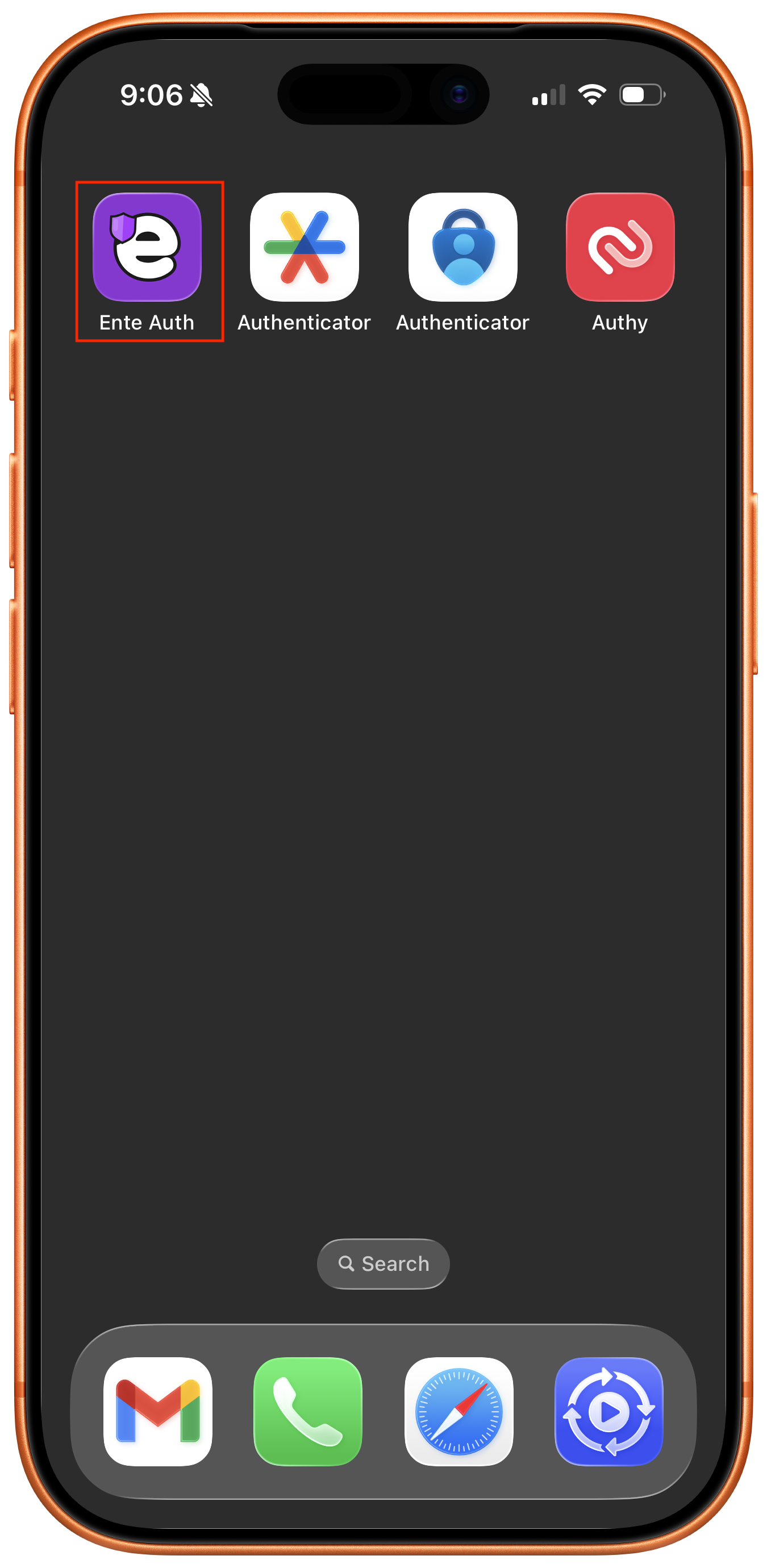
To find the installed Ente Auth version on an iPhone, open Settings, then go to General > iPhone Storage > Ente Auth. The version is displayed below the app name.
The following screenshot shows the import formats supported by Ente Auth 4.4.25.
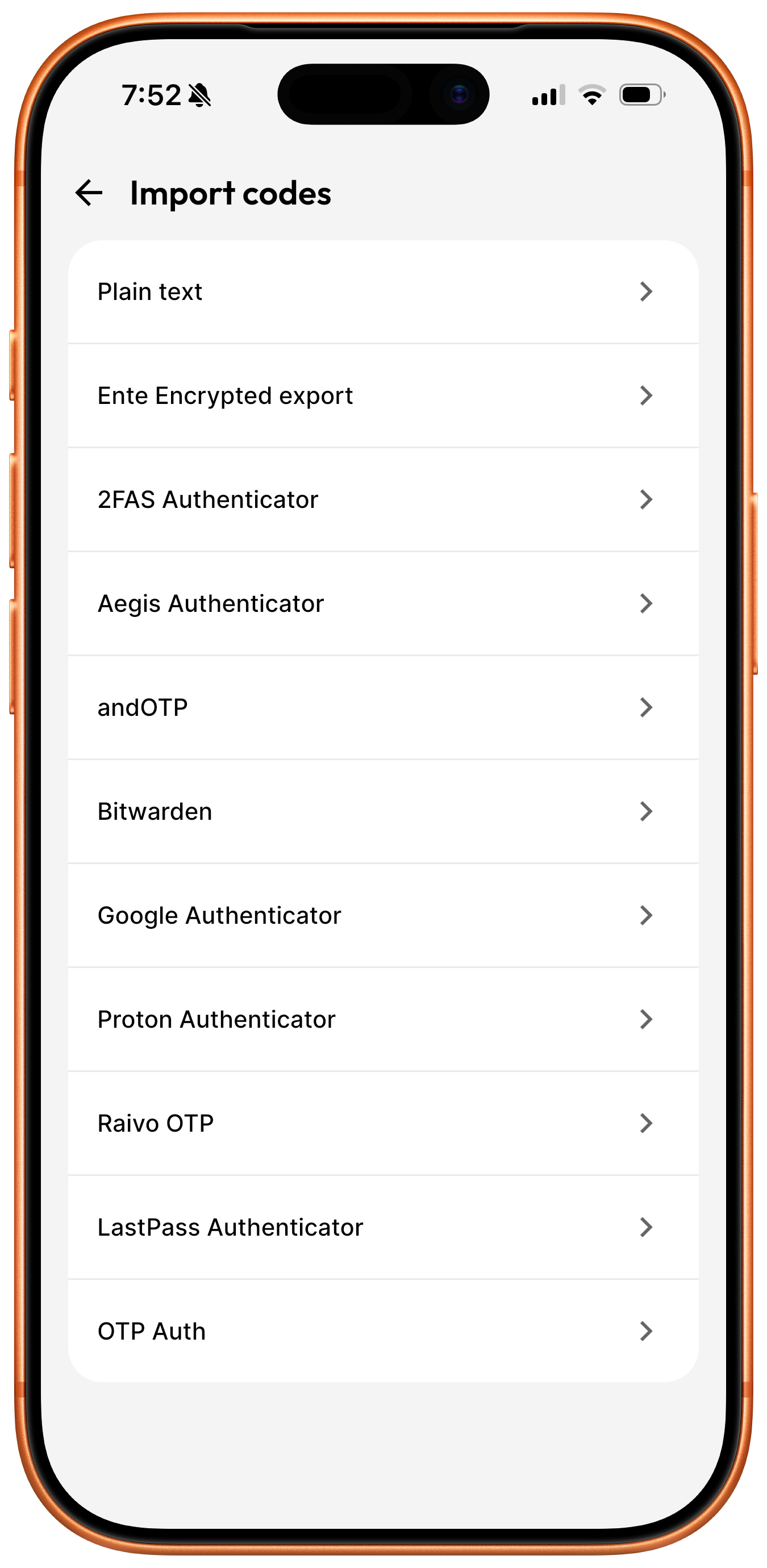
twofa-rescue requires an encrypted export file from Ente Auth and the
password used to create it.
 |
 |
-
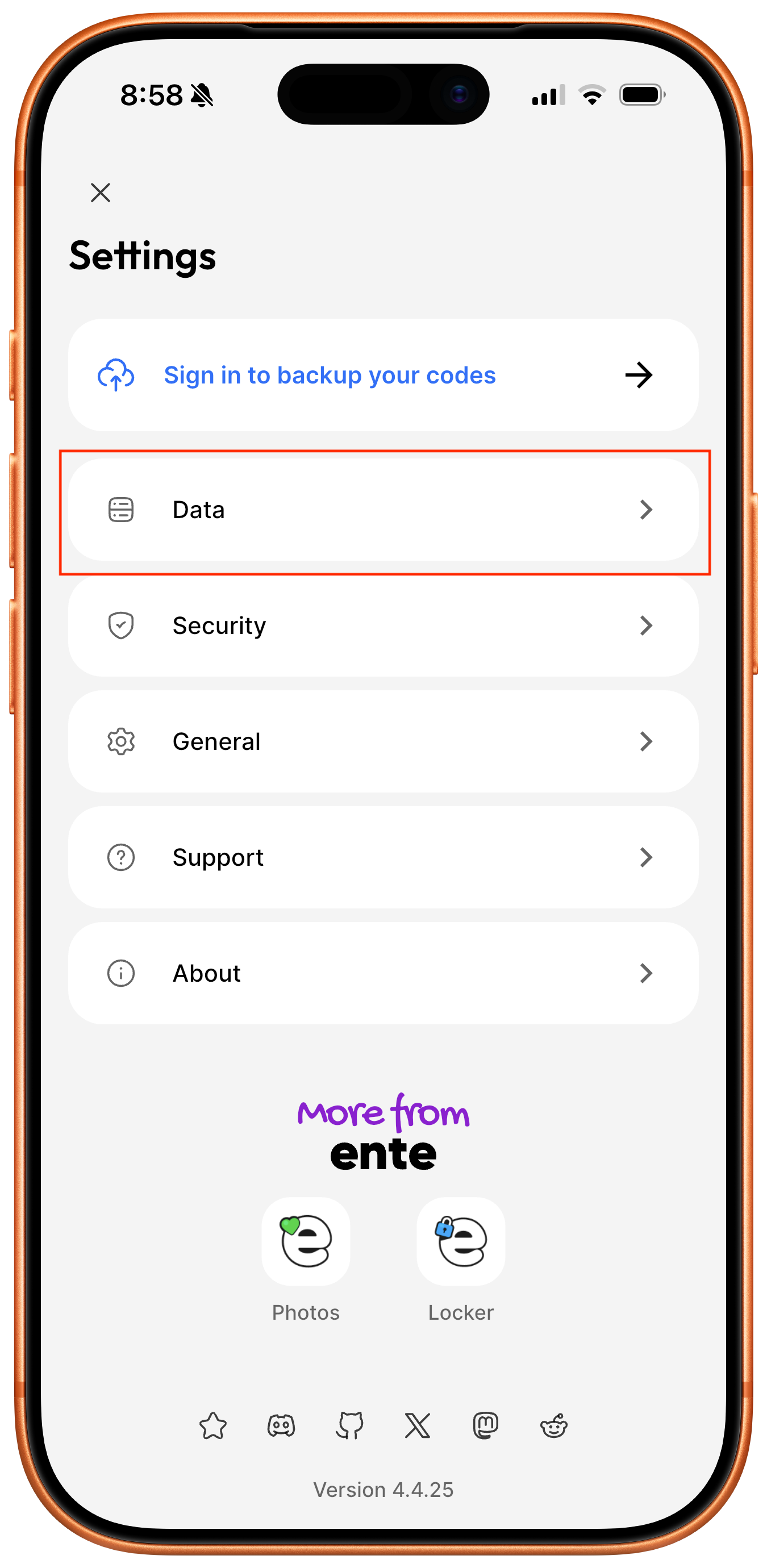
Open Ente Auth, then tap the hamburger menu icon in the upper-left corner to open Settings.
-
Tap Data.
After importing your codes, return to the Data screen and export your secrets to an encrypted JSON file.
Export codes
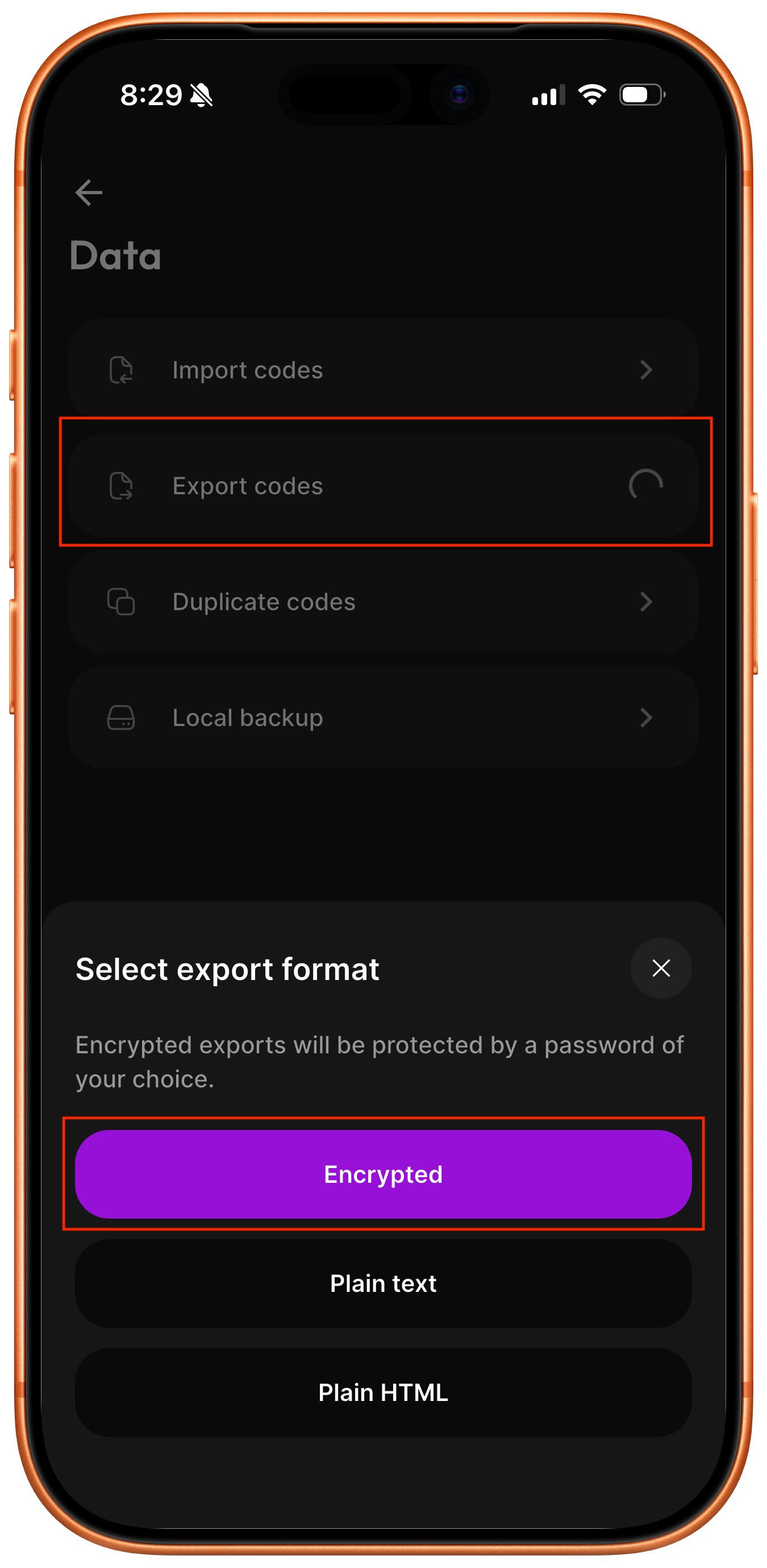
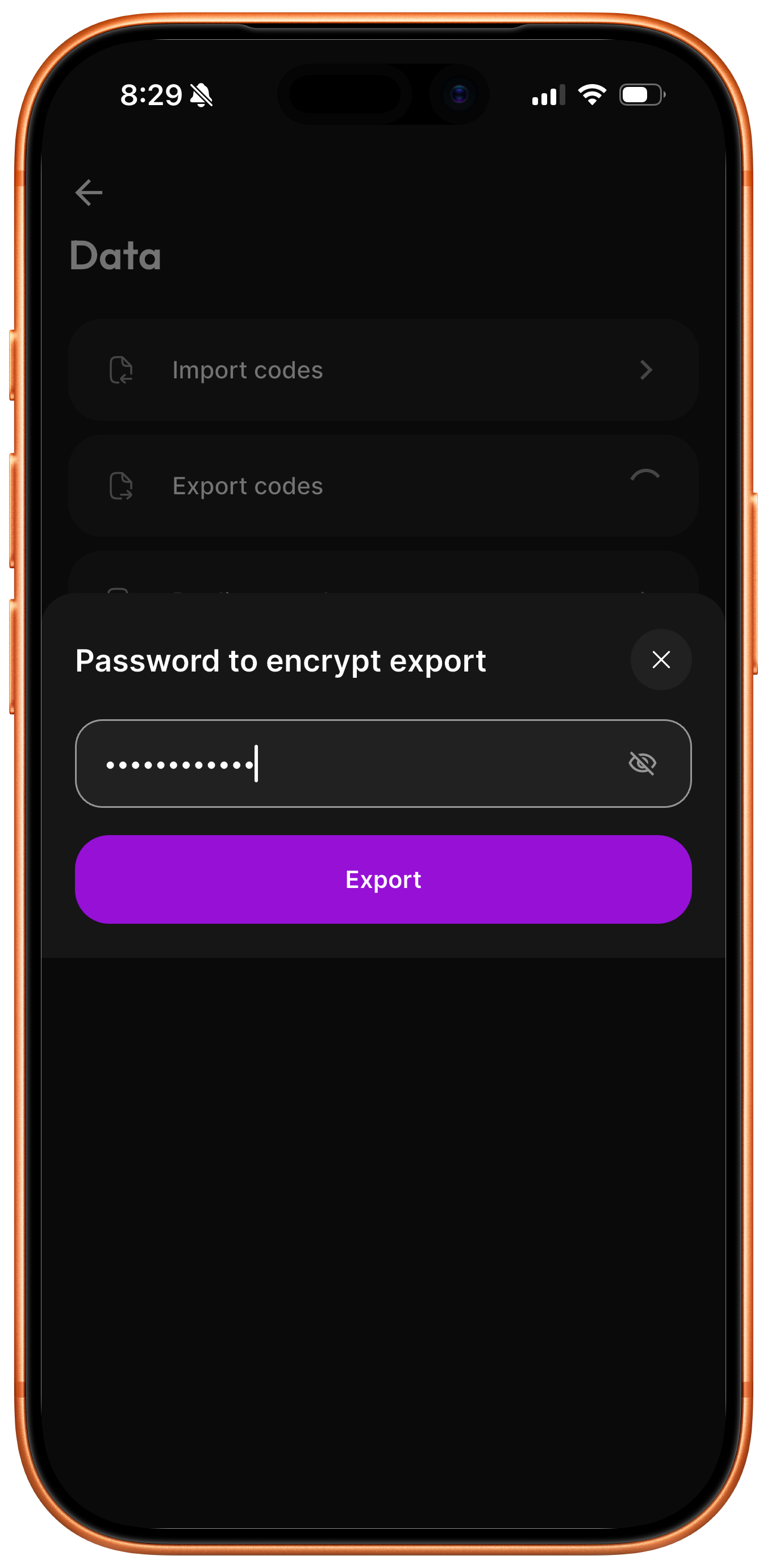
The following screenshots show how to create an encrypted export on an iPhone using Ente Auth 4.4.25. Menu names and locations may differ in other versions.
 |
 |
-
Tap Export codes, then select Encrypted.
-
Enter a strong password, then tap Save.
Save the file on your phone, then transfer it to the computer where you will
run twofa-rescue. For example, you can save it to local iPhone storage and
use AirDrop to transfer it to a Mac. Use the equivalent export and transfer
steps for Ente Auth on other platforms.
Use twofa-rescue to display live 2FA codes or show QR codes for importing
entries into another authenticator app. See Usage for the available
commands.
Create a new encrypted export whenever you add, remove, or change a 2FA entry, and keep backup copies in safe locations.
The screenshots are framed with iphone-frameit
Usage
Set the Ente Auth export password in TWOFA_RESCUE_PASS first:
export TWOFA_RESCUE_PASS='password'
Tip: if your shell has HISTCONTROL=ignorespace set (the default in many
bash setups), type a single leading space before the export command to
keep the password out of your shell history.
Version: @($) twofa-rescue v1.0.1
https://github.com/muquit/twofa-rescue
Compiled with go version: go1.27.0

Usage: twofa-rescue [options] [export-file] [filter]

Arguments:
  [export-file]  Ente Auth encrypted export JSON
  [filter]       Optional issuer or account substring

Options:
  -h, --help         Show help
  -v, --version      Show version
  --decrypt          Print decrypted data instead of codes
  --encrypt          Encrypt any file as an Ente Auth export
  -o <file>          Write --decrypt or --encrypt output to a file
  --export-qr <dir>  Save one QR-code PNG per matching entry
  --show-qr          Show matching QR codes one at a time in the terminal
  --demo-qr          Show a non-sensitive test QR code in the terminal
  --debug            Print QR terminal-detection details to stderr

WARNING: QR-code PNGs contain plaintext 2FA secrets. Import them, delete
them, and empty your trash.

Environment:
  TWOFA_RESCUE_PASS  Password for encryption and export operations

  Linux/macOS (bash/zsh):
    export TWOFA_RESCUE_PASS='your-password'

  Windows (cmd.exe):
    set TWOFA_RESCUE_PASS=your-password

  Windows (PowerShell):
    $env:TWOFA_RESCUE_PASS='your-password'

Examples:
  twofa-rescue export_encrypted_json.txt
  twofa-rescue export_encrypted_json.txt github
  twofa-rescue --decrypt -o plain.txt export_encrypted_json.txt
  twofa-rescue --encrypt -o encrypted.json plain.txt
  twofa-rescue --export-qr /path/to/dir export_encrypted_json.txt
  twofa-rescue --show-qr export_encrypted_json.txt
  twofa-rescue --demo-qr

Note: flags must precede the file argument.
If no filter is specified, codes for all entries are displayed. See Display live 2FA codes for example.
Options description
| Option | Description |
|---|---|
-h, --help | Show this help message and exit. |
-v, --version | Print the version and exit. |
--decrypt | Decrypt the export and print the plaintext (otpauth:// lines) instead of generating codes. |
-o <file> | With --decrypt, write the decrypted plaintext to <file> instead of stdout. With --encrypt, write the encrypted file to <file> instead of stdout. |
--encrypt | Encrypt an input file, text or binary (given in place of <export-file>), into Ente Auth's JSON export format, using the same Argon2id parameters Ente Auth's own app uses. Works on any file, not just otpauth:// lines. |
--export-qr <dir> | Write one QR-code PNG per entry (optionally narrowed by [filter]) into <dir>, importable one at a time into any authenticator app that supports QR/image upload. WARNING: These PNGs contain your 2FA secrets in plaintext. Import them, then delete the files (and empty your trash); do not leave them on disk. |
--show-qr | Display QR codes one at a time in the terminal (optionally narrowed by [filter]). Press Enter to advance to the next, or Ctrl+C to quit. Nothing is written to disk. |
--demo-qr | Display a non-sensitive test QR code in the terminal. No export file or password is required. |
--debug | Print terminal-detection diagnostics to stderr when used with --show-qr or --demo-qr, showing which QR rendering path was chosen and why. |
Features
Display live 2FA codes
Can decrypt an Ente Auth encrypted export file and print the current 2FA code for each entry.
Set TWOFA_RESCUE_PASS env var with the password first. twofa-rescue -h for help.
 export TWOFA_RESCUE_PASS='your_secret'
twofa-rescue export_encrypted_json.json
Example:
$ twofa-rescue ente-auth-codes-2026-08-03.json
ISSUER  ACCOUNT            CODE    EXPIRES IN
======  =======            ====    ==========
GitHub  alice@example.com  123456  23s 14:32:07
AWS     alice@example.com  654321  59s 14:32:07
Note: Issuer, account, and codes shown above are placeholders, not real data
Filtering
Pass extra words after the export file to narrow the results down to entries whose issuer or account name matches.
twofa-rescue export_encrypted_json.json github
Plaintext export (not recommended)
Decrypt the Ente Auth encrypted export file and print the raw otpauth:// lines instead of
generating codes. Useful if you want to feed the plaintext into another
tool, or write it to a file with -o.
twofa-rescue --decrypt export_encrypted_json.json
twofa-rescue --decrypt -o plain.txt export_encrypted_json.json
WARNING: Be careful! It is not a good idea to create a plain text file of the secrets on the disk. Use it only if there is a pressing need to do that.
Example output (issuers, accounts, and secrets shown below are placeholders, not real data):
otpauth://totp/GitHub:alice@example.com?secret=JBSWY3DPEHPK3PXP&issuer=GitHub
otpauth://totp/AWS:alice@example.com?secret=KRSXG5CTMVRXEZLU&issuer=AWS
otpauth://totp/Google:alice.dev@example.com?secret=MFRGGZDFMZTWQ2LK&issuer=Google
otpauth://totp/Dropbox:alice@example.com?secret=NBSWY3DPO5XXE3DE&issuer=Dropbox
otpauth://totp/Cloudflare:alice.work@example.com?secret=ORSXG5BAMVQXG43F&issuer=Cloudflare
Export 2FA QR Codes to PNG files (not recommended)
Write one QR code PNG per entry so you can move your accounts into another authenticator app by scanning or uploading the image.
twofa-rescue --export-qr /path/to/dir export_encrypted_json.json
WARNING: These files contain your 2FA secrets in plaintext. Import them, then delete the files and empty your trash. Do not leave them sitting on disk.
QR codes in the terminal (recommended)
NOTE: Make sure your terminal can render a scannable QR code before using this. See Tested Terminals for details.
NOTE: On terminals without an inline image protocol, the QR code is
drawn with text block characters instead of a real image. This only looks
square if the terminal's character cell is close to twice as tall as it
is wide, which is not always the case. On Apple's Terminal.app, this can
make the QR code look squished. If that happens, use --export-qr
instead, or switch to a terminal with inline image support such as
iTerm2.
Display the QR codes one at a time right in the terminal instead of writing PNG files to disk. Press Enter to move to the next one and Ctrl+C to quit.
This method can be used to import 2FA secrets into most 2FA authenticator apps.
twofa-rescue --show-qr export_encrypted_json.txt
Screenshots of demo QR code
iTerm2
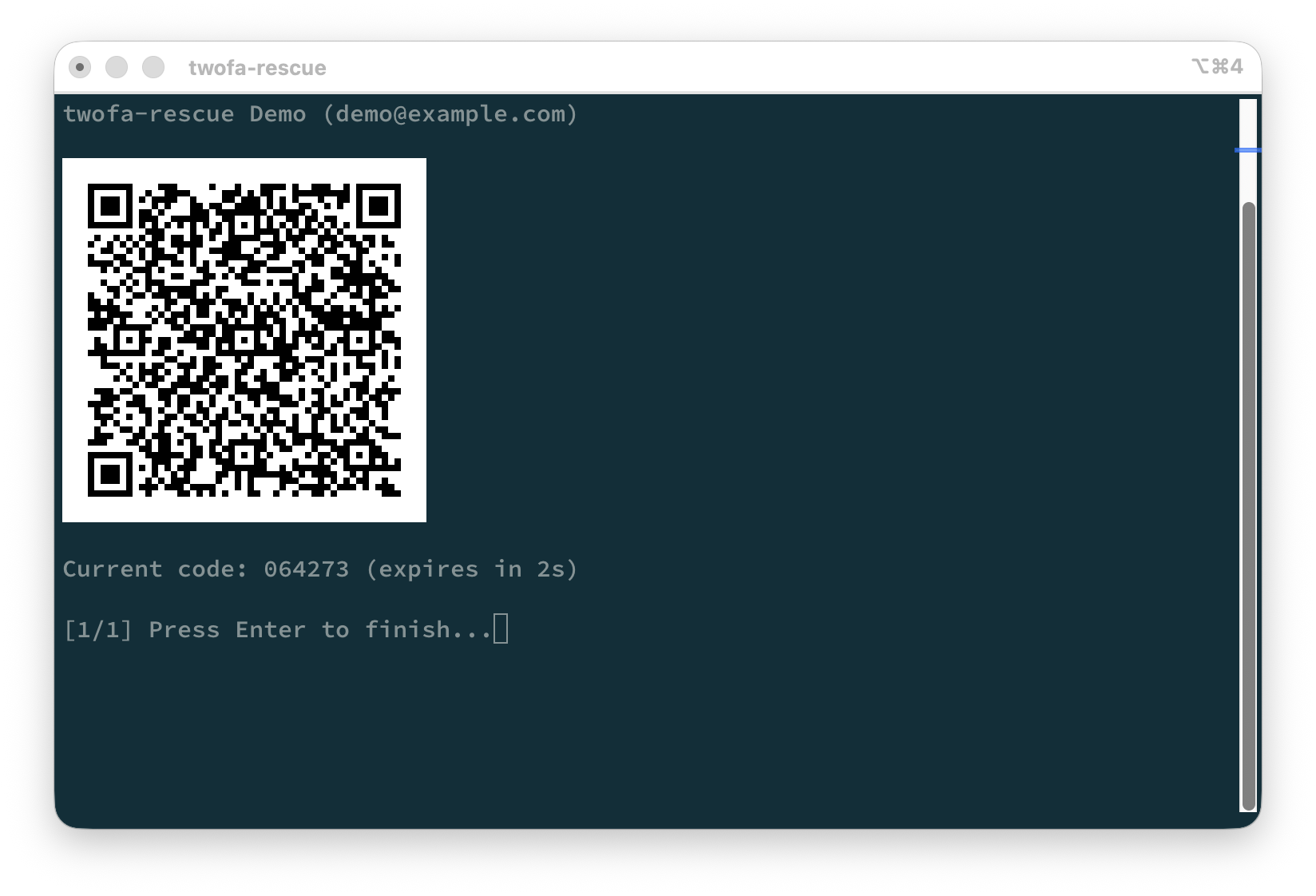
Show a safe, non-sensitive QR code without needing an export file or a password to test if the image is recognized by other 2FA mobile apps. Here is a screenshot of iTerm2 displaying a demo QR Code on the terminal:
These Terminals can display QR code successfully as well. Apple Terminal has a limitation, read below.
twofa-rescue --demo-qr
 Demo QR code on iTerm2 |
Apple Terminal
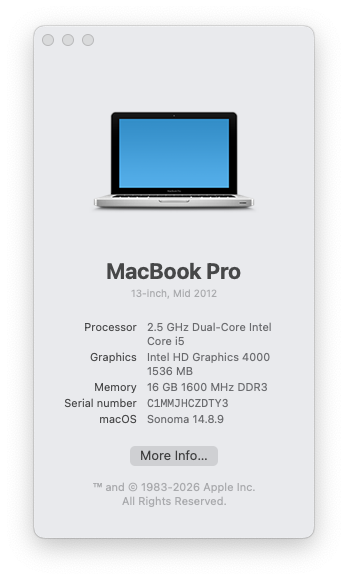
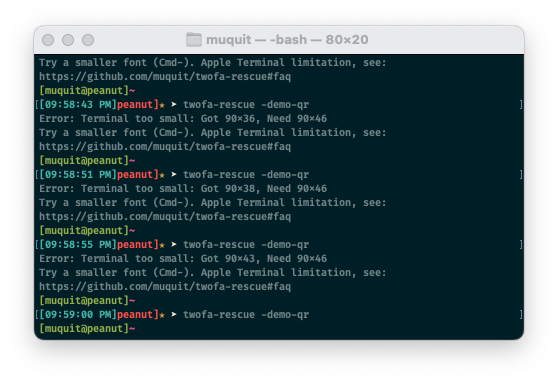
This is a test on a junk 2012 13" MacBook Pro with Apple Terminal
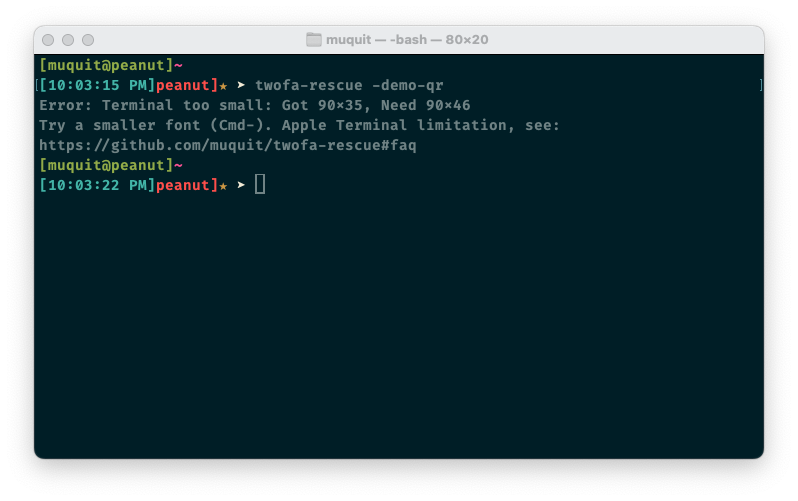 Demo QR code on an Apple Terminal, QR Code display failed |
- Above: with default font size, you will see the window will resize but will fail to display the QR Code. Note: this will not happen if you've a big enough screen.
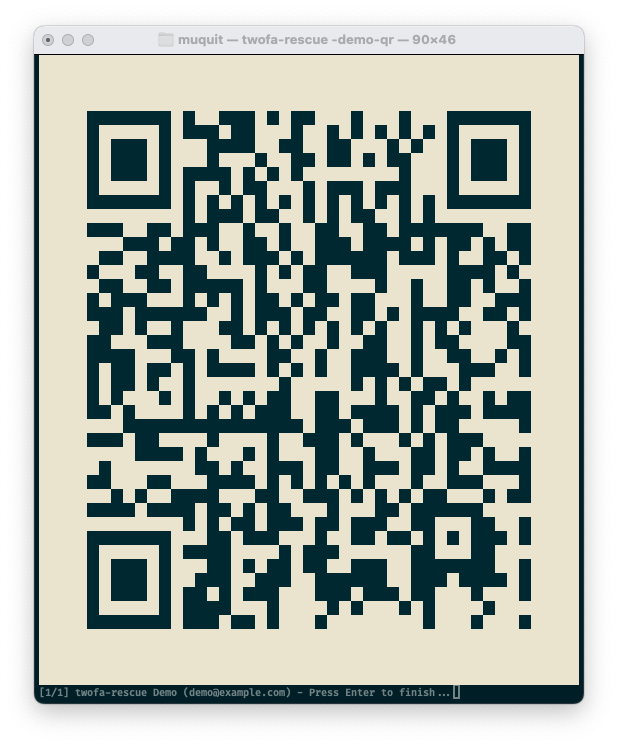
 Demo QR code on on a an 13" macbook pro Apple Terminal |
- Notice Above: had to reduced font size 3 times by typing
Command-and after that the QR code was displayed successfully. Look at FAQ for details on Apple Terminal limitations.
 Demo QR code on on a an 13" macbook pro Apple Terminal |
- Expanded window with QR code
Windows PowerShell
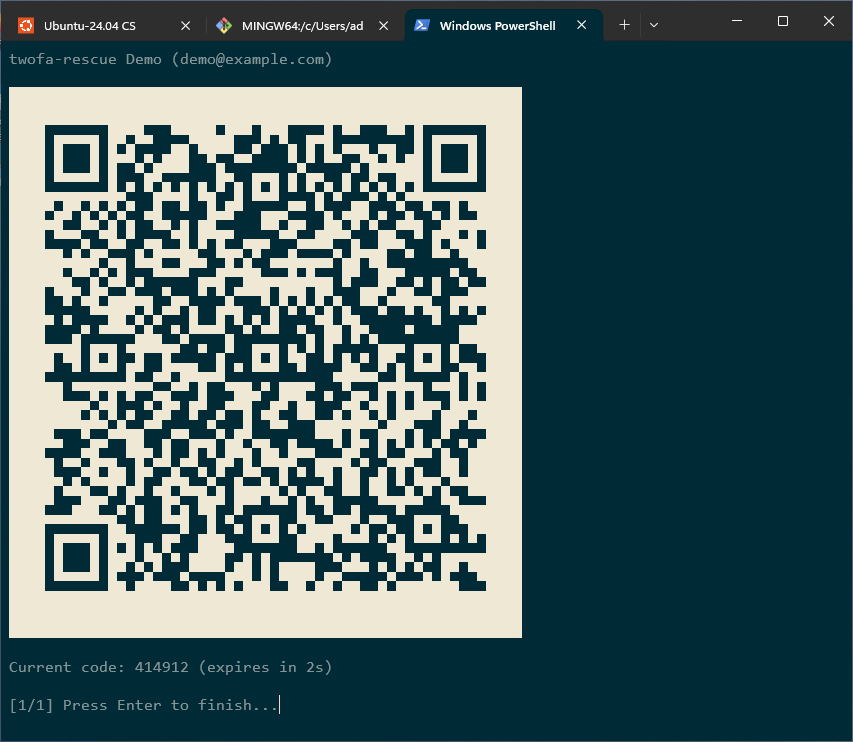 Demo QR code on on a Windows 11 Terminal |
Try any mobile 2FA app to test that 2FA secrets can be imported by scanning the QR Code on the terminsl. I tested the following authenticator apps on iOS v26.6:
Show 2FA secret QR Code
Example on how to display QR Code with 2FA secrets. The displayed QR Code can be used to import to other Authenticator Apps by scanning it with your camera of your mobile device.
Here it is taking a sample encrypted Ente Auth export JSON file as input. Example:
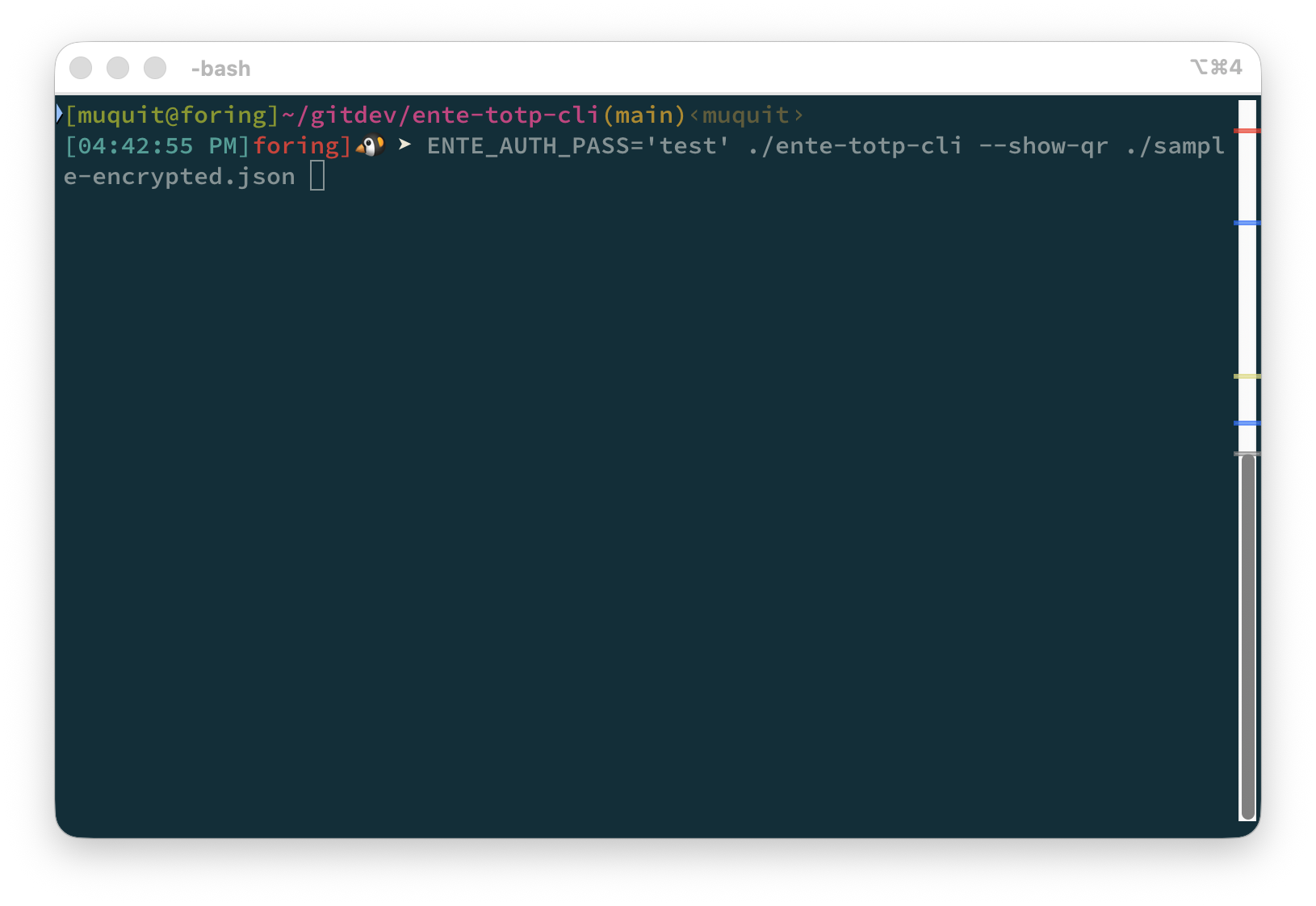 Command to display QRCode with 2FA secret |
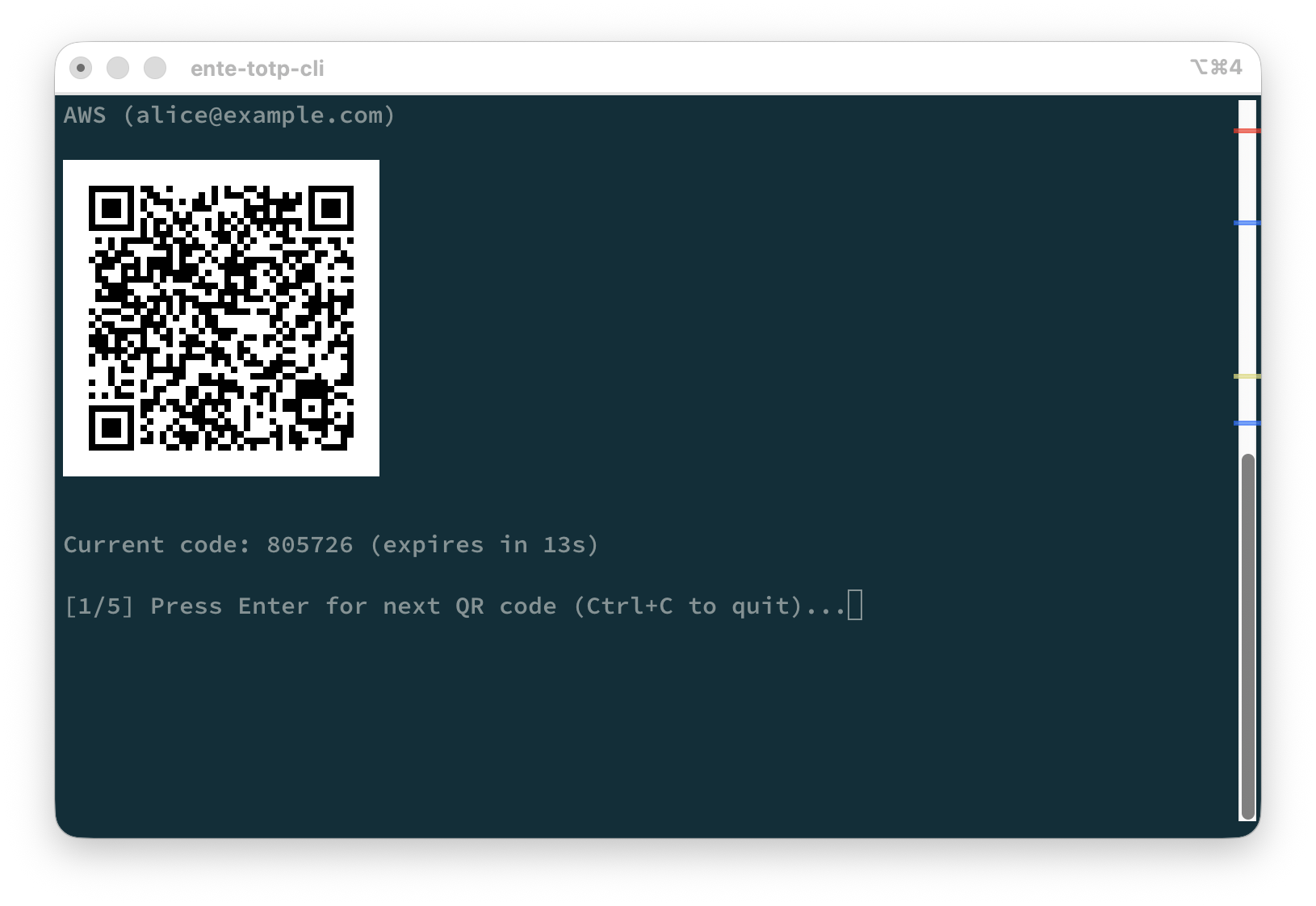 Display QR code of 2FA secret with code one by one. Can be imported by pointing camera of your Authenticator app |
The CLI uses a pure go implementation compatible with libsodium's secretstream format for encryption and decryption.
Tested Terminals
The following terminals displayed scannable QR codes in my tests. Other terminals may work as well. If you test another terminal successfully, create an issue and I will add it to the list.
| Terminal | OS | Result | Rendering |
|---|---|---|---|
| iTerm2 | macOS | ✅ Works | iTerm2 inline image protocol |
| kitty | macOS, Ubuntu 24.04 | ✅ Works | Unicode block fallback |
| ghostty | macOS | ✅ Works | Unicode block fallback |
| WezTerm | macOS, Ubuntu, Windows | ✅ Works | Unicode block fallback |
| Apple Terminal | macOS | ✅ Works (auto-resizes the window if needed, see FAQ) | Solid ANSI block fill (custom) |
| Windows Terminal | Windows 11 Pro | ✅ Works | Unicode block fallback |
| GNOME Terminal | Ubuntu 24.04 | ✅ Works | Unicode block fallback |
| xterm | Ubuntu 24.04 | ✅ Works | Unicode block fallback |
| mlterm | Ubuntu 24.04 | ✅ Works | Unicode block fallback |
| foot | Ubuntu 24.04 | ✅ Works | Unicode block fallback |
| konsole | Ubuntu 24.04 (GNOME) | ✅ Works | Unicode block fallback |
Apple Terminal gets its own dedicated renderer (solid ANSI background-color blocks, no font glyph involved), since testing showed the usual Unicode block fallback comes out distorted no matter which font is selected.
Every other terminal above, including ones that natively support Kitty graphics protocol or Sixel, gets that same Unicode block-character fallback. Where it says "✅ Works" for those, that means the fallback happened to render a scannable QR code on that terminal's default font, not that the tool used that terminal's own graphics protocol.
Run with --debug to see which path was actually taken.
The testing was done as follows:
- Display demo QR Code
twofa-rescue --demo-qr
- Import the secret from the QR code using an app such as Google Authenticator. After each successful import, delete the entry before testing it again in another terminal. I also tested other authenticator apps; see Demo QR code for details.
Encrypting files
This is a feature I added for myself, you may or may not need it. This can be useful if do no use Ente Auth but you know your 2FA secrets and want to create the encrypted JSON file similar to the one exported by Ente Auth app. Please look at the FAQ.
Encrypt an input file, text or binary, into Ente Auth's JSON export
format, using the same Argon2id parameters Ente Auth's own app uses.
It works on any file, not just otpauth:// lines. If the input is
otpauth:// lines, the result is importable into the real Ente Auth
app too, not just this tool.
twofa-rescue --encrypt -o encrypted.json plain.txt
WARNING: Anyone with the encrypted file and the password can decrypt
it. Treat TWOFA_RESCUE_PASS and the encrypted output with the same care
as the original secrets.
Testing
Running tests
make test
FAQ
Why did Apple Terminal.app resize when displaying a QR Code?
When QR codes are displayed with --show-qr or --demo-qr, Apple Terminal
resizes to accommodate the QR codes.
Apple Terminal.app does not support displaying images in the terminal. The CLI draws the QR code using solid blocks instead.
This QR code needs more space than the default 80x24 window. If the window is
too small, the CLI asks Terminal.app to make it larger before displaying the
QR code. When you press Enter or Ctrl+C, it restores the old window size.
The resize request is an xterm control sequence. For example, this command asks the terminal to resize to 40 rows and 100 columns:
printf '\e[8;40;100t'
If the window cannot be resized, the CLI will show the required size. Try a
smaller font with Command-, use a better terminal, or use
--export-qr instead.
Use --debug to see which QR display method was selected.
To test the resize behavior, start with a small Apple Terminal window and run:
twofa-rescue --demo-qr
To test several entries in one session:
TWOFA_RESCUE_PASS=test twofa-rescue --show-qr sample-encrypted.json
Why is the QR code distorted over ssh from Apple Terminal.app?
ssh does not forward the TERM_PROGRAM environment variable by default. The
CLI cannot detect Apple Terminal.app without it, so it uses the generic Unicode
block renderer.
Use --debug to confirm it. You will see something like:
[debug] TERM_PROGRAM="" TERM="xterm-256color": no known image protocol, using Unicode block fallback
There is no reliable way to detect Apple Terminal.app from TERM alone.
To test this idea, you can set TERM_PROGRAM for the remote command:
ssh remote_host TERM_PROGRAM=Apple_Terminal twofa-rescue --demo-qr
Make sure the local Terminal window is large enough for the QR code. Otherwise,
use a better terminal or use --export-qr.
How can I try the CLI without a real Ente Auth export?
Use sample-encrypted.json from the repo. The password is test:
TWOFA_RESCUE_PASS=test twofa-rescue sample-encrypted.json
The file contains fake accounts such as alice@example.com. To import only one into
an authenticator app using a QR code, use the filter github:
TWOFA_RESCUE_PASS=test twofa-rescue --show-qr sample-encrypted.json github
Can I use the CLI without a real encrypted Ente Auth export?
Yes it's possible. If you know your 2FA secrets, you can create a text
file like sample-otpauth-urls.txt, update account, issuer etc accordingly.
e.g.
otpauth://totp/GitHub:alice@example.com?secret=JBSWY3DPEHPK3PXP&issuer=GitHub
Then use the --encrypt option create a JSON file with encrypted secret.
Example:
TWOFA_RESCUE_PASS=yourpassword twofa-rescue --encrypt \
    -o myexport_encrypted.json plaintext_json.txt
Why did Windows block the binary with "An Application Control policy has blocked this file"?
In File Explorer, right-click the binary > Properties > General tab. If there's an "Unblock" checkbox near the bottom, check it and try running again.
On a personal Windows 11 system, this is likely Smart App Control (SAC),
which uses Microsoft's cloud reputation service and code signatures
to decide whether to trust an app. The Windows build of twofa-rescue isn't
currently signed, so a new or uncommon build can get flagged.
In my case, several freshly cross-compiled binaries were blocked at first. About ten minutes after transferring another build, all of the previously-blocked binaries started running without any changes on my end, likely a delayed reputation check or a local security definition update. Waiting and retrying may help, but it's not guaranteed.
Why did I not abandon Ente Auth after the bug that motivated this CLI?
There are a few reasons. I am familiar with the crypto Ente Auth uses to
encrypt the exported JSON file. It uses Argon2id for key derivation and
libsodium's crypto_secretstream_xchacha20poly1305 for encryption. I trust the
encrypted file enough to keep copies on all my systems. Of course, this
assumes the export is protected with a strong passphrase.
I also live in terminals. If my phone is upstairs, I do not want to go get it just for a 2FA code.
Most importantly, I can decrypt the export myself and import the secrets into another Authenticator app whenever I want. I still use Ente Auth, but I am no longer dependent on it or any other single Authenticator app.
License (MIT)
MIT. See the LICENSE.txt file for details.
Credits
-
Mostly developed with assistance from Claude Code. I reviewed every line of code and cleaned up.
-
QR codes generated from the Ente Auth encrypted export did not work with Google Authenticator. They worked with Microsoft Authenticator, Twilio Authy and Ente Auth. Codex fixed the problem.
-
Codex also made QR codes fit in Apple Terminal with a 12-point font on my old 13-inch MacBook Pro. Previously I had to use an 8-point font.
-
Claude Code's notes on how the Ente Auth encrypted export format works: ente-auth-export-encryption-algorithm-claude.md
-
Docs were cleaned up by Codex.
-
scripts/mk_release_notes.shwas made generic by Codex
TOC/glossary expansion by https://github.com/muquit/markdown-toc-go v1.0.6 on Aug-27-2026
Contributors

5 commits
See what people are saying
Similar repos


Languages
Go
74.9%
Shell
20.1%
Makefile
2.8%
Ruby
2.3%
A cross-platform CLI to decrypt Ente Auth encrypted exports for live 2FA/TOTP codes, or QR codes displayed right in your terminal to import into other authenticator apps
Go
0
5 commits
updated Aug 28, 2026
README
Table Of Contents
- Introduction
- Background
- Latest Version v1.0.1 (Aug-27-2026)
- Installation
- Preparing an Ente Auth export
- Usage
- Features
- Tested Terminals
- Encrypting files
- Testing
- FAQ
- Why did Apple Terminal.app resize when displaying a QR Code?
- Why is the QR code distorted over ssh from Apple Terminal.app?
- How can I try the CLI without a real Ente Auth export?
- Can I use the CLI without a real encrypted Ente Auth export?
- Why did Windows block the binary with "An Application Control policy has blocked this file"?
- Why did I not abandon Ente Auth after the bug that motivated this CLI?
- License (MIT)
- Credits
Introduction
-
twofa-rescueis a cross-platform command-line tool to decrypt Ente Auth encrypted export files and generate live 2FA codes on a terminal. -
It can also display QR codes of your 2FA secrets in the Terminals (recommended), or export them as PNG files (not recommended) or a text file with TOTP URLs (not recommended), so you can import them into other authenticator apps.
Note: This tool only decrypts encrypted export files from Ente Auth, which is the authenticator app I currently use.
I created it when Ente Auth stopped working (continuous spinning circle) after upgrading my iPhone.
Hope you find it useful as well.
Background
I used Google Authenticator app on iOS for a long time. At some point in past there was speculation that google might discontinue it. I looked around for an open source alternative, reviewed the code, and moved to Ente Auth. I do not store my authentication data in the cloud. Instead, I periodically export an encrypted backup and keep copies on several systems.
After getting a new iPhone (iOS v26.6), Ente Auth stopped working and continuously displayed a spinner forever. Updating the app did not help, and importing my encrypted backup failed too. I had backups, but no independent way to restore them.
This CLI was created to make sure that I will never be dependent on a single mobile app, or be in trouble if I lose my phone.
It follows Ente's documented export format in Exporting your data out of Ente Auth. I am also the author of libsodium-jna, so the underlying crypto methods were familiar.
Update: After deleting and re-installing the Ente Auth app, it was able to import the encrypted JSON file from the old phone.
Latest Version v1.0.1 (Aug-27-2026)
The latest version is v1.0.1, released on Aug-27-2026. Please look at ChangeLog.md for details
Installation
Download pre-built binaries
-
Download pre-built binaries from releases page.
-
To compile from source, please look at Build from source
Installing using Homebrew on Mac/Linux
You will need to install Homebrew first.
Install
brew tap muquit/twofa-rescue https://github.com/muquit/twofa-rescue.git
brew install muquit/twofa-rescue/twofa-rescue
Upgrade
brew upgrade twofa-rescue
Uninstall
brew uninstall twofa-rescue
Remove the tap
brew untap muquit/twofa-rescue
Brew install instructions and formula automatically generated by go-xbuild-go v1.0.12 on Aug-27-2026
go-xbuild-go writes the formula into the project's own Formula/project.rb rather than a central Homebrew tap repo. This keeps the formula version-controlled and committed alongside the code.
Preparing an Ente Auth export
If your Authenticator app is other that Ente Auth, install it first. But
before that, check Ente Auth import list to make sure your Authenticator app is in the
list. If your Authenticator is not in the import list, then you cannot use twofa-rescue
without some work.. Please look at FAQ for workaround.
To find the installed Ente Auth version on an iPhone, open Settings, then go to General > iPhone Storage > Ente Auth. The version is displayed below the app name.
The following screenshot shows the import formats supported by Ente Auth 4.4.25.
twofa-rescue requires an encrypted export file from Ente Auth and the
password used to create it.
|
|
|
-
Open Ente Auth, then tap the hamburger menu icon in the upper-left corner to open Settings.
-
Tap Data.
After importing your codes, return to the Data screen and export your secrets to an encrypted JSON file.
Export codes
The following screenshots show how to create an encrypted export on an iPhone using Ente Auth 4.4.25. Menu names and locations may differ in other versions.
|
|
|
-
Tap Export codes, then select Encrypted.
-
Enter a strong password, then tap Save.
Save the file on your phone, then transfer it to the computer where you will
run twofa-rescue. For example, you can save it to local iPhone storage and
use AirDrop to transfer it to a Mac. Use the equivalent export and transfer
steps for Ente Auth on other platforms.
Use twofa-rescue to display live 2FA codes or show QR codes for importing
entries into another authenticator app. See Usage for the available
commands.
Create a new encrypted export whenever you add, remove, or change a 2FA entry, and keep backup copies in safe locations.
The screenshots are framed with iphone-frameit
Usage
Set the Ente Auth export password in TWOFA_RESCUE_PASS first:
export TWOFA_RESCUE_PASS='password'
Tip: if your shell has HISTCONTROL=ignorespace set (the default in many
bash setups), type a single leading space before the export command to
keep the password out of your shell history.
Version: @($) twofa-rescue v1.0.1
https://github.com/muquit/twofa-rescue
Compiled with go version: go1.27.0

Usage: twofa-rescue [options] [export-file] [filter]

Arguments:
  [export-file]  Ente Auth encrypted export JSON
  [filter]       Optional issuer or account substring

Options:
  -h, --help         Show help
  -v, --version      Show version
  --decrypt          Print decrypted data instead of codes
  --encrypt          Encrypt any file as an Ente Auth export
  -o <file>          Write --decrypt or --encrypt output to a file
  --export-qr <dir>  Save one QR-code PNG per matching entry
  --show-qr          Show matching QR codes one at a time in the terminal
  --demo-qr          Show a non-sensitive test QR code in the terminal
  --debug            Print QR terminal-detection details to stderr

WARNING: QR-code PNGs contain plaintext 2FA secrets. Import them, delete
them, and empty your trash.

Environment:
  TWOFA_RESCUE_PASS  Password for encryption and export operations

  Linux/macOS (bash/zsh):
    export TWOFA_RESCUE_PASS='your-password'

  Windows (cmd.exe):
    set TWOFA_RESCUE_PASS=your-password

  Windows (PowerShell):
    $env:TWOFA_RESCUE_PASS='your-password'

Examples:
  twofa-rescue export_encrypted_json.txt
  twofa-rescue export_encrypted_json.txt github
  twofa-rescue --decrypt -o plain.txt export_encrypted_json.txt
  twofa-rescue --encrypt -o encrypted.json plain.txt
  twofa-rescue --export-qr /path/to/dir export_encrypted_json.txt
  twofa-rescue --show-qr export_encrypted_json.txt
  twofa-rescue --demo-qr

Note: flags must precede the file argument.
If no filter is specified, codes for all entries are displayed. See Display live 2FA codes for example.
Options description
| Option | Description |
|---|---|
-h, --help | Show this help message and exit. |
-v, --version | Print the version and exit. |
--decrypt | Decrypt the export and print the plaintext (otpauth:// lines) instead of generating codes. |
-o <file> | With --decrypt, write the decrypted plaintext to <file> instead of stdout. With --encrypt, write the encrypted file to <file> instead of stdout. |
--encrypt | Encrypt an input file, text or binary (given in place of <export-file>), into Ente Auth's JSON export format, using the same Argon2id parameters Ente Auth's own app uses. Works on any file, not just otpauth:// lines. |
--export-qr <dir> | Write one QR-code PNG per entry (optionally narrowed by [filter]) into <dir>, importable one at a time into any authenticator app that supports QR/image upload. WARNING: These PNGs contain your 2FA secrets in plaintext. Import them, then delete the files (and empty your trash); do not leave them on disk. |
--show-qr | Display QR codes one at a time in the terminal (optionally narrowed by [filter]). Press Enter to advance to the next, or Ctrl+C to quit. Nothing is written to disk. |
--demo-qr | Display a non-sensitive test QR code in the terminal. No export file or password is required. |
--debug | Print terminal-detection diagnostics to stderr when used with --show-qr or --demo-qr, showing which QR rendering path was chosen and why. |
Features
Display live 2FA codes
Can decrypt an Ente Auth encrypted export file and print the current 2FA code for each entry.
Set TWOFA_RESCUE_PASS env var with the password first. twofa-rescue -h for help.
 export TWOFA_RESCUE_PASS='your_secret'
twofa-rescue export_encrypted_json.json
Example:
$ twofa-rescue ente-auth-codes-2026-08-03.json
ISSUER  ACCOUNT            CODE    EXPIRES IN
======  =======            ====    ==========
GitHub  alice@example.com  123456  23s 14:32:07
AWS     alice@example.com  654321  59s 14:32:07
Note: Issuer, account, and codes shown above are placeholders, not real data
Filtering
Pass extra words after the export file to narrow the results down to entries whose issuer or account name matches.
twofa-rescue export_encrypted_json.json github
Plaintext export (not recommended)
Decrypt the Ente Auth encrypted export file and print the raw otpauth:// lines instead of
generating codes. Useful if you want to feed the plaintext into another
tool, or write it to a file with -o.
twofa-rescue --decrypt export_encrypted_json.json
twofa-rescue --decrypt -o plain.txt export_encrypted_json.json
WARNING: Be careful! It is not a good idea to create a plain text file of the secrets on the disk. Use it only if there is a pressing need to do that.
Example output (issuers, accounts, and secrets shown below are placeholders, not real data):
otpauth://totp/GitHub:alice@example.com?secret=JBSWY3DPEHPK3PXP&issuer=GitHub
otpauth://totp/AWS:alice@example.com?secret=KRSXG5CTMVRXEZLU&issuer=AWS
otpauth://totp/Google:alice.dev@example.com?secret=MFRGGZDFMZTWQ2LK&issuer=Google
otpauth://totp/Dropbox:alice@example.com?secret=NBSWY3DPO5XXE3DE&issuer=Dropbox
otpauth://totp/Cloudflare:alice.work@example.com?secret=ORSXG5BAMVQXG43F&issuer=Cloudflare
Export 2FA QR Codes to PNG files (not recommended)
Write one QR code PNG per entry so you can move your accounts into another authenticator app by scanning or uploading the image.
twofa-rescue --export-qr /path/to/dir export_encrypted_json.json
WARNING: These files contain your 2FA secrets in plaintext. Import them, then delete the files and empty your trash. Do not leave them sitting on disk.
QR codes in the terminal (recommended)
NOTE: Make sure your terminal can render a scannable QR code before using this. See Tested Terminals for details.
NOTE: On terminals without an inline image protocol, the QR code is
drawn with text block characters instead of a real image. This only looks
square if the terminal's character cell is close to twice as tall as it
is wide, which is not always the case. On Apple's Terminal.app, this can
make the QR code look squished. If that happens, use --export-qr
instead, or switch to a terminal with inline image support such as
iTerm2.
Display the QR codes one at a time right in the terminal instead of writing PNG files to disk. Press Enter to move to the next one and Ctrl+C to quit.
This method can be used to import 2FA secrets into most 2FA authenticator apps.
twofa-rescue --show-qr export_encrypted_json.txt
Screenshots of demo QR code
iTerm2
Show a safe, non-sensitive QR code without needing an export file or a password to test if the image is recognized by other 2FA mobile apps. Here is a screenshot of iTerm2 displaying a demo QR Code on the terminal:
These Terminals can display QR code successfully as well. Apple Terminal has a limitation, read below.
twofa-rescue --demo-qr
|
Demo QR code on iTerm2 |
Apple Terminal
This is a test on a junk 2012 13" MacBook Pro with Apple Terminal
|
Demo QR code on an Apple Terminal, QR Code display failed |
- Above: with default font size, you will see the window will resize but will fail to display the QR Code. Note: this will not happen if you've a big enough screen.
|
Demo QR code on on a an 13" macbook pro Apple Terminal |
- Notice Above: had to reduced font size 3 times by typing
Command-and after that the QR code was displayed successfully. Look at FAQ for details on Apple Terminal limitations.
|
Demo QR code on on a an 13" macbook pro Apple Terminal |
- Expanded window with QR code
Windows PowerShell
|
Demo QR code on on a Windows 11 Terminal |
Try any mobile 2FA app to test that 2FA secrets can be imported by scanning the QR Code on the terminsl. I tested the following authenticator apps on iOS v26.6:
Show 2FA secret QR Code
Example on how to display QR Code with 2FA secrets. The displayed QR Code can be used to import to other Authenticator Apps by scanning it with your camera of your mobile device.
Here it is taking a sample encrypted Ente Auth export JSON file as input. Example:
|
Command to display QRCode with 2FA secret |
|
Display QR code of 2FA secret with code one by one. Can be imported by pointing camera of your Authenticator app |
The CLI uses a pure go implementation compatible with libsodium's secretstream format for encryption and decryption.
Tested Terminals
The following terminals displayed scannable QR codes in my tests. Other terminals may work as well. If you test another terminal successfully, create an issue and I will add it to the list.
| Terminal | OS | Result | Rendering |
|---|---|---|---|
| iTerm2 | macOS | ✅ Works | iTerm2 inline image protocol |
| kitty | macOS, Ubuntu 24.04 | ✅ Works | Unicode block fallback |
| ghostty | macOS | ✅ Works | Unicode block fallback |
| WezTerm | macOS, Ubuntu, Windows | ✅ Works | Unicode block fallback |
| Apple Terminal | macOS | ✅ Works (auto-resizes the window if needed, see FAQ) | Solid ANSI block fill (custom) |
| Windows Terminal | Windows 11 Pro | ✅ Works | Unicode block fallback |
| GNOME Terminal | Ubuntu 24.04 | ✅ Works | Unicode block fallback |
| xterm | Ubuntu 24.04 | ✅ Works | Unicode block fallback |
| mlterm | Ubuntu 24.04 | ✅ Works | Unicode block fallback |
| foot | Ubuntu 24.04 | ✅ Works | Unicode block fallback |
| konsole | Ubuntu 24.04 (GNOME) | ✅ Works | Unicode block fallback |
Apple Terminal gets its own dedicated renderer (solid ANSI background-color blocks, no font glyph involved), since testing showed the usual Unicode block fallback comes out distorted no matter which font is selected.
Every other terminal above, including ones that natively support Kitty graphics protocol or Sixel, gets that same Unicode block-character fallback. Where it says "✅ Works" for those, that means the fallback happened to render a scannable QR code on that terminal's default font, not that the tool used that terminal's own graphics protocol.
Run with --debug to see which path was actually taken.
The testing was done as follows:
- Display demo QR Code
twofa-rescue --demo-qr
- Import the secret from the QR code using an app such as Google Authenticator. After each successful import, delete the entry before testing it again in another terminal. I also tested other authenticator apps; see Demo QR code for details.
Encrypting files
This is a feature I added for myself, you may or may not need it. This can be useful if do no use Ente Auth but you know your 2FA secrets and want to create the encrypted JSON file similar to the one exported by Ente Auth app. Please look at the FAQ.
Encrypt an input file, text or binary, into Ente Auth's JSON export
format, using the same Argon2id parameters Ente Auth's own app uses.
It works on any file, not just otpauth:// lines. If the input is
otpauth:// lines, the result is importable into the real Ente Auth
app too, not just this tool.
twofa-rescue --encrypt -o encrypted.json plain.txt
WARNING: Anyone with the encrypted file and the password can decrypt
it. Treat TWOFA_RESCUE_PASS and the encrypted output with the same care
as the original secrets.
Testing
Running tests
make test
FAQ
Why did Apple Terminal.app resize when displaying a QR Code?
When QR codes are displayed with --show-qr or --demo-qr, Apple Terminal
resizes to accommodate the QR codes.
Apple Terminal.app does not support displaying images in the terminal. The CLI draws the QR code using solid blocks instead.
This QR code needs more space than the default 80x24 window. If the window is
too small, the CLI asks Terminal.app to make it larger before displaying the
QR code. When you press Enter or Ctrl+C, it restores the old window size.
The resize request is an xterm control sequence. For example, this command asks the terminal to resize to 40 rows and 100 columns:
printf '\e[8;40;100t'
If the window cannot be resized, the CLI will show the required size. Try a
smaller font with Command-, use a better terminal, or use
--export-qr instead.
Use --debug to see which QR display method was selected.
To test the resize behavior, start with a small Apple Terminal window and run:
twofa-rescue --demo-qr
To test several entries in one session:
TWOFA_RESCUE_PASS=test twofa-rescue --show-qr sample-encrypted.json
Why is the QR code distorted over ssh from Apple Terminal.app?
ssh does not forward the TERM_PROGRAM environment variable by default. The
CLI cannot detect Apple Terminal.app without it, so it uses the generic Unicode
block renderer.
Use --debug to confirm it. You will see something like:
[debug] TERM_PROGRAM="" TERM="xterm-256color": no known image protocol, using Unicode block fallback
There is no reliable way to detect Apple Terminal.app from TERM alone.
To test this idea, you can set TERM_PROGRAM for the remote command:
ssh remote_host TERM_PROGRAM=Apple_Terminal twofa-rescue --demo-qr
Make sure the local Terminal window is large enough for the QR code. Otherwise,
use a better terminal or use --export-qr.
How can I try the CLI without a real Ente Auth export?
Use sample-encrypted.json from the repo. The password is test:
TWOFA_RESCUE_PASS=test twofa-rescue sample-encrypted.json
The file contains fake accounts such as alice@example.com. To import only one into
an authenticator app using a QR code, use the filter github:
TWOFA_RESCUE_PASS=test twofa-rescue --show-qr sample-encrypted.json github
Can I use the CLI without a real encrypted Ente Auth export?
Yes it's possible. If you know your 2FA secrets, you can create a text
file like sample-otpauth-urls.txt, update account, issuer etc accordingly.
e.g.
otpauth://totp/GitHub:alice@example.com?secret=JBSWY3DPEHPK3PXP&issuer=GitHub
Then use the --encrypt option create a JSON file with encrypted secret.
Example:
TWOFA_RESCUE_PASS=yourpassword twofa-rescue --encrypt \
    -o myexport_encrypted.json plaintext_json.txt
Why did Windows block the binary with "An Application Control policy has blocked this file"?
In File Explorer, right-click the binary > Properties > General tab. If there's an "Unblock" checkbox near the bottom, check it and try running again.
On a personal Windows 11 system, this is likely Smart App Control (SAC),
which uses Microsoft's cloud reputation service and code signatures
to decide whether to trust an app. The Windows build of twofa-rescue isn't
currently signed, so a new or uncommon build can get flagged.
In my case, several freshly cross-compiled binaries were blocked at first. About ten minutes after transferring another build, all of the previously-blocked binaries started running without any changes on my end, likely a delayed reputation check or a local security definition update. Waiting and retrying may help, but it's not guaranteed.
Why did I not abandon Ente Auth after the bug that motivated this CLI?
There are a few reasons. I am familiar with the crypto Ente Auth uses to
encrypt the exported JSON file. It uses Argon2id for key derivation and
libsodium's crypto_secretstream_xchacha20poly1305 for encryption. I trust the
encrypted file enough to keep copies on all my systems. Of course, this
assumes the export is protected with a strong passphrase.
I also live in terminals. If my phone is upstairs, I do not want to go get it just for a 2FA code.
Most importantly, I can decrypt the export myself and import the secrets into another Authenticator app whenever I want. I still use Ente Auth, but I am no longer dependent on it or any other single Authenticator app.
License (MIT)
MIT. See the LICENSE.txt file for details.
Credits
-
Mostly developed with assistance from Claude Code. I reviewed every line of code and cleaned up.
-
QR codes generated from the Ente Auth encrypted export did not work with Google Authenticator. They worked with Microsoft Authenticator, Twilio Authy and Ente Auth. Codex fixed the problem.
-
Codex also made QR codes fit in Apple Terminal with a 12-point font on my old 13-inch MacBook Pro. Previously I had to use an 8-point font.
-
Claude Code's notes on how the Ente Auth encrypted export format works: ente-auth-export-encryption-algorithm-claude.md
-
Docs were cleaned up by Codex.
-
scripts/mk_release_notes.shwas made generic by Codex
TOC/glossary expansion by https://github.com/muquit/markdown-toc-go v1.0.6 on Aug-27-2026
See what people are saying
Similar repos
Contributors
5 commits
Languages
Go
74.9%
Shell
20.1%
Makefile
2.8%
Ruby
2.3%