Tool for deleting all photos from the Google Photos
JavaScript
1,560
46 commits
updated Jan 5, 2025
See my blog at: https://mrishab.io to read more about my projects and open-source contributions
You can support my work by donating to: https://ko-fi.com/mrishab
If you have ever wanted to delete your thousands of photos from the Google Photos but failed to find an easy way to do so, then this is the tool for you. This script goes through all your photos in Google Photos app on the desktop and deletes them. You can visually see the process while it happens!
Follow the step-by-step instructions below to run the tool.
A fairly recent version of a modern web browser. This script has not been tested with any browser other than Google Chrome Version 71.0.3578.98. You can download the latest version of the Google Chrome browser here. However, you can still use it with any modern browser, like, Firefox or IE Edge.
The manual steps assume that these steps are performed on the Google Chrome Browser. If you're using a different browser, the steps still remain the same, however, the keyboard shortcuts or browser specific keywords may not be same for you, as described below.
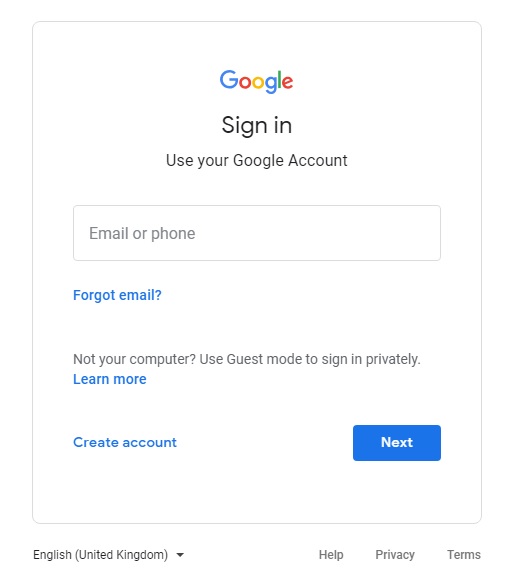

Note: If you're logged into Google, you will see your images. Note: You must login into English language version of Google Photo
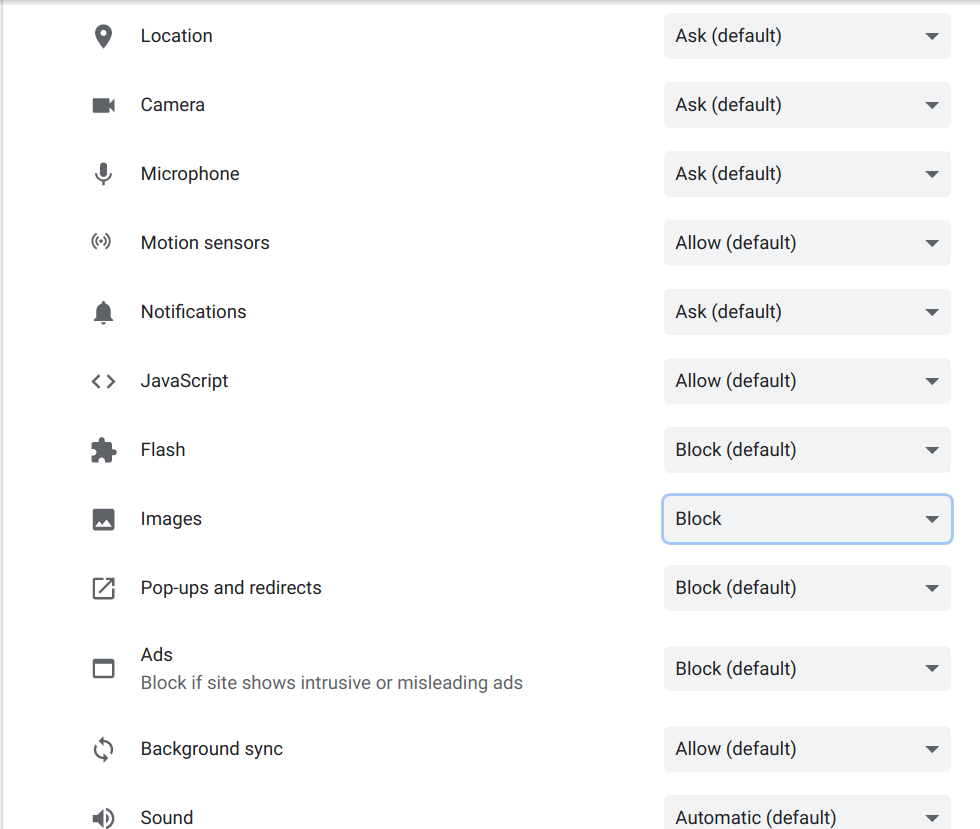
Disable image loading for Google Photos on your browser to avoid high cpu,ram and network usage
On Chrome
Click on the site padlock ( the lock icon along the url bar) -> Site settings
Block images in the Permissions for the website
Open Developer Tools. You can do so by following either of the three options
Keyboard Shortcut
Press the three keys together in the sequence - CTRL + SHIFT + I
From the Page
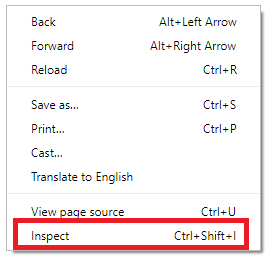
Right click on an empty area with your mouse and select Inspect (last option)
From Menu
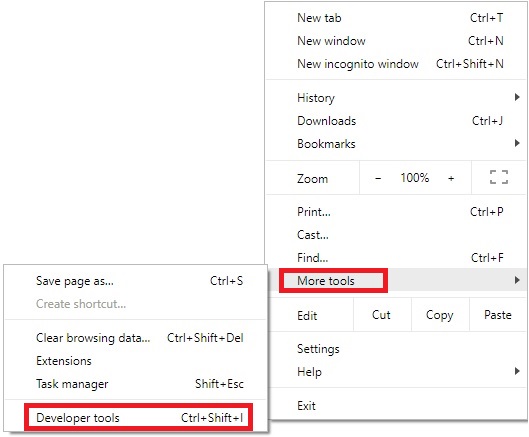
Click on the menu button  on Google Chrome (By default, the button is present on the top right corner of the window).
Select More tools.
Select Developer tools.
After opening the developer tools, click on the Console tab.
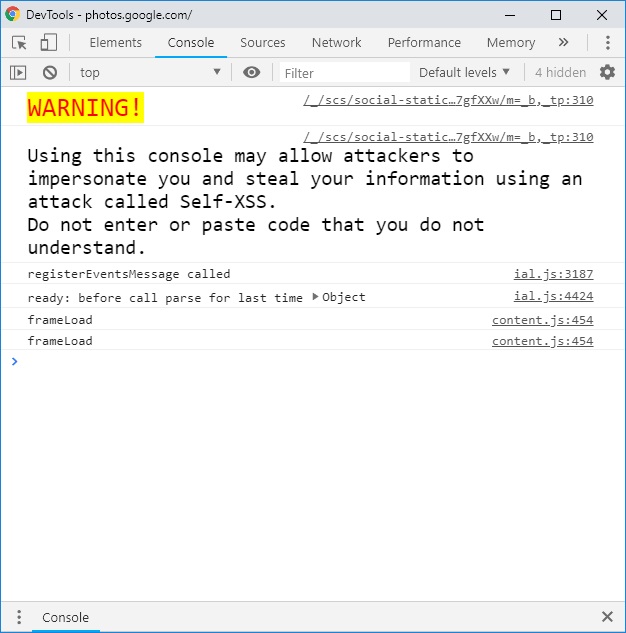
Note: This console lets you run custom code, like this tool! You can learn about it on Google Console page.
You will see a warning from Google to stay cautious. If you run code in this console that's malicious, you could be hacked. Therefore, make sure that you only run the code that you understand.
Copy all the code in the file delete_photos.js and paste it in the console.
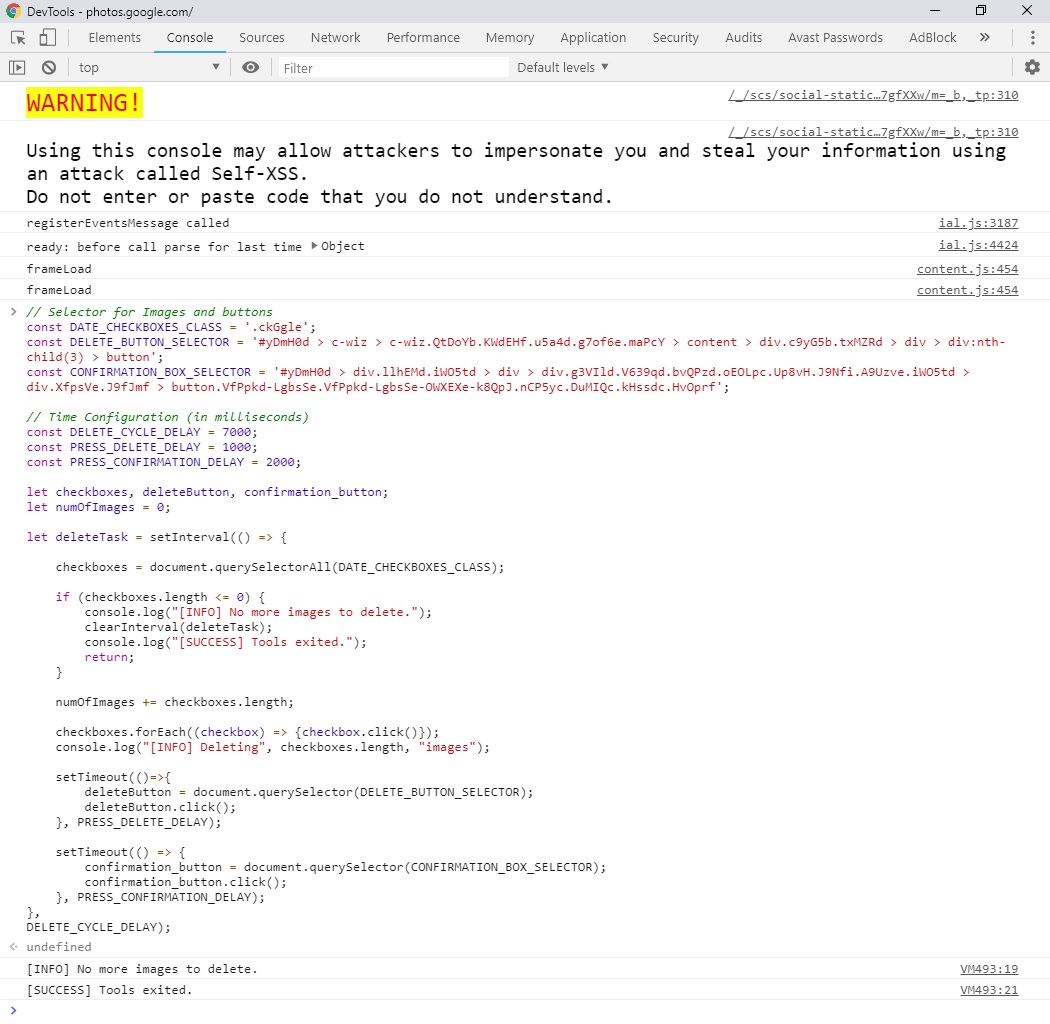
Note: The script allows you to delete all photos or any number of photos. To delete a specific number of photos, change the value of maxImageCount as provided in the example.
Hit ENTER button after pasting the script in the console. The script will start running upon hitting ENTER key.
Done! Now, you should see the script delete all your photos in the batch
Script selects and deletes photos in batches based on what can be seen in the browser at one time. To increase the amount of photos that can be seen at once, and therefore deleted per batch, zoom out.
- **Chrome on Windows and Linux**

    Control-Minus to zoom out.

- **Chrome on Mac**

    Command-Minus to zoom out.
The script may not work as expected in case your internet speed is considerably slow. In that case, you may want to increase the DELETE_DELAY_CYCLE by few thousands of milliseconds. This is to ensure that the page has refreshed before the tool tries to delete the images again.
It checks and unchecks the photos, but doesn't delete them.
It stops after deleting some images.
DELETE_DELAY_CYCLE by thousands of milliseconds as described in the Debugging section.There was a delay in loading images and the tool exited.
156 followers · starred Aug 2020
1,213 followers · starred Jan 2020
43 followers · starred Apr 2026
1,343 followers · starred Dec 2020
Tool for deleting all photos from the Google Photos
JavaScript
1,560
46 commits
updated Jan 5, 2025
See my blog at: https://mrishab.io to read more about my projects and open-source contributions
You can support my work by donating to: https://ko-fi.com/mrishab
If you have ever wanted to delete your thousands of photos from the Google Photos but failed to find an easy way to do so, then this is the tool for you. This script goes through all your photos in Google Photos app on the desktop and deletes them. You can visually see the process while it happens!
Follow the step-by-step instructions below to run the tool.
A fairly recent version of a modern web browser. This script has not been tested with any browser other than Google Chrome Version 71.0.3578.98. You can download the latest version of the Google Chrome browser here. However, you can still use it with any modern browser, like, Firefox or IE Edge.
The manual steps assume that these steps are performed on the Google Chrome Browser. If you're using a different browser, the steps still remain the same, however, the keyboard shortcuts or browser specific keywords may not be same for you, as described below.
Note: If you're logged into Google, you will see your images. Note: You must login into English language version of Google Photo
Disable image loading for Google Photos on your browser to avoid high cpu,ram and network usage
On Chrome
Click on the site padlock ( the lock icon along the url bar) -> Site settings
Block images in the Permissions for the website
Open Developer Tools. You can do so by following either of the three options
Keyboard Shortcut
Press the three keys together in the sequence - CTRL + SHIFT + I
From the Page
Right click on an empty area with your mouse and select Inspect (last option)
From Menu
Click on the menu button on Google Chrome (By default, the button is present on the top right corner of the window).
Select More tools.
Select Developer tools.
After opening the developer tools, click on the Console tab.
Note: This console lets you run custom code, like this tool! You can learn about it on Google Console page.
You will see a warning from Google to stay cautious. If you run code in this console that's malicious, you could be hacked. Therefore, make sure that you only run the code that you understand.
Copy all the code in the file delete_photos.js and paste it in the console.
Note: The script allows you to delete all photos or any number of photos. To delete a specific number of photos, change the value of maxImageCount as provided in the example.
Hit ENTER button after pasting the script in the console. The script will start running upon hitting ENTER key.
Done! Now, you should see the script delete all your photos in the batch
Script selects and deletes photos in batches based on what can be seen in the browser at one time. To increase the amount of photos that can be seen at once, and therefore deleted per batch, zoom out.
- **Chrome on Windows and Linux**

    Control-Minus to zoom out.

- **Chrome on Mac**

    Command-Minus to zoom out.
The script may not work as expected in case your internet speed is considerably slow. In that case, you may want to increase the DELETE_DELAY_CYCLE by few thousands of milliseconds. This is to ensure that the page has refreshed before the tool tries to delete the images again.
It checks and unchecks the photos, but doesn't delete them.
It stops after deleting some images.
DELETE_DELAY_CYCLE by thousands of milliseconds as described in the Debugging section.There was a delay in loading images and the tool exited.
156 followers · starred Aug 2020
1,213 followers · starred Jan 2020
43 followers · starred Apr 2026
1,343 followers · starred Dec 2020



