Mintty as a terminal for Bash on Ubuntu on Windows / WSL
C
3,194
279 commits
updated Sep 2, 2025
Mintty as a terminal for WSL (Windows Subsystem for Linux).
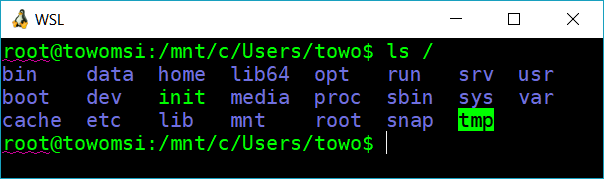
WSLtty components
%LOCALAPPDATA%%APPDATA%
(“home”-located configuration files from a previously installed version
will be migrated to the new default location)*.bat scripts to invoke WSL terminals from the command lineWSLttySince wsltty 3.8.0, mintty launches WSL using the native Windows launcher
gateway wsl.exe by default.
Proper display in certain cases depends on an up-to-date version of the
Windows conpty layer. Its version currently deployed with Windows has
unfortunately still some problems. There are two ways to fix this:
%APPDATA%/wsltty/config.
WSLbridge=2%SYSTEMROOT%/System32/conhost.exe following the instructions in the
mintty wiki, section Interaction with WSL.The approach to use wsl.exe directly used to fail because the conhost layer hooked into the workflow used to obstruct transparent terminal operation in multiple ways.
The conhost layer has meanwhile been modernised, including the conpty layer, and its enforced detour through the Windows console API has been dropped, in the course of the Windows Terminal project. The new conhost, however, has not yet been deployed with Windows (as of summer 2025) and will probably not be deployed with Windows 10 anymore. So in order to get fully transparent terminal interaction between WSL and wsltty, the updated conhost needs to be patched into Windows manually, following the instructions linked above, to patch OpenConsole into your Windows as conhost replacement.
To connect to WSL, wsltty used wslbridge2, which uses undocumented Windows APIs that have been changed various times, so wslbridge2 needed to catch up with incompatible changes, particularly to support WSL V2. (See e.g. issue #343; to work with WSL V2, wsltty 2.0.0 needed a WSL update to release 1.3.17.)
Since release 3.0.5, WSLtty requires Windows version 1809 (the November 2018 release).
By end of 2024, wsltty works again with recent updates of the WSL subsystem.
Configuration option WSLbridge=2 switches back to the previous
wslbridge launching approach; the wslbridge2 gateway is still deployed
with wsltty for that matter. (If for a very old Windows 10 version you
still need the original wslbridge gateway, set WSLbridge=1 and
deploy it manually.)
From the release downloads, run the wsltty-VERSION-x86_64-install.exe installer to install the components listed above. Make sure to select a 64-bit installer on a 64-bit system. If Windows complains with a “Windows protected your PC” popup, you may need to click “Run anyway” to proceed with the installation. You may need to open the Properties of the installer first, tab “General” section “Security” (if available) and select “Unblock”, to enable the “Run anyway” button.
For a portable installation, e.g. on a USB stick, choose the
“-install-portable.exe” file for download. Installation will prompt
for a portable installation folder interactively.
For example, choosing U:\opt will create and use folder
U:\opt\wsltty both as installation directory and configuration directory.
Portable installation does not install any start menu or desktop shortcuts
and no context menu entries. It creates a shortcut in the selected
portable installation folder to start the default WSL distribution.
Note: For an update installation, either the parent directory or the target directory itself can be selected.
Note: If you rename or move the installation directory, the icon of the “WSL Terminal Portable” shortcut will not work anymore; re-run the install-portable.bat script in the installation folder to refresh it.
In case a local anti-virus guard barfs about the wsltty installer, the
release also contains a .cab file. Download it, open it, extract its files
to some temporary deployment directory, and invoke install.bat from there,
or install-portable.bat for a portable installation.
The wsltty-VERSION-x86_64-install-quiet.exe installer is intended for integration in another installation framework.
Checkout the wsltty repository, or download the source archive, unpack and rename the directory to wsltty.
Install Alpine WSL from the Microsoft Store.
Invoke make build, then make install.
Note this has to be done within a Cygwin environment. A minimal Cygwin
environment for this purpose would be installed with the
Cygwin installer
from cygwin.com,
with additional packages make, gcc-g++, unzip, zoo, patch, (lcab).
Install a minimal Cygwin environment plus the additional packages as
listed for «Installation from source repository».
Invoke make pkg or just make.
(For experts)
Within the installation process, provide parameters to the script install.bat.
The optional first parameter designates the installation target,
the optional second parameter designates the configuration directory.
Note: These are 3rd-party packages, not managed by this repository.
(Check package) To install wsltty from the Windows Package Manager Community Repository, invoke one of
winget install wslttywinget upgrade wsltty(Check package) If you use the Scoop package manager,
scoop bucket add extrasthen, invoke one of
scoop install wslttyscoop update wsltty(Check package) If you use the Chocolatey package manager, invoke one of
choco install wslttychoco upgrade wslttyTo uninstall wsltty desktop, start menu, and context menu integration:
Open a Windows cmd, go into the wsltty installation folder:
cd %LOCALAPPDATA%\wsltty and run the uninstall script.
To uninstall wsltty software completely, remove the installation folder manually.
WSLtty can be invoked with
WSLtty subfolder)Starting the mintty terminal directly from the WSLtty installation location is discouraged because that would bypass essential options.
Terminal communication with WSL via its modes V1 or V2 is handled automatically by wsltty (mintty and the wslbridge2 gateway).
If wsltty fails with an
Error: Could not fork child process: Resource temporarily unavailable...,
its runtime may be affected by some over-ambitious virus defense strategy.
For example, with Windows Defender, option “Force randomization for images”
should be disabled.
If wsltty fails with an error message that mentions a disk mount path (e.g. /mnt/c),
workarounds may be the shutdown of the WSL V2 virtual machine (wsl --shutdown on the distro)
or turning off “fast startup” in the Windows power settings (#246, #248).
With WSL V2, an additional background shell is run which may cause trouble
for example when setting up automatic interaction between Windows side and
WSL side
(see https://github.com/mintty/wsltty/issues/197#issuecomment-687030527).
As a workaround, the following may be added to (the beginning of) the
WSL shell initialization script .bashrc (adapt for other shells):
    # work around https://github.com/mintty/wsltty/issues/197
    if [[ -n "$WSL_DISTRO_NAME" ]]; then
      command -v cmd.exe > /dev/null || exit
    fi
In the Start Menu, the following shortcuts are installed:

WSL Terminal to start the default WSL distribution (as configured with the Windows tool wslconfig or wsl -s)Ubuntu, a shortcut like 
Ubuntu Terminal to start in the WSL user homeIn the Start Menu subfolder WSLtty, the following additional shortcuts are installed:
WSL Terminal % to start the default WSL distribution in the Windows %USERPROFILE% homeUbuntu, a shortcut like Ubuntu Terminal % to start in the Windows %USERPROFILE% homeOne Desktop shortcut is installed:
WSL Terminal to start the default WSL distribution (as configured with the Windows tool wslconfig or wsl -s)Other, distribution-specific shortcuts can be copied to the desktop from the Start Menu if desired.
The Start menu folder WSLtty contains the link <img align=absmiddle height=25 src=https://user-images.githubusercontent.com/12740416/57078483-a7846a00-6cee-11e9-9c5e-8c2e9e56cae4.png>`configure WSL shortcuts`. This function is initially run when wsltty is installed. It should be rerun after adding or removing WSL distributions, in order to create the respective set of shortcuts in the Start menu.
wsl*.batWSLtty installs the following scripts into %LOCALAPPDATA%\Microsoft\WindowsApps
(and a copy in its application folder %LOCALAPPDATA%\wsltty):
Ubuntu.bat to start in the current folder/directoryUbuntu~.bat to start in the WSL user homeWSL.bat and WSL~.bat to start the default WSL distributionThe scripts accept an optional invocation command (since 3.7.8).
Given that %LOCALAPPDATA%\Microsoft\WindowsApps is in your PATH,
the scripts can be invoked from cmd.exe, PowerShell, or via WIN+R.
WSLtty provides context menu entries for all installed WSL distributions and one for the configured default distribution, to start a respective WSL terminal in a specific folder from an Explorer window. They are not installed by default.
To add launch entries for the default or all WSL distributions to the
Explorer context menu, or remove them, run the respective script from the
Start Menu subfolder WSLtty:
Wsltty installation and the mintty terminal try to use the icon of the
respective WSL distribution. If it cannot be determined, a penguin icon
is used as a fallback. You can replace it with your preferred default icon
by replacing the icon file %LOCALAPPDATA%\wsltty\wsl.ico.
Mintty can maintain its configuration file in various locations, with the following precedence:
-c (not used by wsltty default installation)config in directory given with mintty option --configdir
%APPDATA%\wsltty\config in the default wsltty installation%HOME%\.minttyrc (usage deprecated with wsltty)%HOME%\.config\mintty\config (usage deprecated with wsltty)%APPDATA%\mintty\config%LOCALAPPDATA%\wsltty\etc\minttyrc (usage deprecated with wsltty)Note:
%APPDATA%\wsltty\config is the user configuration file location.
Further subdirectories of %APPDATA%\wsltty are used for language,
themes, and sounds resource configuration.
Note the distinction from %LOCALAPPDATA%\wsltty which is the default
wsltty software installation location.%APPDATA%\mintty\config option provides the possibility to
maintain common mintty settings for various installations (like
wsltty, Cygwin, MinGW/msys, Git for Windows, MinEd for Windows).%HOME% would refer to the
root directory of the cygwin standalone installation hosting wsltty.
So %HOME% would mean %LOCALAPPDATA%\wsltty\home\%USERNAME%.
If you define HOME at Windows level, this changes accordingly.
Note, however, that the WSL $HOME is a completely different setting.Mintty and the wsltty package do not bundle actual emoji graphics but
there are scripts to support easy download and deployment.
If you have another instance of mintty installed (e.g. in cygwin)
and have emojis deployed already in the common config folder
%APPDATA%\mintty\emojis, they will be reused by wsltty.
To deploy emojis standalone for wsltty, use the scripts installed in
%APPDATA%\wsltty\emojis within WSL:
cd $(wslpath "$APPDATA/wsltty/emojis")getemojis to provide emoji graphics as listed by Unicode.orggetflags to provide emoji flag graphics (extending Unicode dynamically) from various sourcesThe WSLtty deployment does not impose a shell preference;
it invokes the user’s default shell in login mode by the final - parameter:
%LOCALAPPDATA%\wsltty\bin\mintty.exe --WSL= --configdir="%APPDATA%\wsltty" -You may tweak shortcuts, scripts, or context menu entries as follows:
To launch a default shell in non-login mode, remove the final dash.
To invoke your preferred shell, replace the final dash with
a shell pathname and an optional -l parameter
%LOCALAPPDATA%\wsltty\bin\mintty.exe --WSL= --configdir="%APPDATA%\wsltty" /bin/bash -lCharacter encoding setup by locale setting is propagated from the terminal towards WSL. So you can select your favourite locale with configuration options or with command-line options, for example in a copied dedicated desktop shortcut.
If for example you wish to run WSL in GB18030 encoding, you may set options
Locale=zh_CN and Charset=GB18030 and the WSL shell will adopt that
setting, provided that the selected locale is configured to be available
in the locale database of the WSL distribution.
This can be achieved in Ubuntu with the following commands:
sudo mkdir -p /var/lib/locales/supported.dsudo echo zh_CN.GB18030 GB18030 >> /var/lib/locales/supported.d/localsudo locale-genFor mintty, see the Mintty homepage
(with further screenshots),
the Mintty manual page,
and the Mintty Wiki,
including a Hints and Tips page.
It is based on Cygwin and includes its runtime library (sources).
For interacting with WSL, wslbridge used to be the gateway prototype. Many thanks for this enabling gateway go to Ryan Prichard.
For later changes in WSL, particularly WSL mode V2, the new gateway wslbridge2 was used instead. Many thanks for this further development and maintenance go to Biswapriyo Nath.
(top 24 of 31)
494 followers · starred Dec 2018
1,120 followers · starred Nov 2018
1,660 followers · starred Apr 2018
51 followers · starred Oct 2019
Mintty as a terminal for Bash on Ubuntu on Windows / WSL
C
3,194
279 commits
updated Sep 2, 2025
Mintty as a terminal for WSL (Windows Subsystem for Linux).
WSLtty components
%LOCALAPPDATA%%APPDATA%
(“home”-located configuration files from a previously installed version
will be migrated to the new default location)*.bat scripts to invoke WSL terminals from the command lineWSLttySince wsltty 3.8.0, mintty launches WSL using the native Windows launcher
gateway wsl.exe by default.
Proper display in certain cases depends on an up-to-date version of the
Windows conpty layer. Its version currently deployed with Windows has
unfortunately still some problems. There are two ways to fix this:
%APPDATA%/wsltty/config.
WSLbridge=2%SYSTEMROOT%/System32/conhost.exe following the instructions in the
mintty wiki, section Interaction with WSL.The approach to use wsl.exe directly used to fail because the conhost layer hooked into the workflow used to obstruct transparent terminal operation in multiple ways.
The conhost layer has meanwhile been modernised, including the conpty layer, and its enforced detour through the Windows console API has been dropped, in the course of the Windows Terminal project. The new conhost, however, has not yet been deployed with Windows (as of summer 2025) and will probably not be deployed with Windows 10 anymore. So in order to get fully transparent terminal interaction between WSL and wsltty, the updated conhost needs to be patched into Windows manually, following the instructions linked above, to patch OpenConsole into your Windows as conhost replacement.
To connect to WSL, wsltty used wslbridge2, which uses undocumented Windows APIs that have been changed various times, so wslbridge2 needed to catch up with incompatible changes, particularly to support WSL V2. (See e.g. issue #343; to work with WSL V2, wsltty 2.0.0 needed a WSL update to release 1.3.17.)
Since release 3.0.5, WSLtty requires Windows version 1809 (the November 2018 release).
By end of 2024, wsltty works again with recent updates of the WSL subsystem.
Configuration option WSLbridge=2 switches back to the previous
wslbridge launching approach; the wslbridge2 gateway is still deployed
with wsltty for that matter. (If for a very old Windows 10 version you
still need the original wslbridge gateway, set WSLbridge=1 and
deploy it manually.)
From the release downloads, run the wsltty-VERSION-x86_64-install.exe installer to install the components listed above. Make sure to select a 64-bit installer on a 64-bit system. If Windows complains with a “Windows protected your PC” popup, you may need to click “Run anyway” to proceed with the installation. You may need to open the Properties of the installer first, tab “General” section “Security” (if available) and select “Unblock”, to enable the “Run anyway” button.
For a portable installation, e.g. on a USB stick, choose the
“-install-portable.exe” file for download. Installation will prompt
for a portable installation folder interactively.
For example, choosing U:\opt will create and use folder
U:\opt\wsltty both as installation directory and configuration directory.
Portable installation does not install any start menu or desktop shortcuts
and no context menu entries. It creates a shortcut in the selected
portable installation folder to start the default WSL distribution.
Note: For an update installation, either the parent directory or the target directory itself can be selected.
Note: If you rename or move the installation directory, the icon of the “WSL Terminal Portable” shortcut will not work anymore; re-run the install-portable.bat script in the installation folder to refresh it.
In case a local anti-virus guard barfs about the wsltty installer, the
release also contains a .cab file. Download it, open it, extract its files
to some temporary deployment directory, and invoke install.bat from there,
or install-portable.bat for a portable installation.
The wsltty-VERSION-x86_64-install-quiet.exe installer is intended for integration in another installation framework.
Checkout the wsltty repository, or download the source archive, unpack and rename the directory to wsltty.
Install Alpine WSL from the Microsoft Store.
Invoke make build, then make install.
Note this has to be done within a Cygwin environment. A minimal Cygwin
environment for this purpose would be installed with the
Cygwin installer
from cygwin.com,
with additional packages make, gcc-g++, unzip, zoo, patch, (lcab).
Install a minimal Cygwin environment plus the additional packages as
listed for «Installation from source repository».
Invoke make pkg or just make.
(For experts)
Within the installation process, provide parameters to the script install.bat.
The optional first parameter designates the installation target,
the optional second parameter designates the configuration directory.
Note: These are 3rd-party packages, not managed by this repository.
(Check package) To install wsltty from the Windows Package Manager Community Repository, invoke one of
winget install wslttywinget upgrade wsltty(Check package) If you use the Scoop package manager,
scoop bucket add extrasthen, invoke one of
scoop install wslttyscoop update wsltty(Check package) If you use the Chocolatey package manager, invoke one of
choco install wslttychoco upgrade wslttyTo uninstall wsltty desktop, start menu, and context menu integration:
Open a Windows cmd, go into the wsltty installation folder:
cd %LOCALAPPDATA%\wsltty and run the uninstall script.
To uninstall wsltty software completely, remove the installation folder manually.
WSLtty can be invoked with
WSLtty subfolder)Starting the mintty terminal directly from the WSLtty installation location is discouraged because that would bypass essential options.
Terminal communication with WSL via its modes V1 or V2 is handled automatically by wsltty (mintty and the wslbridge2 gateway).
If wsltty fails with an
Error: Could not fork child process: Resource temporarily unavailable...,
its runtime may be affected by some over-ambitious virus defense strategy.
For example, with Windows Defender, option “Force randomization for images”
should be disabled.
If wsltty fails with an error message that mentions a disk mount path (e.g. /mnt/c),
workarounds may be the shutdown of the WSL V2 virtual machine (wsl --shutdown on the distro)
or turning off “fast startup” in the Windows power settings (#246, #248).
With WSL V2, an additional background shell is run which may cause trouble
for example when setting up automatic interaction between Windows side and
WSL side
(see https://github.com/mintty/wsltty/issues/197#issuecomment-687030527).
As a workaround, the following may be added to (the beginning of) the
WSL shell initialization script .bashrc (adapt for other shells):
    # work around https://github.com/mintty/wsltty/issues/197
    if [[ -n "$WSL_DISTRO_NAME" ]]; then
      command -v cmd.exe > /dev/null || exit
    fi
In the Start Menu, the following shortcuts are installed:
WSL Terminal to start the default WSL distribution (as configured with the Windows tool wslconfig or wsl -s)Ubuntu, a shortcut like Ubuntu Terminal to start in the WSL user homeIn the Start Menu subfolder WSLtty, the following additional shortcuts are installed:
WSL Terminal % to start the default WSL distribution in the Windows %USERPROFILE% homeUbuntu, a shortcut like Ubuntu Terminal % to start in the Windows %USERPROFILE% homeOne Desktop shortcut is installed:
WSL Terminal to start the default WSL distribution (as configured with the Windows tool wslconfig or wsl -s)Other, distribution-specific shortcuts can be copied to the desktop from the Start Menu if desired.
The Start menu folder WSLtty contains the link <img align=absmiddle height=25 src=https://user-images.githubusercontent.com/12740416/57078483-a7846a00-6cee-11e9-9c5e-8c2e9e56cae4.png>`configure WSL shortcuts`. This function is initially run when wsltty is installed. It should be rerun after adding or removing WSL distributions, in order to create the respective set of shortcuts in the Start menu.
wsl*.batWSLtty installs the following scripts into %LOCALAPPDATA%\Microsoft\WindowsApps
(and a copy in its application folder %LOCALAPPDATA%\wsltty):
Ubuntu.bat to start in the current folder/directoryUbuntu~.bat to start in the WSL user homeWSL.bat and WSL~.bat to start the default WSL distributionThe scripts accept an optional invocation command (since 3.7.8).
Given that %LOCALAPPDATA%\Microsoft\WindowsApps is in your PATH,
the scripts can be invoked from cmd.exe, PowerShell, or via WIN+R.
WSLtty provides context menu entries for all installed WSL distributions and one for the configured default distribution, to start a respective WSL terminal in a specific folder from an Explorer window. They are not installed by default.
To add launch entries for the default or all WSL distributions to the
Explorer context menu, or remove them, run the respective script from the
Start Menu subfolder WSLtty:
Wsltty installation and the mintty terminal try to use the icon of the
respective WSL distribution. If it cannot be determined, a penguin icon
is used as a fallback. You can replace it with your preferred default icon
by replacing the icon file %LOCALAPPDATA%\wsltty\wsl.ico.
Mintty can maintain its configuration file in various locations, with the following precedence:
-c (not used by wsltty default installation)config in directory given with mintty option --configdir
%APPDATA%\wsltty\config in the default wsltty installation%HOME%\.minttyrc (usage deprecated with wsltty)%HOME%\.config\mintty\config (usage deprecated with wsltty)%APPDATA%\mintty\config%LOCALAPPDATA%\wsltty\etc\minttyrc (usage deprecated with wsltty)Note:
%APPDATA%\wsltty\config is the user configuration file location.
Further subdirectories of %APPDATA%\wsltty are used for language,
themes, and sounds resource configuration.
Note the distinction from %LOCALAPPDATA%\wsltty which is the default
wsltty software installation location.%APPDATA%\mintty\config option provides the possibility to
maintain common mintty settings for various installations (like
wsltty, Cygwin, MinGW/msys, Git for Windows, MinEd for Windows).%HOME% would refer to the
root directory of the cygwin standalone installation hosting wsltty.
So %HOME% would mean %LOCALAPPDATA%\wsltty\home\%USERNAME%.
If you define HOME at Windows level, this changes accordingly.
Note, however, that the WSL $HOME is a completely different setting.Mintty and the wsltty package do not bundle actual emoji graphics but
there are scripts to support easy download and deployment.
If you have another instance of mintty installed (e.g. in cygwin)
and have emojis deployed already in the common config folder
%APPDATA%\mintty\emojis, they will be reused by wsltty.
To deploy emojis standalone for wsltty, use the scripts installed in
%APPDATA%\wsltty\emojis within WSL:
cd $(wslpath "$APPDATA/wsltty/emojis")getemojis to provide emoji graphics as listed by Unicode.orggetflags to provide emoji flag graphics (extending Unicode dynamically) from various sourcesThe WSLtty deployment does not impose a shell preference;
it invokes the user’s default shell in login mode by the final - parameter:
%LOCALAPPDATA%\wsltty\bin\mintty.exe --WSL= --configdir="%APPDATA%\wsltty" -You may tweak shortcuts, scripts, or context menu entries as follows:
To launch a default shell in non-login mode, remove the final dash.
To invoke your preferred shell, replace the final dash with
a shell pathname and an optional -l parameter
%LOCALAPPDATA%\wsltty\bin\mintty.exe --WSL= --configdir="%APPDATA%\wsltty" /bin/bash -lCharacter encoding setup by locale setting is propagated from the terminal towards WSL. So you can select your favourite locale with configuration options or with command-line options, for example in a copied dedicated desktop shortcut.
If for example you wish to run WSL in GB18030 encoding, you may set options
Locale=zh_CN and Charset=GB18030 and the WSL shell will adopt that
setting, provided that the selected locale is configured to be available
in the locale database of the WSL distribution.
This can be achieved in Ubuntu with the following commands:
sudo mkdir -p /var/lib/locales/supported.dsudo echo zh_CN.GB18030 GB18030 >> /var/lib/locales/supported.d/localsudo locale-genFor mintty, see the Mintty homepage
(with further screenshots),
the Mintty manual page,
and the Mintty Wiki,
including a Hints and Tips page.
It is based on Cygwin and includes its runtime library (sources).
For interacting with WSL, wslbridge used to be the gateway prototype. Many thanks for this enabling gateway go to Ryan Prichard.
For later changes in WSL, particularly WSL mode V2, the new gateway wslbridge2 was used instead. Many thanks for this further development and maintenance go to Biswapriyo Nath.
(top 24 of 31)
494 followers · starred Dec 2018
1,120 followers · starred Nov 2018
1,660 followers · starred Apr 2018
51 followers · starred Oct 2019