
See what people are saying
README
DevTerm
Your real local shell, inside the browser. Chromium and Firefox, on Linux.
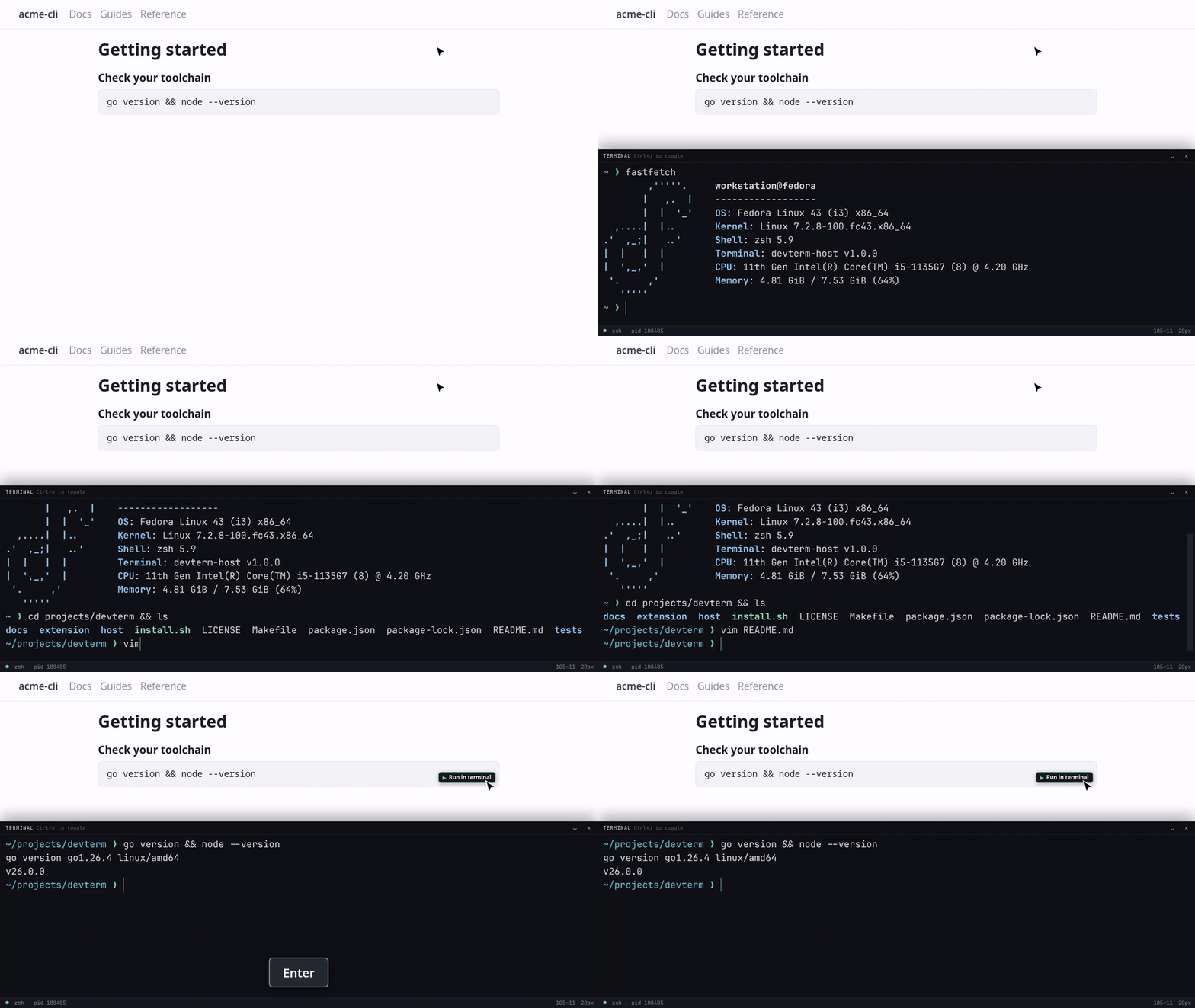
Press Ctrl+J on any website and a terminal slides up from the bottom, the way it does in VS Code. It is your actual
shell on a real PTY, so full-screen programs and job control work. Nothing listens on a network port.
Ctrl+Jtoggles the panel on any page. The shell keeps running while it is hidden.- Shell code blocks get a Run in terminal button. It pastes the command at your prompt; you press Enter.
Alt+Shift+Kopens a full terminal tab.
Why
Browser terminals like ttyd run a local web server, and anything that can reach the port gets a shell.
DevTerm has no server. The browser starts a small Go binary for each terminal and talks to it over stdin/stdout. Only this extension is allowed to start it.
Install
You need a Chromium-based browser or Firefox, installed as a normal package (not Flatpak).
git clone https://github.com/milinddethe15/devterm.git
cd devterm
./install.sh
The installer downloads the host binary from the matching GitHub release, verifies its checksum and registers it with your browsers. No root needed.
Then load the extension:
- Chromium-based:
chrome://extensions→ Developer mode → Load unpacked →extension/ - Firefox:
about:debugging#/runtime/this-firefox→ Load Temporary Add-on →build/firefox/manifest.json
A temporary Firefox add-on is removed on restart. To keep it, sign it with npx web-ext sign and open the .xpi.
To uninstall, run ./install.sh --uninstall and remove the extension.
Shortcuts
| Action | Shortcut |
|---|---|
| Toggle the panel | Ctrl+J on web pages, Alt+Shift+J anywhere |
| Terminal tab | Alt+Shift+K |
| Terminal window | Alt+Shift+L |
| Copy / paste | Ctrl+Shift+C / Ctrl+Shift+V |
| Font size | Ctrl+= / Ctrl+- / Ctrl+0 |
Ctrl+J can't work on browser-internal pages such as New Tab. Alt+Shift+J opens a terminal tab there instead.
Shortcuts can be changed in your browser's extension shortcut settings. Set DEVTERM_SHELL to use a shell other than
$SHELL.
If the terminal says it could not start the native host, run ./install.sh again and reload the extension.
Security
DevTerm draws UI on every page you visit, so it treats every page as hostile.
- A page can't start a shell by embedding the terminal. The panel needs a single-use token that only DevTerm can issue.
- Page scripts can't reach the panel or fake its key presses and clicks.
- Pasted commands are sanitized and never run on their own. You press Enter.
These are tested against attack pages in tests/e2e_panel.py.
The browser will warn that DevTerm can read and change data on all websites, because the panel has to be available on every page. It only reads the code block you click, and sends nothing anywhere.
How it works
xterm.js <-> Native Messaging (JSON over stdio) <-> devterm-host (Go) <-> PTY <-> your shell
The host is one static binary built on the Go standard library alone. Closing the tab hangs up the shell the way closing a terminal window does, so nothing is left running.
Limitations
- Linux only.
- Browser shortcuts like
Ctrl+Wnever reach the shell. DevTerm asks before closing a tab with a live shell. - The panel's shell ends when you leave the page. Use the terminal tab for long-running work.
Development
make test       # Go tests
make build      # host binary for this machine
make lint       # manifest check and web-ext lint
make e2e        # the extension in headless Chromium
make package    # store zips
To install a local build of the host: make build && DEVTERM_HOST_BIN=bin/devterm-host ./install.sh
Pushing a v* tag publishes a GitHub release.
License
MIT
Similar repos


Languages
JavaScript
36.9%
Python
28.2%
Go
21.0%
Shell
7.7%
CSS
2.6%
Makefile
2.3%
HTML
1.2%
See what people are saying
README
DevTerm
Your real local shell, inside the browser. Chromium and Firefox, on Linux.
Press Ctrl+J on any website and a terminal slides up from the bottom, the way it does in VS Code. It is your actual
shell on a real PTY, so full-screen programs and job control work. Nothing listens on a network port.
Ctrl+Jtoggles the panel on any page. The shell keeps running while it is hidden.- Shell code blocks get a Run in terminal button. It pastes the command at your prompt; you press Enter.
Alt+Shift+Kopens a full terminal tab.
Why
Browser terminals like ttyd run a local web server, and anything that can reach the port gets a shell.
DevTerm has no server. The browser starts a small Go binary for each terminal and talks to it over stdin/stdout. Only this extension is allowed to start it.
Install
You need a Chromium-based browser or Firefox, installed as a normal package (not Flatpak).
git clone https://github.com/milinddethe15/devterm.git
cd devterm
./install.sh
The installer downloads the host binary from the matching GitHub release, verifies its checksum and registers it with your browsers. No root needed.
Then load the extension:
- Chromium-based:
chrome://extensions→ Developer mode → Load unpacked →extension/ - Firefox:
about:debugging#/runtime/this-firefox→ Load Temporary Add-on →build/firefox/manifest.json
A temporary Firefox add-on is removed on restart. To keep it, sign it with npx web-ext sign and open the .xpi.
To uninstall, run ./install.sh --uninstall and remove the extension.
Shortcuts
| Action | Shortcut |
|---|---|
| Toggle the panel | Ctrl+J on web pages, Alt+Shift+J anywhere |
| Terminal tab | Alt+Shift+K |
| Terminal window | Alt+Shift+L |
| Copy / paste | Ctrl+Shift+C / Ctrl+Shift+V |
| Font size | Ctrl+= / Ctrl+- / Ctrl+0 |
Ctrl+J can't work on browser-internal pages such as New Tab. Alt+Shift+J opens a terminal tab there instead.
Shortcuts can be changed in your browser's extension shortcut settings. Set DEVTERM_SHELL to use a shell other than
$SHELL.
If the terminal says it could not start the native host, run ./install.sh again and reload the extension.
Security
DevTerm draws UI on every page you visit, so it treats every page as hostile.
- A page can't start a shell by embedding the terminal. The panel needs a single-use token that only DevTerm can issue.
- Page scripts can't reach the panel or fake its key presses and clicks.
- Pasted commands are sanitized and never run on their own. You press Enter.
These are tested against attack pages in tests/e2e_panel.py.
The browser will warn that DevTerm can read and change data on all websites, because the panel has to be available on every page. It only reads the code block you click, and sends nothing anywhere.
How it works
xterm.js <-> Native Messaging (JSON over stdio) <-> devterm-host (Go) <-> PTY <-> your shell
The host is one static binary built on the Go standard library alone. Closing the tab hangs up the shell the way closing a terminal window does, so nothing is left running.
Limitations
- Linux only.
- Browser shortcuts like
Ctrl+Wnever reach the shell. DevTerm asks before closing a tab with a live shell. - The panel's shell ends when you leave the page. Use the terminal tab for long-running work.
Development
make test       # Go tests
make build      # host binary for this machine
make lint       # manifest check and web-ext lint
make e2e        # the extension in headless Chromium
make package    # store zips
To install a local build of the host: make build && DEVTERM_HOST_BIN=bin/devterm-host ./install.sh
Pushing a v* tag publishes a GitHub release.
License
MIT
Similar repos
Languages
JavaScript
36.9%
Python
28.2%
Go
21.0%
Shell
7.7%
CSS
2.6%
Makefile
2.3%
HTML
1.2%