Welcome to the Microsoft Game Development Kit (GDK) repository. This project aims to provide developers with the essential tools and resources to create amazing games for the Xbox ecosystem. Whether you're targeting PC, console, or cloud gaming, the GDK has you covered.
The GDK contains the common tools, libraries, and documentation needed to build games for Xbox Game Pass for PC on Windows 10/11, Xbox consoles (Xbox Series X|S, Xbox One), and cloud gaming with Xbox Game Pass Ultimate.
• Comprehensive Toolset: The GDK includes a wide range of tools and APIs to support game development across multiple platforms.
• Cross-Platform Development: Develop games for Windows PCs, Xbox consoles, and cloud gaming with a single set of tools.
• Extensive Documentation: Access detailed documentation, tutorials, and examples to help you make the most of the GDK.
• Install
• 🆕Visual Studio Extension for GDK Development
If you are new to game development and want to learn more, we recommend reviewing the getting started documentation.
The GDK can be installed through the following methods:
 WinGet [Recommended]
WinGet, the Windows Package Manager, is a command-line tool that simplifies the installation process, enabling users to discover, install, upgrade, remove, and configure applications on Windows client computers.
It's particularly useful for automating installations and ensuring consistency across multiple machines.
This tool is the client interface to the Windows Package Manager service and it is bundled with Windows 11 and modern versions of Windows 10 by default.
[!NOTE] • See the winget documentation for a list of system requirements and install instructions.
•wingetisn't available on Windows Server 2022 or earlier versions.
• Windows Server 2025 Preview Build 26085 and later includes winget for Windows Server with Desktop Experience only.
The following commands can be used to install the GDK using the published winget packages:
winget search Microsoft.Gaming.GDK
winget install Microsoft.Gaming.GDK
winget upgrade Microsoft.Gaming.GDK
 NuGet
NuGet
NuGet is a package manager for .NET that handles dependencies and versioning. It's beneficial for managing libraries and tools within Visual Studio projects.
It also allows to ensure compatibility of the GDK with other packages in your project.
To install NuGet packages, you can use various methods such as the NuGet Package Manager in Visual Studio, the Package Manager Console, or the .NET CLI.
The NuGet package for the Microsoft GDK can be found here: https://www.nuget.org/packages/Microsoft.GDK.Windows
[!NOTE] The Microsoft.GDK.Windows package contains the 'new layouts' content, which includes both x64 and arm64 native libraries. Microsoft.GDK.PC is end-of-life using the 'old layouts'.
To install it, you can follow these instructions:
Open Visual Studio: Start by launching your Visual Studio IDE.
Create or Open a Project: You can either create a new project or open an existing one. To create a new project, go to File > New > Project, select the type of project you want to create, and follow the prompts.
Open NuGet Package Manager: There are a few ways to open the NuGet Package Manager:
Browse for Packages: In the NuGet Package Manager, go to the Browse tab and search for Microsoft.GDK.Windows
Install the Package: Once you find the Microsoft.GDK.Windows package, select it and click the Install button. Follow any prompts to complete the installation.
Use the Package in Your Code: After installing the package, you can use it in your code by adding the appropriate using statement at the top of your file and calling the package's API as needed.
The vcpkg package manager is ideal for managing the GDK, open source libraries, and third-party libraries for your C++ projects.
For an example of integrating the GDK using vcpkg using both MSBuild and CMake, see Microsoft GDK Templates on VS Marketplace.
 GitHub


• Download: Go to the Releases page and pick the latest and greatest. Alternatively, you can select the respective version required and download/extract the contents.
• Install: Run PGDK.EXE to launch the install wizard. If you have a previous version of the GDK you may need to uninstall that first.
• GDK documentation is here on docs.microsoft.com (DMC): https://aka.ms/gamedevdocs
• Check out the Xbox public sample repository: https://github.com/microsoft/Xbox-GDK-Samples/
• Latest release of the GDK on GitHub: https://aka.ms/gdk
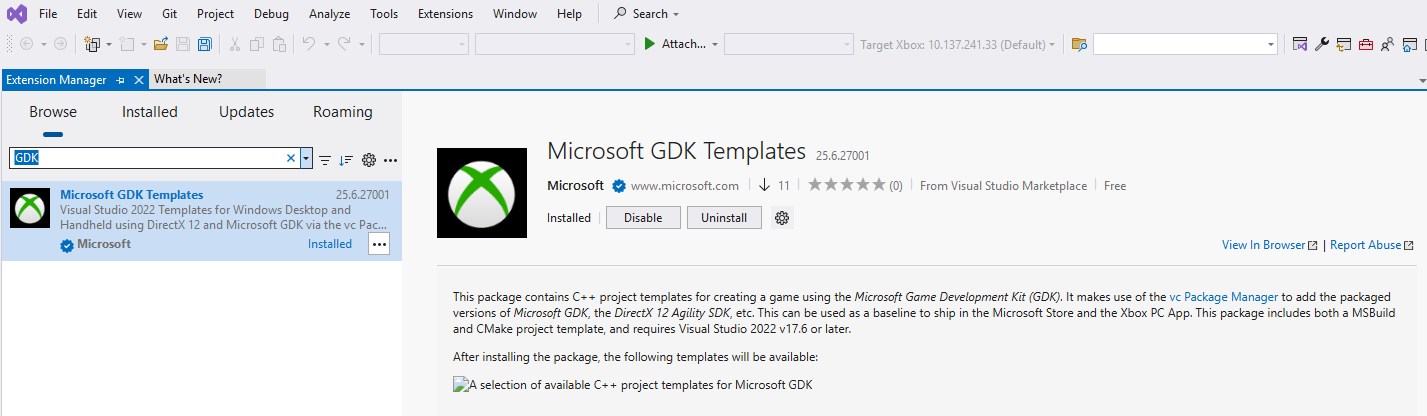
The Visual Studio Extension for GDK Development is now publicly available on the Visual Studio Marketplace. This extension includes two project templates that simplify the process of getting started with GDK development—enabling you to build a GDK game without installing the GDK itself.
Thanks to the availability of the GDK through vcpkg, an open-source C++ package manager, the templates automatically retrieve all necessary GDK components during project setup.
• No GDK installation required – all dependencies are pulled via vcpkg
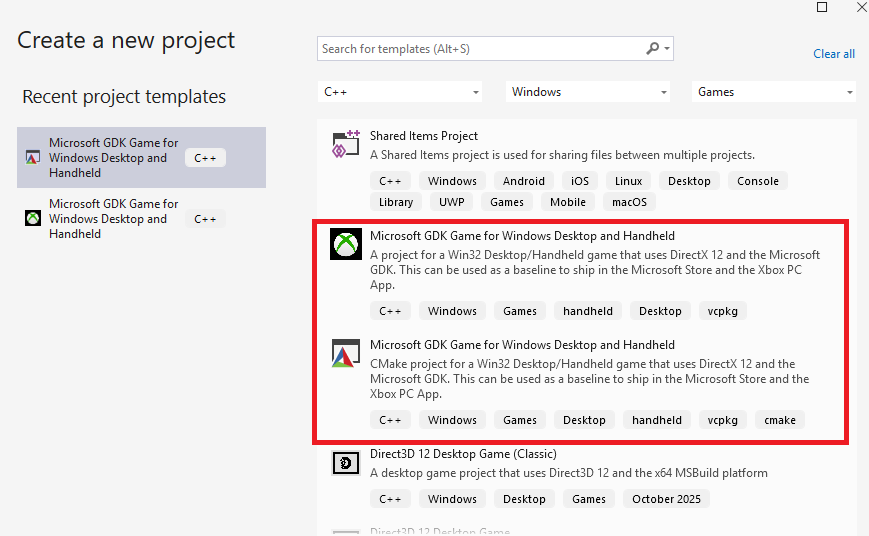
• Two project templates – supports both msbuild and cmake-based build systems
• Quick start – create a new project and build immediately
• Open Visual Studio
• Navigate to Extensions > Manage Extensions
• Search for GDK Development and install the extension
• Create a new project using one of the provided templates
• Build and run—no additional configuration needed
• The GDK is intended for developers learning about and onboarding into the Xbox ecosystem to build Win32 games for PC Game Pass on Windows 10/11.
• The GDK is available to all developers free of charge, helping them learn how to build games for the Xbox App on Windows and Game Pass without requiring a license for learning.
• The GDK can be used to publish through the Xbox Creators Program (registration required) .
• Additional licensing is required to obtain the Xbox Extensions to build games optimized for Xbox consoles or publish games to the Microsoft catalog for any platform
A version of the GDK with Xbox Extensions (GDKX) to target Xbox consoles is only available to licensed partners in a managed program (https://aka.ms/gdkdl).
Game development on Microsoft platforms has a history going back 40+ years which means that there have been and still are many options to build games that reach gamers on PC. The GDK is an evolution to the Win32 legacy, to unify the app model between Xbox consoles, Windows PCs, and now Cloud Gaming to enable game developers to reach even more gamers on more devices, with less effort. Microsoft Gaming Services are agnostic across many ecosystems and the GDK is sharing the app model across millions of devices.
[1] Requires software and licensing which is only available via an NDA Xbox program (e.g. ID@Xbox program).
In the “When to use the GDK” section above, we cover the scenarios for which the GDK was designed to provide a modern app model that flows across Xbox consoles, Windows PCs, and Cloud Gaming.
In this section, we cover some of the more practical, basic questions that are also answered in the documentation, but come up frequently from developers getting started with this app model.
135 followers · starred Nov 2025
1,870 followers · starred Jun 2021
2,514 followers · starred Apr 2022
483 followers · starred Jun 2021
Welcome to the Microsoft Game Development Kit (GDK) repository. This project aims to provide developers with the essential tools and resources to create amazing games for the Xbox ecosystem. Whether you're targeting PC, console, or cloud gaming, the GDK has you covered.
The GDK contains the common tools, libraries, and documentation needed to build games for Xbox Game Pass for PC on Windows 10/11, Xbox consoles (Xbox Series X|S, Xbox One), and cloud gaming with Xbox Game Pass Ultimate.
• Comprehensive Toolset: The GDK includes a wide range of tools and APIs to support game development across multiple platforms.
• Cross-Platform Development: Develop games for Windows PCs, Xbox consoles, and cloud gaming with a single set of tools.
• Extensive Documentation: Access detailed documentation, tutorials, and examples to help you make the most of the GDK.
• Install
• 🆕Visual Studio Extension for GDK Development
If you are new to game development and want to learn more, we recommend reviewing the getting started documentation.
The GDK can be installed through the following methods:
WinGet [Recommended]WinGet, the Windows Package Manager, is a command-line tool that simplifies the installation process, enabling users to discover, install, upgrade, remove, and configure applications on Windows client computers.
It's particularly useful for automating installations and ensuring consistency across multiple machines.
This tool is the client interface to the Windows Package Manager service and it is bundled with Windows 11 and modern versions of Windows 10 by default.
[!NOTE] • See the winget documentation for a list of system requirements and install instructions.
•wingetisn't available on Windows Server 2022 or earlier versions.
• Windows Server 2025 Preview Build 26085 and later includes winget for Windows Server with Desktop Experience only.
The following commands can be used to install the GDK using the published winget packages:
winget search Microsoft.Gaming.GDK
winget install Microsoft.Gaming.GDK
winget upgrade Microsoft.Gaming.GDK
NuGet is a package manager for .NET that handles dependencies and versioning. It's beneficial for managing libraries and tools within Visual Studio projects.
It also allows to ensure compatibility of the GDK with other packages in your project.
To install NuGet packages, you can use various methods such as the NuGet Package Manager in Visual Studio, the Package Manager Console, or the .NET CLI.
The NuGet package for the Microsoft GDK can be found here: https://www.nuget.org/packages/Microsoft.GDK.Windows
[!NOTE] The Microsoft.GDK.Windows package contains the 'new layouts' content, which includes both x64 and arm64 native libraries. Microsoft.GDK.PC is end-of-life using the 'old layouts'.
To install it, you can follow these instructions:
Open Visual Studio: Start by launching your Visual Studio IDE.
Create or Open a Project: You can either create a new project or open an existing one. To create a new project, go to File > New > Project, select the type of project you want to create, and follow the prompts.
Open NuGet Package Manager: There are a few ways to open the NuGet Package Manager:
Browse for Packages: In the NuGet Package Manager, go to the Browse tab and search for Microsoft.GDK.Windows
Install the Package: Once you find the Microsoft.GDK.Windows package, select it and click the Install button. Follow any prompts to complete the installation.
Use the Package in Your Code: After installing the package, you can use it in your code by adding the appropriate using statement at the top of your file and calling the package's API as needed.
The vcpkg package manager is ideal for managing the GDK, open source libraries, and third-party libraries for your C++ projects.
For an example of integrating the GDK using vcpkg using both MSBuild and CMake, see Microsoft GDK Templates on VS Marketplace.
GitHub
• Download: Go to the Releases page and pick the latest and greatest. Alternatively, you can select the respective version required and download/extract the contents.
• Install: Run PGDK.EXE to launch the install wizard. If you have a previous version of the GDK you may need to uninstall that first.
• GDK documentation is here on docs.microsoft.com (DMC): https://aka.ms/gamedevdocs
• Check out the Xbox public sample repository: https://github.com/microsoft/Xbox-GDK-Samples/
• Latest release of the GDK on GitHub: https://aka.ms/gdk
The Visual Studio Extension for GDK Development is now publicly available on the Visual Studio Marketplace. This extension includes two project templates that simplify the process of getting started with GDK development—enabling you to build a GDK game without installing the GDK itself.
Thanks to the availability of the GDK through vcpkg, an open-source C++ package manager, the templates automatically retrieve all necessary GDK components during project setup.
• No GDK installation required – all dependencies are pulled via vcpkg
• Two project templates – supports both msbuild and cmake-based build systems
• Quick start – create a new project and build immediately
• Open Visual Studio
• Navigate to Extensions > Manage Extensions
• Search for GDK Development and install the extension
• Create a new project using one of the provided templates
• Build and run—no additional configuration needed
• The GDK is intended for developers learning about and onboarding into the Xbox ecosystem to build Win32 games for PC Game Pass on Windows 10/11.
• The GDK is available to all developers free of charge, helping them learn how to build games for the Xbox App on Windows and Game Pass without requiring a license for learning.
• The GDK can be used to publish through the Xbox Creators Program (registration required) .
• Additional licensing is required to obtain the Xbox Extensions to build games optimized for Xbox consoles or publish games to the Microsoft catalog for any platform
A version of the GDK with Xbox Extensions (GDKX) to target Xbox consoles is only available to licensed partners in a managed program (https://aka.ms/gdkdl).
Game development on Microsoft platforms has a history going back 40+ years which means that there have been and still are many options to build games that reach gamers on PC. The GDK is an evolution to the Win32 legacy, to unify the app model between Xbox consoles, Windows PCs, and now Cloud Gaming to enable game developers to reach even more gamers on more devices, with less effort. Microsoft Gaming Services are agnostic across many ecosystems and the GDK is sharing the app model across millions of devices.
[1] Requires software and licensing which is only available via an NDA Xbox program (e.g. ID@Xbox program).
In the “When to use the GDK” section above, we cover the scenarios for which the GDK was designed to provide a modern app model that flows across Xbox consoles, Windows PCs, and Cloud Gaming.
In this section, we cover some of the more practical, basic questions that are also answered in the documentation, but come up frequently from developers getting started with this app model.
135 followers · starred Nov 2025
1,870 followers · starred Jun 2021
2,514 followers · starred Apr 2022
483 followers · starred Jun 2021