Connect AI models to your own computer and MCP tools — with device-side control.
See the code
Let the AI model you choose work with your own computer and MCP tools — under device-side control.




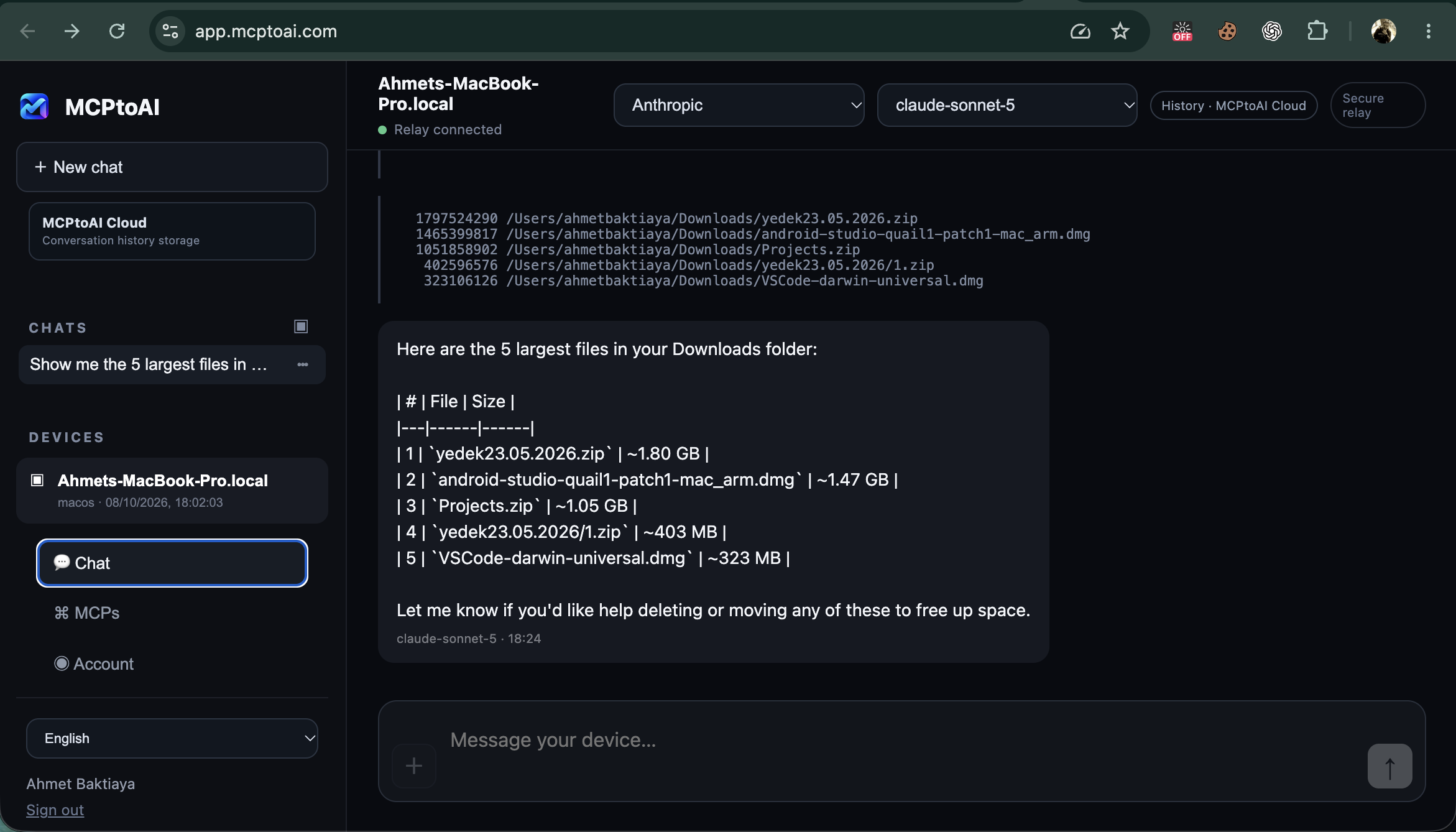
▶ Watch the full demo on YouTube
See installation, device pairing, provider setup, model switching, privacy settings and a real AI → device tool call.
Most AI chats stop at the conversation. MCPtoAI lets the model you choose work with a paired computer and connected MCP services while keeping local capabilities behind permissions you control on the device.
With MCPtoAI you can:
Available now: macOS 13+ on Apple silicon, Windows 10+ (x64), Linux CLI 0.1.15 and the official Docker image.
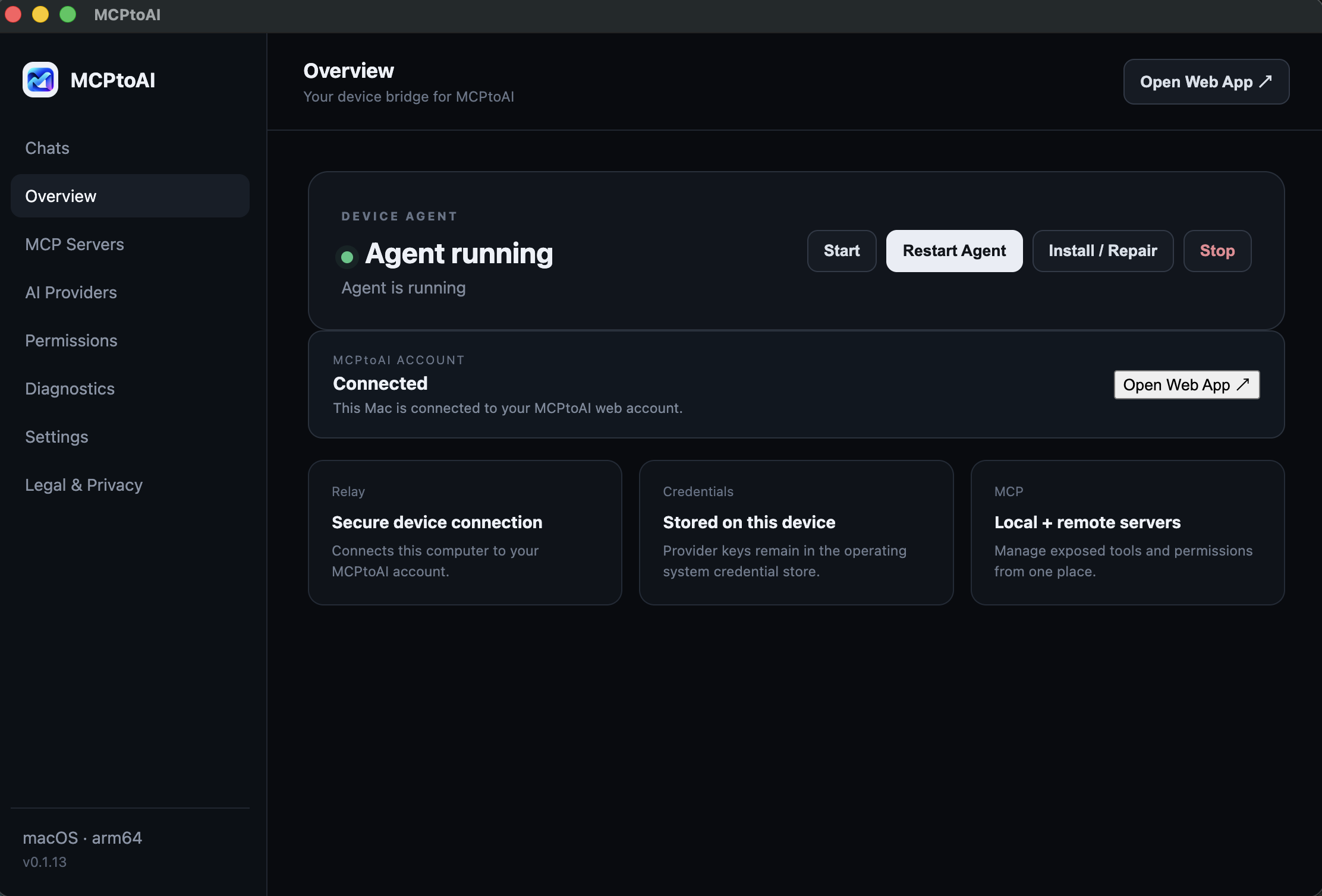 | 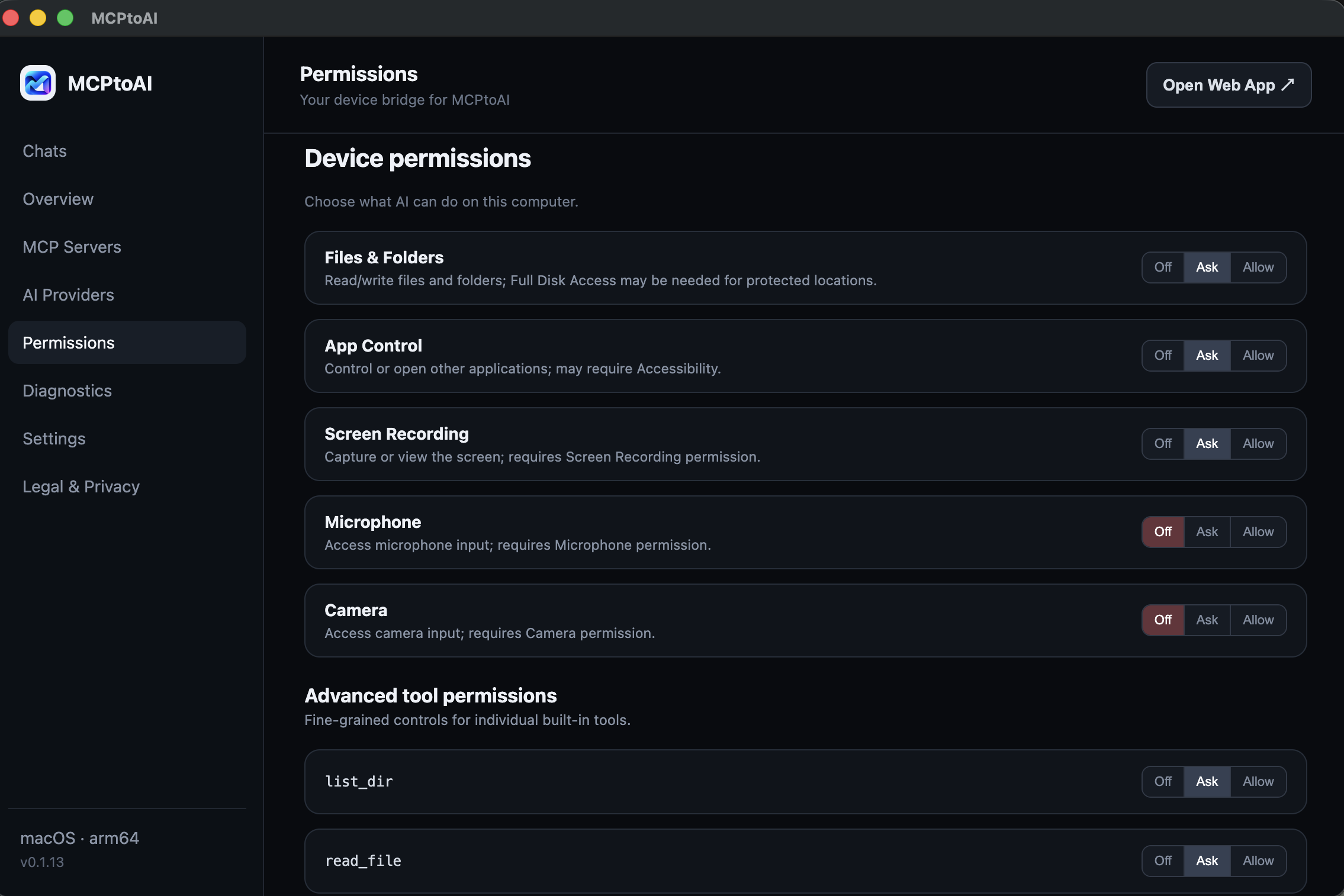 |
| Device overview See the paired computer and Device Agent status. | Device-side permissions Control local capabilities with Off, Ask and Allow. |
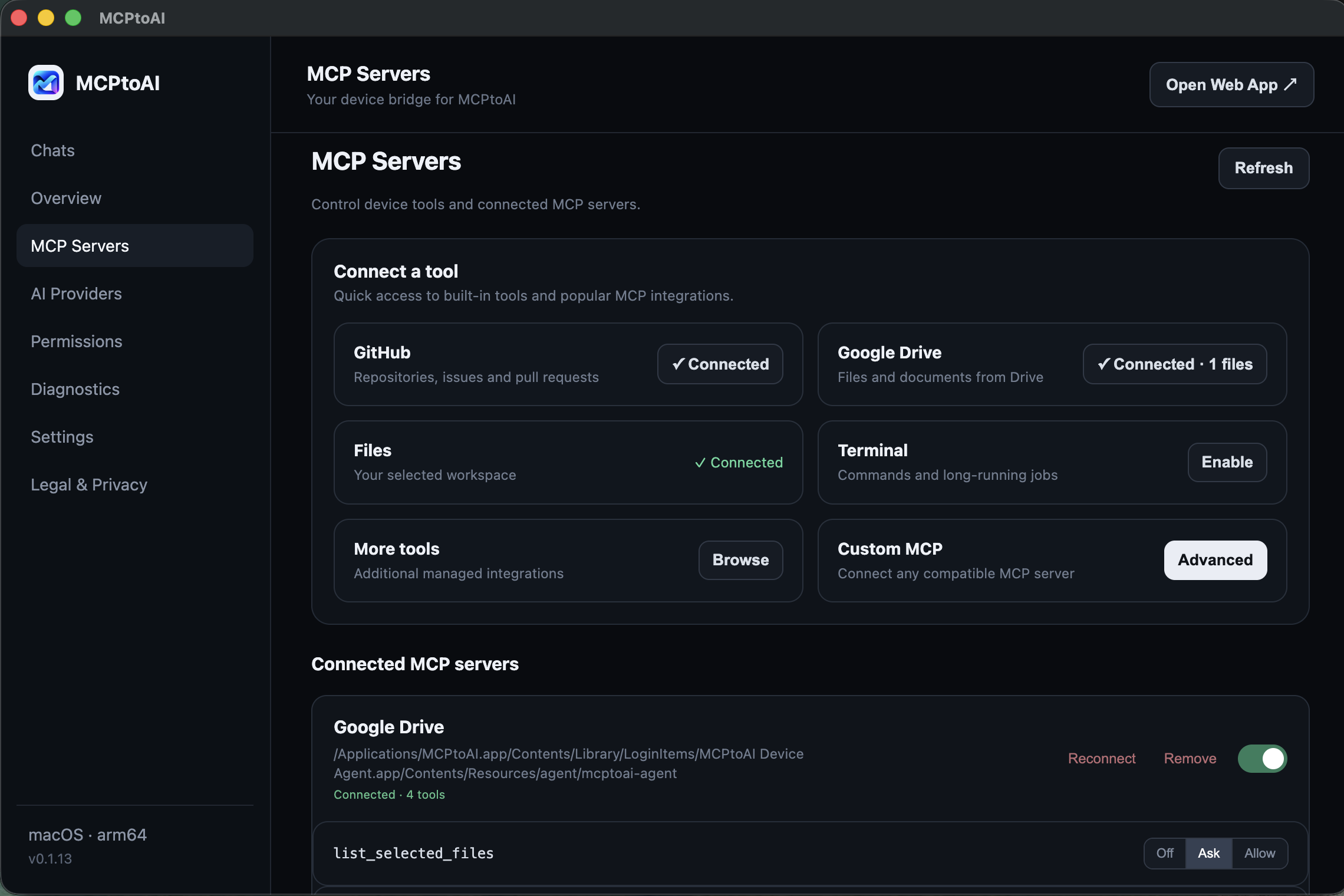 | 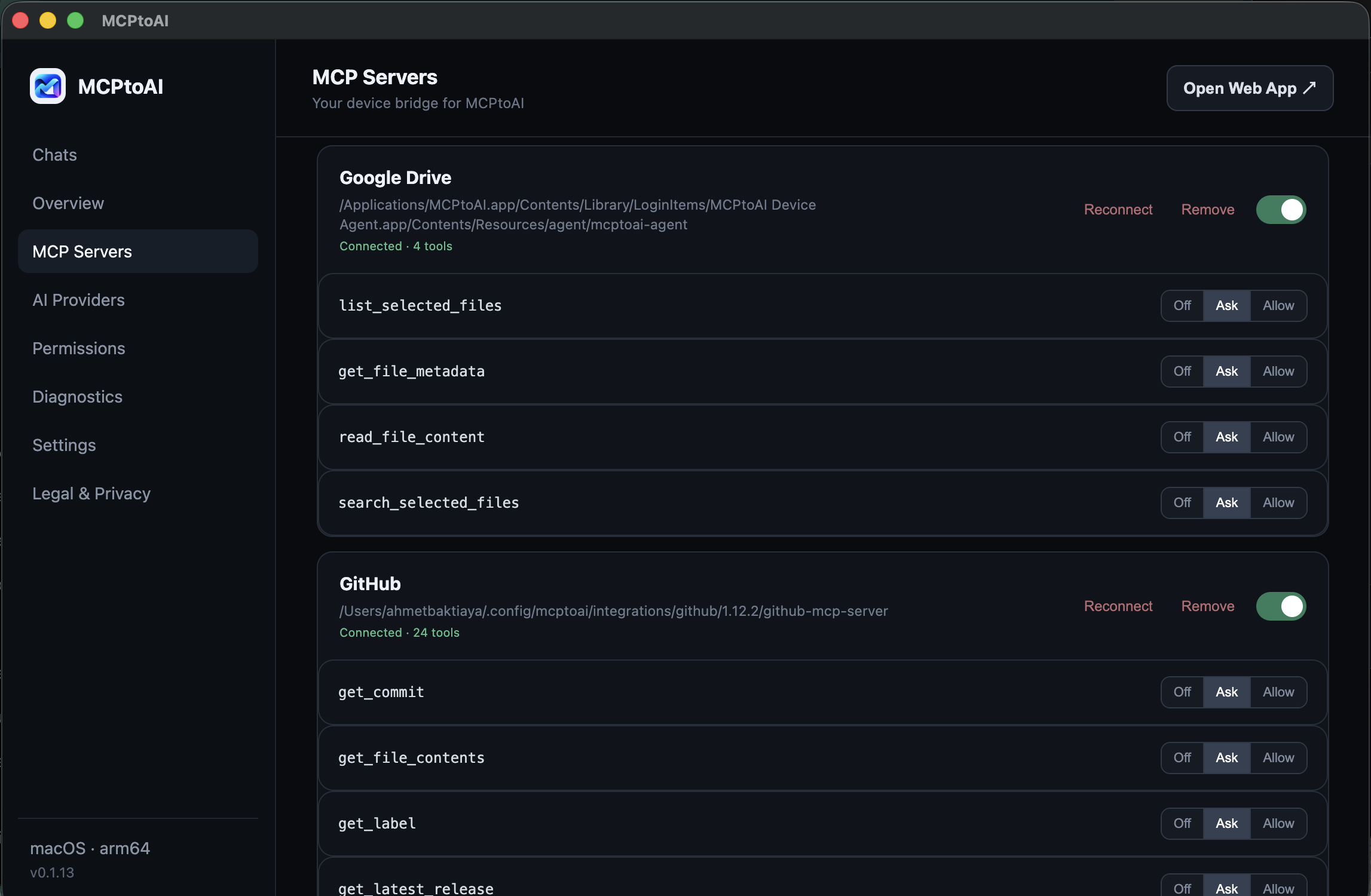 |
| Connect MCP servers Use built-in, remote and custom MCP connections. | Tool-level control Review and control the tools exposed by each connection. |
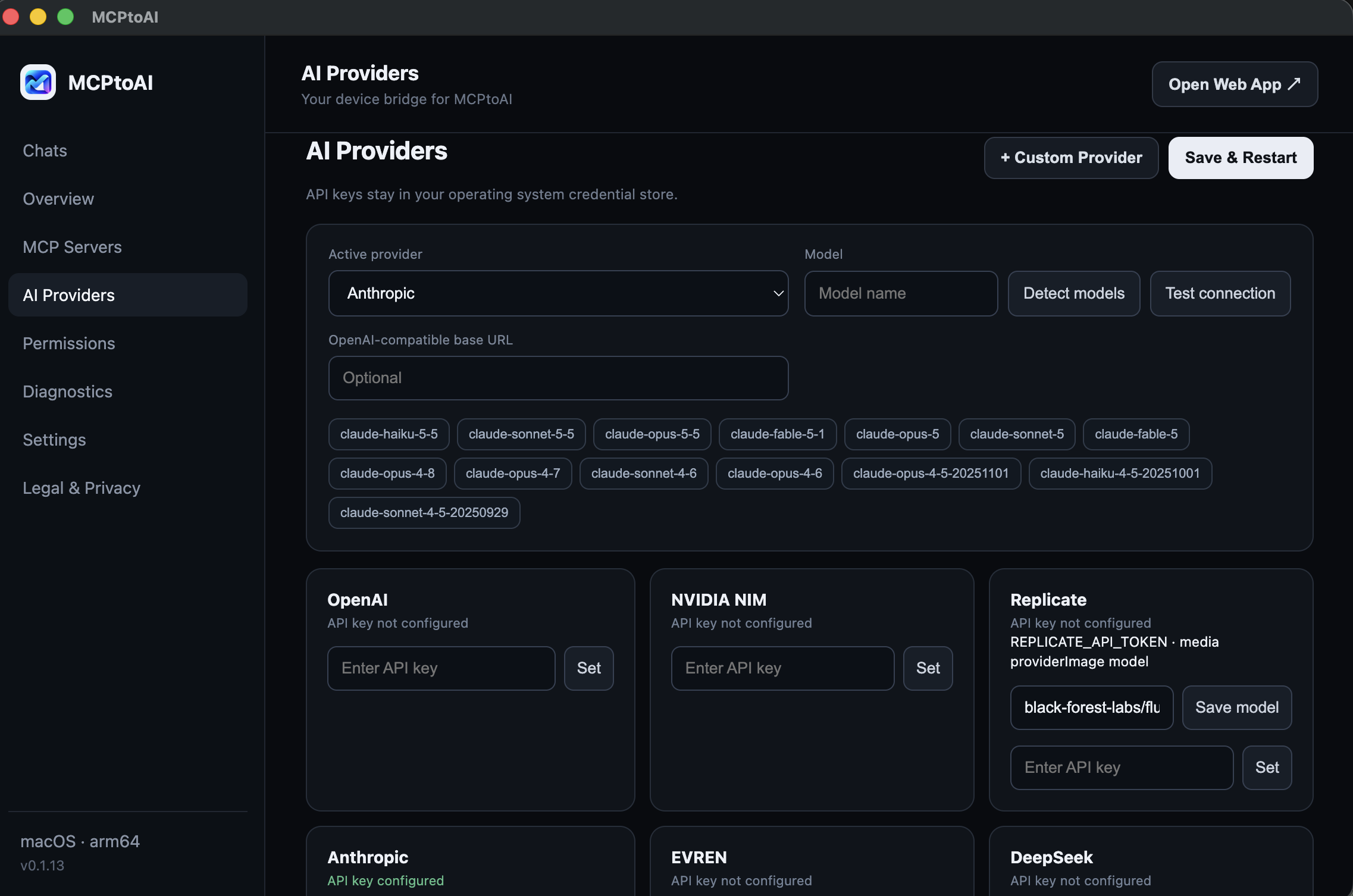 | 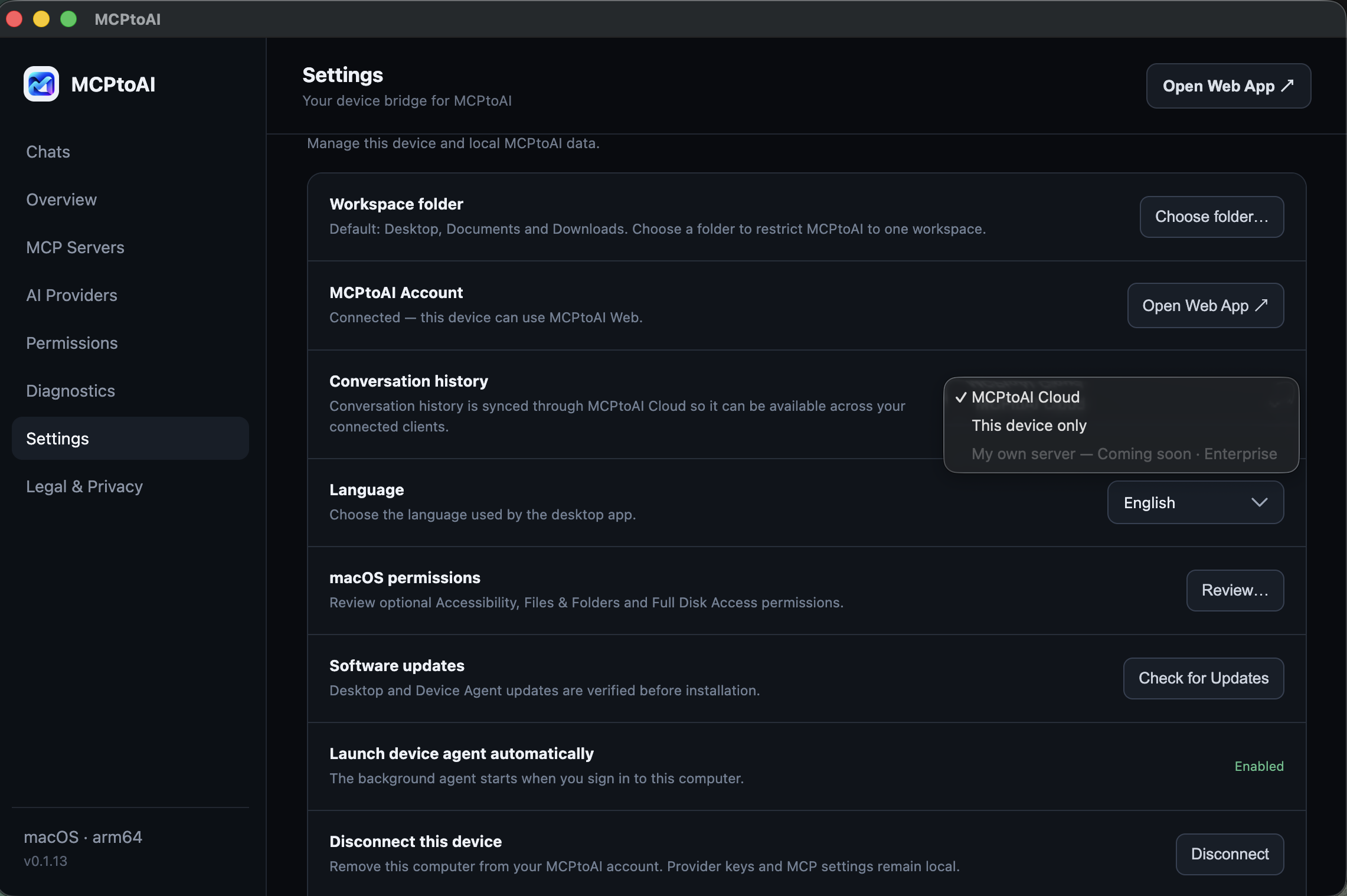 |
| Bring your provider Configure supported cloud providers or local model setups. | Choose history storage Use MCPtoAI Cloud or keep conversation history on the selected device. |
Download the signed installer from:
https://mcptoai.com/downloads/
python3 -m pip install mcptoai==0.1.15docker pull ghcr.io/mcptoai/mcptoai:0.1.15On macOS or Windows, open MCPtoAI Desktop and connect your account. On Linux, run mcptoai login after installing the CLI, or run the equivalent command inside the Docker container. The device-side agent authenticates the computer and handles local capabilities.
Add the provider you want to use, configure the local permissions you are comfortable with, then open MCPtoAI Web and ask the model to perform a task on the paired computer.
A useful first test is:
Show me the largest files in my Downloads folder.
The exact tools available depend on platform, local permissions and the MCP servers you connect.
| MCPtoAI | |
|---|---|
| Bring your own model/provider | Use supported cloud providers or local model setups. |
| Device-side control | Local capabilities are governed by the permissions configured on the paired computer. |
| Provider credentials | Stored on the user's device rather than MCPtoAI servers. |
| MCP support | Connect MCP servers and expose their tools through the same workspace. |
| Remote access | Use MCPtoAI Web from another browser or phone while execution stays on the paired device. |
| History choice | Store conversation history in MCPtoAI Cloud or only on the selected device. |
flowchart LR
    U[User] --> W[MCPtoAI Web / Phone]
    W --> R[MCPtoAI hosted relay]
    R --> A[Device Agent on paired computer]
    A --> F[Files / Workspace]
    A --> T[Terminal / Jobs]
    A --> M[MCP Servers]
    A --> P[AI Providers]
The hosted service coordinates authenticated sessions and relays traffic between the web app and the paired device. Local actions are executed by the Device Agent and remain subject to the permissions configured on that computer.
MCPtoAI does not currently provide end-to-end encryption. Traffic between components is protected in transit using TLS.
MCPtoAI is designed around local control rather than unrestricted remote execution.
For vulnerability reporting and supported security versions, read SECURITY.md.
The MCPtoAI clients are open source. The hosted web app, relay and production infrastructure are operated by BKTY LTD and are not part of this repository.
desktop/        Electron Desktop app for macOS and Windows
device-agent/   Device Agent bundled with the Desktop app (macOS and Windows)
linux-agent/    Terminal-only Linux CLI, published on PyPI as `mcptoai`
docs/           Threat model and history provider design
Start with the threat model to see what MCPtoAI protects, where the trust boundaries are and which security invariants the clients enforce.
Device Agent (Python 3.11+):
cd device-agent
python3 -m venv .venv
.venv/bin/pip install -e . pytest
.venv/bin/python -m pytest -q
Desktop app (Node.js). In development mode it uses the Device Agent from device-agent/.venv:
cd desktop
npm install
npm start
Linux CLI:
cd linux-agent
python3 -m venv .venv
.venv/bin/pip install -e . pytest
.venv/bin/python -m pytest -q
Signed and notarized release builds require maintainer-only credentials and are not expected for normal contributions.
See CONTRIBUTING.md for contribution guidelines.
MCPtoAI is under active development in the 0.x series. Interfaces, packaging and supported integrations may continue to evolve.
For current installers and installation instructions, always use:
https://mcptoai.com/downloads/
The source code in this repository is licensed under the MIT License.
MCPtoAI™ is a trademark of BKTY LTD. The MIT License covers the source code in this repository; it does not grant rights to use the MCPtoAI name or logo.
Connect AI models to your own computer and MCP tools — with device-side control.
See the code
Let the AI model you choose work with your own computer and MCP tools — under device-side control.
▶ Watch the full demo on YouTube
See installation, device pairing, provider setup, model switching, privacy settings and a real AI → device tool call.
Most AI chats stop at the conversation. MCPtoAI lets the model you choose work with a paired computer and connected MCP services while keeping local capabilities behind permissions you control on the device.
With MCPtoAI you can:
Available now: macOS 13+ on Apple silicon, Windows 10+ (x64), Linux CLI 0.1.15 and the official Docker image.
| |
| Device overview See the paired computer and Device Agent status. | Device-side permissions Control local capabilities with Off, Ask and Allow. |
| |
| Connect MCP servers Use built-in, remote and custom MCP connections. | Tool-level control Review and control the tools exposed by each connection. |
| |
| Bring your provider Configure supported cloud providers or local model setups. | Choose history storage Use MCPtoAI Cloud or keep conversation history on the selected device. |
Download the signed installer from:
https://mcptoai.com/downloads/
python3 -m pip install mcptoai==0.1.15docker pull ghcr.io/mcptoai/mcptoai:0.1.15On macOS or Windows, open MCPtoAI Desktop and connect your account. On Linux, run mcptoai login after installing the CLI, or run the equivalent command inside the Docker container. The device-side agent authenticates the computer and handles local capabilities.
Add the provider you want to use, configure the local permissions you are comfortable with, then open MCPtoAI Web and ask the model to perform a task on the paired computer.
A useful first test is:
Show me the largest files in my Downloads folder.
The exact tools available depend on platform, local permissions and the MCP servers you connect.
| MCPtoAI | |
|---|---|
| Bring your own model/provider | Use supported cloud providers or local model setups. |
| Device-side control | Local capabilities are governed by the permissions configured on the paired computer. |
| Provider credentials | Stored on the user's device rather than MCPtoAI servers. |
| MCP support | Connect MCP servers and expose their tools through the same workspace. |
| Remote access | Use MCPtoAI Web from another browser or phone while execution stays on the paired device. |
| History choice | Store conversation history in MCPtoAI Cloud or only on the selected device. |
flowchart LR
    U[User] --> W[MCPtoAI Web / Phone]
    W --> R[MCPtoAI hosted relay]
    R --> A[Device Agent on paired computer]
    A --> F[Files / Workspace]
    A --> T[Terminal / Jobs]
    A --> M[MCP Servers]
    A --> P[AI Providers]
The hosted service coordinates authenticated sessions and relays traffic between the web app and the paired device. Local actions are executed by the Device Agent and remain subject to the permissions configured on that computer.
MCPtoAI does not currently provide end-to-end encryption. Traffic between components is protected in transit using TLS.
MCPtoAI is designed around local control rather than unrestricted remote execution.
For vulnerability reporting and supported security versions, read SECURITY.md.
The MCPtoAI clients are open source. The hosted web app, relay and production infrastructure are operated by BKTY LTD and are not part of this repository.
desktop/        Electron Desktop app for macOS and Windows
device-agent/   Device Agent bundled with the Desktop app (macOS and Windows)
linux-agent/    Terminal-only Linux CLI, published on PyPI as `mcptoai`
docs/           Threat model and history provider design
Start with the threat model to see what MCPtoAI protects, where the trust boundaries are and which security invariants the clients enforce.
Device Agent (Python 3.11+):
cd device-agent
python3 -m venv .venv
.venv/bin/pip install -e . pytest
.venv/bin/python -m pytest -q
Desktop app (Node.js). In development mode it uses the Device Agent from device-agent/.venv:
cd desktop
npm install
npm start
Linux CLI:
cd linux-agent
python3 -m venv .venv
.venv/bin/pip install -e . pytest
.venv/bin/python -m pytest -q
Signed and notarized release builds require maintainer-only credentials and are not expected for normal contributions.
See CONTRIBUTING.md for contribution guidelines.
MCPtoAI is under active development in the 0.x series. Interfaces, packaging and supported integrations may continue to evolve.
For current installers and installation instructions, always use:
https://mcptoai.com/downloads/
The source code in this repository is licensed under the MIT License.
MCPtoAI™ is a trademark of BKTY LTD. The MIT License covers the source code in this repository; it does not grant rights to use the MCPtoAI name or logo.





