
A minimal example of using Rust, wgpu, and egui without using eframe 🦀 Works on Windows/Linux/MacOS/Web/Android/OpenXR (Such as Quest 3 + Virtual Desktop)
See the codeREADME
Rust / Winit / Egui / Wgpu Triangle
A cross-platform Rust graphics demo using wgpu to render a spinning triangle. Supports native desktop, WebGL/WebGPU (WASM), Android, Steam Deck, OpenXR VR with hand tracking, and a real-time hardware ray tracing demo (just run-rt).
Related Projects:
- Nightshade - Game engine based on this boilerplate
- vulkan-example - Vulkan version
- opengl-example - OpenGL version
- freecs - ECS library used by Nightshade
Other languages (experimental):
WebGPU in a Web Worker
Examples of running WebGPU off the main thread, where a web worker owns an OffscreenCanvas and drives the render loop while the page only transfers the canvas and forwards events:
- bevy-worker - a Bevy app rendering in the worker, with a TypeScript frontend.
- webgpu-worker - the same architecture without an engine, rendering with wgpu from scratch, with a TypeScript frontend.
- webgpu-worker-leptos - wgpu from scratch with a Leptos frontend, so the whole stack is in Rust.
Quickstart
All platforms are driven through the justfile. Run just (no args) to list every recipe.
| Platform | Run | Build only |
|---|---|---|
| Native Desktop | just run | just build |
| Hardware Ray Tracing | just run-rt | cargo build -r --bin rt |
| WebGPU | just run-webgpu | just build-webgpu |
| WebGL | just run-webgl | just build-webgl |
| Android (arm64) | just run-android DEVICE_ID | just build-android |
| Android (x86_64) | just run-android-x64 DEVICE_ID | - |
| Android (all archs) | - | just build-android-all |
| Steam Deck | just build-steamdeck && just deploy-steamdeck | just build-steamdeck |
| OpenXR VR (Desktop) | just run-openxr | just build-openxr |
| OpenXR VR (Quest) | just build-android-openxr + adb install -r target/x/release/android/app_core.apk | just build-android-openxr |
First-time setup per platform: just init-wasm, just init-android, just init-steamdeck.
Platform Setup
Native Desktop
just run           # Release build, runs the `app` binary
just build         # Release build only
just run-rt        # Hardware ray tracing demo (see below)
just run-openxr    # Run with the OpenXR feature (desktop VR, see below)
just build-openxr  # Build the OpenXR binary without running it
Hardware Ray Tracing
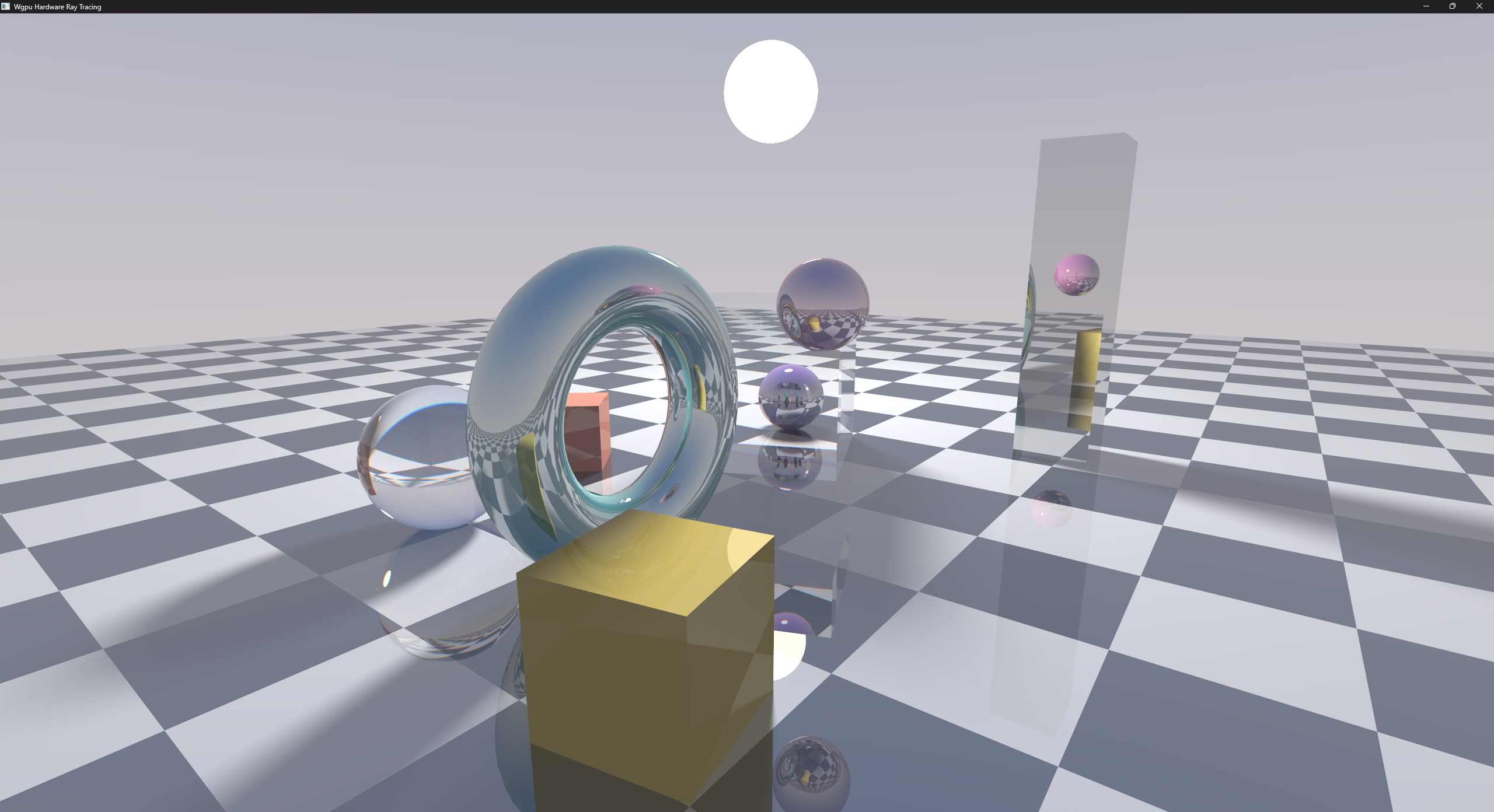
just run-rt runs a real-time, hardware-accelerated ray tracer built on wgpu's
acceleration structures (BLAS + TLAS) and inline ray queries in a compute shader.
This is genuine GPU ray tracing on the RT cores, not a software tracer. wgpu
exposes no ray-tracing pipeline or shader binding table, so the whole tracer runs
as one compute shader driving ray_query over the hardware acceleration
structures. This is the same technique used for inline ray tracing in Vulkan/DirectX.
The scene is an original mixed-geometry composition: a refractive glass cube, a standing reflective torus, a tall mirror slab, matte and reflective boxes, and a few spheres, sitting on a mirrored checkerboard floor under a spherical area light. Rays bounce through several reflective surfaces per pixel, the glass both reflects and bends light with a per-wavelength offset that fringes its edges in faint rainbow, and the area light throws soft shadows that spread wider the farther a caster sits above the floor. Every frame is nudged by a fraction of a pixel and blended into a running average, so a still camera keeps sharpening toward a clean result and any movement starts it over.
Controls: left-drag to orbit, mouse wheel to zoom, Esc to quit.
Requires wgpu::Features::EXPERIMENTAL_RAY_QUERY: a ray-tracing capable GPU with
current drivers (NVIDIA RTX 20-series or newer, AMD RX 6000-series or newer, or
Intel Arc). The demo panics with a clear message if the GPU lacks the feature.
Web (WebAssembly)
Prerequisites: trunk
First-time setup:
just init-wasm
Serve locally:
just run-webgpu  # Serves on http://localhost:8080 and opens the browser
just run-webgl   # WebGL fallback for older browsers
Build only (outputs to dist/):
just build-webgpu
just build-webgl
Browser Support: All Chromium-based browsers (Chrome, Brave, Vivaldi) support WebGPU. Firefox supports WebGPU starting with version 141 (announcement).
Android
Prerequisites:
- xbuild
- Android SDK and NDK
- Connected Android device or emulator (API level 24+)
First-time setup:
just init-android
Build and run:
just list-android          # Find your device ID
just run-android DEVICE_ID # e.g., just run-android RFCY61DZZKT
Connect via USB with USB debugging enabled, or use wireless debugging (see below).
The build uses --features android which enables wgpu's Vulkan backend.
Wireless Debugging Setup
- Enable Developer options: Settings > About phone > tap Build number 7 times
- Disable auto-blocker if present (Samsung): Settings > Security > Auto Blocker
- Enable wireless debugging: Settings > Developer options > Wireless debugging
- Tap Pair device with pairing code and note the IP:port
- Pair and connect:
just pair-android 192.168.1.100:37000  # Enter pairing code when prompted
just list-android                       # Get device ID
just run-android DEVICE_ID
Additional Android Commands
just build-android              # Build only (windowed app)
just build-android-all          # Build for arm64 and x64
just build-android-openxr       # Build for Meta Quest VR
just install-android DEVICE_ID  # Install without running
just connect-android IP:PORT    # Connect over wireless ADB
just list-android               # List connected devices
just run-android-x64 DEVICE_ID  # Run x86_64 build (for emulators / x64 devices)
just start-android-emulator AVD # Launch a local Google AVD with host GPU
just list-android-emulators     # List local AVDs
Local Emulator Setup (Google Android Emulator)
For local testing without a physical device. Use Google's emulator with
-gpu host, which routes graphics through the host GPU via gfxstream; wgpu's
Vulkan/GLES path works there. Third-party emulators like MuMu and BlueStacks
do not work: their legacy libEGL_emulation.so driver leaves the
ANativeWindow bound after wgpu's Vulkan adapter probe, so the GLES surface
fails with EGL_BAD_ALLOC → Surface::configure: Invalid surface.
Apple Silicon Macs: the snippets below use
x86_64system images andjust run-android-x64. On ARM Macs, swapx86_64forarm64-v8aeverywhere (system-image package, theavdmanager create avd -kargument), and run the app with the existingjust run-androidrecipe (arm64) instead ofrun-android-x64. HVF can't accelerate x86_64 guests on ARM hosts, so the x64 path falls back to a software rasterizer and won't hit your GPU.
1. Install the Android SDK + emulator. Easiest path is Android Studio - run it once and walk through the setup wizard, which installs platform-tools, emulator, a system image, and creates a default AVD.
If you'd rather stay on the command line, install the cmdline-tools and use sdkmanager:
| OS | Install |
|---|---|
| Windows | scoop: scoop install java/openjdk17 main/android-clt |
| macOS | Homebrew: brew install --cask android-commandlinetools temurin@17 |
| Linux | Download cmdline-tools and a JDK 17 (apt install openjdk-17-jdk) |
Then accept licenses and install components (set ANDROID_HOME to your SDK root first):
sdkmanager --licenses    # On Windows PowerShell, see note below
sdkmanager --install "platform-tools" "emulator" "platforms;android-34" "system-images;android-34;google_apis;x86_64"
just start-android-emulator uses $ANDROID_HOME directly, so it works without PATH setup as long as ANDROID_HOME is set. scoop sets it persistently during android-clt install; the brew cask only prints a caveats block (you'll need to export ANDROID_HOME=/opt/homebrew/share/android-commandlinetools or similar in your shell rc); on a manual Linux install you set it yourself. If you also want to run emulator, adb, or avdmanager directly from your shell, add the relevant subdirs to PATH:
# Windows (one-time, persists in user PATH; restart shell to pick up)
$dirs = "$env:ANDROID_HOME\emulator", "$env:ANDROID_HOME\platform-tools", "$env:ANDROID_HOME\cmdline-tools\latest\bin"
[Environment]::SetEnvironmentVariable("Path", [Environment]::GetEnvironmentVariable("Path","User") + ";" + ($dirs -join ";"), "User")
# macOS / Linux (add to ~/.zshrc or ~/.bashrc)
export PATH="$ANDROID_HOME/emulator:$ANDROID_HOME/platform-tools:$ANDROID_HOME/cmdline-tools/latest/bin:$PATH"
Windows PowerShell note: stdin piping to
sdkmanager --licensesis unreliable. Either run it fromcmd.exe(yes | sdkmanager --licenses), or write the license accept files directly, see the snippet at the bottom of this section.
2. Verify hardware acceleration.
emulator -accel-check
Expect WHPX/HVF/KVM is installed and usable. On Windows 11, WHPX is on by default; if not, run Enable-WindowsOptionalFeature -Online -FeatureName HypervisorPlatform -All from an admin shell and reboot. macOS uses HVF with no setup. On Linux, install qemu-kvm and add yourself to the kvm group (sudo usermod -aG kvm $USER, then log out/in).
3. Create an AVD (skip if Studio's wizard already made one; just list-android-emulators shows existing):
echo no | avdmanager create avd -n wgpu_test -k "system-images;android-34;google_apis;x86_64" -d "pixel_6"
4. Launch the emulator and run the app:
just start-android-emulator wgpu_test    # in one shell
just run-android-x64 emulator-5554       # in another
just run-android-x64 requires xbuild from git master - cargo install xbuild from crates.io ships v0.2.0 which has a linker bug for --arch x64 (passes --target=aarch64-linux-android to clang while linking x86_64 objects). just init-android already pulls from master.
The recipe also creates libs/x86_64/ on demand. xbuild's runtime_libs scan in manifest.yaml requires the per-ABI directory to exist for any ABI you build, even though the repo only ships libs/arm64-v8a/libopenxr_loader.so for Quest.
Windows PowerShell license workaround
$licDir = Join-Path $env:ANDROID_HOME "licenses"
New-Item -Path $licDir -ItemType Directory -Force | Out-Null
@{
  "android-sdk-license"           = "24333f8a63b6825ea9c5514f83c2829b004d1fee`nd56f5187479451eabf01fb78af6dfcb131a6481e`n8933bad161af4178b1185d1a37fbf41ea5269c55"
  "android-sdk-preview-license"   = "84831b9409646a918e30573bab4c9c91346d8abd"
  "android-googletv-license"      = "601085b94cd77f0b54ff86406957099ebe79c4d6"
  "google-gdk-license"            = "33b6a2b64607f11b759f320ef9dff4ae5c47d97a"
  "mips-android-sysimage-license" = "e9acab5b5fbb560a72cfaecce8946896ff6aab9d"
  "android-sdk-arm-dbt-license"   = "859f317696f67ef3d7f30a50a5560e7834b43903"
  "intel-android-extra-license"   = "d975f751698a77b662f1254ddbeed3901e976f5a"
}.GetEnumerator() | ForEach-Object {
  Set-Content -Path (Join-Path $licDir $_.Key) -Value $_.Value -NoNewline -Encoding ASCII
}
Steam Deck
Prerequisites:
- cross
- Docker Desktop running (for cross-compilation)
First-time setup:
just init-steamdeck
This installs cross and a Linux stable toolchain (stable-x86_64-unknown-linux-gnu). The Linux toolchain won't run natively on Windows/macOS, but cross mounts your ~/.rustup into its Linux container so it gets used there - overriding the older rustc baked into cross 0.2.5's image so modern crates (egui, wgpu) can build.
Build and deploy:
just build-steamdeck   # Cross-compiles to target/x86_64-unknown-linux-gnu/release/app
just deploy-steamdeck  # Transfers to steamdeck.local:~/Downloads
Run on Steam Deck:
just steamdeck-ssh
cd ~/Downloads && ./app
The Cross.toml file configures system libraries for graphics and windowing support.
OpenXR VR Mode (Desktop)
Renders the spinning triangle with an infinite grid, procedural skybox, and hand tracking in VR via PCVR streaming.
Setup:
- Install SteamVR
- Install Virtual Desktop or another OpenXR-compatible runtime
- Start Virtual Desktop and stream your desktop to your VR headset
- Run
just run-openxron your desktop
OpenXR VR Mode (Meta Quest)
Native standalone VR for Meta Quest 2, Quest Pro, Quest 3, and Quest 3S.
Prerequisites:
- All Android prerequisites (see above)
- Meta Quest device with Developer Mode enabled
Build:
just build-android-openxr
This produces an APK at target/x/release/android/app_core.apk.
Install on Quest:
adb install -r target/x/release/android/app_core.apk
Or use SideQuest to drag and drop the APK onto your Quest.
The app appears in your Quest library under "Unknown Sources".
Technical Notes
- Uses the
android-openxrfeature which combinesandroidandopenxrfeatures - Bundles Meta's OpenXR loader from
libs/arm64-v8a/libopenxr_loader.so - Manifest includes
com.oculus.intent.category.VRfor proper VR app handling - Supports Quest hand tracking and controller input
- Requires
manifest.yamlwithruntime_libsconfiguration for library bundling
Screenshots
Contributors


Similar repos


Languages
Rust
84.4%
WGSL
11.3%
Just
3.1%
HTML
1.1%
A minimal example of using Rust, wgpu, and egui without using eframe 🦀 Works on Windows/Linux/MacOS/Web/Android/OpenXR (Such as Quest 3 + Virtual Desktop)
See the codeREADME
Rust / Winit / Egui / Wgpu Triangle
A cross-platform Rust graphics demo using wgpu to render a spinning triangle. Supports native desktop, WebGL/WebGPU (WASM), Android, Steam Deck, OpenXR VR with hand tracking, and a real-time hardware ray tracing demo (just run-rt).
Related Projects:
- Nightshade - Game engine based on this boilerplate
- vulkan-example - Vulkan version
- opengl-example - OpenGL version
- freecs - ECS library used by Nightshade
Other languages (experimental):
WebGPU in a Web Worker
Examples of running WebGPU off the main thread, where a web worker owns an OffscreenCanvas and drives the render loop while the page only transfers the canvas and forwards events:
- bevy-worker - a Bevy app rendering in the worker, with a TypeScript frontend.
- webgpu-worker - the same architecture without an engine, rendering with wgpu from scratch, with a TypeScript frontend.
- webgpu-worker-leptos - wgpu from scratch with a Leptos frontend, so the whole stack is in Rust.
Quickstart
All platforms are driven through the justfile. Run just (no args) to list every recipe.
| Platform | Run | Build only |
|---|---|---|
| Native Desktop | just run | just build |
| Hardware Ray Tracing | just run-rt | cargo build -r --bin rt |
| WebGPU | just run-webgpu | just build-webgpu |
| WebGL | just run-webgl | just build-webgl |
| Android (arm64) | just run-android DEVICE_ID | just build-android |
| Android (x86_64) | just run-android-x64 DEVICE_ID | - |
| Android (all archs) | - | just build-android-all |
| Steam Deck | just build-steamdeck && just deploy-steamdeck | just build-steamdeck |
| OpenXR VR (Desktop) | just run-openxr | just build-openxr |
| OpenXR VR (Quest) | just build-android-openxr + adb install -r target/x/release/android/app_core.apk | just build-android-openxr |
First-time setup per platform: just init-wasm, just init-android, just init-steamdeck.
Platform Setup
Native Desktop
just run           # Release build, runs the `app` binary
just build         # Release build only
just run-rt        # Hardware ray tracing demo (see below)
just run-openxr    # Run with the OpenXR feature (desktop VR, see below)
just build-openxr  # Build the OpenXR binary without running it
Hardware Ray Tracing
just run-rt runs a real-time, hardware-accelerated ray tracer built on wgpu's
acceleration structures (BLAS + TLAS) and inline ray queries in a compute shader.
This is genuine GPU ray tracing on the RT cores, not a software tracer. wgpu
exposes no ray-tracing pipeline or shader binding table, so the whole tracer runs
as one compute shader driving ray_query over the hardware acceleration
structures. This is the same technique used for inline ray tracing in Vulkan/DirectX.
The scene is an original mixed-geometry composition: a refractive glass cube, a standing reflective torus, a tall mirror slab, matte and reflective boxes, and a few spheres, sitting on a mirrored checkerboard floor under a spherical area light. Rays bounce through several reflective surfaces per pixel, the glass both reflects and bends light with a per-wavelength offset that fringes its edges in faint rainbow, and the area light throws soft shadows that spread wider the farther a caster sits above the floor. Every frame is nudged by a fraction of a pixel and blended into a running average, so a still camera keeps sharpening toward a clean result and any movement starts it over.
Controls: left-drag to orbit, mouse wheel to zoom, Esc to quit.
Requires wgpu::Features::EXPERIMENTAL_RAY_QUERY: a ray-tracing capable GPU with
current drivers (NVIDIA RTX 20-series or newer, AMD RX 6000-series or newer, or
Intel Arc). The demo panics with a clear message if the GPU lacks the feature.
Web (WebAssembly)
Prerequisites: trunk
First-time setup:
just init-wasm
Serve locally:
just run-webgpu  # Serves on http://localhost:8080 and opens the browser
just run-webgl   # WebGL fallback for older browsers
Build only (outputs to dist/):
just build-webgpu
just build-webgl
Browser Support: All Chromium-based browsers (Chrome, Brave, Vivaldi) support WebGPU. Firefox supports WebGPU starting with version 141 (announcement).
Android
Prerequisites:
- xbuild
- Android SDK and NDK
- Connected Android device or emulator (API level 24+)
First-time setup:
just init-android
Build and run:
just list-android          # Find your device ID
just run-android DEVICE_ID # e.g., just run-android RFCY61DZZKT
Connect via USB with USB debugging enabled, or use wireless debugging (see below).
The build uses --features android which enables wgpu's Vulkan backend.
Wireless Debugging Setup
- Enable Developer options: Settings > About phone > tap Build number 7 times
- Disable auto-blocker if present (Samsung): Settings > Security > Auto Blocker
- Enable wireless debugging: Settings > Developer options > Wireless debugging
- Tap Pair device with pairing code and note the IP:port
- Pair and connect:
just pair-android 192.168.1.100:37000  # Enter pairing code when prompted
just list-android                       # Get device ID
just run-android DEVICE_ID
Additional Android Commands
just build-android              # Build only (windowed app)
just build-android-all          # Build for arm64 and x64
just build-android-openxr       # Build for Meta Quest VR
just install-android DEVICE_ID  # Install without running
just connect-android IP:PORT    # Connect over wireless ADB
just list-android               # List connected devices
just run-android-x64 DEVICE_ID  # Run x86_64 build (for emulators / x64 devices)
just start-android-emulator AVD # Launch a local Google AVD with host GPU
just list-android-emulators     # List local AVDs
Local Emulator Setup (Google Android Emulator)
For local testing without a physical device. Use Google's emulator with
-gpu host, which routes graphics through the host GPU via gfxstream; wgpu's
Vulkan/GLES path works there. Third-party emulators like MuMu and BlueStacks
do not work: their legacy libEGL_emulation.so driver leaves the
ANativeWindow bound after wgpu's Vulkan adapter probe, so the GLES surface
fails with EGL_BAD_ALLOC → Surface::configure: Invalid surface.
Apple Silicon Macs: the snippets below use
x86_64system images andjust run-android-x64. On ARM Macs, swapx86_64forarm64-v8aeverywhere (system-image package, theavdmanager create avd -kargument), and run the app with the existingjust run-androidrecipe (arm64) instead ofrun-android-x64. HVF can't accelerate x86_64 guests on ARM hosts, so the x64 path falls back to a software rasterizer and won't hit your GPU.
1. Install the Android SDK + emulator. Easiest path is Android Studio - run it once and walk through the setup wizard, which installs platform-tools, emulator, a system image, and creates a default AVD.
If you'd rather stay on the command line, install the cmdline-tools and use sdkmanager:
| OS | Install |
|---|---|
| Windows | scoop: scoop install java/openjdk17 main/android-clt |
| macOS | Homebrew: brew install --cask android-commandlinetools temurin@17 |
| Linux | Download cmdline-tools and a JDK 17 (apt install openjdk-17-jdk) |
Then accept licenses and install components (set ANDROID_HOME to your SDK root first):
sdkmanager --licenses    # On Windows PowerShell, see note below
sdkmanager --install "platform-tools" "emulator" "platforms;android-34" "system-images;android-34;google_apis;x86_64"
just start-android-emulator uses $ANDROID_HOME directly, so it works without PATH setup as long as ANDROID_HOME is set. scoop sets it persistently during android-clt install; the brew cask only prints a caveats block (you'll need to export ANDROID_HOME=/opt/homebrew/share/android-commandlinetools or similar in your shell rc); on a manual Linux install you set it yourself. If you also want to run emulator, adb, or avdmanager directly from your shell, add the relevant subdirs to PATH:
# Windows (one-time, persists in user PATH; restart shell to pick up)
$dirs = "$env:ANDROID_HOME\emulator", "$env:ANDROID_HOME\platform-tools", "$env:ANDROID_HOME\cmdline-tools\latest\bin"
[Environment]::SetEnvironmentVariable("Path", [Environment]::GetEnvironmentVariable("Path","User") + ";" + ($dirs -join ";"), "User")
# macOS / Linux (add to ~/.zshrc or ~/.bashrc)
export PATH="$ANDROID_HOME/emulator:$ANDROID_HOME/platform-tools:$ANDROID_HOME/cmdline-tools/latest/bin:$PATH"
Windows PowerShell note: stdin piping to
sdkmanager --licensesis unreliable. Either run it fromcmd.exe(yes | sdkmanager --licenses), or write the license accept files directly, see the snippet at the bottom of this section.
2. Verify hardware acceleration.
emulator -accel-check
Expect WHPX/HVF/KVM is installed and usable. On Windows 11, WHPX is on by default; if not, run Enable-WindowsOptionalFeature -Online -FeatureName HypervisorPlatform -All from an admin shell and reboot. macOS uses HVF with no setup. On Linux, install qemu-kvm and add yourself to the kvm group (sudo usermod -aG kvm $USER, then log out/in).
3. Create an AVD (skip if Studio's wizard already made one; just list-android-emulators shows existing):
echo no | avdmanager create avd -n wgpu_test -k "system-images;android-34;google_apis;x86_64" -d "pixel_6"
4. Launch the emulator and run the app:
just start-android-emulator wgpu_test    # in one shell
just run-android-x64 emulator-5554       # in another
just run-android-x64 requires xbuild from git master - cargo install xbuild from crates.io ships v0.2.0 which has a linker bug for --arch x64 (passes --target=aarch64-linux-android to clang while linking x86_64 objects). just init-android already pulls from master.
The recipe also creates libs/x86_64/ on demand. xbuild's runtime_libs scan in manifest.yaml requires the per-ABI directory to exist for any ABI you build, even though the repo only ships libs/arm64-v8a/libopenxr_loader.so for Quest.
Windows PowerShell license workaround
$licDir = Join-Path $env:ANDROID_HOME "licenses"
New-Item -Path $licDir -ItemType Directory -Force | Out-Null
@{
  "android-sdk-license"           = "24333f8a63b6825ea9c5514f83c2829b004d1fee`nd56f5187479451eabf01fb78af6dfcb131a6481e`n8933bad161af4178b1185d1a37fbf41ea5269c55"
  "android-sdk-preview-license"   = "84831b9409646a918e30573bab4c9c91346d8abd"
  "android-googletv-license"      = "601085b94cd77f0b54ff86406957099ebe79c4d6"
  "google-gdk-license"            = "33b6a2b64607f11b759f320ef9dff4ae5c47d97a"
  "mips-android-sysimage-license" = "e9acab5b5fbb560a72cfaecce8946896ff6aab9d"
  "android-sdk-arm-dbt-license"   = "859f317696f67ef3d7f30a50a5560e7834b43903"
  "intel-android-extra-license"   = "d975f751698a77b662f1254ddbeed3901e976f5a"
}.GetEnumerator() | ForEach-Object {
  Set-Content -Path (Join-Path $licDir $_.Key) -Value $_.Value -NoNewline -Encoding ASCII
}
Steam Deck
Prerequisites:
- cross
- Docker Desktop running (for cross-compilation)
First-time setup:
just init-steamdeck
This installs cross and a Linux stable toolchain (stable-x86_64-unknown-linux-gnu). The Linux toolchain won't run natively on Windows/macOS, but cross mounts your ~/.rustup into its Linux container so it gets used there - overriding the older rustc baked into cross 0.2.5's image so modern crates (egui, wgpu) can build.
Build and deploy:
just build-steamdeck   # Cross-compiles to target/x86_64-unknown-linux-gnu/release/app
just deploy-steamdeck  # Transfers to steamdeck.local:~/Downloads
Run on Steam Deck:
just steamdeck-ssh
cd ~/Downloads && ./app
The Cross.toml file configures system libraries for graphics and windowing support.
OpenXR VR Mode (Desktop)
Renders the spinning triangle with an infinite grid, procedural skybox, and hand tracking in VR via PCVR streaming.
Setup:
- Install SteamVR
- Install Virtual Desktop or another OpenXR-compatible runtime
- Start Virtual Desktop and stream your desktop to your VR headset
- Run
just run-openxron your desktop
OpenXR VR Mode (Meta Quest)
Native standalone VR for Meta Quest 2, Quest Pro, Quest 3, and Quest 3S.
Prerequisites:
- All Android prerequisites (see above)
- Meta Quest device with Developer Mode enabled
Build:
just build-android-openxr
This produces an APK at target/x/release/android/app_core.apk.
Install on Quest:
adb install -r target/x/release/android/app_core.apk
Or use SideQuest to drag and drop the APK onto your Quest.
The app appears in your Quest library under "Unknown Sources".
Technical Notes
- Uses the
android-openxrfeature which combinesandroidandopenxrfeatures - Bundles Meta's OpenXR loader from
libs/arm64-v8a/libopenxr_loader.so - Manifest includes
com.oculus.intent.category.VRfor proper VR app handling - Supports Quest hand tracking and controller input
- Requires
manifest.yamlwithruntime_libsconfiguration for library bundling
Screenshots
Similar repos
Contributors
Languages
Rust
84.4%
WGSL
11.3%
Just
3.1%
HTML
1.1%