
Convert your PDFs and EPUBs into audiobooks effortlessly. Features intelligent text extraction, customizable text-to-speech settings, and efficient processing for low-resource systems.
Python
206
42 commits
updated Feb 26, 2026
See what people are saying
README
PDF Narrator
Looking for my newer audiobook tool? Check out Cadence: https://github.com/mateogon/Cadence
Updated for Kokoro v1.0!
Now setting up is easier—simply install the required Python dependencies (including the updated Kokoro package) and run the app. No more manual downloads or moving model files into specific folders.
PDF Narrator (Kokoro Edition) transforms your PDF and EPUB documents into audiobooks effortlessly using advanced text extraction and Kokoro TTS technology. With Kokoro v1.0, the integration is seamless and the setup is as simple as installing the requirements and running the application.
Demo
-
Screenshot
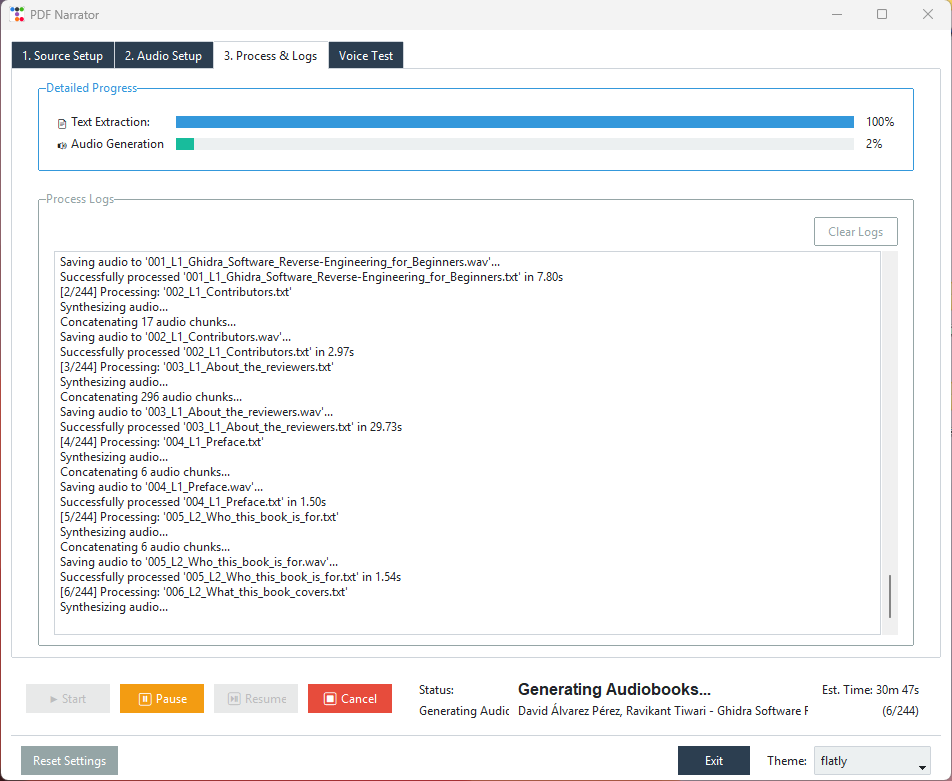
Check out the GUI in the screenshot below:
-
Audio Sample
Listen to a short sample of the generated audiobook:- af_sky
https://github.com/user-attachments/assets/f1e0a88b-9d44-40d6-82c4-dcf070db6856
- am_liam
https://github.com/user-attachments/assets/de611592-9404-416a-8118-1acca1651edf
- af_heart
https://github.com/user-attachments/assets/b9d87ed4-3458-4116-accf-0816ec1448b2
Features
-
Intelligent Text Extraction
- Supports both PDF and EPUB formats.
- For PDFs: Skips headers, footers, and page numbers; optionally splits based on Table of Contents (TOC).
- For EPUBs: Extracts chapters based on internal HTML structure.
-
Kokoro TTS Integration
- Generate natural-sounding audiobooks with the updated Kokoro v1.0 model.
- Easily select different voicepacks.
-
User-Friendly GUI
- Modern interface built with ttkbootstrap (theme selector, scrolled logs, progress bars).
- Pause/resume and cancel your audiobook generation anytime.
-
Configurable for Low-VRAM Systems
- Choose the chunk size for text to accommodate limited GPU resources.
- Switch to CPU if no GPU is available.
-
Voice Testing Made Simple
- Test a single voice or loop through all available voices directly from the GUI.
- Use the dedicated Voice Test tab to generate and listen to sample audio files.
Prerequisites
- Python 3.8+
- FFmpeg (for audio-related tasks on some systems)
- Torch (PyTorch for the Kokoro TTS model)
- Other dependencies as listed in
requirements.txt
Installation
ARM64 MacOS users see the section below
-
Clone the Repository
git clone https://github.com/mateogon/pdf-narrator.git cd pdf-narrator -
Create and Activate a Virtual Environment
python -m venv venv # On Linux/macOS: source venv/bin/activate # On Windows: venv\Scripts\activate -
Install Python Dependencies
pip install --upgrade pip
pip install -r requirements.txt
Installation for ARM64 MacOS Users
-
Clone the Repository
git clone https://github.com/mateogon/pdf-narrator.git cd pdf-narrator -
Run the Setup Script to Download Dependencies
chmod +x scripts/setup_macos_arm64.sh ./scripts/setup_macos_arm64.sh -
Create and Activate the Conda Virtual Environment
source "$HOME/miniforge3/bin/activate" && conda activate pdf-narrator
Windows Additional Installation Notes
For Windows users, some libraries may require extra steps:
1. Prerequisites
-
Python 3.12.7
Download and install Python 3.12.7. Ensurepythonandpipare added to your system's PATH. -
CUDA 12.4 (for GPU acceleration)
Install the CUDA 12.4 Toolkit if you plan to use GPU acceleration.
2. Installing eSpeak NG
eSpeak NG is required for phoneme-based operations.
-
Download the Installer
eSpeak NG X64 Installer -
Run the Installer
Follow the on-screen instructions. -
Set Environment Variables
Add the following environment variables:PHONEMIZER_ESPEAK_LIBRARY→C:\Program Files\eSpeak NG\libespeak-ng.dllPHONEMIZER_ESPEAK_PATH→C:\Program Files (x86)\eSpeak\command_line\espeak.exe
(Right-click "This PC" → Properties → Advanced system settings → Environment Variables)
-
Verify Installation
Open Command Prompt and run:
espeak-ng --version
3. Using Precompiled Wheels for DeepSpeed and lxml
-
Download Wheels
- DeepSpeed (for Python 3.12.7, CUDA 12.4): DeepSpeed Wheel
- lxml (for Python 3.12): lxml Release
-
Install the Wheels
Activate your virtual environment and run:
pip install path\to\deepspeed-0.11.2+cuda124-cp312-cp312-win_amd64.whl pip install path\to\lxml-5.3.0-cp312-cp312-win_amd64.whl -
Verify Installation
deepspeed --version
pip show lxml
espeak-ng --version
Quick Start
-
Launch the App
python main.py -
Select a Mode
- Single Book: Choose a PDF or EPUB file and extract its text.
- Batch Books: Select a folder with multiple PDFs and/or EPUBs (processes all, preserving folder structure).
- Skip Extraction: Use pre-extracted text files.
-
Extract Text
- PDFs: Splits into chapters if TOC is available; otherwise, extracts entire document.
- EPUBs: Extracts chapters based on internal structure.
-
Configure Kokoro TTS Settings
- Select a voice.
- Adjust chunk size and output format (
.wavor.mp3).
-
Generate Audiobook
- Click Start Process and monitor progress.
- Find your audio files in the output folder.
Testing Voices
With the latest update, you can now quickly test voices directly within the app:
-
Navigate to the Voice Test Tab
In the main window, click on the Voice Test tab to access voice testing features. -
Enter Sample Text
Modify or use the default sample text in the provided text area. -
Select Test Mode
- Test Single Voice: Pick one voice from the dropdown to generate a sample.
- Test All Available Voices: Choose this option to automatically generate samples for every available voice.
-
Run the Test
Click Run Voice Test to start. The app creates a temporary file with your sample text, processes it through Kokoro TTS for each voice (if testing all voices), and saves the output audio files in the designated folder. -
Monitor Progress and Listen
A progress bar and status labels keep you updated. Once the test is complete, you’ll be prompted to open the output folder where you can listen to the generated samples. -
Stop the Test if Needed
If you need to cancel while testing, click Stop Test to interrupt the process.
Technical Highlights
-
Text Extraction
- PDF: Built on PyMuPDF for efficient parsing, with TOC-based splitting.
- EPUB: Extracts text from HTML content files within the EPUB structure.
-
Kokoro TTS
- Advanced text normalization and phonemization.
- Splits text into chunks (<510 tokens) and joins audio outputs.
Contributing
Fork the repository, create a branch, and submit a pull request.
Report bugs or suggest features via Issues.
License
This project is released under the MIT License (LICENSE.md).
Enjoy converting your PDFs and EPUBs into immersive audiobooks with Kokoro v1.0 TTS—and now, easily test voices to pick your perfect sound!
Contributors


Similar repos


Languages
Python
96.7%
Shell
3.3%
Convert your PDFs and EPUBs into audiobooks effortlessly. Features intelligent text extraction, customizable text-to-speech settings, and efficient processing for low-resource systems.
Python
206
42 commits
updated Feb 26, 2026
See what people are saying
README
PDF Narrator
Looking for my newer audiobook tool? Check out Cadence: https://github.com/mateogon/Cadence
Updated for Kokoro v1.0!
Now setting up is easier—simply install the required Python dependencies (including the updated Kokoro package) and run the app. No more manual downloads or moving model files into specific folders.
PDF Narrator (Kokoro Edition) transforms your PDF and EPUB documents into audiobooks effortlessly using advanced text extraction and Kokoro TTS technology. With Kokoro v1.0, the integration is seamless and the setup is as simple as installing the requirements and running the application.
Demo
-
Screenshot
Check out the GUI in the screenshot below:
-
Audio Sample
Listen to a short sample of the generated audiobook:- af_sky
https://github.com/user-attachments/assets/f1e0a88b-9d44-40d6-82c4-dcf070db6856
- am_liam
https://github.com/user-attachments/assets/de611592-9404-416a-8118-1acca1651edf
- af_heart
https://github.com/user-attachments/assets/b9d87ed4-3458-4116-accf-0816ec1448b2
Features
-
Intelligent Text Extraction
- Supports both PDF and EPUB formats.
- For PDFs: Skips headers, footers, and page numbers; optionally splits based on Table of Contents (TOC).
- For EPUBs: Extracts chapters based on internal HTML structure.
-
Kokoro TTS Integration
- Generate natural-sounding audiobooks with the updated Kokoro v1.0 model.
- Easily select different voicepacks.
-
User-Friendly GUI
- Modern interface built with ttkbootstrap (theme selector, scrolled logs, progress bars).
- Pause/resume and cancel your audiobook generation anytime.
-
Configurable for Low-VRAM Systems
- Choose the chunk size for text to accommodate limited GPU resources.
- Switch to CPU if no GPU is available.
-
Voice Testing Made Simple
- Test a single voice or loop through all available voices directly from the GUI.
- Use the dedicated Voice Test tab to generate and listen to sample audio files.
Prerequisites
- Python 3.8+
- FFmpeg (for audio-related tasks on some systems)
- Torch (PyTorch for the Kokoro TTS model)
- Other dependencies as listed in
requirements.txt
Installation
ARM64 MacOS users see the section below
-
Clone the Repository
git clone https://github.com/mateogon/pdf-narrator.git cd pdf-narrator -
Create and Activate a Virtual Environment
python -m venv venv # On Linux/macOS: source venv/bin/activate # On Windows: venv\Scripts\activate -
Install Python Dependencies
pip install --upgrade pip
pip install -r requirements.txt
Installation for ARM64 MacOS Users
-
Clone the Repository
git clone https://github.com/mateogon/pdf-narrator.git cd pdf-narrator -
Run the Setup Script to Download Dependencies
chmod +x scripts/setup_macos_arm64.sh ./scripts/setup_macos_arm64.sh -
Create and Activate the Conda Virtual Environment
source "$HOME/miniforge3/bin/activate" && conda activate pdf-narrator
Windows Additional Installation Notes
For Windows users, some libraries may require extra steps:
1. Prerequisites
-
Python 3.12.7
Download and install Python 3.12.7. Ensurepythonandpipare added to your system's PATH. -
CUDA 12.4 (for GPU acceleration)
Install the CUDA 12.4 Toolkit if you plan to use GPU acceleration.
2. Installing eSpeak NG
eSpeak NG is required for phoneme-based operations.
-
Download the Installer
eSpeak NG X64 Installer -
Run the Installer
Follow the on-screen instructions. -
Set Environment Variables
Add the following environment variables:PHONEMIZER_ESPEAK_LIBRARY→C:\Program Files\eSpeak NG\libespeak-ng.dllPHONEMIZER_ESPEAK_PATH→C:\Program Files (x86)\eSpeak\command_line\espeak.exe
(Right-click "This PC" → Properties → Advanced system settings → Environment Variables)
-
Verify Installation
Open Command Prompt and run:
espeak-ng --version
3. Using Precompiled Wheels for DeepSpeed and lxml
-
Download Wheels
- DeepSpeed (for Python 3.12.7, CUDA 12.4): DeepSpeed Wheel
- lxml (for Python 3.12): lxml Release
-
Install the Wheels
Activate your virtual environment and run:
pip install path\to\deepspeed-0.11.2+cuda124-cp312-cp312-win_amd64.whl pip install path\to\lxml-5.3.0-cp312-cp312-win_amd64.whl -
Verify Installation
deepspeed --version
pip show lxml
espeak-ng --version
Quick Start
-
Launch the App
python main.py -
Select a Mode
- Single Book: Choose a PDF or EPUB file and extract its text.
- Batch Books: Select a folder with multiple PDFs and/or EPUBs (processes all, preserving folder structure).
- Skip Extraction: Use pre-extracted text files.
-
Extract Text
- PDFs: Splits into chapters if TOC is available; otherwise, extracts entire document.
- EPUBs: Extracts chapters based on internal structure.
-
Configure Kokoro TTS Settings
- Select a voice.
- Adjust chunk size and output format (
.wavor.mp3).
-
Generate Audiobook
- Click Start Process and monitor progress.
- Find your audio files in the output folder.
Testing Voices
With the latest update, you can now quickly test voices directly within the app:
-
Navigate to the Voice Test Tab
In the main window, click on the Voice Test tab to access voice testing features. -
Enter Sample Text
Modify or use the default sample text in the provided text area. -
Select Test Mode
- Test Single Voice: Pick one voice from the dropdown to generate a sample.
- Test All Available Voices: Choose this option to automatically generate samples for every available voice.
-
Run the Test
Click Run Voice Test to start. The app creates a temporary file with your sample text, processes it through Kokoro TTS for each voice (if testing all voices), and saves the output audio files in the designated folder. -
Monitor Progress and Listen
A progress bar and status labels keep you updated. Once the test is complete, you’ll be prompted to open the output folder where you can listen to the generated samples. -
Stop the Test if Needed
If you need to cancel while testing, click Stop Test to interrupt the process.
Technical Highlights
-
Text Extraction
- PDF: Built on PyMuPDF for efficient parsing, with TOC-based splitting.
- EPUB: Extracts text from HTML content files within the EPUB structure.
-
Kokoro TTS
- Advanced text normalization and phonemization.
- Splits text into chunks (<510 tokens) and joins audio outputs.
Contributing
Fork the repository, create a branch, and submit a pull request.
Report bugs or suggest features via Issues.
License
This project is released under the MIT License (LICENSE.md).
Enjoy converting your PDFs and EPUBs into immersive audiobooks with Kokoro v1.0 TTS—and now, easily test voices to pick your perfect sound!
Similar repos
Contributors
Languages
Python
96.7%
Shell
3.3%