
Terminal Unicode Explorer 🪄
Rust
3
1 commits
updated Sep 17, 2026
See what people are saying (1)
README
Sauva


Terminal Unicode Explorer 🪄
About
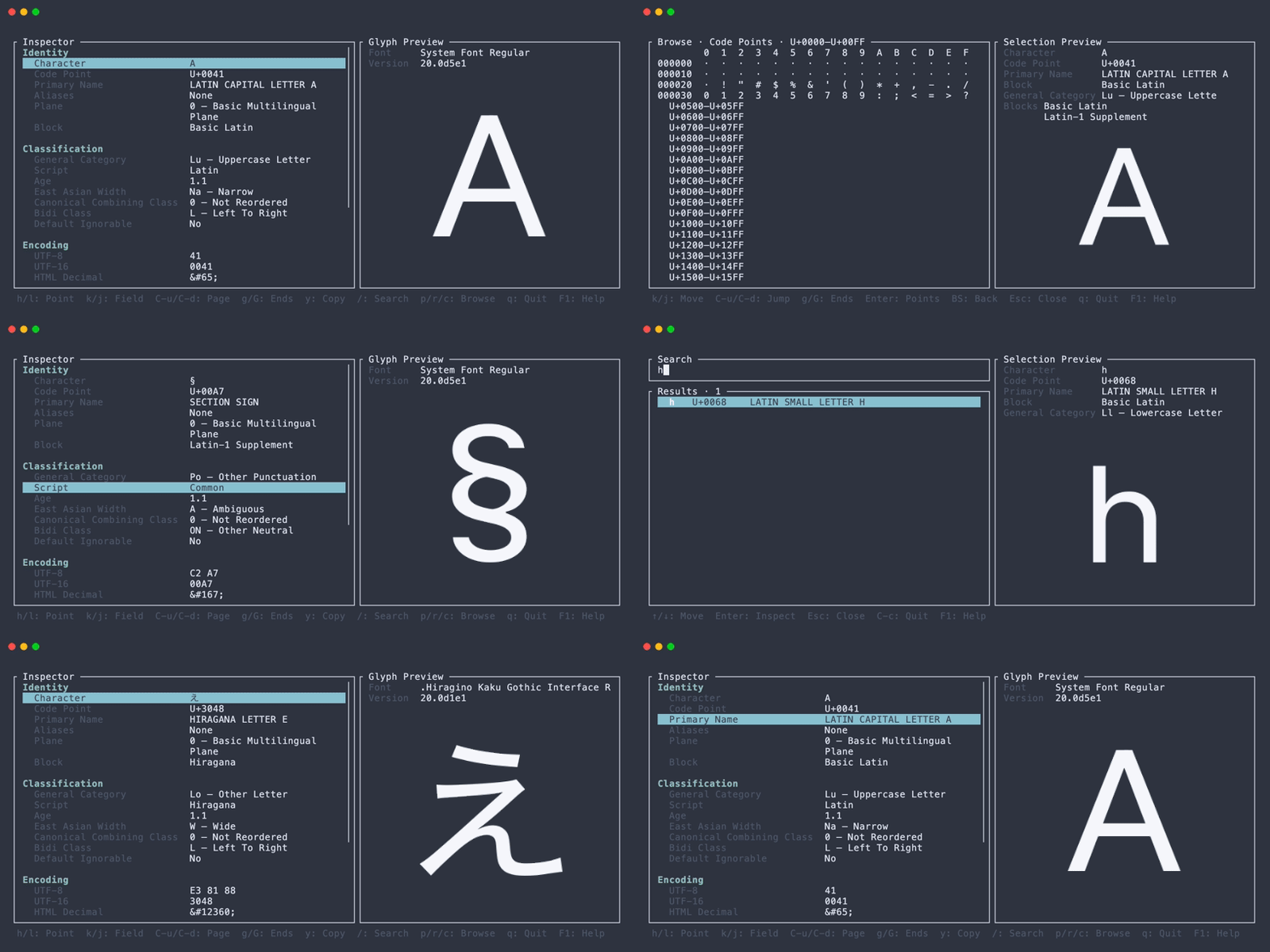
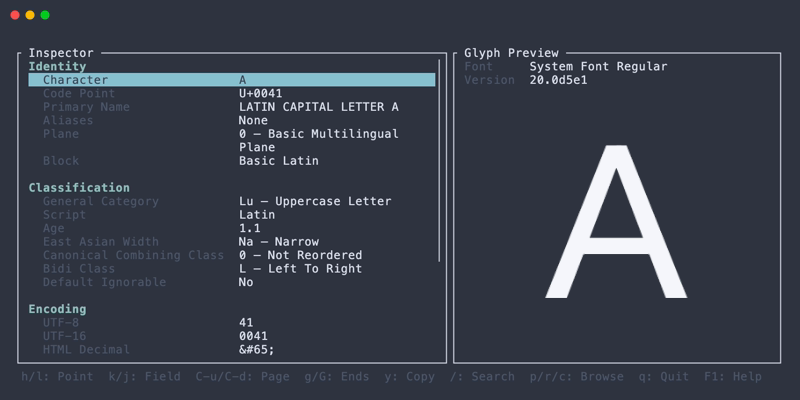
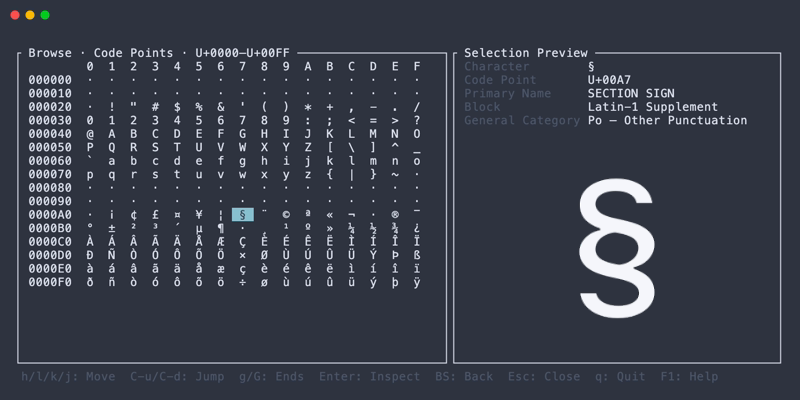
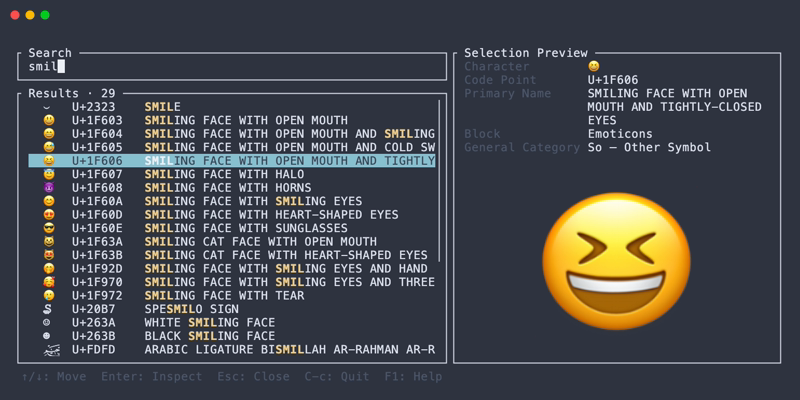
Sauva is a terminal application for searching and browsing Unicode code points. It shows Unicode properties and a glyph preview in a responsive TUI.
The bundled data is based on Unicode 17.0.0.
Installation
Cargo
cargo install --locked sauva
Homebrew (macOS)
brew install lusingander/tap/sauva
Downloading a binary
Pre-built binaries are available from the releases page.
Usage
Basic
Run sauva without arguments to open the default code point:
sauva
Options
Sauva - Terminal Unicode Explorer 🪄

Usage: sauva [OPTIONS] [CODE_POINT]

Arguments:
  [CODE_POINT]  Code point to inspect: character, U+XXXX, 0xXXXX, or hexadecimal

Options:
  -g, --graphics <MODE>  Control glyph preview graphics [default: auto] [possible values: auto, force, iterm2, off]
  -h, --help             Print help
  -V, --version          Print version
Specifying CODE_POINT
The initial code point can be given as one character, U+ notation, 0x notation, or two to six hexadecimal digits.
sauva あ
sauva U+2192
sauva 0x1F600
sauva 1F600
A one-character argument is treated as the character itself. Use a prefix for a one-digit hexadecimal value, such as U+A or 0xA.
-g, --graphics <MODE>
autoenables the Kitty graphics protocol for detected kitty and Ghostty terminals.forceuses the Kitty graphics protocol without terminal detection.iterm2uses the iTerm2 inline image protocol.offdisables glyph images.
See Compatibility for terminal support.
Config
sauva loads the first applicable configuration path in this order:
- The path specified by
SAUVA_CONFIG_FILE $XDG_CONFIG_HOME/sauva/config.toml$HOME/.config/sauva/config.toml
If the default file does not exist, built-in settings are used. A missing file specified by SAUVA_CONFIG_FILE, or an invalid configuration file, causes startup to fail.
All settings are optional. The following example shows the main configuration areas:
Configuration example
[color]
fg = "reset"
bg = "reset"

[color.inspector]
section_heading = "cyan"
field_label = "darkgray"

[color.inspector.selection]
fg = "black"
bg = "cyan"

[glyph_preview]
font_families = ["Iosevka", "Noto Sans"]
emoji_font_families = ["Noto Color Emoji"]
fg = "#f5f7fa"
bg = "#00000000"

[ui]
selection_cursor = "▸"
UI colors accept ANSI color names, #RRGGBB, or an indexed color from 0 to 255. Glyph image colors accept #RRGGBB and #RRGGBBAA.
The complete configuration structure and defaults are defined in config.schema.json.
Keybindings
These are the main built-in controls. The available controls depend on the current view.
| Key | Description |
|---|---|
| F1 | Open or close contextual help |
| Ctrl+c | Quit from any view |
| q | Quit from the Inspector or Browse view |
| Esc | Close Search or Browse; quit from the Inspector |
| h j k l or arrow keys | Move the selection |
| / | Search by character, code point, or Unicode name |
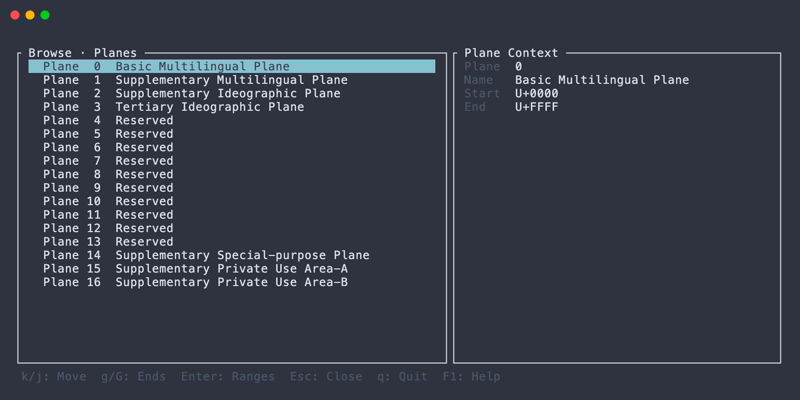
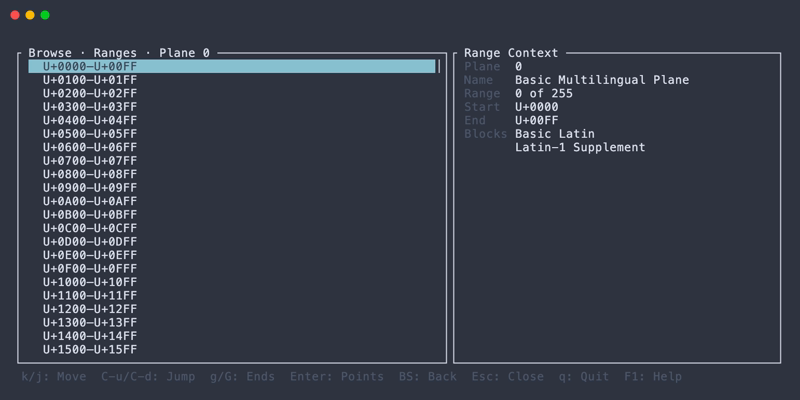
| p r c | Browse planes, ranges, or code points |
| Enter | Open the selected item |
| y | Copy the selected Inspector value |
Press F1 to view all controls for the current screen.
Custom keybindings
Keybindings can be replaced per command and context. A command can have multiple keys, and an empty array disables it in that context.
Keybinding example and syntax
[keybindings.global]
help = ["f2"]

[keybindings.inspector]
next_code_point = ["l", "right", "n"]
browse_planes = []
Keys may be a single character, a named key such as enter, esc, left, or f1, or a modifier followed by one character, such as ctrl-n, alt-j, or shift-g. Conflicting and invalid bindings are rejected at startup.
See config.schema.json for all contexts and command names.
Compatibility
Operating systems
macOS and Linux are supported. macOS uses Core Text for system font lookup. Linux uses Fontconfig when available and falls back to a best-effort font database lookup if Fontconfig cannot be loaded.
Terminal emulators
Glyph previews use the Kitty graphics protocol and its Unicode placeholder feature. The supported terminals are:
Use --graphics force to try the Kitty protocol in another compatible terminal or when automatic detection does not enable it.
The iTerm2 inline image protocol is available through --graphics iterm2, but compatibility and future support are not guaranteed. It is never selected automatically.
Glyph preview fonts
Sauva does not bundle fonts. Available glyphs and the selected font therefore depend on the fonts installed on the system.
For each code point, sauva tries configured normal fonts, the system default text font, configured emoji fonts, and then system fallback fonts. Preferred fonts can be set with glyph_preview.font_families and glyph_preview.emoji_font_families.
Screenshots
License
Sauva is distributed under the MIT License.
The generated Unicode data is derived from the Unicode Character Database. See THIRD_PARTY_NOTICES and the Unicode License v3 for details.
Contributors

1 commits
Similar repos


Languages
Rust
100.0%
Terminal Unicode Explorer 🪄
Rust
3
1 commits
updated Sep 17, 2026
See what people are saying (1)
README
Sauva
Terminal Unicode Explorer 🪄
About
Sauva is a terminal application for searching and browsing Unicode code points. It shows Unicode properties and a glyph preview in a responsive TUI.
The bundled data is based on Unicode 17.0.0.
Installation
Cargo
cargo install --locked sauva
Homebrew (macOS)
brew install lusingander/tap/sauva
Downloading a binary
Pre-built binaries are available from the releases page.
Usage
Basic
Run sauva without arguments to open the default code point:
sauva
Options
Sauva - Terminal Unicode Explorer 🪄

Usage: sauva [OPTIONS] [CODE_POINT]

Arguments:
  [CODE_POINT]  Code point to inspect: character, U+XXXX, 0xXXXX, or hexadecimal

Options:
  -g, --graphics <MODE>  Control glyph preview graphics [default: auto] [possible values: auto, force, iterm2, off]
  -h, --help             Print help
  -V, --version          Print version
Specifying CODE_POINT
The initial code point can be given as one character, U+ notation, 0x notation, or two to six hexadecimal digits.
sauva あ
sauva U+2192
sauva 0x1F600
sauva 1F600
A one-character argument is treated as the character itself. Use a prefix for a one-digit hexadecimal value, such as U+A or 0xA.
-g, --graphics <MODE>
autoenables the Kitty graphics protocol for detected kitty and Ghostty terminals.forceuses the Kitty graphics protocol without terminal detection.iterm2uses the iTerm2 inline image protocol.offdisables glyph images.
See Compatibility for terminal support.
Config
sauva loads the first applicable configuration path in this order:
- The path specified by
SAUVA_CONFIG_FILE $XDG_CONFIG_HOME/sauva/config.toml$HOME/.config/sauva/config.toml
If the default file does not exist, built-in settings are used. A missing file specified by SAUVA_CONFIG_FILE, or an invalid configuration file, causes startup to fail.
All settings are optional. The following example shows the main configuration areas:
Configuration example
[color]
fg = "reset"
bg = "reset"

[color.inspector]
section_heading = "cyan"
field_label = "darkgray"

[color.inspector.selection]
fg = "black"
bg = "cyan"

[glyph_preview]
font_families = ["Iosevka", "Noto Sans"]
emoji_font_families = ["Noto Color Emoji"]
fg = "#f5f7fa"
bg = "#00000000"

[ui]
selection_cursor = "▸"
UI colors accept ANSI color names, #RRGGBB, or an indexed color from 0 to 255. Glyph image colors accept #RRGGBB and #RRGGBBAA.
The complete configuration structure and defaults are defined in config.schema.json.
Keybindings
These are the main built-in controls. The available controls depend on the current view.
| Key | Description |
|---|---|
| F1 | Open or close contextual help |
| Ctrl+c | Quit from any view |
| q | Quit from the Inspector or Browse view |
| Esc | Close Search or Browse; quit from the Inspector |
| h j k l or arrow keys | Move the selection |
| / | Search by character, code point, or Unicode name |
| p r c | Browse planes, ranges, or code points |
| Enter | Open the selected item |
| y | Copy the selected Inspector value |
Press F1 to view all controls for the current screen.
Custom keybindings
Keybindings can be replaced per command and context. A command can have multiple keys, and an empty array disables it in that context.
Keybinding example and syntax
[keybindings.global]
help = ["f2"]

[keybindings.inspector]
next_code_point = ["l", "right", "n"]
browse_planes = []
Keys may be a single character, a named key such as enter, esc, left, or f1, or a modifier followed by one character, such as ctrl-n, alt-j, or shift-g. Conflicting and invalid bindings are rejected at startup.
See config.schema.json for all contexts and command names.
Compatibility
Operating systems
macOS and Linux are supported. macOS uses Core Text for system font lookup. Linux uses Fontconfig when available and falls back to a best-effort font database lookup if Fontconfig cannot be loaded.
Terminal emulators
Glyph previews use the Kitty graphics protocol and its Unicode placeholder feature. The supported terminals are:
Use --graphics force to try the Kitty protocol in another compatible terminal or when automatic detection does not enable it.
The iTerm2 inline image protocol is available through --graphics iterm2, but compatibility and future support are not guaranteed. It is never selected automatically.
Glyph preview fonts
Sauva does not bundle fonts. Available glyphs and the selected font therefore depend on the fonts installed on the system.
For each code point, sauva tries configured normal fonts, the system default text font, configured emoji fonts, and then system fallback fonts. Preferred fonts can be set with glyph_preview.font_families and glyph_preview.emoji_font_families.
Screenshots
License
Sauva is distributed under the MIT License.
The generated Unicode data is derived from the Unicode Character Database. See THIRD_PARTY_NOTICES and the Unicode License v3 for details.
Similar repos
Contributors
1 commits
Languages
Rust
100.0%