Native TIDAL desktop client for Linux. Modern UI, custom themes, and bit-perfect lossless audio up to 24-bit/192kHz via exclusive ALSA.
TypeScript
502
1,222 commits
updated Oct 18, 2026
The native desktop client for TIDAL on Linux. Lossless streaming with bit-perfect ALSA output up to 24-bit/192kHz (MAX) — your DAC, not your browser's resampler.




[!IMPORTANT] Requires an active TIDAL subscription. Not affiliated with TIDAL.
https://github.com/user-attachments/assets/67d7a8ed-352b-4ce6-8b9c-70b7427a5f22
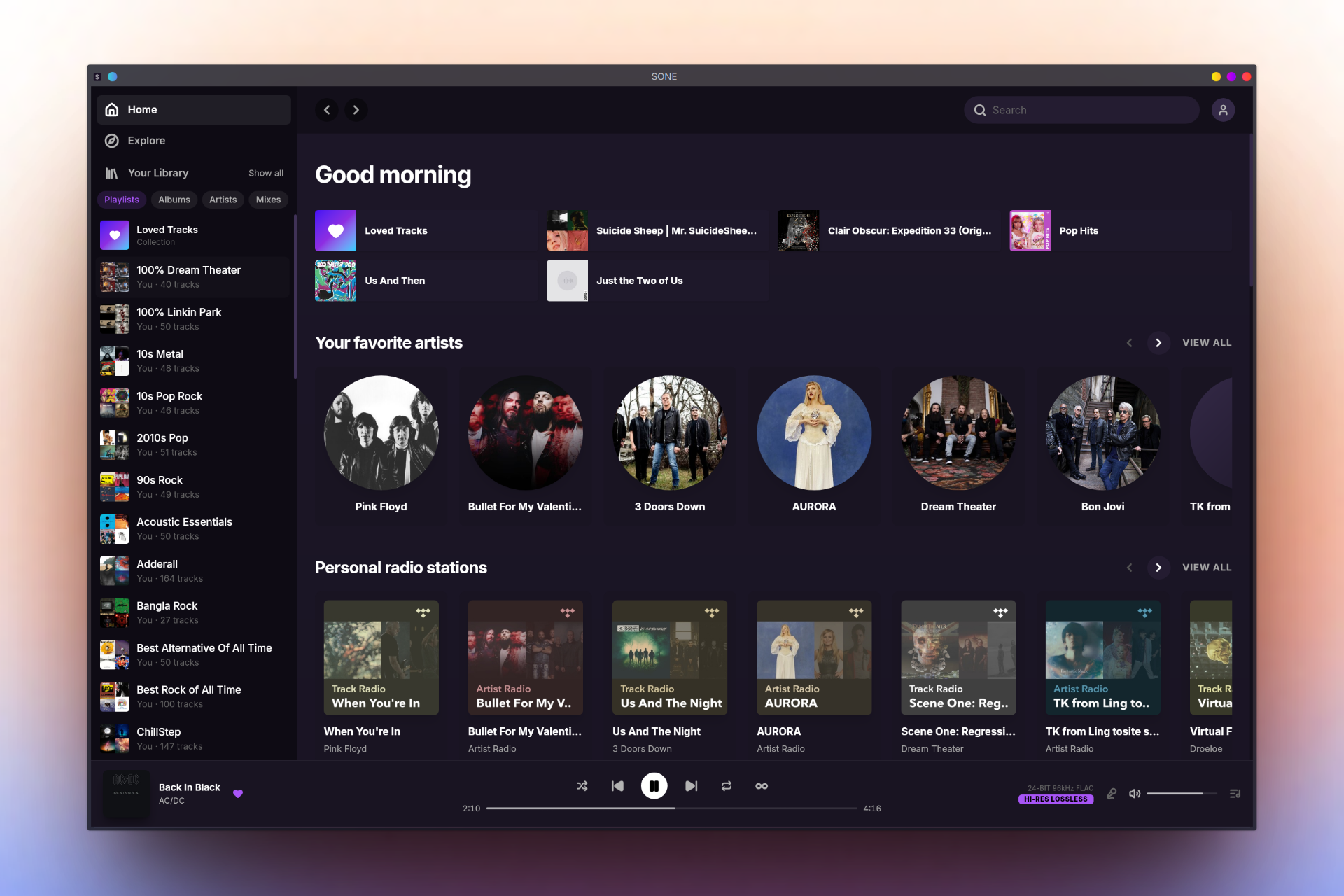
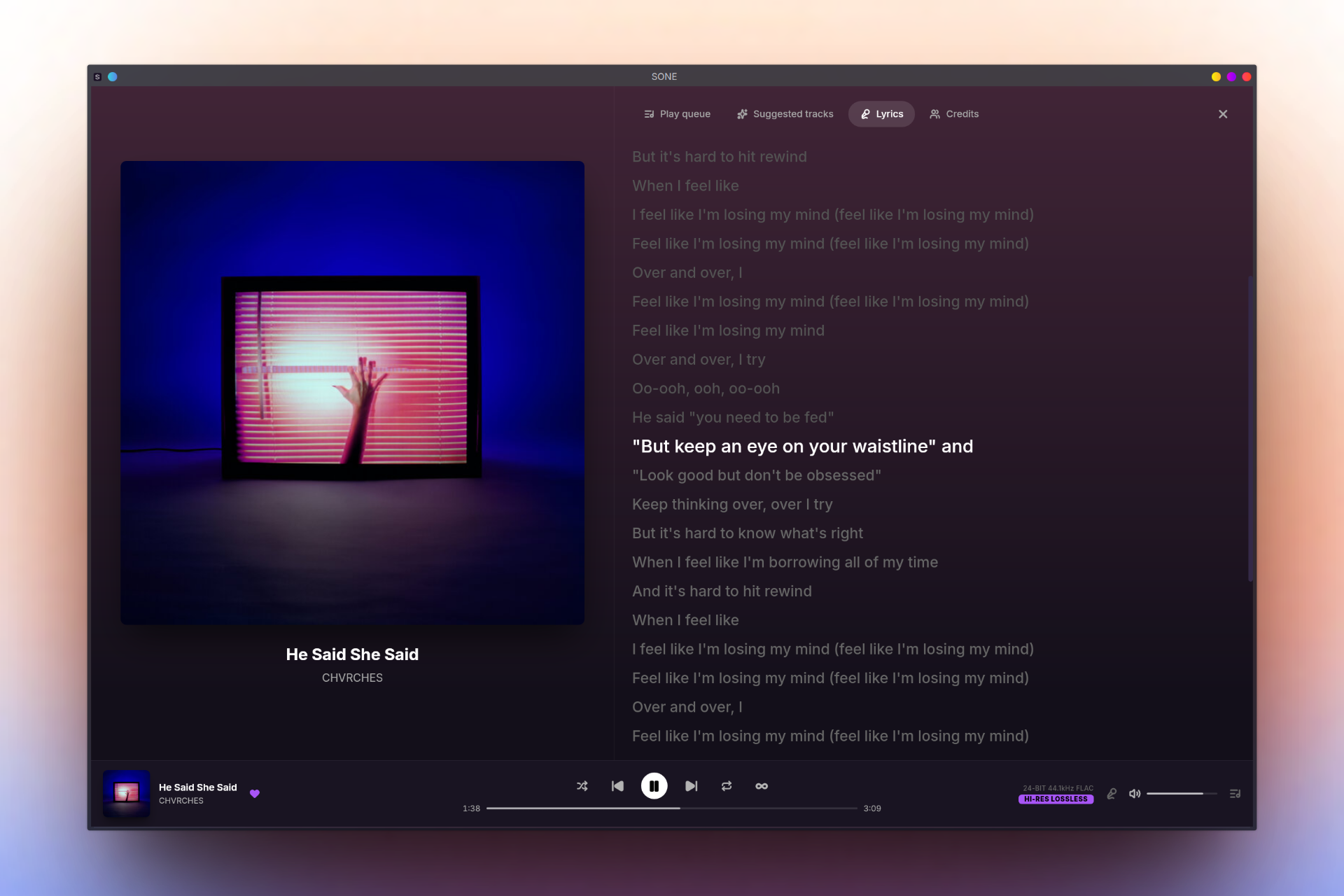
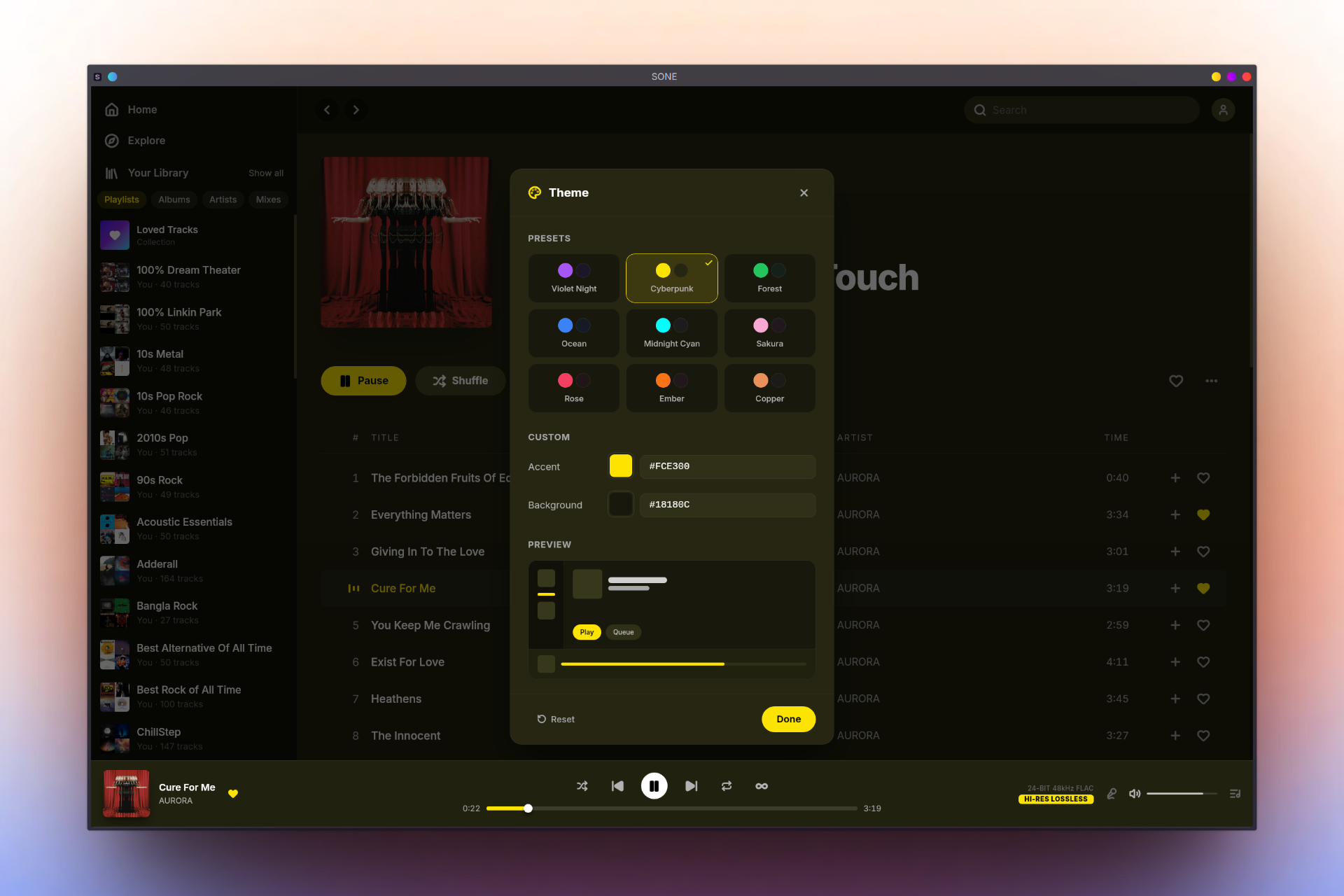
The Linux desktop app TIDAL never built.
SONE finally gives Linux users a first-class streaming client. It delivers the complete, fully-featured experience you expect with seamless library management and a sleek, familiar workflow—and then supercharges it.
We went beyond the basics with direct-to-DAC bit-perfect ALSA output, a resizable-adaptive floating miniplayer, music video playback, custom themes, Discord Rich Presence, and multi-service scrobbling (Last.fm, Libre.fm, ListenBrainz)—all wrapped in a fast, native Linux app.
pactl), and ALSA card (/proc/asound); flags every conversion, format mismatch, or volume alteration with a PRISTINE verdict for bit-clean playbacktidal:// URLs directly in SONESONE is a lightweight, native alternative to the official TIDAL web player and Electron-based unofficial clients.
SONE is officially available on Flathub, making it easy to install on any Linux distribution. You can install it via your software center or by using the CLI:
Install the application
flatpak install flathub io.github.lullabyX.sone
Run the application
flatpak run io.github.lullabyX.sone
Pre-built packages for Ubuntu/Debian (.deb), Fedora (.rpm), openSUSE (.rpm), and Arch Linux (PKGBUILD) are available on the GitHub Releases page.






Or add the repository so apt upgrade / dnf upgrade / zypper up keep SONE current automatically (the setup script auto-detects your distro and imports the signing key):
curl -1sLf 'https://dl.cloudsmith.io/public/lullabyx/sone/setup.deb.sh' | sudo -E bash
sudo apt install sone
Derivatives (Kubuntu, Linux Mint, Pop!_OS, Zorin, MX, LMDE) use the same command.
curl -1sLf 'https://dl.cloudsmith.io/public/lullabyx/sone/setup.rpm.sh' | sudo -E bash
sudo dnf install sone
curl -1sLf 'https://dl.cloudsmith.io/public/lullabyx/sone/setup.rpm.sh' | sudo -E bash
sudo zypper install sone
yay -S sone-bin # prebuilt binary — or 'yay -S sone' to build from source

SONE is available on the Snap Store for any distribution with snap support. Install it via your software center or the CLI:
Install the application
sudo snap install sone
Run the application
sone
For exclusive / bit-perfect ALSA output, also connect the hardware-access interface:
sudo snap connect sone:alsa
SONE ships a Nix flake. On any system with Nix and flakes enabled, run it without installing:
nix run github:lullabyX/sone
Or install it into your profile:
nix profile install github:lullabyX/sone
The flake builds from source (no binary cache yet) and also exposes a development shell with every build and runtime dependency wired up:
nix develop github:lullabyX/sone # then: pnpm tauri dev
Rust:
curl --proto '=https' --tlsv1.2 -sSf https://sh.rustup.rs | sh -s -- -y
source "$HOME/.cargo/env"
Node.js 22+ (via nvm, fnm, or your preferred method)
pnpm 11.x:
npm install -g [email protected]
# or, if corepack ships with your Node install:
corepack enable
System dependencies:
sudo apt install -y \
    build-essential curl wget file patchelf \
    libwebkit2gtk-4.1-dev libgtk-3-dev libayatana-appindicator3-dev librsvg2-dev libssl-dev libdbus-1-dev \
    libgstreamer1.0-dev libgstreamer-plugins-base1.0-dev \
    gstreamer1.0-plugins-base gstreamer1.0-plugins-good gstreamer1.0-plugins-bad gstreamer1.0-libav \
    libsecret-1-dev libasound2-dev xdg-utils \
    pulseaudio-utils
pulseaudio-utils provides the pactl binary, used by the signal-path panel to read OS mixer state (sink format/rate, volume, mute) in Normal mode. SONE runs without it but the Normal-mode panel will show degraded info. Exclusive mode is unaffected.
Optional (for exclusive ALSA output):
sudo apt install -y gstreamer1.0-alsa
sudo dnf install -y \
    gcc gcc-c++ make curl wget file patchelf \
    webkit2gtk4.1-devel gtk3-devel libappindicator-gtk3-devel librsvg2-devel openssl-devel dbus-devel \
    gstreamer1-devel gstreamer1-plugins-base-devel \
    gstreamer1-plugins-base gstreamer1-plugins-good gstreamer1-plugins-bad-free gstreamer1-plugin-libav \
    libsecret-devel alsa-lib-devel xdg-utils \
    pulseaudio-utils
pulseaudio-utils provides the pactl binary, used by the signal-path panel to read OS mixer state (sink format/rate, volume, mute) in Normal mode. SONE runs without it but the Normal-mode panel will show degraded info. Exclusive mode is unaffected.
Optional (for exclusive ALSA output):
sudo dnf install -y gstreamer1-plugins-base-tools
SONE is available on the AUR in two variants:
Install with your AUR helper:
yay -S sone       # build from source
# or
yay -S sone-bin   # pre-built binary
sudo pacman -S --needed \
    base-devel curl wget file patchelf \
    webkit2gtk-4.1 gtk3 libayatana-appindicator librsvg openssl dbus \
    gstreamer gst-plugins-base gst-plugins-good gst-plugins-bad gst-libav \
    libsecret alsa-lib xdg-utils \
    libpulse
libpulse provides the pactl binary, used by the signal-path panel to read OS mixer state (sink format/rate, volume, mute) in Normal mode. SONE runs without it but the Normal-mode panel will show degraded info. Exclusive mode is unaffected.
Optional (for exclusive ALSA output):
sudo pacman -S --needed gst-plugin-pipewire alsa-plugins
Build and run:
git clone https://github.com/lullabyX/sone.git
cd sone
pnpm install
pnpm tauri dev             # Development mode
pnpm tauri build           # Release build (produces .deb, .rpm, .AppImage)
Using build scripts:
Docker-based build scripts are provided in build-scripts/build/ to produce distro-specific packages in isolated environments. Requires Docker.
./build-scripts/build/all.sh              # Build all packages in parallel (deb, rpm, pacman)
./build-scripts/build/deb.sh              # Build .deb only (Ubuntu 22.04)
./build-scripts/build/rpm.sh              # Build .rpm only (Fedora)
./build-scripts/build/pacman.sh           # Build pacman package only (Arch)
./build-scripts/build/all.sh --omit rpm   # Build all except rpm
Output goes to dist/<format>/. Pass --no-cache to force a clean Docker build.
[!NOTE] NVIDIA GPU users: If you see a blank window, rendering glitches, or a Wayland protocol error on launch, start the app with:
WEBKIT_DISABLE_COMPOSITING_MODE=1 sone
No sound?
Make sure GStreamer plugins are installed — you need at minimum gstreamer1.0-plugins-base, gstreamer1.0-plugins-good, gstreamer1.0-plugins-bad, and gstreamer1.0-libav (or your distro's equivalents).
Audio won't play with a proxy enabled?
A proxy that requires a username and password needs GStreamer's curl source (curlhttpsrc), which SONE uses in place of the default HTTP source. Check whether you have it:
gst-inspect-1.0 curlhttpsrc
If it's missing, install the GStreamer "bad" plugin set and restart SONE — gstreamer1.0-plugins-bad (Debian/Ubuntu), gst-plugins-bad (Arch), gstreamer-plugins-bad (openSUSE), or gstreamer1-plugins-bad-free on Fedora 42+ (gstreamer1-plugins-bad-free-extras on Fedora 41 and earlier). Curl support is a build-time option, so the element can be missing even when the package is installed. The Flatpak build always includes it.
Playback errors in exclusive/bit-perfect mode? SONE automatically detects your DAC's supported formats and sample rates, but if playback still fails, your hardware may not support the source format at all. Try a lower quality tier or switch to normal output mode.
"Error 71 (Protocol error) dispatching to Wayland display" on launch? This is a known WebKitGTK/Wayland issue affecting Tauri apps on systems with NVIDIA GPUs (tauri-apps/tauri#10702). As a workaround, launch SONE with the DMA-BUF renderer disabled:
WEBKIT_DISABLE_DMABUF_RENDERER=1 sone
If you're using X11 or don't have an NVIDIA GPU but still see this error, try updating your WebKitGTK and graphics drivers to the latest versions.
Blank window or rendering glitches on NVIDIA? If the app launches but shows a blank/white window or has visual artifacts, try disabling WebKit's compositing mode:
WEBKIT_DISABLE_COMPOSITING_MODE=1 sone
This is a known issue with NVIDIA's proprietary drivers and WebKitGTK hardware acceleration.
The theme presets/custom colors are stored in theme.json, inside SONE's config
directory. That directory depends on how you installed SONE, because Flatpak
and Snap both redirect XDG_CONFIG_HOME into their own sandbox:
| Install | theme.json |
|---|---|
Native (AUR, .deb, .rpm, AppImage) | ~/.config/sone/theme.json |
| Flatpak | ~/.var/app/io.github.lullabyX.sone/config/sone/theme.json |
| Snap | ~/snap/sone/current/.config/sone/theme.json |
A sandboxed SONE cannot read ~/.config/sone/, so tools that write the theme
for you need the matching path above.
SONE reads the file at startup and watches it while running, so an external edit is applied straight away — even when SONE is unfocused or sitting in the tray. The watch can miss edits: it may fail to start (SONE logs a warning), it is not re-armed for the rest of the session if the config directory is deleted and recreated, and on filesystems where inotify does not work (NFS, sshfs, some overlay mounts) it starts but then never fires. In all of these the file is still read at startup, so restarting SONE always applies it.
{
    "version": 1,
    "preset": "custom",
    "custom": {
        "accent": "#3B82F6",
        "background": "#0E1118"
    }
}
preset = "custom", or one of the built-in preset names (e.g. "Ocean", "Forest", "Noir"), case-sensitive.custom.accent / custom.background = #RGB or #RRGGBB colors.preset names a built-in — {"preset": "Ocean"} on its own is rejected.When preset names a built-in, that preset's colors win and custom is ignored
for display. SONE rewrites custom to match the preset the next time you change
the theme in Settings.
A file SONE cannot parse is left alone and the in-app theme is kept. Fix the file and the watcher picks it up, or change the theme in Settings to overwrite it.
Yes. SONE is fully open source under the GPL-3.0 license, with no telemetry or tracking — SONE itself collects nothing about you. Your play history is reported to TIDAL so Recently Played reflects what you play in SONE; disable it in Settings → Scrobbling.
Yes. SONE is a client for TIDAL and requires an active paid TIDAL subscription. SONE is an independent project and is not affiliated with or endorsed by TIDAL.
Any modern Linux distribution. SONE is on Flathub (works everywhere), and ships native packages for Debian/Ubuntu (.deb), Fedora and openSUSE (.rpm), and Arch Linux (AUR).
No. SONE is a streaming client only — it streams directly from TIDAL and does not download tracks for offline playback.
Yes. SONE plays TIDAL music videos in a dedicated player — fullscreen or minimized to the player bar — and videos share the same queue, shuffle, repeat, autoplay, favorites, and history as your audio tracks. You can browse and search videos, love them, and add them to playlists. Video audio is streamed and does not use the bit-perfect lossless signal path that music tracks use.
Your system's sound server (PulseAudio or PipeWire) or another application is already using the ALSA device. Exclusive and bit-perfect modes need direct hardware access — only one application can hold the device at a time.
To fix this, either close the other application using the device, or select a different output device in SONE's settings.
Both bypass your system's sound server (PulseAudio/PipeWire) and write directly to the ALSA hardware device. The difference is in how much processing happens before audio reaches your DAC.
Exclusive mode locks the ALSA device so no other application can use it. Audio is converted to a fixed format (32-bit integer, stereo) while preserving the source's native sample rate — no resampling occurs. You still have software volume control and volume normalization (ReplayGain).
Bit-perfect mode goes a step further. There is zero processing — no format conversion, no resampling, no volume control. The decoded audio reaches your DAC exactly as it was encoded. The volume slider is locked at 100% and disabled. This is the mode to use if you want the purest signal path to your DAC.
In short: exclusive gives you direct hardware access with volume control. Bit-perfect gives you a completely unaltered signal.
Discord Rich Presence talks over a socket in your session's runtime directory. Sandboxed packages are restricted there, so the fix depends on how you installed SONE. Native packages (.deb, .rpm, AUR) are unaffected.
Flatpak — start Discord before SONE.
A Flatpak grants access to that socket when the sandbox starts. If Discord isn't running yet, there is nothing to grant, and the socket stays invisible to SONE for the rest of that run no matter how long Discord has been up since. Quitting SONE and reopening it after Discord is running is enough.
Flatpak and Vesktop builds of Discord work in either order. Only Discord installed natively or from Snap needs the ordering, and this cannot be fixed from SONE's side — the permission has to resolve before the app starts.
If you'd rather not think about launch order, grant SONE your whole runtime directory once:
flatpak override --user --filesystem=/run/user/$(id -u) io.github.lullabyX.sone
Snap — the connection is blocked outright.
Snap's strict confinement lets SONE see Discord's socket but denies the connection to it, and no Snap interface can grant it. SONE logs this rather than silently reporting Discord as absent:
Discord IPC socket at /run/user/1000/discord-ipc-0 exists but the sandbox
denied the connection; Rich Presence cannot reach Discord from this package
SONE can only reach sockets inside its own runtime directory, so forward Discord's into it:
mkdir -p $XDG_RUNTIME_DIR/snap.sone
socat UNIX-LISTEN:$XDG_RUNTIME_DIR/snap.sone/discord-ipc-0,fork \
      UNIX-CONNECT:$XDG_RUNTIME_DIR/discord-ipc-0
Leave that running and SONE will find it. Run it before starting SONE, or restart SONE afterwards. To make it permanent, wrap it in a systemd user service. If you'd rather not, install the Flatpak or a native package instead.
~/.config/sone/Issues and pull requests are welcome on GitHub. To set up a development environment, follow the Building from source instructions.
If you enjoy using SONE, consider giving the project a star to help others find it.
SONE is an independent, community-driven project. It is not affiliated with, endorsed by, or connected to TIDAL in any way. All content is streamed directly from TIDAL's service and requires a valid paid subscription. SONE is a streaming client only — it does not support offline downloads, and does not redistribute or circumvent protection of any content. As with any third-party client, please be aware of TIDAL's terms of use.
All trademarks belong to their respective owners.
TL;DR — SONE is an open-source, native Linux desktop client for TIDAL built with Tauri 2 and Rust. It streams lossless FLAC and Hi-Res audio up to 24-bit/192kHz, with exclusive ALSA output that bypasses PulseAudio and PipeWire entirely for bit-perfect playback directly to your DAC. It also plays TIDAL music videos in a dedicated player — fullscreen or minimized to the bar — that shares a single queue (shuffle, repeat, autoplay, favorites, and history) with your audio tracks. Lightweight and encrypted at rest, with no telemetry or tracking.
1,260 followers · starred Jun 2026
721 followers · starred Sep 2026
122 followers · starred Mar 2026
521 followers · starred Jul 2026
Native TIDAL desktop client for Linux. Modern UI, custom themes, and bit-perfect lossless audio up to 24-bit/192kHz via exclusive ALSA.
TypeScript
502
1,222 commits
updated Oct 18, 2026
The native desktop client for TIDAL on Linux. Lossless streaming with bit-perfect ALSA output up to 24-bit/192kHz (MAX) — your DAC, not your browser's resampler.
[!IMPORTANT] Requires an active TIDAL subscription. Not affiliated with TIDAL.
https://github.com/user-attachments/assets/67d7a8ed-352b-4ce6-8b9c-70b7427a5f22
The Linux desktop app TIDAL never built.
SONE finally gives Linux users a first-class streaming client. It delivers the complete, fully-featured experience you expect with seamless library management and a sleek, familiar workflow—and then supercharges it.
We went beyond the basics with direct-to-DAC bit-perfect ALSA output, a resizable-adaptive floating miniplayer, music video playback, custom themes, Discord Rich Presence, and multi-service scrobbling (Last.fm, Libre.fm, ListenBrainz)—all wrapped in a fast, native Linux app.
pactl), and ALSA card (/proc/asound); flags every conversion, format mismatch, or volume alteration with a PRISTINE verdict for bit-clean playbacktidal:// URLs directly in SONESONE is a lightweight, native alternative to the official TIDAL web player and Electron-based unofficial clients.
SONE is officially available on Flathub, making it easy to install on any Linux distribution. You can install it via your software center or by using the CLI:
Install the application
flatpak install flathub io.github.lullabyX.sone
Run the application
flatpak run io.github.lullabyX.sone
Pre-built packages for Ubuntu/Debian (.deb), Fedora (.rpm), openSUSE (.rpm), and Arch Linux (PKGBUILD) are available on the GitHub Releases page.
Or add the repository so apt upgrade / dnf upgrade / zypper up keep SONE current automatically (the setup script auto-detects your distro and imports the signing key):
curl -1sLf 'https://dl.cloudsmith.io/public/lullabyx/sone/setup.deb.sh' | sudo -E bash
sudo apt install sone
Derivatives (Kubuntu, Linux Mint, Pop!_OS, Zorin, MX, LMDE) use the same command.
curl -1sLf 'https://dl.cloudsmith.io/public/lullabyx/sone/setup.rpm.sh' | sudo -E bash
sudo dnf install sone
curl -1sLf 'https://dl.cloudsmith.io/public/lullabyx/sone/setup.rpm.sh' | sudo -E bash
sudo zypper install sone
yay -S sone-bin # prebuilt binary — or 'yay -S sone' to build from source
SONE is available on the Snap Store for any distribution with snap support. Install it via your software center or the CLI:
Install the application
sudo snap install sone
Run the application
sone
For exclusive / bit-perfect ALSA output, also connect the hardware-access interface:
sudo snap connect sone:alsa
SONE ships a Nix flake. On any system with Nix and flakes enabled, run it without installing:
nix run github:lullabyX/sone
Or install it into your profile:
nix profile install github:lullabyX/sone
The flake builds from source (no binary cache yet) and also exposes a development shell with every build and runtime dependency wired up:
nix develop github:lullabyX/sone # then: pnpm tauri dev
Rust:
curl --proto '=https' --tlsv1.2 -sSf https://sh.rustup.rs | sh -s -- -y
source "$HOME/.cargo/env"
Node.js 22+ (via nvm, fnm, or your preferred method)
pnpm 11.x:
npm install -g [email protected]
# or, if corepack ships with your Node install:
corepack enable
System dependencies:
sudo apt install -y \
    build-essential curl wget file patchelf \
    libwebkit2gtk-4.1-dev libgtk-3-dev libayatana-appindicator3-dev librsvg2-dev libssl-dev libdbus-1-dev \
    libgstreamer1.0-dev libgstreamer-plugins-base1.0-dev \
    gstreamer1.0-plugins-base gstreamer1.0-plugins-good gstreamer1.0-plugins-bad gstreamer1.0-libav \
    libsecret-1-dev libasound2-dev xdg-utils \
    pulseaudio-utils
pulseaudio-utils provides the pactl binary, used by the signal-path panel to read OS mixer state (sink format/rate, volume, mute) in Normal mode. SONE runs without it but the Normal-mode panel will show degraded info. Exclusive mode is unaffected.
Optional (for exclusive ALSA output):
sudo apt install -y gstreamer1.0-alsa
sudo dnf install -y \
    gcc gcc-c++ make curl wget file patchelf \
    webkit2gtk4.1-devel gtk3-devel libappindicator-gtk3-devel librsvg2-devel openssl-devel dbus-devel \
    gstreamer1-devel gstreamer1-plugins-base-devel \
    gstreamer1-plugins-base gstreamer1-plugins-good gstreamer1-plugins-bad-free gstreamer1-plugin-libav \
    libsecret-devel alsa-lib-devel xdg-utils \
    pulseaudio-utils
pulseaudio-utils provides the pactl binary, used by the signal-path panel to read OS mixer state (sink format/rate, volume, mute) in Normal mode. SONE runs without it but the Normal-mode panel will show degraded info. Exclusive mode is unaffected.
Optional (for exclusive ALSA output):
sudo dnf install -y gstreamer1-plugins-base-tools
SONE is available on the AUR in two variants:
Install with your AUR helper:
yay -S sone       # build from source
# or
yay -S sone-bin   # pre-built binary
sudo pacman -S --needed \
    base-devel curl wget file patchelf \
    webkit2gtk-4.1 gtk3 libayatana-appindicator librsvg openssl dbus \
    gstreamer gst-plugins-base gst-plugins-good gst-plugins-bad gst-libav \
    libsecret alsa-lib xdg-utils \
    libpulse
libpulse provides the pactl binary, used by the signal-path panel to read OS mixer state (sink format/rate, volume, mute) in Normal mode. SONE runs without it but the Normal-mode panel will show degraded info. Exclusive mode is unaffected.
Optional (for exclusive ALSA output):
sudo pacman -S --needed gst-plugin-pipewire alsa-plugins
Build and run:
git clone https://github.com/lullabyX/sone.git
cd sone
pnpm install
pnpm tauri dev             # Development mode
pnpm tauri build           # Release build (produces .deb, .rpm, .AppImage)
Using build scripts:
Docker-based build scripts are provided in build-scripts/build/ to produce distro-specific packages in isolated environments. Requires Docker.
./build-scripts/build/all.sh              # Build all packages in parallel (deb, rpm, pacman)
./build-scripts/build/deb.sh              # Build .deb only (Ubuntu 22.04)
./build-scripts/build/rpm.sh              # Build .rpm only (Fedora)
./build-scripts/build/pacman.sh           # Build pacman package only (Arch)
./build-scripts/build/all.sh --omit rpm   # Build all except rpm
Output goes to dist/<format>/. Pass --no-cache to force a clean Docker build.
[!NOTE] NVIDIA GPU users: If you see a blank window, rendering glitches, or a Wayland protocol error on launch, start the app with:
WEBKIT_DISABLE_COMPOSITING_MODE=1 sone
No sound?
Make sure GStreamer plugins are installed — you need at minimum gstreamer1.0-plugins-base, gstreamer1.0-plugins-good, gstreamer1.0-plugins-bad, and gstreamer1.0-libav (or your distro's equivalents).
Audio won't play with a proxy enabled?
A proxy that requires a username and password needs GStreamer's curl source (curlhttpsrc), which SONE uses in place of the default HTTP source. Check whether you have it:
gst-inspect-1.0 curlhttpsrc
If it's missing, install the GStreamer "bad" plugin set and restart SONE — gstreamer1.0-plugins-bad (Debian/Ubuntu), gst-plugins-bad (Arch), gstreamer-plugins-bad (openSUSE), or gstreamer1-plugins-bad-free on Fedora 42+ (gstreamer1-plugins-bad-free-extras on Fedora 41 and earlier). Curl support is a build-time option, so the element can be missing even when the package is installed. The Flatpak build always includes it.
Playback errors in exclusive/bit-perfect mode? SONE automatically detects your DAC's supported formats and sample rates, but if playback still fails, your hardware may not support the source format at all. Try a lower quality tier or switch to normal output mode.
"Error 71 (Protocol error) dispatching to Wayland display" on launch? This is a known WebKitGTK/Wayland issue affecting Tauri apps on systems with NVIDIA GPUs (tauri-apps/tauri#10702). As a workaround, launch SONE with the DMA-BUF renderer disabled:
WEBKIT_DISABLE_DMABUF_RENDERER=1 sone
If you're using X11 or don't have an NVIDIA GPU but still see this error, try updating your WebKitGTK and graphics drivers to the latest versions.
Blank window or rendering glitches on NVIDIA? If the app launches but shows a blank/white window or has visual artifacts, try disabling WebKit's compositing mode:
WEBKIT_DISABLE_COMPOSITING_MODE=1 sone
This is a known issue with NVIDIA's proprietary drivers and WebKitGTK hardware acceleration.
The theme presets/custom colors are stored in theme.json, inside SONE's config
directory. That directory depends on how you installed SONE, because Flatpak
and Snap both redirect XDG_CONFIG_HOME into their own sandbox:
| Install | theme.json |
|---|---|
Native (AUR, .deb, .rpm, AppImage) | ~/.config/sone/theme.json |
| Flatpak | ~/.var/app/io.github.lullabyX.sone/config/sone/theme.json |
| Snap | ~/snap/sone/current/.config/sone/theme.json |
A sandboxed SONE cannot read ~/.config/sone/, so tools that write the theme
for you need the matching path above.
SONE reads the file at startup and watches it while running, so an external edit is applied straight away — even when SONE is unfocused or sitting in the tray. The watch can miss edits: it may fail to start (SONE logs a warning), it is not re-armed for the rest of the session if the config directory is deleted and recreated, and on filesystems where inotify does not work (NFS, sshfs, some overlay mounts) it starts but then never fires. In all of these the file is still read at startup, so restarting SONE always applies it.
{
    "version": 1,
    "preset": "custom",
    "custom": {
        "accent": "#3B82F6",
        "background": "#0E1118"
    }
}
preset = "custom", or one of the built-in preset names (e.g. "Ocean", "Forest", "Noir"), case-sensitive.custom.accent / custom.background = #RGB or #RRGGBB colors.preset names a built-in — {"preset": "Ocean"} on its own is rejected.When preset names a built-in, that preset's colors win and custom is ignored
for display. SONE rewrites custom to match the preset the next time you change
the theme in Settings.
A file SONE cannot parse is left alone and the in-app theme is kept. Fix the file and the watcher picks it up, or change the theme in Settings to overwrite it.
Yes. SONE is fully open source under the GPL-3.0 license, with no telemetry or tracking — SONE itself collects nothing about you. Your play history is reported to TIDAL so Recently Played reflects what you play in SONE; disable it in Settings → Scrobbling.
Yes. SONE is a client for TIDAL and requires an active paid TIDAL subscription. SONE is an independent project and is not affiliated with or endorsed by TIDAL.
Any modern Linux distribution. SONE is on Flathub (works everywhere), and ships native packages for Debian/Ubuntu (.deb), Fedora and openSUSE (.rpm), and Arch Linux (AUR).
No. SONE is a streaming client only — it streams directly from TIDAL and does not download tracks for offline playback.
Yes. SONE plays TIDAL music videos in a dedicated player — fullscreen or minimized to the player bar — and videos share the same queue, shuffle, repeat, autoplay, favorites, and history as your audio tracks. You can browse and search videos, love them, and add them to playlists. Video audio is streamed and does not use the bit-perfect lossless signal path that music tracks use.
Your system's sound server (PulseAudio or PipeWire) or another application is already using the ALSA device. Exclusive and bit-perfect modes need direct hardware access — only one application can hold the device at a time.
To fix this, either close the other application using the device, or select a different output device in SONE's settings.
Both bypass your system's sound server (PulseAudio/PipeWire) and write directly to the ALSA hardware device. The difference is in how much processing happens before audio reaches your DAC.
Exclusive mode locks the ALSA device so no other application can use it. Audio is converted to a fixed format (32-bit integer, stereo) while preserving the source's native sample rate — no resampling occurs. You still have software volume control and volume normalization (ReplayGain).
Bit-perfect mode goes a step further. There is zero processing — no format conversion, no resampling, no volume control. The decoded audio reaches your DAC exactly as it was encoded. The volume slider is locked at 100% and disabled. This is the mode to use if you want the purest signal path to your DAC.
In short: exclusive gives you direct hardware access with volume control. Bit-perfect gives you a completely unaltered signal.
Discord Rich Presence talks over a socket in your session's runtime directory. Sandboxed packages are restricted there, so the fix depends on how you installed SONE. Native packages (.deb, .rpm, AUR) are unaffected.
Flatpak — start Discord before SONE.
A Flatpak grants access to that socket when the sandbox starts. If Discord isn't running yet, there is nothing to grant, and the socket stays invisible to SONE for the rest of that run no matter how long Discord has been up since. Quitting SONE and reopening it after Discord is running is enough.
Flatpak and Vesktop builds of Discord work in either order. Only Discord installed natively or from Snap needs the ordering, and this cannot be fixed from SONE's side — the permission has to resolve before the app starts.
If you'd rather not think about launch order, grant SONE your whole runtime directory once:
flatpak override --user --filesystem=/run/user/$(id -u) io.github.lullabyX.sone
Snap — the connection is blocked outright.
Snap's strict confinement lets SONE see Discord's socket but denies the connection to it, and no Snap interface can grant it. SONE logs this rather than silently reporting Discord as absent:
Discord IPC socket at /run/user/1000/discord-ipc-0 exists but the sandbox
denied the connection; Rich Presence cannot reach Discord from this package
SONE can only reach sockets inside its own runtime directory, so forward Discord's into it:
mkdir -p $XDG_RUNTIME_DIR/snap.sone
socat UNIX-LISTEN:$XDG_RUNTIME_DIR/snap.sone/discord-ipc-0,fork \
      UNIX-CONNECT:$XDG_RUNTIME_DIR/discord-ipc-0
Leave that running and SONE will find it. Run it before starting SONE, or restart SONE afterwards. To make it permanent, wrap it in a systemd user service. If you'd rather not, install the Flatpak or a native package instead.
~/.config/sone/Issues and pull requests are welcome on GitHub. To set up a development environment, follow the Building from source instructions.
If you enjoy using SONE, consider giving the project a star to help others find it.
SONE is an independent, community-driven project. It is not affiliated with, endorsed by, or connected to TIDAL in any way. All content is streamed directly from TIDAL's service and requires a valid paid subscription. SONE is a streaming client only — it does not support offline downloads, and does not redistribute or circumvent protection of any content. As with any third-party client, please be aware of TIDAL's terms of use.
All trademarks belong to their respective owners.
TL;DR — SONE is an open-source, native Linux desktop client for TIDAL built with Tauri 2 and Rust. It streams lossless FLAC and Hi-Res audio up to 24-bit/192kHz, with exclusive ALSA output that bypasses PulseAudio and PipeWire entirely for bit-perfect playback directly to your DAC. It also plays TIDAL music videos in a dedicated player — fullscreen or minimized to the bar — that shares a single queue (shuffle, repeat, autoplay, favorites, and history) with your audio tracks. Lightweight and encrypted at rest, with no telemetry or tracking.
1,260 followers · starred Jun 2026
721 followers · starred Sep 2026
122 followers · starred Mar 2026
521 followers · starred Jul 2026