GPUd automates monitoring, diagnostics, and issue identification for GPUs
See the code



GPUd is designed to ensure GPU efficiency and reliability by actively monitoring GPUs and effectively managing AI/ML workloads.
GPUd is built on years of experience operating large-scale GPU clusters at Meta, Alibaba Cloud, Uber, and Lepton AI. It is carefully designed to be self-contained and to integrate seamlessly with other systems such as Docker, containerd, Kubernetes, and NVIDIA ecosystems.
GPUd keeps monitoring off the workload critical path and minimizes CPU and memory overhead. See architecture for more details.
The fastest way to see gpud in action is to watch our 40-second demo video below. For more detailed guides, see our Tutorials page.
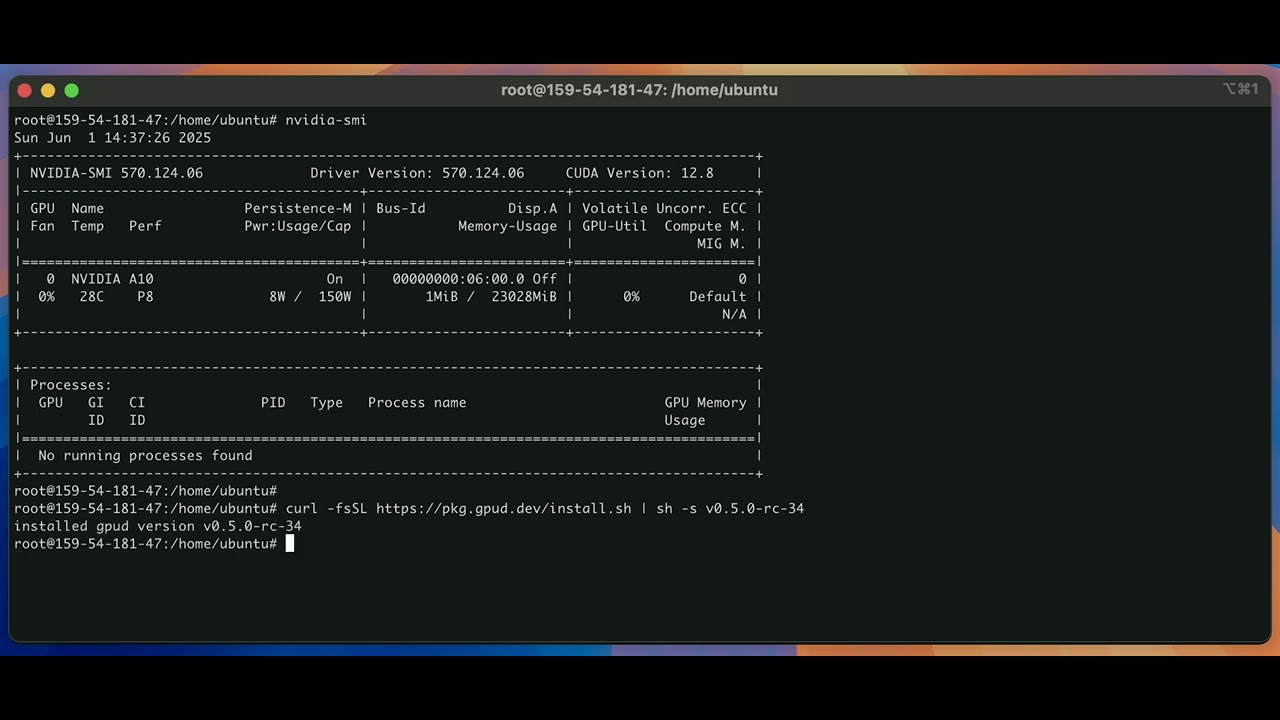
To install from the official release on Linux amd64 (x86_64) machine:
curl -fsSL https://pkg.gpud.dev/install.sh | sh
To install the latest published version explicitly:
# latest stable release (recommended)
curl -fsSL https://pkg.gpud.dev/install.sh | sh -s -- "$(curl -fsSL https://pkg.gpud.dev/stable_latest.txt)"

# for the latest unstable (pre-release) version, use unstable_latest.txt instead:
# curl -fsSL https://pkg.gpud.dev/install.sh | sh -s -- "$(curl -fsSL https://pkg.gpud.dev/unstable_latest.txt)"
The install script supports Linux on amd64 and arm64.
This section covers running gpud directly on a host machine.
Before adding a machine to DGX Cloud Lepton, review the current NVIDIA DGX Cloud Lepton BYOC Requirements.
systemd (Recommended for Linux)Start the service:
sudo gpud up
To add the machine to DGX Cloud Lepton, open
Node Groups,
select Add Machines > Add via Local Command, and use the generated
command. It installs GPUd and registers the machine with this gpud up form:
sudo gpud up \
  --token <DGXC_LEPTON_REGISTRATION_TOKEN> \
  --endpoint <DGXC_LEPTON_ENDPOINT> \
  --node-group <DGXC_LEPTON_NODE_GROUP>
Stop the service:
sudo gpud down
Uninstall:
sudo rm /usr/local/bin/gpud
sudo rm /etc/systemd/system/gpud.service
systemd (Linux)Run in the foreground:
gpud run
Run in the background:
nohup sudo /usr/local/bin/gpud run &>> <your_log_file_path> &
Uninstall:
sudo rm /usr/local/bin/gpud
The recommended way to deploy GPUd on Kubernetes is with our official
Helm chart, published through both
GitHub Pages and the
NGC catalog.
The default nvcr.io/nvidia/lepton/gpud image
is public, so it does not require an image pull secret or NGC API key.
Install or upgrade to the latest published release from GitHub Pages:
helm repo add gpud https://leptonai.github.io/gpud
helm repo update gpud

# latest stable release (recommended)
# for the latest unstable (pre-release) version, use unstable_latest.txt instead
GPUD_VERSION="$(curl -fsSL https://pkg.gpud.dev/stable_latest.txt)"
GPUD_VERSION="${GPUD_VERSION#v}"

helm upgrade --install gpud gpud/gpud \
  --version "$GPUD_VERSION" \
  --set image.repository=nvcr.io/nvidia/lepton/gpud \
  --create-namespace \
  --namespace gpud
Or pull the same chart from NGC:
# latest stable release (recommended)
# for the latest unstable (pre-release) version, use unstable_latest.txt instead
GPUD_VERSION="$(curl -fsSL https://pkg.gpud.dev/stable_latest.txt)"
helm pull "https://helm.ngc.nvidia.com/nvidia/lepton/charts/gpud-${GPUD_VERSION#v}.tgz"
A Dockerfile is provided to build a container image from source. For complete instructions, please see our Docker guide in CONTRIBUTING.md.
Check out components for a detailed list of components and their features.
For users looking to set up a platform to collect and process data from gpud, please refer to INTEGRATION.
GPUd connects to DGX Cloud Lepton only after it has been registered with the platform. The authenticated session exchanges the machine, health, and runtime information needed to manage the node.
GPUd is still in active development, regularly releasing new versions for critical bug fixes and new features. We strongly recommend always being on the latest version of GPUd.
Host installations started with gpud up enable automatic updates by default.
To disable them, append --enable-auto-update=false to the existing FLAGS
value in /etc/default/gpud, then restart the service.
Please see the CONTRIBUTING.md for guidelines on how to contribute to this project.
0 followers · starred Nov 2024
1,584 followers · starred Feb 2025
323 followers · starred Aug 2026
5,110 followers · starred Apr 2025
GPUd automates monitoring, diagnostics, and issue identification for GPUs
See the code
GPUd is designed to ensure GPU efficiency and reliability by actively monitoring GPUs and effectively managing AI/ML workloads.
GPUd is built on years of experience operating large-scale GPU clusters at Meta, Alibaba Cloud, Uber, and Lepton AI. It is carefully designed to be self-contained and to integrate seamlessly with other systems such as Docker, containerd, Kubernetes, and NVIDIA ecosystems.
GPUd keeps monitoring off the workload critical path and minimizes CPU and memory overhead. See architecture for more details.
The fastest way to see gpud in action is to watch our 40-second demo video below. For more detailed guides, see our Tutorials page.
To install from the official release on Linux amd64 (x86_64) machine:
curl -fsSL https://pkg.gpud.dev/install.sh | sh
To install the latest published version explicitly:
# latest stable release (recommended)
curl -fsSL https://pkg.gpud.dev/install.sh | sh -s -- "$(curl -fsSL https://pkg.gpud.dev/stable_latest.txt)"

# for the latest unstable (pre-release) version, use unstable_latest.txt instead:
# curl -fsSL https://pkg.gpud.dev/install.sh | sh -s -- "$(curl -fsSL https://pkg.gpud.dev/unstable_latest.txt)"
The install script supports Linux on amd64 and arm64.
This section covers running gpud directly on a host machine.
Before adding a machine to DGX Cloud Lepton, review the current NVIDIA DGX Cloud Lepton BYOC Requirements.
systemd (Recommended for Linux)Start the service:
sudo gpud up
To add the machine to DGX Cloud Lepton, open
Node Groups,
select Add Machines > Add via Local Command, and use the generated
command. It installs GPUd and registers the machine with this gpud up form:
sudo gpud up \
  --token <DGXC_LEPTON_REGISTRATION_TOKEN> \
  --endpoint <DGXC_LEPTON_ENDPOINT> \
  --node-group <DGXC_LEPTON_NODE_GROUP>
Stop the service:
sudo gpud down
Uninstall:
sudo rm /usr/local/bin/gpud
sudo rm /etc/systemd/system/gpud.service
systemd (Linux)Run in the foreground:
gpud run
Run in the background:
nohup sudo /usr/local/bin/gpud run &>> <your_log_file_path> &
Uninstall:
sudo rm /usr/local/bin/gpud
The recommended way to deploy GPUd on Kubernetes is with our official
Helm chart, published through both
GitHub Pages and the
NGC catalog.
The default nvcr.io/nvidia/lepton/gpud image
is public, so it does not require an image pull secret or NGC API key.
Install or upgrade to the latest published release from GitHub Pages:
helm repo add gpud https://leptonai.github.io/gpud
helm repo update gpud

# latest stable release (recommended)
# for the latest unstable (pre-release) version, use unstable_latest.txt instead
GPUD_VERSION="$(curl -fsSL https://pkg.gpud.dev/stable_latest.txt)"
GPUD_VERSION="${GPUD_VERSION#v}"

helm upgrade --install gpud gpud/gpud \
  --version "$GPUD_VERSION" \
  --set image.repository=nvcr.io/nvidia/lepton/gpud \
  --create-namespace \
  --namespace gpud
Or pull the same chart from NGC:
# latest stable release (recommended)
# for the latest unstable (pre-release) version, use unstable_latest.txt instead
GPUD_VERSION="$(curl -fsSL https://pkg.gpud.dev/stable_latest.txt)"
helm pull "https://helm.ngc.nvidia.com/nvidia/lepton/charts/gpud-${GPUD_VERSION#v}.tgz"
A Dockerfile is provided to build a container image from source. For complete instructions, please see our Docker guide in CONTRIBUTING.md.
Check out components for a detailed list of components and their features.
For users looking to set up a platform to collect and process data from gpud, please refer to INTEGRATION.
GPUd connects to DGX Cloud Lepton only after it has been registered with the platform. The authenticated session exchanges the machine, health, and runtime information needed to manage the node.
GPUd is still in active development, regularly releasing new versions for critical bug fixes and new features. We strongly recommend always being on the latest version of GPUd.
Host installations started with gpud up enable automatic updates by default.
To disable them, append --enable-auto-update=false to the existing FLAGS
value in /etc/default/gpud, then restart the service.
Please see the CONTRIBUTING.md for guidelines on how to contribute to this project.
0 followers · starred Nov 2024
1,584 followers · starred Feb 2025
323 followers · starred Aug 2026
5,110 followers · starred Apr 2025



