Content-adaptive display brightness for macOS that follows what's on screen — and learns your preference.
Swift
30
23 commits
updated Oct 2, 2026
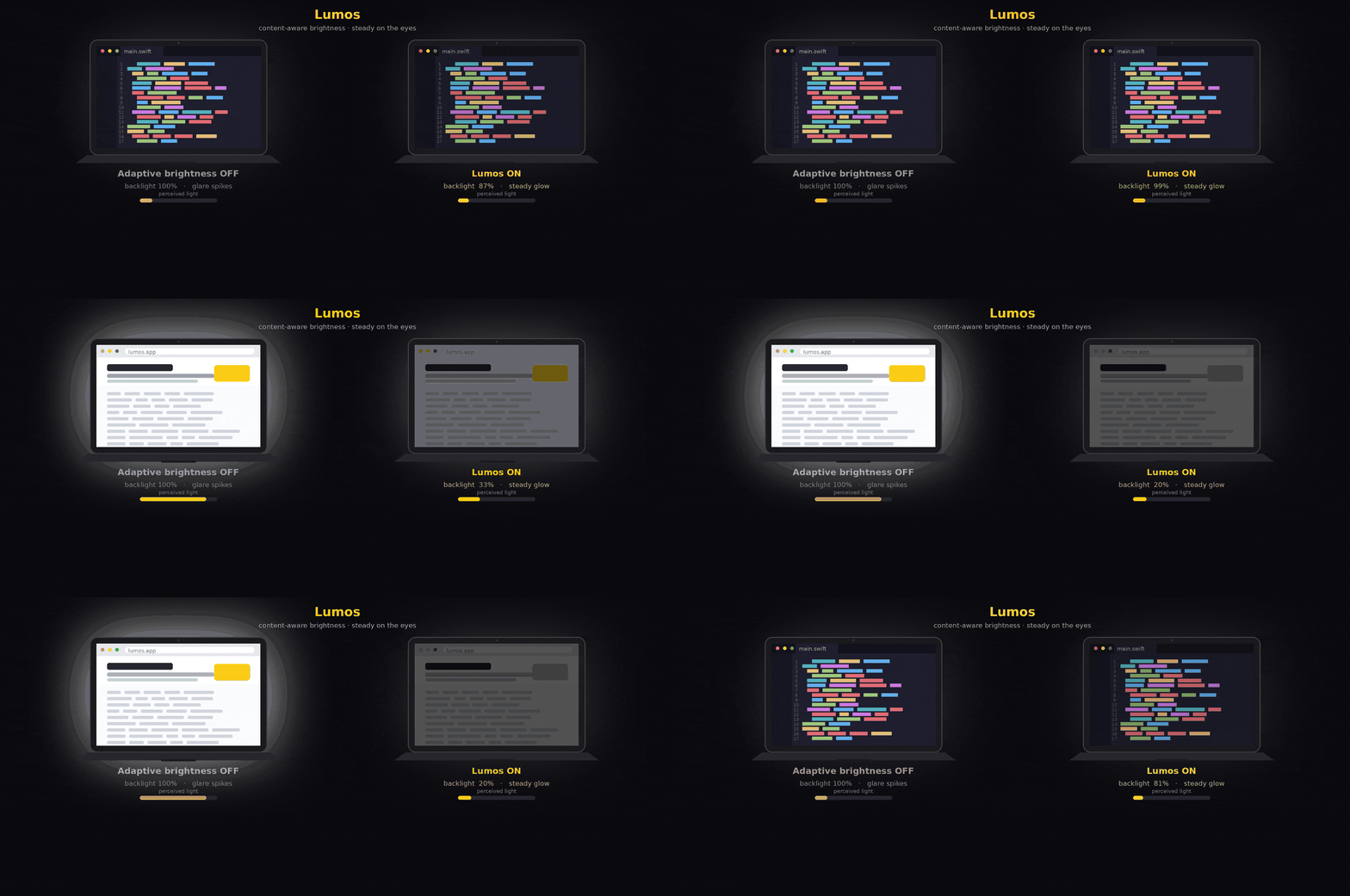
Lumos watches what's on your screen and keeps its perceived brightness steady: it dims for bright pages and brightens for dark editors, so your eyes aren't constantly readjusting. Set the brightness yourself once and it remembers what you wanted — across your built-in display and every external monitor.
Apple Silicon · macOS 14+ · lives in the menu bar
brew install --cask lenbrocki/tap/lumos
Then launch Lumos — a sun icon appears in your menu bar. Update later with
brew upgrade --cask lumos.
Lumos.dmg from the latest release.Releases are signed with a Developer ID and notarized by Apple, so they open without security warnings.
That's it — switch between a dark editor and a bright browser and watch the brightness follow.
Each display has a brightness slider in the menu. Whenever the brightness isn't quite right:
Lumos treats that as “for this kind of content, I want this brightness” and reshapes that display's curve so similar content lands where you like it next time. Corrections are local — tuning bright pages doesn't affect how dark ones behave. Each display remembers separately, and its memory survives reconnects. A per-display reset button restores the default curve.
Some apps shouldn't be touched — a fullscreen movie where the backlight shouldn't chase the scene, a photo or video editor where you're judging the image, a game. Open the menu and flip Pause for <app> while that app is frontmost. From then on, whenever it's in front Lumos stops adapting and holds a fixed brightness; whatever level you set while in that app (slider or brightness keys) becomes its remembered level, per display. Paused apps are listed in the menu with a button to resume auto-brightness.
Lumos takes a tiny, low-resolution snapshot of each screen only when its content changes, measures the average brightness, and maps that to a backlight level through a curve it keeps refining from your corrections. Transitions ramp smoothly so there's no flicker, and a static screen costs essentially nothing.
DisplayCoordinator,
DisplayEngine).LuminanceCalculator).AdaptiveBrightnessModel
of interpolated control points across the luminance range. It cold-starts from a fixed curve
and is reshaped by corrections via a local, distance-weighted update that keeps the curve
monotonic. Saved per display to ~/Library/Application Support/Lumos/curve-<id>.json.DisplayServices framework
(DisplayServicesSetBrightness, resolved with dlopen/dlsym); external monitors through
DDC/CI over I2C using the vendored Arm64DDC
from MonitorControl. Because it uses private APIs it is not sandboxed and can't ship on the
Mac App Store.LuminanceStabilizer ignores transient
luminance during window/space-swipe animations, and brightness ramps fast for big switches,
gently for small ones.xcodebuild -project Lumos.xcodeproj -scheme Lumos -configuration Debug \
-derivedDataPath build build
open build/Build/Products/Debug/Lumos.app
Or open Lumos.xcodeproj in Xcode and Run.
Pushing a v* tag triggers .github/workflows/release.yml,
which builds, Developer-ID-signs, notarizes, packages Lumos.dmg, and publishes a GitHub
Release.
git tag v0.1.0
git push origin v0.1.0
One-time repo secrets (Settings → Secrets and variables → Actions):
| Secret | What it is |
|---|---|
MACOS_CERTIFICATE | base64 of your exported Developer ID Application .p12: base64 -i cert.p12 | pbcopy |
MACOS_CERTIFICATE_PWD | the password you set when exporting the .p12 |
KEYCHAIN_PASSWORD | any string (temporary CI keychain) |
APPLE_ID | your Apple ID email |
APPLE_TEAM_ID | your 10-char Team ID |
APPLE_APP_PASSWORD | an app-specific password from appleid.apple.com (for notarytool) |
BrightnessMapper.swift — minBrightness, maxBrightness,
gamma (the default curve).DisplayEngine.swift — jumpThreshold, fastRampPerSecond,
gentleRampPerSecond, overrideThreshold, overrideSettleTime (reaction / learning).LuminanceStabilizer.swift — settleTime (transient
rejection; default 0 = off).DisplayServicesSetBrightness and the DDC IOAVService* symbols are private/undocumented.
They work on current Apple Silicon Macs but are unsupported by Apple and could change.Lumos was inspired by lumen. Unlike lumen, Lumos fully supports external monitors out of the box, controlling them over DDC/CI with their own content-adapted, learnable brightness curves.
Lumos is released under the MIT License. DDC/CI control on Apple Silicon
(Arm64DDC.swift) is vendored from
MonitorControl, also MIT.
Content-adaptive display brightness for macOS that follows what's on screen — and learns your preference.
Swift
30
23 commits
updated Oct 2, 2026
Lumos watches what's on your screen and keeps its perceived brightness steady: it dims for bright pages and brightens for dark editors, so your eyes aren't constantly readjusting. Set the brightness yourself once and it remembers what you wanted — across your built-in display and every external monitor.
Apple Silicon · macOS 14+ · lives in the menu bar
brew install --cask lenbrocki/tap/lumos
Then launch Lumos — a sun icon appears in your menu bar. Update later with
brew upgrade --cask lumos.
Lumos.dmg from the latest release.Releases are signed with a Developer ID and notarized by Apple, so they open without security warnings.
That's it — switch between a dark editor and a bright browser and watch the brightness follow.
Each display has a brightness slider in the menu. Whenever the brightness isn't quite right:
Lumos treats that as “for this kind of content, I want this brightness” and reshapes that display's curve so similar content lands where you like it next time. Corrections are local — tuning bright pages doesn't affect how dark ones behave. Each display remembers separately, and its memory survives reconnects. A per-display reset button restores the default curve.
Some apps shouldn't be touched — a fullscreen movie where the backlight shouldn't chase the scene, a photo or video editor where you're judging the image, a game. Open the menu and flip Pause for <app> while that app is frontmost. From then on, whenever it's in front Lumos stops adapting and holds a fixed brightness; whatever level you set while in that app (slider or brightness keys) becomes its remembered level, per display. Paused apps are listed in the menu with a button to resume auto-brightness.
Lumos takes a tiny, low-resolution snapshot of each screen only when its content changes, measures the average brightness, and maps that to a backlight level through a curve it keeps refining from your corrections. Transitions ramp smoothly so there's no flicker, and a static screen costs essentially nothing.
DisplayCoordinator,
DisplayEngine).LuminanceCalculator).AdaptiveBrightnessModel
of interpolated control points across the luminance range. It cold-starts from a fixed curve
and is reshaped by corrections via a local, distance-weighted update that keeps the curve
monotonic. Saved per display to ~/Library/Application Support/Lumos/curve-<id>.json.DisplayServices framework
(DisplayServicesSetBrightness, resolved with dlopen/dlsym); external monitors through
DDC/CI over I2C using the vendored Arm64DDC
from MonitorControl. Because it uses private APIs it is not sandboxed and can't ship on the
Mac App Store.LuminanceStabilizer ignores transient
luminance during window/space-swipe animations, and brightness ramps fast for big switches,
gently for small ones.xcodebuild -project Lumos.xcodeproj -scheme Lumos -configuration Debug \
-derivedDataPath build build
open build/Build/Products/Debug/Lumos.app
Or open Lumos.xcodeproj in Xcode and Run.
Pushing a v* tag triggers .github/workflows/release.yml,
which builds, Developer-ID-signs, notarizes, packages Lumos.dmg, and publishes a GitHub
Release.
git tag v0.1.0
git push origin v0.1.0
One-time repo secrets (Settings → Secrets and variables → Actions):
| Secret | What it is |
|---|---|
MACOS_CERTIFICATE | base64 of your exported Developer ID Application .p12: base64 -i cert.p12 | pbcopy |
MACOS_CERTIFICATE_PWD | the password you set when exporting the .p12 |
KEYCHAIN_PASSWORD | any string (temporary CI keychain) |
APPLE_ID | your Apple ID email |
APPLE_TEAM_ID | your 10-char Team ID |
APPLE_APP_PASSWORD | an app-specific password from appleid.apple.com (for notarytool) |
BrightnessMapper.swift — minBrightness, maxBrightness,
gamma (the default curve).DisplayEngine.swift — jumpThreshold, fastRampPerSecond,
gentleRampPerSecond, overrideThreshold, overrideSettleTime (reaction / learning).LuminanceStabilizer.swift — settleTime (transient
rejection; default 0 = off).DisplayServicesSetBrightness and the DDC IOAVService* symbols are private/undocumented.
They work on current Apple Silicon Macs but are unsupported by Apple and could change.Lumos was inspired by lumen. Unlike lumen, Lumos fully supports external monitors out of the box, controlling them over DDC/CI with their own content-adapted, learnable brightness curves.
Lumos is released under the MIT License. DDC/CI control on Apple Silicon
(Arm64DDC.swift) is vendored from
MonitorControl, also MIT.