React Basics ( v19.x )
See the codeClick ★ if you like the project. Your contributions are heartily ♡ welcome.
Focus: React basics, environment setup, JSX syntax, and core component concepts.
Focus: Components, props, state, hooks, events, lists, and forms.
Focus: Styling, routing, API integration, context, and advanced component patterns.
Focus: Internationalization, TypeScript, accessibility, security, and data fetching libraries.
Focus: Concurrent features, GraphQL, micro-frontend, real-time data, and technical leadership.
React is a JavaScript library created for building fast and interactive user interfaces for web and mobile applications. It is an open-source, component-based, front-end library responsible only for the application view layer.
The main objective of ReactJS is to develop User Interfaces (UI) that improves the speed of the apps. It uses virtual DOM (JavaScript object), which improves the performance of the app. The JavaScript virtual DOM is faster than the regular DOM. We can use ReactJS on the client and server-side as well as with other frameworks. It uses component and data patterns that improve readability and helps to maintain larger apps.
Reference:
Virtual DOM: React maintains a lightweight copy of the actual DOM in memory. When state changes, React creates a new virtual DOM tree, compares it with the previous one (diffing), and calculates the minimal set of changes needed to update the real DOM.
Component-Based Architecture: React apps are built from reusable components - JavaScript functions or classes that return JSX (HTML-like syntax). Each component manages its own state and props (data passed from parent).
Reconciliation: When data changes, React uses its reconciliation algorithm to efficiently update only the parts of the DOM that actually changed, rather than re-rendering everything.
Unidirectional Data Flow: Data flows one way - from parent to child components via props. Child components communicate back via callback functions, maintaining predictable data flow.

Major Advantages:
Limitations:
React emphasizes unidirectional data flow (also called "one-way data binding") because it provides a predictable, easy-to-debug, and modular way to manage how data moves through an application.
In this pattern, data is passed from parent to child components via read-only props. If a child needs to change the data, it doesn't modify it directly; instead, it triggers a callback function provided by the parent to update the "single source of truth".
Key Benefits
Example:
// Parent controls state
function Parent() {
  const [data, setData] = useState('hello');

  return <Child data={data} onChange={setData} />;
}

// Child receives data and callback
function Child({ data, onChange }) {
  return <input value={data} onChange={(e) => onChange(e.target.value)} />;
}
Destructuring in React.js is a JavaScript ES6 feature that allows you to extract values from arrays or properties from objects into distinct variables. In React, it is widely used to make code cleaner and more readable.
Key Uses in React:
1. Props Destructuring:
// Without destructuring
function Welcome(props) {
  return <h1>Hello, {props.name}</h1>;
}

// With destructuring
function Welcome({ name, age }) {
  return <h1>Hello, {name}, you are {age} years old</h1>;
}
2. State Destructuring with Hooks:
// Array destructuring with useState
const [counter, setCounter] = React.useState(0);
const [name, setName] = React.useState("John");

// Object destructuring with useContext
const { user, theme } = useContext(AppContext);
3. Nested Object Destructuring:
const user = {
  name: "Alice",
  address: {
    city: "New York",
    country: "USA"
  }
};

// Destructure nested properties
const { name, address: { city } } = user;
// name = "Alice", city = "New York"
4. Class Component State:
class App extends React.Component {
  render() {
    const { isLoggedIn, user } = this.state;
    return <div>{isLoggedIn ? user.name : "Guest"}</div>;
  }
}
In React, component names must start with a capital letter because of how JSX distinguishes between HTML elements and React components:
Key Reasons:
1. JSX Compilation Behavior:
<component /> → compiles to React.createElement('component') (treated as HTML tag string)<Component /> → compiles to React.createElement(Component) (treated as React component)2. Built-in vs Custom Components:
<div>, <span>, <button>3. Exception:
Lowercase with dot notation works: <obj.component /> compiles to React.createElement(obj.component)
Example:
//  Wrong - React treats this as HTML <mybutton> tag
function myButton() {
  return <button>Click me</button>;
}

// Using it: <myButton /> // Won\'t work as expected

//  Correct - React treats this as a component
function MyButton() {
  return <button>Click me</button>;
}

// Using it: <MyButton /> // Works correctly
React Fragments are a way to group multiple elements without adding an extra node to the browser's DOM.
Why use Fragments?
<div> inside elements like <table>, <tr>, or <ul> can break the browser's layout rules.Example:
// Long syntax
import React, { Fragment } from 'react';

function MyComponent() {
  return (
    <Fragment>
      <h1>Title</h1>
      <p>Description</p>
    </Fragment>
  );
}

// Short syntax (more common)
function MyComponent() {
  return (
    <>
      <h1>Title</h1>
      <p>Description</p>
    </>
  );
}
The Virtual DOM is a programming concept where a "virtual" representation of a User Interface is kept in memory and synchronized with the "real" browser DOM by a library like ReactDOM
How it works:
1. Initial Render: React creates a lightweight tree of JavaScript objects (the Virtual DOM) that mirrors the structure of the real DOM.
2. State Change: When a component's state or props change, React creates a new Virtual DOM tree.
3. Diffing: React compares the new tree with the previous version to identify exactly what changed. This is handled by a highly efficient diffing algorithm.
4. Reconciliation: Based on the "diffs," React calculates the minimal set of changes needed and updates only those specific parts in the real DOM.
Benefits:
Example:
// When count changes from 0 to 1
const [count, setCount] = useState(0);

return <div>Count: {count}</div>;
React only updates the text node containing the count value, not the entire <div> element.
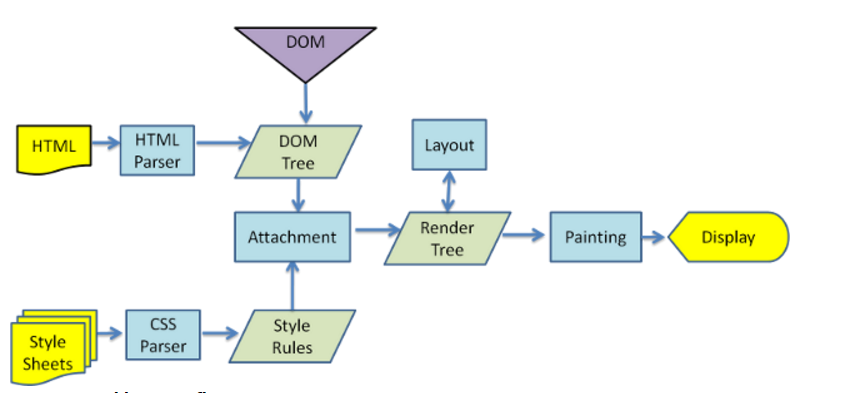
1. Document Object Model:
It a way of representing a structured document via objects. It is cross-platform and language-independent convention for representing and interacting with data in HTML, XML, and others. Web browsers handle the DOM implementation details, so we can interact with it using JavaScript and CSS.
2. Virtual DOM:
Virtual DOM is any kind of representation of a real DOM. Virtual DOM is about avoiding unnecessary changes to the DOM, which are expensive performance-wise, because changes to the DOM usually cause re-rendering of the page. It allows to collect several changes to be applied at once, so not every single change causes a re-render, but instead re-rendering only happens once after a set of changes was applied to the DOM.
3. Shadow DOM:
Shadow DOM is mostly about encapsulation of the implementation. A single custom element can implement more-or-less complex logic combined with more-or-less complex DOM. Shadow DOM refers to the ability of the browser to include a subtree of DOM elements into the rendering of a document, but not into the main document DOM tree.
Difference:
The virtual DOM creates an additional DOM. The shadow DOM simply hides implementation details and provides isolated scope for web components.
Virtual DOM is about performance (efficiently updating the UI), while Shadow DOM is about encapsulation (isolating component styles and structure from the rest of the page).
Note:
React uses Virtual DOM but doesn't use Shadow DOM by default.
React (or React DOM) is a JavaScript library for building web user interfaces that render to the browser's DOM.
React Native is a framework for building native mobile applications for iOS and Android using React concepts — but instead of rendering HTML to the browser, it renders native platform components (like UIView on iOS and View on Android).
How React Native works:
Your JavaScript/JSX code
         ↓
React Native Bridge (JS thread ↔ Native thread)
         ↓
Native Platform APIs → Real iOS/Android UI components
Syntax differences:
// React (Web) — renders HTML elements
import React from 'react';

function WebButton({ label, onClick }) {
  return (
    <div style={{ padding: '10px', backgroundColor: 'blue' }}>
      <button onClick={onClick}>{label}</button>
    </div>
  );
}

// React Native — renders native components (NOT HTML)
import { View, Text, TouchableOpacity, StyleSheet } from 'react-native';

function NativeButton({ label, onPress }) {
  return (
    <View style={styles.container}>
      <TouchableOpacity onPress={onPress}>
        <Text>{label}</Text>
      </TouchableOpacity>
    </View>
  );
}

const styles = StyleSheet.create({
  container: { padding: 10, backgroundColor: 'blue' },
});
Key differences:
| Feature | React (Web) | React Native |
|---|---|---|
| Renders to | Browser DOM (div, span, button) | Native platform views (View, Text, Image) |
| Styling | CSS (class names, CSS-in-JS, modules) | StyleSheet API (subset of CSS, no cascading) |
| Navigation | React Router, History API | React Navigation, Expo Router |
| Flexbox | Standard CSS flex | Flex with column direction default |
| Animations | CSS animations, Framer Motion | Animated API, Reanimated |
| Platform access | Web APIs (localStorage, fetch) | Device APIs (camera, GPS, notifications) |
| Build output | HTML/CSS/JS bundle | iOS .ipa / Android .apk |
| Dev tooling | Browser DevTools | Expo Go, Metro Bundler, Flipper |
What React and React Native share:
useState, useEffect, useContext, useRef, etc.Code sharing strategies:
monorepo/
├── packages/
│   ├── shared/          ← Shared business logic, hooks, utilities (no UI)
│   │   ├── useAuth.ts
│   │   └── formatDate.ts
│   ├── web/             ← React DOM components
│   └── mobile/          ← React Native components
Expo: The most common React Native development environment. Provides a managed workflow with pre-built native modules, OTA updates, and a simple build system.
npx create-expo-app my-app
React, Vue, and Angular are the three dominant front-end technologies, but they serve different purposes and follow different philosophies.
React (by Meta):
react-router), state management (Redux, Zustand, Context), and form handling.Vue (by Evan You):
.vue files): HTML template, script, and style in one file.v-model).vue-router) and state (Vuex/Pinia) are official packages.Angular (by Google):
ngModel.ReactiveFormsModule), HTTP client, and testing.Comparison Table:
| Feature | React | Vue | Angular |
|---|---|---|---|
| Type | UI Library | Progressive Framework | Full Framework |
| Language | JSX | HTML Templates | TypeScript |
| Data Binding | One-way | One-way + v-model | Two-way (ngModel) |
| State Mgmt | External (Redux, Zustand) | Pinia / Vuex | NgRx / Services |
| Learning Curve | Medium | Low | High |
| Backed By | Meta | Community | |
| Mobile | React Native | NativeScript/Ionic | Ionic |
When to choose:
Vite is a modern, fast build tool that provides a superior development experience compared to traditional bundlers. It offers instant server start, lightning-fast Hot Module Replacement (HMR), and optimized builds.
It replaces older tools like Create React App by providing a leaner, faster build process
Requirements:
Installation:
npm create vite@latest my-react-app -- --template react   #Initialize the Project
cd my-react-app
npm install   #Install Dependencies
npm run dev   #Start the Development Server
Essential Vite Commands:
npm run dev     #Starts the development server with Hot Module Replacement (HMR).
npm run build   #Creates an optimized production bundle in the /dist folder.
npm run preview #Locally previews the production build you just created.
Available Templates:
react - React with JavaScriptreact-ts - React with TypeScriptreact-swc - React with SWC (faster compilation)react-swc-ts - React with TypeScript and SWCProject Structure:
my-react-app
├── node_modules
├── public
│   └── vite.svg
├── src
│   ├── assets
│   │   └── react.svg
│   ├── App.css
│   ├── App.jsx
│   ├── index.css
│   └── main.jsx
├── .gitignore
├── index.html
├── package.json
├── vite.config.js
└── README.md
Key Differences from Create React App:
Reference:
Vite is a modern build tool and development server with these key features:
Core Features
Optimized Production Build
Rich Features
1. ESLint:
ESLint is a popular JavaScript linter. There are plugins available that analyse specific code styles. One of the most common for React is an npm package called eslint-plugin-react.
npm install -g eslint-plugin-react
This will install the plugin we need, and in our ESLint config file, we just need a few extra lines.
"extends": [
    "eslint:recommended",
    "plugin:react/recommended"
]
"scripts": {
    "start": "react-scripts start",
    "build": "react-scripts build",
    "test": "react-scripts test --env=jsdom",
    "eject": "react-scripts eject",
    "lint": "eslint src/**/*.js src/**/*.jsx"
}
2. eslint-plugin-jsx-a11y:
alt text, tabindex, and other accessibility concerns3. Other Popular Options:
React applications are supported by all modern web browsers. Because React uses JavaScript ES5 features as its baseline, it can be extended to older browsers with the right configuration.
Support for Internet Explorer 9, 10, and 11 requires polyfills. For a set of polyfills to support older browsers, use react-app-polyfill.
Browser Configuration:
The browserslist configuration in package.json controls which browsers are supported by determining what JavaScript transformations are applied:
Example:
// package.json

"browserslist": {
  "production": [
    ">0.2%",          // Browsers with >0.2% market share
    "not dead",       // Still maintained browsers
    "not op_mini all" // Exclude Opera Mini
  ],
  "development": [
    "last 1 chrome version",
    "last 1 firefox version",
    "last 1 safari version"
  ]
}
1. Webpack (The Transpiler):
Webpack primary job is to take all your individual files (JavaScript, CSS, images) and "bundle" them into a few optimized files.
Dependency Management: It starts from an entry point (usually index.js) and creates a dependency graph to understand how every file is connected.
Asset Handling: It treats everything—including CSS and images—as a module, allowing you to import them directly into your JavaScript components.
Performance: It performs optimizations like tree shaking (removing unused code), minification, and code splitting (loading only what is needed).
Development Features: Tools like webpack-dev-server enable Hot Module Replacement (HMR), allowing you to see changes instantly without a full page refresh.
2. Babel (The Module Bundler):
Babel is a "translator" that converts modern code into a version that all browsers can understand.
JSX Transformation: Browsers cannot natively read JSX (the HTML-like syntax in React). Babel converts JSX into standard React.createElement() calls.
Modern JS (ES6+) Support: It transpiles newer features (like arrow functions, classes, and destructuring) into ES5 syntax for compatibility with older browsers.
Future-Proofing: It allows developers to use experimental JavaScript features before they are officially supported by browsers
How they work together:
ReactDOM is a package that provides DOM-specific methods for managing DOM elements in web applications. It serves as the bridge between React components and the browser's DOM.
ReactDOM provides the developers with an API containing the following methods
Key Methods (React 18+):
createRoot() - Creates a React root for displaying content inside a browser DOM element. Use it to render and update your React component tree.
hydrateRoot() - Replaces hydrate() for server-side rendering. Attaches React to existing server-rendered HTML and enables React to manage it.
root.unmount() - Destroys a rendered React tree inside a root, cleaning up all associated resources.
createPortal() - The createPortal() allows rendering a component into a DOM node that resides outside the current DOM hierarchy of the parent component.
Note:
ReactDOM.render(), ReactDOM.hydrate(), ReactDOM.unmountComponentAtNode(), and ReactDOM.findDOMNode() are deprecated as of React 18. Use the react-dom/client APIs instead.
Syntax:
import { createRoot, hydrateRoot } from 'react-dom/client';
import { createPortal } from 'react-dom';

const root = createRoot(container);   // createRoot()
root.render(element);                 // render()
root.unmount();                       // unmount()

hydrateRoot(container, element);      // hydrateRoot() — replaces hydrate()

createPortal(child, container);       // createPortal()
Example:
import { createRoot } from 'react-dom/client';

const rootElement = document.getElementById('root');
const root = createRoot(rootElement);

root.render(<App />);
React is the core library that contains the fundamental React functionality used across all platforms (web, mobile, etc.)
ReactDOM is a separate package that provides DOM-specific methods for web applications - it's the bridge between React components and the browser's DOM.
Key Differences:
| React | ReactDOM |
|---|---|
| It is core engine. It manages component logic, state, hooks, and props. | The web renderer. It translates React components into actual HTML DOM nodes. |
| It is used for Creating the Virtual DOM (a blueprint of what the UI should look like). | Updating the Real DOM (the actual elements visible in the browser). |
| It is Platform-independent; used for Web, Mobile, VR, etc. | Browser-specific; used only for web applications. |
| useState, useEffect, createElement, Component. | createRoot, createPortal, hydrateRoot. |
Example:
/**
 * React vs ReactDOM
 */
import React from 'react';                      // Core functionality
import { createRoot } from 'react-dom/client';  // DOM rendering

export default function App() {
  return <h1>Hello React</h1>;
}

const rootElement = document.getElementById("root");
const root = createRoot(rootElement);

root.render(<App />);
⚝ Try this example on CodeSandbox
A Progressive Web App (PWA) is a web application that uses modern web capabilities to deliver an app-like experience to users. React applications can be converted into PWAs by adding service workers, manifest files, and implementing offline capabilities.
Building a Progressive Web App (PWA) with React is mostly about adding a web app manifest, a service worker (for Offline, Caching, and updates), and meeting installability criteria (HTTPS, icons, etc).
Steps to Build a PWA with React:
1. Vite with PWA Template:
Vite offers a modern approach for building PWAs using the vite-plugin-pwa package.
# Create new React app with PWA template
npm create vite@latest my-pwa-app -- --template react
cd my-pwa-app
npm install

npm install vite-plugin-pwa -D # Install the PWA package
2. Registering the Service Worker:
The Service Worker manage tasks between browser and server, intercepting network requests, managing caching, and providing offline functionality.
Basic Service Worker Registration:
Add this code to your src/main.jsx file:
import React from 'react'
import ReactDOM from 'react-dom/client'
import App from './App.jsx'
import './index.css'

ReactDOM.createRoot(document.getElementById('root')).render(
  <React.StrictMode>
    <App />
  </React.StrictMode>
)

// Service Worker registration
if ('serviceWorker' in navigator) {
  // Check if browser supports Service Worker
  window.addEventListener('load', () => {
    // Execute after page is fully loaded
    navigator.serviceWorker.register('/sw.js')
      .then(registration => {
        console.log('SW registered: ', registration);
        // Registration successful
      })
      .catch(registrationError => {
        console.log('SW registration failed: ', registrationError);
        // Registration failed
      });
  });
}
3. Configuring the Manifest File:
Modify your vite.config.js to include and configure the plugin, specifying manifest and service worker options.
import { defineConfig } from 'vite'
import react from '@vitejs/plugin-react'
import { VitePWA } from 'vite-plugin-pwa'

export default defineConfig({
  plugins: [
    react(),
    VitePWA({
      registerType: 'autoUpdate',  // Automatically update Service Worker
      includeAssets: ['favicon.ico', 'robots.txt', 'apple-touch-icon.png'],  // Files to cache
      manifest: {
        name: 'My First PWA',  // Full app name
        short_name: 'PWA App',  // Short name displayed on home screen
        description: 'My first Progressive Web App built with React',
        theme_color: '#ffffff',  // Color of the top bar
        background_color: '#ffffff',  // Splash screen background color
        display: 'standalone',  // Makes it look like a native app (hides browser UI)
        icons: [
          {
            src: 'pwa-192x192.png',  // Small icon
            sizes: '192x192',
            type: 'image/png'
          },
          {
            src: 'pwa-512x512.png',  // Large icon
            sizes: '512x512',
            type: 'image/png',
            purpose: 'any maskable'  // Works in various environments
          }
        ]
      }
    })
  ]
})
Key PWA Features:
Reference:
The primary difference between Vite and Webpack is how they handle code during development. While Webpack bundles your entire application before serving it, Vite serves individual files directly to the browser using modern web standards.
Key Differences:
Webpack:
Webpack is a module bundler that:
Vite:
Example: Webpack Configuration (Manual Setup)
// webpack.config.js
const path = require('path');
const HtmlWebpackPlugin = require('html-webpack-plugin');

module.exports = {
  entry: './src/index.js',
  output: {
    path: path.resolve(__dirname, 'dist'),
    filename: 'bundle.js'
  },
  module: {
    rules: [
      {
        test: /\.(js|jsx)$/,
        exclude: /node_modules/,
        use: {
          loader: 'babel-loader',
          options: {
            presets: ['@babel/preset-env', '@babel/preset-react']
          }
        }
      },
      {
        test: /\.css$/,
        use: ['style-loader', 'css-loader']
      }
    ]
  },
  plugins: [
    new HtmlWebpackPlugin({
      template: './public/index.html'
    })
  ],
  devServer: {
    port: 3000,
    hot: true
  }
};
Example: Vite (Zero Configuration)
# Just one command!
npx create-react-app my-app
cd my-app
npm start
When to Use Webpack:
When to Use Vite:
JSX (JavaScript XML) is a syntax extension that allows you to write HTML-like code directly in JavaScript. It is used in React to describe what the UI should look like.
JSX is not required for React, but it makes code more readable and easier to write. Under the hood, it's just syntactic sugar for React.createElement() calls.
Key Points:
createElement() or appendChild()Example:
// JSX syntax
const hello = <h1 className="greet">Hello World</h1>

// Compiles to:
const hello = React.createElement("h1", {
  className: "greet"
}, "Hello World")
In a component:
export default function App() {
  return (
    <div className="App">
      <h1>Hello World!</h1>
    </div>
  );
}
⚝ Try this example on CodeSandbox
JSX prevents injection attacks, specifically Cross-Site Scripting (XSS), by automatically escaping any values embedded within JSX elements before they are rendered to the DOM. This means all dynamic content is converted into plain strings, neutralizing potentially malicious code.
Example:
export default class JSXInjectionExample extends React.Component {

  constructor(props) {
    super(props);
    this.state = {
      userContent: `JSX prevents Injection Attacks Example
          <script src="http://example.com/malicious-script.js></script>`
    };
  }

  render() {
    return (
      <div>User content: {this.state.userContent}</div>
    );
  }
}

// Output
User content: JSX prevents Injection Attacks Example
<script src="http://example.com/malicious-script.js></script>
⚝ Try this example on CodeSandbox
The new JSX transform, React 19, provides several key benefits for developers and application performance
No Explicit React Import: You can use JSX syntax without having to import React from 'react' at the top of every file. The compiler now automatically imports special functions from new entry points (react/jsx-runtime) to handle the transformation.
Reduced Bundle Size: The new transform generates more optimized code compared to the old React.createElement() method, which can lead to a slight reduction in the overall application bundle size.
Performance Optimizations: It eliminates some of the overhead associated with the previous transformation process, enabling faster runtime performance and more efficient rendering.
Simplified Configuration: Modern versions of React include this transform by default, reducing the need for manual Babel or TypeScript configuration with multiple presets and plugins.
Enhanced Developer Experience: The streamlined process can result in cleaner stack traces and more useful error messages, making debugging more straightforward.
It is possible with latest version (>=16.2). Below are the possible options:
// 1. Return false
render() {
  return false
}

// 2. Return null (most common)
render() {
  return null
}

// 3. Return empty array
render() {
  return []
}

// 4. Return empty Fragment (long syntax)
render() {
  return <React.Fragment></React.Fragment>
}

// 5. Return empty Fragment (short syntax)
render() {
  return <></>
}
Note:
React can also run on the server side so, it will be possible to use it in such a way that it doesn't involve any DOM modifications (but maybe only the virtual DOM computation).
Writing comments in React components can be done just like comment in regular JavaScript classes and functions.
React comments:
function App() {

  // Single line Comment

  /*
  * multi
  * line
  * comment
  **/

  return (
    <h1>My Application</h1>
  );
}
JSX comments:
export default function App() {
  return (
    <div>
      {/* A JSX comment */}
      <h1>My Application</h1>
    </div>
  );
}
Custom attributes are supported natively in React 16+. This means that adding a custom attribute to an element is now as simple as adding it to a render function, like so:
Syntax:
// 1. Custom DOM Attribute
render() {
  return (
    <div custom-attribute="some-value" />
  );
}

// 2. Data Attribute ( starts with "data-" )
render() {
  return (
    <div data-id="10" data-user-role="admin"/>
  );
}

// 3. ARIA Attribute ( starts with "aria-" )
render() {
  return (
    <button aria-label="Close" onClick={onClose} />
  );
}
Example:
function CustomAttributeExample() {
  return (
    <div
      custom-attribute="custom-value"
      data-testid="my-component"
      data-category="widgets"
      aria-label="Product information"
    >
      Content with custom attributes
    </div>
  );
}
⚝ Try this example on CodeSandbox
A JSX expression must have only one outer element. For Example:
const headings = (
    <div id = "outermost-element">
       <h1>I am a heading </h1>
       <h2>I am also a heading</h2>
    </div>
)
To loop inside JSX, use the Array.prototype.map() method with ES6 arrow functions. This is the standard React pattern for rendering lists of elements.
Example:
/**
 * Loop inside JSX
 */
const items = ['Apple', 'Banana', 'Cherry'];

function FruitList() {
  return (
    <ul>
      {items.map((item) => (
        <li key={item}>{item}</li>
      ))}
    </ul>
  );
}
⚝ Try this example on CodeSandbox
In React, boolean values (true and false), null, and undefined are valid children, but these values will not be rendered in UI if you put them directly inside {} in JSX.
For example, all these JSX expressions will result in the same empty div:
<div />
<div></div>
<div>{false}</div>
<div>{null}</div>
<div>{undefined}</div>
<div>{true}</div>
If you want a value like false, true, null, or undefined to show in the output, you have to convert it to a string first.
<div>{String(true)}</div>
<div>{String(false)}</div>
<div>{String(undefined)}</div>
<div>{String(null)}</div>
In the output, this will render true, false, undefined, and null respectively.
⚝ Try this example on CodeSandbox
In React, you cannot use the standard HTML for attribute with <label> elements because for is a reserved keyword in JavaScript. Instead, React uses htmlFor.
Wrong - Using for (produces warning):
<label for={'user'}>{'User'}</label>
<input type={'text'} id={'user'} />
Correct - Using htmlFor:
<label htmlFor={'user'}>{'User'}</label>
<input type={'text'} id={'user'} />
Example:
function LoginForm() {
  return (
    <div>
      <label htmlFor="username">Username:</label>
      <input type="text" id="username" name="username" />

      <label htmlFor="password">Password:</label>
      <input type="password" id="password" name="password" />
    </div>
  );
}
The innerHTML is risky because it is easy to expose users to a cross-site scripting (XSS) attack. React provides dangerouslySetInnerHTML as a replacement for innerHTML. It allows to set HTML directly from React by using dangerouslySetInnerHTML and passing an object with a __html key that holds HTML.
Example:
/**
 * InnerHtml in React
 */
export default function App() {
  return (
    <div
      dangerouslySetInnerHTML={{
        __html: "<p>This text is set using <b>dangerouslySetInnerHTML</b></p>"
      }}
    ></div>
  );
}
Example: Using sanitization
import DOMPurify from 'dompurify';

function SafeHTML({ html }) {
  const sanitizedHTML = DOMPurify.sanitize(html);

  return (
    <div dangerouslySetInnerHTML={{ __html: sanitizedHTML }} />
  );
}
⚝ Try this example on CodeSandbox
1. Returning Null:
const AddToCart = ({ available }) => {
  if (!available) return null

  return (
    <div className="full tr">
      <button className="product--cart-button">Add to Cart</button>
    </div>
  )
}
2. Ternary Display:
When you need to control whether one element vs. another is displayed, or even one element vs. nothing at all (null), you can use the ternary operator embedded inside of a larger portion of JSX.
<div className="half">
  <p>{description}</p>

  {remaining === 0 ? (
    <span className="product-sold-out">Sold Out</span>
  ) : (
    <span className="product-remaining">{remaining} remaining</span>
  )}
</div>
In this case, if there are no products remaining, we will display "Sold Out"; otherwise we will display the number of products remaining.
3. Shortcut Display:
It involves using a conditional inside of your JSX that looks like checkIfTrue && <span>display if true</span>. Because if statements that use && operands stop as soon as they find the first value that evaluates to false, it won't reach the right side (the JSX) if the left side of the equation evaluates to false.
<h2>
  <span className="product--title__large">{nameFirst}</span>
  {nameRest.length > 0 && (
    <span className="product--title__small">{nameRest.join(" ")}</span>
  )}
</h2>
4. Using Style Property:
<div style={{ display: showInfo ? "block" : "none" }}>info</div>
Babel is a JavaScript compiler that converts modern JavaScript (including JSX) into backwards-compatible JavaScript that browsers can understand. JSX is not valid JavaScript on its own — Babel transforms it into React.createElement() calls at build time.
Step-by-step transpilation:
1. Old JSX Transform (React 16 and earlier):
// What you write
const element = <h1 className="title">Hello, World!</h1>;

// What Babel compiles it to
const element = React.createElement(
  "h1",
  { className: "title" },
  "Hello, World!"
);
This required import React from 'react' in every file.
2. New JSX Transform (React 17+):
// What you write
const element = <h1 className="title">Hello, World!</h1>;

// What Babel compiles it to (automatic runtime)
import { jsx as _jsx } from "react/jsx-runtime";
const element = _jsx("h1", { className: "title", children: "Hello, World!" });
The new transform automatically imports the jsx runtime, so you no longer need to import React at the top of every file.
How it works in the build pipeline:
Your JSX code
     ↓
Babel (with @babel/preset-react)
     ↓
React.createElement() / jsx() calls (plain JavaScript)
     ↓
Webpack/Vite bundles the output
     ↓
Browser executes standard JavaScript
Babel Configuration:
// babel.config.json
{
  "presets": [
    ["@babel/preset-react", { "runtime": "automatic" }]
  ]
}
Key Points:
runtime: "automatic" option enables the new JSX transform (no manual React import).@vitejs/plugin-react (which uses Babel under the hood) to handle JSX transformation.React components are the essential building blocks of a React application. They are independent, reusable pieces of code that serve the same purpose as JavaScript functions but work in isolation to return UI elements.
Two Main Types:
1. Stateless Component:
const Welcome = (props) => {
    return <h1>Hello, {props.name}</h1>;
};

const App = () => {
  const name = 'React'
  return (
    <div>
      <Welcome name={name} />
    </div>
  );
};

export default App;
The above example shows a stateless component named Welcome which is inserted in the <App/> component. The Welcome just comprises of a <h1> element. Although the Stateless component has no state, it still receives data via props from a parent component.
2. Stateful Component:
import React, { useState } from 'react'

const ExampleComponent = (props) => {
  const [email, setEmail] = useState(props.defaultEmail) // state

  const changeEmailHandler = (e) => {
    setEmail(e.target.value)
  }

  return (
    <input type="text" value={email} onChange={changeEmailHandler} />
  );
}


const App = () => {
  const defaultEmail = "[email protected]"
  return (
    <div>
      <ExampleComponent defaultEmail={defaultEmail} />
    </div>
  );
};

export default App;
The above example shows a stateful component named ExampleComponent which is inserted in the <App/> component. The ExampleComponent contains a <input>. First of all, in the ExampleComponent, we need to assign defaultEmail by props to a local state by a useState() hook in ExampleComponent.
Next, we have to pass email to value property of a input tag and pass a function changeEmailHandler to an onChange() event for a purpose keeping track of the current value of the input.
In React, the "Component" (specifically a "Presentational" component) vs. "Container" distinction refers to a popular design pattern used to separate logic from presentation. While every "Container" is technically a React component, they serve different architectural roles.
Presentational Components:
Container Components:
Example: Presentational Component
/**
 * Presentational Component
 */
const Users = props => (
  <ul>
    {props.users.map(user => (
      <li>{user}</li>
    ))}
  </ul>
)
Example: Container Component
/**
 * Container Component
 */
class UsersContainer extends React.Component {
  constructor() {
    this.state = {
      users: []
    }
  }

  componentDidMount() {
    axios.get('/users').then(users =>
      this.setState({ users: users }))
    )
  }

  render() {
    return <Users users={this.state.users} />
  }
}
React components are typically separated into individual files to keep code modular and manageable. React uses standard JavaScript ES6 module syntax for this purpose, primarily utilizing Default and Named exports
1. Default Export and Import (Recommended):
Use a default export when a file exports only one primary component.
Example:
// Button.js
export default function Button() {
  return <button>Click me</button>;
}

// Or with class components
class Button extends Component {
  render() {
    return <button>Click me</button>;
  }
}
export default Button;

// App.js
import MyButton from './Button'; // No curly braces; can rename 'Button' to 'MyButton'
2. Named Export and Import
Use named exports when you want to export multiple components or values from a single file.
Example:
// Components.js
export function Header() { return <h1>Header</h1>; }
export function Footer() { return <footer>Footer</footer>; }

// App.js
import { Header, Footer } from './Components'; // Must use exact names
Key Differences
| Default Export | Named Export |
|---|---|
| One per file | Multiple per file |
| Import with any name | Import with exact name (or rename with as) |
export default Component | export { Component } |
import Component from './file' | import { Component } from './file' |
The main difference is that imperative programming focuses on how to perform a task using explicit, step-by-step instructions, while declarative programming (which React uses) focuses on what the desired outcome should be, and lets the system figure out the how.
1. Declarative programming:
In React, you simply describe what the UI should look like for a given state, and React handles updating the DOM efficiently. You don't manually manipulate DOM elements—you declare the desired outcome and React takes care of the "how."
This makes React code more:
Example:
/**
 * React is Declarative
 */
const Welcome = () => (
  <div id="App">
    <h1>Hello World</h1>
  </div>
)

render(<Welcome />, document.getElementById('root'))
2. Imperative programming:
Imperative programming requires you to write a sequence of commands that explicitly change the program's state step-by-step. This is common in vanilla JavaScript when directly manipulating the DOM.
/**
 * vanilla JavaScript
 */
const string = "Hi there, I'm a web developer";
let removeSpace = "";

for (let i = 0; i < i.string.length; i++) {
  if (string[i] === " ") removeSpace += "-";
  else removeSpace += string[i];
}
console.log(removeSpace);
This example demonstrates imperative programming by looping through each character and replacing spaces one by one. The code requires extensive comments to convey its intent—without them, the logic is difficult to understand.
In contrast, declarative programming uses self-documenting syntax that clearly expresses the desired outcome while abstracting away the implementation details.
1. React Element:
It is a simple object that describes a DOM node and its attributes or properties. It is an immutable description object and you can not apply any methods on it.
Example:
const element = <h1>React Element Example!</h1>;
ReactDOM.render(element, document.getElementById('app'));
2. React Component:
A React Component is a function or class that accepts inputs (props) and returns a React element. It keeps references to DOM nodes and child component instances.
Example:
function Message() {
  return <h2>React Component Example!</h2>;
}
ReactDOM.render(<Message />, document.getElementById('app'));
Key Differences:
| React Element | React Component |
|---|---|
| A plain JavaScript object. | A function or a class. |
| Describes what to see on screen. | Defines how to build the UI and logic. |
| Immutable (cannot be changed). | Dynamic (can change via state/props). |
| No Input (it is the data). | Accepts "Props" as arguments. |
| No lifecycle | Has hooks (useEffect) and lifecycle. |
Conditional rendering is a term to describe the ability to render different user interface (UI) markup if a condition is true or false. In React, it allows us to render different elements or components based on a condition.
1. if/else Statements (and Element Variables):
You can use variables to store elements. This can help you conditionally render a part of the component while the rest of the output doesn't change.
Example:
import { createRoot } from 'react-dom/client';

function LogInComponent({ isLoggedIn }) {
  if (isLoggedIn) {
    return <UserComponent />;
  }
  return <GuestComponent />;
}

const root = createRoot(document.getElementById('root'));
root.render(<LogInComponent isLoggedIn={false} />);
2. Ternary Operator(? :)
The ternary operator is a concise way to handle an if/else condition inline within JSX. It is ideal for simple, two-option conditions.
Example:
render() {
  const isLoggedIn = this.state.isLoggedIn;
  return (
    <div>
      {isLoggedIn
        ? <LogoutButton onClick={this.handleLogoutClick} />
        : <LoginButton onClick={this.handleLoginClick} />
      }
    </div>
  );
}
3. Logical AND Operator (&&)
The logical && operator is useful when you want to render something only if a condition is true, and render nothing otherwise.
Example:
function Messages({ messageCount }) {
  return (
    <div>
      {messageCount > 0 && <h2>You have {messageCount} new messages.</h2>}
    </div>
  );
}
4. switch Statements
For scenarios with multiple conditions, a switch statement can be cleaner and more readable than a long chain of if/else if statements.
Example:
function StatusMessage({ status }) {
  const renderContent = () => {
    switch (status) {
      case 'loading':
        return <p>Loading...</p>;
      case 'success':
        return <p>Data loaded successfully!</p>;
      case 'error':
        return <p>Error fetching data.</p>;
      default:
        return null;
    }
  };

  return <div>{renderContent()}</div>;
}
5. Returning null to Prevent Rendering
To hide a component, you can have it return null. This prevents the component from rendering any output, although its lifecycle methods (like componentDidUpdate) still fire.
Example:
function WarningBanner({ showWarning }) {
  if (!showWarning) {
    return null;
  }
  return <div>Warning!</div>;
}
⚝ Try this example on CodeSandbox
In React, you can conditionally add attributes using several JavaScript patterns within your JSX. The most common methods include
1. Ternary Operator
Use this for toggling between two values or between a value and undefined. React will completely omit an attribute if its value is undefined, null, or false.
<button disabled={isLoading ? true : false}>
  Submit
</button>

// Simplified for boolean attributes
<button disabled={isLoading}>Submit</button>
2. Logical AND Operator
<input
  type="text"
  {...(isRequired && { required: true })}
  {...(maxLength && { maxLength: maxLength })}
/>
3. for Custom Data Attributes
function DataComponent({ mood, role }) {
  return (
    <div
      data-mood={mood === 'happy' ? 'positive' : 'neutral'}
      data-role={role || undefined}
      aria-disabled={mood === 'sad'}
    >
      Content
    </div>
  );
}
⚝ Try this example on CodeSandbox
There are several ways to prevent a component from rendering in React:
1. Return null
A component can return null from its render function to signify it should render nothing.
function MyComponent({ isVisible }) {
  if (!isVisible) {
    return null;
  }
  return <div>Content</div>;
}
2. Conditional Rendering:
function Parent() {
  return (
    <div>
      {condition && <MyComponent />}  {/* Short-Circuit Evaluation */}
      {condition ? <MyComponent /> : null} {/* Ternary Operator */}
    </div>
  );
}
3. React.memo: (Functional Components)
Wraps your component to memoize it. It will only re-render if its props actually change.
const MyComponent = React.memo(({ value }) => {
  return <div>{value}</div>;
});
4. shouldComponentUpdate() (Class Components)
Control when component updates:
class MyComponent extends React.Component {
  shouldComponentUpdate(nextProps, nextState) {
    return nextProps.value !== this.props.value;
  }

  render() {
    return <div>{this.props.value}</div>;
  }
}
5. useMemo() Hook
Memoize the entire component output:
function Parent({ data }) {
  const memoizedComponent = useMemo(() => {
    return <ExpensiveComponent data={data} />;
  }, [data]);

  return memoizedComponent;
}
⚝ Try this example on CodeSandbox
StrictMode is a development tool that helps identify bugs and outdated code during the development phase. It is a wrapper tool that enables additional runtime checks and warnings for its child components without affecting the production build.
Example:
/**
 * StrictMode
 */
import { StrictMode } from "react";
import MyComponent from "./MyComponent";

export default function App() {
  return (
    <StrictMode>
      <MyComponent />
    </StrictMode>
  );
}
React StrictMode, in order to be efficient and avoid potential problems by any side-effects, needs to trigger some methods and lifecycle hooks twice. These are:
Benefits of StrictMode:
In React, calling setState() on an unmounted component should be avoided primarily because it signals a potential memory leak in your application.
The component retains references in memory even after unmounting, preventing garbage collection. Subscriptions, timers, or async operations holding references to the component keep it alive unnecessarily
Warning Messages:
Warning: Can not perform a React state update on an unmounted component.
This is a no-op, but it indicates a memory leak in your application.
Prevention:
Use cleanup in useEffect():
useEffect(() => {
  let isMounted = true;

  fetchData().then(data => {
    if (isMounted) {
      setState(data);
    }
  });

  return () => {
    isMounted = false; // Cleanup
  };
}, []);
The warning indicates a logic flaw where side effects aren't properly cleaned up, which can lead to performance issues and unexpected behavior in larger applications.
⚝ Try this example on CodeSandbox
In React, "Lifting State Up" is a pattern where you move state from child components to their closest common parent component so that multiple children can share and sync the same data.
Instead of each component managing its own copy of the data, the parent component becomes the "single source of truth"
Example:
The code shows an App component that manages player selection state and passes it down to:
PlayerContent (displays player buttons)PlayerDetails (displays selected player info)When a button is clicked in PlayerContent, it calls updateSelectedPlayer() in the parent App, which updates state that both components depend on. This keeps both components synchronized with the same player selection.
/**
 * Lifting State Up
 */

import PlayerContent from "./PlayerContent";
import PlayerDetails from "./PlayerDetails";

export default class App extends React.Component {
  constructor(props) {
    super(props);
    this.state = { selectedPlayer: [0, 0], playerName: "" };
    this.updateSelectedPlayer = this.updateSelectedPlayer.bind(this);
  }
  updateSelectedPlayer(id, name) {
    const arr = [0, 0, 0, 0];
    arr[id] = 1;
    this.setState({
      playerName: name,
      selectedPlayer: arr
    });
  }
  render() {
    return (
      <div>
        <PlayerContent
          active={this.state.selectedPlayer[0]}
          clickHandler={this.updateSelectedPlayer}
          id={0}
          name="Player 1"
        />
        <PlayerContent
          active={this.state.selectedPlayer[1]}
          clickHandler={this.updateSelectedPlayer}
          id={1}
          name="Player 2"
        />
        <PlayerDetails name={this.state.playerName} />
      </div>
    );
  }
}
/**
 * PlayerContent
 */
import React, { Component } from "react";

export default class PlayerContent extends Component {
  render() {
    return (
      <button
        onClick={() => {
          this.props.clickHandler(this.props.id, this.props.name);
        }}
        style={{ color: this.props.active ? "red" : "blue" }}
      >
        {this.props.name}
      </button>
    );
  }
}
/**
 * PlayerDetails
 */
import React, { Component } from "react";

export default class PlayerDetails extends Component {
  render() {
    return <h2>{this.props.name}</h2>;
  }
}
⚝ Try this example on CodeSandbox
In React, children is a special prop that allows you to pass components, elements, or any content between the opening and closing tags of a component.
Example:
// Component that uses children
const Picture = (props) => {
  return (
    <div>
      <img src={props.imageUrl} />
      {props.children}  {/* Displays whatever is passed between tags */}
    </div>
  )
}

// Using the component with children
render() {
  return (
    <div className='container'>
      <Picture imageUrl="photo.jpg">
        <h2>Image Title</h2>
        <p>Image description here</p>
      </Picture>
    </div>
  )
}
In this example, the <h2> and <p> elements are the "children" of the <Picture> component. They're passed down and rendered wherever {props.children} appears in the Picture component.
Compound Components is an advanced React design pattern where multiple components work together to form a cohesive unit while sharing an implicit state.
How It Works:
Compound components use React's lower-level APIs:
React.Children.map() - to iterate over childrenReact.cloneElement() - to pass implicit props/state to childrenContext API (modern approach) - to share stateExample:
function App() {
  return (
    <Menu>
      <MenuButton>Actions</MenuButton>
      <MenuList>
        <MenuItem>Download</MenuItem>
        <MenuItem>Create</MenuItem>
        <MenuItem>Delete</MenuItem>
      </MenuList>
    </Menu>
  )
}
In this example, the <Menu> establishes some shared implicit state. The <MenuButton>, <MenuList>, and <MenuItem> components each access and/or manipulate that state, and it's all done implicitly. This allows you to have the expressive API you're looking for.
A React functional component is a simple JavaScript function that accepts props and returns a React element. It also referred as stateless components as it simply accept data and display them in some form.
After the introduction of React Hooks, writing functional components has become the standard way of writing React components in modern applications.
Example:
function Welcome(props) {
  return <h1>Hello, {props.name}</h1>;
}

// Usage
const element = <Welcome name="World!" />;
With Hooks:
import { useState } from 'react';

function Counter() {
  const [count, setCount] = useState(0); // State management via Hook

  return (
    <div>
      <p>Count: {count}</p>
      <button onClick={() => setCount(count + 1)}>Increment</button>
    </div>
  );
}
⚝ Try this example on CodeSandbox
Functional Components are plain JavaScript functions that accept props and return JSX. Since React 16.8, they support state and lifecycle behavior through Hooks.
Class Components are ES6 classes that extend React.Component. They have a render() method and manage state and lifecycle via this.
Syntax Comparison:
// Functional Component
function Greeting({ name }) {
  const [clicked, setClicked] = useState(false);
  return <h1 onClick={() => setClicked(true)}>Hello, {name}</h1>;
}

// Equivalent Class Component
class Greeting extends React.Component {
  constructor(props) {
    super(props);
    this.state = { clicked: false };
  }
  render() {
    return (
      <h1 onClick={() => this.setState({ clicked: true })}>
        Hello, {this.props.name}
      </h1>
    );
  }
}
Key Differences:
| Feature | Functional Component | Class Component |
|---|---|---|
| Syntax | JavaScript function | ES6 class extending React.Component |
| State | useState() hook | this.state + this.setState() |
| Lifecycle | useEffect() hook | componentDidMount(), componentDidUpdate(), etc. |
this keyword | Not used | Required to access props and state |
| Boilerplate | Minimal | More verbose |
| Performance | Slightly lighter (no class instance) | Slight overhead per instance |
| Error Boundaries | Not supported | Supported via getDerivedStateFromError |
| Modern recommendation | Preferred for all new code | Legacy (still valid for error boundaries) |
Class components are stateful/container components that are regular ES6 classes extending React.Component. They're called stateful components because they:
render() method that returns JSXExample:
class Welcome extends React.Component {
  constructor(props) {
    super(props);
    this.state = { message: "Hello!" };
  }

  render() {
    return <h1>{this.state.message} {this.props.name}</h1>;
  }
}
When to Use:
⚝ Try this example on CodeSandbox
onClickSubmit() or onChangeDescription()getSelectReason() or getFooterContent()renderNavigation() or renderProfilePicture()This ordering helps maintain consistency and readability in your class components by grouping related methods together: lifecycle methods first, then event handlers, helper methods, and finally the render method at the bottom.
/**
 * Generate dynamic table in React
 */
class Table extends React.Component {
   constructor(props) {
      super(props)
      this.state = {
         employees: [
            { id: 10, name: 'Swarna Sachdeva', email: '[email protected]' },
            { id: 20, name: 'Sarvesh Date', email: '[email protected]' },
            { id: 30, name: 'Diksha Meka', email: '[email protected]' }
         ]
      };
   }

   renderTableHeader() {
      let header = Object.keys(this.state.employees[0])
      return header.map((key, index) => {
         return <th key={index}>{key.toUpperCase()}</th>
      })
   }

   renderTableData() {
      return this.state.employees.map((employee, index) => {
         const { id, name, email } = employee
         return (
            <tr key={id}>
               <td>{id}</td>
               <td>{name}</td>
               <td>{email}</td>
            </tr>
         )
      })
   }

   render() {
      return (
        <div>
          <h1>Employee Records</h1>
          <table>
            <thead>
              <tr>{this.renderTableHeader()}</tr>
            </thead>
            <tbody>{this.renderTableData()}</tbody>
          </table>
        </div>
      )
   }
}
⚝ Try this example on CodeSandbox
In React.js, the most reliable way to set a timer that updates every second is by using the useEffect() and useState() hooks together.
Core Implementation:
To ensure your timer starts correctly and doesn't cause memory leaks, follow these three steps:
[]) so it only starts once when the component mounts.Example: Counting Up Every Second
import { useState, useEffect } from 'react';

function Timer() {
  const [seconds, setSeconds] = useState(0);

  useEffect(() => {
    // 1. Set the interval to 1000ms (1 second)
    const interval = setInterval(() => {
      // Use functional update to avoid closure issues with 'seconds'
      setSeconds(prev => prev + 1);
    }, 1000);

    // 2. Clean up the interval on unmount
    return () => clearInterval(interval);
  }, []); // Empty array ensures this only runs once

  return <div>Time elapsed: {seconds} seconds</div>;
}
1. Stateless Components (Presentational)
Stateless components are simple functions that receive data and return what should be rendered. They do not have an internal "memory."
2. Stateful Components (Container)
Stateful components manage and track their own internal data (state), which can change based on user interaction or API responses.
Example: Stateless/Presentational/Dumb component
import React from 'react';

// This is stateless: it just takes a name and displays it.
const Greeting = ({ name }) => {
  return <h1>Hello, {name}!</h1>;
};

export default Greeting;
Example: Stateful/Container/Smart component
import React, { useState } from 'react';

const ClickCounter = () => {
  // 'count' is the state, 'setCount' is the function to update it.
  const [count, setCount] = useState(0);

  return (
    <div>
      <p>You clicked {count} times</p>
      <button onClick={() => setCount(count + 1)}>
        Click me
      </button>
    </div>
  );
};

export default ClickCounter;
Quick Comparison Table:
| Feature | Stateless Components | Stateful Components |
|---|---|---|
| Internal State | No | Yes |
| Knowledge | Knows nothing of the past/future | Remembers past changes |
| Primary Tool | props | state (and props) |
| Complexity | Simple & lightweight | Complex logic-heavy |
| Testing | Easy to test | Harder to test |
In React, these three concepts represent different levels of abstraction:
1. React Elements:
A React Element is just a plain old JavaScript Object without own methods. It has essentially four properties:
A React Element is not an instance of a React Component. It is just a simplified "description" of how the React Component Instance to be created should look like.
Example:
const element = <h1>Hello</h1>;
// Same as: React.createElement('h1', null, 'Hello')
2. React Components and React Component Instances:
A React Component is used by extending React.Component. If a React Component is instantiated it expects a props Object and returns an instance, which is referred to as a React Component Instance.
A React Component can contain state and has access to the React Lifecycle methods. It must have at least a render method, which returns a React Element(-tree) when invoked.
Example:
// Function Component
function Welcome(props) {
  return <h1>Hello, {props.name}</h1>;
}

// Class Component
class Welcome extends React.Component {
  render() {
    return <h1>Hello, {this.props.name}</h1>;
  }
}
The shouldComponentUpdate() method allows Component to exit the Update life cycle if there is no reason to apply a new render. It receives nextProps and nextState as parameters and returns a boolean.
Example:
shouldComponentUpdate(nextProps, nextState) {
  console.log(nextProps, nextState)
  console.log(this.props, this.state)
  return false  // Prevents re-render
}
Why it is Important
Performance Optimization: It's the first lifecycle optimization method you can leverage in React to prevent unnecessary renders.
Prevents Wasteful Updates: By default, React re-renders whenever props or state change, even if the values are effectively the same. This method lets you compare current and next values to avoid redundant renders
Manual Control: While React doesn't deeply compare props by default, shouldComponentUpdate() gives you fine-grained control over when updates happen
In React, the render() function is a core lifecycle method used primarily in class components to define the visual structure of the user interface (UI). It acts as a "blueprint" that tells React what elements should appear on the screen based on the component's current data
Key purposes:
Example:
/**
 * render() function
 *
 */
class App extends React.Component {
  render() {
    return <h1>Render() Method Example</h1>;
  }
}
The render() method is called automatically whenever props or state change, causing React to update the DOM with the new output.
Note:
The modern React (v18+), functional components use return directly instead of a render() method, and the actual DOM rendering is done via createRoot().render().
⚝ Try this example on CodeSandbox
React provides several methods that notify us when certain stage of this process occurs. These methods are called the component lifecycle methods and they are invoked in a predictable order. The lifecycle of the component is divided into three main phases.
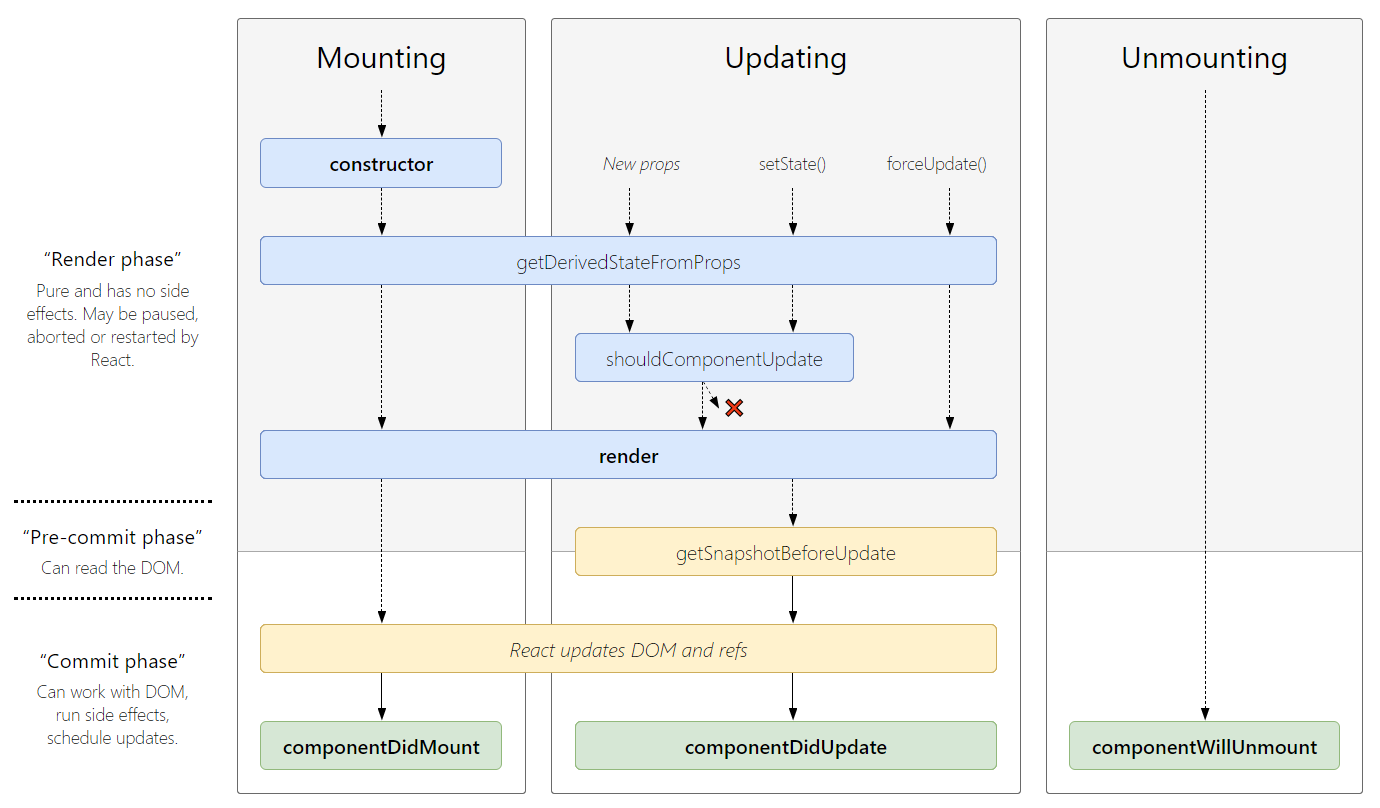
1. Mounting:
These methods are called in the following order when an instance of a component is being created and inserted into the DOM:
constructor()getDerivedStateFromProps()render()componentDidMount()2. Updating:
The next phase in the lifecycle is when a component is updated. A component is updated whenever there is a change in the component's state or props.
React has five built-in methods that gets called, in this order, when a component is updated:
getDerivedStateFromProps()shouldComponentUpdate()render()getSnapshotBeforeUpdate()componentDidUpdate()3. Unmounting:
The next phase in the lifecycle is when a component is removed from the DOM, or unmounting as React likes to call it.
componentWillUnmount()1. Using Class Component:
The componentDidMount() lifecycle hook can be used with class components. Any actions defined within a componentDidMount() lifecycle hook are called only once when the component is first mounted.
Example:
class Homepage extends React.Component {
  componentDidMount() {
    trackPageView('Homepage') // Runs only once after first render
  }
  render() {
    return <div>Homepage</div>
  }
}
2. Using Functional Component:
The useEffect() hook can be used with function components. The useEffect() hook is more flexible than the lifecycle methods used for class components. It receives two parameters:
The value passed as the second argument controls when the callback is executed:
Example:
const Homepage = () => {
  useEffect(() => {
    trackPageView('Homepage') // Runs only once after first render
  }, []) // Empty dependency array is the key!

  return <div>Homepage</div>
}
The typical pattern for rendering a list of components from an array of data in React is to use the .map() method:
Example:
const fruits = ['Apple', 'Banana', 'Cherry'];

function FruitList() {
  return (
    <ul>
      {fruits.map((fruit, index) => (
        <li key={index}>{fruit}</li>
      ))}
    </ul>
  );
}
In react when we use class based components we get access to lifecycle methods ( like componentDidMount(), `componentDidUpdate(), etc ). But when we want use a functional component and also we want to use lifecycle methods, then using useEffect() we can implement those lifecycle methods.
1. componentDidMount():
The componentDidMount() and useEffect() run after the mount. However useEffect() runs after the paint has been committed to the screen as opposed to before. This means we would get a flicker if needed to read from the DOM, then synchronously set state to make new UI.
The useLayoutEffect() was designed to have the same timing as componentDidMount(). So useLayoutEffect(fn, []) is a much closer match to componentDidMount() than useEffect(fn, []) -- at least from a timing standpoint.
/**
 * componentDidMount() in Class Component
 */
import React, { Component } from "react";

export default class SampleComponent extends Component {
  componentDidMount() {
    // code to run on component mount
  }
  render() {
    return <>componentDidMount Example</>;
  }
}
2. useEffect():
/**
 * useEffect() in Functional Component
 */
import React, { useEffect } from "react";

const SampleComponent = () => {
  useEffect(() => {
    // code to run on component mount
  }, []);
  return <>useEffect Example</>;
};
export default SampleComponent;
When useEffect() is used to get data from server.
React's reconciliation algorithm assumes that without any information to the contrary, if a custom component appears in the same place on subsequent renders, it's the same component as before, so reuses the previous instance rather than creating a new one.
Key Concept: React uses component position in the tree to determine identity. If a component renders in the same spot, React keeps the same instance alive.
How to Force a New Instance:
If you give each component a unique key prop, React can use the key change to infer that the component has actually been substituted and will create a new one from scratch, giving it the full component lifecycle.
Example:
renderContent() {
  if (this.state.activeItem === 'item-one') {
    return (
      <ComponentA title="First" key="first" />
    )
  } else {
    return (
      <ComponentA title="Second" key="second" />
    )
  }
}
When the key changes, React recognizes it as a different component and will:
This is why constructors are called only once per component instance - React optimizes by reusing instances when possible, unless you explicitly signal otherwise with the key prop.
componentDidMount():
The componentDidMount() is executed after the first render only on the client side. This is where AJAX requests and DOM or state updates should occur. This method is also used for integration with other JavaScript frameworks and any functions with delayed execution such as setTimeout() or setInterval().
Example:
class App extends Component {
  componentDidMount() {
    this.getData() // API calls go here
  }

  getData() {
    setTimeout(() => {
      this.setState({ data: 'Data loaded!' })
    }, 1000)
  }
}
componentWillMount():
The componentWillMount() method is executed before rendering, on both the server and the client side. componentWillMount() method is the least used lifecycle method and called before any HTML element is rendered. It is useful when we want to do something programmatically right before the component mounts.
Example:
class App extends Component {
  componentWillMount() {
    console.log('First this called') // Runs before render
  }

  componentDidMount() {
    this.getData() // Runs after render
  }
}
Note:
componentWillMount() is now deprecated in modern React. You should avoid using it and use componentDidMount() or the constructor() instead for initialization logic.
Avoid async initialization in componentWillMount().
componentWillMount() is invoked immediately before mounting occurs. It is called before render(), therefore setting state in this method will not trigger a re-render. Avoid introducing any side-effects or subscriptions in this method.
Make async calls for component initialization in componentDidMount() instead of componentWillMount()
function componentDidMount() {
  axios.get(`api/messages`)
    .then((result) => {
      const messages = result.data
      console.log("COMPONENT WILL Mount messages : ", messages);
      this.setState({
        messages: [...messages.content]
      })
    })
}
The useEffect() can be used to manage API calls, as well as implementing componentWillMount(), and componentWillUnmount().
If we pass an empty array as the second argument, it tells useEffect to fire on component load. This is the only time it will fire.
import React, { useEffect } from 'react';

const ComponentExample = () => {
  useEffect(() => {
    console.log('Component mounted');
    // This runs once on mount
  }, []); // Empty array = runs only on mount
}
If you add a return function inside the useEffect() function, it is triggered when a component unmounts from the DOM.
import React, { useEffect } from 'react';

const ComponentExample = () => {
  useEffect(() => {
    console.log('Component mounted');

    // Return a cleanup function
    return () => {
      console.log('Component will unmount');
      // Cleanup: remove listeners, cancel subscriptions, etc.
    };
  }, []); // Empty array ensures cleanup runs only on unmount
}
In React, props (short for "properties") are read-only objects used to pass data from a parent component to a child component. However, callback functions can also be passed, which can be executed inside the child to initiate an update.
Props are immutable so we cannot modify the props from inside the component. These attributes are available in the class component as this.props and can be used to render dynamic data in our render method.
Characteristics of Props
Example:
// Receiving Props
function Welcome(props) {
  return <h1>Hello, {props.name}</h1>;
}

// Passing Props
const element = <Welcome name="Pradeep!" />;
Example: Destructuring
function Welcome({ name, age }) {
  return <h1>Hello, {name}. You are {age} years old.</h1>;
}
Special Props
⚝ Try this example on CodeSandbox
In React, props are read-only because components are designed to act like pure functions. This means they should not attempt to change their inputs (props) and must always return the same JSX output for the same set of props.
Here are the primary reasons why this rule is strictly enforced:
1. Unidirectional Data Flow
React follows a one-way data flow, where data travels from parent to child. If a child component could modify its own props, it would be effectively changing the state of its parent without the parent's knowledge. This would make the application's data flow unpredictable and extremely difficult to trace.
2. Predictability and Debugging
When props are immutable, you can be certain that a component's data won't change unexpectedly within its own scope. If a bug occurs, you only need to look "up" the component tree to the parent to find where the data originated, rather than checking every child that might have modified it.
3. Performance Optimization
React is highly efficient because it uses shallow reference equality to decide if a component needs to re-render.
4. Clear Separation of Concerns
A component should only be responsible for managing its own internal state. Props represent the "external interface" or the configuration provided by the outside world. Keeping them read-only ensures that components remain reusable and independent of where they are used.
⚝ Try this example on CodeSandbox
The defaultProps is a React component property that allows you to set default values for the props argument. If the prop property is passed, it will be changed.
The defaultProps can be defined as a property on the component class itself to set the default props for the class. defaultProps is used for undefined props, not for null props.
/**
 * Default Props
 */
class MessageComponent extends React.Component {
   render() {
        return (
          <div>Hello, {this.props.value}.</div>
        )
    }
}

// Pass default Props
MessageComponent.defaultProps = {
  value: 'World'
}
For function components, you can use default values in destructuring:
Example:
function Greeting({ name = "Guest" }) {
  return <h1>Hello, {name}!</h1>;
}
⚝ Try this example on CodeSandbox
React JSX doesn't support variable interpolation inside an attribute value, but we can put any JS expression inside curly braces as the entire attribute value.
1. Concatenation
<img src={"images/" + this.props.image} />
2. Template literals
<img src={`images/${this.props.image}`} />
Example:
/**
 * Access Props
 */
class App extends Component {
  render() {
    return (
      <div>
        <img
          alt="React Logo"

          // Using ES6 template literals
          src={`${this.props.image}`}
        />
      </div>
    );
  }
}

export default App;
⚝ Try this example on CodeSandbox
In react, numbers can be passed via curly braces({}) where as strings in quotes ("");
Example:
function App() {
  return <Greetings name="Pradeep" age={28} occupation="Software Developer" />;
}

// Greetings Component
function Greetings(props) {
  return (
    <h2>
      Hello! I'm {props.name}, a {props.age} years old {props.occupation}.
      Pleased to meet you!
    </h2>
  );
}
⚝ Try this example on CodeSandbox
Boolean props in React are used to pass true/false values to components. In JSX:
<MyComponent prop /> or <MyComponent prop={true} /><MyComponent prop={false} />Example:
/**
 * Boolean Props
 */
const MyComponent = ({ prop1, prop2 }) => (
  <div>
    <div>Prop1: {String(prop1)}</div>
    <div>Prop2: {String(prop2)}</div>
  </div>
)

function App() {
  return (
    <div>
      <MyComponent prop1={true} prop2={false} />
      <MyComponent prop1 prop2 />
      <MyComponent prop1={false} prop2 />
    </div>
  );
}
⚝ Try this example on CodeSandbox
To apply validation on props in React, you can use either the PropTypes library for runtime checks or TypeScript for static type-checking during development
Example: Using PropTypes (Runtime Validation)
/**
 * Props Validation
 */
import PropTypes from 'prop-types';

function MyComponent({ name, age }) {
  return <h1>{name} is {age}</h1>;
}

MyComponent.propTypes = {
  name: PropTypes.string.isRequired, // Must be a string and is mandatory
  age: PropTypes.number  // Optional number
};
Example: Using TypeScript (Static Validation)
interface UserProps {
  name: string;
  age?: number; // The '?' makes it optional
}

const MyComponent: React.FC<UserProps> = ({ name, age }) => {
  return <h1>{name} is {age}</h1>;
};
⚝ Try this example on CodeSandbox
The PropTypes.shape() validator can be used when describing an object whose keys are known ahead of time, and may represent different types.
Example:
/**
 * PropTypes.shape()
 * @param {*} props
 */
import PropTypes from "prop-types";

const Component = (props) => (
  <div>
    Component badge: {props.badge ? JSON.stringify(props.badge) : "none"}
  </div>
);

// PropTypes validation for the prop object
Component.propTypes = {
  badge: PropTypes.shape({
    src: PropTypes.string.isRequired,
    alt: PropTypes.string.isRequired
  })
};

const App = () => (
  <div>
    <Component badge={{ src: "horse.png", alt: "Running Horse" }} />
    {/*<Component badge={{src:null, alt: 'this one gives an error'}}/>*/}
    <Component />
  </div>
);

export default App;
Output:
Component badge: {"src":"horse.png","alt":"Running Horse"}
Component badge: none
⚝ Try this example on CodeSandbox
PropTypes.shape checks for a specific structure (keys and their types) in an object. Each key can have a different type.
PropTypes.objectOf checks that all values in the object are of a specific type, but does not enforce specific keys.
Example:
PropTypes.shape({ name: PropTypes.string, age: PropTypes.number })
→ Expects an object with keys name (string) and age (number).
PropTypes.objectOf(PropTypes.string)
→ Expects an object where all values are strings, regardless of the keys.
/**
 * PropTypes
 */
import PropTypes from 'prop-types';

// Expected prop object - dynamic keys (i.e. user ids)
const myProp = {
  25891102: 'Shila Jayashri',
  34712915: 'Employee',
  76912999: '[email protected]'
};

// PropTypes validation for the prop object
MyComponent.propTypes = {
  myProp: PropTypes.objectOf(PropTypes.number)
};
Using PropTypes.oneOfType() says that a prop can be one of any number of types. For instance, a phone number may either be passed to a component as a string or an integer:
/**
 * PropTypes.oneOfType()
 */
const Component = (props) => <div>Phone Number: {props.phoneNumber}</div>

Component.propTypes = {
  phoneNumber: PropTypes.oneOfType([
     PropTypes.number,
     PropTypes.string
  ]),
}

const App = () => (
  <div>
    <Component phoneNumber={04403472916}/>
    {/*<Component phoneNumber={"2823788557"}/>*/}
  </div>
);
⚝ Try this example on CodeSandbox
Render props are a React pattern where a component accepts a function as a prop, and calls that function to determine what to render.
The function receives data or state from the component and returns React elements. This enables sharing logic between components.
Example:
/**
 * Render Props
 */

import Wrapper from "./Wrapper";

class App extends React.Component {
  render() {
    return (
      <Wrapper
        render={({ increment, count }) => (
          <div>
            <h3>Render Props Counter</h3>
            <p>{count}</p>
            <button onClick={() => increment()}>Increment</button>
          </div>
        )}
      />
    );
  }
}
/**
 * Wrapper Component
 */
class Wrapper extends React.Component {
  state = {
    count: 0
  };

  // Increase count
  increment = () => {
    const { count } = this.state;
    return this.setState({ count: count + 1 });
  };

  render() {
    const { count } = this.state;

    return (
      <div>
        {this.props.render({ increment: this.increment, count: count })}
      </div>
    );
  }
}
Important Caution: If you define a render prop function inline (inside the render method), it creates a new function on every render, which can cause performance issues by triggering unnecessary re-renders in child components.
⚝ Try this example on CodeSandbox
The benefits of using Render Props in React are:
Problems:
shouldComponentUpdate() as the render prop might close over data it is unaware of.You can create a Higher Order Component (HOC) using render props by combining the two patterns: the HOC returns a component that uses a render prop to share logic or state with the wrapped component. Here is how you do it:
Example:
// HOC using render props
function withMouse(Component) {
  return class extends React.Component {
    render() {
      return (
        <Mouse
          render={mouse => <Component {...this.props} mouse={mouse} />}
        />
      );
    }
  };
}

// Render prop component
class Mouse extends React.Component {
  state = { x: 0, y: 0 };
  handleMouseMove = e => {
    this.setState({ x: e.clientX, y: e.clientY });
  };
  render() {
    return (
      <div style={{ height: '100vh' }} onMouseMove={this.handleMouseMove}>
        {this.props.render(this.state)}
      </div>
    );
  }
}

// Usage
const Cat = ({ mouse }) => (
  <img src="cat.png" style={{ position: 'absolute', left: mouse.x, top: mouse.y }} />
);

const CatWithMouse = withMouse(Cat);
1. Higher-Order Component (HOC):
Example:
function withLogger(WrappedComponent) {
  return function(props) {
    console.log('Props:', props);
    return <WrappedComponent {...props} />;
  };
}
2. Render Props:
Example:
<DataProvider render={data => <Display data={data} />} />
The render function receives data and returns React elements.
Key Differences:
The {this.props.children} is a special prop, automatically passed to every component, that can be used to render the content included between the opening and closing tags when invoking a component.
Example:
/**
 * React Children Props
 */
function MyComponent(props) {
  return <div>{props.children}</div>;
}

// Usage:
<MyComponent>
  <p>This is a child element.</p>
  <AnotherComponent />
</MyComponent>
Here, props.children will contain the <p> and <AnotherComponent /> elements.
Key points:
⚝ Try this example on CodeSandbox
1. React.cloneElement():
Use React.cloneElement() when you need to modify or add props to a child element before rendering it, such as injecting additional data, event handlers, or styling. This is useful for component composition where the parent wants to enhance or control its children.
2. this.props.Children():
Use this.props.children when you simply want to render the children passed to a component without modification. It's the default way to render nested elements in React.
Example: Using this.props.children
/**
 * React Children Props
 */
function Parent({ children }) {
  return <div>{children}</div>;
}

// Usage:
<Parent>
  <button>Click me</button>
</Parent>
The button is rendered as-is.
Example: Using React.cloneElement
/**
 * React Clone Element
 */
function Parent({ children }) {
  return React.cloneElement(children, { style: { color: 'red' } });
}

// Usage:
<Parent>
  <button>Click me</button>
</Parent>
The button is rendered with the additional style prop (text color red)
Summary:
React.cloneElement for modify/add props to children before rendering.this.props.children for direct rendering without changes.⚝ Try this example on CodeSandbox
In React, the three dots (...) are most commonly known as the Spread Operator. They are used to "spread" or expand the contents of an object or array into a new one.
1. Spread props: Pass all properties of an object as props to a component.
Example: This spreads all properties from the props object into the Profile component, so Profile receives name and age as props.
const props = { name: "Alice", age: 25 };

function Profile(props) {
  return <div>{props.name}, {props.age}</div>;
}

// Usage:
<Profile {...props} />
2. Merging Arrays or Objects: Create shallow copies or merge objects/arrays.
Example:
const [user, setUser] = useState({ name: "Alice", age: 25 });
const updates = { age: 26, city: "NY" };

setUser({ ...user, ...updates }); // Result: { name: "Alice", age: 26, city: "NY" }
3. Rest Parameters: In destructuring, ...rest gathers the remaining properties into a new object.
Example: Here, label is extracted from props, and all other props (type, className, etc.) are collected in rest and spread onto the <button> element.
function Button({ label, ...rest }) {
  return <button {...rest}>{label}</button>;
}

// Usage:
<Button label="Click Me" type="submit" className="primary" />
The spread operator is a JavaScript feature, not React-specific, but it's commonly used in React for props and state management.
Spreading props directly onto DOM elements (e.g., <div {...props} />) is often considered an anti-pattern because it bypasses explicit control over what attributes are rendered to the browser.
Unknown Prop Warnings: Spreading props may pass non-standard or custom props to DOM elements, which can result in React warnings or browser errors, since the browser doesn't recognize these attributes.
Security risks: Sensitive data or event handlers could unintentionally be exposed or attached to the DOM, increasing the risk of XSS or leaking information.
Performance issues: Passing unnecessary props can clutter the DOM and slow down rendering.
Maintainability: It becomes harder to track which props are actually used, making debugging and refactoring more difficult.
To avoid these issues, always filter props and only pass valid attributes to DOM elements.
Example: By creating props specifically for DOM attribute, we can safely spread.
const Sample = () => (<Spread flag={true} domProps={{className: "content"}}/>);
const Spread = (props) => (<div {...props.domProps}>Test</div>);
Or alternatively we can use prop destructuring with ...rest:
const Sample = () => (<Spread flag={true} className="content"/>);
const Spread = ({ flag, ...domProps }) => (<div {...domProps}>Test</div>);
Note:
In scenarios where you use a PureComponent, when an update happens it re-renders the component even if domProps did not change. This is because PureComponent only shallowly compares the objects.
Using props to generate state in getInitialState often leads to duplication of "source of truth", i.e. where the real data is. This is because getInitialState is only invoked when the component is first created.
The danger is that if the props on the component are changed without the component being 'refreshed', the new prop value will never be displayed because the constructor function (or getInitialState) will never update the current state of the component. The initialization of state from props only runs when the component is first created.
Bad:
The below component won't display the updated input value
class App extends React.Component {

  // constructor function (or getInitialState)
  constructor(props) {
    super(props)

    this.state = {
      records: [],
      inputValue: this.props.inputValue
    }
  }

  render() {
    return <div>{this.state.inputValue}</div>
  }
}
Good:
Using props inside render method will update the value:
class App extends React.Component {

  // constructor function (or getInitialState)
  constructor(props) {
    super(props)

    this.state = {
      records: []
    }
  }

  render() {
    return <div>{this.props.inputValue}</div>
  }
}
React.createElement is used to create a new React element from scratch. It's what JSX compiles to under the hood. It is used when you want to define what to render for the first time.
React.cloneElement is used to clone and return a copy of an existing React element, with new props or children merged in. It's useful when you want to take an existing element (often passed as children) and add or override some props before rendering.
Example: React.createElement
import { createElement } from 'react';

function SimpleBanner() {
  // Equivalent to <h1 className="banner">Welcome!</h1>
  return createElement(
    'h1',
    { className: 'banner' },
    'Welcome!'
  );
}
Example: React.cloneElement
import React, { Children, cloneElement } from 'react';

function RadioGroup({ name, children }) {
  return (
    <div className="radio-group">
      {/*
        We map through children and "clone" each one,
        merging the 'name' prop into them.
      */}
      {Children.map(children, (child) => {
        if (React.isValidElement(child)) {
          return cloneElement(child, { name });
        }
        return child;
      })}
    </div>
  );
}

// Usage:
// Even though we did not add the 'name' prop to each <input />,
// RadioGroup will inject it into both clones.
function App() {
  return (
    <RadioGroup name="theme-selection">
      <input type="radio" value="light" /> Light
      <input type="radio" value="dark" /> Dark
    </RadioGroup>
  );
}
Note:
The React documentation warns that overusing cloneElement can make data flow harder to trace. In many cases, using render props or Context is preferred for passing data down the tree.
To pass JSON objects (or any data) from a child to a parent component in React, you use a callback function. The parent defines a function and passes it as a prop to the child. The child calls this function, passing the JSON object as an argument.
Example:
/**
 * Parent Component
 */
class Parent extends React.Component {
  constructor(props) {
    super(props);
    this.state = { dataFromChild: null };
    this.handleData = this.handleData.bind(this);
  }

  handleData(jsonObj) {
    this.setState({ dataFromChild: jsonObj });
  }

  render() {
    return (
      <div>
        <Child sendData={this.handleData} />
        <pre>{JSON.stringify(this.state.dataFromChild, null, 2)}</pre>
      </div>
    );
  }
}
/**
 * Child Component
 */
class Child extends React.Component {
  sendJsonToParent = () => {
    const jsonObj = { name: "Pradeep Kumar", age: 28 };
    this.props.sendData(jsonObj);
  };

  render() {
    return <button onClick={this.sendJsonToParent}>Send JSON to Parent</button>;
  }
}
⚝ Try this example on CodeSandbox
In React, the expression {...this.props} is called the "spread operator" for props. Its purpose is to pass all the props received by a component down to a child or DOM element, making it easier to forward or reuse props without listing each one individually.
Example:
<div {...this.props}>Content Here</div>
It is equal to Class Component
const person = {
    name: "Pradeep",
    age: 26,
    country: "India"
}

class SpreadExample extends React.Component {
    render() {
      const {name, age, country} = {...this.props}
      return (
        <div>
            <h3>Person Information:</h3>
            <ul>
              <li>name={name}</li>
              <li>age={age}</li>
              <li>country={country}</li>
            </ul>
        </div>
      )
    }
}
In React, state is a built-in object that stores data or information about the component. State allows a component to keep track of changing information between renders. When the state of a component changes, React automatically re-renders the component to reflect the new state.
Key Characteristics of State:
setState() method (in class components) or the useState() hook (in function components).Example:
/**
 * React State
 */
import { useState } from 'react';

function Counter() {
  // Declares 'count' state variable and 'setCount' updater function
  const [count, setCount] = useState(0);

  return <button onClick={() => setCount(count + 1)}>{count}</button>;
}
⚝ Try this example on CodeSandbox
In React, the setState() method is used to update the state of a class component. When you call setState(), React schedules a re-render of the component with the new state values. This allows your UI to update in response to user actions or other events. setState() is asynchronous and can accept either an object with updated state values or a function that returns the new state based on the previous state.
Example:
/**
 * React setState()
 */
export default class App extends React.Component {
  constructor(props) {
    super(props);
    this.state = {
      color: "blue"
    };
  }

  handleColor = () => {
    this.setState({ color: "red" });
  };

  render() {
    return (
      <div>
        <h1>Color: {this.state.color}</h1>
        <button type="button" onClick={this.handleColor}>Change Color</button>
      </div>
    );
  }
}
Note:
In modern functional components, developers use the useState() Hook. While it serves the same purpose, there is a key difference: the "set" function from useState replaces the state instead of merging it
⚝ Try this example on CodeSandbox
In React, setState() is asynchronous instead of synchronous to optimize performance and ensure a smooth user experience. When you call setState(), React does not immediately update the state and re-render the component. Instead, it batches multiple state updates together and schedules a re-render for later, often after the current event loop finishes.
This batching helps avoid unnecessary renders and keeps the UI responsive, especially when many state updates happen in quick succession (like during user input or network events). If setState() were synchronous, each update would trigger an immediate re-render, which could make the app slow and unresponsive.
The second argument to setState() in React Class Component is an optional callback function. Its purpose is to execute code after the state has been updated and the component has re-rendered. This is useful when you need to perform actions that depend on the updated state or the DOM being updated
Example:
/**
 * setState() Callback
 */
import React, { Component } from 'react';

class Counter extends Component {
  constructor(props) {
    super(props);
    this.state = { count: 0 };
  }

  increment = () => {
    this.setState({ count: this.state.count + 1 }, () => {
      console.log('setState has finished and the component has re-rendered.');
      console.log('Updated count:', this.state.count);
    });
  };

  render() {
    return (
      <div>
        <p>Count: {this.state.count}</p>
        <button onClick={this.increment}>Increment</button>
      </div>
    );
  }
}

export default Counter;
The setState() will always lead to a re-render unless shouldComponentUpdate() returns false. To avoid unnecessary renders, calling setState() only when the new state differs from the previous state makes sense and can avoid calling setState() in an infinite loop within certain lifecycle methods like componentDidUpdate().
Instead of directly modifying the state using this.state(), we use this.setState(). This is a function available to all React components that use state, and allows us to let React know that the component state has changed. This way the component knows it should re-render, because its state has changed and its UI will most likely also change.
Example:
1. Using Object.assign():
Create a copy of the object, update the property, and return the new object:
this.setState(prevState => {
  let user = Object.assign({}, prevState.user);  // creating copy of state variable user
  user.name = 'New Name';  // update the name property, assign a new value
  return { user };
})
2. Using spread Operator(...)
Spread the previous object and override the property you want to update:
this.setState(prevState => ({
    user: {
        ...prevState.user,    // keep all other key-value pairs
        name: 'New Name'       // update the value of specific key
    }
}))
3. For Nested Objects:
Spread each level to avoid mutation:
this.setState(prevState => ({
  user: {
    ...prevState.user,
    address: {
      ...prevState.user.address,
      city: 'New City'
    }
  }
}));
4. Functional Updates (with Hooks):
For functional components using useState():
setUser(prevUser => ({
  ...prevUser,
  name: 'New Name'
}));
Note:
Never mutate state directly. Always create a new object/array and update state with the new value. This ensures React can detect changes and re-render correctly.
⚝ Try this example on CodeSandbox
If you use setState() in the constructor of a React class component, it will not work as expected. The constructor is meant for direct state assignment using this.state = {...}. Calling setState() in the constructor does not update the state and does not trigger a re-render, because the component has not yet been mounted. React expects initial state to be set directly, not via setState(), inside the constructor.
Best practice:
this.state = {...} in the constructor for initial state.this.setState() only after the component has mounted (e.g., in lifecycle methods or event handlers).Example:
import React, { Component } from 'react';

class Counter extends Component {
  constructor(props) {
    super(props);
    this.state = { count: 0 }; // Correct way
    // Incorrect: setState() should NOT be used here
    this.setState({ count: 1 }); // This will be ignored!
  }

  render() {
    return <div>Count: {this.state.count}</div>;
  }
}

export default Counter;
⚝ Try this example on CodeSandbox
To delete an item from a state array in React, you should never mutate the state directly. Instead, use the Array.prototype.filter() method to create a new array without the item you want to remove, and then update the state with this new array.
Example:
onDeleteByIndex(index) {
  this.setState({
    users: this.state.users.filter((item, i) => i !== index)
  });
}
⚝ Try this example on CodeSandbox
We should not call setState() in componentWillUnmount() because the component will never be re-rendered. Once a component instance is unmounted, it will never be mounted again.
The componentWillUnmount() is invoked immediately before a component is unmounted and destroyed. This method can be used to perform any necessary cleanup method, such as invalidating timers, canceling network requests, or cleaning up any subscriptions that were created in componentDidMount().
React components automatically re-render whenever there is a change in their state or props. A simple update of the state, from anywhere in the code, causes all the User Interface (UI) elements to be re-rendered automatically.
However, there may be cases where the render() method depends on some other data. After the initial mounting of components, a re-render will occur.
1. Using forceUpdate() (Class Component):
The following example generates a random number whenever it loads. Upon clicking the button, the forceUpdate() function is called which causes a new, random number to be rendered:
Example:
/**
 * forceUpdate()
 */
export default class App extends React.Component {
  constructor(){
    super();
    this.forceUpdateHandler = this.forceUpdateHandler.bind(this);
  };

  forceUpdateHandler(){
    this.forceUpdate();
  };

  render(){
    return(
      <div>
        <button onClick= {this.forceUpdateHandler} >FORCE UPDATE</button>
        <h4>Random Number : { Math.random() }</h4>
      </div>
    );
  }
}
Caution: This method is discouraged because it bypasses shouldComponentUpdate and can lead to performance issues
2. Using useReducer() (Functional Components):
The most common way to "force" a re-render in functional components is to use a useReducer hook as a simple toggle or counter.
Example:
import { useReducer } from 'react';

function MyComponent() {
  // A simple counter that increments every time forceUpdate is called
  const [, forceUpdate] = useReducer((x) => x + 1, 0);

  const handleClick = () => {
    // This triggers a re-render without meaningful state data
    forceUpdate();
  };

  return <button onClick={handleClick}>Force Re-render</button>;
}
3. Changing the key Prop (Remounting):
By changing the key prop on a component, you force React to treat it as a brand-new element. This unmounts the old version and mounts a fresh instance, effectively resetting everything.
Example:
function Parent() {
  const [resetKey, setResetKey] = useState(0);

  return (
    <>
      <MyForm key={resetKey} />
      <button onClick={() => setResetKey(prev => prev + 1)}>Reset Form</button>
    </>
  );
}
4. Custom Hook with useState():
You can also create a reusable custom hook that uses a "dummy" state update to trigger a re-render
Example:
function useForceUpdate() {
  const [, setValue] = useState(0);
  return () => setValue(value => value + 1); // update state to force render
}
⚝ Try this example on CodeSandbox
The reason behind for this is that setState() is an asynchronous operation. React batches state changes for performance reasons, so the state may not change immediately after setState() is called. That means we should not rely on the current state when calling setState().
The solution is to pass a function to setState(), with the previous state as an argument. By doing this we can avoid issues with the user getting the old state value on access due to the asynchronous nature of setState().
Problem:
// assuming this.state.count === 0
this.setState({count: this.state.count + 1});
this.setState({count: this.state.count + 1});
this.setState({count: this.state.count + 1});
// this.state.count === 1, not 3
⚝ Try this example on CodeSandbox
Solution:
this.setState((prevState) => ({
  count: prevState.count + 1
}));
this.setState((prevState) => ({
  count: prevState.count + 1
}));
this.setState((prevState) => ({
  count: prevState.count + 1
}));
// this.state.count === 3 as expected
⚝ Try this example on CodeSandbox
To update nested state properties in React.js, you should create a new copy of the nested object or array you want to update, modify it, and then set the new state. This ensures immutability, which is important for React to detect changes and re-render correctly.
Example:
const [user, setUser] = useState({
  name: "Pradeep",
  address: {
    city: "Ranchi",
    zip: "560076"
  }
});
To update the city:
setUser(prevUser => ({
  ...prevUser,
  address: {
    ...prevUser.address,
    city: "Bengaluru"
  }
}));
⚝ Try this example on CodeSandbox
Props are read-only, immutable data passed from parent to child components. They allow components to receive data and functions from their parent, enabling reusability and unidirectional data flow. Props cannot be changed by the receiving component.
State is mutable data managed within a component. It represents information that can change over time, usually in response to user actions. State is local to the component and can be updated using setState (class) or useState (function), causing the component to re-render.
| Props | State |
|---|---|
| Props are read-only. | State changes can be asynchronous. |
| Props are immutable. | State is mutable. |
| Props allow you to pass data from one component to other components as an argument. | State holds information about the components. |
| Props can be accessed by the child component. | State cannot be accessed by child components. |
| Props are used to communicate between components. | States can be used for rendering dynamic changes with the component. |
| Stateless component can have Props. | Stateless components cannot have State. |
| Props make components reusable. | State cannot make components reusable. |
| Props are external and controlled by whatever renders the component. | The State is internal and controlled by the React Component itself. |
To set a state with a dynamic key name in React, use ES6 computed property names by wrapping the variable or expression in square brackets [] within your state update.
1. Using the useState() Hook:
When using objects in functional components, you must spread the previous state to avoid overwriting other keys
Example:
const [formData, setFormData] = useState({ firstName: '', lastName: '' });

const handleChange = (e) => {
  const { name, value } = e.target;

  // Use [name] to dynamically target the correct key
  setFormData(prevState => ({
    ...prevState,
    [name]: value
  }));
};
2. Using Class Components (setState):
In class components, React automatically merges top-level state, so you don't always need to spread the previous state unless you are updating nested objects.
Example:
handleChange(event) {
  const { name, value } = event.target;

  // Square brackets evaluate the 'name' variable as the key
  this.setState({
    [name]: value
  });
}
⚝ Try this example on CodeSandbox
In class components, use the componentDidUpdate(prevProps, prevState) lifecycle method. It runs after every update, so you can compare prevState with the current state to detect changes.
Example:
componentDidUpdate(prevProps, prevState) {
  if (prevState.count !== this.state.count) {
    console.log('Count changed:', this.state.count);
  }
}
In functional components, use the useEffect() hook with the state variable as a dependency. The effect runs whenever that state changes.
Example:
export function MyComponent(props) {
  const [count, setCount] = useState(0);

  useEffect(() => {
      console.log('Count changed:', count)
  },[count]) // <-- here put the parameter to listen
}
In React, you can access a child component's state from the parent using refs. This is mainly possible with class components. The parent creates a ref and attaches it to the child. The parent can then call methods on the child to get or update its state.
Example:
// Parent Component
class Parent extends React.Component {
  constructor(props) {
    super(props);
    this.childRef = React.createRef();
  }
  handleClick = () => {
    // Access child method or state
    const childInstance = this.childRef.current;
    alert(childInstance.state.value); // or call a method
  };
  render() {
    return (
      <>
        <Child ref={this.childRef} />
        <button onClick={this.handleClick}>Get Child State</button>
      </>
    );
  }
}

// Child Component
class Child extends React.Component {
  state = { value: "Hello from Child" };
  render() {
    return <div>{this.state.value}</div>;
  }
}
Note:
This approach is not recommended for most cases. Prefer passing data up via callbacks. Use refs only when necessary.
⚝ Try this example on CodeSandbox
To change the state of a child component from its parent in React, you should follow the "lifting state up" pattern:
/**
 * Change Child state from its Parent
 * @param {*} param0
 */
const Child = ({ open }) => {
  return <h2>Child State: {open.toString()}</h2>;
};

const Parent = () => {
  const [isOpen, setIsOpen] = React.useState(false);

  const toggleChild = () => {
    setIsOpen((prevValue) => !prevValue);
  };

  return (
    <div>
      <button onClick={toggleChild}>Click Me</button>
      {/* Pass a callback to Child */}
      <Child open={isOpen} />
    </div>
  );
};

export default Parent;
⚝ Try this example on CodeSandbox
1. State:
This is data maintained inside a component. It is local or owned by that specific component. The component itself will update the state using the setState() function.
Example:
class AppComponent extends React.component {
  state = {
      msg : 'Hello World!'
  }

  render() {
      return <div>Message {this.state.msg}</div>
  }
}
2. Props:
Data passed in from a parent component. props are read-only in the child component that receives them. However, callback functions can also be passed, which can be executed inside the child to initiate an update.
Example: The parent can pass a props by using this
<ChildComponent color='red' />
Inside the ChildComponent constructor we could access the props
class ChildComponent extends React.Component {
  constructor(props) {
    super(props)
    console.log(props.color)
  }
}
Props can be used to set the internal state based on a prop value in the constructor, like this
class ChildComponent extends React.Component {
  constructor(props) {
    super(props)
    this.state.colorName = props.color
  }
}
Props should never be changed in a child component. Props are also used to allow child components to access methods defined in the parent component. This is a good way to centralize managing the state in the parent component, and avoid children to have the need to have their own state.
Difference between State and Props:
| Props | State |
|---|---|
| Props are read-only. | State changes can be asynchronous. |
| Props allow to pass data from one component to other components as an argument. | State holds information about the components. |
| Props can be accessed by the child component. | State cannot be accessed by child components. |
| Props are used to communicate between components. | States can be used for rendering dynamic changes with the component. |
| Stateless component can have Props. | Stateless components cannot have State. |
| Props are external and controlled by whatever renders the component. | The State is internal and controlled by the React Component itself. |
React Hooks are in-built functions that let you "hook into" React features like state, lifecycle behavior, context, and more from function components (without writing class components).
Rules of Hooks:
Built-in Hooks:
| Hooks | Description |
|---|---|
| useState() | To manage states. Returns a stateful value and an updater function to update it. |
| useEffect() | To manage side-effects like API calls, subscriptions, timers, mutations, and more. |
| useContext() | To return the current value for a context. |
| useReducer() | A useState alternative to help with complex state management. |
| useCallback() | It returns a memorized version of a callback to help a child component not re-render unnecessarily. |
| useMemo() | It returns a memoized value that helps in performance optimizations. |
| useRef() | It returns a ref object with a .current property. The ref object is mutable. It is mainly used to access a child component imperatively. |
| useImperativeHandle() | It customizes the instance value that is exposed to parent components when using ref. |
| useLayoutEffect() | It fires at the end of all DOM mutations. It's best to use useEffect as much as possible over this one as the useLayoutEffect fires synchronously. |
| useDebugValue() | Helps to display a label in React DevTools for custom hooks. |
Example:
/**
 * useState() Hooks
 */
import { useState } from "react";

function App() {
  const [isButtonClicked, setIsButtonClicked] = useState(false);

  return (
    <button onClick={() => setIsButtonClicked(!isButtonClicked)}>
      {isButtonClicked ? "Clicked" : "Click Me, Please"}
    </button>
  );
}

export default App;
⚝ Try this example on CodeSandbox
Code Reusability: Hooks allow you to extract stateful logic into custom hooks, which can then be shared across multiple components without changing the component hierarchy.
Improved Readability and Simplicity: Functional components with hooks generally have a flatter structure and are more concise than class components. They eliminate the need for ES6 classes, this keyword binding, and complex constructors.
Organized Logic: In class components, related logic is often split across different lifecycle methods (e.g., fetching data in componentDidMount and cleaning up in componentWillUnmount). Hooks like useEffect allow you to group related code together in one place.
Reduced "Wrapper Hell": Hooks replace patterns like Higher-Order Components (HOCs) and render props, which often lead to deeply nested component trees that are difficult to debug and maintain.
Easier Testing: Because hooks are just JavaScript functions, they are easier to isolate and unit test compared to class components with complex lifecycle.
Performance Optimization:
useMemo() and useCallback() help prevent unnecessary re-calculations and re-renders by memoizing values and functions.React also allows us to create custom Hooks with unique features that extracts component logic into reusable functions.
A custom Hooks has following features:
Example: Custom Hook - useFetch()
/**
 * Custom Hook
 */
import { useState, useEffect } from "react";

const useFetch = (url: string) => {
  const [data, setData] = useState(null);

  useEffect(() => {
    fetch(url)
      .then((res) => res.json())
      .then((data) => setData(data));
  }, [url]);

  return [data];
};

export default useFetch;
/**
 * App Component
 */
import "./styles.css";
import useFetch from "./useFetch";

export default function App() {
  // custom hook
  const [data] = useFetch("https://jsonplaceholder.typicode.com/todos");
  return (
    <>
      {data &&
        data.map((item) => {
          return <p key={item.id}>{item.title}</p>;
        })}
    </>
  );
}
⚝ Try this example on CodeSandbox
The two main hooks used for fetching data are:
useState() - Maintains local state in function componentsuseEffect() - Executes functions after a component renders (performs side effects)Example:
/**
 * useState() and useEffect() Hooks
 */
import { useState, useEffect } from "react";

interface User {
  id: number;
  login: string;
}

function App() {
  const [users, setUsers] = useState<User[]>([]);

  useEffect(() => {
    fetch("https://api.github.com/users")
      .then((response) => response.json())
      .then((data) => setUsers(data));
  }, []); // Empty dependency array = run once on mount

  return (
    <ul>
      {users.map(user => (
        <li key={user.id}>{user.login}</li>
      ))}
    </ul>
  );
}
export default App;
⚝ Try this example on CodeSandbox
In most cases, yes, Hooks replace the need for render props and higher-order components (HOCs). While they haven't made these patterns obsolete, Hooks are now the recommended default for sharing stateful logic in modern React applications.
Why Hooks are Preferred
Reduced Nesting: HOCs and render props often lead to "wrapper hell," where components are buried under layers of wrappers. Hooks allow you to call logic directly inside a component without adding extra layers to the tree.
Clearer Data Flow: With HOCs, it can be unclear which prop comes from which wrapper (prop collision). Hooks make dependencies explicit because you call the hook and assign its return value to a variable you name yourself.
Better Composability: You can easily use multiple hooks together in a single component, whereas nesting multiple HOCs or render props quickly becomes difficult to read and maintain.
When You Might Still Use HOCs or Render Props
Despite the shift to Hooks, these patterns still have specific use cases:
Higher-Order Components:
Conditional Rendering: Useful for wrapping a component with logic that decides whether to render it at all (e.g., an withAuthentication wrapper).
External Components: Best when you need to inject behavior into a component you don't "own" or cannot modify.
Render Props:
Custom Renderers: Ideal when a component handles complex logic but needs the parent to define the actual UI (e.g., a virtual scroller where the parent provides a renderItem function).
Legacy Support: Necessary if you are maintaining older codebases that still use Class components, as Hooks only work in Functional components
Use a ref to store the previous value. Refs persist across renders and updating them does not trigger a re-render, which makes them perfect for old vs new comparisons in useEffect.
Example:
// Custom Hook
const usePrevious = (value) => {
  const ref = useRef();

  // Store the current value in the ref AFTER every render
  useEffect(() => {
    ref.current = value;
  }, [value]); // Only update when the value actually changes

  // Return the value from the PREVIOUS render cycle
  return ref.current;
};
import { useEffect, useRef, useState } from "react";

function Example() {
  const [count, setCount] = useState(0);
  const prevCountRef = useRef();

  useEffect(() => {
    const prevCount = prevCountRef.current;

    if (prevCount !== undefined && prevCount !== count) {
      console.log("old:", prevCount, "new:", count);
    }

    // update ref after comparison
    prevCountRef.current = count;
  }, [count]);

  return <button onClick={() => setCount((c) => c + 1)}>+1</button>;
}
We create a custom usePrevious hook that accepts the current state value as input and returns the value from the previous render. Inside the hook, useRef stores that value without causing a re-render, and useEffect updates ref.current after each render so it is available as the previous value on the next render.
⚝ Try this example on CodeSandbox
To re-render a React component when the browser is resized, you can use the useEffect hook to listen to the resize event. When this event fires, you update the component's state, which automatically triggers a re-render.
Example:
import { useState, useEffect } from 'react';

/**
 * Custom hook that tracks the current browser window dimensions.
 * Updates on every resize event and cleans up the listener on unmount.
 * @returns The current `{ width, height }` of the window, or `undefined` before first mount.
 */
function useWindowSize() {
  const [windowSize, setWindowSize] = useState<{ width: number; height: number } | undefined>(
    undefined
  );

  useEffect(() => {
    const handleResize = () => {
      setWindowSize({
        width: window.innerWidth,
        height: window.innerHeight,
      });
    };

    handleResize();
    window.addEventListener('resize', handleResize);
    return () => window.removeEventListener('resize', handleResize);
  }, []);

  return windowSize;
}
/**
 * Page component that displays the current window width and height.
 */
export default function Page() {
  const size = useWindowSize();

  return (
    <div>
      <p>Width: {size?.width}</p>
      <p>Height: {size?.height}</p>
    </div>
  );
}
The useState() or useReducer() hooks can be used to force a React component to rerender.
useState() hook returns an array with two elements, a value and an updater function.undefined, so it is the same as calling updater(undefined).Example:
/**
 * Rerender Component using useState()
 */
import { useState } from "react";

function Example() {
  const [, setTick] = useState(0);

  const forceRender = () => {
    setTick((tick) => tick + 1);
  };

  return <button onClick={forceRender}>Re-render</button>;
}
/**
 * Rerender Component using useReducer()
 */
import { useReducer } from "react";

function Example() {
  const [, forceRender] = useReducer((count) => count + 1, 0);

  return <button onClick={forceRender}>Re-render</button>;
}
⚝ Try this example on CodeSandbox
The useState() is a built-in React Hook that allows to have state variables in functional components. State is data that needs to be tracked within an application, and when a state variable changes, React automatically re-renders the component to display the updated value.
Example:
import { useState } from 'react';

function Counter() {
  // Declares a state variable 'count' initialized to 0, and a function 'setCount' to update it
  const [count, setCount] = useState(0);

  return (
    <>
      <p>You clicked {count} times</p>
      {/* The onClick handler calls setCount to update the state, triggering a re-render */}
      <button onClick={() => setCount(count + 1)}>
        Click me
      </button>
    </>
  );
}
The useState() function takes as argument a value for the initial state. In this case, the count starts out with 0. In addition, the hook returns an array of two values: count and setCount.
We use array destructuring because useState returns a pair (an array with exactly two items), and destructuring is the cleanest way to give those items custom names in a single line.
The useState hook allows us to make our function components stateful. When called, useState() returns an array of two items. The first being our state value and the second being a function for setting or updating that value.
Example: State with Various Data Types
const [count, setCount] = useState(0)
const [color, setColor] = useState('#526b2d')
const [isHidden, setIsHidden] = useState(true)
const [products, setProducts] = useState([])
const [user, setUser] = useState({
    name: '',
    age: '',
    email: '',
})
useReducer() is a React Hook for managing state with a reducer function, especially when state logic is complex or depends on previous state.
It accepts a reducer function with the application initial state, returns the current application state, then dispatches a function.
Syntax:
The useReducer Hook returns an array with exactly two values: the current state and a dispatch function
const [state, dispatch] = useReducer(reducer, initialState);
Example:
import { useReducer } from 'react'

type Action = 'increment' | 'decrement' | 'reset'

const initialState = 0

/**
 * Reducer function for managing a counter state.
 * @param state - The current counter value.
 * @param action - The action to perform: 'increment', 'decrement', or 'reset'.
 * @returns The updated counter value.
 */
const reducer = (state: number, action: Action) => {
  switch (action) {
    case 'increment': return state + 1
    case 'decrement': return state - 1
    case 'reset': return 0
    default: throw new Error('Unexpected Action!')
  }
}

/**
 * Component that demonstrates useReducer with increment, decrement, and reset actions.
 */
const ReducerExample = () => {
  const [count, dispatch] = useReducer(reducer, initialState)
  return (
    <div>
      {count}
      <button onClick={() => dispatch('increment')}>+1</button>
      <button onClick={() => dispatch('decrement')}>-1</button>
      <button onClick={() => dispatch('reset')}>reset</button>
    </div>
  )
}

export default ReducerExample
Here, we first define an initialState and a reducer. When a user clicks a button, it will dispatch an action which updates the count and the updated count will be displayed. We could define as many actions as possible in the reducer, but the limitation of this pattern is that actions are finite.
Use useState when:
Simple Primitives: Ideal for managing single strings, booleans, or numbers (e.g., a "show/hide" toggle or a simple counter).
Independent Updates: When changing one state value has no effect on others.
Straightforward Transitions: Updates that don't depend heavily on the previous state or don't require complex "if/else" validation before setting the new value
Use useReducer when:
Complex State Objects: When you have an object or array with many properties that often update together (e.g., a multi-field user registration form).
Interdependent Logic: When the "next" state depends on multiple parts of the "previous" state (e.g., a chess game board where moving a piece affects turn order and board layout).
Predictable Transitions: When you want to enforce specific "rules" for how state can change using a centralized reducer function.
Performance with Deep Updates: useReducer can be more efficient for passing state down to deep child components because the dispatch function remains stable (it doesn't change on re-renders), helping to avoid unnecessary updates in children.
Testing: Reducer functions are "pure" functions (meaning they only depend on their arguments), which makes them very easy to test in isolation from the UI.
When you call setState, the React renderer doesn't immediately touch the real DOM. Instead, it triggers a two-phase process managed by the Fiber reconciler to efficiently determine and apply only the necessary changes
1. The Render Phase (Asynchronous & Interruptible)
This phase is purely internal and does not produce user-visible changes.
Scheduling: React enqueues the state update in an internal updateQueue for that component. It then schedules a "unit of work" with a specific priority level.
Virtual DOM Creation: React calls the component's render method (or executes the function component) to generate a new Virtual DOM tree.
Diffing (Reconciliation): React compares the new Virtual DOM tree against the previous one using a heuristic algorithm.
Fiber Tree Construction: During this traversal, React builds a workInProgress fiber tree. Each fiber node represents a component and tracks "effects" (e.g., "this node needs an update" or "this node should be deleted").
Time-Slicing: Because this phase has no side effects, React can pause it to let the browser handle high-priority tasks (like user input) and then resume exactly where it left off.
2. The Commit Phase (Synchronous & Non-Interruptible)
Once the entire tree has been processed and the "effect list" is complete, React enters the commit phase.
DOM Updates: The renderer (e.g., react-dom) iterates through the list of effects and applies the minimal set of changes to the Real DOM.
Switching Trees: After the DOM is updated, React points its "current" internal pointer to the workInProgress tree, making it the new source of truth for the next update.
Lifecycle & Effects: Finally, React executes post-mutation logic like componentDidUpdate or useEffect hooks.
Key Performance Features
Automatic Batching: React groups multiple setState calls within the same event loop into a single re-render to avoid unnecessary work.
Bailing Out: If you provide the same state value (based on a shallow comparison), React can "bail out" and skip the render phase for that entire subtree.
Webhooks provide a mechanism where by a server-side application can notify a client-side application when a new event (that the client-side application might be interested in) has occurred on the server.
These are HTTP-based callbacks that allow a backend server to "push" real-time data to another system when a specific event occurs (like a successful payment or a new GitHub commit).
How Webhooks Work with React
Because webhooks require a permanent URL (endpoint) to receive incoming POST requests, they cannot be hosted directly inside a React frontend. A standard integration works as follows:
Common Use Cases in React Apps
1. useCallback():
React's useCallback() Hook can be used to optimize the rendering behavior of your React function components. The useCallback will return a memoized version of the callback that only changes if one of the dependencies has changed.
This is useful when passing callbacks to optimized child components that rely on reference equality to prevent unnecessary renders (e.g. shouldComponentUpdate).
Example:
/**
 * Demonstrates useCallback() to memoize a function reference.
 * The memoized `increment` callback is only recreated when `counter` changes, preventing unnecessary re-renders and function calls.
 */
import { useState, useCallback, useEffect } from "react";

const count = new Set();

function App() {
  const [counter, setCounter] = useState(0);

  const increment = useCallback(() => {
    setCounter(counter + 1);
  }, [counter]);

  useEffect(() => {
    count.add(increment);
    console.log(count.size);
  }, [increment]);

  return (
    <>
      <h1>useCallback Hook Example</h1>
      <h2>Function Call: {count.size}</h2>
      <button onClick={increment}>Increment</button>
    </>
  );
}

export default App;
⚝ Try this example on CodeSandbox
2. useMemo():
The useMemo() is similar to useCallback() except it allows you to apply memoization to any value type. It does this by accepting a function which returns the value and then that function is only called when the value needs to be retrieved.
Example:
import React from 'react'

const users = [
  { id: '101', name: 'Dennis' },
  { id: '102', name: 'Alice' },
  { id: '103', name: 'Bob' },
  { id: '104', name: 'Carol' },
  { id: '105', name: 'Dave' }
]

/**
 * App component that renders a searchable list of users.
 * Uses `useMemo` to memoize the filtered user list, recomputing
 * only when the search query changes.
 */
const App = () => {
  const [search, setSearch] = React.useState('')

  const filteredUsers = React.useMemo(
    () => users.filter((user) => user.name.toLowerCase().includes(search.toLowerCase())),
    [search]
  )

  return (
    <div>
      <input
        type="text"
        value={search}
        onChange={(e) => setSearch(e.target.value)}
        placeholder="Search users"
      />
      <ul>
        {filteredUsers.map((user) => (
          <li key={user.id}>{user.name}</li>
        ))}
      </ul>
    </div>
  )
}

export default App
3. useImperativeHandle():
useImperativeHandle() customizes the instance value that is exposed to parent components when using ref. As always, imperative code using refs should be avoided in most cases. useImperativeHandle should be used with forwardRef.
import { useRef, useImperativeHandle, forwardRef } from 'react'

interface InputHandle {
  focus: () => void
  clear: () => void
}

/**
 * A custom input component that exposes `focus` and `clear` methods
 * to parent components via `useImperativeHandle`.
 */
const CustomInput = forwardRef<InputHandle>((_, ref) => {
  const inputRef = useRef<HTMLInputElement>(null)

  useImperativeHandle(ref, () => ({
    focus() {
      inputRef.current?.focus()
    },
    clear() {
      if (inputRef.current) inputRef.current.value = ''
    },
  }))

  return <input ref={inputRef} type="text" placeholder="Type something..." />
})

CustomInput.displayName = 'CustomInput'

/**
 * App component that uses a ref to imperatively call `focus` and `clear`
 * on the CustomInput child component.
 */
const App = () => {
  const inputRef = useRef<InputHandle>(null)

  return (
    <div>
      <CustomInput ref={inputRef} />
      <button onClick={() => inputRef.current?.focus()}>Focus</button>
      <button onClick={() => inputRef.current?.clear()}>Clear</button>
    </div>
  )
}

export default App
4. useLayoutEffect():
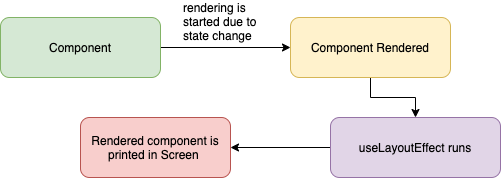
This runs synchronously immediately after React has performed all DOM mutations. This can be useful if you need to make DOM measurements (like getting the scroll position or other styles for an element) and then make DOM mutations or trigger a synchronous re-render by updating state.
As far as scheduling, this works the same way as componentDidMount and componentDidUpdate. Your code runs immediately after the DOM has been updated, but before the browser has had a chance to "paint" those changes (the user doesn't actually see the updates until after the browser has repainted).
Example:
import { useRef, useLayoutEffect } from 'react'

/**
 * Demonstrates useLayoutEffect() to measure a DOM element\'s width
 * synchronously after the browser has performed layout, before paint.
 */
const App = () => {
  const boxRef = useRef<HTMLDivElement>(null)
  const labelRef = useRef<HTMLSpanElement>(null)

  useLayoutEffect(() => {
    const measure = () => {
      if (boxRef.current && labelRef.current) {
        const width = boxRef.current.getBoundingClientRect().width
        labelRef.current.textContent = `Box width: ${Math.round(width)}px`
      }
    }

    measure()
    window.addEventListener('resize', measure)
    return () => window.removeEventListener('resize', measure)
  }, [])

  return (
    <div>
      <div ref={boxRef} style={{ width: '50%', background: '#d1d5db', padding: '1rem' }}>
        Resize the window
      </div>
      <span ref={labelRef} />
    </div>
  )
}

export default App
useLayoutEffect vs useEffect:
5. useDebugValue():
useDebugValue() can be used to display a label for custom hooks in React DevTools.
Example:
function useFriendStatus(friendID) {
  const [isOnline, setIsOnline] = useState(null)

  // ...

  // Show a label in DevTools next to this Hook
  useDebugValue(isOnline ? 'Online' : 'Offline')

  return isOnline
}
Note::
Both useCallback and useMemo are memoization hooks that prevent unnecessary recalculations on every render, but they memoize different things.
useCallback(fn, deps) — memoizes a function reference. Returns the same function object as long as the dependencies haven't changed. Use it to prevent child components from re-rendering unnecessarily when they receive a function as a prop.
useMemo(fn, deps) — memoizes a computed value. Calls the function and caches its return value. Use it to avoid expensive calculations being repeated on every render.
import { useState, useCallback, useMemo } from 'react';

function ParentComponent() {
  const [count, setCount] = useState(0);
  const [items] = useState(['apple', 'banana', 'cherry', 'date']);

  // useCallback — memoizes the function itself
  // The same function reference is returned until 'count' changes
  const handleClick = useCallback(() => {
    console.log('Clicked, count is:', count);
  }, [count]);

  // useMemo — memoizes the return value of the function
  // Only re-runs the filter when 'items' or 'count' changes
  const filteredItems = useMemo(
    () => items.filter(item => item.length > count),
    [items, count]
  );

  return (
    <div>
      <button onClick={() => setCount(c => c + 1)}>Count: {count}</button>
      <ChildButton onClick={handleClick} />   {/* Won\'t re-render unless count changes */}
      <ul>{filteredItems.map(i => <li key={i}>{i}</li>)}</ul>
    </div>
  );
}

const ChildButton = React.memo(({ onClick }) => {
  console.log('ChildButton rendered');
  return <button onClick={onClick}>Click me</button>;
});
Key Differences:
useCallback | useMemo | |
|---|---|---|
| Returns | The memoized function | The memoized value (result of calling the function) |
| Purpose | Stable function reference for props/deps | Cache expensive computation |
| Example use | Event handlers, callbacks passed to React.memo components | Filtered lists, derived data, sorted arrays |
| Mental model | useCallback(fn, deps) ≡ useMemo(() => fn, deps) | Calls fn, caches result |
When NOT to use them:
useCallback if the child component isn't wrapped in React.memo — the memoized callback won't prevent re-renders.// Pointless — this is not an expensive operation
const double = useMemo(() => count * 2, [count]);
// Worthwhile — filtering a large array
const filtered = useMemo(() => largeDataset.filter(applyComplexFilters), [largeDataset, filters]);
The main difference between the useEffect() hook and the useLayoutEffect() hook is that the useEffect() hook serves asynchronously, whereas the useLayoutEffect() hook works synchronously.
After all DOM mutations have been completed by React, useLayoutEffect executes synchronously. If you need to measure the DOM (for example, to determine the scroll position or other styles for an element) and then modify the DOM or cause a synchronous re-render by changing the state, this can be helpful.
1. useEffect():
2. useLayoutEffect():
If your component renders the same result given the same props, you can wrap it in a call to React.memo for a performance boost in some cases by memoizing the result. This means that React will skip rendering the component, and reuse the last rendered result.
React.memo only checks for prop changes. If your function component wrapped in React.memo has a useState, useReducer or useContext Hook in its implementation, it will still rerender when state or context change.
Example: Let's take an example of search functionality. In the example below, the App component contains:
import { useState, useMemo } from 'react';

const fruits = ['apple', 'orange', 'banana'];

/**
 * App component that renders a searchable fruit list.
 * Uses `useMemo` to memoize the filtered results, recomputing
 * only when the search query changes.
 */
function App() {
  const [query, setQuery] = useState('');

  const filteredFruits = useMemo(
    () => fruits.filter((fruit) => fruit.includes(query.toLowerCase())),
    [query]
  );

  return (
    <div>
      <input
        type="text"
        placeholder="Search fruits..."
        value={query}
        onChange={(e) => setQuery(e.target.value)}
      />
      <ul>
        {filteredFruits.map((fruit) => (
          <li key={fruit}>{fruit}</li>
        ))}
      </ul>
    </div>
  );
}

export default App;
⚝ Try this example on CodeSandbox
The React.memo() is a higher-order component that will memoize your component, very similar to PureComponent. It will shallowly compare current and new props of the component, and if nothing changes, React will skip the rendering of that component.
Key rules to prevent unnecessary updates:
Example:
// Memo.js
const Text = (props) => {
  console.log(`Text Component`);
  return <div>Text Component re-render: {props.count} times </div>;
};

const MemoText = React.memo(
  (props) => {
    console.log(`MemoText Component`);
    return <div>MemoText Component re-render: {props.count} times </div>;
  },
  (preprops, nextprops) => true
);
// App.js
const App = () => {
  console.log(`App Component`);
  const [count, setCount] = useState(0);
  return (
    <>
      <h2>This is function component re-render: {count} times </h2>
      <Text count={count} />
      <MemoText count={count} />
      <br />
      <button
        onClick={() => {
          setCount(count + 1);
        }}
      >
        CLICK ME
      </button>
    </>
  );
};
⚝ Try this example on CodeSandbox
useContext() is a built-in React Hook that lets you read and subscribe to a React Context without wrapping your component in a Context.Consumer.
Syntax:
const value = useContext(SomeContext);
It takes a Context object (created by React.createContext()) and returns the current context value provided by the nearest matching <Context.Provider> above the component in the tree.
Example:
import { createContext, useContext, useState } from "react";

// 1. Create context
const ThemeContext = createContext("light");

// 2. Consumer component
function ThemedButton() {
  const theme = useContext(ThemeContext); // reads the nearest Provider value
  return (
    <button style={{ background: theme === "dark" ? "#333" : "#eee", color: theme === "dark" ? "#fff" : "#000" }}>
      Current theme: {theme}
    </button>
  );
}

// 3. Provider component
export default function App() {
  const [theme, setTheme] = useState("light");
  return (
    <ThemeContext.Provider value={theme}>
      <ThemedButton />
      <button onClick={() => setTheme(t => t === "light" ? "dark" : "light")}>
        Toggle Theme
      </button>
    </ThemeContext.Provider>
  );
}
Key Points:
useContext() always re-renders when the context value changes.useContext() replaces the need for Context.Consumer wrapper or static contextType in class components.useMemo to avoid unnecessary re-renders.createContext), not the Provider or Consumer.useTransition() is a React Hook (introduced in React 18) that lets you mark a state update as non-urgent, keeping the UI responsive during expensive re-renders. React will process urgent updates (like typing) first, then apply the transition update when the browser is idle.
Syntax:
const [isPending, startTransition] = useTransition();
isPending — true while the transition is still processing; use it to show a loading/spinner indicator.startTransition(fn) — wrap your non-urgent state update inside this function.Example: Filtering a large list without blocking the input
import { useState, useTransition } from "react";

const items = Array.from({ length: 10000 }, (_, i) => `Item ${i + 1}`);

export default function App() {
  const [query, setQuery] = useState("");
  const [filtered, setFiltered] = useState(items);
  const [isPending, startTransition] = useTransition();

  const handleChange = (e) => {
    const value = e.target.value;
    setQuery(value); // urgent: update the input immediately

    startTransition(() => {
      // non-urgent: heavy filtering deferred until after input updates
      setFiltered(items.filter((item) => item.toLowerCase().includes(value.toLowerCase())));
    });
  };

  return (
    <div>
      <input value={query} onChange={handleChange} placeholder="Search..." />
      {isPending && <p>Updating list...</p>}
      <ul>
        {filtered.slice(0, 50).map((item) => (
          <li key={item}>{item}</li>
        ))}
      </ul>
    </div>
  );
}
When to use useTransition():
⚝ Try this example on CodeSandbox
useDeferredValue() is a React Hook (introduced in React 18) that lets you defer re-rendering a non-urgent part of the UI. You pass it a value, and React will keep showing the old value while it prepares the updated expensive render in the background.
It is similar to useTransition() but works on values rather than on the state-setter call — useful when you don't control the state update that triggers the expensive render (e.g., a value comes from a prop or external store).
Syntax:
const deferredValue = useDeferredValue(value);
Example: Deferring a slow list render while keeping the input snappy
import { useState, useDeferredValue, memo } from "react";

const SlowList = memo(({ query }) => {
  // Simulate expensive render
  const items = Array.from({ length: 5000 }, (_, i) => `Result ${i + 1} for "${query}"`);
  return <ul>{items.slice(0, 20).map((item) => <li key={item}>{item}</li>)}</ul>;
});

export default function App() {
  const [query, setQuery] = useState("");
  const deferredQuery = useDeferredValue(query); // lags behind `query` during heavy renders

  return (
    <div>
      <input
        value={query}
        onChange={(e) => setQuery(e.target.value)}
        placeholder="Search..."
      />
      {/* Input stays responsive; SlowList re-renders are deferred */}
      <SlowList query={deferredQuery} />
    </div>
  );
}
useDeferredValue vs useTransition:
| Feature | useTransition | useDeferredValue |
|---|---|---|
| Controls | The state update call | A derived value |
| Use when | You own the state setter | You receive the value as a prop |
| API | startTransition(() => setState(...)) | const deferred = useDeferredValue(value) |
isPending flag | Yes | No (use deferred !== value instead) |
The Rules of Hooks are two fundamental constraints enforced by React (and the eslint-plugin-react-hooks linter) that ensure hooks work correctly and predictably.
Rule 1: Only call Hooks at the top level
Never call Hooks inside loops, conditions, nested functions, or after early returns. Hooks must always be called in the same order on every render.
//  WRONG — conditional Hook call
function Component({ isLoggedIn }) {
  if (isLoggedIn) {
    const [name, setName] = useState('');  // Breaks rule — different call order each render
  }
}

//  CORRECT — call at the top level, put condition inside
function Component({ isLoggedIn }) {
  const [name, setName] = useState('');  // Always called
  if (!isLoggedIn) return null;          // Guard after hooks
}
Rule 2: Only call Hooks from React functions
Call Hooks only from React function components or custom Hooks — never from regular JavaScript functions, class components, or event handlers.
//  WRONG — calling a Hook from a plain function
function fetchUser() {
  const [user, setUser] = useState(null);  // Not a React function
}

//  CORRECT — inside a React function component
function UserProfile() {
  const [user, setUser] = useState(null);  // OK
}

//  CORRECT — inside a custom Hook (starts with "use")
function useUser() {
  const [user, setUser] = useState(null);  // OK
}
Why do these rules exist?
React relies on the call order of Hooks to associate state with the correct component instance. On every render, React expects the same number of Hooks to be called in the same sequence. If you skip a Hook call (due to a condition), React loses track of which state corresponds to which Hook.
// Internally, React tracks hooks by index: [state[0], state[1], state[2], ...]
// If hook[1] is skipped on re-render, hook[2] state gets assigned to hook[1] → bugs
Enforcing the rules with ESLint:
npm install eslint-plugin-react-hooks --save-dev
// .eslintrc
{
  "plugins": ["react-hooks"],
  "rules": {
    "react-hooks/rules-of-hooks": "error",
    "react-hooks/exhaustive-deps": "warn"
  }
}
The dependency array is the most misunderstood part of useEffect. Missing or incorrectly specified dependencies lead to subtle bugs including stale closures, infinite loops, and missed updates.
Pitfall 1: Missing dependencies (stale closure)
//  WRONG — 'count' is missing from deps; the effect closes over the initial value
function Counter() {
  const [count, setCount] = useState(0);

  useEffect(() => {
    const interval = setInterval(() => {
      console.log(count);  // Always logs 0 — stale closure!
      setCount(count + 1); // count is always 0 inside here
    }, 1000);
    return () => clearInterval(interval);
  }, []); // empty deps — runs once, never re-subscribes
}

//  FIX — use functional update form to avoid needing 'count' in deps
useEffect(() => {
  const interval = setInterval(() => {
    setCount(prev => prev + 1); //  No stale closure — uses latest value
  }, 1000);
  return () => clearInterval(interval);
}, []);
Pitfall 2: Infinite loop from object/function deps
//  WRONG — new object created on every render → effect runs infinitely
function Search({ query }) {
  const options = { url: '/api/search', params: { q: query } }; // new ref every render

  useEffect(() => {
    fetch(options.url); // re-runs forever
  }, [options]);

//  FIX 1 — use primitive values as deps
  useEffect(() => {
    fetch(`/api/search?q=${query}`);
  }, [query]); // only runs when query changes

//  FIX 2 — useMemo to stabilize the object
  const options = useMemo(() => ({ url: '/api/search', params: { q: query } }), [query]);
}
Pitfall 3: Unnecessary dependencies causing extra re-runs
//  Using a function defined in the component as a dep — it changes every render
function Component() {
  const fetchData = () => fetch('/api/data');  // new function every render

  useEffect(() => {
    fetchData();
  }, [fetchData]); // runs every render because fetchData is always new

//  FIX — wrap the function in useCallback or move it inside useEffect
  const fetchData = useCallback(() => fetch('/api/data'), []);

  useEffect(() => {
    fetchData();
  }, [fetchData]); // stable reference — runs only once
}
Pitfall 4: Not cleaning up async effects (race condition)
//  If 'id' changes fast, an earlier fetch may resolve after a later one
useEffect(() => {
  fetch(`/api/user/${id}`)
    .then(res => res.json())
    .then(data => setUser(data)); // may set stale data
}, [id]);

//  FIX — use AbortController or an "active" flag
useEffect(() => {
  let active = true;
  fetch(`/api/user/${id}`)
    .then(res => res.json())
    .then(data => {
      if (active) setUser(data); // only update if effect is still current
    });
  return () => { active = false; };
}, [id]);
Quick reference:
| Issue | Cause | Fix |
|---|---|---|
| Stale value | Missing dep | Add dep or use functional updater |
| Infinite loop | Object/function dep | useMemo / useCallback or primitive dep |
| Race condition | Async + fast dep changes | AbortController or active flag |
| Extra runs | Unstable function dep | useCallback to memoize function |
A stale closure is a bug where a function "remembers" an old version of a variable from a previous render, even though the state has since been updated. It's one of the most common React Hook pitfalls.
How stale closures happen:
function Counter() {
  const [count, setCount] = useState(0);

  // This handler captures 'count = 0' at the time it was created
  const handleClick = () => {
    setTimeout(() => {
      // 3 seconds later, 'count' is still 0 — even if user clicked many times
      alert(`Count is: ${count}`);  // ← Stale closure!
    }, 3000);
  };

  return (
    <div>
      <p>{count}</p>
      <button onClick={() => setCount(c => c + 1)}>Increment</button>
      <button onClick={handleClick}>Show count in 3s</button>
    </div>
  );
}
Fix 1: Use a ref to always hold the latest value
function Counter() {
  const [count, setCount] = useState(0);
  const countRef = useRef(count);

  // Keep ref in sync with state
  useEffect(() => {
    countRef.current = count;
  }, [count]);

  const handleClick = () => {
    setTimeout(() => {
      alert(`Count is: ${countRef.current}`);  //  Always fresh
    }, 3000);
  };
}
Fix 2: Use functional state updater (avoids capturing state)
//  Stale — captures 'count' at time of call
setCount(count + 1);

//  Fresh — React passes the latest state as argument
setCount(prevCount => prevCount + 1);
Fix 3: Move the value into useEffect dependencies
//  Stale — handler is memoized with old 'count'
const handleSave = useCallback(() => {
  saveData(count);  // stale if count changed
}, []); // missing 'count' in deps

//  Add count to deps — new function created when count changes
const handleSave = useCallback(() => {
  saveData(count);
}, [count]);
Common places stale closures appear:
| Pattern | Risk | Fix |
|---|---|---|
setTimeout / setInterval | High | useRef for latest value |
useEffect with [] | High | Functional updater or add deps |
useCallback with missing deps | High | Exhaust deps or useRef |
| Event listeners attached once | Medium | Re-register on change or use ref |
| Async functions in effects | High | Capture all deps or abort |
Event handling in React means responding to user actions like clicks, typing, form submits, mouse movement, etc., by attaching handler functions to JSX elements.
Core Concepts:
CamelCase Naming: Unlike HTML where events are lowercase (e.g., onclick), React uses camelCase for event names (e.g., onClick, onChange, onSubmit).
Function References: You pass a function itself as the event handler, rather than a string of code. For example, use onClick={handleClick} instead of onclick="handleClick()".
Synthetic Events: React wraps native browser events in a SyntheticEvent object. This acts as a "cross-browser wrapper" that ensures the event behaves identically regardless of which browser the user is using.
Example:
/**
 * Event Handling
 */
function Button() {
  const handleClick = () => {
    console.log("Button clicked");
  };

  return <button onClick={handleClick}>Click Me</button>;
}
⚝ Try this example on CodeSandbox
React provides a wide range of built-in event handlers that follow standard HTML events but use camelCase naming conventions. Below are the most common event handlers categorized by their interaction type:
1. Mouse Events
2. Form & Input Events
<input>, <textarea>, and <select>.3. Keyboard Events
Truncated — view the full README on GitHub.
339 followers · starred Feb 2022
1,580 followers · starred Jun 2026
7 followers · starred Sep 2021
React Basics ( v19.x )
See the codeClick ★ if you like the project. Your contributions are heartily ♡ welcome.
Focus: React basics, environment setup, JSX syntax, and core component concepts.
Focus: Components, props, state, hooks, events, lists, and forms.
Focus: Styling, routing, API integration, context, and advanced component patterns.
Focus: Internationalization, TypeScript, accessibility, security, and data fetching libraries.
Focus: Concurrent features, GraphQL, micro-frontend, real-time data, and technical leadership.
React is a JavaScript library created for building fast and interactive user interfaces for web and mobile applications. It is an open-source, component-based, front-end library responsible only for the application view layer.
The main objective of ReactJS is to develop User Interfaces (UI) that improves the speed of the apps. It uses virtual DOM (JavaScript object), which improves the performance of the app. The JavaScript virtual DOM is faster than the regular DOM. We can use ReactJS on the client and server-side as well as with other frameworks. It uses component and data patterns that improve readability and helps to maintain larger apps.
Reference:
Virtual DOM: React maintains a lightweight copy of the actual DOM in memory. When state changes, React creates a new virtual DOM tree, compares it with the previous one (diffing), and calculates the minimal set of changes needed to update the real DOM.
Component-Based Architecture: React apps are built from reusable components - JavaScript functions or classes that return JSX (HTML-like syntax). Each component manages its own state and props (data passed from parent).
Reconciliation: When data changes, React uses its reconciliation algorithm to efficiently update only the parts of the DOM that actually changed, rather than re-rendering everything.
Unidirectional Data Flow: Data flows one way - from parent to child components via props. Child components communicate back via callback functions, maintaining predictable data flow.
Major Advantages:
Limitations:
React emphasizes unidirectional data flow (also called "one-way data binding") because it provides a predictable, easy-to-debug, and modular way to manage how data moves through an application.
In this pattern, data is passed from parent to child components via read-only props. If a child needs to change the data, it doesn't modify it directly; instead, it triggers a callback function provided by the parent to update the "single source of truth".
Key Benefits
Example:
// Parent controls state
function Parent() {
const [data, setData] = useState('hello');
return <Child data={data} onChange={setData} />;
}
// Child receives data and callback
function Child({ data, onChange }) {
return <input value={data} onChange={(e) => onChange(e.target.value)} />;
}
Destructuring in React.js is a JavaScript ES6 feature that allows you to extract values from arrays or properties from objects into distinct variables. In React, it is widely used to make code cleaner and more readable.
Key Uses in React:
1. Props Destructuring:
// Without destructuring
function Welcome(props) {
return <h1>Hello, {props.name}</h1>;
}
// With destructuring
function Welcome({ name, age }) {
return <h1>Hello, {name}, you are {age} years old</h1>;
}
2. State Destructuring with Hooks:
// Array destructuring with useState
const [counter, setCounter] = React.useState(0);
const [name, setName] = React.useState("John");
// Object destructuring with useContext
const { user, theme } = useContext(AppContext);
3. Nested Object Destructuring:
const user = {
name: "Alice",
address: {
city: "New York",
country: "USA"
}
};
// Destructure nested properties
const { name, address: { city } } = user;
// name = "Alice", city = "New York"
4. Class Component State:
class App extends React.Component {
render() {
const { isLoggedIn, user } = this.state;
return <div>{isLoggedIn ? user.name : "Guest"}</div>;
}
}
In React, component names must start with a capital letter because of how JSX distinguishes between HTML elements and React components:
Key Reasons:
1. JSX Compilation Behavior:
<component /> → compiles to React.createElement('component') (treated as HTML tag string)<Component /> → compiles to React.createElement(Component) (treated as React component)2. Built-in vs Custom Components:
<div>, <span>, <button>3. Exception:
Lowercase with dot notation works: <obj.component /> compiles to React.createElement(obj.component)
Example:
// Wrong - React treats this as HTML <mybutton> tag
function myButton() {
return <button>Click me</button>;
}
// Using it: <myButton /> // Won\'t work as expected
// Correct - React treats this as a component
function MyButton() {
return <button>Click me</button>;
}
// Using it: <MyButton /> // Works correctly
React Fragments are a way to group multiple elements without adding an extra node to the browser's DOM.
Why use Fragments?
<div> inside elements like <table>, <tr>, or <ul> can break the browser's layout rules.Example:
// Long syntax
import React, { Fragment } from 'react';
function MyComponent() {
return (
<Fragment>
<h1>Title</h1>
<p>Description</p>
</Fragment>
);
}
// Short syntax (more common)
function MyComponent() {
return (
<>
<h1>Title</h1>
<p>Description</p>
</>
);
}
The Virtual DOM is a programming concept where a "virtual" representation of a User Interface is kept in memory and synchronized with the "real" browser DOM by a library like ReactDOM
How it works:
1. Initial Render: React creates a lightweight tree of JavaScript objects (the Virtual DOM) that mirrors the structure of the real DOM.
2. State Change: When a component's state or props change, React creates a new Virtual DOM tree.
3. Diffing: React compares the new tree with the previous version to identify exactly what changed. This is handled by a highly efficient diffing algorithm.
4. Reconciliation: Based on the "diffs," React calculates the minimal set of changes needed and updates only those specific parts in the real DOM.
Benefits:
Example:
// When count changes from 0 to 1
const [count, setCount] = useState(0);
return <div>Count: {count}</div>;
React only updates the text node containing the count value, not the entire <div> element.
1. Document Object Model:
It a way of representing a structured document via objects. It is cross-platform and language-independent convention for representing and interacting with data in HTML, XML, and others. Web browsers handle the DOM implementation details, so we can interact with it using JavaScript and CSS.
2. Virtual DOM:
Virtual DOM is any kind of representation of a real DOM. Virtual DOM is about avoiding unnecessary changes to the DOM, which are expensive performance-wise, because changes to the DOM usually cause re-rendering of the page. It allows to collect several changes to be applied at once, so not every single change causes a re-render, but instead re-rendering only happens once after a set of changes was applied to the DOM.
3. Shadow DOM:
Shadow DOM is mostly about encapsulation of the implementation. A single custom element can implement more-or-less complex logic combined with more-or-less complex DOM. Shadow DOM refers to the ability of the browser to include a subtree of DOM elements into the rendering of a document, but not into the main document DOM tree.
Difference:
The virtual DOM creates an additional DOM. The shadow DOM simply hides implementation details and provides isolated scope for web components.
Virtual DOM is about performance (efficiently updating the UI), while Shadow DOM is about encapsulation (isolating component styles and structure from the rest of the page).
Note:
React uses Virtual DOM but doesn't use Shadow DOM by default.
React (or React DOM) is a JavaScript library for building web user interfaces that render to the browser's DOM.
React Native is a framework for building native mobile applications for iOS and Android using React concepts — but instead of rendering HTML to the browser, it renders native platform components (like UIView on iOS and View on Android).
How React Native works:
Your JavaScript/JSX code
↓
React Native Bridge (JS thread ↔ Native thread)
↓
Native Platform APIs → Real iOS/Android UI components
Syntax differences:
// React (Web) — renders HTML elements
import React from 'react';
function WebButton({ label, onClick }) {
return (
<div style={{ padding: '10px', backgroundColor: 'blue' }}>
<button onClick={onClick}>{label}</button>
</div>
);
}
// React Native — renders native components (NOT HTML)
import { View, Text, TouchableOpacity, StyleSheet } from 'react-native';
function NativeButton({ label, onPress }) {
return (
<View style={styles.container}>
<TouchableOpacity onPress={onPress}>
<Text>{label}</Text>
</TouchableOpacity>
</View>
);
}
const styles = StyleSheet.create({
container: { padding: 10, backgroundColor: 'blue' },
});
Key differences:
| Feature | React (Web) | React Native |
|---|---|---|
| Renders to | Browser DOM (div, span, button) | Native platform views (View, Text, Image) |
| Styling | CSS (class names, CSS-in-JS, modules) | StyleSheet API (subset of CSS, no cascading) |
| Navigation | React Router, History API | React Navigation, Expo Router |
| Flexbox | Standard CSS flex | Flex with column direction default |
| Animations | CSS animations, Framer Motion | Animated API, Reanimated |
| Platform access | Web APIs (localStorage, fetch) | Device APIs (camera, GPS, notifications) |
| Build output | HTML/CSS/JS bundle | iOS .ipa / Android .apk |
| Dev tooling | Browser DevTools | Expo Go, Metro Bundler, Flipper |
What React and React Native share:
useState, useEffect, useContext, useRef, etc.Code sharing strategies:
monorepo/
├── packages/
│ ├── shared/ ← Shared business logic, hooks, utilities (no UI)
│ │ ├── useAuth.ts
│ │ └── formatDate.ts
│ ├── web/ ← React DOM components
│ └── mobile/ ← React Native components
Expo: The most common React Native development environment. Provides a managed workflow with pre-built native modules, OTA updates, and a simple build system.
npx create-expo-app my-app
React, Vue, and Angular are the three dominant front-end technologies, but they serve different purposes and follow different philosophies.
React (by Meta):
react-router), state management (Redux, Zustand, Context), and form handling.Vue (by Evan You):
.vue files): HTML template, script, and style in one file.v-model).vue-router) and state (Vuex/Pinia) are official packages.Angular (by Google):
ngModel.ReactiveFormsModule), HTTP client, and testing.Comparison Table:
| Feature | React | Vue | Angular |
|---|---|---|---|
| Type | UI Library | Progressive Framework | Full Framework |
| Language | JSX | HTML Templates | TypeScript |
| Data Binding | One-way | One-way + v-model | Two-way (ngModel) |
| State Mgmt | External (Redux, Zustand) | Pinia / Vuex | NgRx / Services |
| Learning Curve | Medium | Low | High |
| Backed By | Meta | Community | |
| Mobile | React Native | NativeScript/Ionic | Ionic |
When to choose:
Vite is a modern, fast build tool that provides a superior development experience compared to traditional bundlers. It offers instant server start, lightning-fast Hot Module Replacement (HMR), and optimized builds.
It replaces older tools like Create React App by providing a leaner, faster build process
Requirements:
Installation:
npm create vite@latest my-react-app -- --template react #Initialize the Project
cd my-react-app
npm install #Install Dependencies
npm run dev #Start the Development Server
Essential Vite Commands:
npm run dev #Starts the development server with Hot Module Replacement (HMR).
npm run build #Creates an optimized production bundle in the /dist folder.
npm run preview #Locally previews the production build you just created.
Available Templates:
react - React with JavaScriptreact-ts - React with TypeScriptreact-swc - React with SWC (faster compilation)react-swc-ts - React with TypeScript and SWCProject Structure:
my-react-app
├── node_modules
├── public
│ └── vite.svg
├── src
│ ├── assets
│ │ └── react.svg
│ ├── App.css
│ ├── App.jsx
│ ├── index.css
│ └── main.jsx
├── .gitignore
├── index.html
├── package.json
├── vite.config.js
└── README.md
Key Differences from Create React App:
Reference:
Vite is a modern build tool and development server with these key features:
Core Features
Optimized Production Build
Rich Features
1. ESLint:
ESLint is a popular JavaScript linter. There are plugins available that analyse specific code styles. One of the most common for React is an npm package called eslint-plugin-react.
npm install -g eslint-plugin-react
This will install the plugin we need, and in our ESLint config file, we just need a few extra lines.
"extends": [
"eslint:recommended",
"plugin:react/recommended"
]
"scripts": {
"start": "react-scripts start",
"build": "react-scripts build",
"test": "react-scripts test --env=jsdom",
"eject": "react-scripts eject",
"lint": "eslint src/**/*.js src/**/*.jsx"
}
2. eslint-plugin-jsx-a11y:
alt text, tabindex, and other accessibility concerns3. Other Popular Options:
React applications are supported by all modern web browsers. Because React uses JavaScript ES5 features as its baseline, it can be extended to older browsers with the right configuration.
Support for Internet Explorer 9, 10, and 11 requires polyfills. For a set of polyfills to support older browsers, use react-app-polyfill.
Browser Configuration:
The browserslist configuration in package.json controls which browsers are supported by determining what JavaScript transformations are applied:
Example:
// package.json
"browserslist": {
"production": [
">0.2%", // Browsers with >0.2% market share
"not dead", // Still maintained browsers
"not op_mini all" // Exclude Opera Mini
],
"development": [
"last 1 chrome version",
"last 1 firefox version",
"last 1 safari version"
]
}
1. Webpack (The Transpiler):
Webpack primary job is to take all your individual files (JavaScript, CSS, images) and "bundle" them into a few optimized files.
Dependency Management: It starts from an entry point (usually index.js) and creates a dependency graph to understand how every file is connected.
Asset Handling: It treats everything—including CSS and images—as a module, allowing you to import them directly into your JavaScript components.
Performance: It performs optimizations like tree shaking (removing unused code), minification, and code splitting (loading only what is needed).
Development Features: Tools like webpack-dev-server enable Hot Module Replacement (HMR), allowing you to see changes instantly without a full page refresh.
2. Babel (The Module Bundler):
Babel is a "translator" that converts modern code into a version that all browsers can understand.
JSX Transformation: Browsers cannot natively read JSX (the HTML-like syntax in React). Babel converts JSX into standard React.createElement() calls.
Modern JS (ES6+) Support: It transpiles newer features (like arrow functions, classes, and destructuring) into ES5 syntax for compatibility with older browsers.
Future-Proofing: It allows developers to use experimental JavaScript features before they are officially supported by browsers
How they work together:
ReactDOM is a package that provides DOM-specific methods for managing DOM elements in web applications. It serves as the bridge between React components and the browser's DOM.
ReactDOM provides the developers with an API containing the following methods
Key Methods (React 18+):
createRoot() - Creates a React root for displaying content inside a browser DOM element. Use it to render and update your React component tree.
hydrateRoot() - Replaces hydrate() for server-side rendering. Attaches React to existing server-rendered HTML and enables React to manage it.
root.unmount() - Destroys a rendered React tree inside a root, cleaning up all associated resources.
createPortal() - The createPortal() allows rendering a component into a DOM node that resides outside the current DOM hierarchy of the parent component.
Note:
ReactDOM.render(), ReactDOM.hydrate(), ReactDOM.unmountComponentAtNode(), and ReactDOM.findDOMNode() are deprecated as of React 18. Use the react-dom/client APIs instead.
Syntax:
import { createRoot, hydrateRoot } from 'react-dom/client';
import { createPortal } from 'react-dom';
const root = createRoot(container); // createRoot()
root.render(element); // render()
root.unmount(); // unmount()
hydrateRoot(container, element); // hydrateRoot() — replaces hydrate()
createPortal(child, container); // createPortal()
Example:
import { createRoot } from 'react-dom/client';
const rootElement = document.getElementById('root');
const root = createRoot(rootElement);
root.render(<App />);
React is the core library that contains the fundamental React functionality used across all platforms (web, mobile, etc.)
ReactDOM is a separate package that provides DOM-specific methods for web applications - it's the bridge between React components and the browser's DOM.
Key Differences:
| React | ReactDOM |
|---|---|
| It is core engine. It manages component logic, state, hooks, and props. | The web renderer. It translates React components into actual HTML DOM nodes. |
| It is used for Creating the Virtual DOM (a blueprint of what the UI should look like). | Updating the Real DOM (the actual elements visible in the browser). |
| It is Platform-independent; used for Web, Mobile, VR, etc. | Browser-specific; used only for web applications. |
| useState, useEffect, createElement, Component. | createRoot, createPortal, hydrateRoot. |
Example:
/**
* React vs ReactDOM
*/
import React from 'react'; // Core functionality
import { createRoot } from 'react-dom/client'; // DOM rendering
export default function App() {
return <h1>Hello React</h1>;
}
const rootElement = document.getElementById("root");
const root = createRoot(rootElement);
root.render(<App />);
⚝ Try this example on CodeSandbox
A Progressive Web App (PWA) is a web application that uses modern web capabilities to deliver an app-like experience to users. React applications can be converted into PWAs by adding service workers, manifest files, and implementing offline capabilities.
Building a Progressive Web App (PWA) with React is mostly about adding a web app manifest, a service worker (for Offline, Caching, and updates), and meeting installability criteria (HTTPS, icons, etc).
Steps to Build a PWA with React:
1. Vite with PWA Template:
Vite offers a modern approach for building PWAs using the vite-plugin-pwa package.
# Create new React app with PWA template
npm create vite@latest my-pwa-app -- --template react
cd my-pwa-app
npm install
npm install vite-plugin-pwa -D # Install the PWA package
2. Registering the Service Worker:
The Service Worker manage tasks between browser and server, intercepting network requests, managing caching, and providing offline functionality.
Basic Service Worker Registration:
Add this code to your src/main.jsx file:
import React from 'react'
import ReactDOM from 'react-dom/client'
import App from './App.jsx'
import './index.css'
ReactDOM.createRoot(document.getElementById('root')).render(
<React.StrictMode>
<App />
</React.StrictMode>
)
// Service Worker registration
if ('serviceWorker' in navigator) {
// Check if browser supports Service Worker
window.addEventListener('load', () => {
// Execute after page is fully loaded
navigator.serviceWorker.register('/sw.js')
.then(registration => {
console.log('SW registered: ', registration);
// Registration successful
})
.catch(registrationError => {
console.log('SW registration failed: ', registrationError);
// Registration failed
});
});
}
3. Configuring the Manifest File:
Modify your vite.config.js to include and configure the plugin, specifying manifest and service worker options.
import { defineConfig } from 'vite'
import react from '@vitejs/plugin-react'
import { VitePWA } from 'vite-plugin-pwa'
export default defineConfig({
plugins: [
react(),
VitePWA({
registerType: 'autoUpdate', // Automatically update Service Worker
includeAssets: ['favicon.ico', 'robots.txt', 'apple-touch-icon.png'], // Files to cache
manifest: {
name: 'My First PWA', // Full app name
short_name: 'PWA App', // Short name displayed on home screen
description: 'My first Progressive Web App built with React',
theme_color: '#ffffff', // Color of the top bar
background_color: '#ffffff', // Splash screen background color
display: 'standalone', // Makes it look like a native app (hides browser UI)
icons: [
{
src: 'pwa-192x192.png', // Small icon
sizes: '192x192',
type: 'image/png'
},
{
src: 'pwa-512x512.png', // Large icon
sizes: '512x512',
type: 'image/png',
purpose: 'any maskable' // Works in various environments
}
]
}
})
]
})
Key PWA Features:
Reference:
The primary difference between Vite and Webpack is how they handle code during development. While Webpack bundles your entire application before serving it, Vite serves individual files directly to the browser using modern web standards.
Key Differences:
Webpack:
Webpack is a module bundler that:
Vite:
Example: Webpack Configuration (Manual Setup)
// webpack.config.js
const path = require('path');
const HtmlWebpackPlugin = require('html-webpack-plugin');
module.exports = {
entry: './src/index.js',
output: {
path: path.resolve(__dirname, 'dist'),
filename: 'bundle.js'
},
module: {
rules: [
{
test: /\.(js|jsx)$/,
exclude: /node_modules/,
use: {
loader: 'babel-loader',
options: {
presets: ['@babel/preset-env', '@babel/preset-react']
}
}
},
{
test: /\.css$/,
use: ['style-loader', 'css-loader']
}
]
},
plugins: [
new HtmlWebpackPlugin({
template: './public/index.html'
})
],
devServer: {
port: 3000,
hot: true
}
};
Example: Vite (Zero Configuration)
# Just one command!
npx create-react-app my-app
cd my-app
npm start
When to Use Webpack:
When to Use Vite:
JSX (JavaScript XML) is a syntax extension that allows you to write HTML-like code directly in JavaScript. It is used in React to describe what the UI should look like.
JSX is not required for React, but it makes code more readable and easier to write. Under the hood, it's just syntactic sugar for React.createElement() calls.
Key Points:
createElement() or appendChild()Example:
// JSX syntax
const hello = <h1 className="greet">Hello World</h1>
// Compiles to:
const hello = React.createElement("h1", {
className: "greet"
}, "Hello World")
In a component:
export default function App() {
return (
<div className="App">
<h1>Hello World!</h1>
</div>
);
}
⚝ Try this example on CodeSandbox
JSX prevents injection attacks, specifically Cross-Site Scripting (XSS), by automatically escaping any values embedded within JSX elements before they are rendered to the DOM. This means all dynamic content is converted into plain strings, neutralizing potentially malicious code.
Example:
export default class JSXInjectionExample extends React.Component {
constructor(props) {
super(props);
this.state = {
userContent: `JSX prevents Injection Attacks Example
<script src="http://example.com/malicious-script.js></script>`
};
}
render() {
return (
<div>User content: {this.state.userContent}</div>
);
}
}
// Output
User content: JSX prevents Injection Attacks Example
<script src="http://example.com/malicious-script.js></script>
⚝ Try this example on CodeSandbox
The new JSX transform, React 19, provides several key benefits for developers and application performance
No Explicit React Import: You can use JSX syntax without having to import React from 'react' at the top of every file. The compiler now automatically imports special functions from new entry points (react/jsx-runtime) to handle the transformation.
Reduced Bundle Size: The new transform generates more optimized code compared to the old React.createElement() method, which can lead to a slight reduction in the overall application bundle size.
Performance Optimizations: It eliminates some of the overhead associated with the previous transformation process, enabling faster runtime performance and more efficient rendering.
Simplified Configuration: Modern versions of React include this transform by default, reducing the need for manual Babel or TypeScript configuration with multiple presets and plugins.
Enhanced Developer Experience: The streamlined process can result in cleaner stack traces and more useful error messages, making debugging more straightforward.
It is possible with latest version (>=16.2). Below are the possible options:
// 1. Return false
render() {
return false
}
// 2. Return null (most common)
render() {
return null
}
// 3. Return empty array
render() {
return []
}
// 4. Return empty Fragment (long syntax)
render() {
return <React.Fragment></React.Fragment>
}
// 5. Return empty Fragment (short syntax)
render() {
return <></>
}
Note:
React can also run on the server side so, it will be possible to use it in such a way that it doesn't involve any DOM modifications (but maybe only the virtual DOM computation).
Writing comments in React components can be done just like comment in regular JavaScript classes and functions.
React comments:
function App() {
// Single line Comment
/*
* multi
* line
* comment
**/
return (
<h1>My Application</h1>
);
}
JSX comments:
export default function App() {
return (
<div>
{/* A JSX comment */}
<h1>My Application</h1>
</div>
);
}
Custom attributes are supported natively in React 16+. This means that adding a custom attribute to an element is now as simple as adding it to a render function, like so:
Syntax:
// 1. Custom DOM Attribute
render() {
return (
<div custom-attribute="some-value" />
);
}
// 2. Data Attribute ( starts with "data-" )
render() {
return (
<div data-id="10" data-user-role="admin"/>
);
}
// 3. ARIA Attribute ( starts with "aria-" )
render() {
return (
<button aria-label="Close" onClick={onClose} />
);
}
Example:
function CustomAttributeExample() {
return (
<div
custom-attribute="custom-value"
data-testid="my-component"
data-category="widgets"
aria-label="Product information"
>
Content with custom attributes
</div>
);
}
⚝ Try this example on CodeSandbox
A JSX expression must have only one outer element. For Example:
const headings = (
<div id = "outermost-element">
<h1>I am a heading </h1>
<h2>I am also a heading</h2>
</div>
)
To loop inside JSX, use the Array.prototype.map() method with ES6 arrow functions. This is the standard React pattern for rendering lists of elements.
Example:
/**
* Loop inside JSX
*/
const items = ['Apple', 'Banana', 'Cherry'];
function FruitList() {
return (
<ul>
{items.map((item) => (
<li key={item}>{item}</li>
))}
</ul>
);
}
⚝ Try this example on CodeSandbox
In React, boolean values (true and false), null, and undefined are valid children, but these values will not be rendered in UI if you put them directly inside {} in JSX.
For example, all these JSX expressions will result in the same empty div:
<div />
<div></div>
<div>{false}</div>
<div>{null}</div>
<div>{undefined}</div>
<div>{true}</div>
If you want a value like false, true, null, or undefined to show in the output, you have to convert it to a string first.
<div>{String(true)}</div>
<div>{String(false)}</div>
<div>{String(undefined)}</div>
<div>{String(null)}</div>
In the output, this will render true, false, undefined, and null respectively.
⚝ Try this example on CodeSandbox
In React, you cannot use the standard HTML for attribute with <label> elements because for is a reserved keyword in JavaScript. Instead, React uses htmlFor.
Wrong - Using for (produces warning):
<label for={'user'}>{'User'}</label>
<input type={'text'} id={'user'} />
Correct - Using htmlFor:
<label htmlFor={'user'}>{'User'}</label>
<input type={'text'} id={'user'} />
Example:
function LoginForm() {
return (
<div>
<label htmlFor="username">Username:</label>
<input type="text" id="username" name="username" />
<label htmlFor="password">Password:</label>
<input type="password" id="password" name="password" />
</div>
);
}
The innerHTML is risky because it is easy to expose users to a cross-site scripting (XSS) attack. React provides dangerouslySetInnerHTML as a replacement for innerHTML. It allows to set HTML directly from React by using dangerouslySetInnerHTML and passing an object with a __html key that holds HTML.
Example:
/**
* InnerHtml in React
*/
export default function App() {
return (
<div
dangerouslySetInnerHTML={{
__html: "<p>This text is set using <b>dangerouslySetInnerHTML</b></p>"
}}
></div>
);
}
Example: Using sanitization
import DOMPurify from 'dompurify';
function SafeHTML({ html }) {
const sanitizedHTML = DOMPurify.sanitize(html);
return (
<div dangerouslySetInnerHTML={{ __html: sanitizedHTML }} />
);
}
⚝ Try this example on CodeSandbox
1. Returning Null:
const AddToCart = ({ available }) => {
if (!available) return null
return (
<div className="full tr">
<button className="product--cart-button">Add to Cart</button>
</div>
)
}
2. Ternary Display:
When you need to control whether one element vs. another is displayed, or even one element vs. nothing at all (null), you can use the ternary operator embedded inside of a larger portion of JSX.
<div className="half">
<p>{description}</p>
{remaining === 0 ? (
<span className="product-sold-out">Sold Out</span>
) : (
<span className="product-remaining">{remaining} remaining</span>
)}
</div>
In this case, if there are no products remaining, we will display "Sold Out"; otherwise we will display the number of products remaining.
3. Shortcut Display:
It involves using a conditional inside of your JSX that looks like checkIfTrue && <span>display if true</span>. Because if statements that use && operands stop as soon as they find the first value that evaluates to false, it won't reach the right side (the JSX) if the left side of the equation evaluates to false.
<h2>
<span className="product--title__large">{nameFirst}</span>
{nameRest.length > 0 && (
<span className="product--title__small">{nameRest.join(" ")}</span>
)}
</h2>
4. Using Style Property:
<div style={{ display: showInfo ? "block" : "none" }}>info</div>
Babel is a JavaScript compiler that converts modern JavaScript (including JSX) into backwards-compatible JavaScript that browsers can understand. JSX is not valid JavaScript on its own — Babel transforms it into React.createElement() calls at build time.
Step-by-step transpilation:
1. Old JSX Transform (React 16 and earlier):
// What you write
const element = <h1 className="title">Hello, World!</h1>;
// What Babel compiles it to
const element = React.createElement(
"h1",
{ className: "title" },
"Hello, World!"
);
This required import React from 'react' in every file.
2. New JSX Transform (React 17+):
// What you write
const element = <h1 className="title">Hello, World!</h1>;
// What Babel compiles it to (automatic runtime)
import { jsx as _jsx } from "react/jsx-runtime";
const element = _jsx("h1", { className: "title", children: "Hello, World!" });
The new transform automatically imports the jsx runtime, so you no longer need to import React at the top of every file.
How it works in the build pipeline:
Your JSX code
↓
Babel (with @babel/preset-react)
↓
React.createElement() / jsx() calls (plain JavaScript)
↓
Webpack/Vite bundles the output
↓
Browser executes standard JavaScript
Babel Configuration:
// babel.config.json
{
"presets": [
["@babel/preset-react", { "runtime": "automatic" }]
]
}
Key Points:
runtime: "automatic" option enables the new JSX transform (no manual React import).@vitejs/plugin-react (which uses Babel under the hood) to handle JSX transformation.React components are the essential building blocks of a React application. They are independent, reusable pieces of code that serve the same purpose as JavaScript functions but work in isolation to return UI elements.
Two Main Types:
1. Stateless Component:
const Welcome = (props) => {
return <h1>Hello, {props.name}</h1>;
};
const App = () => {
const name = 'React'
return (
<div>
<Welcome name={name} />
</div>
);
};
export default App;
The above example shows a stateless component named Welcome which is inserted in the <App/> component. The Welcome just comprises of a <h1> element. Although the Stateless component has no state, it still receives data via props from a parent component.
2. Stateful Component:
import React, { useState } from 'react'
const ExampleComponent = (props) => {
const [email, setEmail] = useState(props.defaultEmail) // state
const changeEmailHandler = (e) => {
setEmail(e.target.value)
}
return (
<input type="text" value={email} onChange={changeEmailHandler} />
);
}
const App = () => {
const defaultEmail = "[email protected]"
return (
<div>
<ExampleComponent defaultEmail={defaultEmail} />
</div>
);
};
export default App;
The above example shows a stateful component named ExampleComponent which is inserted in the <App/> component. The ExampleComponent contains a <input>. First of all, in the ExampleComponent, we need to assign defaultEmail by props to a local state by a useState() hook in ExampleComponent.
Next, we have to pass email to value property of a input tag and pass a function changeEmailHandler to an onChange() event for a purpose keeping track of the current value of the input.
In React, the "Component" (specifically a "Presentational" component) vs. "Container" distinction refers to a popular design pattern used to separate logic from presentation. While every "Container" is technically a React component, they serve different architectural roles.
Presentational Components:
Container Components:
Example: Presentational Component
/**
* Presentational Component
*/
const Users = props => (
<ul>
{props.users.map(user => (
<li>{user}</li>
))}
</ul>
)
Example: Container Component
/**
* Container Component
*/
class UsersContainer extends React.Component {
constructor() {
this.state = {
users: []
}
}
componentDidMount() {
axios.get('/users').then(users =>
this.setState({ users: users }))
)
}
render() {
return <Users users={this.state.users} />
}
}
React components are typically separated into individual files to keep code modular and manageable. React uses standard JavaScript ES6 module syntax for this purpose, primarily utilizing Default and Named exports
1. Default Export and Import (Recommended):
Use a default export when a file exports only one primary component.
Example:
// Button.js
export default function Button() {
return <button>Click me</button>;
}
// Or with class components
class Button extends Component {
render() {
return <button>Click me</button>;
}
}
export default Button;
// App.js
import MyButton from './Button'; // No curly braces; can rename 'Button' to 'MyButton'
2. Named Export and Import
Use named exports when you want to export multiple components or values from a single file.
Example:
// Components.js
export function Header() { return <h1>Header</h1>; }
export function Footer() { return <footer>Footer</footer>; }
// App.js
import { Header, Footer } from './Components'; // Must use exact names
Key Differences
| Default Export | Named Export |
|---|---|
| One per file | Multiple per file |
| Import with any name | Import with exact name (or rename with as) |
export default Component | export { Component } |
import Component from './file' | import { Component } from './file' |
The main difference is that imperative programming focuses on how to perform a task using explicit, step-by-step instructions, while declarative programming (which React uses) focuses on what the desired outcome should be, and lets the system figure out the how.
1. Declarative programming:
In React, you simply describe what the UI should look like for a given state, and React handles updating the DOM efficiently. You don't manually manipulate DOM elements—you declare the desired outcome and React takes care of the "how."
This makes React code more:
Example:
/**
* React is Declarative
*/
const Welcome = () => (
<div id="App">
<h1>Hello World</h1>
</div>
)
render(<Welcome />, document.getElementById('root'))
2. Imperative programming:
Imperative programming requires you to write a sequence of commands that explicitly change the program's state step-by-step. This is common in vanilla JavaScript when directly manipulating the DOM.
/**
* vanilla JavaScript
*/
const string = "Hi there, I'm a web developer";
let removeSpace = "";
for (let i = 0; i < i.string.length; i++) {
if (string[i] === " ") removeSpace += "-";
else removeSpace += string[i];
}
console.log(removeSpace);
This example demonstrates imperative programming by looping through each character and replacing spaces one by one. The code requires extensive comments to convey its intent—without them, the logic is difficult to understand.
In contrast, declarative programming uses self-documenting syntax that clearly expresses the desired outcome while abstracting away the implementation details.
1. React Element:
It is a simple object that describes a DOM node and its attributes or properties. It is an immutable description object and you can not apply any methods on it.
Example:
const element = <h1>React Element Example!</h1>;
ReactDOM.render(element, document.getElementById('app'));
2. React Component:
A React Component is a function or class that accepts inputs (props) and returns a React element. It keeps references to DOM nodes and child component instances.
Example:
function Message() {
return <h2>React Component Example!</h2>;
}
ReactDOM.render(<Message />, document.getElementById('app'));
Key Differences:
| React Element | React Component |
|---|---|
| A plain JavaScript object. | A function or a class. |
| Describes what to see on screen. | Defines how to build the UI and logic. |
| Immutable (cannot be changed). | Dynamic (can change via state/props). |
| No Input (it is the data). | Accepts "Props" as arguments. |
| No lifecycle | Has hooks (useEffect) and lifecycle. |
Conditional rendering is a term to describe the ability to render different user interface (UI) markup if a condition is true or false. In React, it allows us to render different elements or components based on a condition.
1. if/else Statements (and Element Variables):
You can use variables to store elements. This can help you conditionally render a part of the component while the rest of the output doesn't change.
Example:
import { createRoot } from 'react-dom/client';
function LogInComponent({ isLoggedIn }) {
if (isLoggedIn) {
return <UserComponent />;
}
return <GuestComponent />;
}
const root = createRoot(document.getElementById('root'));
root.render(<LogInComponent isLoggedIn={false} />);
2. Ternary Operator(? :)
The ternary operator is a concise way to handle an if/else condition inline within JSX. It is ideal for simple, two-option conditions.
Example:
render() {
const isLoggedIn = this.state.isLoggedIn;
return (
<div>
{isLoggedIn
? <LogoutButton onClick={this.handleLogoutClick} />
: <LoginButton onClick={this.handleLoginClick} />
}
</div>
);
}
3. Logical AND Operator (&&)
The logical && operator is useful when you want to render something only if a condition is true, and render nothing otherwise.
Example:
function Messages({ messageCount }) {
return (
<div>
{messageCount > 0 && <h2>You have {messageCount} new messages.</h2>}
</div>
);
}
4. switch Statements
For scenarios with multiple conditions, a switch statement can be cleaner and more readable than a long chain of if/else if statements.
Example:
function StatusMessage({ status }) {
const renderContent = () => {
switch (status) {
case 'loading':
return <p>Loading...</p>;
case 'success':
return <p>Data loaded successfully!</p>;
case 'error':
return <p>Error fetching data.</p>;
default:
return null;
}
};
return <div>{renderContent()}</div>;
}
5. Returning null to Prevent Rendering
To hide a component, you can have it return null. This prevents the component from rendering any output, although its lifecycle methods (like componentDidUpdate) still fire.
Example:
function WarningBanner({ showWarning }) {
if (!showWarning) {
return null;
}
return <div>Warning!</div>;
}
⚝ Try this example on CodeSandbox
In React, you can conditionally add attributes using several JavaScript patterns within your JSX. The most common methods include
1. Ternary Operator
Use this for toggling between two values or between a value and undefined. React will completely omit an attribute if its value is undefined, null, or false.
<button disabled={isLoading ? true : false}>
Submit
</button>
// Simplified for boolean attributes
<button disabled={isLoading}>Submit</button>
2. Logical AND Operator
<input
type="text"
{...(isRequired && { required: true })}
{...(maxLength && { maxLength: maxLength })}
/>
3. for Custom Data Attributes
function DataComponent({ mood, role }) {
return (
<div
data-mood={mood === 'happy' ? 'positive' : 'neutral'}
data-role={role || undefined}
aria-disabled={mood === 'sad'}
>
Content
</div>
);
}
⚝ Try this example on CodeSandbox
There are several ways to prevent a component from rendering in React:
1. Return null
A component can return null from its render function to signify it should render nothing.
function MyComponent({ isVisible }) {
if (!isVisible) {
return null;
}
return <div>Content</div>;
}
2. Conditional Rendering:
function Parent() {
return (
<div>
{condition && <MyComponent />} {/* Short-Circuit Evaluation */}
{condition ? <MyComponent /> : null} {/* Ternary Operator */}
</div>
);
}
3. React.memo: (Functional Components)
Wraps your component to memoize it. It will only re-render if its props actually change.
const MyComponent = React.memo(({ value }) => {
return <div>{value}</div>;
});
4. shouldComponentUpdate() (Class Components)
Control when component updates:
class MyComponent extends React.Component {
shouldComponentUpdate(nextProps, nextState) {
return nextProps.value !== this.props.value;
}
render() {
return <div>{this.props.value}</div>;
}
}
5. useMemo() Hook
Memoize the entire component output:
function Parent({ data }) {
const memoizedComponent = useMemo(() => {
return <ExpensiveComponent data={data} />;
}, [data]);
return memoizedComponent;
}
⚝ Try this example on CodeSandbox
StrictMode is a development tool that helps identify bugs and outdated code during the development phase. It is a wrapper tool that enables additional runtime checks and warnings for its child components without affecting the production build.
Example:
/**
* StrictMode
*/
import { StrictMode } from "react";
import MyComponent from "./MyComponent";
export default function App() {
return (
<StrictMode>
<MyComponent />
</StrictMode>
);
}
React StrictMode, in order to be efficient and avoid potential problems by any side-effects, needs to trigger some methods and lifecycle hooks twice. These are:
Benefits of StrictMode:
In React, calling setState() on an unmounted component should be avoided primarily because it signals a potential memory leak in your application.
The component retains references in memory even after unmounting, preventing garbage collection. Subscriptions, timers, or async operations holding references to the component keep it alive unnecessarily
Warning Messages:
Warning: Can not perform a React state update on an unmounted component.
This is a no-op, but it indicates a memory leak in your application.
Prevention:
Use cleanup in useEffect():
useEffect(() => {
let isMounted = true;
fetchData().then(data => {
if (isMounted) {
setState(data);
}
});
return () => {
isMounted = false; // Cleanup
};
}, []);
The warning indicates a logic flaw where side effects aren't properly cleaned up, which can lead to performance issues and unexpected behavior in larger applications.
⚝ Try this example on CodeSandbox
In React, "Lifting State Up" is a pattern where you move state from child components to their closest common parent component so that multiple children can share and sync the same data.
Instead of each component managing its own copy of the data, the parent component becomes the "single source of truth"
Example:
The code shows an App component that manages player selection state and passes it down to:
PlayerContent (displays player buttons)PlayerDetails (displays selected player info)When a button is clicked in PlayerContent, it calls updateSelectedPlayer() in the parent App, which updates state that both components depend on. This keeps both components synchronized with the same player selection.
/**
* Lifting State Up
*/
import PlayerContent from "./PlayerContent";
import PlayerDetails from "./PlayerDetails";
export default class App extends React.Component {
constructor(props) {
super(props);
this.state = { selectedPlayer: [0, 0], playerName: "" };
this.updateSelectedPlayer = this.updateSelectedPlayer.bind(this);
}
updateSelectedPlayer(id, name) {
const arr = [0, 0, 0, 0];
arr[id] = 1;
this.setState({
playerName: name,
selectedPlayer: arr
});
}
render() {
return (
<div>
<PlayerContent
active={this.state.selectedPlayer[0]}
clickHandler={this.updateSelectedPlayer}
id={0}
name="Player 1"
/>
<PlayerContent
active={this.state.selectedPlayer[1]}
clickHandler={this.updateSelectedPlayer}
id={1}
name="Player 2"
/>
<PlayerDetails name={this.state.playerName} />
</div>
);
}
}
/**
* PlayerContent
*/
import React, { Component } from "react";
export default class PlayerContent extends Component {
render() {
return (
<button
onClick={() => {
this.props.clickHandler(this.props.id, this.props.name);
}}
style={{ color: this.props.active ? "red" : "blue" }}
>
{this.props.name}
</button>
);
}
}
/**
* PlayerDetails
*/
import React, { Component } from "react";
export default class PlayerDetails extends Component {
render() {
return <h2>{this.props.name}</h2>;
}
}
⚝ Try this example on CodeSandbox
In React, children is a special prop that allows you to pass components, elements, or any content between the opening and closing tags of a component.
Example:
// Component that uses children
const Picture = (props) => {
return (
<div>
<img src={props.imageUrl} />
{props.children} {/* Displays whatever is passed between tags */}
</div>
)
}
// Using the component with children
render() {
return (
<div className='container'>
<Picture imageUrl="photo.jpg">
<h2>Image Title</h2>
<p>Image description here</p>
</Picture>
</div>
)
}
In this example, the <h2> and <p> elements are the "children" of the <Picture> component. They're passed down and rendered wherever {props.children} appears in the Picture component.
Compound Components is an advanced React design pattern where multiple components work together to form a cohesive unit while sharing an implicit state.
How It Works:
Compound components use React's lower-level APIs:
React.Children.map() - to iterate over childrenReact.cloneElement() - to pass implicit props/state to childrenContext API (modern approach) - to share stateExample:
function App() {
return (
<Menu>
<MenuButton>Actions</MenuButton>
<MenuList>
<MenuItem>Download</MenuItem>
<MenuItem>Create</MenuItem>
<MenuItem>Delete</MenuItem>
</MenuList>
</Menu>
)
}
In this example, the <Menu> establishes some shared implicit state. The <MenuButton>, <MenuList>, and <MenuItem> components each access and/or manipulate that state, and it's all done implicitly. This allows you to have the expressive API you're looking for.
A React functional component is a simple JavaScript function that accepts props and returns a React element. It also referred as stateless components as it simply accept data and display them in some form.
After the introduction of React Hooks, writing functional components has become the standard way of writing React components in modern applications.
Example:
function Welcome(props) {
return <h1>Hello, {props.name}</h1>;
}
// Usage
const element = <Welcome name="World!" />;
With Hooks:
import { useState } from 'react';
function Counter() {
const [count, setCount] = useState(0); // State management via Hook
return (
<div>
<p>Count: {count}</p>
<button onClick={() => setCount(count + 1)}>Increment</button>
</div>
);
}
⚝ Try this example on CodeSandbox
Functional Components are plain JavaScript functions that accept props and return JSX. Since React 16.8, they support state and lifecycle behavior through Hooks.
Class Components are ES6 classes that extend React.Component. They have a render() method and manage state and lifecycle via this.
Syntax Comparison:
// Functional Component
function Greeting({ name }) {
const [clicked, setClicked] = useState(false);
return <h1 onClick={() => setClicked(true)}>Hello, {name}</h1>;
}
// Equivalent Class Component
class Greeting extends React.Component {
constructor(props) {
super(props);
this.state = { clicked: false };
}
render() {
return (
<h1 onClick={() => this.setState({ clicked: true })}>
Hello, {this.props.name}
</h1>
);
}
}
Key Differences:
| Feature | Functional Component | Class Component |
|---|---|---|
| Syntax | JavaScript function | ES6 class extending React.Component |
| State | useState() hook | this.state + this.setState() |
| Lifecycle | useEffect() hook | componentDidMount(), componentDidUpdate(), etc. |
this keyword | Not used | Required to access props and state |
| Boilerplate | Minimal | More verbose |
| Performance | Slightly lighter (no class instance) | Slight overhead per instance |
| Error Boundaries | Not supported | Supported via getDerivedStateFromError |
| Modern recommendation | Preferred for all new code | Legacy (still valid for error boundaries) |
Class components are stateful/container components that are regular ES6 classes extending React.Component. They're called stateful components because they:
render() method that returns JSXExample:
class Welcome extends React.Component {
constructor(props) {
super(props);
this.state = { message: "Hello!" };
}
render() {
return <h1>{this.state.message} {this.props.name}</h1>;
}
}
When to Use:
⚝ Try this example on CodeSandbox
onClickSubmit() or onChangeDescription()getSelectReason() or getFooterContent()renderNavigation() or renderProfilePicture()This ordering helps maintain consistency and readability in your class components by grouping related methods together: lifecycle methods first, then event handlers, helper methods, and finally the render method at the bottom.
/**
* Generate dynamic table in React
*/
class Table extends React.Component {
constructor(props) {
super(props)
this.state = {
employees: [
{ id: 10, name: 'Swarna Sachdeva', email: '[email protected]' },
{ id: 20, name: 'Sarvesh Date', email: '[email protected]' },
{ id: 30, name: 'Diksha Meka', email: '[email protected]' }
]
};
}
renderTableHeader() {
let header = Object.keys(this.state.employees[0])
return header.map((key, index) => {
return <th key={index}>{key.toUpperCase()}</th>
})
}
renderTableData() {
return this.state.employees.map((employee, index) => {
const { id, name, email } = employee
return (
<tr key={id}>
<td>{id}</td>
<td>{name}</td>
<td>{email}</td>
</tr>
)
})
}
render() {
return (
<div>
<h1>Employee Records</h1>
<table>
<thead>
<tr>{this.renderTableHeader()}</tr>
</thead>
<tbody>{this.renderTableData()}</tbody>
</table>
</div>
)
}
}
⚝ Try this example on CodeSandbox
In React.js, the most reliable way to set a timer that updates every second is by using the useEffect() and useState() hooks together.
Core Implementation:
To ensure your timer starts correctly and doesn't cause memory leaks, follow these three steps:
[]) so it only starts once when the component mounts.Example: Counting Up Every Second
import { useState, useEffect } from 'react';
function Timer() {
const [seconds, setSeconds] = useState(0);
useEffect(() => {
// 1. Set the interval to 1000ms (1 second)
const interval = setInterval(() => {
// Use functional update to avoid closure issues with 'seconds'
setSeconds(prev => prev + 1);
}, 1000);
// 2. Clean up the interval on unmount
return () => clearInterval(interval);
}, []); // Empty array ensures this only runs once
return <div>Time elapsed: {seconds} seconds</div>;
}
1. Stateless Components (Presentational)
Stateless components are simple functions that receive data and return what should be rendered. They do not have an internal "memory."
2. Stateful Components (Container)
Stateful components manage and track their own internal data (state), which can change based on user interaction or API responses.
Example: Stateless/Presentational/Dumb component
import React from 'react';
// This is stateless: it just takes a name and displays it.
const Greeting = ({ name }) => {
return <h1>Hello, {name}!</h1>;
};
export default Greeting;
Example: Stateful/Container/Smart component
import React, { useState } from 'react';
const ClickCounter = () => {
// 'count' is the state, 'setCount' is the function to update it.
const [count, setCount] = useState(0);
return (
<div>
<p>You clicked {count} times</p>
<button onClick={() => setCount(count + 1)}>
Click me
</button>
</div>
);
};
export default ClickCounter;
Quick Comparison Table:
| Feature | Stateless Components | Stateful Components |
|---|---|---|
| Internal State | No | Yes |
| Knowledge | Knows nothing of the past/future | Remembers past changes |
| Primary Tool | props | state (and props) |
| Complexity | Simple & lightweight | Complex logic-heavy |
| Testing | Easy to test | Harder to test |
In React, these three concepts represent different levels of abstraction:
1. React Elements:
A React Element is just a plain old JavaScript Object without own methods. It has essentially four properties:
A React Element is not an instance of a React Component. It is just a simplified "description" of how the React Component Instance to be created should look like.
Example:
const element = <h1>Hello</h1>;
// Same as: React.createElement('h1', null, 'Hello')
2. React Components and React Component Instances:
A React Component is used by extending React.Component. If a React Component is instantiated it expects a props Object and returns an instance, which is referred to as a React Component Instance.
A React Component can contain state and has access to the React Lifecycle methods. It must have at least a render method, which returns a React Element(-tree) when invoked.
Example:
// Function Component
function Welcome(props) {
return <h1>Hello, {props.name}</h1>;
}
// Class Component
class Welcome extends React.Component {
render() {
return <h1>Hello, {this.props.name}</h1>;
}
}
The shouldComponentUpdate() method allows Component to exit the Update life cycle if there is no reason to apply a new render. It receives nextProps and nextState as parameters and returns a boolean.
Example:
shouldComponentUpdate(nextProps, nextState) {
console.log(nextProps, nextState)
console.log(this.props, this.state)
return false // Prevents re-render
}
Why it is Important
Performance Optimization: It's the first lifecycle optimization method you can leverage in React to prevent unnecessary renders.
Prevents Wasteful Updates: By default, React re-renders whenever props or state change, even if the values are effectively the same. This method lets you compare current and next values to avoid redundant renders
Manual Control: While React doesn't deeply compare props by default, shouldComponentUpdate() gives you fine-grained control over when updates happen
In React, the render() function is a core lifecycle method used primarily in class components to define the visual structure of the user interface (UI). It acts as a "blueprint" that tells React what elements should appear on the screen based on the component's current data
Key purposes:
Example:
/**
* render() function
*
*/
class App extends React.Component {
render() {
return <h1>Render() Method Example</h1>;
}
}
The render() method is called automatically whenever props or state change, causing React to update the DOM with the new output.
Note:
The modern React (v18+), functional components use return directly instead of a render() method, and the actual DOM rendering is done via createRoot().render().
⚝ Try this example on CodeSandbox
React provides several methods that notify us when certain stage of this process occurs. These methods are called the component lifecycle methods and they are invoked in a predictable order. The lifecycle of the component is divided into three main phases.
1. Mounting:
These methods are called in the following order when an instance of a component is being created and inserted into the DOM:
constructor()getDerivedStateFromProps()render()componentDidMount()2. Updating:
The next phase in the lifecycle is when a component is updated. A component is updated whenever there is a change in the component's state or props.
React has five built-in methods that gets called, in this order, when a component is updated:
getDerivedStateFromProps()shouldComponentUpdate()render()getSnapshotBeforeUpdate()componentDidUpdate()3. Unmounting:
The next phase in the lifecycle is when a component is removed from the DOM, or unmounting as React likes to call it.
componentWillUnmount()1. Using Class Component:
The componentDidMount() lifecycle hook can be used with class components. Any actions defined within a componentDidMount() lifecycle hook are called only once when the component is first mounted.
Example:
class Homepage extends React.Component {
componentDidMount() {
trackPageView('Homepage') // Runs only once after first render
}
render() {
return <div>Homepage</div>
}
}
2. Using Functional Component:
The useEffect() hook can be used with function components. The useEffect() hook is more flexible than the lifecycle methods used for class components. It receives two parameters:
The value passed as the second argument controls when the callback is executed:
Example:
const Homepage = () => {
useEffect(() => {
trackPageView('Homepage') // Runs only once after first render
}, []) // Empty dependency array is the key!
return <div>Homepage</div>
}
The typical pattern for rendering a list of components from an array of data in React is to use the .map() method:
Example:
const fruits = ['Apple', 'Banana', 'Cherry'];
function FruitList() {
return (
<ul>
{fruits.map((fruit, index) => (
<li key={index}>{fruit}</li>
))}
</ul>
);
}
In react when we use class based components we get access to lifecycle methods ( like componentDidMount(), `componentDidUpdate(), etc ). But when we want use a functional component and also we want to use lifecycle methods, then using useEffect() we can implement those lifecycle methods.
1. componentDidMount():
The componentDidMount() and useEffect() run after the mount. However useEffect() runs after the paint has been committed to the screen as opposed to before. This means we would get a flicker if needed to read from the DOM, then synchronously set state to make new UI.
The useLayoutEffect() was designed to have the same timing as componentDidMount(). So useLayoutEffect(fn, []) is a much closer match to componentDidMount() than useEffect(fn, []) -- at least from a timing standpoint.
/**
* componentDidMount() in Class Component
*/
import React, { Component } from "react";
export default class SampleComponent extends Component {
componentDidMount() {
// code to run on component mount
}
render() {
return <>componentDidMount Example</>;
}
}
2. useEffect():
/**
* useEffect() in Functional Component
*/
import React, { useEffect } from "react";
const SampleComponent = () => {
useEffect(() => {
// code to run on component mount
}, []);
return <>useEffect Example</>;
};
export default SampleComponent;
When useEffect() is used to get data from server.
React's reconciliation algorithm assumes that without any information to the contrary, if a custom component appears in the same place on subsequent renders, it's the same component as before, so reuses the previous instance rather than creating a new one.
Key Concept: React uses component position in the tree to determine identity. If a component renders in the same spot, React keeps the same instance alive.
How to Force a New Instance:
If you give each component a unique key prop, React can use the key change to infer that the component has actually been substituted and will create a new one from scratch, giving it the full component lifecycle.
Example:
renderContent() {
if (this.state.activeItem === 'item-one') {
return (
<ComponentA title="First" key="first" />
)
} else {
return (
<ComponentA title="Second" key="second" />
)
}
}
When the key changes, React recognizes it as a different component and will:
This is why constructors are called only once per component instance - React optimizes by reusing instances when possible, unless you explicitly signal otherwise with the key prop.
componentDidMount():
The componentDidMount() is executed after the first render only on the client side. This is where AJAX requests and DOM or state updates should occur. This method is also used for integration with other JavaScript frameworks and any functions with delayed execution such as setTimeout() or setInterval().
Example:
class App extends Component {
componentDidMount() {
this.getData() // API calls go here
}
getData() {
setTimeout(() => {
this.setState({ data: 'Data loaded!' })
}, 1000)
}
}
componentWillMount():
The componentWillMount() method is executed before rendering, on both the server and the client side. componentWillMount() method is the least used lifecycle method and called before any HTML element is rendered. It is useful when we want to do something programmatically right before the component mounts.
Example:
class App extends Component {
componentWillMount() {
console.log('First this called') // Runs before render
}
componentDidMount() {
this.getData() // Runs after render
}
}
Note:
componentWillMount() is now deprecated in modern React. You should avoid using it and use componentDidMount() or the constructor() instead for initialization logic.
Avoid async initialization in componentWillMount().
componentWillMount() is invoked immediately before mounting occurs. It is called before render(), therefore setting state in this method will not trigger a re-render. Avoid introducing any side-effects or subscriptions in this method.
Make async calls for component initialization in componentDidMount() instead of componentWillMount()
function componentDidMount() {
axios.get(`api/messages`)
.then((result) => {
const messages = result.data
console.log("COMPONENT WILL Mount messages : ", messages);
this.setState({
messages: [...messages.content]
})
})
}
The useEffect() can be used to manage API calls, as well as implementing componentWillMount(), and componentWillUnmount().
If we pass an empty array as the second argument, it tells useEffect to fire on component load. This is the only time it will fire.
import React, { useEffect } from 'react';
const ComponentExample = () => {
useEffect(() => {
console.log('Component mounted');
// This runs once on mount
}, []); // Empty array = runs only on mount
}
If you add a return function inside the useEffect() function, it is triggered when a component unmounts from the DOM.
import React, { useEffect } from 'react';
const ComponentExample = () => {
useEffect(() => {
console.log('Component mounted');
// Return a cleanup function
return () => {
console.log('Component will unmount');
// Cleanup: remove listeners, cancel subscriptions, etc.
};
}, []); // Empty array ensures cleanup runs only on unmount
}
In React, props (short for "properties") are read-only objects used to pass data from a parent component to a child component. However, callback functions can also be passed, which can be executed inside the child to initiate an update.
Props are immutable so we cannot modify the props from inside the component. These attributes are available in the class component as this.props and can be used to render dynamic data in our render method.
Characteristics of Props
Example:
// Receiving Props
function Welcome(props) {
return <h1>Hello, {props.name}</h1>;
}
// Passing Props
const element = <Welcome name="Pradeep!" />;
Example: Destructuring
function Welcome({ name, age }) {
return <h1>Hello, {name}. You are {age} years old.</h1>;
}
Special Props
⚝ Try this example on CodeSandbox
In React, props are read-only because components are designed to act like pure functions. This means they should not attempt to change their inputs (props) and must always return the same JSX output for the same set of props.
Here are the primary reasons why this rule is strictly enforced:
1. Unidirectional Data Flow
React follows a one-way data flow, where data travels from parent to child. If a child component could modify its own props, it would be effectively changing the state of its parent without the parent's knowledge. This would make the application's data flow unpredictable and extremely difficult to trace.
2. Predictability and Debugging
When props are immutable, you can be certain that a component's data won't change unexpectedly within its own scope. If a bug occurs, you only need to look "up" the component tree to the parent to find where the data originated, rather than checking every child that might have modified it.
3. Performance Optimization
React is highly efficient because it uses shallow reference equality to decide if a component needs to re-render.
4. Clear Separation of Concerns
A component should only be responsible for managing its own internal state. Props represent the "external interface" or the configuration provided by the outside world. Keeping them read-only ensures that components remain reusable and independent of where they are used.
⚝ Try this example on CodeSandbox
The defaultProps is a React component property that allows you to set default values for the props argument. If the prop property is passed, it will be changed.
The defaultProps can be defined as a property on the component class itself to set the default props for the class. defaultProps is used for undefined props, not for null props.
/**
* Default Props
*/
class MessageComponent extends React.Component {
render() {
return (
<div>Hello, {this.props.value}.</div>
)
}
}
// Pass default Props
MessageComponent.defaultProps = {
value: 'World'
}
For function components, you can use default values in destructuring:
Example:
function Greeting({ name = "Guest" }) {
return <h1>Hello, {name}!</h1>;
}
⚝ Try this example on CodeSandbox
React JSX doesn't support variable interpolation inside an attribute value, but we can put any JS expression inside curly braces as the entire attribute value.
1. Concatenation
<img src={"images/" + this.props.image} />
2. Template literals
<img src={`images/${this.props.image}`} />
Example:
/**
* Access Props
*/
class App extends Component {
render() {
return (
<div>
<img
alt="React Logo"
// Using ES6 template literals
src={`${this.props.image}`}
/>
</div>
);
}
}
export default App;
⚝ Try this example on CodeSandbox
In react, numbers can be passed via curly braces({}) where as strings in quotes ("");
Example:
function App() {
return <Greetings name="Pradeep" age={28} occupation="Software Developer" />;
}
// Greetings Component
function Greetings(props) {
return (
<h2>
Hello! I'm {props.name}, a {props.age} years old {props.occupation}.
Pleased to meet you!
</h2>
);
}
⚝ Try this example on CodeSandbox
Boolean props in React are used to pass true/false values to components. In JSX:
<MyComponent prop /> or <MyComponent prop={true} /><MyComponent prop={false} />Example:
/**
* Boolean Props
*/
const MyComponent = ({ prop1, prop2 }) => (
<div>
<div>Prop1: {String(prop1)}</div>
<div>Prop2: {String(prop2)}</div>
</div>
)
function App() {
return (
<div>
<MyComponent prop1={true} prop2={false} />
<MyComponent prop1 prop2 />
<MyComponent prop1={false} prop2 />
</div>
);
}
⚝ Try this example on CodeSandbox
To apply validation on props in React, you can use either the PropTypes library for runtime checks or TypeScript for static type-checking during development
Example: Using PropTypes (Runtime Validation)
/**
* Props Validation
*/
import PropTypes from 'prop-types';
function MyComponent({ name, age }) {
return <h1>{name} is {age}</h1>;
}
MyComponent.propTypes = {
name: PropTypes.string.isRequired, // Must be a string and is mandatory
age: PropTypes.number // Optional number
};
Example: Using TypeScript (Static Validation)
interface UserProps {
name: string;
age?: number; // The '?' makes it optional
}
const MyComponent: React.FC<UserProps> = ({ name, age }) => {
return <h1>{name} is {age}</h1>;
};
⚝ Try this example on CodeSandbox
The PropTypes.shape() validator can be used when describing an object whose keys are known ahead of time, and may represent different types.
Example:
/**
* PropTypes.shape()
* @param {*} props
*/
import PropTypes from "prop-types";
const Component = (props) => (
<div>
Component badge: {props.badge ? JSON.stringify(props.badge) : "none"}
</div>
);
// PropTypes validation for the prop object
Component.propTypes = {
badge: PropTypes.shape({
src: PropTypes.string.isRequired,
alt: PropTypes.string.isRequired
})
};
const App = () => (
<div>
<Component badge={{ src: "horse.png", alt: "Running Horse" }} />
{/*<Component badge={{src:null, alt: 'this one gives an error'}}/>*/}
<Component />
</div>
);
export default App;
Output:
Component badge: {"src":"horse.png","alt":"Running Horse"}
Component badge: none
⚝ Try this example on CodeSandbox
PropTypes.shape checks for a specific structure (keys and their types) in an object. Each key can have a different type.
PropTypes.objectOf checks that all values in the object are of a specific type, but does not enforce specific keys.
Example:
PropTypes.shape({ name: PropTypes.string, age: PropTypes.number })
→ Expects an object with keys name (string) and age (number).
PropTypes.objectOf(PropTypes.string)
→ Expects an object where all values are strings, regardless of the keys.
/**
* PropTypes
*/
import PropTypes from 'prop-types';
// Expected prop object - dynamic keys (i.e. user ids)
const myProp = {
25891102: 'Shila Jayashri',
34712915: 'Employee',
76912999: '[email protected]'
};
// PropTypes validation for the prop object
MyComponent.propTypes = {
myProp: PropTypes.objectOf(PropTypes.number)
};
Using PropTypes.oneOfType() says that a prop can be one of any number of types. For instance, a phone number may either be passed to a component as a string or an integer:
/**
* PropTypes.oneOfType()
*/
const Component = (props) => <div>Phone Number: {props.phoneNumber}</div>
Component.propTypes = {
phoneNumber: PropTypes.oneOfType([
PropTypes.number,
PropTypes.string
]),
}
const App = () => (
<div>
<Component phoneNumber={04403472916}/>
{/*<Component phoneNumber={"2823788557"}/>*/}
</div>
);
⚝ Try this example on CodeSandbox
Render props are a React pattern where a component accepts a function as a prop, and calls that function to determine what to render.
The function receives data or state from the component and returns React elements. This enables sharing logic between components.
Example:
/**
* Render Props
*/
import Wrapper from "./Wrapper";
class App extends React.Component {
render() {
return (
<Wrapper
render={({ increment, count }) => (
<div>
<h3>Render Props Counter</h3>
<p>{count}</p>
<button onClick={() => increment()}>Increment</button>
</div>
)}
/>
);
}
}
/**
* Wrapper Component
*/
class Wrapper extends React.Component {
state = {
count: 0
};
// Increase count
increment = () => {
const { count } = this.state;
return this.setState({ count: count + 1 });
};
render() {
const { count } = this.state;
return (
<div>
{this.props.render({ increment: this.increment, count: count })}
</div>
);
}
}
Important Caution: If you define a render prop function inline (inside the render method), it creates a new function on every render, which can cause performance issues by triggering unnecessary re-renders in child components.
⚝ Try this example on CodeSandbox
The benefits of using Render Props in React are:
Problems:
shouldComponentUpdate() as the render prop might close over data it is unaware of.You can create a Higher Order Component (HOC) using render props by combining the two patterns: the HOC returns a component that uses a render prop to share logic or state with the wrapped component. Here is how you do it:
Example:
// HOC using render props
function withMouse(Component) {
return class extends React.Component {
render() {
return (
<Mouse
render={mouse => <Component {...this.props} mouse={mouse} />}
/>
);
}
};
}
// Render prop component
class Mouse extends React.Component {
state = { x: 0, y: 0 };
handleMouseMove = e => {
this.setState({ x: e.clientX, y: e.clientY });
};
render() {
return (
<div style={{ height: '100vh' }} onMouseMove={this.handleMouseMove}>
{this.props.render(this.state)}
</div>
);
}
}
// Usage
const Cat = ({ mouse }) => (
<img src="cat.png" style={{ position: 'absolute', left: mouse.x, top: mouse.y }} />
);
const CatWithMouse = withMouse(Cat);
1. Higher-Order Component (HOC):
Example:
function withLogger(WrappedComponent) {
return function(props) {
console.log('Props:', props);
return <WrappedComponent {...props} />;
};
}
2. Render Props:
Example:
<DataProvider render={data => <Display data={data} />} />
The render function receives data and returns React elements.
Key Differences:
The {this.props.children} is a special prop, automatically passed to every component, that can be used to render the content included between the opening and closing tags when invoking a component.
Example:
/**
* React Children Props
*/
function MyComponent(props) {
return <div>{props.children}</div>;
}
// Usage:
<MyComponent>
<p>This is a child element.</p>
<AnotherComponent />
</MyComponent>
Here, props.children will contain the <p> and <AnotherComponent /> elements.
Key points:
⚝ Try this example on CodeSandbox
1. React.cloneElement():
Use React.cloneElement() when you need to modify or add props to a child element before rendering it, such as injecting additional data, event handlers, or styling. This is useful for component composition where the parent wants to enhance or control its children.
2. this.props.Children():
Use this.props.children when you simply want to render the children passed to a component without modification. It's the default way to render nested elements in React.
Example: Using this.props.children
/**
* React Children Props
*/
function Parent({ children }) {
return <div>{children}</div>;
}
// Usage:
<Parent>
<button>Click me</button>
</Parent>
The button is rendered as-is.
Example: Using React.cloneElement
/**
* React Clone Element
*/
function Parent({ children }) {
return React.cloneElement(children, { style: { color: 'red' } });
}
// Usage:
<Parent>
<button>Click me</button>
</Parent>
The button is rendered with the additional style prop (text color red)
Summary:
React.cloneElement for modify/add props to children before rendering.this.props.children for direct rendering without changes.⚝ Try this example on CodeSandbox
In React, the three dots (...) are most commonly known as the Spread Operator. They are used to "spread" or expand the contents of an object or array into a new one.
1. Spread props: Pass all properties of an object as props to a component.
Example: This spreads all properties from the props object into the Profile component, so Profile receives name and age as props.
const props = { name: "Alice", age: 25 };
function Profile(props) {
return <div>{props.name}, {props.age}</div>;
}
// Usage:
<Profile {...props} />
2. Merging Arrays or Objects: Create shallow copies or merge objects/arrays.
Example:
const [user, setUser] = useState({ name: "Alice", age: 25 });
const updates = { age: 26, city: "NY" };
setUser({ ...user, ...updates }); // Result: { name: "Alice", age: 26, city: "NY" }
3. Rest Parameters: In destructuring, ...rest gathers the remaining properties into a new object.
Example: Here, label is extracted from props, and all other props (type, className, etc.) are collected in rest and spread onto the <button> element.
function Button({ label, ...rest }) {
return <button {...rest}>{label}</button>;
}
// Usage:
<Button label="Click Me" type="submit" className="primary" />
The spread operator is a JavaScript feature, not React-specific, but it's commonly used in React for props and state management.
Spreading props directly onto DOM elements (e.g., <div {...props} />) is often considered an anti-pattern because it bypasses explicit control over what attributes are rendered to the browser.
Unknown Prop Warnings: Spreading props may pass non-standard or custom props to DOM elements, which can result in React warnings or browser errors, since the browser doesn't recognize these attributes.
Security risks: Sensitive data or event handlers could unintentionally be exposed or attached to the DOM, increasing the risk of XSS or leaking information.
Performance issues: Passing unnecessary props can clutter the DOM and slow down rendering.
Maintainability: It becomes harder to track which props are actually used, making debugging and refactoring more difficult.
To avoid these issues, always filter props and only pass valid attributes to DOM elements.
Example: By creating props specifically for DOM attribute, we can safely spread.
const Sample = () => (<Spread flag={true} domProps={{className: "content"}}/>);
const Spread = (props) => (<div {...props.domProps}>Test</div>);
Or alternatively we can use prop destructuring with ...rest:
const Sample = () => (<Spread flag={true} className="content"/>);
const Spread = ({ flag, ...domProps }) => (<div {...domProps}>Test</div>);
Note:
In scenarios where you use a PureComponent, when an update happens it re-renders the component even if domProps did not change. This is because PureComponent only shallowly compares the objects.
Using props to generate state in getInitialState often leads to duplication of "source of truth", i.e. where the real data is. This is because getInitialState is only invoked when the component is first created.
The danger is that if the props on the component are changed without the component being 'refreshed', the new prop value will never be displayed because the constructor function (or getInitialState) will never update the current state of the component. The initialization of state from props only runs when the component is first created.
Bad:
The below component won't display the updated input value
class App extends React.Component {
// constructor function (or getInitialState)
constructor(props) {
super(props)
this.state = {
records: [],
inputValue: this.props.inputValue
}
}
render() {
return <div>{this.state.inputValue}</div>
}
}
Good:
Using props inside render method will update the value:
class App extends React.Component {
// constructor function (or getInitialState)
constructor(props) {
super(props)
this.state = {
records: []
}
}
render() {
return <div>{this.props.inputValue}</div>
}
}
React.createElement is used to create a new React element from scratch. It's what JSX compiles to under the hood. It is used when you want to define what to render for the first time.
React.cloneElement is used to clone and return a copy of an existing React element, with new props or children merged in. It's useful when you want to take an existing element (often passed as children) and add or override some props before rendering.
Example: React.createElement
import { createElement } from 'react';
function SimpleBanner() {
// Equivalent to <h1 className="banner">Welcome!</h1>
return createElement(
'h1',
{ className: 'banner' },
'Welcome!'
);
}
Example: React.cloneElement
import React, { Children, cloneElement } from 'react';
function RadioGroup({ name, children }) {
return (
<div className="radio-group">
{/*
We map through children and "clone" each one,
merging the 'name' prop into them.
*/}
{Children.map(children, (child) => {
if (React.isValidElement(child)) {
return cloneElement(child, { name });
}
return child;
})}
</div>
);
}
// Usage:
// Even though we did not add the 'name' prop to each <input />,
// RadioGroup will inject it into both clones.
function App() {
return (
<RadioGroup name="theme-selection">
<input type="radio" value="light" /> Light
<input type="radio" value="dark" /> Dark
</RadioGroup>
);
}
Note:
The React documentation warns that overusing cloneElement can make data flow harder to trace. In many cases, using render props or Context is preferred for passing data down the tree.
To pass JSON objects (or any data) from a child to a parent component in React, you use a callback function. The parent defines a function and passes it as a prop to the child. The child calls this function, passing the JSON object as an argument.
Example:
/**
* Parent Component
*/
class Parent extends React.Component {
constructor(props) {
super(props);
this.state = { dataFromChild: null };
this.handleData = this.handleData.bind(this);
}
handleData(jsonObj) {
this.setState({ dataFromChild: jsonObj });
}
render() {
return (
<div>
<Child sendData={this.handleData} />
<pre>{JSON.stringify(this.state.dataFromChild, null, 2)}</pre>
</div>
);
}
}
/**
* Child Component
*/
class Child extends React.Component {
sendJsonToParent = () => {
const jsonObj = { name: "Pradeep Kumar", age: 28 };
this.props.sendData(jsonObj);
};
render() {
return <button onClick={this.sendJsonToParent}>Send JSON to Parent</button>;
}
}
⚝ Try this example on CodeSandbox
In React, the expression {...this.props} is called the "spread operator" for props. Its purpose is to pass all the props received by a component down to a child or DOM element, making it easier to forward or reuse props without listing each one individually.
Example:
<div {...this.props}>Content Here</div>
It is equal to Class Component
const person = {
name: "Pradeep",
age: 26,
country: "India"
}
class SpreadExample extends React.Component {
render() {
const {name, age, country} = {...this.props}
return (
<div>
<h3>Person Information:</h3>
<ul>
<li>name={name}</li>
<li>age={age}</li>
<li>country={country}</li>
</ul>
</div>
)
}
}
In React, state is a built-in object that stores data or information about the component. State allows a component to keep track of changing information between renders. When the state of a component changes, React automatically re-renders the component to reflect the new state.
Key Characteristics of State:
setState() method (in class components) or the useState() hook (in function components).Example:
/**
* React State
*/
import { useState } from 'react';
function Counter() {
// Declares 'count' state variable and 'setCount' updater function
const [count, setCount] = useState(0);
return <button onClick={() => setCount(count + 1)}>{count}</button>;
}
⚝ Try this example on CodeSandbox
In React, the setState() method is used to update the state of a class component. When you call setState(), React schedules a re-render of the component with the new state values. This allows your UI to update in response to user actions or other events. setState() is asynchronous and can accept either an object with updated state values or a function that returns the new state based on the previous state.
Example:
/**
* React setState()
*/
export default class App extends React.Component {
constructor(props) {
super(props);
this.state = {
color: "blue"
};
}
handleColor = () => {
this.setState({ color: "red" });
};
render() {
return (
<div>
<h1>Color: {this.state.color}</h1>
<button type="button" onClick={this.handleColor}>Change Color</button>
</div>
);
}
}
Note:
In modern functional components, developers use the useState() Hook. While it serves the same purpose, there is a key difference: the "set" function from useState replaces the state instead of merging it
⚝ Try this example on CodeSandbox
In React, setState() is asynchronous instead of synchronous to optimize performance and ensure a smooth user experience. When you call setState(), React does not immediately update the state and re-render the component. Instead, it batches multiple state updates together and schedules a re-render for later, often after the current event loop finishes.
This batching helps avoid unnecessary renders and keeps the UI responsive, especially when many state updates happen in quick succession (like during user input or network events). If setState() were synchronous, each update would trigger an immediate re-render, which could make the app slow and unresponsive.
The second argument to setState() in React Class Component is an optional callback function. Its purpose is to execute code after the state has been updated and the component has re-rendered. This is useful when you need to perform actions that depend on the updated state or the DOM being updated
Example:
/**
* setState() Callback
*/
import React, { Component } from 'react';
class Counter extends Component {
constructor(props) {
super(props);
this.state = { count: 0 };
}
increment = () => {
this.setState({ count: this.state.count + 1 }, () => {
console.log('setState has finished and the component has re-rendered.');
console.log('Updated count:', this.state.count);
});
};
render() {
return (
<div>
<p>Count: {this.state.count}</p>
<button onClick={this.increment}>Increment</button>
</div>
);
}
}
export default Counter;
The setState() will always lead to a re-render unless shouldComponentUpdate() returns false. To avoid unnecessary renders, calling setState() only when the new state differs from the previous state makes sense and can avoid calling setState() in an infinite loop within certain lifecycle methods like componentDidUpdate().
Instead of directly modifying the state using this.state(), we use this.setState(). This is a function available to all React components that use state, and allows us to let React know that the component state has changed. This way the component knows it should re-render, because its state has changed and its UI will most likely also change.
Example:
1. Using Object.assign():
Create a copy of the object, update the property, and return the new object:
this.setState(prevState => {
let user = Object.assign({}, prevState.user); // creating copy of state variable user
user.name = 'New Name'; // update the name property, assign a new value
return { user };
})
2. Using spread Operator(...)
Spread the previous object and override the property you want to update:
this.setState(prevState => ({
user: {
...prevState.user, // keep all other key-value pairs
name: 'New Name' // update the value of specific key
}
}))
3. For Nested Objects:
Spread each level to avoid mutation:
this.setState(prevState => ({
user: {
...prevState.user,
address: {
...prevState.user.address,
city: 'New City'
}
}
}));
4. Functional Updates (with Hooks):
For functional components using useState():
setUser(prevUser => ({
...prevUser,
name: 'New Name'
}));
Note:
Never mutate state directly. Always create a new object/array and update state with the new value. This ensures React can detect changes and re-render correctly.
⚝ Try this example on CodeSandbox
If you use setState() in the constructor of a React class component, it will not work as expected. The constructor is meant for direct state assignment using this.state = {...}. Calling setState() in the constructor does not update the state and does not trigger a re-render, because the component has not yet been mounted. React expects initial state to be set directly, not via setState(), inside the constructor.
Best practice:
this.state = {...} in the constructor for initial state.this.setState() only after the component has mounted (e.g., in lifecycle methods or event handlers).Example:
import React, { Component } from 'react';
class Counter extends Component {
constructor(props) {
super(props);
this.state = { count: 0 }; // Correct way
// Incorrect: setState() should NOT be used here
this.setState({ count: 1 }); // This will be ignored!
}
render() {
return <div>Count: {this.state.count}</div>;
}
}
export default Counter;
⚝ Try this example on CodeSandbox
To delete an item from a state array in React, you should never mutate the state directly. Instead, use the Array.prototype.filter() method to create a new array without the item you want to remove, and then update the state with this new array.
Example:
onDeleteByIndex(index) {
this.setState({
users: this.state.users.filter((item, i) => i !== index)
});
}
⚝ Try this example on CodeSandbox
We should not call setState() in componentWillUnmount() because the component will never be re-rendered. Once a component instance is unmounted, it will never be mounted again.
The componentWillUnmount() is invoked immediately before a component is unmounted and destroyed. This method can be used to perform any necessary cleanup method, such as invalidating timers, canceling network requests, or cleaning up any subscriptions that were created in componentDidMount().
React components automatically re-render whenever there is a change in their state or props. A simple update of the state, from anywhere in the code, causes all the User Interface (UI) elements to be re-rendered automatically.
However, there may be cases where the render() method depends on some other data. After the initial mounting of components, a re-render will occur.
1. Using forceUpdate() (Class Component):
The following example generates a random number whenever it loads. Upon clicking the button, the forceUpdate() function is called which causes a new, random number to be rendered:
Example:
/**
* forceUpdate()
*/
export default class App extends React.Component {
constructor(){
super();
this.forceUpdateHandler = this.forceUpdateHandler.bind(this);
};
forceUpdateHandler(){
this.forceUpdate();
};
render(){
return(
<div>
<button onClick= {this.forceUpdateHandler} >FORCE UPDATE</button>
<h4>Random Number : { Math.random() }</h4>
</div>
);
}
}
Caution: This method is discouraged because it bypasses shouldComponentUpdate and can lead to performance issues
2. Using useReducer() (Functional Components):
The most common way to "force" a re-render in functional components is to use a useReducer hook as a simple toggle or counter.
Example:
import { useReducer } from 'react';
function MyComponent() {
// A simple counter that increments every time forceUpdate is called
const [, forceUpdate] = useReducer((x) => x + 1, 0);
const handleClick = () => {
// This triggers a re-render without meaningful state data
forceUpdate();
};
return <button onClick={handleClick}>Force Re-render</button>;
}
3. Changing the key Prop (Remounting):
By changing the key prop on a component, you force React to treat it as a brand-new element. This unmounts the old version and mounts a fresh instance, effectively resetting everything.
Example:
function Parent() {
const [resetKey, setResetKey] = useState(0);
return (
<>
<MyForm key={resetKey} />
<button onClick={() => setResetKey(prev => prev + 1)}>Reset Form</button>
</>
);
}
4. Custom Hook with useState():
You can also create a reusable custom hook that uses a "dummy" state update to trigger a re-render
Example:
function useForceUpdate() {
const [, setValue] = useState(0);
return () => setValue(value => value + 1); // update state to force render
}
⚝ Try this example on CodeSandbox
The reason behind for this is that setState() is an asynchronous operation. React batches state changes for performance reasons, so the state may not change immediately after setState() is called. That means we should not rely on the current state when calling setState().
The solution is to pass a function to setState(), with the previous state as an argument. By doing this we can avoid issues with the user getting the old state value on access due to the asynchronous nature of setState().
Problem:
// assuming this.state.count === 0
this.setState({count: this.state.count + 1});
this.setState({count: this.state.count + 1});
this.setState({count: this.state.count + 1});
// this.state.count === 1, not 3
⚝ Try this example on CodeSandbox
Solution:
this.setState((prevState) => ({
count: prevState.count + 1
}));
this.setState((prevState) => ({
count: prevState.count + 1
}));
this.setState((prevState) => ({
count: prevState.count + 1
}));
// this.state.count === 3 as expected
⚝ Try this example on CodeSandbox
To update nested state properties in React.js, you should create a new copy of the nested object or array you want to update, modify it, and then set the new state. This ensures immutability, which is important for React to detect changes and re-render correctly.
Example:
const [user, setUser] = useState({
name: "Pradeep",
address: {
city: "Ranchi",
zip: "560076"
}
});
To update the city:
setUser(prevUser => ({
...prevUser,
address: {
...prevUser.address,
city: "Bengaluru"
}
}));
⚝ Try this example on CodeSandbox
Props are read-only, immutable data passed from parent to child components. They allow components to receive data and functions from their parent, enabling reusability and unidirectional data flow. Props cannot be changed by the receiving component.
State is mutable data managed within a component. It represents information that can change over time, usually in response to user actions. State is local to the component and can be updated using setState (class) or useState (function), causing the component to re-render.
| Props | State |
|---|---|
| Props are read-only. | State changes can be asynchronous. |
| Props are immutable. | State is mutable. |
| Props allow you to pass data from one component to other components as an argument. | State holds information about the components. |
| Props can be accessed by the child component. | State cannot be accessed by child components. |
| Props are used to communicate between components. | States can be used for rendering dynamic changes with the component. |
| Stateless component can have Props. | Stateless components cannot have State. |
| Props make components reusable. | State cannot make components reusable. |
| Props are external and controlled by whatever renders the component. | The State is internal and controlled by the React Component itself. |
To set a state with a dynamic key name in React, use ES6 computed property names by wrapping the variable or expression in square brackets [] within your state update.
1. Using the useState() Hook:
When using objects in functional components, you must spread the previous state to avoid overwriting other keys
Example:
const [formData, setFormData] = useState({ firstName: '', lastName: '' });
const handleChange = (e) => {
const { name, value } = e.target;
// Use [name] to dynamically target the correct key
setFormData(prevState => ({
...prevState,
[name]: value
}));
};
2. Using Class Components (setState):
In class components, React automatically merges top-level state, so you don't always need to spread the previous state unless you are updating nested objects.
Example:
handleChange(event) {
const { name, value } = event.target;
// Square brackets evaluate the 'name' variable as the key
this.setState({
[name]: value
});
}
⚝ Try this example on CodeSandbox
In class components, use the componentDidUpdate(prevProps, prevState) lifecycle method. It runs after every update, so you can compare prevState with the current state to detect changes.
Example:
componentDidUpdate(prevProps, prevState) {
if (prevState.count !== this.state.count) {
console.log('Count changed:', this.state.count);
}
}
In functional components, use the useEffect() hook with the state variable as a dependency. The effect runs whenever that state changes.
Example:
export function MyComponent(props) {
const [count, setCount] = useState(0);
useEffect(() => {
console.log('Count changed:', count)
},[count]) // <-- here put the parameter to listen
}
In React, you can access a child component's state from the parent using refs. This is mainly possible with class components. The parent creates a ref and attaches it to the child. The parent can then call methods on the child to get or update its state.
Example:
// Parent Component
class Parent extends React.Component {
constructor(props) {
super(props);
this.childRef = React.createRef();
}
handleClick = () => {
// Access child method or state
const childInstance = this.childRef.current;
alert(childInstance.state.value); // or call a method
};
render() {
return (
<>
<Child ref={this.childRef} />
<button onClick={this.handleClick}>Get Child State</button>
</>
);
}
}
// Child Component
class Child extends React.Component {
state = { value: "Hello from Child" };
render() {
return <div>{this.state.value}</div>;
}
}
Note:
This approach is not recommended for most cases. Prefer passing data up via callbacks. Use refs only when necessary.
⚝ Try this example on CodeSandbox
To change the state of a child component from its parent in React, you should follow the "lifting state up" pattern:
/**
* Change Child state from its Parent
* @param {*} param0
*/
const Child = ({ open }) => {
return <h2>Child State: {open.toString()}</h2>;
};
const Parent = () => {
const [isOpen, setIsOpen] = React.useState(false);
const toggleChild = () => {
setIsOpen((prevValue) => !prevValue);
};
return (
<div>
<button onClick={toggleChild}>Click Me</button>
{/* Pass a callback to Child */}
<Child open={isOpen} />
</div>
);
};
export default Parent;
⚝ Try this example on CodeSandbox
1. State:
This is data maintained inside a component. It is local or owned by that specific component. The component itself will update the state using the setState() function.
Example:
class AppComponent extends React.component {
state = {
msg : 'Hello World!'
}
render() {
return <div>Message {this.state.msg}</div>
}
}
2. Props:
Data passed in from a parent component. props are read-only in the child component that receives them. However, callback functions can also be passed, which can be executed inside the child to initiate an update.
Example: The parent can pass a props by using this
<ChildComponent color='red' />
Inside the ChildComponent constructor we could access the props
class ChildComponent extends React.Component {
constructor(props) {
super(props)
console.log(props.color)
}
}
Props can be used to set the internal state based on a prop value in the constructor, like this
class ChildComponent extends React.Component {
constructor(props) {
super(props)
this.state.colorName = props.color
}
}
Props should never be changed in a child component. Props are also used to allow child components to access methods defined in the parent component. This is a good way to centralize managing the state in the parent component, and avoid children to have the need to have their own state.
Difference between State and Props:
| Props | State |
|---|---|
| Props are read-only. | State changes can be asynchronous. |
| Props allow to pass data from one component to other components as an argument. | State holds information about the components. |
| Props can be accessed by the child component. | State cannot be accessed by child components. |
| Props are used to communicate between components. | States can be used for rendering dynamic changes with the component. |
| Stateless component can have Props. | Stateless components cannot have State. |
| Props are external and controlled by whatever renders the component. | The State is internal and controlled by the React Component itself. |
React Hooks are in-built functions that let you "hook into" React features like state, lifecycle behavior, context, and more from function components (without writing class components).
Rules of Hooks:
Built-in Hooks:
| Hooks | Description |
|---|---|
| useState() | To manage states. Returns a stateful value and an updater function to update it. |
| useEffect() | To manage side-effects like API calls, subscriptions, timers, mutations, and more. |
| useContext() | To return the current value for a context. |
| useReducer() | A useState alternative to help with complex state management. |
| useCallback() | It returns a memorized version of a callback to help a child component not re-render unnecessarily. |
| useMemo() | It returns a memoized value that helps in performance optimizations. |
| useRef() | It returns a ref object with a .current property. The ref object is mutable. It is mainly used to access a child component imperatively. |
| useImperativeHandle() | It customizes the instance value that is exposed to parent components when using ref. |
| useLayoutEffect() | It fires at the end of all DOM mutations. It's best to use useEffect as much as possible over this one as the useLayoutEffect fires synchronously. |
| useDebugValue() | Helps to display a label in React DevTools for custom hooks. |
Example:
/**
* useState() Hooks
*/
import { useState } from "react";
function App() {
const [isButtonClicked, setIsButtonClicked] = useState(false);
return (
<button onClick={() => setIsButtonClicked(!isButtonClicked)}>
{isButtonClicked ? "Clicked" : "Click Me, Please"}
</button>
);
}
export default App;
⚝ Try this example on CodeSandbox
Code Reusability: Hooks allow you to extract stateful logic into custom hooks, which can then be shared across multiple components without changing the component hierarchy.
Improved Readability and Simplicity: Functional components with hooks generally have a flatter structure and are more concise than class components. They eliminate the need for ES6 classes, this keyword binding, and complex constructors.
Organized Logic: In class components, related logic is often split across different lifecycle methods (e.g., fetching data in componentDidMount and cleaning up in componentWillUnmount). Hooks like useEffect allow you to group related code together in one place.
Reduced "Wrapper Hell": Hooks replace patterns like Higher-Order Components (HOCs) and render props, which often lead to deeply nested component trees that are difficult to debug and maintain.
Easier Testing: Because hooks are just JavaScript functions, they are easier to isolate and unit test compared to class components with complex lifecycle.
Performance Optimization:
useMemo() and useCallback() help prevent unnecessary re-calculations and re-renders by memoizing values and functions.React also allows us to create custom Hooks with unique features that extracts component logic into reusable functions.
A custom Hooks has following features:
Example: Custom Hook - useFetch()
/**
* Custom Hook
*/
import { useState, useEffect } from "react";
const useFetch = (url: string) => {
const [data, setData] = useState(null);
useEffect(() => {
fetch(url)
.then((res) => res.json())
.then((data) => setData(data));
}, [url]);
return [data];
};
export default useFetch;
/**
* App Component
*/
import "./styles.css";
import useFetch from "./useFetch";
export default function App() {
// custom hook
const [data] = useFetch("https://jsonplaceholder.typicode.com/todos");
return (
<>
{data &&
data.map((item) => {
return <p key={item.id}>{item.title}</p>;
})}
</>
);
}
⚝ Try this example on CodeSandbox
The two main hooks used for fetching data are:
useState() - Maintains local state in function componentsuseEffect() - Executes functions after a component renders (performs side effects)Example:
/**
* useState() and useEffect() Hooks
*/
import { useState, useEffect } from "react";
interface User {
id: number;
login: string;
}
function App() {
const [users, setUsers] = useState<User[]>([]);
useEffect(() => {
fetch("https://api.github.com/users")
.then((response) => response.json())
.then((data) => setUsers(data));
}, []); // Empty dependency array = run once on mount
return (
<ul>
{users.map(user => (
<li key={user.id}>{user.login}</li>
))}
</ul>
);
}
export default App;
⚝ Try this example on CodeSandbox
In most cases, yes, Hooks replace the need for render props and higher-order components (HOCs). While they haven't made these patterns obsolete, Hooks are now the recommended default for sharing stateful logic in modern React applications.
Why Hooks are Preferred
Reduced Nesting: HOCs and render props often lead to "wrapper hell," where components are buried under layers of wrappers. Hooks allow you to call logic directly inside a component without adding extra layers to the tree.
Clearer Data Flow: With HOCs, it can be unclear which prop comes from which wrapper (prop collision). Hooks make dependencies explicit because you call the hook and assign its return value to a variable you name yourself.
Better Composability: You can easily use multiple hooks together in a single component, whereas nesting multiple HOCs or render props quickly becomes difficult to read and maintain.
When You Might Still Use HOCs or Render Props
Despite the shift to Hooks, these patterns still have specific use cases:
Higher-Order Components:
Conditional Rendering: Useful for wrapping a component with logic that decides whether to render it at all (e.g., an withAuthentication wrapper).
External Components: Best when you need to inject behavior into a component you don't "own" or cannot modify.
Render Props:
Custom Renderers: Ideal when a component handles complex logic but needs the parent to define the actual UI (e.g., a virtual scroller where the parent provides a renderItem function).
Legacy Support: Necessary if you are maintaining older codebases that still use Class components, as Hooks only work in Functional components
Use a ref to store the previous value. Refs persist across renders and updating them does not trigger a re-render, which makes them perfect for old vs new comparisons in useEffect.
Example:
// Custom Hook
const usePrevious = (value) => {
const ref = useRef();
// Store the current value in the ref AFTER every render
useEffect(() => {
ref.current = value;
}, [value]); // Only update when the value actually changes
// Return the value from the PREVIOUS render cycle
return ref.current;
};
import { useEffect, useRef, useState } from "react";
function Example() {
const [count, setCount] = useState(0);
const prevCountRef = useRef();
useEffect(() => {
const prevCount = prevCountRef.current;
if (prevCount !== undefined && prevCount !== count) {
console.log("old:", prevCount, "new:", count);
}
// update ref after comparison
prevCountRef.current = count;
}, [count]);
return <button onClick={() => setCount((c) => c + 1)}>+1</button>;
}
We create a custom usePrevious hook that accepts the current state value as input and returns the value from the previous render. Inside the hook, useRef stores that value without causing a re-render, and useEffect updates ref.current after each render so it is available as the previous value on the next render.
⚝ Try this example on CodeSandbox
To re-render a React component when the browser is resized, you can use the useEffect hook to listen to the resize event. When this event fires, you update the component's state, which automatically triggers a re-render.
Example:
import { useState, useEffect } from 'react';
/**
* Custom hook that tracks the current browser window dimensions.
* Updates on every resize event and cleans up the listener on unmount.
* @returns The current `{ width, height }` of the window, or `undefined` before first mount.
*/
function useWindowSize() {
const [windowSize, setWindowSize] = useState<{ width: number; height: number } | undefined>(
undefined
);
useEffect(() => {
const handleResize = () => {
setWindowSize({
width: window.innerWidth,
height: window.innerHeight,
});
};
handleResize();
window.addEventListener('resize', handleResize);
return () => window.removeEventListener('resize', handleResize);
}, []);
return windowSize;
}
/**
* Page component that displays the current window width and height.
*/
export default function Page() {
const size = useWindowSize();
return (
<div>
<p>Width: {size?.width}</p>
<p>Height: {size?.height}</p>
</div>
);
}
The useState() or useReducer() hooks can be used to force a React component to rerender.
useState() hook returns an array with two elements, a value and an updater function.undefined, so it is the same as calling updater(undefined).Example:
/**
* Rerender Component using useState()
*/
import { useState } from "react";
function Example() {
const [, setTick] = useState(0);
const forceRender = () => {
setTick((tick) => tick + 1);
};
return <button onClick={forceRender}>Re-render</button>;
}
/**
* Rerender Component using useReducer()
*/
import { useReducer } from "react";
function Example() {
const [, forceRender] = useReducer((count) => count + 1, 0);
return <button onClick={forceRender}>Re-render</button>;
}
⚝ Try this example on CodeSandbox
The useState() is a built-in React Hook that allows to have state variables in functional components. State is data that needs to be tracked within an application, and when a state variable changes, React automatically re-renders the component to display the updated value.
Example:
import { useState } from 'react';
function Counter() {
// Declares a state variable 'count' initialized to 0, and a function 'setCount' to update it
const [count, setCount] = useState(0);
return (
<>
<p>You clicked {count} times</p>
{/* The onClick handler calls setCount to update the state, triggering a re-render */}
<button onClick={() => setCount(count + 1)}>
Click me
</button>
</>
);
}
The useState() function takes as argument a value for the initial state. In this case, the count starts out with 0. In addition, the hook returns an array of two values: count and setCount.
We use array destructuring because useState returns a pair (an array with exactly two items), and destructuring is the cleanest way to give those items custom names in a single line.
The useState hook allows us to make our function components stateful. When called, useState() returns an array of two items. The first being our state value and the second being a function for setting or updating that value.
Example: State with Various Data Types
const [count, setCount] = useState(0)
const [color, setColor] = useState('#526b2d')
const [isHidden, setIsHidden] = useState(true)
const [products, setProducts] = useState([])
const [user, setUser] = useState({
name: '',
age: '',
email: '',
})
useReducer() is a React Hook for managing state with a reducer function, especially when state logic is complex or depends on previous state.
It accepts a reducer function with the application initial state, returns the current application state, then dispatches a function.
Syntax:
The useReducer Hook returns an array with exactly two values: the current state and a dispatch function
const [state, dispatch] = useReducer(reducer, initialState);
Example:
import { useReducer } from 'react'
type Action = 'increment' | 'decrement' | 'reset'
const initialState = 0
/**
* Reducer function for managing a counter state.
* @param state - The current counter value.
* @param action - The action to perform: 'increment', 'decrement', or 'reset'.
* @returns The updated counter value.
*/
const reducer = (state: number, action: Action) => {
switch (action) {
case 'increment': return state + 1
case 'decrement': return state - 1
case 'reset': return 0
default: throw new Error('Unexpected Action!')
}
}
/**
* Component that demonstrates useReducer with increment, decrement, and reset actions.
*/
const ReducerExample = () => {
const [count, dispatch] = useReducer(reducer, initialState)
return (
<div>
{count}
<button onClick={() => dispatch('increment')}>+1</button>
<button onClick={() => dispatch('decrement')}>-1</button>
<button onClick={() => dispatch('reset')}>reset</button>
</div>
)
}
export default ReducerExample
Here, we first define an initialState and a reducer. When a user clicks a button, it will dispatch an action which updates the count and the updated count will be displayed. We could define as many actions as possible in the reducer, but the limitation of this pattern is that actions are finite.
Use useState when:
Simple Primitives: Ideal for managing single strings, booleans, or numbers (e.g., a "show/hide" toggle or a simple counter).
Independent Updates: When changing one state value has no effect on others.
Straightforward Transitions: Updates that don't depend heavily on the previous state or don't require complex "if/else" validation before setting the new value
Use useReducer when:
Complex State Objects: When you have an object or array with many properties that often update together (e.g., a multi-field user registration form).
Interdependent Logic: When the "next" state depends on multiple parts of the "previous" state (e.g., a chess game board where moving a piece affects turn order and board layout).
Predictable Transitions: When you want to enforce specific "rules" for how state can change using a centralized reducer function.
Performance with Deep Updates: useReducer can be more efficient for passing state down to deep child components because the dispatch function remains stable (it doesn't change on re-renders), helping to avoid unnecessary updates in children.
Testing: Reducer functions are "pure" functions (meaning they only depend on their arguments), which makes them very easy to test in isolation from the UI.
When you call setState, the React renderer doesn't immediately touch the real DOM. Instead, it triggers a two-phase process managed by the Fiber reconciler to efficiently determine and apply only the necessary changes
1. The Render Phase (Asynchronous & Interruptible)
This phase is purely internal and does not produce user-visible changes.
Scheduling: React enqueues the state update in an internal updateQueue for that component. It then schedules a "unit of work" with a specific priority level.
Virtual DOM Creation: React calls the component's render method (or executes the function component) to generate a new Virtual DOM tree.
Diffing (Reconciliation): React compares the new Virtual DOM tree against the previous one using a heuristic algorithm.
Fiber Tree Construction: During this traversal, React builds a workInProgress fiber tree. Each fiber node represents a component and tracks "effects" (e.g., "this node needs an update" or "this node should be deleted").
Time-Slicing: Because this phase has no side effects, React can pause it to let the browser handle high-priority tasks (like user input) and then resume exactly where it left off.
2. The Commit Phase (Synchronous & Non-Interruptible)
Once the entire tree has been processed and the "effect list" is complete, React enters the commit phase.
DOM Updates: The renderer (e.g., react-dom) iterates through the list of effects and applies the minimal set of changes to the Real DOM.
Switching Trees: After the DOM is updated, React points its "current" internal pointer to the workInProgress tree, making it the new source of truth for the next update.
Lifecycle & Effects: Finally, React executes post-mutation logic like componentDidUpdate or useEffect hooks.
Key Performance Features
Automatic Batching: React groups multiple setState calls within the same event loop into a single re-render to avoid unnecessary work.
Bailing Out: If you provide the same state value (based on a shallow comparison), React can "bail out" and skip the render phase for that entire subtree.
Webhooks provide a mechanism where by a server-side application can notify a client-side application when a new event (that the client-side application might be interested in) has occurred on the server.
These are HTTP-based callbacks that allow a backend server to "push" real-time data to another system when a specific event occurs (like a successful payment or a new GitHub commit).
How Webhooks Work with React
Because webhooks require a permanent URL (endpoint) to receive incoming POST requests, they cannot be hosted directly inside a React frontend. A standard integration works as follows:
Common Use Cases in React Apps
1. useCallback():
React's useCallback() Hook can be used to optimize the rendering behavior of your React function components. The useCallback will return a memoized version of the callback that only changes if one of the dependencies has changed.
This is useful when passing callbacks to optimized child components that rely on reference equality to prevent unnecessary renders (e.g. shouldComponentUpdate).
Example:
/**
* Demonstrates useCallback() to memoize a function reference.
* The memoized `increment` callback is only recreated when `counter` changes, preventing unnecessary re-renders and function calls.
*/
import { useState, useCallback, useEffect } from "react";
const count = new Set();
function App() {
const [counter, setCounter] = useState(0);
const increment = useCallback(() => {
setCounter(counter + 1);
}, [counter]);
useEffect(() => {
count.add(increment);
console.log(count.size);
}, [increment]);
return (
<>
<h1>useCallback Hook Example</h1>
<h2>Function Call: {count.size}</h2>
<button onClick={increment}>Increment</button>
</>
);
}
export default App;
⚝ Try this example on CodeSandbox
2. useMemo():
The useMemo() is similar to useCallback() except it allows you to apply memoization to any value type. It does this by accepting a function which returns the value and then that function is only called when the value needs to be retrieved.
Example:
import React from 'react'
const users = [
{ id: '101', name: 'Dennis' },
{ id: '102', name: 'Alice' },
{ id: '103', name: 'Bob' },
{ id: '104', name: 'Carol' },
{ id: '105', name: 'Dave' }
]
/**
* App component that renders a searchable list of users.
* Uses `useMemo` to memoize the filtered user list, recomputing
* only when the search query changes.
*/
const App = () => {
const [search, setSearch] = React.useState('')
const filteredUsers = React.useMemo(
() => users.filter((user) => user.name.toLowerCase().includes(search.toLowerCase())),
[search]
)
return (
<div>
<input
type="text"
value={search}
onChange={(e) => setSearch(e.target.value)}
placeholder="Search users"
/>
<ul>
{filteredUsers.map((user) => (
<li key={user.id}>{user.name}</li>
))}
</ul>
</div>
)
}
export default App
3. useImperativeHandle():
useImperativeHandle() customizes the instance value that is exposed to parent components when using ref. As always, imperative code using refs should be avoided in most cases. useImperativeHandle should be used with forwardRef.
import { useRef, useImperativeHandle, forwardRef } from 'react'
interface InputHandle {
focus: () => void
clear: () => void
}
/**
* A custom input component that exposes `focus` and `clear` methods
* to parent components via `useImperativeHandle`.
*/
const CustomInput = forwardRef<InputHandle>((_, ref) => {
const inputRef = useRef<HTMLInputElement>(null)
useImperativeHandle(ref, () => ({
focus() {
inputRef.current?.focus()
},
clear() {
if (inputRef.current) inputRef.current.value = ''
},
}))
return <input ref={inputRef} type="text" placeholder="Type something..." />
})
CustomInput.displayName = 'CustomInput'
/**
* App component that uses a ref to imperatively call `focus` and `clear`
* on the CustomInput child component.
*/
const App = () => {
const inputRef = useRef<InputHandle>(null)
return (
<div>
<CustomInput ref={inputRef} />
<button onClick={() => inputRef.current?.focus()}>Focus</button>
<button onClick={() => inputRef.current?.clear()}>Clear</button>
</div>
)
}
export default App
4. useLayoutEffect():
This runs synchronously immediately after React has performed all DOM mutations. This can be useful if you need to make DOM measurements (like getting the scroll position or other styles for an element) and then make DOM mutations or trigger a synchronous re-render by updating state.
As far as scheduling, this works the same way as componentDidMount and componentDidUpdate. Your code runs immediately after the DOM has been updated, but before the browser has had a chance to "paint" those changes (the user doesn't actually see the updates until after the browser has repainted).
Example:
import { useRef, useLayoutEffect } from 'react'
/**
* Demonstrates useLayoutEffect() to measure a DOM element\'s width
* synchronously after the browser has performed layout, before paint.
*/
const App = () => {
const boxRef = useRef<HTMLDivElement>(null)
const labelRef = useRef<HTMLSpanElement>(null)
useLayoutEffect(() => {
const measure = () => {
if (boxRef.current && labelRef.current) {
const width = boxRef.current.getBoundingClientRect().width
labelRef.current.textContent = `Box width: ${Math.round(width)}px`
}
}
measure()
window.addEventListener('resize', measure)
return () => window.removeEventListener('resize', measure)
}, [])
return (
<div>
<div ref={boxRef} style={{ width: '50%', background: '#d1d5db', padding: '1rem' }}>
Resize the window
</div>
<span ref={labelRef} />
</div>
)
}
export default App
useLayoutEffect vs useEffect:
5. useDebugValue():
useDebugValue() can be used to display a label for custom hooks in React DevTools.
Example:
function useFriendStatus(friendID) {
const [isOnline, setIsOnline] = useState(null)
// ...
// Show a label in DevTools next to this Hook
useDebugValue(isOnline ? 'Online' : 'Offline')
return isOnline
}
Note::
Both useCallback and useMemo are memoization hooks that prevent unnecessary recalculations on every render, but they memoize different things.
useCallback(fn, deps) — memoizes a function reference. Returns the same function object as long as the dependencies haven't changed. Use it to prevent child components from re-rendering unnecessarily when they receive a function as a prop.
useMemo(fn, deps) — memoizes a computed value. Calls the function and caches its return value. Use it to avoid expensive calculations being repeated on every render.
import { useState, useCallback, useMemo } from 'react';
function ParentComponent() {
const [count, setCount] = useState(0);
const [items] = useState(['apple', 'banana', 'cherry', 'date']);
// useCallback — memoizes the function itself
// The same function reference is returned until 'count' changes
const handleClick = useCallback(() => {
console.log('Clicked, count is:', count);
}, [count]);
// useMemo — memoizes the return value of the function
// Only re-runs the filter when 'items' or 'count' changes
const filteredItems = useMemo(
() => items.filter(item => item.length > count),
[items, count]
);
return (
<div>
<button onClick={() => setCount(c => c + 1)}>Count: {count}</button>
<ChildButton onClick={handleClick} /> {/* Won\'t re-render unless count changes */}
<ul>{filteredItems.map(i => <li key={i}>{i}</li>)}</ul>
</div>
);
}
const ChildButton = React.memo(({ onClick }) => {
console.log('ChildButton rendered');
return <button onClick={onClick}>Click me</button>;
});
Key Differences:
useCallback | useMemo | |
|---|---|---|
| Returns | The memoized function | The memoized value (result of calling the function) |
| Purpose | Stable function reference for props/deps | Cache expensive computation |
| Example use | Event handlers, callbacks passed to React.memo components | Filtered lists, derived data, sorted arrays |
| Mental model | useCallback(fn, deps) ≡ useMemo(() => fn, deps) | Calls fn, caches result |
When NOT to use them:
useCallback if the child component isn't wrapped in React.memo — the memoized callback won't prevent re-renders.// Pointless — this is not an expensive operation
const double = useMemo(() => count * 2, [count]);
// Worthwhile — filtering a large array
const filtered = useMemo(() => largeDataset.filter(applyComplexFilters), [largeDataset, filters]);
The main difference between the useEffect() hook and the useLayoutEffect() hook is that the useEffect() hook serves asynchronously, whereas the useLayoutEffect() hook works synchronously.
After all DOM mutations have been completed by React, useLayoutEffect executes synchronously. If you need to measure the DOM (for example, to determine the scroll position or other styles for an element) and then modify the DOM or cause a synchronous re-render by changing the state, this can be helpful.
1. useEffect():
2. useLayoutEffect():
If your component renders the same result given the same props, you can wrap it in a call to React.memo for a performance boost in some cases by memoizing the result. This means that React will skip rendering the component, and reuse the last rendered result.
React.memo only checks for prop changes. If your function component wrapped in React.memo has a useState, useReducer or useContext Hook in its implementation, it will still rerender when state or context change.
Example: Let's take an example of search functionality. In the example below, the App component contains:
import { useState, useMemo } from 'react';
const fruits = ['apple', 'orange', 'banana'];
/**
* App component that renders a searchable fruit list.
* Uses `useMemo` to memoize the filtered results, recomputing
* only when the search query changes.
*/
function App() {
const [query, setQuery] = useState('');
const filteredFruits = useMemo(
() => fruits.filter((fruit) => fruit.includes(query.toLowerCase())),
[query]
);
return (
<div>
<input
type="text"
placeholder="Search fruits..."
value={query}
onChange={(e) => setQuery(e.target.value)}
/>
<ul>
{filteredFruits.map((fruit) => (
<li key={fruit}>{fruit}</li>
))}
</ul>
</div>
);
}
export default App;
⚝ Try this example on CodeSandbox
The React.memo() is a higher-order component that will memoize your component, very similar to PureComponent. It will shallowly compare current and new props of the component, and if nothing changes, React will skip the rendering of that component.
Key rules to prevent unnecessary updates:
Example:
// Memo.js
const Text = (props) => {
console.log(`Text Component`);
return <div>Text Component re-render: {props.count} times </div>;
};
const MemoText = React.memo(
(props) => {
console.log(`MemoText Component`);
return <div>MemoText Component re-render: {props.count} times </div>;
},
(preprops, nextprops) => true
);
// App.js
const App = () => {
console.log(`App Component`);
const [count, setCount] = useState(0);
return (
<>
<h2>This is function component re-render: {count} times </h2>
<Text count={count} />
<MemoText count={count} />
<br />
<button
onClick={() => {
setCount(count + 1);
}}
>
CLICK ME
</button>
</>
);
};
⚝ Try this example on CodeSandbox
useContext() is a built-in React Hook that lets you read and subscribe to a React Context without wrapping your component in a Context.Consumer.
Syntax:
const value = useContext(SomeContext);
It takes a Context object (created by React.createContext()) and returns the current context value provided by the nearest matching <Context.Provider> above the component in the tree.
Example:
import { createContext, useContext, useState } from "react";
// 1. Create context
const ThemeContext = createContext("light");
// 2. Consumer component
function ThemedButton() {
const theme = useContext(ThemeContext); // reads the nearest Provider value
return (
<button style={{ background: theme === "dark" ? "#333" : "#eee", color: theme === "dark" ? "#fff" : "#000" }}>
Current theme: {theme}
</button>
);
}
// 3. Provider component
export default function App() {
const [theme, setTheme] = useState("light");
return (
<ThemeContext.Provider value={theme}>
<ThemedButton />
<button onClick={() => setTheme(t => t === "light" ? "dark" : "light")}>
Toggle Theme
</button>
</ThemeContext.Provider>
);
}
Key Points:
useContext() always re-renders when the context value changes.useContext() replaces the need for Context.Consumer wrapper or static contextType in class components.useMemo to avoid unnecessary re-renders.createContext), not the Provider or Consumer.useTransition() is a React Hook (introduced in React 18) that lets you mark a state update as non-urgent, keeping the UI responsive during expensive re-renders. React will process urgent updates (like typing) first, then apply the transition update when the browser is idle.
Syntax:
const [isPending, startTransition] = useTransition();
isPending — true while the transition is still processing; use it to show a loading/spinner indicator.startTransition(fn) — wrap your non-urgent state update inside this function.Example: Filtering a large list without blocking the input
import { useState, useTransition } from "react";
const items = Array.from({ length: 10000 }, (_, i) => `Item ${i + 1}`);
export default function App() {
const [query, setQuery] = useState("");
const [filtered, setFiltered] = useState(items);
const [isPending, startTransition] = useTransition();
const handleChange = (e) => {
const value = e.target.value;
setQuery(value); // urgent: update the input immediately
startTransition(() => {
// non-urgent: heavy filtering deferred until after input updates
setFiltered(items.filter((item) => item.toLowerCase().includes(value.toLowerCase())));
});
};
return (
<div>
<input value={query} onChange={handleChange} placeholder="Search..." />
{isPending && <p>Updating list...</p>}
<ul>
{filtered.slice(0, 50).map((item) => (
<li key={item}>{item}</li>
))}
</ul>
</div>
);
}
When to use useTransition():
⚝ Try this example on CodeSandbox
useDeferredValue() is a React Hook (introduced in React 18) that lets you defer re-rendering a non-urgent part of the UI. You pass it a value, and React will keep showing the old value while it prepares the updated expensive render in the background.
It is similar to useTransition() but works on values rather than on the state-setter call — useful when you don't control the state update that triggers the expensive render (e.g., a value comes from a prop or external store).
Syntax:
const deferredValue = useDeferredValue(value);
Example: Deferring a slow list render while keeping the input snappy
import { useState, useDeferredValue, memo } from "react";
const SlowList = memo(({ query }) => {
// Simulate expensive render
const items = Array.from({ length: 5000 }, (_, i) => `Result ${i + 1} for "${query}"`);
return <ul>{items.slice(0, 20).map((item) => <li key={item}>{item}</li>)}</ul>;
});
export default function App() {
const [query, setQuery] = useState("");
const deferredQuery = useDeferredValue(query); // lags behind `query` during heavy renders
return (
<div>
<input
value={query}
onChange={(e) => setQuery(e.target.value)}
placeholder="Search..."
/>
{/* Input stays responsive; SlowList re-renders are deferred */}
<SlowList query={deferredQuery} />
</div>
);
}
useDeferredValue vs useTransition:
| Feature | useTransition | useDeferredValue |
|---|---|---|
| Controls | The state update call | A derived value |
| Use when | You own the state setter | You receive the value as a prop |
| API | startTransition(() => setState(...)) | const deferred = useDeferredValue(value) |
isPending flag | Yes | No (use deferred !== value instead) |
The Rules of Hooks are two fundamental constraints enforced by React (and the eslint-plugin-react-hooks linter) that ensure hooks work correctly and predictably.
Rule 1: Only call Hooks at the top level
Never call Hooks inside loops, conditions, nested functions, or after early returns. Hooks must always be called in the same order on every render.
// WRONG — conditional Hook call
function Component({ isLoggedIn }) {
if (isLoggedIn) {
const [name, setName] = useState(''); // Breaks rule — different call order each render
}
}
// CORRECT — call at the top level, put condition inside
function Component({ isLoggedIn }) {
const [name, setName] = useState(''); // Always called
if (!isLoggedIn) return null; // Guard after hooks
}
Rule 2: Only call Hooks from React functions
Call Hooks only from React function components or custom Hooks — never from regular JavaScript functions, class components, or event handlers.
// WRONG — calling a Hook from a plain function
function fetchUser() {
const [user, setUser] = useState(null); // Not a React function
}
// CORRECT — inside a React function component
function UserProfile() {
const [user, setUser] = useState(null); // OK
}
// CORRECT — inside a custom Hook (starts with "use")
function useUser() {
const [user, setUser] = useState(null); // OK
}
Why do these rules exist?
React relies on the call order of Hooks to associate state with the correct component instance. On every render, React expects the same number of Hooks to be called in the same sequence. If you skip a Hook call (due to a condition), React loses track of which state corresponds to which Hook.
// Internally, React tracks hooks by index: [state[0], state[1], state[2], ...]
// If hook[1] is skipped on re-render, hook[2] state gets assigned to hook[1] → bugs
Enforcing the rules with ESLint:
npm install eslint-plugin-react-hooks --save-dev
// .eslintrc
{
"plugins": ["react-hooks"],
"rules": {
"react-hooks/rules-of-hooks": "error",
"react-hooks/exhaustive-deps": "warn"
}
}
The dependency array is the most misunderstood part of useEffect. Missing or incorrectly specified dependencies lead to subtle bugs including stale closures, infinite loops, and missed updates.
Pitfall 1: Missing dependencies (stale closure)
// WRONG — 'count' is missing from deps; the effect closes over the initial value
function Counter() {
const [count, setCount] = useState(0);
useEffect(() => {
const interval = setInterval(() => {
console.log(count); // Always logs 0 — stale closure!
setCount(count + 1); // count is always 0 inside here
}, 1000);
return () => clearInterval(interval);
}, []); // empty deps — runs once, never re-subscribes
}
// FIX — use functional update form to avoid needing 'count' in deps
useEffect(() => {
const interval = setInterval(() => {
setCount(prev => prev + 1); // No stale closure — uses latest value
}, 1000);
return () => clearInterval(interval);
}, []);
Pitfall 2: Infinite loop from object/function deps
// WRONG — new object created on every render → effect runs infinitely
function Search({ query }) {
const options = { url: '/api/search', params: { q: query } }; // new ref every render
useEffect(() => {
fetch(options.url); // re-runs forever
}, [options]);
// FIX 1 — use primitive values as deps
useEffect(() => {
fetch(`/api/search?q=${query}`);
}, [query]); // only runs when query changes
// FIX 2 — useMemo to stabilize the object
const options = useMemo(() => ({ url: '/api/search', params: { q: query } }), [query]);
}
Pitfall 3: Unnecessary dependencies causing extra re-runs
// Using a function defined in the component as a dep — it changes every render
function Component() {
const fetchData = () => fetch('/api/data'); // new function every render
useEffect(() => {
fetchData();
}, [fetchData]); // runs every render because fetchData is always new
// FIX — wrap the function in useCallback or move it inside useEffect
const fetchData = useCallback(() => fetch('/api/data'), []);
useEffect(() => {
fetchData();
}, [fetchData]); // stable reference — runs only once
}
Pitfall 4: Not cleaning up async effects (race condition)
// If 'id' changes fast, an earlier fetch may resolve after a later one
useEffect(() => {
fetch(`/api/user/${id}`)
.then(res => res.json())
.then(data => setUser(data)); // may set stale data
}, [id]);
// FIX — use AbortController or an "active" flag
useEffect(() => {
let active = true;
fetch(`/api/user/${id}`)
.then(res => res.json())
.then(data => {
if (active) setUser(data); // only update if effect is still current
});
return () => { active = false; };
}, [id]);
Quick reference:
| Issue | Cause | Fix |
|---|---|---|
| Stale value | Missing dep | Add dep or use functional updater |
| Infinite loop | Object/function dep | useMemo / useCallback or primitive dep |
| Race condition | Async + fast dep changes | AbortController or active flag |
| Extra runs | Unstable function dep | useCallback to memoize function |
A stale closure is a bug where a function "remembers" an old version of a variable from a previous render, even though the state has since been updated. It's one of the most common React Hook pitfalls.
How stale closures happen:
function Counter() {
const [count, setCount] = useState(0);
// This handler captures 'count = 0' at the time it was created
const handleClick = () => {
setTimeout(() => {
// 3 seconds later, 'count' is still 0 — even if user clicked many times
alert(`Count is: ${count}`); // ← Stale closure!
}, 3000);
};
return (
<div>
<p>{count}</p>
<button onClick={() => setCount(c => c + 1)}>Increment</button>
<button onClick={handleClick}>Show count in 3s</button>
</div>
);
}
Fix 1: Use a ref to always hold the latest value
function Counter() {
const [count, setCount] = useState(0);
const countRef = useRef(count);
// Keep ref in sync with state
useEffect(() => {
countRef.current = count;
}, [count]);
const handleClick = () => {
setTimeout(() => {
alert(`Count is: ${countRef.current}`); // Always fresh
}, 3000);
};
}
Fix 2: Use functional state updater (avoids capturing state)
// Stale — captures 'count' at time of call
setCount(count + 1);
// Fresh — React passes the latest state as argument
setCount(prevCount => prevCount + 1);
Fix 3: Move the value into useEffect dependencies
// Stale — handler is memoized with old 'count'
const handleSave = useCallback(() => {
saveData(count); // stale if count changed
}, []); // missing 'count' in deps
// Add count to deps — new function created when count changes
const handleSave = useCallback(() => {
saveData(count);
}, [count]);
Common places stale closures appear:
| Pattern | Risk | Fix |
|---|---|---|
setTimeout / setInterval | High | useRef for latest value |
useEffect with [] | High | Functional updater or add deps |
useCallback with missing deps | High | Exhaust deps or useRef |
| Event listeners attached once | Medium | Re-register on change or use ref |
| Async functions in effects | High | Capture all deps or abort |
Event handling in React means responding to user actions like clicks, typing, form submits, mouse movement, etc., by attaching handler functions to JSX elements.
Core Concepts:
CamelCase Naming: Unlike HTML where events are lowercase (e.g., onclick), React uses camelCase for event names (e.g., onClick, onChange, onSubmit).
Function References: You pass a function itself as the event handler, rather than a string of code. For example, use onClick={handleClick} instead of onclick="handleClick()".
Synthetic Events: React wraps native browser events in a SyntheticEvent object. This acts as a "cross-browser wrapper" that ensures the event behaves identically regardless of which browser the user is using.
Example:
/**
* Event Handling
*/
function Button() {
const handleClick = () => {
console.log("Button clicked");
};
return <button onClick={handleClick}>Click Me</button>;
}
⚝ Try this example on CodeSandbox
React provides a wide range of built-in event handlers that follow standard HTML events but use camelCase naming conventions. Below are the most common event handlers categorized by their interaction type:
1. Mouse Events
2. Form & Input Events
<input>, <textarea>, and <select>.3. Keyboard Events
Truncated — view the full README on GitHub.
339 followers · starred Feb 2022
1,580 followers · starred Jun 2026
7 followers · starred Sep 2021



