
Fully automatic total body segmentation in 3D Slicer using "TotalSegmentator" AI model
Python
283
140 commits
updated Jul 21, 2026
README
TotalSegmentator
3D Slicer extension for fully automatic whole body CT segmentation using "TotalSegmentator" AI model. Computation time is less than one minute.
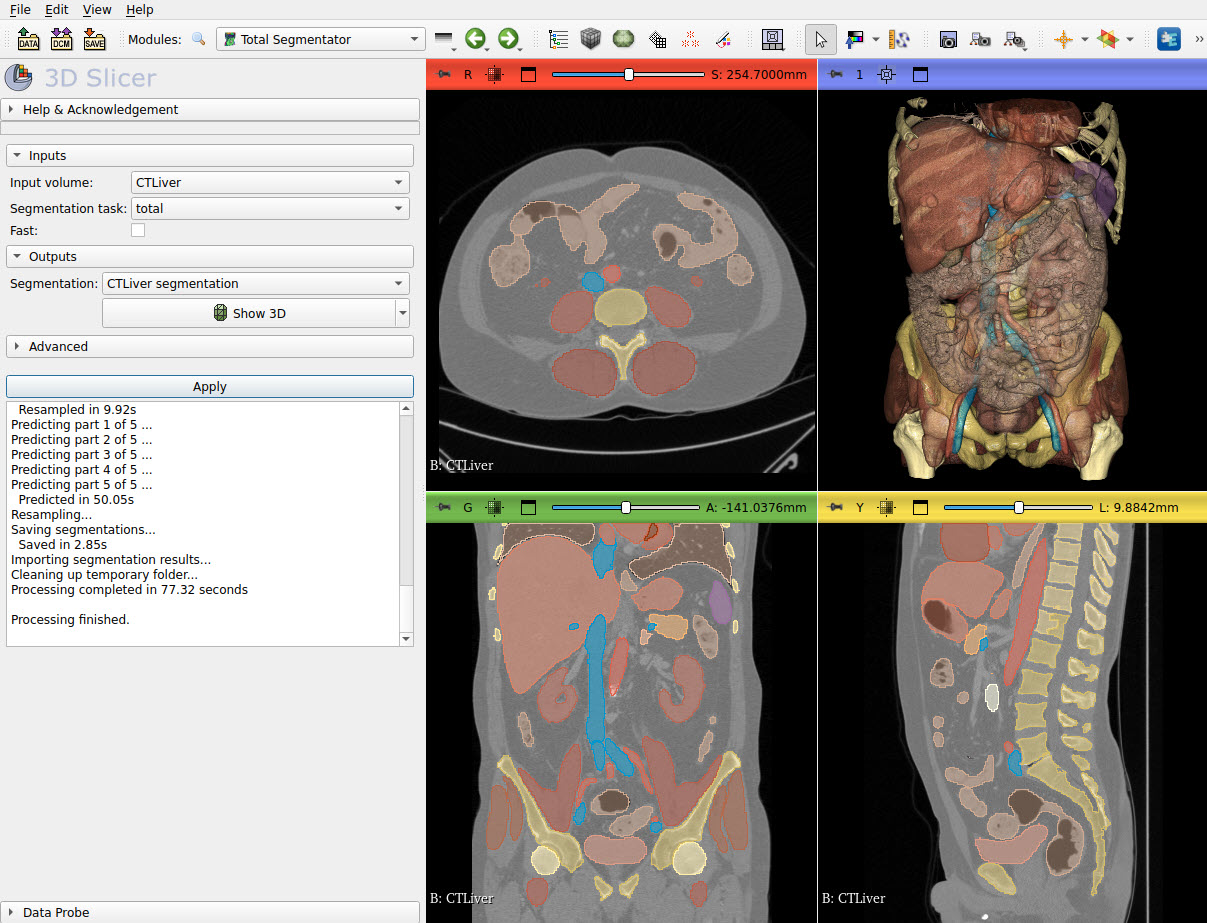
If you use the TotalSegmentator nn-Unet function from this software in your research, please cite:
Wasserthal J., Meyer M., , Hanns-Christian Breit H.C., Cyriac J., Shan Y., Segeroth, M.: TotalSegmentator: robust segmentation of 104 anatomical structures in CT images. https://arxiv.org/abs/2208.05868
Setup
- Setup your GPU driver (optional)
If you have a powerful GPU is available then a full-quality segmentation can be computed in a few minutes, instead of 40-50 minutes on the CPU. Therefore, it is recommended to set up GPU acceleration as described in this section.
- If a strong GPU with 7GB or more memory is available:
- On Windows:
- If using NVIDIA GPU: Make sure CUDA is installed. CUDA version must be one of those listed on pytorch website as "Compute platform" for your system. You can download CUDA from here.
- PyTorch does not officially support AMD GPUs for on Windows, therefore you need to use the CPU.
- On Linux:
- If using NVIDIA GPU: Make sure NVIDIA drivers are installed. If CUDA is installed then make sure CUDA version is one of those listed on pytorch website as "Compute platform" for your system. If CUDA is not installed then it will be set up automatically during installation (pytorch binary packages contain the appropriate CUDA version).
- If using AMD GPU: In theory, ROCm-compatible AMD GPUs should work, but this is not tested.
- On macOS: PyTorch does not officially support GPUs for macOS, therefore you need to use the CPU.
- On Windows:
- If suitable GPU is not available: Graphics driver updates or CUDA installation is not necessary, everything will still work, it will just take more time.
-
Install latest version of 3D Slicer
Tutorial
- Start 3D Slicer
- Go to
Sample Datamodule and loadCTA Abdomen (Panoramix)data set - Go to
TotalSegmentatormodule - Select
Input volume->Panoramix-cropped - Select
Segmentation->Create new segmentation - Click
Apply- When this module is used the first time:
- It needs to download and install PyTorch and TotalSegmentator Python packages and weights for the AI models. This can take 5-10 minutes and several GB disk space.
- You may get an error popup:
Failed to compute results ... Command ... 'pip', 'install' ... returned non-zero exit status 1. This may be normal, see what to do in Troubleshooting section
- Expected computation time:
- With CUDA-capable GPU: 20-30 seconds in fast mode, 40-50 seconds in full-resolution mode.
- Without GPU: 1 minute in fast mode, 40-50 minutes in full-resolution mode.
- When this module is used the first time:
- To display the segmentation in 3D: click the
Show 3Dbutton
User interface
- Inputs
- Input volume: input CT image
- Segmentation task: instead of the default "total" segmentation, a more specialized segmentation model can be chosen. Most of the tasks are freely usable without any restrictions; tasks that require a license are marked with "[license required]".
- Speed:
Normalcomputes full-resolution output;Fast(3mm resolution) andFaster(6mm resolution, only available for a few tasks) trade accuracy for speed
- Outputs
- Segmentation: this will store the segmentation result
- Show 3D: show/hide segments in 3D views
- Advanced:
- Use standard segment names: use names defined in standard terminology files from DCMQI (enabled by default). If disabled then TotalSegmentator identifiers will be used as segment names.
- Force to use CPU: use the CPU, even if a GPU is available. Useful if the GPU does not have enough memory.
- Robust cropping: use the 3mm model for cropping instead of the default 6mm. More robust but slightly slower.
- Remove small blobs: remove small disconnected regions (less than 0.2 ml) from the final segmentations.
- Higher-order resampling: use higher order resampling for segmentations. Smoother results but more runtime and memory.
- Body crop: do an initial rough body segmentation and crop the image to the body region before processing. Saves GPU memory and reduces processing time.
- TotalSegmentator Python package / Force reinstall: force reinstallation of the AI engine - TotalSegmentator Python package. This may be needed if other modules compromise the installation.
- TotalSegmentator license / Set license key: set or update the TotalSegmentator license key needed for tasks that require a license. Visit https://backend.totalsegmentator.com/license-academic to get a free academic license or get information on commercial licenses.
- Get TotalSegmentator package information: retrieve installed version of the AI engine - TotalSegmentator Python package.
Troubleshooting
Failed to compute results error the first time trying to use this Slicer module
Problem: Error popup appears: Failed to compute results ... Command ... 'pip', 'install' ... returned non-zero exit status 1
Explanation: This happens because when the tool has to download and install PyTorch and other required Python packages.
Solution:
- The module instructs you to restart Slicer and try again if an error occurs. Please try this first.
- If this does not help then make sure you have enough memory space (physical RAM and virtual memory in total should be at least 32GB) and you have enough disk space (at least 20GB free disk space is required) and try again.
- If you still run into issues then report the problem on the 3D Slicer forum. In your forum post, include the full application log of the failed attempt (you can get the application log in menu: Help / Report a bug).
Problem: Error popup on the first run: Failed to compute results ... Command ... 'PythonSlicer', TotalSegmentator.exe ... returned non-zero exit status 120
Explanation: This typically happens when PyTorch is not installed correctly or your computer runs out of memory.
Solution:
- Check the message log (textbox under the Apply button). If you see a message like
RuntimeError: ... DefaultCPUAllocator: not enough memory: you tried to allocate ... bytes.then it means that your computer has not enough memory to process the input image. You can useCrop volumemodule to crop the your image to the relevant region and/or resample it (with using a scaling factor >1) until the memory usage drops low enough so that your computer can handle it. Alternatively, you can install more physical RAM or configure your operating system to use more virtual memory. - If the problem does not seem to be due to running out of memory then reinstall PyTorch as described in solution of
Segmentation fails while predictingissue.
Segmentation fails while predicting
RuntimeError: CUDA out of memory
Problem: Segmentation fails while predicting and the RuntimeError: CUDA out of memory. message is found in the message log (textbox under the Apply button).
Explanation: This means that a CUDA-capable GPU is available, but it is not powerful enough to be used by TotalSegmentator.
Solution: It is recommended to switch to use the CPU by the following steps:
- Go to
PyTorch Utilmodule, clickUninstall PyTorch. An error may be reported at the end of this step, as some PyTorch files are in use. ClickRestart the applicationbutton to unload all PyTorch files. - Go to
PyTorch Utilmodule, selectcpuasComputation backend, and clickInstall PyTorch.
If your GPU has more than 7GB memory and you still get this error then the error message might indicate that the PyTorch CUDA version does not match the CUDA version installed on the system. Reinstall PyTorch with the correct CUDA version by following the instructions given below for GPU is not found.
numpy.core._exceptions._ArrayMemoryError: Unable to allocate
Problem: Segmentation fails while predicting and a message similar to this is found in the message log (textbox under the Apply button): numpy.core._exceptions._ArrayMemoryError: Unable to allocate 6.85 GiB for an array with shape (287, 233, 233, 118) and data type float32
Explanation: This means that your computer has ran out of memory (RAM) while performing the segmentation.
Solution: It is recommended to reduce the image size or increase avaialable memory size by one of the following options:
- A. Crop and/or resample the input image using
Crop volumemodule. Cropping the image to a smaller size will reduce memory need without decreasing the segmentation quality. Setting "Spacing scale" to value larger than 1 (for example 2 or 3) will preserve the extents of the image but small details may be lost (this should not be an issue when the object of interest is a large structure with a smooth surface). - B. Increase the available "virtual memory" (also known as "swap") size in your computer. On Windows and Linux, you can configure the virtual memory size in your system settings. On macOS, virtual memory is automatically allocated if there is sufficient free disk space. Increasing virtual memory size can avoid issues cause by short memory usage peaks, but can severely slow down the segmentation. To avoid slowdown, add more physical RAM to your computer.
- C. Upgrade your computer hardware. Add physical RAM to your computer, or if it is not upgradeable then get a new computer or rent a virtual machine from a cloud computing provider. If you have more physical RAM then you can process larger images without making the segmentation take significantly longer time.
AttributeError: 'DummyFile' object has no attribute 'flush'
Problem: Segmentation fails while predicting and the 'DummyFile' object has no attribute 'flush' message is found in the message log (textbox under the Apply button).
Explanation: This error message can be safely ignored (it is just a small bug in the implementation of the helper class that suppresses nnunet output). If segmentation failed then it is due to another error in the output.
Solution: Look for other messages in the output.
GPU is not found
Problem: Your computer has a CUDA-capable GPU but TotalSegmentator reports that GPU is not available.
Explanation: CUDA may not be installed on the system or CUDA version in PyTorch does not match the system CUDA version.
Solution:
- Make sure that the the CUDA vesion installed on the system is one of those listed on pytorch website as "Compute platform" for your system. You can download CUDA from here.
- Go to
PyTorch Utilmodule, clickUninstall PyTorch. An error may be reported at the end of this step, as some PyTorch files are in use. ClickRestart the applicationbutton to unload all PyTorch files. - Go to
PyTorch Utilmodule, select theComputation backendthat matches the system CUDA version, and clickInstall PyTorch. The CUDA computational backend name has the formatcuNNN, where NNN corresponds to the CUDA major+minor version. For example, CUDA 11.7 backend name iscu117.
Face segment is inaccurate
Problem: There is a big segment called face at the front of the head, which is not an accurate segmentation of the face.
Explanation: This segment is not designed to match the shape of an anatomical feature, but it designates the general area of the face. It can be used to remove features (for example by masking or blurring the image or clipping models) that might otherwise identify the individual subject. Removing these features makes it easier to share 3D data.
Fail to download model files
Model files are hosted on github.com or Zenodo.org and downloaded automatically when segmenting the first time. Institutional firewall or proxy servers may prevent access or the server may be temporarily overloaded, which may cause an error report similar to requests.exceptions.HTTPError: 404 Client Error: Not Found for url: https://zenodo.org/record/6802052/files/Task256_TotalSegmentator_3mm_1139subj.zip?download=1. Potential solutions:
- retry later when the server may be less overloaded
- talk to IT administrators or use a VPN to access the server
- download the file manually and unzip it in the
.totalsegmentatorfolder in the user's profile (for example inc:\Users\(yourusername)\.totalsegmentator\nnunet\results\Dataset291_TotalSegmentator_part1_organs_1559subj)
json.decoder.JSONDecodeError: Expecting value: line 1 column 1 (char 0)
Problem: Your TotalSegmentator config.json file was corrupted or was not created correctly.
Solution: Delete your .totalsegmentator folder in the user's profile (for example in c:\Users\(yourusername)\.totalsegmentator). The folder will be recreated with the correct content.
Contributing
Contributions to this extensions are welcome. Please send a pull request with any suggested changes. 3D Slicer contribution guidelines apply.
Contact
Please post any questions to the Slicer Forum.
Developers of this extension are not associated with the developers of TotalSegmentator, just provide the convenient 3D Slicer based user interface.
Contributors


Similar repos




Languages
Python
97.2%
CMake
2.8%
Fully automatic total body segmentation in 3D Slicer using "TotalSegmentator" AI model
Python
283
140 commits
updated Jul 21, 2026
README
TotalSegmentator
3D Slicer extension for fully automatic whole body CT segmentation using "TotalSegmentator" AI model. Computation time is less than one minute.
If you use the TotalSegmentator nn-Unet function from this software in your research, please cite:
Wasserthal J., Meyer M., , Hanns-Christian Breit H.C., Cyriac J., Shan Y., Segeroth, M.: TotalSegmentator: robust segmentation of 104 anatomical structures in CT images. https://arxiv.org/abs/2208.05868
Setup
- Setup your GPU driver (optional)
If you have a powerful GPU is available then a full-quality segmentation can be computed in a few minutes, instead of 40-50 minutes on the CPU. Therefore, it is recommended to set up GPU acceleration as described in this section.
- If a strong GPU with 7GB or more memory is available:
- On Windows:
- If using NVIDIA GPU: Make sure CUDA is installed. CUDA version must be one of those listed on pytorch website as "Compute platform" for your system. You can download CUDA from here.
- PyTorch does not officially support AMD GPUs for on Windows, therefore you need to use the CPU.
- On Linux:
- If using NVIDIA GPU: Make sure NVIDIA drivers are installed. If CUDA is installed then make sure CUDA version is one of those listed on pytorch website as "Compute platform" for your system. If CUDA is not installed then it will be set up automatically during installation (pytorch binary packages contain the appropriate CUDA version).
- If using AMD GPU: In theory, ROCm-compatible AMD GPUs should work, but this is not tested.
- On macOS: PyTorch does not officially support GPUs for macOS, therefore you need to use the CPU.
- On Windows:
- If suitable GPU is not available: Graphics driver updates or CUDA installation is not necessary, everything will still work, it will just take more time.
-
Install latest version of 3D Slicer
Tutorial
- Start 3D Slicer
- Go to
Sample Datamodule and loadCTA Abdomen (Panoramix)data set - Go to
TotalSegmentatormodule - Select
Input volume->Panoramix-cropped - Select
Segmentation->Create new segmentation - Click
Apply- When this module is used the first time:
- It needs to download and install PyTorch and TotalSegmentator Python packages and weights for the AI models. This can take 5-10 minutes and several GB disk space.
- You may get an error popup:
Failed to compute results ... Command ... 'pip', 'install' ... returned non-zero exit status 1. This may be normal, see what to do in Troubleshooting section
- Expected computation time:
- With CUDA-capable GPU: 20-30 seconds in fast mode, 40-50 seconds in full-resolution mode.
- Without GPU: 1 minute in fast mode, 40-50 minutes in full-resolution mode.
- When this module is used the first time:
- To display the segmentation in 3D: click the
Show 3Dbutton
User interface
- Inputs
- Input volume: input CT image
- Segmentation task: instead of the default "total" segmentation, a more specialized segmentation model can be chosen. Most of the tasks are freely usable without any restrictions; tasks that require a license are marked with "[license required]".
- Speed:
Normalcomputes full-resolution output;Fast(3mm resolution) andFaster(6mm resolution, only available for a few tasks) trade accuracy for speed
- Outputs
- Segmentation: this will store the segmentation result
- Show 3D: show/hide segments in 3D views
- Advanced:
- Use standard segment names: use names defined in standard terminology files from DCMQI (enabled by default). If disabled then TotalSegmentator identifiers will be used as segment names.
- Force to use CPU: use the CPU, even if a GPU is available. Useful if the GPU does not have enough memory.
- Robust cropping: use the 3mm model for cropping instead of the default 6mm. More robust but slightly slower.
- Remove small blobs: remove small disconnected regions (less than 0.2 ml) from the final segmentations.
- Higher-order resampling: use higher order resampling for segmentations. Smoother results but more runtime and memory.
- Body crop: do an initial rough body segmentation and crop the image to the body region before processing. Saves GPU memory and reduces processing time.
- TotalSegmentator Python package / Force reinstall: force reinstallation of the AI engine - TotalSegmentator Python package. This may be needed if other modules compromise the installation.
- TotalSegmentator license / Set license key: set or update the TotalSegmentator license key needed for tasks that require a license. Visit https://backend.totalsegmentator.com/license-academic to get a free academic license or get information on commercial licenses.
- Get TotalSegmentator package information: retrieve installed version of the AI engine - TotalSegmentator Python package.
Troubleshooting
Failed to compute results error the first time trying to use this Slicer module
Problem: Error popup appears: Failed to compute results ... Command ... 'pip', 'install' ... returned non-zero exit status 1
Explanation: This happens because when the tool has to download and install PyTorch and other required Python packages.
Solution:
- The module instructs you to restart Slicer and try again if an error occurs. Please try this first.
- If this does not help then make sure you have enough memory space (physical RAM and virtual memory in total should be at least 32GB) and you have enough disk space (at least 20GB free disk space is required) and try again.
- If you still run into issues then report the problem on the 3D Slicer forum. In your forum post, include the full application log of the failed attempt (you can get the application log in menu: Help / Report a bug).
Problem: Error popup on the first run: Failed to compute results ... Command ... 'PythonSlicer', TotalSegmentator.exe ... returned non-zero exit status 120
Explanation: This typically happens when PyTorch is not installed correctly or your computer runs out of memory.
Solution:
- Check the message log (textbox under the Apply button). If you see a message like
RuntimeError: ... DefaultCPUAllocator: not enough memory: you tried to allocate ... bytes.then it means that your computer has not enough memory to process the input image. You can useCrop volumemodule to crop the your image to the relevant region and/or resample it (with using a scaling factor >1) until the memory usage drops low enough so that your computer can handle it. Alternatively, you can install more physical RAM or configure your operating system to use more virtual memory. - If the problem does not seem to be due to running out of memory then reinstall PyTorch as described in solution of
Segmentation fails while predictingissue.
Segmentation fails while predicting
RuntimeError: CUDA out of memory
Problem: Segmentation fails while predicting and the RuntimeError: CUDA out of memory. message is found in the message log (textbox under the Apply button).
Explanation: This means that a CUDA-capable GPU is available, but it is not powerful enough to be used by TotalSegmentator.
Solution: It is recommended to switch to use the CPU by the following steps:
- Go to
PyTorch Utilmodule, clickUninstall PyTorch. An error may be reported at the end of this step, as some PyTorch files are in use. ClickRestart the applicationbutton to unload all PyTorch files. - Go to
PyTorch Utilmodule, selectcpuasComputation backend, and clickInstall PyTorch.
If your GPU has more than 7GB memory and you still get this error then the error message might indicate that the PyTorch CUDA version does not match the CUDA version installed on the system. Reinstall PyTorch with the correct CUDA version by following the instructions given below for GPU is not found.
numpy.core._exceptions._ArrayMemoryError: Unable to allocate
Problem: Segmentation fails while predicting and a message similar to this is found in the message log (textbox under the Apply button): numpy.core._exceptions._ArrayMemoryError: Unable to allocate 6.85 GiB for an array with shape (287, 233, 233, 118) and data type float32
Explanation: This means that your computer has ran out of memory (RAM) while performing the segmentation.
Solution: It is recommended to reduce the image size or increase avaialable memory size by one of the following options:
- A. Crop and/or resample the input image using
Crop volumemodule. Cropping the image to a smaller size will reduce memory need without decreasing the segmentation quality. Setting "Spacing scale" to value larger than 1 (for example 2 or 3) will preserve the extents of the image but small details may be lost (this should not be an issue when the object of interest is a large structure with a smooth surface). - B. Increase the available "virtual memory" (also known as "swap") size in your computer. On Windows and Linux, you can configure the virtual memory size in your system settings. On macOS, virtual memory is automatically allocated if there is sufficient free disk space. Increasing virtual memory size can avoid issues cause by short memory usage peaks, but can severely slow down the segmentation. To avoid slowdown, add more physical RAM to your computer.
- C. Upgrade your computer hardware. Add physical RAM to your computer, or if it is not upgradeable then get a new computer or rent a virtual machine from a cloud computing provider. If you have more physical RAM then you can process larger images without making the segmentation take significantly longer time.
AttributeError: 'DummyFile' object has no attribute 'flush'
Problem: Segmentation fails while predicting and the 'DummyFile' object has no attribute 'flush' message is found in the message log (textbox under the Apply button).
Explanation: This error message can be safely ignored (it is just a small bug in the implementation of the helper class that suppresses nnunet output). If segmentation failed then it is due to another error in the output.
Solution: Look for other messages in the output.
GPU is not found
Problem: Your computer has a CUDA-capable GPU but TotalSegmentator reports that GPU is not available.
Explanation: CUDA may not be installed on the system or CUDA version in PyTorch does not match the system CUDA version.
Solution:
- Make sure that the the CUDA vesion installed on the system is one of those listed on pytorch website as "Compute platform" for your system. You can download CUDA from here.
- Go to
PyTorch Utilmodule, clickUninstall PyTorch. An error may be reported at the end of this step, as some PyTorch files are in use. ClickRestart the applicationbutton to unload all PyTorch files. - Go to
PyTorch Utilmodule, select theComputation backendthat matches the system CUDA version, and clickInstall PyTorch. The CUDA computational backend name has the formatcuNNN, where NNN corresponds to the CUDA major+minor version. For example, CUDA 11.7 backend name iscu117.
Face segment is inaccurate
Problem: There is a big segment called face at the front of the head, which is not an accurate segmentation of the face.
Explanation: This segment is not designed to match the shape of an anatomical feature, but it designates the general area of the face. It can be used to remove features (for example by masking or blurring the image or clipping models) that might otherwise identify the individual subject. Removing these features makes it easier to share 3D data.
Fail to download model files
Model files are hosted on github.com or Zenodo.org and downloaded automatically when segmenting the first time. Institutional firewall or proxy servers may prevent access or the server may be temporarily overloaded, which may cause an error report similar to requests.exceptions.HTTPError: 404 Client Error: Not Found for url: https://zenodo.org/record/6802052/files/Task256_TotalSegmentator_3mm_1139subj.zip?download=1. Potential solutions:
- retry later when the server may be less overloaded
- talk to IT administrators or use a VPN to access the server
- download the file manually and unzip it in the
.totalsegmentatorfolder in the user's profile (for example inc:\Users\(yourusername)\.totalsegmentator\nnunet\results\Dataset291_TotalSegmentator_part1_organs_1559subj)
json.decoder.JSONDecodeError: Expecting value: line 1 column 1 (char 0)
Problem: Your TotalSegmentator config.json file was corrupted or was not created correctly.
Solution: Delete your .totalsegmentator folder in the user's profile (for example in c:\Users\(yourusername)\.totalsegmentator). The folder will be recreated with the correct content.
Contributing
Contributions to this extensions are welcome. Please send a pull request with any suggested changes. 3D Slicer contribution guidelines apply.
Contact
Please post any questions to the Slicer Forum.
Developers of this extension are not associated with the developers of TotalSegmentator, just provide the convenient 3D Slicer based user interface.
Similar repos
Contributors
Languages
Python
97.2%
CMake
2.8%