Insanely easy way to define clickable links within a TextView.
Kotlin
1,574
96 commits
updated Jan 20, 2020

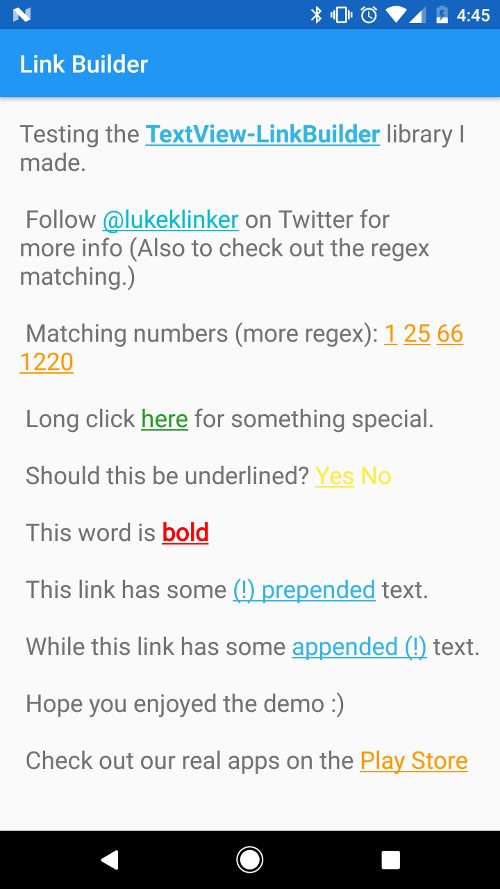
Insanely easy way to create clickable links within a TextView.
While creating Talon for Twitter, one of the most difficult things I encountered was creating these clickable links based on specific text. Luckily, I have made it easy for anyone to apply this type of style to their TextView's.
Similar to how all the big players do it (Google+, Twitter, cough Talon cough), this library allows you to create clickable links for any combination of Strings within a TextView.
TextViewStrings or use a regular expression to set clickable links to any text conforming to that patternThe main advantage to using this library over TextView's autolink functionality is that you can link anything, not just web address, emails, and phone numbers. It also provides color customization and touch feedback.
There are two ways to use this library:
This is the preferred way. Simply add:
dependencies {
    compile 'com.klinkerapps:link_builder:2.0.5'
}
to your project dependencies and run gradle build or gradle assemble.
Download the source code and import it as a library project in Eclipse. The project is available in the folder library. For more information on how to do this, read here.
Functionality can be found in the Kotlin example's MainActivity. For Java check JavaMainActivity.
For a list of regular expressions that I use in Talon, you can go here
// Create the link rule to set what text should be linked.
// can use a specific string or a regex pattern
Link link = new Link("click here")
    .setTextColor(Color.parseColor("#259B24"))                  // optional, defaults to holo blue
    .setTextColorOfHighlightedLink(Color.parseColor("#0D3D0C")) // optional, defaults to holo blue
    .setHighlightAlpha(.4f)                                     // optional, defaults to .15f
    .setUnderlined(false)                                       // optional, defaults to true
    .setBold(true)                                              // optional, defaults to false
    .setOnLongClickListener(new Link.OnLongClickListener() {
        @Override
        public void onLongClick(String clickedText) {
        	// long clicked
        }
    })
    .setOnClickListener(new Link.OnClickListener() {
        @Override
        public void onClick(String clickedText) {
        	// single clicked
        }
    });

TextView demoText = (TextView) findViewById(R.id.test_text);

// create the link builder object add the link rule
LinkBuilder.on(demoText)
    .addLink(link)
    .build(); // create the clickable links
You can also create a CharSequence instead of creating and applying the links directly to the TextView. Do not forget to set the movement method on your TextView's after you have applied the CharSequence, or else the links will not be clickable.
// find the text view. Used to create the link builder
TextView demoText = (TextView) findViewById(R.id.test_text);

// Add the links and make the links clickable
CharSequence sequence = LinkBuilder.from(this, demoText.getText().toString())
    .addLinks(getExampleLinks())
    .build();

demoText.setText(sequence);

// if you forget to set the movement method, then your text will not be clickable!
demoText.setMovementMethod(TouchableMovementMethod.getInstance());
If you would like to set the default text color for links without inputting it manually on each Link object, it can be set from the activity theme.
<style name="LinkBuilderExampleTheme" parent="android:Theme.Holo.Light">
    <item name="linkBuilderStyle">@style/LinkBuilder</item>
</style>
<style name="LinkBuilder">
    <item name="defaultLinkColor">#222222</item>
    <item name="defaultTextColorOfHighlightedLink">#444444</item>
</style>
The library is built on Kotlin, so you get some extension methods that you can use to apply the links to the TextView, instead of creating the builder.
val demo = findViewById<TextView>(R.id.demo_text)
demo.applyLinks(link1, link2, ...)
demo.applyLinks(listOfLinks)
By default, LinkBuilder will consume all the touch events on your TextView. This means that ListView.OnItemClickListener will never get called if you try to implement it. The fix for this is to implement the LinkConsumableTextView rather than the normal TextView in your layouts.
My LinkConsumableTextView will only consume touch events if you have clicked the link within the TextView. Otherwise, it will defer the touch event to the parent, which allows you to use ListView.OnItemClickListener method.
Please fork this repository and contribute back using pull requests. Features can be requested using issues. All code, comments, and critiques are greatly appreciated.
The full changelog for the library can be found here.
Copyright 2015 Luke Klinker

Licensed under the Apache License, Version 2.0 (the "License");
you may not use this file except in compliance with the License.
You may obtain a copy of the License at

   http://www.apache.org/licenses/LICENSE-2.0

Unless required by applicable law or agreed to in writing, software
distributed under the License is distributed on an "AS IS" BASIS,
WITHOUT WARRANTIES OR CONDITIONS OF ANY KIND, either express or implied.
See the License for the specific language governing permissions and
limitations under the License.
719 followers · starred Oct 2015
30 followers · starred Nov 2015
258 followers · starred Mar 2019
27 followers · starred Jan 2020
Insanely easy way to define clickable links within a TextView.
Kotlin
1,574
96 commits
updated Jan 20, 2020
Insanely easy way to create clickable links within a TextView.
While creating Talon for Twitter, one of the most difficult things I encountered was creating these clickable links based on specific text. Luckily, I have made it easy for anyone to apply this type of style to their TextView's.
Similar to how all the big players do it (Google+, Twitter, cough Talon cough), this library allows you to create clickable links for any combination of Strings within a TextView.
TextViewStrings or use a regular expression to set clickable links to any text conforming to that patternThe main advantage to using this library over TextView's autolink functionality is that you can link anything, not just web address, emails, and phone numbers. It also provides color customization and touch feedback.
There are two ways to use this library:
This is the preferred way. Simply add:
dependencies {
    compile 'com.klinkerapps:link_builder:2.0.5'
}
to your project dependencies and run gradle build or gradle assemble.
Download the source code and import it as a library project in Eclipse. The project is available in the folder library. For more information on how to do this, read here.
Functionality can be found in the Kotlin example's MainActivity. For Java check JavaMainActivity.
For a list of regular expressions that I use in Talon, you can go here
// Create the link rule to set what text should be linked.
// can use a specific string or a regex pattern
Link link = new Link("click here")
    .setTextColor(Color.parseColor("#259B24"))                  // optional, defaults to holo blue
    .setTextColorOfHighlightedLink(Color.parseColor("#0D3D0C")) // optional, defaults to holo blue
    .setHighlightAlpha(.4f)                                     // optional, defaults to .15f
    .setUnderlined(false)                                       // optional, defaults to true
    .setBold(true)                                              // optional, defaults to false
    .setOnLongClickListener(new Link.OnLongClickListener() {
        @Override
        public void onLongClick(String clickedText) {
        	// long clicked
        }
    })
    .setOnClickListener(new Link.OnClickListener() {
        @Override
        public void onClick(String clickedText) {
        	// single clicked
        }
    });

TextView demoText = (TextView) findViewById(R.id.test_text);

// create the link builder object add the link rule
LinkBuilder.on(demoText)
    .addLink(link)
    .build(); // create the clickable links
You can also create a CharSequence instead of creating and applying the links directly to the TextView. Do not forget to set the movement method on your TextView's after you have applied the CharSequence, or else the links will not be clickable.
// find the text view. Used to create the link builder
TextView demoText = (TextView) findViewById(R.id.test_text);

// Add the links and make the links clickable
CharSequence sequence = LinkBuilder.from(this, demoText.getText().toString())
    .addLinks(getExampleLinks())
    .build();

demoText.setText(sequence);

// if you forget to set the movement method, then your text will not be clickable!
demoText.setMovementMethod(TouchableMovementMethod.getInstance());
If you would like to set the default text color for links without inputting it manually on each Link object, it can be set from the activity theme.
<style name="LinkBuilderExampleTheme" parent="android:Theme.Holo.Light">
    <item name="linkBuilderStyle">@style/LinkBuilder</item>
</style>
<style name="LinkBuilder">
    <item name="defaultLinkColor">#222222</item>
    <item name="defaultTextColorOfHighlightedLink">#444444</item>
</style>
The library is built on Kotlin, so you get some extension methods that you can use to apply the links to the TextView, instead of creating the builder.
val demo = findViewById<TextView>(R.id.demo_text)
demo.applyLinks(link1, link2, ...)
demo.applyLinks(listOfLinks)
By default, LinkBuilder will consume all the touch events on your TextView. This means that ListView.OnItemClickListener will never get called if you try to implement it. The fix for this is to implement the LinkConsumableTextView rather than the normal TextView in your layouts.
My LinkConsumableTextView will only consume touch events if you have clicked the link within the TextView. Otherwise, it will defer the touch event to the parent, which allows you to use ListView.OnItemClickListener method.
Please fork this repository and contribute back using pull requests. Features can be requested using issues. All code, comments, and critiques are greatly appreciated.
The full changelog for the library can be found here.
Copyright 2015 Luke Klinker

Licensed under the Apache License, Version 2.0 (the "License");
you may not use this file except in compliance with the License.
You may obtain a copy of the License at

   http://www.apache.org/licenses/LICENSE-2.0

Unless required by applicable law or agreed to in writing, software
distributed under the License is distributed on an "AS IS" BASIS,
WITHOUT WARRANTIES OR CONDITIONS OF ANY KIND, either express or implied.
See the License for the specific language governing permissions and
limitations under the License.
719 followers · starred Oct 2015
30 followers · starred Nov 2015
258 followers · starred Mar 2019
27 followers · starred Jan 2020