Embeddable unity game engine view for Flutter. Advance demo here https://github.com/juicycleff/flutter-unity-arkit-demo
Dart
2,308
345 commits
updated Jul 21, 2026
🚀 This package has evolved into Game Framework
flutter_unity_widgetpioneered embedding Unity in Flutter. It has been rebuilt from the ground up by the same author as Game Framework — the next-generation successor:
- 🧰 A real CLI — export, sync & build in a few commands (no more manual setup / version headaches)
- 🎮 Unity and Unreal Engine support
- ☁️ Cloud publishing + pub.dev-compatible hosting for your game builds
- 🔄 Bidirectional messaging & lifecycle management, actively maintained for current Flutter & Unity 6
→ New projects should start here: gameframework.dev · GitHub · Docs
flutter_unity_widgetremains available for existing projects, but is no longer the recommended starting point.
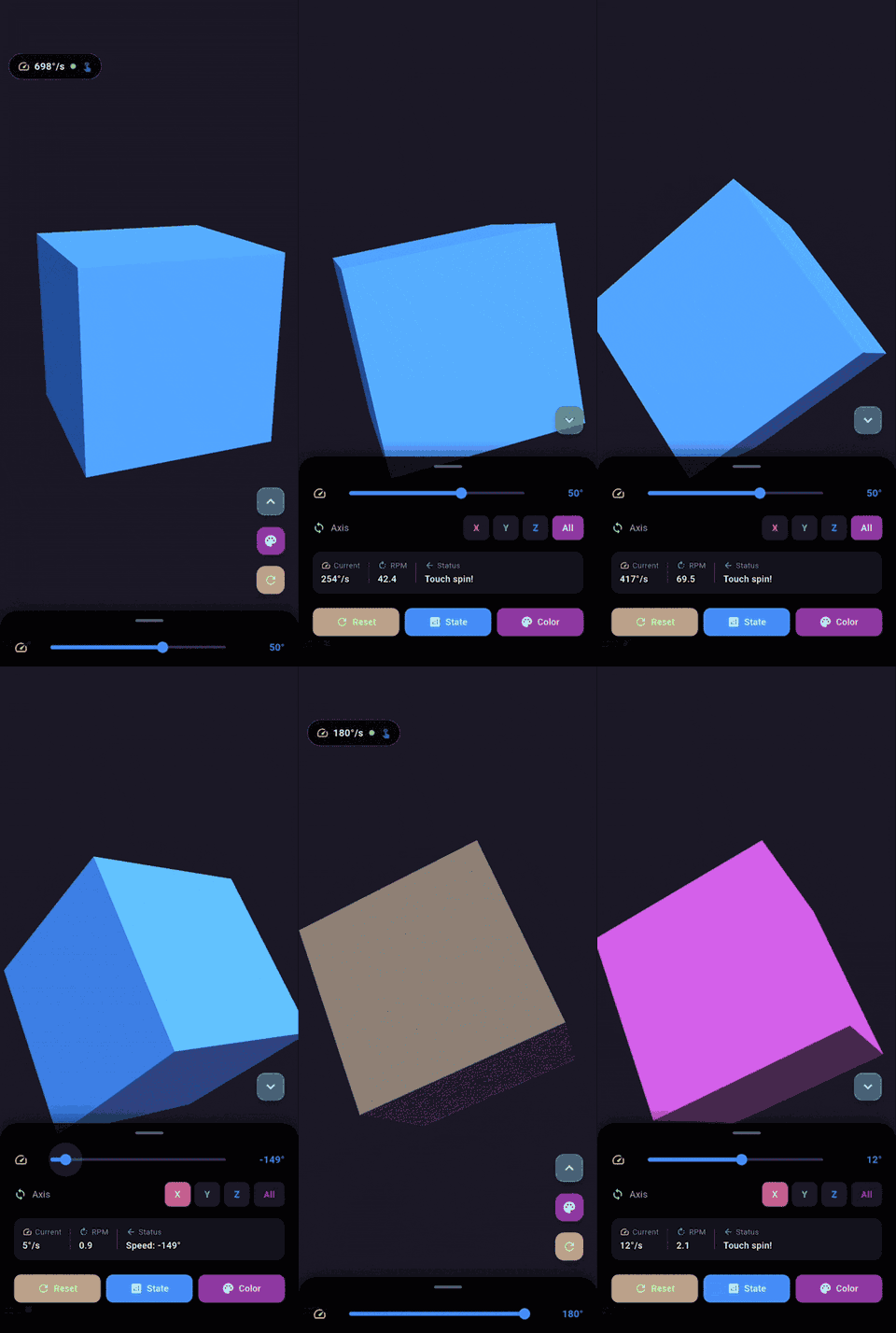







Flutter unity 3D widget for embedding unity in flutter. Now you can make awesome gamified features of your app in Unity and get it rendered in a Flutter app both in fullscreen and embeddable mode. Works great on Android, iPad OS, iOS, Web.
Need me to respond, tag me Rex Isaac Raphael.
This plugin expects you to atleast know how to use Unity Engine. If you have issues with how unity widget is presented, you can please modify your unity project build settings as you seem fit.
Moving forward, versioning of the package will change to match unity releases after proper test. Mind you this does not mean the package is not compatible with other versions, it just mean it's been tested to work with a unity version.
This plugin requires Flutter >= 3.16.0.
First depend on the library by adding this to your packages pubspec.yaml:
dependencies:
  flutter_unity_widget: ^2022.2.1 # use the latest compatible version
Now inside your Dart code you can import it.
import 'package:flutter_unity_widget/flutter_unity_widget.dart';
You will need to open and export a Unity project, even for running the example. Your build will fail if you only include the widget in Flutter!
30 fps gifs, showcasing communication between Flutter and Unity:


In the tutorial below, there are steps specific to each platform, denoted by a ℹ️ icon followed by the platform name (Android or iOS). You can click on its icon to expand it.
An existing Flutter project (if there is none, you can create a new one)
An existing Unity project (if there is none, you can create a new one).
A fuw-XXXX.unitypackage file, found in the unitypackages folder.
Try to use the most recent unitypackage available.
If you want to publish your app for Android or iOS, you need to satisfy certain Unity version requirements.
iOS
Apple's privacy manifest requirements need a minimal Unity version of:
Android
Starting November 1st, 2025, all new apps and updates to existing apps submitted to Google Play and targeting Android 15+ devices must support 16 KB page sizes.
This requires Unity versions:
These instructions assume you are using a new Unity project. If you open the example project from this repository, you can move on to the next section Unity Exporting.
/android and /ios folders of your flutter project. If your Unity project is in a different location the export might (partially) fail.The expected path is /unity/project-name/...
Make sure you have downloaded a fuw-XXXX.unitypackage file mentioned in prerequisites.
Using Unity (hub), open the Unity project. Go to Assets > Import Package > Custom Package and select the downloaded fuw-XXXX.unitypackage file. Click on Import.
Go to File > Build Settings > Player Settings and change the following under the Other settings > Configuration section:
In Scripting Backend, change to IL2CPP
(Android) Target Architectures, select ARMv7 and ARM64
(Android) For the best compatibility set Active Input Handling to Input Manager (Old) or Both.
(The new input system has some issues with touch input on Android)
(iOS) Select Target SDK depending on where you will run your app (simulator or physical device).
We recommend starting with a physical device and the Device SDK setting, due to limited simulator support.
(Web) Set Publishing settings > Compression format to Brotli or Disabled.
Some users report that Unity gets stuck on the loading screen with the Gzip setting, due to MIME type errors.
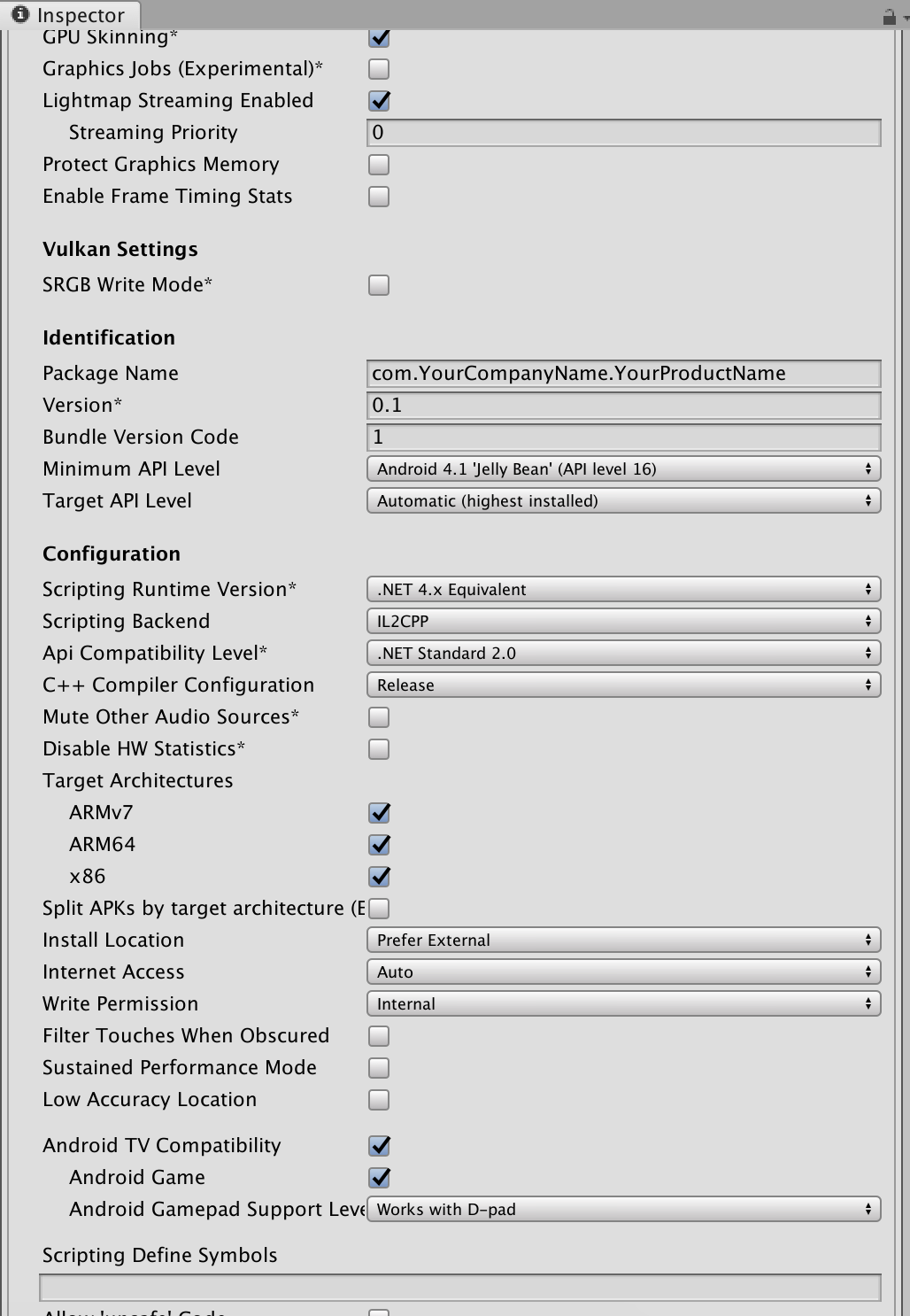
Some options in the Build settings window get overridden by the plugin's export script.
Attempting to change settings like Development Build, Script Debugging and Export project in this window will not make a difference.
If you end up having to change a build setting that doesn't seem to respond, take a lookat the export script FlutterUnityIntegration\Editor\Build.cs.
After importing the unitypackage, you should now see a Flutter option at the top of the Unity editor.
Click on Flutter and select the appropriate export option:
flutter_unity_cli for larger projects.
If you use git, you will probably want to add these unityLibrary folders to your gitignore file. These folders can get huge and are not guaranteed to work on another computer.
Proceed to the next section to handle iOS and Android specific setup after the export.
After exporting Unity, you will need to make some small changes in your iOS or Android project.
You will likely need to do this only once. These changes remain on future Unity exports.
Edit -> Preferences -> External Tool:
android/local.properties as ndk.dir=.\ with \\.) // mac
ndk.dir=/Applications/Unity/Hub/Editor/2020.3.19f1/PlaybackEngines/AndroidPlayer/NDK
// windows
ndk.dir=C:\\Program Files\\Unity\\Hub\\Editor\\2021.3.13f1\\Editor\\Data\\PlaybackEngines\\AndroidPlayer\\NDK
android/app/build.gradle.
android {

  ndkVersion "21.3.6528147"
}
source.properties at the NDK path described above.Depending on your gradle version, you might need to make sure the minSdkVersion set in android\app\build.gradle matches the version that is set in Unity.
Check the Minimum API Level setting in the Unity player settings, and match that version.
(optional) Fixing Unity plugins.
The Unity widget will function without this step, but some Unity plugins like ArFoundation will throw mUnityPlayer errors on newer Unity versions.
This is needed for Unity 2020.3.46+, 2021.3.19 - 2021.3.20 and 2022.2.4 - 2022.3.18.
This requires a flutter_unity_widget version that is newer than 2022.2.1.
android/app/build.gradle file and add the following: dependencies {
// build.gradle
+ implementation project(':flutter_unity_widget')
// build.gradle.kts (Flutter 3.29+)
+ implementation(project(":flutter_unity_widget"))
}
3.2. Edit your android MainActivity file.
The default location for Flutter is android/app/src/main/kotlin/<app identifier>/MainActivity.kt.
If you use the default flutter activity, change it to inherit FlutterUnityActivity:
// MainActivity.kt

+ import com.xraph.plugin.flutter_unity_widget.FlutterUnityActivity;

+ class MainActivity: FlutterUnityActivity() {
- class MainActivity: FlutterActivity() {
IFlutterUnityActivity interface instead.// MainActivity.kt
// only do this if your activity does not inherit FlutterActivity
import com.xraph.plugin.flutter_unity_widget.IFlutterUnityActivity;
class MainActivity: CustomActivity(), IFlutterUnityActivity {
// unity will try to read this mUnityPlayer property
@JvmField
var mUnityPlayer: java.lang.Object? = null;
// implement this function so the plugin can set mUnityPlayer
override fun setUnityPlayer(unityPlayer: java.lang.Object?) {
mUnityPlayer = unityPlayer;
}
}
// build.gradle
+    include ":unityLibrary"
+    project(":unityLibrary").projectDir = file("./unityLibrary")

// build.gradle.kts (Flutter 3.29+)
+    include(":unityLibrary")
+    project(":unityLibrary").projectDir = file("./unityLibrary")
     dependencies {
          // app/build.gradle
+        implementation project(':unityLibrary')
         // app/build.gradle.kts (Flutter 3.29+)
+        implementation(project(":unityLibrary"))
     }
allprojects {
    repositories {
+       flatDir {
            // build.gradle
+           dirs "${project(':unityLibrary').projectDir}/libs"
            // build.gradle.kts (Flutter 3.29+)
+           dirs(file("${project(":unityLibrary").projectDir}/libs"))
+       }
        google()
        mavenCentral()
    }
}
     buildTypes {
         release {
             signingConfig signingConfigs.debug
         }
+        debug {
+            signingConfig signingConfigs.debug
+        }
+        profile {
+            signingConfig signingConfigs.debug
+        }
+        innerTest {
+            matchingFallbacks = ['debug', 'release']
+        }
+   }
The code above use the
debugsignConfig for all buildTypes, which can be changed as you well if you need specify signConfig.
minifyEnabled true in your android/app/build.gradle file, open the android/unityLibrary/proguard-unity.txt and change the following:+ -keep class com.xraph.plugin.** {*;}
+    <activity
+        android:name="com.xraph.plugin.flutter_unity_widget.OverrideUnityActivity"
+        android:theme="@style/UnityThemeSelector"
+        android:screenOrientation="fullSensor"
+        android:launchMode="singleTask"
+        android:configChanges="mcc|mnc|locale|touchscreen|keyboard|keyboardHidden|navigation|orientation|screenLayout|uiMode|screenSize|smallestScreenSize|fontScale|layoutDirection|density"
+        android:hardwareAccelerated="false"
+        android:process=":Unity">
+    <meta-data android:name="com.xraph.plugin.flutter_unity_widget.OverrideUnityActivity" android:value="true" />
+    </activity>


3.1. If you're using Swift, open the ios/Runner/AppDelegate.swift file and change the following:
     import UIKit
     import Flutter
+    import flutter_unity_widget

     @UIApplicationMain
     @objc class AppDelegate: FlutterAppDelegate {
         override func application(
             _ application: UIApplication,
             didFinishLaunchingWithOptions launchOptions: [UIApplication.LaunchOptionsKey: Any]?
         ) -> Bool {
+            InitUnityIntegrationWithOptions(argc: CommandLine.argc, argv: CommandLine.unsafeArgv, launchOptions)

             GeneratedPluginRegistrant.register(with: self)
             return super.application(application, didFinishLaunchingWithOptions: launchOptions)
         }
     }
3.2. If you're using Objective-C, open the ios/Runner/main.m file and change the following:
+    #import "flutter_unity_widget.swift.h"

     int main(int argc, char * argv[]) {
          @autoreleasepool {
+             InitUnityIntegration(argc, argv);
              return UIApplicationMain(argc, argv, nil, NSStringFromClass([AppDelegate class]));
          }
     }

Unity plugins that make use of native code (Vuforia, openCV, etc.) might need to be added to Runner like UnityFramework.
Check the contents of the /ios/UnityLibrary/Frameworks/ directory. Any <name>.framework located in (subdirectories of) this directory is a framework that you can add to Runner.
Make sure pods are installed after your Unity export, either using flutter run or by running pod install in the ios folder.
If you use Xcode 14 or newer, and Unity older than 2021.3.17f1 or 2022.2.2f1, your app might crash when running from Xcode.
Disable the Thread Performance Checker feature in Xcode to fix this.
- In Xcode go to Product > Scheme > Edit Scheme...
- Now With Run selected on the left, got to the Diagnostics tab and uncheck the checkbox for Thread Performance Checker.

The following setup for AR is done after making an export from Unity.
Warning: Flutter 3.22 has introduced a crash when using AR on Android < 13 #957
Check the version of the XR Plugin Management in the Unity package manager. Versions 4.3.1 - 4.3.3 contain a bug that breaks Android exports.
Make sure to use a version <=4.2.2 or >=4.4.
You might have to manually change the version in <unity project>/Packages/manifest.json for "com.unity.xr.management".
You can check the android/unityLibrary/libs folder to see if AR was properly exported. It should contain files similar to UnityARCore.aar, ARPresto.aar, arcore_client.aar and unityandroidpermissions.aar.
If your setup and export was done correctly, your project should automatically load these files.
If it doesn't, check if your android/build.gradle file contains the flatDir section added in the android setup step 7.
If your XR Plugin Management plugin is version 4.4 or higher, Unity also exports the xrmanifest.androidlib folder.
Make sure to include it by adding the following line to android/settings.gradle
// settings.gradle
include ":unityLibrary:xrmanifest.androidlib"

// settings.gradle.kts (Flutter 3.29+)
include(":unityLibrary:xrmanifest.androidlib")
With some Unity versions AR might crash at runtine with an error like:
java.lang.NoSuchFieldError: no "Ljava/lang/Object;" field "mUnityPlayer" in class.
See the Android setup step 3 on how to edit your MainActivity to fix this.
     <dict>
+        <key>NSCameraUsageDescription</key>
+        <string>$(PRODUCT_NAME) uses Cameras</string>
     </dict>
Your export should contain a Vuforia library in the android/unityLibrary/libs/ folder. Currently named VuforiaEngine.aar.
If your setup and export was done correctly, your project should automatically load this file.
If it doesn't, check if your android/build.gradle file contains the flatDir section added in the android setup step 7.
In case this gets outdated or broken, check the Vuforia documentation
These steps are based on these Vuforia docs and this comment
     <dict>
+        <key>NSCameraUsageDescription</key>
+        <string>$(PRODUCT_NAME) uses Cameras</string>
     </dict>
In Xcode,
Select Runner > General tab.
In Frameworks, Libraries, and Embedded content add the Vuforia frameworks. This is where you added UnityFramework.framework in step 4 of the iOS setup.
You should be able to find them in
/ios/UnityLibrary/Frameworks/com.ptc.vuforia.engine/Vuforia/Plugins/iOS/.
Currently these are
Vuforia.frameworkUnityDriver.frameworkTo support Vuforia target databases, move the Unity-iPhone/Vuforia folder from Unity-iPhone to Runner. Then set Target Membership of this folder to Runner.
Make sure pods are installed after your Unity export, either using flutter run or by running pod install in the ios folder.
We recommend using a physical iOS or Android device, as emulator support is limited.
Below are the limited options to use an emulator.
The Target SDK option in the Unity player settings is important here.
Device SDK exports an ARM build. (Which does NOT work on ARM simulators)Simulator SDK exports and x86 build for simulators.If you use ARKit or ARFoundation you are out of luck, iOS simulators do NOT support ARKit.
The rest depends on the type of processor in your mac:
Device SDK as target.Mac (Designed for iPhone) or Mac (Designed for iPad).Set Simulator SDK in the Unity player settings.
Make sure there are no AR or XR packages included in the Unity package manager.
(You will get the error symbol not found in flat namespace '_UnityARKitXRPlugin_PluginLoad otherwise)
(Apple Silicon) Get Xcode to use a Rosetta emulator.
The next step assumes Xcode 14.3 or newer, if you use an older version look up how to start Xcode using Rosetta instead.
Product -> Destination -> Destination Architectures and make sure Rosetta destinations are visible.Unity-iPhone and go to Build settings -> Architectures.x86_64 for architectures.Runner and change the architecture to exactly match Unity-iPhone.x86_64 is the only entry, not one of multiple.Pods and click flutter_unity_widget in targets.Build Active Architecture Only to YES.Product -> Clean Build Folder to make sure the new architecture settings are used.(Rosetta) in the name.Unity only supports ARM build targets for Android. However most Android emulators are x86 which means they simply won't work.
Computer with ARM processor
If your computer has an ARM processor (e.g. Apple Silicon, Qualcomm) you should be able to emulate Android without issue.
Create a virtual device using Android studio and make sure that the system image has an ABI that includes 'arm'.
On macs with Apple Silicon (M1, M2), ARM emulators should be the default install option.
This was tested on Mac, but not on Linux or Windows.
Computer with x86/x64 processor
If you computer does not have an ARM processor, like most computers running on Intel or AMD, your options are limited.
You have 2 options:
x86 (Chrome OS) and x86-64 (Chrome OS) in the Unity player settings before making an export.On a UnityWidget widget, get the UnityWidgetController received by the onUnityCreated callback.
Use the method postMessage to send a string, using the GameObject name and the name of a behaviour method that should be called.
// Snippet of postMessage usage in the example project.
_unityWidgetController?.postMessage(
  'Cube', // GameObject name
  'SetRotationSpeed', // Function name in attached C# script
  speed, // Function parameter (string)
);
Select the GameObject that should execute the communication and go to Inspector > Add Component > Unity Message Manager.
Create a new MonoBehaviour subclass and add to the same GameObject as a script.
On this new behaviour, call GetComponent<UnityMessageManager>() to get a UnityMessageManager.
Use the method SendMessageToFlutter to send a string. Receive this message using the onUnityMessage callback of a UnityWidget.
// Send a basic string to Flutter
SendMessageToFlutter("Hello there!");
// If you want to send multiple parameters or objects, use a JSON string.
// This is a random object serialized to JSON using Json.net.
JObject o = JObject.FromObject(new
{
    id = 1,
    name = "Object 1",
    whatever = 12
});
SendMessageToFlutter(o.ToString());
import 'package:flutter/material.dart';
import 'package:flutter_unity_widget/flutter_unity_widget.dart';

void main() {
  runApp(
    const MaterialApp(
      home: UnityDemoScreen(),
    ),
  );
}

class UnityDemoScreen extends StatefulWidget {
  const UnityDemoScreen({Key? key}) : super(key: key);

  @override
  State<UnityDemoScreen> createState() => _UnityDemoScreenState();
}

class _UnityDemoScreenState extends State<UnityDemoScreen> {

  UnityWidgetController? _unityWidgetController;

  @override
  Widget build(BuildContext context) {
    return Scaffold(
      body: Container(
        color: Colors.yellow,
        child: UnityWidget(
          onUnityCreated: onUnityCreated,
        ),
      ),
    );
  }

  // Callback that connects the created controller to the unity controller
  void onUnityCreated(UnityWidgetController controller) {
    _unityWidgetController = controller;
  }
}
import 'package:flutter/material.dart';
import 'package:flutter_unity_widget/flutter_unity_widget.dart';

void main() {
  runApp(
    const MaterialApp(
      home: UnityDemoScreen(),
    ),
  );
}

class UnityDemoScreen extends StatefulWidget {
  const UnityDemoScreen({Key? key}) : super(key: key);

  @override
  State<UnityDemoScreen> createState() => _UnityDemoScreenState();
}

class _UnityDemoScreenState extends State<UnityDemoScreen> {
  UnityWidgetController? _unityWidgetController;
  double _sliderValue = 0.0;

  @override
  Widget build(BuildContext context) {
    return Scaffold(
      appBar: AppBar(
        title: const Text('Unity Flutter Demo'),
      ),
      body: Stack(
        children: <Widget>[
          UnityWidget(
            onUnityCreated: onUnityCreated,
            onUnityMessage: onUnityMessage,
            onUnitySceneLoaded: onUnitySceneLoaded,
          ),

          // Flutter UI Stacked on top of Unity to demo Flutter -> Unity interactions.
          // On web this requires a PointerInterceptor widget.
          Positioned(
            bottom: 0,
            // <You need a PointerInterceptor here on web>
            child: SafeArea(
              child: Card(
                elevation: 10,
                child: Column(
                  children: <Widget>[
                    const Padding(
                      padding: EdgeInsets.only(top: 20),
                      child: Text("Rotation speed:"),
                    ),
                    Slider(
                      onChanged: (value) {
                        setState(() {
                          _sliderValue = value;
                        });
                        // Send value to Unity
                        setRotationSpeed(value.toString());
                      },
                      value: _sliderValue,
                      min: 0.0,
                      max: 1.0,
                    ),
                  ],
                ),
              ),
            ),
          ),
        ],
      ),
    );
  }

  // Communcation from Flutter to Unity
  void setRotationSpeed(String speed) {
    _unityWidgetController?.postMessage(
      'Cube',
      'SetRotationSpeed',
      speed,
    );
  }

  // Callback that connects the created controller to the unity controller
  void onUnityCreated(UnityWidgetController controller) {
    _unityWidgetController = controller;
  }

  // Communication from Unity to Flutter
  void onUnityMessage(dynamic message) {
    print('Received message from unity: ${message.toString()}');
  }

  // Communication from Unity when new scene is loaded to Flutter
  void onUnitySceneLoaded(SceneLoaded? sceneInfo) {
    if (sceneInfo != null) {
      print('Received scene loaded from unity: ${sceneInfo.name}');
      print(
          'Received scene loaded from unity buildIndex: ${sceneInfo.buildIndex}');
    }
  }
}
fullscreen (Enable or disable fullscreen mode on Android)pause() (Use this to pause unity player)resume() (Use this to resume unity player)unload() (Use this to unload unity player) *Requires Unity 2019.4.3 or laterquit() (Use this to quit unity player)postMessage(String gameObject, methodName, message) (Allows you invoke commands in Unity from flutter)onUnityMessage(data) (Unity to flutter binding and listener)onUnityUnloaded() (Unity to flutter listener when unity is unloaded)onUnitySceneLoaded(String name, int buildIndex, bool isLoaded, bool isValid,) (Unity to flutter binding and listener when new scene is loaded)Location: Unity
Error:
Multiple precompiled assemblies with the same name Newtonsoft.Json.dll included on the current platform. Only one assembly with the same name is allowed per platform. (Assets/FlutterUnityIntegration/JsonDotNet/Assemblies/AOT/Newtonsoft.Json.dll)

PrecompiledAssemblyException: Multiple precompiled assemblies with the same name Newtonsoft.Json.dll included on the current platform. Only one assembly with the same name is allowed per platform.
Solution:
Locate the listed dll file, in this case:
Assets/FlutterUnityIntegration/JsonDotNet/Assemblies/AOT/Newtonsoft.Json.dll
.dll.txt) to stop it from being imported.package-lock.jsonLocation: Unity
Error:
The type or namespace name 'Newtonsoft' could not be found (are you missing a using directive or an assembly reference?)
The type or namespace name 'JObject' could not be found (are you missing a using directive or an assembly reference?)
The type or namespace name 'JToken' could not be found (are you missing a using directive or an assembly reference?)
The type or namespace name 'JToken' could not be found (are you missing a using directive or an assembly reference?)
Solution:
Include the Newtonsoft JsonDotNet library.
It is likely already included in your project with a wrong file extension:
Assets/FlutterUnityIntegration/JsonDotNet/Assemblies/AOT/Newtonsoft.Json.dll.txt
Rename the .dll.txt extension to .dll in your file explorer and open Unity again.
Alternatively you can manually add the library from the Unity package manager.
Location: Unity
Error:
InvalidOperationException: The build target does not support build appending.
Solution:
1.1. On line 48, change the following:
-    var options = BuildOptions.AcceptExternalModificationsToPlayer;
+    var options = BuildOptions.AllowDebugging;
+    EditorUserBuildSettings.exportAsGoogleAndroidProject = true;
1.2. On line 115, change the following:
-    var options = BuildOptions.AcceptExternalModificationsToPlayer;
+    var options = BuildOptions.AllowDebugging;
Location: Android Studio
Error:
minSdkVersion XX cannot be smaller than version 19 declared in library
    \ [:flutter_unity_widget] .../AndroidManifest.xml as the library might be using
    \ APIs not available in XX
Solution:
-    minSdkVersion XX
+    minSdkVersion 19
Location: Android Studio
Error:
e: .../FlutterUnityWidgetBuilder.kt: (15, 42): Expecting a parameter declaration
e: .../FlutterUnityWidgetBuilder.kt: (23, 25): Expecting an argument
e: .../FlutterUnityWidgetController.kt: (22, 44): Expecting a parameter declaration
e: .../FlutterUnityWidgetFactory.kt: (13, 58): Expecting a parameter declaration
Solution:
-    ext.kotlin_version = '1.3.50'
+    ext.kotlin_version = '1.4.31'
Location: Android Studio
Error:
Unable to find a matching variant of project :unityLibrary:
Solution:
     lintOptions {
         disable 'InvalidPackage'
+        checkReleaseBuilds false
     }
The easiest way to apply flavors for your app would be: flutter_flavorizr.
If you use flavors in your app you will notice that especially iOS crashes while running or building your app! Here are the necessary steps for flavored apps:
No changes needed. Flavors are applied without any additional setups.
For your Unity iOS-Build you have to add your flavors to your Unity iOS Configuration.
Runner (your app) configurations. If you have for example the flavors:Your Runner configurations are looking like this:
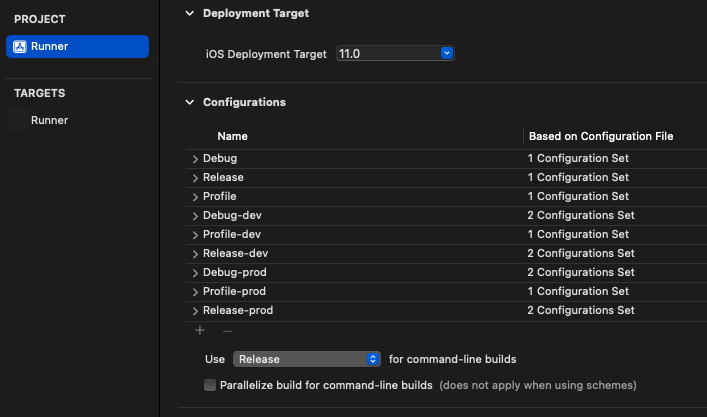
So you have the flavors:
Debug-devProfile-devRelease-devDebug-prodProfile-prodRelease-prodThese flavors needs to be added to your Unity-IPhone project.
Unity-IPhone project -> PROJECT Unity-IPhone -> Info: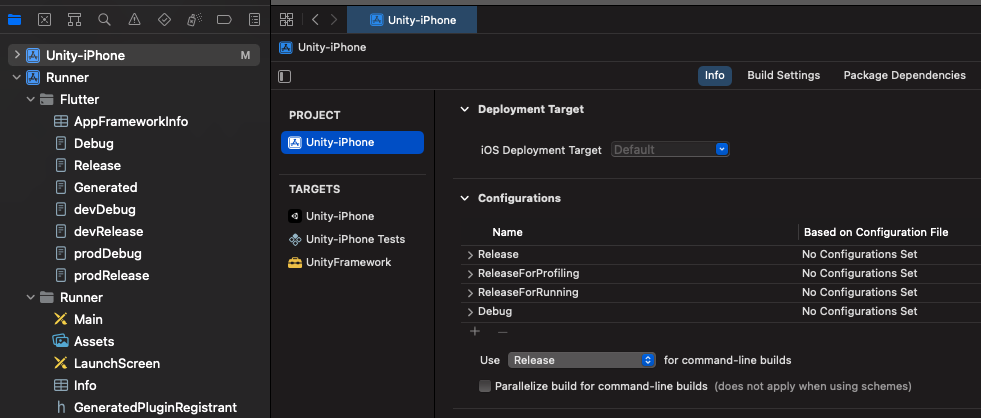
Here you can see in the Configurations section only:
ReleaseReleaseForProfilingReleaseForRunningDebugDebug configuration twice and rename them to Debug-dev and the second to Debug-prod.You can do that by selecting + and duplicate the configuration like this:
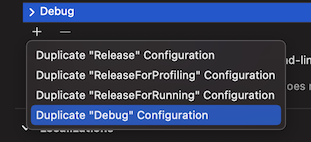
Repeat this with Release to Release-dev and Release-prod.
Repeat this with Release to Profile-dev and Profile-prod.
Your Unity-IPhone configurations should now look like this:
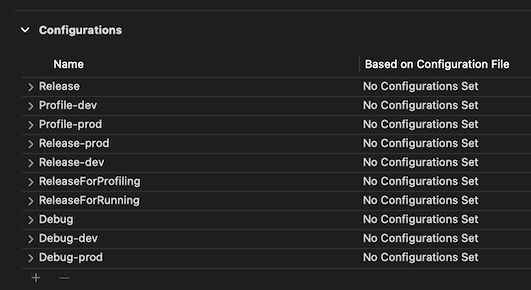
Flutter on default doesn't support --flavor for building web. But you can set your target main.dart entrypoint (with -t main.dart) while running and building. So if you setup your flavors properly there're also no changes needed for web to apply changes for your Flutter-Unity web App.
Build Setting - iOS - Other Settings - Configuration - Enable Custom Background Behaviors or iOS
commandLineArgs.add("--enable-debugger") commandLineArgs.add("--profiler-report") commandLineArgs.add("--profiler-output-file=" + workingDir + "/build/il2cpp_"+ abi + "_" + configuration + "/il2cpp_conv.traceevents")
Flutter widgets stacked on top of the UnityWidget will not register clicks or taps. This is a Flutter issue and can be solved by using the PointerInterceptor package.
Example usage:
Stack(
  children: [
    UnityWidget(
      onUnityCreated: onUnityCreated,
      onUnityMessage: onUnityMessage,
      onUnitySceneLoaded: onUnitySceneLoaded,
    ),
    Positioned(
      bottom: 20,
      left: 20,
      right: 20,
      child: PointerInterceptor(
        child: ElevatedButton(
          onPressed: () {
            // do something
          },
          child: const Text('Example button'),
        ),
      ),
    ),
We already integrated this into our Examples in the /example folder.
Support this project with your organization. Your donations will be used to help children first and then those in need. Your logo will show up here with a link to your website. [Contribute]



Thanks goes to these wonderful people (emoji key):
This project follows the all-contributors specification. Contributions of any kind welcome!
2,386 followers · starred Oct 2019
1,087 followers · starred Sep 2021
495 followers · starred Feb 2024
415 followers · starred Apr 2021
Embeddable unity game engine view for Flutter. Advance demo here https://github.com/juicycleff/flutter-unity-arkit-demo
Dart
2,308
345 commits
updated Jul 21, 2026
🚀 This package has evolved into Game Framework
flutter_unity_widgetpioneered embedding Unity in Flutter. It has been rebuilt from the ground up by the same author as Game Framework — the next-generation successor:
- 🧰 A real CLI — export, sync & build in a few commands (no more manual setup / version headaches)
- 🎮 Unity and Unreal Engine support
- ☁️ Cloud publishing + pub.dev-compatible hosting for your game builds
- 🔄 Bidirectional messaging & lifecycle management, actively maintained for current Flutter & Unity 6
→ New projects should start here: gameframework.dev · GitHub · Docs
flutter_unity_widgetremains available for existing projects, but is no longer the recommended starting point.
Flutter unity 3D widget for embedding unity in flutter. Now you can make awesome gamified features of your app in Unity and get it rendered in a Flutter app both in fullscreen and embeddable mode. Works great on Android, iPad OS, iOS, Web.
Need me to respond, tag me Rex Isaac Raphael.
This plugin expects you to atleast know how to use Unity Engine. If you have issues with how unity widget is presented, you can please modify your unity project build settings as you seem fit.
Moving forward, versioning of the package will change to match unity releases after proper test. Mind you this does not mean the package is not compatible with other versions, it just mean it's been tested to work with a unity version.
This plugin requires Flutter >= 3.16.0.
First depend on the library by adding this to your packages pubspec.yaml:
dependencies:
  flutter_unity_widget: ^2022.2.1 # use the latest compatible version
Now inside your Dart code you can import it.
import 'package:flutter_unity_widget/flutter_unity_widget.dart';
You will need to open and export a Unity project, even for running the example. Your build will fail if you only include the widget in Flutter!
30 fps gifs, showcasing communication between Flutter and Unity:
In the tutorial below, there are steps specific to each platform, denoted by a ℹ️ icon followed by the platform name (Android or iOS). You can click on its icon to expand it.
An existing Flutter project (if there is none, you can create a new one)
An existing Unity project (if there is none, you can create a new one).
A fuw-XXXX.unitypackage file, found in the unitypackages folder.
Try to use the most recent unitypackage available.
If you want to publish your app for Android or iOS, you need to satisfy certain Unity version requirements.
iOS
Apple's privacy manifest requirements need a minimal Unity version of:
Android
Starting November 1st, 2025, all new apps and updates to existing apps submitted to Google Play and targeting Android 15+ devices must support 16 KB page sizes.
This requires Unity versions:
These instructions assume you are using a new Unity project. If you open the example project from this repository, you can move on to the next section Unity Exporting.
/android and /ios folders of your flutter project. If your Unity project is in a different location the export might (partially) fail.The expected path is /unity/project-name/...
Make sure you have downloaded a fuw-XXXX.unitypackage file mentioned in prerequisites.
Using Unity (hub), open the Unity project. Go to Assets > Import Package > Custom Package and select the downloaded fuw-XXXX.unitypackage file. Click on Import.
Go to File > Build Settings > Player Settings and change the following under the Other settings > Configuration section:
In Scripting Backend, change to IL2CPP
(Android) Target Architectures, select ARMv7 and ARM64
(Android) For the best compatibility set Active Input Handling to Input Manager (Old) or Both.
(The new input system has some issues with touch input on Android)
(iOS) Select Target SDK depending on where you will run your app (simulator or physical device).
We recommend starting with a physical device and the Device SDK setting, due to limited simulator support.
(Web) Set Publishing settings > Compression format to Brotli or Disabled.
Some users report that Unity gets stuck on the loading screen with the Gzip setting, due to MIME type errors.
Some options in the Build settings window get overridden by the plugin's export script.
Attempting to change settings like Development Build, Script Debugging and Export project in this window will not make a difference.
If you end up having to change a build setting that doesn't seem to respond, take a lookat the export script FlutterUnityIntegration\Editor\Build.cs.
After importing the unitypackage, you should now see a Flutter option at the top of the Unity editor.
Click on Flutter and select the appropriate export option:
flutter_unity_cli for larger projects.
If you use git, you will probably want to add these unityLibrary folders to your gitignore file. These folders can get huge and are not guaranteed to work on another computer.
Proceed to the next section to handle iOS and Android specific setup after the export.
After exporting Unity, you will need to make some small changes in your iOS or Android project.
You will likely need to do this only once. These changes remain on future Unity exports.
Edit -> Preferences -> External Tool:
android/local.properties as ndk.dir=.\ with \\.) // mac
ndk.dir=/Applications/Unity/Hub/Editor/2020.3.19f1/PlaybackEngines/AndroidPlayer/NDK
// windows
ndk.dir=C:\\Program Files\\Unity\\Hub\\Editor\\2021.3.13f1\\Editor\\Data\\PlaybackEngines\\AndroidPlayer\\NDK
android/app/build.gradle.
android {

  ndkVersion "21.3.6528147"
}
source.properties at the NDK path described above.Depending on your gradle version, you might need to make sure the minSdkVersion set in android\app\build.gradle matches the version that is set in Unity.
Check the Minimum API Level setting in the Unity player settings, and match that version.
(optional) Fixing Unity plugins.
The Unity widget will function without this step, but some Unity plugins like ArFoundation will throw mUnityPlayer errors on newer Unity versions.
This is needed for Unity 2020.3.46+, 2021.3.19 - 2021.3.20 and 2022.2.4 - 2022.3.18.
This requires a flutter_unity_widget version that is newer than 2022.2.1.
android/app/build.gradle file and add the following: dependencies {
// build.gradle
+ implementation project(':flutter_unity_widget')
// build.gradle.kts (Flutter 3.29+)
+ implementation(project(":flutter_unity_widget"))
}
3.2. Edit your android MainActivity file.
The default location for Flutter is android/app/src/main/kotlin/<app identifier>/MainActivity.kt.
If you use the default flutter activity, change it to inherit FlutterUnityActivity:
// MainActivity.kt

+ import com.xraph.plugin.flutter_unity_widget.FlutterUnityActivity;

+ class MainActivity: FlutterUnityActivity() {
- class MainActivity: FlutterActivity() {
IFlutterUnityActivity interface instead.// MainActivity.kt
// only do this if your activity does not inherit FlutterActivity
import com.xraph.plugin.flutter_unity_widget.IFlutterUnityActivity;
class MainActivity: CustomActivity(), IFlutterUnityActivity {
// unity will try to read this mUnityPlayer property
@JvmField
var mUnityPlayer: java.lang.Object? = null;
// implement this function so the plugin can set mUnityPlayer
override fun setUnityPlayer(unityPlayer: java.lang.Object?) {
mUnityPlayer = unityPlayer;
}
}
// build.gradle
+    include ":unityLibrary"
+    project(":unityLibrary").projectDir = file("./unityLibrary")

// build.gradle.kts (Flutter 3.29+)
+    include(":unityLibrary")
+    project(":unityLibrary").projectDir = file("./unityLibrary")
     dependencies {
          // app/build.gradle
+        implementation project(':unityLibrary')
         // app/build.gradle.kts (Flutter 3.29+)
+        implementation(project(":unityLibrary"))
     }
allprojects {
    repositories {
+       flatDir {
            // build.gradle
+           dirs "${project(':unityLibrary').projectDir}/libs"
            // build.gradle.kts (Flutter 3.29+)
+           dirs(file("${project(":unityLibrary").projectDir}/libs"))
+       }
        google()
        mavenCentral()
    }
}
     buildTypes {
         release {
             signingConfig signingConfigs.debug
         }
+        debug {
+            signingConfig signingConfigs.debug
+        }
+        profile {
+            signingConfig signingConfigs.debug
+        }
+        innerTest {
+            matchingFallbacks = ['debug', 'release']
+        }
+   }
The code above use the
debugsignConfig for all buildTypes, which can be changed as you well if you need specify signConfig.
minifyEnabled true in your android/app/build.gradle file, open the android/unityLibrary/proguard-unity.txt and change the following:+ -keep class com.xraph.plugin.** {*;}
+    <activity
+        android:name="com.xraph.plugin.flutter_unity_widget.OverrideUnityActivity"
+        android:theme="@style/UnityThemeSelector"
+        android:screenOrientation="fullSensor"
+        android:launchMode="singleTask"
+        android:configChanges="mcc|mnc|locale|touchscreen|keyboard|keyboardHidden|navigation|orientation|screenLayout|uiMode|screenSize|smallestScreenSize|fontScale|layoutDirection|density"
+        android:hardwareAccelerated="false"
+        android:process=":Unity">
+    <meta-data android:name="com.xraph.plugin.flutter_unity_widget.OverrideUnityActivity" android:value="true" />
+    </activity>
3.1. If you're using Swift, open the ios/Runner/AppDelegate.swift file and change the following:
     import UIKit
     import Flutter
+    import flutter_unity_widget

     @UIApplicationMain
     @objc class AppDelegate: FlutterAppDelegate {
         override func application(
             _ application: UIApplication,
             didFinishLaunchingWithOptions launchOptions: [UIApplication.LaunchOptionsKey: Any]?
         ) -> Bool {
+            InitUnityIntegrationWithOptions(argc: CommandLine.argc, argv: CommandLine.unsafeArgv, launchOptions)

             GeneratedPluginRegistrant.register(with: self)
             return super.application(application, didFinishLaunchingWithOptions: launchOptions)
         }
     }
3.2. If you're using Objective-C, open the ios/Runner/main.m file and change the following:
+    #import "flutter_unity_widget.swift.h"

     int main(int argc, char * argv[]) {
          @autoreleasepool {
+             InitUnityIntegration(argc, argv);
              return UIApplicationMain(argc, argv, nil, NSStringFromClass([AppDelegate class]));
          }
     }
Unity plugins that make use of native code (Vuforia, openCV, etc.) might need to be added to Runner like UnityFramework.
Check the contents of the /ios/UnityLibrary/Frameworks/ directory. Any <name>.framework located in (subdirectories of) this directory is a framework that you can add to Runner.
Make sure pods are installed after your Unity export, either using flutter run or by running pod install in the ios folder.
If you use Xcode 14 or newer, and Unity older than 2021.3.17f1 or 2022.2.2f1, your app might crash when running from Xcode.
Disable the Thread Performance Checker feature in Xcode to fix this.
- In Xcode go to Product > Scheme > Edit Scheme...
- Now With Run selected on the left, got to the Diagnostics tab and uncheck the checkbox for Thread Performance Checker.
The following setup for AR is done after making an export from Unity.
Warning: Flutter 3.22 has introduced a crash when using AR on Android < 13 #957
Check the version of the XR Plugin Management in the Unity package manager. Versions 4.3.1 - 4.3.3 contain a bug that breaks Android exports.
Make sure to use a version <=4.2.2 or >=4.4.
You might have to manually change the version in <unity project>/Packages/manifest.json for "com.unity.xr.management".
You can check the android/unityLibrary/libs folder to see if AR was properly exported. It should contain files similar to UnityARCore.aar, ARPresto.aar, arcore_client.aar and unityandroidpermissions.aar.
If your setup and export was done correctly, your project should automatically load these files.
If it doesn't, check if your android/build.gradle file contains the flatDir section added in the android setup step 7.
If your XR Plugin Management plugin is version 4.4 or higher, Unity also exports the xrmanifest.androidlib folder.
Make sure to include it by adding the following line to android/settings.gradle
// settings.gradle
include ":unityLibrary:xrmanifest.androidlib"

// settings.gradle.kts (Flutter 3.29+)
include(":unityLibrary:xrmanifest.androidlib")
With some Unity versions AR might crash at runtine with an error like:
java.lang.NoSuchFieldError: no "Ljava/lang/Object;" field "mUnityPlayer" in class.
See the Android setup step 3 on how to edit your MainActivity to fix this.
     <dict>
+        <key>NSCameraUsageDescription</key>
+        <string>$(PRODUCT_NAME) uses Cameras</string>
     </dict>
Your export should contain a Vuforia library in the android/unityLibrary/libs/ folder. Currently named VuforiaEngine.aar.
If your setup and export was done correctly, your project should automatically load this file.
If it doesn't, check if your android/build.gradle file contains the flatDir section added in the android setup step 7.
In case this gets outdated or broken, check the Vuforia documentation
These steps are based on these Vuforia docs and this comment
     <dict>
+        <key>NSCameraUsageDescription</key>
+        <string>$(PRODUCT_NAME) uses Cameras</string>
     </dict>
In Xcode,
Select Runner > General tab.
In Frameworks, Libraries, and Embedded content add the Vuforia frameworks. This is where you added UnityFramework.framework in step 4 of the iOS setup.
You should be able to find them in
/ios/UnityLibrary/Frameworks/com.ptc.vuforia.engine/Vuforia/Plugins/iOS/.
Currently these are
Vuforia.frameworkUnityDriver.frameworkTo support Vuforia target databases, move the Unity-iPhone/Vuforia folder from Unity-iPhone to Runner. Then set Target Membership of this folder to Runner.
Make sure pods are installed after your Unity export, either using flutter run or by running pod install in the ios folder.
We recommend using a physical iOS or Android device, as emulator support is limited.
Below are the limited options to use an emulator.
The Target SDK option in the Unity player settings is important here.
Device SDK exports an ARM build. (Which does NOT work on ARM simulators)Simulator SDK exports and x86 build for simulators.If you use ARKit or ARFoundation you are out of luck, iOS simulators do NOT support ARKit.
The rest depends on the type of processor in your mac:
Device SDK as target.Mac (Designed for iPhone) or Mac (Designed for iPad).Set Simulator SDK in the Unity player settings.
Make sure there are no AR or XR packages included in the Unity package manager.
(You will get the error symbol not found in flat namespace '_UnityARKitXRPlugin_PluginLoad otherwise)
(Apple Silicon) Get Xcode to use a Rosetta emulator.
The next step assumes Xcode 14.3 or newer, if you use an older version look up how to start Xcode using Rosetta instead.
Product -> Destination -> Destination Architectures and make sure Rosetta destinations are visible.Unity-iPhone and go to Build settings -> Architectures.x86_64 for architectures.Runner and change the architecture to exactly match Unity-iPhone.x86_64 is the only entry, not one of multiple.Pods and click flutter_unity_widget in targets.Build Active Architecture Only to YES.Product -> Clean Build Folder to make sure the new architecture settings are used.(Rosetta) in the name.Unity only supports ARM build targets for Android. However most Android emulators are x86 which means they simply won't work.
Computer with ARM processor
If your computer has an ARM processor (e.g. Apple Silicon, Qualcomm) you should be able to emulate Android without issue.
Create a virtual device using Android studio and make sure that the system image has an ABI that includes 'arm'.
On macs with Apple Silicon (M1, M2), ARM emulators should be the default install option.
This was tested on Mac, but not on Linux or Windows.
Computer with x86/x64 processor
If you computer does not have an ARM processor, like most computers running on Intel or AMD, your options are limited.
You have 2 options:
x86 (Chrome OS) and x86-64 (Chrome OS) in the Unity player settings before making an export.On a UnityWidget widget, get the UnityWidgetController received by the onUnityCreated callback.
Use the method postMessage to send a string, using the GameObject name and the name of a behaviour method that should be called.
// Snippet of postMessage usage in the example project.
_unityWidgetController?.postMessage(
  'Cube', // GameObject name
  'SetRotationSpeed', // Function name in attached C# script
  speed, // Function parameter (string)
);
Select the GameObject that should execute the communication and go to Inspector > Add Component > Unity Message Manager.
Create a new MonoBehaviour subclass and add to the same GameObject as a script.
On this new behaviour, call GetComponent<UnityMessageManager>() to get a UnityMessageManager.
Use the method SendMessageToFlutter to send a string. Receive this message using the onUnityMessage callback of a UnityWidget.
// Send a basic string to Flutter
SendMessageToFlutter("Hello there!");
// If you want to send multiple parameters or objects, use a JSON string.
// This is a random object serialized to JSON using Json.net.
JObject o = JObject.FromObject(new
{
    id = 1,
    name = "Object 1",
    whatever = 12
});
SendMessageToFlutter(o.ToString());
import 'package:flutter/material.dart';
import 'package:flutter_unity_widget/flutter_unity_widget.dart';

void main() {
  runApp(
    const MaterialApp(
      home: UnityDemoScreen(),
    ),
  );
}

class UnityDemoScreen extends StatefulWidget {
  const UnityDemoScreen({Key? key}) : super(key: key);

  @override
  State<UnityDemoScreen> createState() => _UnityDemoScreenState();
}

class _UnityDemoScreenState extends State<UnityDemoScreen> {

  UnityWidgetController? _unityWidgetController;

  @override
  Widget build(BuildContext context) {
    return Scaffold(
      body: Container(
        color: Colors.yellow,
        child: UnityWidget(
          onUnityCreated: onUnityCreated,
        ),
      ),
    );
  }

  // Callback that connects the created controller to the unity controller
  void onUnityCreated(UnityWidgetController controller) {
    _unityWidgetController = controller;
  }
}
import 'package:flutter/material.dart';
import 'package:flutter_unity_widget/flutter_unity_widget.dart';

void main() {
  runApp(
    const MaterialApp(
      home: UnityDemoScreen(),
    ),
  );
}

class UnityDemoScreen extends StatefulWidget {
  const UnityDemoScreen({Key? key}) : super(key: key);

  @override
  State<UnityDemoScreen> createState() => _UnityDemoScreenState();
}

class _UnityDemoScreenState extends State<UnityDemoScreen> {
  UnityWidgetController? _unityWidgetController;
  double _sliderValue = 0.0;

  @override
  Widget build(BuildContext context) {
    return Scaffold(
      appBar: AppBar(
        title: const Text('Unity Flutter Demo'),
      ),
      body: Stack(
        children: <Widget>[
          UnityWidget(
            onUnityCreated: onUnityCreated,
            onUnityMessage: onUnityMessage,
            onUnitySceneLoaded: onUnitySceneLoaded,
          ),

          // Flutter UI Stacked on top of Unity to demo Flutter -> Unity interactions.
          // On web this requires a PointerInterceptor widget.
          Positioned(
            bottom: 0,
            // <You need a PointerInterceptor here on web>
            child: SafeArea(
              child: Card(
                elevation: 10,
                child: Column(
                  children: <Widget>[
                    const Padding(
                      padding: EdgeInsets.only(top: 20),
                      child: Text("Rotation speed:"),
                    ),
                    Slider(
                      onChanged: (value) {
                        setState(() {
                          _sliderValue = value;
                        });
                        // Send value to Unity
                        setRotationSpeed(value.toString());
                      },
                      value: _sliderValue,
                      min: 0.0,
                      max: 1.0,
                    ),
                  ],
                ),
              ),
            ),
          ),
        ],
      ),
    );
  }

  // Communcation from Flutter to Unity
  void setRotationSpeed(String speed) {
    _unityWidgetController?.postMessage(
      'Cube',
      'SetRotationSpeed',
      speed,
    );
  }

  // Callback that connects the created controller to the unity controller
  void onUnityCreated(UnityWidgetController controller) {
    _unityWidgetController = controller;
  }

  // Communication from Unity to Flutter
  void onUnityMessage(dynamic message) {
    print('Received message from unity: ${message.toString()}');
  }

  // Communication from Unity when new scene is loaded to Flutter
  void onUnitySceneLoaded(SceneLoaded? sceneInfo) {
    if (sceneInfo != null) {
      print('Received scene loaded from unity: ${sceneInfo.name}');
      print(
          'Received scene loaded from unity buildIndex: ${sceneInfo.buildIndex}');
    }
  }
}
fullscreen (Enable or disable fullscreen mode on Android)pause() (Use this to pause unity player)resume() (Use this to resume unity player)unload() (Use this to unload unity player) *Requires Unity 2019.4.3 or laterquit() (Use this to quit unity player)postMessage(String gameObject, methodName, message) (Allows you invoke commands in Unity from flutter)onUnityMessage(data) (Unity to flutter binding and listener)onUnityUnloaded() (Unity to flutter listener when unity is unloaded)onUnitySceneLoaded(String name, int buildIndex, bool isLoaded, bool isValid,) (Unity to flutter binding and listener when new scene is loaded)Location: Unity
Error:
Multiple precompiled assemblies with the same name Newtonsoft.Json.dll included on the current platform. Only one assembly with the same name is allowed per platform. (Assets/FlutterUnityIntegration/JsonDotNet/Assemblies/AOT/Newtonsoft.Json.dll)

PrecompiledAssemblyException: Multiple precompiled assemblies with the same name Newtonsoft.Json.dll included on the current platform. Only one assembly with the same name is allowed per platform.
Solution:
Locate the listed dll file, in this case:
Assets/FlutterUnityIntegration/JsonDotNet/Assemblies/AOT/Newtonsoft.Json.dll
.dll.txt) to stop it from being imported.package-lock.jsonLocation: Unity
Error:
The type or namespace name 'Newtonsoft' could not be found (are you missing a using directive or an assembly reference?)
The type or namespace name 'JObject' could not be found (are you missing a using directive or an assembly reference?)
The type or namespace name 'JToken' could not be found (are you missing a using directive or an assembly reference?)
The type or namespace name 'JToken' could not be found (are you missing a using directive or an assembly reference?)
Solution:
Include the Newtonsoft JsonDotNet library.
It is likely already included in your project with a wrong file extension:
Assets/FlutterUnityIntegration/JsonDotNet/Assemblies/AOT/Newtonsoft.Json.dll.txt
Rename the .dll.txt extension to .dll in your file explorer and open Unity again.
Alternatively you can manually add the library from the Unity package manager.
Location: Unity
Error:
InvalidOperationException: The build target does not support build appending.
Solution:
1.1. On line 48, change the following:
-    var options = BuildOptions.AcceptExternalModificationsToPlayer;
+    var options = BuildOptions.AllowDebugging;
+    EditorUserBuildSettings.exportAsGoogleAndroidProject = true;
1.2. On line 115, change the following:
-    var options = BuildOptions.AcceptExternalModificationsToPlayer;
+    var options = BuildOptions.AllowDebugging;
Location: Android Studio
Error:
minSdkVersion XX cannot be smaller than version 19 declared in library
    \ [:flutter_unity_widget] .../AndroidManifest.xml as the library might be using
    \ APIs not available in XX
Solution:
-    minSdkVersion XX
+    minSdkVersion 19
Location: Android Studio
Error:
e: .../FlutterUnityWidgetBuilder.kt: (15, 42): Expecting a parameter declaration
e: .../FlutterUnityWidgetBuilder.kt: (23, 25): Expecting an argument
e: .../FlutterUnityWidgetController.kt: (22, 44): Expecting a parameter declaration
e: .../FlutterUnityWidgetFactory.kt: (13, 58): Expecting a parameter declaration
Solution:
-    ext.kotlin_version = '1.3.50'
+    ext.kotlin_version = '1.4.31'
Location: Android Studio
Error:
Unable to find a matching variant of project :unityLibrary:
Solution:
     lintOptions {
         disable 'InvalidPackage'
+        checkReleaseBuilds false
     }
The easiest way to apply flavors for your app would be: flutter_flavorizr.
If you use flavors in your app you will notice that especially iOS crashes while running or building your app! Here are the necessary steps for flavored apps:
No changes needed. Flavors are applied without any additional setups.
For your Unity iOS-Build you have to add your flavors to your Unity iOS Configuration.
Runner (your app) configurations. If you have for example the flavors:Your Runner configurations are looking like this:
So you have the flavors:
Debug-devProfile-devRelease-devDebug-prodProfile-prodRelease-prodThese flavors needs to be added to your Unity-IPhone project.
Unity-IPhone project -> PROJECT Unity-IPhone -> Info:
Here you can see in the Configurations section only:
ReleaseReleaseForProfilingReleaseForRunningDebugDebug configuration twice and rename them to Debug-dev and the second to Debug-prod.You can do that by selecting + and duplicate the configuration like this:
Repeat this with Release to Release-dev and Release-prod.
Repeat this with Release to Profile-dev and Profile-prod.
Your Unity-IPhone configurations should now look like this:
Flutter on default doesn't support --flavor for building web. But you can set your target main.dart entrypoint (with -t main.dart) while running and building. So if you setup your flavors properly there're also no changes needed for web to apply changes for your Flutter-Unity web App.
Build Setting - iOS - Other Settings - Configuration - Enable Custom Background Behaviors or iOS
commandLineArgs.add("--enable-debugger") commandLineArgs.add("--profiler-report") commandLineArgs.add("--profiler-output-file=" + workingDir + "/build/il2cpp_"+ abi + "_" + configuration + "/il2cpp_conv.traceevents")
Flutter widgets stacked on top of the UnityWidget will not register clicks or taps. This is a Flutter issue and can be solved by using the PointerInterceptor package.
Example usage:
Stack(
  children: [
    UnityWidget(
      onUnityCreated: onUnityCreated,
      onUnityMessage: onUnityMessage,
      onUnitySceneLoaded: onUnitySceneLoaded,
    ),
    Positioned(
      bottom: 20,
      left: 20,
      right: 20,
      child: PointerInterceptor(
        child: ElevatedButton(
          onPressed: () {
            // do something
          },
          child: const Text('Example button'),
        ),
      ),
    ),
We already integrated this into our Examples in the /example folder.
Support this project with your organization. Your donations will be used to help children first and then those in need. Your logo will show up here with a link to your website. [Contribute]
Thanks goes to these wonderful people (emoji key):
This project follows the all-contributors specification. Contributions of any kind welcome!
2,386 followers · starred Oct 2019
1,087 followers · starred Sep 2021
495 followers · starred Feb 2024
415 followers · starred Apr 2021