
vibebin: code and host inside Incus containers on your own VPS/server.
106
stars
2
commits
Go
primary language
Aug 10, 2026
updated
README
vibebin
An Incus/LXC-based platform for self-hosting persistent AI coding agent sandboxes with Caddy reverse proxy and direct SSH routing to containers (suitable for VS Code remote ssh).
Create and host your vibe-coded apps on a single VPS/server.
Screenshots
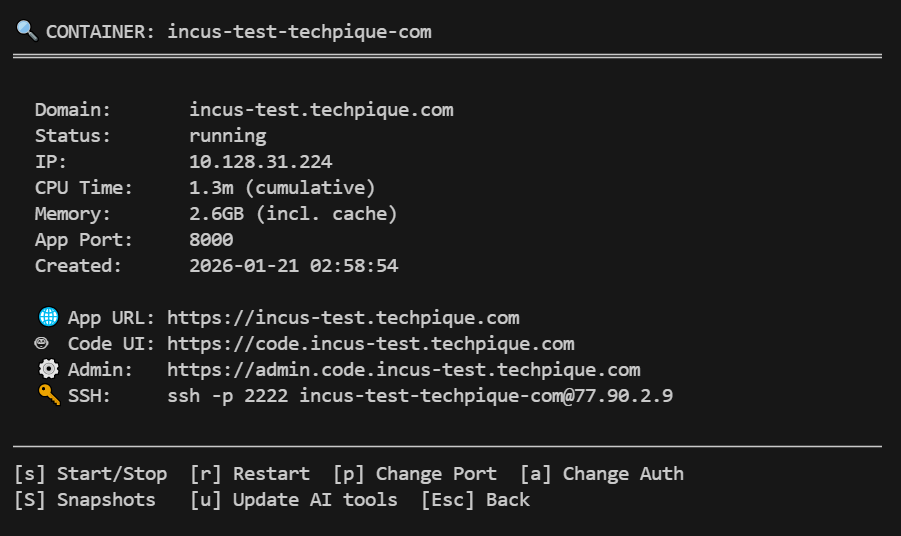
Vibebin TUI Manager - Container detail view with quick actions:
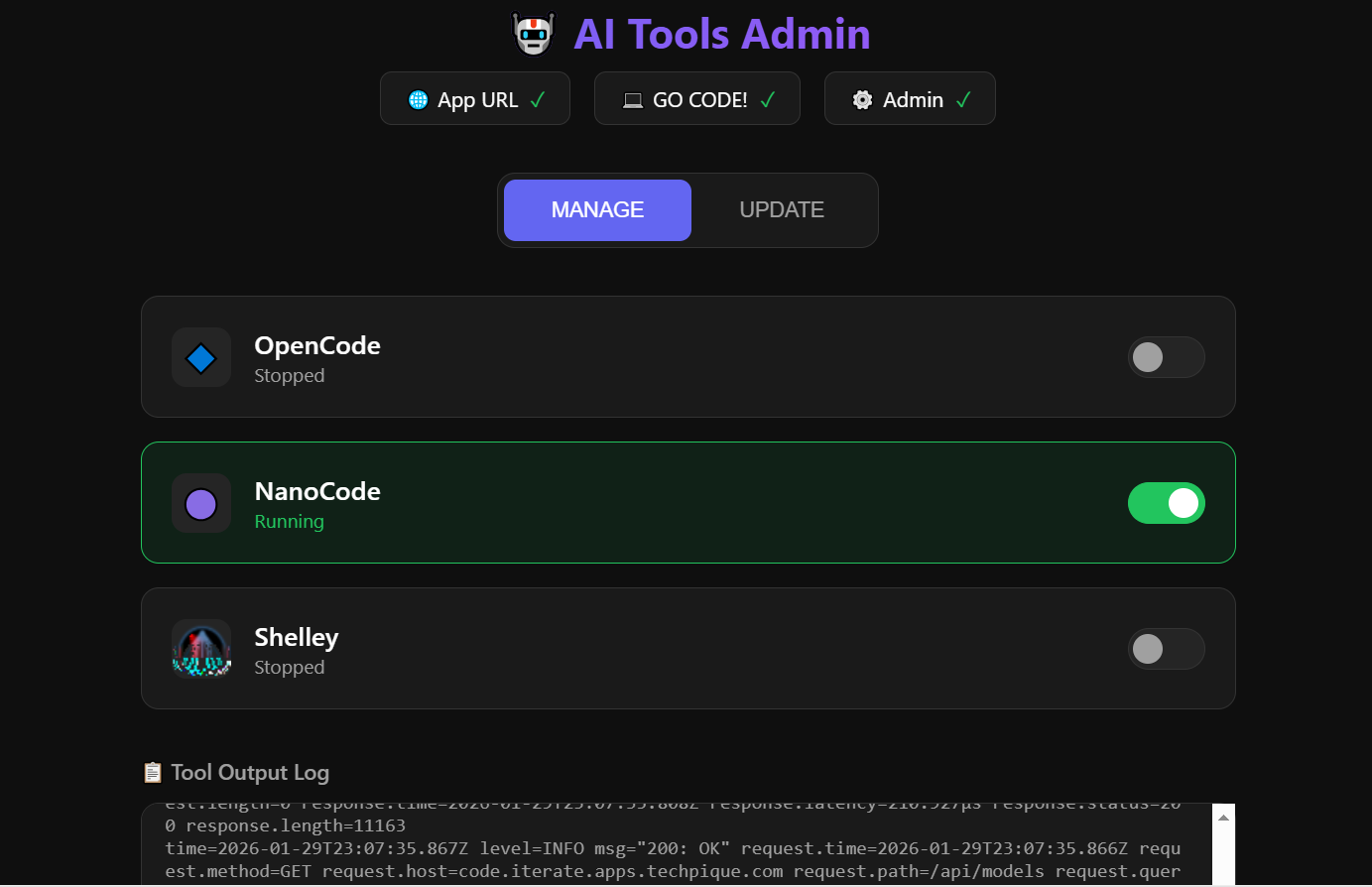
AI Tools Admin Web App - Toggle AI coding tools on/off:
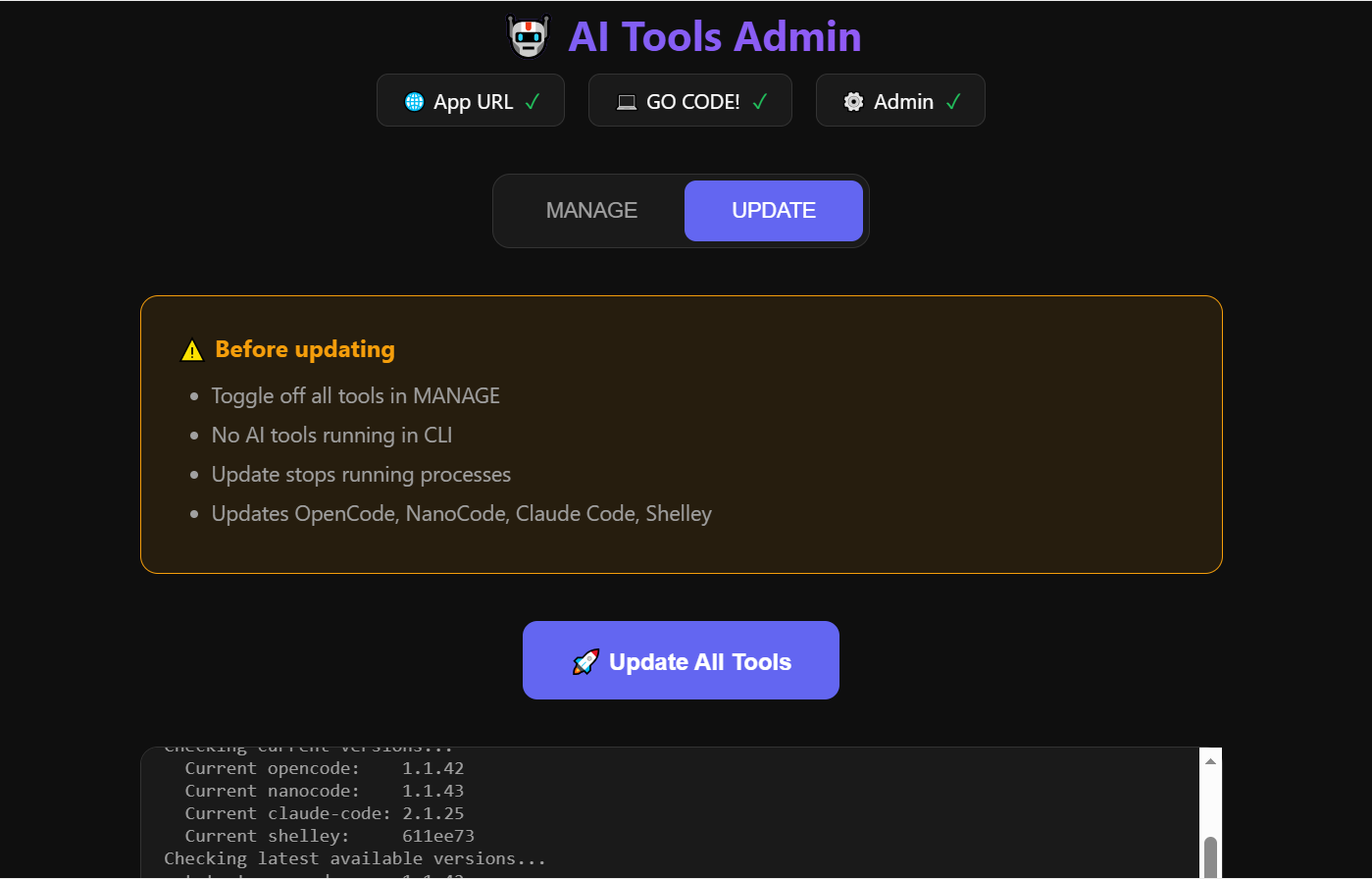
AI Tools Admin Web App - One-click update for all tools:
UPFRONT DISCLOSURE
This project is 99.9% vibe-coded on the exe.dev platform using their Shelley Web AI Coding Agent and Claude Opus 4.5. Take that as you will. Note that the above exe.dev URL is a referral link for a free 30 day trial if you register. If you convert to a paid plan, both you and I will receive a one-time $50 in extra Shelley credits.
With that said, I am a huge proponent of the exe.dev platform, and if you can, you should definitely try it out and use their service. The love and care for that project/service is extremely evident... AND it is incredibly awesome (and I think it's in its infancy stages, so should only get better).
WARNING
This is a very new project. Feel free to test and experiment but it's likely to have bugs and may not be ready for production. Use at your own risk.
What is this?
This project provides the infrastructure to self-host your own AI coding environment on virtually any Linux server -- a VPS, cloud VM (EC2, GCP, Azure), or dedicated hardware. Because it uses Incus/LXC (container-based virtualization rather than nested VMs), it runs efficiently on KVM, VMware, Xen, Hyper-V, and most other hypervisors.
Each container is a fully persistent Linux sandbox running Ubuntu 24.04 LTS (Noble) or Debian 13 (Trixie), with:
- opencode, nanocode, Claude Code, and Shelley - AI coding agents with terminal and web UI interfaces
- AI coding web UI accessible via HTTPS at
code.yourdomain.com(Basic Auth protected) - AI Tools Admin web app at
admin.code.yourdomain.comfor managing AI coding tools - Your app/site accessible via HTTPS at
yourdomain.com - SSH access for direct terminal access to your sandbox (VS Code Remote SSH compatible)
- Persistent filesystem that survives container restarts
- Pre-installed development tools: Docker, Go, Node.js, Bun, Deno, uv
Use Cases
- AI-assisted development: Use opencode/nanocode/claude-code/shelley as your AI pair programmer with full system access
- Vibe coding: Spin up isolated sandboxes for experimental projects
- App/site hosting: Deploy and iterate on web applications
- Learning environments: Safe, isolated Linux environments for experimentation
- CI/CD sandboxes: Temporary or persistent build environments
Stack Overview
| Component | Purpose |
|---|---|
| Incus (LXC) | Container runtime - lightweight, persistent Linux containers |
| Caddy | Reverse proxy with automatic HTTPS (Let's Encrypt) |
| SSHPiper | SSH routing - access any container via ssh -p 2222 container-name@host |
| SQLite | Local database for container metadata (/var/lib/vibebin/containers.db) |
| Ubuntu/Debian | Native Incus images (user choice during creation) |
| opencode | Open source AI coding agent with terminal and web UI |
| nanocode | NanoGPT-powered AI coding agent (fork of opencode) |
| shelley | AI coding web agent from Bold Software |
| claude-code | Anthropic's CLI coding agent |
AI Coding Agents
This project installs opencode, nanocode, claude-code, and shelley in each container:
opencode
OpenCode is a 100% open source AI coding agent that works with multiple LLM providers:
- Anthropic (Claude)
- OpenAI (GPT)
- Google (Gemini)
- OpenCode Zen
- Local models via custom endpoints
nanocode
NanoCode is a fork of OpenCode configured to work with NanoGPT as the default provider. It includes:
- Automatic model loading from NanoGPT API
- Built-in NanoGPT MCP server
- Interleaved thinking for reasoning models
NanoGPT subscription is $8/month for 60,000 requests across all open models - an excellent value that works great with NanoCode.
Note: The nanocode web UI requires LLM configuration before it will work. SSH into the container and run nanocode (CLI mode) first to configure your LLM provider/API keys.
Disclosure: The NanoGPT link is an affiliate link.
claude-code
Claude Code is Anthropic's official CLI coding agent:
- CLI only (no web UI)
- Requires Anthropic API key (
ANTHROPIC_API_KEYenvironment variable) - Supports Claude models with agentic coding capabilities
- Run with
claudecommand in terminal
Note: Claude Code is CLI-only and is not managed via the admin.code web UI. Use it directly in the terminal.
shelley
Shelley is a powerful AI web agent from Bold Software:
- Web-based UI only (no CLI mode)
- Support for multiple LLM providers via environment variables (Anthropic, OpenAI, Gemini, Fireworks)
- Custom model configuration available within the web UI
- Ctrl/Cmd-K to start a new conversation or add custom models
- Runs on port 9999 like the other AI tools
Note: Before starting Shelley, add your API keys to ~/.shelley_env. Custom models can be configured in Shelley's web UI, but doing so switches to "custom model mode" and the env var models will no longer be shown.
All AI Coding tools support terminal/web UI modes with the exception of Shelley (web UI only) and Claude Code (CLI only). OpenCode, NanoCode, and Shelley support configuring LLM providers from within their web UIs.
Through the webUIs on OpenCode/NanoCode, adding NanoGPT as the provider is seamless! With Shelley, you just need to add a custom model and set it up with the same concept as shown here. See the NanoGPT integrations page for setting up NanoGPT with various coding agents.
Components
vibebin- Interactive TUI for container managementvibebin_sync_daemon- Background service for config synchronization (auto-heals Caddy routes on restart)containers.db- SQLite database storing container metadata (at/var/lib/vibebin/containers.db)
Prerequisites
- Fresh/minimal Linux installation: Ubuntu 22.04+ or Debian 12+ (amd64 or arm64)
- VPS or VM: Works on most virtualization platforms (KVM, VMware, Xen, EC2, GCP, Azure, etc.)
- Memory: Minimum 4GB RAM; 8GB+ recommended for best performance
- Disk: Minimum 70GB; 100GB+ recommended for multiple containers and project data
- Go 1.21+: Required to build the tools (see Quick Start for installation)
- A domain name with DNS you control
- A regular user with sudo access (avoid running as root)
Recommended VPS Providers
Any KVM-based VPS will work well with vibebin. Here are some recommended options:
HostBRR - Budget-friendly with excellent performance:
- HostBRR Epyc Turin VPS - AMD Epyc Turin processors, great price/performance
- HostBRR Threadripper Performance VPS - High-performance Threadripper line
Netcup - German provider with reliable infrastructure:
- Netcup VPS - Recommend RS1000 (8GB RAM) or RS2000 (16GB RAM) for vibebin workloads
OVHcloud - Large European provider with competitive pricing:
- OVHcloud VPS - Recommend 8GB or 12GB VPS; larger options (24GB, 48GB) available at excellent prices if needed
Oracle Cloud Infrastructure (OCI) - Free tier available:
- OCI Always Free Resources - Includes free ARM-based VMs (up to 4 OCPUs, 24GB RAM) that work well with vibebin
Disclosure: The HostBRR and Netcup links above are affiliate links.
Security Setup (Before Installation)
Complete these security steps before installing vibebin.
SSH Hardening
Ensure your host SSH is properly secured in /etc/ssh/sshd_config:
PermitRootLogin no
PasswordAuthentication no
Restart SSH after changes: sudo systemctl restart sshd
UFW Firewall (Optional)
If you want to use UFW firewall, install and configure it with the required rules:
# Install UFW
sudo apt update && sudo apt install -y ufw

# Allow required ports (SSH must be allowed before enabling!)
sudo ufw allow 22/tcp      # Host SSH
sudo ufw allow 80/tcp      # HTTP (Caddy)
sudo ufw allow 443/tcp     # HTTPS (Caddy)
sudo ufw allow 2222/tcp    # SSHPiper (container SSH)

# Enable UFW
sudo ufw enable
sudo systemctl enable ufw
After the first vibebin run (which installs Incus), add the bridge rules for container networking:
# Allow Incus bridge traffic (run after vibebin installs Incus)
sudo ufw allow in on incusbr0
sudo ufw route allow in on incusbr0
sudo ufw route allow out on incusbr0
Note: UFW is enabled at boot automatically after
ufw enable. Verify status withsudo ufw status verbose.
Fail2ban (Optional)
For additional protection against brute-force attacks, you can install fail2ban. By default, fail2ban protects the host SSH daemon (sshd). The docs/fail2ban.md guide extends this with Caddy and SSHPiper protection.
Note: Install fail2ban after the initial vibebin run so that Caddy and SSHPiper are already in place.
General Security
All administrative tasks should be performed as a regular user with sudo privileges, not as root directly.
Quick Start
1. Install Go (if not already installed)
# Install essential tools
sudo apt update && sudo apt install -y wget curl git jq htop tmux

# Ubuntu/Debian - install from official Go downloads
wget https://go.dev/dl/go1.23.5.linux-amd64.tar.gz
sudo rm -rf /usr/local/go && sudo tar -C /usr/local -xzf go1.23.5.linux-amd64.tar.gz
echo 'export PATH=$PATH:/usr/local/go/bin' >> ~/.bashrc
source ~/.bashrc

# Verify installation
go version
Note: For ARM64 systems, use
go1.23.5.linux-arm64.tar.gzinstead. Check https://go.dev/dl/ for the latest version.
2. Install vibebin (Recommended)
Use the install script for a one-liner install or upgrade:
curl -fsSL https://raw.githubusercontent.com/jgbrwn/vibebin/main/install-upgrade.sh | bash
The script automatically:
- Clones and builds the project
- Installs binaries to
/usr/local/bin/ - Detects fresh install vs upgrade
- Handles the
vibebin-syncservice accordingly
Alternative: Build from Source
If you prefer to build manually:
# Clone and build
git clone https://github.com/jgbrwn/vibebin.git
cd vibebin
go build -o vibebin vibebin.go
go build -o vibebin_sync_daemon vibebin_sync_daemon.go

# Install binaries
sudo cp vibebin vibebin_sync_daemon /usr/local/bin/
3. Run First-Time Setup
# This auto-installs Incus, Caddy, and SSHPiper
sudo vibebin
4. Configure SSH (Required)
See the SSHPiper Manual Setup section below.
5. Create Your First Container
sudo vibebin
The creation wizard will guide you through:
- Enter domain name
- Select base image (Ubuntu or Debian)
- Configure DNS (optional auto-creation via Cloudflare/deSEC)
- Set app port
- Provide SSH public key
- Set basic auth credentials for web UI protection
Auto-installed Dependencies
The first run automatically installs:
- Incus 6.20+ from Zabbly stable repository
- Caddy web server with automatic HTTPS
- SSHPiper SSH routing proxy
What Gets Installed in Each Container
During container creation, the following is automatically installed:
Development Tools:
- Docker (via official get.docker.com script)
- Go (latest version, architecture auto-detected)
- Node.js (latest LTS via NodeSource)
- Bun (JavaScript runtime and package manager)
- Deno (JavaScript/TypeScript runtime)
- uv (Python package manager from Astral)
- GitHub CLI (
gh) for GitHub operations - Build tools (build-essential, make, etc.)
AI Coding Agents:
- opencode (open source AI coding agent)
- nanocode (NanoGPT-powered AI coding agent)
- claude-code (Anthropic's CLI coding agent)
- shelley (AI web agent from Bold Software)
System Utilities:
- Editors: neovim, mc (Midnight Commander)
- Terminal multiplexers: screen, tmux, byobu
- Monitoring: htop, atop, btop, iotop, ncdu
- Networking: dnsutils, net-tools, socat, lftp, ncftp
- Search: ripgrep, sqlite3
- Media: imagemagick, ffmpeg
- Fonts: emoji support (fonts-noto-color-emoji, fonts-symbola)
- And many more development and debugging utilities
Configuration:
- Project directory (
~/projectsfor AI coding tool workspaces) - Custom MOTD (shows container info, URLs, and tool versions on SSH login)
- Passwordless sudo for the container user
- Ping without sudo (CAP_NET_RAW capability)
⚠️ Required: SSHPiper Manual Setup (After First Run)
Before creating containers, verify SSHPiper is running:
# Check SSHPiper status (should be active)
sudo systemctl status sshpiperd

# If not running, start it
sudo systemctl enable --now sshpiperd
SSHPiper listens on port 2222 for container SSH access. Host SSH remains on port 22.
Usage
sudo vibebin
Key Bindings
List View:
n- Create new containerEnter- View container detailsd- Delete containeru- Show untracked containers (import existing)D- Manage DNS API tokens (Cloudflare/deSEC)i- View Incus logsl- View sync daemon logsq- Quit
Detail View:
s- Start/Stop containerr- Restart containerp- Change app porta- Change auth credentialsS- Snapshot managementu- Update AI coding tools (opencode/nanocode/claude-code/shelley)Esc- Back to list
Snapshot View:
n- Create new snapshotEnter/r- Restore selected snapshotd- Delete selected snapshot↑/↓orj/k- Navigate snapshotsEsc- Back to container details
Features
Container Management
- Native Incus Images: Choose Ubuntu 24.04 LTS or Debian 13
- Persistent Sandboxes: Full filesystem persistence across restarts
- Boot Behavior: Containers respect their last state on host reboot
- Resource Monitoring: Live CPU and memory usage in TUI
- Untracked Import: Detect and adopt existing Incus containers
- Snapshots: Create, restore, and delete container snapshots
Networking & Access
- Automatic HTTPS: Caddy handles Let's Encrypt certificates
- Reverse Proxy: Each container gets
https://domain.com→ Container's app (port 8000, configurable) - SSH Routing: SSHPiper on port 2222 enables
ssh -p 2222 container-name@hostaccess - Auto DNS: Cloudflare and deSEC API integration (tokens saved securely for reuse)
AI Coding Agents
- opencode: Open source, supports multiple LLM providers
- nanocode: NanoGPT-optimized fork with built-in features
- claude-code: Anthropic's official CLI agent (CLI only)
- shelley: AI web agent with full coding capabilities
- Easy Configuration: All tools prompt for API keys on first run
- Web UI Access: Start opencode, nanocode, or shelley in serve mode on port 9999
Using the AI Coding Tools
After creating a container, SSH in and run any of the tools. A project directory is pre-created at ~/projects for your coding workspaces.
Terminal Mode
# SSH to your container
ssh -p 2222 container-name@host.example.com

# cd to projects directory first
cd ~/projects

# Run opencode
opencode

# Or run nanocode
nanocode

# Or run claude-code
claude
All tools will prompt you to configure your LLM provider and API key on first run. Note that Shelley is web-only (no CLI mode) and Claude Code is CLI-only (no web UI).
Web UI Mode
To access the AI coding agent via web browser:
# SSH to your container
ssh -p 2222 container-name@host.example.com
opencode (cd to project directory first):
cd ~/projects
screen -S code
opencode serve --port 9999 --hostname 0.0.0.0
nanocode (cd to project directory first):
cd ~/projects
screen -S code
nanocode serve --port 9999 --hostname 0.0.0.0
Note: nanocode web UI requires LLM configuration first. Run
nanocode(CLI) to configure your provider/API keys before starting the web UI.
shelley (web UI only - no CLI mode):
cd ~/projects
screen -S code
start-shelley.sh 2>&1 | tee -a ~/.shelley.log
Note: Before starting Shelley, add your API keys to
~/.shelley_env. Custom models can be configured in Shelley's web UI, but doing so switches to "custom model mode" and the env var models will no longer be shown.
Then access via https://code.yourdomain.com (protected by Basic Auth credentials you set during container creation).
Press Ctrl+A, D to detach from screen. Reattach with screen -x code.
Note: Only one web UI can run on port 9999 at a time. Stop the current one before starting another.
AI Tools Admin Web App
Each container includes an AI Tools Admin web app accessible at https://admin.code.yourdomain.com. This provides:
MANAGE View:
- Toggle AI coding tools (OpenCode, NanoCode, Shelley) on/off
- Only one tool can run at a time on port 9999
- View real-time output logs
- Links to App URL and Code UI
- DNS health check indicators
UPDATE View:
- One-click update for all three AI tools
- Automatically stops running processes before updating
- Shows live progress of updates
The admin app runs as a systemd service (admin-app) and is protected by the same Basic Auth credentials as the Code UI.
Note: For Shelley, ensure your API keys are configured in
~/.shelley_envbefore starting.
Updating AI Tools
From the container detail view in the TUI, press u to update opencode, nanocode, claude-code, and shelley to their latest versions.
SSH Access
To containers (via SSHPiper on port 2222):
ssh -p 2222 container-name@host.example.com
# You'll be logged in as 'ubuntu' (or 'debian') with sudo access
To host (standard SSH on port 22):
ssh user@host.example.com
DNS Configuration
For HTTPS to work, DNS must point to the host server:
domain.com→ Host IPcode.domain.com→ Host IP (for AI coding web UI)admin.code.domain.com→ Host IP (for AI tools admin app)
Caddy will automatically obtain Let's Encrypt certificates for both domains.
Architecture
                              Internet
                                 │
                    ┌────────────┴────────────┐
                    │                         │
                    ▼                         ▼
              HTTPS (:443)         SSH (:2222 via SSHPiper)
                    │                         │
┌───────────────────▼─────────────────────▼─────────────────┐
│                         Host System                          │
├─────────────────────────────────────────────────────────────┤
│                                                               │
│  ┌─────────────┐           ┌─────────────┐                    │
│  │    Caddy    │           │  SSHPiper   │                    │
│  │  (reverse   │           │  (SSH       │                    │
│  │   proxy)    │           │   router)   │                    │
│  └──────┬──────┘           └──────┬──────┘                    │
│         │                         │                           │
│         │    Routes by domain     │    Routes by username     │
│         ▼                         ▼                           │
│  ┌─────────────────────────────────────────────────────┐     │
│  │                    Incus (LXC)                       │     │
│  │                                                      │     │
│  │  ┌─────────────────┐  ┌─────────────────┐              │     │
│  │  │ Container      │  │ Container      │    ...       │     │
│  │  │ (Ubuntu/Debian)│  │ (Ubuntu/Debian)│              │     │
│  │  │                │  │                │              │     │
│  │  │  ┌───────────┐ │  │  ┌───────────┐ │              │     │
│  │  │  │ AI Coding │ │  │  │ AI Coding │ │              │     │
│  │  │  │ Tool UI   │ │  │  │ Tool UI   │ │              │     │
│  │  │  │  (:9999)  │ │  │  │  (:9999)  │ │              │     │
│  │  │  └───────────┘ │  │  └───────────┘ │              │     │
│  │  │  ┌───────────┐ │  │  ┌───────────┐ │              │     │
│  │  │  │admin.code │ │  │  │admin.code │ │              │     │
│  │  │  │  (:8099)  │ │  │  │  (:8099)  │ │              │     │
│  │  │  └───────────┘ │  │  └───────────┘ │              │     │
│  │  │  ┌───────────┐ │  │  ┌───────────┐ │              │     │
│  │  │  │ Your App  │ │  │  │ Your App  │ │              │     │
│  │  │  │  (:8000)  │ │  │  │  (:8000)  │ │              │     │
│  │  │  └───────────┘ │  │  └───────────┘ │              │     │
│  │  └─────────────────┘  └─────────────────┘              │     │
│  └─────────────────────────────────────────────────────┘     │
│                                                               │
│  ┌───────────────────┐                                        │
│  │  vibebin        │  TUI for container management            │
│  │  (this tool)     │  - Create/delete containers              │
│  │                  │  - Configure domains & auth              │
│  └───────────────────┘                                         │
│                                                               │
└─────────────────────────────────────────────────────────────┘
How Traffic Flows
- HTTPS requests to
myapp.example.com→ Caddy → Container's app (port 8000) - HTTPS requests to
code.myapp.example.com→ Caddy (with Basic Auth) → AI coding web UI (port 9999) - SSH connections to port 2222 as
myapp-example-com@host→ SSHPiper → Container's SSH asubuntu/debian
Caddy Configuration
Routes are managed via Caddy's Admin API (localhost:2019), not config files:
- Routes use
@idfor identification (e.g.,container-name-app,container-name-code) - Changes are atomic and immediate (no reload required)
- Self-healing: The
vibebin-syncservice monitors Caddy routes and automatically restores them if the server restarts, Caddy restarts, or routes are otherwise modified/removed - Query current routes:
curl http://localhost:2019/config/apps/http/servers/srv0/routes
Container Boot Behavior
Containers use Incus's default "last-state" behavior (by not setting boot.autostart):
- Running containers will restart when the host reboots
- Stopped containers will stay stopped
Incus automatically tracks each container's power state and restores it when the daemon starts.
Snapshots
Snapshots allow you to save and restore the complete state of a container.
Creating Snapshots
From the container detail view, press S to access snapshot management, then n to create.
Use Cases
- Before risky changes: Snapshot before major updates or experiments
- Known-good states: Save working configurations you can restore to
- Quick rollback: Instantly revert if something breaks
Note: Snapshots are stored by Incus and consume disk space. Delete old snapshots to free space.
Troubleshooting
Container won't start:
journalctl -u incus -f
incus info container-name
Caddy certificate errors:
- Ensure DNS is configured and pointing to host IP before creating container
- Check Caddy logs:
journalctl -u caddy -f - Check current routes:
curl -s http://localhost:2019/config/apps/http/servers/srv0/routes | jq .
SSH to containers not working:
- Verify SSHPiper is running:
systemctl status sshpiperd - Ensure you're using port 2222:
ssh -p 2222 container-name@host - Verify upstream config:
cat /var/lib/sshpiper/container-name/sshpiper_upstream
AI coding tools not working:
- SSH to the container and run
opencode,nanocode, orclaudeinteractively, orstart-shelley.shfor Shelley web UI - All tools will prompt for API key configuration on first run
- Check tool versions:
opencode --version,nanocode --version,claude --version,shelley version
Sync daemon issues:
journalctl -u vibebin-sync -f
Subdomain Support
You can use subdomains for your containers:
app.example.com- works correctlystaging.app.example.com- works correctlymy-app.example.com- works correctly
Limitation: Two-Part TLDs
Domains with two-part TLDs (like .co.uk, .com.au) are not fully supported
for automatic DNS creation. The zone detection assumes a single-part TLD.
For example:
- ✅
app.example.com→ zone:example.com(correct) - ❌
app.example.co.uk→ zone:co.uk(incorrect, should beexample.co.uk)
Workaround: For two-part TLDs, select "No" for auto DNS creation and configure DNS records manually.
Security & Isolation
Each container created by vibebin is fully isolated by default:
Filesystem Isolation
- Each container has its own complete, persistent filesystem (Ubuntu 24.04 or Debian 13)
- Containers cannot access each other's filesystems
- Uses Incus/LXC which provides OS-level virtualization with separate root filesystems
- Data persists across container restarts
Network Isolation
- Each container gets its own private IP on an internal bridge network (typically
10.x.x.x) - Containers can communicate with each other by default as they are on the same bridge network on the host
- All external access is routed through:
- Caddy (HTTPS reverse proxy) for web traffic
- SSHPiper (port 2222) for SSH access
- Each container only exposes what's explicitly configured (by default this is: app port/8000 (configurable), code UI port/9999, admin.code/8099)
Process Isolation
- Containers use Linux namespaces (PID, network, mount, user, etc.)
- Processes in one container cannot see or interact with processes in another
- Each container has its own init system and process tree
Security Note
security.nesting=true is enabled to allow Docker-in-container (useful for development). This is standard for development environments but worth noting for security-sensitive deployments.
In Practice
If you run 3 containers (app1.example.com, app2.example.com, app3.example.com):
- Each has its own isolated Linux environment
- Each has its own AI tools installation (opencode, nanocode, claude-code, shelley)
- An agent in app1 cannot access files or processes in app2 or app3
- They share the host's resources (CPU, RAM) but are otherwise independent
It's essentially like having separate lightweight VMs, but with much lower overhead than full virtualization.
Roadmap
Storage Driver Selection
Currently, this implementation uses the Incus DIR storage driver for proof of concept. The DIR driver uses basic filesystem-level storage and is:
- Simple to set up (no additional dependencies)
- Compatible with any filesystem
- Slow for snapshots (full copy-on-write not available)
Planned: During the dependencies/installation phase, users will be able to choose between:
| Driver | Pros | Cons |
|---|---|---|
| DIR | Simple, works everywhere | Slow snapshots, no CoW |
| Btrfs | Fast snapshots, CoW, compression | Requires Btrfs filesystem |
| ZFS | Fast snapshots, CoW, excellent features | Requires significant RAM (1GB+ per TB of storage) |
Btrfs and ZFS provide instant snapshots via copy-on-write, making them much more suitable for production use.
License
This project is licensed under the MIT License. See LICENSE for details.
Third-Party Components
- opencode: anomalyco/opencode - MIT License
- nanocode: nanogpt-community/nanocode - Fork of opencode
- claude-code: anthropics/claude-code - Apache License 2.0
- shelley: boldsoftware/shelley - Apache License 2.0
- Incus: linuxcontainers/incus - Apache 2.0 License
- Caddy: caddyserver/caddy - Apache 2.0 License
- SSHPiper: tg123/sshpiper - MIT License
Contributors

2 commits
See what people are saying
Hacker News (1)
Similar repos


Languages
Go
98.0%
Shell
2.0%
vibebin: code and host inside Incus containers on your own VPS/server.
106
stars
2
commits
Go
primary language
Aug 10, 2026
updated
README
vibebin
An Incus/LXC-based platform for self-hosting persistent AI coding agent sandboxes with Caddy reverse proxy and direct SSH routing to containers (suitable for VS Code remote ssh).
Create and host your vibe-coded apps on a single VPS/server.
Screenshots
Vibebin TUI Manager - Container detail view with quick actions:
AI Tools Admin Web App - Toggle AI coding tools on/off:
AI Tools Admin Web App - One-click update for all tools:
UPFRONT DISCLOSURE
This project is 99.9% vibe-coded on the exe.dev platform using their Shelley Web AI Coding Agent and Claude Opus 4.5. Take that as you will. Note that the above exe.dev URL is a referral link for a free 30 day trial if you register. If you convert to a paid plan, both you and I will receive a one-time $50 in extra Shelley credits.
With that said, I am a huge proponent of the exe.dev platform, and if you can, you should definitely try it out and use their service. The love and care for that project/service is extremely evident... AND it is incredibly awesome (and I think it's in its infancy stages, so should only get better).
WARNING
This is a very new project. Feel free to test and experiment but it's likely to have bugs and may not be ready for production. Use at your own risk.
What is this?
This project provides the infrastructure to self-host your own AI coding environment on virtually any Linux server -- a VPS, cloud VM (EC2, GCP, Azure), or dedicated hardware. Because it uses Incus/LXC (container-based virtualization rather than nested VMs), it runs efficiently on KVM, VMware, Xen, Hyper-V, and most other hypervisors.
Each container is a fully persistent Linux sandbox running Ubuntu 24.04 LTS (Noble) or Debian 13 (Trixie), with:
- opencode, nanocode, Claude Code, and Shelley - AI coding agents with terminal and web UI interfaces
- AI coding web UI accessible via HTTPS at
code.yourdomain.com(Basic Auth protected) - AI Tools Admin web app at
admin.code.yourdomain.comfor managing AI coding tools - Your app/site accessible via HTTPS at
yourdomain.com - SSH access for direct terminal access to your sandbox (VS Code Remote SSH compatible)
- Persistent filesystem that survives container restarts
- Pre-installed development tools: Docker, Go, Node.js, Bun, Deno, uv
Use Cases
- AI-assisted development: Use opencode/nanocode/claude-code/shelley as your AI pair programmer with full system access
- Vibe coding: Spin up isolated sandboxes for experimental projects
- App/site hosting: Deploy and iterate on web applications
- Learning environments: Safe, isolated Linux environments for experimentation
- CI/CD sandboxes: Temporary or persistent build environments
Stack Overview
| Component | Purpose |
|---|---|
| Incus (LXC) | Container runtime - lightweight, persistent Linux containers |
| Caddy | Reverse proxy with automatic HTTPS (Let's Encrypt) |
| SSHPiper | SSH routing - access any container via ssh -p 2222 container-name@host |
| SQLite | Local database for container metadata (/var/lib/vibebin/containers.db) |
| Ubuntu/Debian | Native Incus images (user choice during creation) |
| opencode | Open source AI coding agent with terminal and web UI |
| nanocode | NanoGPT-powered AI coding agent (fork of opencode) |
| shelley | AI coding web agent from Bold Software |
| claude-code | Anthropic's CLI coding agent |
AI Coding Agents
This project installs opencode, nanocode, claude-code, and shelley in each container:
opencode
OpenCode is a 100% open source AI coding agent that works with multiple LLM providers:
- Anthropic (Claude)
- OpenAI (GPT)
- Google (Gemini)
- OpenCode Zen
- Local models via custom endpoints
nanocode
NanoCode is a fork of OpenCode configured to work with NanoGPT as the default provider. It includes:
- Automatic model loading from NanoGPT API
- Built-in NanoGPT MCP server
- Interleaved thinking for reasoning models
NanoGPT subscription is $8/month for 60,000 requests across all open models - an excellent value that works great with NanoCode.
Note: The nanocode web UI requires LLM configuration before it will work. SSH into the container and run nanocode (CLI mode) first to configure your LLM provider/API keys.
Disclosure: The NanoGPT link is an affiliate link.
claude-code
Claude Code is Anthropic's official CLI coding agent:
- CLI only (no web UI)
- Requires Anthropic API key (
ANTHROPIC_API_KEYenvironment variable) - Supports Claude models with agentic coding capabilities
- Run with
claudecommand in terminal
Note: Claude Code is CLI-only and is not managed via the admin.code web UI. Use it directly in the terminal.
shelley
Shelley is a powerful AI web agent from Bold Software:
- Web-based UI only (no CLI mode)
- Support for multiple LLM providers via environment variables (Anthropic, OpenAI, Gemini, Fireworks)
- Custom model configuration available within the web UI
- Ctrl/Cmd-K to start a new conversation or add custom models
- Runs on port 9999 like the other AI tools
Note: Before starting Shelley, add your API keys to ~/.shelley_env. Custom models can be configured in Shelley's web UI, but doing so switches to "custom model mode" and the env var models will no longer be shown.
All AI Coding tools support terminal/web UI modes with the exception of Shelley (web UI only) and Claude Code (CLI only). OpenCode, NanoCode, and Shelley support configuring LLM providers from within their web UIs.
Through the webUIs on OpenCode/NanoCode, adding NanoGPT as the provider is seamless! With Shelley, you just need to add a custom model and set it up with the same concept as shown here. See the NanoGPT integrations page for setting up NanoGPT with various coding agents.
Components
vibebin- Interactive TUI for container managementvibebin_sync_daemon- Background service for config synchronization (auto-heals Caddy routes on restart)containers.db- SQLite database storing container metadata (at/var/lib/vibebin/containers.db)
Prerequisites
- Fresh/minimal Linux installation: Ubuntu 22.04+ or Debian 12+ (amd64 or arm64)
- VPS or VM: Works on most virtualization platforms (KVM, VMware, Xen, EC2, GCP, Azure, etc.)
- Memory: Minimum 4GB RAM; 8GB+ recommended for best performance
- Disk: Minimum 70GB; 100GB+ recommended for multiple containers and project data
- Go 1.21+: Required to build the tools (see Quick Start for installation)
- A domain name with DNS you control
- A regular user with sudo access (avoid running as root)
Recommended VPS Providers
Any KVM-based VPS will work well with vibebin. Here are some recommended options:
HostBRR - Budget-friendly with excellent performance:
- HostBRR Epyc Turin VPS - AMD Epyc Turin processors, great price/performance
- HostBRR Threadripper Performance VPS - High-performance Threadripper line
Netcup - German provider with reliable infrastructure:
- Netcup VPS - Recommend RS1000 (8GB RAM) or RS2000 (16GB RAM) for vibebin workloads
OVHcloud - Large European provider with competitive pricing:
- OVHcloud VPS - Recommend 8GB or 12GB VPS; larger options (24GB, 48GB) available at excellent prices if needed
Oracle Cloud Infrastructure (OCI) - Free tier available:
- OCI Always Free Resources - Includes free ARM-based VMs (up to 4 OCPUs, 24GB RAM) that work well with vibebin
Disclosure: The HostBRR and Netcup links above are affiliate links.
Security Setup (Before Installation)
Complete these security steps before installing vibebin.
SSH Hardening
Ensure your host SSH is properly secured in /etc/ssh/sshd_config:
PermitRootLogin no
PasswordAuthentication no
Restart SSH after changes: sudo systemctl restart sshd
UFW Firewall (Optional)
If you want to use UFW firewall, install and configure it with the required rules:
# Install UFW
sudo apt update && sudo apt install -y ufw

# Allow required ports (SSH must be allowed before enabling!)
sudo ufw allow 22/tcp      # Host SSH
sudo ufw allow 80/tcp      # HTTP (Caddy)
sudo ufw allow 443/tcp     # HTTPS (Caddy)
sudo ufw allow 2222/tcp    # SSHPiper (container SSH)

# Enable UFW
sudo ufw enable
sudo systemctl enable ufw
After the first vibebin run (which installs Incus), add the bridge rules for container networking:
# Allow Incus bridge traffic (run after vibebin installs Incus)
sudo ufw allow in on incusbr0
sudo ufw route allow in on incusbr0
sudo ufw route allow out on incusbr0
Note: UFW is enabled at boot automatically after
ufw enable. Verify status withsudo ufw status verbose.
Fail2ban (Optional)
For additional protection against brute-force attacks, you can install fail2ban. By default, fail2ban protects the host SSH daemon (sshd). The docs/fail2ban.md guide extends this with Caddy and SSHPiper protection.
Note: Install fail2ban after the initial vibebin run so that Caddy and SSHPiper are already in place.
General Security
All administrative tasks should be performed as a regular user with sudo privileges, not as root directly.
Quick Start
1. Install Go (if not already installed)
# Install essential tools
sudo apt update && sudo apt install -y wget curl git jq htop tmux

# Ubuntu/Debian - install from official Go downloads
wget https://go.dev/dl/go1.23.5.linux-amd64.tar.gz
sudo rm -rf /usr/local/go && sudo tar -C /usr/local -xzf go1.23.5.linux-amd64.tar.gz
echo 'export PATH=$PATH:/usr/local/go/bin' >> ~/.bashrc
source ~/.bashrc

# Verify installation
go version
Note: For ARM64 systems, use
go1.23.5.linux-arm64.tar.gzinstead. Check https://go.dev/dl/ for the latest version.
2. Install vibebin (Recommended)
Use the install script for a one-liner install or upgrade:
curl -fsSL https://raw.githubusercontent.com/jgbrwn/vibebin/main/install-upgrade.sh | bash
The script automatically:
- Clones and builds the project
- Installs binaries to
/usr/local/bin/ - Detects fresh install vs upgrade
- Handles the
vibebin-syncservice accordingly
Alternative: Build from Source
If you prefer to build manually:
# Clone and build
git clone https://github.com/jgbrwn/vibebin.git
cd vibebin
go build -o vibebin vibebin.go
go build -o vibebin_sync_daemon vibebin_sync_daemon.go

# Install binaries
sudo cp vibebin vibebin_sync_daemon /usr/local/bin/
3. Run First-Time Setup
# This auto-installs Incus, Caddy, and SSHPiper
sudo vibebin
4. Configure SSH (Required)
See the SSHPiper Manual Setup section below.
5. Create Your First Container
sudo vibebin
The creation wizard will guide you through:
- Enter domain name
- Select base image (Ubuntu or Debian)
- Configure DNS (optional auto-creation via Cloudflare/deSEC)
- Set app port
- Provide SSH public key
- Set basic auth credentials for web UI protection
Auto-installed Dependencies
The first run automatically installs:
- Incus 6.20+ from Zabbly stable repository
- Caddy web server with automatic HTTPS
- SSHPiper SSH routing proxy
What Gets Installed in Each Container
During container creation, the following is automatically installed:
Development Tools:
- Docker (via official get.docker.com script)
- Go (latest version, architecture auto-detected)
- Node.js (latest LTS via NodeSource)
- Bun (JavaScript runtime and package manager)
- Deno (JavaScript/TypeScript runtime)
- uv (Python package manager from Astral)
- GitHub CLI (
gh) for GitHub operations - Build tools (build-essential, make, etc.)
AI Coding Agents:
- opencode (open source AI coding agent)
- nanocode (NanoGPT-powered AI coding agent)
- claude-code (Anthropic's CLI coding agent)
- shelley (AI web agent from Bold Software)
System Utilities:
- Editors: neovim, mc (Midnight Commander)
- Terminal multiplexers: screen, tmux, byobu
- Monitoring: htop, atop, btop, iotop, ncdu
- Networking: dnsutils, net-tools, socat, lftp, ncftp
- Search: ripgrep, sqlite3
- Media: imagemagick, ffmpeg
- Fonts: emoji support (fonts-noto-color-emoji, fonts-symbola)
- And many more development and debugging utilities
Configuration:
- Project directory (
~/projectsfor AI coding tool workspaces) - Custom MOTD (shows container info, URLs, and tool versions on SSH login)
- Passwordless sudo for the container user
- Ping without sudo (CAP_NET_RAW capability)
⚠️ Required: SSHPiper Manual Setup (After First Run)
Before creating containers, verify SSHPiper is running:
# Check SSHPiper status (should be active)
sudo systemctl status sshpiperd

# If not running, start it
sudo systemctl enable --now sshpiperd
SSHPiper listens on port 2222 for container SSH access. Host SSH remains on port 22.
Usage
sudo vibebin
Key Bindings
List View:
n- Create new containerEnter- View container detailsd- Delete containeru- Show untracked containers (import existing)D- Manage DNS API tokens (Cloudflare/deSEC)i- View Incus logsl- View sync daemon logsq- Quit
Detail View:
s- Start/Stop containerr- Restart containerp- Change app porta- Change auth credentialsS- Snapshot managementu- Update AI coding tools (opencode/nanocode/claude-code/shelley)Esc- Back to list
Snapshot View:
n- Create new snapshotEnter/r- Restore selected snapshotd- Delete selected snapshot↑/↓orj/k- Navigate snapshotsEsc- Back to container details
Features
Container Management
- Native Incus Images: Choose Ubuntu 24.04 LTS or Debian 13
- Persistent Sandboxes: Full filesystem persistence across restarts
- Boot Behavior: Containers respect their last state on host reboot
- Resource Monitoring: Live CPU and memory usage in TUI
- Untracked Import: Detect and adopt existing Incus containers
- Snapshots: Create, restore, and delete container snapshots
Networking & Access
- Automatic HTTPS: Caddy handles Let's Encrypt certificates
- Reverse Proxy: Each container gets
https://domain.com→ Container's app (port 8000, configurable) - SSH Routing: SSHPiper on port 2222 enables
ssh -p 2222 container-name@hostaccess - Auto DNS: Cloudflare and deSEC API integration (tokens saved securely for reuse)
AI Coding Agents
- opencode: Open source, supports multiple LLM providers
- nanocode: NanoGPT-optimized fork with built-in features
- claude-code: Anthropic's official CLI agent (CLI only)
- shelley: AI web agent with full coding capabilities
- Easy Configuration: All tools prompt for API keys on first run
- Web UI Access: Start opencode, nanocode, or shelley in serve mode on port 9999
Using the AI Coding Tools
After creating a container, SSH in and run any of the tools. A project directory is pre-created at ~/projects for your coding workspaces.
Terminal Mode
# SSH to your container
ssh -p 2222 container-name@host.example.com

# cd to projects directory first
cd ~/projects

# Run opencode
opencode

# Or run nanocode
nanocode

# Or run claude-code
claude
All tools will prompt you to configure your LLM provider and API key on first run. Note that Shelley is web-only (no CLI mode) and Claude Code is CLI-only (no web UI).
Web UI Mode
To access the AI coding agent via web browser:
# SSH to your container
ssh -p 2222 container-name@host.example.com
opencode (cd to project directory first):
cd ~/projects
screen -S code
opencode serve --port 9999 --hostname 0.0.0.0
nanocode (cd to project directory first):
cd ~/projects
screen -S code
nanocode serve --port 9999 --hostname 0.0.0.0
Note: nanocode web UI requires LLM configuration first. Run
nanocode(CLI) to configure your provider/API keys before starting the web UI.
shelley (web UI only - no CLI mode):
cd ~/projects
screen -S code
start-shelley.sh 2>&1 | tee -a ~/.shelley.log
Note: Before starting Shelley, add your API keys to
~/.shelley_env. Custom models can be configured in Shelley's web UI, but doing so switches to "custom model mode" and the env var models will no longer be shown.
Then access via https://code.yourdomain.com (protected by Basic Auth credentials you set during container creation).
Press Ctrl+A, D to detach from screen. Reattach with screen -x code.
Note: Only one web UI can run on port 9999 at a time. Stop the current one before starting another.
AI Tools Admin Web App
Each container includes an AI Tools Admin web app accessible at https://admin.code.yourdomain.com. This provides:
MANAGE View:
- Toggle AI coding tools (OpenCode, NanoCode, Shelley) on/off
- Only one tool can run at a time on port 9999
- View real-time output logs
- Links to App URL and Code UI
- DNS health check indicators
UPDATE View:
- One-click update for all three AI tools
- Automatically stops running processes before updating
- Shows live progress of updates
The admin app runs as a systemd service (admin-app) and is protected by the same Basic Auth credentials as the Code UI.
Note: For Shelley, ensure your API keys are configured in
~/.shelley_envbefore starting.
Updating AI Tools
From the container detail view in the TUI, press u to update opencode, nanocode, claude-code, and shelley to their latest versions.
SSH Access
To containers (via SSHPiper on port 2222):
ssh -p 2222 container-name@host.example.com
# You'll be logged in as 'ubuntu' (or 'debian') with sudo access
To host (standard SSH on port 22):
ssh user@host.example.com
DNS Configuration
For HTTPS to work, DNS must point to the host server:
domain.com→ Host IPcode.domain.com→ Host IP (for AI coding web UI)admin.code.domain.com→ Host IP (for AI tools admin app)
Caddy will automatically obtain Let's Encrypt certificates for both domains.
Architecture
                              Internet
                                 │
                    ┌────────────┴────────────┐
                    │                         │
                    ▼                         ▼
              HTTPS (:443)         SSH (:2222 via SSHPiper)
                    │                         │
┌───────────────────▼─────────────────────▼─────────────────┐
│                         Host System                          │
├─────────────────────────────────────────────────────────────┤
│                                                               │
│  ┌─────────────┐           ┌─────────────┐                    │
│  │    Caddy    │           │  SSHPiper   │                    │
│  │  (reverse   │           │  (SSH       │                    │
│  │   proxy)    │           │   router)   │                    │
│  └──────┬──────┘           └──────┬──────┘                    │
│         │                         │                           │
│         │    Routes by domain     │    Routes by username     │
│         ▼                         ▼                           │
│  ┌─────────────────────────────────────────────────────┐     │
│  │                    Incus (LXC)                       │     │
│  │                                                      │     │
│  │  ┌─────────────────┐  ┌─────────────────┐              │     │
│  │  │ Container      │  │ Container      │    ...       │     │
│  │  │ (Ubuntu/Debian)│  │ (Ubuntu/Debian)│              │     │
│  │  │                │  │                │              │     │
│  │  │  ┌───────────┐ │  │  ┌───────────┐ │              │     │
│  │  │  │ AI Coding │ │  │  │ AI Coding │ │              │     │
│  │  │  │ Tool UI   │ │  │  │ Tool UI   │ │              │     │
│  │  │  │  (:9999)  │ │  │  │  (:9999)  │ │              │     │
│  │  │  └───────────┘ │  │  └───────────┘ │              │     │
│  │  │  ┌───────────┐ │  │  ┌───────────┐ │              │     │
│  │  │  │admin.code │ │  │  │admin.code │ │              │     │
│  │  │  │  (:8099)  │ │  │  │  (:8099)  │ │              │     │
│  │  │  └───────────┘ │  │  └───────────┘ │              │     │
│  │  │  ┌───────────┐ │  │  ┌───────────┐ │              │     │
│  │  │  │ Your App  │ │  │  │ Your App  │ │              │     │
│  │  │  │  (:8000)  │ │  │  │  (:8000)  │ │              │     │
│  │  │  └───────────┘ │  │  └───────────┘ │              │     │
│  │  └─────────────────┘  └─────────────────┘              │     │
│  └─────────────────────────────────────────────────────┘     │
│                                                               │
│  ┌───────────────────┐                                        │
│  │  vibebin        │  TUI for container management            │
│  │  (this tool)     │  - Create/delete containers              │
│  │                  │  - Configure domains & auth              │
│  └───────────────────┘                                         │
│                                                               │
└─────────────────────────────────────────────────────────────┘
How Traffic Flows
- HTTPS requests to
myapp.example.com→ Caddy → Container's app (port 8000) - HTTPS requests to
code.myapp.example.com→ Caddy (with Basic Auth) → AI coding web UI (port 9999) - SSH connections to port 2222 as
myapp-example-com@host→ SSHPiper → Container's SSH asubuntu/debian
Caddy Configuration
Routes are managed via Caddy's Admin API (localhost:2019), not config files:
- Routes use
@idfor identification (e.g.,container-name-app,container-name-code) - Changes are atomic and immediate (no reload required)
- Self-healing: The
vibebin-syncservice monitors Caddy routes and automatically restores them if the server restarts, Caddy restarts, or routes are otherwise modified/removed - Query current routes:
curl http://localhost:2019/config/apps/http/servers/srv0/routes
Container Boot Behavior
Containers use Incus's default "last-state" behavior (by not setting boot.autostart):
- Running containers will restart when the host reboots
- Stopped containers will stay stopped
Incus automatically tracks each container's power state and restores it when the daemon starts.
Snapshots
Snapshots allow you to save and restore the complete state of a container.
Creating Snapshots
From the container detail view, press S to access snapshot management, then n to create.
Use Cases
- Before risky changes: Snapshot before major updates or experiments
- Known-good states: Save working configurations you can restore to
- Quick rollback: Instantly revert if something breaks
Note: Snapshots are stored by Incus and consume disk space. Delete old snapshots to free space.
Troubleshooting
Container won't start:
journalctl -u incus -f
incus info container-name
Caddy certificate errors:
- Ensure DNS is configured and pointing to host IP before creating container
- Check Caddy logs:
journalctl -u caddy -f - Check current routes:
curl -s http://localhost:2019/config/apps/http/servers/srv0/routes | jq .
SSH to containers not working:
- Verify SSHPiper is running:
systemctl status sshpiperd - Ensure you're using port 2222:
ssh -p 2222 container-name@host - Verify upstream config:
cat /var/lib/sshpiper/container-name/sshpiper_upstream
AI coding tools not working:
- SSH to the container and run
opencode,nanocode, orclaudeinteractively, orstart-shelley.shfor Shelley web UI - All tools will prompt for API key configuration on first run
- Check tool versions:
opencode --version,nanocode --version,claude --version,shelley version
Sync daemon issues:
journalctl -u vibebin-sync -f
Subdomain Support
You can use subdomains for your containers:
app.example.com- works correctlystaging.app.example.com- works correctlymy-app.example.com- works correctly
Limitation: Two-Part TLDs
Domains with two-part TLDs (like .co.uk, .com.au) are not fully supported
for automatic DNS creation. The zone detection assumes a single-part TLD.
For example:
- ✅
app.example.com→ zone:example.com(correct) - ❌
app.example.co.uk→ zone:co.uk(incorrect, should beexample.co.uk)
Workaround: For two-part TLDs, select "No" for auto DNS creation and configure DNS records manually.
Security & Isolation
Each container created by vibebin is fully isolated by default:
Filesystem Isolation
- Each container has its own complete, persistent filesystem (Ubuntu 24.04 or Debian 13)
- Containers cannot access each other's filesystems
- Uses Incus/LXC which provides OS-level virtualization with separate root filesystems
- Data persists across container restarts
Network Isolation
- Each container gets its own private IP on an internal bridge network (typically
10.x.x.x) - Containers can communicate with each other by default as they are on the same bridge network on the host
- All external access is routed through:
- Caddy (HTTPS reverse proxy) for web traffic
- SSHPiper (port 2222) for SSH access
- Each container only exposes what's explicitly configured (by default this is: app port/8000 (configurable), code UI port/9999, admin.code/8099)
Process Isolation
- Containers use Linux namespaces (PID, network, mount, user, etc.)
- Processes in one container cannot see or interact with processes in another
- Each container has its own init system and process tree
Security Note
security.nesting=true is enabled to allow Docker-in-container (useful for development). This is standard for development environments but worth noting for security-sensitive deployments.
In Practice
If you run 3 containers (app1.example.com, app2.example.com, app3.example.com):
- Each has its own isolated Linux environment
- Each has its own AI tools installation (opencode, nanocode, claude-code, shelley)
- An agent in app1 cannot access files or processes in app2 or app3
- They share the host's resources (CPU, RAM) but are otherwise independent
It's essentially like having separate lightweight VMs, but with much lower overhead than full virtualization.
Roadmap
Storage Driver Selection
Currently, this implementation uses the Incus DIR storage driver for proof of concept. The DIR driver uses basic filesystem-level storage and is:
- Simple to set up (no additional dependencies)
- Compatible with any filesystem
- Slow for snapshots (full copy-on-write not available)
Planned: During the dependencies/installation phase, users will be able to choose between:
| Driver | Pros | Cons |
|---|---|---|
| DIR | Simple, works everywhere | Slow snapshots, no CoW |
| Btrfs | Fast snapshots, CoW, compression | Requires Btrfs filesystem |
| ZFS | Fast snapshots, CoW, excellent features | Requires significant RAM (1GB+ per TB of storage) |
Btrfs and ZFS provide instant snapshots via copy-on-write, making them much more suitable for production use.
License
This project is licensed under the MIT License. See LICENSE for details.
Third-Party Components
- opencode: anomalyco/opencode - MIT License
- nanocode: nanogpt-community/nanocode - Fork of opencode
- claude-code: anthropics/claude-code - Apache License 2.0
- shelley: boldsoftware/shelley - Apache License 2.0
- Incus: linuxcontainers/incus - Apache 2.0 License
- Caddy: caddyserver/caddy - Apache 2.0 License
- SSHPiper: tg123/sshpiper - MIT License
See what people are saying
Hacker News (1)
Similar repos
Contributors
2 commits
Languages
Go
98.0%
Shell
2.0%