
README
Stop Bots





A TUI, a web UI and a CLI that help you configure your server to stop bad bots without hiding behind a CDN.
It works alongside NGINX and your existing firewall (iptables or nftables), on two separate planes:
- NGINX config. - It classifies known bots by category (scanners, search engines, AI crawlers) and blocks or allows them by injecting a rule into your site configs. It scans the NGINX log to detect bots dynamically and block them even if no ruleset tracks them yet.
- A firewall script. - Block entire countries, datacenter IP ranges, known bot IP ranges or any IP address that repeatedly tries to log into your server unsuccessfully.
The app tries its best to not lock you out of the server, but you use it on your own risk. And note that it is licensed under AGPL, so if you are using it commercially, make sure you obey the letter of the license.
Installation
From crates.io:
cargo install stop-bots
Or build from a checkout:
cargo install --path .
A prebuilt x86_64 Linux binary is available on GitHub releases.
Dependencies
Requires Rust 1.88 or newer to build. Linux only in practice: it shells out to
systemctl, nginx -t and nft/iptables, so while it compiles elsewhere it won't be
much use there.
Usage
Run the binary with no arguments to launch the TUI, stop-bots web for the same screens in
a browser (see The web UI), or see stop-bots --help for the full list of
CLI subcommands. The TUI and CLI can be used together. Configure everything in the TUI and
then use the CLI in a crontab to keep the rules updated.
You can exit the app, or back out of a popup/submenu, with 'q' or Escape.
Theme
You can switch between the dark and light theme with 't'. The app will try to auto-detect the theme, but for some terminal and multiplexer combinations there isn't enough information available to make the correct choice.
Screens
1–4 (or d/b/s/p) jump straight to a screen; Left/Right, or their vim h/l
aliases, step through them; ? toggles a full key-binding reference at any time, and :
opens a command palette listing every action by name. Tab / Shift+Tab always move between
the panels of the current screen, never between screens.
The Dashboard owns everything that ends up in the firewall script; Site settings owns everything that ends up in NGINX config. That split decides where any given setting lives.
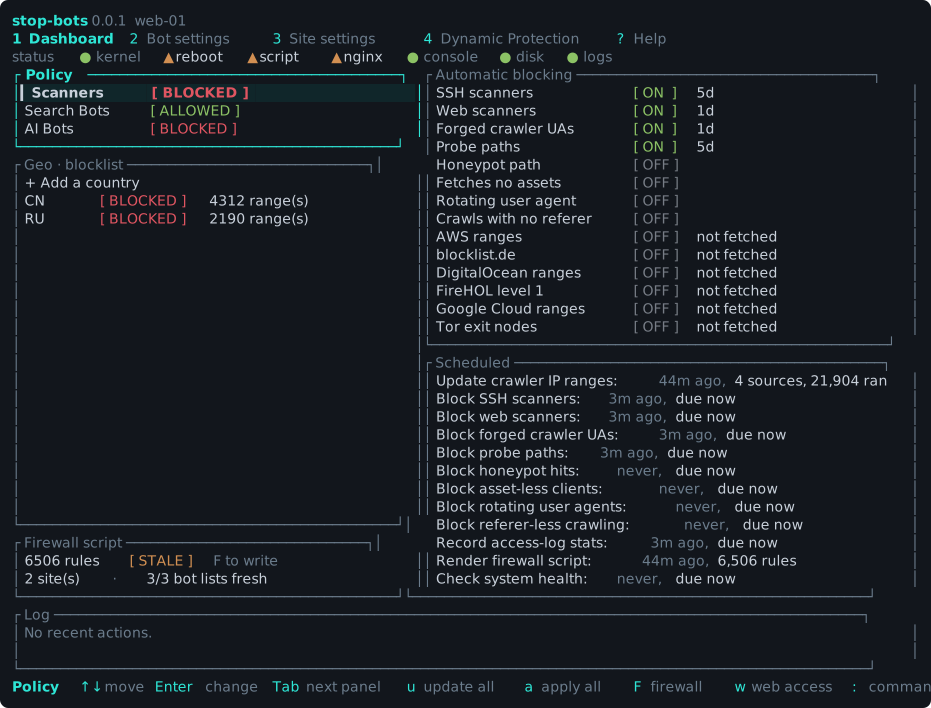
- Dashboard (the default screen): system-wide category defaults (Scanners / Search Bots /
AI Bots — Allowed or Blocked); host-wide geo-blocking (block or allow-list specific
countries); an "Automatic blocking" panel with an on/off switch for each detector and each
third-party blocklist; a "Firewall script" panel (how many rules a render would write,
whether the script on disk is stale, and the sites and bot lists it is rendered from); a
"Scheduled" panel showing the internal cron's jobs and when they last ran (with a spinner
next to any job currently running in the background); and a Log of what the app last
did. A status strip under the tabs shows the host's health checks on every screen.
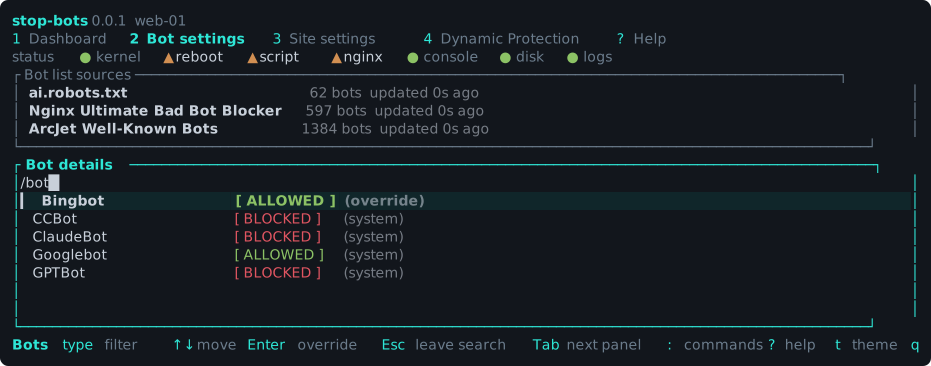
Up/Downflow between the three lists;mswitches geo mode. PressFto render the current firewall rules to a script — the popup also has an "apply after writing" toggle (Space) for actually enforcing it immediately, instead of applying it by hand afterward. Three more keys act on the whole host:udownloads every list,aapplies both planes (NGINX, then the firewall), andwputs this console behind NGINX — the same three the browser has as buttons and a panel. - Bot settings: lists every known bot-list source (with an action to refresh it) and every individual bot, searchable by name, with a per-bot override (Allowed / Blocked / follow the category default).
- Site settings: an "NGINX settings" panel (
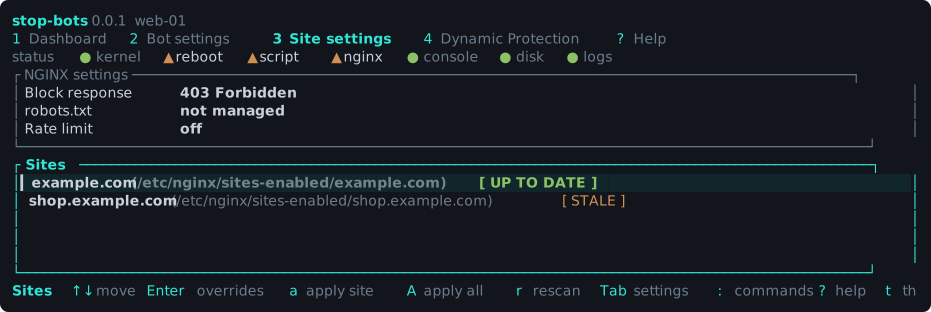
Tabto focus it) holding the host-wide choices that shape generated config — what a blocked request gets back (see below), whether to serve a generatedrobots.txt, and rate limiting — above every NGINX site discovered on disk, each with a live "up to date / stale / not found" status and actions to apply the current policy to one site or all of them. Changing any of those settings flips every applied site toSTALE, which is your cue to re-apply. Opening a site lets you override its category/bot policy, switch on any of the six request-shape rules, and list paths exempt from blocking. - Dynamic Protection: a live, actionable view of what's currently hitting the server — "Top
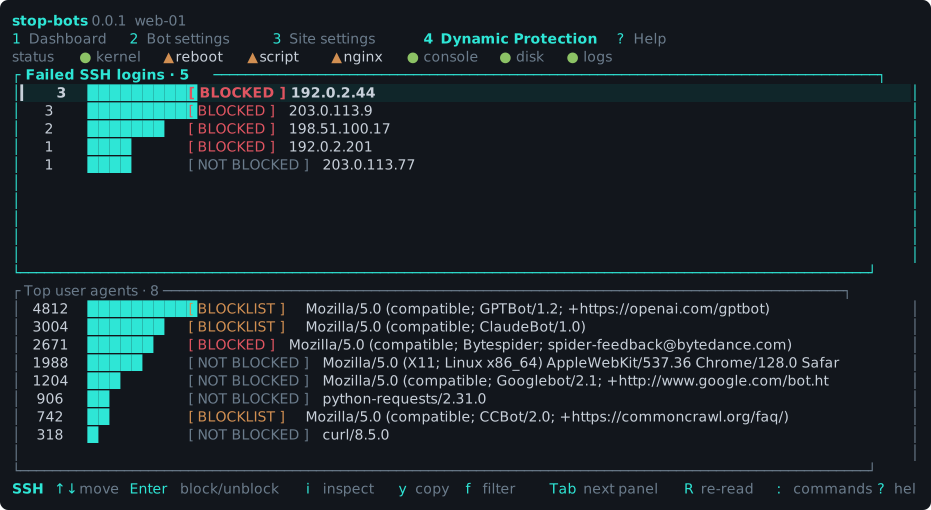
IPs attempting SSH connection" and "Top User Agents", each ranked by count and tagged
NOT BLOCKED/BLOCKED(shown in red).Tab/Shift+Tabswitch which of the two panelsUp/Downapply to;fcycles a shared filter (all / not blocked only / blocked only);Enterblocks the selectedNOT BLOCKEDrow, or unblocks it if it's alreadyBLOCKED.iinspects the selected address: which of the reputation feeds list it, whether it is inside a published crawler range (which is what separates a real Googlebot from a user agent that merely says so), which country it belongs to, and which accounts it tried to log in as. All of it from lists this host has already downloaded — there is no reverse DNS or whois lookup here, because a PTR record is written by whoever holds the address and would be attacker-supplied text that reads as authoritative. - Help: the full key-binding reference.
Bot settings, where every list source and every individual bot lives:
Site settings, where the host-wide NGINX choices sit above every site found on disk:
Dynamic Protection, the live view of what is hitting the server right now:
What it actually protects against
Using the NGINX config
-
Known bots, by category (scanner / search engine / AI crawler), sourced from ArcJet's Well-Known Bots, ai.robots.txt and the NGINX Ultimate Bad Bot Blocker list. Blocking a category injects an
if ($http_user_agent ...)rule into each site's NGINX config (apply-blocks/ Site settings'a/A). -
Too many requests, via NGINX's own rate limiting. Unlike everything else here this is enforced by NGINX at request time rather than by analysing a log afterwards. Off by default: a limit tuned for the wrong site turns away real visitors.
-
Politely, first — an optional generated
robots.txtlisting every bot you're blocking, for the crawlers that honour it, plus the honeypot path below. Off by default, because it replaces whatever your site serves at/robots.txttoday. -
Except where you say otherwise — per-site path exemptions, so you can block AI crawlers everywhere except
/blog. -
Requests that don't look like a browser, per site. Six independent rules, each its own toggle and each off by default — one switch per rule so that if something of yours stops working, you can tell which rule did it:
Rule Turns away, besides bots HTTP/1.0 and HTTP/1.1 crawlers and API clients that don't speak HTTP/2 No Acceptheadersome API clients send none No Accept-Languageprivacy tooling strips it Empty/absent User-Agentscripts and health checks often omit it Hostis a bare IPbreaks reaching the site by IP TLS 1.0 / 1.1 very old clients only Two safeguards apply to all of them, and are enforced rather than left to you:
- The two TLS-dependent rules are only written into HTTPS
serverblocks. Browsers don't do HTTP/2 without TLS, so on a plainlisten 80block every request is HTTP/1.1 — including the redirect a browser makes on its way to HTTPS. Your port-80 and port-443 blocks usually share aserver_name, so the setting reaches both; only the TLS one gets those rules. The header-shape rules work over plain HTTP and are written to both. /.well-known/is always exempt as soon as any rule is on. That's where Let's Encrypt fetches its HTTP-01 challenge, over HTTP/1.1 with noAcceptand often noUser-Agent— without the exemption your certificate stops renewing weeks later.
- The two TLS-dependent rules are only written into HTTPS
What a blocked request actually gets
One host-wide choice, on Site settings. These aren't interchangeable status codes — each says something different, and the difference matters most for the clients you didn't mean to catch:
| Option | What it's for |
|---|---|
403 Forbidden (default) | says the block was deliberate; the only one a wrongly-caught human can act on |
404 Not Found | hides that anything was blocked at all |
410 Gone | asks well-behaved crawlers to drop the URL for good — prefer this over 403 when you're turning away crawlers rather than attackers |
429 Too Many Requests | tells a polite client to back off and retry |
418 I'm a teapot | RFC 2324's joke. It works; it just isn't IANA-registered, and NGINX sends it with an empty body |
444 close connection | no reply at all; cheapest, but indistinguishable from the server being down |
Tarpit | answers 403 but trickles the body at one byte per second, so the client waits instead of moving on |
The tarpit is the gentlest option for a false positive — a wrongly caught client is slowed,
not refused — and the harshest on cost for a bot, whose connection sits idle. Two things to
know before choosing it: it holds one of your worker connections for the duration too, so
a flood of tarpitted clients competes with real visitors for worker_connections; and how
long it actually lasts depends on how NGINX chooses to write a small error body, which is
noted in TODO.md as needing a check against a real server.
From your logs, automatically
Each of these is an independent switch on the Dashboard's "Automatic blocking" panel, and each adds a temporary firewall block that expires on its own and is re-added if the behaviour continues.
They run on an internal timer that re-reads your SSH and NGINX access logs every minute — but only while the TUI or the web UI is running. Either one keeps the same schedule, in the same database, so leaving the web UI up is enough; nothing is detected when neither is running. For a server with no stop-bots process on it at all, see Unattended, from cron below.
- SSH and web scanners: IPs with a pile of failed SSH logins, or many distinct 404'd paths. Never an IP with a recent successful SSH login, or one inside a known crawler's published IP range.
- Forged crawlers: anything claiming to be Googlebot, Bingbot or GPTBot from an address that crawler's own operator doesn't publish. The cheapest common disguise there is, and the published CIDR lists settle it. Inert until those lists have actually been fetched.
- Probing for exposed secrets: a single request for
/.env,/.git/config,/wp-config.phpand similar is conclusive on its own, so this needs no threshold. The built-in list deliberately leaves out paths that are legitimate somewhere —/wp-login.php,/wp-admin/,/xmlrpc.php,/phpmyadmin— since locking out your own administrator would be worse than missing a scanner the 404 detector catches anyway. Add your own withset-probe-paths. - Honeypot: a path published only as
Disallow:in the generatedrobots.txtand linked nowhere. Reaching it means ignoring robots.txt, which nothing legitimate does by accident — the strongest signal here, and the longest block. Needs robots.txt generation turned on to work at all.
Three more look at how a client behaves rather than what it asks for. All three are off by default, because each has a false positive it cannot rule out on its own — and all three exempt verified search-engine crawlers, which would otherwise match every one of them:
- Fetches no assets: many distinct pages and not one stylesheet, script or image. Browsers
load what goes with a page. Won't catch an API client (it counts distinct paths, and an
API client hits few) or a well-cached returning visitor (a
304counts as a fetched asset). Can't help you on a site that serves no assets at all — a pure JSON API. - Rotating user agent: several identities from one address. Weakened considerably by NAT: a carrier, campus or office gateway presents many real browsers on one IP, and without timestamp parsing there's no way to tell that apart from one scraper cycling agents.
- Crawls with no referer: many distinct deep pages, never a
Referer. Weakened byReferrer-Policy: no-referrerand privacy tooling; the distinct-path threshold is what makes it usable at all.
By address
- Whole countries, via IPdeny's aggregated CIDR lists — block specific countries, or flip to allow-list mode and block everything else.
- Known-bad addresses, via third-party lists: FireHOL level 1, Tor exit nodes and blocklist.de. All off by default.
- Whole hosting providers: AWS, Google Cloud and DigitalOcean publish their address space, and residential visitors don't browse from it. These are blunt instruments and labelled as such — they block every visitor hosted there, including VPN endpoints, corporate egress and API clients, not just bots. Off by default, with a warning when you switch one on.
- Neighbouring addresses, optionally: when several addresses in one IPv4
/24are flagged in the same pass, block the/24. Off by default — blocking 256 addresses because three misbehaved is collateral by design. (IPv6 is different and needs no switch: a detection always blocks the/64, because a/64is one LAN, the same thing a single IPv4 address represents. Blocking the single address an IPv6 attacker happened to use would stop nothing — they have 2^64 more.) - Anything else, by hand — add an IP/CIDR allow or block rule directly, or use the Dynamic Protection screen to permanently block a specific IP or user agent you've spotted before it ever crosses an automatic threshold.
Is it actually working?
Everything above is generated. Whether any of it is in effect is a separate
question, and stop-bots status is the one that answers it:
stop-bots status
Seven checks, and the first is the one worth having: are the generated rules
actually in the kernel, or only on disk? A real host ran for three weeks with
48,860 drop rules in /etc/stop-bots/firewall.nft and an empty ruleset,
because writing the script and loading it are two steps and nothing had ever
looked at the second.
The rest: will the ruleset survive a reboot (nftables.service enabled?), does
the script still match the rules, are the NGINX blocks applied, is the console
service running the binary it names, is there room for the database, and can
the detectors read their logs.
It exits non-zero if anything is CRITICAL, so it works as a monitoring
check. --quiet prints only what needs attention, which is the form for cron:
0 * * * * /usr/local/bin/stop-bots status --quiet
A check that could not run — nft list needs root — reports UNKNOWN, never
OK. A health check that says everything is fine because it could not look is
worse than none, because it is believed.
The same report is on the Dashboard in both the console and the TUI, taken
hourly by the internal cron rather than on every render: nft list on a large
ruleset is megabytes of text.
Nothing happens without you
Every firewall decision above is generated, never applied automatically: render-firewall
(or the Dashboard's f key) writes an iptables or nftables script for you to review and apply
yourself, and refuses to write one that would lock out a currently-connected SSH session.
Three things can apply it for you, and all three need you to ask: the TUI's render popup
("apply after writing") or its a key, the web console's firewall panel ("run it after
writing") or its "Apply everything" button, and batch --apply from a crontab you wrote — see
Unattended, from cron. None of them is a side effect of anything
automatic: the internal cron renders the script and never runs it.
The same applies on the NGINX side: changing a setting only changes what would be written.
Site settings shows each site as STALE until you apply.
Switching a detector off never removes blocks it already added — those expire on their own.
"Stop detecting" and "undo what was detected" are deliberately separate; the second is the
Dynamic Protection screen or remove-firewall-rule.
There's also a plain access-log tally, independent of blocking: record-access-stats /
list-access-stats count how often each user agent shows up in successful (non-error)
requests, so you can see who's actually visiting on top of who's being blocked.
Unattended, from cron
stop-bots batch is one pass over everything the TUI does by hand: refresh every list,
scan the logs, write the NGINX blocking rules and the firewall script.
# One full pass a night. Refreshes the lists, scans the logs, applies both.
0 4 * * * root /usr/local/bin/stop-bots batch --apply --ssh-log /var/log/auth.log

# And detection every ten minutes, without re-downloading lists that change weekly.
*/10 * * * * root /usr/local/bin/stop-bots batch --apply --no-fetch --ssh-log /var/log/auth.log
It says nothing when everything worked, so a healthy nightly run doesn't mail you. A failed
step prints to stderr and sets a non-zero exit status, which is what makes cron tell you
about it. Run it once by hand with --verbose first — that prints a line per step, and is
the easiest way to see what it is actually doing.
--apply is what makes it enforce anything. Without it, batch writes the NGINX config
and the firewall script and stops: config does nothing until a reload, a script does nothing
until it is run. That is this project's default everywhere, and it stays the default here.
batch and a long-running front-end coexist safely. The TUI, the web UI and batch all
record what they did through the same keys in the same database, so whichever gets to a job
first does it and the others find it no longer due — you don't get two detection passes, and
the Dashboard's "Scheduled tasks" panel shows what actually happened rather than claiming
everything is overdue. If you already leave the web UI running, the nightly batch entry is
belt and braces rather than a requirement; if you don't, it is the only thing keeping
detection current.
With --apply, the SSH lockout guard can refuse — and refusing means nothing is applied.
It refuses if the rules would block a client that is connected right now, and if no SSH log
could be read at all, because then the check could not run. The interactive
render-firewall only prints a note in that second case, on the reasoning that a human is
watching the terminal; from cron nobody is. Pass --ssh-log explicitly: cron runs as
root so /var/log/auth.log usually reads fine, but on a journald-only host journalctl
under cron can come back empty, which is exactly the case it refuses on. --force overrides
the guard if you mean it.
One step failing never stops the others, and the NGINX and firewall halves are independent — a failed NGINX reload still leaves the firewall applied, and the other way round.
batch records each step against the same schedule the TUI's internal cron uses, so the two
agree about what has already run instead of both doing it, and the Dashboard's "Scheduled
tasks" panel shows what your real cron did.
The web UI
stop-bots web serves the same five screens in a browser.
stop-bots web
It binds 127.0.0.1:8787 — reachable only from that machine — and prints a generated password once, on first run. Reach it from your laptop over an SSH tunnel:
ssh -L 8787:127.0.0.1:8787 your-server
then open http://127.0.0.1:8787/.
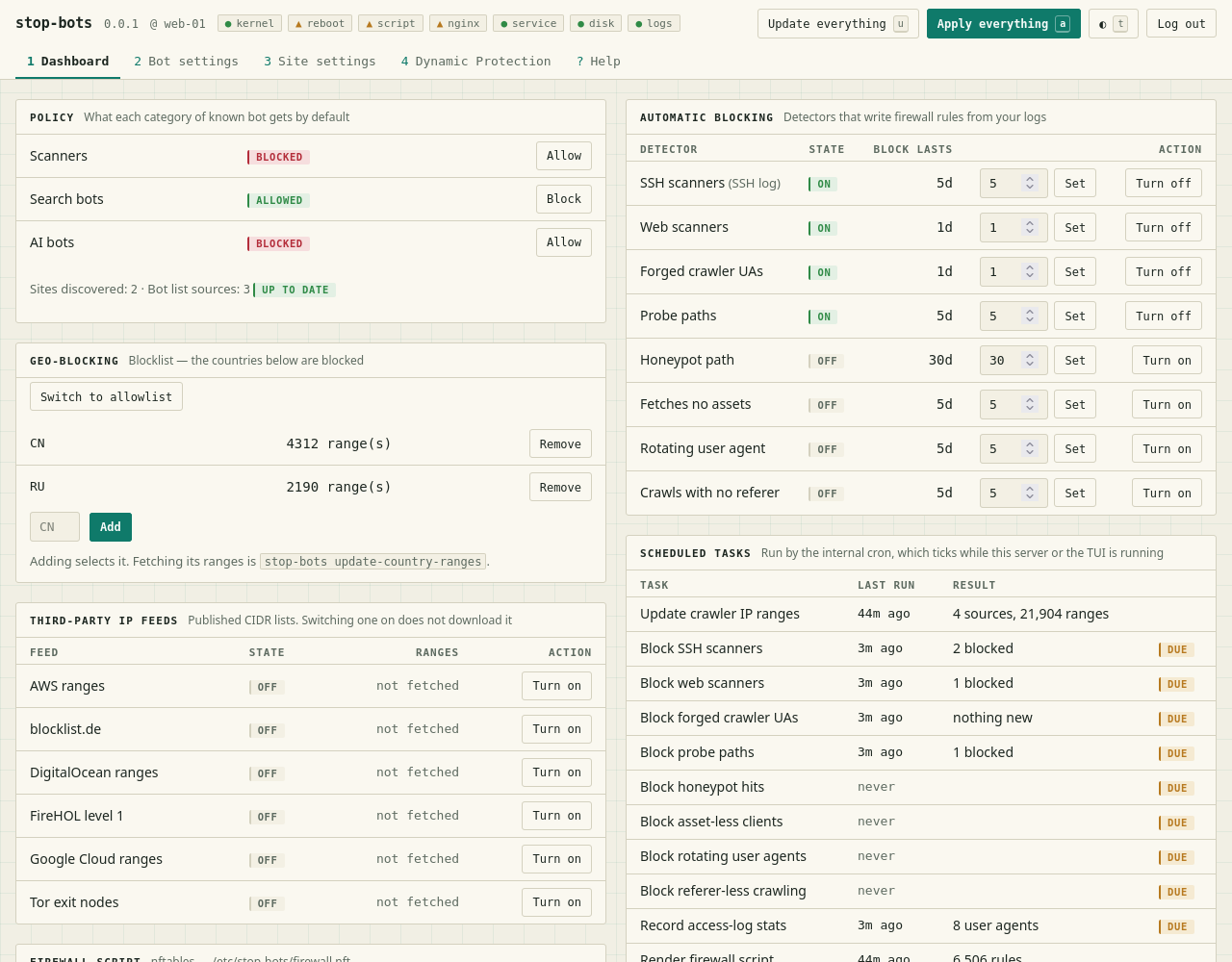
The console follows the operating system's light or dark setting, with a toggle in the
header; the TUI screenshots above are the dark theme, these the light one. The keys the
TUI uses work here too: 1–4 switch screens, / focuses the search box, ? opens Help.
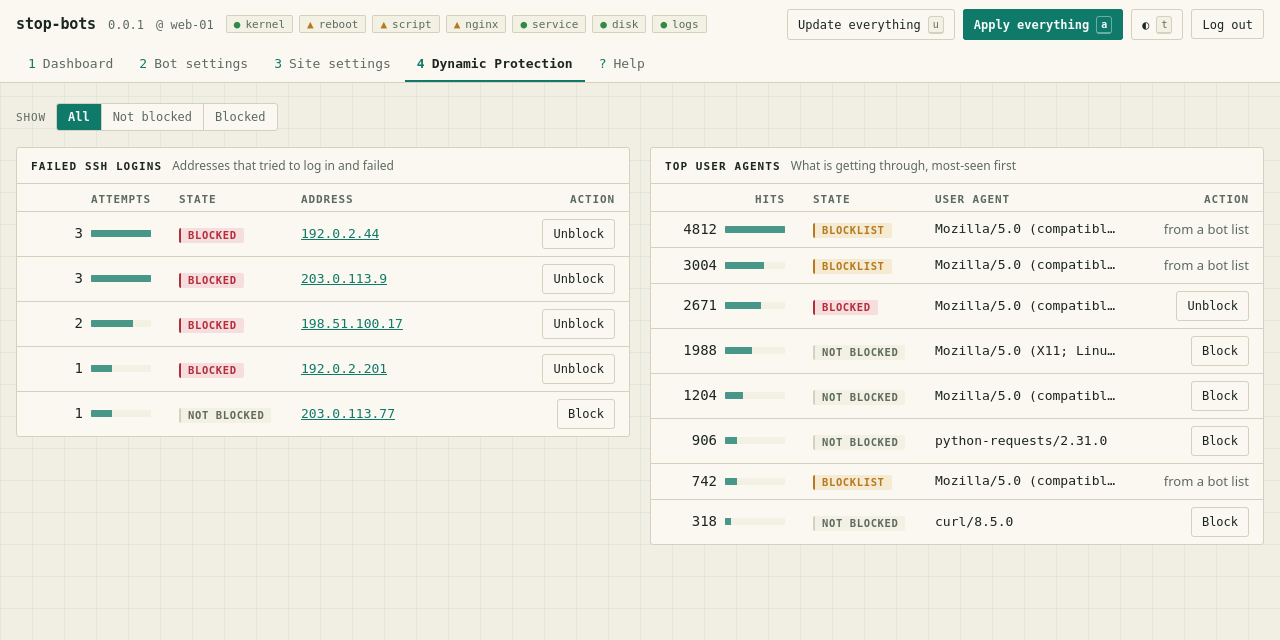
Three host-wide actions live in the header, in the browser as buttons and in the TUI as single keys:
- Update everything (
u) downloads every bot list, every crawler IP range, every enabled reputation feed and every selected country — the same setstop-bots batchfetches, from the same plan. One source failing does not stop the rest, and nothing is enforced until something applies it. - Apply everything (
a) writes and reloads the NGINX config, then writes and runs the firewall script. The two planes are independent: whichever fails, the other still gets its turn, because a half-applied host beats one where an NGINX syntax error also left the firewall stale. - Web Access (
w) sets NGINX up to serve the console itself — see Behind NGINX.
As a service (Debian)
sudo stop-bots install web
Writes /etc/systemd/system/stop-bots-web.service, creates /var/lib/stop-bots (0700 — it
holds the console's password hash) and /etc/stop-bots, generates a password if there isn't
one, and enables and starts the unit.
--dry-run prints the whole plan and changes nothing. This is the one command in the
project that starts a daemon, so start there. --prefix <dir> writes the same tree somewhere
you can read it without root. If the unit already exists and you have edited it, the
installer stops and says so rather than replacing your edit; --force if you meant it.
The service runs as root, because the console rewrites /etc/nginx, writes the firewall
script, and runs nginx -t and systemctl reload nginx. There is no unprivileged split that
leaves the feature set intact. The unit carries the hardening that survives that requirement
and a comment saying which hardening was left off and why.
The bind address, host allowlist and path prefix are deliberately not in the unit — the
running server re-reads them from the database, so putting them in ExecStart would give
them two sources of truth. Change them with stop-bots web --save ... and restart.
One thing changes once this runs as root: the internal cron's daily RenderFirewall job can
now write /etc/stop-bots/firewall.nft, which it could not when you ran the console by hand
as yourself. Nothing applies that script — running it is still yours to do.
Only Debian is checked for, because that is what has been tested; the unit is very likely correct on any systemd distribution, but the SSH log path it assumes is Debian's.
Exposing it
Binding anything but loopback takes a second, deliberate flag, because this console can rewrite the firewall and the NGINX config of the host it runs on:
stop-bots web --bind 0.0.0.0:8787 --expose --allowed-hosts admin.example.com --save
--allowed-hosts is not optional in practice: a request carrying a host name that isn't
listed is refused. That is what makes DNS rebinding against the console fail, and it is
why an exposed server reached by name needs the name spelled out.
Put it behind NGINX with TLS — the same NGINX this tool is protecting. If you do, and the
proxy sets X-Forwarded-For, tell the console it may believe that header, or it cannot
tell which address a request really came from:
stop-bots web --bind 127.0.0.1:8787 # and set web:trust_forwarded_for
Behind TLS, also set web:secure_cookie. Without it a browser will send the session
cookie to an http:// URL for the same host as well.
web:trust_forwarded_for matters more than it looks. Without it every request behind a
proxy arrives from 127.0.0.1, so the console cannot tell one client from another — which
means a flood of login attempts shares the same throttle bucket as you, and the guard that
stops you blocking your own address has nothing to compare against. With it, both work
per-client.
Behind NGINX: a subdomain, or a path prefix
The console can set this up for you, and so can the TUI (w on the Dashboard). Both
write the NGINX config, record the path prefix and add the host name to the allowlist — the
three things that have to agree, because a missing prefix makes every link leave the
location block and a missing host name makes every request a 403. Both validate with
nginx -t before the config can take effect, roll it back if that fails, and record the
new address only once it validated.
Two modes, and path is the default for a reason: it adds a location block to a site you
already have, so the console inherits that site's certificate. A subdomain needs its own,
and until certbot --nginx -d <host> has run, this console's password form and session
cookie cross the network in the clear.
The rest of this section is the same thing by hand, which is worth reading once even if you use the panel — the trailing-slash trap below is the mistake it exists to prevent.
A subdomain is the simpler deployment, and the one to take if you can:
server {
    server_name stopbots.example.com;
    location / {
        proxy_pass http://127.0.0.1:8787;
        proxy_set_header Host $host;
    }
}
stop-bots web --allowed-hosts stopbots.example.com --save
A path prefix works too, but the console has to be told about it — it needs to generate every link, form action, redirect and cookie path with the prefix already in them, and it cannot guess:
stop-bots web --base-path /stop-bots --allowed-hosts example.com --save
location /stop-bots/ {
    proxy_pass http://127.0.0.1:8787;   # NO trailing slash
    proxy_set_header Host $host;
}
The trailing slash on proxy_pass matters, and its absence is the whole trick.
Without it, NGINX passes the full path through and stop-bots sees
/stop-bots/whatever, which is what it now serves and generates. With a trailing
slash, NGINX strips the prefix — and then the browser resolves the links in the page
against the domain root, lands outside the location block, and everything 404s. No
amount of care on the server's side can fix that, so the prefix has to survive the
proxy.
Nothing enforces this from outside, but the failure is loud rather than subtle: with the prefix configured, an unprefixed request is a plain 404 rather than a page that half-works.
What it will not do
Two things are missing on purpose, and the Help screen says so with the reasons:
- It will not unblock something a downloaded list blocked — the next refresh of that list would silently undo it.
- It will not change its own password. Use
stop-bots web --set-passwordon the host.
It also refuses to block the address you are connected from, which would take away the console you'd use to undo it.
It used to be three. Applying the firewall script was the third, on the grounds that
running it is the one operation that can take the host off the network. That is now
available — "Apply everything" on the Dashboard (a in the TUI), or the "run it after
writing" box in the firewall panel — because the guard that makes it safe from cron makes it safe from a
button: the rules are checked against the clients currently logged in over SSH, in the
order the script itself will evaluate them, and a rule that would block one of them is a
refusal rather than a warning. Start the console with --no-apply to get the old
write-only behaviour back.
Login attempts are throttled. Not because the password is guessable — it is generated, 144 bits — but because verifying one runs Argon2id, and letting an unauthenticated caller drive that as fast as they can post is a denial of service against the host this tool is supposed to be protecting. Ten wrong attempts are free; past that a client backs off exponentially, and a global cap bounds the CPU regardless of how many addresses the attempts come from.
Running NGINX in a container
If NGINX is in Docker and its config is on a bind mount, systemctl reload nginx reloads
nothing. Point the two commands at the container instead — this applies to the CLI and the
TUI as well:
stop-bots set-nginx-commands \
  --test   "docker exec web nginx -t" \
  --reload "docker exec web nginx -s reload"
The command is split into words and run directly. It never goes through a shell, so ;,
| and $VAR are ordinary characters rather than syntax.
Contributing
How the code is laid out, how it is tested, and the rules it is written to are in CONTRIBUTING.md. The release process is in RELEASING.md.
Contact
You can contact me at marko@ivankovic.me.
License
Copyright (C) 2026 Marko Ivankovic
This program is free software: you can redistribute it and/or modify it under the terms of the GNU Affero General Public License as published by the Free Software Foundation, either version 3 of the License, or (at your option) any later version.
See the LICENSE file for the full text of the License.
Can't use AGPL software?
Alternative licensing is NOT available.
Contributors

134 commits
See what people are saying
Similar repos


Languages
Rust
98.0%
README
Stop Bots
A TUI, a web UI and a CLI that help you configure your server to stop bad bots without hiding behind a CDN.
It works alongside NGINX and your existing firewall (iptables or nftables), on two separate planes:
- NGINX config. - It classifies known bots by category (scanners, search engines, AI crawlers) and blocks or allows them by injecting a rule into your site configs. It scans the NGINX log to detect bots dynamically and block them even if no ruleset tracks them yet.
- A firewall script. - Block entire countries, datacenter IP ranges, known bot IP ranges or any IP address that repeatedly tries to log into your server unsuccessfully.
The app tries its best to not lock you out of the server, but you use it on your own risk. And note that it is licensed under AGPL, so if you are using it commercially, make sure you obey the letter of the license.
Installation
From crates.io:
cargo install stop-bots
Or build from a checkout:
cargo install --path .
A prebuilt x86_64 Linux binary is available on GitHub releases.
Dependencies
Requires Rust 1.88 or newer to build. Linux only in practice: it shells out to
systemctl, nginx -t and nft/iptables, so while it compiles elsewhere it won't be
much use there.
Usage
Run the binary with no arguments to launch the TUI, stop-bots web for the same screens in
a browser (see The web UI), or see stop-bots --help for the full list of
CLI subcommands. The TUI and CLI can be used together. Configure everything in the TUI and
then use the CLI in a crontab to keep the rules updated.
You can exit the app, or back out of a popup/submenu, with 'q' or Escape.
Theme
You can switch between the dark and light theme with 't'. The app will try to auto-detect the theme, but for some terminal and multiplexer combinations there isn't enough information available to make the correct choice.
Screens
1–4 (or d/b/s/p) jump straight to a screen; Left/Right, or their vim h/l
aliases, step through them; ? toggles a full key-binding reference at any time, and :
opens a command palette listing every action by name. Tab / Shift+Tab always move between
the panels of the current screen, never between screens.
The Dashboard owns everything that ends up in the firewall script; Site settings owns everything that ends up in NGINX config. That split decides where any given setting lives.
- Dashboard (the default screen): system-wide category defaults (Scanners / Search Bots /
AI Bots — Allowed or Blocked); host-wide geo-blocking (block or allow-list specific
countries); an "Automatic blocking" panel with an on/off switch for each detector and each
third-party blocklist; a "Firewall script" panel (how many rules a render would write,
whether the script on disk is stale, and the sites and bot lists it is rendered from); a
"Scheduled" panel showing the internal cron's jobs and when they last ran (with a spinner
next to any job currently running in the background); and a Log of what the app last
did. A status strip under the tabs shows the host's health checks on every screen.
Up/Downflow between the three lists;mswitches geo mode. PressFto render the current firewall rules to a script — the popup also has an "apply after writing" toggle (Space) for actually enforcing it immediately, instead of applying it by hand afterward. Three more keys act on the whole host:udownloads every list,aapplies both planes (NGINX, then the firewall), andwputs this console behind NGINX — the same three the browser has as buttons and a panel. - Bot settings: lists every known bot-list source (with an action to refresh it) and every individual bot, searchable by name, with a per-bot override (Allowed / Blocked / follow the category default).
- Site settings: an "NGINX settings" panel (
Tabto focus it) holding the host-wide choices that shape generated config — what a blocked request gets back (see below), whether to serve a generatedrobots.txt, and rate limiting — above every NGINX site discovered on disk, each with a live "up to date / stale / not found" status and actions to apply the current policy to one site or all of them. Changing any of those settings flips every applied site toSTALE, which is your cue to re-apply. Opening a site lets you override its category/bot policy, switch on any of the six request-shape rules, and list paths exempt from blocking. - Dynamic Protection: a live, actionable view of what's currently hitting the server — "Top
IPs attempting SSH connection" and "Top User Agents", each ranked by count and tagged
NOT BLOCKED/BLOCKED(shown in red).Tab/Shift+Tabswitch which of the two panelsUp/Downapply to;fcycles a shared filter (all / not blocked only / blocked only);Enterblocks the selectedNOT BLOCKEDrow, or unblocks it if it's alreadyBLOCKED.iinspects the selected address: which of the reputation feeds list it, whether it is inside a published crawler range (which is what separates a real Googlebot from a user agent that merely says so), which country it belongs to, and which accounts it tried to log in as. All of it from lists this host has already downloaded — there is no reverse DNS or whois lookup here, because a PTR record is written by whoever holds the address and would be attacker-supplied text that reads as authoritative. - Help: the full key-binding reference.
Bot settings, where every list source and every individual bot lives:
Site settings, where the host-wide NGINX choices sit above every site found on disk:
Dynamic Protection, the live view of what is hitting the server right now:
What it actually protects against
Using the NGINX config
-
Known bots, by category (scanner / search engine / AI crawler), sourced from ArcJet's Well-Known Bots, ai.robots.txt and the NGINX Ultimate Bad Bot Blocker list. Blocking a category injects an
if ($http_user_agent ...)rule into each site's NGINX config (apply-blocks/ Site settings'a/A). -
Too many requests, via NGINX's own rate limiting. Unlike everything else here this is enforced by NGINX at request time rather than by analysing a log afterwards. Off by default: a limit tuned for the wrong site turns away real visitors.
-
Politely, first — an optional generated
robots.txtlisting every bot you're blocking, for the crawlers that honour it, plus the honeypot path below. Off by default, because it replaces whatever your site serves at/robots.txttoday. -
Except where you say otherwise — per-site path exemptions, so you can block AI crawlers everywhere except
/blog. -
Requests that don't look like a browser, per site. Six independent rules, each its own toggle and each off by default — one switch per rule so that if something of yours stops working, you can tell which rule did it:
Rule Turns away, besides bots HTTP/1.0 and HTTP/1.1 crawlers and API clients that don't speak HTTP/2 No Acceptheadersome API clients send none No Accept-Languageprivacy tooling strips it Empty/absent User-Agentscripts and health checks often omit it Hostis a bare IPbreaks reaching the site by IP TLS 1.0 / 1.1 very old clients only Two safeguards apply to all of them, and are enforced rather than left to you:
- The two TLS-dependent rules are only written into HTTPS
serverblocks. Browsers don't do HTTP/2 without TLS, so on a plainlisten 80block every request is HTTP/1.1 — including the redirect a browser makes on its way to HTTPS. Your port-80 and port-443 blocks usually share aserver_name, so the setting reaches both; only the TLS one gets those rules. The header-shape rules work over plain HTTP and are written to both. /.well-known/is always exempt as soon as any rule is on. That's where Let's Encrypt fetches its HTTP-01 challenge, over HTTP/1.1 with noAcceptand often noUser-Agent— without the exemption your certificate stops renewing weeks later.
- The two TLS-dependent rules are only written into HTTPS
What a blocked request actually gets
One host-wide choice, on Site settings. These aren't interchangeable status codes — each says something different, and the difference matters most for the clients you didn't mean to catch:
| Option | What it's for |
|---|---|
403 Forbidden (default) | says the block was deliberate; the only one a wrongly-caught human can act on |
404 Not Found | hides that anything was blocked at all |
410 Gone | asks well-behaved crawlers to drop the URL for good — prefer this over 403 when you're turning away crawlers rather than attackers |
429 Too Many Requests | tells a polite client to back off and retry |
418 I'm a teapot | RFC 2324's joke. It works; it just isn't IANA-registered, and NGINX sends it with an empty body |
444 close connection | no reply at all; cheapest, but indistinguishable from the server being down |
Tarpit | answers 403 but trickles the body at one byte per second, so the client waits instead of moving on |
The tarpit is the gentlest option for a false positive — a wrongly caught client is slowed,
not refused — and the harshest on cost for a bot, whose connection sits idle. Two things to
know before choosing it: it holds one of your worker connections for the duration too, so
a flood of tarpitted clients competes with real visitors for worker_connections; and how
long it actually lasts depends on how NGINX chooses to write a small error body, which is
noted in TODO.md as needing a check against a real server.
From your logs, automatically
Each of these is an independent switch on the Dashboard's "Automatic blocking" panel, and each adds a temporary firewall block that expires on its own and is re-added if the behaviour continues.
They run on an internal timer that re-reads your SSH and NGINX access logs every minute — but only while the TUI or the web UI is running. Either one keeps the same schedule, in the same database, so leaving the web UI up is enough; nothing is detected when neither is running. For a server with no stop-bots process on it at all, see Unattended, from cron below.
- SSH and web scanners: IPs with a pile of failed SSH logins, or many distinct 404'd paths. Never an IP with a recent successful SSH login, or one inside a known crawler's published IP range.
- Forged crawlers: anything claiming to be Googlebot, Bingbot or GPTBot from an address that crawler's own operator doesn't publish. The cheapest common disguise there is, and the published CIDR lists settle it. Inert until those lists have actually been fetched.
- Probing for exposed secrets: a single request for
/.env,/.git/config,/wp-config.phpand similar is conclusive on its own, so this needs no threshold. The built-in list deliberately leaves out paths that are legitimate somewhere —/wp-login.php,/wp-admin/,/xmlrpc.php,/phpmyadmin— since locking out your own administrator would be worse than missing a scanner the 404 detector catches anyway. Add your own withset-probe-paths. - Honeypot: a path published only as
Disallow:in the generatedrobots.txtand linked nowhere. Reaching it means ignoring robots.txt, which nothing legitimate does by accident — the strongest signal here, and the longest block. Needs robots.txt generation turned on to work at all.
Three more look at how a client behaves rather than what it asks for. All three are off by default, because each has a false positive it cannot rule out on its own — and all three exempt verified search-engine crawlers, which would otherwise match every one of them:
- Fetches no assets: many distinct pages and not one stylesheet, script or image. Browsers
load what goes with a page. Won't catch an API client (it counts distinct paths, and an
API client hits few) or a well-cached returning visitor (a
304counts as a fetched asset). Can't help you on a site that serves no assets at all — a pure JSON API. - Rotating user agent: several identities from one address. Weakened considerably by NAT: a carrier, campus or office gateway presents many real browsers on one IP, and without timestamp parsing there's no way to tell that apart from one scraper cycling agents.
- Crawls with no referer: many distinct deep pages, never a
Referer. Weakened byReferrer-Policy: no-referrerand privacy tooling; the distinct-path threshold is what makes it usable at all.
By address
- Whole countries, via IPdeny's aggregated CIDR lists — block specific countries, or flip to allow-list mode and block everything else.
- Known-bad addresses, via third-party lists: FireHOL level 1, Tor exit nodes and blocklist.de. All off by default.
- Whole hosting providers: AWS, Google Cloud and DigitalOcean publish their address space, and residential visitors don't browse from it. These are blunt instruments and labelled as such — they block every visitor hosted there, including VPN endpoints, corporate egress and API clients, not just bots. Off by default, with a warning when you switch one on.
- Neighbouring addresses, optionally: when several addresses in one IPv4
/24are flagged in the same pass, block the/24. Off by default — blocking 256 addresses because three misbehaved is collateral by design. (IPv6 is different and needs no switch: a detection always blocks the/64, because a/64is one LAN, the same thing a single IPv4 address represents. Blocking the single address an IPv6 attacker happened to use would stop nothing — they have 2^64 more.) - Anything else, by hand — add an IP/CIDR allow or block rule directly, or use the Dynamic Protection screen to permanently block a specific IP or user agent you've spotted before it ever crosses an automatic threshold.
Is it actually working?
Everything above is generated. Whether any of it is in effect is a separate
question, and stop-bots status is the one that answers it:
stop-bots status
Seven checks, and the first is the one worth having: are the generated rules
actually in the kernel, or only on disk? A real host ran for three weeks with
48,860 drop rules in /etc/stop-bots/firewall.nft and an empty ruleset,
because writing the script and loading it are two steps and nothing had ever
looked at the second.
The rest: will the ruleset survive a reboot (nftables.service enabled?), does
the script still match the rules, are the NGINX blocks applied, is the console
service running the binary it names, is there room for the database, and can
the detectors read their logs.
It exits non-zero if anything is CRITICAL, so it works as a monitoring
check. --quiet prints only what needs attention, which is the form for cron:
0 * * * * /usr/local/bin/stop-bots status --quiet
A check that could not run — nft list needs root — reports UNKNOWN, never
OK. A health check that says everything is fine because it could not look is
worse than none, because it is believed.
The same report is on the Dashboard in both the console and the TUI, taken
hourly by the internal cron rather than on every render: nft list on a large
ruleset is megabytes of text.
Nothing happens without you
Every firewall decision above is generated, never applied automatically: render-firewall
(or the Dashboard's f key) writes an iptables or nftables script for you to review and apply
yourself, and refuses to write one that would lock out a currently-connected SSH session.
Three things can apply it for you, and all three need you to ask: the TUI's render popup
("apply after writing") or its a key, the web console's firewall panel ("run it after
writing") or its "Apply everything" button, and batch --apply from a crontab you wrote — see
Unattended, from cron. None of them is a side effect of anything
automatic: the internal cron renders the script and never runs it.
The same applies on the NGINX side: changing a setting only changes what would be written.
Site settings shows each site as STALE until you apply.
Switching a detector off never removes blocks it already added — those expire on their own.
"Stop detecting" and "undo what was detected" are deliberately separate; the second is the
Dynamic Protection screen or remove-firewall-rule.
There's also a plain access-log tally, independent of blocking: record-access-stats /
list-access-stats count how often each user agent shows up in successful (non-error)
requests, so you can see who's actually visiting on top of who's being blocked.
Unattended, from cron
stop-bots batch is one pass over everything the TUI does by hand: refresh every list,
scan the logs, write the NGINX blocking rules and the firewall script.
# One full pass a night. Refreshes the lists, scans the logs, applies both.
0 4 * * * root /usr/local/bin/stop-bots batch --apply --ssh-log /var/log/auth.log

# And detection every ten minutes, without re-downloading lists that change weekly.
*/10 * * * * root /usr/local/bin/stop-bots batch --apply --no-fetch --ssh-log /var/log/auth.log
It says nothing when everything worked, so a healthy nightly run doesn't mail you. A failed
step prints to stderr and sets a non-zero exit status, which is what makes cron tell you
about it. Run it once by hand with --verbose first — that prints a line per step, and is
the easiest way to see what it is actually doing.
--apply is what makes it enforce anything. Without it, batch writes the NGINX config
and the firewall script and stops: config does nothing until a reload, a script does nothing
until it is run. That is this project's default everywhere, and it stays the default here.
batch and a long-running front-end coexist safely. The TUI, the web UI and batch all
record what they did through the same keys in the same database, so whichever gets to a job
first does it and the others find it no longer due — you don't get two detection passes, and
the Dashboard's "Scheduled tasks" panel shows what actually happened rather than claiming
everything is overdue. If you already leave the web UI running, the nightly batch entry is
belt and braces rather than a requirement; if you don't, it is the only thing keeping
detection current.
With --apply, the SSH lockout guard can refuse — and refusing means nothing is applied.
It refuses if the rules would block a client that is connected right now, and if no SSH log
could be read at all, because then the check could not run. The interactive
render-firewall only prints a note in that second case, on the reasoning that a human is
watching the terminal; from cron nobody is. Pass --ssh-log explicitly: cron runs as
root so /var/log/auth.log usually reads fine, but on a journald-only host journalctl
under cron can come back empty, which is exactly the case it refuses on. --force overrides
the guard if you mean it.
One step failing never stops the others, and the NGINX and firewall halves are independent — a failed NGINX reload still leaves the firewall applied, and the other way round.
batch records each step against the same schedule the TUI's internal cron uses, so the two
agree about what has already run instead of both doing it, and the Dashboard's "Scheduled
tasks" panel shows what your real cron did.
The web UI
stop-bots web serves the same five screens in a browser.
stop-bots web
It binds 127.0.0.1:8787 — reachable only from that machine — and prints a generated password once, on first run. Reach it from your laptop over an SSH tunnel:
ssh -L 8787:127.0.0.1:8787 your-server
then open http://127.0.0.1:8787/.
The console follows the operating system's light or dark setting, with a toggle in the
header; the TUI screenshots above are the dark theme, these the light one. The keys the
TUI uses work here too: 1–4 switch screens, / focuses the search box, ? opens Help.
Three host-wide actions live in the header, in the browser as buttons and in the TUI as single keys:
- Update everything (
u) downloads every bot list, every crawler IP range, every enabled reputation feed and every selected country — the same setstop-bots batchfetches, from the same plan. One source failing does not stop the rest, and nothing is enforced until something applies it. - Apply everything (
a) writes and reloads the NGINX config, then writes and runs the firewall script. The two planes are independent: whichever fails, the other still gets its turn, because a half-applied host beats one where an NGINX syntax error also left the firewall stale. - Web Access (
w) sets NGINX up to serve the console itself — see Behind NGINX.
As a service (Debian)
sudo stop-bots install web
Writes /etc/systemd/system/stop-bots-web.service, creates /var/lib/stop-bots (0700 — it
holds the console's password hash) and /etc/stop-bots, generates a password if there isn't
one, and enables and starts the unit.
--dry-run prints the whole plan and changes nothing. This is the one command in the
project that starts a daemon, so start there. --prefix <dir> writes the same tree somewhere
you can read it without root. If the unit already exists and you have edited it, the
installer stops and says so rather than replacing your edit; --force if you meant it.
The service runs as root, because the console rewrites /etc/nginx, writes the firewall
script, and runs nginx -t and systemctl reload nginx. There is no unprivileged split that
leaves the feature set intact. The unit carries the hardening that survives that requirement
and a comment saying which hardening was left off and why.
The bind address, host allowlist and path prefix are deliberately not in the unit — the
running server re-reads them from the database, so putting them in ExecStart would give
them two sources of truth. Change them with stop-bots web --save ... and restart.
One thing changes once this runs as root: the internal cron's daily RenderFirewall job can
now write /etc/stop-bots/firewall.nft, which it could not when you ran the console by hand
as yourself. Nothing applies that script — running it is still yours to do.
Only Debian is checked for, because that is what has been tested; the unit is very likely correct on any systemd distribution, but the SSH log path it assumes is Debian's.
Exposing it
Binding anything but loopback takes a second, deliberate flag, because this console can rewrite the firewall and the NGINX config of the host it runs on:
stop-bots web --bind 0.0.0.0:8787 --expose --allowed-hosts admin.example.com --save
--allowed-hosts is not optional in practice: a request carrying a host name that isn't
listed is refused. That is what makes DNS rebinding against the console fail, and it is
why an exposed server reached by name needs the name spelled out.
Put it behind NGINX with TLS — the same NGINX this tool is protecting. If you do, and the
proxy sets X-Forwarded-For, tell the console it may believe that header, or it cannot
tell which address a request really came from:
stop-bots web --bind 127.0.0.1:8787 # and set web:trust_forwarded_for
Behind TLS, also set web:secure_cookie. Without it a browser will send the session
cookie to an http:// URL for the same host as well.
web:trust_forwarded_for matters more than it looks. Without it every request behind a
proxy arrives from 127.0.0.1, so the console cannot tell one client from another — which
means a flood of login attempts shares the same throttle bucket as you, and the guard that
stops you blocking your own address has nothing to compare against. With it, both work
per-client.
Behind NGINX: a subdomain, or a path prefix
The console can set this up for you, and so can the TUI (w on the Dashboard). Both
write the NGINX config, record the path prefix and add the host name to the allowlist — the
three things that have to agree, because a missing prefix makes every link leave the
location block and a missing host name makes every request a 403. Both validate with
nginx -t before the config can take effect, roll it back if that fails, and record the
new address only once it validated.
Two modes, and path is the default for a reason: it adds a location block to a site you
already have, so the console inherits that site's certificate. A subdomain needs its own,
and until certbot --nginx -d <host> has run, this console's password form and session
cookie cross the network in the clear.
The rest of this section is the same thing by hand, which is worth reading once even if you use the panel — the trailing-slash trap below is the mistake it exists to prevent.
A subdomain is the simpler deployment, and the one to take if you can:
server {
    server_name stopbots.example.com;
    location / {
        proxy_pass http://127.0.0.1:8787;
        proxy_set_header Host $host;
    }
}
stop-bots web --allowed-hosts stopbots.example.com --save
A path prefix works too, but the console has to be told about it — it needs to generate every link, form action, redirect and cookie path with the prefix already in them, and it cannot guess:
stop-bots web --base-path /stop-bots --allowed-hosts example.com --save
location /stop-bots/ {
    proxy_pass http://127.0.0.1:8787;   # NO trailing slash
    proxy_set_header Host $host;
}
The trailing slash on proxy_pass matters, and its absence is the whole trick.
Without it, NGINX passes the full path through and stop-bots sees
/stop-bots/whatever, which is what it now serves and generates. With a trailing
slash, NGINX strips the prefix — and then the browser resolves the links in the page
against the domain root, lands outside the location block, and everything 404s. No
amount of care on the server's side can fix that, so the prefix has to survive the
proxy.
Nothing enforces this from outside, but the failure is loud rather than subtle: with the prefix configured, an unprefixed request is a plain 404 rather than a page that half-works.
What it will not do
Two things are missing on purpose, and the Help screen says so with the reasons:
- It will not unblock something a downloaded list blocked — the next refresh of that list would silently undo it.
- It will not change its own password. Use
stop-bots web --set-passwordon the host.
It also refuses to block the address you are connected from, which would take away the console you'd use to undo it.
It used to be three. Applying the firewall script was the third, on the grounds that
running it is the one operation that can take the host off the network. That is now
available — "Apply everything" on the Dashboard (a in the TUI), or the "run it after
writing" box in the firewall panel — because the guard that makes it safe from cron makes it safe from a
button: the rules are checked against the clients currently logged in over SSH, in the
order the script itself will evaluate them, and a rule that would block one of them is a
refusal rather than a warning. Start the console with --no-apply to get the old
write-only behaviour back.
Login attempts are throttled. Not because the password is guessable — it is generated, 144 bits — but because verifying one runs Argon2id, and letting an unauthenticated caller drive that as fast as they can post is a denial of service against the host this tool is supposed to be protecting. Ten wrong attempts are free; past that a client backs off exponentially, and a global cap bounds the CPU regardless of how many addresses the attempts come from.
Running NGINX in a container
If NGINX is in Docker and its config is on a bind mount, systemctl reload nginx reloads
nothing. Point the two commands at the container instead — this applies to the CLI and the
TUI as well:
stop-bots set-nginx-commands \
  --test   "docker exec web nginx -t" \
  --reload "docker exec web nginx -s reload"
The command is split into words and run directly. It never goes through a shell, so ;,
| and $VAR are ordinary characters rather than syntax.
Contributing
How the code is laid out, how it is tested, and the rules it is written to are in CONTRIBUTING.md. The release process is in RELEASING.md.
Contact
You can contact me at marko@ivankovic.me.
License
Copyright (C) 2026 Marko Ivankovic
This program is free software: you can redistribute it and/or modify it under the terms of the GNU Affero General Public License as published by the Free Software Foundation, either version 3 of the License, or (at your option) any later version.
See the LICENSE file for the full text of the License.
Can't use AGPL software?
Alternative licensing is NOT available.
See what people are saying
Similar repos
Contributors
134 commits
Languages
Rust
98.0%