
README
Use VIM as your RUST IDE
Install vim first, if its not already
sudo apt-get install vim
If vi worked in your command line, it is most likely the light version of vi which is installed by default in Ubuntu, and it lacks most functionality of the real vi.
You also need to install
curlgitCMake- Python Headers
- Development Tools
I assume most of you have already installed it, if not then install it via
sudo apt-get install curl
sudo apt-get install git
sudo apt-get install build-essential cmake
sudo apt-get install python-dev python3-dev
Install pathogen plugin
Pathogen is a vim plugin which allows you to easily install other plugins, by just adding files into the ~/.vim/bundle (There are other alternatives, but pathogen is most commonly used)
mkdir -p ~/.vim/autoload ~/.vim/bundle
curl -LSso ~/.vim/autoload/pathogen.vim https://tpo.pe/pathogen.vim
- Add this to
~/.vimrc
execute pathogen#infect()
syntax on
filetype plugin indent on
Install syntax highlighting for rust
cd ~/.vim/bundle
git clone https://github.com/rust-lang/rust.vim.git
Install YouCompleteMe
YouCompleteMe - a code-completion engine for Vim with support for C-family languages and Rust
cd ~/.vim/bundle

git clone https://github.com/Valloric/YouCompleteMe

cd ~/.vim/bundle/YouCompleteMe

git submodule update --init --recursive

./install.py --rust-completer
- Download source code of the rust version you are using, for example master branch
- Extract the zip file and put in your Development folder ie.
~/Developer - Checkout and build racer
mkdir -p ~/Developer/
cd ~/Developer/
git clone --depth 1 --branch master https://github.com/rust-lang/rust rust-master
Add this to your .vimrc
let g:ycm_rust_src_path="/home/<username>/Developer/rust-master/src/"
Install Vim number toggle
vim-numbertoggle adds line numbers to the code you are editing.
Line numbers can either show absolute position or position relative to your cursor location.
This will boost your productivity later, when you orchestrate vim commands such as moving 10 lines below the current cursor position: 10j.
cd ~/.vim/bundle
git clone git://github.com/jeffkreeftmeijer/vim-numbertoggle.git
Install NERDtree for displaying files in a tab
NERDTree is a file manager, that most text editors have, such as sublime, atom, or eclipse where it lists the files in the directory you are editing from.
cd ~/.vim/bundle
git clone https://github.com/scrooloose/nerdtree.git
- Add this to
~/.vimrc
autocmd VimEnter * NERDTree
autocmd BufEnter * NERDTreeMirror

"CTRL-t to toggle tree view with CTRL-t
nmap <silent> <C-t> :NERDTreeToggle<CR>
"Set F2 to put the cursor to the nerdtree
nmap <silent> <F2> :NERDTreeFind<CR>
Controls
CTRL-t  - Open/Close the files tab
CTRL-n  - Toggle relative / absolute numbering
CTRL-ww - Switch between the files tab and the main window
F2      - Focus cursor to files tab
<Enter> - Open the focused files/directory, duh!
h,j,k,l - Navigate the cursor left, down, up, right respectively
i       - Insert mode, you can start typing in your code.
<ESC>   - Back to default mode, where you can issue commands in vi
:w      - Write/save the file, you are editing
:wqa    - Save the file, then quit the editor closing vi including the files tab
Some advance commands
:bp                 - Open previous file/buffer
:bn                 - Open next file/buffer
:b <filename-part>  - Open the file you are looking for without typing the exact filename
:vsp                - Vertically split the window
:vsp <filename>     - Open the file in vertical split
:sp                 - Horizontal split
:sp <filename>      - Open the file in horizontal split
- You don't really have to quit the editor using
wqwhenever you want to build the project. A convenient way is to open a new tab in a terminal via<CTRL>-<SHIFT>-tand issue your command (cargo build --release) from there. That way, you don't lose the state of your editor, i.e. you can undouor redo<CTRL>-ryour code changes when needed
Compile without opening another tab
Alternatively, you can compile your project without opening another terminal instance by issuing the command directly from vim using :! <external terminal command>
:! cargo run --release
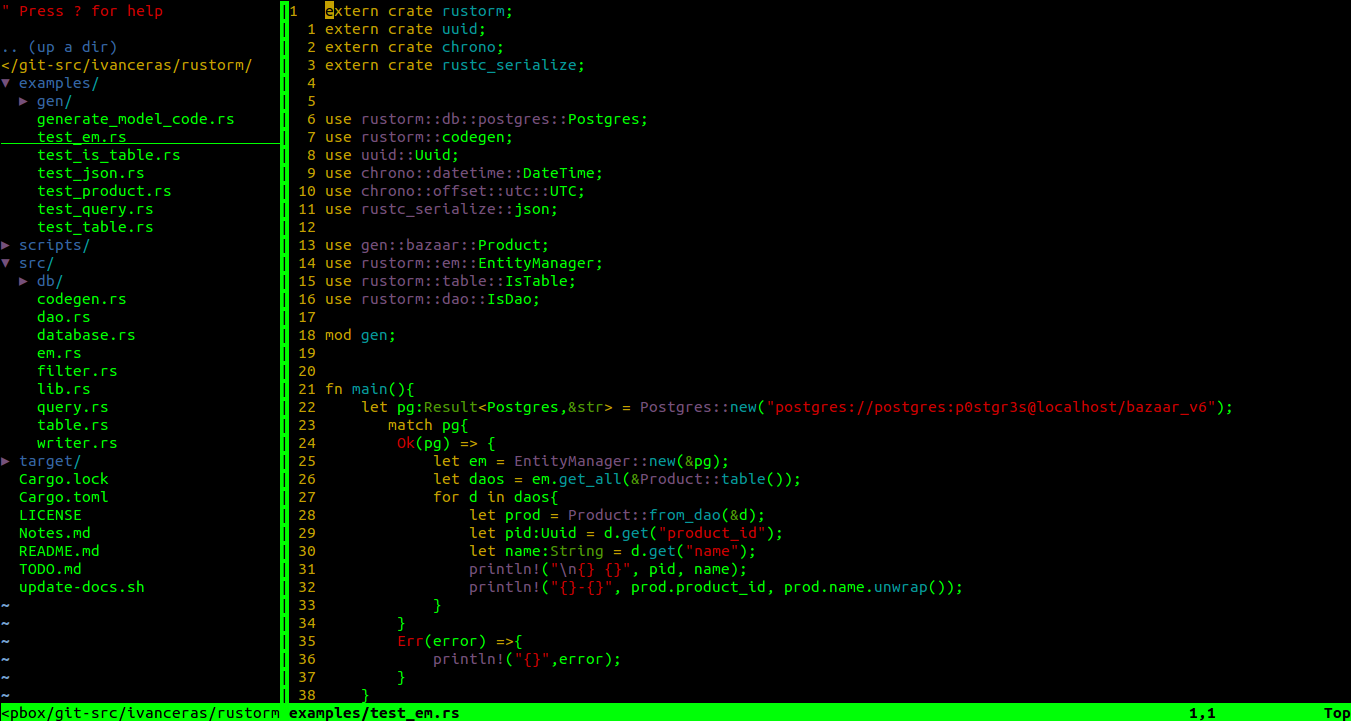
Try to view some files
vi main.rs
- It should look something like this
Enable mouse support
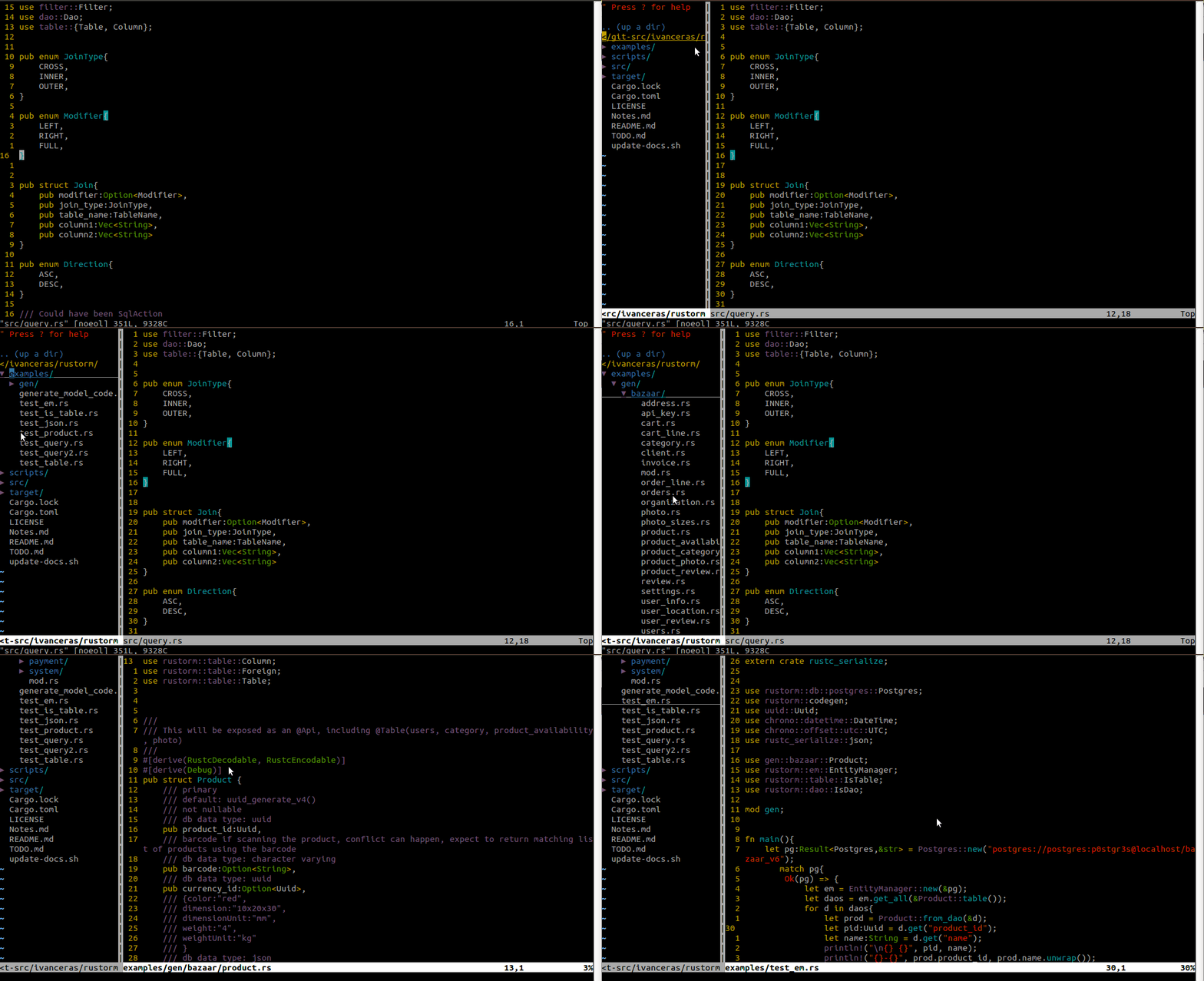
If you want to use the mouse to point and click files and move the cursor around, add this to your ~/.vimrc
"enable mouse support
set mouse=a
Additionally, you can use arrow keys to move the cursor around.
However, if you are really serious about using vi and want to maximize your vi skills, you should minimize the use of the arrow keys or the mouse.
A helpful vim cheatsheet at
Automatically reload files when changed
Sometimes some of your files might get edited outside of your current vi session, such as other editors/code generators, dropbox sync, git pulls.
- Add this to your
~/.vimrcto refresh them automatically
" check file change every 4 seconds ('CursorHold') and reload the buffer upon detecting change
set autoread
au CursorHold * checktime
Enable the global Clipboard in vim
In Linux distros, you have to install vim-gtk to gain clipboard functionality.
sudo apt-get install vim-gtk
Then you can
Copy to + register, which is the global/OS clipboard
"+y
Paste from + register
"+p
Pasting is equivalent to <CTRL>-<SHIFT>-v in insert mode.
It is equivalent to pasting (<CTRL>-v) in terminal.
One step install for those who have never used vim before or people who want to do it automatically
- This will replace your existing
~/.vimrcand.vim, if you have one - Don't hold me responsible for breaking your vim configuration, your laundry machine or anything else that would make you angry.
sudo apt-get install curl

curl -sSf https://raw.githubusercontent.com/ivanceras/rustupefy/master/setup.sh | sh
Update
- Update it via (same as setup)
curl -sSf https://raw.githubusercontent.com/ivanceras/rustupefy/master/setup.sh | sh
Uninstall
curl -sSf https://raw.githubusercontent.com/ivanceras/rustupefy/master/uninstall.sh | sh
Contributors


Similar repos


README
Use VIM as your RUST IDE
Install vim first, if its not already
sudo apt-get install vim
If vi worked in your command line, it is most likely the light version of vi which is installed by default in Ubuntu, and it lacks most functionality of the real vi.
You also need to install
curlgitCMake- Python Headers
- Development Tools
I assume most of you have already installed it, if not then install it via
sudo apt-get install curl
sudo apt-get install git
sudo apt-get install build-essential cmake
sudo apt-get install python-dev python3-dev
Install pathogen plugin
Pathogen is a vim plugin which allows you to easily install other plugins, by just adding files into the ~/.vim/bundle (There are other alternatives, but pathogen is most commonly used)
mkdir -p ~/.vim/autoload ~/.vim/bundle
curl -LSso ~/.vim/autoload/pathogen.vim https://tpo.pe/pathogen.vim
- Add this to
~/.vimrc
execute pathogen#infect()
syntax on
filetype plugin indent on
Install syntax highlighting for rust
cd ~/.vim/bundle
git clone https://github.com/rust-lang/rust.vim.git
Install YouCompleteMe
YouCompleteMe - a code-completion engine for Vim with support for C-family languages and Rust
cd ~/.vim/bundle

git clone https://github.com/Valloric/YouCompleteMe

cd ~/.vim/bundle/YouCompleteMe

git submodule update --init --recursive

./install.py --rust-completer
- Download source code of the rust version you are using, for example master branch
- Extract the zip file and put in your Development folder ie.
~/Developer - Checkout and build racer
mkdir -p ~/Developer/
cd ~/Developer/
git clone --depth 1 --branch master https://github.com/rust-lang/rust rust-master
Add this to your .vimrc
let g:ycm_rust_src_path="/home/<username>/Developer/rust-master/src/"
Install Vim number toggle
vim-numbertoggle adds line numbers to the code you are editing.
Line numbers can either show absolute position or position relative to your cursor location.
This will boost your productivity later, when you orchestrate vim commands such as moving 10 lines below the current cursor position: 10j.
cd ~/.vim/bundle
git clone git://github.com/jeffkreeftmeijer/vim-numbertoggle.git
Install NERDtree for displaying files in a tab
NERDTree is a file manager, that most text editors have, such as sublime, atom, or eclipse where it lists the files in the directory you are editing from.
cd ~/.vim/bundle
git clone https://github.com/scrooloose/nerdtree.git
- Add this to
~/.vimrc
autocmd VimEnter * NERDTree
autocmd BufEnter * NERDTreeMirror

"CTRL-t to toggle tree view with CTRL-t
nmap <silent> <C-t> :NERDTreeToggle<CR>
"Set F2 to put the cursor to the nerdtree
nmap <silent> <F2> :NERDTreeFind<CR>
Controls
CTRL-t  - Open/Close the files tab
CTRL-n  - Toggle relative / absolute numbering
CTRL-ww - Switch between the files tab and the main window
F2      - Focus cursor to files tab
<Enter> - Open the focused files/directory, duh!
h,j,k,l - Navigate the cursor left, down, up, right respectively
i       - Insert mode, you can start typing in your code.
<ESC>   - Back to default mode, where you can issue commands in vi
:w      - Write/save the file, you are editing
:wqa    - Save the file, then quit the editor closing vi including the files tab
Some advance commands
:bp                 - Open previous file/buffer
:bn                 - Open next file/buffer
:b <filename-part>  - Open the file you are looking for without typing the exact filename
:vsp                - Vertically split the window
:vsp <filename>     - Open the file in vertical split
:sp                 - Horizontal split
:sp <filename>      - Open the file in horizontal split
- You don't really have to quit the editor using
wqwhenever you want to build the project. A convenient way is to open a new tab in a terminal via<CTRL>-<SHIFT>-tand issue your command (cargo build --release) from there. That way, you don't lose the state of your editor, i.e. you can undouor redo<CTRL>-ryour code changes when needed
Compile without opening another tab
Alternatively, you can compile your project without opening another terminal instance by issuing the command directly from vim using :! <external terminal command>
:! cargo run --release
Try to view some files
vi main.rs
- It should look something like this
Enable mouse support
If you want to use the mouse to point and click files and move the cursor around, add this to your ~/.vimrc
"enable mouse support
set mouse=a
Additionally, you can use arrow keys to move the cursor around.
However, if you are really serious about using vi and want to maximize your vi skills, you should minimize the use of the arrow keys or the mouse.
A helpful vim cheatsheet at
Automatically reload files when changed
Sometimes some of your files might get edited outside of your current vi session, such as other editors/code generators, dropbox sync, git pulls.
- Add this to your
~/.vimrcto refresh them automatically
" check file change every 4 seconds ('CursorHold') and reload the buffer upon detecting change
set autoread
au CursorHold * checktime
Enable the global Clipboard in vim
In Linux distros, you have to install vim-gtk to gain clipboard functionality.
sudo apt-get install vim-gtk
Then you can
Copy to + register, which is the global/OS clipboard
"+y
Paste from + register
"+p
Pasting is equivalent to <CTRL>-<SHIFT>-v in insert mode.
It is equivalent to pasting (<CTRL>-v) in terminal.
One step install for those who have never used vim before or people who want to do it automatically
- This will replace your existing
~/.vimrcand.vim, if you have one - Don't hold me responsible for breaking your vim configuration, your laundry machine or anything else that would make you angry.
sudo apt-get install curl

curl -sSf https://raw.githubusercontent.com/ivanceras/rustupefy/master/setup.sh | sh
Update
- Update it via (same as setup)
curl -sSf https://raw.githubusercontent.com/ivanceras/rustupefy/master/setup.sh | sh
Uninstall
curl -sSf https://raw.githubusercontent.com/ivanceras/rustupefy/master/uninstall.sh | sh