Cloud Identity, MFA and Compliance for Linux
See the code

Himmelblau is an interoperability suite for Microsoft Azure Entra ID and Intune.
The name of the project comes from a German word for Azure (sky blue).
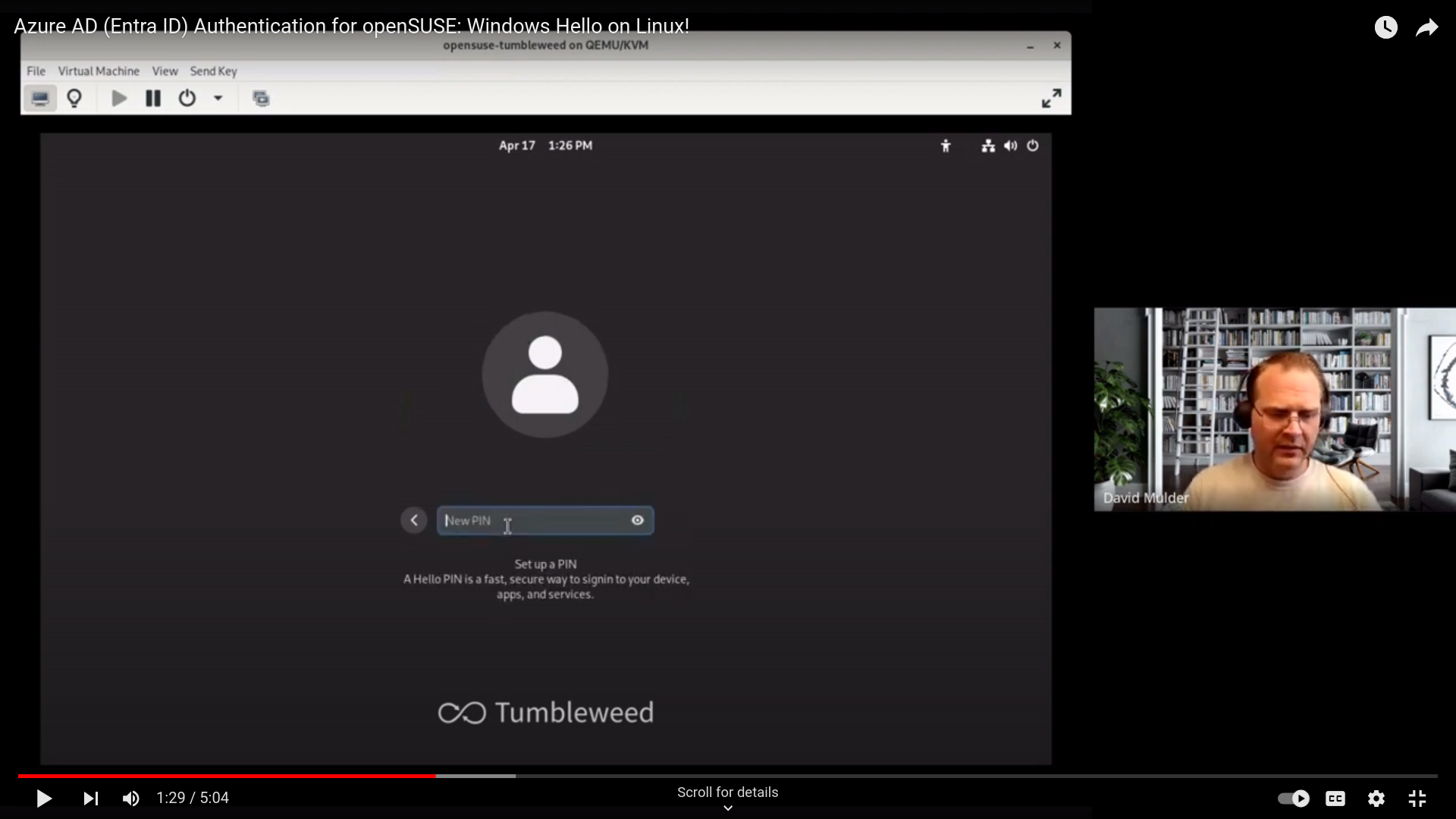
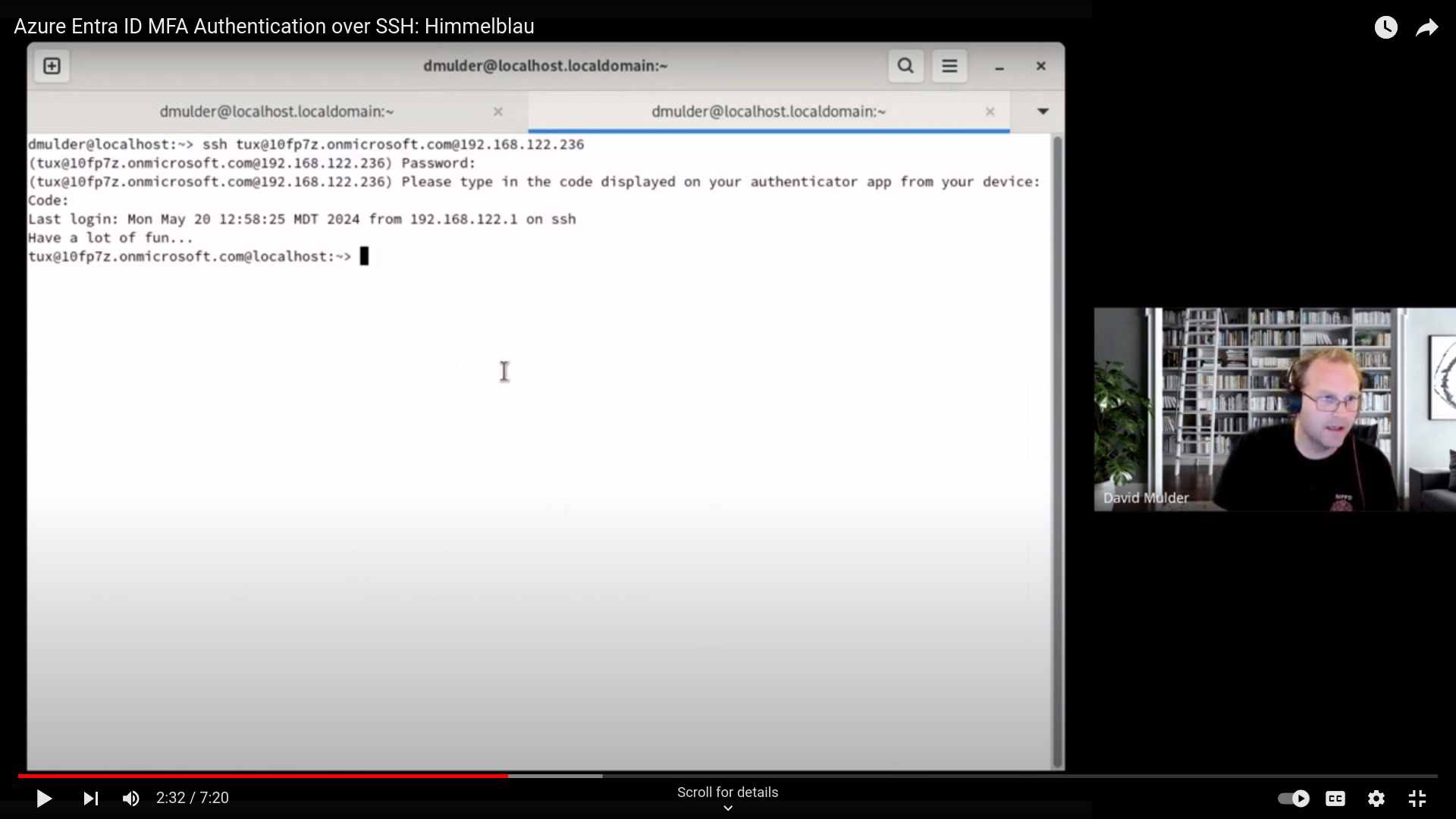
Himmelblau supports Linux authentication to Microsoft Azure Entra ID via PAM and NSS modules. The PAM and NSS modules communicate with Entra ID via the himmelblaud daemon. Himmelblau also supports Intune device enrollment, policy enforcement, and marking devices as compliant with Intune MDM policies.
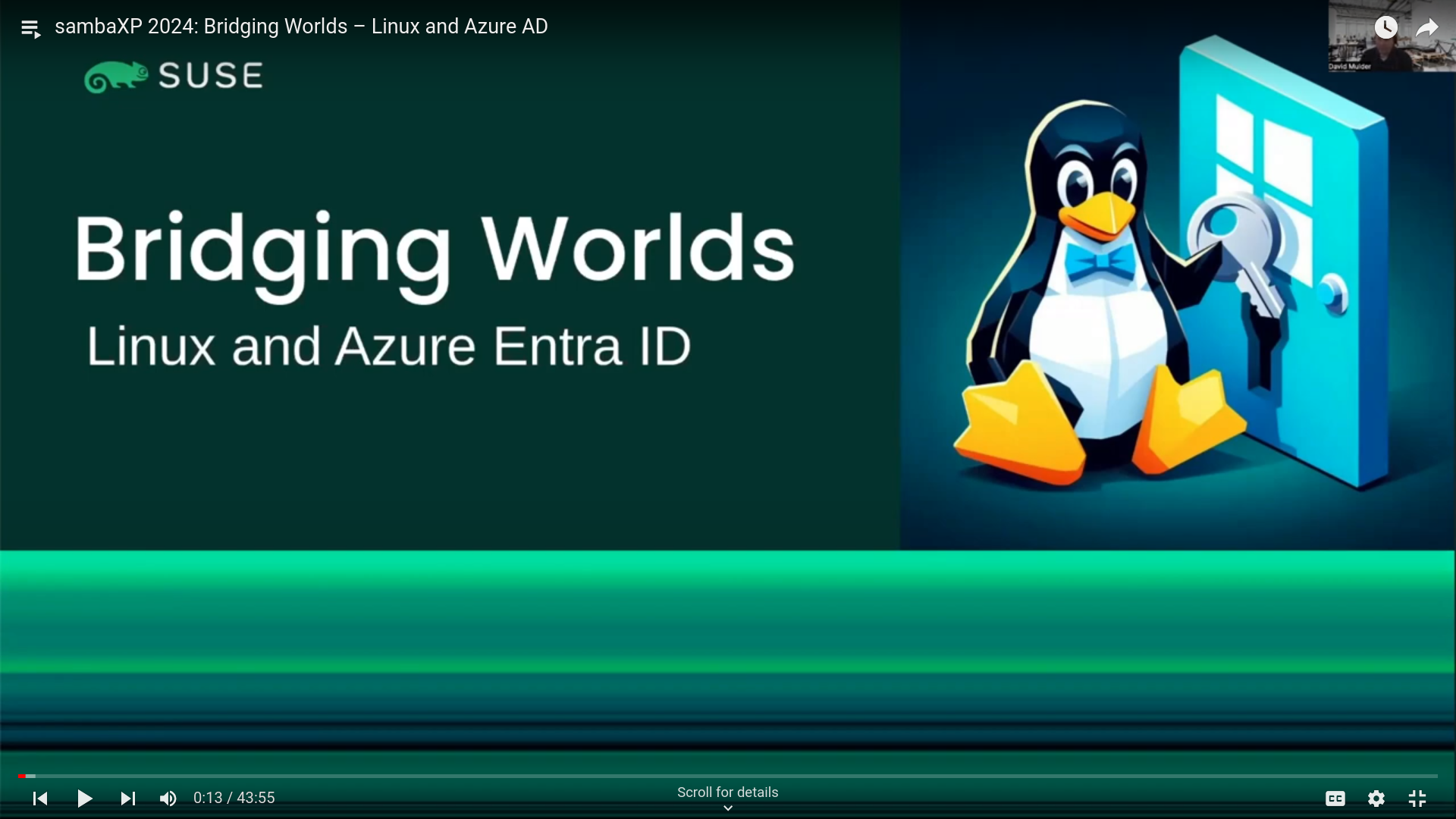

We gratefully acknowledge SUSE as the primary sponsor of the Himmelblau project. Their support enables us to develop and maintain this open-source identity management solution.
You can reach out on the Himmelblau community matrix channel or on the Samba Technical community matrix channel.
Himmelblau is developed and maintained with significant support from SUSE Linux. Community financial support helps sustain project infrastructure, maintenance, and ongoing development.
Your support helps keep cloud identity for Linux open and available to everyone.
👉 Sponsor Himmelblau or support a development priority
Himmelblau is available for multiple Linux distributions, including openSUSE, SUSE Linux Enterprise (SLE), Fedora, Ubuntu, Debian, Red Hat Enterprise Linux (Rocky), and NixOS. Visit the Himmelblau Downloads Page to fetch the appropriate packages for your distribution.
For openSUSE Tumbleweed, refresh the repositories and install Himmelblau:
sudo zypper ref && sudo zypper in himmelblau nss-himmelblau pam-himmelblau himmelblau-sso
Leap 15.6 and SUSE Linux Enterprise 15 SP6 are no longer supported build targets. Visit the Himmelblau Downloads Page for current SUSE availability and entitlement-based installation instructions.
Download the RPMs from the Downloads Page and install:
sudo dnf install ./himmelblau-<version>.rpm ./himmelblau-sshd-config-<version>.rpm ./himmelblau-sso-<version>.rpm ./nss-himmelblau-<version>.rpm ./pam-himmelblau-<version>.rpm
Download the DEB packages and install:
sudo apt install ./himmelblau_<version>.deb ./himmelblau-sshd-config_<version>.deb ./himmelblau-sso_<version>.deb ./nss-himmelblau_<version>.deb ./pam-himmelblau_<version>.deb
Himmelblau provides multiple packages and a module:
These are automatically installed if you use the module:
himmelblau.packages.<arch>.daemon: The core authentication daemon intended for server deployments.himmelblau.packages.<arch>.pam: Required for the pam integration to work - your daemon is a bit useless without it.himmelblau.packages.<arch>.nss: Required for the nss integration to work - your daemon is a bit useless without it.himmelblau.packages.<arch>.broker: This one is a userspace daemon that responds to calls from the sso package.You may want to install this one extra if you use a browser other than firefox / chrome:
himmelblau.packages.<arch>.sso: Used to facilitate the communication to the brokerThese packages are optional and need to be installed by you:
himmelblau.packages.<arch>.aad-tool: The cli to interact with your daemon - you probably want to install it.himmelblau.packages.<arch>.o365: Installs teams-for-linux with shortcuts to the o365 suitehimmelblau.packages.<arch>.collabora: Experimental Collabora Office Microsoft 365 bridge. See its setup and removal instructions.The Nix packages include TPM support. The Himmelblau module enables security.tpm2.enable by default and adds
the daemon to the configured TPM access group. An explicit security.tpm2.enable = false; disables this, but
the module will reject this override when hsm_type = "tpm" and the system is configured to use the default or
another device TCTI. Remote TCTIs do not require local TPM access. You can check the runtime Himmelblau TPM
status with sudo aad-tool tpm.
Himmelblau builds our packages in CI and uploads them to Cachix so you don't have to compile the software on every update. We sign these binaries before upload, and the cachix client will configure nix to trust our public signing key.
$ nix profile install 'nixpkgs#cachix'
$ cachix use himmelblau
If you use a sources manager like npins (or lon) you can add the himmelblau by executing:
npins add github himmelblau-idm himmelblau -b main
{
  lib,
  sources ? (import ./npins),
  config,
  ...
}:
let
  himmelblau = import sources.himmelblau { inherit pkgs; };
in {
    imports = [ himmelblau.nixosModules.himmelblau ];

    # To execute `aad-tool` you may want to add it to your system path
    environment.systemPackages = [
      himmelblau.packages.aad-tool
      # himmelblau.packages.o365 # <-- if you want the o365 suite with `teams-for-linux`
      # himmelblau.packages.sso # <-- if you use an other browser than firefox / chrome
    ];

    services.himmelblau.enable = true;
    # Not required. But you most certainly want to set `domain` and `pam_allow_groups`
    services.himmelblau.settings = {
        domain = "my.domain.net";
        pam_allow_groups = [ "ENTRA-GROUP-GUID-HERE" ];
        local_groups = [ "wheel" "docker" ];
    };
}
Classic NixOS configurations can use the builtins.getFlake function if they have enabled flakes compatability.
{lib, config, ...}:
let himmelblau = builtins.getFlake "github:himmelblau-idm/himmelblau";
in {
    imports = [ himmelblau.nixosModules.himmelblau ];

    # To execute `aad-tool` you may want to add `himmelblau` to your system path
    environment.systemPackages = [
      himmelblau.packages.aad-tool
      # himmelblau.packages.o365 # <-- if you want the o365 suite with `teams-for-linux`
      # himmelblau.packages.sso # <-- if you use an other browser than firefox / chrome
    ];

    services.himmelblau.enable = true;
    # Not required. But you most certainly want to set `domain` and `pam_allow_groups`
    services.himmelblau.settings = {
        domain = "my.domain.net";
        pam_allow_groups = [ "ENTRA-GROUP-GUID-HERE" ];
        local_groups = [ "wheel" "docker" ];
    };
}
Flake based configurations add this repository to their inputs and enable the service.
{
    inputs = {
        nixpkgs.url = "github:nixos/nixpkgs/nixos-unstable";
        himmelblau.url = "github:himmelblau-idm/himmelblau/main";
        himmelblau.inputs.nixpkgs.follows = "nixpkgs";
    };
    outputs = { self, nixpkgs, himmelblau }: {
        nixosModules.azureEntraId = { config, pkgs, lib, ... }: {
            imports = [ himmelblau.nixosModules.himmelblau ];
            environment.systemPackages = [
              himmelblau.packages."x86_64-linux".aad-tool
              # himmelblau.packages."x86_64-linux".o365 # <-- if you want the o365 suite with `teams-for-linux`
              # himmelblau.packages.sso # <-- if you use an other browser than firefox / chrome
            ];
            services.himmelblau = {
                enable = true;
                # Not required. But you most certainly want to set `domain` and `pam_allow_groups`
                settings = {
                    domain = "my.domain.net";
                    pam_allow_groups = [ "ENTRA-GROUP-GUID-HERE" ];
                    local_groups = [ "wheel" "docker" ];
                };
            };
        };
        nixosConfigurations."your-machine" = nixpkgs.lib.nixosSystem {
            system = "x86_64-linux";
            modules = [
                self.nixosModules.azureEntraId
                ./machines/your-machine/configuration.nix
            ];
        };
    };
}
When a device authorization response includes verification_uri_complete, Himmelblau shows that complete URL in the QR code so users can scan and continue sign-in without typing the user code. If the complete URL is not provided, the QR code falls back to verification_uri and the user code prompt remains required.
Note: The packages you build here are from the current development branch and are intended for testing and evaluation. Do not deploy to production. Use a VM or a non-critical host.
This detects your distro and builds the matching packages (inside a container).
Artifacts land in ./packaging/.
Docker BuildKit is required to enable cache volumes.
make
This installs whatever is already in ./packaging/.
sudo make install
Under the hood, make install uses your system package manager (apt, dnf/yum,
zypper, or pacman) to install the locally built packages.
You can also target specific distros explicitly. Available targets (as of now):
ubuntu22.04 ubuntu24.04 ubuntu26.04 debian12 debian13rocky8 rocky9 rocky10 fedora43 fedora44 rawhidesle15sp7 sle16 tumbleweedExamples:
# Build Ubuntu 22.04 packages
make ubuntu22.04

# Build Rocky 9 packages
make rocky9

# Build openSUSE Tumbleweed packages
make tumbleweed
Packages will be written to ./packaging/. You can then copy them to a target machine and install with the native package manager.
Note (SLE targets): SLE 15 SP7 uses an official SP7 BCI development image with the public SP7 Backports and Backports Update repositories. SLE 16 uses its free BCI base with the Leap 16 OSS repository. No SCC credentials are required.
sudo make uninstall # removes installed Himmelblau packages
vim /etc/himmelblau/himmelblau.conf
It's essential that you configure the domains option, otherwise
no users will be able to authenticate.
Run the daemon with:
sudo systemctl start himmelblaud himmelblaud-tasks
Check systemd journal for errors.
Disable nscd
systemctl stop nscd
systemctl disable nscd
systemctl mask nscd
Setup NSS
cp /usr/etc/nsswitch.conf /etc/nsswitch.conf

# vim /etc/nsswitch.conf
passwd:     compat systemd himmelblau
group:      compat systemd himmelblau
shadow:     compat systemd himmelblau
Check that you can resolve a user with
getent passwd <name>
Setup PAM
WARNING only modify your PAM configuration if you are confident you understand the syntax. The following setup is meant as an example. Removing PAM modules from your stack may prevent you from authenticating to the host. Proceed with caution!
old /etc/pam.d/{common-account,common-auth,common-password,common-session}
cp /etc/pam.d/common-password-pc /etc/pam.d/common-password
cp /etc/pam.d/common-auth-pc /etc/pam.d/common-auth
cp /etc/pam.d/common-account-pc /etc/pam.d/common-account
cp /etc/pam.d/common-session-pc /etc/pam.d/common-session

# vim /etc/pam.d/common-auth
auth        required      pam_env.so
auth        [default=1 ignore=ignore success=ok] pam_localuser.so
auth        sufficient    pam_himmelblau.so
auth        sufficient    pam_unix.so nullok try_first_pass
auth        required      pam_deny.so

# vim /etc/pam.d/common-account
account    [success=ok auth_err=die default=ignore] pam_himmelblau.so ignore_unknown_user
account    sufficient    pam_unix.so
account    required      pam_deny.so

# vim /etc/pam.d/common-session
session optional    pam_systemd.so
session required    pam_limits.so
session optional    pam_himmelblau.so
session optional    pam_unix.so try_first_pass
session optional    pam_umask.so
session optional    pam_env.so

# vim /etc/pam.d/common-password
password	sufficient	pam_himmelblau.so ignore_unknown_user
password        optional        pam_gnome_keyring.so    use_authtok
password	sufficient	pam_unix.so	use_authtok nullok shadow try_first_pass
password	required	pam_deny.so
If you need to generate a Himmelblau developer build (for advanced debugging with proxy traffic capture),
please see DEVELOPER-BUILDS.md in this repository.
🚨 Note: Developer builds enable sensitive authentication traffic to be proxied for debugging. They are never intended for production environments.
603 followers · starred Jul 2026
1,387 followers · starred Mar 2026
1,067 followers · starred May 2025
546 followers · starred Apr 2026
Cloud Identity, MFA and Compliance for Linux
See the code
Himmelblau is an interoperability suite for Microsoft Azure Entra ID and Intune.
The name of the project comes from a German word for Azure (sky blue).
Himmelblau supports Linux authentication to Microsoft Azure Entra ID via PAM and NSS modules. The PAM and NSS modules communicate with Entra ID via the himmelblaud daemon. Himmelblau also supports Intune device enrollment, policy enforcement, and marking devices as compliant with Intune MDM policies.
We gratefully acknowledge SUSE as the primary sponsor of the Himmelblau project. Their support enables us to develop and maintain this open-source identity management solution.
You can reach out on the Himmelblau community matrix channel or on the Samba Technical community matrix channel.
Himmelblau is developed and maintained with significant support from SUSE Linux. Community financial support helps sustain project infrastructure, maintenance, and ongoing development.
Your support helps keep cloud identity for Linux open and available to everyone.
👉 Sponsor Himmelblau or support a development priority
Himmelblau is available for multiple Linux distributions, including openSUSE, SUSE Linux Enterprise (SLE), Fedora, Ubuntu, Debian, Red Hat Enterprise Linux (Rocky), and NixOS. Visit the Himmelblau Downloads Page to fetch the appropriate packages for your distribution.
For openSUSE Tumbleweed, refresh the repositories and install Himmelblau:
sudo zypper ref && sudo zypper in himmelblau nss-himmelblau pam-himmelblau himmelblau-sso
Leap 15.6 and SUSE Linux Enterprise 15 SP6 are no longer supported build targets. Visit the Himmelblau Downloads Page for current SUSE availability and entitlement-based installation instructions.
Download the RPMs from the Downloads Page and install:
sudo dnf install ./himmelblau-<version>.rpm ./himmelblau-sshd-config-<version>.rpm ./himmelblau-sso-<version>.rpm ./nss-himmelblau-<version>.rpm ./pam-himmelblau-<version>.rpm
Download the DEB packages and install:
sudo apt install ./himmelblau_<version>.deb ./himmelblau-sshd-config_<version>.deb ./himmelblau-sso_<version>.deb ./nss-himmelblau_<version>.deb ./pam-himmelblau_<version>.deb
Himmelblau provides multiple packages and a module:
These are automatically installed if you use the module:
himmelblau.packages.<arch>.daemon: The core authentication daemon intended for server deployments.himmelblau.packages.<arch>.pam: Required for the pam integration to work - your daemon is a bit useless without it.himmelblau.packages.<arch>.nss: Required for the nss integration to work - your daemon is a bit useless without it.himmelblau.packages.<arch>.broker: This one is a userspace daemon that responds to calls from the sso package.You may want to install this one extra if you use a browser other than firefox / chrome:
himmelblau.packages.<arch>.sso: Used to facilitate the communication to the brokerThese packages are optional and need to be installed by you:
himmelblau.packages.<arch>.aad-tool: The cli to interact with your daemon - you probably want to install it.himmelblau.packages.<arch>.o365: Installs teams-for-linux with shortcuts to the o365 suitehimmelblau.packages.<arch>.collabora: Experimental Collabora Office Microsoft 365 bridge. See its setup and removal instructions.The Nix packages include TPM support. The Himmelblau module enables security.tpm2.enable by default and adds
the daemon to the configured TPM access group. An explicit security.tpm2.enable = false; disables this, but
the module will reject this override when hsm_type = "tpm" and the system is configured to use the default or
another device TCTI. Remote TCTIs do not require local TPM access. You can check the runtime Himmelblau TPM
status with sudo aad-tool tpm.
Himmelblau builds our packages in CI and uploads them to Cachix so you don't have to compile the software on every update. We sign these binaries before upload, and the cachix client will configure nix to trust our public signing key.
$ nix profile install 'nixpkgs#cachix'
$ cachix use himmelblau
If you use a sources manager like npins (or lon) you can add the himmelblau by executing:
npins add github himmelblau-idm himmelblau -b main
{
  lib,
  sources ? (import ./npins),
  config,
  ...
}:
let
  himmelblau = import sources.himmelblau { inherit pkgs; };
in {
    imports = [ himmelblau.nixosModules.himmelblau ];

    # To execute `aad-tool` you may want to add it to your system path
    environment.systemPackages = [
      himmelblau.packages.aad-tool
      # himmelblau.packages.o365 # <-- if you want the o365 suite with `teams-for-linux`
      # himmelblau.packages.sso # <-- if you use an other browser than firefox / chrome
    ];

    services.himmelblau.enable = true;
    # Not required. But you most certainly want to set `domain` and `pam_allow_groups`
    services.himmelblau.settings = {
        domain = "my.domain.net";
        pam_allow_groups = [ "ENTRA-GROUP-GUID-HERE" ];
        local_groups = [ "wheel" "docker" ];
    };
}
Classic NixOS configurations can use the builtins.getFlake function if they have enabled flakes compatability.
{lib, config, ...}:
let himmelblau = builtins.getFlake "github:himmelblau-idm/himmelblau";
in {
    imports = [ himmelblau.nixosModules.himmelblau ];

    # To execute `aad-tool` you may want to add `himmelblau` to your system path
    environment.systemPackages = [
      himmelblau.packages.aad-tool
      # himmelblau.packages.o365 # <-- if you want the o365 suite with `teams-for-linux`
      # himmelblau.packages.sso # <-- if you use an other browser than firefox / chrome
    ];

    services.himmelblau.enable = true;
    # Not required. But you most certainly want to set `domain` and `pam_allow_groups`
    services.himmelblau.settings = {
        domain = "my.domain.net";
        pam_allow_groups = [ "ENTRA-GROUP-GUID-HERE" ];
        local_groups = [ "wheel" "docker" ];
    };
}
Flake based configurations add this repository to their inputs and enable the service.
{
    inputs = {
        nixpkgs.url = "github:nixos/nixpkgs/nixos-unstable";
        himmelblau.url = "github:himmelblau-idm/himmelblau/main";
        himmelblau.inputs.nixpkgs.follows = "nixpkgs";
    };
    outputs = { self, nixpkgs, himmelblau }: {
        nixosModules.azureEntraId = { config, pkgs, lib, ... }: {
            imports = [ himmelblau.nixosModules.himmelblau ];
            environment.systemPackages = [
              himmelblau.packages."x86_64-linux".aad-tool
              # himmelblau.packages."x86_64-linux".o365 # <-- if you want the o365 suite with `teams-for-linux`
              # himmelblau.packages.sso # <-- if you use an other browser than firefox / chrome
            ];
            services.himmelblau = {
                enable = true;
                # Not required. But you most certainly want to set `domain` and `pam_allow_groups`
                settings = {
                    domain = "my.domain.net";
                    pam_allow_groups = [ "ENTRA-GROUP-GUID-HERE" ];
                    local_groups = [ "wheel" "docker" ];
                };
            };
        };
        nixosConfigurations."your-machine" = nixpkgs.lib.nixosSystem {
            system = "x86_64-linux";
            modules = [
                self.nixosModules.azureEntraId
                ./machines/your-machine/configuration.nix
            ];
        };
    };
}
When a device authorization response includes verification_uri_complete, Himmelblau shows that complete URL in the QR code so users can scan and continue sign-in without typing the user code. If the complete URL is not provided, the QR code falls back to verification_uri and the user code prompt remains required.
Note: The packages you build here are from the current development branch and are intended for testing and evaluation. Do not deploy to production. Use a VM or a non-critical host.
This detects your distro and builds the matching packages (inside a container).
Artifacts land in ./packaging/.
Docker BuildKit is required to enable cache volumes.
make
This installs whatever is already in ./packaging/.
sudo make install
Under the hood, make install uses your system package manager (apt, dnf/yum,
zypper, or pacman) to install the locally built packages.
You can also target specific distros explicitly. Available targets (as of now):
ubuntu22.04 ubuntu24.04 ubuntu26.04 debian12 debian13rocky8 rocky9 rocky10 fedora43 fedora44 rawhidesle15sp7 sle16 tumbleweedExamples:
# Build Ubuntu 22.04 packages
make ubuntu22.04

# Build Rocky 9 packages
make rocky9

# Build openSUSE Tumbleweed packages
make tumbleweed
Packages will be written to ./packaging/. You can then copy them to a target machine and install with the native package manager.
Note (SLE targets): SLE 15 SP7 uses an official SP7 BCI development image with the public SP7 Backports and Backports Update repositories. SLE 16 uses its free BCI base with the Leap 16 OSS repository. No SCC credentials are required.
sudo make uninstall # removes installed Himmelblau packages
vim /etc/himmelblau/himmelblau.conf
It's essential that you configure the domains option, otherwise
no users will be able to authenticate.
Run the daemon with:
sudo systemctl start himmelblaud himmelblaud-tasks
Check systemd journal for errors.
Disable nscd
systemctl stop nscd
systemctl disable nscd
systemctl mask nscd
Setup NSS
cp /usr/etc/nsswitch.conf /etc/nsswitch.conf

# vim /etc/nsswitch.conf
passwd:     compat systemd himmelblau
group:      compat systemd himmelblau
shadow:     compat systemd himmelblau
Check that you can resolve a user with
getent passwd <name>
Setup PAM
WARNING only modify your PAM configuration if you are confident you understand the syntax. The following setup is meant as an example. Removing PAM modules from your stack may prevent you from authenticating to the host. Proceed with caution!
old /etc/pam.d/{common-account,common-auth,common-password,common-session}
cp /etc/pam.d/common-password-pc /etc/pam.d/common-password
cp /etc/pam.d/common-auth-pc /etc/pam.d/common-auth
cp /etc/pam.d/common-account-pc /etc/pam.d/common-account
cp /etc/pam.d/common-session-pc /etc/pam.d/common-session

# vim /etc/pam.d/common-auth
auth        required      pam_env.so
auth        [default=1 ignore=ignore success=ok] pam_localuser.so
auth        sufficient    pam_himmelblau.so
auth        sufficient    pam_unix.so nullok try_first_pass
auth        required      pam_deny.so

# vim /etc/pam.d/common-account
account    [success=ok auth_err=die default=ignore] pam_himmelblau.so ignore_unknown_user
account    sufficient    pam_unix.so
account    required      pam_deny.so

# vim /etc/pam.d/common-session
session optional    pam_systemd.so
session required    pam_limits.so
session optional    pam_himmelblau.so
session optional    pam_unix.so try_first_pass
session optional    pam_umask.so
session optional    pam_env.so

# vim /etc/pam.d/common-password
password	sufficient	pam_himmelblau.so ignore_unknown_user
password        optional        pam_gnome_keyring.so    use_authtok
password	sufficient	pam_unix.so	use_authtok nullok shadow try_first_pass
password	required	pam_deny.so
If you need to generate a Himmelblau developer build (for advanced debugging with proxy traffic capture),
please see DEVELOPER-BUILDS.md in this repository.
🚨 Note: Developer builds enable sensitive authentication traffic to be proxied for debugging. They are never intended for production environments.
603 followers · starred Jul 2026
1,387 followers · starred Mar 2026
1,067 followers · starred May 2025
546 followers · starred Apr 2026