
See what people are saying
README
Cascade
A macOS menu bar utility that arranges windows in a classic Windows-style cascade. Every window gets the same size and is offset diagonally, so its title bar and left edge stay visible and clickable. Windows are grouped by application, and the window that was in front stays on top. On large displays, windows can be split into several side-by-side cascade groups.
App Facts
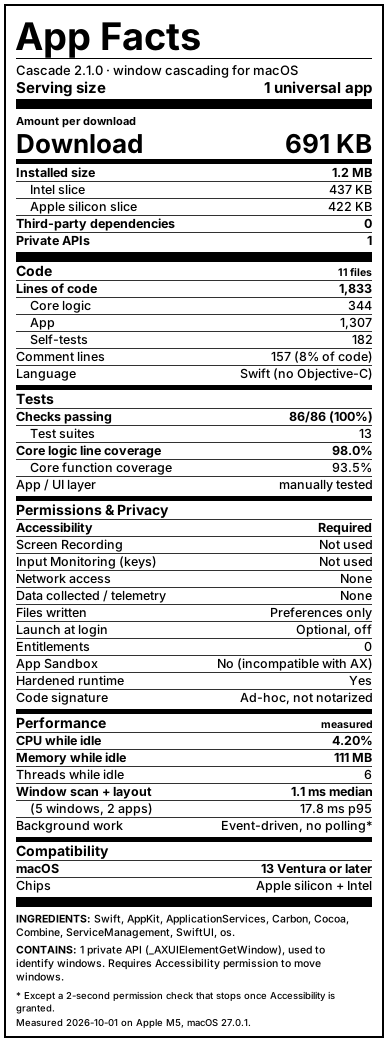
Like a nutrition label, but for software: what's inside, what it can access, and what it costs to run. Every number is measured from the code and the built app.
Installation
- Download the latest Cascade-x.y.z.zip from the Releases page. It runs on Apple silicon and Intel Macs with macOS 13 Ventura or later.
- Unzip it and drag Cascade.app into /Applications.
- Open it. The app is not notarized by Apple, so macOS blocks the first launch: go to System Settings → Privacy & Security, scroll down, and click Open Anyway.
- When asked, turn on Cascade under Privacy & Security → Accessibility. macOS requires this for any app that moves other apps' windows.
The cascade icon appears in the menu bar.
Use
| Action | Shortcut |
|---|---|
| Cascade visible windows | ⌃⌥C |
| Cascade all windows, including minimized windows and hidden apps | ⌃⌥⇧C |
| Snap the focused window into group 1–9 | ⌃⌥1 … ⌃⌥9 |
| Snap by dragging | Hold ⇧ while dragging a window, then drop it on a group |
Everything is also in the menu bar menu. Opening Cascade again from Finder or Spotlight opens Settings. With several displays, each display's windows are cascaded on that display. Cascade only arranges normal windows on the current Space; full-screen windows, panels and dialogs are left alone.
Settings
A live preview at the top of Settings shows the resulting layout.
- Window size: Fill group (windows fill their group and shrink as the stack grows), or a Custom width and height as a percentage of the group.
- Visible part of windows underneath: how many points of each covered window stay visible at the top (title bar) and on the left.
- Cascade groups: number of columns (or automatic, about one per 1280 pt of screen width),
rows, and the gap between groups.
- Group by application: each app's windows stay together and apps are spread evenly across groups. Groups with nothing in them can give their space to the others.
- Manual: pin apps to specific groups. Apps you don't pin are spread across the rest.
- Snapping: turn drag-to-snap on or off, choose its modifier key, and enable ⌃⌥1–9. A snapped window stays in its group until it closes or you choose Reset Snapped Windows.
- Displays: each display gets its own cascade, and windows stay on the display they're on, including minimized windows and windows of hidden apps. You can instead gather every window onto the display under the pointer.
- Keyboard shortcuts: click a shortcut, then press a new one. Esc cancels; Delete clears it.
- Launch at login.
Building from source, releasing, and how the code fits together: docs/DEVELOPMENT.md · docs/ARCHITECTURE.md
Similar repos


Languages
Swift
80.3%
Python
16.1%
Shell
3.6%
See what people are saying
README
Cascade
A macOS menu bar utility that arranges windows in a classic Windows-style cascade. Every window gets the same size and is offset diagonally, so its title bar and left edge stay visible and clickable. Windows are grouped by application, and the window that was in front stays on top. On large displays, windows can be split into several side-by-side cascade groups.
App Facts
Like a nutrition label, but for software: what's inside, what it can access, and what it costs to run. Every number is measured from the code and the built app.
Installation
- Download the latest Cascade-x.y.z.zip from the Releases page. It runs on Apple silicon and Intel Macs with macOS 13 Ventura or later.
- Unzip it and drag Cascade.app into /Applications.
- Open it. The app is not notarized by Apple, so macOS blocks the first launch: go to System Settings → Privacy & Security, scroll down, and click Open Anyway.
- When asked, turn on Cascade under Privacy & Security → Accessibility. macOS requires this for any app that moves other apps' windows.
The cascade icon appears in the menu bar.
Use
| Action | Shortcut |
|---|---|
| Cascade visible windows | ⌃⌥C |
| Cascade all windows, including minimized windows and hidden apps | ⌃⌥⇧C |
| Snap the focused window into group 1–9 | ⌃⌥1 … ⌃⌥9 |
| Snap by dragging | Hold ⇧ while dragging a window, then drop it on a group |
Everything is also in the menu bar menu. Opening Cascade again from Finder or Spotlight opens Settings. With several displays, each display's windows are cascaded on that display. Cascade only arranges normal windows on the current Space; full-screen windows, panels and dialogs are left alone.
Settings
A live preview at the top of Settings shows the resulting layout.
- Window size: Fill group (windows fill their group and shrink as the stack grows), or a Custom width and height as a percentage of the group.
- Visible part of windows underneath: how many points of each covered window stay visible at the top (title bar) and on the left.
- Cascade groups: number of columns (or automatic, about one per 1280 pt of screen width),
rows, and the gap between groups.
- Group by application: each app's windows stay together and apps are spread evenly across groups. Groups with nothing in them can give their space to the others.
- Manual: pin apps to specific groups. Apps you don't pin are spread across the rest.
- Snapping: turn drag-to-snap on or off, choose its modifier key, and enable ⌃⌥1–9. A snapped window stays in its group until it closes or you choose Reset Snapped Windows.
- Displays: each display gets its own cascade, and windows stay on the display they're on, including minimized windows and windows of hidden apps. You can instead gather every window onto the display under the pointer.
- Keyboard shortcuts: click a shortcut, then press a new one. Esc cancels; Delete clears it.
- Launch at login.
Building from source, releasing, and how the code fits together: docs/DEVELOPMENT.md · docs/ARCHITECTURE.md
Similar repos
Languages
Swift
80.3%
Python
16.1%
Shell
3.6%