
README
Grok Skin for Hermes Desktop
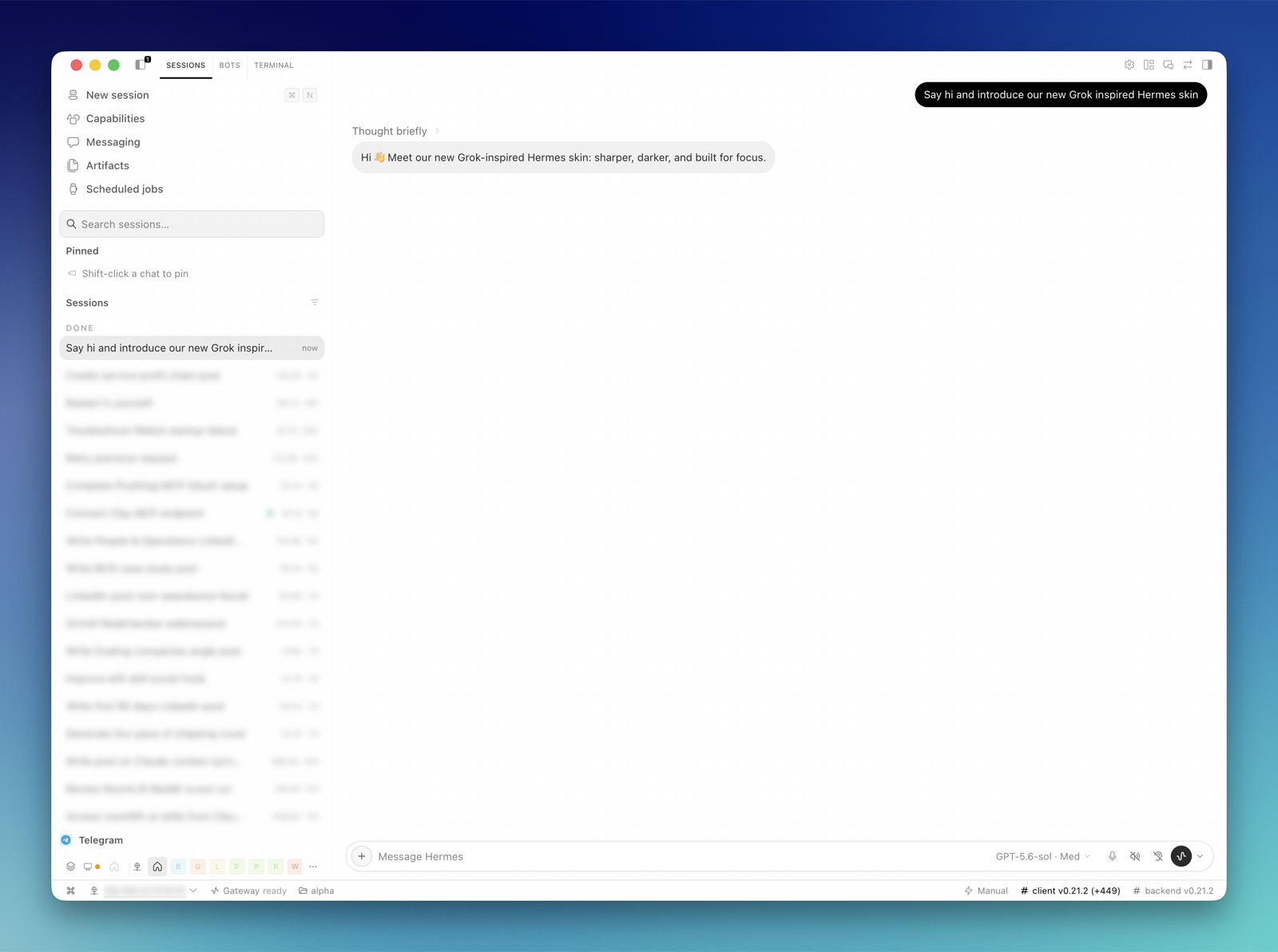
A Grok Bot–inspired skin for Hermes Desktop. It restyles the chat, composer, sidebar and Bots view with white surfaces, soft gray message pills, a black prompt pill and rounder corners throughout, while leaving Hermes' behavior untouched.
[!IMPORTANT] This is an independent community plugin inspired by the look of Grok Bot. It is not affiliated with, endorsed by or connected to xAI or Nous Research. "Grok" is a trademark of its owner and is used here only to describe the visual inspiration.
Status
Early. Tested in Hermes Desktop in light and dark mode. The skin targets
Hermes' data-slot attributes wherever it can, and falls back to some internal
class names and English labels where Hermes offers no attribute. None of these
are a public API, so a future Hermes release can require selector updates.
What it changes
Transcript
- Each part of a reply is its own gray pill, stacked closely together
- Your prompts are solid black pills with white text; their Stop and Restore buttons appear just below the pill on hover
- Tool calls sit in matching gray pills
- Message actions use larger icons on rounded targets with a soft hover, with the reaction first and the time at the far right
- Tooltips are one rounded bubble, even when the text wraps
Composer
- A white rounded field with a ringed
+and a round send button - The hint reads "Message" plus the open bot's name; Hermes' connection hints such as "Reconnecting to Hermes…" still show
- Menus, submenus and popovers get rounder corners, a soft shadow and neutral gray rounded hover rows, including the model menu
Sidebar
- A gray sidebar with a full-width search field
- Section labels such as Pinned, Sessions and Cron jobs in sentence case, without Hermes' checkerboard marker or the rule after date headings
- Session rows reach the sidebar edge, with dots only when they mean something: a session color or a live state, shown at the end of the row, and running sessions in green
Bots view
- Compact avatars with clear titles and message previews
- A green dot on the avatar only while that bot is working
- An orange dot and amber preview while a bot is waiting on you
Everywhere
- A Grok Skin theme in Settings → Appearance with a white and gray light palette and a matching dark palette. Selecting it turns the whole skin on
- The system font, and rounder corners app-wide
Screenshots
| Light | Dark |
|---|---|
| 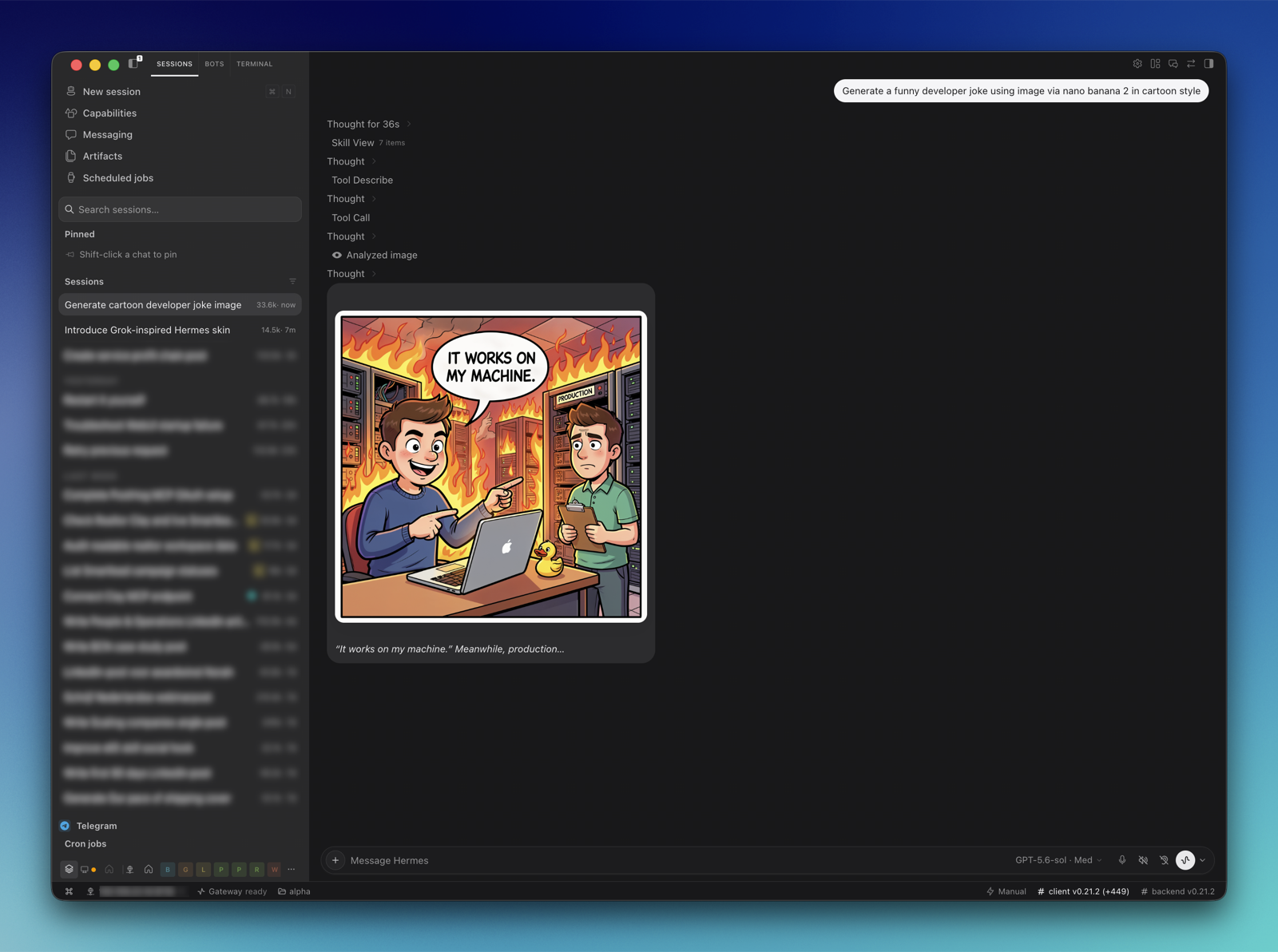 |
| Sessions: prompt and reply pills, sentence-case sections | Sessions: tool call rows and a generated image |
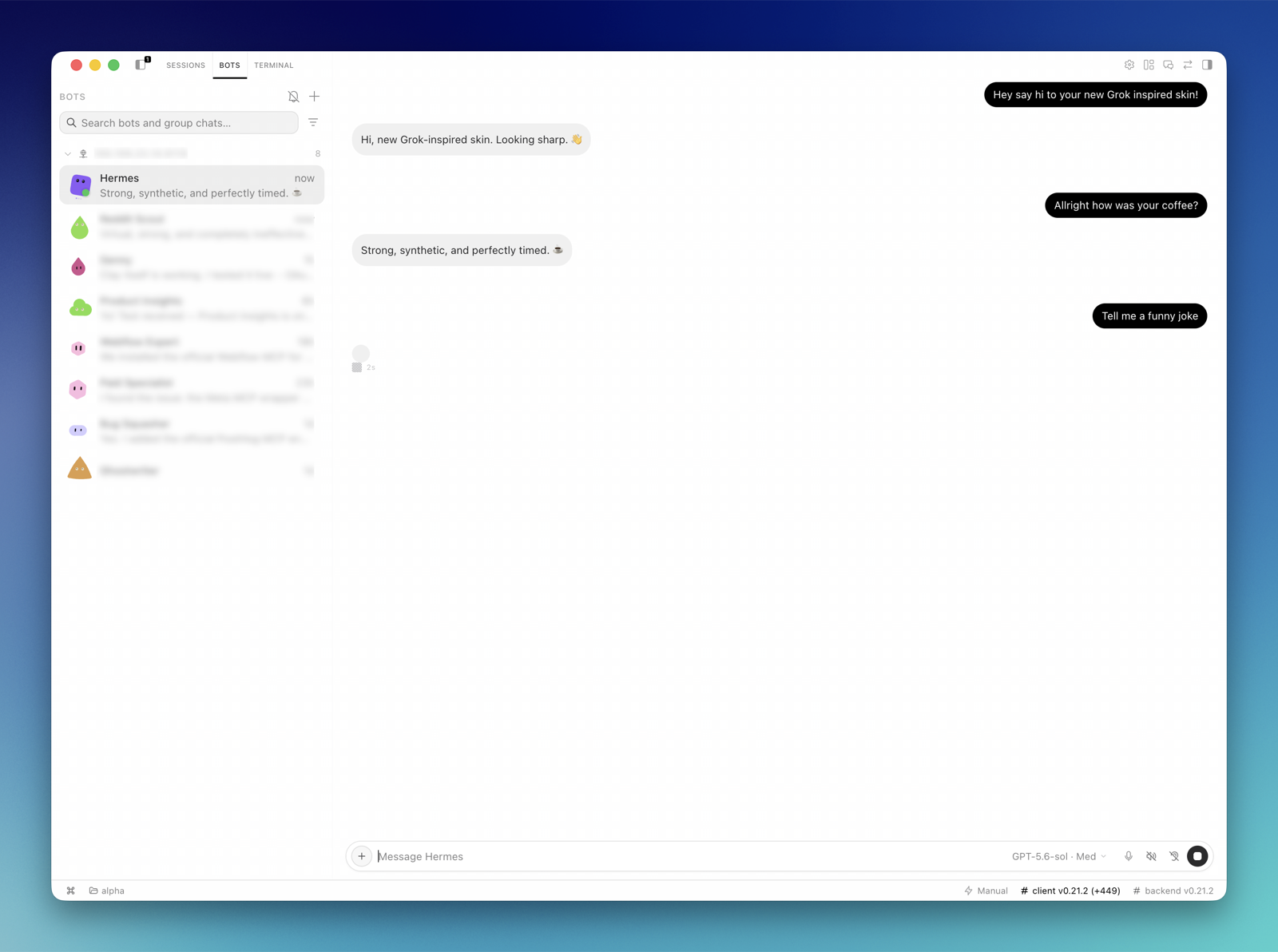 | 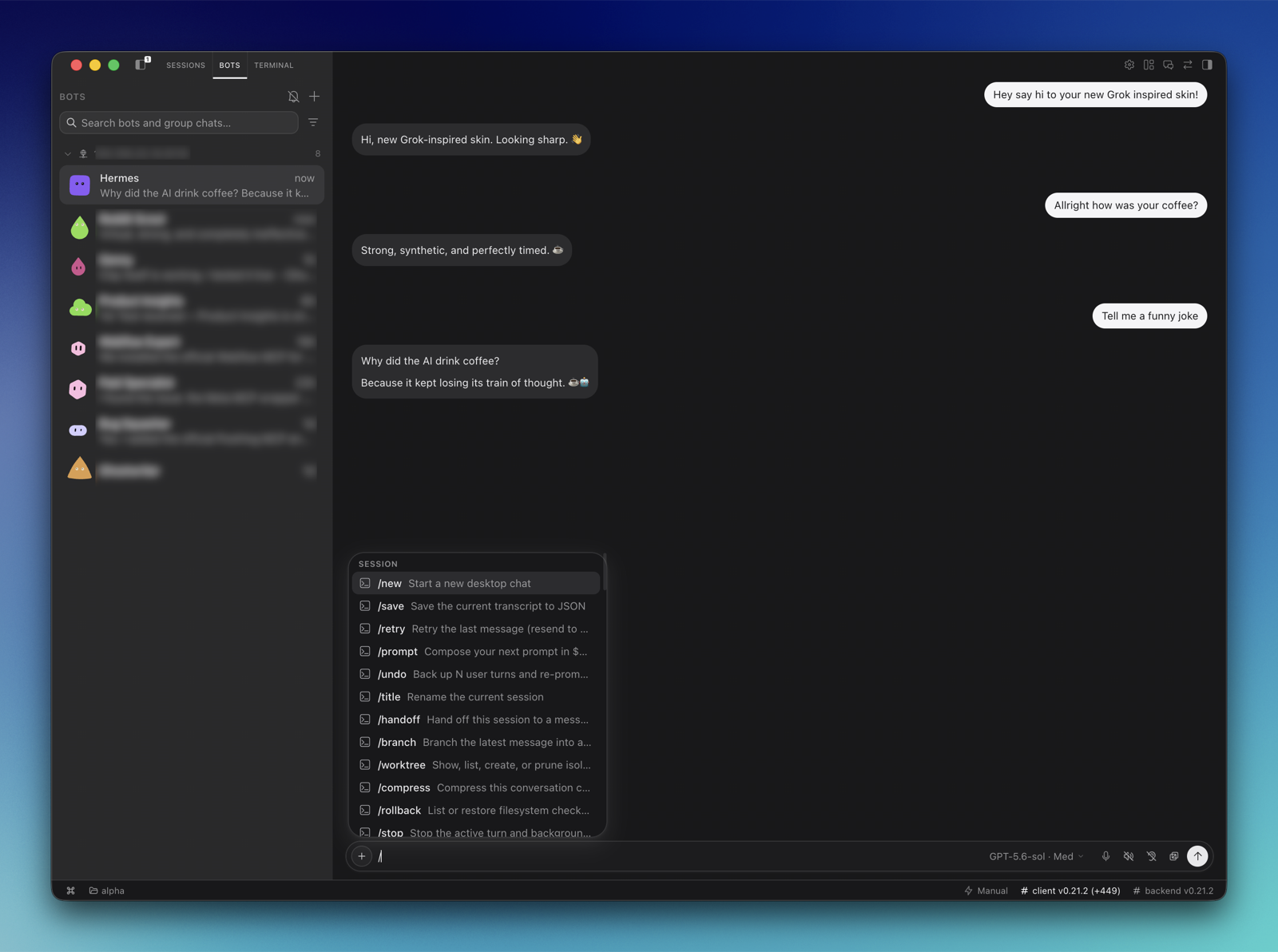 |
| Bots: a green dot while Hermes is working | Bots: the slash command menu above the composer |
Requirements
- Hermes Desktop with desktop plugin support (Settings → Plugins)
- English as the Hermes language for the status and composer-hint details; the rest of the skin works in any language
Install
1. Add the plugin
From Hermes Desktop (recommended). Open Settings → Plugins → Install plugin and paste:
guidsen/hermes-grok-bot-skin/grok-chat-look
Keep the /grok-chat-look suffix: the plugin lives in that folder.
Manual install on macOS or Linux
PLUGIN_DIR="${HERMES_HOME:-$HOME/.hermes}/desktop-plugins/grok-chat-look"
mkdir -p "$PLUGIN_DIR"
curl -fsSL \
  https://raw.githubusercontent.com/guidsen/hermes-grok-bot-skin/main/grok-chat-look/plugin.js \
  -o "$PLUGIN_DIR/plugin.js"
For a named profile, use
~/.hermes/profiles/<profile>/desktop-plugins/grok-chat-look/plugin.js.
Manual install on Windows (PowerShell)
$pluginDir = Join-Path $HOME ".hermes\desktop-plugins\grok-chat-look"
New-Item -ItemType Directory -Force -Path $pluginDir | Out-Null
Invoke-WebRequest `
  -Uri "https://raw.githubusercontent.com/guidsen/hermes-grok-bot-skin/main/grok-chat-look/plugin.js" `
  -OutFile (Join-Path $pluginDir "plugin.js")
Hermes watches the plugin folder and loads the file automatically.
2. Turn it on
Open Settings → Appearance and pick Grok Skin. The skin is tied to its theme: choosing any other theme restores Hermes' own look, and switching back brings the skin back without a reload.
Troubleshooting
- Nothing changes after installing. Check that Grok Skin is enabled under Settings → Plugins and selected under Settings → Appearance. If it still does not show, run Reload desktop plugins from the command palette.
Unexpected token '<'. The file saved is a GitHub web page, not the plugin. Use the install path above or theraw.githubusercontent.comURL, never agithub.com/.../blob/...link.
Settings
| Setting | Values | Default | Where |
|---|---|---|---|
| Grok Skin | On / Off | On after installation | Settings → Plugins |
| Theme | Grok Skin turns the skin on; any other theme turns it off | Hermes choice | Settings → Appearance |
| Chat width | Full / Centered | Full | Command palette |
| Pinned user messages | Off / Hermes | Off | Command palette |
Update
Run the install again. Hermes hot-reloads the replaced file.
Uninstall
Disable Grok Skin under Settings → Plugins, then remove its folder:
rm -rf "${HERMES_HOME:-$HOME/.hermes}/desktop-plugins/grok-chat-look"
On Windows (PowerShell):
Remove-Item -Recurse -Force (Join-Path $HOME ".hermes\desktop-plugins\grok-chat-look")
Known limits
- Session and bot status, and the composer hint, are matched on Hermes' English labels, so those parts only apply with Hermes set to English.
- Some details need markup Hermes does not render, such as a per-bot chat header or a status badge on tool cards.
What it does not do
- It does not change Hermes' model, thinking or session behavior.
- It does not modify Hermes source files.
- It makes no network requests and loads no external assets.
Privacy and authority
Desktop plugins run inside the Hermes renderer with the same authority as the app, so review any plugin before installing it. This one stores only its two settings locally and never reads or stores message content.
Development
npm test
The tests run plugin.js in a sandbox with a stubbed plugin SDK. They check that
every rule stays scoped to the skin, that colors come from theme tokens, and that
the measured geometry in docs/reference-spec.md holds.
Credits
Built by Guido Schmitz.
License
MIT © Guido Schmitz
Contributors

1 commits
See what people are saying
Similar repos


Languages
JavaScript
100.0%
README
Grok Skin for Hermes Desktop
A Grok Bot–inspired skin for Hermes Desktop. It restyles the chat, composer, sidebar and Bots view with white surfaces, soft gray message pills, a black prompt pill and rounder corners throughout, while leaving Hermes' behavior untouched.
[!IMPORTANT] This is an independent community plugin inspired by the look of Grok Bot. It is not affiliated with, endorsed by or connected to xAI or Nous Research. "Grok" is a trademark of its owner and is used here only to describe the visual inspiration.
Status
Early. Tested in Hermes Desktop in light and dark mode. The skin targets
Hermes' data-slot attributes wherever it can, and falls back to some internal
class names and English labels where Hermes offers no attribute. None of these
are a public API, so a future Hermes release can require selector updates.
What it changes
Transcript
- Each part of a reply is its own gray pill, stacked closely together
- Your prompts are solid black pills with white text; their Stop and Restore buttons appear just below the pill on hover
- Tool calls sit in matching gray pills
- Message actions use larger icons on rounded targets with a soft hover, with the reaction first and the time at the far right
- Tooltips are one rounded bubble, even when the text wraps
Composer
- A white rounded field with a ringed
+and a round send button - The hint reads "Message" plus the open bot's name; Hermes' connection hints such as "Reconnecting to Hermes…" still show
- Menus, submenus and popovers get rounder corners, a soft shadow and neutral gray rounded hover rows, including the model menu
Sidebar
- A gray sidebar with a full-width search field
- Section labels such as Pinned, Sessions and Cron jobs in sentence case, without Hermes' checkerboard marker or the rule after date headings
- Session rows reach the sidebar edge, with dots only when they mean something: a session color or a live state, shown at the end of the row, and running sessions in green
Bots view
- Compact avatars with clear titles and message previews
- A green dot on the avatar only while that bot is working
- An orange dot and amber preview while a bot is waiting on you
Everywhere
- A Grok Skin theme in Settings → Appearance with a white and gray light palette and a matching dark palette. Selecting it turns the whole skin on
- The system font, and rounder corners app-wide
Screenshots
| Light | Dark |
|---|---|
| |
| Sessions: prompt and reply pills, sentence-case sections | Sessions: tool call rows and a generated image |
| |
| Bots: a green dot while Hermes is working | Bots: the slash command menu above the composer |
Requirements
- Hermes Desktop with desktop plugin support (Settings → Plugins)
- English as the Hermes language for the status and composer-hint details; the rest of the skin works in any language
Install
1. Add the plugin
From Hermes Desktop (recommended). Open Settings → Plugins → Install plugin and paste:
guidsen/hermes-grok-bot-skin/grok-chat-look
Keep the /grok-chat-look suffix: the plugin lives in that folder.
Manual install on macOS or Linux
PLUGIN_DIR="${HERMES_HOME:-$HOME/.hermes}/desktop-plugins/grok-chat-look"
mkdir -p "$PLUGIN_DIR"
curl -fsSL \
  https://raw.githubusercontent.com/guidsen/hermes-grok-bot-skin/main/grok-chat-look/plugin.js \
  -o "$PLUGIN_DIR/plugin.js"
For a named profile, use
~/.hermes/profiles/<profile>/desktop-plugins/grok-chat-look/plugin.js.
Manual install on Windows (PowerShell)
$pluginDir = Join-Path $HOME ".hermes\desktop-plugins\grok-chat-look"
New-Item -ItemType Directory -Force -Path $pluginDir | Out-Null
Invoke-WebRequest `
  -Uri "https://raw.githubusercontent.com/guidsen/hermes-grok-bot-skin/main/grok-chat-look/plugin.js" `
  -OutFile (Join-Path $pluginDir "plugin.js")
Hermes watches the plugin folder and loads the file automatically.
2. Turn it on
Open Settings → Appearance and pick Grok Skin. The skin is tied to its theme: choosing any other theme restores Hermes' own look, and switching back brings the skin back without a reload.
Troubleshooting
- Nothing changes after installing. Check that Grok Skin is enabled under Settings → Plugins and selected under Settings → Appearance. If it still does not show, run Reload desktop plugins from the command palette.
Unexpected token '<'. The file saved is a GitHub web page, not the plugin. Use the install path above or theraw.githubusercontent.comURL, never agithub.com/.../blob/...link.
Settings
| Setting | Values | Default | Where |
|---|---|---|---|
| Grok Skin | On / Off | On after installation | Settings → Plugins |
| Theme | Grok Skin turns the skin on; any other theme turns it off | Hermes choice | Settings → Appearance |
| Chat width | Full / Centered | Full | Command palette |
| Pinned user messages | Off / Hermes | Off | Command palette |
Update
Run the install again. Hermes hot-reloads the replaced file.
Uninstall
Disable Grok Skin under Settings → Plugins, then remove its folder:
rm -rf "${HERMES_HOME:-$HOME/.hermes}/desktop-plugins/grok-chat-look"
On Windows (PowerShell):
Remove-Item -Recurse -Force (Join-Path $HOME ".hermes\desktop-plugins\grok-chat-look")
Known limits
- Session and bot status, and the composer hint, are matched on Hermes' English labels, so those parts only apply with Hermes set to English.
- Some details need markup Hermes does not render, such as a per-bot chat header or a status badge on tool cards.
What it does not do
- It does not change Hermes' model, thinking or session behavior.
- It does not modify Hermes source files.
- It makes no network requests and loads no external assets.
Privacy and authority
Desktop plugins run inside the Hermes renderer with the same authority as the app, so review any plugin before installing it. This one stores only its two settings locally and never reads or stores message content.
Development
npm test
The tests run plugin.js in a sandbox with a stubbed plugin SDK. They check that
every rule stays scoped to the skin, that colors come from theme tokens, and that
the measured geometry in docs/reference-spec.md holds.
Credits
Built by Guido Schmitz.
License
MIT © Guido Schmitz
See what people are saying
Similar repos
Contributors
1 commits
Languages
JavaScript
100.0%