
obs-cmd is a OBS Command Line interface for obs-websocket v5 the current obs-studio implementation. It is useful on Wayland Linux or to control OBS via terminal
Rust
356
64 commits
updated Aug 26, 2026
README
obs-cmd
obs-cmd is a lightweight, command-line interface for controlling OBS Studio via the obs-websocket v5 protocol. It provides a simple and efficient way to automate your streaming and recording workflows.



Features
- Scene Management: Switch between scenes, get current scene, manage scene collections
- Recording Control: Start, stop, pause, resume recording with chapter creation and status monitoring
- Streaming Control: Start, stop, toggle streaming with status checking
- Source Control: Toggle filters, mute/unmute audio sources, show/hide scene items
- Virtual Camera: Start, stop, toggle virtual camera output
- Replay Buffer: Manage replay buffer with save functionality and status tracking
- Media Inputs: Full media control with play, pause, stop, restart, and seek capabilities
- Input Management: Complete CRUD operations for inputs, settings management, and audio control
- List inputs and available input kinds
- Create, remove, rename, and manage input settings
- Audio controls: volume, mute/unmute/toggle, balance, sync offset, monitor type, tracks
- Get default settings for any input kind
- List special inputs (desktop audio, microphones)
- Screenshots: Capture source screenshots with custom dimensions and compression
- Hotkeys: Trigger any OBS hotkey by name
- Projectors: Open fullscreen and source-specific projectors on multiple monitors
- System Info: Get OBS Studio version and connection information
- Shell Completion: Auto-completion support for bash, zsh, fish, and other shells
See OBS_WEBSOCKET_V5_STATUS.md for detailed protocol compatibility information.
Installation
Binaries
You can download the latest pre-compiled binaries for your operating system from the Releases page.
Linux/macOS:
# Download and extract the appropriate binary for your system
curl -L https://github.com/grigio/obs-cmd/releases/latest/download/obs-cmd-x64-linux.tar.gz | tar xz
chmod +x obs-cmd
sudo mv obs-cmd /usr/local/bin/
From Source
Ensure you have Rust installed, then run the following commands:
git clone https://github.com/grigio/obs-cmd.git
cd obs-cmd
cargo install --path .
Arch Linux
obs-cmd is available on the Arch User Repository (AUR). You can install it using an AUR helper like yay:
yay -S obs-cmd
Gentoo Linux
media-video/obs-cmd is available on Project:GURU.
sudo emerge -av media-video/obs-cmd
Usage
obs-cmd connects to the OBS WebSocket server. By default, it attempts to connect to obsws://localhost:4455 with the password secret. You can configure the WebSocket settings in OBS under Tools → WebSocket Server Settings.
To override the default connection settings, you can use the --websocket flag or set the OBS_WEBSOCKET_URL environment variable:
# Using the --websocket flag
obs-cmd --websocket obsws://<hostname>:<port>/<password> <command>

# Using an environment variable
export OBS_WEBSOCKET_URL=obsws://<hostname>:<port>/<password>
obs-cmd <command>
Commands Reference
Scene Management
# Get current scene
obs-cmd scene current

# Switch to a scene
obs-cmd scene switch "Scene Name"

# Switch scene collection
obs-cmd scene-collection switch "Collection Name"
Recording Control
# Start/stop/toggle recording
obs-cmd recording start
obs-cmd recording stop
obs-cmd recording toggle

# Pause/resume recording
obs-cmd recording pause
obs-cmd recording resume
obs-cmd recording toggle-pause

# Create recording chapters (requires Hybrid MP4 format)
obs-cmd recording create-chapter
obs-cmd recording create-chapter "Chapter Name"

# Check recording status
obs-cmd recording status
obs-cmd recording status-active
Streaming Control
# Start/stop/toggle streaming
obs-cmd streaming start
obs-cmd streaming stop
obs-cmd streaming toggle

# Check streaming status
obs-cmd streaming status
Virtual Camera
# Start/stop/toggle virtual camera
obs-cmd virtual-camera start
obs-cmd virtual-camera stop
obs-cmd virtual-camera toggle
Replay Buffer
# Start/stop/toggle replay buffer
obs-cmd replay start
obs-cmd replay stop
obs-cmd replay toggle

# Save last replay
obs-cmd replay save

# Get last replay path
obs-cmd replay last-replay

# Check replay buffer status
obs-cmd replay status
Audio Control
# Toggle mute state
obs-cmd audio toggle "Mic/Aux"

# Mute/unmute audio devices
obs-cmd audio mute "Desktop Audio"
obs-cmd audio unmute "Mic/Aux"

# Check audio device status
obs-cmd audio status "Mic/Aux"
Filter Management
# Enable/disable filter
obs-cmd filter enable "Source Name" "Filter Name"
obs-cmd filter disable "Source Name" "Filter Name"
obs-cmd filter toggle "Source Name" "Filter Name"
Scene Items
# Enable/disable scene items (show/hide)
obs-cmd scene-item enable "Scene Name" "Source Name"
obs-cmd scene-item disable "Scene Name" "Source Name"
obs-cmd scene-item toggle "Scene Name" "Source Name"
Media Input Control
# Play/pause/stop/restart media
obs-cmd media-input play "Media Source"
obs-cmd media-input pause "Media Source"
obs-cmd media-input stop "Media Source"
obs-cmd media-input restart "Media Source"

# Set cursor position (format: [hh:]mm:ss)
obs-cmd media-input set-cursor "Media Source" "00:30"
obs-cmd media-input set-cursor "Media Source" "1:23:45"
Screenshots
# Save source screenshot
obs-cmd save-screenshot "Webcam" "png" "/path/to/screenshot.png"

# With custom dimensions
obs-cmd save-screenshot "Display Capture" "jpg" "/path/to/screenshot.jpg" --width 1920 --height 1080

# With compression quality (for JPEG)
obs-cmd save-screenshot "Source" "jpg" "/path/to/screenshot.jpg" --compression-quality 90
Projectors
# Open fullscreen projector on specific monitor
obs-cmd fullscreen-projector --monitor-index 1

# Open source projector on specific monitor
obs-cmd source-projector "Webcam" --monitor-index 2
Hotkeys
# Trigger hotkey by name (check OBS Settings → Hotkeys for exact names)
obs-cmd trigger-hotkey "OBSBasic.StartRecording"
obs-cmd trigger-hotkey "OBSBasic.StopRecording"

# Audio mute/unmute hotkeys
obs-cmd trigger-hotkey "libobs.mute"
obs-cmd trigger-hotkey "libobs.unmute"

# Note: Hotkey functionality comes as-is and may not be reliable
# For most operations, use specific commands like 'recording start' instead
System Information
# Get OBS Studio version and info
obs-cmd info
Shell Completion
obs-cmd supports auto-completion for major shells. Generate completion scripts:
# Bash completion
obs-cmd completion bash > ~/.local/share/bash-completion/completions/obs-cmd
source ~/.local/share/bash-completion/completions/obs-cmd

# Zsh completion
obs-cmd completion zsh > ~/.zsh/completions/_obs-cmd
echo 'fpath+=~/.zsh/completions' >> ~/.zshrc
autoload -U compinit && compinit

# Fish completion
obs-cmd completion fish > ~/.config/fish/completions/obs-cmd.fish

# PowerShell completion
obs-cmd completion powershell | Out-File -Encoding utf8 $PROFILE
After setting up completion, you can use Tab to auto-complete commands:
obs-cmd rec<Tab>        # Completes to "recording"
obs-cmd scene sw<Tab>   # Completes to "scene switch"
Integration Examples
Linux/GNOME Shortcuts
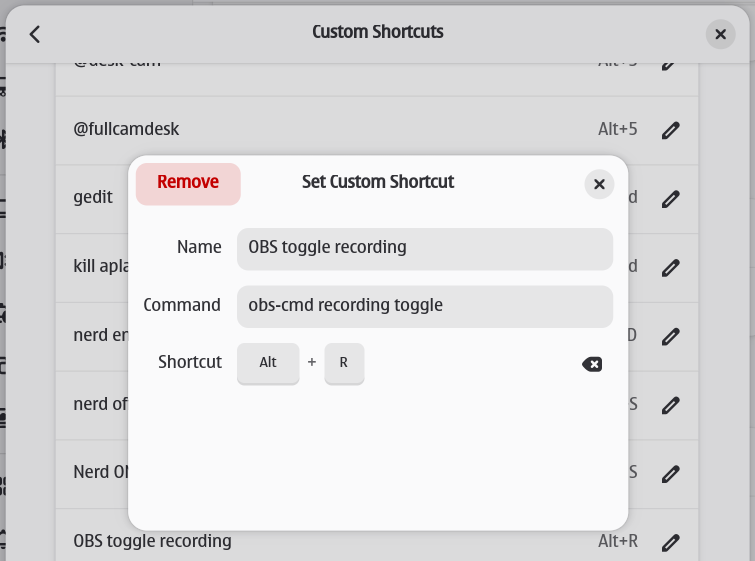
Map obs-cmd commands as global keyboard shortcuts in GNOME Settings:
# Examples for custom shortcuts:
# obs-cmd recording start
# obs-cmd scene switch "Live"
# obs-cmd streaming toggle
Stream Deck Integration
Use obs-cmd with Stream Deck software for one-touch OBS control:
- Add "System: Open" action
- Point to obs-cmd executable with desired command
- Example:
/usr/local/bin/obs-cmd recording toggle
Scripting Examples
# Bash script for stream start sequence
#!/bin/bash
obs-cmd scene switch "Starting Soon"
sleep 5
obs-cmd streaming start
sleep 2
obs-cmd scene switch "Live"
Linux Packages

Requirements
- OBS Studio 30.0+ with obs-websocket v5.5.0+ plugin (for chapter creation support)
- WebSocket Server enabled in OBS (Tools → WebSocket Server Settings)
- Default connection:
obsws://localhost:4455with passwordsecret
Troubleshooting
Connection Issues
# Test connection
obs-cmd info

# Check if OBS WebSocket is running
# In OBS: Tools → WebSocket Server Settings → Enable WebSocket Server
Common Errors
- Connection refused: Ensure OBS WebSocket server is running
- Authentication failed: Check password in OBS WebSocket settings
- Invalid URL format: Use
obsws://hostname:port/passwordformat - Chapter creation failed: Ensure recording is active and using Hybrid MP4 format
- Replay buffer saves wrong length (e.g. 3-4 mins vs expected 60s): Replay length is controlled by OBS, not obs-cmd. Verify
OBS Settings → Output → Replay Buffer → Maximum Replay TimeandMemory Limit, then restart the buffer:obs-cmd replay stop && obs-cmd replay start. The buffer must be restarted after changing settings for the new limits to take effect (see #103).
Debug Mode
Set environment variable for verbose output:
RUST_LOG=debug obs-cmd info
Development
Traditional Rust Development
# Build from source
cargo build --release

# Run tests
cargo test

# Format code
cargo fmt

# Lint code
cargo clippy -- -D warnings
Nix Support
This project supports Nix for reproducible builds and development environments.
Development with Nix
-
Enter development shell:
nix develop -
Build project:
nix build -
Run from Nix store:
./result/bin/obs-cmd --help
Nix Flakes
This project uses Nix Flakes for reproducible builds. The flake provides:
obs-cmdpackage: Build release binarydevShell: Development environment with Rust tools and dependencies
See flake.nix for full configuration.
Donations
If you find this project helpful, please consider making a donation to support its development.
- Monero:
88LyqYXn4LdCVDtPWKuton9hJwbo8ZduNEGuARHGdeSJ79BBYWGpMQR8VGWxGDKtTLLM6E9MJm8RvW9VMUgCcSXu19L9FSv - Bitcoin:
bc1q6mh77hfv8x8pa0clzskw6ndysujmr78j6se025
Contributors


Similar repos


Languages
Rust
99.1%
obs-cmd is a OBS Command Line interface for obs-websocket v5 the current obs-studio implementation. It is useful on Wayland Linux or to control OBS via terminal
Rust
356
64 commits
updated Aug 26, 2026
README
obs-cmd
obs-cmd is a lightweight, command-line interface for controlling OBS Studio via the obs-websocket v5 protocol. It provides a simple and efficient way to automate your streaming and recording workflows.
Features
- Scene Management: Switch between scenes, get current scene, manage scene collections
- Recording Control: Start, stop, pause, resume recording with chapter creation and status monitoring
- Streaming Control: Start, stop, toggle streaming with status checking
- Source Control: Toggle filters, mute/unmute audio sources, show/hide scene items
- Virtual Camera: Start, stop, toggle virtual camera output
- Replay Buffer: Manage replay buffer with save functionality and status tracking
- Media Inputs: Full media control with play, pause, stop, restart, and seek capabilities
- Input Management: Complete CRUD operations for inputs, settings management, and audio control
- List inputs and available input kinds
- Create, remove, rename, and manage input settings
- Audio controls: volume, mute/unmute/toggle, balance, sync offset, monitor type, tracks
- Get default settings for any input kind
- List special inputs (desktop audio, microphones)
- Screenshots: Capture source screenshots with custom dimensions and compression
- Hotkeys: Trigger any OBS hotkey by name
- Projectors: Open fullscreen and source-specific projectors on multiple monitors
- System Info: Get OBS Studio version and connection information
- Shell Completion: Auto-completion support for bash, zsh, fish, and other shells
See OBS_WEBSOCKET_V5_STATUS.md for detailed protocol compatibility information.
Installation
Binaries
You can download the latest pre-compiled binaries for your operating system from the Releases page.
Linux/macOS:
# Download and extract the appropriate binary for your system
curl -L https://github.com/grigio/obs-cmd/releases/latest/download/obs-cmd-x64-linux.tar.gz | tar xz
chmod +x obs-cmd
sudo mv obs-cmd /usr/local/bin/
From Source
Ensure you have Rust installed, then run the following commands:
git clone https://github.com/grigio/obs-cmd.git
cd obs-cmd
cargo install --path .
Arch Linux
obs-cmd is available on the Arch User Repository (AUR). You can install it using an AUR helper like yay:
yay -S obs-cmd
Gentoo Linux
media-video/obs-cmd is available on Project:GURU.
sudo emerge -av media-video/obs-cmd
Usage
obs-cmd connects to the OBS WebSocket server. By default, it attempts to connect to obsws://localhost:4455 with the password secret. You can configure the WebSocket settings in OBS under Tools → WebSocket Server Settings.
To override the default connection settings, you can use the --websocket flag or set the OBS_WEBSOCKET_URL environment variable:
# Using the --websocket flag
obs-cmd --websocket obsws://<hostname>:<port>/<password> <command>

# Using an environment variable
export OBS_WEBSOCKET_URL=obsws://<hostname>:<port>/<password>
obs-cmd <command>
Commands Reference
Scene Management
# Get current scene
obs-cmd scene current

# Switch to a scene
obs-cmd scene switch "Scene Name"

# Switch scene collection
obs-cmd scene-collection switch "Collection Name"
Recording Control
# Start/stop/toggle recording
obs-cmd recording start
obs-cmd recording stop
obs-cmd recording toggle

# Pause/resume recording
obs-cmd recording pause
obs-cmd recording resume
obs-cmd recording toggle-pause

# Create recording chapters (requires Hybrid MP4 format)
obs-cmd recording create-chapter
obs-cmd recording create-chapter "Chapter Name"

# Check recording status
obs-cmd recording status
obs-cmd recording status-active
Streaming Control
# Start/stop/toggle streaming
obs-cmd streaming start
obs-cmd streaming stop
obs-cmd streaming toggle

# Check streaming status
obs-cmd streaming status
Virtual Camera
# Start/stop/toggle virtual camera
obs-cmd virtual-camera start
obs-cmd virtual-camera stop
obs-cmd virtual-camera toggle
Replay Buffer
# Start/stop/toggle replay buffer
obs-cmd replay start
obs-cmd replay stop
obs-cmd replay toggle

# Save last replay
obs-cmd replay save

# Get last replay path
obs-cmd replay last-replay

# Check replay buffer status
obs-cmd replay status
Audio Control
# Toggle mute state
obs-cmd audio toggle "Mic/Aux"

# Mute/unmute audio devices
obs-cmd audio mute "Desktop Audio"
obs-cmd audio unmute "Mic/Aux"

# Check audio device status
obs-cmd audio status "Mic/Aux"
Filter Management
# Enable/disable filter
obs-cmd filter enable "Source Name" "Filter Name"
obs-cmd filter disable "Source Name" "Filter Name"
obs-cmd filter toggle "Source Name" "Filter Name"
Scene Items
# Enable/disable scene items (show/hide)
obs-cmd scene-item enable "Scene Name" "Source Name"
obs-cmd scene-item disable "Scene Name" "Source Name"
obs-cmd scene-item toggle "Scene Name" "Source Name"
Media Input Control
# Play/pause/stop/restart media
obs-cmd media-input play "Media Source"
obs-cmd media-input pause "Media Source"
obs-cmd media-input stop "Media Source"
obs-cmd media-input restart "Media Source"

# Set cursor position (format: [hh:]mm:ss)
obs-cmd media-input set-cursor "Media Source" "00:30"
obs-cmd media-input set-cursor "Media Source" "1:23:45"
Screenshots
# Save source screenshot
obs-cmd save-screenshot "Webcam" "png" "/path/to/screenshot.png"

# With custom dimensions
obs-cmd save-screenshot "Display Capture" "jpg" "/path/to/screenshot.jpg" --width 1920 --height 1080

# With compression quality (for JPEG)
obs-cmd save-screenshot "Source" "jpg" "/path/to/screenshot.jpg" --compression-quality 90
Projectors
# Open fullscreen projector on specific monitor
obs-cmd fullscreen-projector --monitor-index 1

# Open source projector on specific monitor
obs-cmd source-projector "Webcam" --monitor-index 2
Hotkeys
# Trigger hotkey by name (check OBS Settings → Hotkeys for exact names)
obs-cmd trigger-hotkey "OBSBasic.StartRecording"
obs-cmd trigger-hotkey "OBSBasic.StopRecording"

# Audio mute/unmute hotkeys
obs-cmd trigger-hotkey "libobs.mute"
obs-cmd trigger-hotkey "libobs.unmute"

# Note: Hotkey functionality comes as-is and may not be reliable
# For most operations, use specific commands like 'recording start' instead
System Information
# Get OBS Studio version and info
obs-cmd info
Shell Completion
obs-cmd supports auto-completion for major shells. Generate completion scripts:
# Bash completion
obs-cmd completion bash > ~/.local/share/bash-completion/completions/obs-cmd
source ~/.local/share/bash-completion/completions/obs-cmd

# Zsh completion
obs-cmd completion zsh > ~/.zsh/completions/_obs-cmd
echo 'fpath+=~/.zsh/completions' >> ~/.zshrc
autoload -U compinit && compinit

# Fish completion
obs-cmd completion fish > ~/.config/fish/completions/obs-cmd.fish

# PowerShell completion
obs-cmd completion powershell | Out-File -Encoding utf8 $PROFILE
After setting up completion, you can use Tab to auto-complete commands:
obs-cmd rec<Tab>        # Completes to "recording"
obs-cmd scene sw<Tab>   # Completes to "scene switch"
Integration Examples
Linux/GNOME Shortcuts
Map obs-cmd commands as global keyboard shortcuts in GNOME Settings:
# Examples for custom shortcuts:
# obs-cmd recording start
# obs-cmd scene switch "Live"
# obs-cmd streaming toggle
Stream Deck Integration
Use obs-cmd with Stream Deck software for one-touch OBS control:
- Add "System: Open" action
- Point to obs-cmd executable with desired command
- Example:
/usr/local/bin/obs-cmd recording toggle
Scripting Examples
# Bash script for stream start sequence
#!/bin/bash
obs-cmd scene switch "Starting Soon"
sleep 5
obs-cmd streaming start
sleep 2
obs-cmd scene switch "Live"
Linux Packages
Requirements
- OBS Studio 30.0+ with obs-websocket v5.5.0+ plugin (for chapter creation support)
- WebSocket Server enabled in OBS (Tools → WebSocket Server Settings)
- Default connection:
obsws://localhost:4455with passwordsecret
Troubleshooting
Connection Issues
# Test connection
obs-cmd info

# Check if OBS WebSocket is running
# In OBS: Tools → WebSocket Server Settings → Enable WebSocket Server
Common Errors
- Connection refused: Ensure OBS WebSocket server is running
- Authentication failed: Check password in OBS WebSocket settings
- Invalid URL format: Use
obsws://hostname:port/passwordformat - Chapter creation failed: Ensure recording is active and using Hybrid MP4 format
- Replay buffer saves wrong length (e.g. 3-4 mins vs expected 60s): Replay length is controlled by OBS, not obs-cmd. Verify
OBS Settings → Output → Replay Buffer → Maximum Replay TimeandMemory Limit, then restart the buffer:obs-cmd replay stop && obs-cmd replay start. The buffer must be restarted after changing settings for the new limits to take effect (see #103).
Debug Mode
Set environment variable for verbose output:
RUST_LOG=debug obs-cmd info
Development
Traditional Rust Development
# Build from source
cargo build --release

# Run tests
cargo test

# Format code
cargo fmt

# Lint code
cargo clippy -- -D warnings
Nix Support
This project supports Nix for reproducible builds and development environments.
Development with Nix
-
Enter development shell:
nix develop -
Build project:
nix build -
Run from Nix store:
./result/bin/obs-cmd --help
Nix Flakes
This project uses Nix Flakes for reproducible builds. The flake provides:
obs-cmdpackage: Build release binarydevShell: Development environment with Rust tools and dependencies
See flake.nix for full configuration.
Donations
If you find this project helpful, please consider making a donation to support its development.
- Monero:
88LyqYXn4LdCVDtPWKuton9hJwbo8ZduNEGuARHGdeSJ79BBYWGpMQR8VGWxGDKtTLLM6E9MJm8RvW9VMUgCcSXu19L9FSv - Bitcoin:
bc1q6mh77hfv8x8pa0clzskw6ndysujmr78j6se025
Similar repos
Contributors
Languages
Rust
99.1%