TypeScript notebook for developers
See the code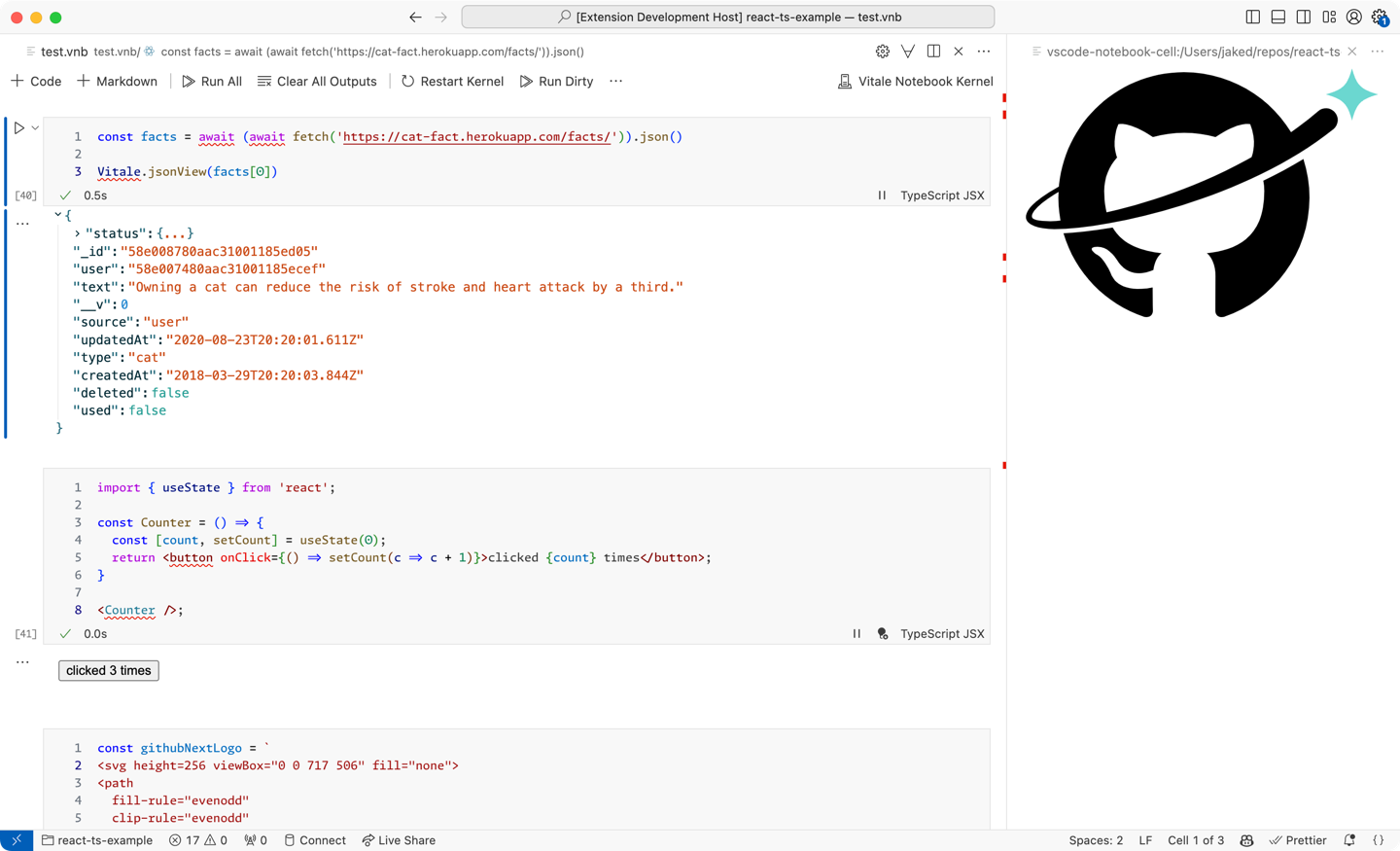
vitale is a VS Code notebook implementation for Node.js + TypeScript. It
supports
It uses vite for compilation and hot-reloading, so you can process code with
standard vite plugins.
Install the .vsix from the latest release:
vitale-vscode-[version].vsix filecode --install-extension vitale-vscode-[version].vsix (or run
Extensions: Install from VSIX... from the command palette)Install the @githubnext/vitale package in your project:
pnpm add -D @githubnext/vitale (or equivalent in npm or yarn etc.)
The details of the RPC protocol between extension and server change frequently, so you should use matching versions.
(Optional) Install the @githubnext/typescript package in your project:
pnpm add -D typescript@npm:@githubnext/typescript
This is a patched version of of TypeScript 5.4.5 which hacks in support
for the pathnames that VS Code uses for notebook cells. (With stock
TypeScript, tsserver can't find the tsconfig.json and can't find
referenced project files, so you lose typings and get a lot of spurious
squiggle. More at https://github.com/microsoft/vscode/issues/213740)
For background on the VS Code notebook UI see Jupyter Notebooks in VS Code (but ignore the stuff about Jupyter specifically).
To make a vitale notebook, create a new file with a .vnb extension.
A cell can contain a single expression, or a sequence of statements where the last statement is an expression. (Note that an object literal in statement position must be wrapped in parentheses to avoid being parsed as a block.)
The output of a cell is the value of the expression; if there's no trailing
expression or the value of the expression is undefined there's no output. If the
value of the expression is a promise, it will be awaited automatically; if the
value of the expression is an iterator or async iterator, it will be iterated
and the cell output replaced with each value as it arrives.
Ordinarily cells are executed server-side in a Node environment, but see below about client-side rendering.
Variables defined at the top level in a cell are available to other cells (once the defining cell has been executed). If you want a variable to be private to a cell (e.g. to avoid colliding with another definition), define it inside a block.
Re-executing a cell that defines variables used in other cells will cause the
dependent cells to be re-executed automatically. If you don't want this behavior
for some reason (e.g. you have a long-running cell) you can use the
 /
/
 buttons in the cell status bar to pause
and restart execution; or if you want to turn it off globally you can uncheck
the "Vitale: Rerun Cells When Dirty" setting.
buttons in the cell status bar to pause
and restart execution; or if you want to turn it off globally you can uncheck
the "Vitale: Rerun Cells When Dirty" setting.
You can import installed modules as usual, e.g.
import { Octokit } from "@octokit/core";
Imports are visible in other cells once the importing cell has been executed.
You can also import project files with a path relative to the notebook file, e.g.
import { foo } from "./bar.ts";
and changes to the imported file will cause dependent cells to re-execute as above.
Cell output is displayed below the cell. You can open the output in a separate
pane by clicking the  button in the
cell toolbar. Output in a separate pane is updated when the cell is re-executed
or when dependencies change.
button in the
cell toolbar. Output in a separate pane is updated when the cell is re-executed
or when dependencies change.
vitale inspects the output value and tries to pick an appropriate MIME type to
render it. For most Javascript objects this is application/json, which is
rendered by VS Code with syntax highlighting. For complex objects you can render
an expandable view (using
react-json-view) by returning the
application/x-json-view MIME type. HTMLElement and SVGElement objects are
rendered as text/html and image/svg+xml respectively (see below for an
example).
To set the MIME type of the output explicitly, return an object of type { data: string, mime: string } (currently there's no way to return binary data). VS
Code has several built-in renderers (see Rich
Output)
and you can install others as extensions.
There are helper functions in @githubnext/vitale to construct these
MIME-tagged outputs:
function text(data: string);
function stream(data: string); // application/x.notebook.stream
function textHtml(data: string); // text/x-html
function textJson(data: string); // text/x-json
function textMarkdown(data: string); // text/x-markdown
function markdown(data: string);
function html(html: string | { outerHTML: string });
function svg(html: string | { outerHTML: string });
function json(obj: object);
function jsonView(obj: object);
This package is auto-imported under the name Vitale in notebook cells, so you can write e.g.
Vitale.jsonView({ foo: "bar" });
but you may want to import it explicitly to get types for auto-complete.
You can construct HTMLElement and SVGElement values using jsdom or a
similar library; for example, to render an SVG from Observable
Plot:
import * as Plot from "@observablehq/plot";
import { JSDOM } from "jsdom";
const { document } = new JSDOM().window;

const xs = Array.from({ length: 20 }, (_, i) => i);
const xys = xs.map((x) => [x, Math.sin(x / Math.PI)]);

Plot.plot({
  inset: 10,
  marks: [Plot.line(xys)],
  document,
});
To render a React component, write it as the last expression in a cell, like
const Component = () => <div>Hello, world!</div>;

<Component />;
You can also import a component from another cell or from a project file, and editing an imported component will trigger a hot reload of the rendered output. (This uses Vite's hot-reloading mechanism, so it can't be paused as with server-side re-execution.)
To render a cell client-side, add "use client" at the top of the cell. A
variable __vitale_cell_output_root_id__ is defined to be the ID of a DOM
element for the cell's output.
"use client";

document.getElementById(__vitale_cell_output_root_id__).innerText =
  "Hello, world!";
It should be possible to render non-React frameworks this way but I haven't tried it.
Standard output and error streams are captured when running cells and sent to a
per-cell output channel. Press the  button
in the cell toolbar to view the channel.
button
in the cell toolbar to view the channel.
vitale inherits the environment variable setup from Vite, see Env Variables
and Modes.
Since code in cells is transformed by Vite, you need to prefix variables with
VITE_ in order for them to be visible.
You can call some of the VS Code API from cells using functions in @githubnext/vitale:
getSession(
  providerId: string,
  scopes: readonly string[],
  options: vscode.AuthenticationGetSessionOptions
): Promise<vscode.AuthenticationSession>;

showInformationMessage<string>(
  message: string,
  options: vscode.MessageOptions,
  ...items: string[]
): Promise<string | undefined>;
showWarningMessage<string>(
  message: string,
  options: vscode.MessageOptions,
  ...items: string[]
): Promise<string | undefined>;
showErrorMessage<string>(
  message: string,
  options: vscode.MessageOptions,
  ...items: string[]
): Promise<string | undefined>;
To develop Vitale:
git clone https://github.com/githubnext/vitale.gitcd vitale; pnpm installF5 to runThe server needs to be installed in whatever project you're testing with. You can install the published server as above, or to link to the development version:
cd packages/server; pnpm link --dir $YOURPROJECTThe linked development server is automatically rebuilt but not hot-reloaded; you
can get the latest changes by restarting the server (run Vitale: Restart Kernel from the command palette).
437 followers · starred Aug 2024
1,394 followers · starred Jul 2024
222 followers · starred Aug 2024
503 followers · starred Aug 2024
TypeScript notebook for developers
See the code
vitale is a VS Code notebook implementation for Node.js + TypeScript. It
supports
It uses vite for compilation and hot-reloading, so you can process code with
standard vite plugins.
Install the .vsix from the latest release:
vitale-vscode-[version].vsix filecode --install-extension vitale-vscode-[version].vsix (or run
Extensions: Install from VSIX... from the command palette)Install the @githubnext/vitale package in your project:
pnpm add -D @githubnext/vitale (or equivalent in npm or yarn etc.)
The details of the RPC protocol between extension and server change frequently, so you should use matching versions.
(Optional) Install the @githubnext/typescript package in your project:
pnpm add -D typescript@npm:@githubnext/typescript
This is a patched version of of TypeScript 5.4.5 which hacks in support
for the pathnames that VS Code uses for notebook cells. (With stock
TypeScript, tsserver can't find the tsconfig.json and can't find
referenced project files, so you lose typings and get a lot of spurious
squiggle. More at https://github.com/microsoft/vscode/issues/213740)
For background on the VS Code notebook UI see Jupyter Notebooks in VS Code (but ignore the stuff about Jupyter specifically).
To make a vitale notebook, create a new file with a .vnb extension.
A cell can contain a single expression, or a sequence of statements where the last statement is an expression. (Note that an object literal in statement position must be wrapped in parentheses to avoid being parsed as a block.)
The output of a cell is the value of the expression; if there's no trailing
expression or the value of the expression is undefined there's no output. If the
value of the expression is a promise, it will be awaited automatically; if the
value of the expression is an iterator or async iterator, it will be iterated
and the cell output replaced with each value as it arrives.
Ordinarily cells are executed server-side in a Node environment, but see below about client-side rendering.
Variables defined at the top level in a cell are available to other cells (once the defining cell has been executed). If you want a variable to be private to a cell (e.g. to avoid colliding with another definition), define it inside a block.
Re-executing a cell that defines variables used in other cells will cause the
dependent cells to be re-executed automatically. If you don't want this behavior
for some reason (e.g. you have a long-running cell) you can use the
/
buttons in the cell status bar to pause
and restart execution; or if you want to turn it off globally you can uncheck
the "Vitale: Rerun Cells When Dirty" setting.
You can import installed modules as usual, e.g.
import { Octokit } from "@octokit/core";
Imports are visible in other cells once the importing cell has been executed.
You can also import project files with a path relative to the notebook file, e.g.
import { foo } from "./bar.ts";
and changes to the imported file will cause dependent cells to re-execute as above.
Cell output is displayed below the cell. You can open the output in a separate
pane by clicking the button in the
cell toolbar. Output in a separate pane is updated when the cell is re-executed
or when dependencies change.
vitale inspects the output value and tries to pick an appropriate MIME type to
render it. For most Javascript objects this is application/json, which is
rendered by VS Code with syntax highlighting. For complex objects you can render
an expandable view (using
react-json-view) by returning the
application/x-json-view MIME type. HTMLElement and SVGElement objects are
rendered as text/html and image/svg+xml respectively (see below for an
example).
To set the MIME type of the output explicitly, return an object of type { data: string, mime: string } (currently there's no way to return binary data). VS
Code has several built-in renderers (see Rich
Output)
and you can install others as extensions.
There are helper functions in @githubnext/vitale to construct these
MIME-tagged outputs:
function text(data: string);
function stream(data: string); // application/x.notebook.stream
function textHtml(data: string); // text/x-html
function textJson(data: string); // text/x-json
function textMarkdown(data: string); // text/x-markdown
function markdown(data: string);
function html(html: string | { outerHTML: string });
function svg(html: string | { outerHTML: string });
function json(obj: object);
function jsonView(obj: object);
This package is auto-imported under the name Vitale in notebook cells, so you can write e.g.
Vitale.jsonView({ foo: "bar" });
but you may want to import it explicitly to get types for auto-complete.
You can construct HTMLElement and SVGElement values using jsdom or a
similar library; for example, to render an SVG from Observable
Plot:
import * as Plot from "@observablehq/plot";
import { JSDOM } from "jsdom";
const { document } = new JSDOM().window;

const xs = Array.from({ length: 20 }, (_, i) => i);
const xys = xs.map((x) => [x, Math.sin(x / Math.PI)]);

Plot.plot({
  inset: 10,
  marks: [Plot.line(xys)],
  document,
});
To render a React component, write it as the last expression in a cell, like
const Component = () => <div>Hello, world!</div>;

<Component />;
You can also import a component from another cell or from a project file, and editing an imported component will trigger a hot reload of the rendered output. (This uses Vite's hot-reloading mechanism, so it can't be paused as with server-side re-execution.)
To render a cell client-side, add "use client" at the top of the cell. A
variable __vitale_cell_output_root_id__ is defined to be the ID of a DOM
element for the cell's output.
"use client";

document.getElementById(__vitale_cell_output_root_id__).innerText =
  "Hello, world!";
It should be possible to render non-React frameworks this way but I haven't tried it.
Standard output and error streams are captured when running cells and sent to a
per-cell output channel. Press the button
in the cell toolbar to view the channel.
vitale inherits the environment variable setup from Vite, see Env Variables
and Modes.
Since code in cells is transformed by Vite, you need to prefix variables with
VITE_ in order for them to be visible.
You can call some of the VS Code API from cells using functions in @githubnext/vitale:
getSession(
  providerId: string,
  scopes: readonly string[],
  options: vscode.AuthenticationGetSessionOptions
): Promise<vscode.AuthenticationSession>;

showInformationMessage<string>(
  message: string,
  options: vscode.MessageOptions,
  ...items: string[]
): Promise<string | undefined>;
showWarningMessage<string>(
  message: string,
  options: vscode.MessageOptions,
  ...items: string[]
): Promise<string | undefined>;
showErrorMessage<string>(
  message: string,
  options: vscode.MessageOptions,
  ...items: string[]
): Promise<string | undefined>;
To develop Vitale:
git clone https://github.com/githubnext/vitale.gitcd vitale; pnpm installF5 to runThe server needs to be installed in whatever project you're testing with. You can install the published server as above, or to link to the development version:
cd packages/server; pnpm link --dir $YOURPROJECTThe linked development server is automatically rebuilt but not hot-reloaded; you
can get the latest changes by restarting the server (run Vitale: Restart Kernel from the command palette).
437 followers · starred Aug 2024
1,394 followers · starred Jul 2024
222 followers · starred Aug 2024
503 followers · starred Aug 2024