
A KOReader plugin that enables Bluetooth game controllers / remote controllers to control your Kindle — page turning, brightness adjustment, chapter navigation, and more.
99
stars
31
commits
Lua
primary language
Aug 18, 2026
updated
README
Kindle Bluetooth Controller for KOReader
A KOReader plugin that enables Bluetooth game controllers / remote controllers to control your Kindle — page turning, brightness adjustment, chapter navigation, and more.
Features
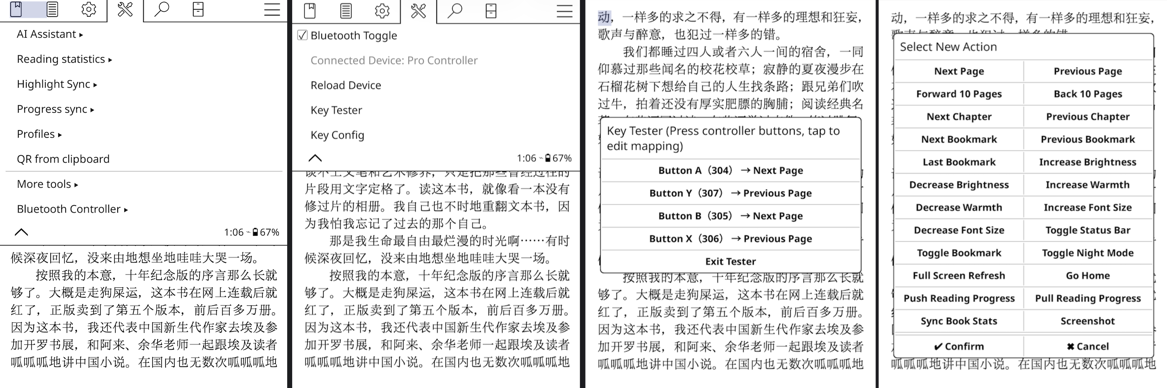
- Bluetooth Control — Toggle Bluetooth on/off directly from KOReader menu
- Fully Customizable Key Mapping — Map any controller button or joystick axis to 20+ actions
- Multi-Action Support — Bind multiple actions to a single button press
- Key Tester — Real-time detection of controller button codes with instant mapping
- Auto Reconnect — Automatically detects and reloads device within 3 seconds after Bluetooth reconnection
- Unmapped Key Alert — Shows a brief notification when an unmapped button is pressed
- Gesture Integration — All functions can be bound to KOReader gestures
- Persistent Settings — User-modified mappings are saved separately from default config
Screenshots
Supported Actions
| Action | Description |
|---|---|
next_page / prev_page | Turn page forward / backward |
fast_next_page / fast_prev_page | Skip 10 pages forward / backward |
next_chapter / prev_chapter | Jump to next / previous chapter |
next_bookmark / prev_bookmark | Navigate between bookmarks |
last_bookmark | Jump to the latest bookmark |
increase_brightness / decrease_brightness | Adjust screen brightness |
increase_warmth / decrease_warmth | Adjust warm light temperature |
increase_font_size / decrease_font_size | Change font size |
toggle_night_mode | Toggle night mode |
toggle_statusbar | Show / hide status bar |
toggle_bookmark | Add / remove bookmark |
full_refresh | Force full screen refresh (E-Ink) |
go_home | Return to home screen |
push_progress / pull_progress | Sync reading progress (KOSync) |
sync_book_stat | Sync reading statistics |
Installation
Supported Devices
This plugin has been tested and verified on the following Kindle models:
| Device | Status |
|---|---|
| Kindle 2024 | ✅ Verified |
| Kindle Paperwhite 11 (KPW5) | ✅ Verified |
| Kindle Paperwhite 12 (KPW6) | ✅ Verified |
📝 Newer Kindle models with Bluetooth support should theoretically work as well.
⚠️ Warning: Older Kindle models than those listed above, such as Kindle Oasis 1 (KO) or Kindle Paperwhite 3 (KPW3), are not supported by this pairing method and are not supported by this plugin. Do not follow the Bluetooth pairing steps below on those devices, or the device may enter a white-screen state and require recovery.
Requirements
- Software: KOReader installed on your Kindle
- Controller: Any Bluetooth HID gamepad or remote (Classic BR/EDR Bluetooth only, BLE is NOT supported)
Before You Install: Prepare Bluetooth Pairing
⚠️ Important: Kindle's native system does not support connecting non-audio Bluetooth devices. Special configuration is required to connect Bluetooth keyboards or game controllers.
⚠️ Device safety warning: Do not use the following pairing steps on unsupported older Kindle models, including KO and KPW3. These steps are only intended for the tested models above and newer compatible models. Using them on unsupported devices may cause a white screen and require manual recovery.
Before installing this plugin, you must first pair your Kindle with a Bluetooth controller. By default, the Kindle system does not allow pairing with non-audio Bluetooth devices, so the setup must be completed from the command line.
Reference: Kindle Bluetooth Pairing Guide (MobileRead)
1. Update the Bluetooth Detection Rules
# After connecting over SSH, switch the system partition to read-write mode.
mntroot rw
mkdir -p /usr/local/bin && cd /usr/local/bin
Open the file for editing:
vi /usr/local/bin/dev_is_keyboard.sh
Then paste in the following contents:
#!/bin/sh
DEVICE=$1
if evtest info $DEVICE | grep -q 'Event type 1 (Key)'; then
  if evtest info $DEVICE | grep -q 'Event code 16 (Q)'; then
    # Don't set these just because Key is supported -- that will
    # detect the touchscreen as a keyboard which breaks the UI
    echo ID_INPUT=1
    echo ID_INPUT_KEY=1
    echo ID_INPUT_KEYBOARD=1
  fi
fi
Then save the file and make it executable:
chmod +x dev_is_keyboard.sh
Open the rule file for editing:
vi /etc/udev/rules.d/99-bt-keyboard.rules
Then paste in the following contents:
KERNEL=="uhid", MODE="0660", GROUP="bluetooth"
ACTION=="add", SUBSYSTEM=="input", IMPORT+="/usr/local/bin/dev_is_keyboard.sh %N"
Then reload the udev rules:
cd /etc/udev/rules.d/
udevadm control --reload-rules && udevadm trigger
2. Pair the Bluetooth Device
Run ace_bt_cli to open the Bluetooth toolbox. Then run radiostate to check whether Bluetooth is enabled:
- If the output is
ACEBTCLI getRadioState() state:1 status:0, Bluetooth is already enabled and you can start pairing. - If the output is
ACEBTCLI getRadioState() state:0 status:0, runenablefirst.
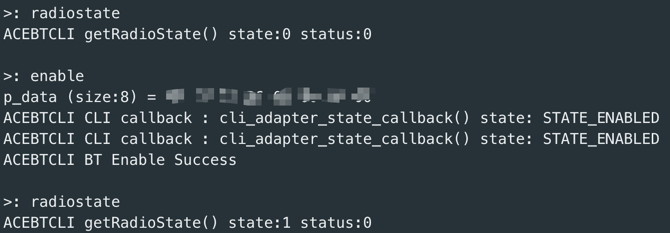
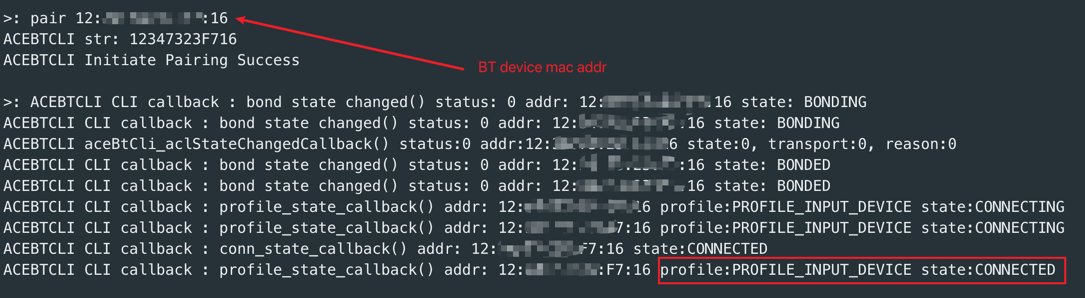
Use pair {bt_addr} to pair the device. BLE devices are not supported:
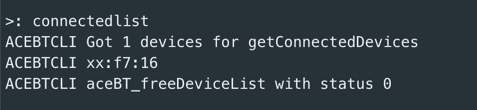
After pressing Enter, run connectedlist to confirm that the pairing entry appears in the list:
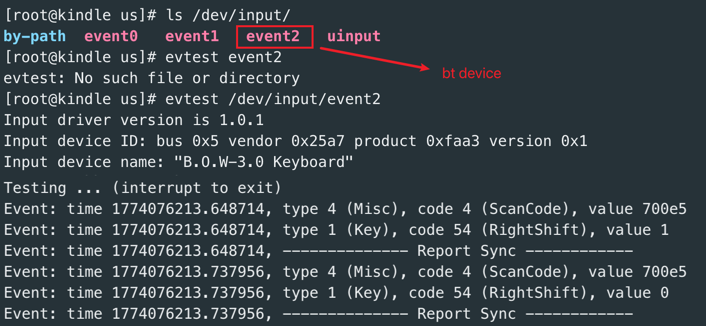
Open another terminal session and run ls /dev/input/ to locate the Bluetooth input device path. In most cases, it is the last eventX device. Then run evtest {dev_path} and press buttons on the controller to confirm that input events are reported correctly.
3. Disable Excess Logging
When a non-audio Bluetooth device disconnects, the system may generate a large number of unnecessary log files on disk. To prevent this, create the following marker files:
cd /mnt/us/ && touch DISABLE_CORE_DUMP && touch DISABLE_CORE_DUMP_ALERT
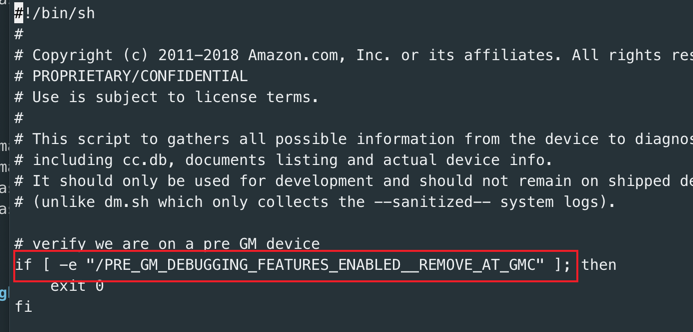
Then invert the CoreDump flag in /usr/bin/dmcc.sh by removing the ! after the first if condition:
vi /usr/bin/dmcc.sh
Install the Plugin
- Download the latest release from Releases
- Extract and copy the
kindlebtcontroller.koplugindirectory to KOReader's plugin directory:
cp -r kindlebtcontroller.koplugin /mnt/us/koreader/plugins/
- Restart KOReader
Configuration
Default Config (config.lua)
The default configuration ships with mappings for a typical Bluetooth gamepad:
return {
    device_path = "/dev/input/event2",

    key_map = {
        [304] = "next_page",    -- BTN_A
        [305] = "next_page",    -- BTN_B
        [306] = "prev_page",    -- BTN_C
        [307] = "prev_page",    -- BTN_X
        -- ... more mappings
    },

    joy_map = {
        [16] = {                -- D-Pad horizontal
            [-1] = "decrease_brightness",
            [1] = "increase_brightness",
        },
        [17] = {                -- D-Pad vertical
            [-1] = "decrease_warmth",
            [1] = "increase_warmth",
        },
    },
}
Finding Your Device Path (Advanced / Troubleshooting)
The sample default path is /dev/input/event2. In most cases, you no longer need to change this path manually; it is only useful when troubleshooting.
After your Bluetooth controller is connected, run:
ls /dev/input
You will see multiple eventX files (where X is a number). The Bluetooth controller is usually the one with the highest number — it is the most recently added input device.
⚠️ Warning: Do NOT configure the wrong event path! Other
eventXfiles belong to the touchscreen, buttons, or other system devices. Configuring the wrong path may cause unexpected behavior (e.g., intercepting touchscreen or power button events). If unsure, try disconnecting the Bluetooth controller and runningls /dev/inputagain — the event file that disappears is the one belonging to your controller.
Customizing Mappings
You have two options:
-
Via UI — Use the "Key Config" menu in KOReader to view, add, edit, or delete mappings. Changes are saved to
settings/kindlebtcontroller.luaand persist across restarts. -
Via config file — Edit
config.luadirectly for default mappings. User changes made through the UI are stored separately and override defaults.
Usage
After installation, find "Bluetooth Controller" in the KOReader menu under Tools.
Menu Options
- Bluetooth Toggle — Toggle Bluetooth on/off
- Current Device — Shows the device currently used to control Kindle
- Paired Bluetooth Devices — Shows paired devices and device details
- Reload Device — Manually reload the Bluetooth input device
- Key Tester — Enter key detection mode to identify button codes
- Key Config — View and edit all key mappings
Key Detection Mode
- Open "Key Tester" from the menu
- Press buttons on your controller — each press shows the key name, code, and current mapping
- Tap any detected key to add or edit its mapping directly
- Tap "Exit Tester" to exit
Gesture Bindings
The following actions are available in KOReader's gesture settings (under "Device"):
- Toggle Bluetooth
- Reload Bluetooth Device
- Key Tester
- Key Config
File Structure
kindlebtcontroller.koplugin/
├── _meta.lua                    # Plugin metadata
├── main.lua                     # Core plugin logic
├── config.lua                   # Default key mappings
├── bluetooth_state_manager.lua  # Bluetooth state singleton
├── gettext_btcontroller.lua     # i18n loader
├── l10n/                        # Translation files
│   └── en/
│       └── kindlebtcontroller.po
├── README.md                    # English documentation
└── README_CN.md                 # Chinese documentation
How It Works
The plugin registers an input event hook via KOReader's Device.input:registerEventAdjustHook(). When a Bluetooth controller sends EV_KEY (button) or EV_ABS (joystick) events, the hook intercepts them, looks up the configured mapping, and dispatches the corresponding KOReader action.
A background watcher polls for device reconnection every 2 seconds. When a previously disconnected device reappears, it automatically reloads the input device and shows a notification.
Troubleshooting
- Controller not detected: Make sure the Bluetooth device is connected. For troubleshooting, use
ls /dev/inputto check whether a neweventXdevice appears. - Buttons not working: Use "Key Tester" to verify button codes, then check mappings in "Key Config".
- Bluetooth won't turn on: Ensure your Kindle model supports Bluetooth. Try toggling from Kindle's native settings first.
- Debug logs: Search for
BT Pluginin KOReader'scrash.logfor detailed event logs.
Localization
The plugin's default language is Chinese. When KOReader's UI language is set to English or another translated language, the plugin interface automatically switches to that language.
Currently supported languages:
- 🇨🇳 Chinese (default)
- 🇬🇧 English
Contributions for other languages are welcome! Simply create a language folder under l10n/ (e.g., ja, ko) and add a kindlebtcontroller.po translation file.
License
MIT
Author
qiuyukang
Contributors


Similar repos


Languages
Lua
100.0%
A KOReader plugin that enables Bluetooth game controllers / remote controllers to control your Kindle — page turning, brightness adjustment, chapter navigation, and more.
99
stars
31
commits
Lua
primary language
Aug 18, 2026
updated
README
Kindle Bluetooth Controller for KOReader
A KOReader plugin that enables Bluetooth game controllers / remote controllers to control your Kindle — page turning, brightness adjustment, chapter navigation, and more.
Features
- Bluetooth Control — Toggle Bluetooth on/off directly from KOReader menu
- Fully Customizable Key Mapping — Map any controller button or joystick axis to 20+ actions
- Multi-Action Support — Bind multiple actions to a single button press
- Key Tester — Real-time detection of controller button codes with instant mapping
- Auto Reconnect — Automatically detects and reloads device within 3 seconds after Bluetooth reconnection
- Unmapped Key Alert — Shows a brief notification when an unmapped button is pressed
- Gesture Integration — All functions can be bound to KOReader gestures
- Persistent Settings — User-modified mappings are saved separately from default config
Screenshots
Supported Actions
| Action | Description |
|---|---|
next_page / prev_page | Turn page forward / backward |
fast_next_page / fast_prev_page | Skip 10 pages forward / backward |
next_chapter / prev_chapter | Jump to next / previous chapter |
next_bookmark / prev_bookmark | Navigate between bookmarks |
last_bookmark | Jump to the latest bookmark |
increase_brightness / decrease_brightness | Adjust screen brightness |
increase_warmth / decrease_warmth | Adjust warm light temperature |
increase_font_size / decrease_font_size | Change font size |
toggle_night_mode | Toggle night mode |
toggle_statusbar | Show / hide status bar |
toggle_bookmark | Add / remove bookmark |
full_refresh | Force full screen refresh (E-Ink) |
go_home | Return to home screen |
push_progress / pull_progress | Sync reading progress (KOSync) |
sync_book_stat | Sync reading statistics |
Installation
Supported Devices
This plugin has been tested and verified on the following Kindle models:
| Device | Status |
|---|---|
| Kindle 2024 | ✅ Verified |
| Kindle Paperwhite 11 (KPW5) | ✅ Verified |
| Kindle Paperwhite 12 (KPW6) | ✅ Verified |
📝 Newer Kindle models with Bluetooth support should theoretically work as well.
⚠️ Warning: Older Kindle models than those listed above, such as Kindle Oasis 1 (KO) or Kindle Paperwhite 3 (KPW3), are not supported by this pairing method and are not supported by this plugin. Do not follow the Bluetooth pairing steps below on those devices, or the device may enter a white-screen state and require recovery.
Requirements
- Software: KOReader installed on your Kindle
- Controller: Any Bluetooth HID gamepad or remote (Classic BR/EDR Bluetooth only, BLE is NOT supported)
Before You Install: Prepare Bluetooth Pairing
⚠️ Important: Kindle's native system does not support connecting non-audio Bluetooth devices. Special configuration is required to connect Bluetooth keyboards or game controllers.
⚠️ Device safety warning: Do not use the following pairing steps on unsupported older Kindle models, including KO and KPW3. These steps are only intended for the tested models above and newer compatible models. Using them on unsupported devices may cause a white screen and require manual recovery.
Before installing this plugin, you must first pair your Kindle with a Bluetooth controller. By default, the Kindle system does not allow pairing with non-audio Bluetooth devices, so the setup must be completed from the command line.
Reference: Kindle Bluetooth Pairing Guide (MobileRead)
1. Update the Bluetooth Detection Rules
# After connecting over SSH, switch the system partition to read-write mode.
mntroot rw
mkdir -p /usr/local/bin && cd /usr/local/bin
Open the file for editing:
vi /usr/local/bin/dev_is_keyboard.sh
Then paste in the following contents:
#!/bin/sh
DEVICE=$1
if evtest info $DEVICE | grep -q 'Event type 1 (Key)'; then
  if evtest info $DEVICE | grep -q 'Event code 16 (Q)'; then
    # Don't set these just because Key is supported -- that will
    # detect the touchscreen as a keyboard which breaks the UI
    echo ID_INPUT=1
    echo ID_INPUT_KEY=1
    echo ID_INPUT_KEYBOARD=1
  fi
fi
Then save the file and make it executable:
chmod +x dev_is_keyboard.sh
Open the rule file for editing:
vi /etc/udev/rules.d/99-bt-keyboard.rules
Then paste in the following contents:
KERNEL=="uhid", MODE="0660", GROUP="bluetooth"
ACTION=="add", SUBSYSTEM=="input", IMPORT+="/usr/local/bin/dev_is_keyboard.sh %N"
Then reload the udev rules:
cd /etc/udev/rules.d/
udevadm control --reload-rules && udevadm trigger
2. Pair the Bluetooth Device
Run ace_bt_cli to open the Bluetooth toolbox. Then run radiostate to check whether Bluetooth is enabled:
- If the output is
ACEBTCLI getRadioState() state:1 status:0, Bluetooth is already enabled and you can start pairing. - If the output is
ACEBTCLI getRadioState() state:0 status:0, runenablefirst.
Use pair {bt_addr} to pair the device. BLE devices are not supported:
After pressing Enter, run connectedlist to confirm that the pairing entry appears in the list:
Open another terminal session and run ls /dev/input/ to locate the Bluetooth input device path. In most cases, it is the last eventX device. Then run evtest {dev_path} and press buttons on the controller to confirm that input events are reported correctly.
3. Disable Excess Logging
When a non-audio Bluetooth device disconnects, the system may generate a large number of unnecessary log files on disk. To prevent this, create the following marker files:
cd /mnt/us/ && touch DISABLE_CORE_DUMP && touch DISABLE_CORE_DUMP_ALERT
Then invert the CoreDump flag in /usr/bin/dmcc.sh by removing the ! after the first if condition:
vi /usr/bin/dmcc.sh
Install the Plugin
- Download the latest release from Releases
- Extract and copy the
kindlebtcontroller.koplugindirectory to KOReader's plugin directory:
cp -r kindlebtcontroller.koplugin /mnt/us/koreader/plugins/
- Restart KOReader
Configuration
Default Config (config.lua)
The default configuration ships with mappings for a typical Bluetooth gamepad:
return {
    device_path = "/dev/input/event2",

    key_map = {
        [304] = "next_page",    -- BTN_A
        [305] = "next_page",    -- BTN_B
        [306] = "prev_page",    -- BTN_C
        [307] = "prev_page",    -- BTN_X
        -- ... more mappings
    },

    joy_map = {
        [16] = {                -- D-Pad horizontal
            [-1] = "decrease_brightness",
            [1] = "increase_brightness",
        },
        [17] = {                -- D-Pad vertical
            [-1] = "decrease_warmth",
            [1] = "increase_warmth",
        },
    },
}
Finding Your Device Path (Advanced / Troubleshooting)
The sample default path is /dev/input/event2. In most cases, you no longer need to change this path manually; it is only useful when troubleshooting.
After your Bluetooth controller is connected, run:
ls /dev/input
You will see multiple eventX files (where X is a number). The Bluetooth controller is usually the one with the highest number — it is the most recently added input device.
⚠️ Warning: Do NOT configure the wrong event path! Other
eventXfiles belong to the touchscreen, buttons, or other system devices. Configuring the wrong path may cause unexpected behavior (e.g., intercepting touchscreen or power button events). If unsure, try disconnecting the Bluetooth controller and runningls /dev/inputagain — the event file that disappears is the one belonging to your controller.
Customizing Mappings
You have two options:
-
Via UI — Use the "Key Config" menu in KOReader to view, add, edit, or delete mappings. Changes are saved to
settings/kindlebtcontroller.luaand persist across restarts. -
Via config file — Edit
config.luadirectly for default mappings. User changes made through the UI are stored separately and override defaults.
Usage
After installation, find "Bluetooth Controller" in the KOReader menu under Tools.
Menu Options
- Bluetooth Toggle — Toggle Bluetooth on/off
- Current Device — Shows the device currently used to control Kindle
- Paired Bluetooth Devices — Shows paired devices and device details
- Reload Device — Manually reload the Bluetooth input device
- Key Tester — Enter key detection mode to identify button codes
- Key Config — View and edit all key mappings
Key Detection Mode
- Open "Key Tester" from the menu
- Press buttons on your controller — each press shows the key name, code, and current mapping
- Tap any detected key to add or edit its mapping directly
- Tap "Exit Tester" to exit
Gesture Bindings
The following actions are available in KOReader's gesture settings (under "Device"):
- Toggle Bluetooth
- Reload Bluetooth Device
- Key Tester
- Key Config
File Structure
kindlebtcontroller.koplugin/
├── _meta.lua                    # Plugin metadata
├── main.lua                     # Core plugin logic
├── config.lua                   # Default key mappings
├── bluetooth_state_manager.lua  # Bluetooth state singleton
├── gettext_btcontroller.lua     # i18n loader
├── l10n/                        # Translation files
│   └── en/
│       └── kindlebtcontroller.po
├── README.md                    # English documentation
└── README_CN.md                 # Chinese documentation
How It Works
The plugin registers an input event hook via KOReader's Device.input:registerEventAdjustHook(). When a Bluetooth controller sends EV_KEY (button) or EV_ABS (joystick) events, the hook intercepts them, looks up the configured mapping, and dispatches the corresponding KOReader action.
A background watcher polls for device reconnection every 2 seconds. When a previously disconnected device reappears, it automatically reloads the input device and shows a notification.
Troubleshooting
- Controller not detected: Make sure the Bluetooth device is connected. For troubleshooting, use
ls /dev/inputto check whether a neweventXdevice appears. - Buttons not working: Use "Key Tester" to verify button codes, then check mappings in "Key Config".
- Bluetooth won't turn on: Ensure your Kindle model supports Bluetooth. Try toggling from Kindle's native settings first.
- Debug logs: Search for
BT Pluginin KOReader'scrash.logfor detailed event logs.
Localization
The plugin's default language is Chinese. When KOReader's UI language is set to English or another translated language, the plugin interface automatically switches to that language.
Currently supported languages:
- 🇨🇳 Chinese (default)
- 🇬🇧 English
Contributions for other languages are welcome! Simply create a language folder under l10n/ (e.g., ja, ko) and add a kindlebtcontroller.po translation file.
License
MIT
Author
qiuyukang
Similar repos
Contributors
Languages
Lua
100.0%